3Com 3CRWE50194 LAN Gateway User Manual Daffy 1 0

3Com Corporation LAN Gateway Daffy 1 0

Users Manual

http://www.3com.com/http://www.3com.com/productregHomeConnect™Home Wireless Gateway User Guide3CRWE50194Home Network Management SolutionPart No. 09-xxxx-000Published Oct 2000
3Com Corporation 5400 Bayfront Plaza Santa Clara, California 95052-8145U.S.A.Copyright © 2000, 3Com Corporation. All rights reserved. No part of this documentation may be reproduced in any form or by any means or used to make any derivative work (such as translation, transformation, or adaptation) without written permission from 3Com Corporation.3Com Corporation reserves the right to revise this documentation and to make changes in content from time to time without obligation on the part of 3Com Corporation to provide notification of such revision or change.3Com Corporation provides this documentation without warranty, term, or condition of any kind, either implied or expressed, including, but not limited to, the implied warranties, terms or conditions of merchantability, satisfactory quality, and fitness for a particular purpose. 3Com may make improvements or changes in the product(s) and/or the program(s) described in this documentation at any time.If there is any software on removable media described in this documentation, it is furnished under a license agreement included with the product as a separate document, in the hard copy documentation, or on the removable media in a directory file named LICENSE.TXT or !LICENSE.TXT. If you are unable to locate a copy, please contact 3Com and a copy will be provided to you.UNITED STATES GOVERNMENT LEGENDIf you are a United States government agency, then this documentation and the software described herein are provided to you subject to the following: All technical data and computer software are commercial in nature and developed solely at private expense. Software is delivered as “Commercial Computer Software” as defined in DFARS 252.227-7014 (June 1995) or as a “commercial item” as defined in FAR 2.101(a) and as such is provided with only such rights as are provided in 3Com’s standard commercial license for the Software. Technical data is provided with limited rights only as provided in DFAR 252.227-7015 (Nov 1995) or FAR 52.227-14 (June 1987), whichever is applicable. You agree not to remove or deface any portion of any legend provided on any licensed program or documentation contained in, or delivered to you in conjunction with, this User Guide.3Com and the 3Com logo, and HomeConnect are registered trademarks and HomeConnect is a trademark of 3Com Corporation.Windows is a registered trademarks of Microsoft Corporation. Macintosh and Mac OS are registered trademarks of Apple Computer, Inc. All other company and product names may be trademarks of the respective companies with which they are associated.
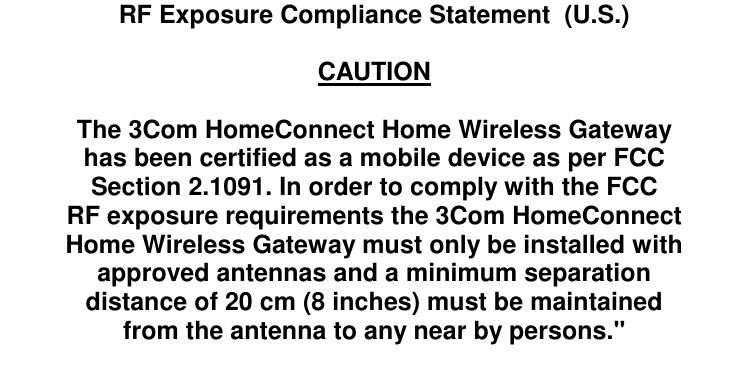
  RF Exposure Compliance Statement  (U.S.)  CAUTION  The 3Com HomeConnect Home Wireless Gateway has been certified as a mobile device as per FCC Section 2.1091. In order to comply with the FCC RF exposure requirements the 3Com HomeConnect Home Wireless Gateway must only be installed with approved antennas and a minimum separation distance of 20 cm (8 inches) must be maintained from the antenna to any near by persons."
CONTENTS1WELCOME TO HOME WIRELESSHomeConnect™ Wireless Gateway 1Wireless Gateway Advantages 3Firewall Technology 3Kit Contents 3Installation Sheet 4Minimum System Requirements 4Using This Guide 52HOME WIRELESS GATEWAYFront Panel 7Power 8WAN 8Wireless LAN 8Ethernet LAN 8Rear Panel 8Power Adapter Socket 8Reset 9Cable/DSL 9Ethernet 93BASIC INSTALLATIONConnecting the Wireless Gateway to the Internet 11External Cable and DSL Modem Connections 11Connecting the Wireless Gateway to Your Network 12Home Networking and Wireless Networking Basics 12Setting up Ethernet Networking 13Powering Up 14System Settings for Your Computer(s) 14Wireless Network Settings 14Windows 15
Macintosh 15Wired (Ethernet) Network Settings 15Windows 16Macintosh 164RUNNING THE SETUP PROGRAMSetup Program 17Accessing the Setup Program 17Navigating Through the Setup Program 18Menu Tab 18Gateway Setup Wizard 18Setting Up Your Home Wireless Gateway 195ACCESSING THE INTERNETInternet Connection Settings 21External Cable and DSL Modem 216ADDITIONAL FEATURESStatus 25Client Privileges 26To o l s 2 8System Test 28Security Log 28Reset Home Wireless Gateway 28Restore Factory Settings 28Update Firmware 287TROUBLESHOOTINGHome Wireless Gateway 31Modem 31Cable or DSL 31Ethernet Networks 323Com KnowledgeBase 32A
TECHNICAL SUPPORTOnline Technical Services 33World Wide Web Site 333Com FTP Site 333Com Bulletin Board Service 34Access by Analog Modem 34Access by Digital Modem 34Support from Your Network Supplier 34Support from 3Com 35Returning Products for Repair 36GLOSSARYINDEXWARRANTY AND REGULATORY COMPLIANCE3Com Corporation Limited Warranty 45Regulatory Compliance Information 483Com End User Software License Agreement 50
LIST OF FIGURES1Home Network Without a Wireless Gateway 22Home Network Using a Wireless Gateway 23HomeConnecttm Wireless Gateway Package Contents 44Home Wireless Gateway 75Home Wireless Gateway - Front Panel 76Home Network Gateway - Rear Panel 87Cable or DSL Modem Connected to the Gateway 128Connecting the Gateway to an Ethernet Network 149Web Browser Location Field 1710 Home Network Gateway Main Page 1811 Setup Page 2212 Cable/DSL Setup | Standard Page 2313 Status Page 2514 Client Computer Setup | Client Privileges Page 26
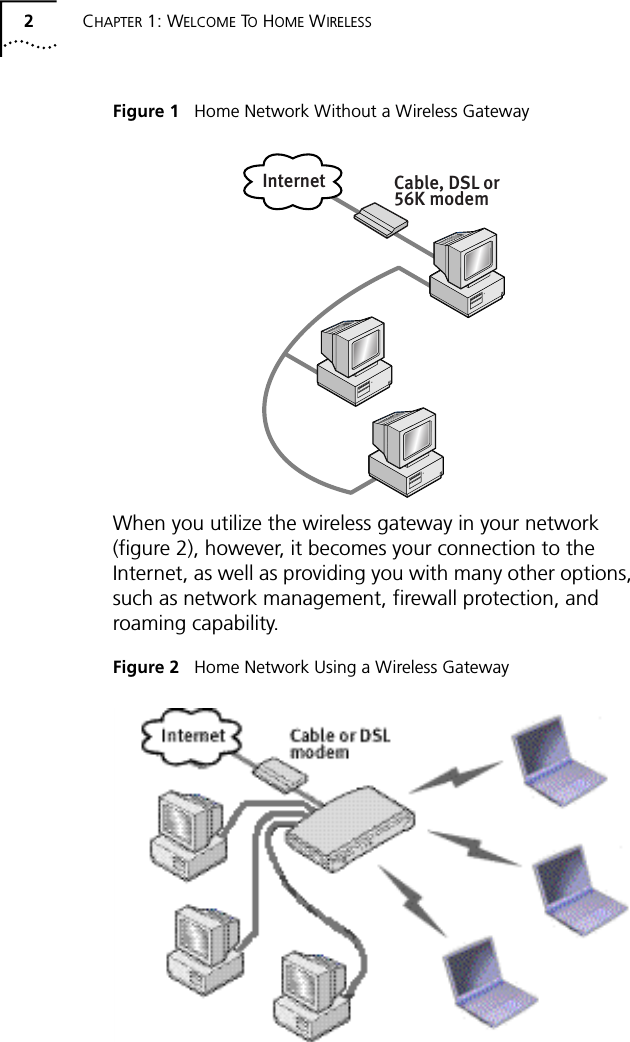
1WELCOME TO HOME WIRELESSIn today’s fast-paced world, communication and sharing information are crucial. Computer networks are among the fastest ways to share information, and wireless computer networks are rapidly becoming the most convenient way of connecting computers. 3Com has brought this exciting technology into the home with the HomeConnect™ Wireless Gateway.The products that compose the HomeConnect™ line give you, the home user, the same power, flexibility, and protection that has been available only to large corporations. Now, you can network the computers in your home, connect them all to a single Internet outlet, and harness the combined power of all of your computers using both wired and wireless connections.HomeConnect™ Wireless GatewayThe HomeConnect Wireless Gateway is designed to provide effective and transparent management of both your home computer network, as well as your connection to the Internet with the convenience of a wireless connection. The gateway also provides protection in the form of an electronic “firewall,” preventing anyone outside of your network from seeing your files or damaging your computers.As you can see in Figure 1, one computer is connected to the Internet. This computer must always be powered on for the other computers on the network to access the Internet.
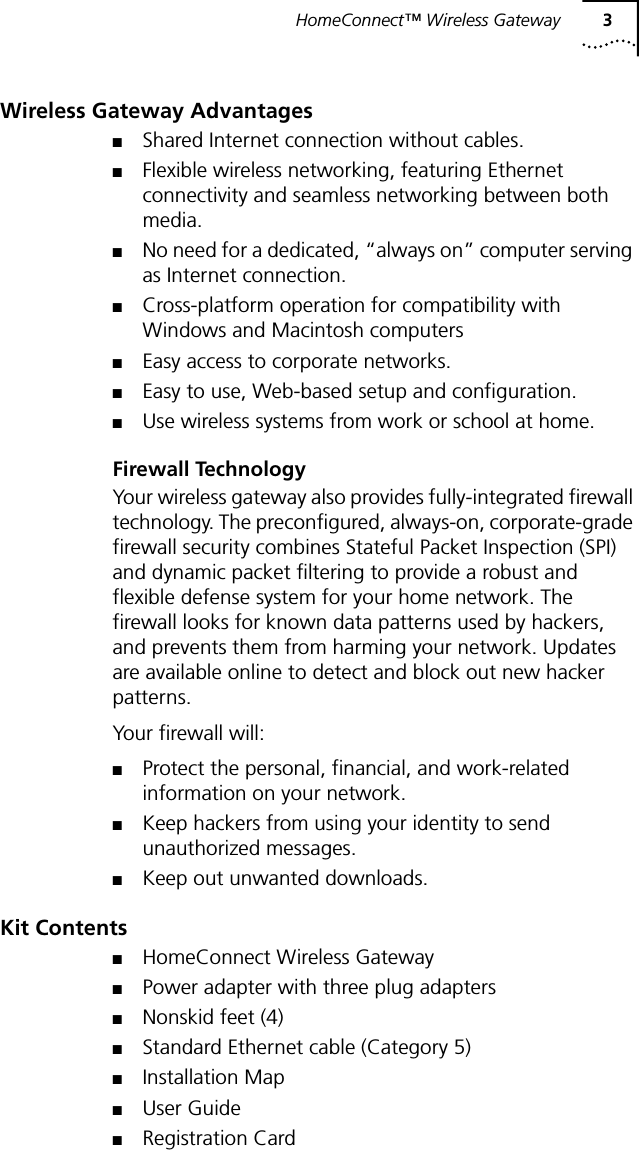
2CHAPTER 1: WELCOME TO HOME WIRELESSFigure 1   Home Network Without a Wireless GatewayWhen you utilize the wireless gateway in your network (figure 2), however, it becomes your connection to the Internet, as well as providing you with many other options, such as network management, firewall protection, and roaming capability.Figure 2   Home Network Using a Wireless GatewayCable, DSL or56K modemInternet
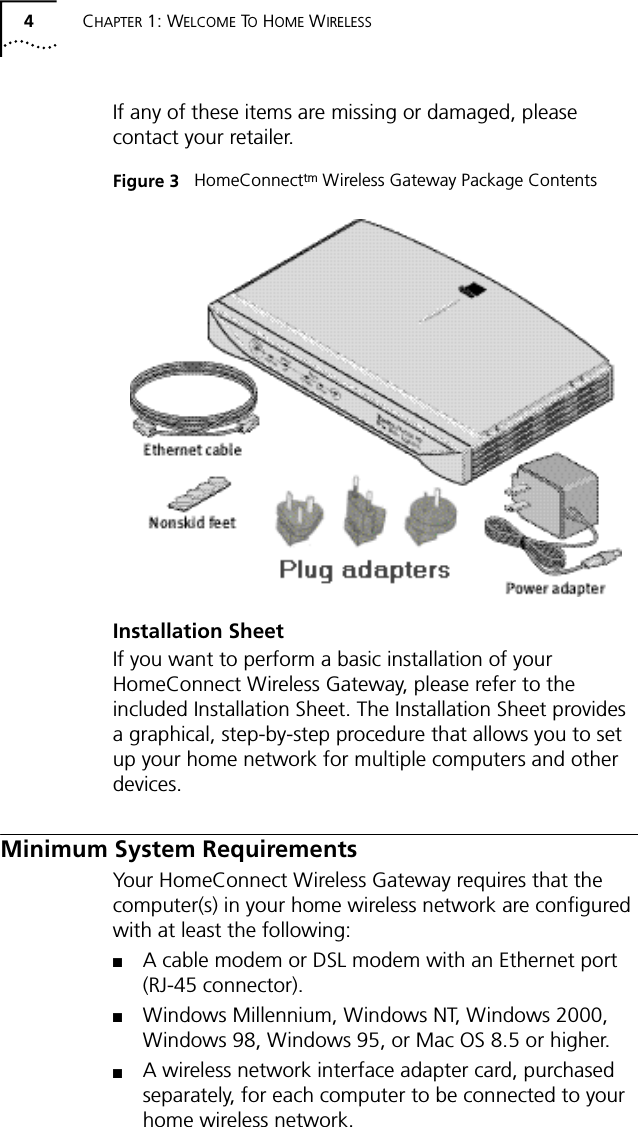
HomeConnect™ Wireless Gateway 3Wireless Gateway Advantages■Shared Internet connection without cables.■Flexible wireless networking, featuring Ethernet connectivity and seamless networking between both media.■No need for a dedicated, “always on” computer serving as Internet connection.■Cross-platform operation for compatibility with Windows and Macintosh computers■Easy access to corporate networks.■Easy to use, Web-based setup and configuration.■Use wireless systems from work or school at home.Firewall TechnologyYour wireless gateway also provides fully-integrated firewall technology. The preconfigured, always-on, corporate-grade firewall security combines Stateful Packet Inspection (SPI) and dynamic packet filtering to provide a robust and flexible defense system for your home network. The firewall looks for known data patterns used by hackers, and prevents them from harming your network. Updates are available online to detect and block out new hacker patterns.Your firewall will:■Protect the personal, financial, and work-related information on your network.■Keep hackers from using your identity to send unauthorized messages.■Keep out unwanted downloads.Kit Contents■HomeConnect Wireless Gateway■Power adapter with three plug adapters■Nonskid feet (4)■Standard Ethernet cable (Category 5)■Installation Map■User Guide■Registration Card
4CHAPTER 1: WELCOME TO HOME WIRELESSIf any of these items are missing or damaged, please contact your retailer.Figure 3   HomeConnecttm Wireless Gateway Package ContentsInstallation SheetIf you want to perform a basic installation of your HomeConnect Wireless Gateway, please refer to the included Installation Sheet. The Installation Sheet provides a graphical, step-by-step procedure that allows you to set up your home network for multiple computers and other devices.Minimum System RequirementsYour HomeConnect Wireless Gateway requires that the computer(s) in your home wireless network are configured with at least the following:■A cable modem or DSL modem with an Ethernet port (RJ-45 connector).■Windows Millennium, Windows NT, Windows 2000, Windows 98, Windows 95, or Mac OS 8.5 or higher.■A wireless network interface adapter card, purchased separately, for each computer to be connected to your home wireless network.
Using This Guide 5■An Ethernet 10Mbps or 10/100 network interface adapter card, purchased separately, for each computer to be connected to the three-port switch on your home wireless gateway.■Active Internet access account.■Web browser program, such as Netscape or Internet Explorer (4.0 or higher).Using This GuideThe rest of the User Guide contains detailed information about your gateway and how to connect it to your home network and Internet. ■Chapter 2 familiarizes you with the front and rear panels of the gateway, including information concerning LEDs and ports.■Chapter 3 explains the physical connections between the gateway and the Internet, the wireless connection between the gateway and your computer(s), as well as how to configure the computers on your network.■Chapter 4 contains a basic overview of the setup program.■Chapter 5 details the steps involved in accessing the Internet with your gateway, whether you are using an external cable or DSL modem.■Chapter 6 details the additional features of your gateway, such as setting up client privileges and performing software updates.■Chapter 7 provides troubleshooting tips.■Appendix A provides information on how to contact 3Com for technical support.■The Glossary, which provides definitions for key terms concerning the installation and operation of the gateway.
6CHAPTER 1: WELCOME TO HOME WIRELESS
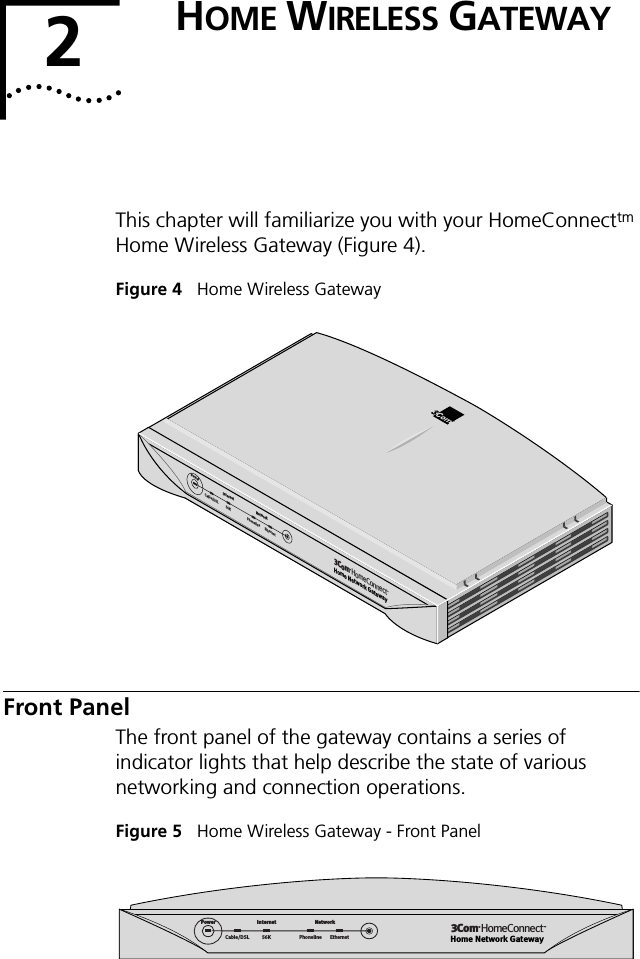
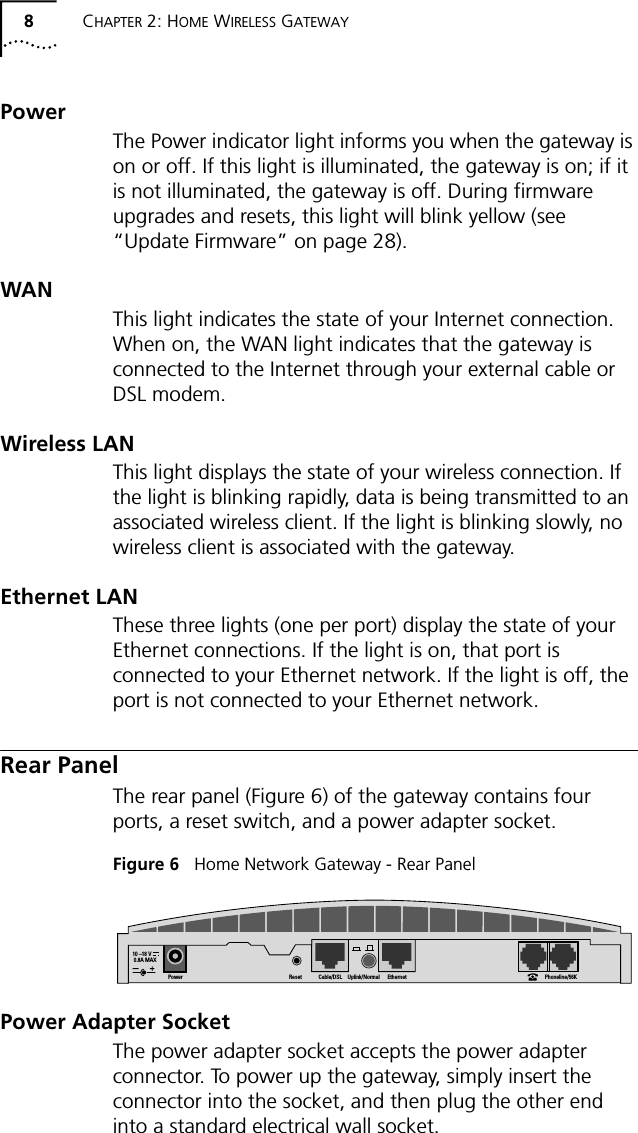
2HOME WIRELESS GATEWAYThis chapter will familiarize you with your HomeConnecttm Home Wireless Gateway (Figure 4).Figure 4   Home Wireless GatewayFront PanelThe front panel of the gateway contains a series of indicator lights that help describe the state of various networking and connection operations.Figure 5   Home Wireless Gateway - Front PanelInternetNetworkPower56KCable/DSLPhonelineEthernetHome Network Gateway3Com®HomeConnect™Internet NetworkPower56KCable/DSL Phoneline EthernetHome Network Gateway3Com®HomeConnect™
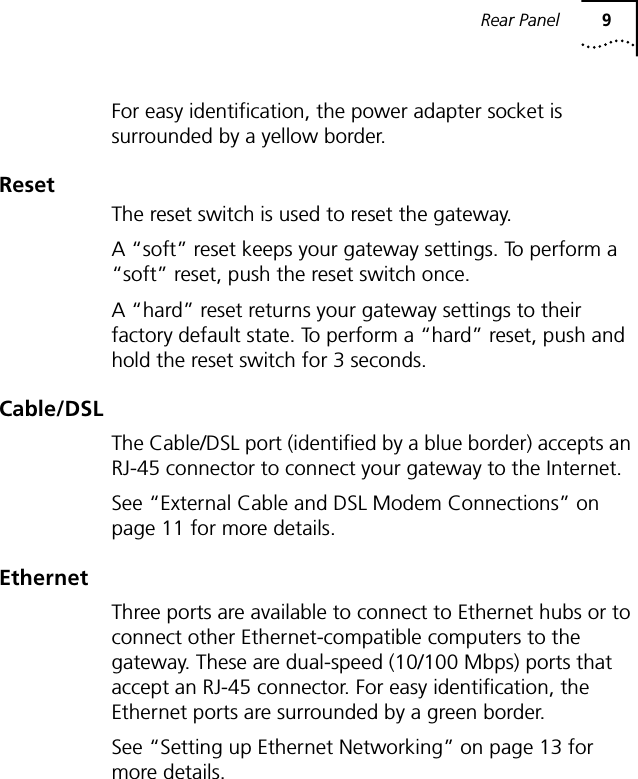
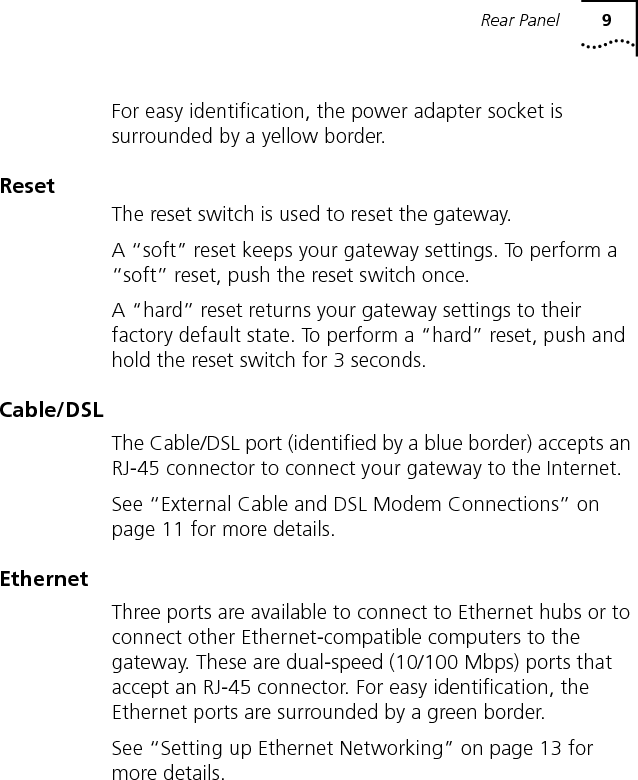
8CHAPTER 2: HOME WIRELESS GATEWAYPowerThe Power indicator light informs you when the gateway is on or off. If this light is illuminated, the gateway is on; if it is not illuminated, the gateway is off. During firmware upgrades and resets, this light will blink yellow (see “Update Firmware” on page 28).WAN This light indicates the state of your Internet connection. When on, the WAN light indicates that the gateway is connected to the Internet through your external cable or DSL modem.Wireless LANThis light displays the state of your wireless connection. If the light is blinking rapidly, data is being transmitted to an associated wireless client. If the light is blinking slowly, no wireless client is associated with the gateway.Ethernet LANThese three lights (one per port) display the state of your Ethernet connections. If the light is on, that port is connected to your Ethernet network. If the light is off, the port is not connected to your Ethernet network.Rear PanelThe rear panel (Figure 6) of the gateway contains four ports, a reset switch, and a power adapter socket.Figure 6   Home Network Gateway - Rear PanelPower Adapter SocketThe power adapter socket accepts the power adapter connector. To power up the gateway, simply insert the connector into the socket, and then plug the other end into a standard electrical wall socket. 10 –18 V     0.8A MAXPower Reset Cable/DSL Uplink/Normal Ethernet Phoneline/56K
Rear Panel 9For easy identification, the power adapter socket is surrounded by a yellow border.ResetThe reset switch is used to reset the gateway.A “soft” reset keeps your gateway settings. To perform a “soft” reset, push the reset switch once.A “hard” reset returns your gateway settings to their factory default state. To perform a “hard” reset, push and hold the reset switch for 3 seconds.Cable/DSLThe Cable/DSL port (identified by a blue border) accepts an RJ-45 connector to connect your gateway to the Internet.See “External Cable and DSL Modem Connections” on page 11 for more details.EthernetThree ports are available to connect to Ethernet hubs or to connect other Ethernet-compatible computers to the gateway. These are dual-speed (10/100 Mbps) ports that accept an RJ-45 connector. For easy identification, the Ethernet ports are surrounded by a green border.See “Setting up Ethernet Networking” on page 13 for more details.
10 CHAPTER 2: HOME WIRELESS GATEWAY
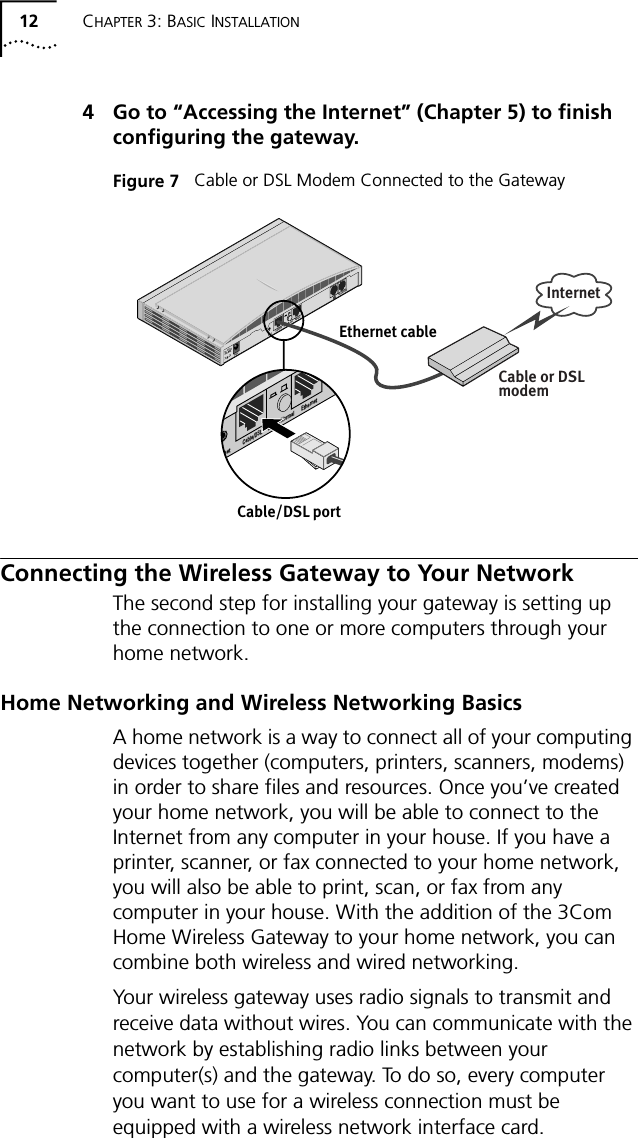
3BASIC INSTALLATIONThis chapter will guide you through a basic installation of the HomeConnect Wireless Gateway, including ■Connecting the Wireless Gateway to the Internet.■Connecting the Wireless Gateway to your network.■Setting up your computers for wireless and/or wired (Ethernet) networking with the gateway.Note that you can use your wireless gateway for either wireless networking or Ethernet networking, or both. You can also set up your home wireless gateway for home networking only; connecting to the Internet is optional.Connecting the Wireless Gateway to the InternetThe first step of installing your gateway is to physically connect it to a cable or DSL modem in order to be able to access the Internet.External Cable and DSL Modem ConnectionsTo use your gateway to connect an external cable or DSL modem to the Internet (Figure 9):1 Insert one end of an Ethernet (RJ-45 Category 5) cable in the Cable/DSL port on the rear panel of the gateway (see “Cable/DSL” on page 9).2 Insert the other end to the RJ-45 port on your cable or DSL modemThis port would normally be connected to an Ethernet port on your modem. Refer to the documentation that came with your modem for more details.3 Connect the cable or DSL modem to the Internet.This step might involve connecting to a phone jack or to a cable box. See the documentation that came with your modem for more details.
12 CHAPTER 3: BASIC INSTALLATION4 Go to “Accessing the Internet” (Chapter 5) to finish configuring the gateway.Figure 7   Cable or DSL Modem Connected to the GatewayConnecting the Wireless Gateway to Your NetworkThe second step for installing your gateway is setting up the connection to one or more computers through your home network.Home Networking and Wireless Networking BasicsA home network is a way to connect all of your computing devices together (computers, printers, scanners, modems) in order to share files and resources. Once you’ve created your home network, you will be able to connect to the Internet from any computer in your house. If you have a printer, scanner, or fax connected to your home network, you will also be able to print, scan, or fax from any computer in your house. With the addition of the 3Com Home Wireless Gateway to your home network, you can combine both wireless and wired networking.Your wireless gateway uses radio signals to transmit and receive data without wires. You can communicate with the network by establishing radio links between your computer(s) and the gateway. To do so, every computer you want to use for a wireless connection must be equipped with a wireless network interface card.Internet10 –18 V     0.8A MAXPowerResetCable/DSL Uplink/Normal EthernetPhoneline/56KCable/DSL portEthernet cableCable or DSLmodemReset Cable/DSL Uplink/Normal Ethernet
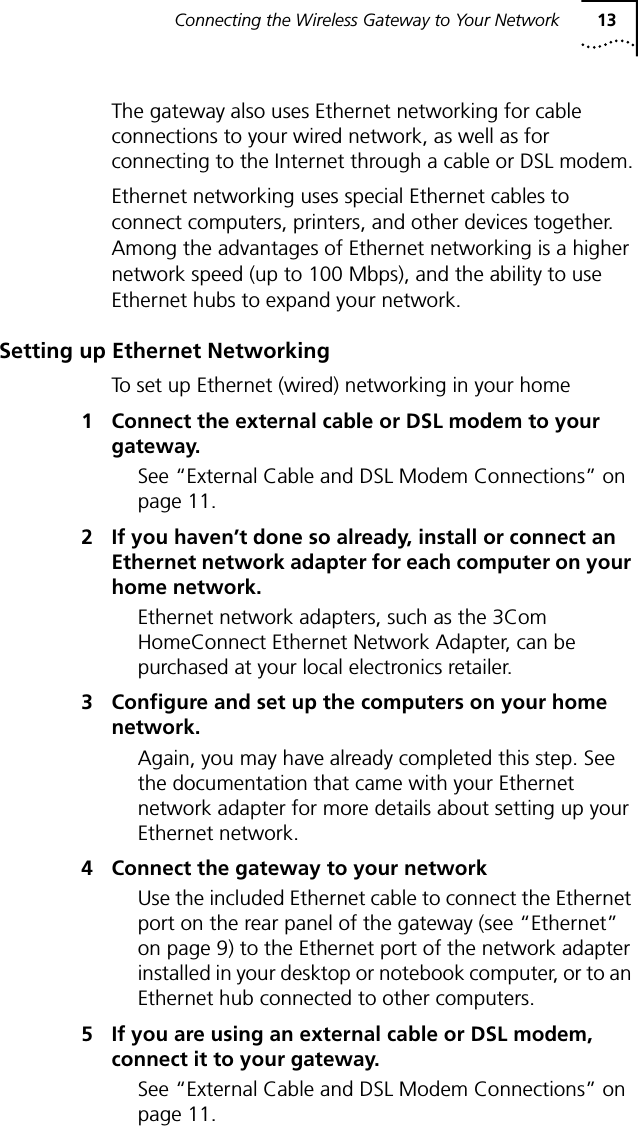
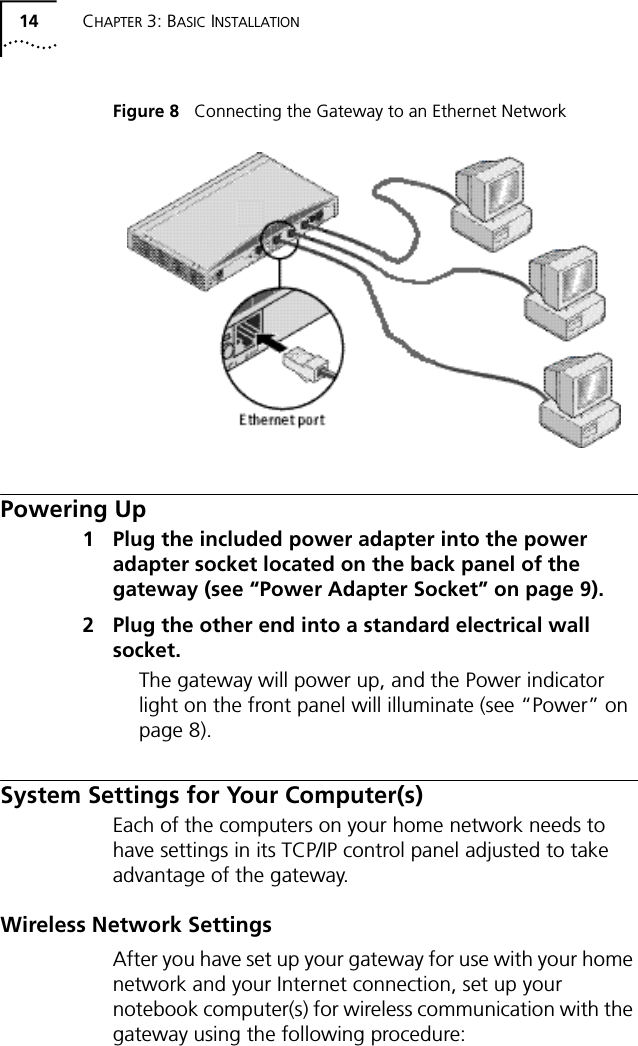
Connecting the Wireless Gateway to Your Network 13The gateway also uses Ethernet networking for cable connections to your wired network, as well as for connecting to the Internet through a cable or DSL modem.Ethernet networking uses special Ethernet cables to connect computers, printers, and other devices together. Among the advantages of Ethernet networking is a higher network speed (up to 100 Mbps), and the ability to use Ethernet hubs to expand your network.Setting up Ethernet NetworkingTo set up Ethernet (wired) networking in your home1 Connect the external cable or DSL modem to your gateway.See “External Cable and DSL Modem Connections” on page 11.2 If you haven’t done so already, install or connect an Ethernet network adapter for each computer on your home network.Ethernet network adapters, such as the 3Com HomeConnect Ethernet Network Adapter, can be purchased at your local electronics retailer. 3 Configure and set up the computers on your home network.Again, you may have already completed this step. See the documentation that came with your Ethernet network adapter for more details about setting up your Ethernet network.4 Connect the gateway to your networkUse the included Ethernet cable to connect the Ethernet port on the rear panel of the gateway (see “Ethernet” on page 9) to the Ethernet port of the network adapter installed in your desktop or notebook computer, or to an Ethernet hub connected to other computers.5 If you are using an external cable or DSL modem, connect it to your gateway.See “External Cable and DSL Modem Connections” on page 11.
14 CHAPTER 3: BASIC INSTALLATIONFigure 8   Connecting the Gateway to an Ethernet NetworkPowering Up1 Plug the included power adapter into the power adapter socket located on the back panel of the gateway (see “Power Adapter Socket” on page 9).2 Plug the other end into a standard electrical wall socket.The gateway will power up, and the Power indicator light on the front panel will illuminate (see “Power” on page 8).System Settings for Your Computer(s)Each of the computers on your home network needs to have settings in its TCP/IP control panel adjusted to take advantage of the gateway. Wireless Network SettingsAfter you have set up your gateway for use with your home network and your Internet connection, set up your notebook computer(s) for wireless communication with the gateway using the following procedure:
System Settings for Your Computer(s) 15WindowsIf you are using a Windows-based notebook computer, use the following procedure to change your TCP/IP settings:1 From the desktop, click Start, and select Settings, Control Panel, and Network.2 From the Network control panel, select TCP/IP.3 From the TCP/IP dialog box, select IP Address.4 Select “Obtain an IP address automatically.”5 Click OK, and OK again.6 Restart your computer.MacintoshIf you are using a Macintosh computer, use the following procedure to change your TCP/IP settings:1 From the desktop, select Apple Menu, Control Panels, and TCP/IP.2 In the TCP/IP control panel, set Connect Via: to “Ethernet.”The Connect Via: drop-down list is generated by clicking the up or down arrows. From the list, select “Ethernet.” 3 In the TCP/IP control panel, set Configure: to “Using DHCP Server.”The Configure: drop-down list operates in the same way as the Connect Via: list.4 Close the TCP/IP dialog box, and save your changes.5 Restart your computer.Wired (Ethernet) Network SettingsUse the following procedure to set up your wired network computer(s) to communicate with your gateway by Ethernet cable:
16 CHAPTER 3: BASIC INSTALLATIONWindowsIf you are using a Windows-based computer, use the following procedure to change your TCP/IP settings:1 From the desktop, click Start, and select Settings, Control Panel, and Network.2 From the Network control panel, select TCP/IP.3 From the TCP/IP dialog box, select IP Address.4 Select “Obtain an IP address automatically.”5 Click OK, and OK again.6 Restart your computer.MacintoshIf you are using a Macintosh computer, use the following procedure to change your TCP/IP settings:1 From the desktop, select Apple Menu, Control Panels, and TCP/IP.2 In the TCP/IP control panel, set Connect Via: to “Ethernet.”The Connect Via: drop-down list is generated by clicking the up or down arrows. From the list, select “Ethernet.” 3 In the TCP/IP control panel, set Configure: to “Using DHCP Server.”The Configure: drop-down list operates in the same way as the Connect Via: list.4 Close the TCP/IP dialog box, and save your changes.5 Restart your computer.
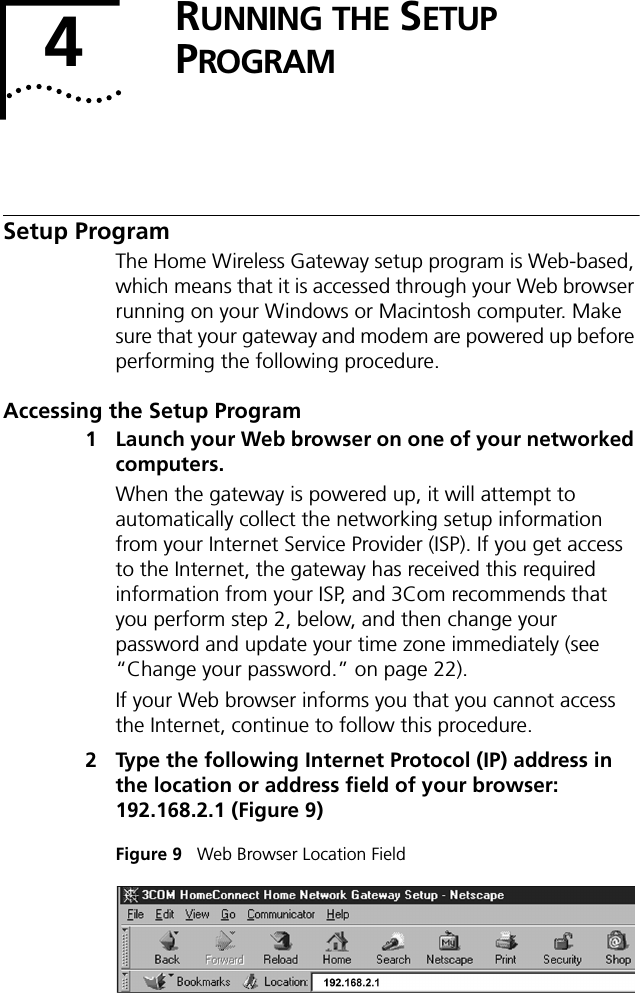
4RUNNING THE SETUP PROGRAMSetup ProgramThe Home Wireless Gateway setup program is Web-based, which means that it is accessed through your Web browser running on your Windows or Macintosh computer. Make sure that your gateway and modem are powered up before performing the following procedure.Accessing the Setup Program1 Launch your Web browser on one of your networked computers.When the gateway is powered up, it will attempt to automatically collect the networking setup information from your Internet Service Provider (ISP). If you get access to the Internet, the gateway has received this required information from your ISP, and 3Com recommends that you perform step 2, below, and then change your password and update your time zone immediately (see “Change your password.” on page 22).If your Web browser informs you that you cannot access the Internet, continue to follow this procedure.2 Type the following Internet Protocol (IP) address in the location or address field of your browser: 192.168.2.1 (Figure 9)Figure 9   Web Browser Location Field
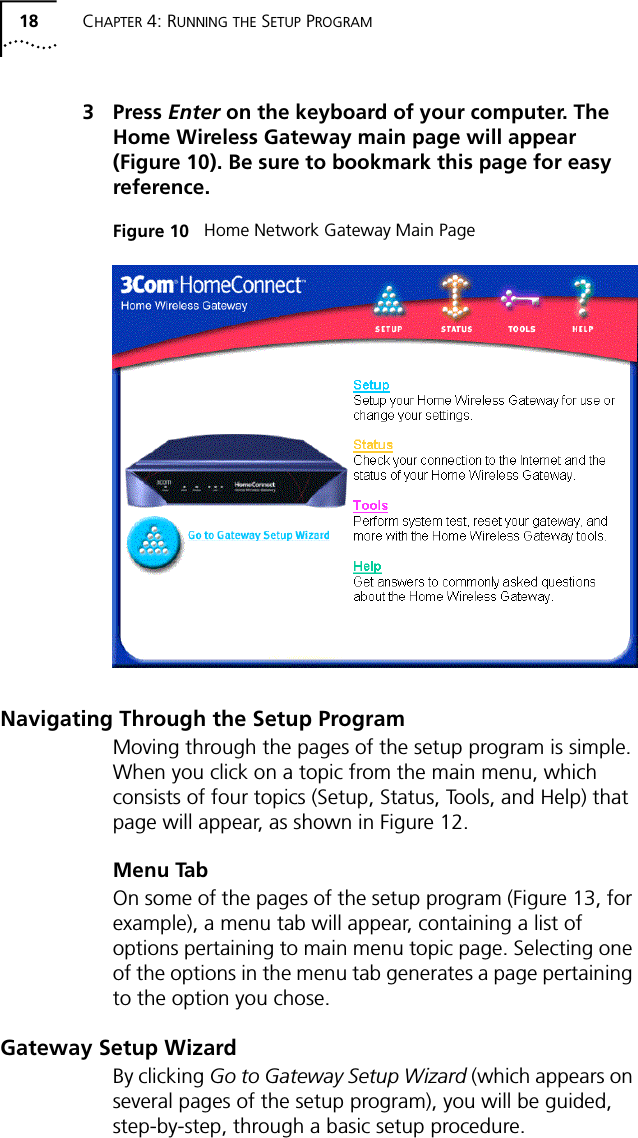
18 CHAPTER 4: RUNNING THE SETUP PROGRAM3 Press Enter on the keyboard of your computer. The Home Wireless Gateway main page will appear (Figure 10). Be sure to bookmark this page for easy reference.Figure 10   Home Network Gateway Main PageNavigating Through the Setup ProgramMoving through the pages of the setup program is simple. When you click on a topic from the main menu, which consists of four topics (Setup, Status, Tools, and Help) that page will appear, as shown in Figure 12.Menu TabOn some of the pages of the setup program (Figure 13, for example), a menu tab will appear, containing a list of options pertaining to main menu topic page. Selecting one of the options in the menu tab generates a page pertaining to the option you chose.Gateway Setup WizardBy clicking Go to Gateway Setup Wizard (which appears on several pages of the setup program), you will be guided, step-by-step, through a basic setup procedure.
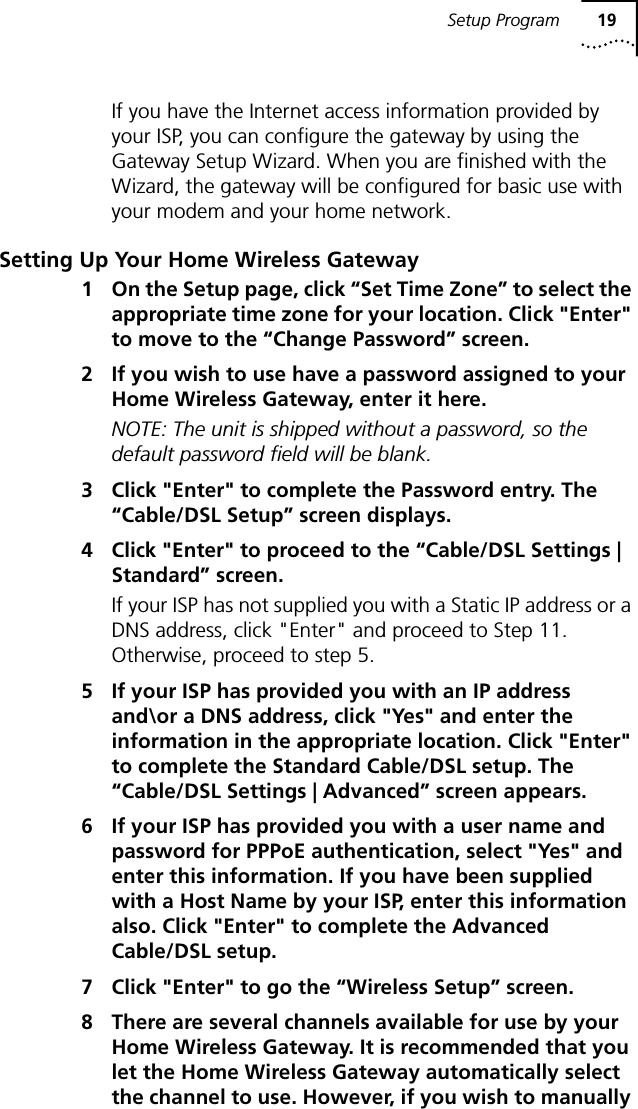
Setup Program 19If you have the Internet access information provided by your ISP, you can configure the gateway by using the Gateway Setup Wizard. When you are finished with the Wizard, the gateway will be configured for basic use with your modem and your home network.Setting Up Your Home Wireless Gateway1 On the Setup page, click “Set Time Zone” to select the appropriate time zone for your location. Click "Enter" to move to the “Change Password” screen.2 If you wish to use have a password assigned to your Home Wireless Gateway, enter it here. NOTE: The unit is shipped without a password, so the default password field will be blank.3 Click "Enter" to complete the Password entry. The “Cable/DSL Setup” screen displays.4 Click "Enter" to proceed to the “Cable/DSL Settings | Standard” screen.If your ISP has not supplied you with a Static IP address or a DNS address, click "Enter" and proceed to Step 11. Otherwise, proceed to step 5.5 If your ISP has provided you with an IP address and\or a DNS address, click "Yes" and enter the information in the appropriate location. Click "Enter" to complete the Standard Cable/DSL setup. The “Cable/DSL Settings | Advanced” screen appears.6 If your ISP has provided you with a user name and password for PPPoE authentication, select "Yes" and enter this information. If you have been supplied with a Host Name by your ISP, enter this information also. Click "Enter" to complete the Advanced Cable/DSL setup.7 Click "Enter" to go the “Wireless Setup” screen.8 There are several channels available for use by your Home Wireless Gateway. It is recommended that you let the Home Wireless Gateway automatically select the channel to use. However, if you wish to manually
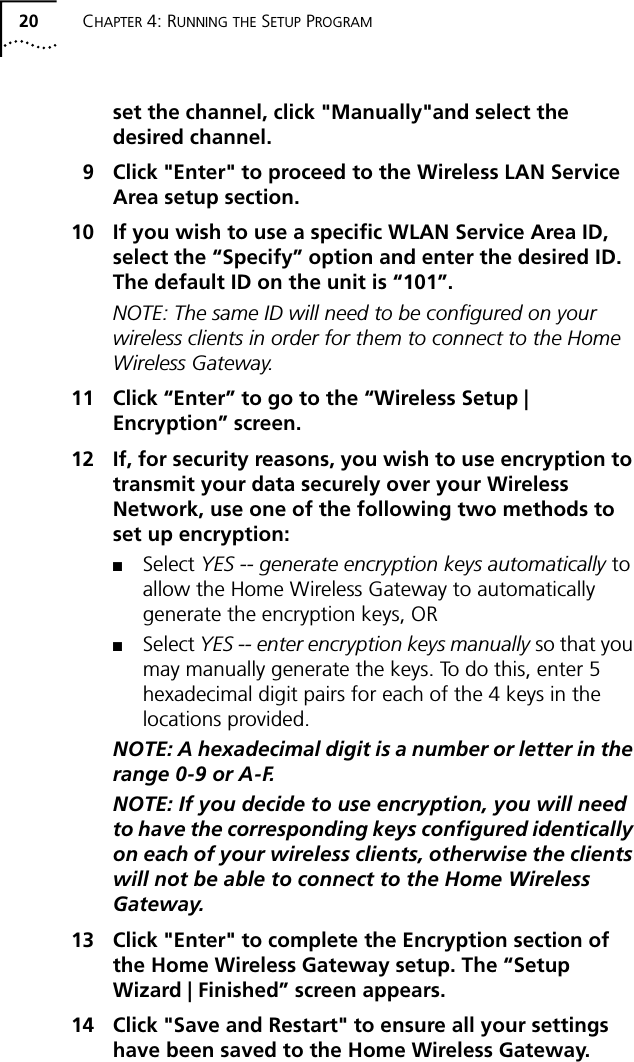
20 CHAPTER 4: RUNNING THE SETUP PROGRAMset the channel, click "Manually"and select the desired channel.9 Click "Enter" to proceed to the Wireless LAN Service Area setup section.10 If you wish to use a specific WLAN Service Area ID, select the “Specify” option and enter the desired ID. The default ID on the unit is “101”.NOTE: The same ID will need to be configured on your wireless clients in order for them to connect to the Home Wireless Gateway.11 Click “Enter” to go to the “Wireless Setup | Encryption” screen.12 If, for security reasons, you wish to use encryption to transmit your data securely over your Wireless Network, use one of the following two methods to set up encryption:■Select YES -- generate encryption keys automatically to allow the Home Wireless Gateway to automatically generate the encryption keys, OR■Select YES -- enter encryption keys manually so that you may manually generate the keys. To do this, enter 5 hexadecimal digit pairs for each of the 4 keys in the locations provided.NOTE: A hexadecimal digit is a number or letter in the range 0-9 or A-F.NOTE: If you decide to use encryption, you will need to have the corresponding keys configured identically on each of your wireless clients, otherwise the clients will not be able to connect to the Home Wireless Gateway.13 Click "Enter" to complete the Encryption section of the Home Wireless Gateway setup. The “Setup Wizard | Finished” screen appears.14 Click "Save and Restart" to ensure all your settings have been saved to the Home Wireless Gateway.
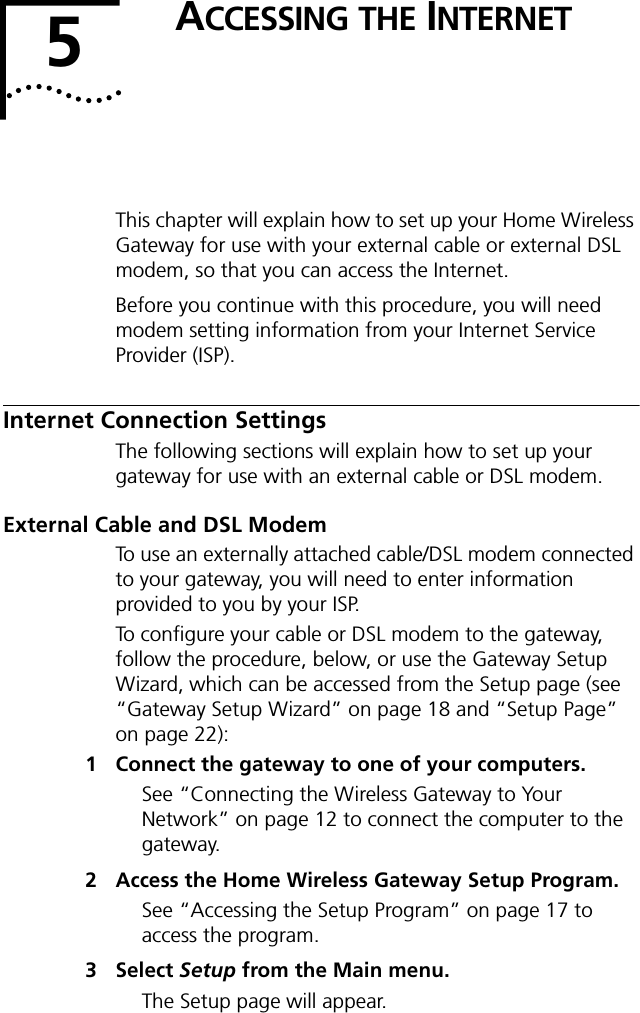
5ACCESSING THE INTERNETThis chapter will explain how to set up your Home Wireless Gateway for use with your external cable or external DSL modem, so that you can access the Internet.Before you continue with this procedure, you will need modem setting information from your Internet Service Provider (ISP).Internet Connection SettingsThe following sections will explain how to set up your gateway for use with an external cable or DSL modem.External Cable and DSL ModemTo use an externally attached cable/DSL modem connected to your gateway, you will need to enter information provided to you by your ISP.To configure your cable or DSL modem to the gateway, follow the procedure, below, or use the Gateway Setup Wizard, which can be accessed from the Setup page (see “Gateway Setup Wizard” on page 18 and “Setup Page” on page 22):1 Connect the gateway to one of your computers.See “Connecting the Wireless Gateway to Your Network” on page 12 to connect the computer to the gateway.2 Access the Home Wireless Gateway Setup Program.See “Accessing the Setup Program” on page 17 to access the program.3 Select Setup from the Main menu.The Setup page will appear.
22 CHAPTER 5: ACCESSING THE INTERNETFigure 11   Setup Page4 Set your time zone.From the menu tab on the left side of the page, select Set Time Zone. A pull down menu will appear. Press on the arrows, click your choice, and then click Enter. 5 Change your password.3Com recommends changing your password when setting up the gateway for the first time. The factory default username is admin, and the password is 3com. When the Change Password page appears, type the factory default username and password into their respective text boxes and then your new password in both the New Password and Re-enter Password for Verification text boxes. Click Enter.Note: Write this password down and keep it in a safe place, so that you can change your settings in the future.6 Go to the cable/DSL modem setup.Select Cable/DSL from the gray menu tab on the left side of the page. An informational page will appear, suggesting that you have the modem setting information from your ISP handy. Collect the information, and then click Enter.
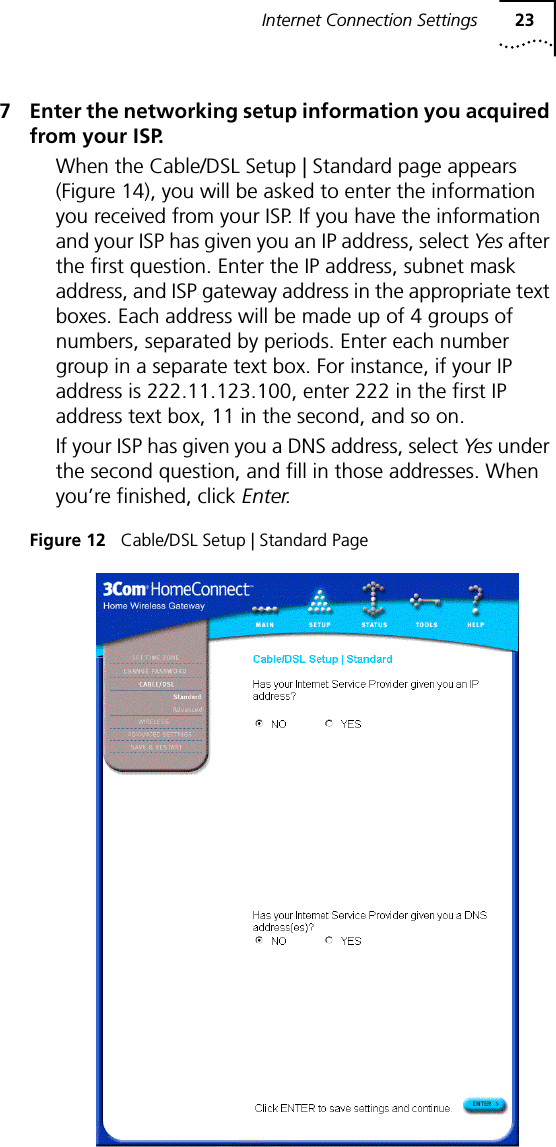
Internet Connection Settings 237 Enter the networking setup information you acquired from your ISP.When the Cable/DSL Setup | Standard page appears (Figure 14), you will be asked to enter the information you received from your ISP. If you have the information and your ISP has given you an IP address, select Yes after the first question. Enter the IP address, subnet mask address, and ISP gateway address in the appropriate text boxes. Each address will be made up of 4 groups of numbers, separated by periods. Enter each number group in a separate text box. For instance, if your IP address is 222.11.123.100, enter 222 in the first IP address text box, 11 in the second, and so on.If your ISP has given you a DNS address, select Ye s  under the second question, and fill in those addresses. When you’re finished, click Enter.Figure 12   Cable/DSL Setup | Standard Page
24 CHAPTER 5: ACCESSING THE INTERNET8 If applicable, enter PPPoE information.Your ISP may need you to enter Host Name or PPPoE (Point-to-Point Protocol over Ethernet) settings. Select Advanced below Cable/DSL on the menu tab to generate the Cable/DSL Setup | Advanced page. Fill in the information in the appropriate text box. When you’re finished, click Enter.Since the gateway firmware contains its own PPPoE client proxy, you no longer need to run PPPoE client software from your ISP to access the Internet. You can simply start your browser and surf the Internet immediately after setting up your cable or DSL modem.You have successfully installed and configured your cable or DSL modem for use with your gateway. Your Internet connection is now protected by a corporate-grade firewall, which will safeguard your computer (and any other computers networked to the gateway) from any damaging hacker attacks.
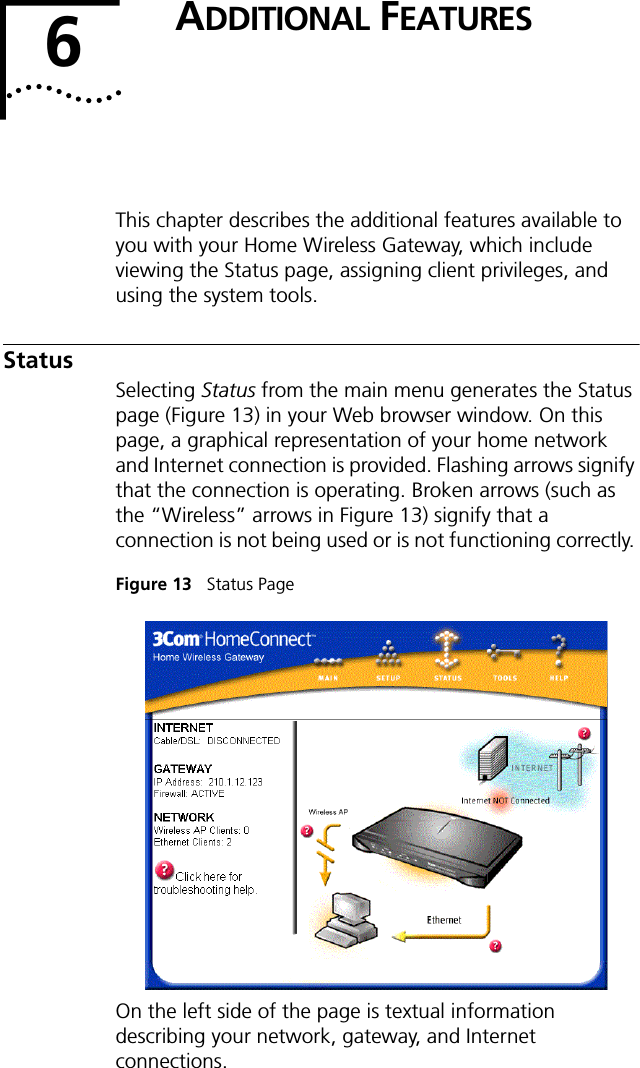
6ADDITIONAL FEATURESThis chapter describes the additional features available to you with your Home Wireless Gateway, which include viewing the Status page, assigning client privileges, and using the system tools.StatusSelecting Status from the main menu generates the Status page (Figure 13) in your Web browser window. On this page, a graphical representation of your home network and Internet connection is provided. Flashing arrows signify that the connection is operating. Broken arrows (such as the “Wireless” arrows in Figure 13) signify that a connection is not being used or is not functioning correctly. Figure 13   Status PageOn the left side of the page is textual information describing your network, gateway, and Internet connections.
26 CHAPTER 6: ADDITIONAL FEATURESClient PrivilegesSelecting Client Filtering from the menu tab in the Setup page generates the Client Computer Setup | Client Privileges page (Figure 14).Figure 14   Client Computer Setup | Client Privileges PageAssigning client privileges is a way for you to control what kind of Internet service each of the computers on your home network can use. For example, you may not want your children’s computer to have access to the Internet during a period of time in which you cannot monitor its use. When you assign client privileges, you can instruct the gateway to block Internet access to any computer on your home network. You can also limit other Internet services, such as Mail, Telnet, and File Transfer Protocol (FTP).
Client Privileges 27To assign client privileges:1 Choose an IP address from the available pool.Click the up/down arrows to view the available pool of IP addresses. Click one to choose it, and write it down on a piece of scrap paper.2 Choose the services you want to block.Below the drop-down menu is a series of Internet services (E-mail, WWW, FTP, News [NNTP], Telnet). Click the checkbox next to the service (or services) you want to block.3 Choose the block time.If you want the services you chose in step 2 to be blocked permanently, click the Always button.You can also identify a period of time in which the services are blocked. To do this, click the Block from: button, and choose a daily and weekly time period from the drop-down menus.4 Click Save.5 Set the IP address on the computer.Now that the gateway knows which services to block and when to block them, you must set up the computer on which you intend to block the services.On the selected computer, go to the IP address dialog box (in Windows, select Start, Settings, Control Panel, Network, TCP/IP, and Properties to get to the IP address dialog box; on a Macintosh, select Apple Menu, Control Panels, TCP/IP). In the IP address dialog box, in Windows select Specify an IP address or, on a Macintosh, from the Configure: drop-down menu, select Manually, and enter the IP address you chose in step 1.6 Restart your computer to save the changed settings.To block services on other computers on your network, choose another IP address from the available pool, and repeat the procedure.
28 CHAPTER 6: ADDITIONAL FEATURESTo o l sChoosing Tools from the Main menu generates the Tools page within your browser window. There are five options to select from: System Test, Security Log, Reset Home Wireless Gateway, Restore Factory Settings, and Upgrade Software.System TestChoosing this option generates the System Test page. Clicking the Test button on this page puts the gateway through a thorough system test. You should perform a system test after upgrading your software, or if the gateway is not operating correctly. After the test is done, the results of the test will appear.Security LogChoosing Security Log brings up a page that displays any attempts to gain access to your home network by computer hackers or other individuals.Reset Home Wireless GatewayIf your gateway is not operating correctly, you can choose this option to generate the Reset gateway page. Clicking on the Reset button will reset the gateway, with all of your settings remaining intact. If you don’t want to reset the gateway, click on the Cancel button, which sends you back to the Tools page.Restore Factory SettingsSelecting Restore Factory Settings generates the Restore Factory Settings page. If you want to reset the settings on your gateway to those that were loaded at the factory, click Restore. If you don’t want to restore factory settings, click on Cancel.Update FirmwareSelecting Update Firmware generates the Update Firmware page. The software provides the intelligence needed for the gateway to perform its many operations. This software is
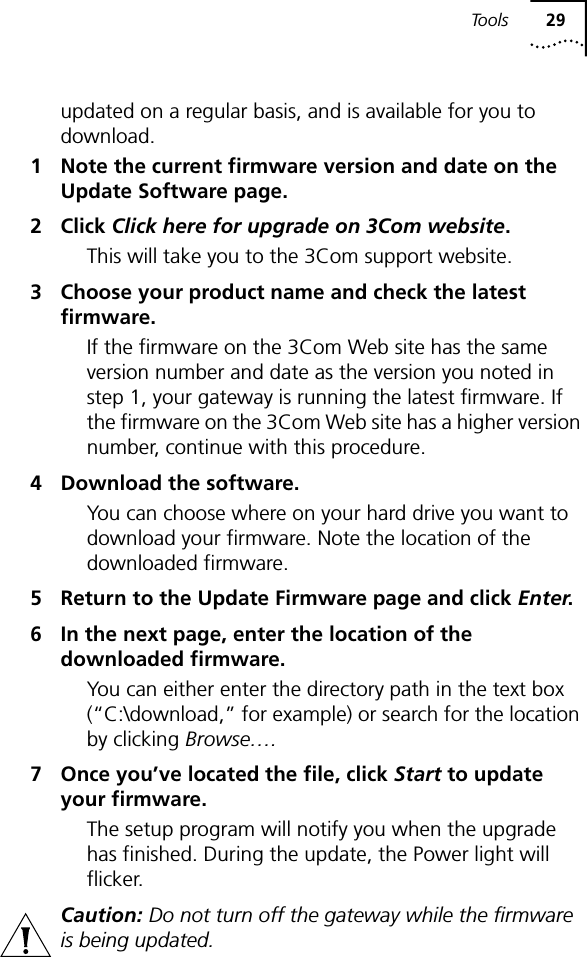
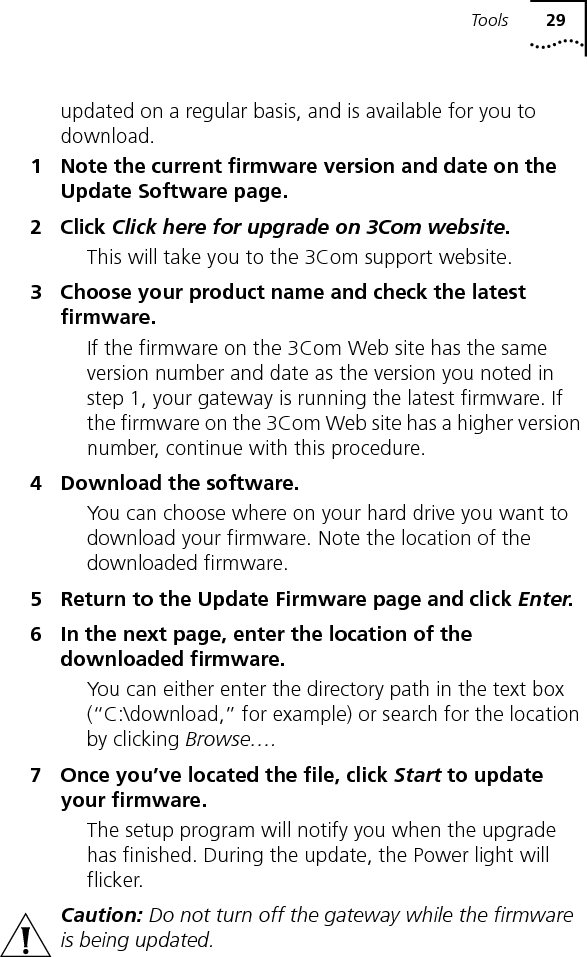
To o l s 29updated on a regular basis, and is available for you to download.1 Note the current firmware version and date on the Update Software page.2 Click Click here for upgrade on 3Com website.This will take you to the 3Com support website.3 Choose your product name and check the latest firmware.If the firmware on the 3Com Web site has the same version number and date as the version you noted in step 1, your gateway is running the latest firmware. If the firmware on the 3Com Web site has a higher version number, continue with this procedure.4 Download the software.You can choose where on your hard drive you want to download your firmware. Note the location of the downloaded firmware.5 Return to the Update Firmware page and click Enter.6 In the next page, enter the location of the downloaded firmware.You can either enter the directory path in the text box (“C:\download,” for example) or search for the location by clicking Browse….7 Once you’ve located the file, click Start to update your firmware.The setup program will notify you when the upgrade has finished. During the update, the Power light will flicker. Caution: Do not turn off the gateway while the firmware is being updated.
30 CHAPTER 6: ADDITIONAL FEATURES
7TROUBLESHOOTINGHome Wireless Gateway■Check power connection.■Verify power light status.■Check connections for modem and networking interface(s).■If you are unable to access the gateway's user interface, please check your computer's network settings. Verify that your TCP/IP settings are correct (see “System Settings for Your Computer(s)” on page 14).■Ensure that the latest firmware is installed in the gateway.ModemCable or DSL■Check your Cable/DSL link light to verify a good connection.■Check your cable or DSL modem to verify that the power cable is connected. ■Check your cable or DSL modem to verify that the cable or DSL line is connected. ■Reboot your Cable/DSL modem.■If your ISP does not support automatically assigned networking settings, then enter your setting information into the setup program (see ”Enter the networking setup information you acquired from your ISP.” on page 23).
32 CHAPTER 7: TROUBLESHOOTINGEthernet Networks■Check all connections to the gateway ■Check all connections to each attached device on the network■Ensure that the TCP/IP settings for all devices are correct (see “System Settings for Your Computer(s)”on page 14).■Ensure that you have an Ethernet interface for each networked computer ■Each computer must have either Microsoft Windows 95 (or higher) or Mac OS 8.5 (or higher).3Com KnowledgeBaseIf none of the above information has resolved the problem with your gateway, please search the on-line 3Com KnowledgeBase at:http://knowledgebase.3com.comRefer to Appendix A, Technical Support for additional information about how to contact 3Com Technical Support.
ATECHNICAL SUPPORTOnline Technical Services3Com offers worldwide product support 24 hours a day, 7 days a week, through the following online systems:■World Wide Web site■3Com FTP site■3Com Bulletin Board Service (3Com BBS)■3Com FactsSM automated fax serviceWorld Wide Web SiteAccess the latest networking information on the 3Com Corporation World Wide Web site by entering the URL into your Internet browser:http://www.3com.com/This service provides access to online support information such as technical documentation and software library, as well as support options ranging from technical education to maintenance and professional services.3Com FTP SiteDownload drivers, patches, software, and MIBs across the Internet from the 3Com public FTP site.  This service is available 24 hours a day, 7 days a week.To connect to the 3Com FTP site, enter the following information into your FTP client:■Hostname: ftp.3com.com (or 192.156.136.12)■Username: anonymous■Password: <your Internet e-mail address>NOTE: A user name and password are not needed with Web browser software such as Netscape Navigator and Internet Explorer.
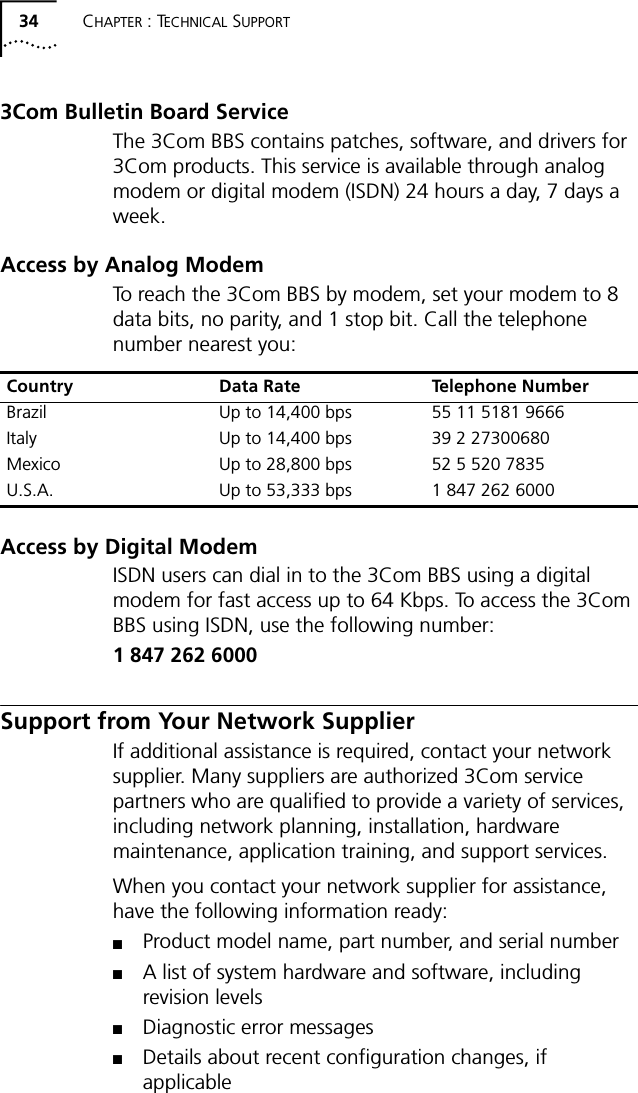
34 CHAPTER : TECHNICAL SUPPORT3Com Bulletin Board Service The 3Com BBS contains patches, software, and drivers for 3Com products. This service is available through analog modem or digital modem (ISDN) 24 hours a day, 7 days a week. Access by Analog ModemTo reach the 3Com BBS by modem, set your modem to 8 data bits, no parity, and 1 stop bit. Call the telephone number nearest you:Access by Digital ModemISDN users can dial in to the 3Com BBS using a digital modem for fast access up to 64 Kbps. To access the 3Com BBS using ISDN, use the following number:1 847 262 6000Support from Your Network SupplierIf additional assistance is required, contact your network supplier. Many suppliers are authorized 3Com service partners who are qualified to provide a variety of services, including network planning, installation, hardware maintenance, application training, and support services.When you contact your network supplier for assistance, have the following information ready:■Product model name, part number, and serial number■A list of system hardware and software, including revision levels■Diagnostic error messages■Details about recent configuration changes, if applicableCountry Data Rate Telephone NumberBrazil Up to 14,400 bps 55 11 5181 9666Italy Up to 14,400 bps 39 2 27300680Mexico Up to 28,800 bps 52 5 520 7835U.S.A. Up to 53,333 bps 1 847 262 6000
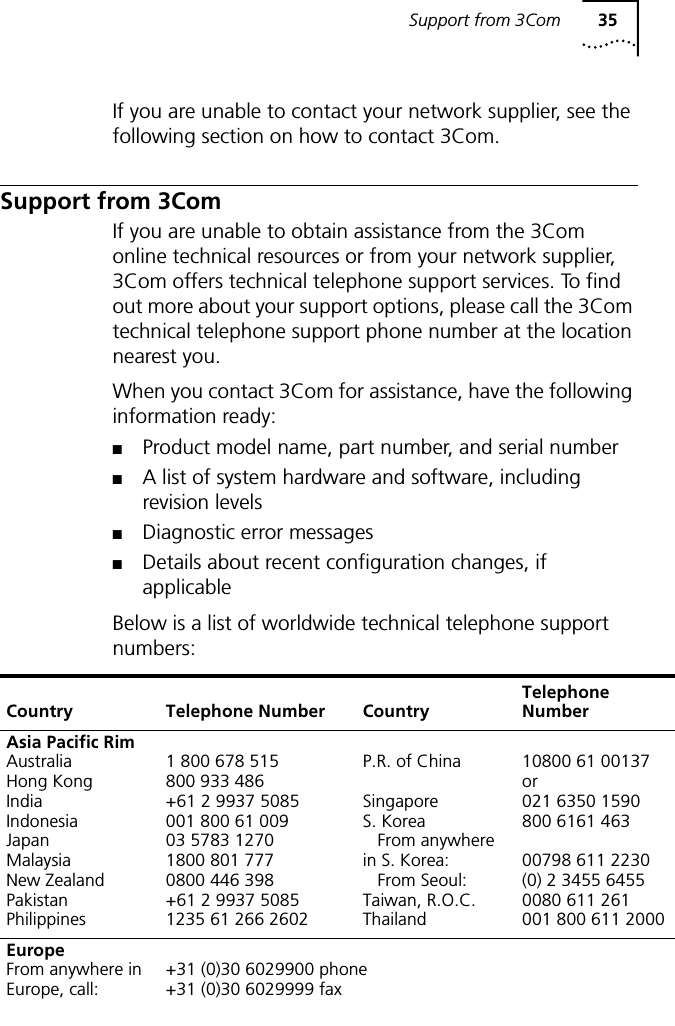
Support from 3Com 35If you are unable to contact your network supplier, see the following section on how to contact 3Com.Support from 3ComIf you are unable to obtain assistance from the 3Com online technical resources or from your network supplier, 3Com offers technical telephone support services. To find out more about your support options, please call the 3Com technical telephone support phone number at the location nearest you.When you contact 3Com for assistance, have the following information ready:■Product model name, part number, and serial number■A list of system hardware and software, including revision levels■Diagnostic error messages■Details about recent configuration changes, if applicableBelow is a list of worldwide technical telephone support numbers:Country Telephone Number Country Telephone NumberAsia Pacific RimAustraliaHong KongIndiaIndonesiaJapanMalaysiaNew ZealandPakistanPhilippines1 800 678 515800 933 486+61 2 9937 5085001 800 61 00903 5783 12701800 801 7770800 446 398+61 2 9937 50851235 61 266 2602P.R. of ChinaSingaporeS. KoreaFrom anywhere in S. Korea:From Seoul:Taiwan, R.O.C.Thailand10800 61 00137 or021 6350 1590800 6161 46300798 611 2230(0) 2 3455 64550080 611 261001 800 611 2000EuropeFrom anywhere in Europe, call:+31 (0)30 6029900 phone+31 (0)30 6029999 fax
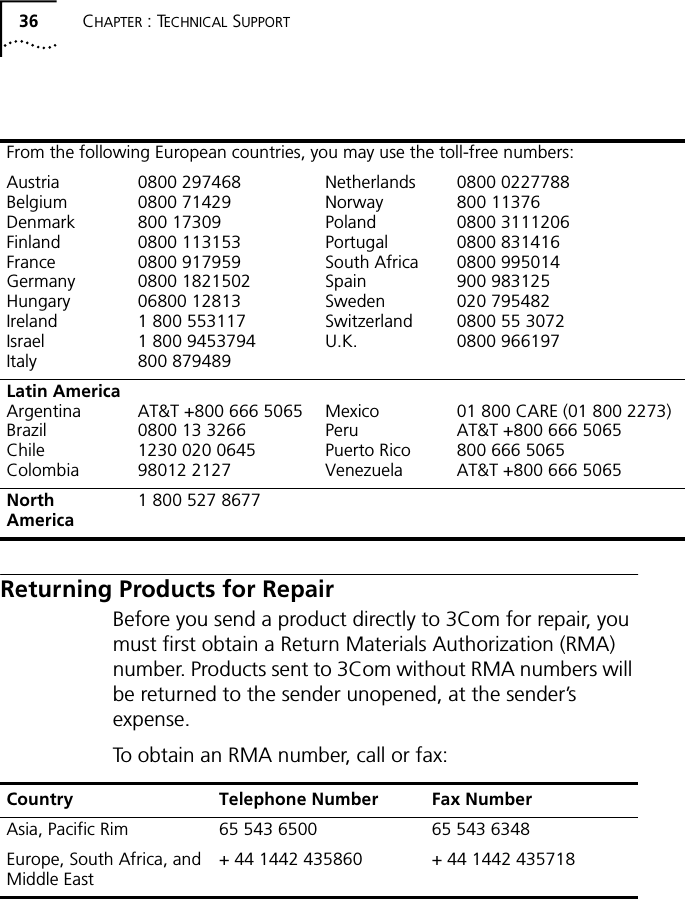
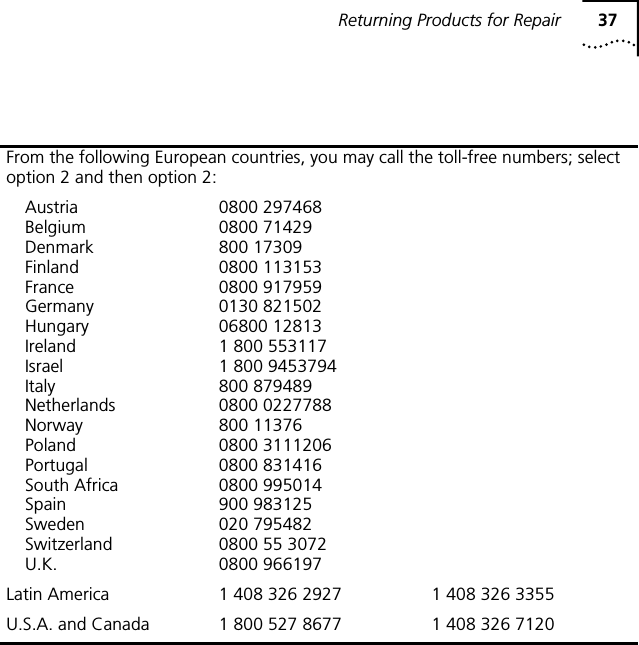
36 CHAPTER : TECHNICAL SUPPORTReturning Products for RepairBefore you send a product directly to 3Com for repair, you must first obtain a Return Materials Authorization (RMA) number. Products sent to 3Com without RMA numbers will be returned to the sender unopened, at the sender’s expense.To obtain an RMA number, call or fax:From the following European countries, you may use the toll-free numbers:AustriaBelgiumDenmarkFinland FranceGermanyHungaryIrelandIsraelItaly0800 2974680800 71429800 173090800 1131530800 9179590800 182150206800 128131 800 5531171 800 9453794800 879489NetherlandsNorwayPolandPortugalSouth AfricaSpainSwedenSwitzerlandU.K.0800 0227788800 113760800 31112060800 8314160800 995014900 983125020 7954820800 55 30720800 966197Latin AmericaArgentinaBrazilChileColombiaAT&T +800 666 50650800 13 32661230 020 064598012 2127MexicoPeruPuerto RicoVenezuela01 800 CARE (01 800 2273)AT&T +800 666 5065800 666 5065AT&T +800 666 5065North America 1 800 527 8677Country Telephone Number Fax NumberAsia, Pacific Rim 65 543 6500 65 543 6348Europe, South Africa, and Middle East+ 44 1442 435860 + 44 1442 435718
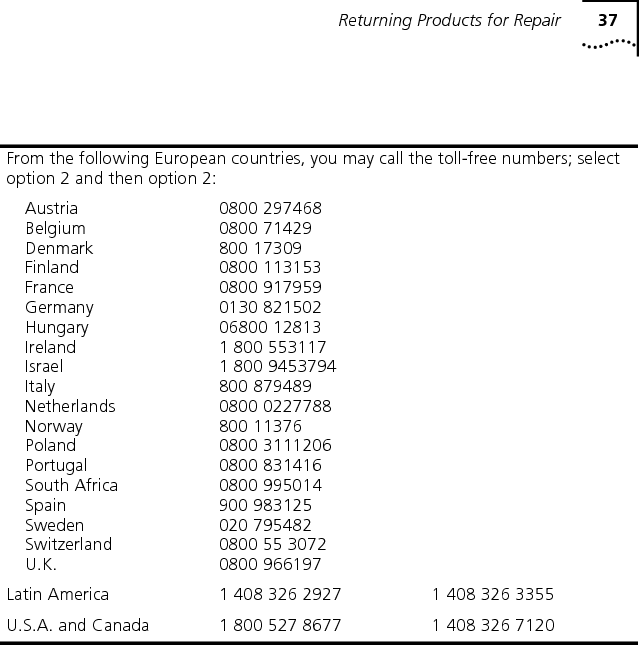
Returning Products for Repair 37From the following European countries, you may call the toll-free numbers; select option 2 and then option 2:AustriaBelgiumDenmarkFinlandFranceGermanyHungaryIrelandIsraelItalyNetherlandsNorwayPolandPortugalSouth AfricaSpainSwedenSwitzerlandU.K.0800 2974680800 71429800 173090800 1131530800 9179590130 82150206800 128131 800 5531171 800 9453794800 8794890800 0227788800 113760800 31112060800 8314160800 995014900 983125020 7954820800 55 30720800 966197Latin America 1 408 326 2927 1 408 326 3355U.S.A. and Canada 1 800 527 8677 1 408 326 7120
38 CHAPTER : TECHNICAL SUPPORT
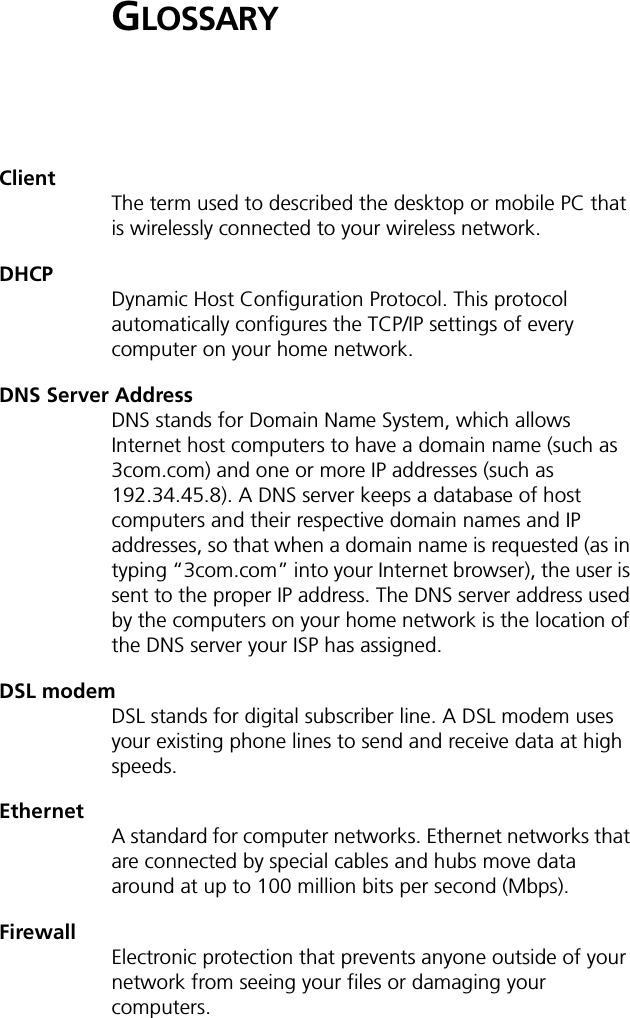
GLOSSARYClientThe term used to described the desktop or mobile PC that is wirelessly connected to your wireless network.DHCP Dynamic Host Configuration Protocol. This protocol automatically configures the TCP/IP settings of every computer on your home network.DNS Server AddressDNS stands for Domain Name System, which allows Internet host computers to have a domain name (such as 3com.com) and one or more IP addresses (such as 192.34.45.8). A DNS server keeps a database of host computers and their respective domain names and IP addresses, so that when a domain name is requested (as in typing “3com.com” into your Internet browser), the user is sent to the proper IP address. The DNS server address used by the computers on your home network is the location of the DNS server your ISP has assigned.DSL modemDSL stands for digital subscriber line. A DSL modem uses your existing phone lines to send and receive data at high speeds.EthernetA standard for computer networks. Ethernet networks that are connected by special cables and hubs move data around at up to 100 million bits per second (Mbps).FirewallElectronic protection that prevents anyone outside of your network from seeing your files or damaging your computers.
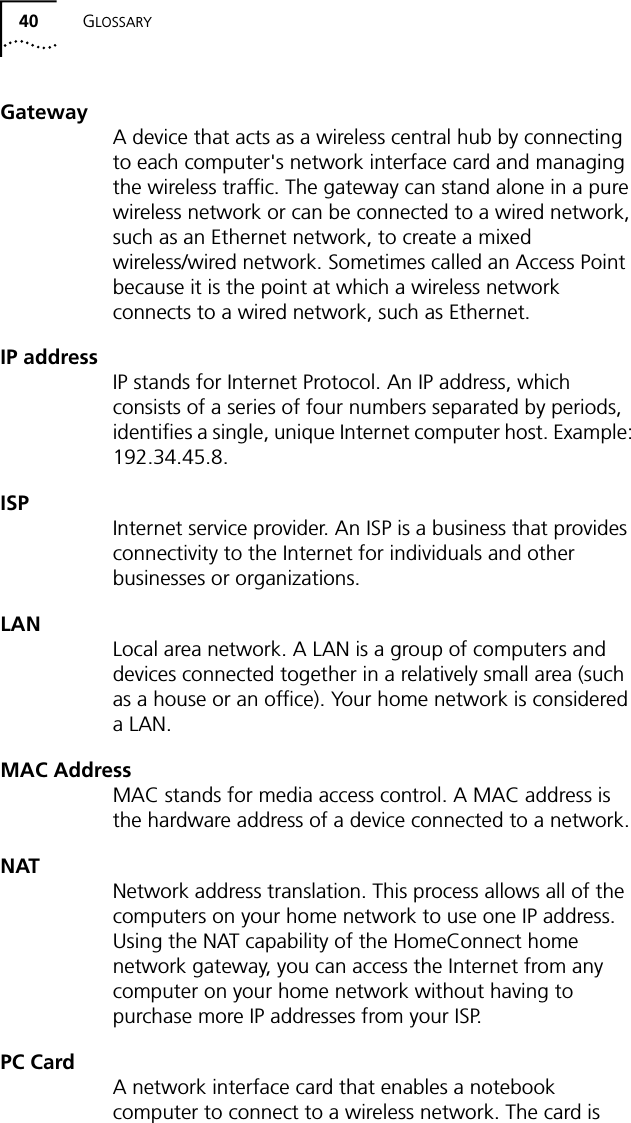
40 GLOSSARYGatewayA device that acts as a wireless central hub by connecting to each computer's network interface card and managing the wireless traffic. The gateway can stand alone in a pure wireless network or can be connected to a wired network, such as an Ethernet network, to create a mixed wireless/wired network. Sometimes called an Access Point because it is the point at which a wireless network connects to a wired network, such as Ethernet.IP addressIP stands for Internet Protocol. An IP address, which consists of a series of four numbers separated by periods, identifies a single, unique Internet computer host. Example: 192.34.45.8.ISPInternet service provider. An ISP is a business that provides connectivity to the Internet for individuals and other businesses or organizations.LANLocal area network. A LAN is a group of computers and devices connected together in a relatively small area (such as a house or an office). Your home network is considered a LAN.MAC AddressMAC stands for media access control. A MAC address is the hardware address of a device connected to a network.NATNetwork address translation. This process allows all of the computers on your home network to use one IP address. Using the NAT capability of the HomeConnect home network gateway, you can access the Internet from any computer on your home network without having to purchase more IP addresses from your ISP.PC CardA network interface card that enables a notebook computer to connect to a wireless network. The card is
GLOSSARY 41installed in the PCMCIA slot of a notebook computer and communicates with the wireless gateway.PPPoEPoint-to-Point Protocol over Ethernet. Point-to-Point Protocol is a method of secure data transmission originally created for dial-up connections; PPPoE is for Ethernet connections.SPIStateful Packet Inspection. SPI is the type of corporate-grade Internet security provided by your HomeConnect home network gateway. Using SPI, the gateway acts as a “firewall,” protecting your network from hacker attacks.subnet maskA subnet mask, which may be a part of the TCP/IP information provided by your ISP, is a set of four numbers configured like an IP address. It is used to create IP address numbers used only within a particular network (as opposed to valid IP address numbers recognized by the Internet, which must assigned by InterNIC).TCP/IPTransmission Control Protocol/Internet Protocol. This is the standard protocol for data transmission over the Internet.WANWide area network. A network that connects computers located in geographically separate areas, (i.e., different buildings, cities, countries). The Internet is an example of a wide area network.
42 GLOSSARY
INDEXNumbers3Com bulletin board service (3Com BBS) 343Com KnowledgeBase 323Com URL 33AAccess point (see Gateway) 40Bblock time 27bulletin board service 34CClient 39client privileges 2, 5, 26DDHCP 39DNS address 23, 39Ee-mail 27Ethernet 39Ethernet cable 3, 11, 13Ethernet networking 32FFirewall 39firewall 1, 2, 3, 24firmware. See Software Updatefront panel 5, 7FTP 27GGateway 40Gateway Setup Wizard 18Hhackers 3, 24IInstallation Map 3, 4Internet Service Provider 21, 31, 40Internet services 27IP address 17, 23, 27, 40IP address dialog box 27ISP gateway address 23ISP. See Internet Service ProviderLLAN 40lightsCable/DSL 31power 8, 14MMAC address 40Macintosh 15, 16Mac OS 4, 32main page 18menu tabsetup program 18MIBs 33Minimum System Requirements 4modemcable or DSL 5, 11, 13, 21, 31, 39NNAT 40network adapterEthernet 13Network adapter cardwireless 4network adapter card 5
44 INDEXnetwork management. See Client Privilegesnetwork supplier support 34networkingEthernet 13, 32home phoneline 32News 27Nonskid feet 3Oonline technical services 33Ppassword 22PC card 40phone jack 11portsCable/DSL 9, 11Ethernet 9power adapter 8power adapter 3, 14power adapter socket 14PPPoE 24, 41Rrear panel 5Reset gateway 28Restore Factory Settings 28returning products for repair 36SSecurity Log 28setup program 5, 17, 21software update 31SPI.See Stateful Packet InspectionStateful Packet Inspection 3, 41status page 25subnet mask 23, 41System Test 28system tools 28TTCP/IP 41TCP/IP settings 31, 32Macintosh 15, 16Windows 15, 16technical support3Com URL 33bulletin board service 34network suppliers 34product repair 36Te l n e t 2 7time zone 22troubleshooting 5UUpdate Software 5, 28URL 33username 22WWAN 41Web browser 5, 17, 25location field 17Windows 15, 162000 495 4, 3298 4Wireless network adapter card 4World Wide Web (WWW) 33
WARRANTY AND REGULATORY COMPLIANCE3Com Corporation Limited WarrantyThis warranty applies to customers located in the United States, Australia, Canada (except Quebec), Ireland, New Zealand, U.K., and other English language countries, and countries for which a translation into the local language is not provided3Com AirConnect 11Mbps Wireless LANHARDWARE3Com warrants to the end user (“Customer”) that this hardware product will be free from defects in workmanship and materials, under normal use and service, for the following length of time from the date of purchase from 3Com or its authorized reseller:Five (5) yearsSpare Parts and Spares Kits are warranted for ninety (90) days3Com’s sole obligation under this express warranty shall be, at 3Com’s option and expense, to repair the defective product or part, deliver to Customer an equivalent product or part to replace the defective item, or if neither of the two foregoing options is reasonably available, 3Com may, in its sole discretion, refund to Customer the purchase price paid for the defective product. All products that are replaced will become the property of 3Com. Replacement products or parts may be new or reconditioned. 3Com warrants any replaced or repaired product or part for ninety (90) days from shipment, or the remainder of the initial warranty period, whichever is longer.3Com’s sole obligation under this express warranty shall be, at 3Com’s option and expense, to repair the defective product or part, deliver to Customer an equivalent product or part to replace the defective item, or if neither of the two foregoing options is reasonably available, 3Com may, in its sole discretion, refund to Customer the purchase price paid for the defective product. All products that are replaced will become the property of 3Com. Replacement products may be new or reconditioned. 3Com warrants any replaced or repaired product or part for ninety (90) days from shipment, or the remainder of the initial warranty period, whichever is longer.SOFTWARE3Com warrants to Customer that each software program licensed from it, except as noted below, will perform in substantial conformance to its program specifications, for a period of ninety (90) days from the date of purchase from 3Com or its authorized reseller. 3Com warrants the media containing software against failure during the warranty period. No updates are provided. 3Com's sole obligation under this express warranty shall be, at 3Com's option and expense, to refund the purchase price paid by Customer for any defective software product, or to replace any defective media with software which substantially conforms to applicable 3Com published specifications. Customer assumes responsibility for the selection of the appropriate applications program and associated reference materials. 3Com makes no warranty or representation that its software products will meet Customer’s requirements or work in combination with any hardware or applications software products provided by third parties, that the operation of the software products will be uninterrupted or error free, or that all defects in the software products will be corrected. For any third party products listed in the 3Com software product documentation or specifications as being compatible, 3Com will make reasonable efforts to provide compatibility, except where the non-compatibility is caused by a “bug” or defect in the third party's product or from use of the software product not in accordance with 3Com’s published specifications or user manual.The site survey software is licensed "AS IS".THIS 3COM PRODUCT MAY INCLUDE OR BE BUNDLED WITH (1) THIRD PARTY SOFTWARE, OR (2) 3COM SOFTWARE WHICH IS USED WITH THE LINUX OPERATING SYSTEM, THE USE OF WHICH IS GOVERNED BY A SEPARATE END USER LICENSE AGREEMENT. THIS 3COM WARRANTY DOES NOT APPLY TO SUCH THIRD PARTY SOFTWARE OR 3COM LINUX SOFTWARE. FOR THE APPLICABLE WARRANTY, PLEASE REFER TO THE END USER LICENSE AGREEMENT GOVERNING THE USE OF SUCH SOFTWARE OR THE ACCOMPANYING DOCUMENTATION RELATING TO SUCH SOFTWARE
YEAR 2000 WARRANTYIn addition to the Hardware Warranty and Software Warranty stated above, 3Com warrants that each product sold or licensed to Customer on and after January 1, 1998 that is date sensitive will continue performing properly with regard to such date data on and after January 1, 2000, provided that all other products used by Customer in connection or combination with the 3Com product, including hardware, software, and firmware, accurately exchange date data with the 3Com product, with the exception of those products identified at 3Com’s Web site, http://www.3com.com/products/yr2000.html, as not meeting this standard. If it appears that any product that is stated to meet this standard does not perform properly with regard to such date data on and after January 1, 2000, and Customer notifies 3Com before the later of April 1, 2000, or ninety (90) days after purchase of the product from 3Com or its authorized reseller, 3Com shall, at its option and expense, provide a software update which would effect the proper performance of such product, repair such product, deliver to Customer an equivalent product to replace such product, or if none of the foregoing is feasible, refund to Customer the purchase price paid for such product. Any software update or replaced or repaired product will carry a Year 2000 Warranty for ninety (90) days after purchase or until April 1, 2000, whichever is later. OBTAINING WARRANTY SERVICECustomer must contact a 3Com Corporate Service Center or an Authorized 3Com Service Center within the applicable warranty period to obtain warranty service authorization. Dated proof of purchase from 3Com or its authorized reseller may be required. Products returned to 3Com's Corporate Service Center must be pre-authorized by 3Com with a User Service Order (USO) number (or a Return Material Authorization (RMA) number or a Service Repair Order (SRO) number, whichever was issued) marked on the outside of the package, and sent prepaid and packaged appropriately for safe shipment, and it is recommended that they be insured or sent by a method that provides for tracking of the package. Responsibility for loss or damage does not transfer to 3Com until the returned item is received by 3Com. The repaired or replaced item will be shipped to Customer, at 3Com's expense, not later than thirty (30) days after 3Com receives the defective product, and 3Com will retain risk of loss or damage until the item is delivered to Customer.3Com shall not be responsible for any software, firmware, information, or memory data of Customer contained in, stored on, or integrated with any products returned to 3Com for repair, whether under warranty or not.Dead- or Defective-on-Arrival. In the event a product completely fails to function or exhibits a defect in materials or workmanship within the first forty-eight (48) hours of installation but no later than thirty (30) days after the date of purchase, and this is verified by 3Com, it will be considered dead- or defective-on-arrival (DOA) and a replacement shall be provided by advance replacement, but only if Customer provides a purchase order number, credit card number, or other method of payment acceptable to 3Com, to be used if 3Com needs to charge Customer for the replacement, as explained below. The replacement product will normally be shipped not later than three (3) business days after 3Com’s verification of the DOA product, but may be delayed due to export or import procedures. The shipment of advance replacement products is subject to local legal requirements and may not be available in all locations. When an advance replacement is provided and Customer fails to return the original product to 3Com within fifteen (15) days after shipment of the replacement, 3Com will charge Customer for the replacement product, at list price.INCLUDED SERVICES:   Telephone Support, with coverage for basic troubleshooting only, will be provided for ninety (90) days from the date of purchase, on a commercially reasonable efforts basis. Telephone support is available from 3Com only if Customer purchased this product directly from 3Com, or if Customer’s reseller is unable to provide telephone support. Please refer to the Technical Support appendix in the User Guide for telephone numbers.
WARRANTIES EXCLUSIVEIF A 3COM PRODUCT DOES NOT OPERATE AS WARRANTED ABOVE, CUSTOMER'S SOLE REMEDY FOR BREACH OF THAT WARRANTY SHALL BE REPAIR, REPLACEMENT, OR REFUND OF THE PURCHASE PRICE PAID, AT 3COM'S OPTION. TO THE FULL EXTENT ALLOWED BY LAW, THE FOREGOING WARRANTIES AND REMEDIES ARE EXCLUSIVE AND ARE IN LIEU OF ALL OTHER WARRANTIES, TERMS, OR CONDITIONS, EXPRESS OR IMPLIED, EITHER IN FACT OR BY OPERATION OF LAW, STATUTORY OR OTHERWISE, INCLUDING WARRANTIES, TERMS, OR CONDITIONS OF MERCHANTABILITY, FITNESS FOR A PARTICULAR PURPOSE, SATISFACTORY QUALITY, CORRESPONDENCE WITH DESCRIPTION, AND NON-INFRINGEMENT, ALL OF WHICH ARE EXPRESSLY DISCLAIMED. 3COM NEITHER ASSUMES NOR AUTHORIZES ANY OTHER PERSON TO ASSUME FOR IT ANY OTHER LIABILITY IN CONNECTION WITH THE SALE, INSTALLATION, MAINTENANCE OR USE OF ITS PRODUCTS.3COM SHALL NOT BE LIABLE UNDER THIS WARRANTY IF ITS TESTING AND EXAMINATION DISCLOSE THAT THE ALLEGED DEFECT OR MALFUNCTION IN THE PRODUCT DOES NOT EXIST OR WAS CAUSED BY CUSTOMER'S OR ANY THIRD PERSON'S MISUSE, NEGLECT, IMPROPER INSTALLATION OR TESTING, UNAUTHORIZED ATTEMPTS TO OPEN, REPAIR OR MODIFY THE PRODUCT, OR ANY OTHER CAUSE BEYOND THE RANGE OF THE INTENDED USE, OR BY ACCIDENT, FIRE, LIGHTNING, POWER CUTS OR OUTAGES, OTHER HAZARDS, OR ACTS OF GOD.LIMITATION OF LIABILITYTO THE FULL EXTENT ALLOWED BY LAW, 3COM ALSO EXCLUDES FOR ITSELF AND ITS SUPPLIERS ANY LIABILITY, WHETHER BASED IN CONTRACT OR TORT (INCLUDING NEGLIGENCE), FOR INCIDENTAL, CONSEQUENTIAL, INDIRECT, SPECIAL, OR PUNITIVE DAMAGES OF ANY KIND, OR FOR LOSS OF REVENUE OR PROFITS, LOSS OF BUSINESS, LOSS OF INFORMATION OR DATA, OR OTHER FINANCIAL LOSS ARISING OUT OF OR IN CONNECTION WITH THE SALE, INSTALLATION, MAINTENANCE, USE, PERFORMANCE, FAILURE, OR INTERRUPTION OF ITS PRODUCTS, EVEN IF 3COM OR ITS AUTHORIZED RESELLER HAS BEEN ADVISED OF THE POSSIBILITY OF SUCH DAMAGES, AND LIMITS ITS LIABILITY TO REPAIR, REPLACEMENT, OR REFUND OF THE PURCHASE PRICE PAID, AT 3COM'S OPTION. THIS DISCLAIMER OF LIABILITY FOR DAMAGES WILL NOT BE AFFECTED IF ANY REMEDY PROVIDED HEREIN SHALL FAIL OF ITS ESSENTIAL PURPOSE.DISCLAIMERSome countries, states, or provinces do not allow the exclusion or limitation of implied warranties or the limitation of incidental or consequential damages for certain products supplied to consumers, or the limitation of liability for personal injury, so the above limitations and exclusions may be limited in their application to you. When the implied warranties are not allowed to be excluded in their entirety, they will be limited to the duration of the applicable written warranty. This warranty gives you specific legal rights which may vary depending on local law.GOVERNING LAWThis Limited Warranty shall be governed by the laws of the State of California, U.S.A. excluding its conflicts of laws principles and excluding the United Nations Convention on Contracts for the International Sale of Goods.3Com Corporation5400 Bayfront PlazaSanta Clara, CA 95054(408) 326-5000January 3, 2000
Regulatory Compliance InformationRADIO FREQUENCY INTERFERENCE REQUIREMENTSThis device has been tested and found to comply with the limits for a Class B digital device as applicable, pursuant to Part 15 of the Federal Communications Commissions Rules and Regulation. These limits are designed to provide reasonable protection against harmful interference when the equipment is operated in a residential installation. This equipment generates, uses, and can radiate radio frequency energy and, if not installed and used in accordance with the instructions, may cause harmful interference to radio communications.However, there is no guarantee that interference will not occur in a particular installation. If the equipment does cause harmful interference to radio or television reception, which can be determined by turning the equipment off and on, the user is encouraged to try to correct the interference by one or more of the following measures:■Re-orient or relocate the receiving antenna.■Increase the separation between the equipment and receiver.■Connect the equipment into an outlet on a circuit different from that which the receiver is connected.■Consult the dealer or an experienced radio/TV technician for help.This device compliies with Part 15 of the FCC Rules and Regulations. Operation is subject to the following two conditions:1This device may not cause harmful interference2This device must accept any interference received, including interference that may cause undesired operation.The user must use the accessories and cables supplied by the manufacturer to get optimum performance from the product.NOTE: This product was tested to comply with FCC-15 Class B requirements in the cases of the following configuraqtions:a) 802.11b Transceiver for Home or Office UseMANUFACTURER’S DECLARATION OF CONFORMITY3Com Corporation5400 Bayfront PlazaSanta Clara, CA 95052 U.S.A.Declares that the product: HomeConnecttm Home Wireless GatewayDate:Name:Model Number: 3CRWE50194Equipment Type: 802.11b WLANComplies with Part 15 of the FCC rules. Operation is subject to the following two conditions: (1) this device may not cause harmful interference, and (2) this device must accept any interference received, including interference that may cause undesired operation.INDUSTRY CANADA CLASS B EMISSION COMPLIANCE STATEMENTThis Class B digital apparatus complies with Canadian ICES-003. AVIS DE CONFORMITÉ À LA RÉGLEMENTATION D'INDUSTRIE CANADACet appareil numérique de la classe B est conforme à la norme NMB-003 du Canada. EUROPEAN COMMUNITY REGULATORY COMPLIANCE STATEMENTThis device complies with the requirements of European Directive 1999/5/EC.
   Potential RF Interference (Canada)  CAUTION  To prevent radio interference to the licensed service, this device is intended to be operated indoors and away from windows to provide maximum shielding. Equipment (or its transmit antenna) that is installed outdoors is subject to licensing.
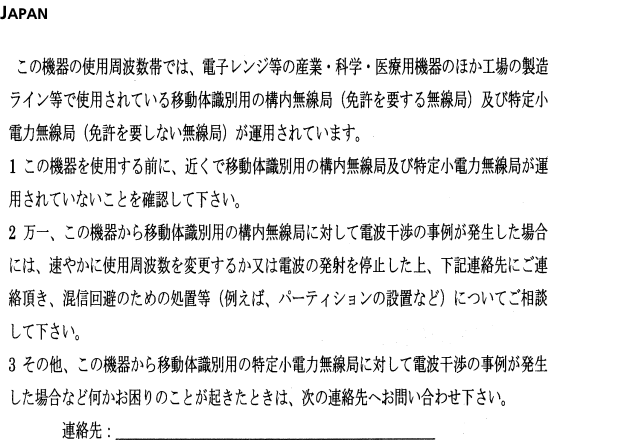
JAPAN
3Com End User Software License AgreementIMPORTANT: Read Before Using This ProductYOU SHOULD CAREFULLY READ THE FOLLOWING TERMS AND CONDITIONS BEFORE USING THIS PRODUCT. IT CONTAINS SOFTWARE, THE USE OF WHICH IS LICENSED BY 3COM CORPORATION (“3COM”) TO ITS CUSTOMERS FOR THEIR USE ONLY AS SET FORTH BELOW. IF YOU DO NOT AGREE TO THE TERMS AND CONDITIONS OF THIS AGREEMENT, DO NOT USE THE SOFTWARE. USING ANY PART OF THE SOFTWARE INDICATES THAT YOU ACCEPT THESE TERMS.LICENSE: 3Com grants you a nonexclusive license to use the accompanying software program(s) (the “Software”) subject to the terms and restrictions set forth in this License Agreement. You are not permitted to lease, rent, distribute or sublicense the Software or to use the Software in a time-sharing arrangement or in any other unauthorized manner. Further, no license is granted to you in the human readable code of the Software (source code). Except as provided below, this License Agreement does not grant you any rights to patents, copyrights, trade secrets, trademarks, or any other rights in respect to the Software.The Software is licensed to be used on any workstation or any network server owned by or leased to you, provided that the Software is used only in connection with a 3Com adapter. You may reproduce and provide one (1) copy of the Software and supporting documentation for each such workstation or network server on which the Software is used as permitted hereunder. Otherwise, the Software and supporting documentation may be copied only as essential for backup or archive purposes in support of your use of the Software as permitted hereunder. You must reproduce and include all copyright notices and any other proprietary rights notices appearing on the Software and the supporting documentation on any copies that you make.NO ASSIGNMENT; NO REVERSE ENGINEERING: You may not transfer or assign the Software and/or this License Agreement to another party without the prior written consent of 3Com. If such consent is given and you transfer or assign the Software and/or this License Agreement, then you must at the same time either transfer any copies of the Software as well as the supporting documentation to the same party or destroy any such materials not transferred. Except as set forth above, you may not transfer or assign the Software or your rights under this License Agreement. Modification, reverse engineering, reverse compiling, or disassembly of the Software is expressly prohibited. However, if you are a European Community (“EC”) resident, information necessary to achieve interoperability of the Software with other programs within the meaning of the EC Directive on the Legal Protection of Computer Programs is available to you from 3Com upon written request.EXPORT RESTRICTIONS: You agree that you will not export or re-export the Software or accompanying documentation (or any copies thereof) or any products utilizing the Software or such documentation in violation of any applicable laws or regulations of the United States and the country in which you obtained them.The 3Com product and/or software covered by this agreement may contain encryption code which is unlawful to export from the US or Canada without an approved US Department of Commerce export license. You agree that you will not export, reexport, either physically or electronically, any encrypted product without an approved export license.TRADE SECRETS; TITLE: You acknowledge and agree that the structure, sequence and organization of the Software are the valuable trade secrets of 3Com and its suppliers. You agree to hold such trade secrets in confidence. You further acknowledge and agree that ownership of, and title to, the Software and all subsequent copies thereof regardless of the form or media are held by 3Com and its suppliers.UNITED STATES GOVERNMENT LEGEND: All technical data and computer software are commercial in nature and developed solely at private expense. The Software is delivered as “Commercial Computer Software” as defined in DFARS 252.227-7014 (June 1995) or as a “commercial item” as defined in FAR 2.101(a) and as such is provided with only such rights as are provided in this License Agreement, which is 3Com’s standard commercial license for the Software. Technical data is provided with limited rights only as provided in DFAR 252.227-7015 (Nov. 1995) or FAR 52.227-14 (June 1987), whichever is applicable. You agree not to remove or deface any portion of any legend provided on any licensed program or documentation delivered to you under this License Agreement.TERM AND TERMINATION: This license will expire fifty (50) years from the date that you first use the Software, if it is not earlier terminated. You may terminate it at any time by destroying the Software and documentation together with all copies and merged portions in any form. It will also terminate immediately if you fail to comply with any term or condition of this License Agreement. Upon such termination you agree to destroy the Software and documentation, together with all copies and merged portions in any form.
GOVERNING LAW: This License Agreement shall be governed by the laws of the State of California as such laws are applied to agreements entered into and to be performed entirely within California between California residents and by the laws of the United States. You agree that the United Nations Convention on Contracts for the International Sale of Goods (1980) is hereby excluded in its entirety from application to this License Agreement.LIMITED WARRANTY; LIMITATION OF LIABILITY: All warranties and limitations of liability applicable to the Software are as stated on the Limited Warranty Card or in the product manual, whether in paper or electronic form, accompanying the Software. Such warranties and limitations of liability are incorporated herein in their entirety by this reference. SEVERABILITY: In the event any provision of this License Agreement is found to be invalid, illegal or unenforceable, the validity, legality and enforceability of any of the remaining provisions shall not in any way be affected or impaired and a valid, legal and enforceable provision of similar intent and economic impact shall be substituted therefor.ENTIRE AGREEMENT: This License Agreement sets forth the entire understanding and agreement between you and 3Com, supersedes all prior agreements, whether written or oral, with respect to the Software, and may be amended only in a writing signed by both parties. 3Com is a registered trademark of 3Com Corporation.3Com Corporation, 5400 Bayfront Plaza, P.O. Box 58145, Santa Clara, CA 95052-8145. (408) 326-5000

Navigation menu