ADLINK TECHNOLOGY IMX-2000 Rugged Handheld Device User Manual IMX 2000 Revised 0412

ADLINK TECHNOLOGY INC. Rugged Handheld Device IMX 2000 Revised 0412

IMX-2000 User manual Revised 0412

       IMX-2000 Rugged Handheld Device  User’s Manual                 Manual Revision:  0.11 Revision Date:  October 23, 2012 Part No.:     50-1Z131-1000
IMX-2000 User's Manual  2  Revision History Version  Date  Description 0.10  2012/10/23 Preliminary release 0.11  2012/12/19 Add FCC statement 0.12  2013/4/10  Modify FCC RF Radiation Exposure Statement                Copyright 2012 ADLINK Technology, Inc. All Rights Reserved  The information in this document is subject to change without prior notice in order to improve reliability, design, and function and does not represent a commitment on the part of the manufacturer.  In no event will the manufacturer be liable for direct, indirect, special, incidental, or consequential damages arising out of the use or inability to use the product or documentation, even if advised of the possibility of such damages.  This document contains proprietary information protected by copyright. All rights are reserved. No part of this manual may be reproduced by any mechanical, electronic, or other means in any form without prior written permission of the manufacturer.  Trademarks Product names mentioned herein are used for identification purposes only and may be trademarks and/or registered trademarks of their respective companies.
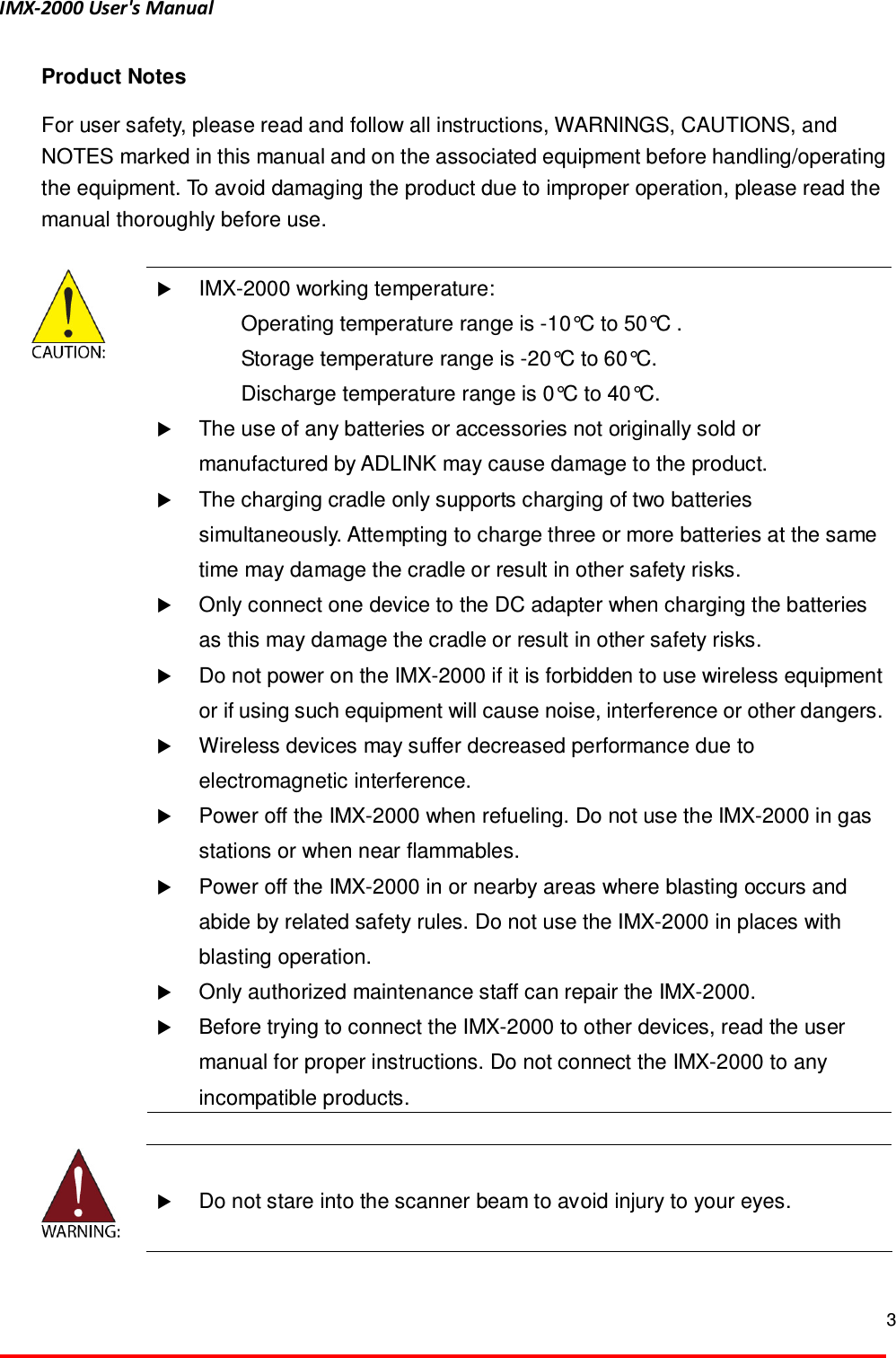
IMX-2000 User's Manual  3  Product Notes For user safety, please read and follow all instructions, WARNINGS, CAUTIONS, and NOTES marked in this manual and on the associated equipment before handling/operating the equipment. To avoid damaging the product due to improper operation, please read the manual thoroughly before use.     IMX-2000 working temperature:   Operating temperature range is -10°C to 50°C .   Storage temperature range is -20°C to 60°C.   Discharge temperature range is 0°C to 40°C.  The use of any batteries or accessories not originally sold or manufactured by ADLINK may cause damage to the product.  The charging cradle only supports charging of two batteries simultaneously. Attempting to charge three or more batteries at the same time may damage the cradle or result in other safety risks.  Only connect one device to the DC adapter when charging the batteries as this may damage the cradle or result in other safety risks.  Do not power on the IMX-2000 if it is forbidden to use wireless equipment or if using such equipment will cause noise, interference or other dangers.  Wireless devices may suffer decreased performance due to electromagnetic interference.  Power off the IMX-2000 when refueling. Do not use the IMX-2000 in gas stations or when near flammables.  Power off the IMX-2000 in or nearby areas where blasting occurs and abide by related safety rules. Do not use the IMX-2000 in places with blasting operation.  Only authorized maintenance staff can repair the IMX-2000.   Before trying to connect the IMX-2000 to other devices, read the user manual for proper instructions. Do not connect the IMX-2000 to any incompatible products.     Do not stare into the scanner beam to avoid injury to your eyes.
IMX-2000 User's Manual  4  Important Safety Instructions  Read and follow all instructions marked on the product and in the documentation before you operate your system. Retain all safety and operating instructions for future use.      Please read these safety instructions carefully.     Please keep this User‘s Manual for later reference.     The equipment can be operated at an ambient temperature of 50ºC for discharge; 40ºC for charge.   The equipment should be operated only from the type of power source indicated on the rating label. Make sure the voltage of the power source when connect the equipment to the power outlet.   If the equipment is not use for long time, disconnect the equipment from mains to avoid being damaged by transient overvoltage.     All cautions and warnings on the equipment should be noted.     Please keep this equipment from humidity.     Do not use this equipment near water or a heat source.     Never pour any liquid into opening; this could cause fire or electrical shock.     Openings in the case are provided for ventilation. Do not block or cover these openings. Make sure you provide adequate space around the system for ventilation when you set up your work area. Never insert objects of any kind into the ventilation openings.     To avoid electrical shock, always unplug all power cables and modem cables from the wall outlets before removing covers.     If one of the following situations arises, get the equipment checked by a service personnel:     A. Liquid has penetrated into the equipment.     B. The equipment has been exposed to moisture.     C. The equipment has not work well or you can not get it work according to user‘s                 manual.     D. The equipment has dropped and damaged.     E. If the equipment has obvious sign of breakage.     Never open the equipment. For safety reason, the equipment should only be opened by qualified service personnel.  “CAUTION – Risk of explosion if battery is replaced by an incorrect type. Dispose of used batteries according to the instructions”
IMX-2000 User's Manual  5  FCC Statement This equipment has been tested and found to comply with the limits for a Class B digital device,  pursuant  to  part  15  of  the  FCC  rules.  These  limits  are  designed  to  provide reasonable  protection  against  harmful  interference  in  a  residential  installation.  This equipment generates, uses and can radiate radio frequency energy and, if not installed and used  in  accordance  with  the  instructions,  may  cause  harmful  interference  to  radio communications.  However,  there  is  no  guarantee  that  interference  will  not  occur  in  a particular  installation.  If  this  equipment  does  cause  harmful  interference  to  radio  or television  reception,  which can  be  determined  by  turning  the  equipment  off  and  on,  the user  is  encouraged  to  try  to  correct  the  interference  by  one  or  more  of  the  following measures:    Reorient or relocate the receiving antenna.    Increase the separation between the equipment and receiver.    Connect the equipment into an outlet on a circuit different from that to which the receiver is connected.    Consult the dealer or an experienced radio/TV technician for help.    You are cautioned that changes or modifications not expressly approved by the party responsible for compliance could void your authority to operate the equipment.    This device complies with Part 15 of the FCC Rules. Operation is subject to the following two conditions: (1) this device may not cause harmful interference and (2) this device must accept any interference received, including interference that may cause   undesired operation.  FCC RF Radiation Exposure Statement: 1. This Transmitter has been demonstrated co-location compliance requirements with FCC ID: X4D-IMX-2000.This transmitter must not be co-located or operating in conjunction with any other antenna or transmitter. 2. This equipment complies with FCC RF radiation exposure limits set forth for an uncontrolled environment. This device was tested for typical hand held operations with the device near human body for 1 cm to the front side of the Rugged Handheld Device. To maintain compliance with FCC RF exposure compliance requirements, avoid direct contact to the transmitting antenna during transmitting.
IMX-2000 User's Manual  6  Table of Contents  REVISION HISTORY....................................................................................................................................................... 2 PRODUCT NOTES........................................................................................................................................................... 3 IMPORTANT SAFETY INSTRUCTIONS....................................................................................................................... 4 FCC STATEMENT............................................................................................................................................................ 5 TABLE OF CONTENTS................................................................................................................................................... 6 1 OVERVIEW ............................................................................................................................................................. 8 1.1 IMX-2000 LAYOUT............................................................................................................................................ 8 1.2 PACKAGE CONTENTS .......................................................................................................................................... 9 2 QUICK START ...................................................................................................................................................... 10 2.1 INSTALLING A SIM CARD ................................................................................................................................. 10 2.2 INSTALLING A MICRO SD CARD ........................................................................................................................ 10 2.3 INSTALLING A BATTERY .....................................................................................................................................11 2.4 CHARGING THE BATTERY ................................................................................................................................. 12 2.5 INDICATOR LEDS............................................................................................................................................. 14 2.6 POWER ON/OFF ............................................................................................................................................... 15 2.7 KEYPAD........................................................................................................................................................... 16 3 USING THE IMX-2000.......................................................................................................................................... 18 3.1 HOME SCREEN ................................................................................................................................................. 18 3.2 ACCESSING MICRO SD DATA VIA A PC............................................................................................................... 20 3.3 PLACING AND RECEIVING A CALL ..................................................................................................................... 21 3.4 WEB BROWSER ................................................................................................................................................ 22 3.5 EMAIL ACCOUNT.............................................................................................................................................. 23 3.6 FILE EXPLORER................................................................................................................................................ 24 3.7 CONNECTING TO BLUETOOTH DEVICES ............................................................................................................. 25 3.8 CONNECTING TO WI-FI NETWORKS................................................................................................................... 27 3.9 USING GPS...................................................................................................................................................... 28 3.10 PHOTOS AND VIDEO ......................................................................................................................................... 30 3.11 SOUND RECORDER ........................................................................................................................................... 32 4 SETTINGS ............................................................................................................................................................. 33 4.1 ABOUT THE IMX-2000..................................................................................................................................... 33 4.2 DATE & TIME ................................................................................................................................................... 34 4.3 LANGUAGE & KEYPAD SETTINGS ..................................................................................................................... 35
IMX-2000 User's Manual  7  4.4 TOUCH SCREEN CALIBRATION .......................................................................................................................... 36 4.5 MOBILE NETWORKS ......................................................................................................................................... 37 4.6 SOUND SETTINGS ............................................................................................................................................. 40 4.7 DISPLAY SETTINGS ........................................................................................................................................... 42 4.8 STORAGE SETTINGS ......................................................................................................................................... 43 4.9 APPLICATION SETTINGS.................................................................................................................................... 44 4.10 FACTORY DATA RESET ...................................................................................................................................... 46 TECHNICAL SUPPORT ................................................................................................................................................ 47
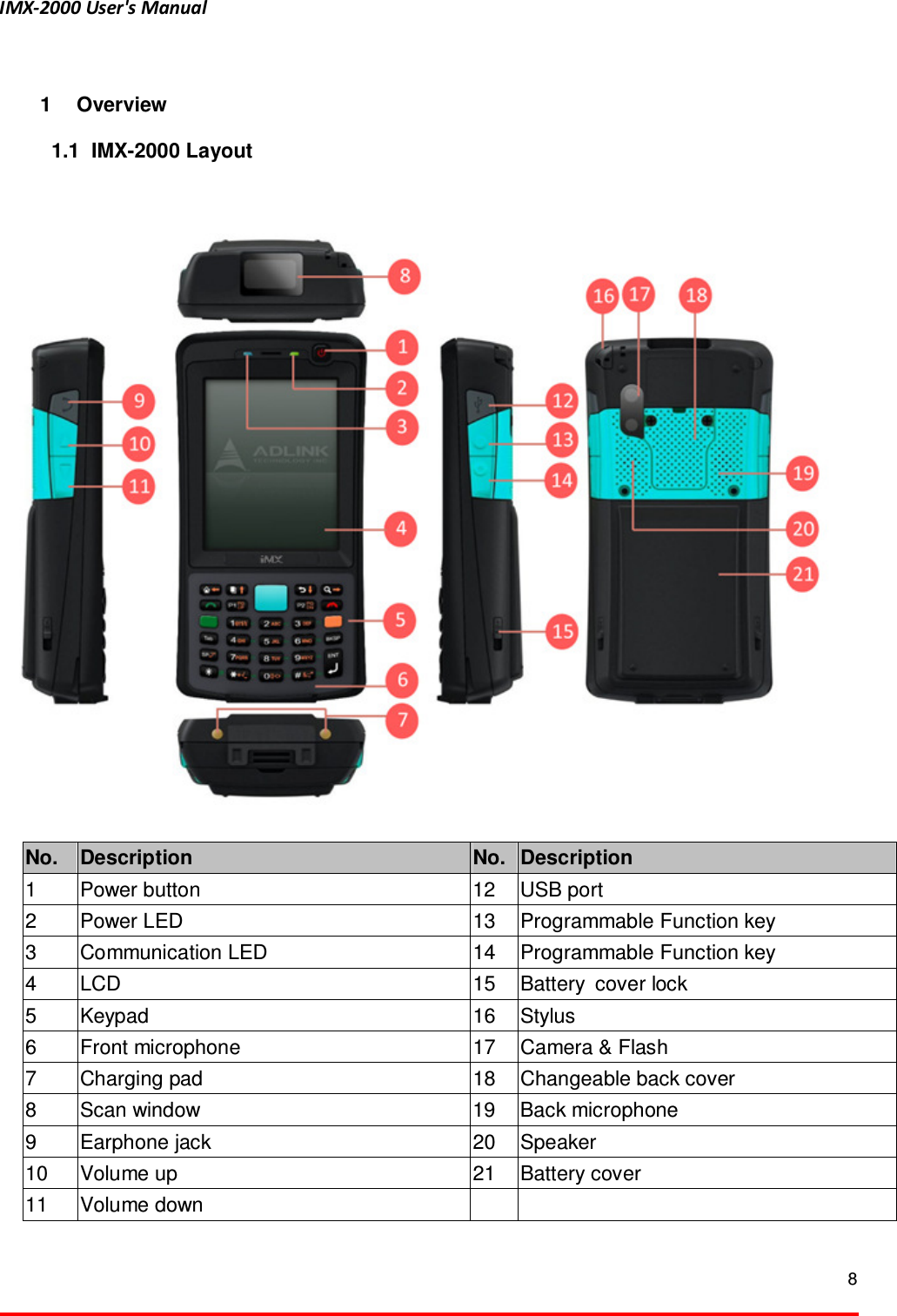
IMX-2000 User's Manual  8   1  Overview 1.1   IMX-2000 Layout     No.  Description  No. Description 1  Power button  12  USB port 2  Power LED  13  Programmable Function key 3  Communication LED  14  Programmable Function key 4  LCD  15  Battery cover lock 5  Keypad  16  Stylus 6  Front microphone  17  Camera & Flash   7  Charging pad  18  Changeable back cover 8  Scan window  19  Back microphone 9  Earphone jack  20  Speaker 10  Volume up  21  Battery cover 11  Volume down
IMX-2000 User's Manual  9  1.2  Package Contents  The IMX-2000 is packaged with the components listed below. If any of the items in the contents list are missing or damaged, retain the shipping carton and packing material and contact the dealer for inspection. Please obtain authorization before returning any product to ADLINK.    IMX-2000 Handheld Computer   Battery (3900 mAh)   AC Adapter and plug   Hand strap     USB cable   Quick guide
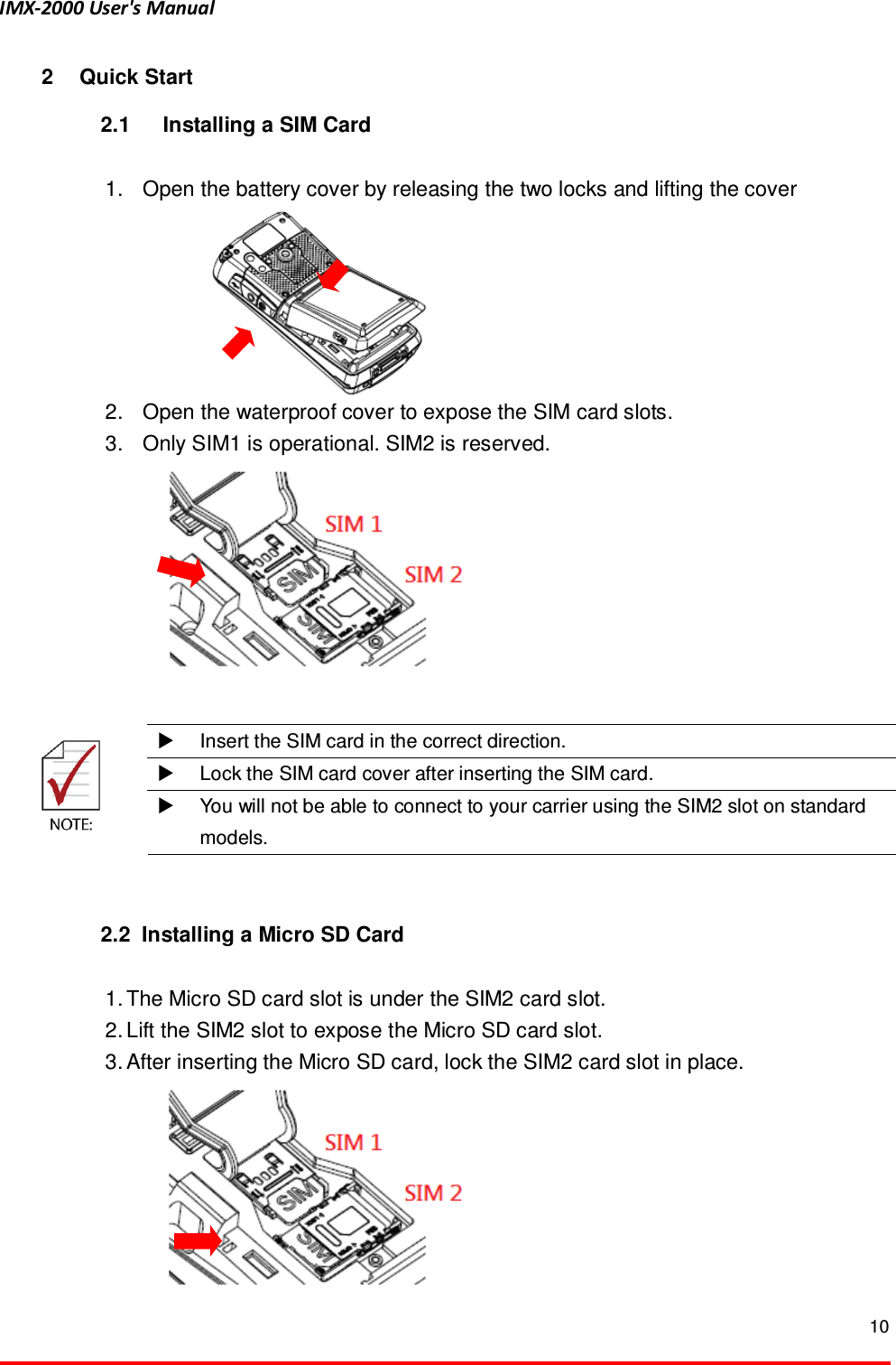
IMX-2000 User's Manual  10  2  Quick Start 2.1  Installing a SIM Card  1.  Open the battery cover by releasing the two locks and lifting the cover      2.  Open the waterproof cover to expose the SIM card slots. 3.  Only SIM1 is operational. SIM2 is reserved.     Insert the SIM card in the correct direction.   Lock the SIM card cover after inserting the SIM card.    You will not be able to connect to your carrier using the SIM2 slot on standard models.   2.2  Installing a Micro SD Card  1. The Micro SD card slot is under the SIM2 card slot. 2. Lift the SIM2 slot to expose the Micro SD card slot. 3. After inserting the Micro SD card, lock the SIM2 card slot in place.
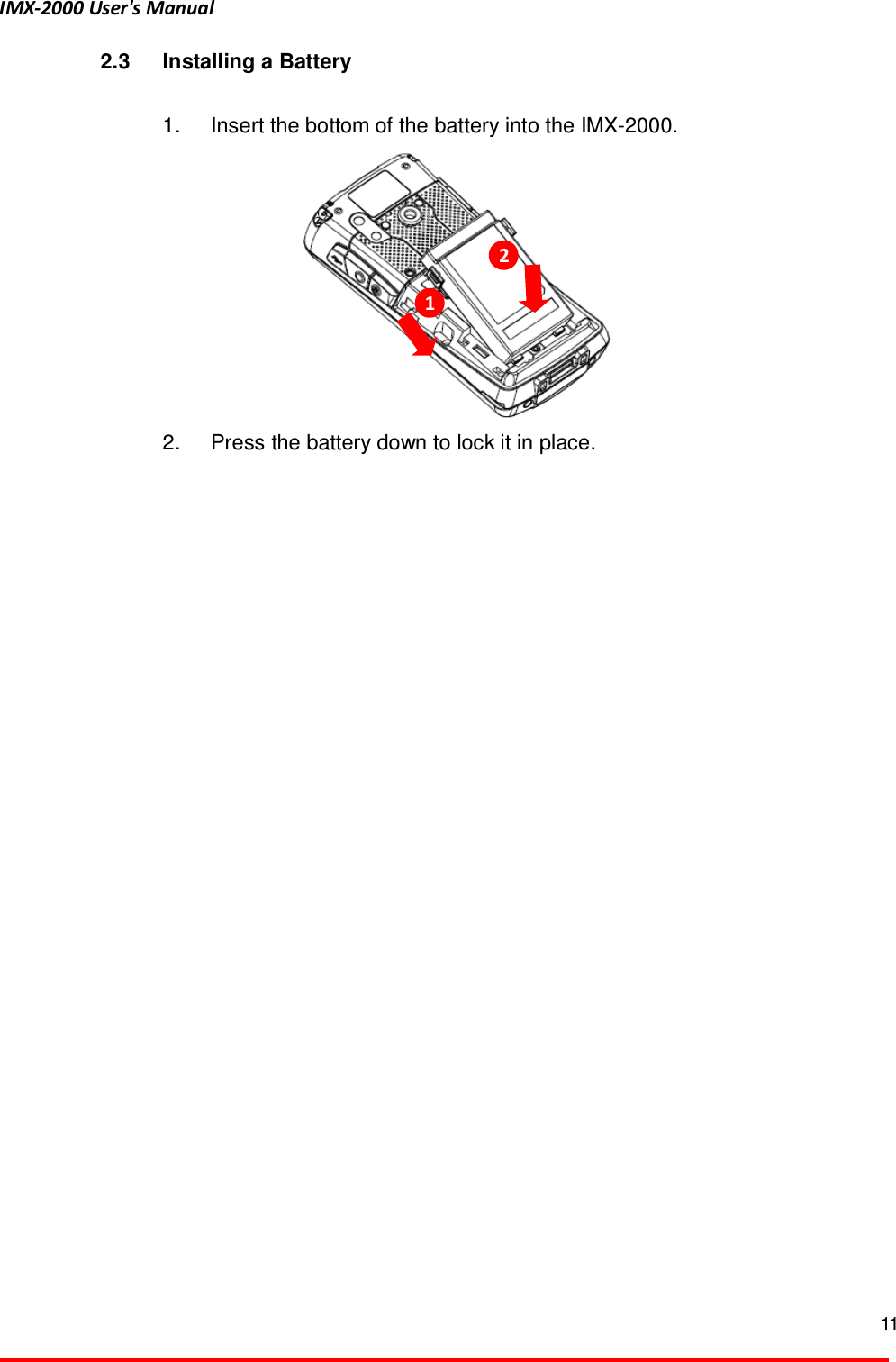
IMX-2000 User's Manual  11  2.3  Installing a Battery  1.  Insert the bottom of the battery into the IMX-2000.        2.  Press the battery down to lock it in place.    1  2
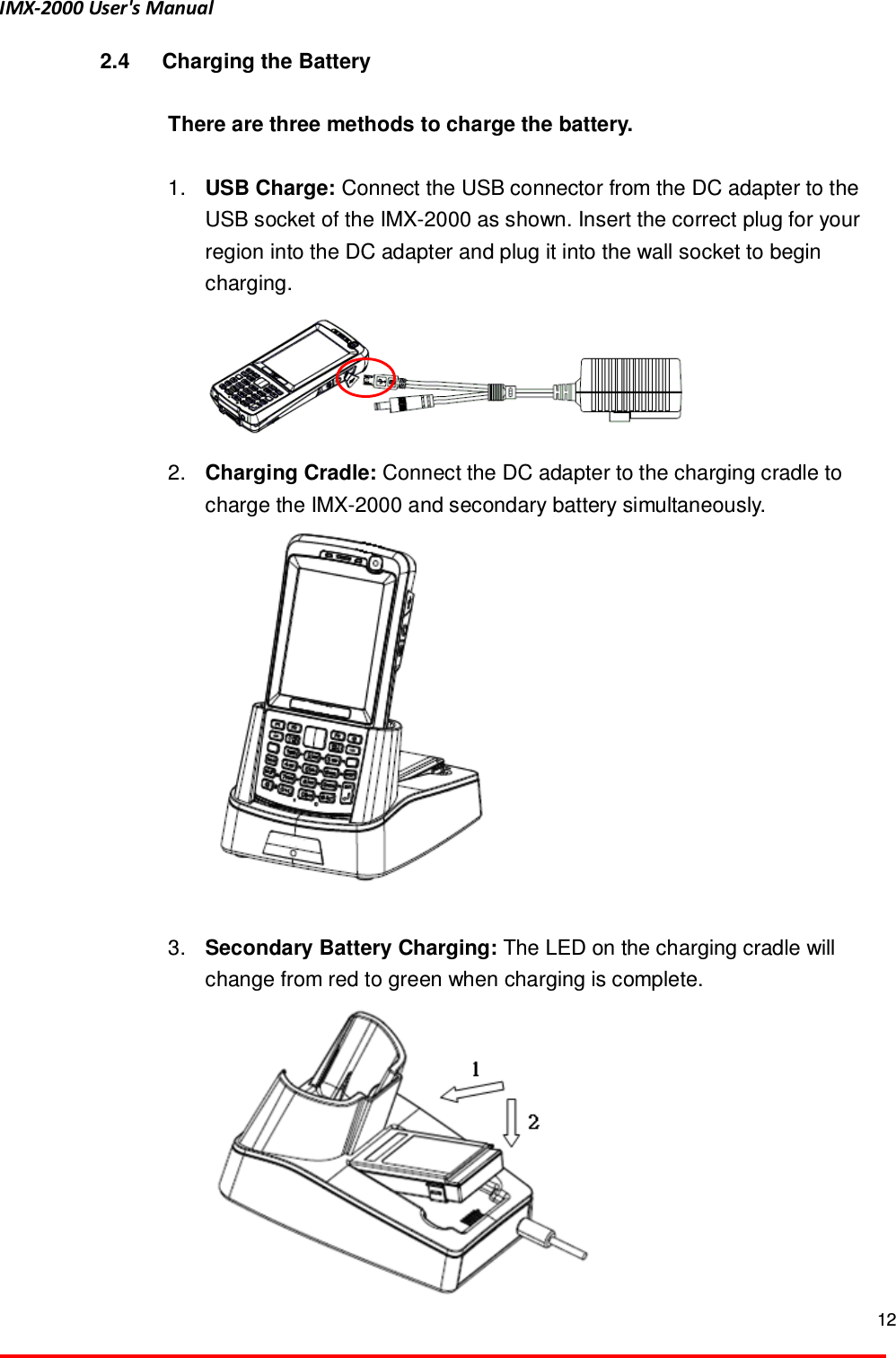
IMX-2000 User's Manual  12  2.4  Charging the Battery  There are three methods to charge the battery.    1.  USB Charge: Connect the USB connector from the DC adapter to the USB socket of the IMX-2000 as shown. Insert the correct plug for your region into the DC adapter and plug it into the wall socket to begin charging.  2.  Charging Cradle: Connect the DC adapter to the charging cradle to charge the IMX-2000 and secondary battery simultaneously.     3.  Secondary Battery Charging: The LED on the charging cradle will change from red to green when charging is complete.
IMX-2000 User's Manual  13        The IMX-2000 cannot be charged while using the USB connection.
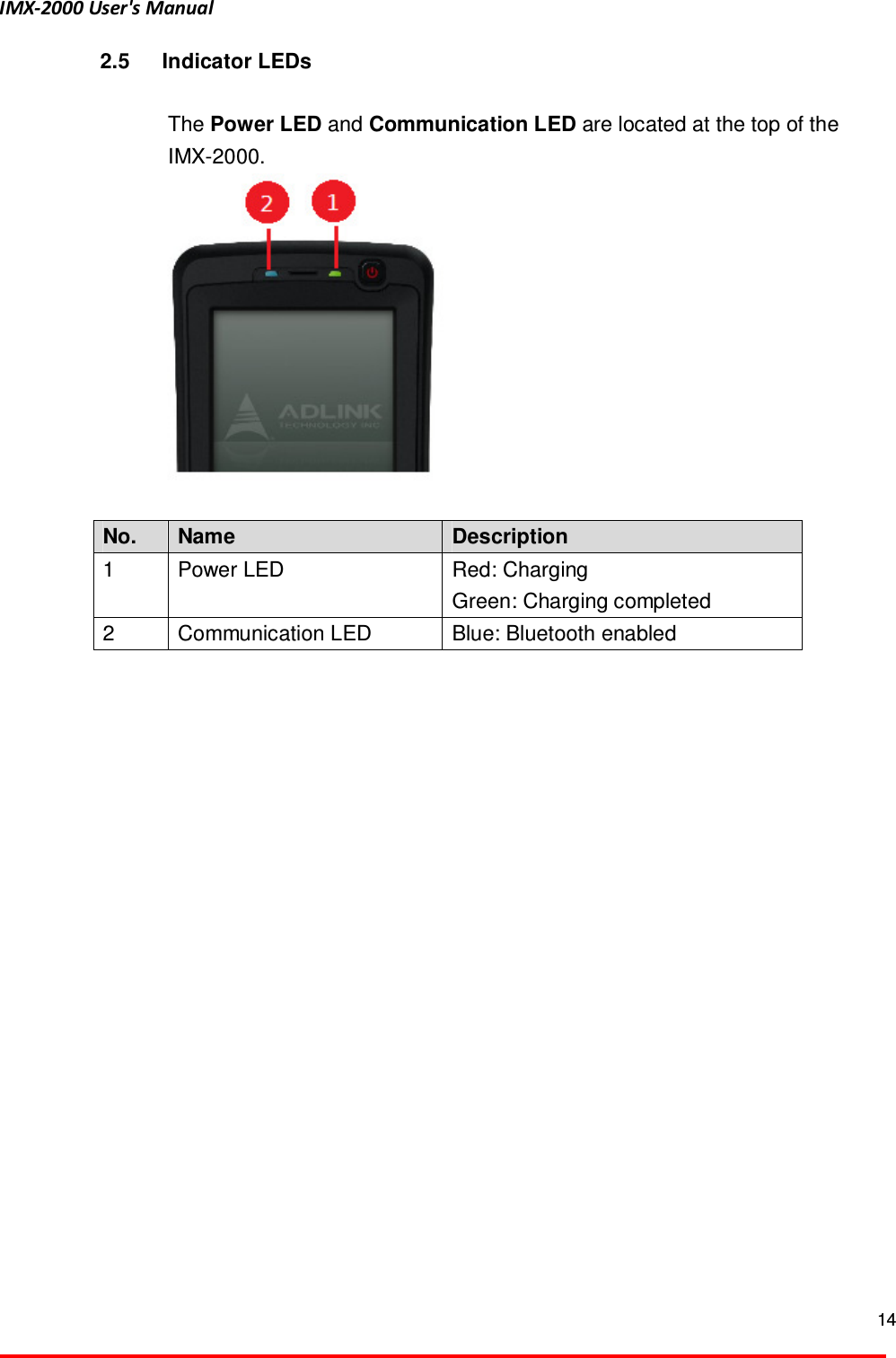
IMX-2000 User's Manual  14  2.5  Indicator LEDs  The Power LED and Communication LED are located at the top of the IMX-2000.   No.  Name  Description 1  Power LED  Red: Charging   Green: Charging completed 2  Communication LED  Blue: Bluetooth enabled
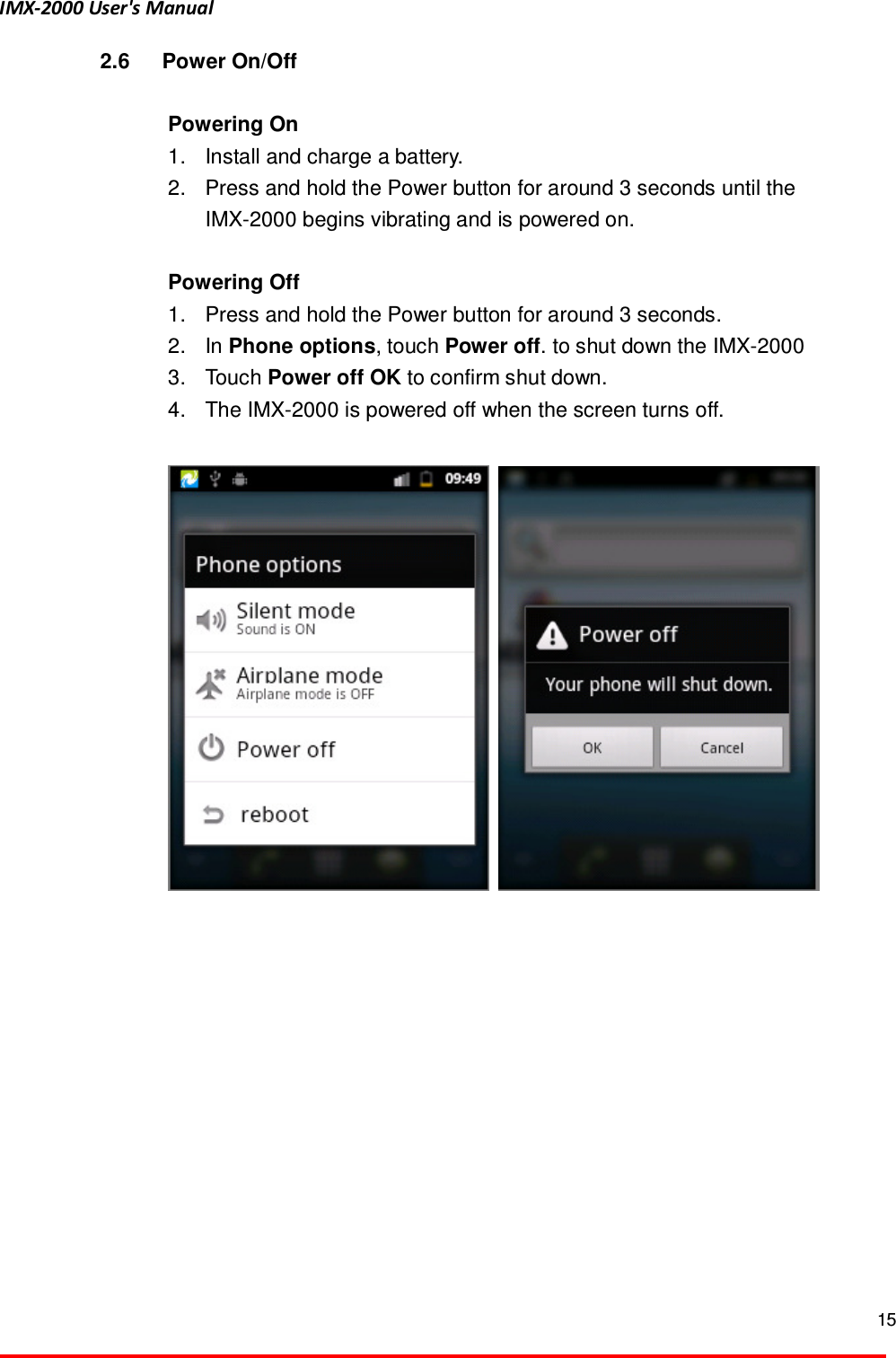
IMX-2000 User's Manual  15  2.6  Power On/Off  Powering On   1.  Install and charge a battery.   2.  Press and hold the Power button for around 3 seconds until the IMX-2000 begins vibrating and is powered on.    Powering Off 1.  Press and hold the Power button for around 3 seconds.   2.  In Phone options, touch Power off. to shut down the IMX-2000   3.  Touch Power off OK to confirm shut down.   4.  The IMX-2000 is powered off when the screen turns off.
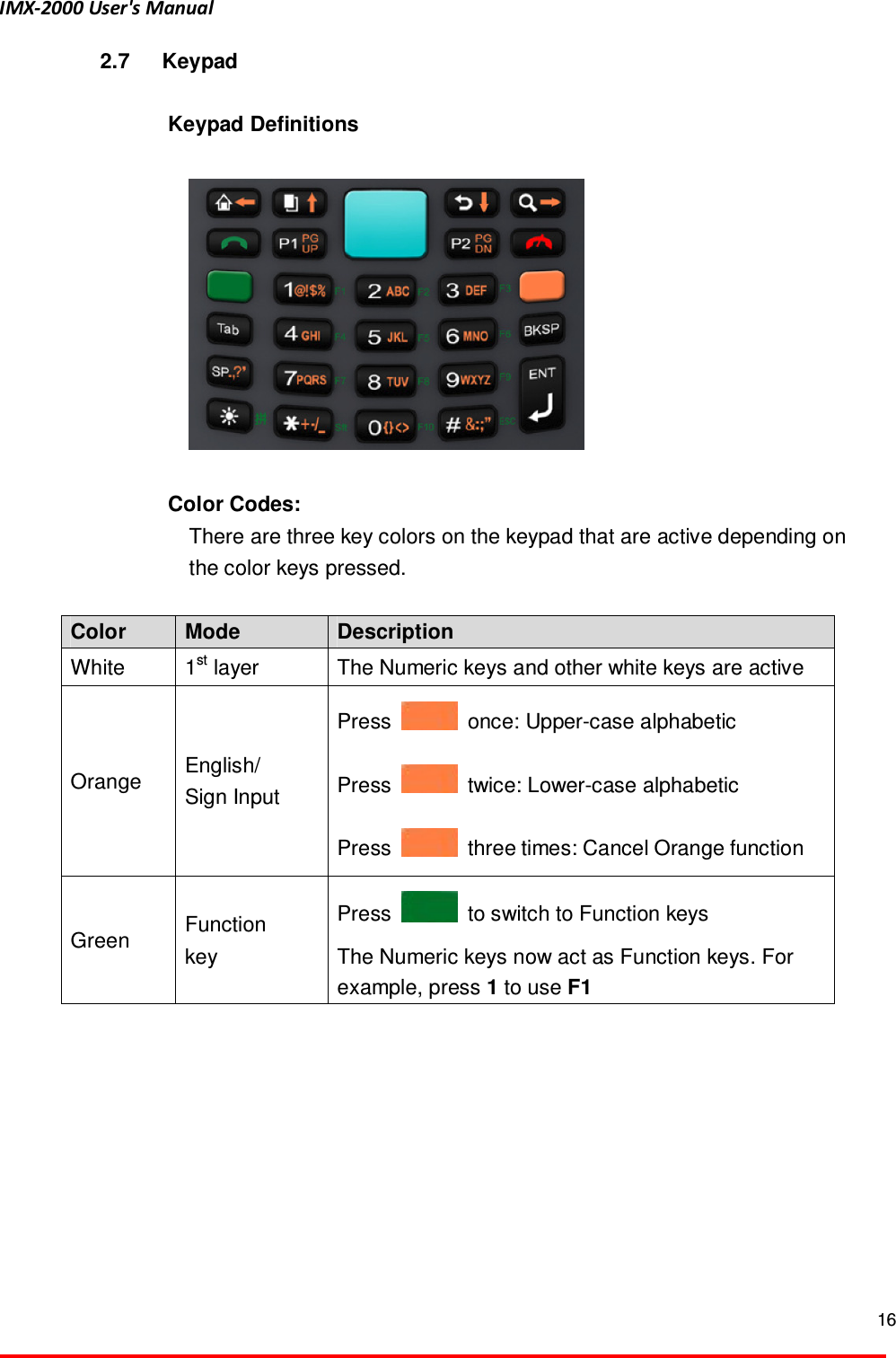
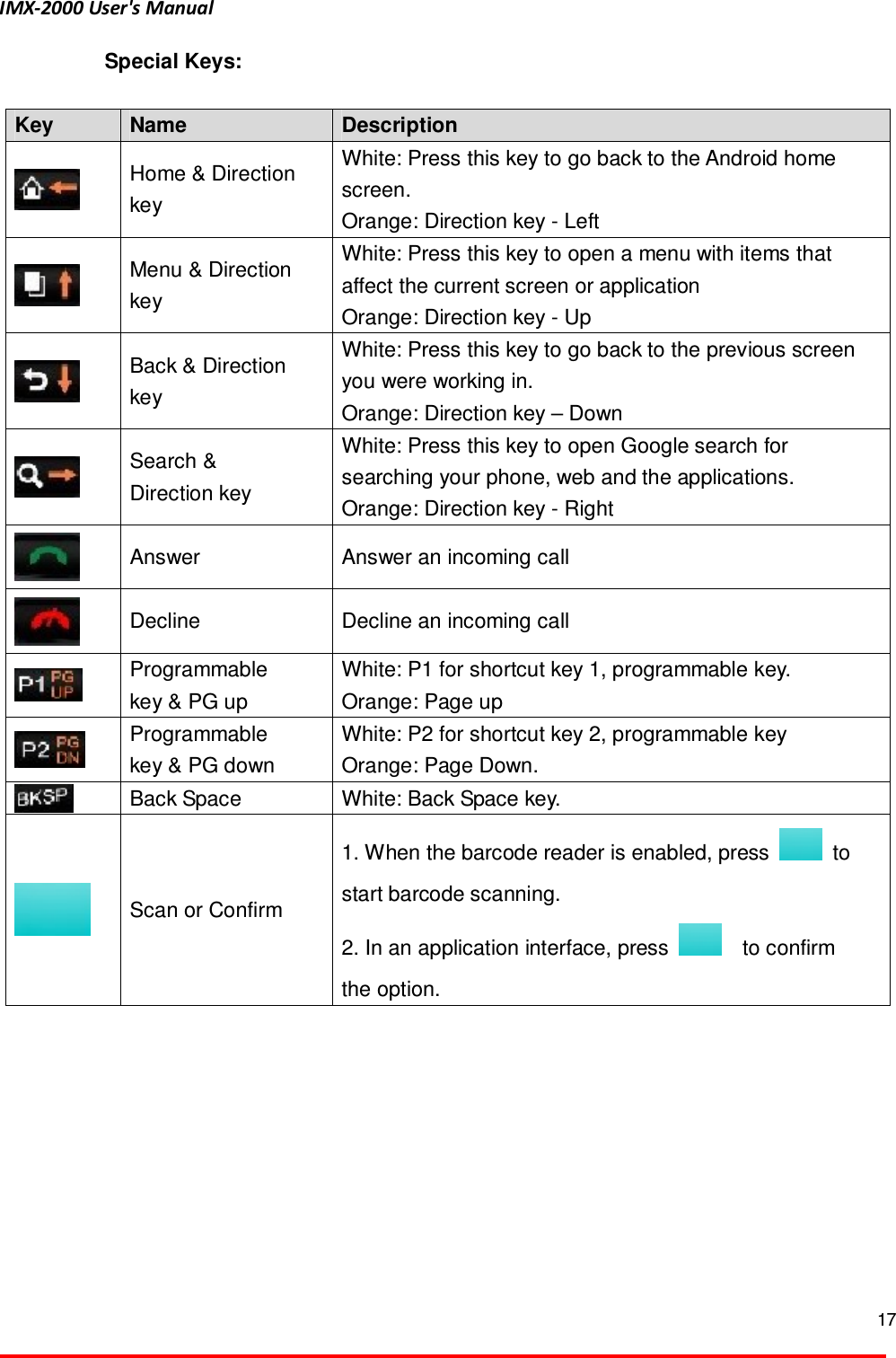
IMX-2000 User's Manual  16  2.7  Keypad  Keypad Definitions    Color Codes:   There are three key colors on the keypad that are active depending on the color keys pressed.    Color    Mode  Description White    1st layer  The Numeric keys and other white keys are active Orange    English/ Sign Input Press    once: Upper-case alphabetic Press    twice: Lower-case alphabetic Press    three times: Cancel Orange function Green    Function key Press    to switch to Function keys The Numeric keys now act as Function keys. For example, press 1 to use F1
IMX-2000 User's Manual  17  Special Keys:    Key  Name  Description    Home & Direction key White: Press this key to go back to the Android home screen. Orange: Direction key - Left  Menu & Direction key White: Press this key to open a menu with items that affect the current screen or application Orange: Direction key - Up  Back & Direction key White: Press this key to go back to the previous screen you were working in. Orange: Direction key – Down  Search & Direction key White: Press this key to open Google search for searching your phone, web and the applications.   Orange: Direction key - Right  Answer    Answer an incoming call    Decline    Decline an incoming call    Programmable key & PG up White: P1 for shortcut key 1, programmable key. Orange: Page up  Programmable key & PG down White: P2 for shortcut key 2, programmable key Orange: Page Down.  Back Space  White: Back Space key.    Scan or Confirm 1. When the barcode reader is enabled, press    to start barcode scanning.   2. In an application interface, press      to confirm the option.
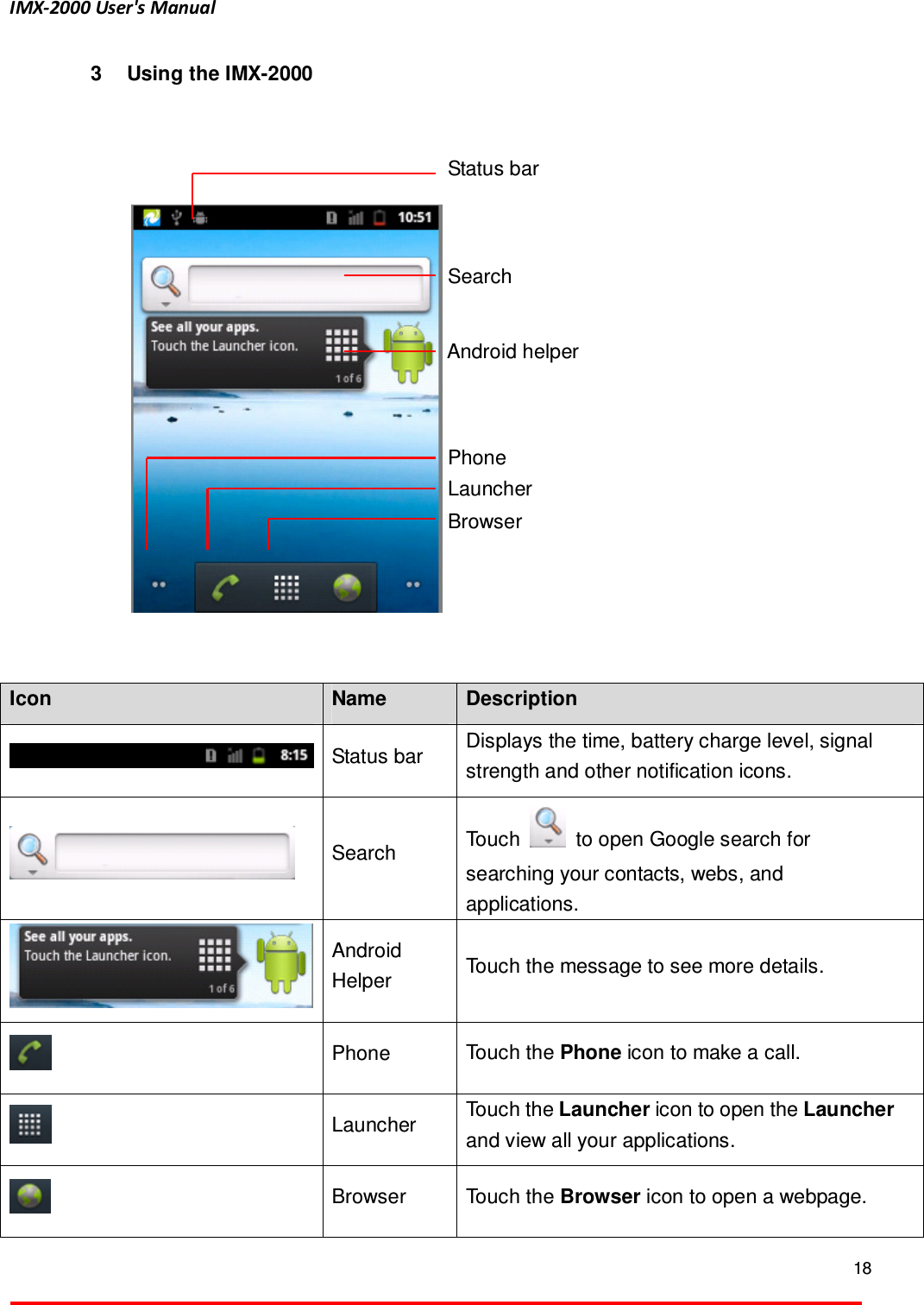
IMX-2000 User's Manual  18  3  Using the IMX-2000 3.1  Home Screen      Icon  Name  Description  Status bar    Displays the time, battery charge level, signal strength and other notification icons.    Search  Touch    to open Google search for searching your contacts, webs, and applications.    Android Helper  Touch the message to see more details.  Phone  Touch the Phone icon to make a call.  Launcher    Touch the Launcher icon to open the Launcher and view all your applications.  Browser    Touch the Browser icon to open a webpage. Status bar Android helper Phone   Launcher Browser Search
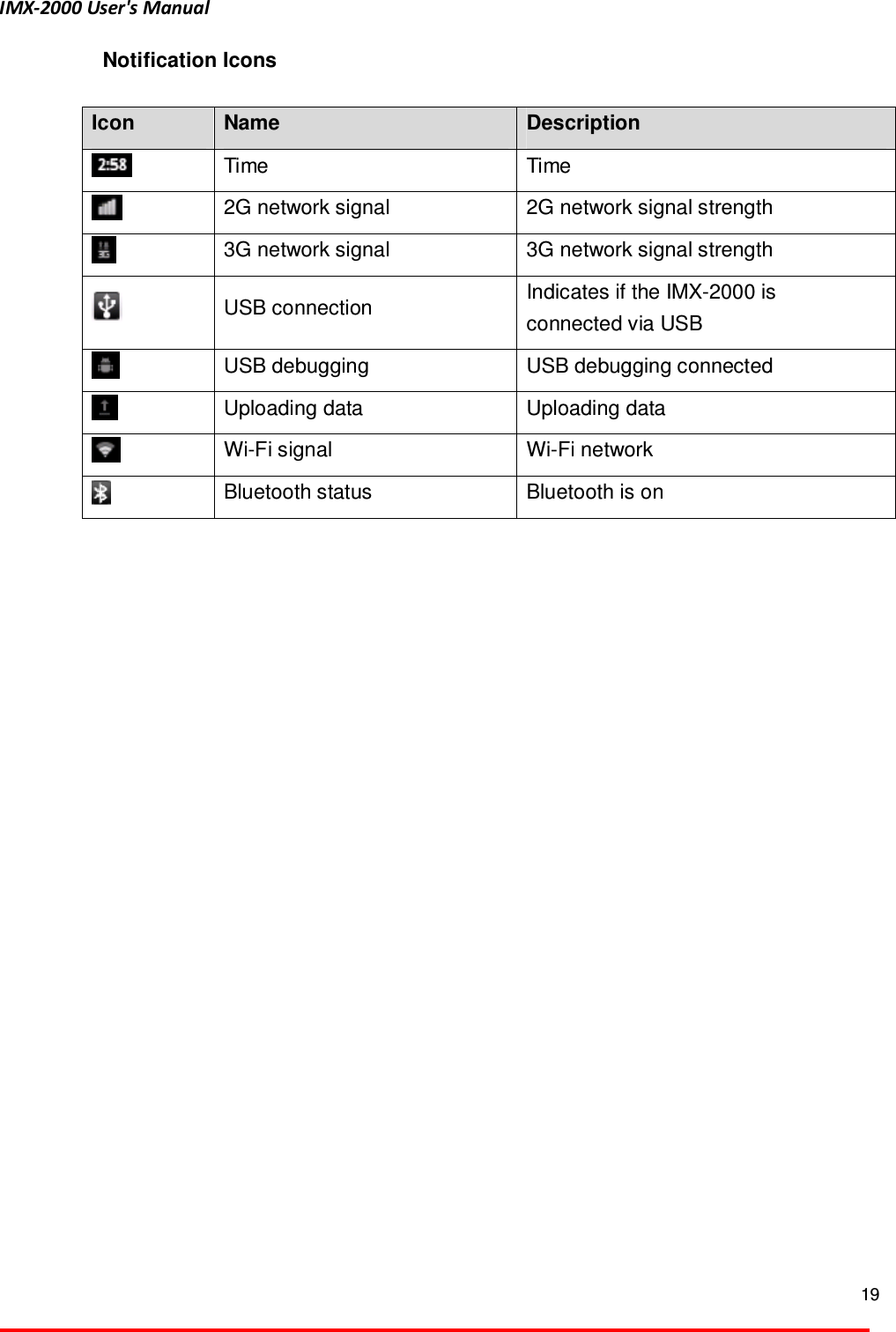
IMX-2000 User's Manual  19  Notification Icons  Icon  Name  Description  Time  Time  2G network signal  2G network signal strength  3G network signal  3G network signal strength  USB connection  Indicates if the IMX-2000 is connected via USB    USB debugging  USB debugging connected  Uploading data  Uploading data  Wi-Fi signal  Wi-Fi network  Bluetooth status  Bluetooth is on
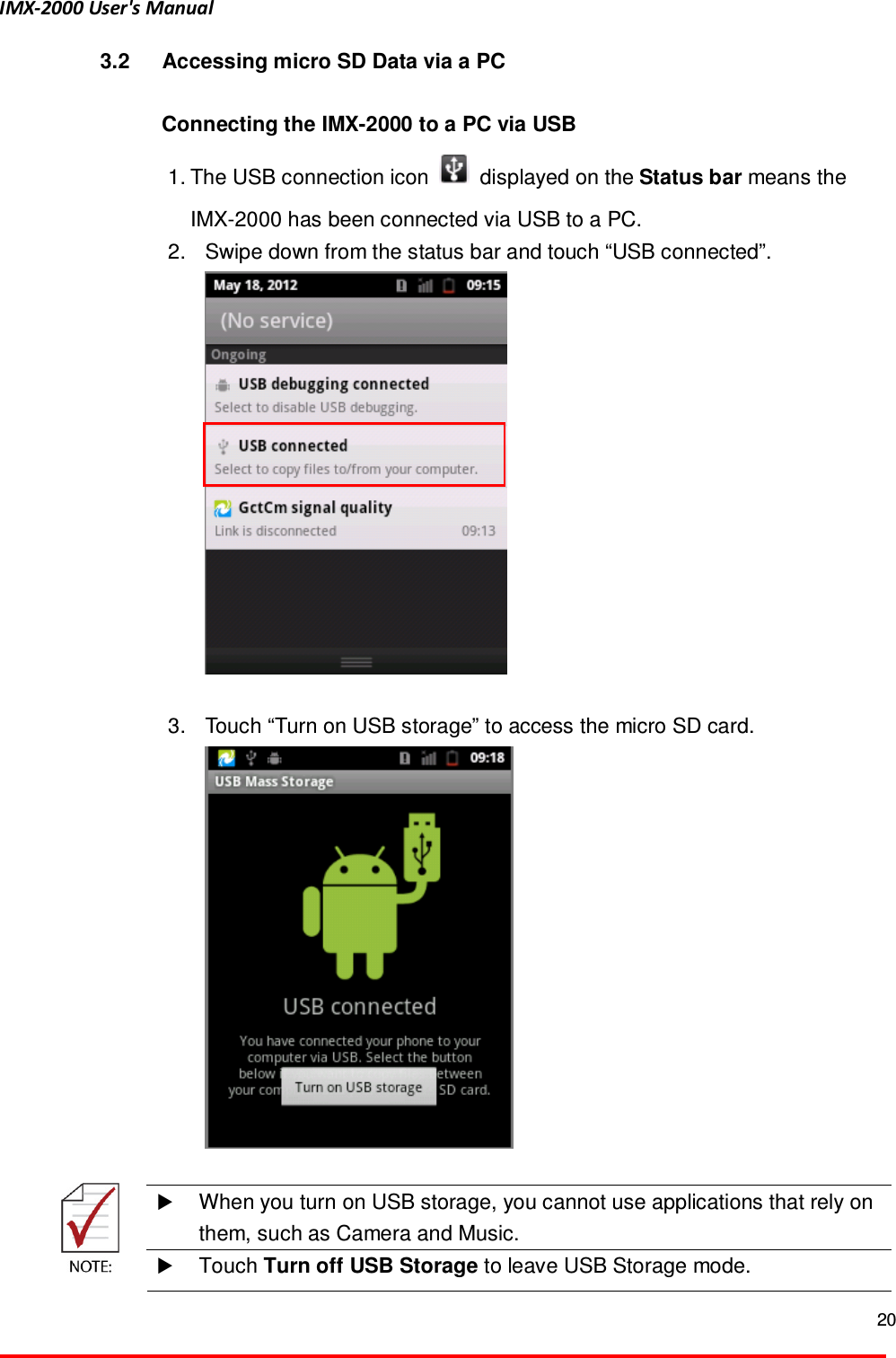
IMX-2000 User's Manual  20  3.2  Accessing micro SD Data via a PC  Connecting the IMX-2000 to a PC via USB 1. The USB connection icon    displayed on the Status bar means the IMX-2000 has been connected via USB to a PC. 2.  Swipe down from the status bar and touch “USB connected”.   3.  Touch “Turn on USB storage” to access the micro SD card.    When you turn on USB storage, you cannot use applications that rely on them, such as Camera and Music.   Touch Turn off USB Storage to leave USB Storage mode.
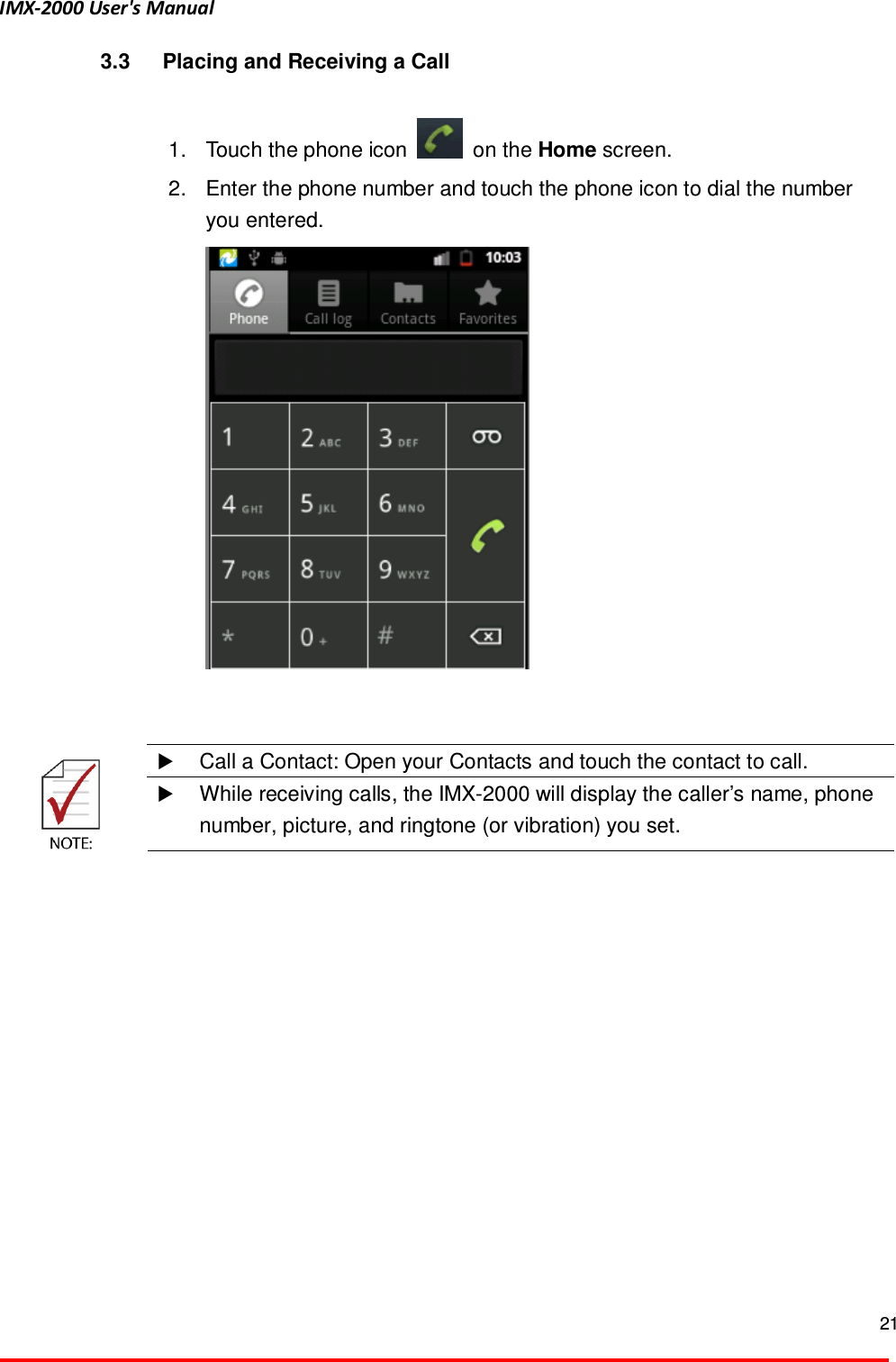
IMX-2000 User's Manual  21  3.3  Placing and Receiving a Call  1.  Touch the phone icon    on the Home screen.   2.  Enter the phone number and touch the phone icon to dial the number you entered.       Call a Contact: Open your Contacts and touch the contact to call.   While receiving calls, the IMX-2000 will display the caller’s name, phone number, picture, and ringtone (or vibration) you set.
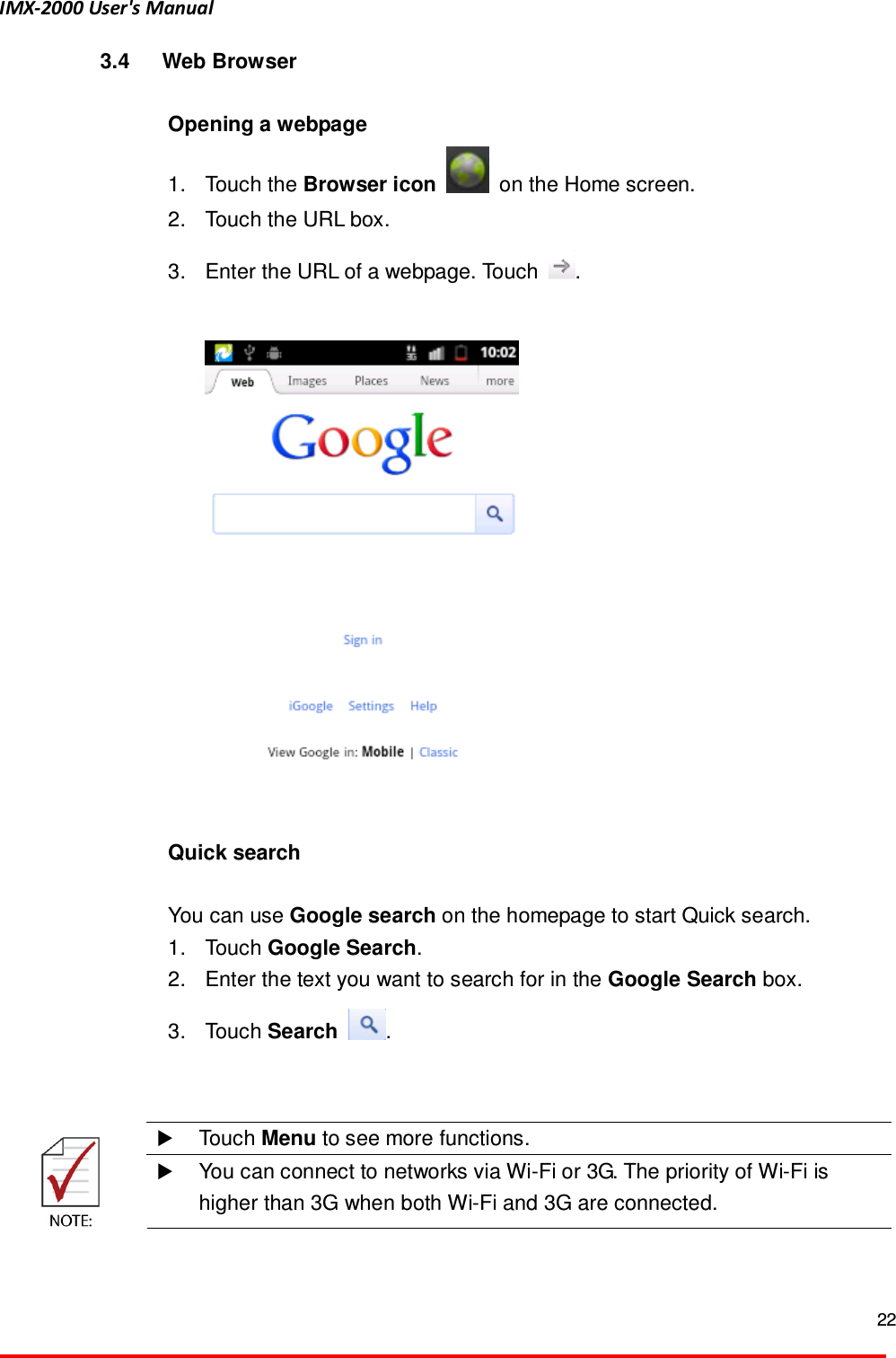
IMX-2000 User's Manual  22  3.4  Web Browser  Opening a webpage   1.  Touch the Browser icon    on the Home screen.   2.  Touch the URL box.   3.  Enter the URL of a webpage. Touch  .     Quick search    You can use Google search on the homepage to start Quick search.   1.  Touch Google Search.   2.  Enter the text you want to search for in the Google Search box.   3.  Touch Search  .      Touch Menu to see more functions.   You can connect to networks via Wi-Fi or 3G. The priority of Wi-Fi is higher than 3G when both Wi-Fi and 3G are connected.
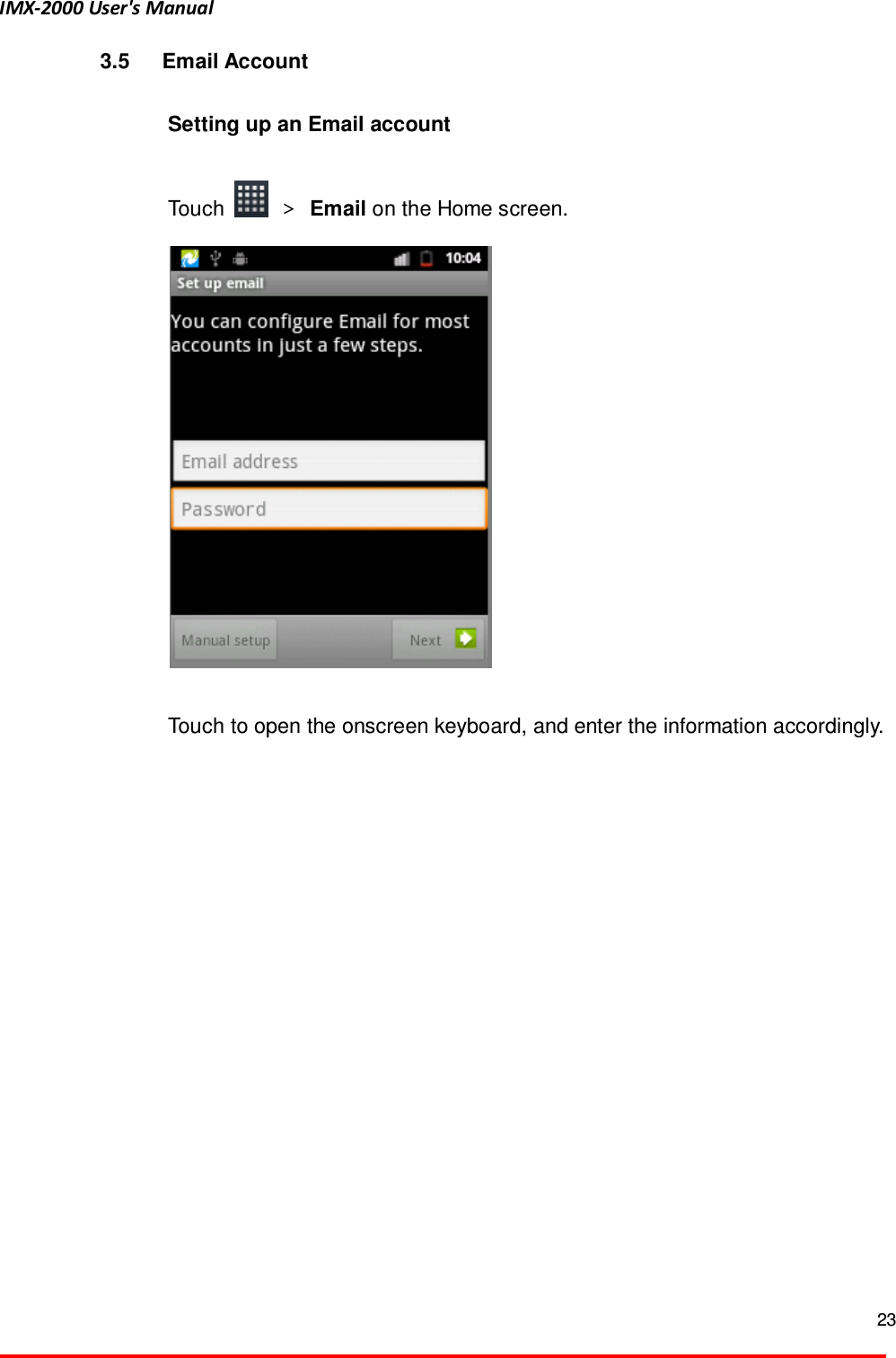
IMX-2000 User's Manual  23  3.5  Email Account  Setting up an Email account    Touch    > Email on the Home screen.    Touch to open the onscreen keyboard, and enter the information accordingly.
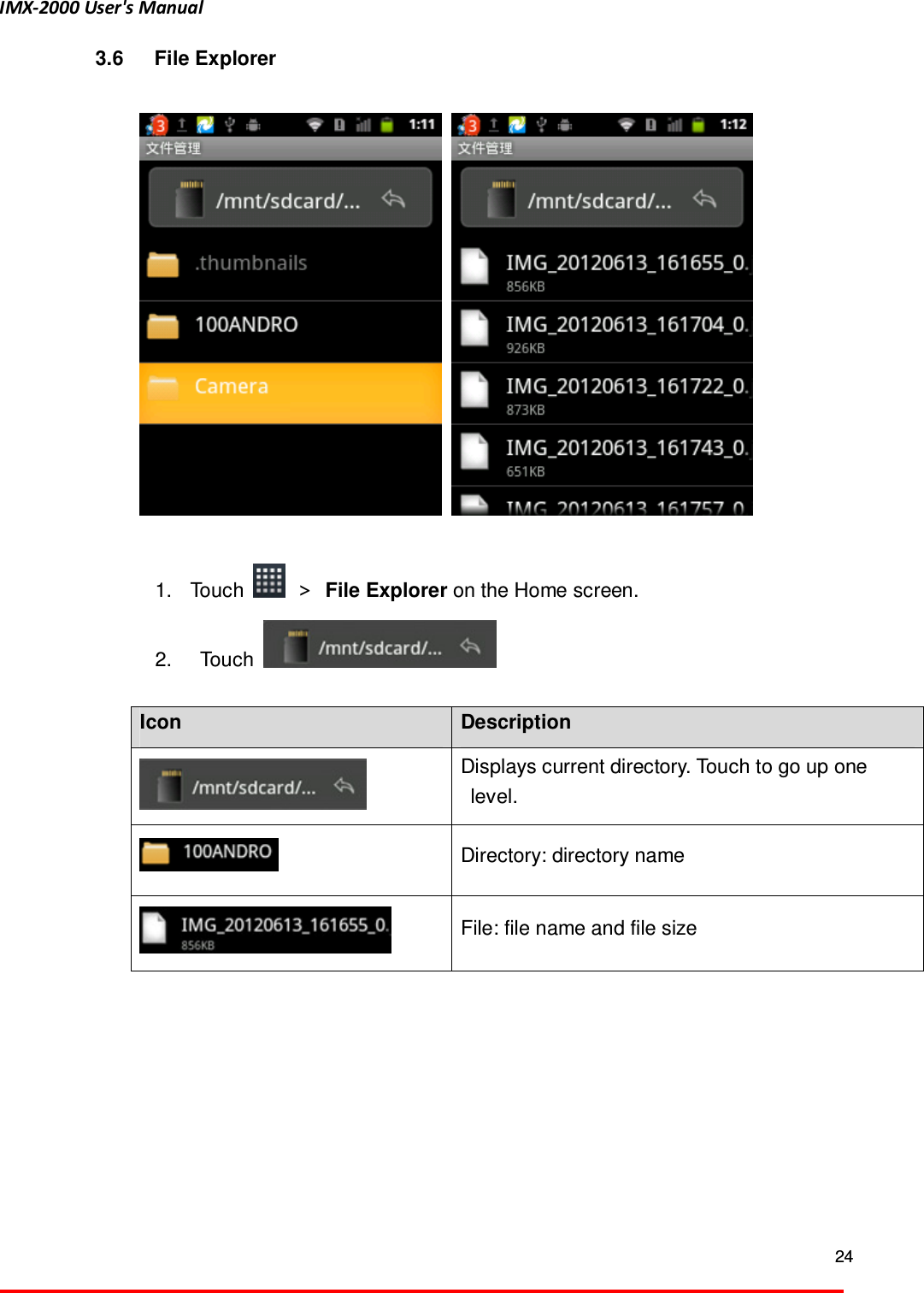
IMX-2000 User's Manual  24  3.6  File Explorer      1.  Touch    >  File Explorer on the Home screen. 2.    Touch      Icon  Description  Displays current directory. Touch to go up one level.  Directory: directory name  File: file name and file size
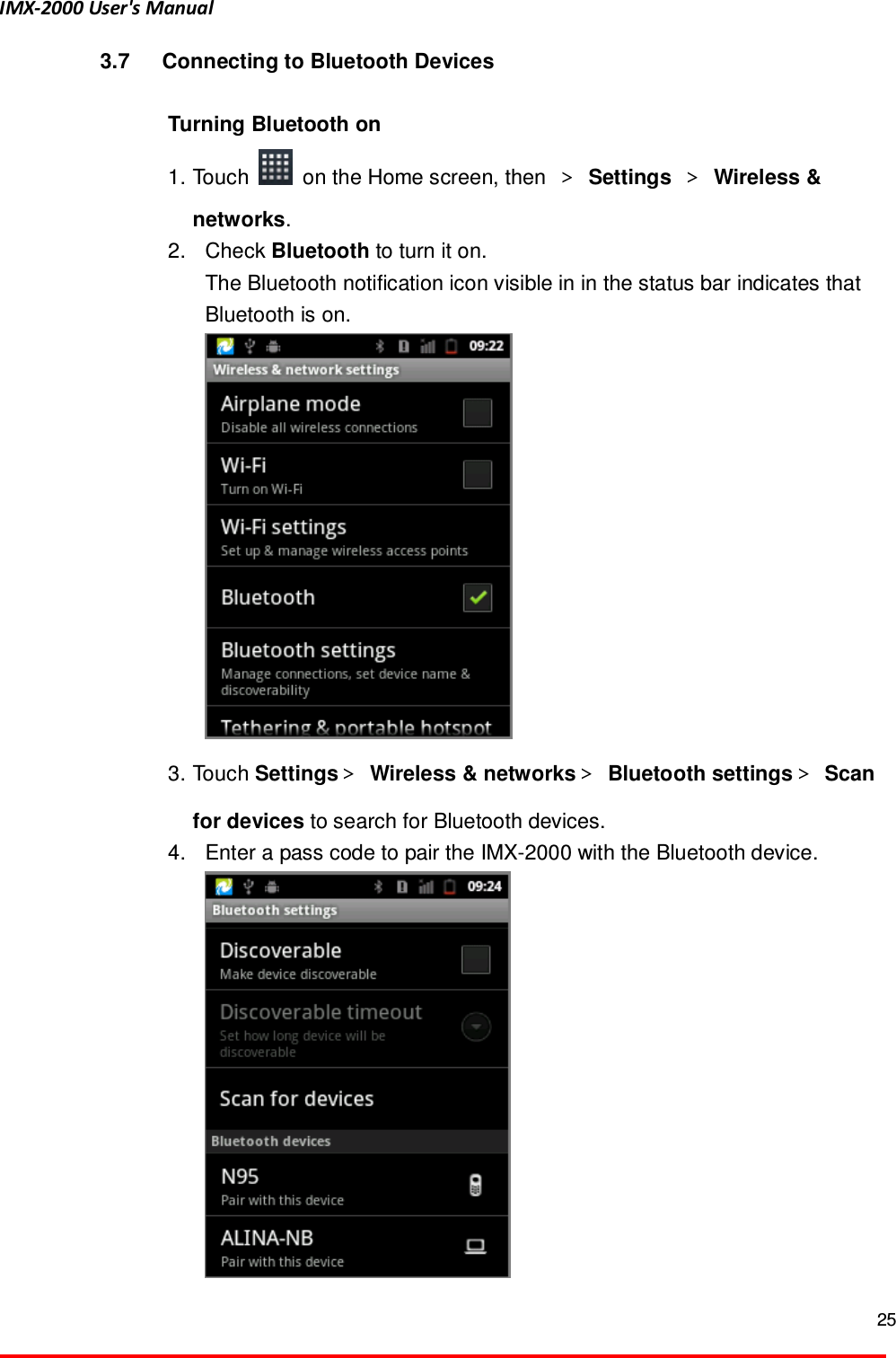
IMX-2000 User's Manual  25  3.7  Connecting to Bluetooth Devices  Turning Bluetooth on   1. Touch    on the Home screen, then  > Settings > Wireless & networks.   2.  Check Bluetooth to turn it on.   The Bluetooth notification icon visible in in the status bar indicates that Bluetooth is on.      3. Touch Settings> Wireless & networks> Bluetooth settings> Scan for devices to search for Bluetooth devices.   4.  Enter a pass code to pair the IMX-2000 with the Bluetooth device.
IMX-2000 User's Manual  26  Turning Bluetooth off 1.  Touch    on the Home screen, then  > Settings > Wireless & networks.   2.  Uncheck Bluetooth to turn it off.      If the pairing is successful, the notification icon    will display on the status bar. You can start exchanging data with the Bluetooth device.  Touch Menu to see more functions.   While Bluetooth is on, the IMX-2000 will search and display available devices and the notification    will display on the status bar.
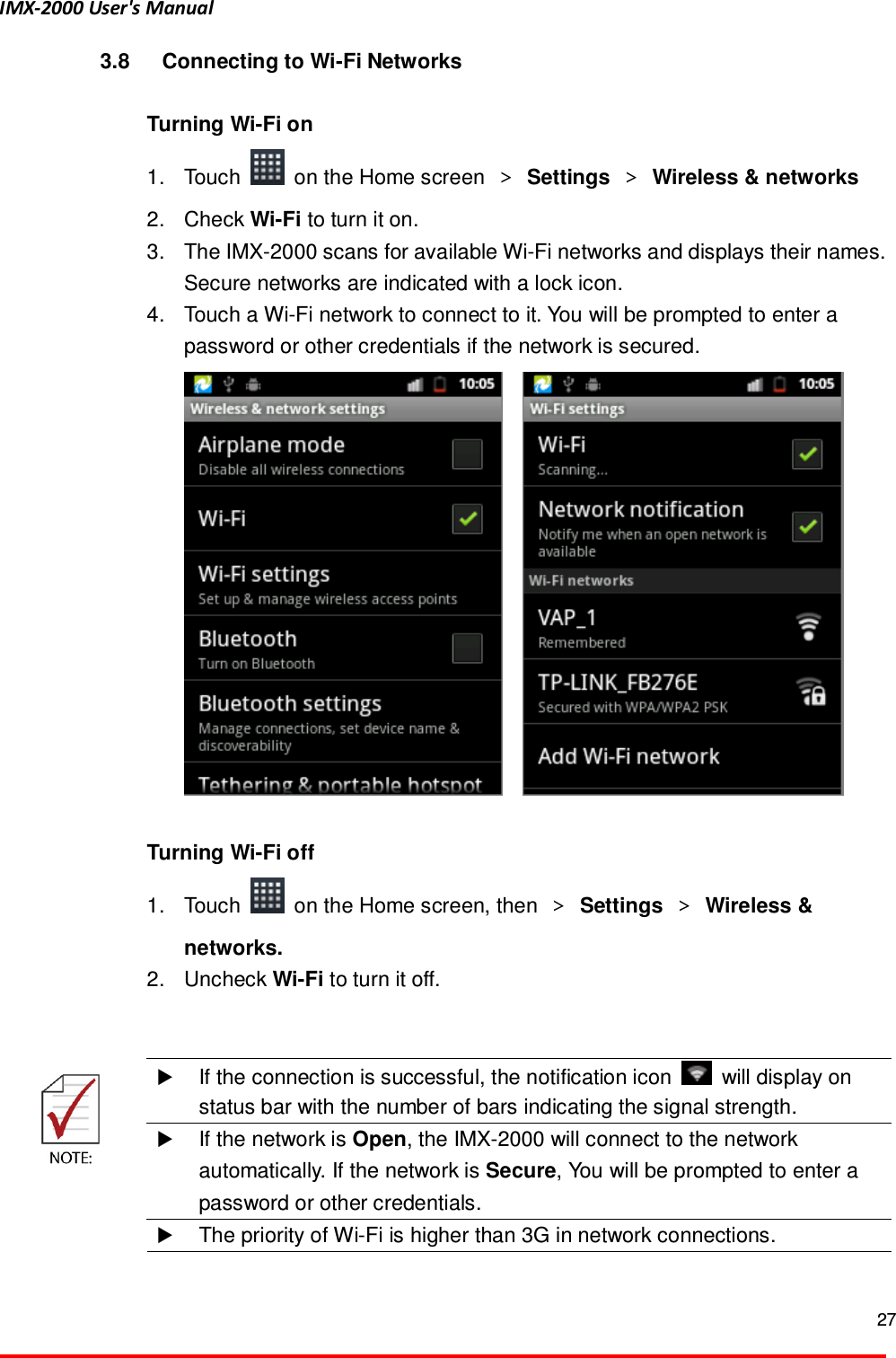
IMX-2000 User's Manual  27  3.8  Connecting to Wi-Fi Networks  Turning Wi-Fi on 1.  Touch    on the Home screen  > Settings  > Wireless & networks 2.  Check Wi-Fi to turn it on. 3.  The IMX-2000 scans for available Wi-Fi networks and displays their names. Secure networks are indicated with a lock icon.   4.  Touch a Wi-Fi network to connect to it. You will be prompted to enter a password or other credentials if the network is secured.         Turning Wi-Fi off 1.  Touch    on the Home screen, then  > Settings > Wireless & networks. 2.  Uncheck Wi-Fi to turn it off.    If the connection is successful, the notification icon    will display on status bar with the number of bars indicating the signal strength.  If the network is Open, the IMX-2000 will connect to the network automatically. If the network is Secure, You will be prompted to enter a password or other credentials.   The priority of Wi-Fi is higher than 3G in network connections.
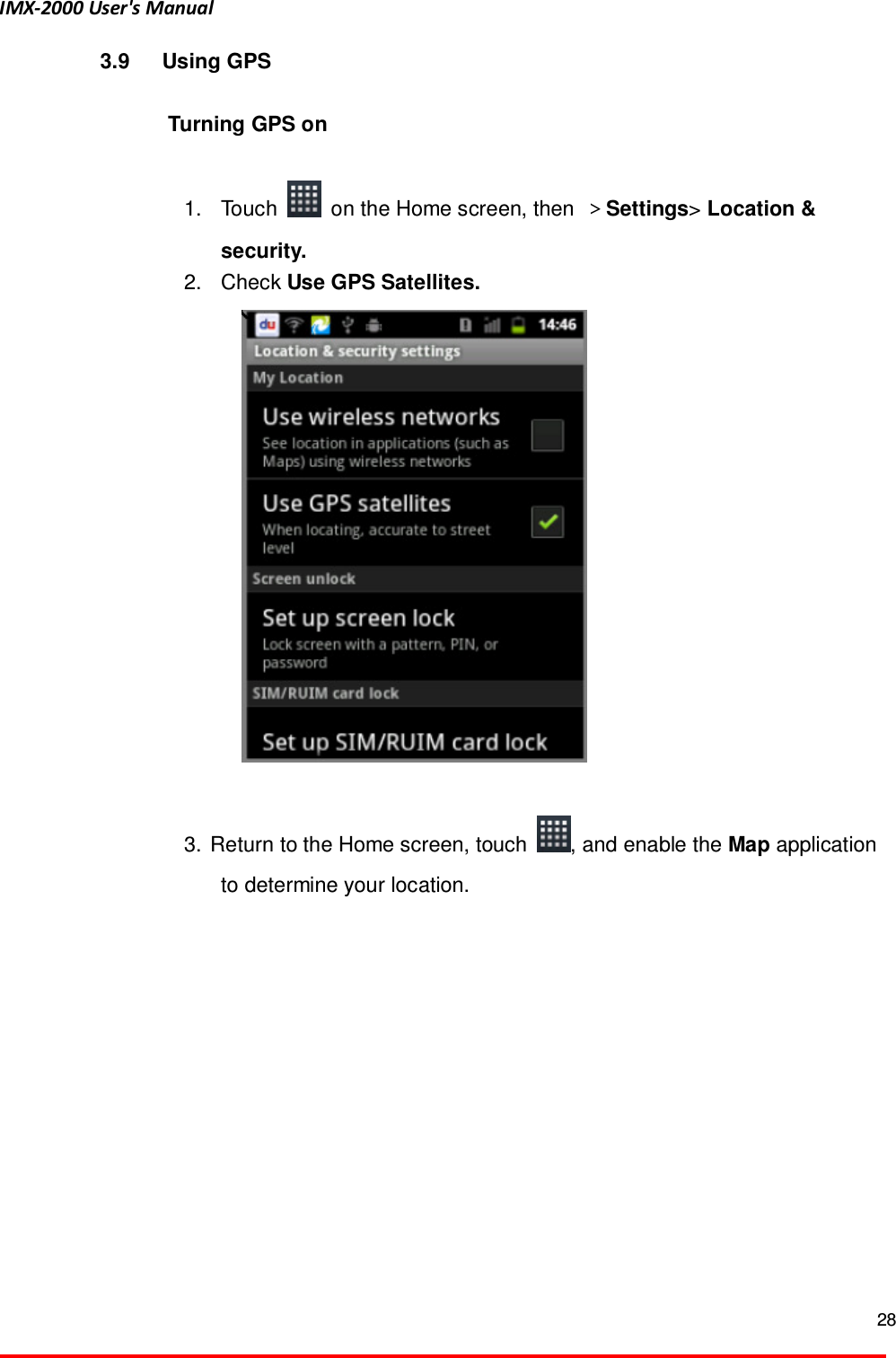
IMX-2000 User's Manual  28  3.9  Using GPS  Turning GPS on  1.  Touch    on the Home screen, then  >Settings> Location & security. 2.  Check Use GPS Satellites.         3.  Return to the Home screen, touch  , and enable the Map application to determine your location.
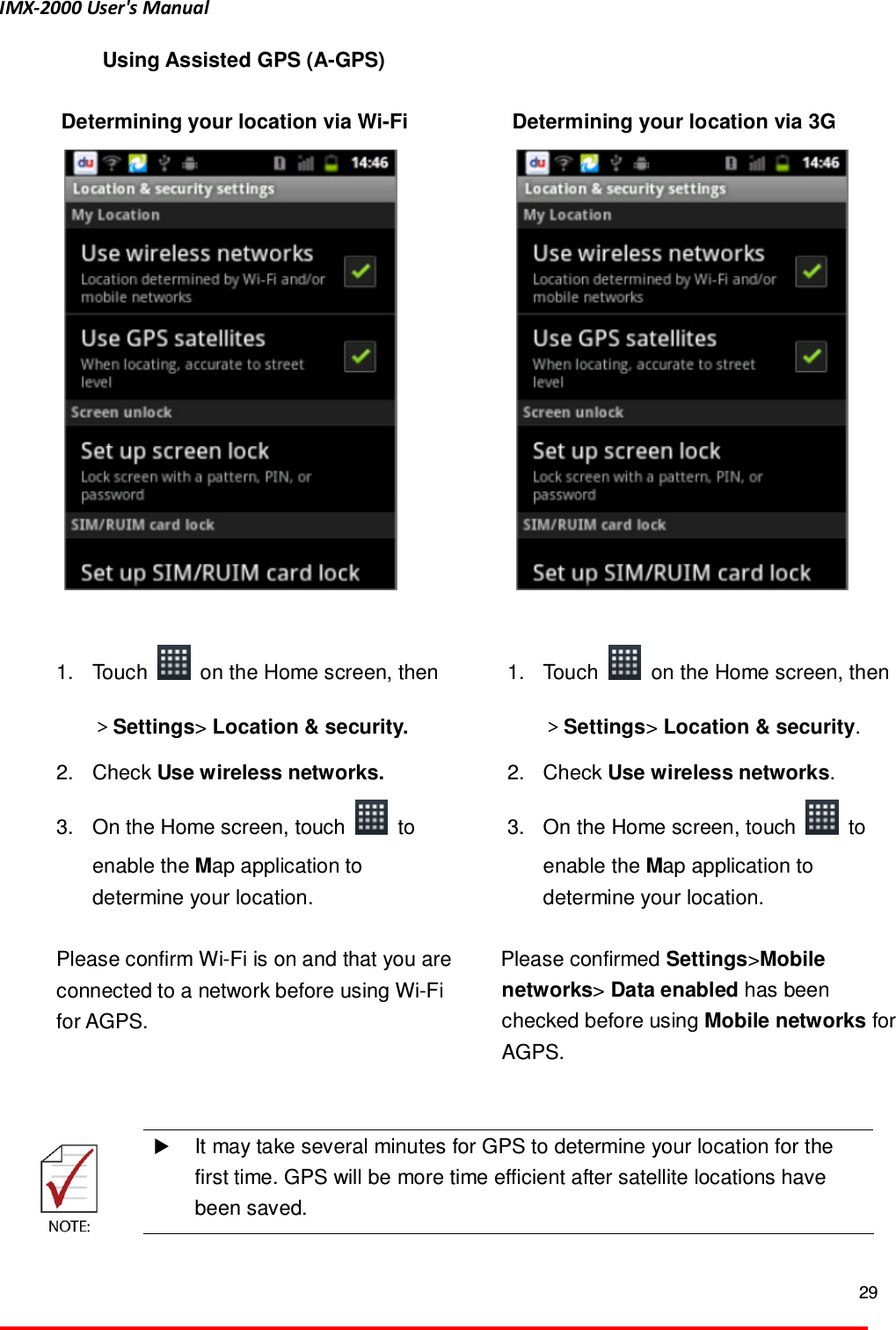
IMX-2000 User's Manual  29  Using Assisted GPS (A-GPS)  Determining your location via Wi-Fi     1.  Touch    on the Home screen, then >Settings> Location & security.   2.  Check Use wireless networks. 3.  On the Home screen, touch    to enable the Map application to determine your location.  Please confirm Wi-Fi is on and that you are connected to a network before using Wi-Fi for AGPS.   Determining your location via 3G   1.  Touch    on the Home screen, then >Settings> Location & security.   2.  Check Use wireless networks.   3.  On the Home screen, touch    to enable the Map application to determine your location.    Please confirmed Settings>Mobile networks> Data enabled has been checked before using Mobile networks for AGPS.       It may take several minutes for GPS to determine your location for the first time. GPS will be more time efficient after satellite locations have been saved.
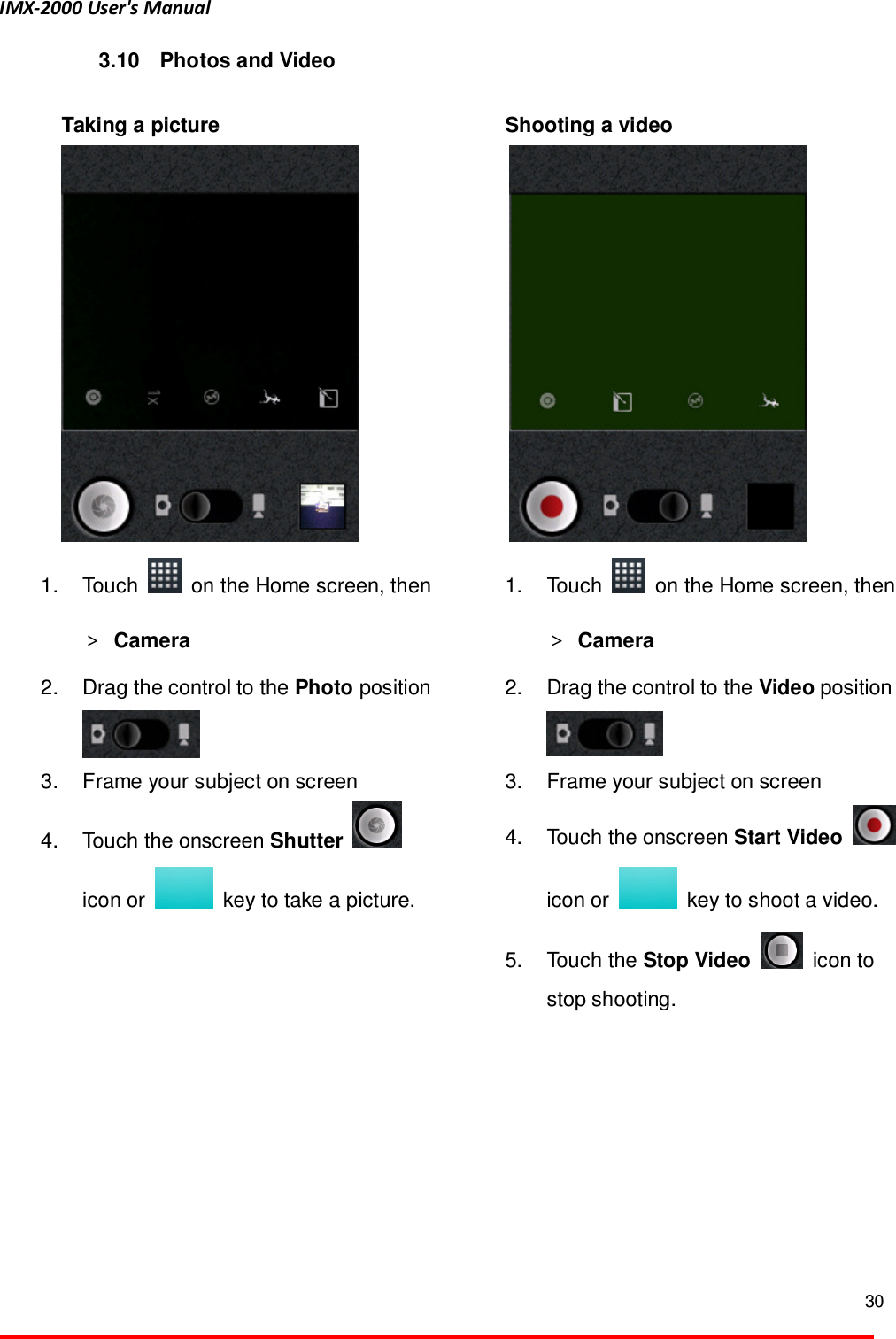
IMX-2000 User's Manual  30  3.10  Photos and Video    Taking a picture  1.  Touch    on the Home screen, then > Camera   2.  Drag the control to the Photo position  3.  Frame your subject on screen   4.  Touch the onscreen Shutter   icon or    key to take a picture.    Shooting a video  1.  Touch    on the Home screen, then > Camera   2.  Drag the control to the Video position  3.  Frame your subject on screen   4.  Touch the onscreen Start Video   icon or    key to shoot a video.   5.  Touch the Stop Video    icon to stop shooting.
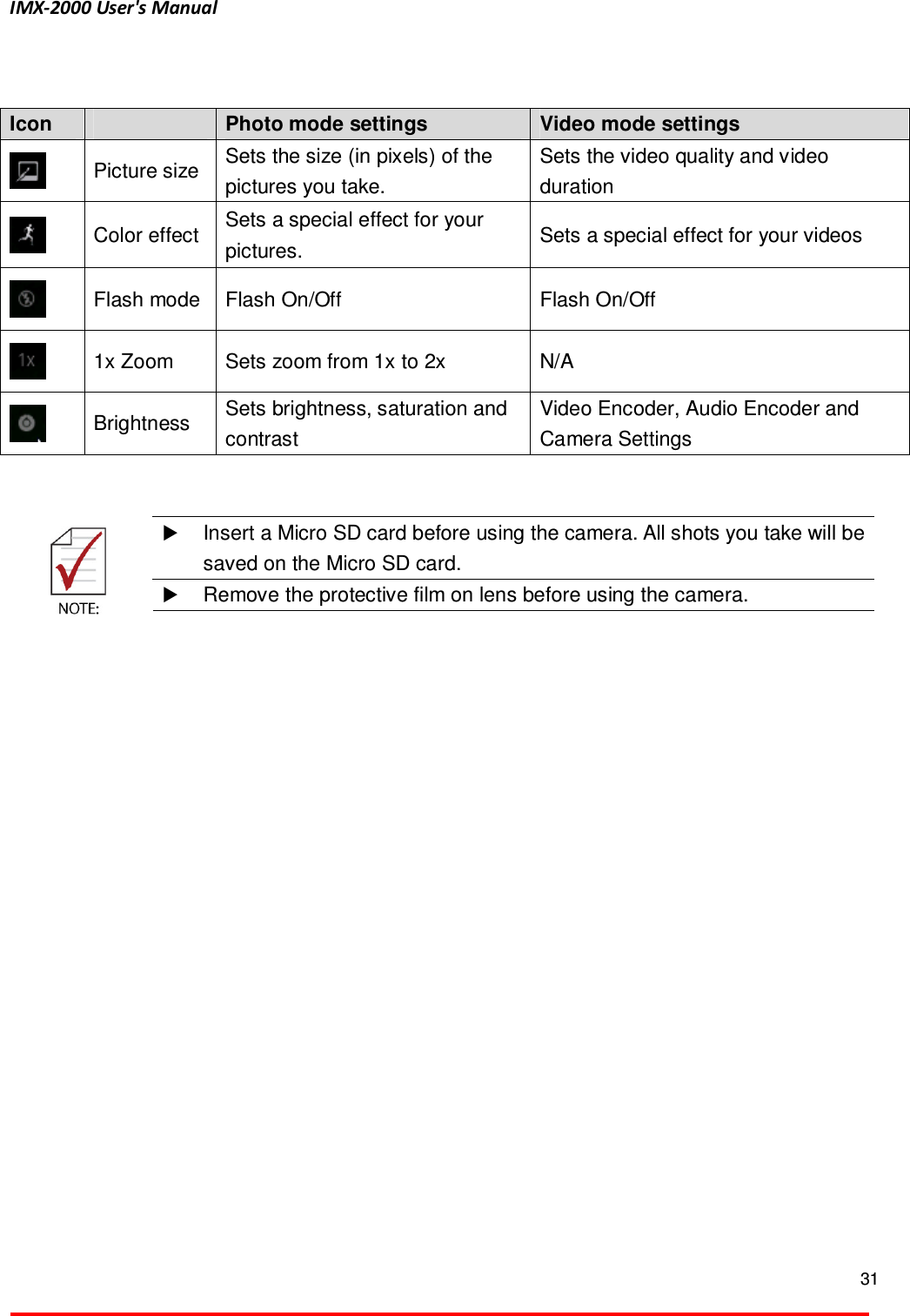
IMX-2000 User's Manual  31       Insert a Micro SD card before using the camera. All shots you take will be saved on the Micro SD card.   Remove the protective film on lens before using the camera.   Icon    Photo mode settings  Video mode settings  Picture size  Sets the size (in pixels) of the pictures you take. Sets the video quality and video duration  Color effect  Sets a special effect for your pictures.  Sets a special effect for your videos  Flash mode  Flash On/Off  Flash On/Off  1x Zoom  Sets zoom from 1x to 2x  N/A  Brightness  Sets brightness, saturation and contrast Video Encoder, Audio Encoder and Camera Settings
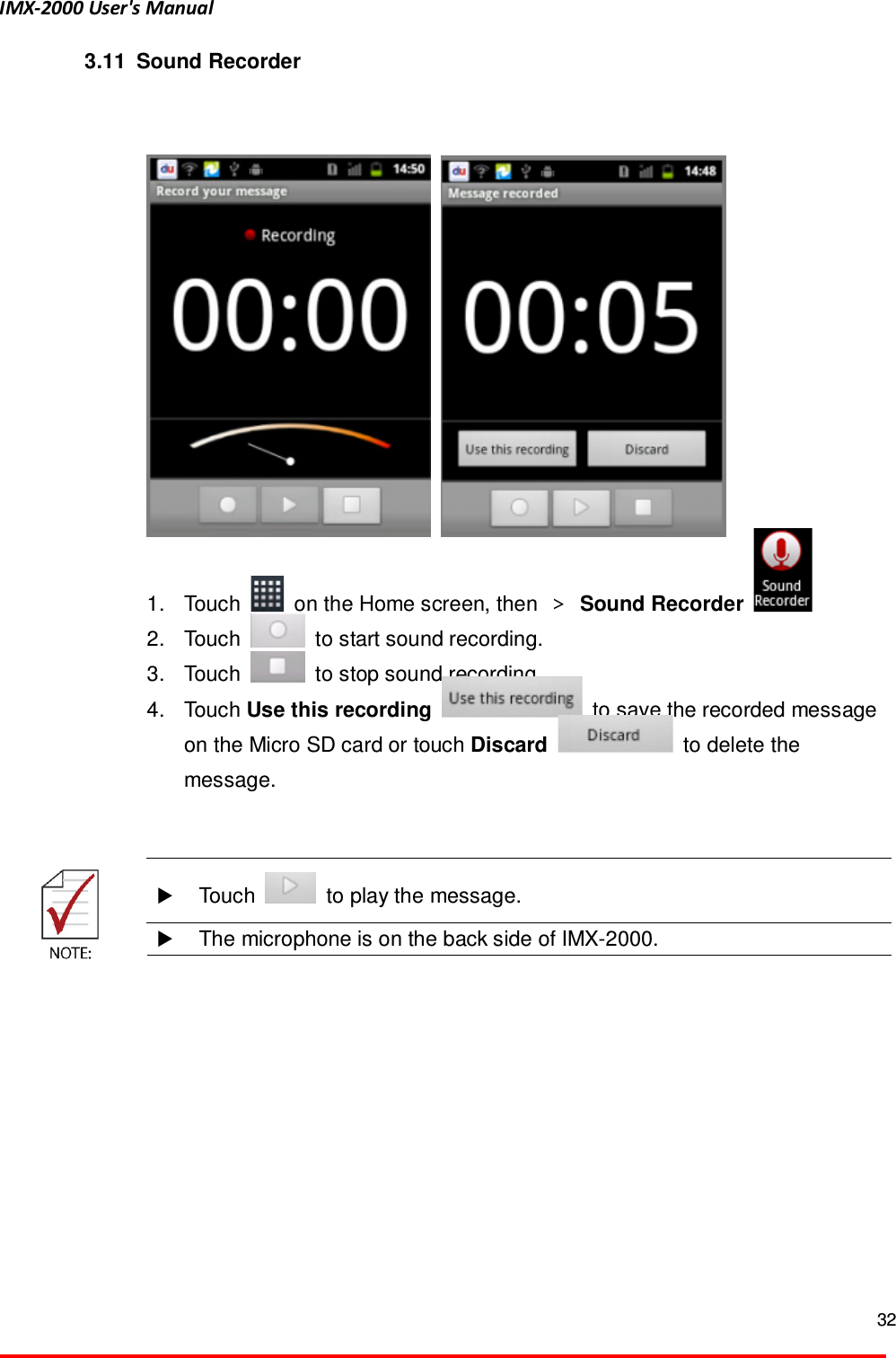
IMX-2000 User's Manual  32  3.11   Sound Recorder       1.  Touch    on the Home screen, then  > Sound Recorder     2.  Touch    to start sound recording. 3.  Touch    to stop sound recording.   4.  Touch Use this recording    to save the recorded message on the Micro SD card or touch Discard    to delete the message.      Touch    to play the message.   The microphone is on the back side of IMX-2000.
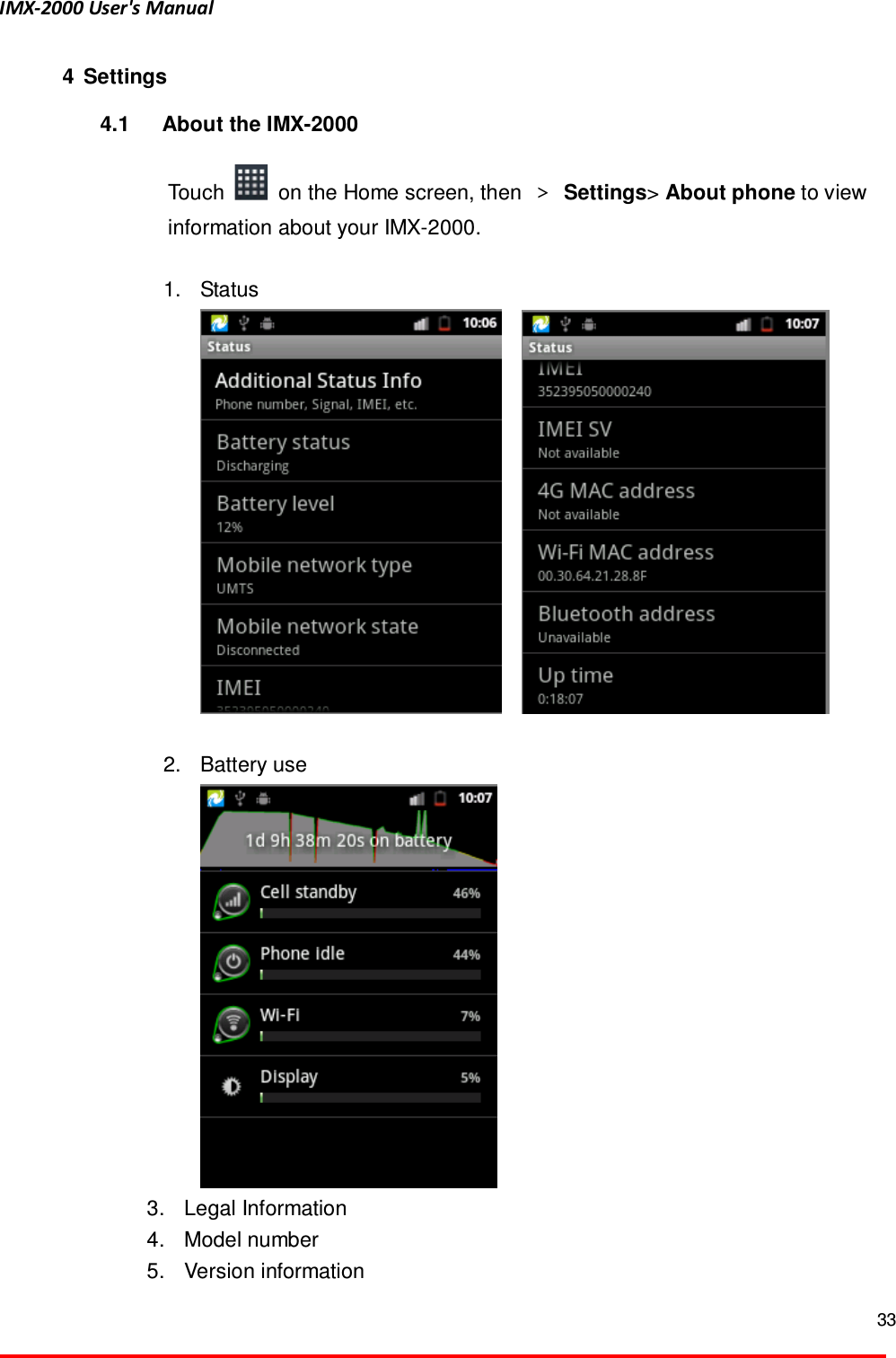
IMX-2000 User's Manual  33  4  Settings 4.1  About the IMX-2000  Touch    on the Home screen, then  > Settings> About phone to view information about your IMX-2000.    1.  Status       2.  Battery use    3.  Legal Information   4.  Model number   5.  Version information
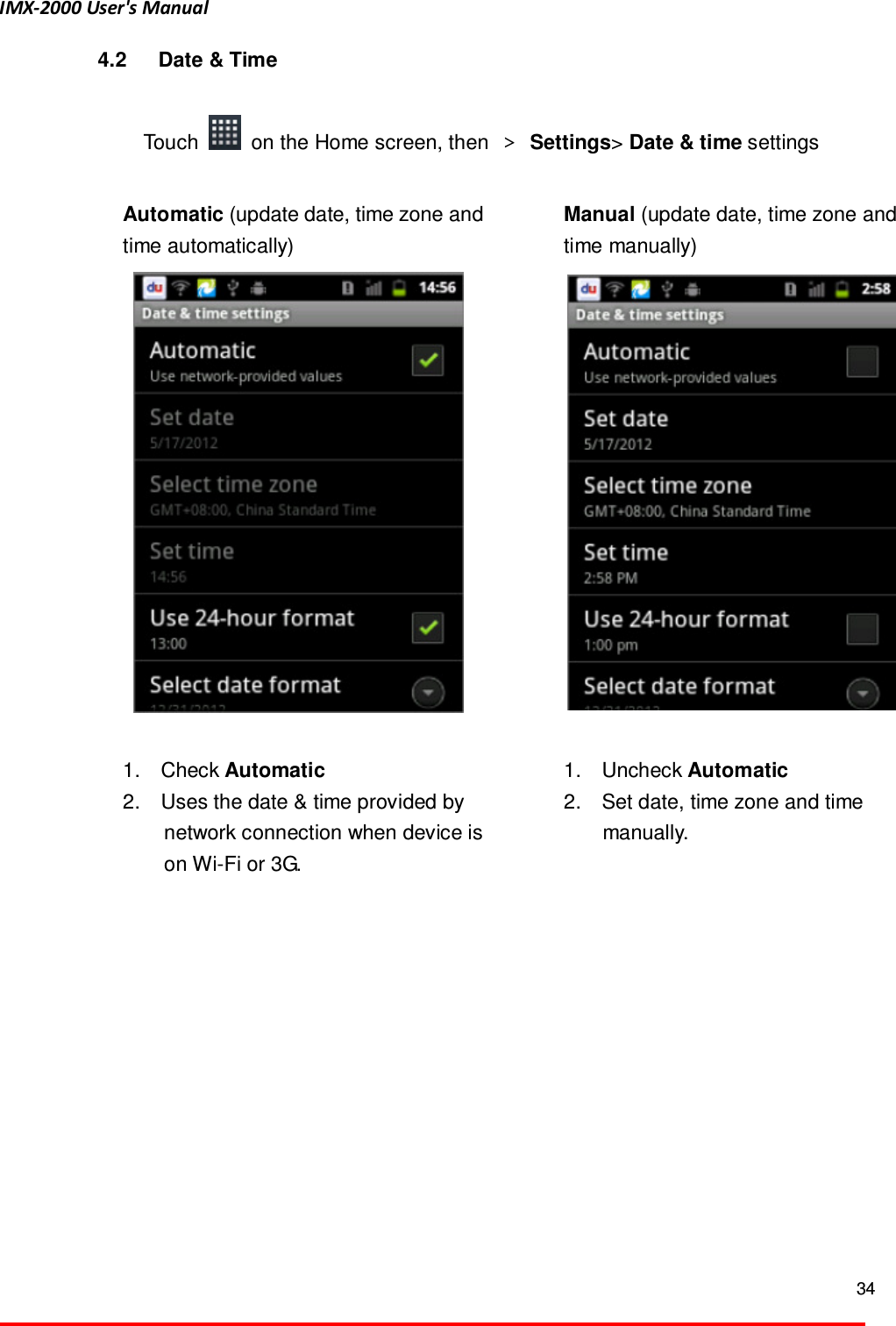
IMX-2000 User's Manual  34  4.2  Date & Time  Touch    on the Home screen, then  >  Settings> Date & time settings    Automatic (update date, time zone and time automatically)       1.    Check Automatic   2.    Uses the date & time provided by   network connection when device is on Wi-Fi or 3G.  Manual (update date, time zone and time manually)     1.    Uncheck Automatic 2.    Set date, time zone and time manually.
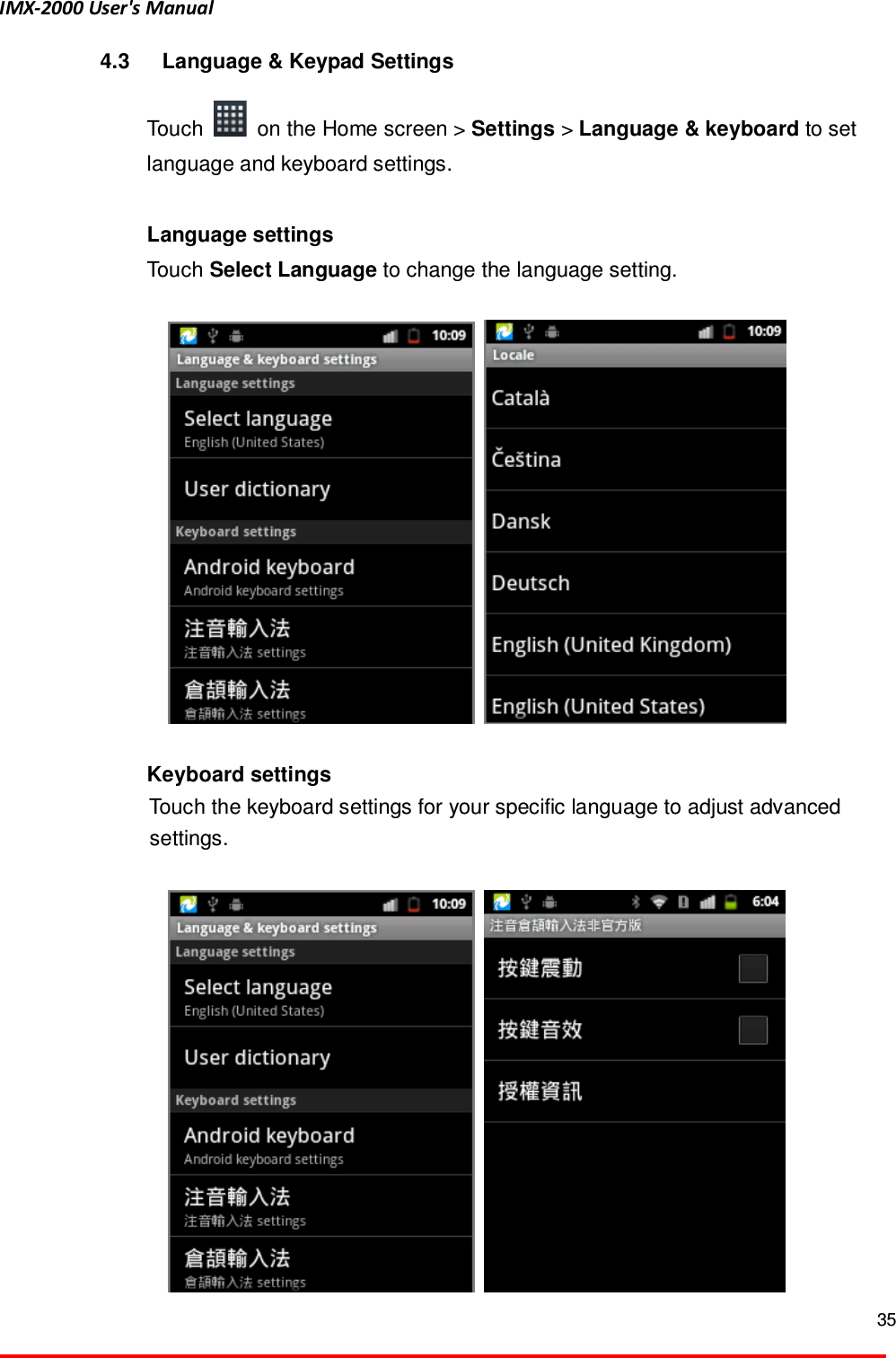
IMX-2000 User's Manual  35  4.3  Language & Keypad Settings  Touch    on the Home screen > Settings > Language & keyboard to set language and keyboard settings.    Language settings   Touch Select Language to change the language setting.        Keyboard settings     Touch the keyboard settings for your specific language to adjust advanced settings.
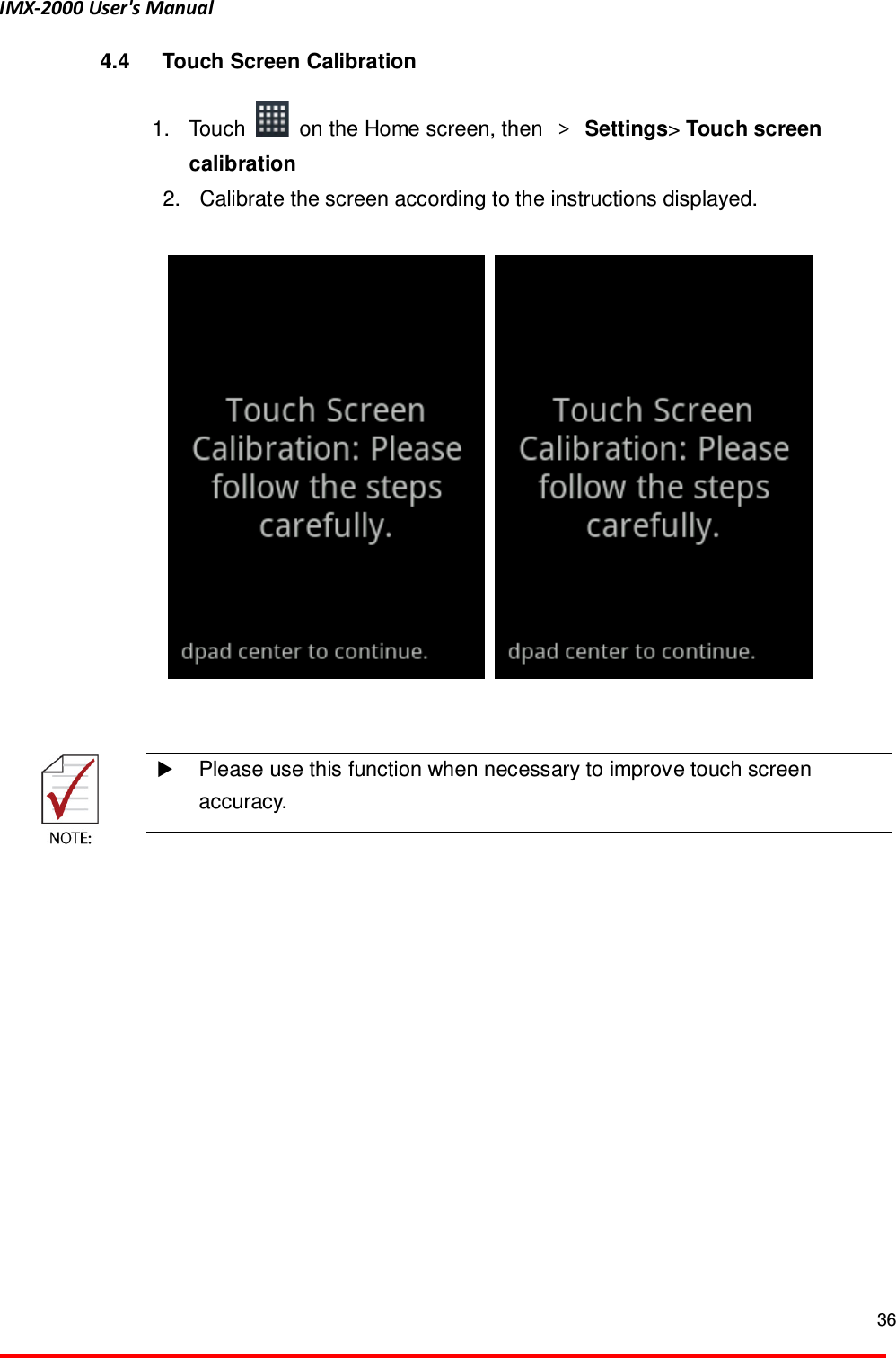
IMX-2000 User's Manual  36  4.4  Touch Screen Calibration  1.  Touch    on the Home screen, then  > Settings> Touch screen calibration 2.  Calibrate the screen according to the instructions displayed.           Please use this function when necessary to improve touch screen accuracy.
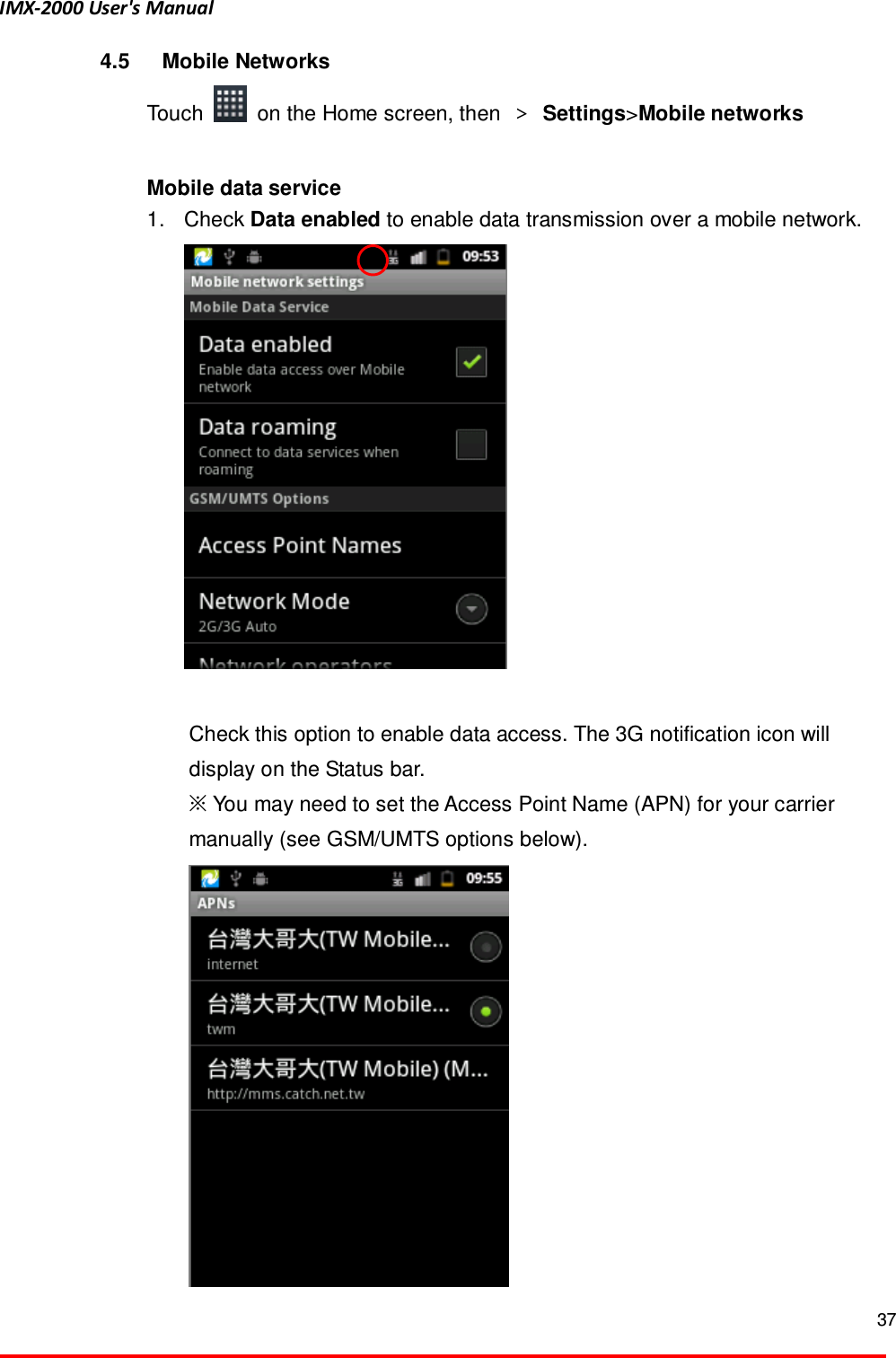
IMX-2000 User's Manual  37  4.5  Mobile Networks Touch    on the Home screen, then  > Settings>Mobile networks    Mobile data service   1.  Check Data enabled to enable data transmission over a mobile network.     Check this option to enable data access. The 3G notification icon will display on the Status bar.   ※ You may need to set the Access Point Name (APN) for your carrier manually (see GSM/UMTS options below).
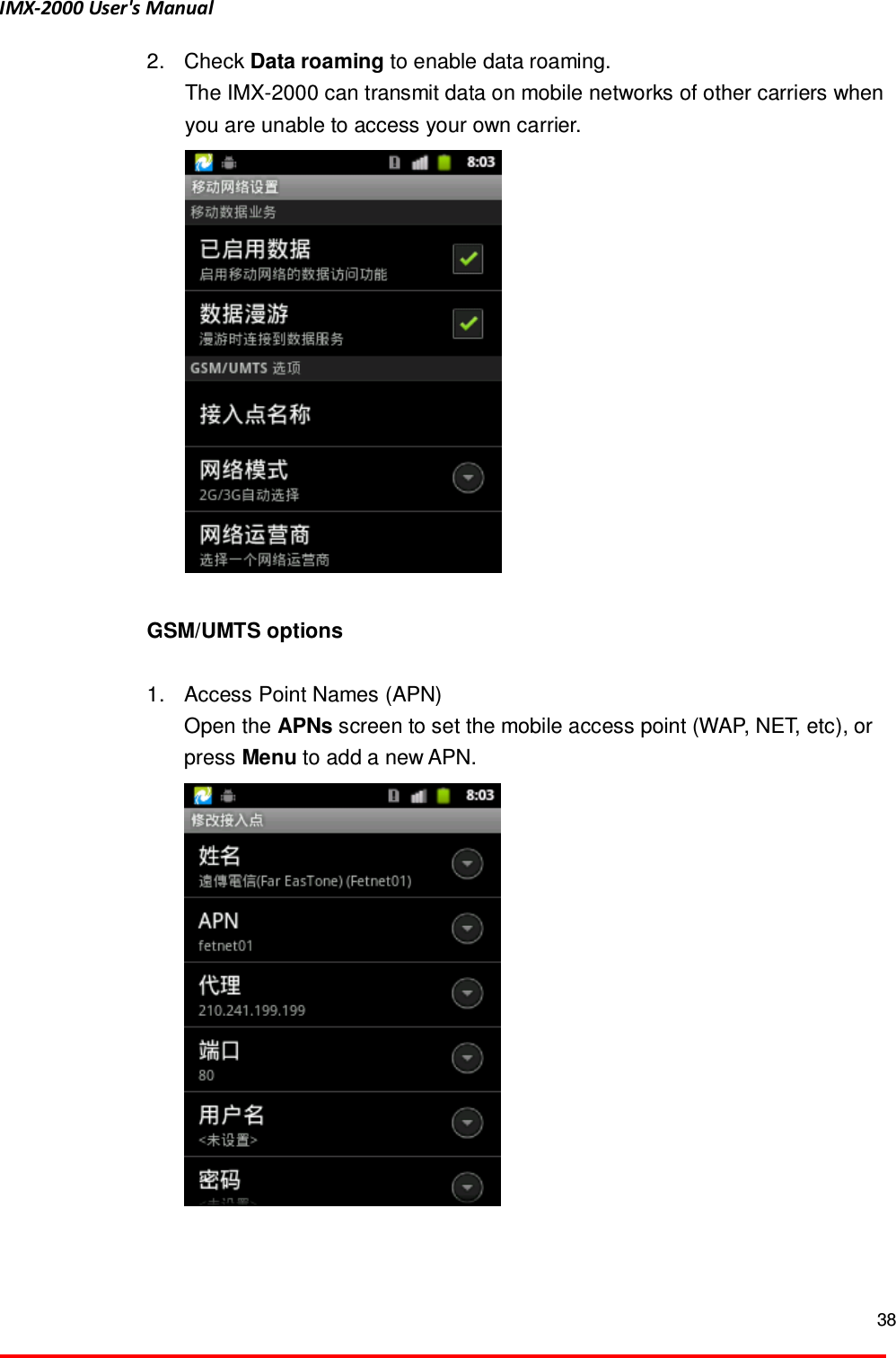
IMX-2000 User's Manual  38  2.  Check Data roaming to enable data roaming. The IMX-2000 can transmit data on mobile networks of other carriers when you are unable to access your own carrier.     GSM/UMTS options    1.  Access Point Names (APN)   Open the APNs screen to set the mobile access point (WAP, NET, etc), or press Menu to add a new APN.
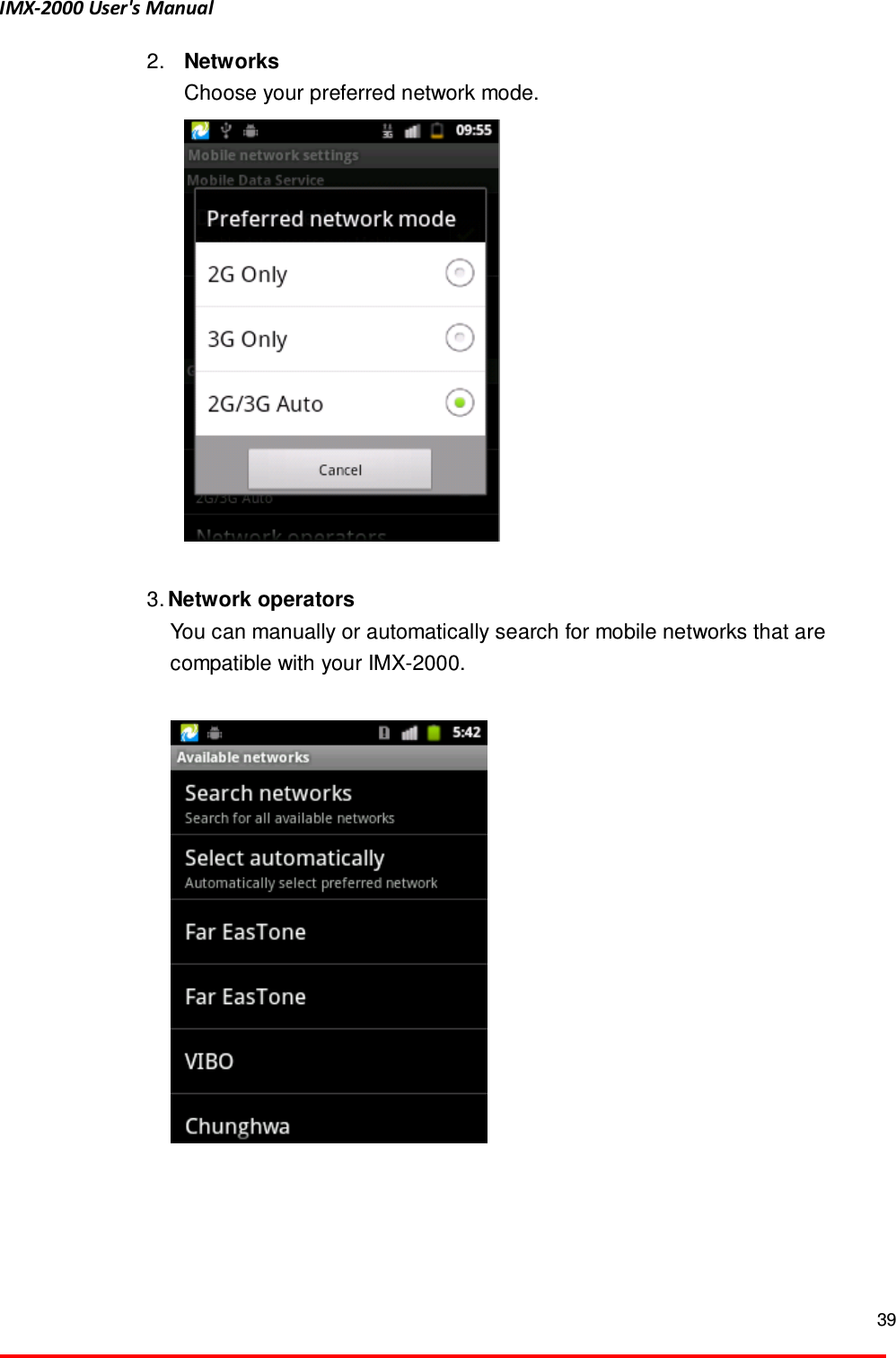
IMX-2000 User's Manual  39  2.  Networks   Choose your preferred network mode.     3. Network operators You can manually or automatically search for mobile networks that are compatible with your IMX-2000.
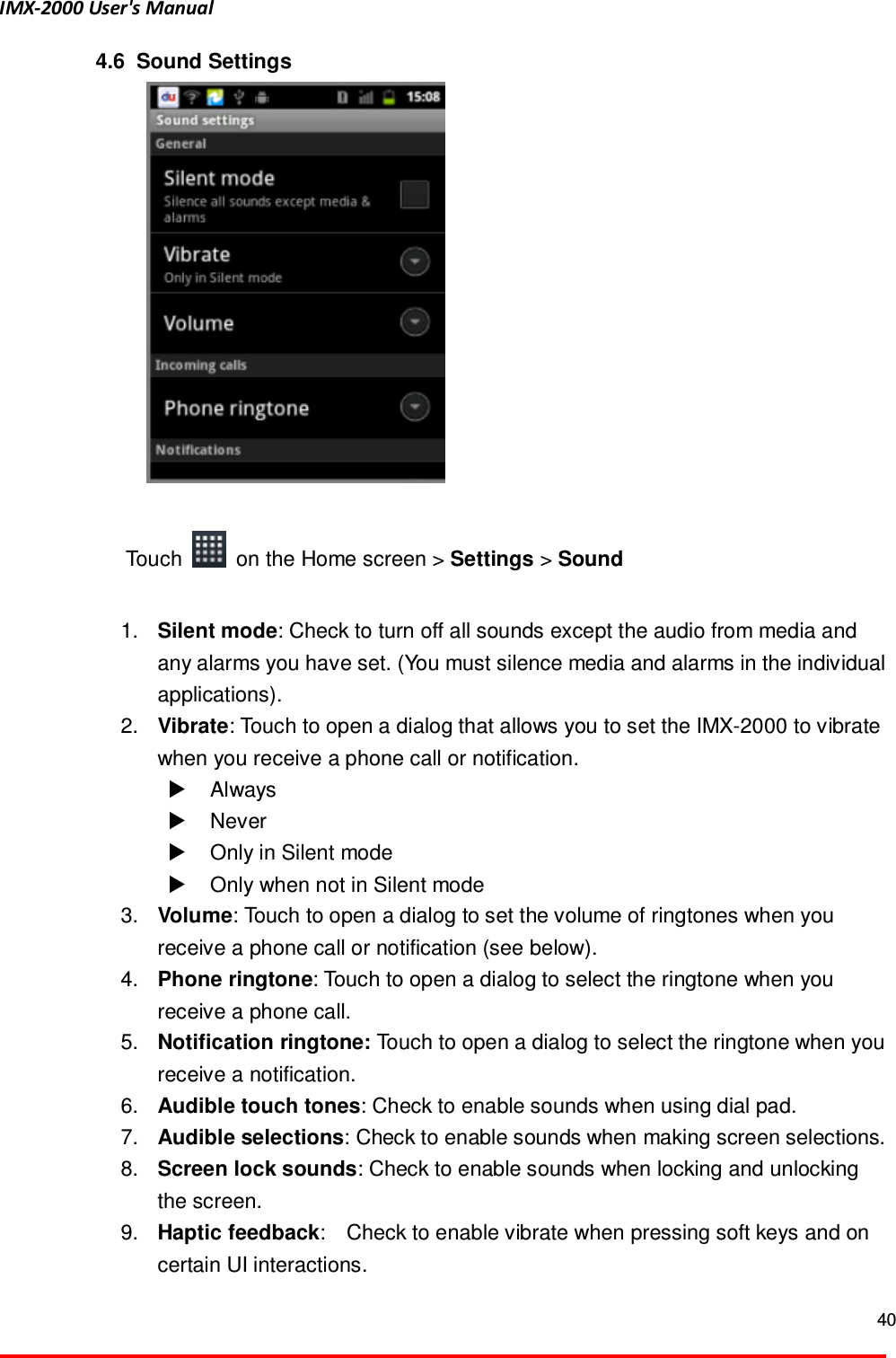
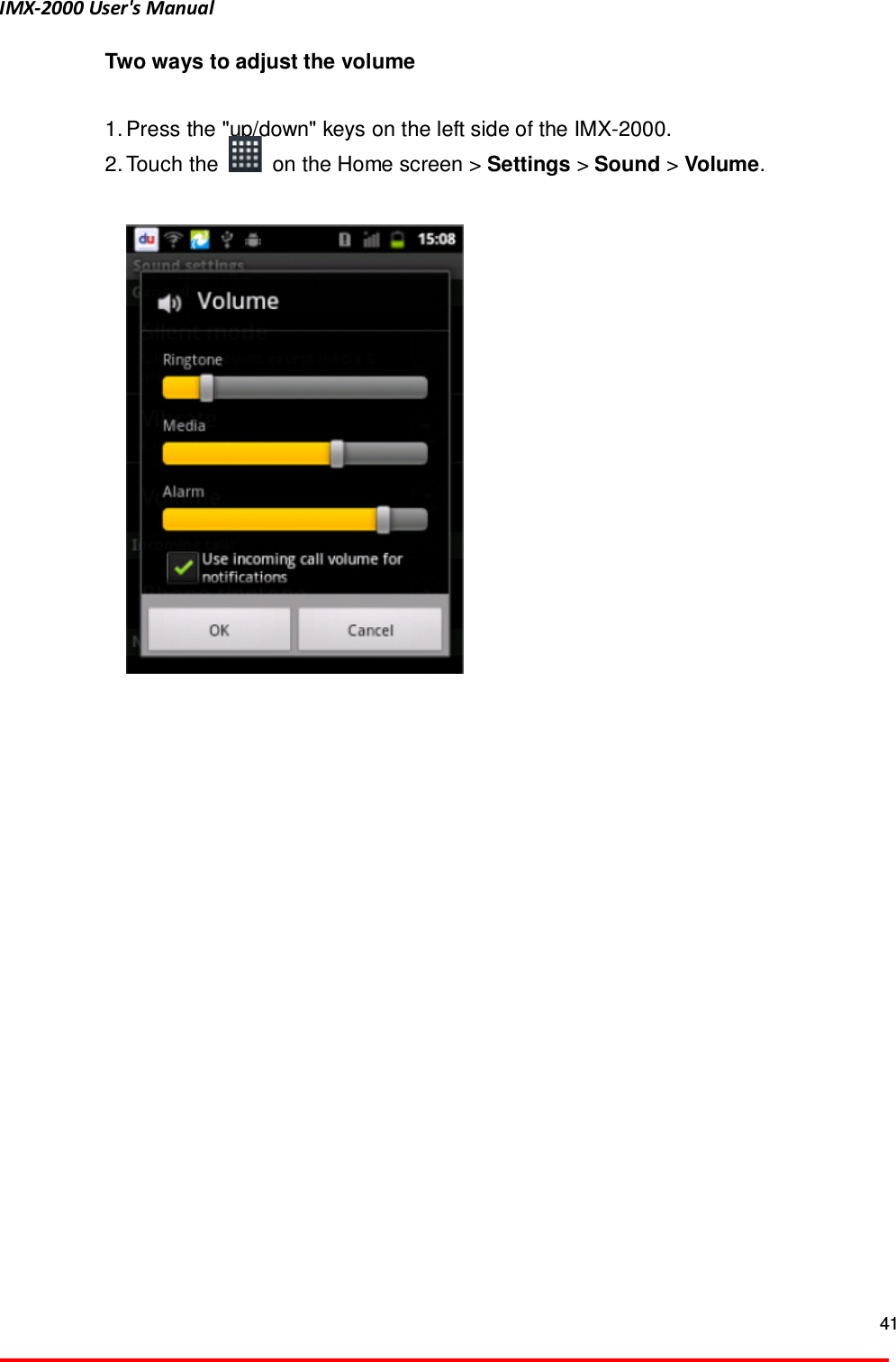
IMX-2000 User's Manual  40  4.6   Sound Settings   Touch    on the Home screen > Settings > Sound    1.  Silent mode: Check to turn off all sounds except the audio from media and any alarms you have set. (You must silence media and alarms in the individual applications).   2.  Vibrate: Touch to open a dialog that allows you to set the IMX-2000 to vibrate when you receive a phone call or notification.     Always     Never     Only in Silent mode   Only when not in Silent mode   3.  Volume: Touch to open a dialog to set the volume of ringtones when you receive a phone call or notification (see below).   4.  Phone ringtone: Touch to open a dialog to select the ringtone when you receive a phone call. 5.  Notification ringtone: Touch to open a dialog to select the ringtone when you receive a notification. 6.  Audible touch tones: Check to enable sounds when using dial pad. 7.  Audible selections: Check to enable sounds when making screen selections.   8.  Screen lock sounds: Check to enable sounds when locking and unlocking the screen. 9.  Haptic feedback:    Check to enable vibrate when pressing soft keys and on certain UI interactions.
IMX-2000 User's Manual  41  Two ways to adjust the volume  1. Press the "up/down" keys on the left side of the IMX-2000. 2. Touch the    on the Home screen > Settings > Sound > Volume.
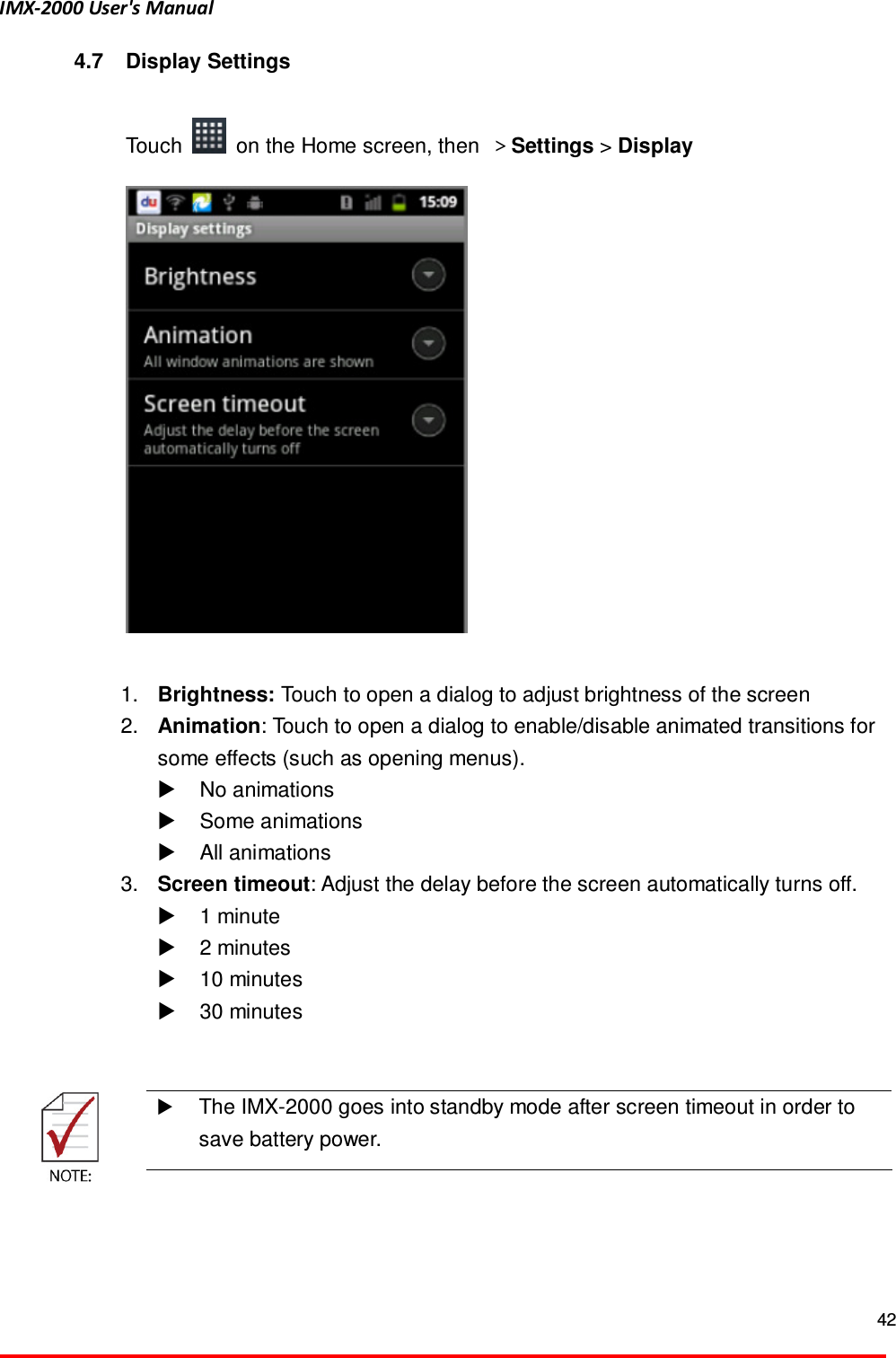
IMX-2000 User's Manual  42  4.7  Display Settings  Touch    on the Home screen, then  >Settings > Display       1.  Brightness: Touch to open a dialog to adjust brightness of the screen   2.  Animation: Touch to open a dialog to enable/disable animated transitions for some effects (such as opening menus).     No animations   Some animations     All animations   3.  Screen timeout: Adjust the delay before the screen automatically turns off.   1 minute     2 minutes     10 minutes     30 minutes       The IMX-2000 goes into standby mode after screen timeout in order to save battery power.
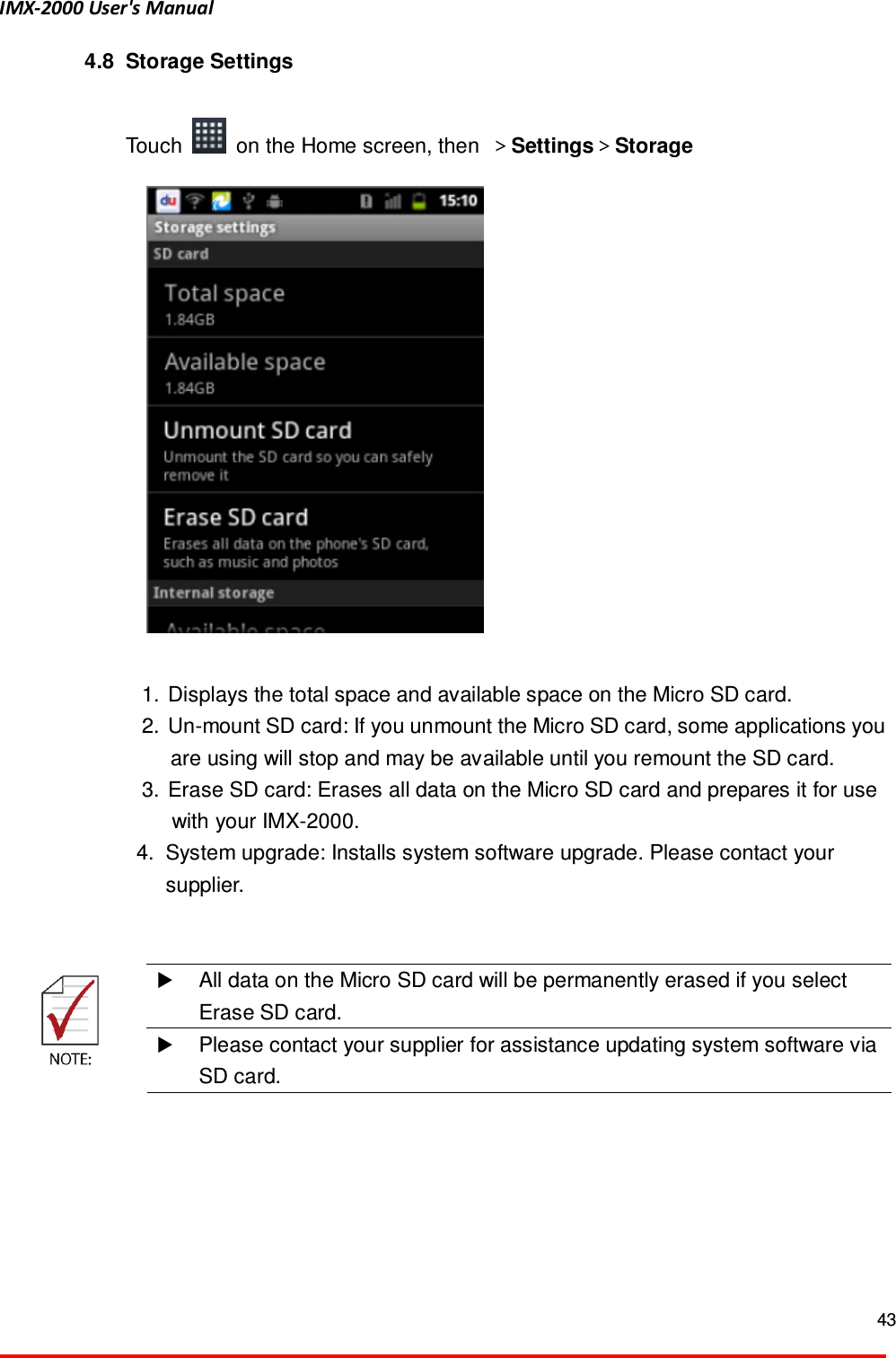
IMX-2000 User's Manual  43  4.8  Storage Settings  Touch    on the Home screen, then  >Settings>Storage   1.  Displays the total space and available space on the Micro SD card.   2.  Un-mount SD card: If you unmount the Micro SD card, some applications you are using will stop and may be available until you remount the SD card.   3.  Erase SD card: Erases all data on the Micro SD card and prepares it for use with your IMX-2000. 4.  System upgrade: Installs system software upgrade. Please contact your supplier.      All data on the Micro SD card will be permanently erased if you select Erase SD card.   Please contact your supplier for assistance updating system software via SD card.
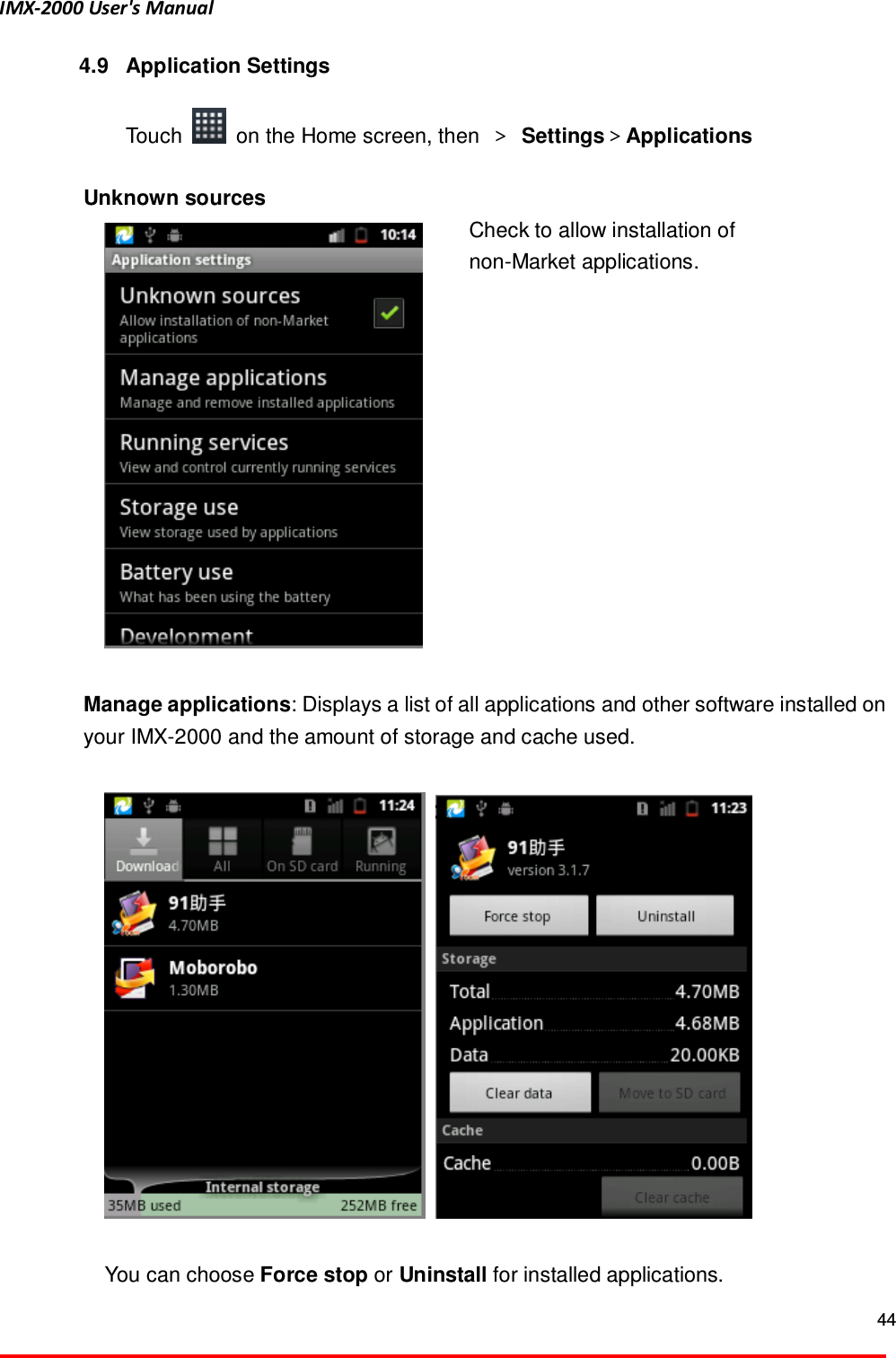
IMX-2000 User's Manual  44  4.9  Application Settings  Touch    on the Home screen, then  > Settings>Applications    Unknown sources  Check to allow installation of   non-Market applications.    Manage applications: Displays a list of all applications and other software installed on your IMX-2000 and the amount of storage and cache used.        You can choose Force stop or Uninstall for installed applications.
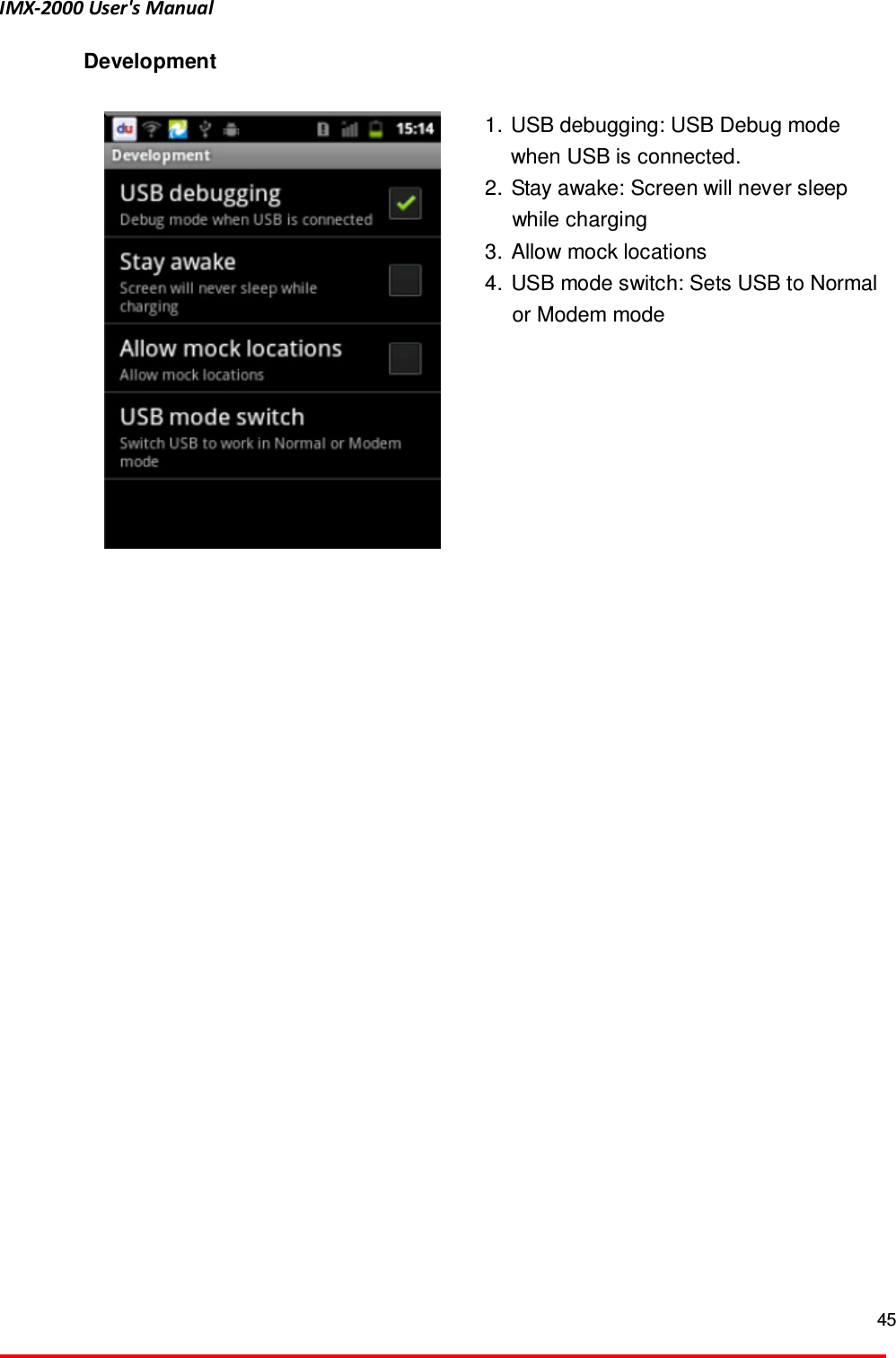
IMX-2000 User's Manual  45  Development   1.  USB debugging: USB Debug mode when USB is connected.   2.  Stay awake: Screen will never sleep while charging 3.  Allow mock locations   4.  USB mode switch: Sets USB to Normal or Modem mode
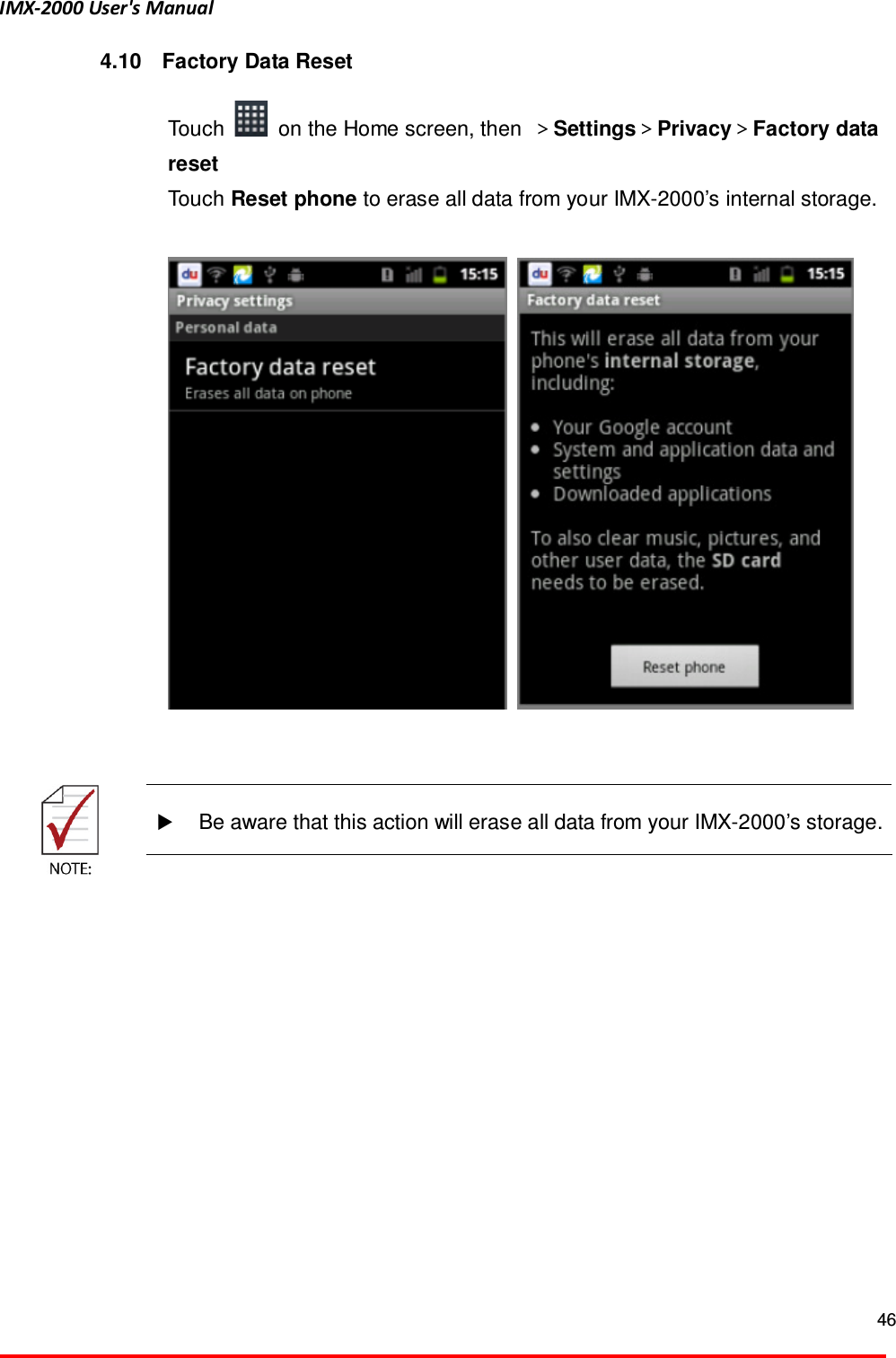
IMX-2000 User's Manual  46  4.10  Factory Data Reset  Touch    on the Home screen, then  >Settings>Privacy>Factory data reset   Touch Reset phone to erase all data from your IMX-2000’s internal storage.            Be aware that this action will erase all data from your IMX-2000’s storage.
IMX-2000 User's Manual  47  Technical Support Contact us should you require any service or assistance.  ADLINK Technology, Inc. Address:  9F, No.166 Jian Yi Road, Zhonghe District   New Taipei City 235, Taiwan  󱱙󰧀󱒫󰓖󰬵󰧩󱖣󰒩󴒘 166 󳴈9󲂼 Tel:    +886-2-8226-5877 Fax:    +886-2-8226-5717 Email:    service@adlinktech.com  Ampro ADLINK Technology, Inc. Address:  5215 Hellyer Avenue, #110, San Jose, CA 95138, USA Tel:    +1-408-360-0200 Toll Free:  +1-800-966-5200 (USA only) Fax:    +1-408-360-0222 Email:    info@adlinktech.com  ADLINK Technology (China) Co., Ltd. Address:  󰓅 󰧣󱗉 󰶖󰧣上海市浦 新 江高科技 芳春路 300 󰪠  (201203)   300 Fang Chun Rd., Zhangjiang Hi-Tech Park, Pudong New Area, Shanghai, 201203 China Tel:    +86-21-5132-8988 Fax:    +86-21-5132-3588 Email:    market@adlinktech.com  ADLINK Technology Beijing Address:  󰧣 󰓅北京市海淀 上地 路 1󰪠 󰣄 󰥑 󰩏盈 力大 E座801 室(100085)   Rm. 801, Power Creative E, No. 1, B/D     Shang Di East Rd., Beijing, 100085 China Tel:    +86-10-5885-8666 Fax:    +86-10-5885-8625 Email:    market@adlinktech.com  ADLINK Technology Shenzhen Address:    󰧣 󰶖 󰧣深圳市南山 科技 南 高新南七道 󱰙 󱷘󰶖字技    A1 󱺴2󲀥C󰧣  (518057)   2F, C Block, Bldg. A1, Cyber-Tech Zone, Gao Xin Ave. Sec. 7,     High-Tech Industrial Park S., Shenzhen, 518054 China Tel:    +86-755-2643-4858 Fax:    +86-755-2664-6353 Email:    market@adlinktech.com  LiPPERT ADLINK Technology GmbH Address:    Hans-Thoma-Strasse 11, D-68163, Mannheim, Germany Tel:    +49-621-43214-0 Fax:    +49-621 43214-30 Email:    emea@adlinktech.com
IMX-2000 User's Manual  48   ADLINK Technology, Inc. (French Liaison Office) Address:    15 rue Emile Baudot, 91300 Massy CEDEX, France Tel:    +33 (0) 1 60 12 35 66 Fax:    +33 (0) 1 60 12 35 66 Email:    france@adlinktech.com    ADLINK Technology Japan Corporation Address:  〒101-0045  東京 󰧣都千代田 神田鍛冶町 3-7-4   神田 374  4F   KANDA374 Bldg. 4F, 3-7-4 Kanda Kajicho, Chiyoda-ku, Tokyo 101-0045, Japan Tel:    +81-3-4455-3722 Fax:    +81-3-5209-6013 Email:    japan@adlinktech.com  ADLINK Technology, Inc. (Korean Liaison Office) Address:  서울시 서초구 서초동 1675-12 모인터빌딩 8층  8F Mointer B/D,1675-12, Seocho-Dong, Seocho-Gu,     Seoul 137-070, Korea Tel:    +82-2-2057-0565 Fax:    +82-2-2057-0563 Email:    korea@adlinktech.com  ADLINK Technology Singapore Pte. Ltd. Address:    84 Genting Lane #07-02A, Cityneon Design Centre,     Singapore 349584 Tel:    +65-6844-2261 Fax:    +65-6844-2263 Email:    singapore@adlinktech.com  ADLINK Technology Singapore Pte. Ltd. (Indian Liaison Office) Address:    1st Floor, #50-56 (Between 16th/17th Cross) Margosa Plaza,     Margosa Main Road, Malleswaram, Bangalore-560055, India Tel:    +91-80-65605817, +91-80-42246107 Fax:    +91-80- 23464606 Email:    india@adlinktech.com  ADLINK Technology, Inc. (Israeli Liaison Office) Address:    6 Hasadna St., Kfar Saba 44424, Israel Tel:    +972-9-7446541 Fax:    +972-9-7446542 Email:    israel@adlinktech.com

Navigation menu