AEE Technology AEEAP110001 Aerial photography equipment User Manual

Shenzhen AEE Technology CO., LTD. Aerial photography equipment

User Manual

DisclaimerPlease read this disclaimer carefully before using the product of Quadcopter. This product is not suitable for people under the age of 18. By using this product, you hereby agree to this disclaimer and signify that you have read them fully. You agree that you are responsible for your own conduct and content while using this product, and for any consequences there of. You agree to use this product only for purposes that are proper and in accordance with the terms and any applicable or guidelines AEE may make available. 1. Shenzhen AEE Technology Co., Ltd. reserves the right of final interpretation of this disclaimer. 2. Any part of this disclaimer is subject to change without prior notice.3. This disclaimer is available in multiple languages. In case of any discrepancy, the Chinese version shall prevail. 4.For more detailed or latest product information, please visit www.aee.com. AP11 Taking off and Landing(Outdoors)Taking offS2 S3 S4GPSNRMS1EDSF  MS1: S2: S3: S4: GPS1) Place Quadcopter (with full power battery) on a flat and open ground, and ensure Tail Indicator faces toward you.2. Turn on the remote control, repeater and camera and enable the Wi-Fi function of the camera in sequence; last, turn on the aircraft (Do Not turn on the aircraft before the Wi-Fi function of the camera is enabled); 3) Be sure the Remote control is set exactly as the figure below.4) Starting motors: toggle the left joystick to left bottom corner and toggle right joystick to right bottom corner at the mean time to start motors. Once the motors start please release the joysticks immediately.5) Push the left joystick slowly, then Quadcopter take off. Please refer AEE Quadcopter User Manual  for more details.     Note: The motors can not be started until GPS signal is ready (Tail Indicator (green) remains on).1. Upon startup, the airborne camera and the repeater will pair with each other. Please wait for about 30S to ensure that pairing is completed, so that the airborne camera can record videos normally. 2. After the aircraft is powered on, the aircraft and the PTZ will start self-test. Do not shake the aircraft or the PTZ at this moment; otherwise, the aircraft and the PTZ will fail the self-test.  (The PTZ can be used only when the camera is installed; otherwise the PTZ may be damaged)3. Before installing the camera onto the aircraft, it is suggested that the auto standby function of the camera should be disabled.4. When the aircraft complete searching for GPS satellites, the tail light (green) will remain on. During flight, please do not turn the joysticks of the remote control to a lower toe-out pattern, which will stop the motors. Landing:1) Slowly pull the left joystick to lower Quadcopter until it touches the ground(only on flat and open ground).2) After landing, pull the left joystick to the lowest position and hold for more than 3 seconds until the motors stop.3) Power off Quadcopter by sliding the switch to OFF.4) Remove the battery.5) Power off Remote control and Wi-Fi Repeater.     Important:1) Control the flight height under your control during your first flight.2) Do not stop the motors during flight, or it will cause the Quadcopter to drop without control.AP11Remote control and Wi-Fi Repeater DescriptionRemote control (U.S. Mode)UPUP LEFT  LEFT FORWARD FORWARDLEFTTURN LEFTTURN TURN RIGHTTURN RIGHTRIGHT RIGHTBACKBACKDOWNDOWNQuadcopter Direction("        " indicates nose direction)Note: The Remote Control is set to U.S. mode by default.[ 1 ] Propeller    [ 2 ] Motor      [ 3 ] Front Indicator    [ 4 ] Landing Gear                  [ 5 ] Camera    [ 6 ] 3-Axials Gimbal    [ 7 ] Quadcopter Battery  [ 8 ] Tail Indicator[ 9 ] Power Switch         [ 10 ] Rear Indicator    [ 11 ] Battery Level LCD Segment Display     [ 12 ] Battery Level Check Button[ 1 ][ 2 ][ 3 ][ 4 ][ 7 ][ 5 ][ 6 ][ 8 ][ 9 ][11][10][12]Power Switch  Charging Port (mini USB port) Pairing Button Repeater BasePower IndicatorWi-Fi IndicatorLock Screw Strap Hole Right Joystick Video Stop ButtonRemote Control Power SwitchPhoto Shooting & Video Recording Indicator  Flight mode switch S4Angle control switch S3  Wi-Fi RepeaterRepeater BaseAntennaSmartphone HolderCalibration switch S2 Speed control switch S1Power IndicatorStatus IndicatorLeft JoystickAirborne Video Recording ButtonReturn buttonAirborne Shutter ButtonS2 S3 S4GPSNRMS1F  MHook open/close button
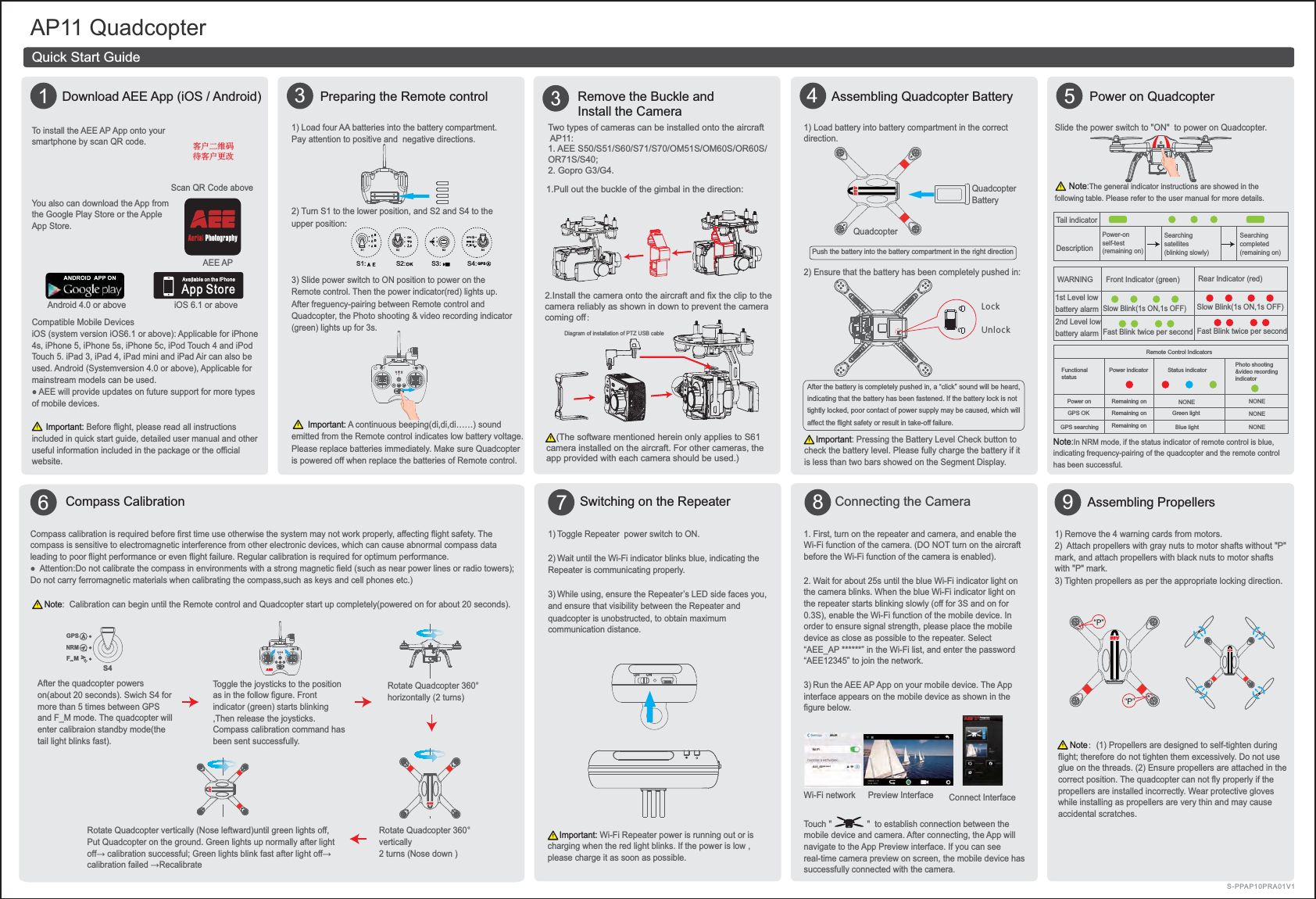
AP11 Quadcopter13Preparing the Remote control     4Assembling Quadcopter Battery 5 7Switching on the Repeater  8   9Wi-Fi network    1) Load four AA batteries into the battery compartment. Pay attention to positive and  negative directions.2) Turn S1 to the lower position, and S2 and S4 to the upper position: 3) Slide power switch to ON position to power on theRemote control. Then the power indicator(red) lights up. After freguency-pairing between Remote control and Quadcopter, the Photo shooting & video recording indicator (green) lights up for 3s.-PDL6OMPDL     Note:(1) Propellers are designed to self-tighten during flight; therefore do not tighten them excessively. Do not use glue on the threads. (2) Ensure propellers are attached in the correct position. The quadcopter can not fly properly if the propellers are installed incorrectly. Wear protective gloves while installing as propellers are very thin and may cause accidental scratches.S-PPAP10PRA01V1iOS 6.1 or above         AEE AP         Android 4.0 or above     0''0/       Important: A continuous beeping(di,di,di……) sound emitted from the Remote control indicates low battery voltage.Please replace batteries immediately. Make sure Quadcopter is powered off when replace the batteries of Remote control.6To install the AEE AP App onto your smartphone by scan QR code.You also can download the App from the Google Play Store or the Apple App Store.Scan QR Code aboveDownload AEE App (iOS / Android)Quick Start GuideAssembling PropellersConnecting the Camera 1) Remove the 4 warning cards from motors.2)  Attach propellers with gray nuts to motor shafts without "P" mark, and attach propellers with black nuts to motor shafts with "P" mark. 3) Tighten propellers as per the appropriate locking direction.1) Toggle Repeater  power switch to ON.2) Wait until the Wi-Fi indicator blinks blue, indicating the Repeater is communicating properly. 3) While using, ensure the Repeater’s LED side faces you, and ensure that visibility between the Repeater and quadcopter is unobstructed, to obtain maximum communication distance. Compass CalibrationCompass calibration is required before first time use otherwise the system may not work properly, affecting flight safety. The compass is sensitive to electromagnetic interference from other electronic devices, which can cause abnormal compass data leading to poor flight performance or even flight failure. Regular calibration is required for optimum performance.Do not carry ferromagnetic materials when calibrating the compass,such as keys and cell phones etc.)      Note:  Calibration can begin until the Remote control and Quadcopter start up completely(powered on for about 20 seconds).     Important: Wi-Fi Repeater power is running out or is charging when the red light blinks. If the power is low , please charge it as soon as possible.Touch "               "  to establish connection between the mobile device and camera. After connecting, the App will navigate to the App Preview interface. If you can see real-time camera preview on screen, the mobile device has successfully connected with the camera.Preview Interface Connect Interface  Slide the power switch to "ON"  to power on Quadcopter.1) Load battery into battery compartment in the correct direction. 2) Ensure that the battery has been completely pushed in:       Important: Pressing the Battery Level Check button to check the battery level. Please fully charge the battery if it is less than two bars showed on the Segment Display.Power on Quadcopter      Note:The general indicator instructions are showed in the following table. Please refer to the user manual for more details.Note:In NRM mode, if the status indicator of remote control is blue, indicating frequency-pairing of the quadcopter and the remote control has been successful.Push the battery into the battery compartment in the right directionAfter the battery is completely pushed in, a “click” sound will be heard, indicating that the battery has been fastened. If the battery lock is not tightly locked, poor contact of power supply may be caused, which willaffect the flight safety or result in take-off failure.Tail indicatorDescription1st Level low battery alarm2nd Level low battery alarmWARNING Front Indicator (green) Rear Indicator (red)Slow Blink(1s ON,1s OFF)Slow Blink(1s ON,1s OFF)Power-on self-test (remaining on)Searching satellites (blinking slowly) Searching completed (remaining on)Fast Blink twice per second Fast Blink twice per secondS1 S2GPSEDSF  MS1: S2: S3: S4: GPS1. First, turn on the repeater and camera, and enable the Wi-Fi function of the camera. (DO NOT turn on the aircraft before the Wi-Fi function of the camera is enabled).2. Wait for about 25s until the blue Wi-Fi indicator light on the camera blinks. When the blue Wi-Fi indicator light on the repeater starts blinking slowly (off for 3S and on for 0.3S), enable the Wi-Fi function of the mobile device. In order to ensure signal strength, please place the mobile device as close as possible to the repeater. Select “AEE_AP ******” in the Wi-Fi list, and enter the password “AEE12345” to join the network. 3) Run the AEE AP App on your mobile device. The App interface appears on the mobile device as shown in the figure below.Remove the Buckle and Install the Camera    (The software mentioned herein only applies to S61 camera installed on the aircraft. For other cameras, the app provided with each camera should be used.)1.Pull out the buckle of the gimbal in the direction:2.Install the camera onto the aircraft and fix the clip to the camera reliably as shown in down to prevent the camera coming off:Diagram of installation of PTZ USB cableTwo types of cameras can be installed onto the aircraft AP11:1. AEE S50/S51/S60/S71/S70/OM51S/OM60S/OR60S/OR71S/S40; 2. Gopro G3/G4.Compatible Mobile DevicesiOS (system version iOS6.1 or above): Applicable for iPhone 4s, iPhone 5, iPhone 5s, iPhone 5c, iPod Touch 4 and iPod Touch 5. iPad 3, iPad 4, iPad mini and iPad Air can also be used. Android (Systemversion 4.0 or above), Applicable for mainstream models can be used.of mobile devices.      Important: Before flight, please read all instructions included in quick start guide, detailed user manual and other useful information included in the package or the official website.Quadcopter BatteryQuadcopterGreen lightBlue lightRemaining onRemaining onRemaining onNONE NONE NONE NONE 客户二维码待客户更改Remote Control IndicatorsPower indicator Status indicatorPhoto shooting &video recordingindicator Functional statusPower on GPS OKGPS searchingToggle the joysticks to the position as in the follow figure. Front indicator (green) starts blinking ,Then release the joysticks. Compass calibration command has been sent successfully.Rotate Quadcopter 360° horizontally (2 turns)Rotate Quadcopter 360° vertically2 turns (Nose down )Rotate Quadcopter vertically (Nose leftward)until green lights off, Put Quadcopter on the ground. Green lights up normally after light S2 S3NULLS4GPSNRMS1After the quadcopter powers on(about 20 seconds). Swich S4 for more than 5 times between GPS and F_M mode. The quadcopter will enter calibraion standby mode(the tail light blinks fast).S4GPSNRMF  M
FCC Information and Copyright This equipment has been tested and found to comply with the limits for a Class B digital device, pursuant to part 15 of the FCC Rules. These limits are designed to provide reasonable protection against harmful interference in a residential installation. This equipment generates, uses and can radiate radio frequency energy and, if not installed and used in accordance with the instructions, may cause harmful interference to radio communications. However, there is no guarantee that interference will not occur in a particular installation. If this equipment does cause harmful interference to radio or television reception, which can be determined by turning the equipment off and on, the user is encouraged to try to correct the interference by one or more of the following measures: —Reorient or relocate the receiving antenna. —Increase the separation between the equipment and receiver. —Connect the equipment into an outlet on a circuit different from that to which the receiver is connected.—Consult the dealer or an experienced radio/TV technician for help. 15.19 Labelling requirements.This device complies with part 15 of the FCC Rules. Operation is subject to the following two conditions: (1)This device may not cause harmful interference, and   (2) this device must accept any interference received, including interference that may cause undesired operation. changes or modifications not expressly approved by the party responsible for compliance could void the user's authority to operate the equipment.

Navigation menu