AEE Technology AEECAMERA01 Action Camcorder User Manual Manual

Shenzhen AEE Technology CO., LTD. Action Camcorder Manual

Manual

1  aee.comDEENESPTITELFRNLPLCSHUSVFINORUDAContentsPrecautions.................................................................................................... 2Preface .......................................................................................................... 2Warranty ........................................................................................................ 2List of Accessories ......................................................................................... 3Preparations Before Use ............................................................................... 7Photo Modes ................................................................................................11Settings........................................................................................................ 13Specications .............................................................................................. 17Notice .......................................................................................................... 18S41BAEEUser manual
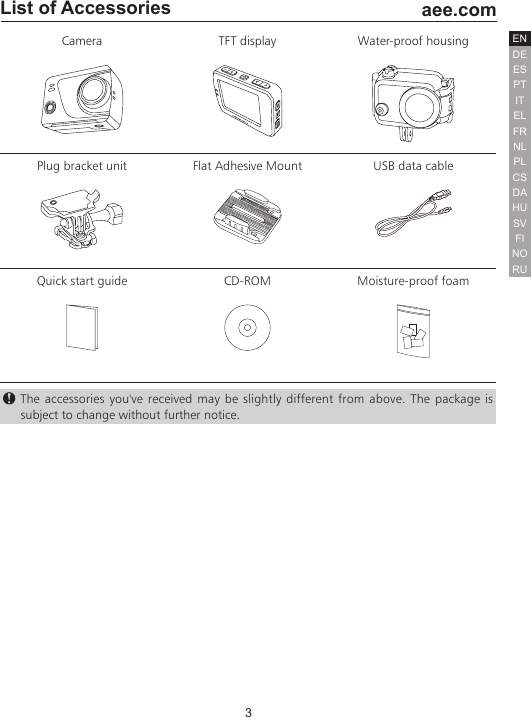
3  aee.comDEENESPTITELFRNLPLCSHUSVFINORUDAList of AccessoriesCamera TFT display Water-proof housingPlug bracket unit Flat Adhesive Mount USB data cableQuick start guide CD-ROM Moisture-proof foam The accessories you've received may be slightly different from above. The package is subject to change without further notice.
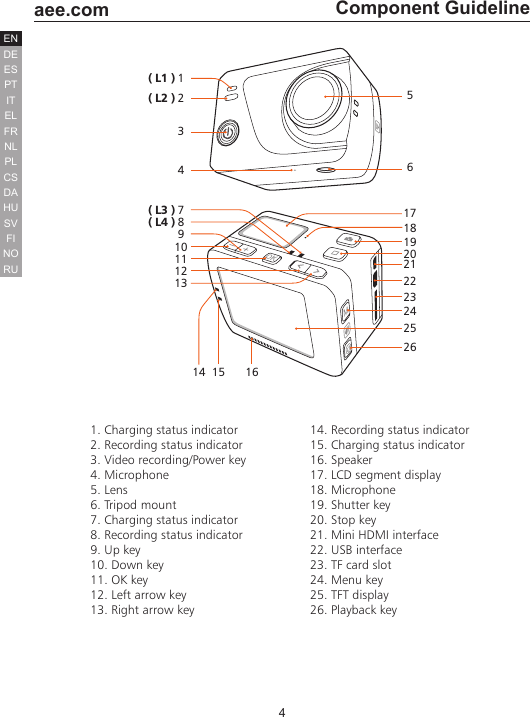
4  aee.comDEENESPTITELFRNLPLCSHUSVFINORUDAComponent Guideline177891011121314 15 161819202122232425261( L1 )( L2 )( L3 )( L4 )234561. Charging status indicator2. Recording status indicator3. Video recording/Power key4. Microphone5. Lens6. Tripod mount7. Charging status indicator8. Recording status indicator9. Up key10. Down key11. OK key12. Left arrow key13. Right arrow key14. Recording status indicator15. Charging status indicator16. Speaker17. LCD segment display18. Microphone19. Shutter key20. Stop key21. Mini HDMI interface22. USB interface23. TF card slot24. Menu key25. TFT display26. Playback key
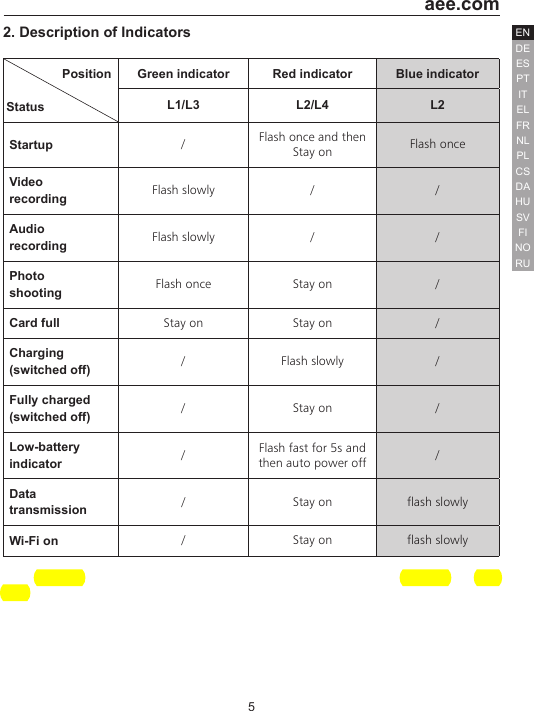
5  aee.comDEENESPTITELFRNLPLCSHUSVFINORUDA2. Description of Indicators               PositionStatusGreen indicator Red indicator Blue indicatorL1/L3 L2/L4 L2Startup  /Flash once and then Stay on Flash onceVideo recording Flash slowly / /Audio recording Flash slowly / /Photo shooting Flash once Stay on /Card full Stay on Stay on /Charging (switched off) / Flash slowly /Fully charged (switched off) / Stay on /Low-battery indicator  /Flash fast for 5s and then auto power off  /Data transmission  / Stay on flash slowlyWi-Fi on  / Stay on flash slowly
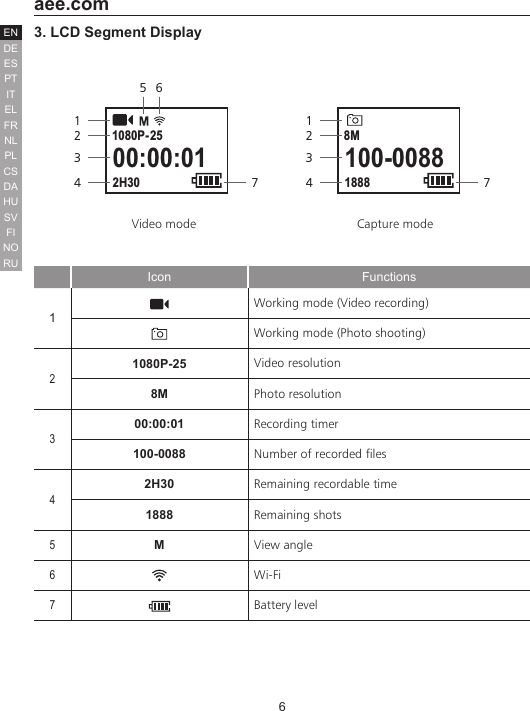
6  aee.comDEENESPTITELFRNLPLCSHUSVFINORUDA3. LCD Segment Display00:00:012H301080P- 251562347100-008818888M12347Video mode                                              Capture modeIcon Functions1Working mode (Video recording)Working mode (Photo shooting)21080P-25 Video resolution8M Photo resolution300:00:01 Recording timer100-0088 Number of recorded files42H30 Remaining recordable time1888 Remaining shots5MView angle6Wi-Fi7Battery level
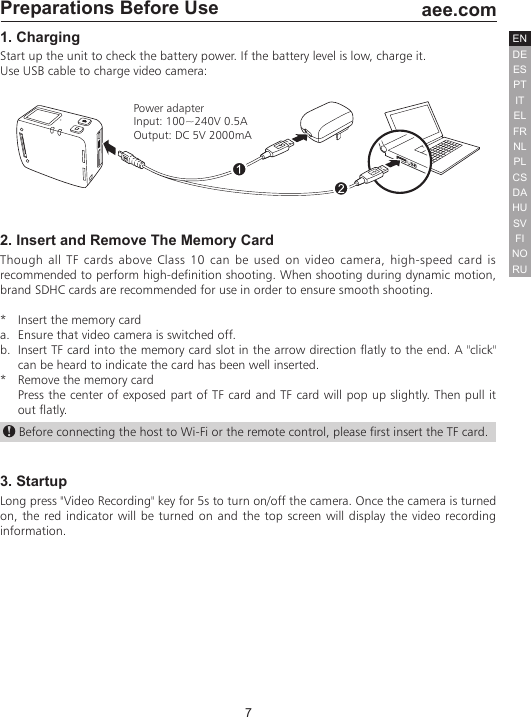
7  aee.comDEENESPTITELFRNLPLCSHUSVFINORUDAPreparations Before Use1. ChargingStart up the unit to check the battery power. If the battery level is low, charge it.Use USB cable to charge video camera:Power adapterInput: 100~240V 0.5AOutput: DC 5V 2000mA2. Insert and Remove The Memory CardThough all TF cards above Class 10 can be used on video camera, high-speed card is recommended to perform high-definition shooting. When shooting during dynamic motion, brand SDHC cards are recommended for use in order to ensure smooth shooting. *   Insert the memory carda.  Ensure that video camera is switched off.b.  Insert TF card into the memory card slot in the arrow direction flatly to the end. A "click" can be heard to indicate the card has been well inserted.*   Remove the memory cardPress the center of exposed part of TF card and TF card will pop up slightly. Then pull it out flatly. Before connecting the host to Wi-Fi or the remote control, please first insert the TF card.3. StartupLong press "Video Recording" key for 5s to turn on/off the camera. Once the camera is turned on, the red indicator will be turned on and the top screen will display the video recording information.
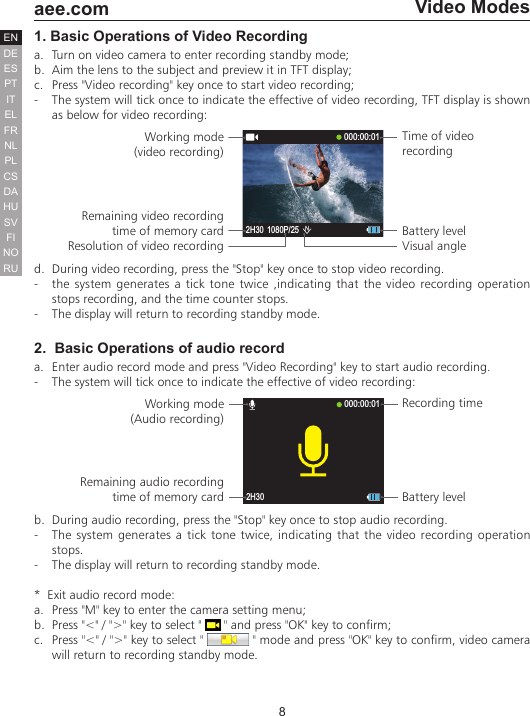
8  aee.comDEENESPTITELFRNLPLCSHUSVFINORUDAVideo Modes1. Basic Operations of Video Recordinga.  Turn on video camera to enter recording standby mode;b.  Aim the lens to the subject and preview it in TFT display;c.  Press "Video recording" key once to start video recording;-  The system will tick once to indicate the effective of video recording, TFT display is shown as below for video recording:Working mode(video recording)Remaining video recording time of memory cardResolution of video recordingTime of video recording Battery levelVisual angle2H30 1080P/25000:00:01d.  During video recording, press the "Stop" key once to stop video recording.-  the system generates a tick tone twice ,indicating that the video recording operation stops recording, and the time counter stops. -  The display will return to recording standby mode.2.  Basic Operations of audio recorda.  Enter audio record mode and press "Video Recording" key to start audio recording.-  The system will tick once to indicate the effective of video recording:2H30000:00:01Working mode (Audio recording) Remaining audio recording time of memory cardRecording timeBattery levelb.  During audio recording, press the "Stop" key once to stop audio recording.-  The system generates a tick tone twice, indicating that the video recording operation stops.-  The display will return to recording standby mode.*  Exit audio record mode:a.  Press "M" key to enter the camera setting menu;b.  Press "<" / ">" key to select "   " and press "OK" key to confirm;c.  Press "<" / ">" key to select "   " mode and press "OK" key to confirm, video camera will return to recording standby mode.
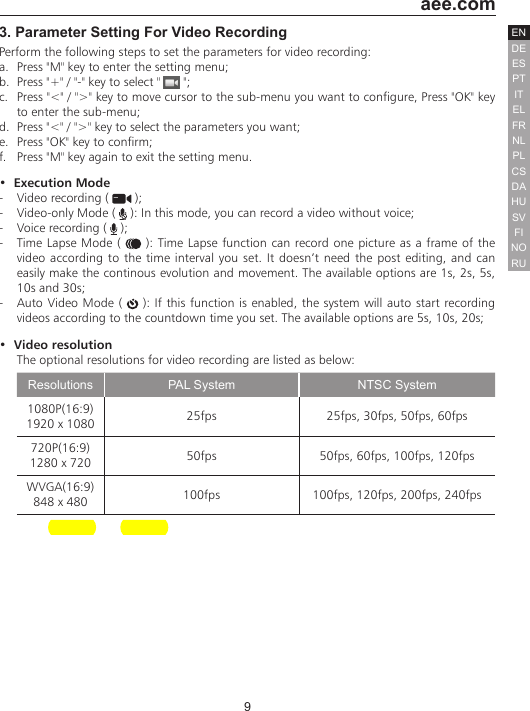
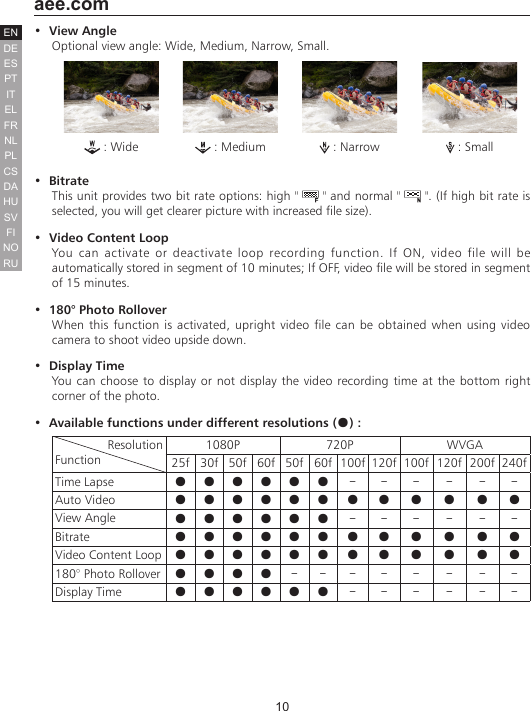
9  aee.comDEENESPTITELFRNLPLCSHUSVFINORUDA3. Parameter Setting For Video RecordingPerform the following steps to set the parameters for video recording:a.  Press "M" key to enter the setting menu;b.  Press "+" / "-" key to select "   ";c.  Press "<" / ">" key to move cursor to the sub-menu you want to configure, Press "OK" key to enter the sub-menu;d.  Press "<" / ">" key to select the parameters you want;e.  Press "OK" key to confirm;f.  Press "M" key again to exit the setting menu.•  Execution Mode-  Video recording (   );-  Video-only Mode (   ): In this mode, you can record a video without voice;-  Voice recording (   );-  Time Lapse Mode (   ): Time Lapse function can record one picture as a frame of the video according to the time interval you set. It doesn’t need the post editing, and can easily make the continous evolution and movement. The available options are 1s, 2s, 5s, 10s and 30s; -  Auto Video Mode (   ): If this function is enabled, the system will auto start recording videos according to the countdown time you set. The available options are 5s, 10s, 20s;•  Video resolutionThe optional resolutions for video recording are listed as below:Resolutions PAL System NTSC System1080P(16:9) 1920 x 1080 25fps 25fps, 30fps, 50fps, 60fps720P(16:9) 1280 x 720 50fps 50fps, 60fps, 100fps, 120fpsWVGA(16:9)848 x 480 100fps 100fps, 120fps, 200fps, 240fps
10  aee.comDEENESPTITELFRNLPLCSHUSVFINORUDA•  View AngleOptional view angle: Wide, Medium, Narrow, Small. : Wide      : Medium  : Narrow  : Small•  BitrateThis unit provides two bit rate options: high "   " and normal "   ". (If high bit rate is selected, you will get clearer picture with increased file size).•  Video Content LoopYou can activate or deactivate loop recording function. If ON, video file will be automatically stored in segment of 10 minutes; If OFF, video file will be stored in segment of 15 minutes.•  180° Photo RolloverWhen this function is activated, upright video file can be obtained when using video camera to shoot video upside down. •  Display TimeYou can choose to display or not display the video recording time at the bottom right corner of the photo.•  Available functions under different resolutions (●) :               ResolutionFunction1080P 720P WVGA25f 30f 50f 60f 50f 60f 100f 120f 100f 120f 200f 240fTime Lapse ● ● ● ● ● ● - - - - - -Auto Video ● ● ● ● ● ● ● ● ● ● ● ●View Angle ● ● ● ● ● ● - - - - - -Bitrate ● ● ● ● ● ● ● ● ● ● ● ●Video Content Loop ● ● ● ● ● ● ● ● ● ● ● ●180° Photo Rollover ● ● ● ● - - - - - - - -Display Time ● ● ● ● ● ● - - - - - -
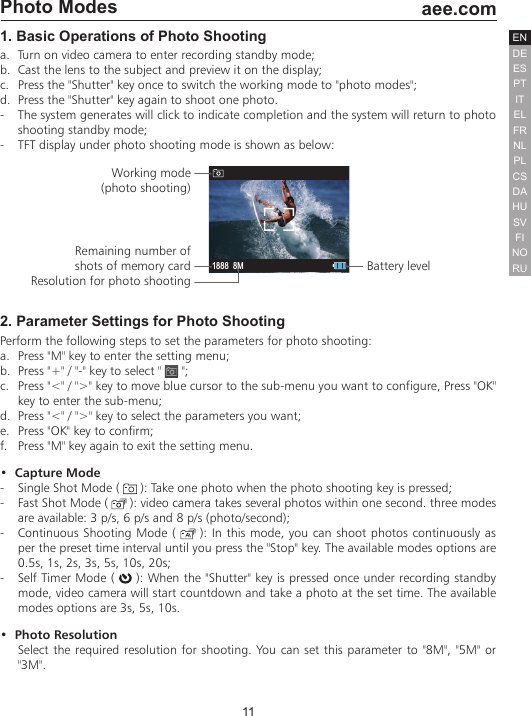
11  aee.comDEENESPTITELFRNLPLCSHUSVFINORUDAPhoto Modes1. Basic Operations of Photo Shootinga.  Turn on video camera to enter recording standby mode;b.  Cast the lens to the subject and preview it on the display;c.  Press the "Shutter" key once to switch the working mode to "photo modes";d.  Press the "Shutter" key again to shoot one photo.-  The system generates will click to indicate completion and the system will return to photo shooting standby mode;-  TFT display under photo shooting mode is shown as below:1888 8MWorking mode (photo shooting) Remaining number of shots of memory cardResolution for photo shootingBattery level2. Parameter Settings for Photo ShootingPerform the following steps to set the parameters for photo shooting:a.  Press "M" key to enter the setting menu;b.  Press "+" / "-" key to select "   ";c.  Press "<" / ">" key to move blue cursor to the sub-menu you want to configure, Press "OK" key to enter the sub-menu;  d.  Press "<" / ">" key to select the parameters you want;e.  Press "OK" key to confirm;f.  Press "M" key again to exit the setting menu.•  Capture Mode-  Single Shot Mode (   ): Take one photo when the photo shooting key is pressed;-  Fast Shot Mode (   ): video camera takes several photos within one second. three modes are available: 3 p/s, 6 p/s and 8 p/s (photo/second);-  Continuous Shooting Mode (   ): In this mode, you can shoot photos continuously as per the preset time interval until you press the "Stop" key. The available modes options are 0.5s, 1s, 2s, 3s, 5s, 10s, 20s;-  Self Timer Mode (   ): When the "Shutter" key is pressed once under recording standby mode, video camera will start countdown and take a photo at the set time. The available modes options are 3s, 5s, 10s.•  Photo ResolutionSelect the required resolution for shooting. You can set this parameter to "8M", "5M" or "3M".
12  aee.comDEENESPTITELFRNLPLCSHUSVFINORUDA•  Display TimeYou can choose to display or not display the photo shooting time at the bottom right corner of the photo.
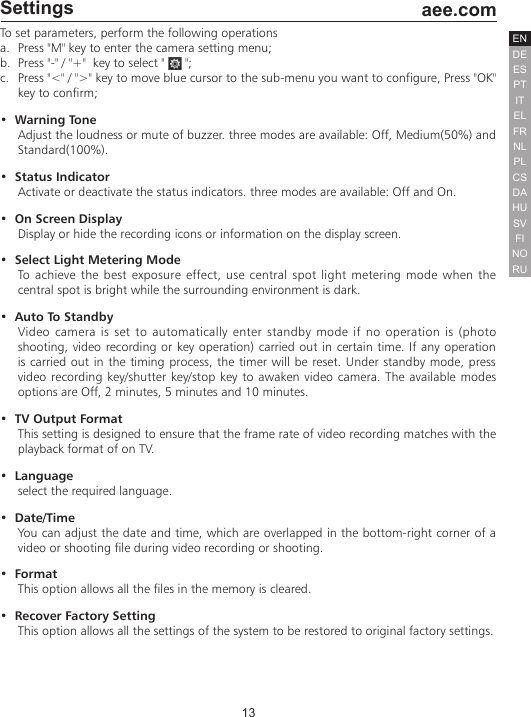
13  aee.comDEENESPTITELFRNLPLCSHUSVFINORUDASettingsTo set parameters, perform the following operationsa.  Press "M" key to enter the camera setting menu;b.  Press "-" / "+"  key to select "   ";c.  Press "<" / ">" key to move blue cursor to the sub-menu you want to configure, Press "OK" key to confirm;•  Warning ToneAdjust the loudness or mute of buzzer. three modes are available: Off, Medium(50%) and Standard(100%). •  Status IndicatorActivate or deactivate the status indicators. three modes are available: Off and On. •  On Screen DisplayDisplay or hide the recording icons or information on the display screen.•  Select Light Metering ModeTo achieve the best exposure effect, use central spot light metering mode when the central spot is bright while the surrounding environment is dark.•  Auto To Standby Video camera is set to automatically enter standby mode if no operation is (photo shooting, video recording or key operation) carried out in certain time. If any operation is carried out in the timing process, the timer will be reset. Under standby mode, press video recording key/shutter key/stop key to awaken video camera. The available modes options are Off, 2 minutes, 5 minutes and 10 minutes.•  TV Output FormatThis setting is designed to ensure that the frame rate of video recording matches with the playback format of on TV.•  Language select the required language.•  Date/TimeYou can adjust the date and time, which are overlapped in the bottom-right corner of a video or shooting file during video recording or shooting.•  FormatThis option allows all the files in the memory is cleared.•  Recover Factory SettingThis option allows all the settings of the system to be restored to original factory settings.b.  Press "+" / "-" key to select "   ";c.  Press "<" / ">" key to move blue cursor to the sub-menu you want to configure, Press  : Single shot mode  : Continuous Shooting Mode : Fast shot mode : Self Timer mode
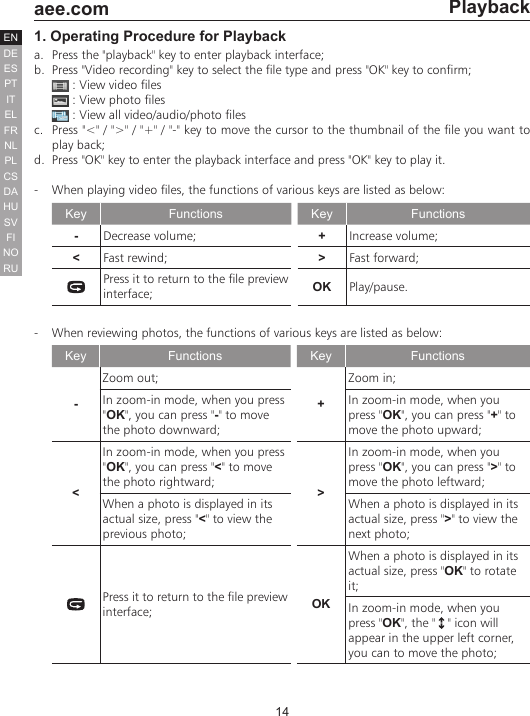
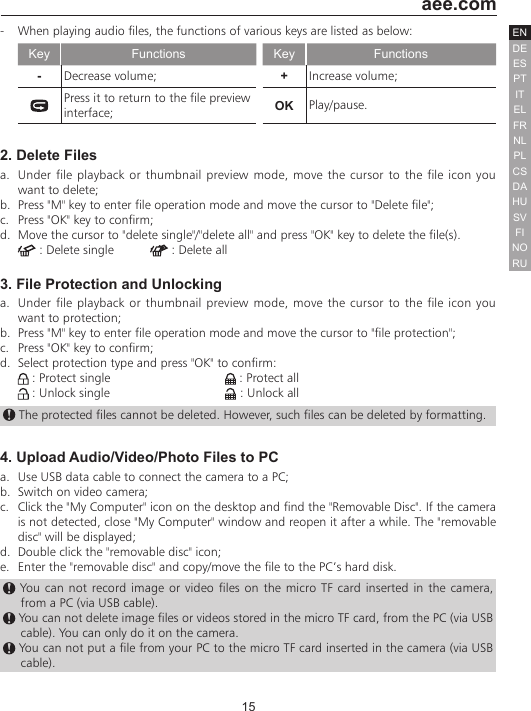
14  aee.comDEENESPTITELFRNLPLCSHUSVFINORUDAPlayback1. Operating Procedure for Playback a.  Press the "playback" key to enter playback interface;b.  Press "Video recording" key to select the file type and press "OK" key to confirm;   : View video files   : View photo files   : View all video/audio/photo filesc.  Press "<" / ">" / "+" / "-" key to move the cursor to the thumbnail of the file you want to play back;d.  Press "OK" key to enter the playback interface and press "OK" key to play it.-  When playing video files, the functions of various keys are listed as below:Key Functions Key Functions-Decrease volume; +Increase volume;<Fast rewind; >Fast forward;Press it to return to the file preview interface; OK Play/pause.-  When reviewing photos, the functions of various keys are listed as below:Key Functions Key Functions-Zoom out;+Zoom in;In zoom-in mode, when you press "OK", you can press "-" to move the photo downward;In zoom-in mode, when you press "OK", you can press "+" to move the photo upward;<In zoom-in mode, when you press "OK", you can press "<" to move the photo rightward; >In zoom-in mode, when you press "OK", you can press ">" to move the photo leftward;When a photo is displayed in its actual size, press "<" to view the previous photo;When a photo is displayed in its actual size, press ">" to view the next photo;Press it to return to the file preview interface; OKWhen a photo is displayed in its actual size, press "OK" to rotate it;In zoom-in mode, when you press "OK", the "   " icon will appear in the upper left corner, you can to move the photo;
15  aee.comDEENESPTITELFRNLPLCSHUSVFINORUDA-  When playing audio files, the functions of various keys are listed as below:Key Functions Key Functions-Decrease volume; +Increase volume;Press it to return to the file preview interface; OK Play/pause.2. Delete Filesa.  Under file playback or thumbnail preview mode, move the cursor to the file icon you want to delete;b.  Press "M" key to enter file operation mode and move the cursor to "Delete file"; c.  Press "OK" key to confirm;d.  Move the cursor to "delete single"/"delete all" and press "OK" key to delete the file(s).             : Delete single   : Delete all3. File Protection and Unlockinga.  Under file playback or thumbnail preview mode, move the cursor to the file icon you want to protection;b.  Press "M" key to enter file operation mode and move the cursor to "file protection"; c.  Press "OK" key to confirm;d.  Select protection type and press "OK" to confirm:   : Protect single                          : Protect all   : Unlock single                           : Unlock all The protected files cannot be deleted. However, such files can be deleted by formatting.4. Upload Audio/Video/Photo Files to PCa.  Use USB data cable to connect the camera to a PC;b.  Switch on video camera;c.  Click the "My Computer" icon on the desktop and find the "Removable Disc". If the camera is not detected, close "My Computer" window and reopen it after a while. The "removable disc" will be displayed;d.  Double click the "removable disc" icon;e.  Enter the "removable disc" and copy/move the file to the PC’s hard disk. You can not record image or video files on the micro TF card inserted in the camera, from a PC (via USB cable).  You can not delete image files or videos stored in the micro TF card, from the PC (via USB cable). You can only do it on the camera.  You can not put a file from your PC to the micro TF card inserted in the camera (via USB cable).
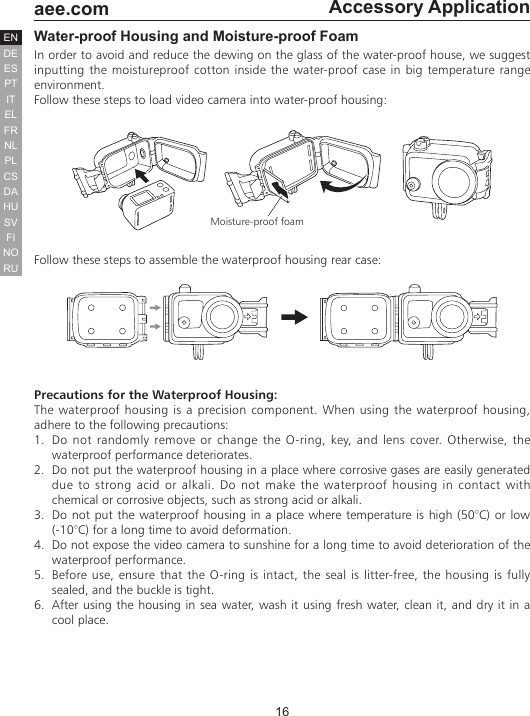
16  aee.comDEENESPTITELFRNLPLCSHUSVFINORUDAAccessory ApplicationWater-proof Housing and Moisture-proof FoamIn order to avoid and reduce the dewing on the glass of the water-proof house, we suggest inputting the moistureproof cotton inside the water-proof case in big temperature range environment.Follow these steps to load video camera into water-proof housing:Moisture-proof foamFollow these steps to assemble the waterproof housing rear case:Precautions for the Waterproof Housing:The waterproof housing is a precision component. When using the waterproof housing, adhere to the following precautions:1.  Do not randomly remove or change the O-ring, key, and lens cover. Otherwise, the waterproof performance deteriorates.2.  Do not put the waterproof housing in a place where corrosive gases are easily generated due to strong acid or alkali. Do not make the waterproof housing in contact with chemical or corrosive objects, such as strong acid or alkali.3.  Do not put the waterproof housing in a place where temperature is high (50°C) or low (-10°C) for a long time to avoid deformation.4.  Do not expose the video camera to sunshine for a long time to avoid deterioration of the waterproof performance.5.  Before use, ensure that the O-ring is intact, the seal is litter-free, the housing is fully sealed, and the buckle is tight.6.  After using the housing in sea water, wash it using fresh water, clean it, and dry it in a cool place.
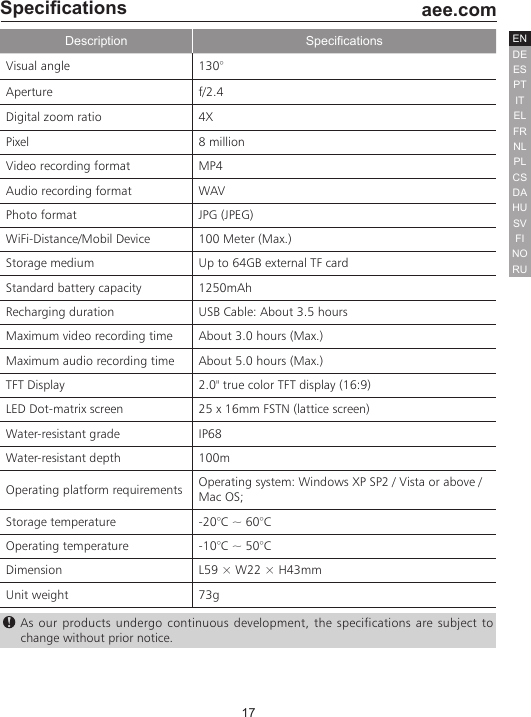
17  aee.comDEENESPTITELFRNLPLCSHUSVFINORUDASpecicationsDescription SpecicationsVisual angle 130°Aperture f/2.4Digital zoom ratio 4XPixel  8 million Video recording format  MP4Audio recording format WAV Photo format JPG (JPEG)WiFi-Distance/Mobil Device 100 Meter (Max.)Storage medium Up to 64GB external TF cardStandard battery capacity  1250mAhRecharging duration USB Cable: About 3.5 hoursMaximum video recording time About 3.0 hours (Max.)Maximum audio recording time About 5.0 hours (Max.)TFT Display  2.0" true color TFT display (16:9)LED Dot-matrix screen   25 x 16mm FSTN (lattice screen)Water-resistant grade IP68Water-resistant depth 100mOperating platform requirements Operating system: Windows XP SP2 / Vista or above / Mac OS; Storage temperature -20°C ~ 60°COperating temperature -10°C ~ 50°CDimension  L59 × W22 × H43mmUnit weight 73g As our products undergo continuous development, the specifications are subject to change without prior notice.
18  aee.comDEENESPTITELFRNLPLCSHUSVFINORUDATips1.  When the unit is in used for long period, it is natural that its surface temperature will rise. 2.  If you will not use the unit for long period, it is suggested that you charge it once every 6th month to maintain the performance of battery.3.  Use of digital zooming function during shooting will have slight impact on the image quality.4.  The visual angles under different modes will be slightly different. 5.  To smoothly play a high-definition video file, it is suggested to use a PC or other professional device.6.  If you enable cyclic recording function for long period or frequently shoot/delete photos, the memory card may have data fragments so that you may not be able to store or shoot photos. Please back up the data to external storage medium and perform formatting operation to the memory card.7.  When the camera works in a high-temperature environment, the lattice screen may become black, which is a normal phenomenon and will not affect its function.8.  When the camera is used for a long time, the temperature of the metal parts near the lens may rise, which is a normal phenomenon; please do not touch the heated metal parts. 9.  Hot plugging is not supported; in case of white screen, please restart the camera to return to normal.NoticeWhen using the video camera, pay attention to the following notice information:1.  During continuous use, the body temperature of the video camera increases. This situation is normal.2.  If the video camera is not used for a long time, remove and maintain the battery properly, and recharge the battery every six months to ensure the battery performance.3.  During recording, enabling the digital zooming function may affect the image quality.4.  Shooting view angles are slightly different in different working modes of the video camera.5.  If a video file is large, a computer or a special-purpose player is preferred for smooth play.
 FCC Information and Copyright  This equipment has been tested and found to comply with the limits for a Class B digital device, pursuant to part 15 of the FCC Rules. These limits are designed to provide reasonable protection against harmful interference in a residential installation. This equipment generates, uses and can radiate radio frequency energy and, if not installed and used in accordance with the instructions, may cause harmful interference to radio communications. However, there is no guarantee that interference will not occur in a particular installation. If this equipment does cause harmful interference to radio or television reception, which can be determined by turning the equipment off and on, the user is encouraged to try to correct the interference by one or more of the following measures: —Reorient or relocate the receiving antenna. —Increase the separation between the equipment and receiver. —Connect the equipment into an outlet on a circuit different from that to which the receiver is connected. —Consult the dealer or an experienced radio/TV technician for help.  15.19 Labelling requirements. This device complies with part 15 of the FCC Rules. Operation is subject to the following two conditions: (1)This device may not cause harmful interference, and   (2) this device must accept any interference received, including interference that may cause undesired operation.  changes or modifications not expressly approved by the party responsible for compliance could void the user's authority to operate the equipment.  FCC RF warning statement: the device has been evaluated to meet general RF exposure requirement , The device can be used in portable exposure condition without restriction.

Navigation menu