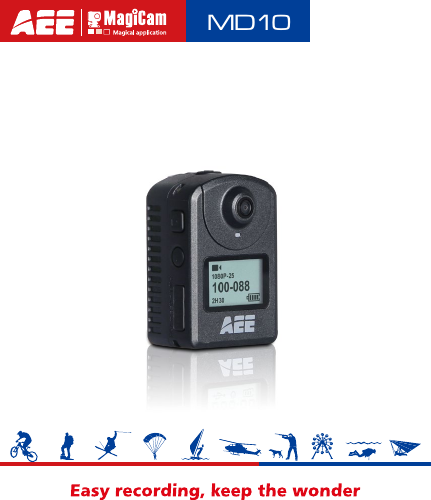
AEE Technology AEEMD10 Action Camcorder User Manual

Shenzhen AEE Technology CO., LTD. Action Camcorder Users Manual

Users Manual

MD10
ContentsPrecautions ....................................................1Preface............................................................2Warranty .........................................................3Overview.........................................................3Main functions and features ......................... 4List of accessories  .......................................6Component guideline ....................................8Description of indicators ...........................................................9LCD segment display .............................................................10Preparations before use .............................11Charging ................................................................................. 11Insert and remove the memory card.......................................11Startup ....................................................................................12Voice-activated Power-on .......................................................13Language................................................................................13Date & Time ............................................................................14Video Mode Selection and Application ......15Video Mode Selection .............................................................15Video Recording .....................................................................16> Video Recording.............................................................16> Video-only ......................................................................16> Voice Recording .............................................................17> Time Lapse ....................................................................17
> Timed Recording ............................................................18> Shoot-in-recording .........................................................18Photo Shooting .......................................................................19> Single Shot .....................................................................19> Fast Shot ........................................................................19> Continuous Shooting ......................................................19> Timed Shooting ..............................................................20Parameter settings ......................................21Recording Parameters............................................................21> Time Lapse ....................................................................22> Timed Recording ............................................................22> Shoot-in-recording .........................................................22> Resolution setting ..........................................................23> View Angle .....................................................................23> Video content loop  ........................................................24> 180° Image Rollover ......................................................24> Display Time ..................................................................24Shooting Parameters ..............................................................24> Fast Shot ........................................................................25> Continuous Shooting ......................................................25> Timed Shooting ..............................................................26> Shooting Resolution ....................................................... 26> Display Time ..................................................................26Basic Settings .........................................................................27> Warning tone ..................................................................28> Status indicator ..............................................................28
> On screen display ..........................................................28> Auto to standby ..............................................................28> TV output format ............................................................28> Format ............................................................................28> Recover factory setting ..................................................28Playback  ................................................................................29Upload audio/video/photo les to PC .....................................29View video / Photo on HDTV ..................................................29Wi-Fi  .............................................................30> Download a Wi-Fi APP  ..................................................30> Switch on Wi-Fi ..............................................................30Operating Instructions for Wi-Fi Control Interface ..................34Download Files to Mobile Device ...........................................39Trim Videos.............................................................................41Change Wi-Fi Connection Name and Password ....................42Wi-Fi Based Remote ....................................43Guide for Components ...........................................................43Startup ....................................................................................45Pairing ....................................................................................45Specications .........................................................................47Precautions.............................................................................48Accessory application ................................49Water-proof housing and Moisture-proof foam .......................49Installation of Back Clip ..........................................................50Use convex sticker and at sticker .........................................51
Precautions for the use of 3M double-sided foam tape.....51Specications ..............................................52Power Supply ...............................................53Precautions for the Waterproof housing ... 54Tips ...............................................................55FCC Notices .................................................56
1  aee.comPrecautionsWhen using the MD10 video camera, adhere to the following precautions:1.  Do not drop, knock or shake the video camera.2.  Do not put the video camera close to an object that generates strong magnetic field, such as a magnet or a motor. Do not put the video camera close to an object that emits powerful radio waves, for example, an antenna. Strong magnetic eld may cause faults on the video camera or damage the image / voice data.3.  Do not expose the video camera to high temperature or direct sunshine.4.  Do not put the memory card close to an object that generates strong magnetic  eld,  such as a  television  set, a speaker, or a magnet. Do not put the memory card in a place where static electricity is easily generated.5.  Disconnect the power supply to stop recharging the battery immediately when over heat, smoke, or peculiar smell occurs during recharging.6.  Keep the video camera out of reach of children during recharging, because the power cable may cause asphyxia or electrical shock on children.7.  Store the video camera in a cool, dry, and dust-free place.
2  aee.comPrefaceThank you for purchasing AEE MD10 series compact high-denition (HD) digital  video  camera, which has the  following characteristics:●  Ultra small size and compact structure●  User-friendly interfaces●  Easy operations●  Hand-free shooting to facilitate shooting of real scenarios at any time and place●  Superior recording  performance thanks  to dynamic  HD shooting technologies, providing you with exciting video shooting experience This manual describes how to install and use the MD10 video camera. It also provides information about use, operations, installation precautions, and technical specifications of the MD10 video camera. Before using the MD10 video camera, read and understand this manual carefully and keep it properly for future use. Designed to meet the professional requirements, AEE MD10 video camera will serve you in a long term.
3  aee.comWarrantyThis product has been certified by certification bodies for compliance with related  safety regulations and specications issued by  the federal communications  commission (FCC)  and council of Europe (CE).OverviewAs a small UHD digital video recorder with advanced Wi-Fi function, AEE MD10 provides such industry-leading functions as HD digital photography, voice storage, real-time display, video recording, photo shooting, time display, wireless remote control (optional), Wi-Fi wireless transmission, high-speed mini USB data transmission and mini USB charging. Equipped with professional accessories, MD10 allows you to record whatever you like anytime anywhere. MD10 carries several patents for invention and technology. Dispose of properly. Recycle it for a greener earth!
4  aee.comMain functions and features●  Provides a special-purpose HD lens, which supports 1080P and 720P HD video recording.●  Takes 8M pixels pictures in 3200x2400 resolution.●  Long time voice recording;●  Performs 4X digital zooming.●  LCD screen;●  Wi-Fi function and more App application.●  Voice-activated  video  recording function, to  record  videos for security purposes; long standby time;●  The multifunctional  back clip, dual-pin  back  clip,  sport back clip, multidirectional bracket and other professional accessories are available for your selection;●  Performs  shooting  in multiple  modes,  such as  Single shot,Fast shot,Timed shooting.●  Provides  unique  fast-shot feature,  up  to  8 photos  per second.●  Provides better video effects in multiple video output modes (NTSC system):  1920×1080P 30 frames / second  1280×720P 60 frames / second  WVGA 120 frames / second   ●  Point-and-shoot operation, red and green work indicator;●  Detection of the battery power and free space;●  High-speed dynamic  recording, quickly responding  to light and shade;
5  aee.com●  Provide high color delity to present more clear and natural video pictures.●  Small size, suitable for various applications;●  Provides HDMI for easy connecting to HD monitor or TV set to view record les.●  Records  video  programs  in  MP4  format  to  facilitate playback on a PC and uploading to video-sharing websites.●  Provides the 180° photo rollover function.●  RTC  function,  adding  the  date  and time to  photos  and videos;●  Supports external T-ash (TF) cards for  storage,  up to 64 GB capacity.●  Provides automatic standby for power saving, and supports automatic saving of audio and video data.
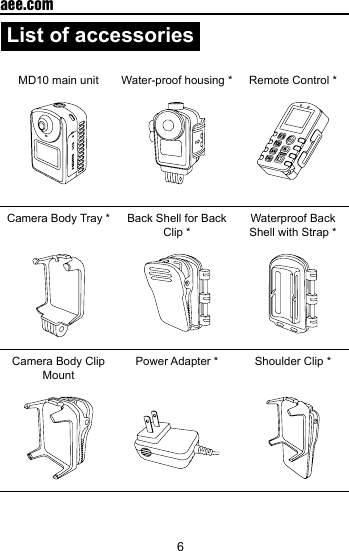
6  aee.comList of accessories MD10 main unit Water-proof housing * Remote Control * Camera Body Tray * Back Shell for Back Clip *Waterproof Back Shell with Strap *Camera Body Clip MountPower Adapter * Shoulder Clip *
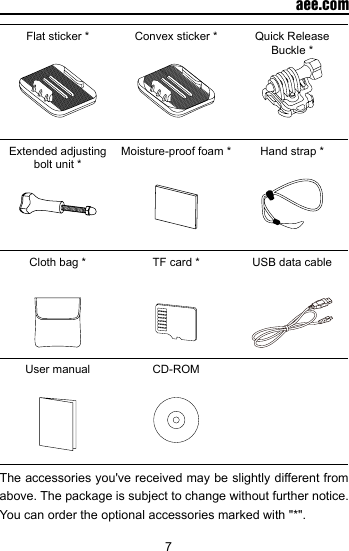
7  aee.comFlat sticker * Convex sticker * Quick Release Buckle *Extended adjusting bolt unit *Moisture-proof foam * Hand strap *Cloth bag * TF card * USB data cableUser manual CD-ROMThe accessories you've received may be slightly different from above. The package is subject to change without further notice. You can order the optional accessories marked with "*".
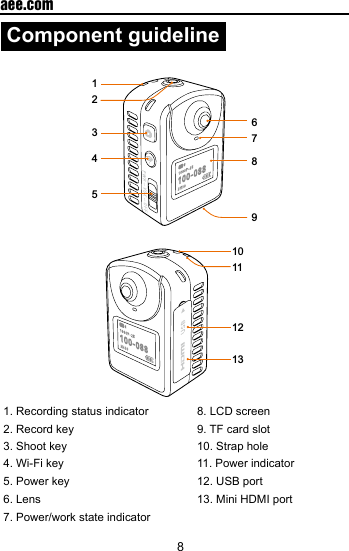
8  aee.comComponent guideline123456789101112131. Recording status indicator 8. LCD screen2. Record key 9. TF card slot3. Shoot key 10. Strap hole4. Wi-Fi key 11. Power indicator5. Power key 12. USB port6. Lens 13. Mini HDMI port7. Power/work state indicator
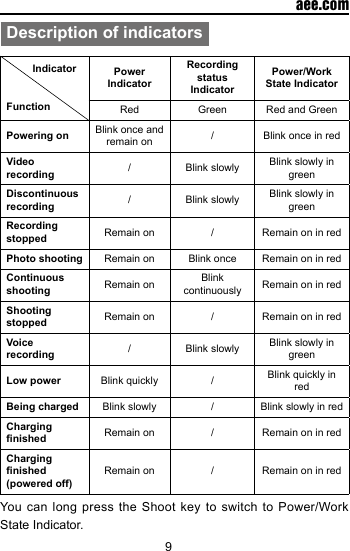
9  aee.comDescription of indicators         IndicatorFunctionPower IndicatorRecording status IndicatorPower/Work State IndicatorRed Green Red and GreenPowering on Blink once and remain on / Blink once in redVideo recording / Blink slowly Blink slowly in greenDiscontinuous recording / Blink slowly Blink slowly in greenRecording stopped Remain on / Remain on in redPhoto shooting Remain on Blink once Remain on in redContinuous shooting Remain on Blink continuously Remain on in redShooting stopped Remain on / Remain on in redVoice recording / Blink slowly Blink slowly in greenLow power Blink quickly / Blink quickly in redBeing charged Blink slowly / Blink slowly in redCharging nished Remain on / Remain on in redCharging nished (powered off)Remain on / Remain on in redYou can long press the Shoot key to switch to Power/Work State Indicator.
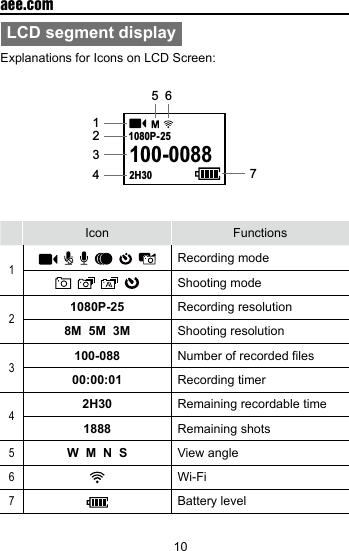
10  aee.comLCD segment displayExplanations for Icons on LCD Screen:100-00882H301080P- 251562347Icon Functions1               Recording mode         Shooting mode21080P-25 Recording resolution8M  5M  3M Shooting resolution3100-088 Number of recorded files00:00:01 Recording timer42H30 Remaining recordable time1888 Remaining shots5W  M  N  S View angle6Wi-Fi7Battery level
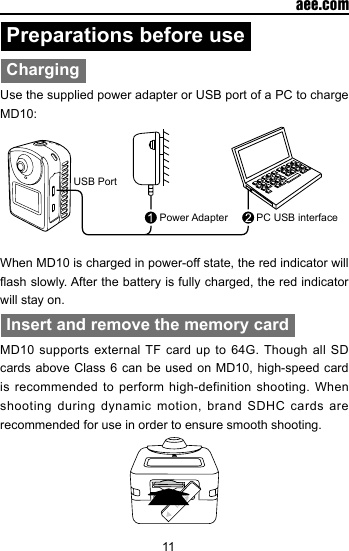
11  aee.comPreparations before useChargingUse the supplied power adapter or USB port of a PC to charge MD10:USB PortPower Adapter PC USB interfaceWhen MD10 is charged in power-off state, the red indicator will ash slowly. After the battery is fully charged, the red indicator will stay on.Insert and remove the memory cardMD10 supports external TF card up to 64G. Though all SD cards above Class 6 can be used on MD10, high-speed card is recommended to perform high-definition shooting. When shooting during dynamic motion, brand SDHC cards are recommended for use in order to ensure smooth shooting.
12  aee.com•  Insert the memory card  Ensure that MD10 is switched off, Insert SD card into the memory card slot in the arrow direction flatly to the end. A "click" can be heard to indicate the card has been well inserted.•  Remove the memory cardPress the center of exposed part of SD card andSD card will pop up slightly. Then pull it out atly.    Before connecting the host to Wi-Fi or the remote control, please rst insert the SD card.StartupSlide the Power key to "PWR".•  The power indicator will be lit;•  MD10 will enter the recording standby state and display the following interface:100-00882H301080P- 25
13  aee.comVoice-activated Power-onSlide the Power key to "VOX", and MD10 will enter the voice-activated mode. When the ambient decibel reaches 75db, MD10 will auto start recording. It may auto stop recording 3min later if the ambient decibel becomes lower than 75db. In the recording process, you can press the Record key to stop recording without inuencing any other function.LanguageSelect the required language.1.  Long press the Record key for 3s to enter the full screen mode;2.  Press the Shoot key or Wi-Fi key to adjust the menu mode to "   " and then press the Record key;3.  Press the Wi-Fi key to move the cursor to "   " and then press the Record key;4.  Press the Wi-Fi key to select "   " and then press the Record key;5.  Press the Wi-Fi key to select the required language and then press the Record key to conrm your selection;6.  Press the Shoot key to exit.
14  aee.comDate & Time1.  Long press the Record key for 3s to enter the full screen mode;2.  Press the Shoot key or Wi-Fi key to adjust the menu mode to "   " and then press the Record key;3.  Press the Wi-Fi key to move the cursor to "   " and then press the Record key;4.  Press the Wi-Fi key to select "   " and then press the Record key;5.  Press the Wi-Fi key to select the required date format and then press the Record key to enter the following interface:6.  Press the Shoot key or Wi-Fi key to adjust each value and then press the Record key to conrm the adjustment. MD10 will auto exit from the above interface when all adjustments have been nished.7.  Press the Shoot key to exit.
15  aee.comVideo Mode Selection and ApplicationVideo Mode SelectionWhen the menu is displayed in the full screen mode, the main keys can respectively perform the following functions:Record key: enter the menu item or conrmShoot key: move to the previous optionWi-Fi key: move to the next optionNote: you can press the Shoot key to exit from the functional parameter setting interface.1.  Long press the Record key for 3s to enter the full screen mode:2.  Press the Shoot key or Wi-Fi key to select a menu mode;3.  If no operation is performed within 3s, MD10 will auto enter the selected menu  mode  (you  can also enter such  mode directly  by  pressing  the  Record  key).  See  the following explanations for menu icons:
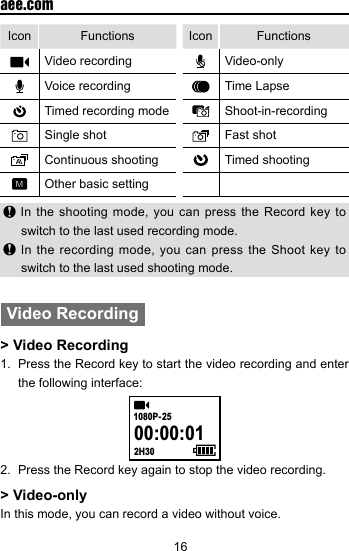
16  aee.comIcon Functions Icon FunctionsVideo recording Video-onlyVoice recording Time Lapse  Timed recording mode Shoot-in-recordingSingle shot Fast shotContinuous shooting Timed shootingOther basic setting In the shooting mode, you can press the Record key to switch to the last used recording mode. In the recording mode, you can press the Shoot key to switch to the last used shooting mode.Video Recording> Video Recording1.  Press the Record key to start the video recording and enter the following interface:00:00:012H301080P- 25 2.  Press the Record key again to stop the video recording.> Video-onlyIn this mode, you can record a video without voice.
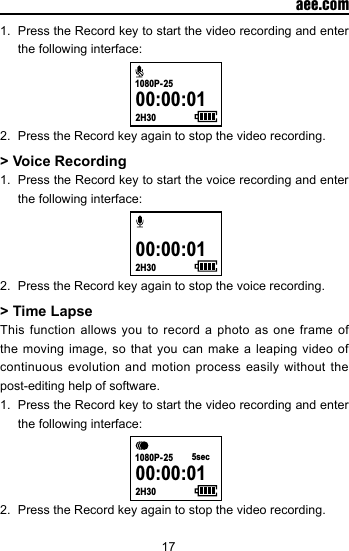
17  aee.com1.  Press the Record key to start the video recording and enter the following interface: 00:00:012H301080P- 252.  Press the Record key again to stop the video recording.> Voice Recording1.  Press the Record key to start the voice recording and enter the following interface: 00:00:012H302.  Press the Record key again to stop the voice recording.> Time LapseThis function allows you to record a photo as one frame of the moving image, so that you can make a leaping video of continuous evolution and motion process easily without the post-editing help of software.1.  Press the Record key to start the video recording and enter the following interface: 00:00:012H301080P- 25 5sec2.  Press the Record key again to stop the video recording.
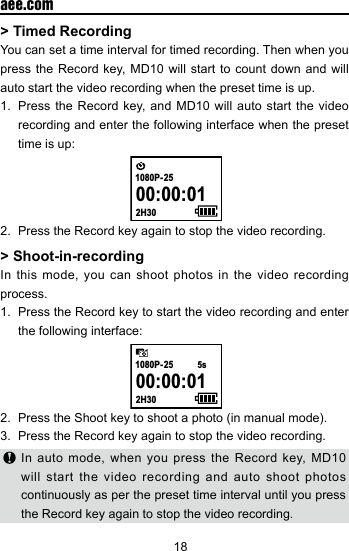
18  aee.com> Timed RecordingYou can set a time interval for timed recording. Then when you press the Record key, MD10 will start to count down and will auto start the video recording when the preset time is up.1.  Press the Record key, and MD10 will auto start the video recording and enter the following interface when the preset time is up:  00:00:012H301080P- 252.  Press the Record key again to stop the video recording.> Shoot-in-recordingIn this mode, you can shoot photos in the video recording process.1.  Press the Record key to start the video recording and enter the following interface: 00:00:012H301080P- 255s2.  Press the Shoot key to shoot a photo (in manual mode).3.  Press the Record key again to stop the video recording. In auto mode, when you press the Record key, MD10 will start the video recording and auto shoot photos continuously as per the preset time interval until you press the Record key again to stop the video recording.
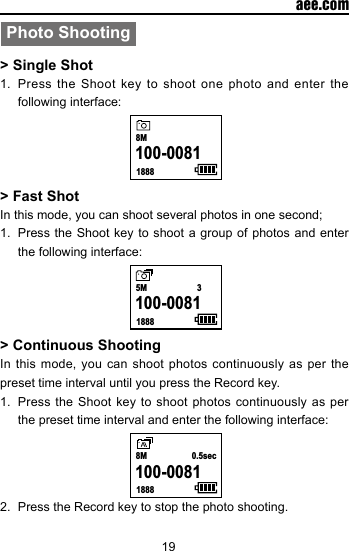
19  aee.comPhoto Shooting> Single Shot1.  Press the Shoot key to shoot one photo and enter the following interface:    18888M100-0081   > Fast ShotIn this mode, you can shoot several photos in one second;1.  Press the Shoot key to shoot a group of photos and enter the following interface:    18885M 3100-0081   > Continuous ShootingIn this mode, you can shoot photos continuously as per the preset time interval until you press the Record key.1.  Press the Shoot key to shoot photos continuously as per the preset time interval and enter the following interface:    18888M 0.5sec100-0081   2.  Press the Record key to stop the photo shooting.
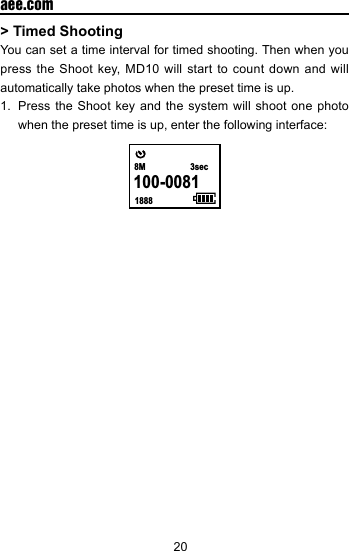
20  aee.com> Timed ShootingYou can set a time interval for timed shooting. Then when you press the Shoot key, MD10 will start to count down and will automatically take photos when the preset time is up.1.  Press the Shoot key and the system will shoot one photo when the preset time is up, enter the following interface:   18888M 3sec100-0081
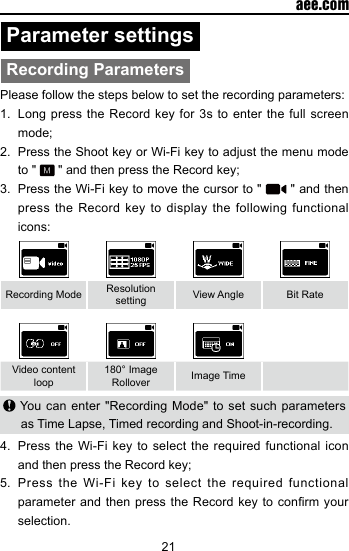
21  aee.comParameter settingsRecording ParametersPlease follow the steps below to set the recording parameters:1.  Long press the Record key for 3s to enter the full screen mode;2.  Press the Shoot key or Wi-Fi key to adjust the menu mode to "   " and then press the Record key;3.  Press the Wi-Fi key to move the cursor to "   " and then press the Record key to display the following functional icons:Recording Mode Resolution setting View Angle Bit RateVideo content loop180° Image Rollover Image Time You can enter "Recording Mode" to set such parameters as Time Lapse, Timed recording and Shoot-in-recording.4.  Press the Wi-Fi key to select the required functional icon and then press the Record key;5.  Press the Wi-Fi key to select the required functional parameter and then  press the Record  key to conrm  your selection.
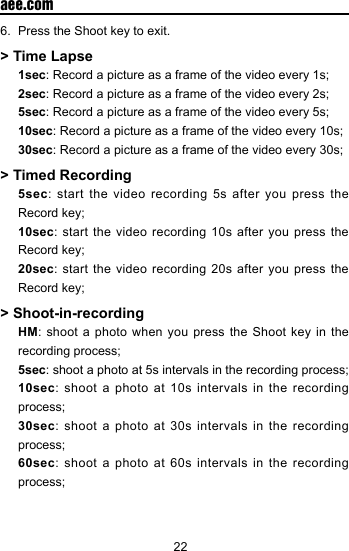
22  aee.com6.  Press the Shoot key to exit.> Time Lapse1sec: Record a picture as a frame of the video every 1s;2sec: Record a picture as a frame of the video every 2s;5sec: Record a picture as a frame of the video every 5s;10sec: Record a picture as a frame of the video every 10s;30sec: Record a picture as a frame of the video every 30s;> Timed Recording5sec: start the video recording 5s after you press the Record key;10sec: start the video recording 10s after you press the Record key;20sec: start the video recording 20s after you press the Record key;> Shoot-in-recordingHM: shoot a photo when you press the Shoot key in the recording process;5sec: shoot a photo at 5s intervals in the recording process;10sec: shoot a photo at 10s intervals in the recording process;30sec: shoot a photo at 30s intervals in the recording process;60sec: shoot a photo at 60s intervals in the recording process;
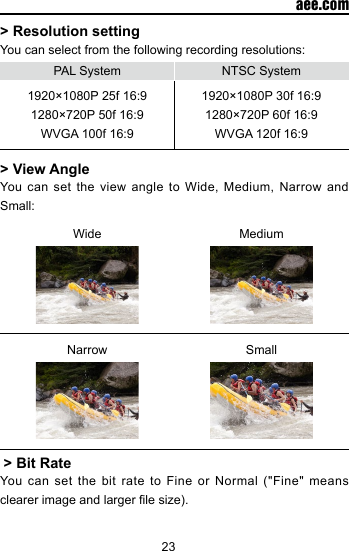
23  aee.com> Resolution settingYou can select from the following recording resolutions:PAL System NTSC System1920×1080P 25f 16:9 1280×720P 50f 16:9WVGA 100f 16:91920×1080P 30f 16:9 1280×720P 60f 16:9WVGA 120f 16:9> View AngleYou can set the view angle to Wide, Medium, Narrow and Small:Wide MediumNarrow Small > Bit RateYou  can  set  the bit  rate to Fine  or  Normal  ("Fine" means clearer image and larger le size).
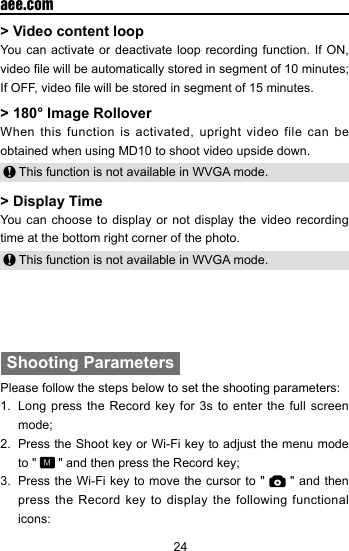
24  aee.com> Video content loop You can activate or deactivate loop recording function. If ON, video le will be automatically stored in segment of 10 minutes; If OFF, video le will be stored in segment of 15 minutes.> 180° Image RolloverWhen this function is activated, upright video file can be obtained when using MD10 to shoot video upside down. This function is not available in WVGA mode.> Display TimeYou can choose to display or not display the video recording time at the bottom right corner of the photo. This function is not available in WVGA mode. Shooting ParametersPlease follow the steps below to set the shooting parameters:1.  Long press the Record key for 3s to enter the full screen mode;2.  Press the Shoot key or Wi-Fi key to adjust the menu mode to "   " and then press the Record key;3.  Press the Wi-Fi key to move the cursor to "   " and then press the Record key to display the following functional icons:
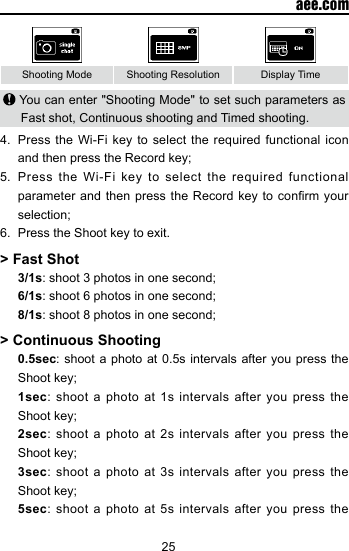
25  aee.comShooting Mode Shooting Resolution Display Time You can enter "Shooting Mode" to set such parameters as Fast shot, Continuous shooting and Timed shooting.4.  Press the Wi-Fi key to select the required functional icon and then press the Record key;5.  Press the Wi-Fi key to select the required functional parameter and then  press the Record  key to conrm  your selection;6.  Press the Shoot key to exit.> Fast Shot 3/1s: shoot 3 photos in one second; 6/1s: shoot 6 photos in one second; 8/1s: shoot 8 photos in one second;> Continuous Shooting0.5sec: shoot a photo at 0.5s intervals after you press the Shoot key;1sec: shoot a photo at 1s intervals after you press the Shoot key;2sec: shoot a photo at 2s intervals after you press the Shoot key;3sec: shoot a photo at 3s intervals after you press the Shoot key;5sec: shoot a photo at 5s intervals after you press the
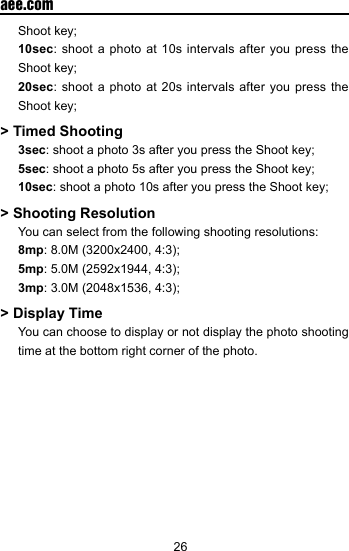
26  aee.comShoot key;10sec: shoot a photo at 10s intervals after you press the Shoot key;20sec: shoot a photo at 20s intervals after you press the Shoot key;> Timed Shooting3sec: shoot a photo 3s after you press the Shoot key;5sec: shoot a photo 5s after you press the Shoot key;10sec: shoot a photo 10s after you press the Shoot key;> Shooting Resolution  You can select from the following shooting resolutions: 8mp: 8.0M (3200x2400, 4:3); 5mp: 5.0M (2592x1944, 4:3); 3mp: 3.0M (2048x1536, 4:3);> Display Time  You can choose to display or not display the photo shooting time at the bottom right corner of the photo.
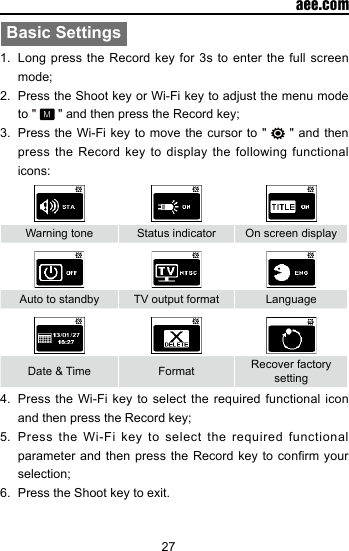
27  aee.comBasic Settings1.  Long press the Record key for 3s to enter the full screen mode;2.  Press the Shoot key or Wi-Fi key to adjust the menu mode to "   " and then press the Record key;3.  Press the Wi-Fi key to move the cursor to "   " and then press the Record key to display the following functional icons:Warning tone Status indicator On screen displayAuto to standby TV output format LanguageDate & Time Format  Recover factory setting4.  Press the Wi-Fi key to select the required functional icon and then press the Record key;5.  Press the Wi-Fi key to select the required functional parameter and then  press the Record  key to conrm  your selection;6.  Press the Shoot key to exit.
28  aee.com> Warning toneYou can set the prompt tone to Standard or Off.> Status indicatorYou can set the work indicator to On or Off.> On screen displayThis  function  allows  you  to show  (On)  or  hide  (Off)  the recording icon and video/photo details when you watch videos/photos on a TV or monitor.> Auto to standbyYou can set the time interval for auto standby to Off, 2min, 5min or 10min. The timer starts to work when there is no shooting, recording or key operation. When the preset time is up, MD10 will auto enter the standby mode. If any operation is performed in the timing process, the timer will be reset. You can press the Record key or shoot key to awaken MD10 from the standby mode.> TV output formatThis function controls the video recording frame rate and the TV system for video playing.Please select NTSC in North America.Please select PAL in non-North America areas.> FormatThis function will clear all les from the storage card.> Recover factory settingThis function will restore MD10 to factory default setting.
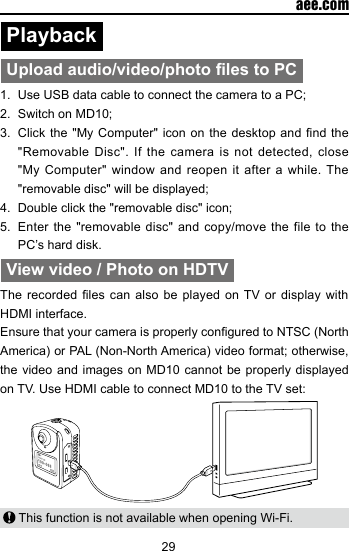
29  aee.comPlayback Upload audio/video/photo les to PC1.  Use USB data cable to connect the camera to a PC;2.  Switch on MD10;3.  Click the "My  Computer" icon on  the  desktop and nd  the "Removable Disc". If the camera is not detected, close "My Computer" window and reopen it after a while. The "removable disc" will be displayed;4.  Double click the "removable disc" icon;5.  Enter the "removable disc" and copy/move the file to the PC’s hard disk.View video / Photo on HDTVThe recorded les  can  also be played on  TV or display with HDMI interface.Ensure that your camera is properly congured to NTSC (North America) or PAL (Non-North America) video format; otherwise, the video and images on MD10 cannot be properly displayed on TV. Use HDMI cable to connect MD10 to the TV set: This function is not available when opening Wi-Fi.
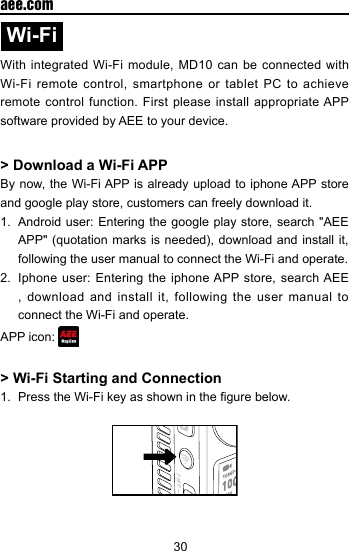
30  aee.comWi-Fi With integrated Wi-Fi module, MD10 can be connected with Wi-Fi remote control, smartphone or tablet PC to achieve remote control function. First please install appropriate APP software provided by AEE to your device.> Download a Wi-Fi APP By now, the Wi-Fi APP is already upload to iphone APP store and google play store, customers can freely download it.1.  Android user: Entering the google play store, search "AEE APP" (quotation  marks is needed),  download and  install it, following the user manual to connect the Wi-Fi and operate. 2.  Iphone user: Entering the iphone APP store, search AEE , download and install it, following the user manual to connect the Wi-Fi and operate. APP icon: > Wi-Fi Starting and Connection1.  Press the Wi-Fi key as shown in the gure below.
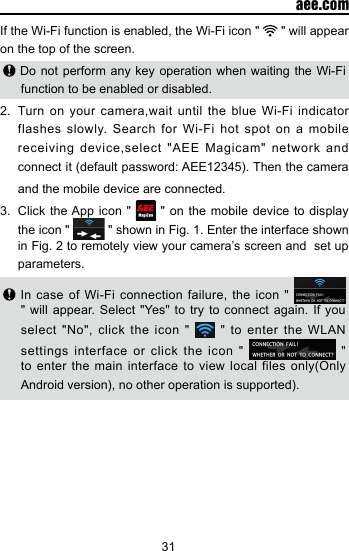
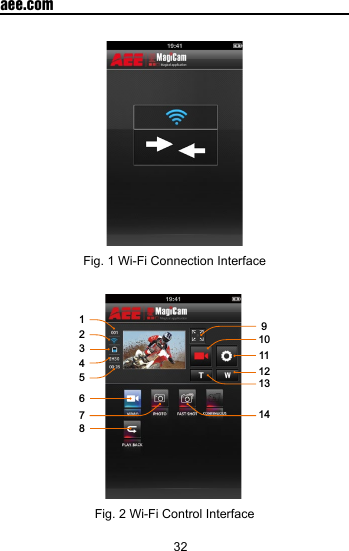
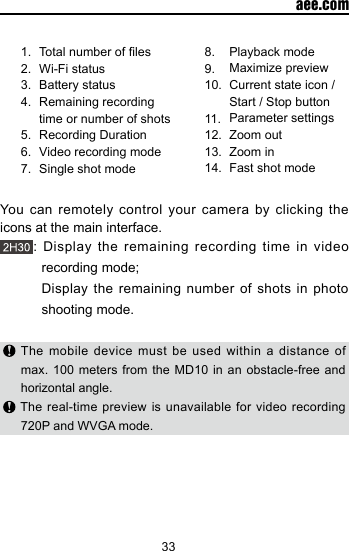
31  aee.comIf the Wi-Fi function is enabled, the Wi-Fi icon "   " will appear on the top of the screen. Do not perform any key operation when waiting the Wi-Fi function to be enabled or disabled.2.  Turn on your camera,wait until the blue Wi-Fi indicator flashes slowly. Search for Wi-Fi hot spot on a mobile receiving device,select "AEE Magicam" network and connect it (default password: AEE12345). Then the camera and the mobile device are connected.3.  Click the App icon "   " on the mobile device to display the icon "   " shown in Fig. 1. Enter the interface shown in Fig. 2 to remotely view your camera’s screen and  set up parameters. In case of Wi-Fi connection failure, the icon "   " will appear. Select "Yes" to try to connect again. If you select "No", click the icon "   " to enter the WLAN settings interface or click the icon "   " to enter the main interface to view local  files  only(Only Android version), no other operation is supported).
32  aee.comFig. 1 Wi-Fi Connection Interface1234567891011121314Fig. 2 Wi-Fi Control Interface
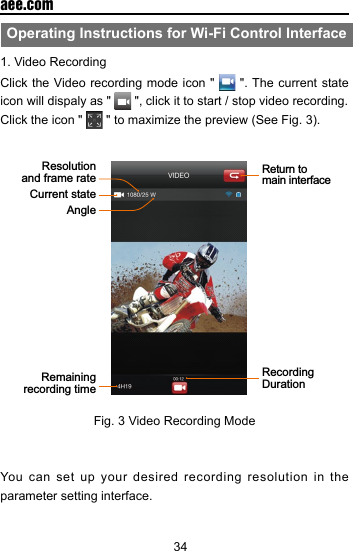
33  aee.com1.2.3.4.5.6.7.Total number of lesWi-Fi statusBattery statusRemaining recording time or number of shotsRecording DurationVideo recording modeSingle shot mode8. 9. 10. 11. 12. 13. 14.Playback modeMaximize previewCurrent state icon / Start / Stop buttonParameter settingsZoom outZoom inFast shot modeYou can remotely control your camera by clicking the icons at the main interface.: Display the remaining recording time in video recording mode;  Display the remaining number of shots in photo shooting mode. The mobile device must be used within a distance of max. 100 meters from the MD10 in an obstacle-free and horizontal angle. The real-time preview is unavailable for video recording  720P and WVGA mode.
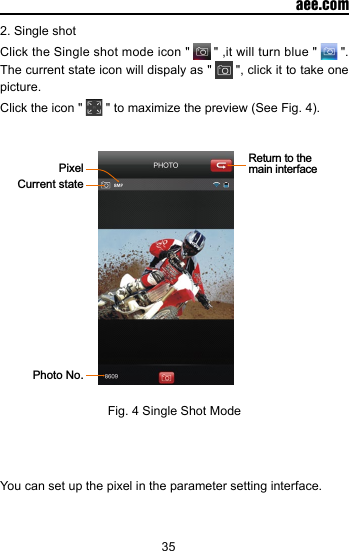
34  aee.comOperating Instructions for Wi-Fi Control Interface1. Video RecordingClick the Video recording mode icon "   ". The current state icon will dispaly as "   ", click it to start / stop video recording.Click the icon "   " to maximize the preview (See Fig. 3). AngleCurrent stateReturn to main interfaceRecording DurationResolution and frame rateRemaining recording time    Fig. 3 Video Recording ModeYou can set up your desired recording resolution in the parameter setting interface.
35  aee.com2. Single shotClick the Single shot mode icon "   " ,it will turn blue "   ". The current state icon will dispaly as "   ", click it to take one picture.Click the icon "   " to maximize the preview (See Fig. 4).   Return to the main interfaceCurrent statePixelPhoto No.Fig. 4 Single Shot ModeYou can set up the pixel in the parameter setting interface.
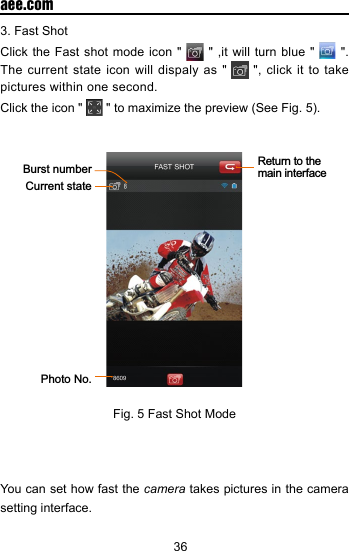
36  aee.com3. Fast ShotClick the Fast shot mode icon "   " ,it will turn blue "   ". The current state icon will dispaly as "   ", click it to take pictures within one second.Click the icon "   " to maximize the preview (See Fig. 5). Return to the main interfaceBurst numberCurrent statePhoto No.Fig. 5 Fast Shot ModeYou can set how fast the camera takes pictures in the camera setting interface.
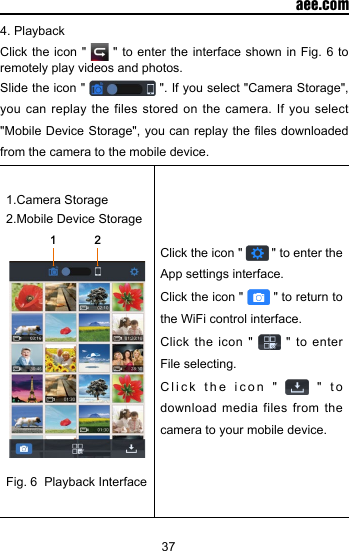
37  aee.com4. Playback Click the icon "   " to enter the interface shown in Fig. 6 to remotely play videos and photos. Slide the icon "   ". If you select "Camera Storage", you can replay the files stored on the camera. If you select "Mobile Device Storage", you can replay the  les downloaded from the camera to the mobile device.1.Camera Storage2.Mobile Device Storage12Fig. 6  Playback InterfaceClick the icon "   " to enter the App settings interface.Click the icon "   " to return to the WiFi control interface. Click the icon "   " to enter File selecting.Click the icon "   " to download media files from the camera to your mobile device.
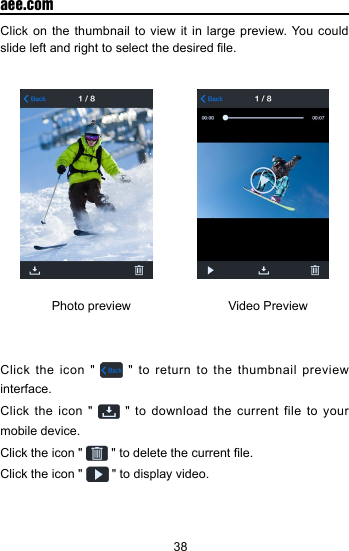
38  aee.comClick on the thumbnail to view it in large preview. You could slide left and right to select the desired le.                Photo preview                            Video PreviewClick the icon "   " to return to the thumbnail preview interface.Click the icon "   " to download the current file to your mobile device. Click the icon "   " to delete the current le.Click the icon "   " to display video.
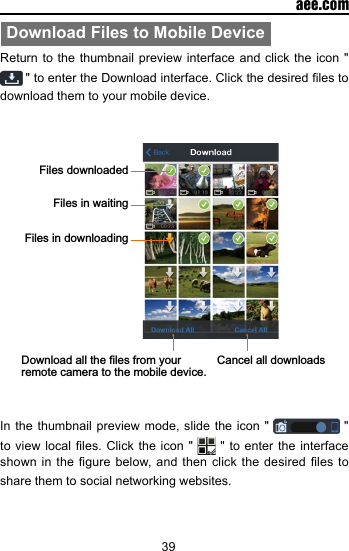
39  aee.comDownload Files to Mobile DeviceReturn to the thumbnail preview interface and click the icon "  " to enter the Download interface. Click the desired les to download them to your mobile device.Files downloadedFiles in downloadingDownload all the files from your remote camera to the mobile device. Cancel all downloadsFiles in waitingIn the thumbnail preview mode, slide the icon "   " to view  local les. Click  the icon "   " to enter the interface shown in the  gure  below, and then  click the desired les  to share them to social networking websites.
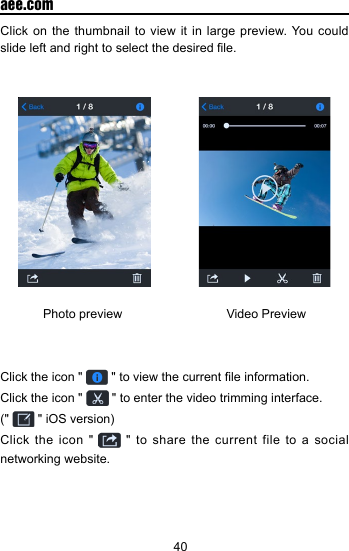
40  aee.comClick on the thumbnail to view it in large preview. You could slide left and right to select the desired le.              Photo preview                              Video PreviewClick the icon "   " to view the current le information.Click the icon "   " to enter the video trimming interface.("   " iOS version)Click the icon "   " to share the current file to a social networking website.
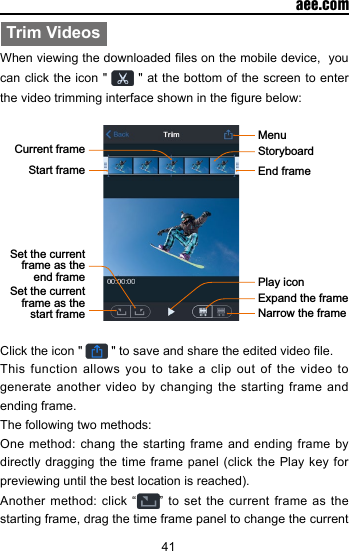
41  aee.comTrim VideosWhen viewing the downloaded les on the mobile device,  you can click the icon "  " at the bottom of the screen to enter the video trimming interface shown in the gure below:  End frameMenuStart frameCurrent frame StoryboardSet the current frame as the end frameSet the current frame as the start frame Narrow the frameExpand the framePlay iconClick the icon "   " to save and share the edited video le. This function allows you to take a clip out of the video to generate another video by changing the starting frame and ending frame. The following two methods:One method: chang the starting frame and ending frame by directly dragging the  time frame panel  (click  the Play key  for previewing until the best location is reached).Another method: click “ ” to set the current frame as the starting frame, drag the time frame panel to change the current
42  aee.comframe, and then click “ ” again to set the current frame as the ending frame.Change Wi-Fi Connection Name and Password1. Change the Wi-Fi connection name:     Connect your  camera  (with  TF  card installed)  to  the computer and turn on your camera. On the computer, double click "My Computer" to nd and enter the removable disk, and then open the "   " WiFi.conf  le  in the folder "MISC". Find "AP_SSID=AEE Magicam". Change the content following the equal sign "=" to your desired name and save it. 2.  Change the Wi-Fi connection password:   Connect  your  camera  (with  TF card  installed)  to  the computer and turn on your camera. On the computer, double click the  icon "My Computer"  to nd and  enter  the removable disk, and then open the "   " WiFi.conf file in the folder "MISC". Find "AP_PASSWD=AEE12345". Change the content following the equal sign "=" to your desired password (containing  at least 8 digits  and above) and save it. (It supports 8-digit password only.) In case of synchronous operation of the camera and the Wi-Fi based remote control, MD10 will give priority to the operation command from the camera. Above images for reference only, subject to our available App.
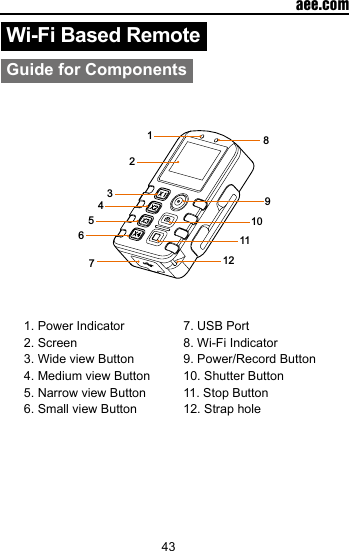
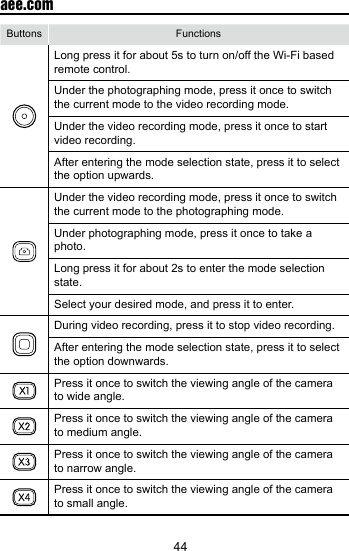
43  aee.comWi-Fi Based RemoteGuide for Components1234567891011121. Power Indicator2. Screen3. Wide view Button4. Medium view Button5. Narrow view Button6. Small view Button7. USB Port8. Wi-Fi Indicator 9. Power/Record Button10. Shutter Button11. Stop Button12. Strap hole
44  aee.comButtons Functions Long press it for about 5s to turn on/off the Wi-Fi based remote control. Under the photographing mode, press it once to switch the current mode to the video recording mode. Under the video recording mode, press it once to start video recording. After entering the mode selection state, press it to select the option upwards. Under the video recording mode, press it once to switch the current mode to the photographing mode. Under photographing mode, press it once to take a photo. Long press it for about 2s to enter the mode selection state. Select your desired mode, and press it to enter. During video recording, press it to stop video recording.After entering the mode selection state, press it to select the option downwards. Press it once to switch the viewing angle of the camera to wide angle. Press it once to switch the viewing angle of the camera to medium angle.Press it once to switch the viewing angle of the camera to narrow angle.Press it once to switch the viewing angle of the camera to small angle.
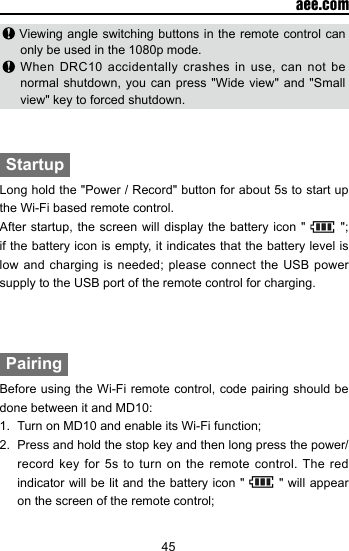
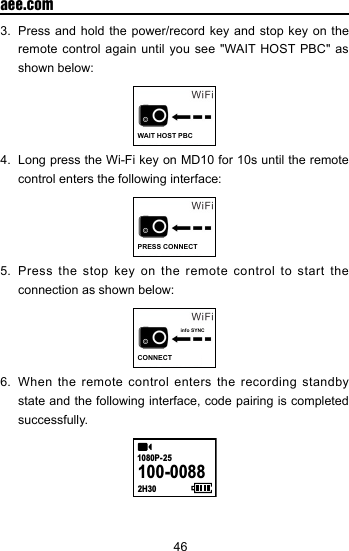
45  aee.com Viewing angle switching buttons in the remote control can only be used in the 1080p mode. When DRC10 accidentally crashes in use, can not be normal shutdown, you can press "Wide view" and "Small view" key to forced shutdown.StartupLong hold the "Power / Record" button for about 5s to start up the Wi-Fi based remote control.After startup, the screen will display the battery icon "   "; if the battery icon is empty, it indicates that the battery level is low and charging  is  needed; please connect the  USB  power supply to the USB port of the remote control for charging. PairingBefore using the Wi-Fi remote control, code pairing should be done between it and MD10:1.  Turn on MD10 and enable its Wi-Fi function;2.  Press and hold the stop key and then long press the power/record key for 5s to turn on the remote control. The red indicator will be lit and the battery icon "   " will appear on the screen of the remote control;
46  aee.com3.  Press and hold the power/record key and stop key on the remote control again until you see "WAIT HOST PBC" as shown below:WAIT HOST PBC4.  Long press the Wi-Fi key on MD10 for 10s until the remote control enters the following interface:PRESS CONNECT5.  Press the stop key on the remote control to start the connection as shown below:info SYNCCONNECT6.  When the remote control enters the recording standby state and the following interface, code pairing is completed successfully. 100-00882H301080P- 25
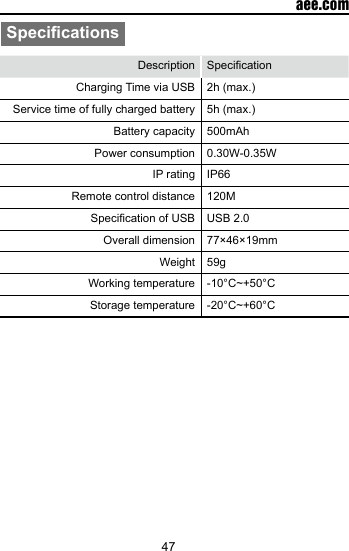
47  aee.comSpecicationsDescription SpecicationCharging  Time  via  USB    2h (max.)Service time of fully charged battery 5h (max.)Battery capacity 500mAhPower consumption 0.30W-0.35WIP rating IP66Remote control distance 120MSpecication of USB USB 2.0Overall dimension  77×46×19mm Weight  59gWorking temperature  -10°C~+50°CStorage temperature  -20°C~+60°C
48  aee.comPrecautions1.  This remote control  is a sophisticated product; dropping  or physical impact on this product is not allowed.2.  The remote control should not get close to objects with high-intensity magnetic field such as magnet and electric motor, or to objects that send out strong radio waves such as antenna. Strong  magnetic  eld may result in  failure  of the remote control.3.  Please do not put the remote control in a place with high temperature or direct sunshine. 4.  Please put the remote control in a cool, dry and dustless place. 5.  This product is not designed with the function of auto standby; if it is idle for a long time after startup, please turn off the power of the remote control. 6. The remote control is able to connect to one host only each time. It can’t connect to multiple hosts simultaneously.7. If the remote control disconnects abnormally and can’t be used normally, please simply reboot it to put it back to use.8. Please don’t operate the remote control while it’s being charged, in case it will cause malfunction.9. If you activate video recording function in the host with remote control, simply press Stop button on the remote control to stop recording. Please don’t press the Stop button on the host to stop recording, in case it will cause malfunction.
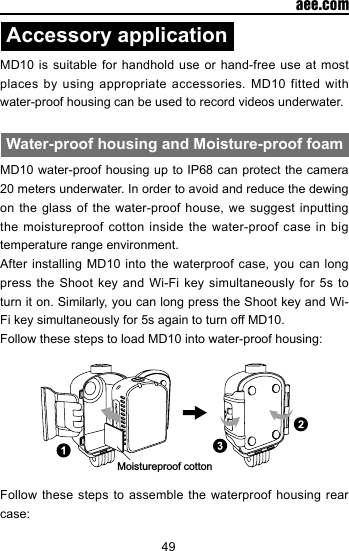
49  aee.comAccessory applicationMD10 is suitable for handhold use or hand-free use at most places by using appropriate accessories. MD10 fitted with water-proof housing can be used to record videos underwater. Water-proof housing and Moisture-proof foamMD10 water-proof housing up to IP68 can protect the camera 20 meters underwater. In order to avoid and reduce the dewing on the glass of the water-proof house, we suggest inputting the moistureproof cotton inside the water-proof case in big temperature range environment.After installing MD10 into the waterproof case, you can long press the Shoot key and Wi-Fi key simultaneously for 5s to turn it on. Similarly, you can long press the Shoot key and Wi-Fi key simultaneously for 5s again to turn off MD10.Follow these steps to load MD10 into water-proof housing:Moistureproof cottonFollow these steps to assemble the waterproof housing rear case:
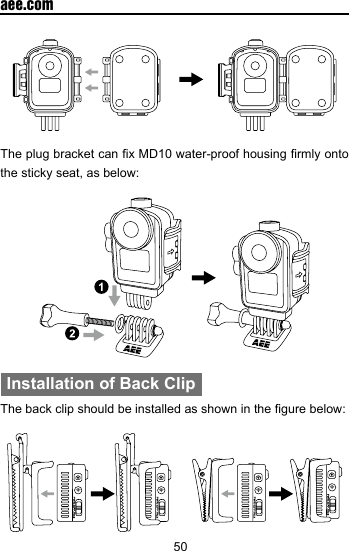
50  aee.comThe plug bracket can x MD10 water-proof housing rmly onto the sticky seat, as below:Installation of Back ClipThe back clip should be installed as shown in the gure below:
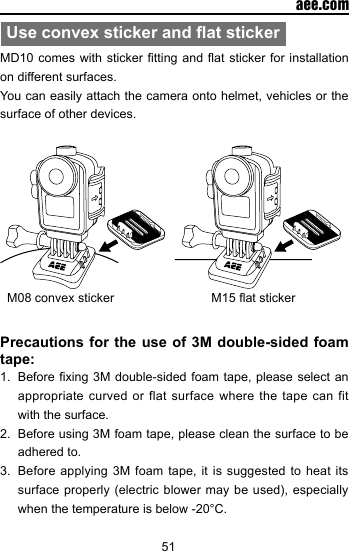
51  aee.comUse convex sticker and at stickerMD10 comes  with sticker tting and at  sticker for installation on different surfaces. You can easily attach the camera onto helmet, vehicles or the surface of other devices.   M08 convex sticker                            M15 at sticker                Precautions for the use of 3M double-sided foam tape:1.  Before xing 3M  double-sided foam tape, please select  an appropriate curved or flat surface where the tape can fit with the surface.2.  Before using 3M foam tape, please clean the surface to be adhered to. 3.  Before applying 3M foam tape, it is suggested to heat its surface properly (electric  blower may be  used), especially when the temperature is below -20°C.
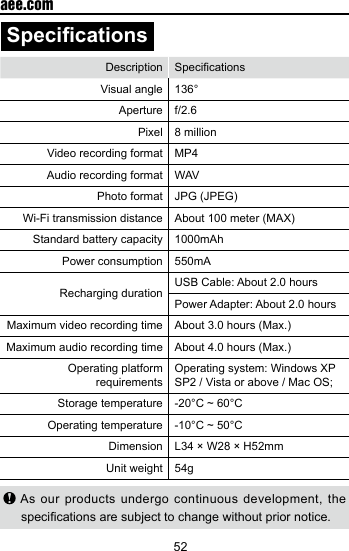
52  aee.comSpecicationsDescription SpecicationsVisual angle 136°Aperture f/2.6Pixel  8 million Video recording format  MP4Audio recording format WAV Photo format JPG (JPEG)Wi-Fi transmission distance About 100 meter (MAX)Standard battery capacity  1000mAhPower consumption 550mARecharging duration USB Cable: About 2.0 hoursPower Adapter: About 2.0 hoursMaximum video recording time About 3.0 hours (Max.)Maximum audio recording time About 4.0 hours (Max.)Operating platform requirementsOperating system: Windows XP SP2 / Vista or above / Mac OS; Storage temperature -20°C ~ 60°COperating temperature -10°C ~ 50°CDimension  L34 × W28 × H52mmUnit weight 54g As our products undergo continuous development, the specications are subject to change without prior notice.
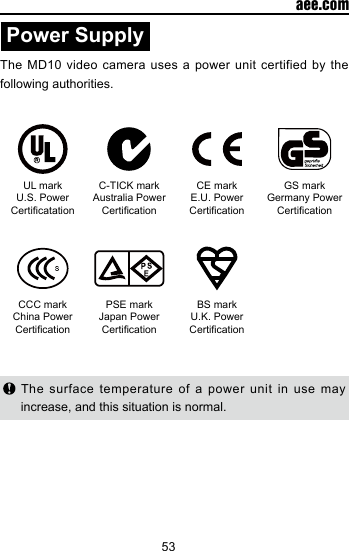
53  aee.comPower SupplyThe MD10 video camera uses a power unit certified by the following authorities.UL mark U.S. Power CerticatationC-TICK mark Australia Power CerticationCE mark E.U. Power CerticationGS mark      Germany Power CerticationCCC mark China Power CerticationPSE mark Japan Power CerticationBS markU.K. Power Certication The surface temperature of a power unit in use may increase, and this situation is normal.
54  aee.comPrecautions for the Waterproof housingThe waterproof housing is a precision component. When using the waterproof housing, adhere to the following precautions:1.  Do not randomly remove or change the O-ring, key, and lens cover. Otherwise, the waterproof performance deteriorates.2.  Do not put the waterproof housing in a place where corrosive gases are easily generated due to strong acid or alkali. Do not make the waterproof housing in contact with chemical or corrosive objects, such as strong acid or alkali.3.  Do not put the waterproof housing in a place where temperature is high (50°C) or low (-10°C) for a long time to avoid deformation.4. Do not expose the MD10 video camera to sunshine for a long time to avoid deterioration of the waterproof performance.5.  Before use, ensure that the O-ring is intact, the seal is litter-free, the housing is fully sealed, and the buckle is tight.6.  After using the housing in sea water, wash it using fresh water, clean it, and dry it in a cool place.
55  aee.comTips1.  When the unit is in used for long period, it is natural that its surface temperature will rise. 2.  If you will not use the unit for long period, it is suggested that you charge it once every 6th month to maintain the performance of battery.3.  Use of digital  zooming  function  during shooting will have slight impact on the image quality.4.  The visual angles under different modes will be slightly different. 5.  To smoothly play a high-denition video le, it is suggested to use a PC or other professional device.6.  If you enable cyclic recording function for long period or frequently shoot/delete photos, the memory card may have data fragments so that you may not be able to store or shoot photos. Please back up the data to external storage medium and perform formatting operation to the memory card.7.  When the camera works in a high-temperature environment, the lattice screen may become black, which is a normal phenomenon and will not affect its function.8.  When the camera is used for a long time, the temperature of the metal parts near the lens may rise, which is a normal phenomenon; please do not touch the heated metal parts. 9.  Hot  plugging  is  not  supported;  in  case  of  white screen, please restart the camera to return to normal.
56  aee.comFCC Notices1.  The manufacturer is not responsible for any radio or TV interference  caused  by unauthorized  modifications  to this equipment. Such modifications could void the user's authority to operate the equipment.2.  This device complies  with  Part  15  of  the FCC Rules. (1) This device may not cause  harmful  interference,  and  (2) this device must accept any interference received, including interference that may cause undesired operation.NOTE: This equipment has been tested and found to comply with the limits for a Class B digital device, pursuant to part 15 of the FCC Rules. These limits are designed to provide reasonable protection against harmful interference in a residential installation. This equipment generates uses and can radiate radio frequency energy and, if not installed and used in accordance with the instructions, may cause harmful interference to radio communications. However, there is no guarantee that interference will not occur in a particular installation. If this equipment does cause.
57  aee.comHarmful interference to radio or television reception, which can be determined by turning the equipment off and on, the user is encouraged to try to correct the interference by one or more of the following measures:-  Reorient or relocate the receiving antenna.-  Increase the separation between the equipment and receiver.      -  Connect the equipment into an outlet on a circuit  different from that to which the receiver is connected.-  Consult the dealer or an experienced radio/TV technician for help.

Navigation menu