AEE Technology PD20 Hands Free Camcorder User Manual YVV PD20 user manuel rev1

Shenzhen AEE Technology CO., LTD. Hands Free Camcorder YVV PD20 user manuel rev1

YVV-PD20_user manuel_rev1

 A Video Camera with Bluetooth FunctionPD20Video and Voice Recording Continuous Capture Bluetooth Headset3-Million-Pixel High-definition CameraData Security Encryption
FCC Notices1. The manufacturer is not responsible for any  radio  or TV interference  caused  by  unauthorized  modifications  to  this equipment.  Such  modifications  could  void  the  user's authority to operate the equipment.2.  This  device  complies  with  Part  15  of  the  FCC  Rules.  (1) This device may not cause harmful interference, and (2) this device  must  accept  any  interference  received,  including interference that may cause undesired operation.NOTE :  This  equipment  has  been  tested  and  found  to comply with the limits for a Class B digital device, pursuant to  part  15  of  the  FCC  Rules.  These  limits  are  designed  to provide reasonable protection against harmful interference in a  residential  installation. This  equipment  generates  uses and can radiate radio frequency energy and, if not installed and  used  in  accordance  with  the  instructions,  may  cause harmful  interference  to  radio  communications.  However, there  is  no  guarantee  that  interference  will  not  occur  in  a particular installation. If this equipment does causeharmful interference to radio or television reception, which can  be  determined  by  turning  the  equipment  off  and  on, the user is  encouraged to try to correct  the interference  by one or more of the following measures:--Reorient or relocate the receiving antenna.--Increase the separation between the equipment and       --Connect the equipment into an outlet on a circuit    different from that to which the receiver is connected.--Consult the dealer or an experienced radio/TV technician    for help.   receiver.
ContentsPreface.....................................................................1Product Warranty.......................................................1Product  Features......................................................2Product Description...................................................3Product Structure......................................................4Operating Instruction............................................5-10Operating  Instruction for Bluetooth Headset..........10-12Power Supply Certification........................................13Package Accessories.................................................14Product  Structure....................................................15Functional & Parameter.............................................16
1Preface      Thanks  for  purchasing  our  high-definition  digital video  camera  PD20. Featured by mini,  delicate  and unique  humanistic  design,  the  product  fulfills  360°v i d e o  r e c o r d i n g / m on i t o r in g /e v i d e n c e  c a p t u r e .        The User Manual will instruct in detail the use and installation of the product and provide you with specific information on  use,  operation  and  installation  and  the technical specification, etc. Before using the product, please read the Manual carefully and keep it for future reference.  We  sincerely  hope  that  the  product  could satisfy your requirement for a long term.Product Warranty     As certified by authorities of FCC & CE and  the like, the  p rodu ct  is  in  li ne  wit h  t he  rec omme nded specifications, which provides an assurance of safety for the user.      The manufacturer is not responsible for any radio or TV interference caused by unauthorized modifications to this equipment. Such modifications could void the user’s authority to operate the equipment.       This device complies with Part 15 of the FCC Rules. (1) This device may not cause harmful interference, and (2) this device must accept any interference received, including interference that may cause undesired operation.
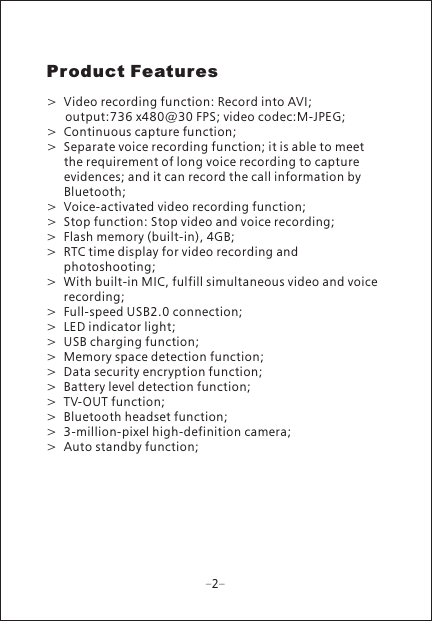
Product Features>  Video recording function: Record into AVI;    output:736 x480@30 FPS; video codec:M-JPEG;>  Continuous capture function;>  Separate voice recording function; it is able to meet       the requirement of long voice recording to capture       evidences; and it can record the call information by       Bluetooth;>  Voice-activated video recording function;>  Stop function: Stop video and voice recording;>  Flash memory (built-in), 4GB;>  RTC time display for video recording and      photoshooting;>  With built-in MIC, fulfill simultaneous video and voice     recording;>  Full-speed USB2.0 connection;>  LED indicator light;>  USB charging function;>  Memory space detection function;>  Data security encryption function;>  Battery level detection function;>  TV-OUT function;>  Bluetooth headset function;>  3-million-pixel high-definition camera;>  Auto standby function; 2
Product Description      As  a  high-end  mini  high-definition  digital  video camera  designed  to  meet  the  market  demand,  this product features leading-edge performance in functions such  as  digital  video  recording,  voice  storage,  sound-activated  video  recording,  USB  data  transmission,  USB charging  and  Bluetooth  transmission,  etc.    Besides,  the product has been awarded many patents of invention and technology. Do not litter! Recycle properly.3
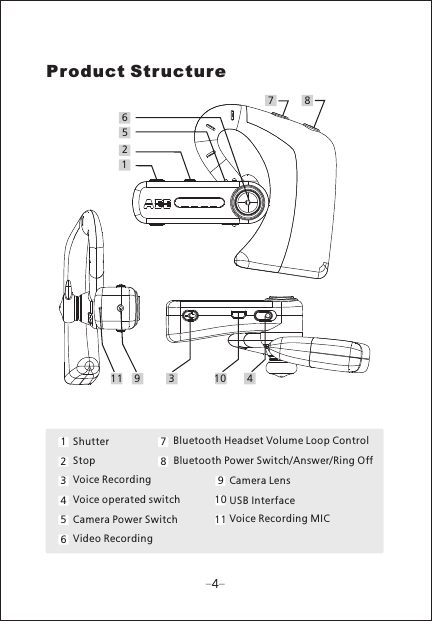
1258763410911Product StructureShutterStopVoice RecordingVoice operated switchCamera Power SwitchVideo RecordingBluetooth Headset Volume Loop Control Bluetooth Power Switch/Answer Ring Off/Camera LensUSB InterfaceVoice Recording MIC12345678910114
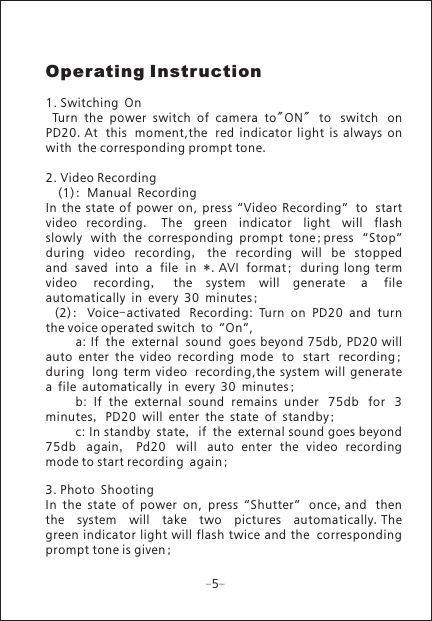
Operating Instruction1. Switching On  Turn  the  power  switch  of  camera  to"ON"  to switch on PD20.At this moment,the red  indicator  light  is  always  onwith the corresponding prompt tone.2. Video Recording  (1): Manual RecordingIn  the  state  of  power  on,  press  “Video  Recording” to start video  recording.  The green indicator light will flash slowly with  the  corresponding  prompt  tone;press “Stop” during video recording,  the recording will be stopped and saved into a file in *.AVI format;  during long termvideo recording,  the  system  will  generate a file automatically in every 30 minutes; (2):  Voice-activated Recording:  Turn  on  PD20  and  turnthe voice operated switch to “On”,      a: If the external sound goes beyond 75db, PD20 willauto  enter  the  video  recording  mode to start recording; during long  term  video recording,the  system  will  generatea file automatically in every 30 minutes;   b:  If  the  external  sound  remains  under 75db for 3 minutes, PD20 will enter the state of standby;     c: In standby state, if the external sound goes beyond 75db again,  Pd20 will auto  enter  the  video  recording mode to start recording again;3. Photo ShootingIn  the  state  of  power  on,  press  “Shutter” once,and thenthe system will take two pictures automatically.The green indicator  light will flash twice and the correspondingprompt tone is given;  5
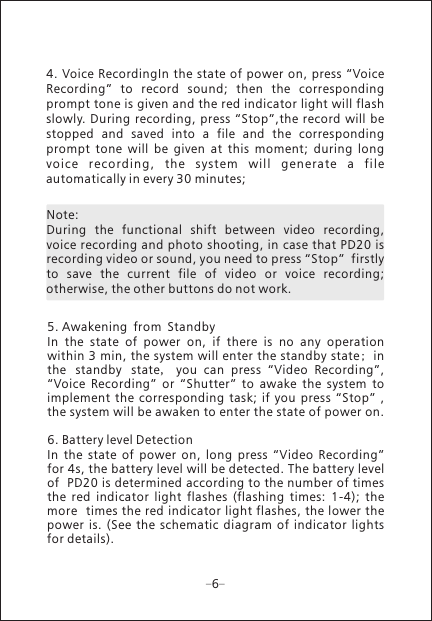
Note: During  the  functional  shift  between  video  recording, voice recording and photo shooting, in case that PD20 is recording video or sound, you need to press “Stop”  firstly to  save  the  current  file  of  video  or  voice  recording; otherwise, the other buttons do not work.5. Awakening from StandbyIn  the  state  of  power  on,  if  there  is  no  any  operation within 3 min, the system will enter the standby state; in the standby state,  you  can  press  “Video  Recording”, “Voice  Recording”  or  “Shutter”  to  awake  the  system  to implement  the  corresponding  task; if  you  press  “Stop”  , the system will be awaken to enter the state of power on.6. Battery level DetectionIn  the  state  of  power  on,  long  press  “Video  Recording” for 4s, the battery level will be detected. The battery level of  PD20 is determined according to the number of times the  red  indicator  light  flashes  (flashing  times:  1-4);  the more  times the red indicator light flashes, the lower the power is.  (See  the  schematic  diagram  of  indicator  lights for details).64. Voice RecordingIn the state of  power on,  press “Voice Recording”  to  record  sound;  then  the  corresponding prompt tone is given and the red indicator light will flash slowly.  During recording, press  “Stop”,the record  will be stopped  and  saved  into  a  file  and  the  corresponding prompt  tone  will  be  given  at  this  moment;  during  long vo ice  r ecord ing ,  the  sys tem  w ill  gen erate  a  file automatically in every 30 minutes;
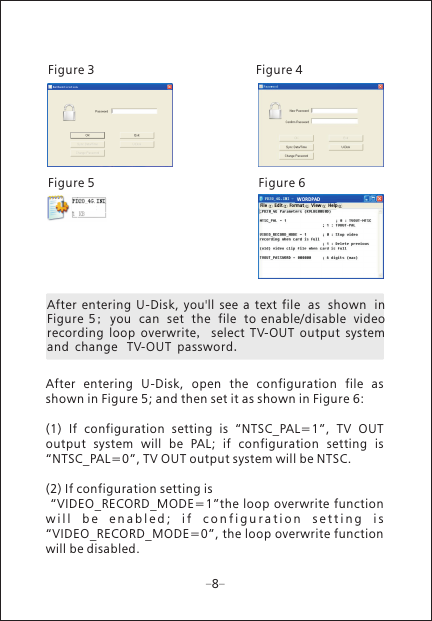
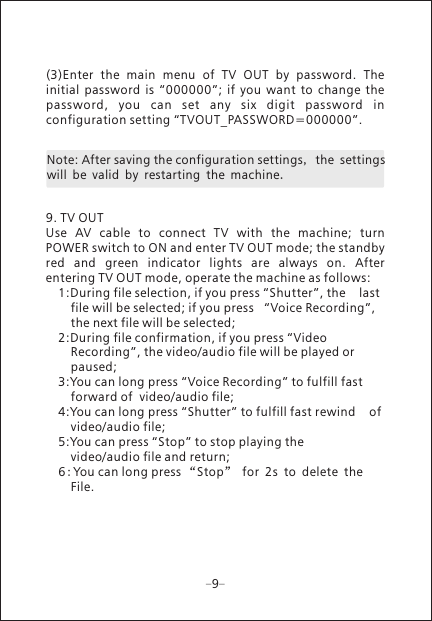
77. Memory Space Detection      In the state of power  on, long press “Shutter”  for 4s, the free space of memory will be detected. The free space of PD20  is determined according  to the  number of times the  red  indicator  light  flashes  (flashing  times:  1-4)  ;  the more times the green  indicator light flashes,  the less the free  space  is.  (See  the  schematic  diagram  of  indicator lights for details).8. U-Disk Mode/ Update of RTC Time    Use a data cable to connect a PC with the machine; turn POWER switch to ON and enter U-Disk mode. Double click (as shown  in Figure  1)  the  icon  of  hard  disk  to  enter the dialog  box for inputting password (as shown  in Figure 2, default  password:  PD20);then  input  the  password  and click  “OK”  to  confirm  the  password.  After  inputting  the correct  password, the dialog box for changing password and update option of RTC time (as shown in Figure 4) will pop  up;  if  the  password  needs  to  be  changed,  you  will input  new  password  and  click  “Change  password”  and then  the  option  “U-Disk”;  in  this  way,  the  password  is changed  successfully,  and  the  hard  disk  is  decrypted simultaneously.  If  you  click  “Sync  Data/Time”  and  then “U-Disk”, the time will be changed automatically (at that moment, the setup time is in conformity with the time of the computer).Figure 2Figure 1
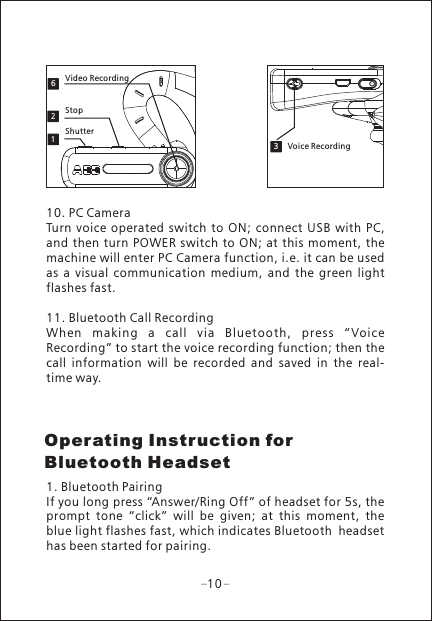
After  entering  U-Disk,  you'll  see  a  text  file as shown in Figure  5;  you can set the file to  enable/disable video recording  loop  overwrite,  select  TV-OUT  output  system and change  TV-OUT password.Figure 3  Figure 4Figure 5 Figure 68After  entering  U-Disk,  open  the  configuration  file  as shown in Figure 5; and then set it as shown in Figure 6:(1)  If  configuration  setting  is  “NTSC_PAL=1”,  TV  OUT output  system  will  be  PAL;  if  configuration  setting  is “NTSC_PAL=0”, TV OUT output system will be NTSC.(2) If configuration setting is “VIDEO_RECORD_MODE=1”the loop overwrite function w i l l   b e  e n a b l e d ;   i f   c o n f i g u r a t i o n   s e t t i n g   i s  “VIDEO_RECORD_MODE=0”, the loop overwrite function will be disabled.WORDPADFil e Edi t For mat V iew H elp
Note: After saving the configuration settings, the settings will be valid by restarting the machine.99. TV OUTUse  AV  cable  to  connect  TV  with  the  machine;  turn POWER switch to ON and enter TV OUT mode; the standby red  and  green  indicator  lights  are  always  on.  After entering TV OUT mode, operate the machine as follows: 1:During file selection, if you press “Shutter”, the    last    file will be selected; if you press   “Voice Recording”,   the next file will be selected; 2:During file confirmation, if you press “Video      Recording”, the video/audio file will be played or      paused; 3:You can long press “Voice Recording” to fulfill fast      forward of  video/audio file; 4:You can long press “Shutter” to fulfill fast rewind    of   video/audio file; 5:You can press “Stop” to stop playing the      video/audio file and return; 6 2:You can long press “Stop” for s to delete the    File.(3)Enter  the  main  menu  of  TV  OUT  by  password.  The initial  password  is  “000000”;  if  you  want  to  change  the password,  you  can  set  any  six  digit  password  in configuration setting “TVOUT_PASSWORD=000000”.
1263Video RecordingStopShutterVoice RecordingOperating Instruction for Bluetooth Headset1010. PC CameraTurn voice  operated  switch  to  ON;  connect USB with  PC, and then turn POWER switch  to ON; at this moment, the machine will enter PC Camera function, i.e. it can be used as  a  visual  communication  medium,  and  the  green  light flashes fast.11. Bluetooth Call RecordingWhen  mak in g  a  ca ll  v ia  B lu etooth,  press  “Voice Recording” to start the voice recording function; then the call  information  will  be  recorded  and  saved  in  the  real-time way.1. Bluetooth PairingIf you long press “Answer/Ring Off” of headset for 5s, the prompt  tone  “click”  will  be  given;  at  this  moment,  the blue light flashes fast, which indicates has been started for pairing. Bluetooth headset
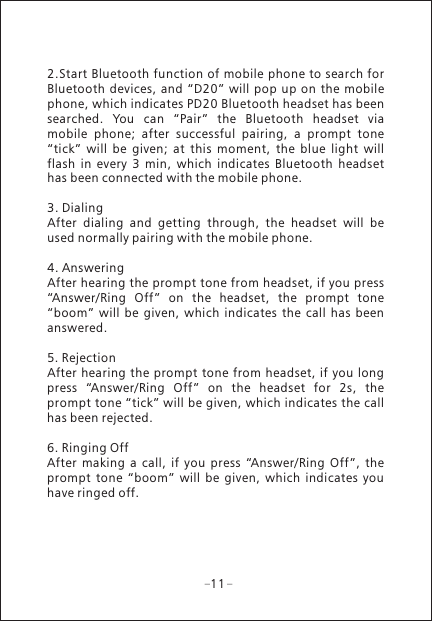
112.Start Bluetooth function of mobile phone to search for Bluetooth  devices, and  “D20”  will pop up  on  the  mobile phone, which indicates PD20 Bluetooth headset has been searched.  You  can  “Pair”  the  Bluetooth  headset  via mobile  phone;  after  successful  pairing,  a  prompt  tone “tick”  will  be  given;  at  this  moment,  the  blue  light  will flash  in  every  3  min,  which  indicates  Bluetooth  headset has been connected with the mobile phone.3. DialingAfter  dialing  and  getting  through,  the  headset  will  be used normally pairing with the mobile phone.4. AnsweringAfter hearing the prompt tone from headset, if you press “Answer/Ring  Off”  on  the  headset,  the  prompt  tone “boom”  will  be  given,  which  indicates  the  call  has  been answered.5. RejectionAfter hearing the  prompt tone from headset, if  you long press  “Answer/Ring  Off”  on  the  headset  for  2s,  the prompt tone “tick” will be given, which indicates the call has been rejected.6. Ringing OffAfter  making  a  call,  if  you  press  “Answer/Ring  Off”,  the prompt  tone  “boom”  will  be  given,  which  indicates  you have ringed off.
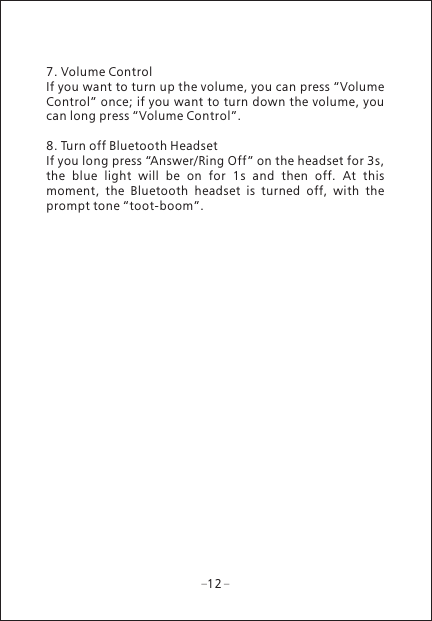
127. Volume ControlIf you want to turn up the volume, you can press “Volume Control” once; if you want to turn down the volume, you can long press “Volume Control”.8. Turn off Bluetooth HeadsetIf you long press “Answer/Ring Off ” on the headset for 3s, the  blue  light  will  be  on  for  1s  and  then  off.  At  this moment,  the  Bluetooth  headset  is  turned  off,  with  the prompt tone “toot-boom”.
Power Supply Cer tificationThis product uses the power supply passing authoritative certifications.ULUSA Power Supply CertificationCEEU Power Supply CertificationCCCPRC Power Supply CertificationBSUK Power CertificationC-TICK  Australia Power Supply CertificationGSGermany Power Supply CertificationPSEJapan Power Supply Certification13
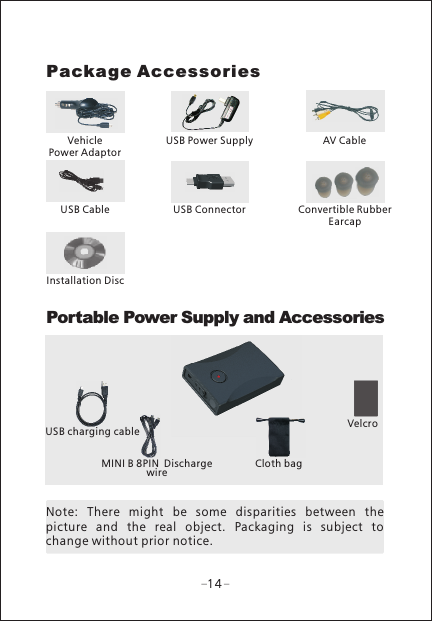
Package AccessoriesVehicle Power AdaptorUSB Power Supply AV CableConvertible Rubber EarcapUSB ConnectorUSB CableInstallation Disc Portable Power Supply and AccessoriesUSB charging cableMINI B 8PIN Discharge wire Cloth bagVelcro14Note:  There  might  be  some  disparities  between  the picture  and  the  real  object.  Packaging  is  subject  to change without prior notice.
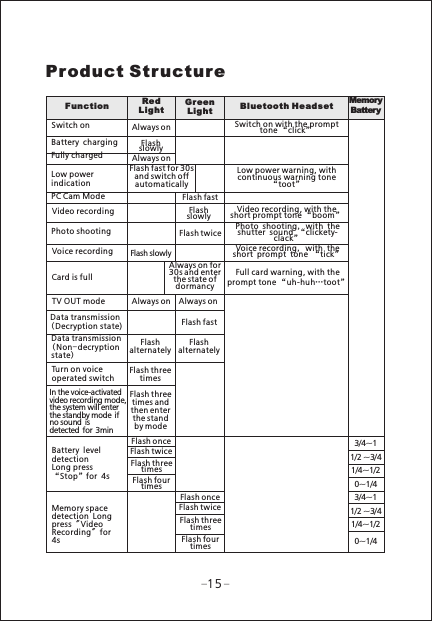
Product StructureFunction  Red Light Gre en Light  Bluetooth He adse t Switch on Battery chargingFully chargedLow power indicationPC Cam ModeVideo recordingPhoto shootingVoice recordingCard is fullTV OUT modeData transmission (Decryption state)Data transmission (Non-decryption state)Turn on voice operated switchIn the voice-activatedvideo recording mode, the system will enter the standby mode ifno sound is detected for min3Battery level detectionLong press “Stop”for s4Memory space detection Long press " Video Recording" for s4Always on Flash slowly Always on Flash fast for 30s and switch off automaticallyFlash slowly Always on Flash alternately Flash three times Flash three times and then enter the standby modeFlash once Flash twice Flash three times Flash four timesFlash once Flash twice Flash three times Flash four timesSwitch on with the prompt tone “click”Flash fast Flash slowly Flash twice Always on for 30s and enter the state of dormancy Always on Flash fast Flash alternately Low power warning, with continuous warning tone “toot”Video recording, with the short prompt tone “boom”Voice recording, with the short prompt tone “tick”Full card warning, with the prompt tone “uh-huh…toot”Photo shooting, with the shutter sound “clickety-clack”MemoryBattery153/4~11/2 ~3/41/4~1/20~1/43/4~11/2 ~3/41/4~1/20~1/4
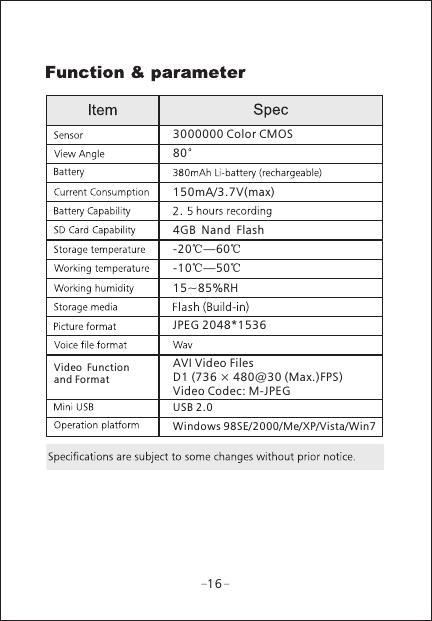
3000000 Color CMOS80°150mA/3.7V(max)  4GB Nand FlashVideo Function and Format -20 60℃—℃JPEG 2048*1536Windows 98SE/2000/Me/XP/Vista/Win7USB 2.016-10 —50℃ ℃15~85%RHAVI Video FilesD1 (736 × 480@30 (Max.)FPS)Video Codec: M-JPEG
S-MPD20G18011R0PD20Add:AEE Hi-Tech Park, Sun Industrial Area, Xili, Nanshan District, Shenzhen, P.R.CTel:+86-755-29518999          Fax:+86-755-27358999          E-mail:aee@aee.com

Navigation menu