AKUVOX VPR48G433 Video Phone User Manual x0001

AKUVOX (XIAMEN) NETWORKS CO., LTD. Video Phone x0001

User Manual

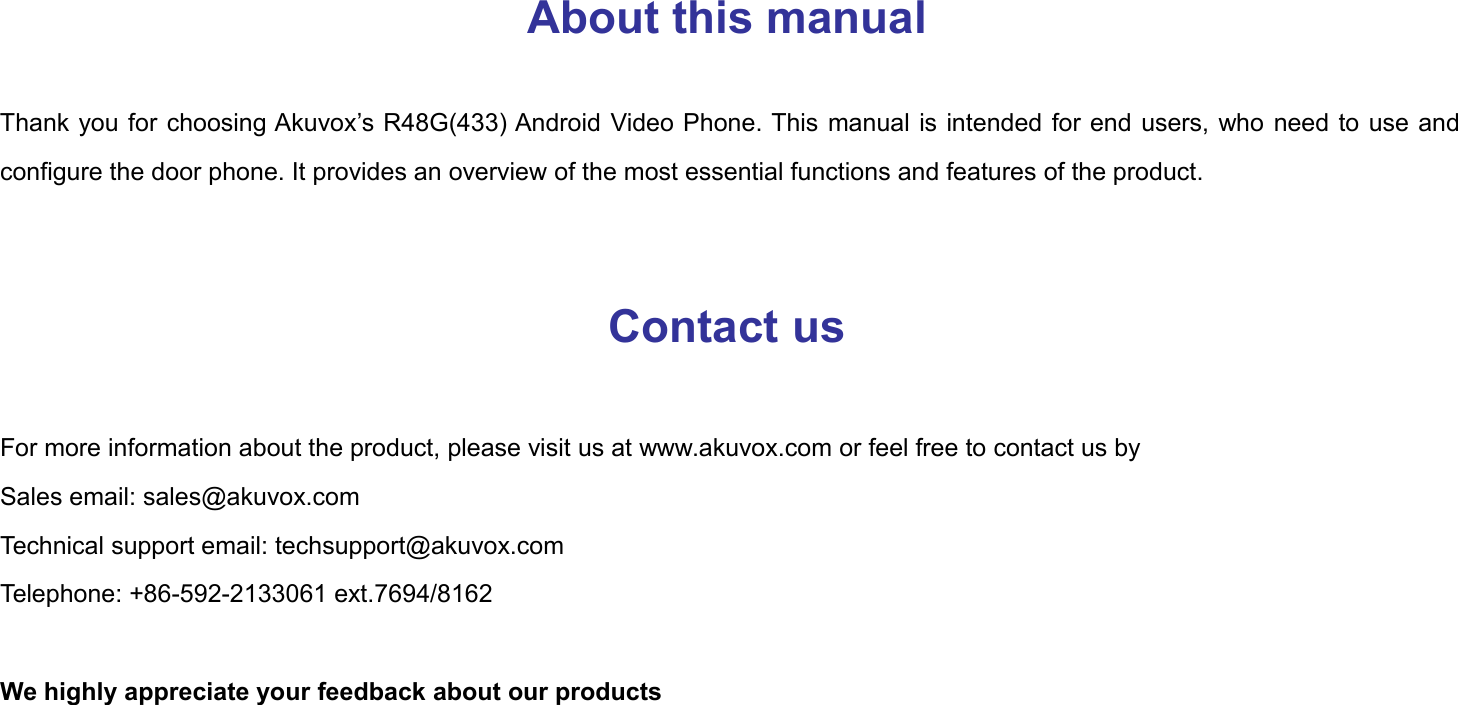
R48G(433) Android Video Phone User Manual
About this manualThank you for choosing Akuvox’s R48G(433) Android Video Phone. This manual is intended for end users, who need to use andconfigure the door phone. It provides an overview of the most essential functions and features of the product.Contact usFor more information about the product, please visit us at www.akuvox.com or feel free to contact us bySales email: sales@akuvox.comTechnical support email: techsupport@akuvox.comTelephone: +86-592-2133061 ext.7694/8162We highly appreciate your feedback about our products
FCC Caution:Any Changes or modifications not expressly approved by the party responsible for compliance could void the user’s authority tooperate the equipment. This device complies with part 15 of the FCC Rules. Operation is subject to the following two conditions:(1) This device may not cause harmful interference, and (2) this device must accept any interference received, includinginterference that may cause undesired operation.Note: This equipment has been tested and found to comply with the limits for a Class B digital device, pursuant to part 15 of the FCC Rules. Theselimits are designed to provide reasonable protection against harmful interference in a residential installation. This equipment generates uses and canradiate radio frequency energy and, if not installed and used in accordance with the instructions, may cause harmful interference to radiocommunications. However, there is no guarantee that interference will not occur in a particular installation. If this equipment does cause harmfulinterference to radio or television reception, which can be determined by turning the equipment off and on, the user is encouraged to try to correct theinterference by one or more of the following measures:—Reorient or relocate the receiving antenna.—Increase the separation between the equipment and receiver.—Connect the equipment into an outlet on a circuit different from that to which the receiver is connected.—Consult the dealer or an experienced radio/TV technician for help.FCC Radiation Exposure Statement:
This equipment complies with FCC radiation exposure limits set forth for an uncontrolled environment .This transmitter must not be co‐located or operating in conjunction with any other antenna or transmitter.This equipment should be installed and operated with minimum distance 20cm between the radiator &you body.
Content1. Product Overview............................................................................................................................................................................................... 11.1. Instruction.....................................................................................................................................................................................................11.2. Equipment Appearance And Interface Description................................................................................................................................21.2.1. Interface Description........................................................................................................................................................................ 41.2.2. Keypad Description.......................................................................................................................................................................... 51.3. Pendant........................................................................................................................................................................................................ 61.4. Indicator........................................................................................................................................................................................................71.4.1. Indicator of R48G(433).................................................................................................................................................................... 71.4.2. Indicator of Pendant......................................................................................................................................................................... 72. Installation............................................................................................................................................................................................................ 92.1. Equipment Packaging................................................................................................................................................................................ 92.2. Connecting Video Phone.........................................................................................................................................................................102.3. Installation Considerations...................................................................................................................................................................... 123. Daily Use............................................................................................................................................................................................................. 133.1. Call.............................................................................................................................................................................................................. 133.1.1. Make A Call..................................................................................................................................................................................... 13
3.1.2. Dial Out Directly..............................................................................................................................................................................143.1.3. Dialing Out From Contact List...................................................................................................................................................... 153.1.4. Receive A Call.................................................................................................................................................................................163.1.5. Call Options.....................................................................................................................................................................................173.1.6. Multiple Calls................................................................................................................................................................................... 193.1.7. RF Number...................................................................................................................................................................................... 20
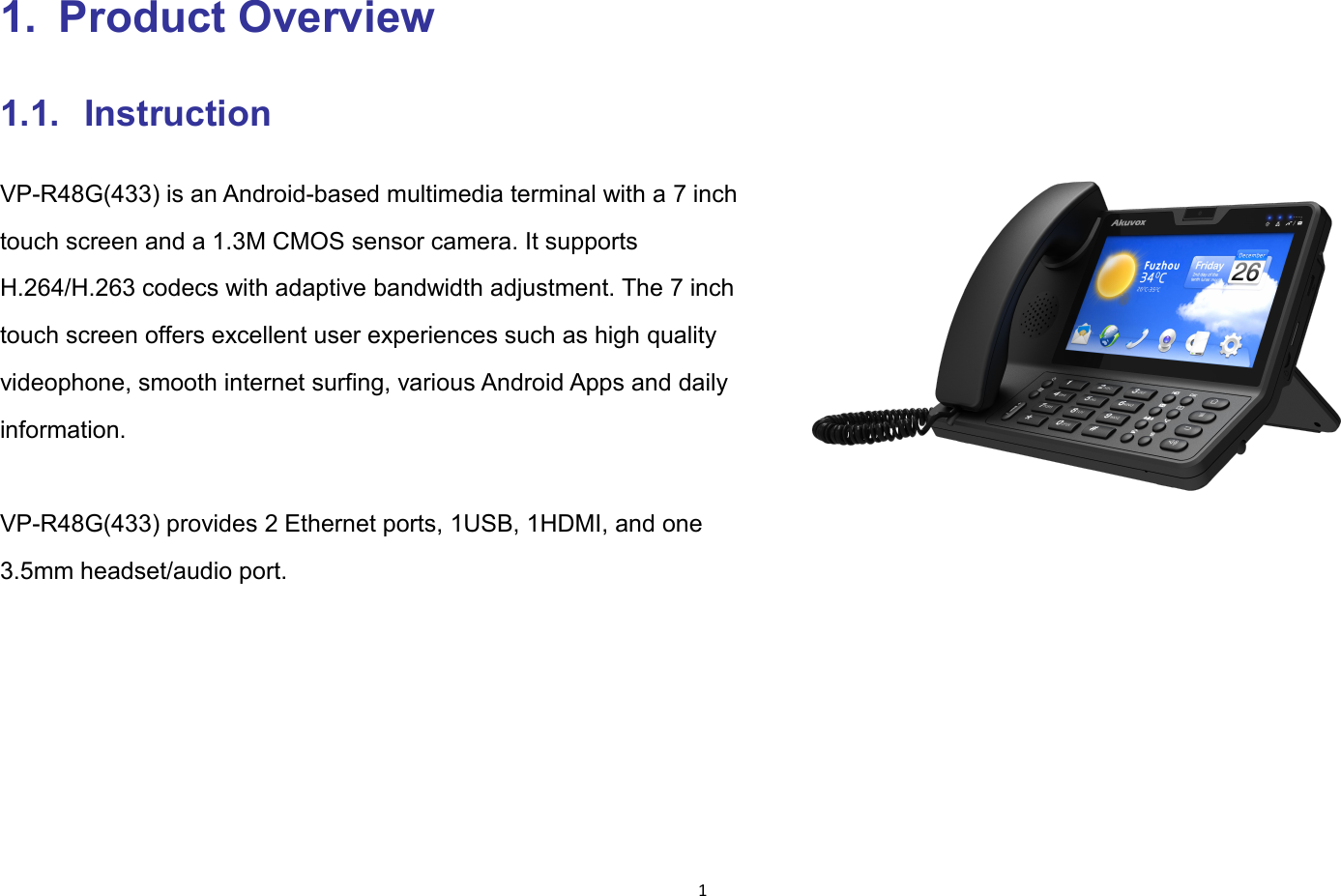
11. Product Overview1.1. InstructionVP-R48G(433) is an Android-based multimedia terminal with a 7 inchtouch screen and a 1.3M CMOS sensor camera. It supportsH.264/H.263 codecs with adaptive bandwidth adjustment. The 7 inchtouch screen offers excellent user experiences such as high qualityvideophone, smooth internet surfing, various Android Apps and dailyinformation.VP-R48G(433) provides 2 Ethernet ports, 1USB, 1HDMI, and one3.5mm headset/audio port.
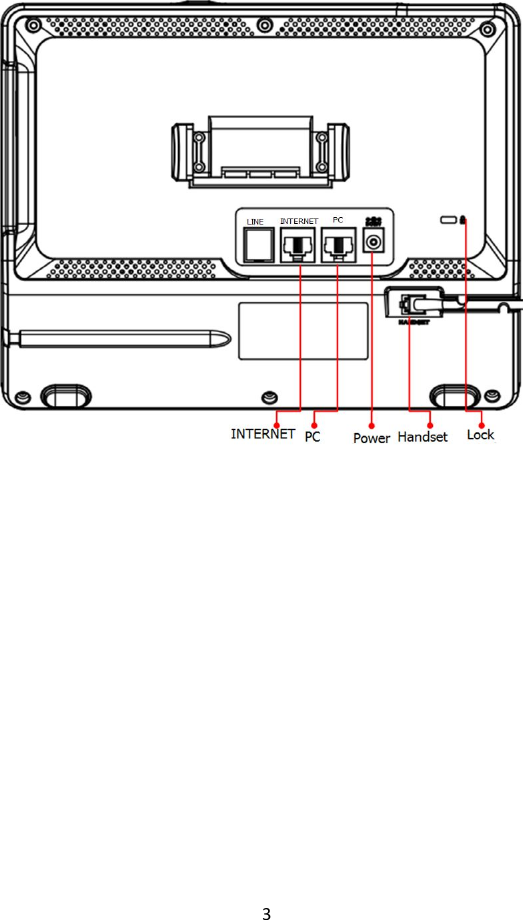
21.2. Equipment Appearance And Interface Description
3
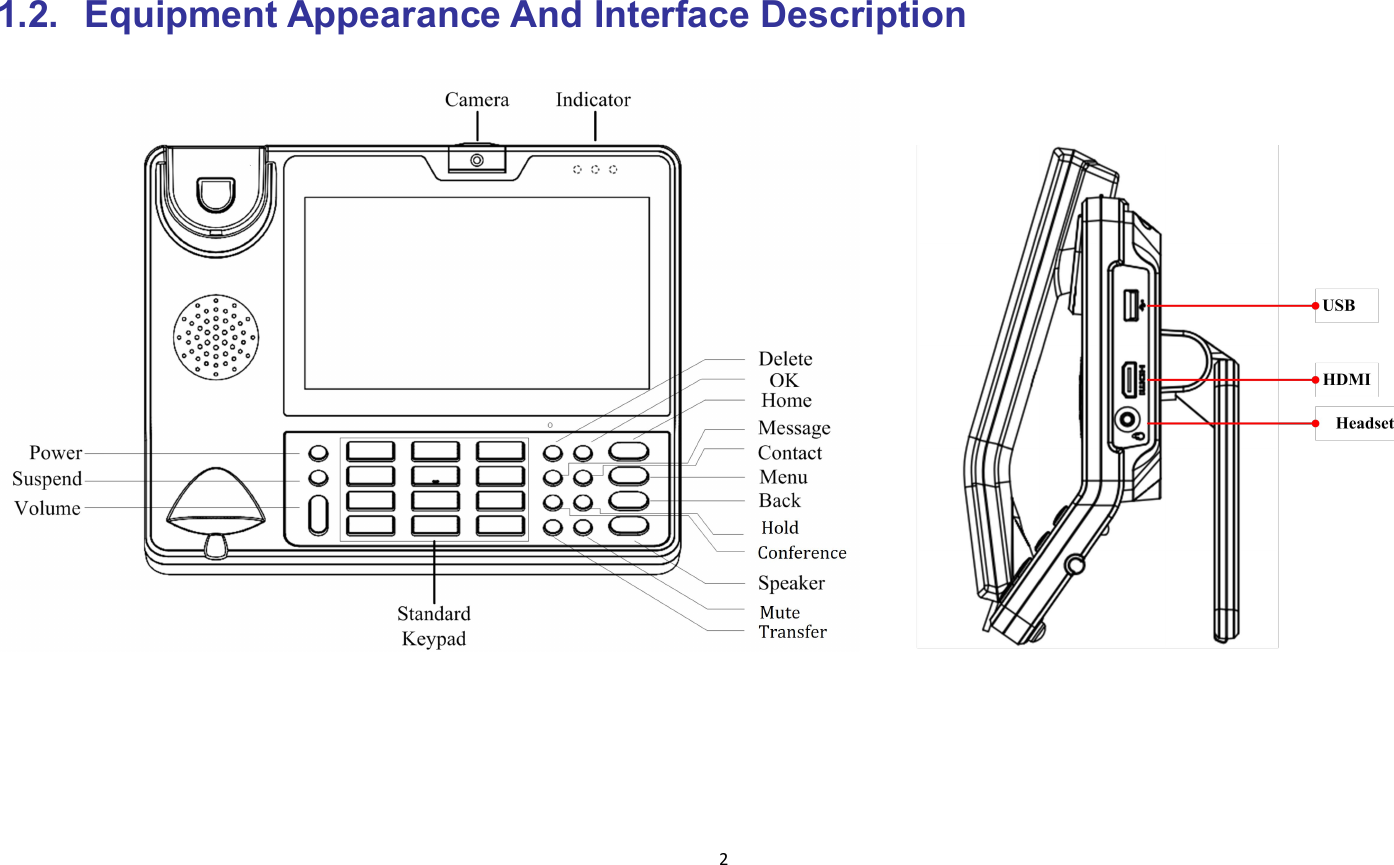
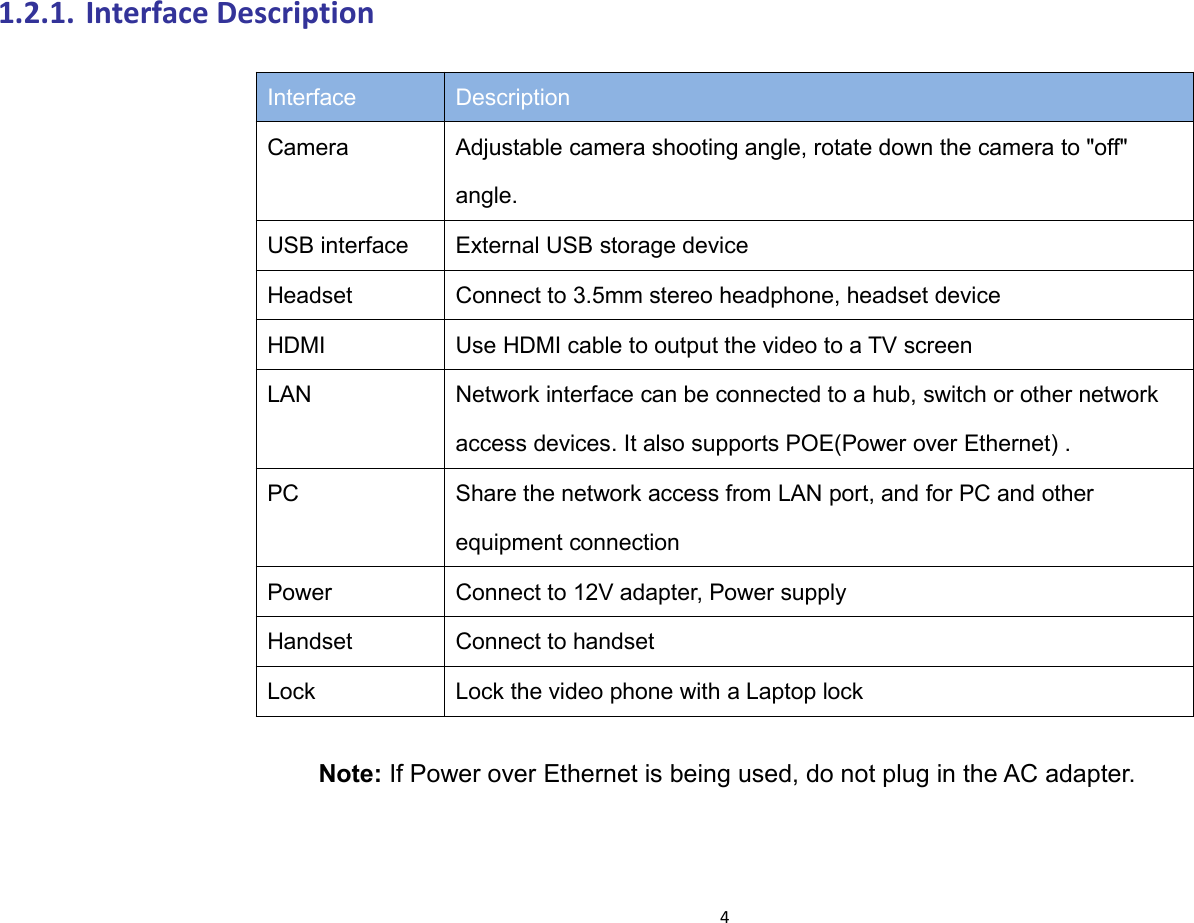
41.2.1. Interface DescriptionInterface DescriptionCamera Adjustable camera shooting angle, rotate down the camera to "off"angle.USB interface External USB storage deviceHeadset Connect to 3.5mm stereo headphone, headset deviceHDMI Use HDMI cable to output the video to a TV screenLANNetwork interface can be connected to a hub, switch or other networkaccess devices. It also supports POE(Power over Ethernet) .PCShare the network access from LAN port, and for PC and otherequipment connectionPower Connect to 12V adapter, Power supplyHandset Connect to handsetLock Lock the video phone with a Laptop lockNote: If Power over Ethernet is being used, do not plug in the AC adapter.
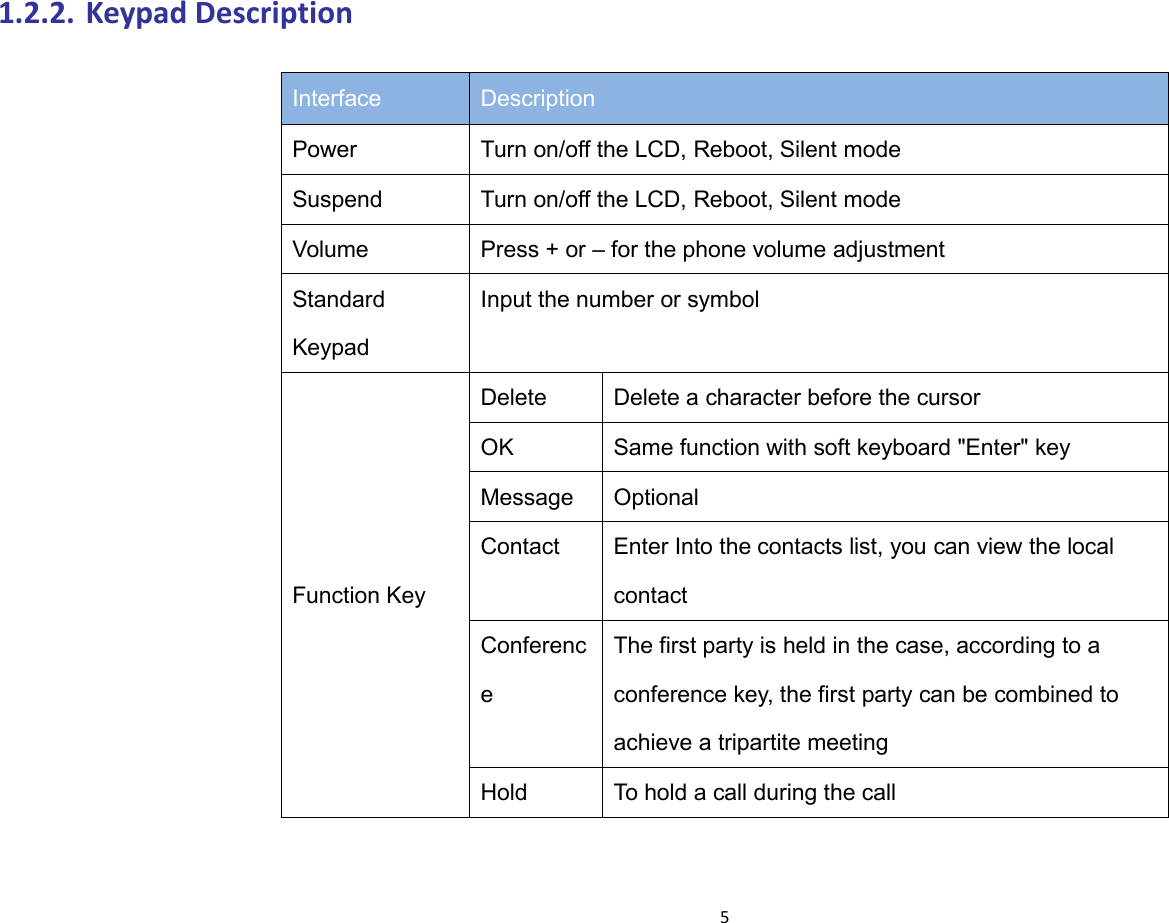
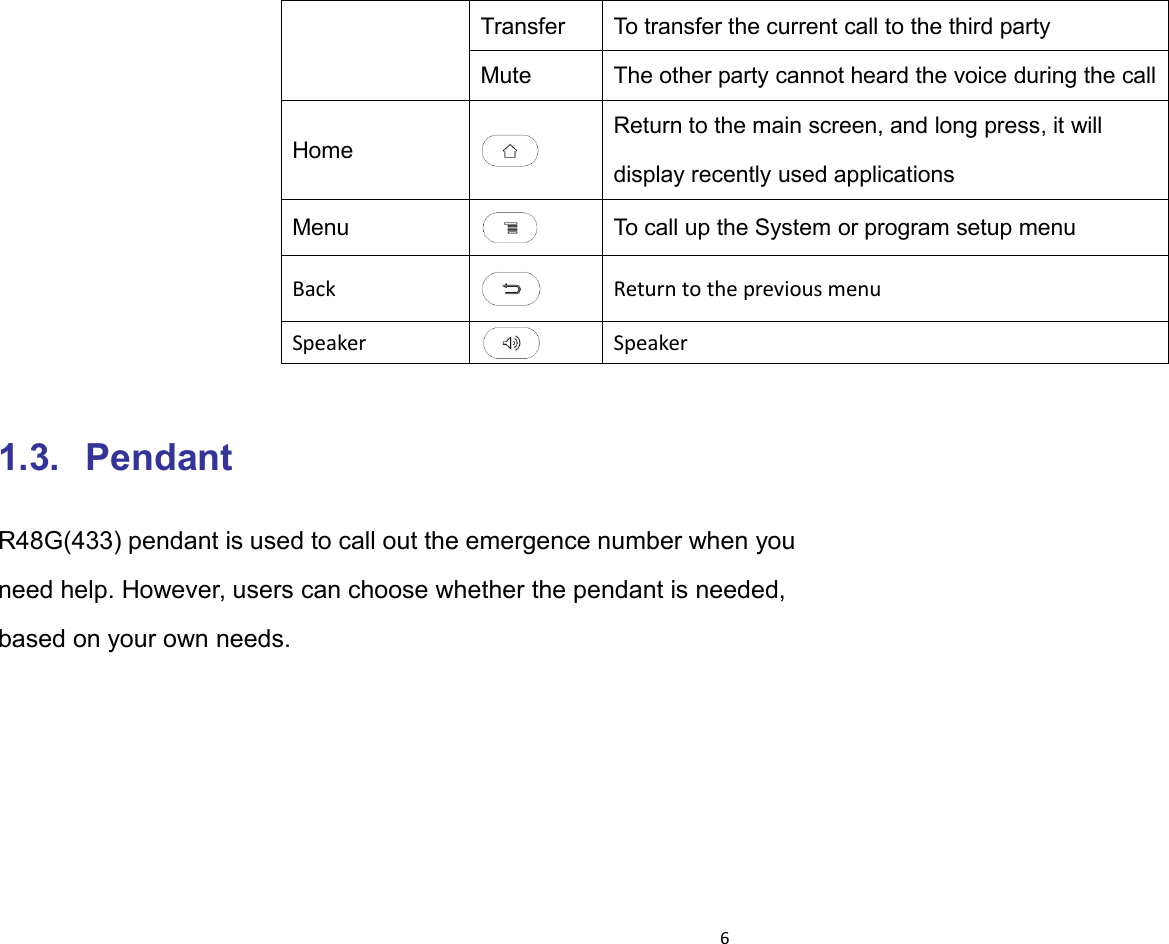
51.2.2. Keypad DescriptionInterface DescriptionPower Turn on/off the LCD, Reboot, Silent modeSuspend Turn on/off the LCD, Reboot, Silent modeVolume Press + or – for the phone volume adjustmentStandardKeypadInput the number or symbolFunction KeyDelete Delete a character before the cursorOK Same function with soft keyboard "Enter" keyMessage OptionalContactEnter Into the contacts list, you can view the localcontactConferenceThe first party is held in the case, according to aconference key, the first party can be combined toachieve a tripartite meetingHold To hold a call during the call
6Transfer To transfer the current call to the third partyMute The other party cannot heard the voice during the callHomeReturn to the main screen, and long press, it willdisplay recently used applicationsMenu To call up the System or program setup menuBack Return to the previous menuSpeaker Speaker1.3. PendantR48G(433) pendant is used to call out the emergence number when youneed help. However, users can choose whether the pendant is needed,based on your own needs.
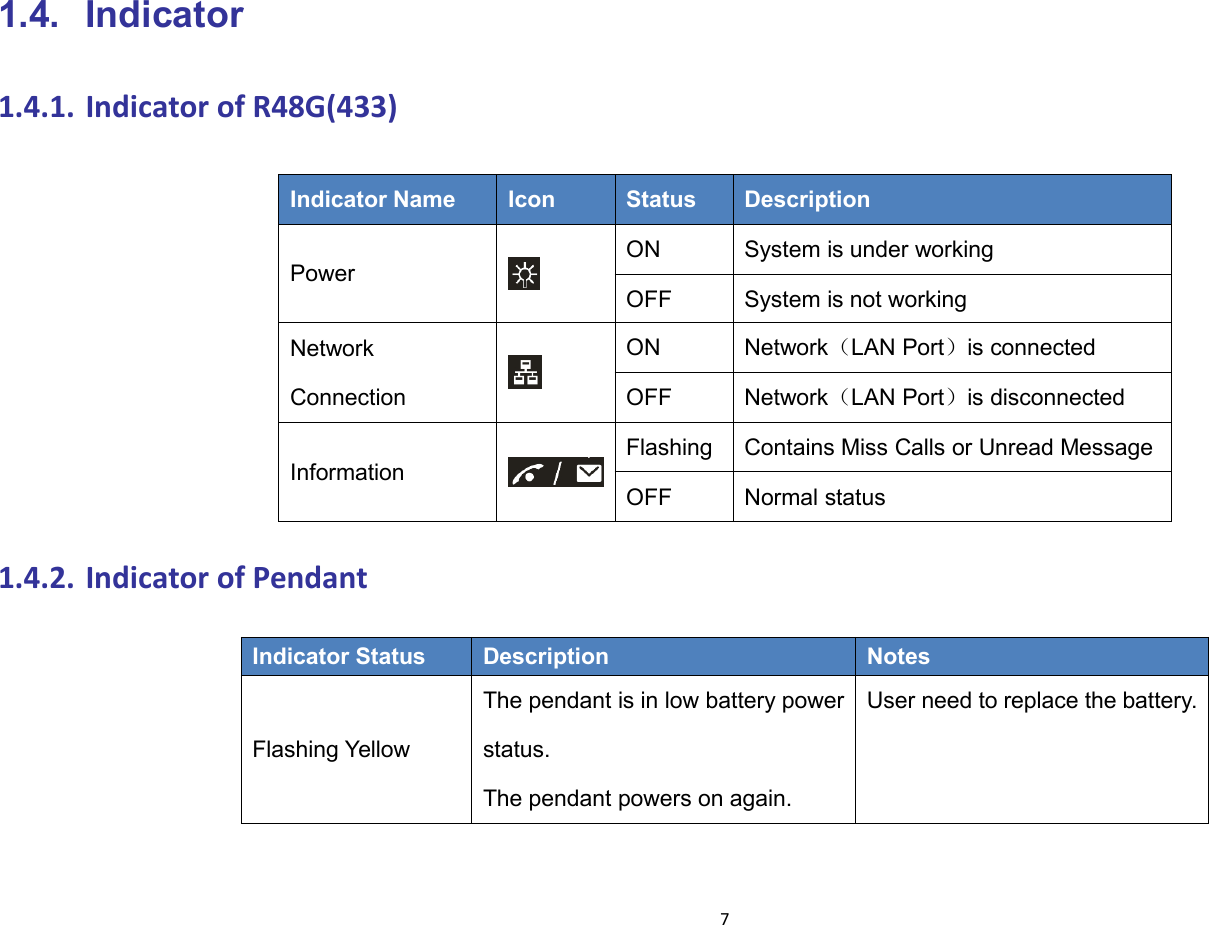
71.4. Indicator1.4.1. Indicator of R48G(433)1.4.2. Indicator of PendantIndicator Status Description NotesFlashing YellowThe pendant is in low battery powerstatus.The pendant powers on again.User need to replace the battery.Indicator NameIconStatusDescriptionPowerON System is under workingOFFSystem is not workingNetworkConnectionONNetwork(LAN Port)is connectedOFFNetwork(LAN Port)is disconnectedInformationFlashingContains Miss Calls or Unread MessageOFFNormal status
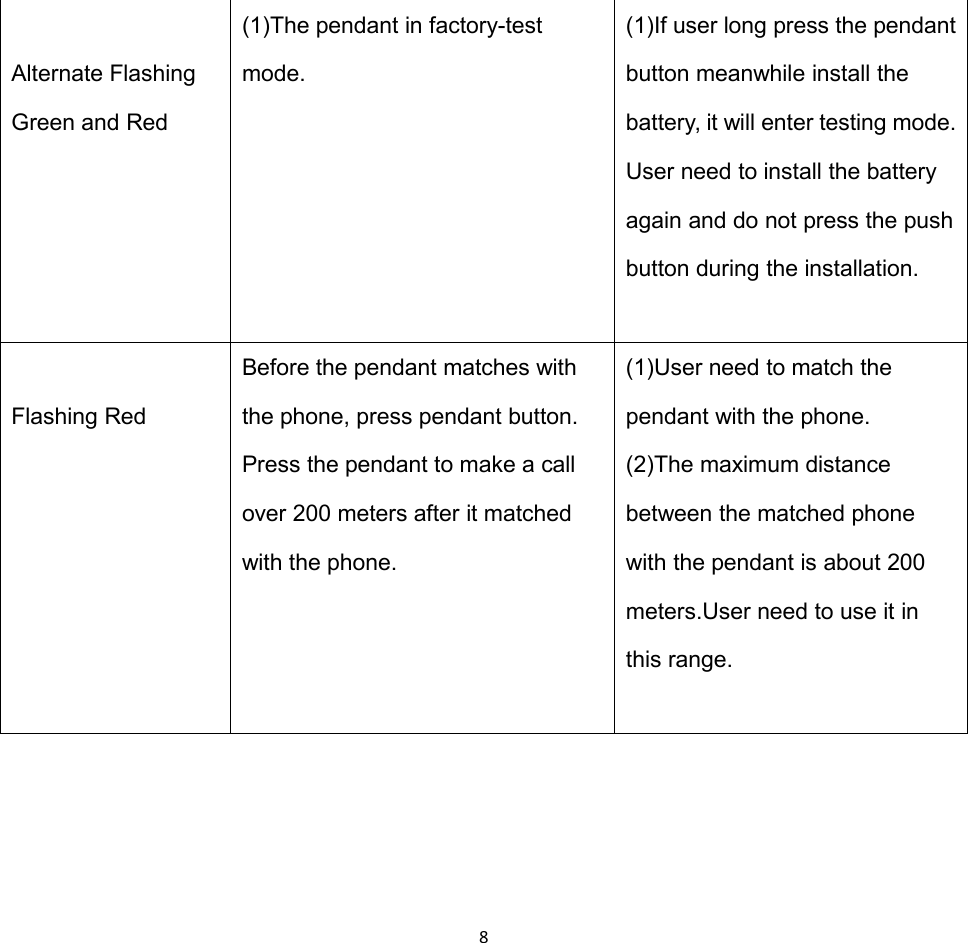
8Alternate FlashingGreen and Red(1)The pendant in factory-testmode.(1)If user long press the pendantbutton meanwhile install thebattery, it will enter testing mode.User need to install the batteryagain and do not press the pushbutton during the installation.Flashing RedBefore the pendant matches withthe phone, press pendant button.Press the pendant to make a callover 200 meters after it matchedwith the phone.(1)User need to match thependant with the phone.(2)The maximum distancebetween the matched phonewith the pendant is about 200meters.User need to use it inthis range.
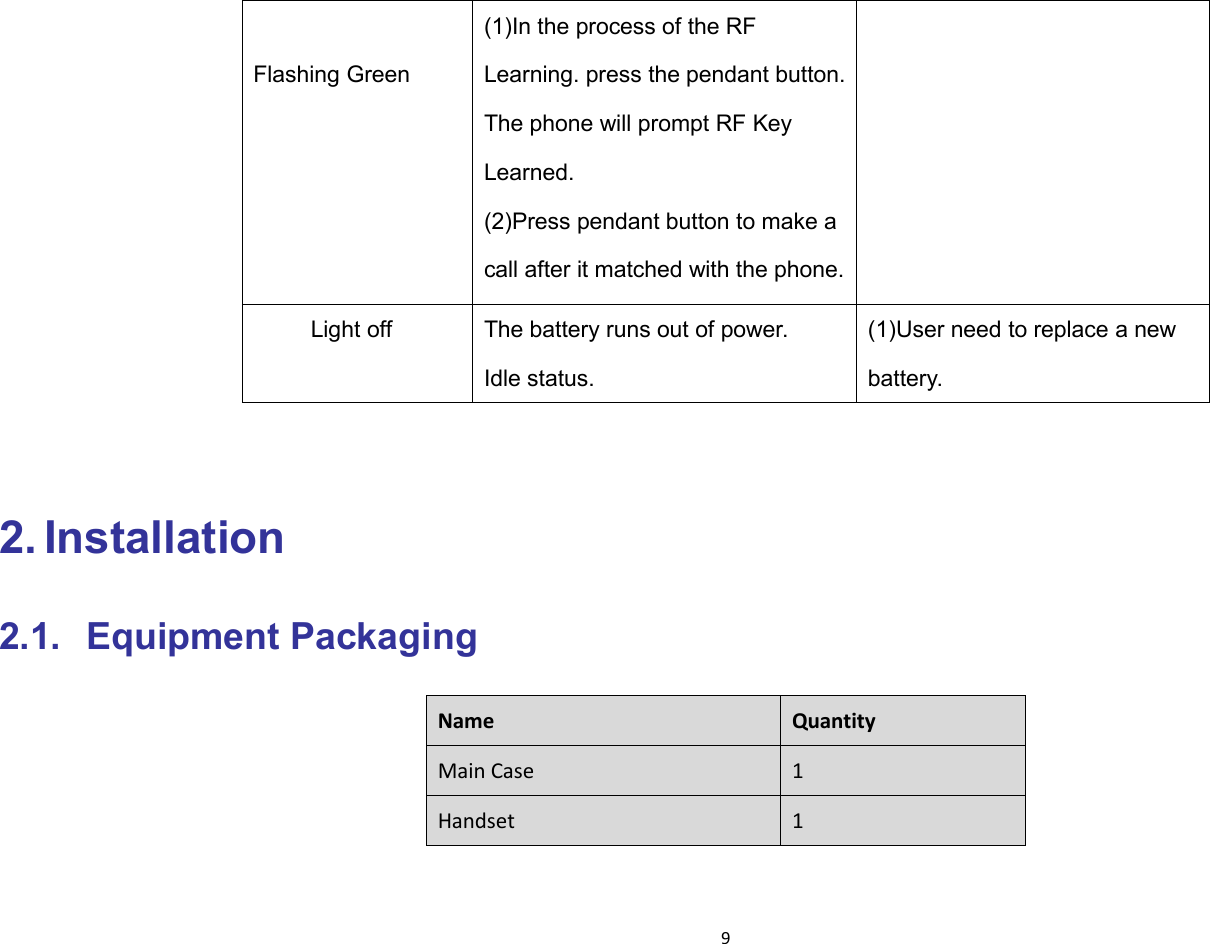
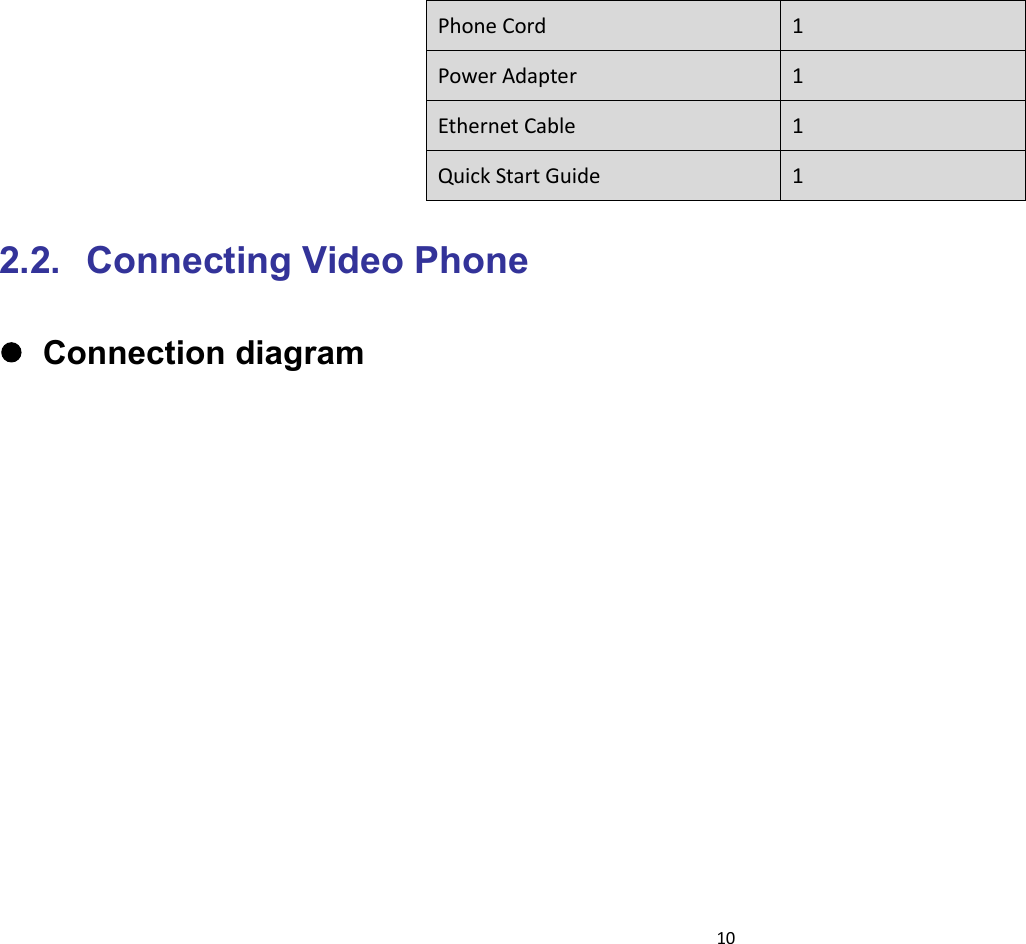
9Flashing Green(1)In the process of the RFLearning. press the pendant button.The phone will prompt RF KeyLearned.(2)Press pendant button to make acall after it matched with the phone.Light off The battery runs out of power.Idle status.(1)User need to replace a newbattery.2. Installation2.1. Equipment PackagingName QuantityMain Case 1Handset 1
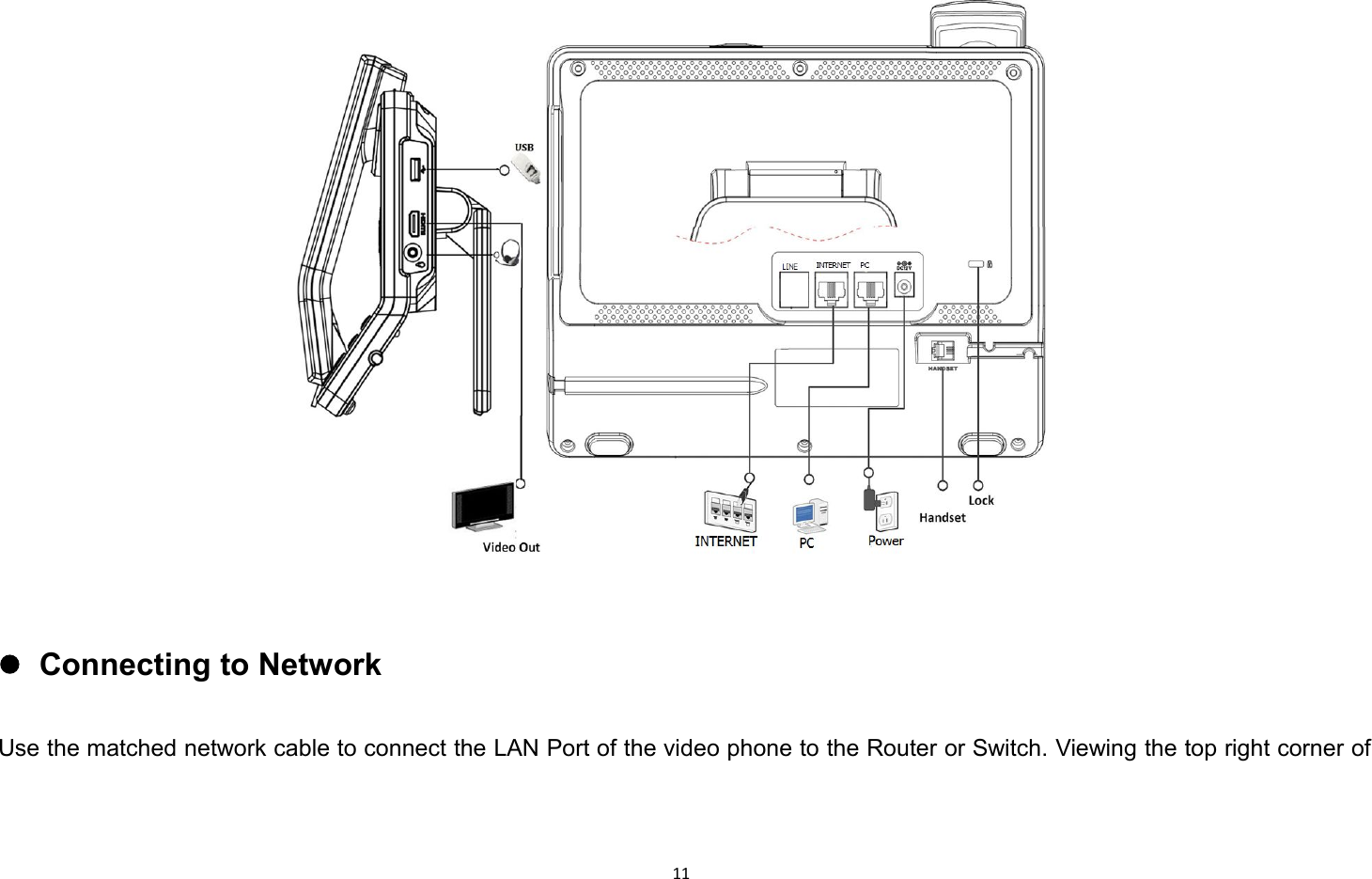
10Phone Cord 1Power Adapter 1Ethernet Cable 1Quick Start Guide 12.2. Connecting Video PhoneConnection diagram
11Connecting to NetworkUse the matched network cable to connect the LAN Port of the video phone to the Router or Switch. Viewing the top right corner of
12the screen, if the indicator light is on, network cable is connected properly.Connecting to PCUse the matched network cable to connect the PC Port of the video phone to the PC. The PC can access to the internet network viaPC Port of the video phone.2.3. Installation ConsiderationsThis product is a desktop product, and here are some safety recommendations about the installation and the usage:Do not use this product near water, such as: bath, washbasin, kitchen sink and other damp places, and so on;Place the device in a place away from heat;Place the device away from traffic areas to prevent collisions;Please use the equipment with the matching power adapter or POE;
133. Daily Use3.1. Call3.1.1. Make A CallUsers can directly dial from the keypad, select from the contact list orfrom call records to call out the number. Users can choose one of thefollowing steps to enter into the dialing interface.Mode 1: Directly pick up the handset.Mode 2: Press Speaker button on the keypad.Mode 3: In the main screen, click icon .Mode 4: In the main screen, select icon -> tap icon .
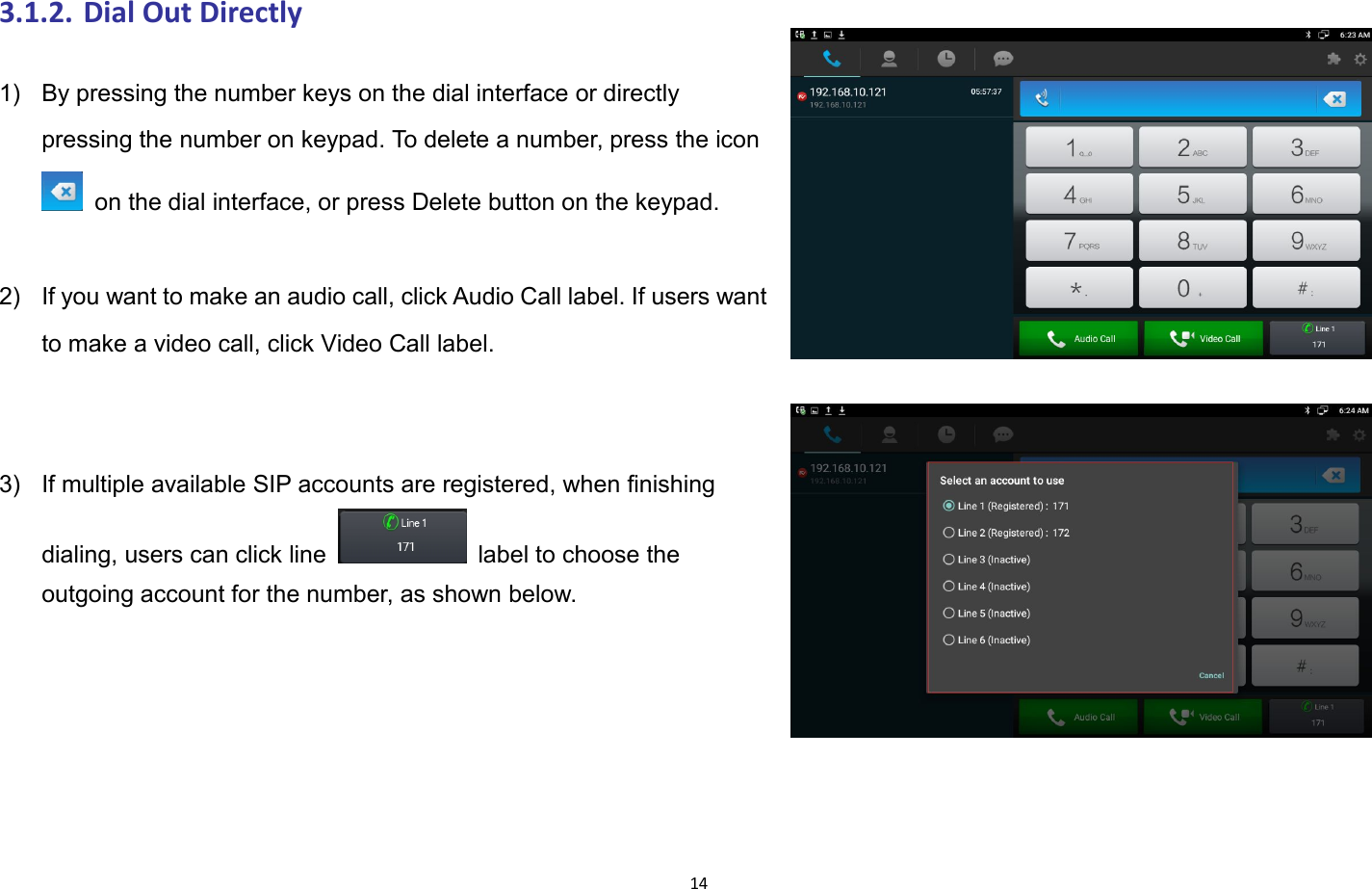
143.1.2. Dial Out Directly1) By pressing the number keys on the dial interface or directlypressing the number on keypad. To delete a number, press the iconon the dial interface, or press Delete button on the keypad.2) If you want to make an audio call, click Audio Call label. If users wantto make a video call, click Video Call label.3) If multiple available SIP accounts are registered, when finishingdialing, users can click line label to choose theoutgoing account for the number, as shown below.
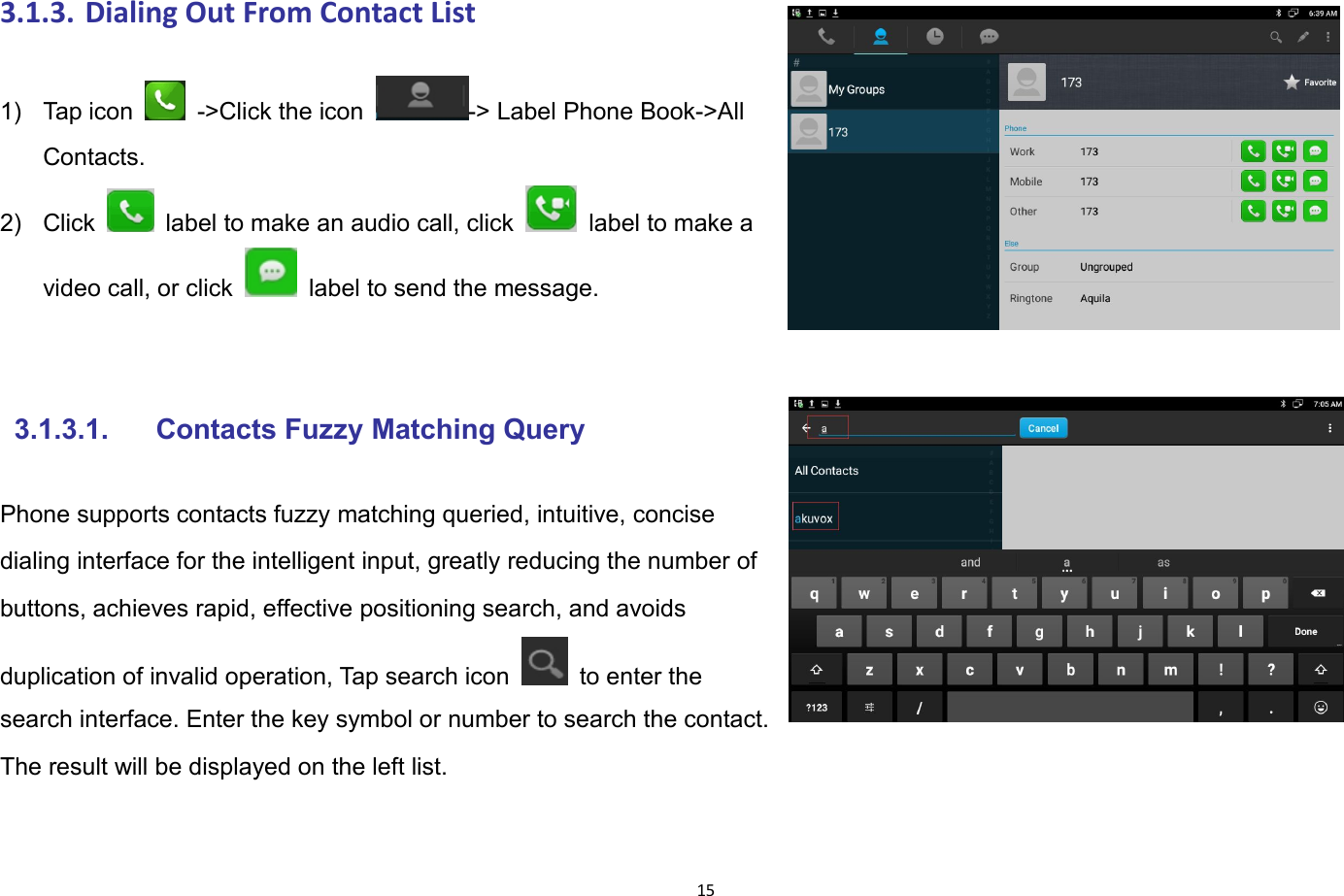
153.1.3. Dialing Out From Contact List1) Tap icon ->Click the icon -> Label Phone Book->AllContacts.2) Click label to make an audio call, click label to make avideo call, or click label to send the message.3.1.3.1. Contacts Fuzzy Matching QueryPhone supports contacts fuzzy matching queried, intuitive, concisedialing interface for the intelligent input, greatly reducing the number ofbuttons, achieves rapid, effective positioning search, and avoidsduplication of invalid operation, Tap search icon to enter thesearch interface. Enter the key symbol or number to search the contact.The result will be displayed on the left list.
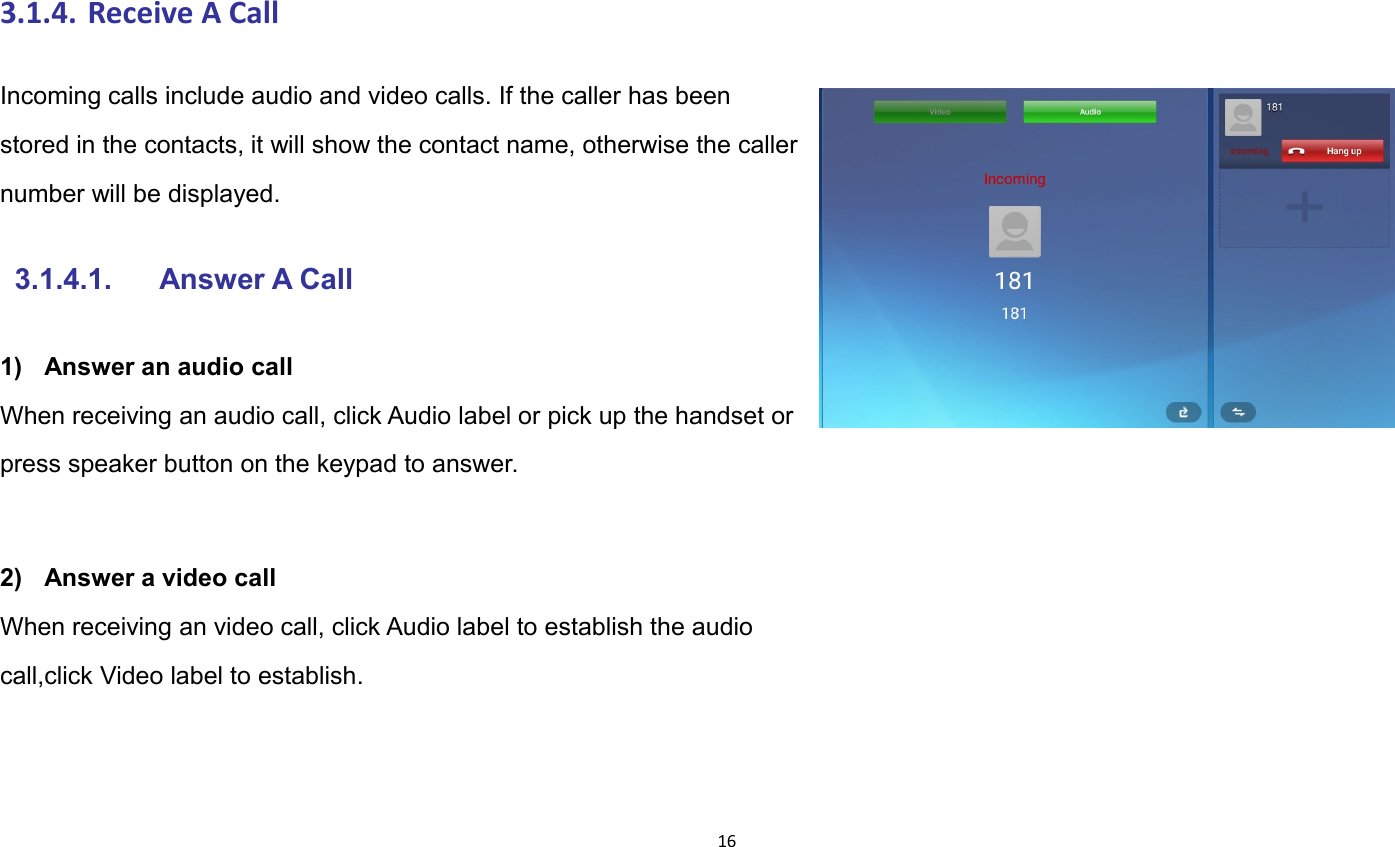
163.1.4. Receive A CallIncoming calls include audio and video calls. If the caller has beenstored in the contacts, it will show the contact name, otherwise the callernumber will be displayed.3.1.4.1. Answer A Call1) Answer an audio callWhen receiving an audio call, click Audio label or pick up the handset orpress speaker button on the keypad to answer.2) Answer a video callWhen receiving an video call, click Audio label to establish the audiocall,click Video label to establish.
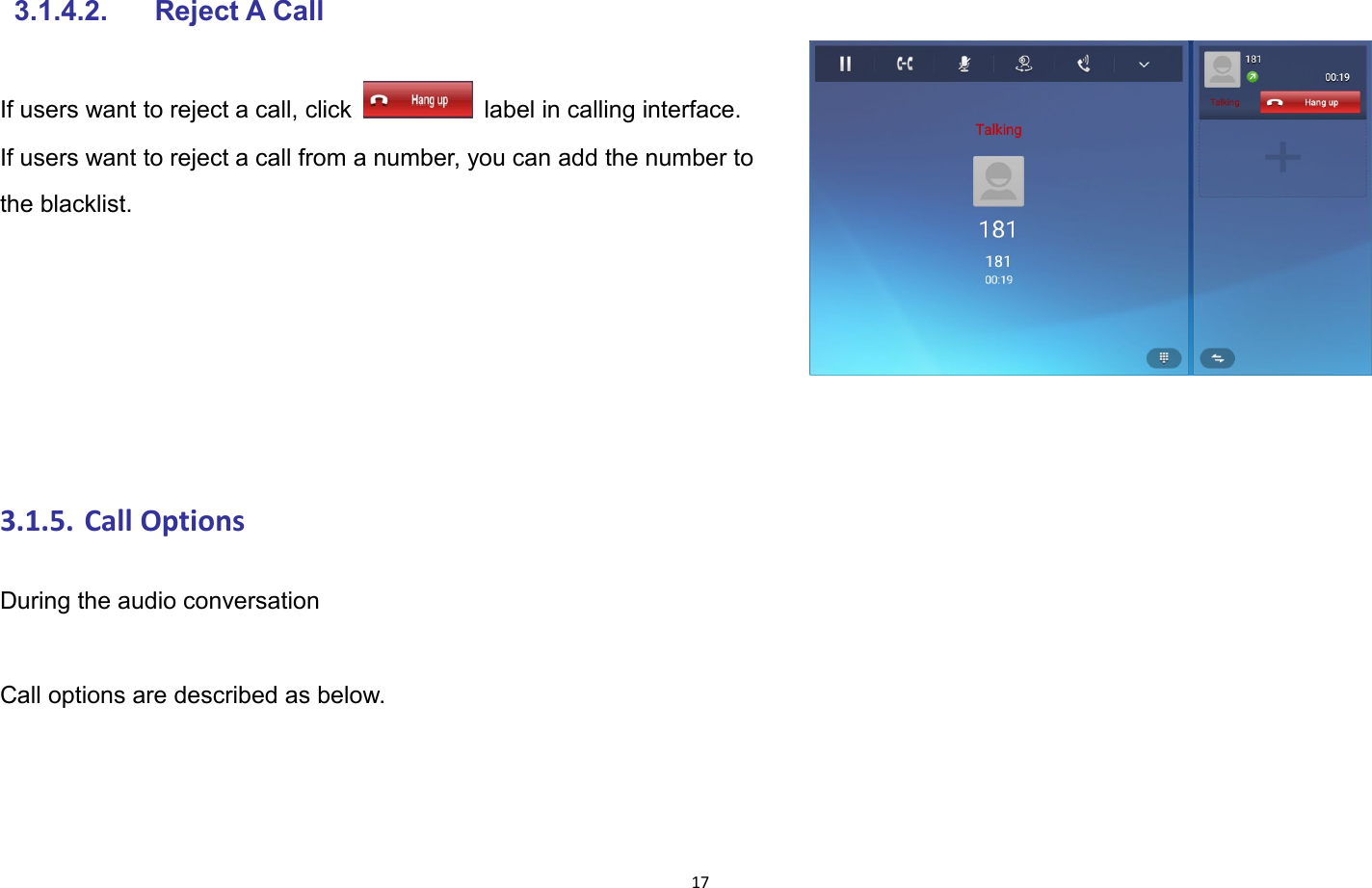
173.1.4.2. Reject A CallIf users want to reject a call, click label in calling interface.If users want to reject a call from a number, you can add the number tothe blacklist.3.1.5. Call OptionsDuring the audio conversationCall options are described as below.
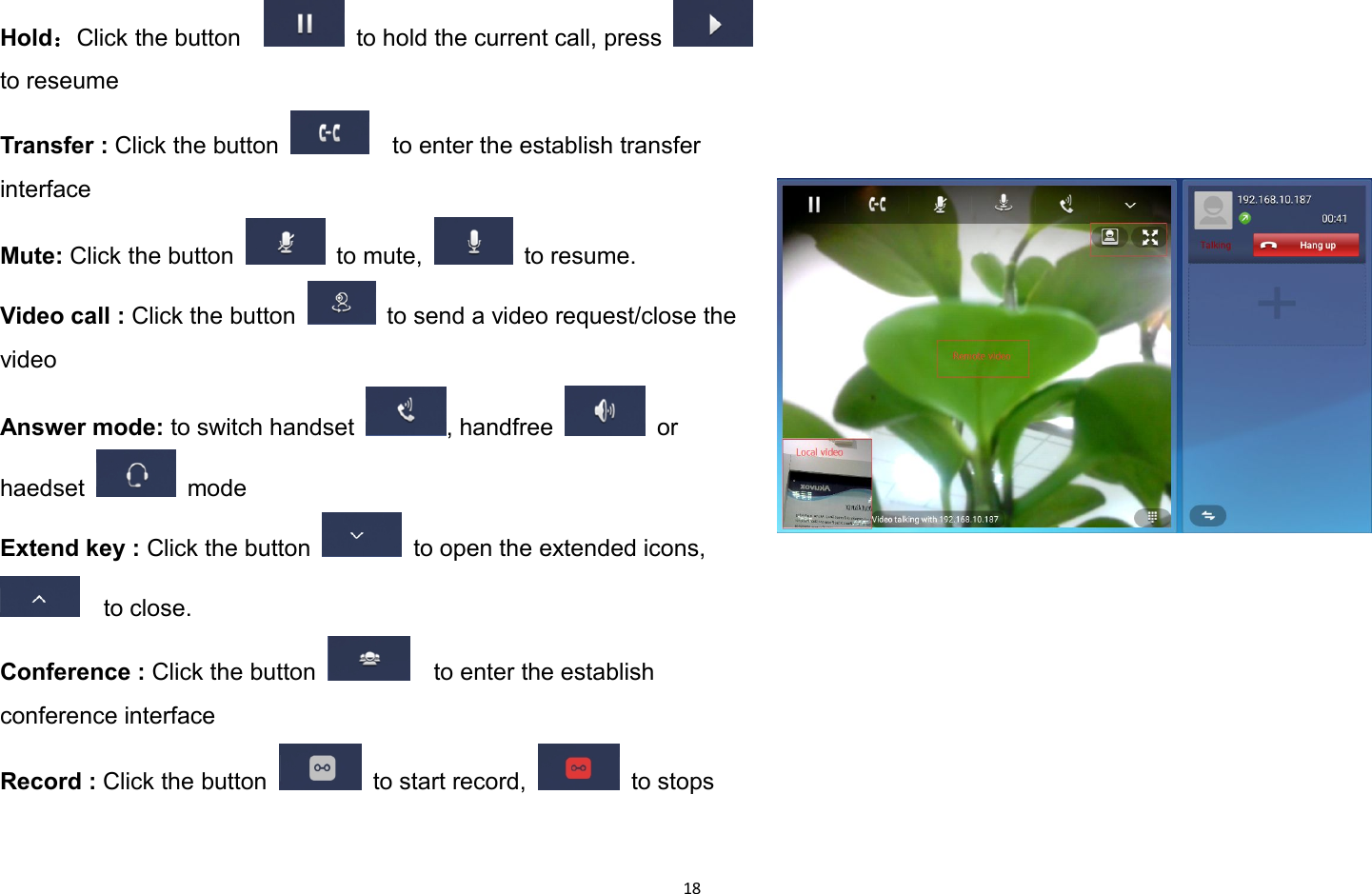
18Hold:Click the button to hold the current call, pressto reseumeTransfer : Click the button to enter the establish transferinterfaceMute: Click the button to mute, to resume.Video call : Click the button to send a video request/close thevideoAnswer mode: to switch handset , handfree orhaedset modeExtend key : Click the button to open the extended icons,to close.Conference : Click the button to enter the establishconference interfaceRecord : Click the button to start record, to stops
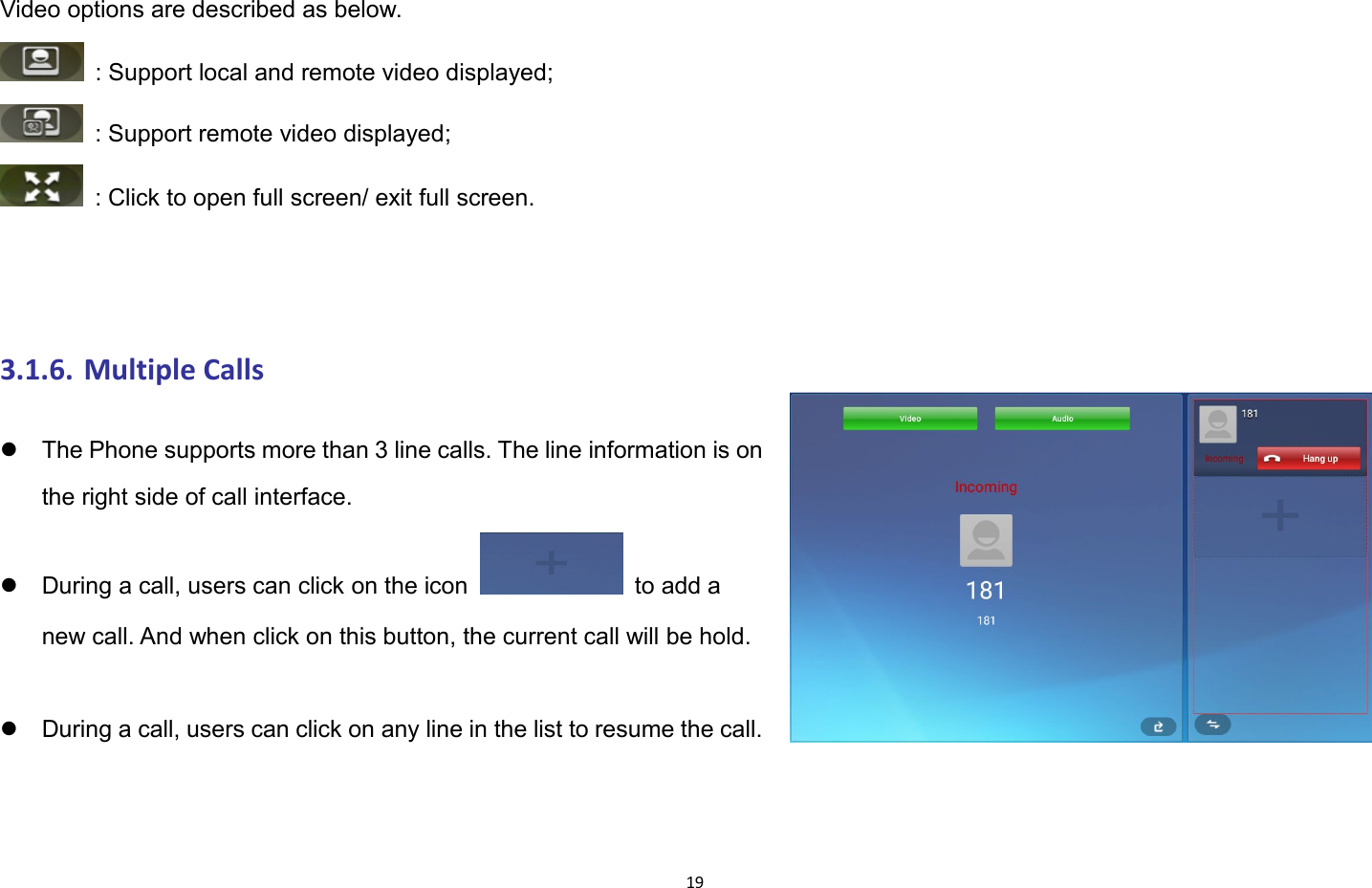
19Video options are described as below.: Support local and remote video displayed;: Support remote video displayed;: Click to open full screen/ exit full screen.3.1.6. Multiple CallsThe Phone supports more than 3 line calls. The line information is onthe right side of call interface.During a call, users can click on the icon to add anew call. And when click on this button, the current call will be hold.During a call, users can click on any line in the list to resume the call.
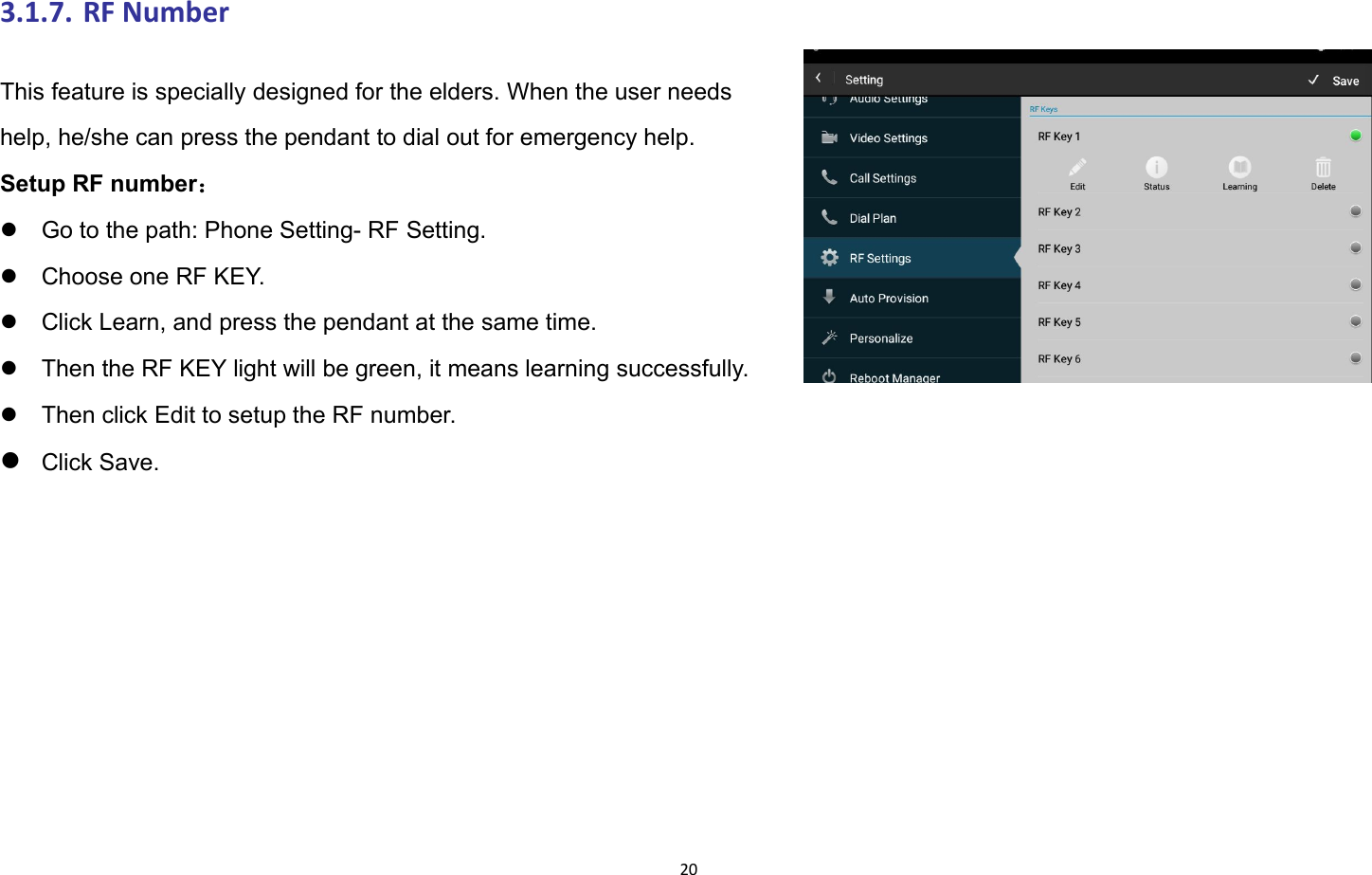
203.1.7. RF NumberThis feature is specially designed for the elders. When the user needshelp, he/she can press the pendant to dial out for emergency help.Setup RF number:Go to the path: Phone Setting- RF Setting.Choose one RF KEY.Click Learn, and press the pendant at the same time.Then the RF KEY light will be green, it means learning successfully.Then click Edit to setup the RF number.Click Save.

Navigation menu