ASRock orporation G10 AC 2600 Gaming Router User Manual Manual 2

ASRock Incorporation AC 2600 Gaming Router Manual 2

Contents

Manual_2

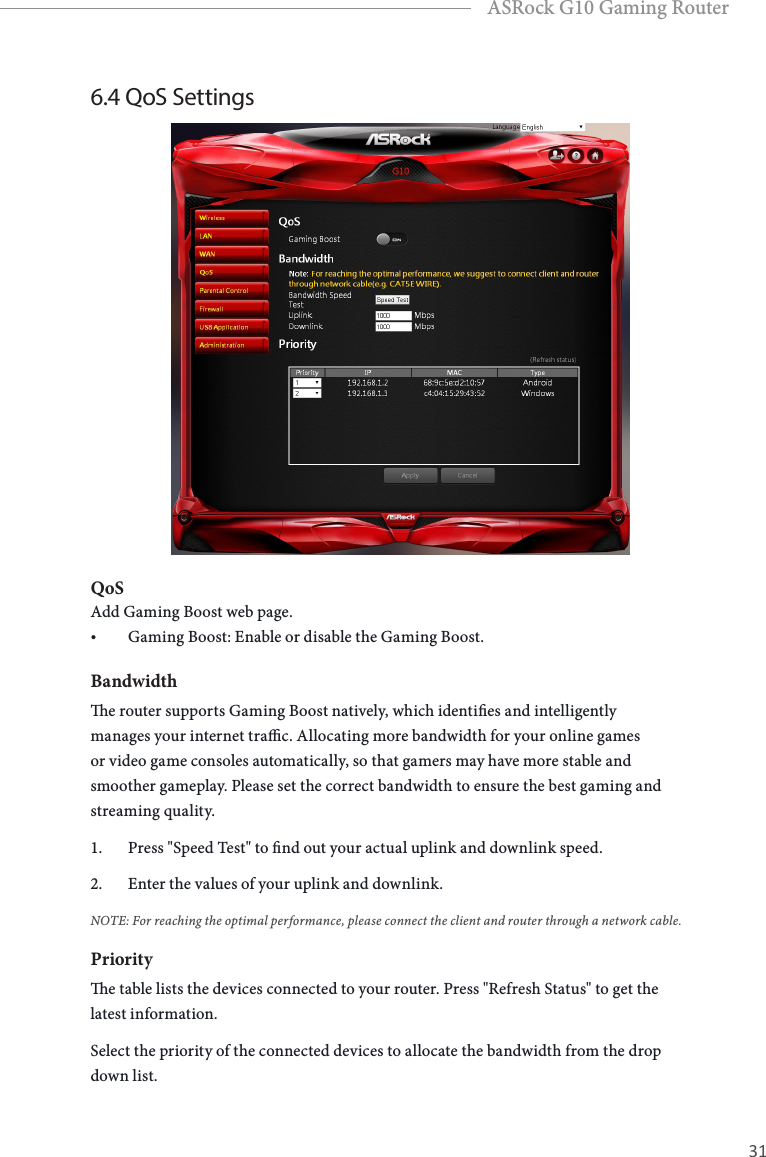
30 31EnglishASRock G10 Gaming Router6.4 QoS SettingsQoSAdd Gaming Boost web page.• Gaming Boost: Enable or disable the Gaming Boost. Bandwidthe router supports Gaming Boost natively, which identies and intelligently manages your internet trac. Allocating more bandwidth for your online games or video game consoles automatically, so that gamers may have more stable and smoother gameplay. Please set the correct bandwidth to ensure the best gaming and streaming quality.1.  Press "Speed Test" to nd out your actual uplink and downlink speed. 2.  Enter the values of your uplink and downlink. NOTE: For reaching the optimal performance, please connect the client and router through a network cable.Prioritye table lists the devices connected to your router. Press "Refresh Status" to get the latest information.Select the priority of the connected devices to allocate the bandwidth from the drop down list.
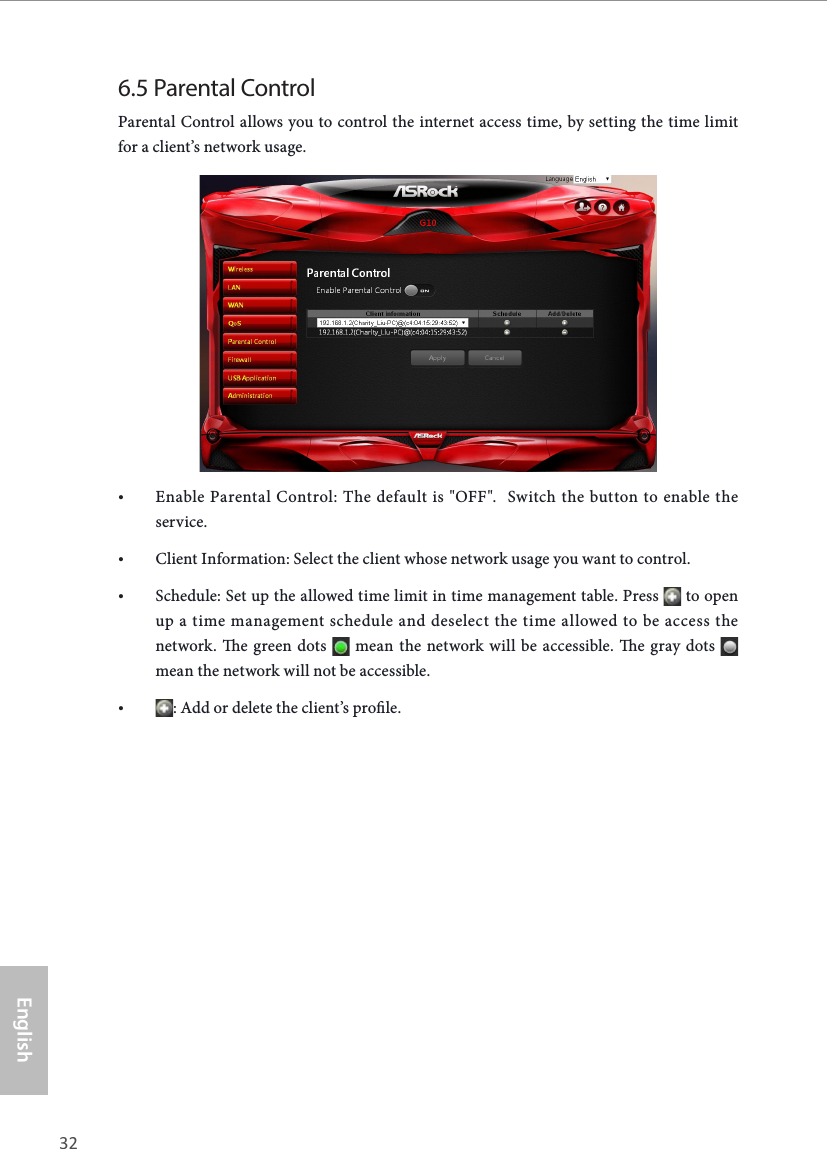
32 33EnglishASRock G10 Gaming Router6.5 Parental Control Parental Control allows you to control the internet access time, by setting the time limit for a client’s network usage.• Enable Parental Control: The default is "OFF".  Switch the button to enable the service.• Client Information: Select the client whose network usage you want to control.• Schedule: Set up the allowed time limit in time management table. Press   to open up a time management schedule and deselect the time allowed to be access the network. e green dots   mean the network will be accessible. e gray dots   mean the network will not be accessible.• : Add or delete the client’s prole.
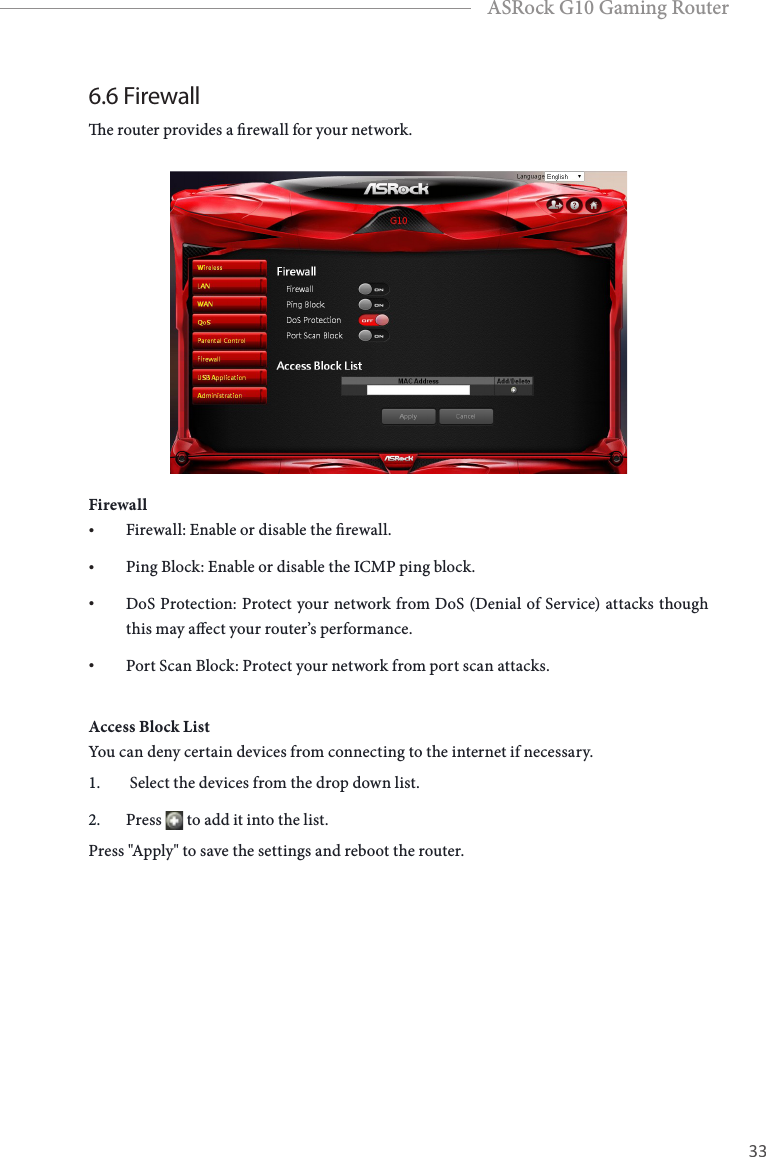
32 33EnglishASRock G10 Gaming Router6.6 Firewalle router provides a rewall for your network.Firewall• Firewall: Enable or disable the rewall.• Ping Block: Enable or disable the ICMP ping block.• DoS Protection: Protect your network from DoS (Denial of Service) attacks though this may aect your router’s performance.• Port Scan Block: Protect your network from port scan attacks.Access Block ListYou can deny certain devices from connecting to the internet if necessary. 1.   Select the devices from the drop down list.2.  Press   to add it into the list. Press "Apply" to save the settings and reboot the router.
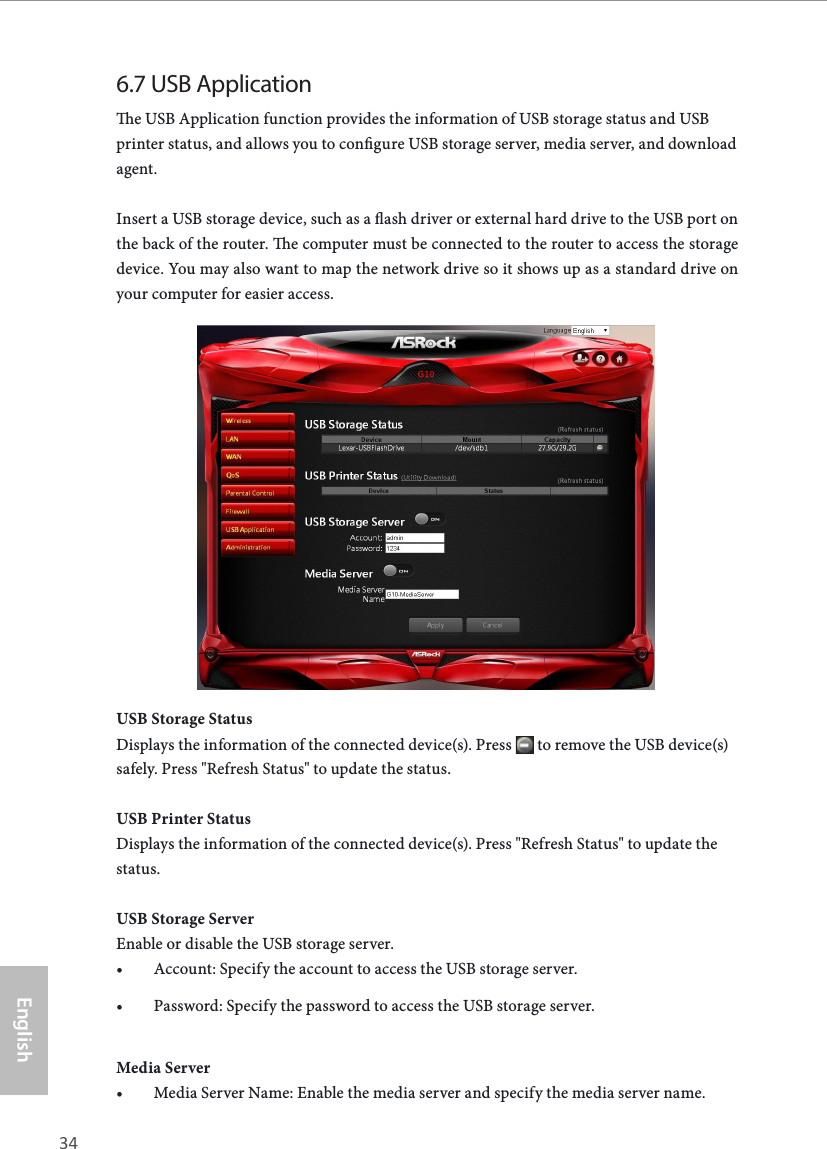
34 35EnglishASRock G10 Gaming Router6.7 USB Applicatione USB Application function provides the information of USB storage status and USB printer status, and allows you to congure USB storage server, media server, and download agent.Insert a USB storage device, such as a ash driver or external hard drive to the USB port on the back of the router. e computer must be connected to the router to access the storage device. You may also want to map the network drive so it shows up as a standard drive on your computer for easier access.USB Storage StatusDisplays the information of the connected device(s). Press   to remove the USB device(s) safely. Press "Refresh Status" to update the status. USB Printer StatusDisplays the information of the connected device(s). Press "Refresh Status" to update the status.USB Storage ServerEnable or disable the USB storage server. • Account: Specify the account to access the USB storage server.• Password: Specify the password to access the USB storage server.Media Server• Media Server Name: Enable the media server and specify the media server name.
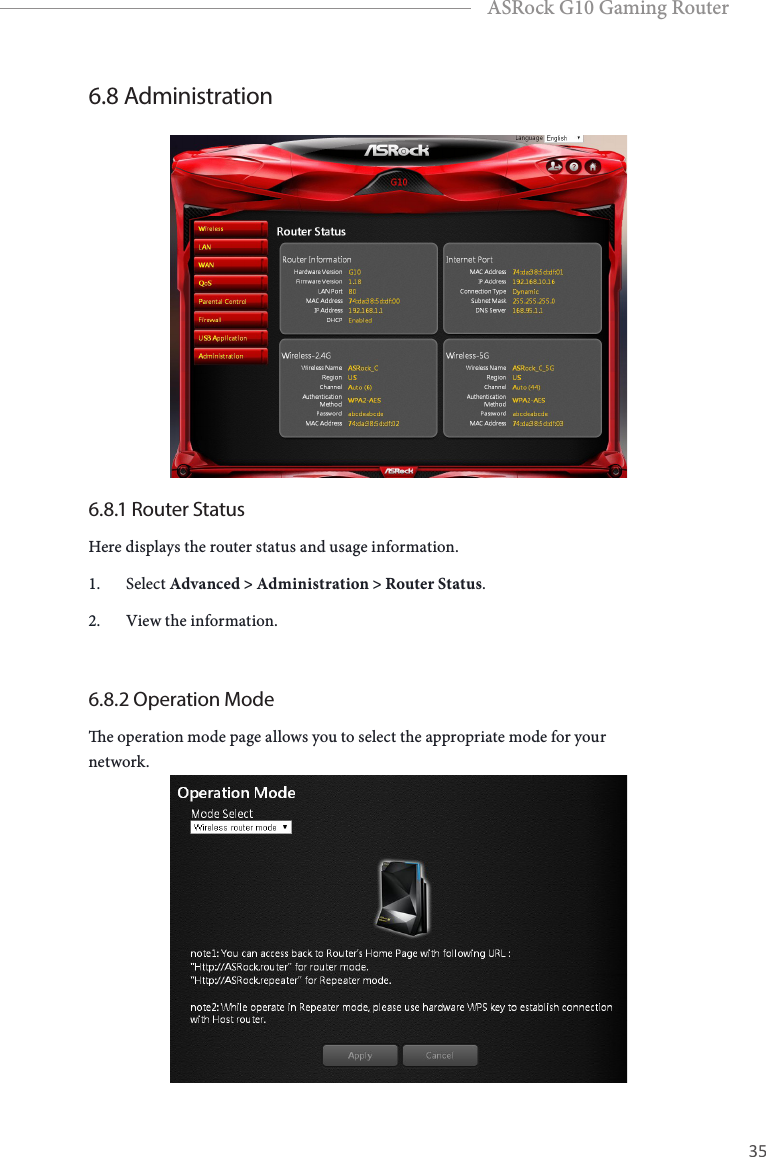
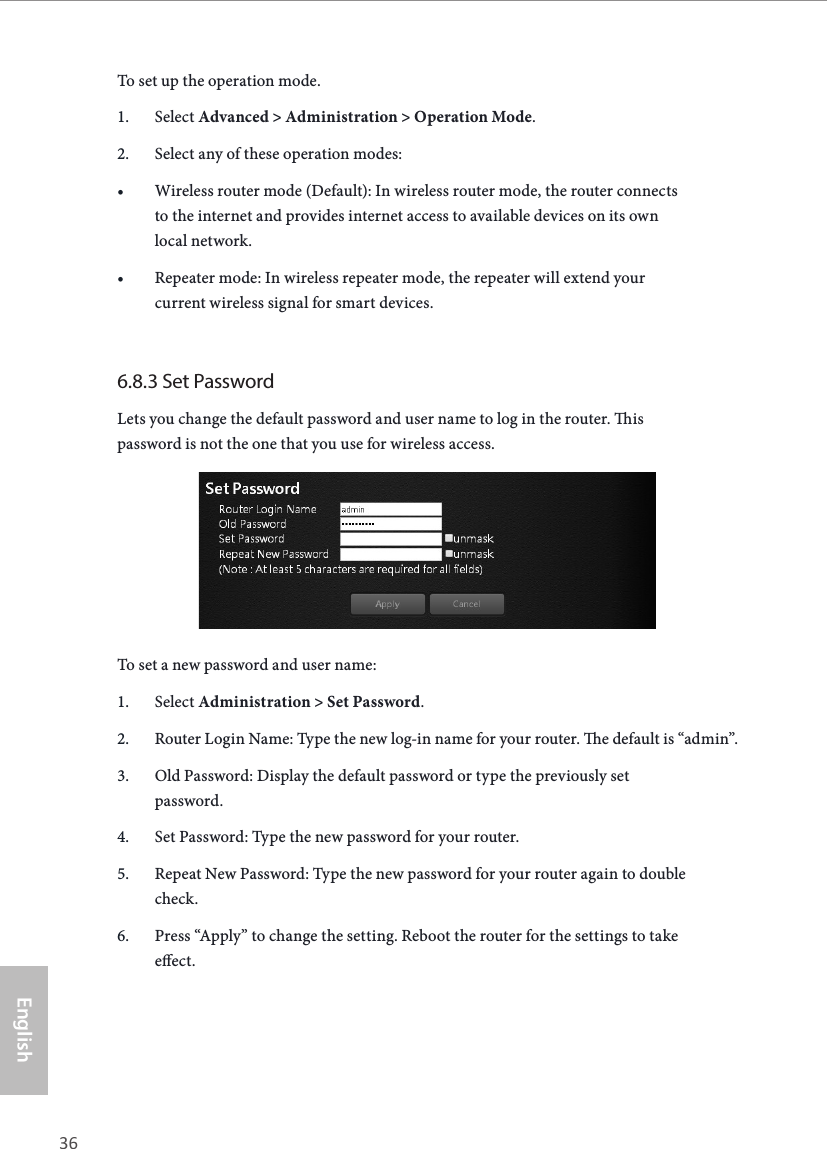
34 35EnglishASRock G10 Gaming Router6.8 Administration6.8.1 Router StatusHere displays the router status and usage information.1.  Select Advanced > Administration > Router Status.2.  View the information.6.8.2 Operation Modee operation mode page allows you to select the appropriate mode for your network.
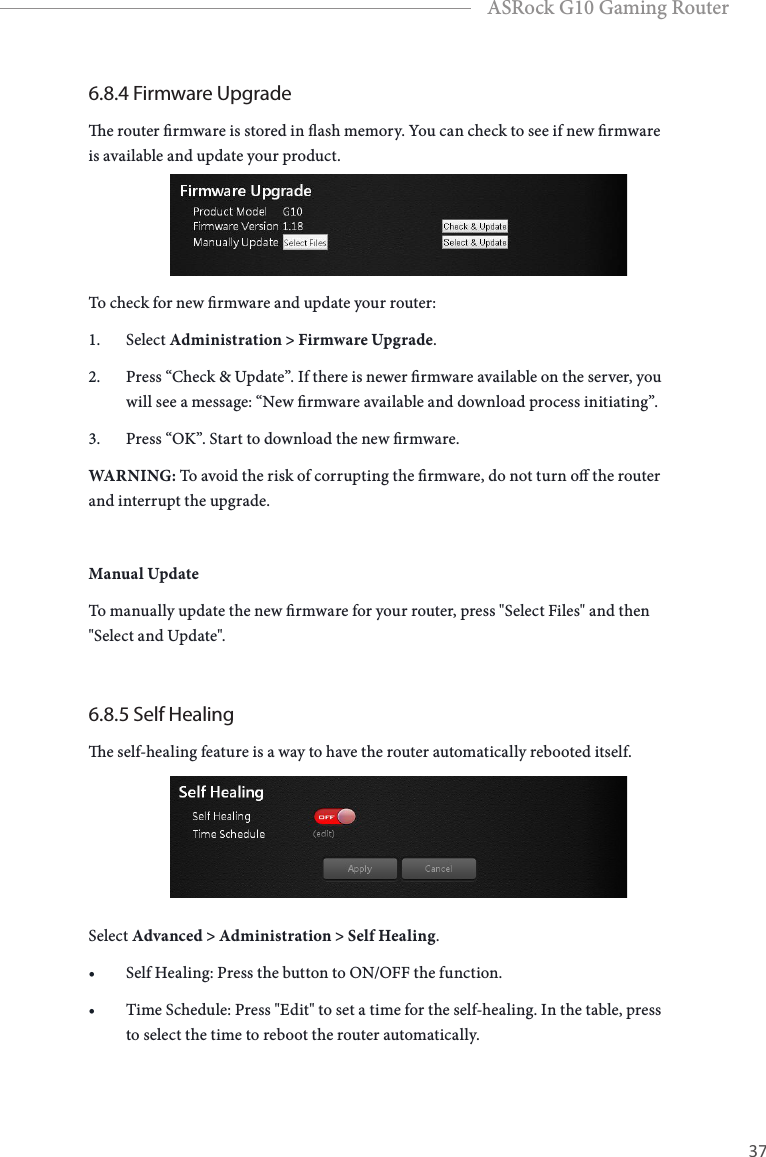
36 37EnglishASRock G10 Gaming RouterTo set up the operation mode.1.  Select Advanced > Administration > Operation Mode.2.  Select any of these operation modes: • Wireless router mode (Default): In wireless router mode, the router connects to the internet and provides internet access to available devices on its own local network.• Repeater mode: In wireless repeater mode, the repeater will extend your current wireless signal for smart devices.6.8.3 Set PasswordLets you change the default password and user name to log in the router. is password is not the one that you use for wireless access.To set a new password and user name:1.  Select Administration > Set Password.2.  Router Login Name: Type the new log-in name for your router. e default is “admin”.3.  Old Password: Display the default password or type the previously set password.4.  Set Password: Type the new password for your router.5.  Repeat New Password: Type the new password for your router again to double check.6.  Press “Apply” to change the setting. Reboot the router for the settings to take eect.
36 37EnglishASRock G10 Gaming Router6.8.4 Firmware Upgradee router rmware is stored in ash memory. You can check to see if new rmware is available and update your product.To check for new rmware and update your router:1.  Select Administration > Firmware Upgrade.2.  Press “Check & Update”. If there is newer rmware available on the server, you will see a message: “New rmware available and download process initiating”.3.  Press “OK”. Start to download the new rmware.WARNING: To avoid the risk of corrupting the rmware, do not turn o the router and interrupt the upgrade.Manual UpdateTo manually update the new rmware for your router, press "Select Files" and then "Select and Update". 6.8.5 Self Healinge self-healing feature is a way to have the router automatically rebooted itself.Select Advanced > Administration > Self Healing.• Self Healing: Press the button to ON/OFF the function.• Time Schedule: Press "Edit" to set a time for the self-healing. In the table, press to select the time to reboot the router automatically.
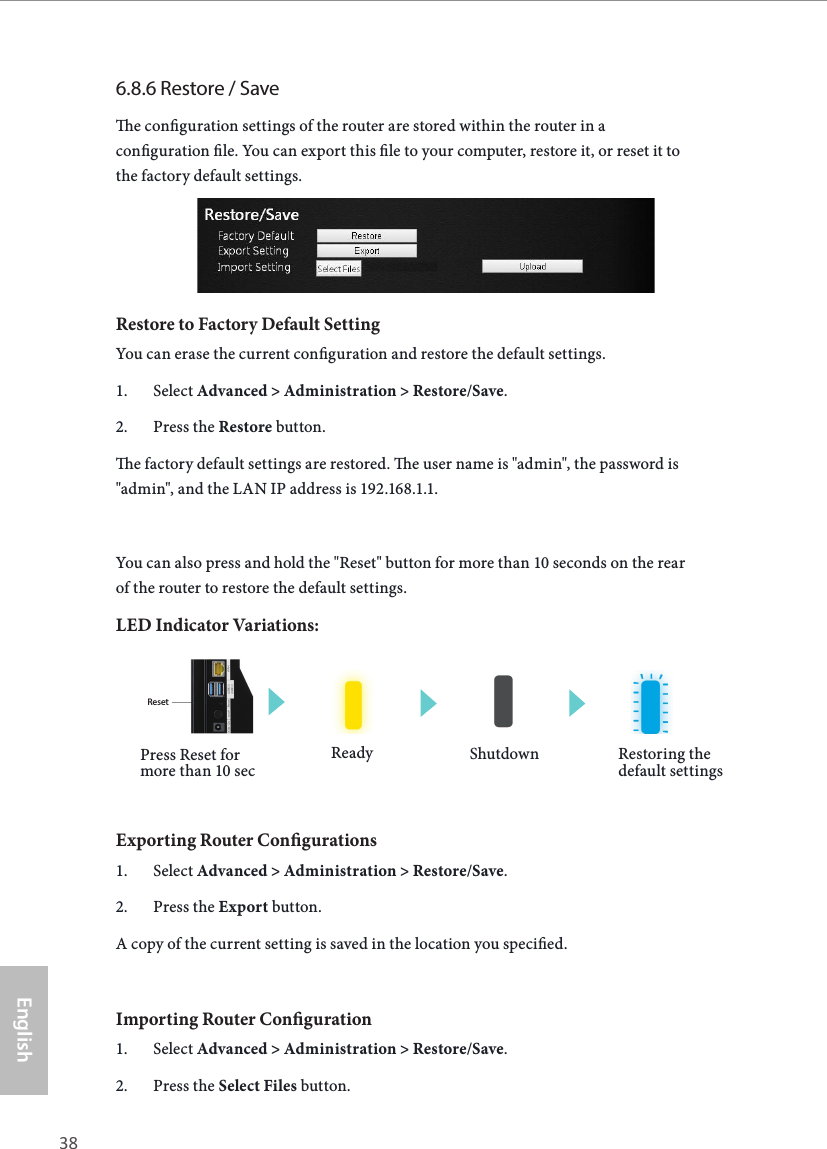
38 39EnglishASRock G10 Gaming Router6.8.6 Restore / Savee conguration settings of the router are stored within the router in a conguration le. You can export this le to your computer, restore it, or reset it to the factory default settings.Restore to Factory Default SettingYou can erase the current conguration and restore the default settings.1.  Select Advanced > Administration > Restore/Save.2.  Press the Restore button.e factory default settings are restored. e user name is "admin", the password is "admin", and the LAN IP address is 192.168.1.1.You can also press and hold the "Reset" button for more than 10 seconds on the rear of the router to restore the default settings.LED Indicator Variations:Exporting Router Congurations1.  Select Advanced > Administration > Restore/Save.2.  Press the Export button.A copy of the current setting is saved in the location you specied.Importing Router Conguration1.  Select Advanced > Administration > Restore/Save.2.  Press the Select Files button.Ready ShutdownPress Reset for more than 10 secResetResetRestoring the default settings
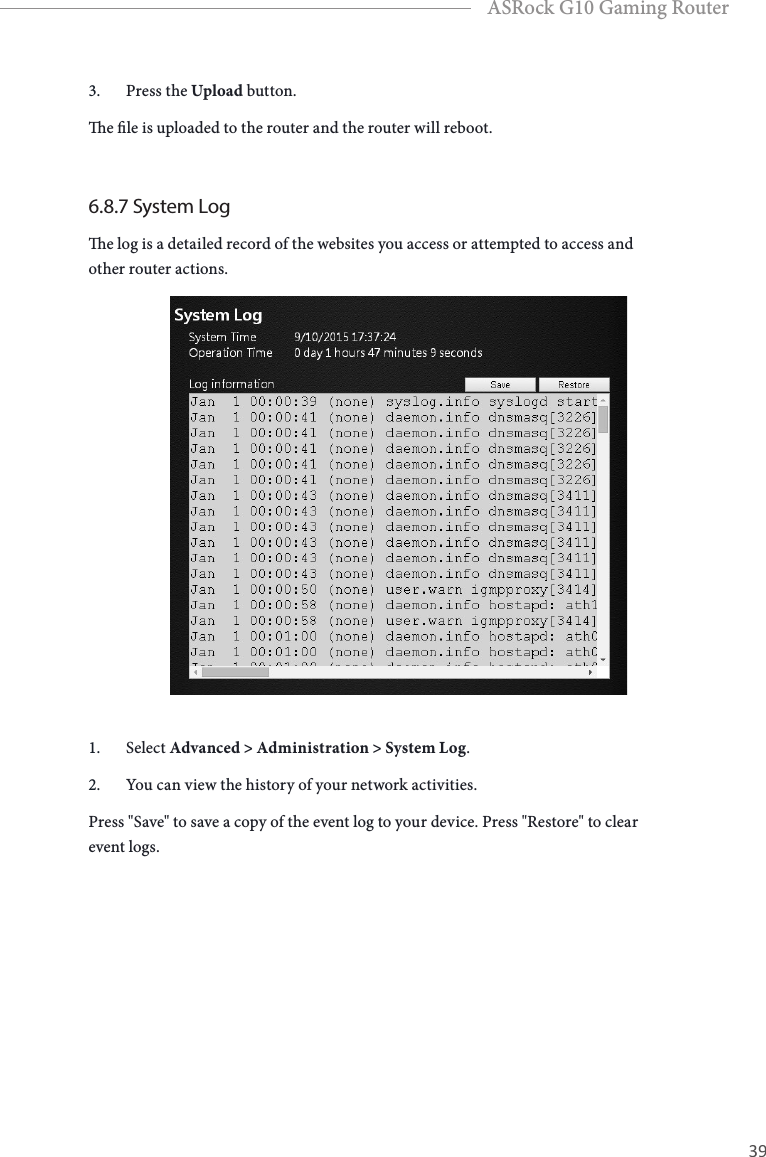
38 39EnglishASRock G10 Gaming Router3.  Press the Upload button.e le is uploaded to the router and the router will reboot.6.8.7 System Loge log is a detailed record of the websites you access or attempted to access and other router actions.1.  Select Advanced > Administration > System Log.2.  You can view the history of your network activities.Press "Save" to save a copy of the event log to your device. Press "Restore" to clear event logs.
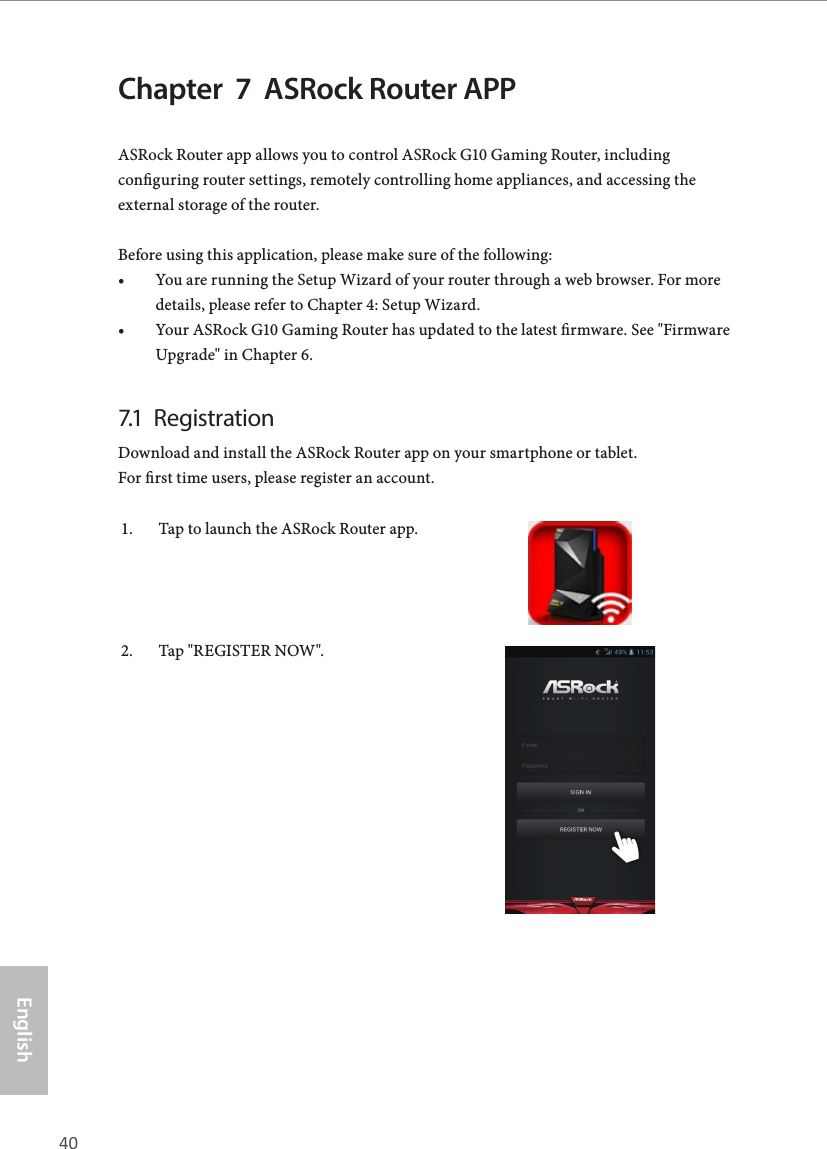
40 41EnglishASRock G10 Gaming RouterChapter  7  ASRock Router APPASRock Router app allows you to control ASRock G10 Gaming Router, including conguring router settings, remotely controlling home appliances, and accessing the external storage of the router.Before using this application, please make sure of the following:• You are running the Setup Wizard of your router through a web browser. For more details, please refer to Chapter 4: Setup Wizard.• Your ASRock G10 Gaming Router has updated to the latest rmware. See "Firmware Upgrade" in Chapter 6.7.1  RegistrationDownload and install the ASRock Router app on your smartphone or tablet.  For rst time users, please register an account.1.  Tap to launch the ASRock Router app.2.  Tap "REGISTER NOW".
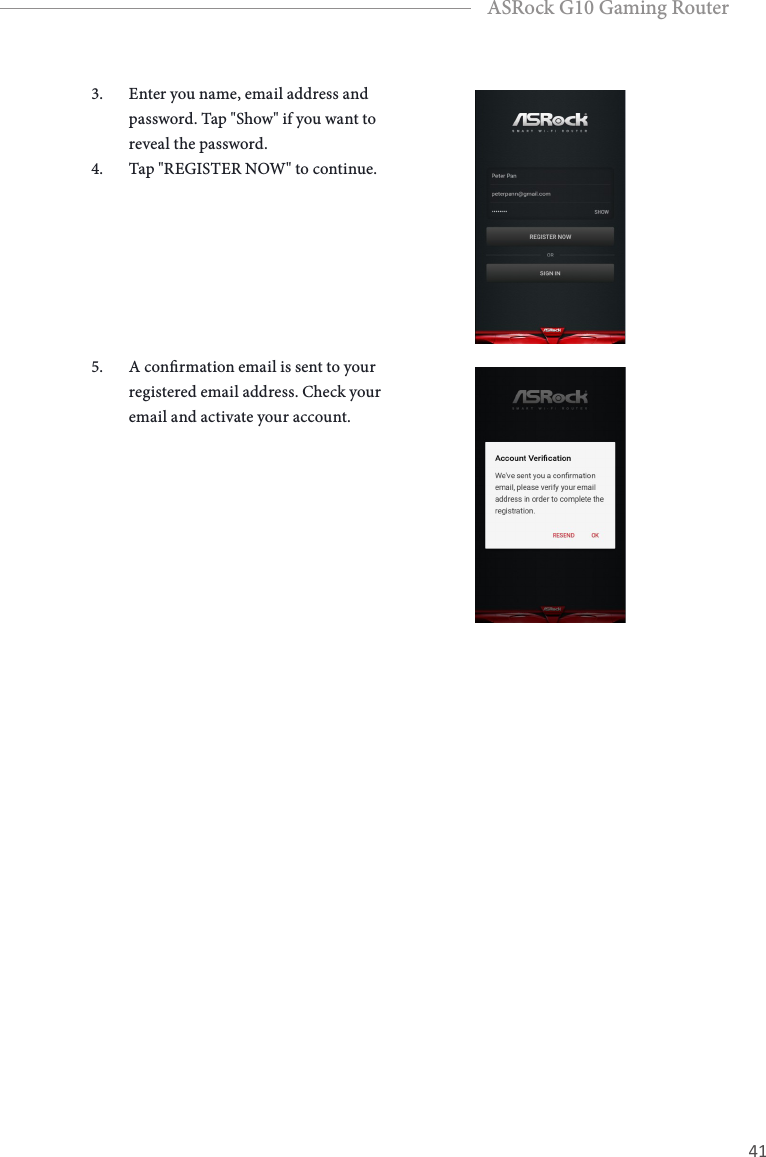
40 41EnglishASRock G10 Gaming Router3.  Enter you name, email address and password. Tap "Show" if you want to reveal the password.4.  Tap "REGISTER NOW" to continue.5.  A conrmation email is sent to your registered email address. Check your email and activate your account.
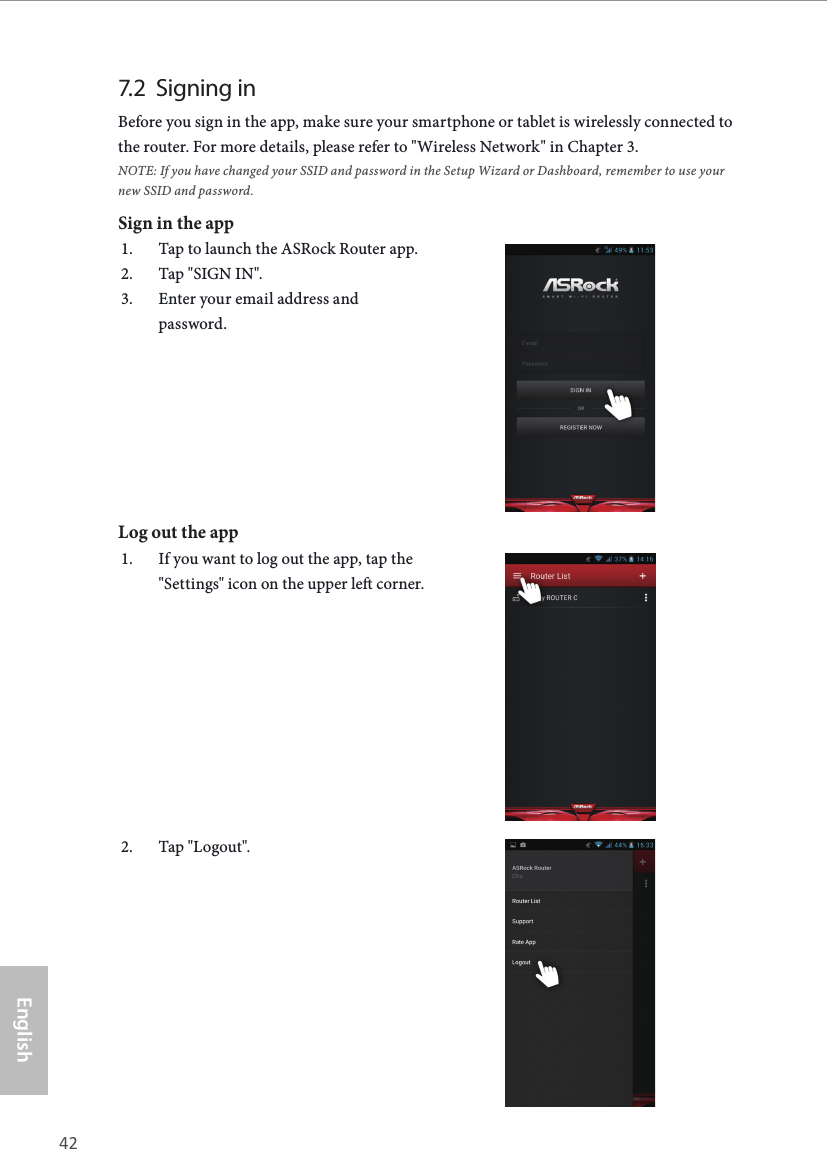
42 43EnglishASRock G10 Gaming Router7.2  Signing inBefore you sign in the app, make sure your smartphone or tablet is wirelessly connected to the router. For more details, please refer to "Wireless Network" in Chapter 3. NOTE: If you have changed your SSID and password in the Setup Wizard or Dashboard, remember to use your new SSID and password.Sign in the app1.  Tap to launch the ASRock Router app.2.  Tap "SIGN IN".3.  Enter your email address and password.Log out the app1.  If you want to log out the app, tap the "Settings" icon on the upper le corner. 2.  Tap "Logout".
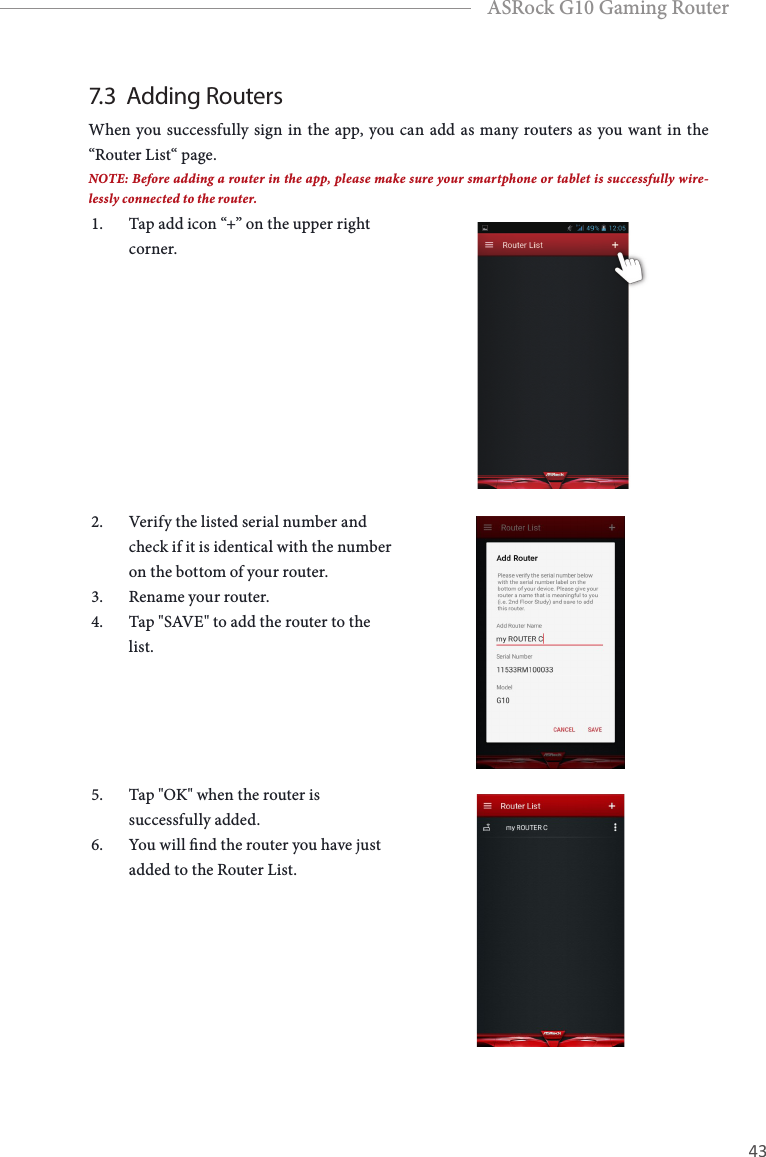
42 43EnglishASRock G10 Gaming Router7.3  Adding RoutersWhen you successfully sign in the app, you can add as many routers as you want in the “Router List“ page.NOTE: Before adding a router in the app, please make sure your smartphone or tablet is successfully wire-lessly connected to the router.1.  Tap add icon “+” on the upper right corner.2.  Verify the listed serial number and check if it is identical with the number on the bottom of your router.3.  Rename your router.4.  Tap "SAVE" to add the router to the list.5.  Tap "OK" when the router is successfully added.6.  You will nd the router you have just added to the Router List.
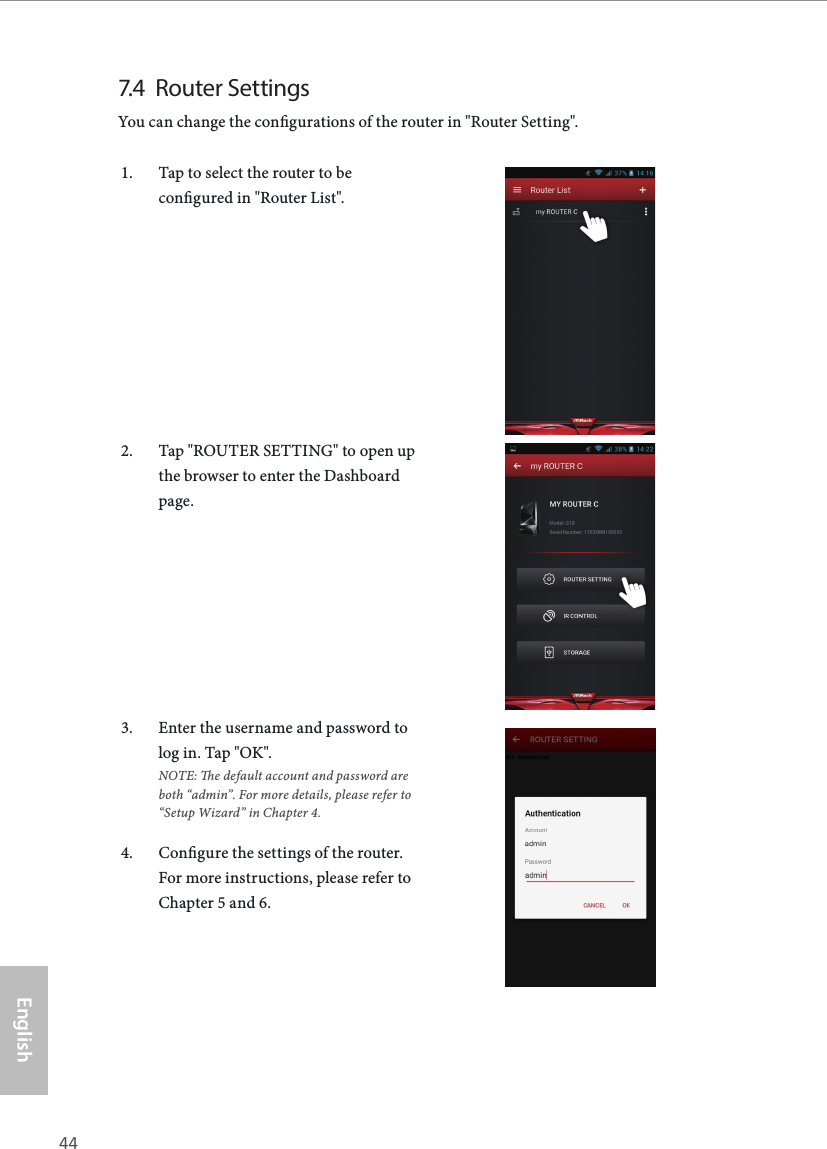
44 45EnglishASRock G10 Gaming Router7.4  Router SettingsYou can change the congurations of the router in "Router Setting".1.  Tap to select the router to be congured in "Router List".2.  Tap "ROUTER SETTING" to open up the browser to enter the Dashboard page.3.  Enter the username and password to log in. Tap "OK". NOTE: e default account and password are both “admin”. For more details, please refer to “Setup Wizard” in Chapter 4.4.  Congure the settings of the router. For more instructions, please refer to Chapter 5 and 6.
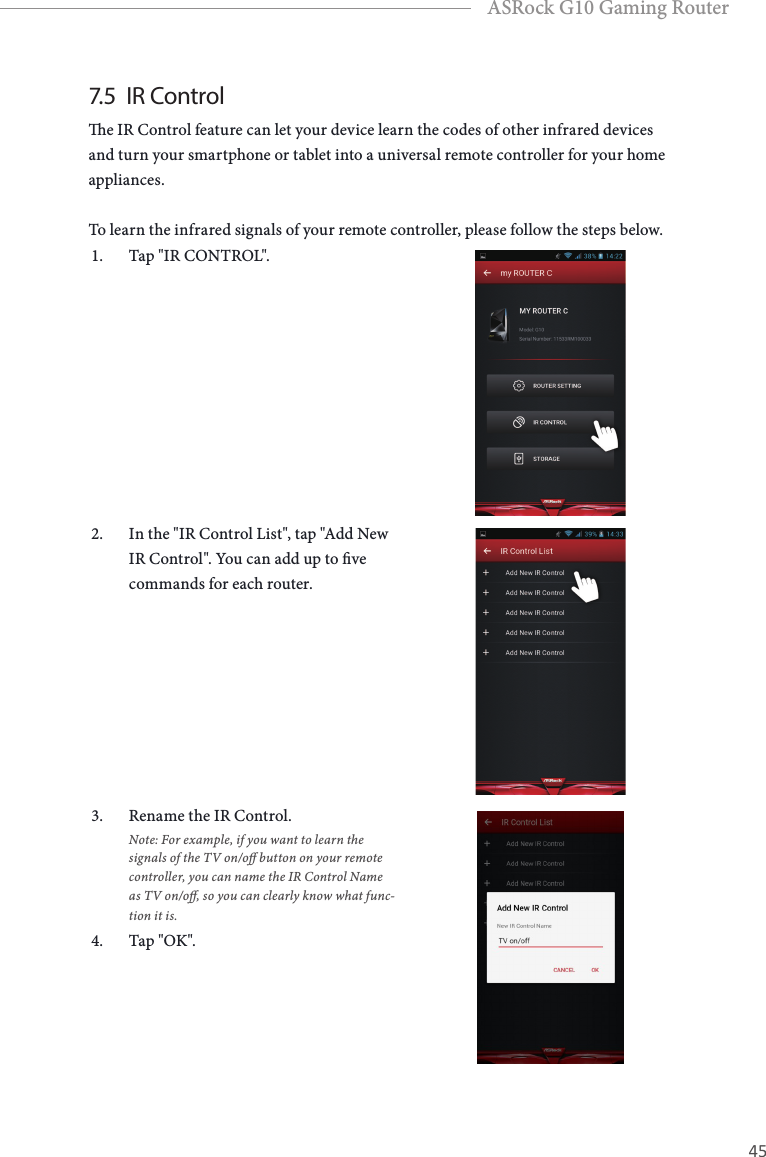
44 45EnglishASRock G10 Gaming Router7.5  IR Controle IR Control feature can let your device learn the codes of other infrared devices and turn your smartphone or tablet into a universal remote controller for your home appliances.To learn the infrared signals of your remote controller, please follow the steps below.1.  Tap "IR CONTROL".2.  In the "IR Control List", tap "Add New IR Control". You can add up to ve commands for each router.3.  Rename the IR Control.  Note: For example, if you want to learn the signals of the TV on/o button on your remote controller, you can name the IR Control Name as TV on/o, so you can clearly know what func-tion it is.4.  Tap "OK".
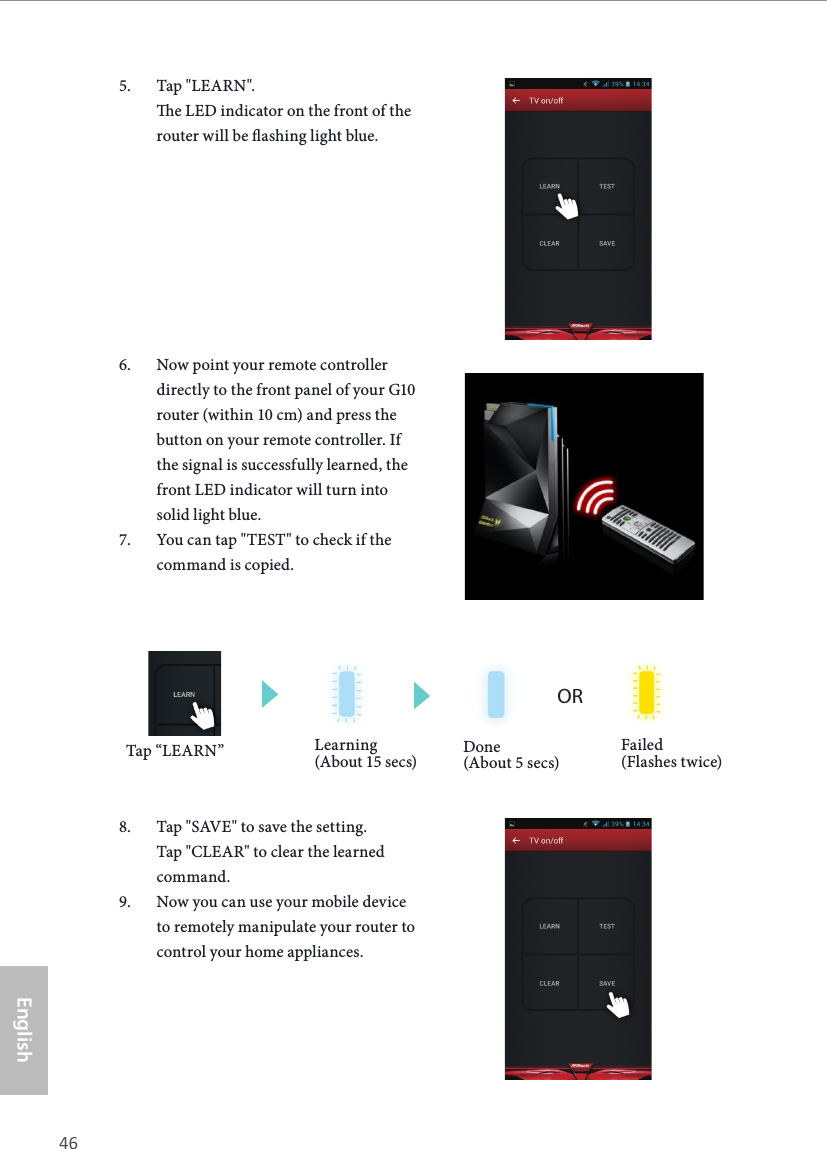
46 47EnglishASRock G10 Gaming Router5.  Tap "LEARN".  e LED indicator on the front of the router will be ashing light blue. 6.  Now point your remote controller directly to the front panel of your G10 router (within 10 cm) and press the button on your remote controller. If the signal is successfully learned, the front LED indicator will turn into solid light blue.7.  You can tap "TEST" to check if the command is copied.8.  Tap "SAVE" to save the setting. Tap "CLEAR" to clear the learned command.9.  Now you can use your mobile device to remotely manipulate your router to control your home appliances.ORLearning (About 15 secs) Done (About 5 secs)Failed (Flashes twice)Tap “LEARN”
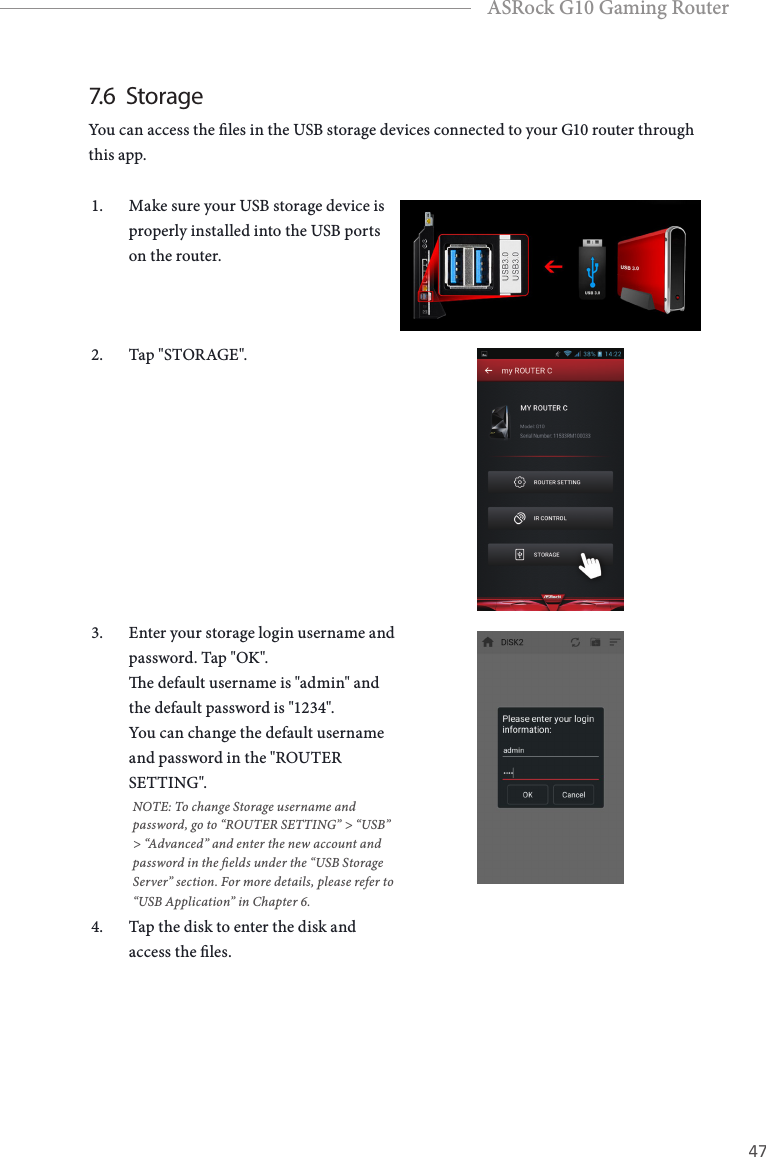
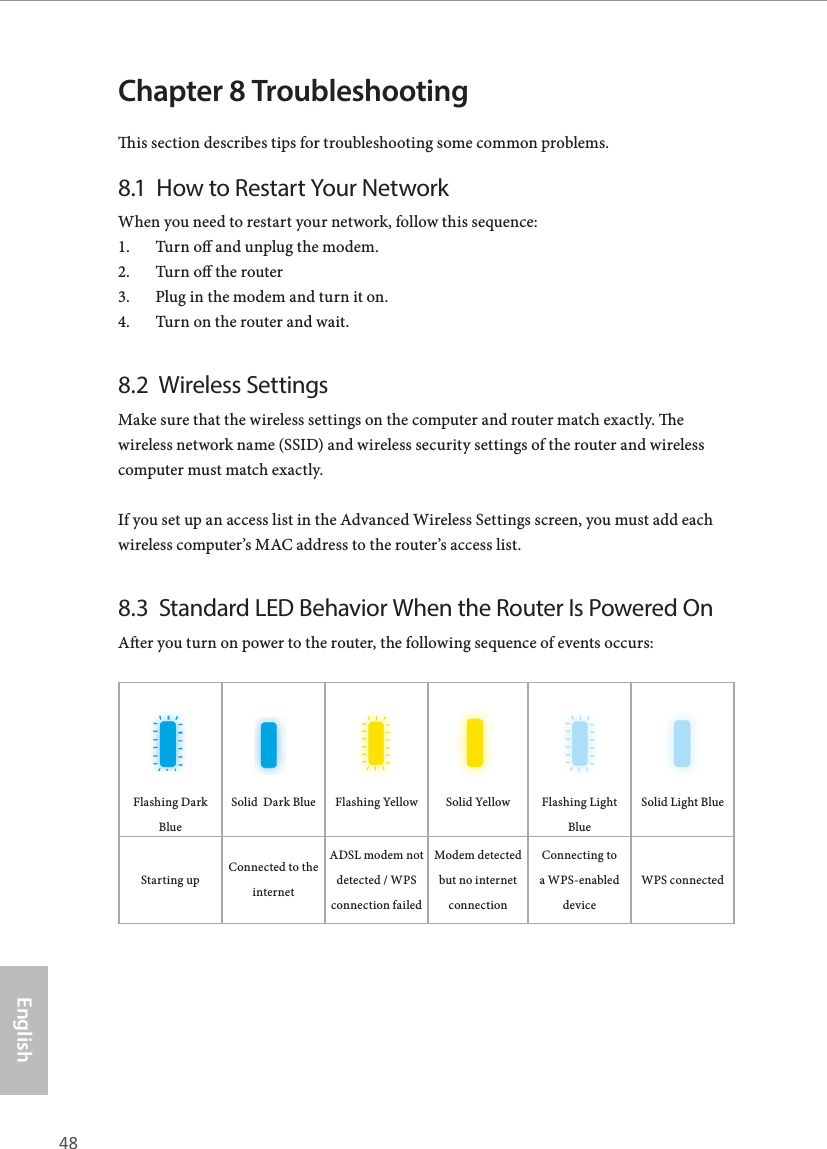
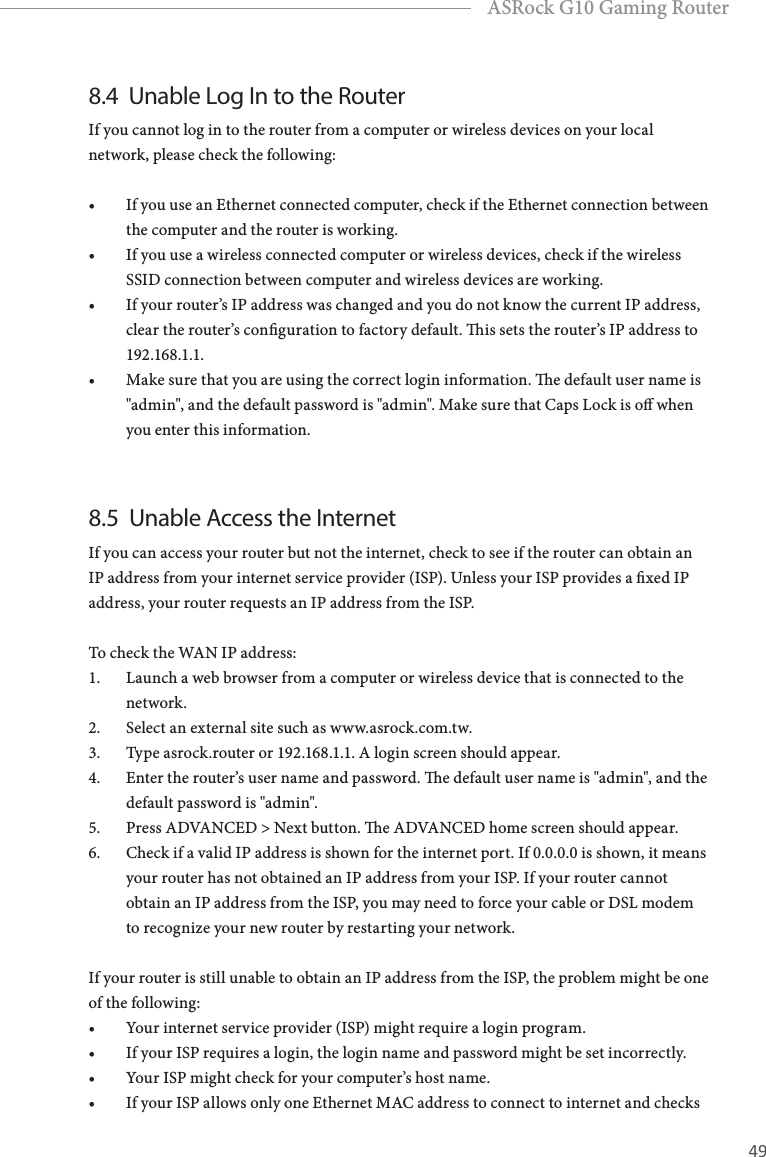
46 47EnglishASRock G10 Gaming Router7.6  StorageYou can access the les in the USB storage devices connected to your G10 router through this app.1.  Make sure your USB storage device is properly installed into the USB ports on the router.2.  Tap "STORAGE".3.  Enter your storage login username and password. Tap "OK".  e default username is "admin" and the default password is "1234".  You can change the default username and password in the "ROUTER SETTING".NOTE: To change Storage username and password, go to “ROUTER SETTING” > “USB” > “Advanced” and enter the new account and password in the elds under the “USB Storage Server” section. For more details, please refer to “USB Application” in Chapter 6.4.  Tap the disk to enter the disk and access the les.
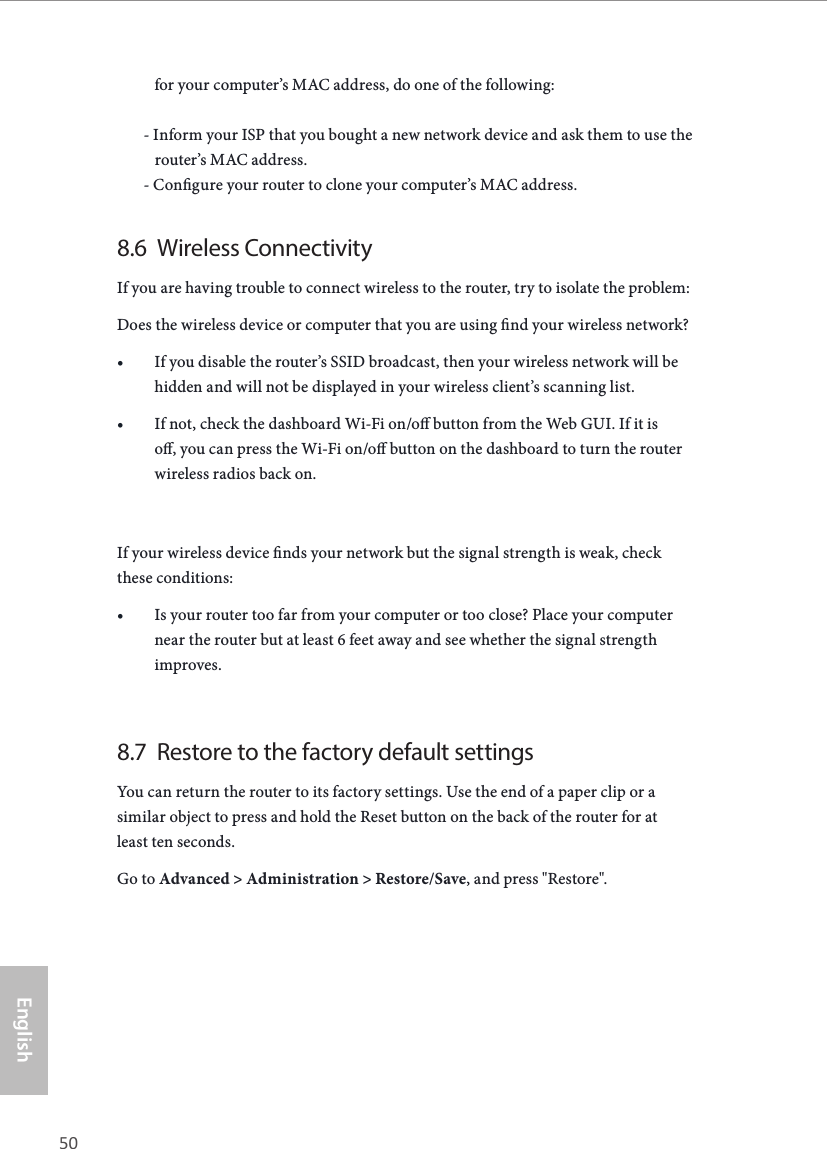
48 49EnglishASRock G10 Gaming RouterChapter 8 Troubleshootingis section describes tips for troubleshooting some common problems.8.1  How to Restart Your NetworkWhen you need to restart your network, follow this sequence:1.  Turn o and unplug the modem.2.  Turn o the router3.  Plug in the modem and turn it on.4.  Turn on the router and wait.8.2  Wireless SettingsMake sure that the wireless settings on the computer and router match exactly. e wireless network name (SSID) and wireless security settings of the router and wireless computer must match exactly.If you set up an access list in the Advanced Wireless Settings screen, you must add each wireless computer’s MAC address to the router’s access list.8.3  Standard LED Behavior When the Router Is Powered OnAer you turn on power to the router, the following sequence of events occurs:Flashing Dark BlueSolid  Dark Blue Flashing Yellow Solid Yellow Flashing Light BlueSolid Light BlueStarting upConnected to the internetADSL modem not detected / WPS connection failedModem detected but no internet connectionConnecting to a WPS-enabled deviceWPS connected
48 49EnglishASRock G10 Gaming Router8.4  Unable Log In to the RouterIf you cannot log in to the router from a computer or wireless devices on your local network, please check the following:• If you use an Ethernet connected computer, check if the Ethernet connection between the computer and the router is working.• If you use a wireless connected computer or wireless devices, check if the wireless SSID connection between computer and wireless devices are working.• If your router’s IP address was changed and you do not know the current IP address, clear the router’s conguration to factory default. is sets the router’s IP address to 192.168.1.1.• Make sure that you are using the correct login information. e default user name is "admin", and the default password is "admin". Make sure that Caps Lock is o when you enter this information.8.5  Unable Access the InternetIf you can access your router but not the internet, check to see if the router can obtain an IP address from your internet service provider (ISP). Unless your ISP provides a xed IP address, your router requests an IP address from the ISP.To check the WAN IP address:1.  Launch a web browser from a computer or wireless device that is connected to the network.2.  Select an external site such as www.asrock.com.tw.3.  Type asrock.router or 192.168.1.1. A login screen should appear.4.  Enter the router’s user name and password. e default user name is "admin", and the default password is "admin".5.  Press ADVANCED > Next button. e ADVANCED home screen should appear.6.  Check if a valid IP address is shown for the internet port. If 0.0.0.0 is shown, it means your router has not obtained an IP address from your ISP. If your router cannot obtain an IP address from the ISP, you may need to force your cable or DSL modem to recognize your new router by restarting your network.If your router is still unable to obtain an IP address from the ISP, the problem might be one of the following:• Your internet service provider (ISP) might require a login program.• If your ISP requires a login, the login name and password might be set incorrectly.• Your ISP might check for your computer’s host name.• If your ISP allows only one Ethernet MAC address to connect to internet and checks
50 51EnglishASRock G10 Gaming Routerfor your computer’s MAC address, do one of the following:       - Inform your ISP that you bought a new network device and ask them to use the            router’s MAC address.       - Congure your router to clone your computer’s MAC address.8.6  Wireless ConnectivityIf you are having trouble to connect wireless to the router, try to isolate the problem:Does the wireless device or computer that you are using nd your wireless network?• If you disable the router’s SSID broadcast, then your wireless network will be hidden and will not be displayed in your wireless client’s scanning list.• If not, check the dashboard Wi-Fi on/o button from the Web GUI. If it is o, you can press the Wi-Fi on/o button on the dashboard to turn the router wireless radios back on.If your wireless device nds your network but the signal strength is weak, check these conditions:• Is your router too far from your computer or too close? Place your computer near the router but at least 6 feet away and see whether the signal strength improves.8.7  Restore to the factory default settingsYou can return the router to its factory settings. Use the end of a paper clip or a similar object to press and hold the Reset button on the back of the router for at least ten seconds.Go to Advanced > Administration > Restore/Save, and press "Restore".
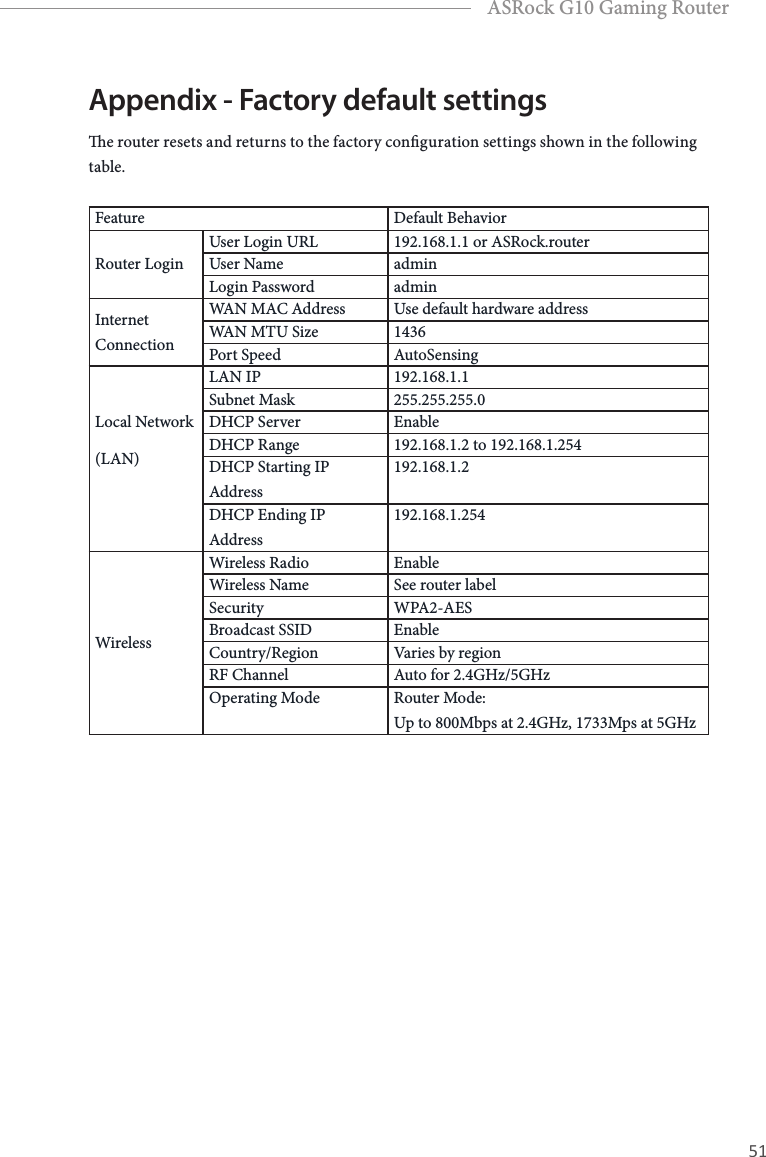
50 51EnglishASRock G10 Gaming RouterAppendix - Factory default settingse router resets and returns to the factory conguration settings shown in the following table.Feature Default BehaviorRouter LoginUser Login URL 192.168.1.1 or ASRock.routerUser Name adminLogin Password adminInternet ConnectionWAN MAC Address Use default hardware addressWAN MTU Size 1436Port Speed AutoSensingLocal Network(LAN)LAN IP 192.168.1.1Subnet Mask 255.255.255.0DHCP Server EnableDHCP Range 192.168.1.2 to 192.168.1.254DHCP Starting IP Address192.168.1.2DHCP Ending IP Address192.168.1.254WirelessWireless Radio EnableWireless Name See router labelSecurity WPA2-AESBroadcast SSID EnableCountry/Region Varies by regionRF Channel Auto for 2.4GHz/5GHzOperating Mode Router Mode:  Up to 800Mbps at 2.4GHz, 1733Mps at 5GHz
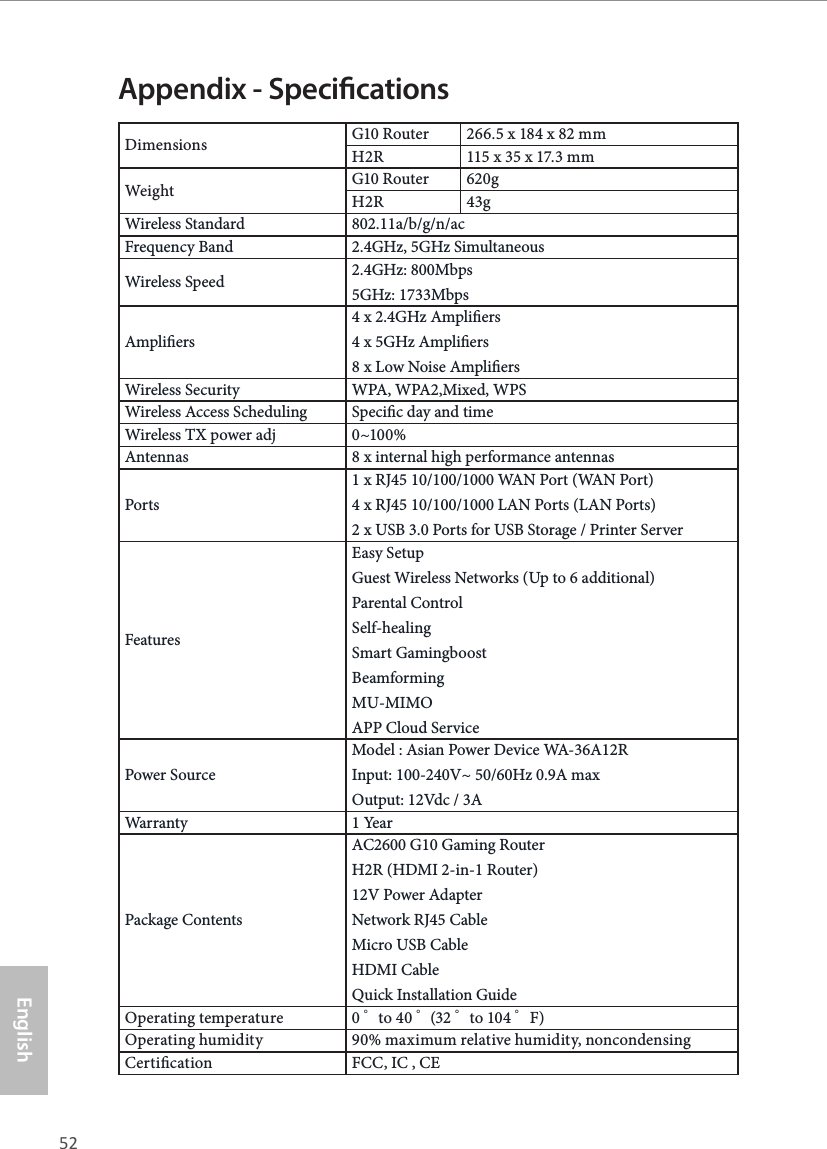
52 PBEnglishASRock G10 Gaming RouterAppendix - SpecicationsDimensions  G10 Router  266.5 x 184 x 82 mmH2R  115 x 35 x 17.3 mmWeight G10 Router  620gH2R  43gWireless Standard 802.11a/b/g/n/acFrequency Band 2.4GHz, 5GHz SimultaneousWireless Speed 2.4GHz: 800Mbps 5GHz: 1733MbpsAmpliers4 x 2.4GHz Ampliers 4 x 5GHz Ampliers 8 x Low Noise AmpliersWireless Security WPA, WPA2,Mixed, WPSWireless Access Scheduling Specic day and timeWireless TX power adj 0~100%Antennas 8 x internal high performance antennasPorts1 x RJ45 10/100/1000 WAN Port (WAN Port) 4 x RJ45 10/100/1000 LAN Ports (LAN Ports) 2 x USB 3.0 Ports for USB Storage / Printer ServerFeaturesEasy Setup Guest Wireless Networks (Up to 6 additional) Parental Control Self-healing Smart Gamingboost Beamforming MU-MIMO APP Cloud ServicePower SourceModel : Asian Power Device WA-36A12R Input: 100-240V~ 50/60Hz 0.9A max Output: 12Vdc / 3AWarranty 1  Ye a rPackage ContentsAC2600 G10 Gaming Router H2R (HDMI 2-in-1 Router) 12V Power Adapter Network RJ45 Cable Micro USB Cable HDMI Cable Quick Installation GuideOperating temperature 0゜to 40 ゜(32 ゜to 104 ゜F)Operating humidity 90% maximum relative humidity, noncondensingCertication FCC, IC , CE

Navigation menu