ATEN Technology IOGEAR GME430R 2.4GHz Gyroscopic Presentation Mouse with Red Laser Pointer User Manual
ATEN Technology, Inc., dba IOGEAR 2.4GHz Gyroscopic Presentation Mouse with Red Laser Pointer Users Manual
Users Manual
Professional
Air Mouse Presenter
Installation & User Manual
Ver:14KS/1.1

Overview
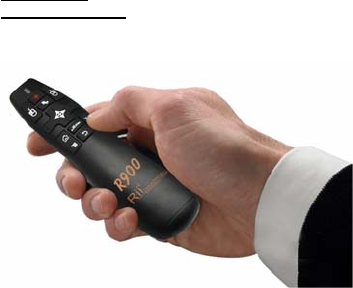
Thank you for purchasing the professional air mouse
presenter! , Wireless mini remote,air mouse & laster pointer
combo, with USB interface receiver.
At the meeting, teaching and training, lectures, with the
large computer screen, HTPC and projector 15M range
remote control, interactive, and convenient. Apply to home
theater, car computer entertainment, Tablet PC, Web browser,
you can manipulate in any position, comfort, and freedom.
Red laser pointer: in most of the background can easily
see distances of up to 15 meters: allows you to move freely in
the room and interact with the audience. Intuitive slides
Control button: allows you to overview demo data. Button
touch have a great feel of the smooth design achievements.
storage-type plug and play wireless receiver: easy to use,
simply plug the receiver into a USB port can be used
immediately without having to install software. admission, the
receiver can be stored in the presentation controller, easy to
carry.
Introduction
Product overview

Package contents
•Professional Air Mouse Presenter
•USB Wireless Receiver
•User Manual
•AAA x 2 battery(Optional)
System Requirements
•HID compatible device
•USB port
•Windows 2000
•Windows XP
•Windows Vista ,Windows CE, Windows 7
• Linux(Debian-3.1,Redhat-9.0 Ubuntu-8.10
Fedora-7.0 tested)
•
Android OS (With standard USB interface)
Specifications
•17 keys,air mouse, left and right click keys
•Interface: USB 2.0
•Operation frequency: 2.4GHz RF
•Weight: 63g
•Dimensions keyboard: 120.5x37.2x28mm
•Dimensions RF receiver: 19 x 14.3x6.15mm
•Operational Range: up to 10 meters
•Operation voltage: 3.3V
•Operation current: < 30mA
•Charging current: < 300mA
•Sleep current: < 1mA

Installation
•Open the battery compartment located on the
backside of the wireless keyboard and pick up
USB receiver.
•Insert the USB Receiver into an available USB port.
•Turn on the keyboard with the switch. The keyboard
is found and installed automatically. No further
actions are required – you are now ready to
use your keyboard!
Using Air mouse
Air mouse function to open and close, relying on
the specific keys to control, as shown below. In
the open state, the mouse will follow your
gestures, in any direction to move, to help you
perform the move, click, drag, and other
functions operating. In any state can rely on to trigger this
button to turn off the mouse function.
Wheel functions Description
The right of the product design has a unique wheel device
can be achieved through the toggle up and down, flip function,
In addition, the roller device Gently press down, you can
achieve the enter key.
Auto sleep and wake feature
The keyboard also features an auto sleep and auto wake
mode. If there is a long period of inactivity, the keyboard will
automatically go into a sleep mode. During the sleep mode,
the user can wake the unit up by pressing any key. The 2.4
GHz receiver and keyboard’s RF indicator will continue to
flash and will not power down.
Switching off the keyboard after use
After finishing using the keyboard,push the switch to the off
position.This turns off the power,of the keyboard. The USB
receiver does not need to pull out from the PC side to
facilitate the next time you continue to use.
Maintenance
•Do not attempt to disassemble the device. Doing so
will void the warranty.
•The battery will discharge if stored for a long period
of time without usage.
•Do not expose the device in extreme heat or cold.
Extreme temperatures will cause the life span
of the battery to shorten.
•Use only a damp cloth with mild soap to clean the
device. Solvents and other cleaning agents
may cause damage to the device.
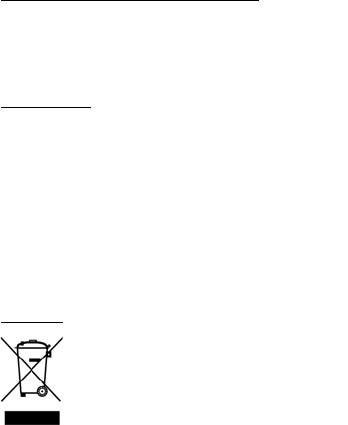
Disposal
Always dispose of the used appliance at a
recycling centre. Do not dispose of the used
appliance with the household waste.

Notes:
Since devices using 2.4G technology communicate using
radio waves,your device and the other devices do not need to
be in direct line-of-sight. The connection can be subject to
interference from obstructions, such as walls,or other
electronic devices
In line with the policy of continued development.The
manufacturer reserves the right to amend The specifications
without prior notification,The pictures and date in the
stylebook are consult only.If there is fluctuation.According to
the real object please.

FCC Information and Copyright
This equipment has been tested and found to comply with the limits for a Class B digital device,
pursuant to part 15 of the FCC Rules.
These limits are designed to provide reasonable protection against harmful interference in a residential
installation. This equipment generates,
uses and can radiate radio frequency energy and, if not installed and used in accordance with the
instructions, may cause harmful interference
to radio communications. However, there is no guarantee that interference will not occur in a particular
installation. If this equipment does
cause harmful interference to radio or television reception, which can be determined by turning the
equipment off and on, the user is
encouraged to try to correct the interference by one or more of the following measures:
—Reorient or relocate the receiving antenna.
—Increase the separation between the equipment and receiver.
—Connect the equipment into an outlet on a circuit different from that to which the receiver is
connected.
—Consult the dealer or an experienced radio/TV technician for help.
15.19 Labelling requirements.
This device complies with part 15 of the FCC Rules. Operation is subject to the
following two conditions:
(1)This device may not cause harmful interference, and
(2) this device must accept any interference received, including interference that may
cause undesired operation.
changes or modifications not expressly approved by the party responsible for compliance could
void the user's authority to operate the equipment.
.