ATEN Technology IOGEAR GWA504 WIRELESS-G BROADBAND ROUTER User Manual GWA504 manual p65

ATEN Technology, Inc., dba IOGEAR WIRELESS-G BROADBAND ROUTER GWA504 manual p65

USER MANUAL 1

®Wireless-G Broadband RouterUser Manual (GWA504)®
Thank you for choosing IOGEAR® to serve your wireless needs. Soon, you will be sharing filesor surfing the Internet wirelessly. We hope you will have as much fun using your IOGEAR®Wireless-G Broadband Router, as we had designing it.Rest assured, your IOGEAR® Wireless-G Broadband Router is built rock-solid to ensuremaximum up-time for you to stay up-and-running. If for any reason you have a problem, westand behind our products with an industry-leading 3 year factory warranty, so you can havepeace-of-mind with your current and future IOGEAR® purchases.We want you to be happy with your purchase, so we have made every effort to ensure productquality, reliability, and ease-of-use.©2005 IOGEAR.  All Rights Reserved.  PKG-M0152IOGEAR, the IOGEAR logo, MiniView, VSE are trademarks or registered trademarks of IOGEAR, Inc.  Microsoft and Windowsare registered trademarks of Microsoft Corporation.  IOGEAR makes no warranty of any kind with regards to the informationpresented in this document.  All information furnished here is for informational purposes only and is subject to change withoutnotice.  IOGEAR, Inc. assumes no responsibility for any inaccuracies or errors that may appear in this document.Welcome
Table of ContentsPackage ContentsIntroductionFeaturesRequirementsPictorial IntroductionInstallationQuick InstallationConfiguration Utility- System Page- LAN Page- Wireless Page- Internet Page- Security Page03040506071014232329354754
- NAT Page- Summary PageSpecificationTechnical SupportRadio and TV Interference StatementLimited WarrantyRegulatory Compliance FCC Warning62737678798081Table of Contents
2Package ContentsThis package contains:• IOGEAR Wireless-G Broadband Router• Category-5 Ethernet Patch Cable• AC Power Adapter• Quick Start Guide• User Manual CD•  Warranty & Registration Card
IntroductionIOGEAR’s Ultra-Fast Wireless-G Broadband Router is an all-in-one wireless access point, router, and 4-portEthernet switch for both small and home office users. With IOGEAR, you can surf the Internet, share files, andchat with your friends....Wirelessly!Our simple, easy-to-use, web-based setup wizard will have you up-and-running in minutes.Moreover, our turn-key Firewall and Wireless Security packages keep you safe on the Internet.Remember, IOGEAR’s Wireless Broadband Router gives you the same connectivity and security that bigcompanies use...all in a small, cost-effective, reliable setup. Go with IOGEAR, and go Wireless!3
• Built-in…- 4-port 10/100 Base T Ethernet Switch- Internet Router- Wireless Access Point• 802.11g and 802.11b Compliant• Advanced Wireless Security Package- Wireless Protected Access (WAP)- Wired Equivalent Privacy (WEP)- MAC and IP Address Filtering• NAT and SPI FireWall• Solid Three Year Limited WarrantyFeatures4Features
System Requirements• PC system  - 200MHz or faster CPU  - Internet browser  - Microsoft Windows 98/ME/2000/XP  - Ethernet interface card or WLAN client card installed• Mac system  - G3 Power Mac or higher  - Mac OS 9.2 and above  - Open Ethernet Prot or Airport card installedRequirements5
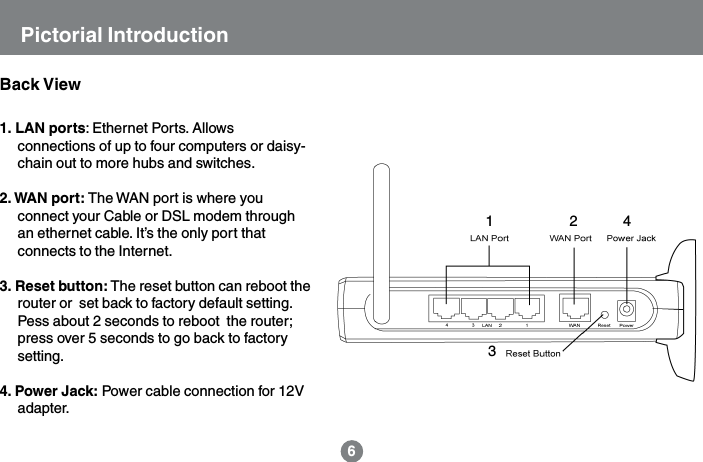
2436Pictorial Introduction1. LAN ports: Ethernet Ports. Allowsconnections of up to four computers or daisy-chain out to more hubs and switches.2. WAN port: The WAN port is where youconnect your Cable or DSL modem throughan ethernet cable. It’s the only port thatconnects to the Internet.3. Reset button: The reset button can reboot therouter or  set back to factory default setting.Pess about 2 seconds to reboot  the router;press over 5 seconds to go back to factorysetting.4. Power Jack: Power cable connection for 12Vadapter.Back View1
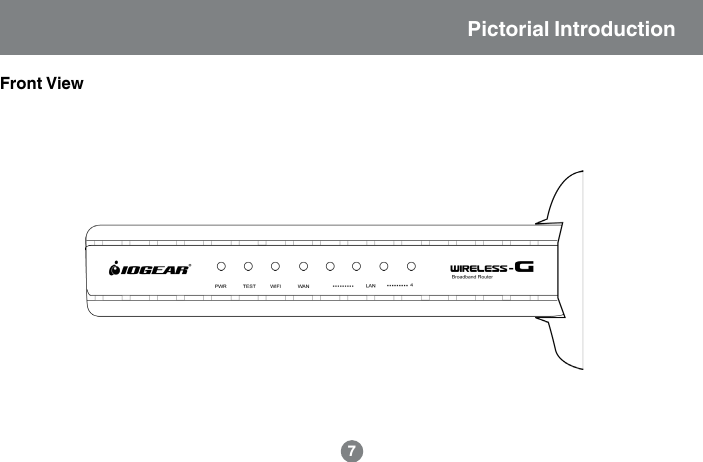
7Pictorial IntroductionFront View
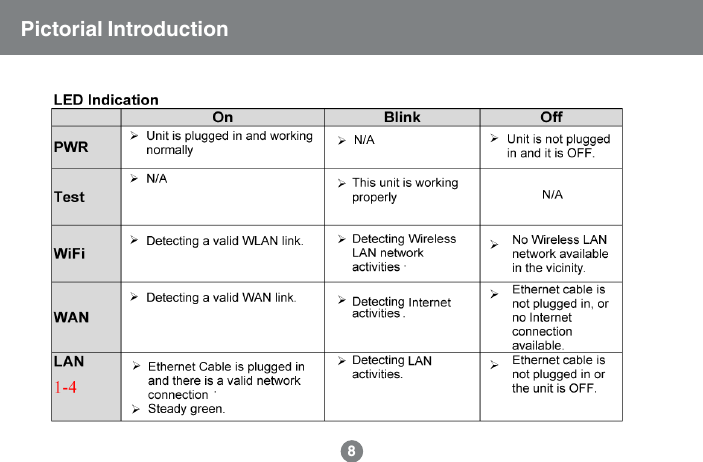
8Pictorial Introduction
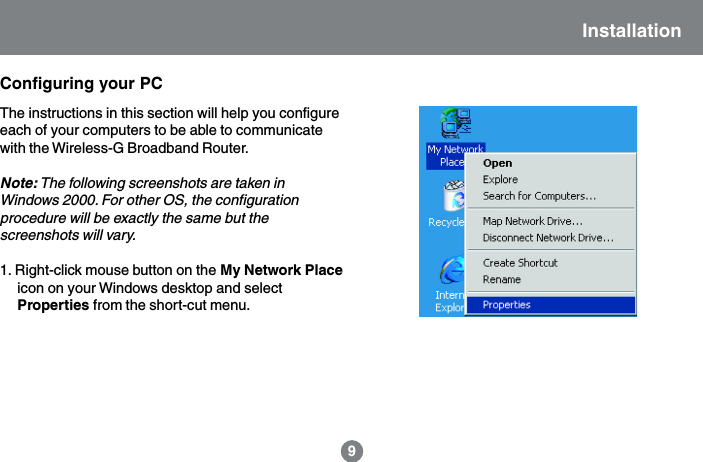
Installation9Configuring your PCThe instructions in this section will help you configureeach of your computers to be able to communicatewith the Wireless-G Broadband Router.Note: The following screenshots are taken inWindows 2000. For other OS, the configurationprocedure will be exactly the same but thescreenshots will vary.1. Right-click mouse button on the My Network Placeicon on your Windows desktop and selectProperties from the short-cut menu.
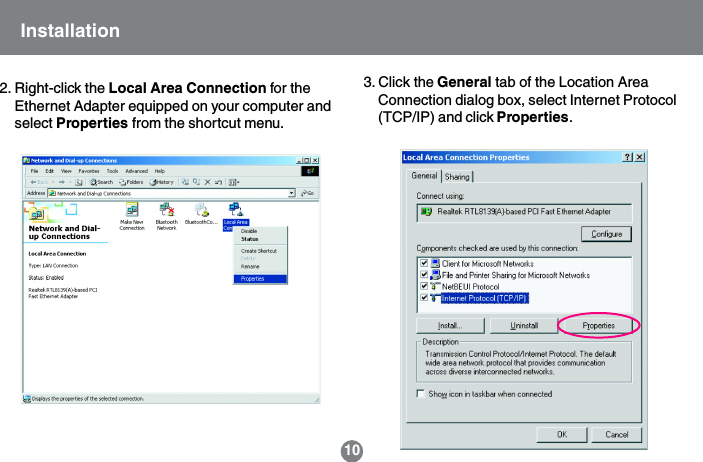
2. Right-click the Local Area Connection for theEthernet Adapter equipped on your computer andselect Properties from the shortcut menu.3. Click the General tab of the Location AreaConnection dialog box, select Internet Protocol(TCP/IP) and click Properties.10Installation
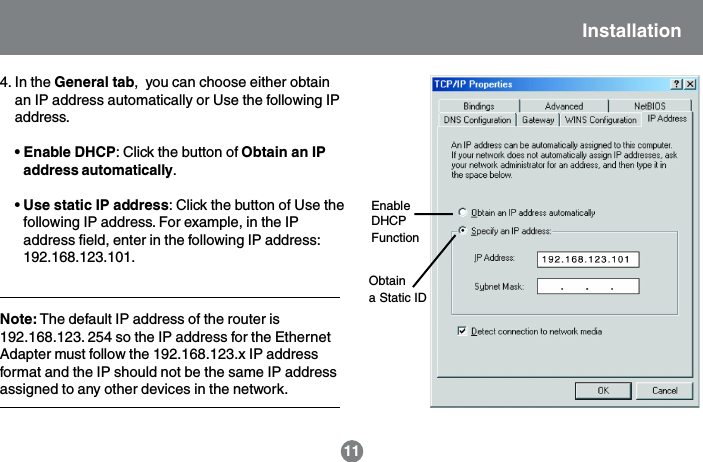
EnableDHCPFunctionObtaina Static IDNote: The default IP address of the router is192.168.123. 254 so the IP address for the EthernetAdapter must follow the 192.168.123.x IP addressformat and the IP should not be the same IP addressassigned to any other devices in the network.Installation114. In the General tab,  you can choose either obtainan IP address automatically or Use the following IPaddress.• Enable DHCP: Click the button of Obtain an IPaddress automatically.• Use static IP address: Click the button of Use thefollowing IP address. For example, in the IPaddress field, enter in the following IP address:192.168.123.101.
5. Under Subnet mask, input the following IP address: 255.255.255.0.6. Click OK to save your settings and close the dialog box.12Installation
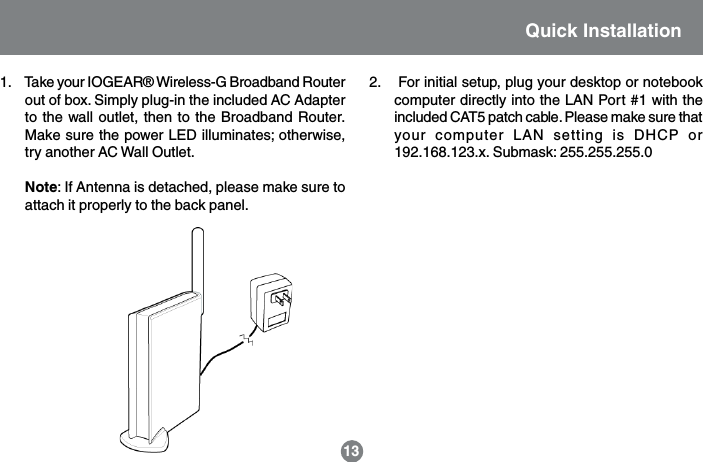
2.    For initial setup, plug your desktop or notebookcomputer directly into the LAN Port #1 with theincluded CAT5 patch cable. Please make sure thatyour computer LAN setting is DHCP or192.168.123.x. Submask: 255.255.255.013Quick Installation1.     Take your IOGEAR® Wireless-G Broadband Routerout of box. Simply plug-in the included AC Adapterto the wall outlet, then to the Broadband Router.Make sure the power LED illuminates; otherwise,try another AC Wall Outlet.Note: If Antenna is detached, please make sure toattach it properly to the back panel.
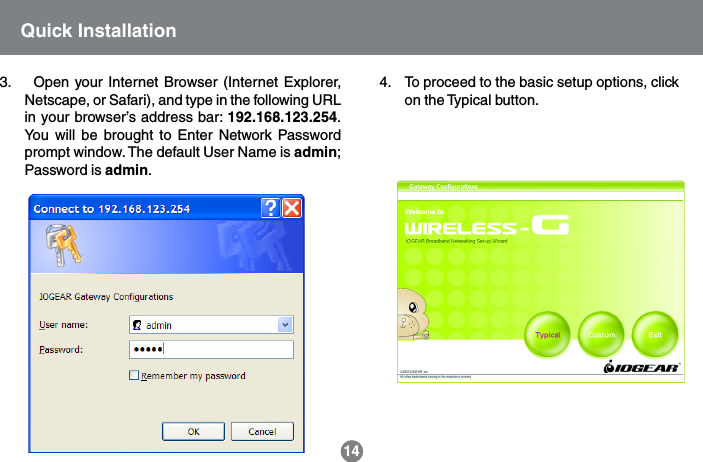
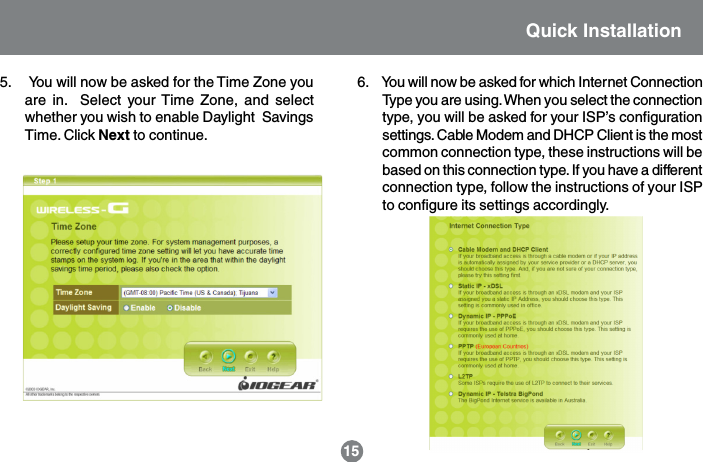
4.    To proceed to the basic setup options, clickon the Typical button.14Quick Installation3.    Open your Internet Browser (Internet Explorer,Netscape, or Safari), and type in the following URLin your browser’s address bar: 192.168.123.254.You will be brought to Enter Network Passwordprompt window. The default User Name is admin;Password is admin.
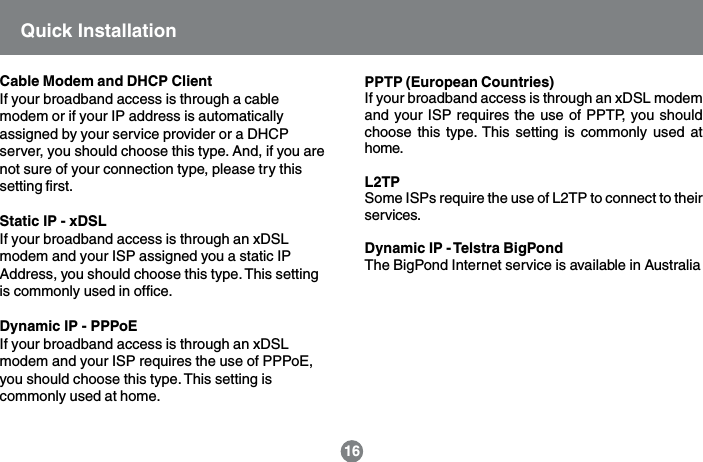
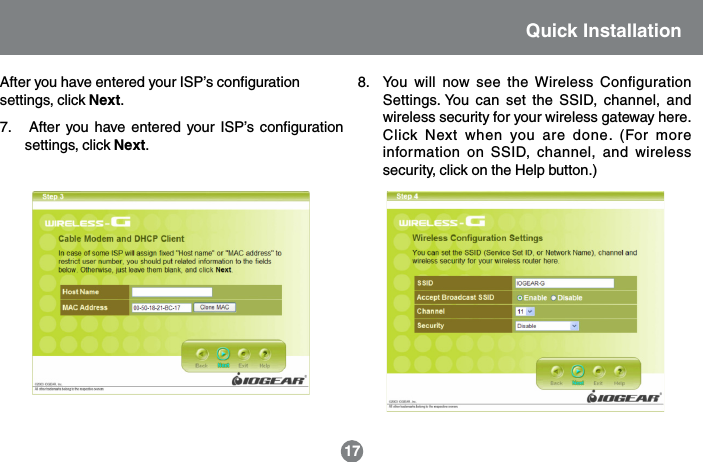
15Quick Installation5.     You will now be asked for the Time Zone youare in.  Select your Time Zone, and selectwhether you wish to enable Daylight  SavingsTime. Click Next to continue.6.     You will now be asked for which Internet ConnectionType you are using. When you select the connectiontype, you will be asked for your ISP’s configurationsettings. Cable Modem and DHCP Client is the mostcommon connection type, these instructions will bebased on this connection type. If you have a differentconnection type, follow the instructions of your ISPto configure its settings accordingly.
16Quick InstallationCable Modem and DHCP ClientIf your broadband access is through a cablemodem or if your IP address is automaticallyassigned by your service provider or a DHCPserver, you should choose this type. And, if you arenot sure of your connection type, please try thissetting first.Static IP - xDSLIf your broadband access is through an xDSLmodem and your ISP assigned you a static IPAddress, you should choose this type. This settingis commonly used in office.Dynamic IP - PPPoEIf your broadband access is through an xDSLmodem and your ISP requires the use of PPPoE,you should choose this type. This setting iscommonly used at home.PPTP (European Countries)If your broadband access is through an xDSL modemand your ISP requires the use of PPTP, you shouldchoose this type. This setting is commonly used athome.L2TPSome ISPs require the use of L2TP to connect to theirservices.Dynamic IP - Telstra BigPondThe BigPond Internet service is available in Australia
17Quick InstallationAfter you have entered your ISP’s configurationsettings, click Next.7.   After you have entered your ISP’s configurationsettings, click Next.8. You will now see the Wireless ConfigurationSettings. You can set the SSID, channel, andwireless security for your wireless gateway here.Click Next when you are done. (For moreinformation on SSID, channel, and wirelesssecurity, click on the Help button.)

Navigation menu