ATEN Technology IOGEAR GWA504 WIRELESS-G BROADBAND ROUTER User Manual GWA504 manual p65

ATEN Technology, Inc., dba IOGEAR WIRELESS-G BROADBAND ROUTER GWA504 manual p65

USER MANUAL 2

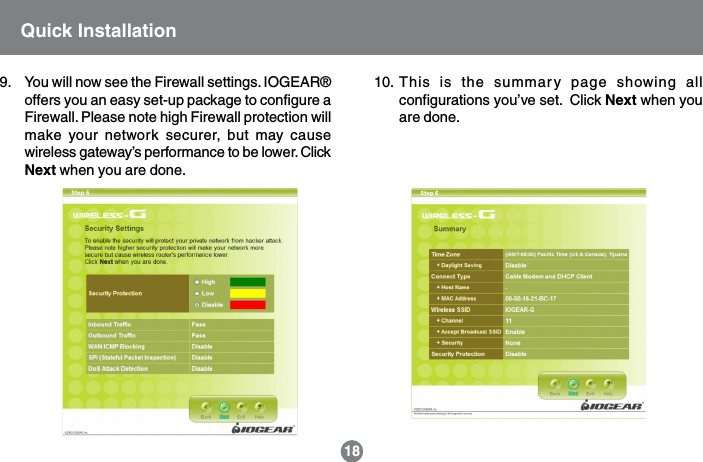
9. You will now see the Firewall settings. IOGEAR®offers you an easy set-up package to configure aFirewall. Please note high Firewall protection willmake your network securer, but may causewireless gateway’s performance to be lower. ClickNext when you are done.18Quick Installation10. This is the summary page showing allconfigurations you’ve set.  Click Next when youare done.
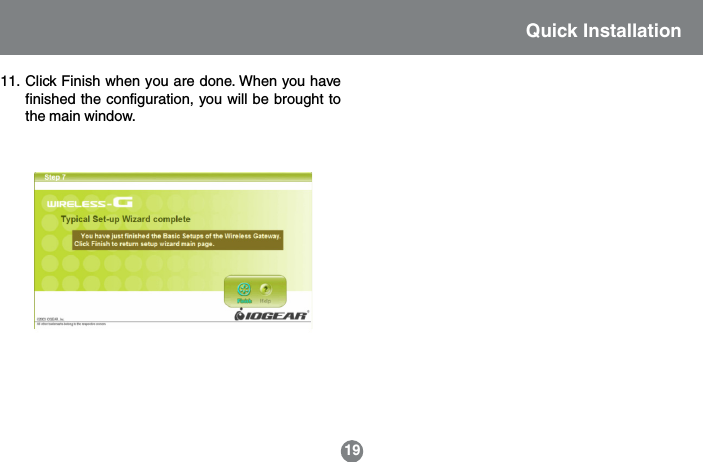
Quick Installation1911. Click Finish when you are done. When you havefinished the configuration, you will be brought tothe main window.
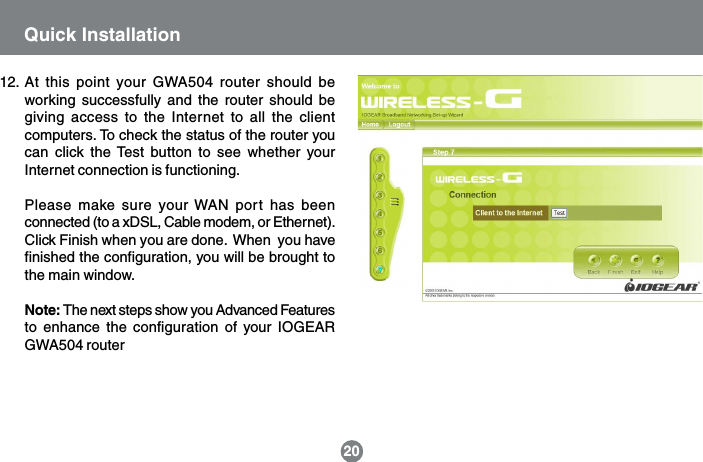
Quick Installation2012. At this point your GWA504 router should beworking successfully and the router should begiving access to the Internet to all the clientcomputers. To check the status of the router youcan click the Test button to see whether yourInternet connection is functioning.Please make sure your WAN port has beenconnected (to a xDSL, Cable modem, or Ethernet).Click Finish when you are done.  When  you havefinished the configuration, you will be brought tothe main window.Note: The next steps show you Advanced Featuresto enhance the configuration of your IOGEARGWA504 router
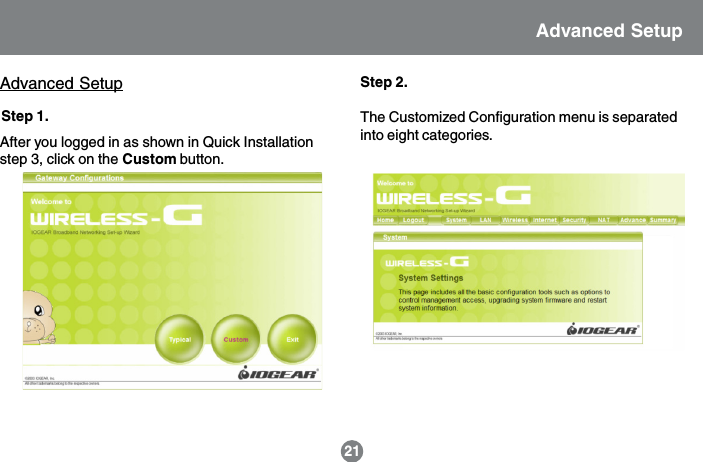
21Advanced SetupStep 1.After you logged in as shown in Quick Installationstep 3, click on the Custom button.Step 2.The Customized Configuration menu is separatedinto eight categories.Advanced Setup
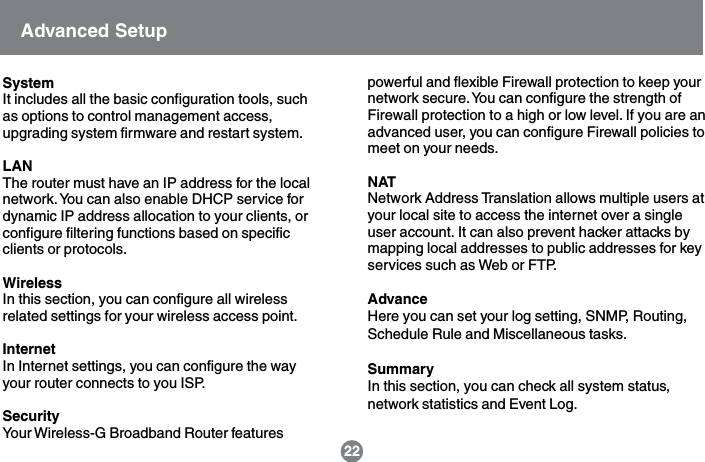
SystemIt includes all the basic configuration tools, suchas options to control management access,upgrading system firmware and restart system.LANThe router must have an IP address for the localnetwork. You can also enable DHCP service fordynamic IP address allocation to your clients, orconfigure filtering functions based on specificclients or protocols.WirelessIn this section, you can configure all wirelessrelated settings for your wireless access point.InternetIn Internet settings, you can configure the wayyour router connects to you ISP.SecurityYour Wireless-G Broadband Router featurespowerful and flexible Firewall protection to keep yournetwork secure. You can configure the strength ofFirewall protection to a high or low level. If you are anadvanced user, you can configure Firewall policies tomeet on your needs.NATNetwork Address Translation allows multiple users atyour local site to access the internet over a singleuser account. It can also prevent hacker attacks bymapping local addresses to public addresses for keyservices such as Web or FTP.AdvanceHere you can set your log setting, SNMP, Routing,Schedule Rule and Miscellaneous tasks.SummaryIn this section, you can check all system status,network statistics and Event Log.Advanced Setup22
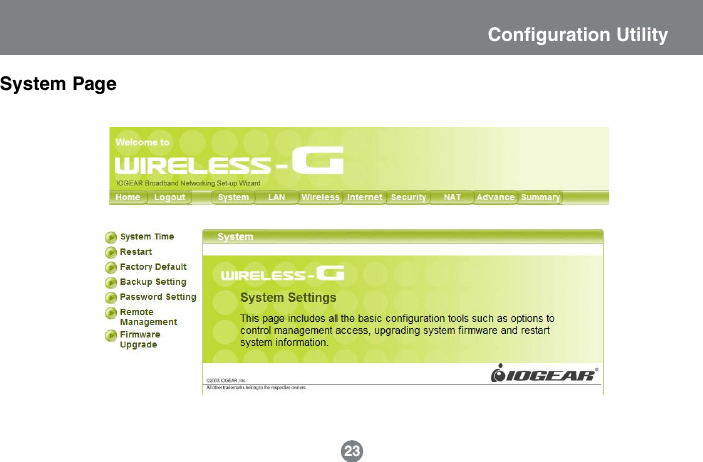
System Page23Configuration Utility
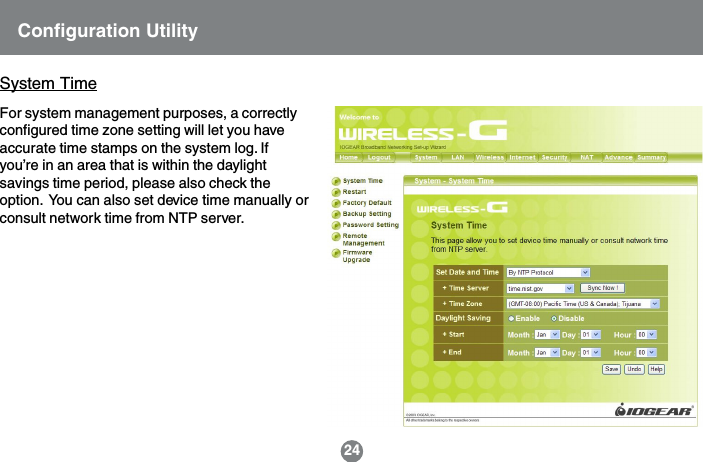
24System TimeConfiguration UtilityFor system management purposes, a correctlyconfigured time zone setting will let you haveaccurate time stamps on the system log. Ifyou’re in an area that is within the daylightsavings time period, please also check theoption.  You can also set device time manually orconsult network time from NTP server.
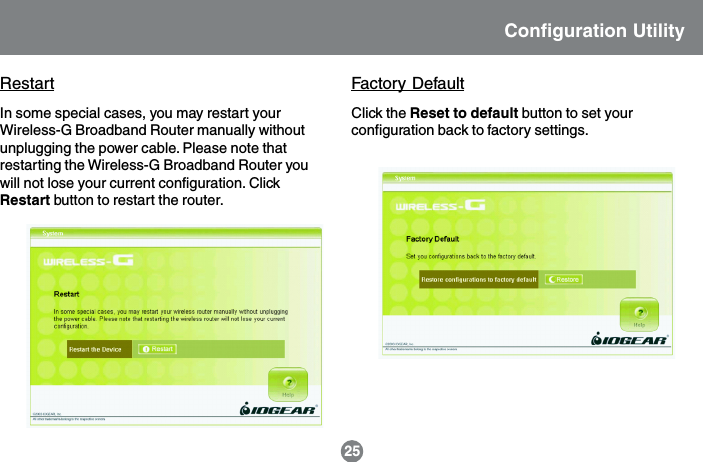
Factory Default25Configuration UtilityClick the Reset to default button to set yourconfiguration back to factory settings.In some special cases, you may restart yourWireless-G Broadband Router manually withoutunplugging the power cable. Please note thatrestarting the Wireless-G Broadband Router youwill not lose your current configuration. ClickRestart button to restart the router.Restart
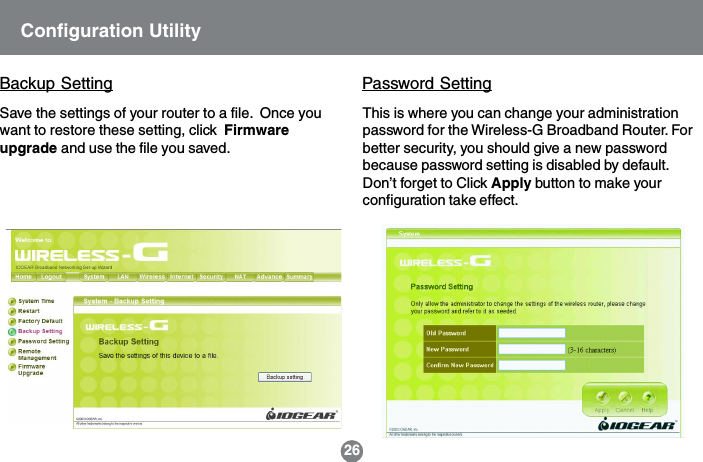
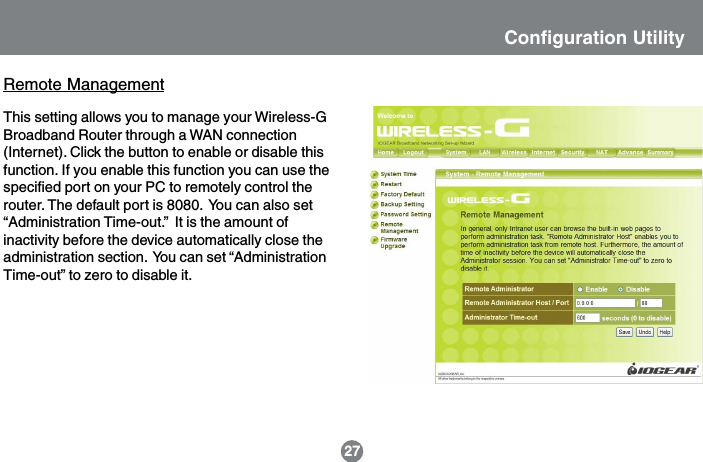
This is where you can change your administrationpassword for the Wireless-G Broadband Router. Forbetter security, you should give a new passwordbecause password setting is disabled by default.Don’t forget to Click Apply button to make yourconfiguration take effect.Password SettingConfiguration UtilityBackup SettingSave the settings of your router to a file.  Once youwant to restore these setting, click  Firmwareupgrade and use the file you saved.26
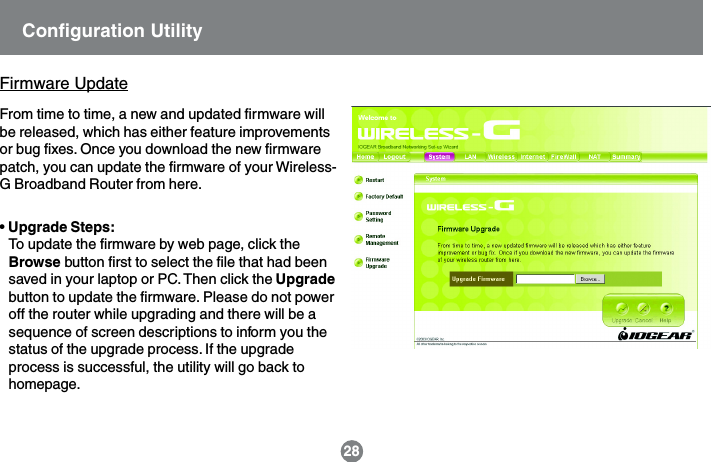
Remote ManagementThis setting allows you to manage your Wireless-GBroadband Router through a WAN connection(Internet). Click the button to enable or disable thisfunction. If you enable this function you can use thespecified port on your PC to remotely control therouter. The default port is 8080.  You can also set“Administration Time-out.”  It is the amount ofinactivity before the device automatically close theadministration section.  You can set “AdministrationTime-out” to zero to disable it.27Configuration Utility
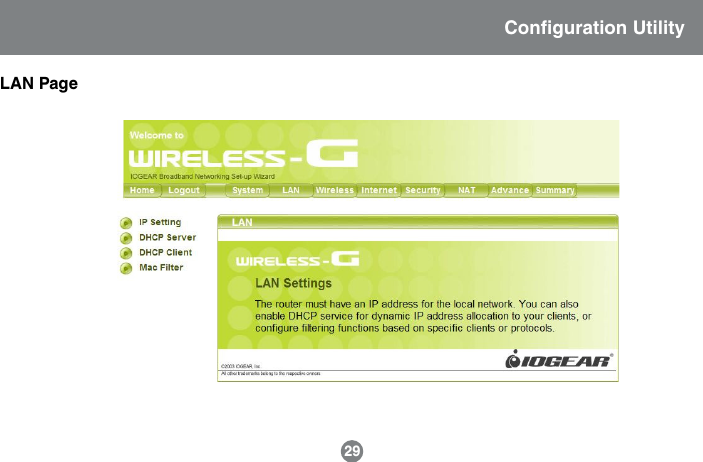
• Upgrade Steps:To update the firmware by web page, click theBrowse button first to select the file that had beensaved in your laptop or PC. Then click the Upgradebutton to update the firmware. Please do not poweroff the router while upgrading and there will be asequence of screen descriptions to inform you thestatus of the upgrade process. If the upgradeprocess is successful, the utility will go back tohomepage.Firmware UpdateFrom time to time, a new and updated firmware willbe released, which has either feature improvementsor bug fixes. Once you download the new firmwarepatch, you can update the firmware of your Wireless-G Broadband Router from here.28Configuration Utility
LAN Page29Configuration Utility
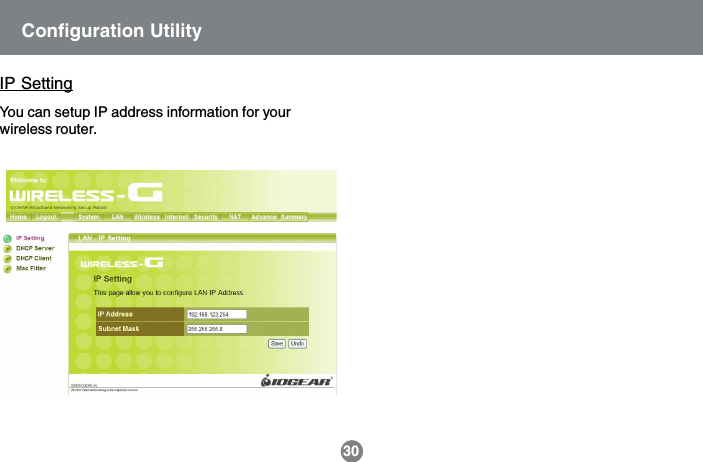
IP SettingYou can setup IP address information for yourwireless router.Configuration Utility30
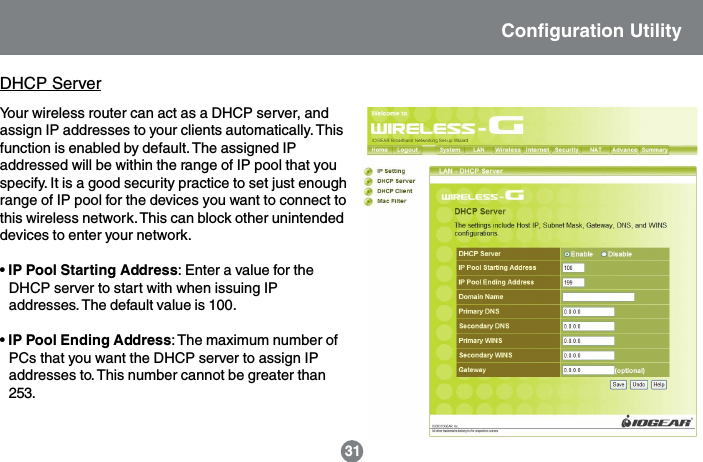
31Your wireless router can act as a DHCP server, andassign IP addresses to your clients automatically. Thisfunction is enabled by default. The assigned IPaddressed will be within the range of IP pool that youspecify. It is a good security practice to set just enoughrange of IP pool for the devices you want to connect tothis wireless network. This can block other unintendeddevices to enter your network.• IP Pool Starting Address: Enter a value for theDHCP server to start with when issuing IPaddresses. The default value is 100.• IP Pool Ending Address: The maximum number ofPCs that you want the DHCP server to assign IPaddresses to. This number cannot be greater than253.DHCP ServerConfiguration Utility
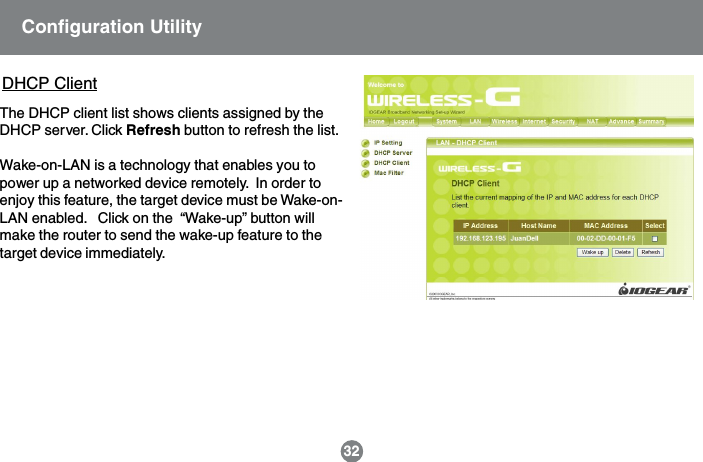
32Configuration UtilityThe DHCP client list shows clients assigned by theDHCP server. Click Refresh button to refresh the list.Wake-on-LAN is a technology that enables you topower up a networked device remotely.  In order toenjoy this feature, the target device must be Wake-on-LAN enabled.   Click on the  “Wake-up” button willmake the router to send the wake-up feature to thetarget device immediately.DHCP Client
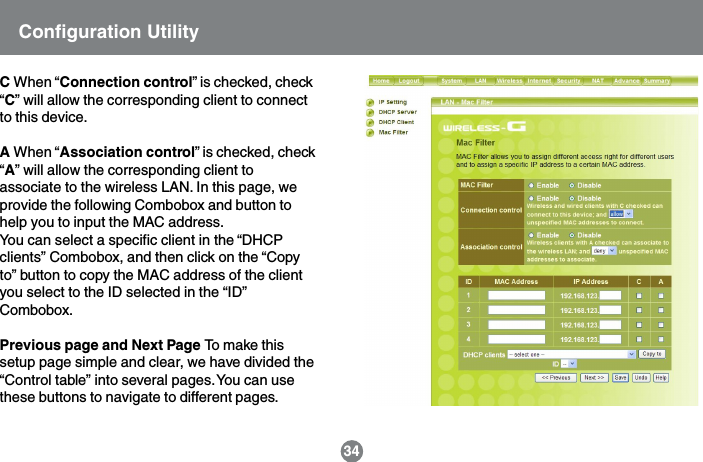
Configuration Utility33MAC FilterMAC Address Control allows you to assign differentaccess right for different users and to assign aspecific IP address to a certain MAC address.MAC Address Control Check “Enable” to enablethe “MAC Address Control”. All of the settings in thispage will take effect only when “Enable” is checked.Connection control Check “Connection control” toenable the controlling of which wired andwirelessclients can connect to this device. If a client isdenied to connect to this device, it means the clientcan’t access to the Internet either. Choose “allow” or“deny” to allow or deny the clients, whose MACaddresses are not in the “Control table” (please seebelow), to connect to this device.Association control Check “Association control” toenable the controlling of which wireless clientcanassociate to the wireless LAN. If a client isdenied to associate to the wireless LAN, it meansthe client can’t send or receive any data via thisdevice. Choose “allow” or “deny” to allow or deny theclients, whose MAC addresses are not in the“Control table”, to associate to the wireless LAN.“Control table” is the table at the bottom of the “MACAddress Control” page. Each row of this tableindicates the MAC address and the expected IPaddress mapping of a client. There are four columnsin this table:MAC Address MAC address indicates a specificclient.IP Address Expected IP address of thecorresponding client. Keep it empty if you don’t careits IP address.
Configuration UtilityC When “Connection control” is checked, check“C” will allow the corresponding client to connectto this device.A When “Association control” is checked, check“A” will allow the corresponding client toassociate to the wireless LAN. In this page, weprovide the following Combobox and button tohelp you to input the MAC address.You can select a specific client in the “DHCPclients” Combobox, and then click on the “Copyto” button to copy the MAC address of the clientyou select to the ID selected in the “ID”Combobox.Previous page and Next Page To make thissetup page simple and clear, we have divided the“Control table” into several pages. You can usethese buttons to navigate to different pages.34
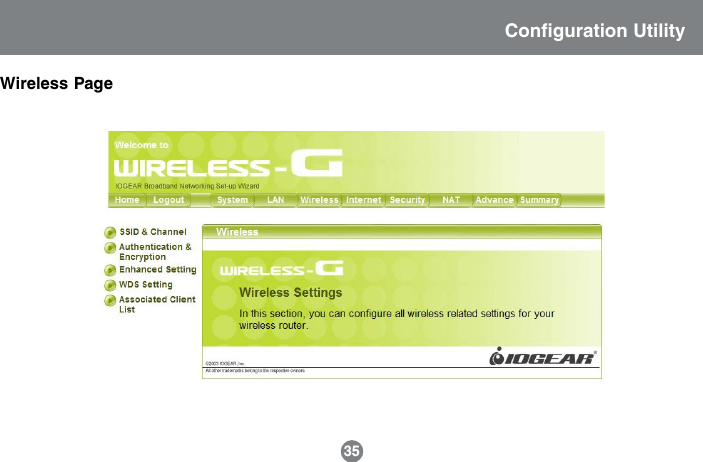
Wireless PageConfiguration Utility35
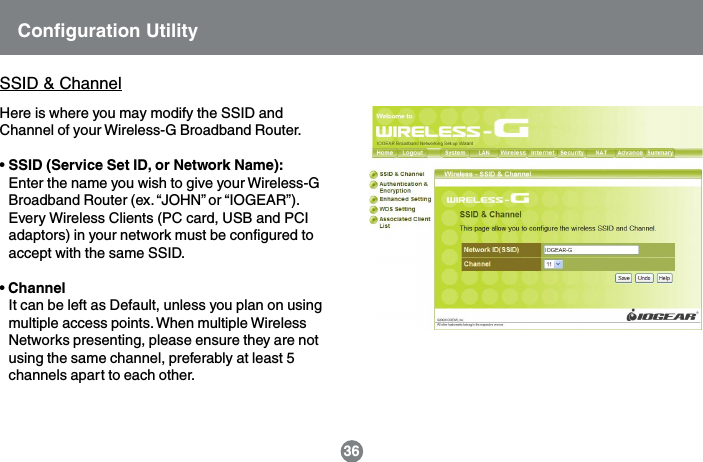
Configuration Utility36SSID & ChannelHere is where you may modify the SSID andChannel of your Wireless-G Broadband Router.• SSID (Service Set ID, or Network Name):Enter the name you wish to give your Wireless-GBroadband Router (ex. “JOHN” or “IOGEAR”).Every Wireless Clients (PC card, USB and PCIadaptors) in your network must be configured toaccept with the same SSID.• ChannelIt can be left as Default, unless you plan on usingmultiple access points. When multiple WirelessNetworks presenting, please ensure they are notusing the same channel, preferably at least 5channels apart to each other.
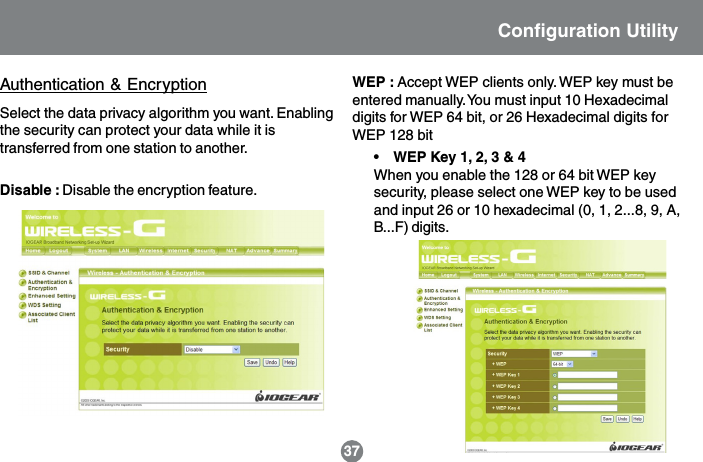
Disable : Disable the encryption feature.WEP : Accept WEP clients only. WEP key must beentered manually. You must input 10 Hexadecimaldigits for WEP 64 bit, or 26 Hexadecimal digits forWEP 128 bitSelect the data privacy algorithm you want. Enablingthe security can protect your data while it istransferred from one station to another. •    WEP Key 1, 2, 3 & 4When you enable the 128 or 64 bit WEP keysecurity, please select one WEP key to be usedand input 26 or 10 hexadecimal (0, 1, 2...8, 9, A,B...F) digits.37Authentication & EncryptionConfiguration Utility

Navigation menu