ATEN Technology IOGEAR GWA504 WIRELESS-G BROADBAND ROUTER User Manual GWA504 manual p65

ATEN Technology, Inc., dba IOGEAR WIRELESS-G BROADBAND ROUTER GWA504 manual p65

USER MNAUAL 3

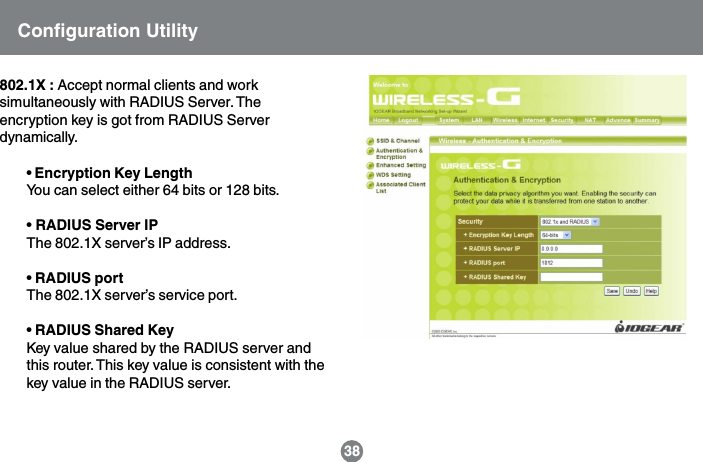
802.1X : Accept normal clients and worksimultaneously with RADIUS Server. Theencryption key is got from RADIUS Serverdynamically.• Encryption Key LengthYou can select either 64 bits or 128 bits.• RADIUS Server IPThe 802.1X server’s IP address.• RADIUS portThe 802.1X server’s service port.• RADIUS Shared KeyKey value shared by the RADIUS server andthis router. This key value is consistent with thekey value in the RADIUS server.38Configuration Utility
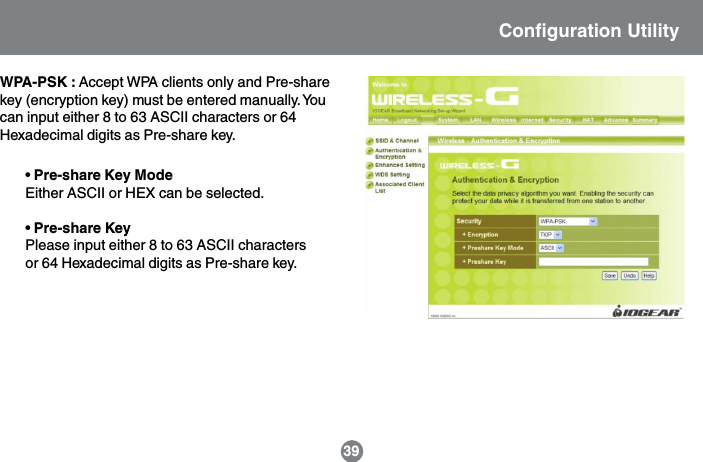
WPA-PSK : Accept WPA clients only and Pre-sharekey (encryption key) must be entered manually. Youcan input either 8 to 63 ASCII characters or 64Hexadecimal digits as Pre-share key.• Pre-share Key ModeEither ASCII or HEX can be selected.• Pre-share KeyPlease input either 8 to 63 ASCII charactersor 64 Hexadecimal digits as Pre-share key.Configuration Utility39
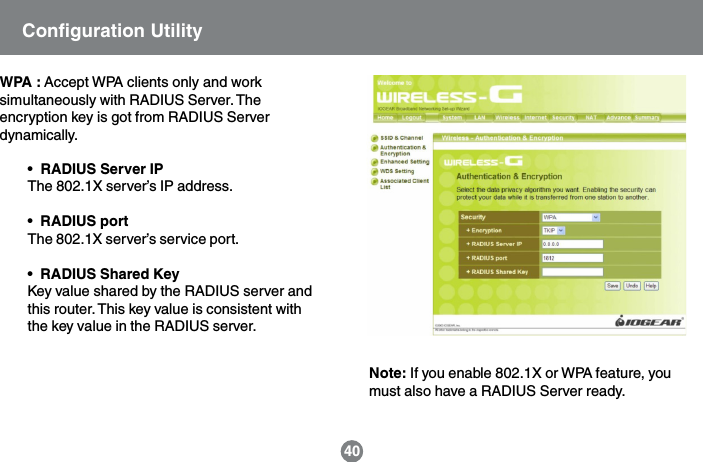
WPA : Accept WPA clients only and worksimultaneously with RADIUS Server. Theencryption key is got from RADIUS Serverdynamically.•  RADIUS Server IPThe 802.1X server’s IP address.•  RADIUS portThe 802.1X server’s service port.•  RADIUS Shared KeyKey value shared by the RADIUS server andthis router. This key value is consistent withthe key value in the RADIUS server.40Note: If you enable 802.1X or WPA feature, youmust also have a RADIUS Server ready.Configuration Utility
41Note:To complete the WPA operation, you also need to enablethe WPA client at the wireless client site (the computerrunning wireless client’s devices, such as the GWP514Cardbus card GWP514 Cardbus Card or GWU523 USBadaptor).Microsoft provides a free WPA upgrade for Windows XPService Pack 1 (SP1) and later or Windows Server 2003.For any OS other than Win XP, there is client softwareavailable from third-party suppliers such as FunkSoftware’s Odyssey (www.funk.com).The WPA client for Windows XP can be found in theMicrosoft Knowledge Base Article 815485(http://support.microsoft.com/default.aspx?scid=kb;en-us;815485) or downloaded directly from Microsofthttp://www.microsoft.com/downloads/details.aspx?FamilyID=009d8425-ce2b-47a4-abec-274845dc9e91&displaylang=enDescription:•WEP Encryption: The WEP encrypts framestransmitted through wireless module using pre-entered WEP key. You can configure 4 key sets,and select one of them to apply.•WPA Encryption: Wi-Fi protected Access isdesigned to improve Data protection andimplement access control for Wireless LANsystem. It encrypts frames transmitted throughwireless module using Pre-share key (PSK) orthe key got dynamically from RADIUS Server.•802.1X: When the 802.1X function is enabled, theWireless user must authenticate to this router firstto use the Network service. The most commonmethod of implementing 802.1X is by having aRADIUS Server on your LAN containing anauthentication database, so the router can worksimultaneously with the server and get the user’sauthentication profile for comparison.Configuration Utility
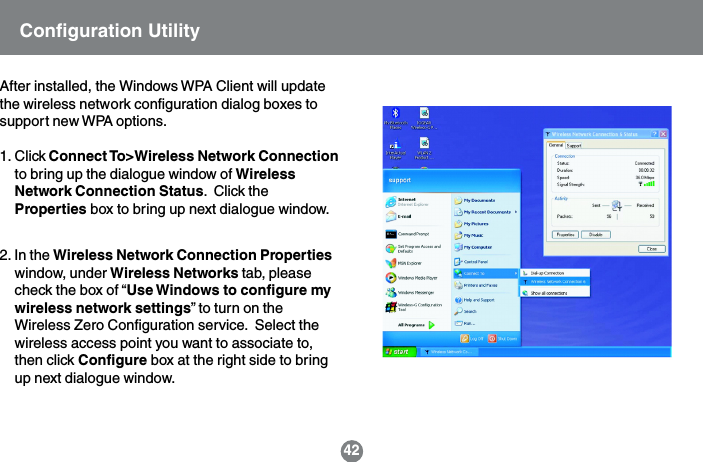
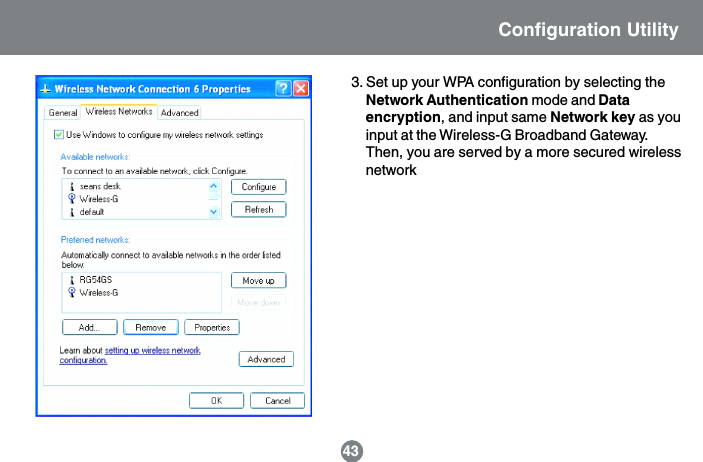
42After installed, the Windows WPA Client will updatethe wireless network configuration dialog boxes tosupport new WPA options.1. Click Connect To>Wireless Network Connectionto bring up the dialogue window of WirelessNetwork Connection Status.  Click theProperties box to bring up next dialogue window.2. In the Wireless Network Connection Propertieswindow, under Wireless Networks tab, pleasecheck the box of “Use Windows to configure mywireless network settings” to turn on theWireless Zero Configuration service.  Select thewireless access point you want to associate to,then click Configure box at the right side to bringup next dialogue window.Configuration Utility
3. Set up your WPA configuration by selecting theNetwork Authentication mode and Dataencryption, and input same Network key as youinput at the Wireless-G Broadband Gateway.Then, you are served by a more secured wirelessnetwork43Configuration Utility
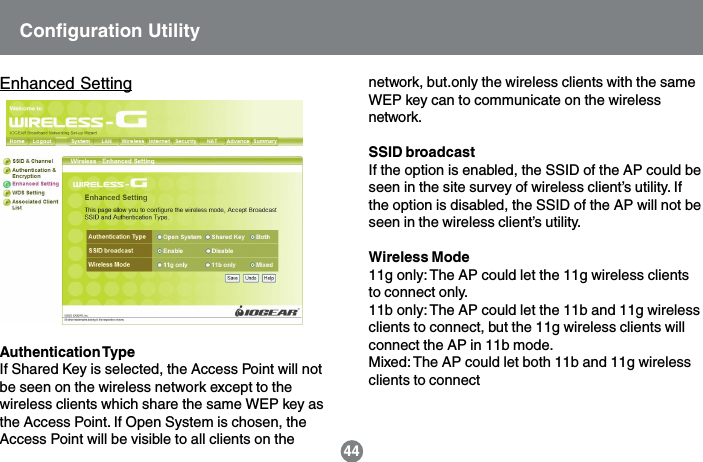
44Enhanced SettingAuthentication TypeIf Shared Key is selected, the Access Point will notbe seen on the wireless network except to thewireless clients which share the same WEP key asthe Access Point. If Open System is chosen, theAccess Point will be visible to all clients on thenetwork, but.only the wireless clients with the sameWEP key can to communicate on the wirelessnetwork.SSID broadcastIf the option is enabled, the SSID of the AP could beseen in the site survey of wireless client’s utility. Ifthe option is disabled, the SSID of the AP will not beseen in the wireless client’s utility.Wireless Mode11g only: The AP could let the 11g wireless clientsto connect only.11b only: The AP could let the 11b and 11g wirelessclients to connect, but the 11g wireless clients willconnect the AP in 11b mode.Mixed: The AP could let both 11b and 11g wirelessclients to connectConfiguration Utility
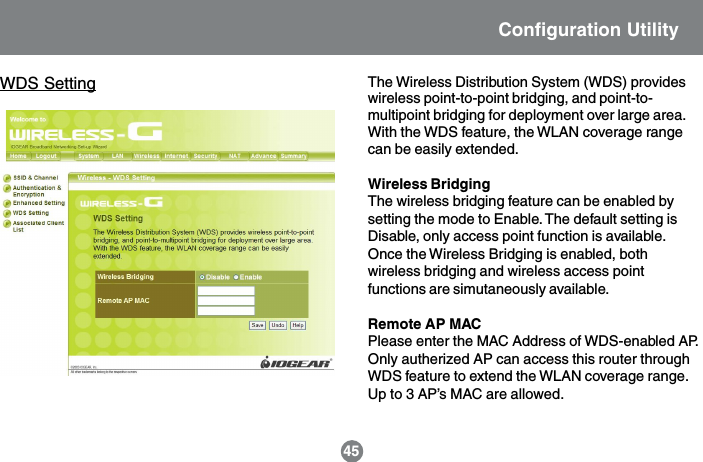
WDS Setting The Wireless Distribution System (WDS) provideswireless point-to-point bridging, and point-to-multipoint bridging for deployment over large area.With the WDS feature, the WLAN coverage rangecan be easily extended.Wireless BridgingThe wireless bridging feature can be enabled bysetting the mode to Enable. The default setting isDisable, only access point function is available.Once the Wireless Bridging is enabled, bothwireless bridging and wireless access pointfunctions are simutaneously available.Remote AP MACPlease enter the MAC Address of WDS-enabled AP.Only autherized AP can access this router throughWDS feature to extend the WLAN coverage range.Up to 3 AP’s MAC are allowed.45Configuration Utility
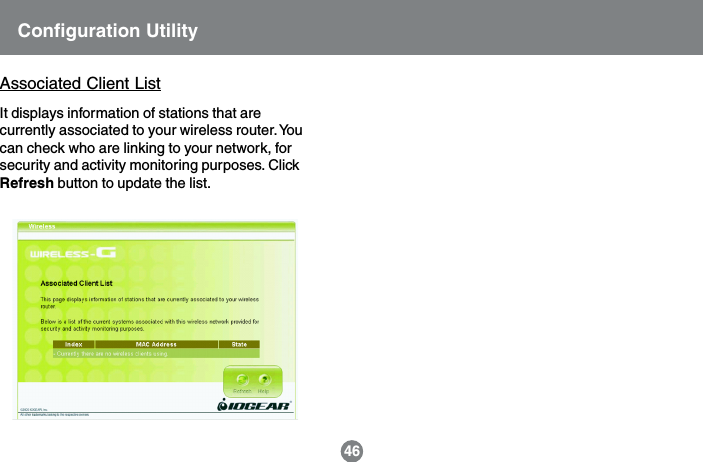
46Associated Client ListIt displays information of stations that arecurrently associated to your wireless router. Youcan check who are linking to your network, forsecurity and activity monitoring purposes. ClickRefresh button to update the list.Configuration Utility
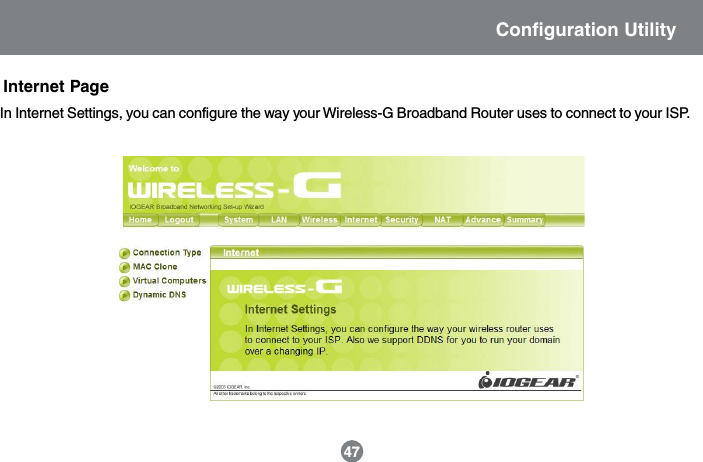
47Internet PageIn Internet Settings, you can configure the way your Wireless-G Broadband Router uses to connect to your ISP.Configuration Utility
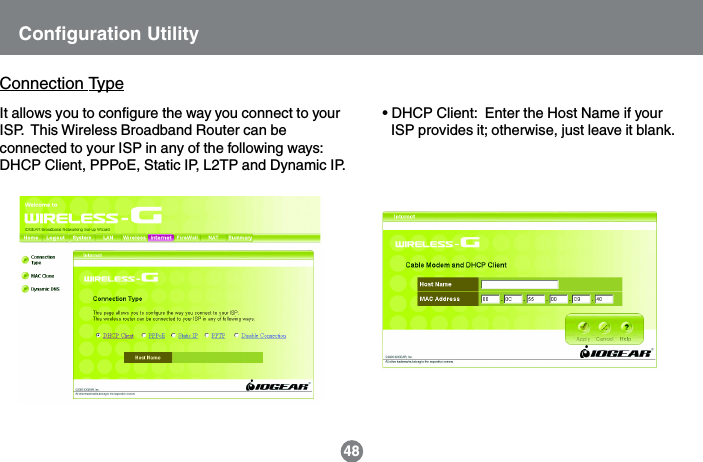
48Configuration UtilityConnection TypeIt allows you to configure the way you connect to yourISP.  This Wireless Broadband Router can beconnected to your ISP in any of the following ways:DHCP Client, PPPoE, Static IP, L2TP and Dynamic IP.• DHCP Client:  Enter the Host Name if yourISP provides it; otherwise, just leave it blank.
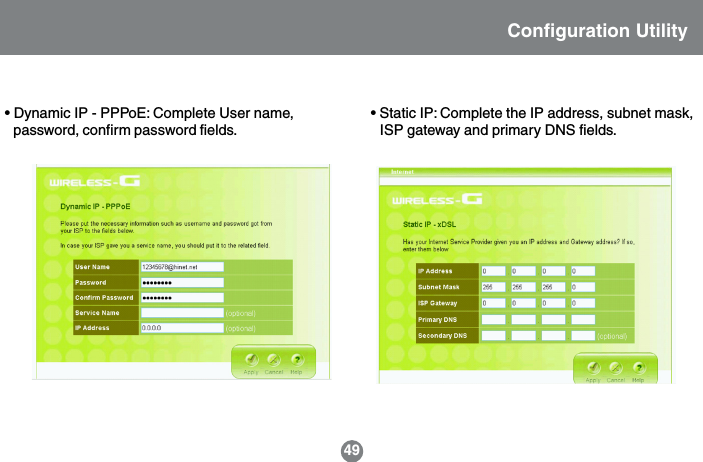
49Configuration Utility• Dynamic IP - PPPoE: Complete User name,password, confirm password fields.• Static IP: Complete the IP address, subnet mask,ISP gateway and primary DNS fields.
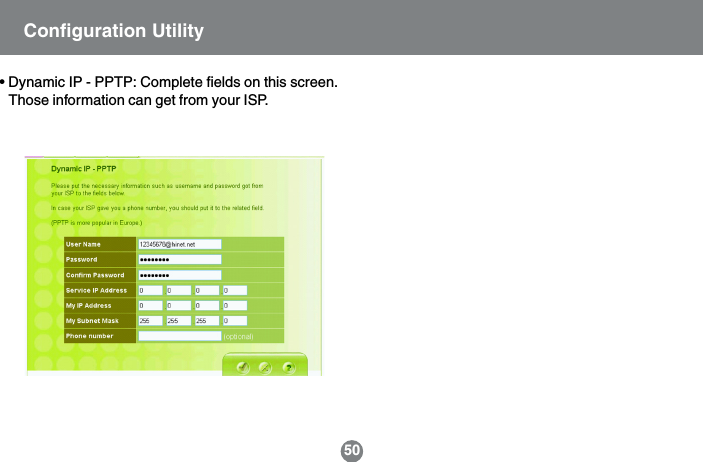
50• Dynamic IP - PPTP: Complete fields on this screen.Those information can get from your ISP.Configuration Utility
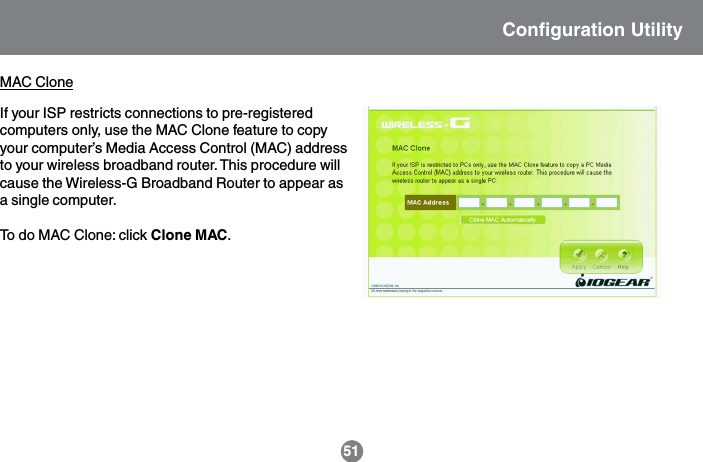
If your ISP restricts connections to pre-registeredcomputers only, use the MAC Clone feature to copyyour computer’s Media Access Control (MAC) addressto your wireless broadband router. This procedure willcause the Wireless-G Broadband Router to appear asa single computer.To do MAC Clone: click Clone MAC.51MAC CloneConfiguration Utility
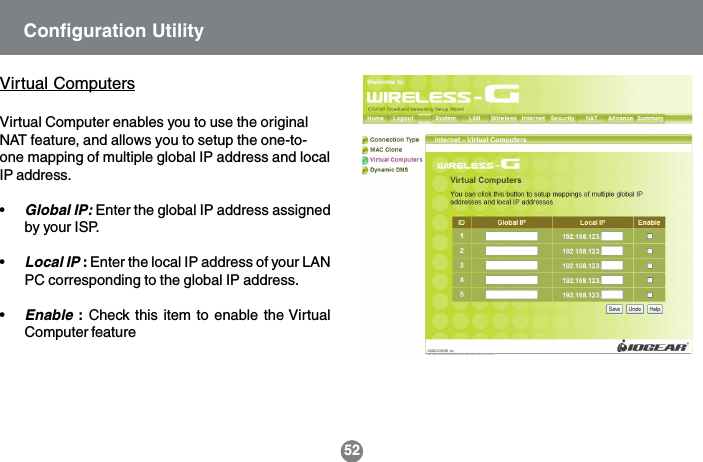
52Virtual ComputersVirtual Computer enables you to use the originalNAT feature, and allows you to setup the one-to-one mapping of multiple global IP address and localIP address.•Global IP: Enter the global IP address assignedby your ISP.•Local IP : Enter the local IP address of your LANPC corresponding to the global IP address.•Enable : Check this item to enable the VirtualComputer featureConfiguration Utility
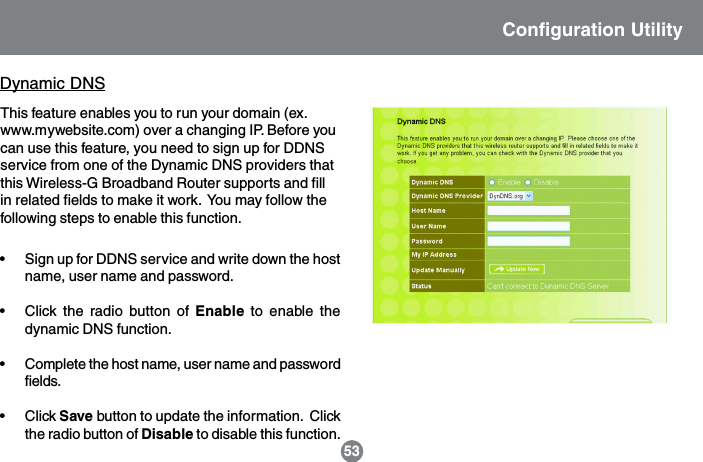
This feature enables you to run your domain (ex.www.mywebsite.com) over a changing IP. Before youcan use this feature, you need to sign up for DDNSservice from one of the Dynamic DNS providers thatthis Wireless-G Broadband Router supports and fillin related fields to make it work.  You may follow thefollowing steps to enable this function.Dynamic DNS• Sign up for DDNS service and write down the hostname, user name and password.• Click the radio button of Enable to enable thedynamic DNS function.• Complete the host name, user name and passwordfields.• Click Save button to update the information.  Clickthe radio button of Disable to disable this function.Configuration Utility53
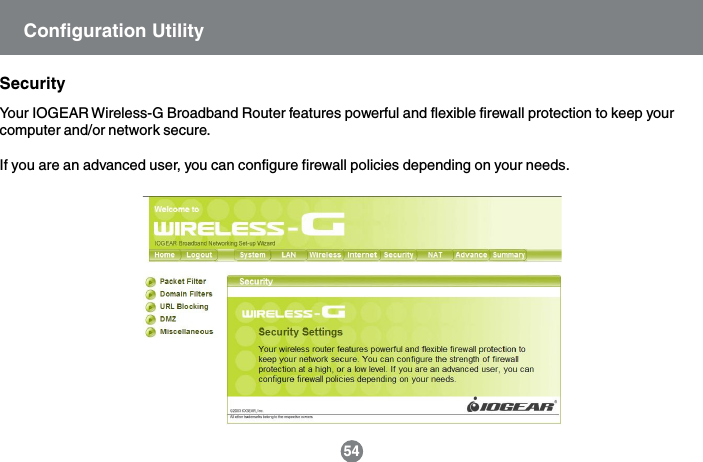
54SecurityYour IOGEAR Wireless-G Broadband Router features powerful and flexible firewall protection to keep yourcomputer and/or network secure.If you are an advanced user, you can configure firewall policies depending on your needs.Configuration Utility
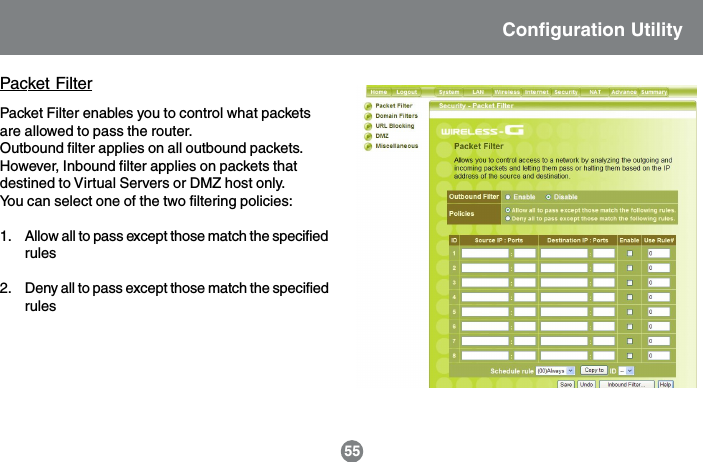
Packet Filter enables you to control what packetsare allowed to pass the router.Outbound filter applies on all outbound packets.However, Inbound filter applies on packets thatdestined to Virtual Servers or DMZ host only.You can select one of the two filtering policies:1. Allow all to pass except those match the specifiedrules2. Deny all to pass except those match the specifiedrules55Packet FilterConfiguration Utility
56You can specify 8 rules for each directions: inboundor outbound.For each rule, you can define the following:• Source IP address• Source port address• Destination IP address• Destination port address• Protocol: TCP or UDP or both.For source or destination IP address, you can definea single IP address (4.3.2.1) or a range of IPaddresses (4.3.2.1-4.3.2.254). An empty implies allIP addresses.For source or destination port, you can define asingle port (80) or a range of ports (1000-1999). Addprefix “T” or “U” to specify TCP or UDP protocol. Forexample, T80, U53, U2000-2999. No prefix indicatesboth TCP and UDP are defined. An empty implies allport addresses.Each rule can be enabled or disabled individually.Use Rule#Choose the schedule when you want to make thisservice take effect, and select the ID you want to usewith the schedule rule. Then click “Copy to” botton tocopy it into the “Use rule #” box to use the schedule.When choosing rule 0 for always, it is the same asnot using schedule.Configuration Utility
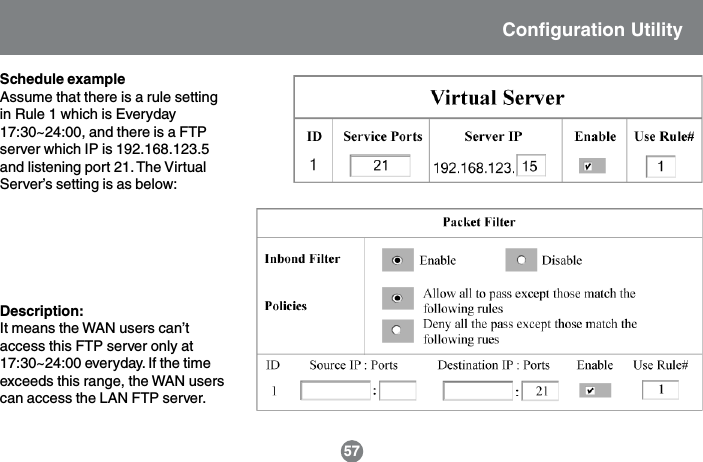
57Schedule exampleAssume that there is a rule settingin Rule 1 which is Everyday17:30~24:00, and there is a FTPserver which IP is 192.168.123.5and listening port 21. The VirtualServer’s setting is as below:Description:It means the WAN users can’taccess this FTP server only at17:30~24:00 everyday. If the timeexceeds this range, the WAN userscan access the LAN FTP server.Configuration Utility

Navigation menu