ATEN Technology IOGEAR GWA504 WIRELESS-G BROADBAND ROUTER User Manual GWA504 manual p65

ATEN Technology, Inc., dba IOGEAR WIRELESS-G BROADBAND ROUTER GWA504 manual p65

USER MNAUAL 4

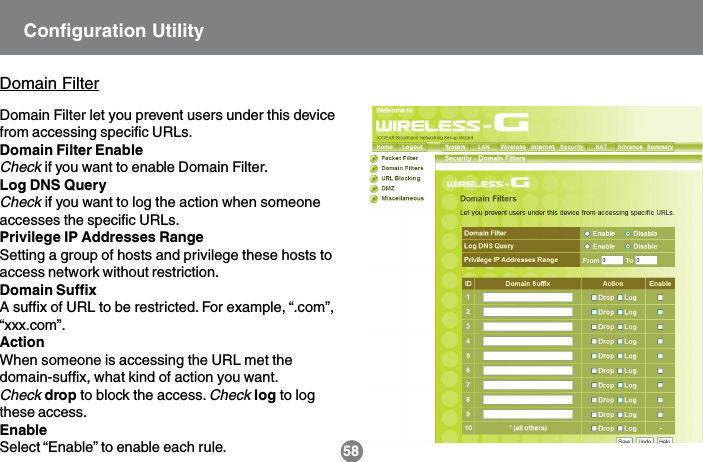
Domain Filter let you prevent users under this devicefrom accessing specific URLs.Domain Filter EnableCheck if you want to enable Domain Filter.Log DNS QueryCheck if you want to log the action when someoneaccesses the specific URLs.Privilege IP Addresses RangeSetting a group of hosts and privilege these hosts toaccess network without restriction.Domain SuffixA suffix of URL to be restricted. For example, “.com”,“xxx.com”.ActionWhen someone is accessing the URL met thedomain-suffix, what kind of action you want.Check drop to block the access. Check log to logthese access.EnableSelect “Enable” to enable each rule. 58Domain FilterConfiguration Utility
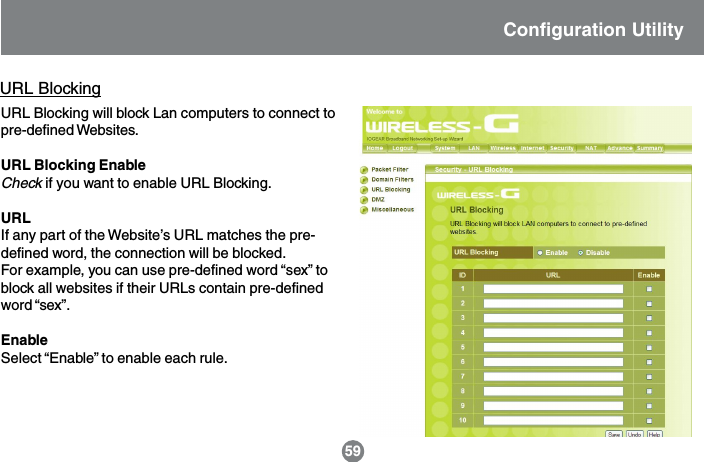
URL BlockingURL Blocking will block Lan computers to connect topre-defined Websites.URL Blocking EnableCheck if you want to enable URL Blocking.URLIf any part of the Website’s URL matches the pre-defined word, the connection will be blocked.For example, you can use pre-defined word “sex” toblock all websites if their URLs contain pre-definedword “sex”.EnableSelect “Enable” to enable each rule.Configuration Utility59
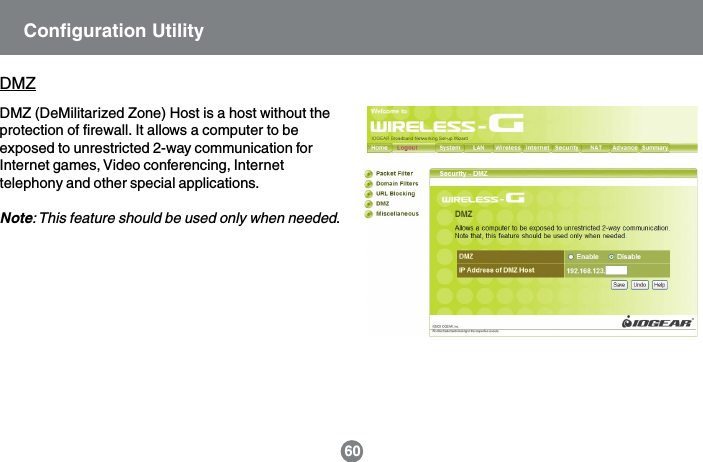
DMZDMZ (DeMilitarized Zone) Host is a host without theprotection of firewall. It allows a computer to beexposed to unrestricted 2-way communication forInternet games, Video conferencing, Internettelephony and other special applications.Note: This feature should be used only when needed.Configuration Utility60
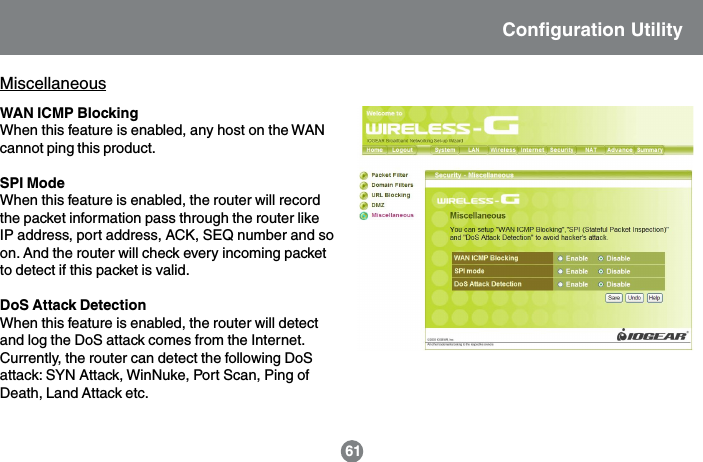
MiscellaneousWAN ICMP BlockingWhen this feature is enabled, any host on the WANcannot ping this product.SPI ModeWhen this feature is enabled, the router will recordthe packet information pass through the router likeIP address, port address, ACK, SEQ number and soon. And the router will check every incoming packetto detect if this packet is valid.DoS Attack DetectionWhen this feature is enabled, the router will detectand log the DoS attack comes from the Internet.Currently, the router can detect the following DoSattack: SYN Attack, WinNuke, Port Scan, Ping ofDeath, Land Attack etc.Configuration Utility61
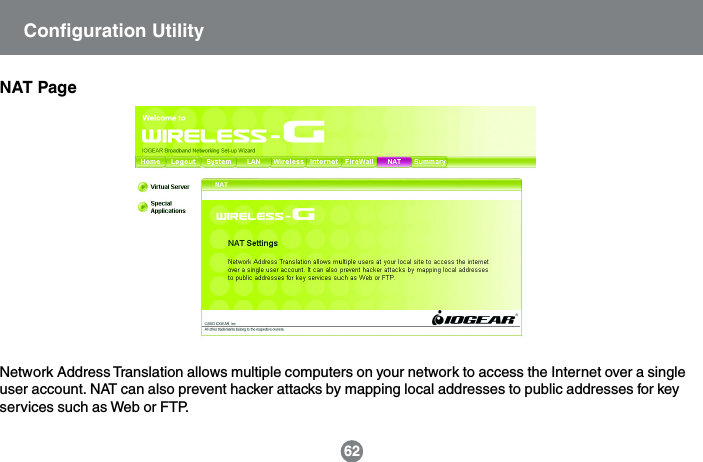
Network Address Translation allows multiple computers on your network to access the Internet over a singleuser account. NAT can also prevent hacker attacks by mapping local addresses to public addresses for keyservices such as Web or FTP.62NAT PageConfiguration Utility
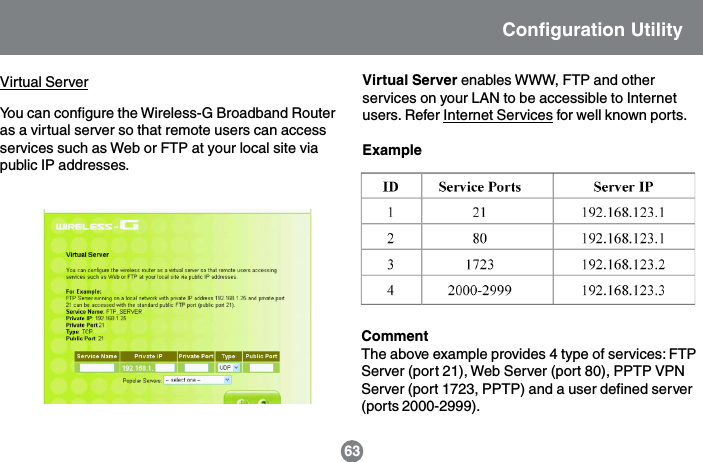
You can configure the Wireless-G Broadband Routeras a virtual server so that remote users can accessservices such as Web or FTP at your local site viapublic IP addresses.Virtual Server enables WWW, FTP and otherservices on your LAN to be accessible to Internetusers. Refer Internet Services for well known ports.ExampleCommentThe above example provides 4 type of services: FTPServer (port 21), Web Server (port 80), PPTP VPNServer (port 1723, PPTP) and a user defined server(ports 2000-2999).63Virtual ServerConfiguration Utility
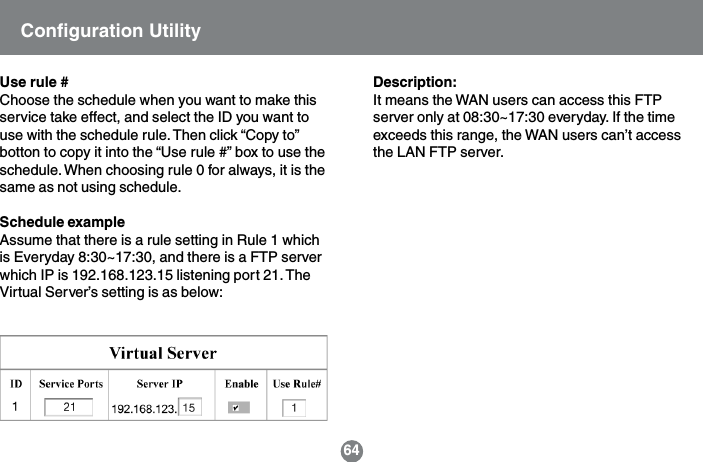
Description:It means the WAN users can access this FTPserver only at 08:30~17:30 everyday. If the timeexceeds this range, the WAN users can’t accessthe LAN FTP server.Use rule #Choose the schedule when you want to make thisservice take effect, and select the ID you want touse with the schedule rule. Then click “Copy to”botton to copy it into the “Use rule #” box to use theschedule. When choosing rule 0 for always, it is thesame as not using schedule.Schedule exampleAssume that there is a rule setting in Rule 1 whichis Everyday 8:30~17:30, and there is a FTP serverwhich IP is 192.168.123.15 listening port 21. TheVirtual Server’s setting is as below:Configuration Utility64
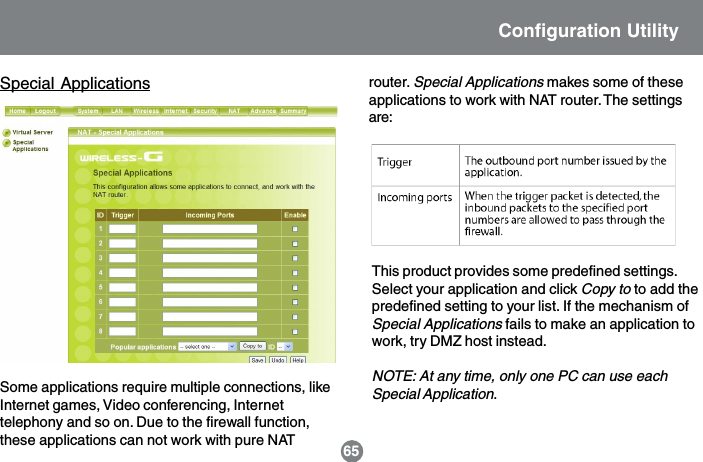
Special ApplicationsSome applications require multiple connections, likeInternet games, Video conferencing, Internettelephony and so on. Due to the firewall function,these applications can not work with pure NATThis product provides some predefined settings.Select your application and click Copy to to add thepredefined setting to your list. If the mechanism ofSpecial Applications fails to make an application towork, try DMZ host instead.NOTE: At any time, only one PC can use eachSpecial Application.router. Special Applications makes some of theseapplications to work with NAT router. The settingsare:Configuration Utility65
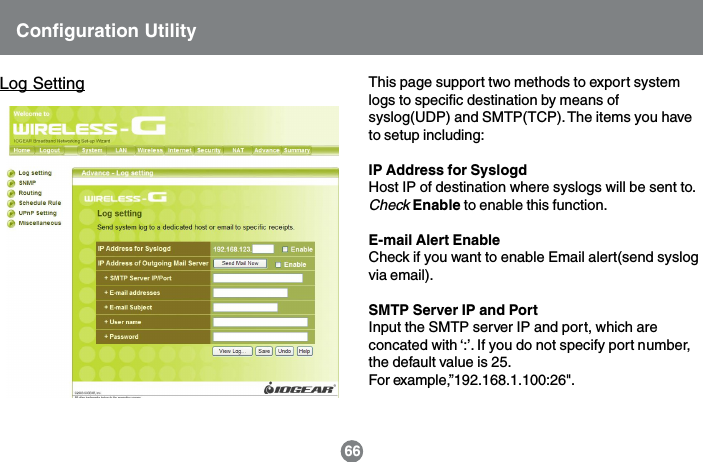
Configuration UtilityLog Setting This page support two methods to export systemlogs to specific destination by means ofsyslog(UDP) and SMTP(TCP). The items you haveto setup including:IP Address for SyslogdHost IP of destination where syslogs will be sent to.Check Enable to enable this function.E-mail Alert EnableCheck if you want to enable Email alert(send syslogvia email).SMTP Server IP and PortInput the SMTP server IP and port, which areconcated with ‘:’. If you do not specify port number,the default value is 25.For example,”192.168.1.100:26".66
Send E-mail alert toThe recipients who will receive these logs. You canassign more than 1 recipient, using ‘;’ or ‘,’ toseparate these email addresses.E-mail SubjectThe subject of email alert. This setting is optional.Username and PasswordTo fill some SMTP server’s authenticationrequirement, you may need to input Username andPassword that offered by your ISP.Configuration Utility67
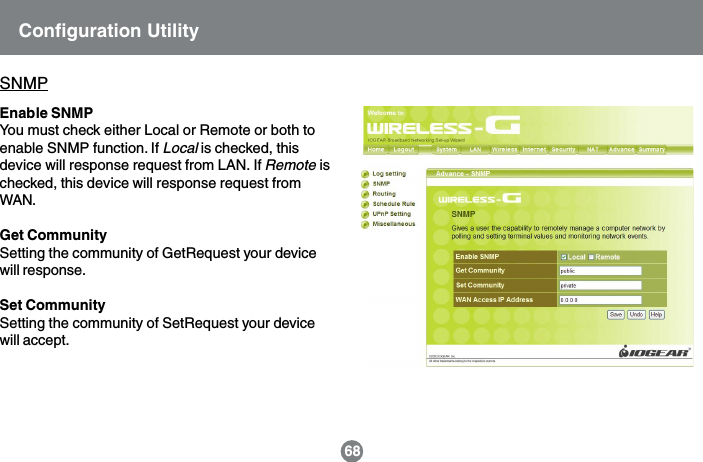
Enable SNMPYou must check either Local or Remote or both toenable SNMP function. If Local is checked, thisdevice will response request from LAN. If Remote ischecked, this device will response request fromWAN.Get CommunitySetting the community of GetRequest your devicewill response.Set CommunitySetting the community of SetRequest your devicewill accept.SNMPConfiguration Utility68
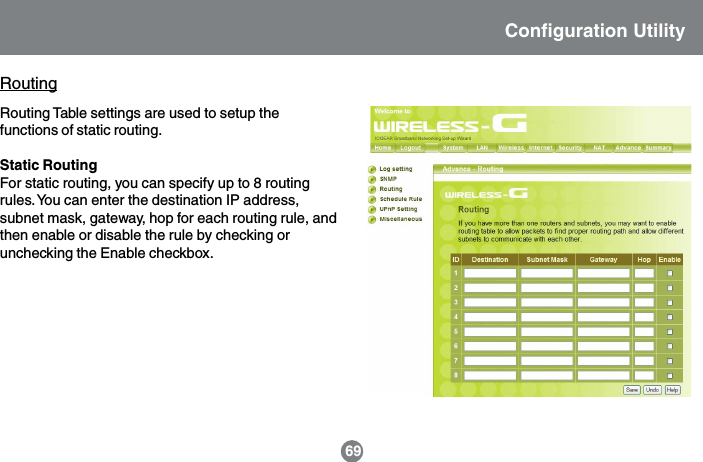
RoutingRouting Table settings are used to setup thefunctions of static routing.Static RoutingFor static routing, you can specify up to 8 routingrules. You can enter the destination IP address,subnet mask, gateway, hop for each routing rule, andthen enable or disable the rule by checking orunchecking the Enable checkbox.Configuration Utility69
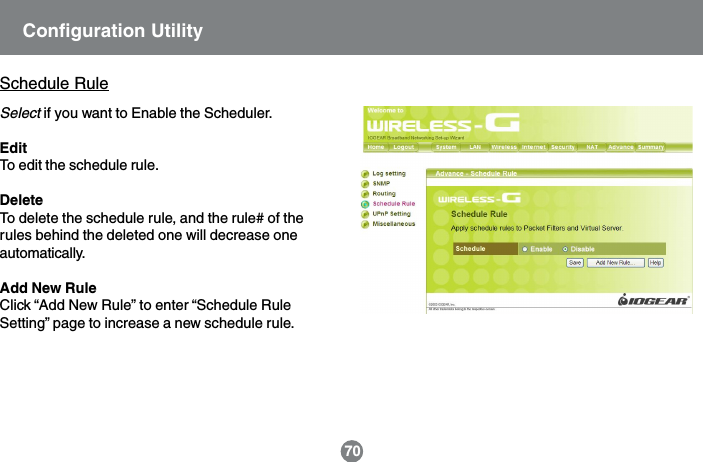
Schedule RuleSelect if you want to Enable the Scheduler.EditTo edit the schedule rule.DeleteTo delete the schedule rule, and the rule# of therules behind the deleted one will decrease oneautomatically.Add New RuleClick “Add New Rule” to enter “Schedule RuleSetting” page to increase a new schedule rule.Configuration Utility70
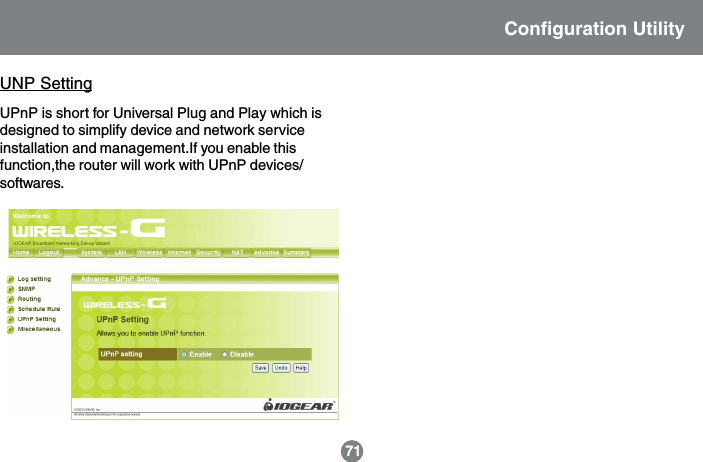
UNP SettingUPnP is short for Universal Plug and Play which isdesigned to simplify device and network serviceinstallation and management.If you enable thisfunction,the router will work with UPnP devices/softwares.Configuration Utility71
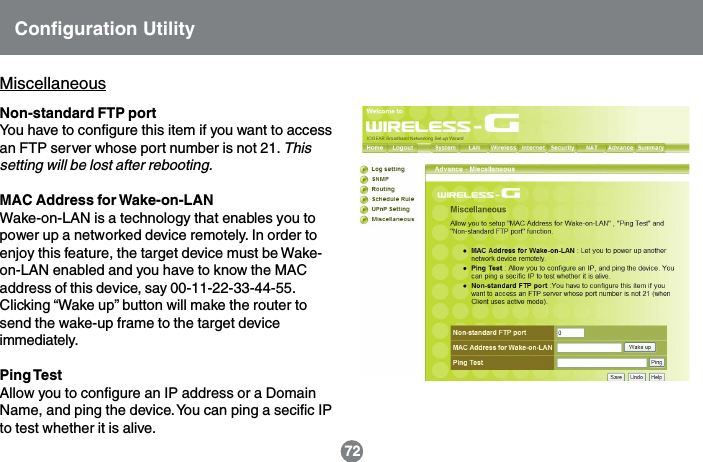
Configuration UtilityNon-standard FTP portYou have to configure this item if you want to accessan FTP server whose port number is not 21. Thissetting will be lost after rebooting.MAC Address for Wake-on-LANWake-on-LAN is a technology that enables you topower up a networked device remotely. In order toenjoy this feature, the target device must be Wake-on-LAN enabled and you have to know the MACaddress of this device, say 00-11-22-33-44-55.Clicking “Wake up” button will make the router tosend the wake-up frame to the target deviceimmediately.Ping TestAllow you to configure an IP address or a DomainName, and ping the device. You can ping a secific IPto test whether it is alive.Miscellaneous72
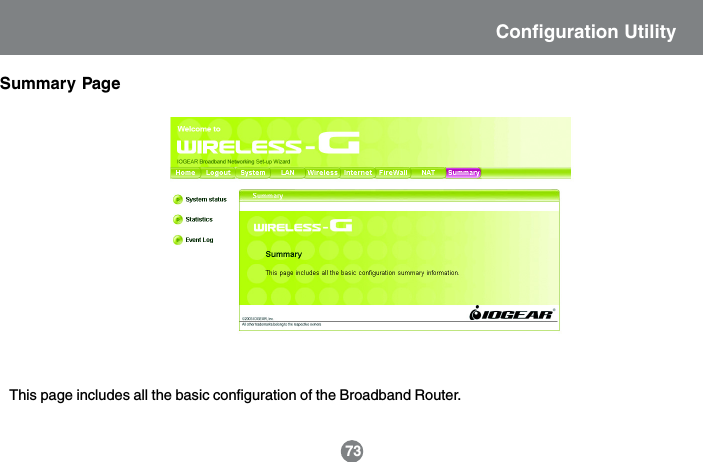
This page includes all the basic configuration of the Broadband Router.Summary PageConfiguration Utility73
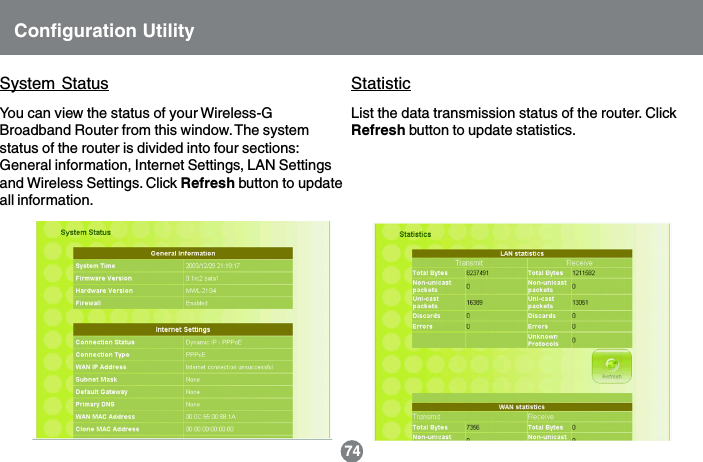
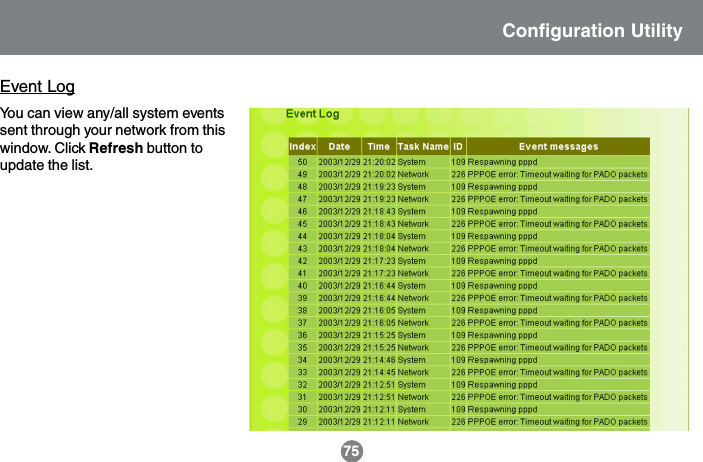
You can view the status of your Wireless-GBroadband Router from this window. The systemstatus of the router is divided into four sections:General information, Internet Settings, LAN Settingsand Wireless Settings. Click Refresh button to updateall information.List the data transmission status of the router. ClickRefresh button to update statistics.Configuration Utility74System Status Statistic
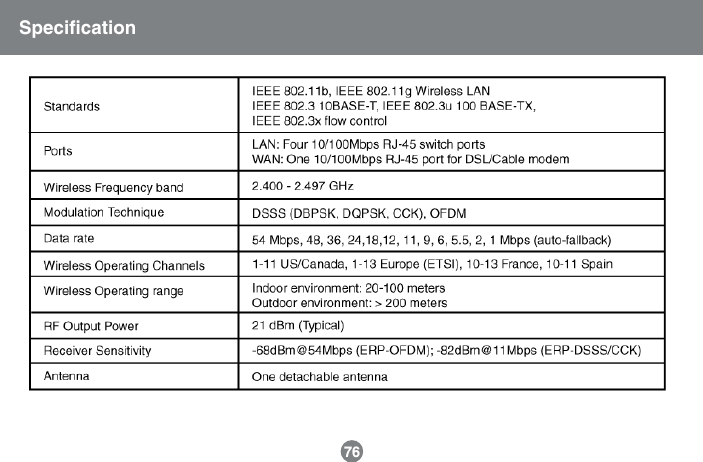
75Event LogYou can view any/all system eventssent through your network from thiswindow. Click Refresh button toupdate the list.Configuration Utility
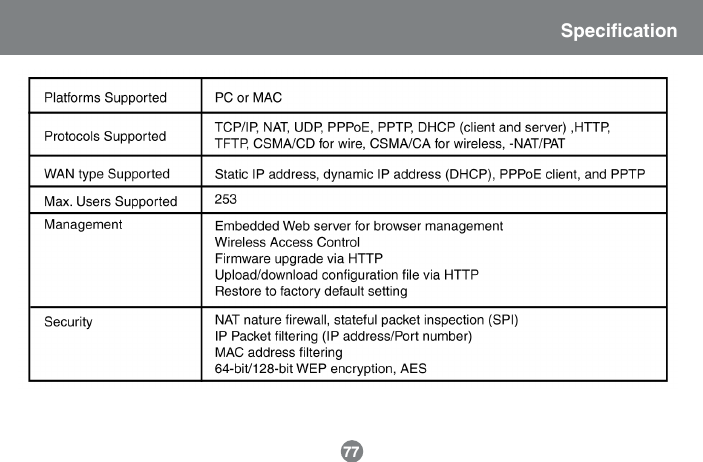
Specification76
Specification77
Technical Support78If you need technical support, please check out our IOGEAR Tech Info Library (T.I.L.) atwww.iogear.com/support for the latest tips, tricks, and troubleshooting.  The IOGEAR  T.I.L.was designed to provide you with the latest technical information about our products.  Most ofthe answers to your questions can be found here, so please try it out before contactingtechnical support.Technical support is available Monday through Friday from 8:00 am to 5:00 pm PST and canbe reached at 866-946-4327 or by email support@iogear.com.
Radio & TV Interference StatementWARNING!!!  This equipment generates, uses and can radiate radio frequency energy and, ifnot installed and used in accordance with the instruction manual, may cause interference toradio communications.  This equipment has been tested and found to comply with the limits fora Class B computing device pursuant to Subpart J of Part 15 of FCC Rules, which aredesigned to provide reasonable protection against such interference when operated in acommercial environment.  Operation of this equipment in a residential area is likely to causeinterference, in which case the user at his own expense will be required to take whatevermeasures may be required to correct the interference.79
IN NO EVENT SHALL THE DIRECT VENDOR’S LIABILITY FOR DIRECT, INDIRECT,SPECIAL, INCIDENTAL OR CONSEQUENTIAL DAMAGES RESULTING FROM THE USE OFTHE PRODUCT, DISK OR ITS DOCUMENTATION EXCEED THE PRICE PAID FOR THEPRODUCT.The direct vendor makes no warranty or representation, expressed, implied, or statutory withrespect to the contents or use of this documentation, and especially disclaims its quality,performance, merchantability, or fitness for any particular purpose.The direct vendor also reserves the right to revise or update the device or documentationwithout obligation to notify any individual or entity of such revisions, or updates.  For furtherinquires please contact your direct vendor.Limited Warranty80
This device complies with Part 15 of the FCC Rules.Operation is subject to the following two conditions: (1) this device may not cause harmful interference, and (2)this device must accept any interference received, including interference that may cause undesired operation.This equipment has been tested and found to comply with the limits for a Class B digital device, pursuant topart 15 of the FCC Rules. These limits are designed to provide reasonable protection against harmfulinterference in a residential installation.This equipment generates, uses and can radiate radio frequency energy and, if not installed and used inaccordance with the instructions, may cause harmful interference to radio communications. However, there isno guarantee that interference will not occur in a particular installation. If this equipment does cause harmfulinterference to radio or television reception, which can be determined by turning the equipment off and on, theuser is encouraged to try to correct the interference by one or more of the following measures:• Reorient or relocate the receiving antenna.• Increase the separation between the equipment and receiver.• Connect the equipment into an outlet on a circuit different from that to which the receiver is connected.• Consult the dealer or an experienced radio/TV technician for help.Changes or modifications not expressly approved by the party responsible for compliance could void yourauthority to operate the equipment.1) To comply with FCC RF exposure compliance requirements, a separation distance of at least 20 cm mustbe maintained between the antenna of this device and all persons.2) This transmitter must not be co-located or operating in conjunction with any other antenna or transmitter.Regulatory Compliance FCC Warning81
23 Hubble     •     Irvine, CA 92618     •     (P) 949.453.8782     •     (F) 949.453.8785     •     www.iogear.comContact info.®

Navigation menu