ATEN Technology IOGEAR GWAV8141KTX WIRELESS HD KIT User Manual no2 02 1 English itrio usermanual ai

ATEN Technology, Inc., dba IOGEAR WIRELESS HD KIT no2 02 1 English itrio usermanual ai

Users Manual

EnglishContents3Full HD Full HD Full HD Full HD Full HD Caution for Safety Caution for Safety  4.....................................Introduction Product Introduction Major Feature 66...........................................................................Package Contents Package Contents  7.....................................InstallationTransmitter / Receiver InstallationIR Flasher InstallationLAN InstalltionPLC Installation  11131415...........................................................................................................................................Product Specication SpecicationVideo Format Supported Audio Format Supported Change WiFi FrequencyFactory ResetSoftware upgrade 161718181819......................................................................................................................................................................................................................Q & AQ & A 20.............................................Operation Control & Function Transmitter FrontTransmitter RearReceiver FrontReceiver RearRemote Control889910................................................................................................................................................................................................
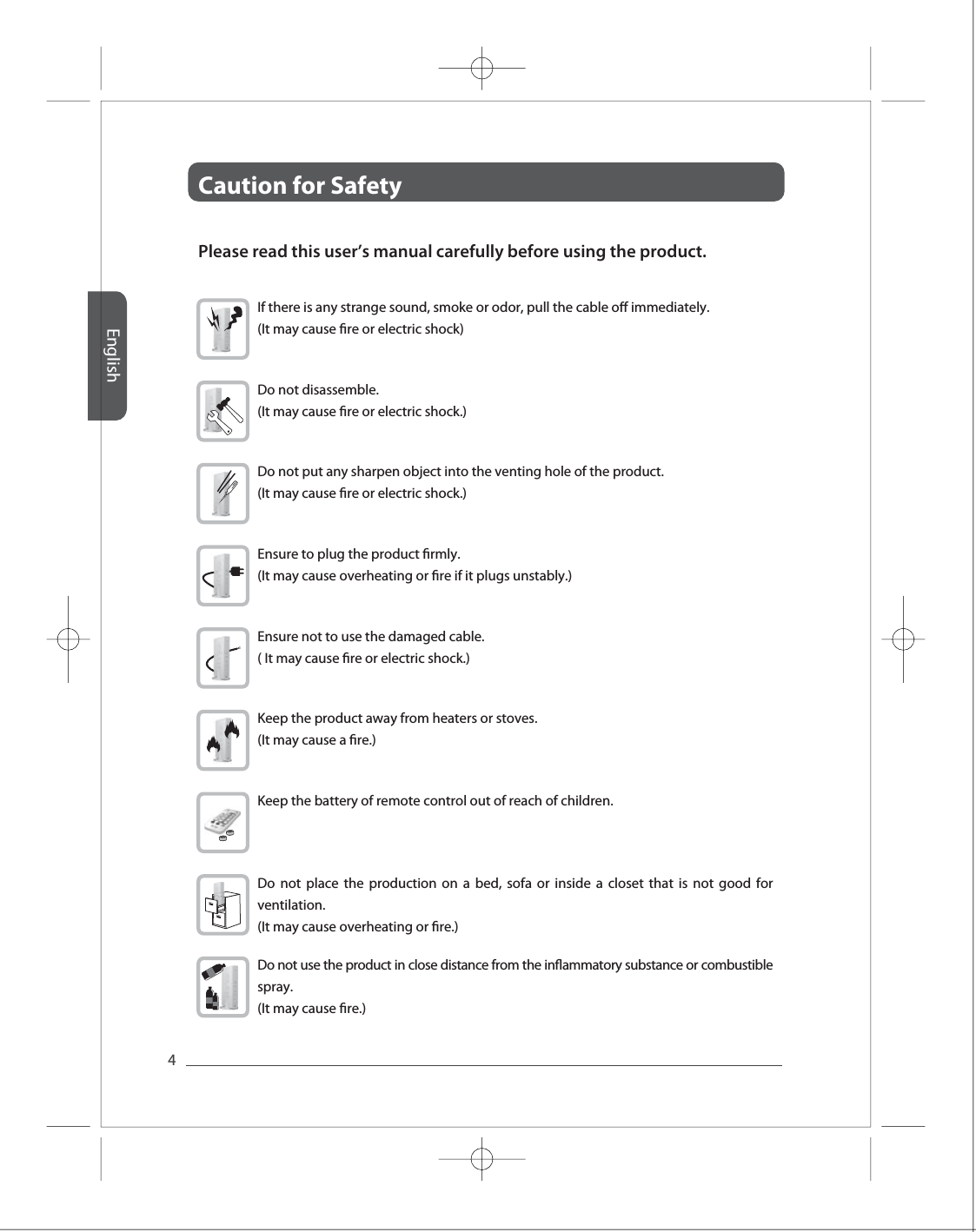
EnglishCaution for Safety 4Full HD Full HD Full HD Full HD Full HD Please read this user’s manual carefully before using the product. If there is any strange sound, smoke or odor, pull the cable o immediately. (It may cause re or electric shock) Do not disassemble.(It may cause re or electric shock.) Do not put any sharpen object into the venting hole of the product.(It may cause re or electric shock.)Ensure to plug the product rmly. (It may cause overheating or re if it plugs unstably.) Ensure not to use the damaged cable.( It may cause re or electric shock.)Keep the product away from heaters or stoves. (It may cause a re.) Keep the battery of remote control out of reach of children.Do not place the production on a bed, sofa or inside a closet that is not good for ventilation.(It may cause overheating or re.)  Do not use the product in close distance from the inammatory substance or combustible spray. (It may cause re.)
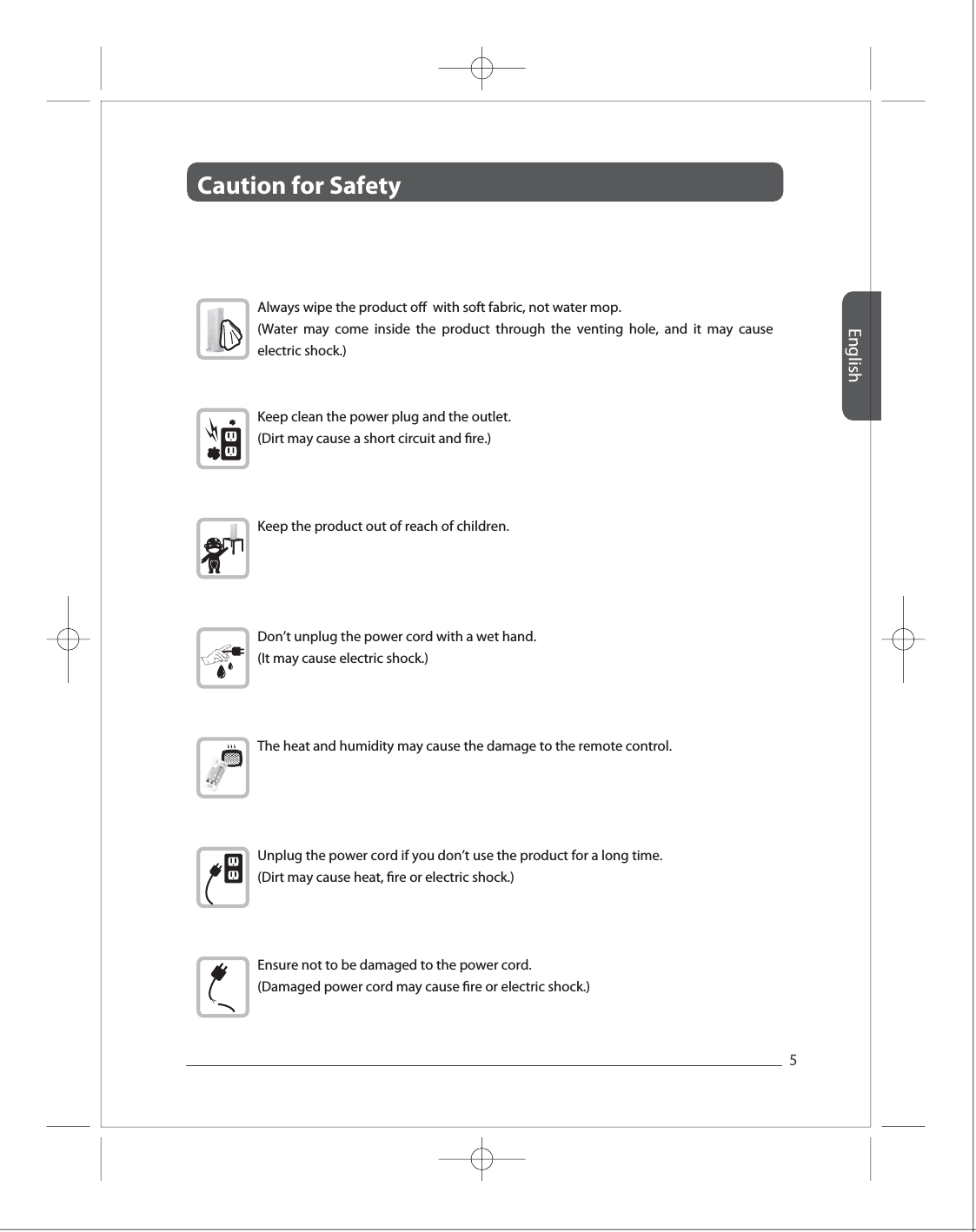
Caution for Safety English5Full HD Full HD Full HD Full HD Full HD Always wipe the product o  with soft fabric, not water mop. (Water may come inside the product through the venting hole, and it may cause electric shock.)Keep clean the power plug and the outlet. (Dirt may cause a short circuit and re.) Keep the product out of reach of children. Don’t unplug the power cord with a wet hand. (It may cause electric shock.) The heat and humidity may cause the damage to the remote control.  Unplug the power cord if you don’t use the product for a long time.(Dirt may cause heat, re or electric shock.)Ensure not to be damaged to the power cord. (Damaged power cord may cause re or electric shock.)
Introduction English6Full HD Full HD Full HD Full HD Full HD ■  Product Introduction ■  Major Feature ●●●●●●●1080p60 Full HD encoding/decoding with H.264 Baseline Prole (Level 4.2)Low latency - Latency of encoding-decoding in 1080p60 HD: Within 30msSupports both digital(HDMI) and analog(RGB, Component, D-Sup) video/audioSupports Wireless or Wireline- IEEE 802.11n 5 GHz WiFi- Power line communication (PLC) modem- LAN connectionInternal Antenna (Supporting MIMO)  HDMI-v1.3 (HDCP-v1.1) compliant.Supports both DTV & VESA standards- DTV : 1920x1080i60/p60, 1280x720p60, 720x480i60/p60- VESA :  WSXGA+(1680x1050), SXGA(1280x1024), WXGA(1280x800), XGA(1024x768),                   SVGA(800x600), VGA(640x480)itrio, using WiFi wireless solution, is the device for sending 1920x1080 Full HD video sources to other location in your house. Once you connect Full HD video sources such as Set top box, Blu-ray player, Multi media player, DVD player or PC to the transmitter and connect the display device to the receiver, you can enjoy wirelessly Full HD video anywhere in your house. itrio uses IEEE802.11n draft 2.0 standard WiFi technology for wireless connection. In case the wireless connection is interfered, you can use PLC (power line communication) modem without additional cable installation. You can also enjoy itrio through a LAN cable connection via LAN port.
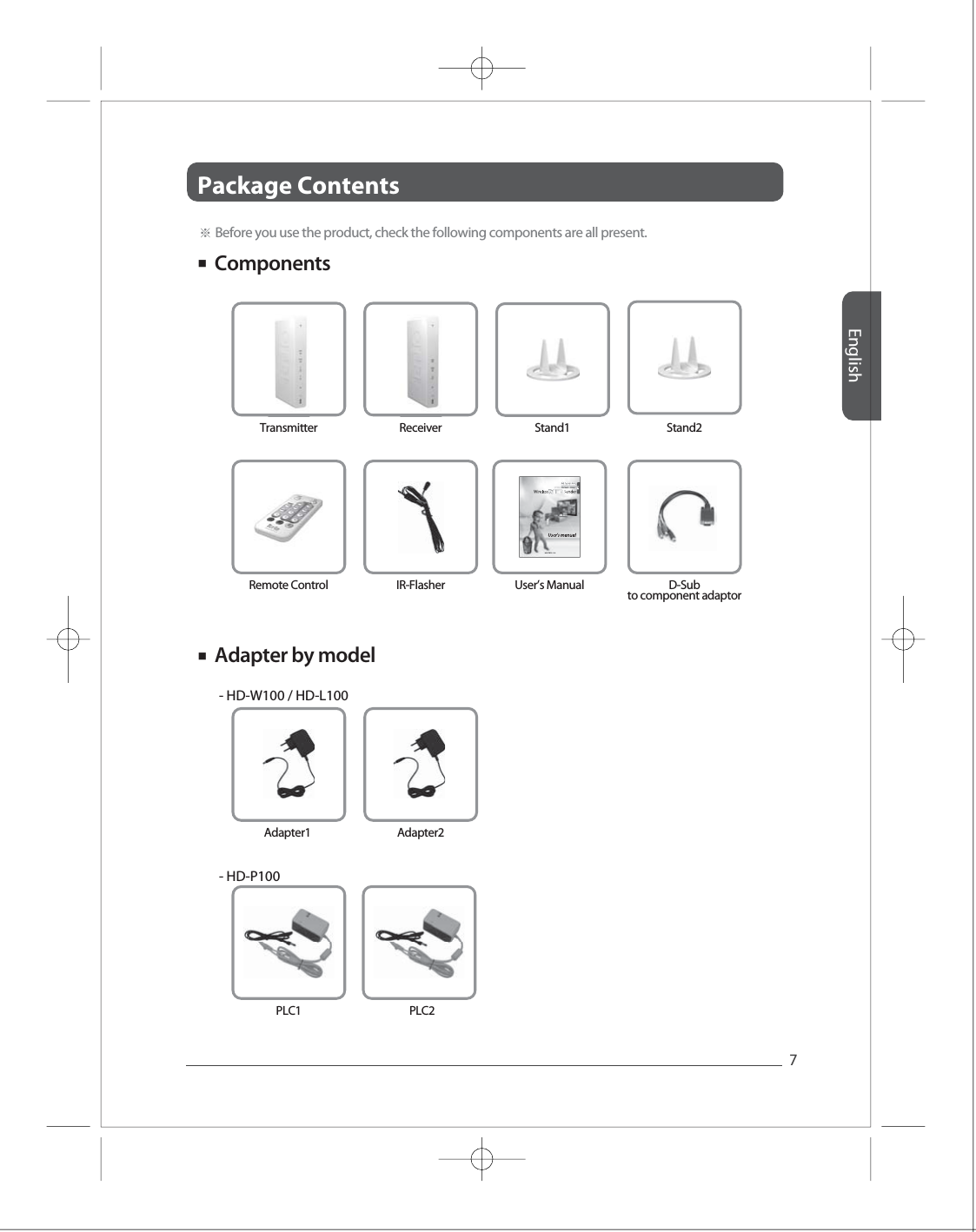
Package Contents English7Full HD Full HD Full HD Full HD Full HD ■ ※ Before you use the product, check the following components are all present.Transmitter Receiver Stand1 Stand2■ Adapter1 Adapter2Components Adapter by modelPLC1 PLC2Remote Control IR-Flasher- HD-W100 / HD-L100- HD-P100 User’s Manual D-Subto component adaptor
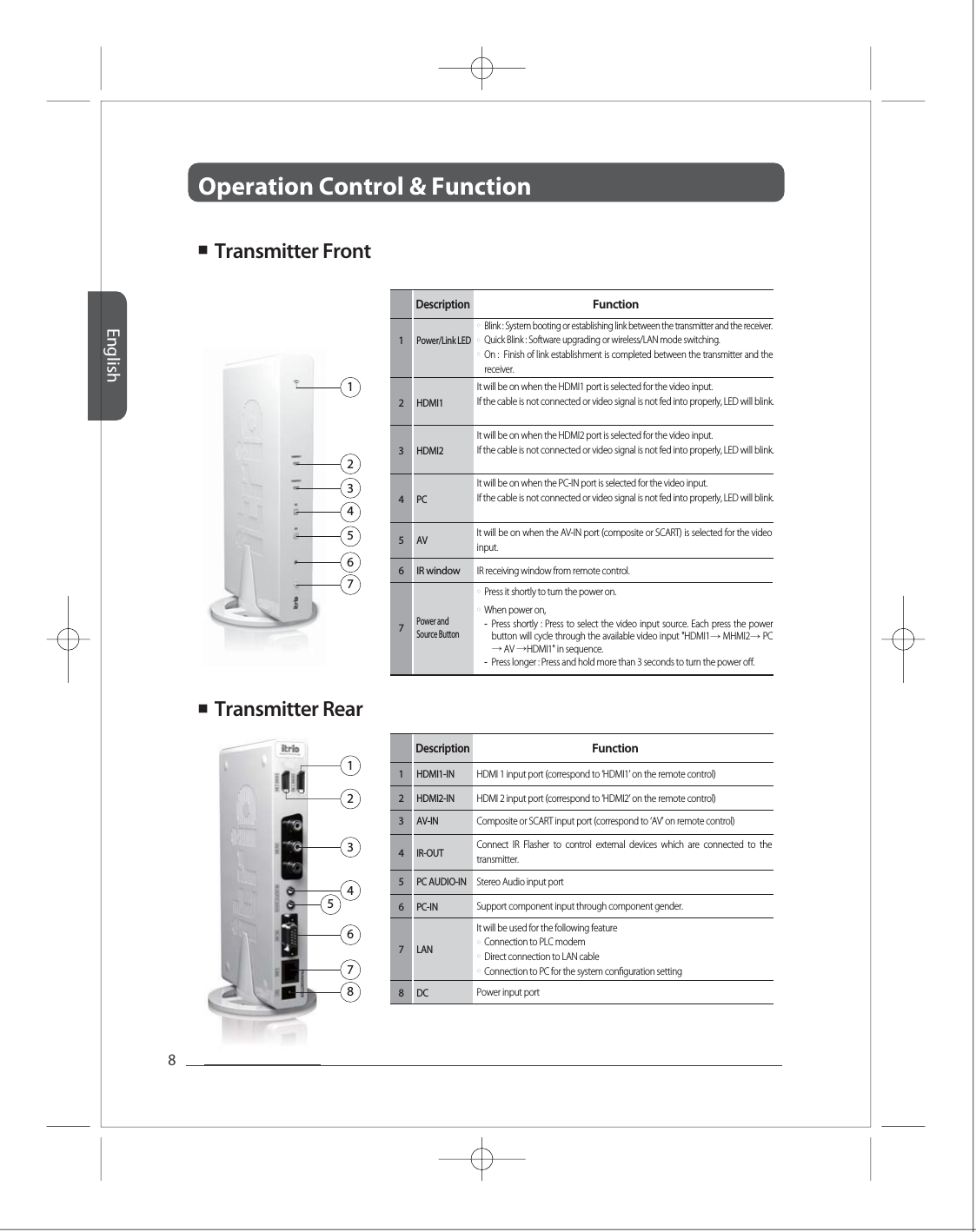
Operation Control & Function English8Full HD Full HD Full HD Full HD Full HD ■ ■ 123456712345678DescriptionFunctionHDMI2-IN AV-INIR-OUT PC AUDIO-IN2345HDMI 2 input port (correspond to ‘HDMI2’ on the remote control)HDMI1-IN 1HDMI 1 input port (correspond to ‘HDMI1’ on the remote control) Composite or SCART input port (correspond to ‘AV’ on remote control)PC-IN6Support component input through component gender.It will be used for the following featureStereo Audio input port DC8Power input portConnect IR Flasher to control external devices which are connected to the transmitter.LAN7Power andSource Button  DescriptionFunction1IR window2IR receiving window from remote control.AV34PCHDMI25It will be on when the HDMI2 port is selected for the video input. If the cable is not connected or video signal is not fed into properly, LED will blink.6HDMI1It will be on when the HDMI1 port is selected for the video input. If the cable is not connected or video signal is not fed into properly, LED will blink. 7Power/Link LED○○Press it shortly to turn the power on.  When power on, --Press shortly : Press to select the video input source. Each press the power button will cycle through the available video input "HDMI1→ MHMI2→ PC→ AV →HDMI1" in sequence.Press longer : Press and hold more than 3 seconds to turn the power o. ○○○Connection to PLC modem  Direct connection to LAN cable Connection to PC for the system conguration settingTransmitter FrontTransmitter RearIt will be on when the AV-IN port (composite or SCART) is selected for the video input. It will be on when the PC-IN port is selected for the video input. If the cable is not connected or video signal is not fed into properly, LED will blink. ○○○Blink : System booting or establishing link between the transmitter and the receiver.Quick Blink : Software upgrading or wireless/LAN mode switching.On :  Finish of link establishment is completed between the transmitter and the receiver.
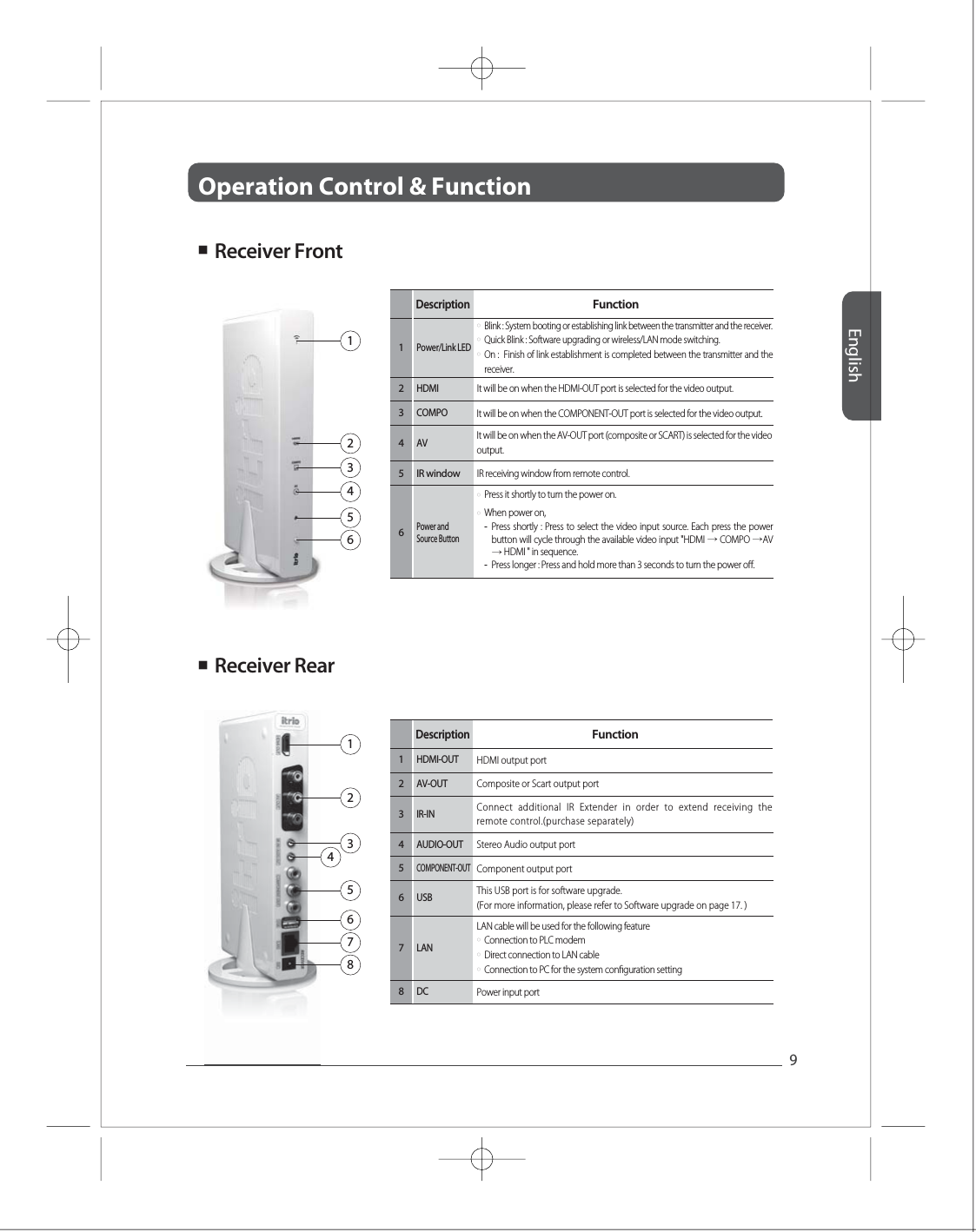
Operation Control & Function English9Full HD Full HD Full HD Full HD Full HD AUDIO-OUT 4Connect additional IR Extender in order to extend receiving the remote control.(purchase separately)○○Press it shortly to turn the power on.  When power on, --Press shortly : Press to select the video input source. Each press the power button will cycle through the available video input "HDMI → COMPO →AV → HDMI " in sequence.Press longer : Press and hold more than 3 seconds to turn the power o. ■ ■ Receiver FrontReceiver Rear12345612345678DescriptionFunctionAV-OUT 2HDMI-OUT 1HDMI output port IR-IN 3COMPONENT-OUT5Component output port Stereo Audio output portDC8Power input portComposite or Scart output port LAN7USB 6This USB port is for software upgrade. (For more information, please refer to Software upgrade on page 17. )Power andSource Button  DescriptionFunction1IR window2IR receiving window from remote control.34COMPO 5HDMI It will be on when the HDMI-OUT port is selected for the video output. 6Power/Link LED○○○Blink : System booting or establishing link between the transmitter and the receiver.Quick Blink : Software upgrading or wireless/LAN mode switching.On :  Finish of link establishment is completed between the transmitter and the receiver.   AV It will be on when the AV-OUT port (composite or SCART) is selected for the video output.It will be on when the COMPONENT-OUT port is selected for the video output.LAN cable will be used for the following feature○○○Connection to PLC modem  Direct connection to LAN cable Connection to PC for the system conguration setting
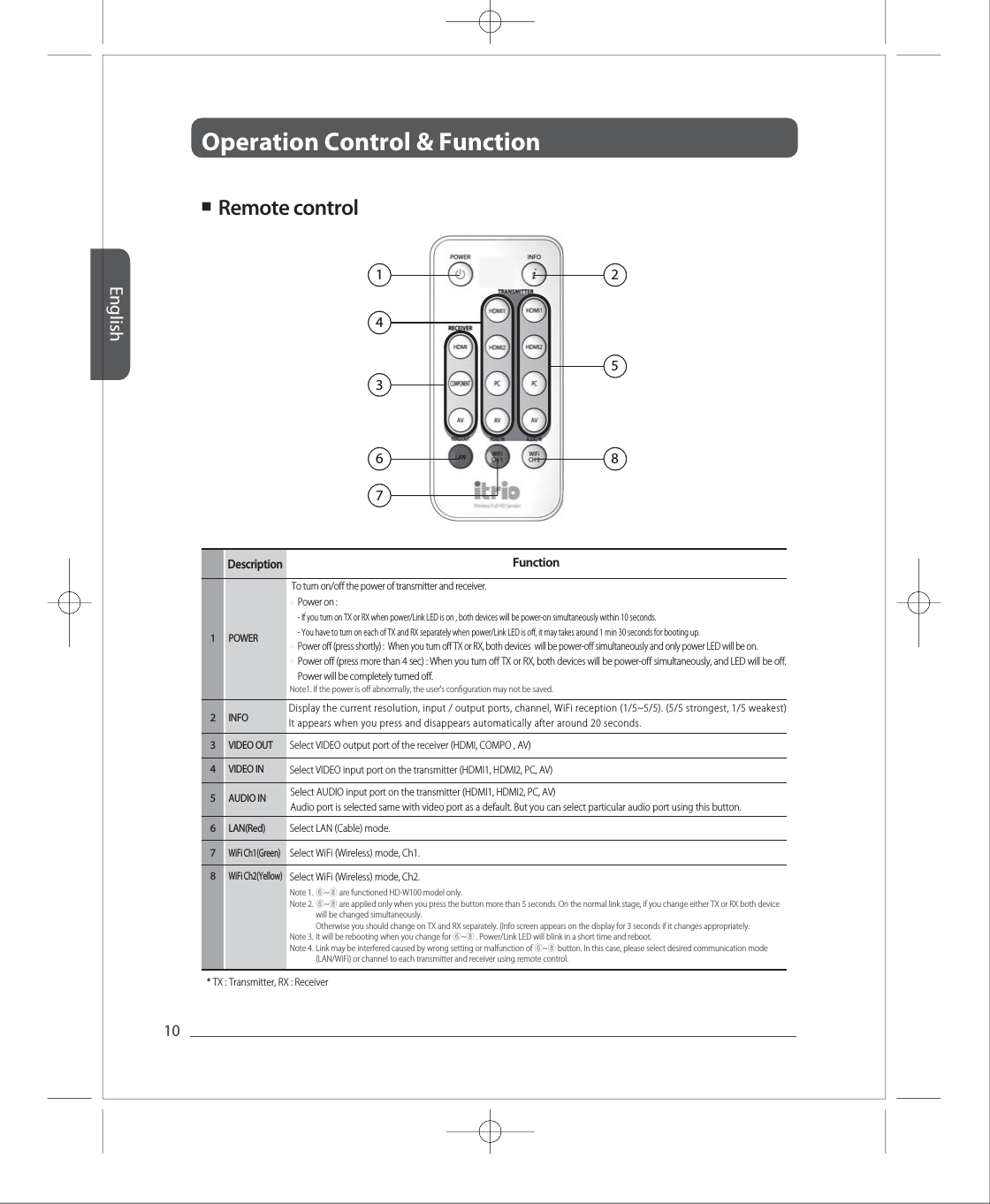
Operation Control & Function English10Full HD Full HD Full HD Full HD Full HD 12543687■  Remote controlDescriptionFunctionDisplay the current resolution, input / output ports, channel, WiFi reception (1/5~5/5). (5/5 strongest, 1/5 weakest) It appears when you press and disappears automatically after around 20 seconds. Note1. If the power is o abnormally, the user's conguration may not be saved. Note 1.Note 2.Note 3.Note 4.⑥~⑧ are functioned HD-W100 model only. ⑥~⑧ are applied only when you press the button more than 5 seconds. On the normal link stage, if you change either TX or RX both device will be changed simultaneously. Otherwise you should change on TX and RX separately. (Info screen appears on the display for 3 seconds if it changes appropriately. It will be rebooting when you change for ⑥~⑧ . Power/Link LED will blink in a short time and reboot. Link may be interfered caused by wrong setting or malfunction of ⑥~⑧ button. In this case, please select desired communication mode (LAN/WiFi) or channel to each transmitter and receiver using remote control. INFO 2AUDIO IN 5VIDEO OUT 3VIDEO IN 4Select VIDEO input port on the transmitter (HDMI1, HDMI2, PC, AV) Select VIDEO output port of the receiver (HDMI, COMPO , AV) LAN(Red) 6WiFi Ch1(Green)7WiFi Ch2(Yellow) 8Select WiFi (Wireless) mode, Ch2.* TX : Transmitter, RX : Receiver Select WiFi (Wireless) mode, Ch1.Select LAN (Cable) mode. POWER1○○○Power on : - If you turn on TX or RX when power/Link LED is on , both devices will be power-on simultaneously within 10 seconds. - You have to turn on each of TX and RX separately when power/Link LED is o, it may takes around 1 min 30 seconds for booting up. Power o (press shortly) :  When you turn o TX or RX, both devices  will be power-o simultaneously and only power LED will be on. Power o (press more than 4 sec) : When you turn o TX or RX, both devices will be power-o simultaneously, and LED will be o. Power will be completely turned o. To turn on/o the power of transmitter and receiver.Select AUDIO input port on the transmitter (HDMI1, HDMI2, PC, AV) Audio port is selected same with video port as a default. But you can select particular audio port using this button.
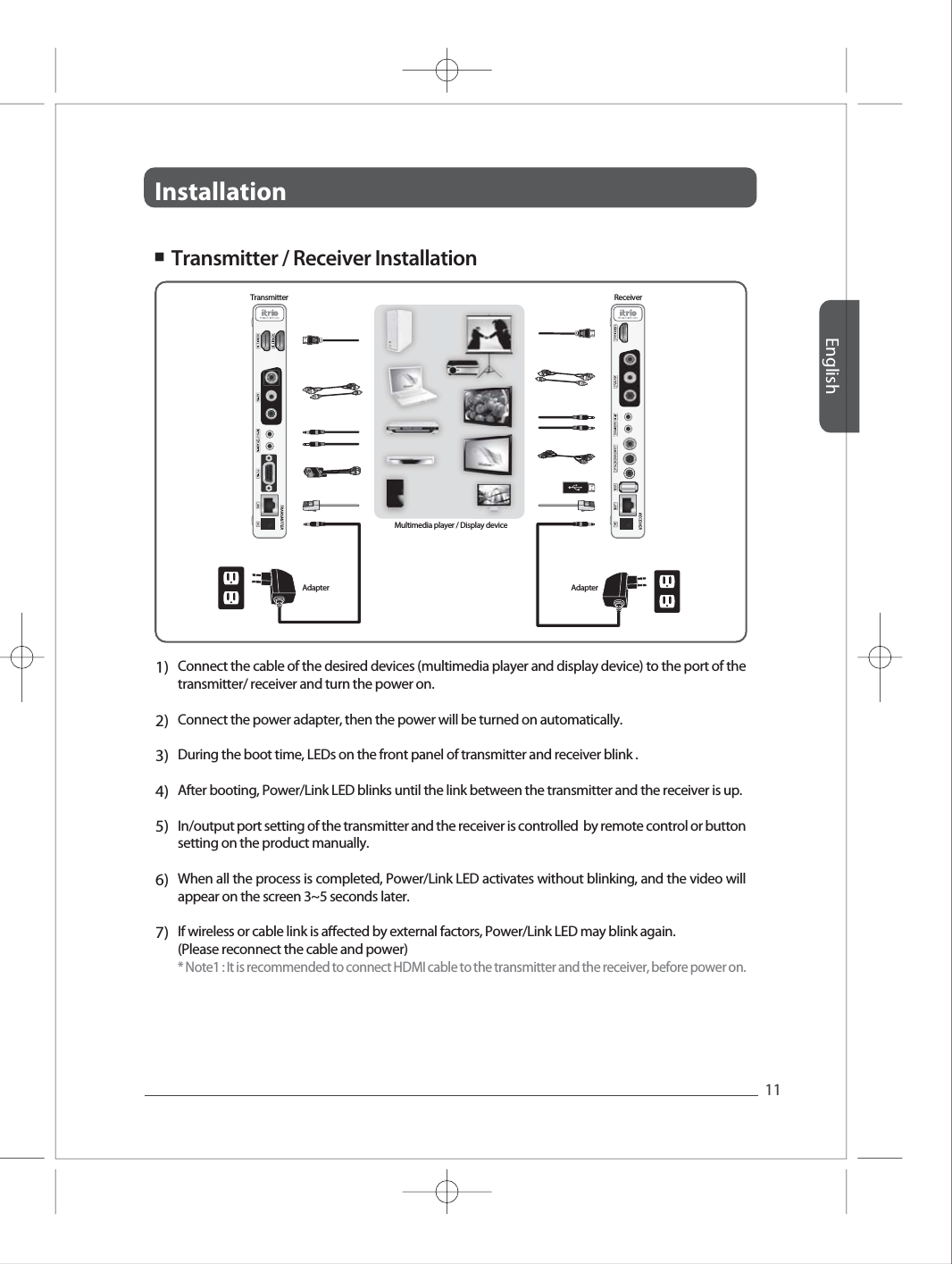
InstallationEnglish11Full HD Full HD Full HD Full HD Full HD 1)2)3)4)5)6)7)Connect the cable of the desired devices (multimedia player and display device) to the port of the transmitter/ receiver and turn the power on.  Connect the power adapter, then the power will be turned on automatically. During the boot time, LEDs on the front panel of transmitter and receiver blink .After booting, Power/Link LED blinks until the link between the transmitter and the receiver is up. In/output port setting of the transmitter and the receiver is controlled  by remote control or button setting on the product manually. When all the process is completed, Power/Link LED activates without blinking, and the video will appear on the screen 3~5 seconds later.If wireless or cable link is aected by external factors, Power/Link LED may blink again. (Please reconnect the cable and power)* Note1 : It is recommended to connect HDMI cable to the transmitter and the receiver, before power on. ■  Transmitter / Receiver Installation Transmitter ReceiverAdapter AdapterMultimedia player / Display device
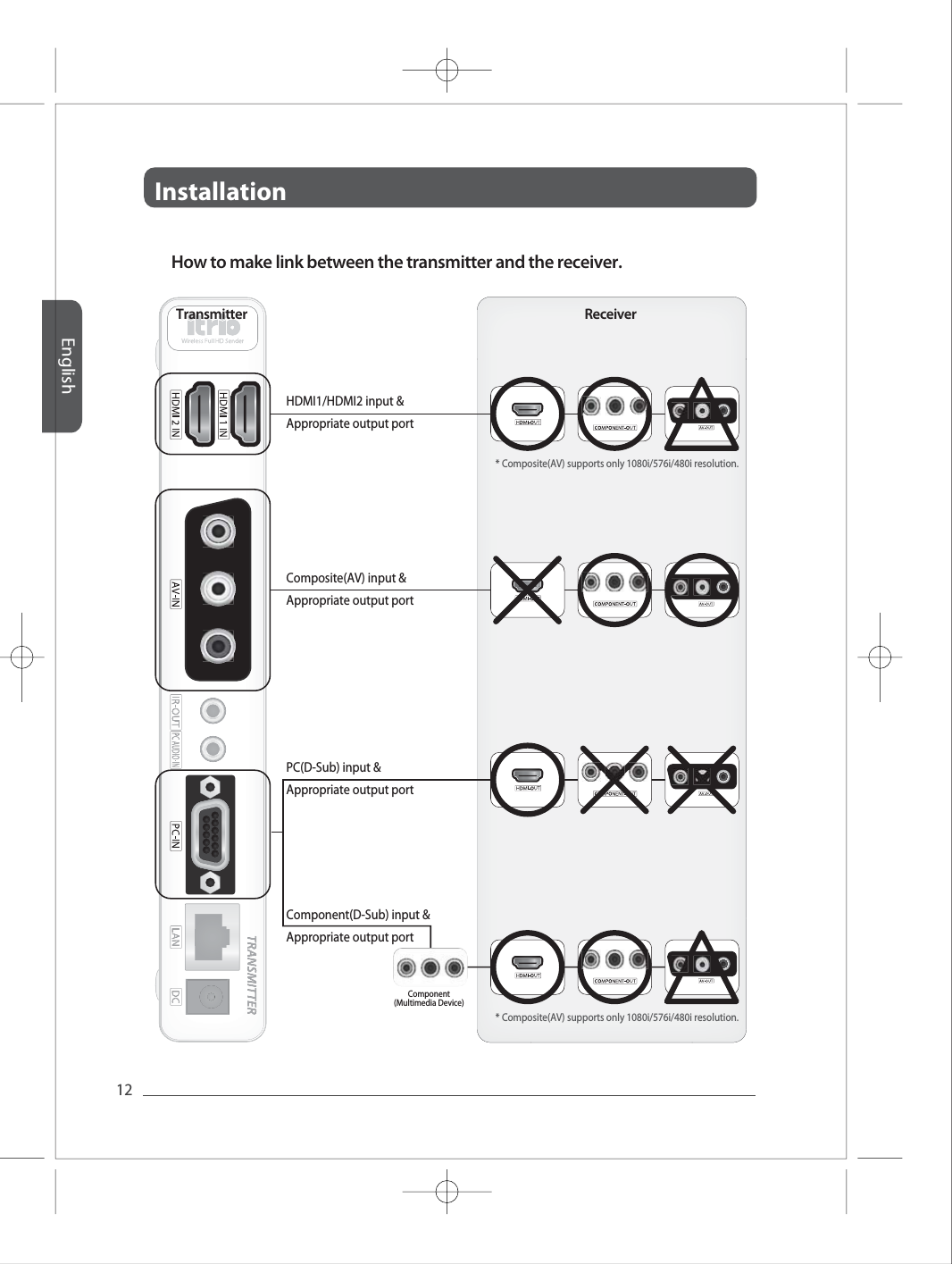
InstallationEnglish12Full HD Full HD Full HD Full HD Full HD How to make link between the transmitter and the receiver.Transmitter ReceiverComponent(Multimedia Device)HDMI1/HDMI2 input & Appropriate output port * Composite(AV) supports only 1080i/576i/480i resolution.* Composite(AV) supports only 1080i/576i/480i resolution.Composite(AV) input & Appropriate output portComponent(D-Sub) input & Appropriate output portPC(D-Sub) input & Appropriate output port
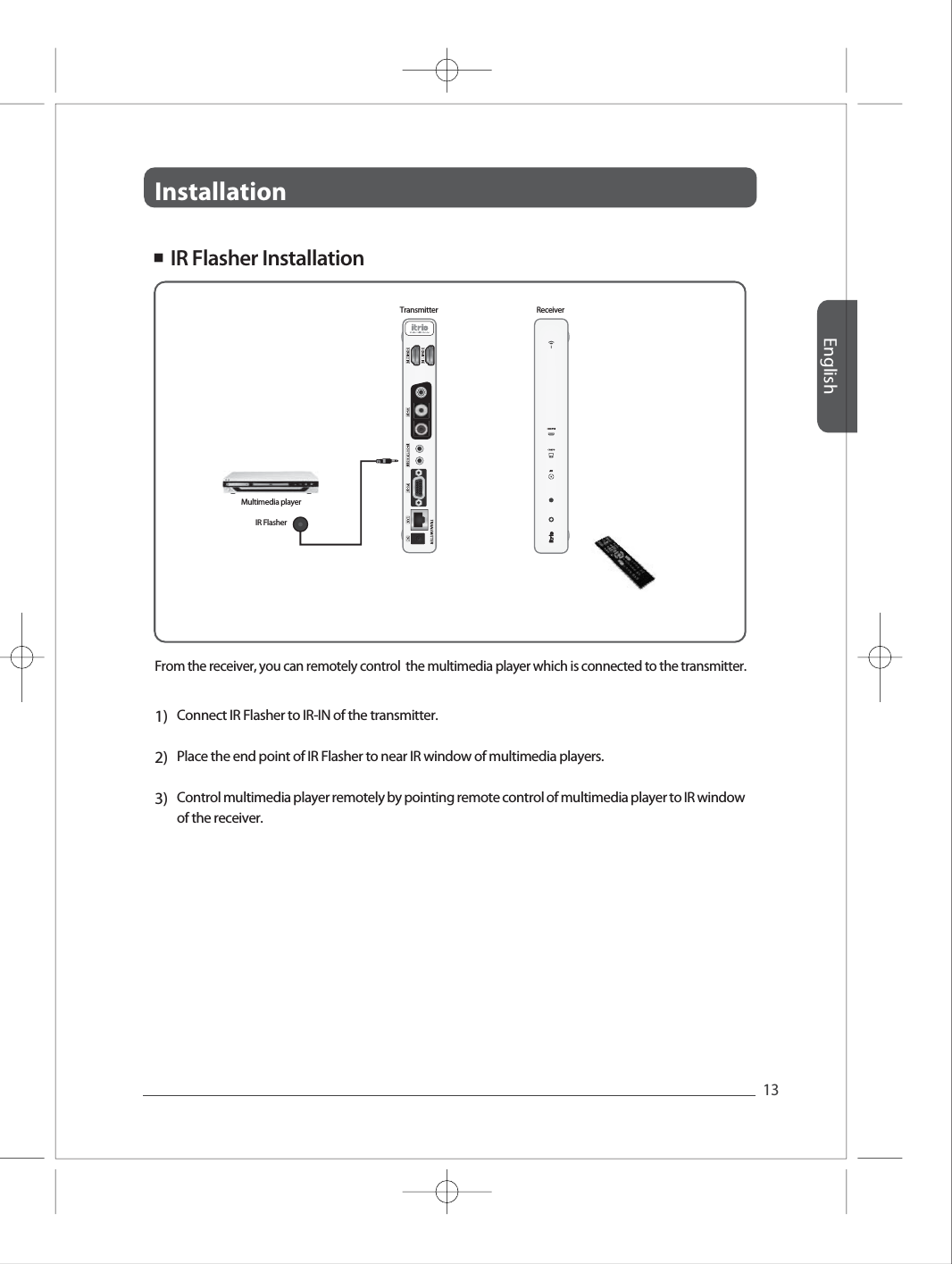
InstallationEnglish13Full HD Full HD Full HD Full HD Full HD 1)2)3)Connect IR Flasher to IR-IN of the transmitter. Place the end point of IR Flasher to near IR window of multimedia players. Control multimedia player remotely by pointing remote control of multimedia player to IR window of the receiver.  ■  IR Flasher InstallationIR FlasherTransmitter ReceiverMultimedia playerFrom the receiver, you can remotely control  the multimedia player which is connected to the transmitter.
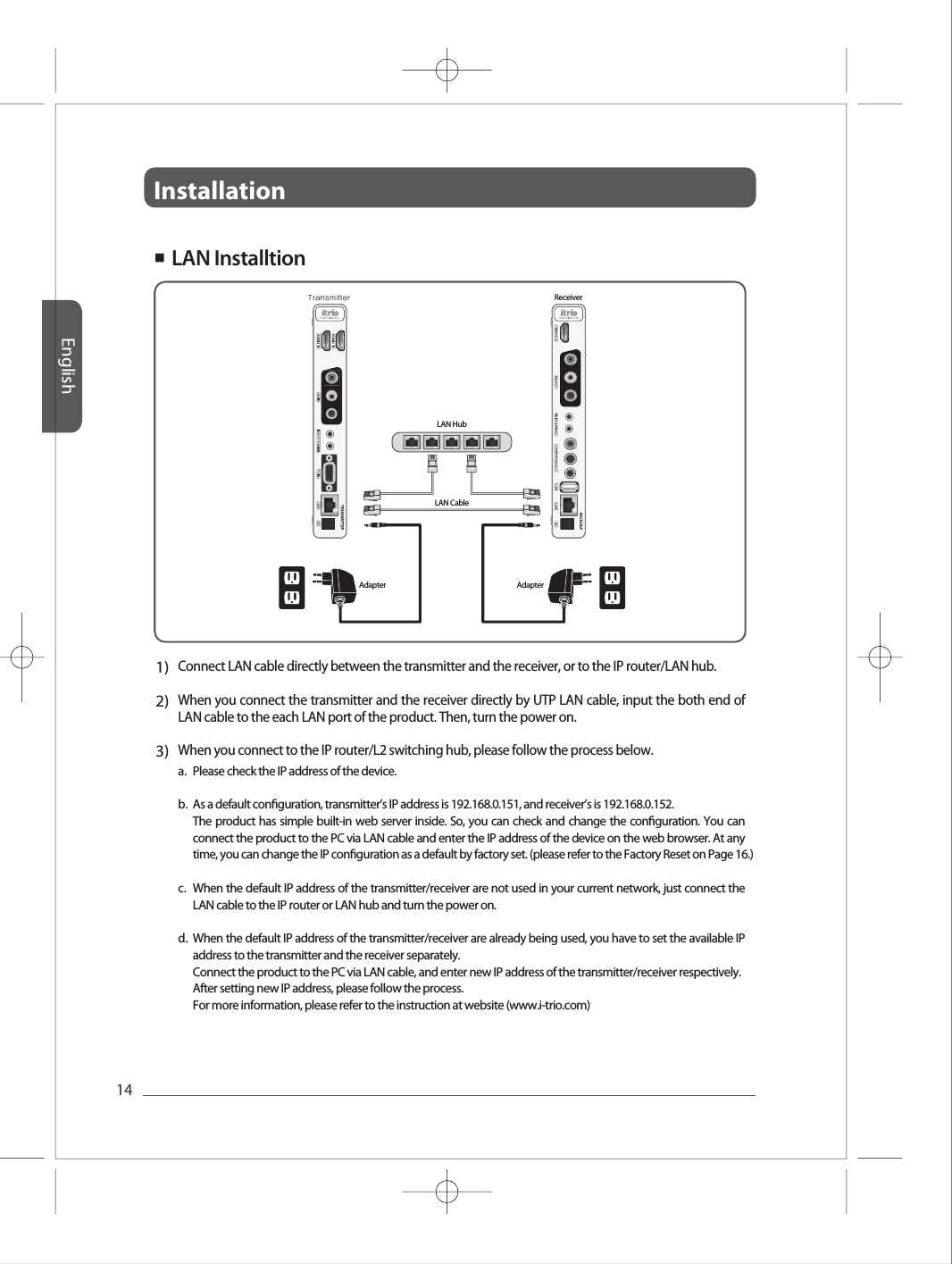
InstallationEnglish14Full HD Full HD Full HD Full HD Full HD 1)2)3)Connect LAN cable directly between the transmitter and the receiver, or to the IP router/LAN hub. When you connect the transmitter and the receiver directly by UTP LAN cable, input the both end of LAN cable to the each LAN port of the product. Then, turn the power on. When you connect to the IP router/L2 switching hub, please follow the process below. a.b.c.d.Please check the IP address of the device.As a default conguration, transmitter’s IP address is 192.168.0.151, and receiver’s is 192.168.0.152.The product has simple built-in web server inside. So, you can check and change the conguration. You can connect the product to the PC via LAN cable and enter the IP address of the device on the web browser. At any time, you can change the IP conguration as a default by factory set. (please refer to the Factory Reset on Page 16.)When the default IP address of the transmitter/receiver are not used in your current network, just connect the LAN cable to the IP router or LAN hub and turn the power on.When the default IP address of the transmitter/receiver are already being used, you have to set the available IP address to the transmitter and the receiver separately.Connect the product to the PC via LAN cable, and enter new IP address of the transmitter/receiver respectively.After setting new IP address, please follow the process.For more information, please refer to the instruction at website (www.i-trio.com)■  LAN InstalltionTransmitter ReceiverAdapter AdapterLAN CableLAN Hub
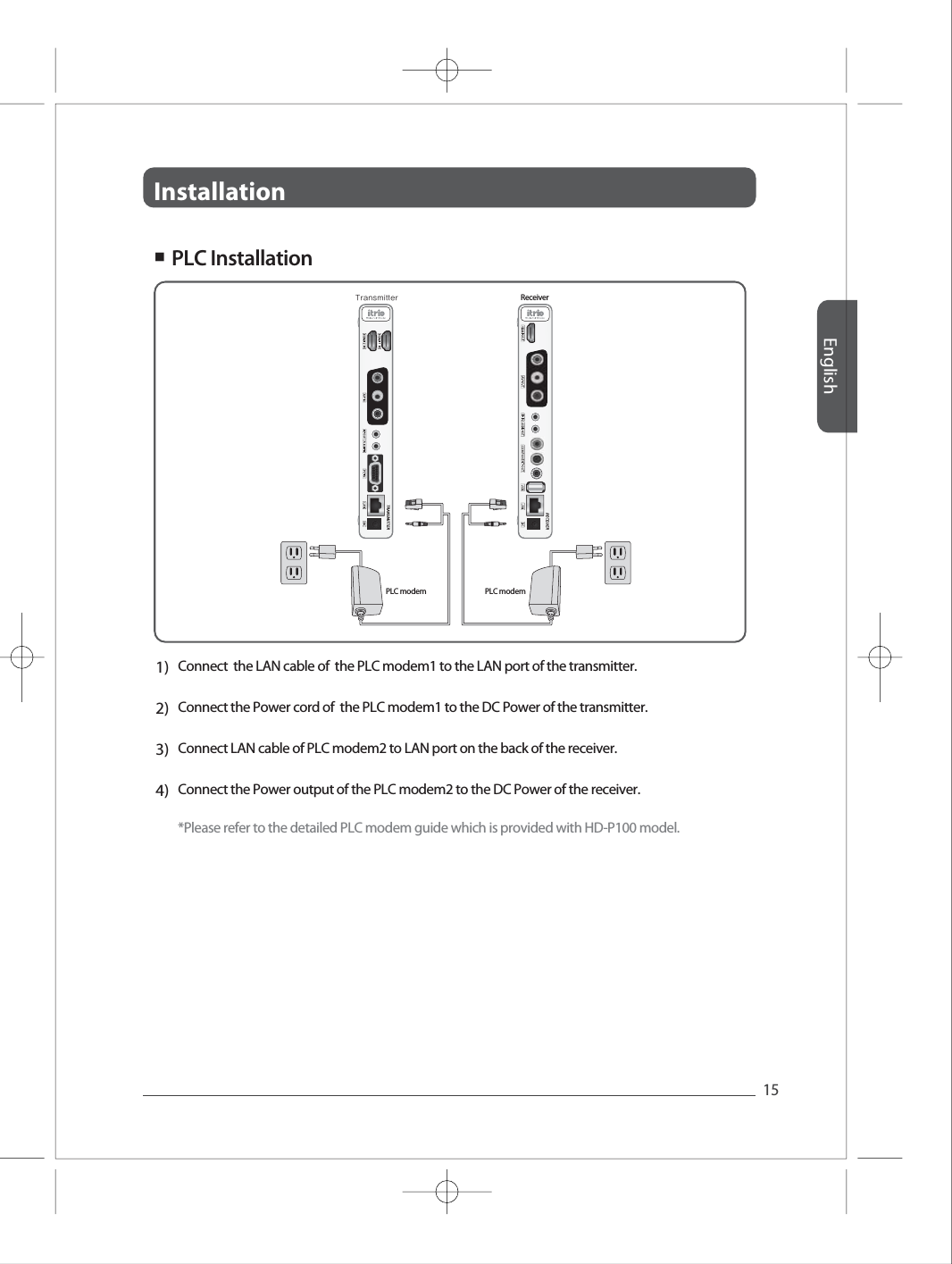
InstallationEnglish15Full HD Full HD Full HD Full HD Full HD 1)2)3)4)Connect  the LAN cable of  the PLC modem1 to the LAN port of the transmitter.Connect the Power cord of  the PLC modem1 to the DC Power of the transmitter.Connect LAN cable of PLC modem2 to LAN port on the back of the receiver.Connect the Power output of the PLC modem2 to the DC Power of the receiver.*Please refer to the detailed PLC modem guide which is provided with HD-P100 model. ■  PLC Installation Transmitter ReceiverPLC modem  PLC modem
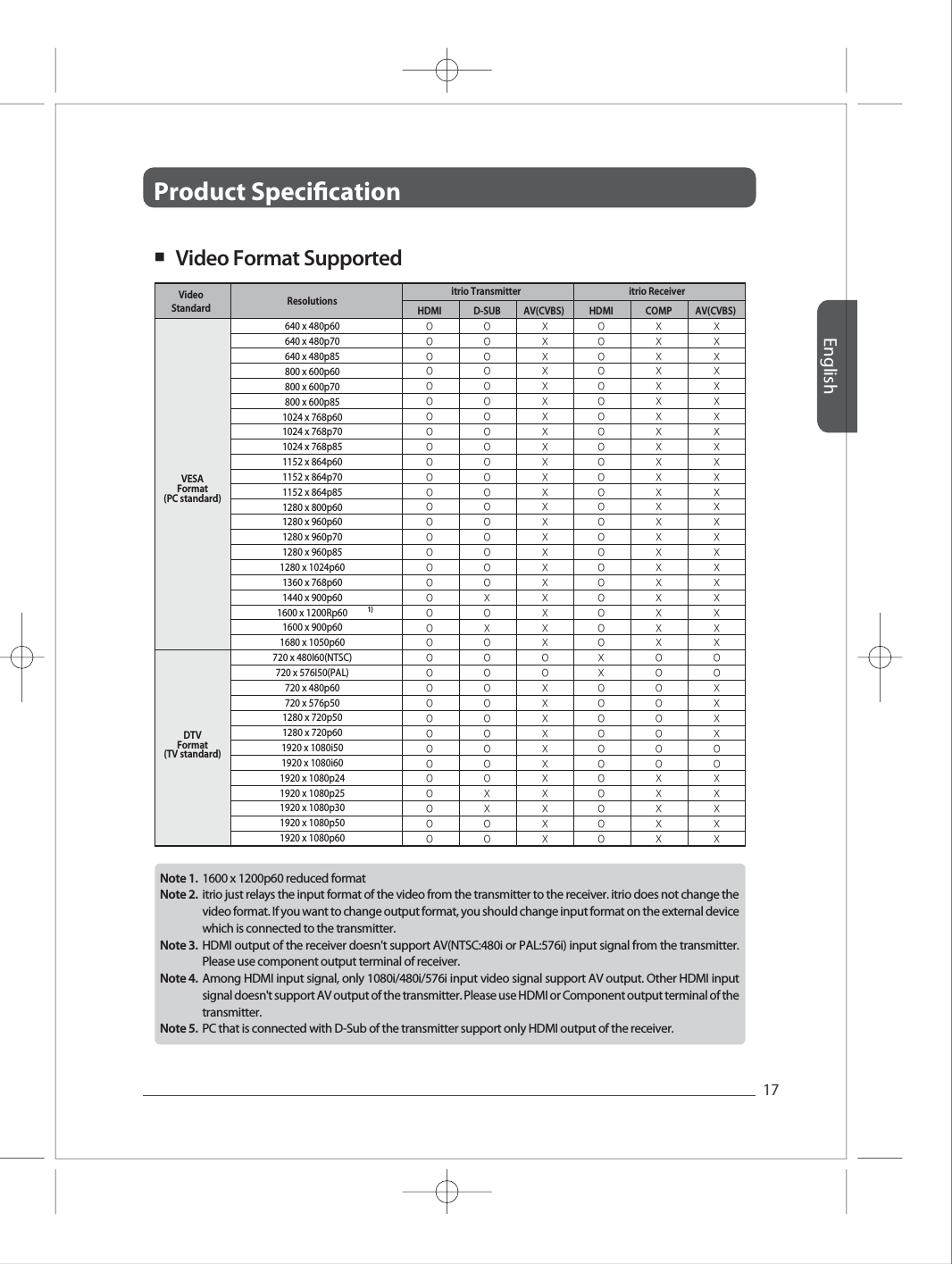
Product Specication English17Note 1. Note 2.Note 3.Note 4.Note 5.  Full HD Full HD Full HD Full HD Full HD ■   Video Format Supported 1600 x 1200p60 reduced format           itrio just relays the input format of the video from the transmitter to the receiver. itrio does not change the video format. If you want to change output format, you should change input format on the external device which is connected to the transmitter.HDMI output of the receiver doesn't support AV(NTSC:480i or PAL:576i) input signal from the transmitter. Please use component output terminal of receiver.Among HDMI input signal, only 1080i/480i/576i input video signal support AV output. Other HDMI input signal doesn't support AV output of the transmitter. Please use HDMI or Component output terminal of the transmitter. PC that is connected with D-Sub of the transmitter support only HDMI output of the receiver. VideoStandardVESAFormat(PC standard)DTVFormat(TV standard)Resolutions HDMI640 x 480p60640 x 480p70640 x 480p85800 x 600p60800 x 600p70800 x 600p851024 x 768p601024 x 768p701024 x 768p851152 x 864p601152 x 864p701152 x 864p851280 x 800p601280 x 960p601280 x 960p701280 x 960p851280 x 1024p601360 x 768p601440 x 900p601600 x 1200Rp601600 x 900p601680 x 1050p60720 x 480I60(NTSC)720 x 576I50(PAL)720 x 480p60720 x 576p501280 x 720p501280 x 720p601920 x 1080i501920 x 1080i601920 x 1080p241920 x 1080p251920 x 1080p301920 x 1080p501920 x 1080p60D-SUB HDMI COMPitrio Transmitter itrio Receiver1)AV(CVBS) AV(CVBS)OOOOOOOOOOOOOOOOOOOOOOOOOOOOOOOOOOOOOOOOOOOOOOOOOOOOOXOXOOOOOOOOOOXXOOXXXXXXXXXXXXXXXXXXXXXXOOXXXXXXXXXXXOOOOOOOOOOOOOOOOOOOOOOXXOOOOOOOOOOOXXXXXXXXXXXXXXXXXXXXXXOOOOOOOOXXXXXXXXXXXXXXXXXXXXXXXXXXXOOXXXXOOXXXXX
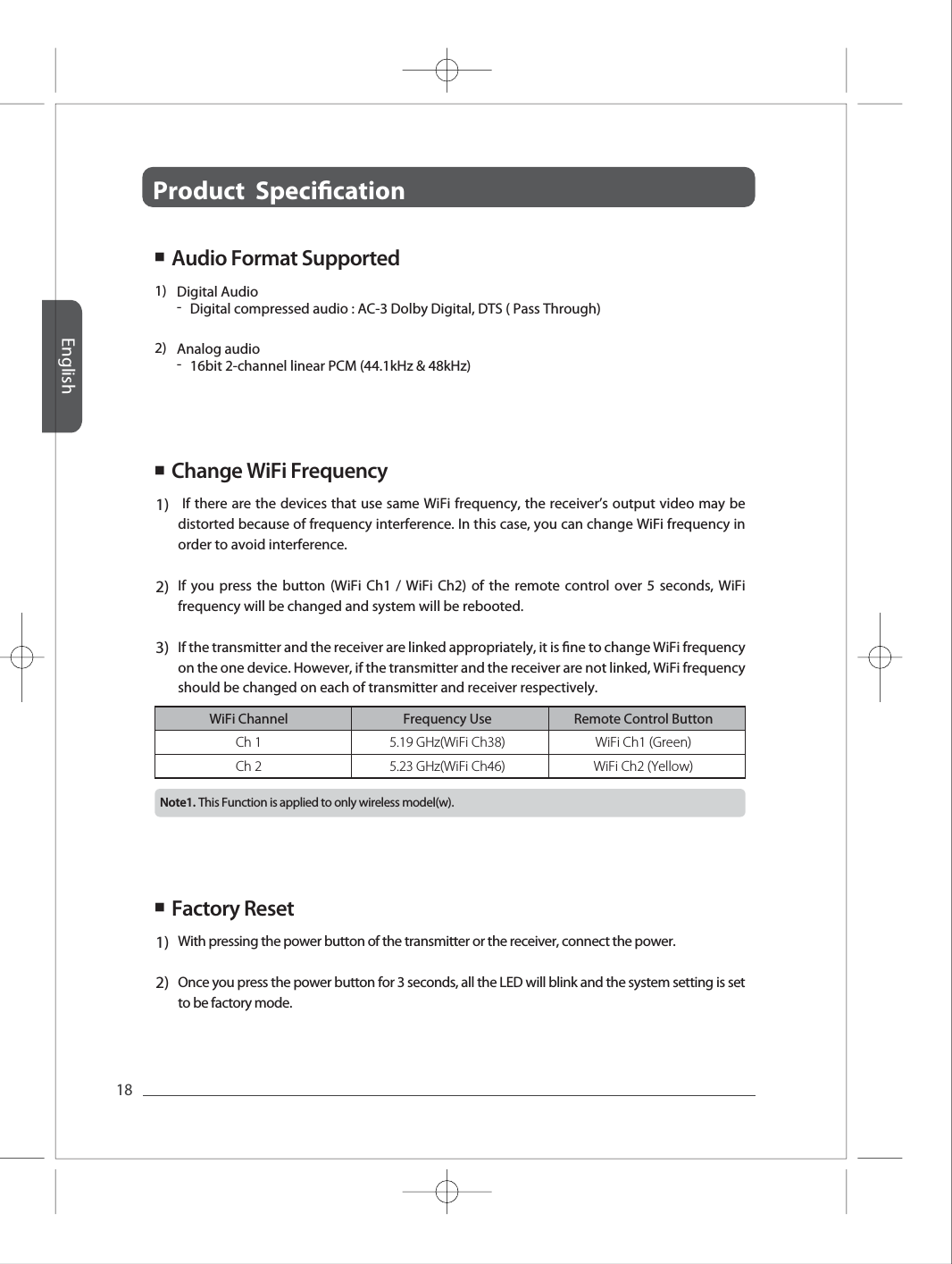
Product  Specication English18Change WiFi FrequencyFull HD Full HD Full HD Full HD Full HD Ch 1Ch 25.19 GHz(WiFi Ch38)5.23 GHz(WiFi Ch46)WiFi Ch1 (Green)WiFi Ch2 (Yellow)WiFi Channel Frequency Use Remote Control Button1)2)-Digital compressed audio : AC-3 Dolby Digital, DTS ( Pass Through) Digital Audio-16bit 2-channel linear PCM (44.1kHz & 48kHz)Analog audio1)2)3) If there are the devices that use same WiFi frequency, the receiver’s output video may be distorted because of frequency interference. In this case, you can change WiFi frequency in order to avoid interference. If you press the button (WiFi Ch1 / WiFi Ch2) of the remote control over 5 seconds, WiFi frequency will be changed and system will be rebooted. If the transmitter and the receiver are linked appropriately, it is ne to change WiFi frequency on the one device. However, if the transmitter and the receiver are not linked, WiFi frequency should be changed on each of transmitter and receiver respectively. ■ Factory Reset1)2)With pressing the power button of the transmitter or the receiver, connect the power. Once you press the power button for 3 seconds, all the LED will blink and the system setting is set to be factory mode.■ ■  Audio Format Supported This Function is applied to only wireless model(w).Note1.
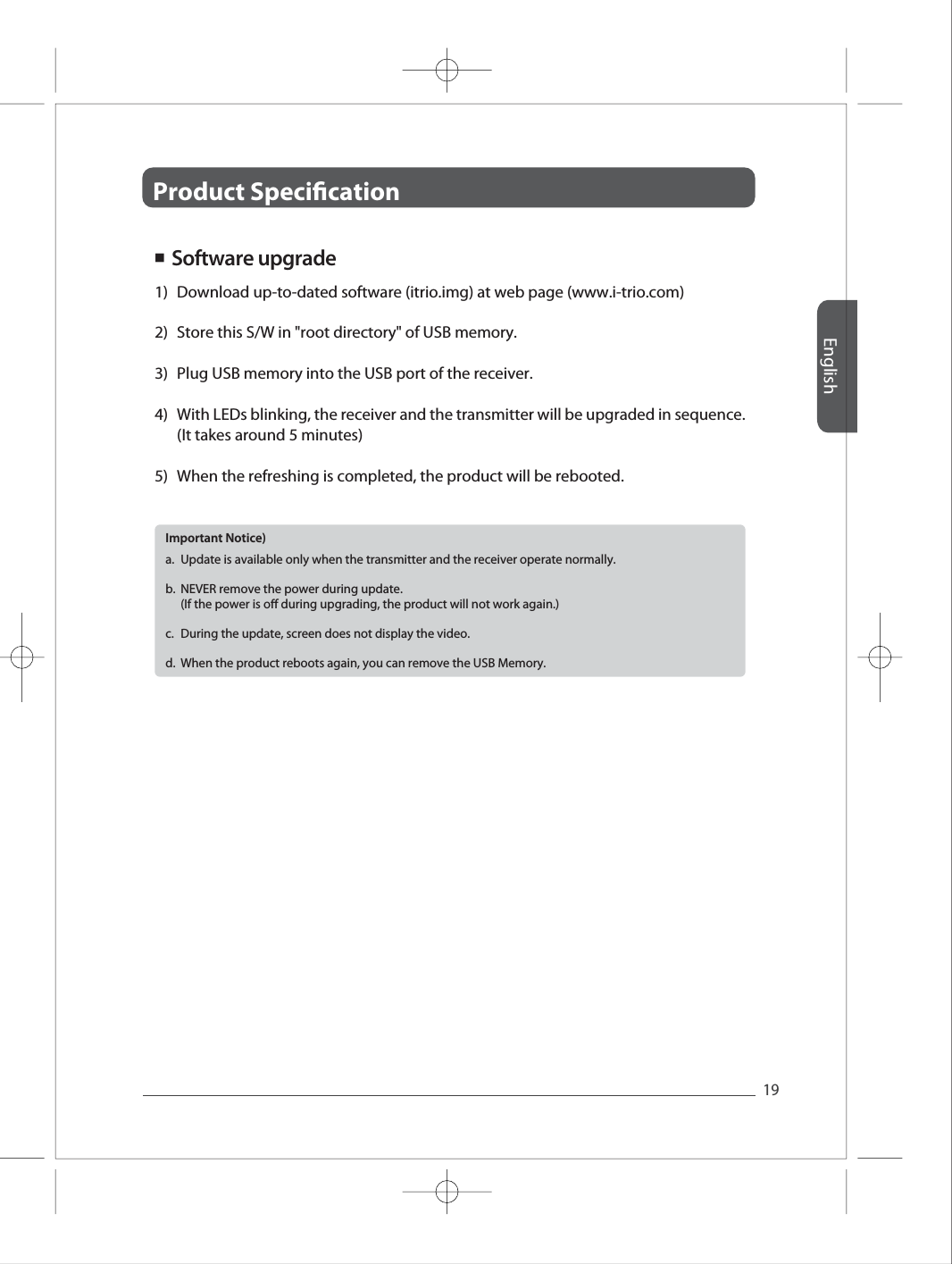
Product Specication English19Full HD Full HD Full HD Full HD Full HD 1)2)3)4)5)Download up-to-dated software (itrio.img) at web page (www.i-trio.com)  Store this S/W in "root directory" of USB memory. Plug USB memory into the USB port of the receiver. With LEDs blinking, the receiver and the transmitter will be upgraded in sequence. (It takes around 5 minutes)When the refreshing is completed, the product will be rebooted. ■  Software upgradea.b.c.d.Update is available only when the transmitter and the receiver operate normally. NEVER remove the power during update. (If the power is o during upgrading, the product will not work again.) During the update, screen does not display the video.  When the product reboots again, you can remove the USB Memory. Important Notice)
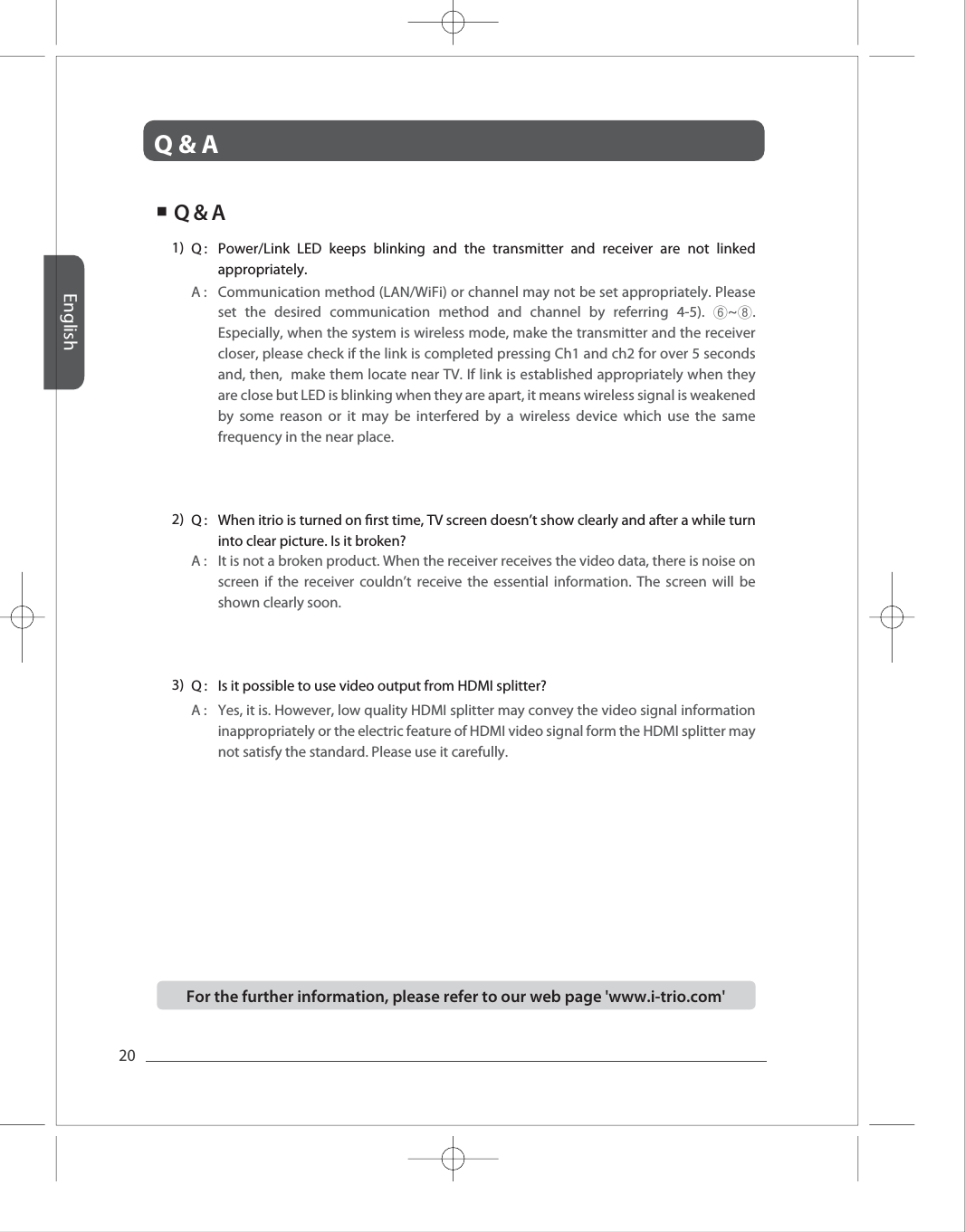
Q & AEnglish20Full HD Full HD Full HD Full HD Full HD A :  Communication method (LAN/WiFi) or channel may not be set appropriately. Please set the desired communication method and channel by referring 4-5). ⑥~⑧. Especially, when the system is wireless mode, make the transmitter and the receiver closer, please check if the link is completed pressing Ch1 and ch2 for over 5 seconds and, then,  make them locate near TV. If link is established appropriately when they are close but LED is blinking when they are apart, it means wireless signal is weakened by some reason or it may be interfered by a wireless device which use the same frequency in the near place. Q :  Power/Link LED keeps blinking and the transmitter and receiver are not linked appropriately. 1) A :  It is not a broken product. When the receiver receives the video data, there is noise on screen if the receiver couldn’t receive the essential information. The screen will be shown clearly soon. Q :  When itrio is turned on rst time, TV screen doesn’t show clearly and after a while turn into clear picture. Is it broken?2) A : Q : 3) Yes, it is. However, low quality HDMI splitter may convey the video signal information inappropriately or the electric feature of HDMI video signal form the HDMI splitter may not satisfy the standard. Please use it carefully.  Is it possible to use video output from HDMI splitter? ■  Q & AFor the further information, please refer to our web page 'www.i-trio.com'
 Federal Communication Commission Interference Statement This equipment has been tested and found to comply with the limits for a Class B digital device, pursuant to Part 15 of the FCC Rules. These limits are designed to provide reasonable protection against harmful interference in a residential installation. This equipment generates, uses and can radiate radio frequency energy and, if not installed and used in accordance with the instructions, may cause harmful interference to radio communications. However, there is no guarantee that interference will not occur in a particular installation. If this equipment does cause harmful interference to radio or television reception, which can be determined by turning the equipment off and on, the user is encouraged to try to correct the interference by one of the following measures: • Reorient or relocate the receiving antenna. • Increase the separation between the equipment and receiver. • Connect the equipment into an outlet on a circuit different from that to which the receiver is con-nected. • Consult the dealer or an experienced radio/TV technician for help.  FCC Caution: To assure continued compliance, (example - use only shielded interface cables when connecting to computer or peripheral devices). Any changes or modifications not expressly approved by the party responsible for compliance could void the user’s authority to operate this equipment.This device complies with Part 15 of the FCC Rules. Operation is subject to the following two conditions: (1) This device may not cause harmful interference, and (2) this device must accept any interference received, including interference that may cause undesired operation  IMPORTANT NOTE: FCC RF Radiation Exposure Statement: This equipment complies with FCC RF radiation exposure limits set forth for an uncontrolled environment. This equipment should be installed and operated with a minimum distance of 20 centimeters between the radiator and your body.This transmitter must not be co-located or operating in conjunction with any other antenna or transmitter.  NOTE: THE MANUFACTURER IS NOT RESPONSIBLE FOR ANY RADIO OR TV INTERFERENCE CAUSED BY UNAUTHORIZED MODIFICATIONS TO THIS EQUIPMENT.   SUCH MODIFICATIONS COULD VOIDTHE USER�S AUTHORITY TO OPERATE THE EQUIPMENT.  "This device is restricted to indoor-only use for the 5150 ~ 5250 GHz band."
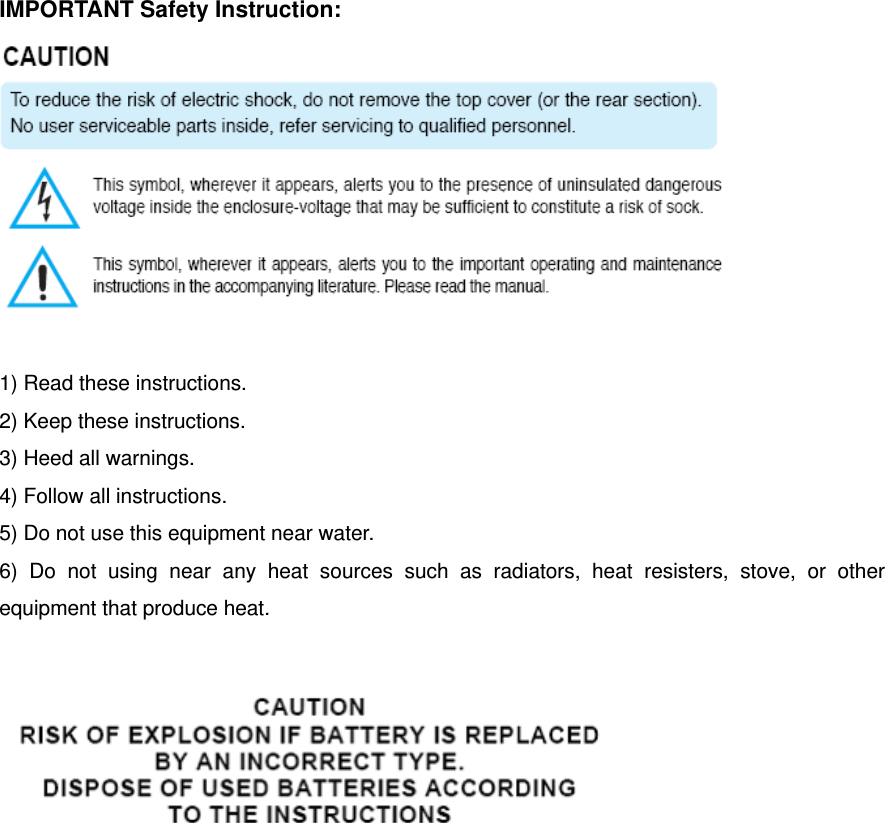
  IMPORTANT Safety Instruction:   1) Read these instructions. 2) Keep these instructions. 3) Heed all warnings. 4) Follow all instructions.   5) Do not use this equipment near water. 6) Do not using near any heat sources such as radiators, heat resisters, stove, or other equipment that produce heat.

Navigation menu