ATEN Technology IOGEAR GWHDMS52MB Long Range Wireless 5 x 2 HD Matrix Pro -Transmitter User Manual GWHDMS52MB T UserMan

ATEN Technology, Inc., dba IOGEAR Long Range Wireless 5 x 2 HD Matrix Pro -Transmitter GWHDMS52MB T UserMan

(GWHDMS52MB-T) UserMan
www.iogear.comUser ManualLong Range Wireless 5x2 HD Matrix ProGWHDMS52MBPART NO.  M1275
©2014 IOGEAR. All Rights Reserved.  Part No. M1275 IOGEAR, the IOGEAR logo is trademarks of IOGEAR. Microsoft and Windows are registered trademarks of Microsoft Corporation. IOGEAR makes no warranty of any kind with regards to the information presented in this  document. All information furnished here is for informational purposes only and is subject to change without notice. IOGEAR. assumes no responsibility for any inaccuracies or errors that may appear in this document.
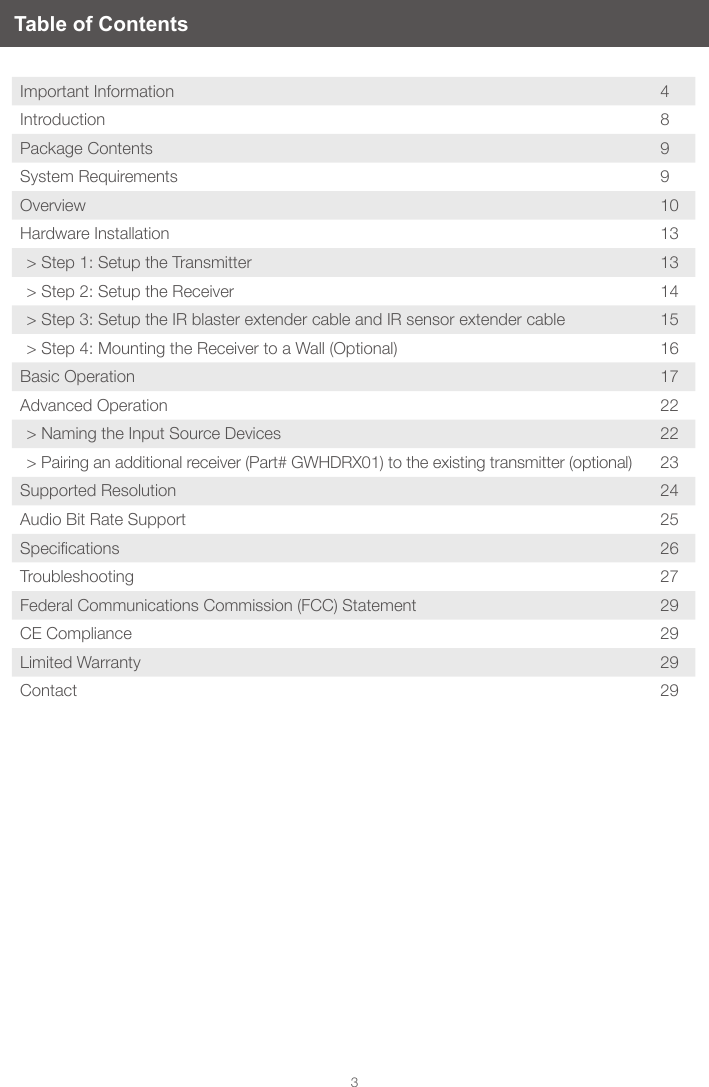
3Table of ContentsImportant Information 4Introduction 8Package Contents 9System Requirements  9Overview 10Hardware Installation 13> Step 1: Setup the Transmitter 13> Step 2: Setup the Receiver 14> Step 3: Setup the IR blaster extender cable and IR sensor extender cable 15> Step 4: Mounting the Receiver to a Wall (Optional) 16Basic Operation 17Advanced Operation 22> Naming the Input Source Devices 22> Pairing an additional receiver (Part# GWHDRX01) to the existing transmitter (optional) 23Supported Resolution 24Audio Bit Rate Support 25Specications 26Troubleshooting 27Federal Communications Commission (FCC) Statement 29CE Compliance  29Limited Warranty 29Contact 29
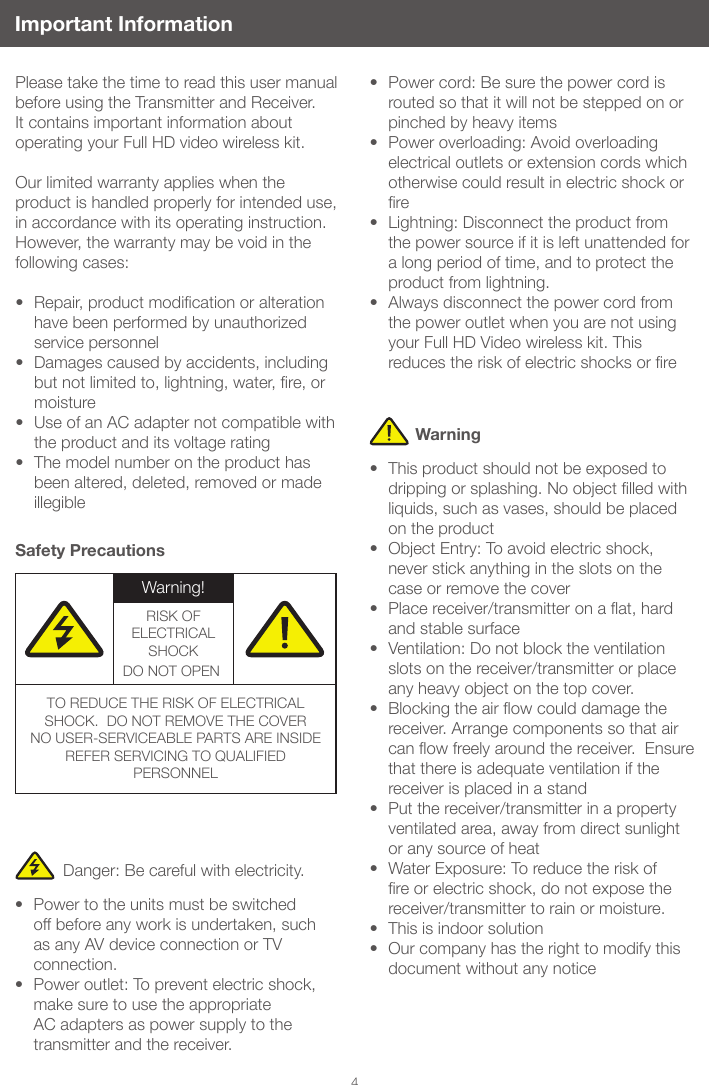
4Important InformationPlease take the time to read this user manual before using the Transmitter and Receiver.  It contains important information about operating your Full HD video wireless kit. Our limited warranty applies when the product is handled properly for intended use, in accordance with its operating instruction. However, the warranty may be void in the following cases: • Repair,productmodicationoralterationhave been performed by unauthorized service personnel• Damages caused by accidents, including butnotlimitedto,lightning,water,re,ormoisture• Use of an AC adapter not compatible with the product and its voltage rating • The model number on the product has been altered, deleted, removed or made illegibleSafety PrecautionsDanger: Be careful with electricity.• Power to the units must be switched off before any work is undertaken, such as any AV device connection or TV connection.• Power outlet: To prevent electric shock, make sure to use the appropriate AC adapters as power supply to the transmitter and the receiver.• Power cord: Be sure the power cord is routed so that it will not be stepped on or pinched by heavy items• Power overloading: Avoid overloading electrical outlets or extension cords which otherwise could result in electric shock or re• Lightning: Disconnect the product from the power source if it is left unattended for a long period of time, and to protect the product from lightning. • Always disconnect the power cord from the power outlet when you are not using your Full HD Video wireless kit. This reducestheriskofelectricshocksorre• This product should not be exposed to drippingorsplashing.Noobjectlledwithliquids, such as vases, should be placed on the product• Object Entry: To avoid electric shock, never stick anything in the slots on the case or remove the cover• Placereceiver/transmitteronaat,hardand stable surface• Ventilation: Do not block the ventilation slots on the receiver/transmitter or place any heavy object on the top cover.  • Blockingtheairowcoulddamagethereceiver. Arrange components so that air canowfreelyaroundthereceiver.Ensurethat there is adequate ventilation if the receiver is placed in a stand  • Put the receiver/transmitter in a property ventilated area, away from direct sunlight or any source of heat• Water Exposure: To reduce the risk of reorelectricshock,donotexposethereceiver/transmitter to rain or moisture.• This is indoor solution• Our company has the right to modify this document without any noticeWarningWarning!RISK OF ELECTRICAL SHOCKDO NOT OPEN!TO REDUCE THE RISK OF ELECTRICAL SHOCK.  DO NOT REMOVE THE COVERNO USER-SERVICEABLE PARTS ARE INSIDEREFER SERVICING TO QUALIFIED PERSONNEL
5• Never use this product nearby an aircraft or medical facility.  It can cause interference or undesirable effect on the operation result• Use of this product in the following locations may result in abnormal video and audio output (noise, blocked image... etc,). 1. Product installed in the walls made of concrete2. Product is situated near the refrigerator ormetaltment3. A cluttered room where the wireless signals may be blocked • This product has been tested and manufactured to comply with each country’s safety rules. However, there is no guarantee that interference will not occur in some installation scenario. If the interference happens, increase the distance between the transmitter and receiver• GWHDMS52 may interfere 5GHz wireless devices, such as routers or other wireless devices. Therefore, if you have an 802.11n router,congureittothe2.4GHzbandrather than the 5GHz band• Optimal range between GWHDMS52 transmitter and receiver is between 2 and 20 meters within line of sightSpecial Notice System WarningFEDERAL COMMUNICATIONS COMMISSION INTERFERENCE STATEMENTThis equipment has been tested and found to comply with the limits for a Class B digital device, pursuant to Part 15 of the FCC Rules. These limits are designed to provide reasonable protection against harmful interference in a residential installation. This equipment generates, uses and can radiate radio frequency energy and, if not installed and used in accordance with the instructions, may cause harmful interference to radio communications. However, there is no guarantee that interference will not occur in a particular installation. If this equipment does cause harmful interference to radio or television reception, which can be determined by turning the equipment off and on, the user is encouraged to try to correct the interference by one or more of the following measures: • Reorient or relocate the receiving antenna.• Increase the separation between the equipment and receiver.• Connect the equipment into an outlet on a circuit different from that to which the receiver is connected.• Consult the dealer or an experienced radio/TV technician for help.
6          CAUTION:            Using the System in the US• Anychangesormodicationsnotexpressly approved by the grantee of this device could void the user’s authority to operate the equipment. • This device complies with Part 15 of the FCC Rules. Operation is subject to the following two conditions: 1.  this device may not cause harmful interference, and 2.  this device must accept any interference received, including interference that may cause undesired operation.           Canada, Industry Canada (IC)                Notices This Class B digital apparatus complies with Canadian ICES-003 and RSS-210. Operation is subject to the following two conditions: (1) this device may not cause interference, and (2) this device must accept any interference, including interference that may cause undesired operation of the device.Radiation Exposure Statement:This equipment complies with IC radiation exposure limits set for an uncontrolled environment. This equipment should be installed and operated with minimum distance 20cm between the radiator & your body.  Caution: 1.  the device for operation in the band 5150-5250 MHz is only for indoor use to reduce the potential for harmful interference to co-channel mobile satellite systems; 2.  High-power radars are allocated as primary users (i.e. priority users) of the bands 5250-5350 MHz and 5470~5600MHz, 5650~5725MHz and that these radars could cause interference and/or damage to LE-LAN devices. Under Industry Canada regulations, this radio transmitter may only operate using an antenna of a type and maximum (or lesser) gain approved for the transmitter by Industry Canada. To reduce potential radio interference to other users, the antenna type and its gain should be so chosen that the equivalent isotropically radiated power (e.i.r.p.) is not more than that necessary for successful communication.Radio Frequency (RF) Exposure InformationThe radiated output power of the Wireless Device is below the Industry Canada (IC) radio frequency exposure limits. The Wireless Device should be used in such a manner such that the potential for human contact during normal operation is minimized. RF exposure warning      This equipment must be installed and oper-ated in accordance with provided instructions and the antenna(s) used for this transmitter must be installed to provide a separation distance of at least 20 cm from all persons and must not be co-located or operating in conjunction with any other antenna or transmitter. End-users and installers must be provide with antenna installation instruc-tions and transmitter operating conditions for satisfying RF exposure compliance.This device is operation in 5.15 – 5.25GHz frequency range, then restricted in in-door use only, Outdoor operations in the 5150~5250MHz is prohibit.This device is slave equipment, the device is not radar detection and not ad-hoc operation in the DFS band.
7French Translation Canada, avis d’Industry Canada (IC) Cet appareil numérique de classe B est conforme aux normes canadiennes ICES-003 et RSS-210. Son fonctionnement est soumis aux deux conditions suivantes : (1) cet appareil ne doit pas causer d’interférence et (2) cet appareil doit accepter toute interférence, notamment les interférences qui peuvent affecter son fonctionnement.Informations concernant l’exposition aux fréquences radio (RF)La puissance de sortie émise par l’appareil desanslestinférieureàlalimited’exposition aux fréquences radio d’Industry Canada(IC).Utilisezl’appareildesansldefaçonàminimiserlescontactshumainslorsdu fonctionnement normal.Ce périphérique a également été évalué et démontré conforme aux limites d’exposition aux RF d’IC dans des conditions d’exposition àdesappareilsmobiles(antennessontsupérieuresà20cmàpartirducorpsd’unepersonne).NOTE IMPORTANTE: Déclaration d’exposition aux radiations: Cet équipement est conforme aux limites d’exposition aux rayonnements IC établies pour un environnement non contrôlé. Cet équipement doit être installé et utilisé avec un minimum de 20 cm de distance entre la source de rayonnement et votre corps. i.  les dispositifs fonctionnant dans la bande 5 150-5 250 MHz sont réservés uniquementpouruneutilisationàl’intérieuranderéduirelesrisquesdebrouillage préjudiciable aux systèmes de satellites mobiles utilisant les mêmes canaux; ii.  De plus, les utilisateurs devraient aussi être avisés que les utilisateurs de radars de haute puissance sont désignés utilisateursprincipaux(c.-à-d.,qu’ilsontla priorité) pour les bandes 5 250-5 350 MHz et 5470~5600MHz, 5650~5725MHz et que ces radars pourraient causer du brouillage et/ou des dommages aux dispositifs LAN-EL. En vertu de la réglementation de l’industrie du Canada, cet émetteur de radio ne peut fonctionneràl’aided’uneantenned’untypeet un maximum (ou moins) Gain approuvé pour l’émetteur par Industrie Canada. Pour réduire le risque d’interférence aux autres utilisateurs, le type d’antenne et son gain doiventêtrechoisisanquelapuissanceisotrope rayonnée équivalente (PIRE) ne dépasse pas ce qui est nécessaire pour une communication réussie.This device has also been evaluated and shown compliant with the IC RF Exposure limits under mobile exposure conditions. (antennas are greater than 20cm from a person’s body).IMPORTANT NOTE:• In the event that these conditions can not be met (for example certain laptop congurationsorco-locationwithanothertransmitter), then the Canada authorization is no longer considered valid and the IC IDcannotbeusedonthenalproduct.Inthese circumstances, the OEM integrator will be responsible for re-evaluating the end product (including the transmitter) and obtaining a separate Canada authorization.
8IntroductionWireless HDMIIOGEAR’s Long Range Wireless 5x2 HD Matrix Pro is the rst to send full uncompressed HD 1080p, connects up to 5 source devices and allows you to switch and independently select any source between 2 HDTVs.The solution consists of a Wireless Transmitter and a Wireless Receiver with connections for HDMI and Component, along with a loop through (local port) for an advanced 2 HDTV set ups. Wireless MatrixThe Long Range Wireless 5 x 2 HD Matrix Pro is setting a new standard in wireless connectivity, exibility, convenience, and decor. The wireless matrix feature is the biggest breakthrough in wireless A / V solutions today. This means you can watch cable TV in the living room while the bedroom independently select a Blu-ray movie to watch wirelessly at the same time. It’s capable of streaming Full HD 1080p with support for 3D content and digital audio up to 200 feet away within the home or desired set up.Infrared (IR)Supports IR pass-through - Enables wireless control of your source devices and helps consolidate your HD A / V electronics, such as a DVD / Blu-ray players, DVR / Cable boxes, Game consoles and computers to design your own custom entertainment space.Home DesignTake re-decorating, retrotting and designing to a new level of creativity and convenience. Ever wanted to set up another HDTV in the Bedroom, Kitchen, Den or patio? Now you can have the wireless HDTV, if you have power you can have HDTV. Set up the HDTV in the back patio for the big sporting event while the kids play video games or watch a Blu-ray movie in the living room!The Long Range Wireless 5 x 2 HD Matrix Pro does not require a line-of-sight placement, keeping home theater devices neatly out of sight, which enables a quick, simple, and exible wireless HD or 3D A / V solution.
9Package Contents1 x Wireless Transmitter 1 x Wireless Receiver 2 x Remote Controls w/ batteries 1 x Component Adapter Cable 1 x IR Blaster Cable (Transmitter) 1 x IR Sensor Extender Cable (Receiver) 2 x Power Adapter 1 x HDMI Cable 1 x User’s Guide 1 x Warranty CardSystem Requirements Display•2HDTVs•HDMIinputperHDTVMedia Source•4HDMIoutput•1ComponentoutputCables•HDMICables(1included)•ComponentCable(notincluded)•RCAAudioCable(L&R,notincluded)
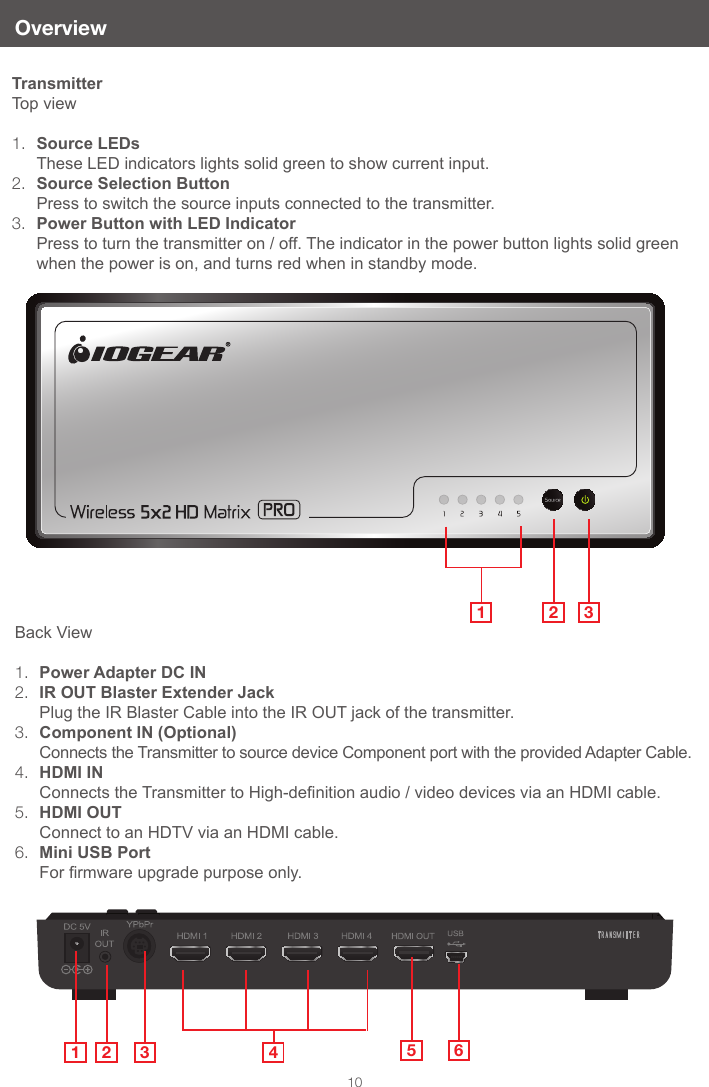
10OverviewTransmitterTop view1.  Source LEDs                                                                                                                   These LED indicators lights solid green to show current input.2.  Source Selection Button                                                                                                                    Press to switch the source inputs connected to the transmitter.3.  Power Button with LED Indicator                                                                                          Press to turn the transmitter on / off. The indicator in the power button lights solid green when the power is on, and turns red when in standby mode.1 2 3Back View1.  Power Adapter DC IN2.  IR OUT Blaster Extender Jack                                                                                               Plug the IR Blaster Cable into the IR OUT jack of the transmitter.3.  Component IN (Optional)                                                                                                        Connects the Transmitter to source device Component port with the provided Adapter Cable.4.  HDMI IN                                                                                                                                   Connects the Transmitter to High-denition audio / video devices via an HDMI cable.5.  HDMI OUT                                                                                                                            Connect to an HDTV via an HDMI cable.6.  Mini USB Port                                                                                                                          For rmware upgrade purpose only. 1 2 3 4 5 6
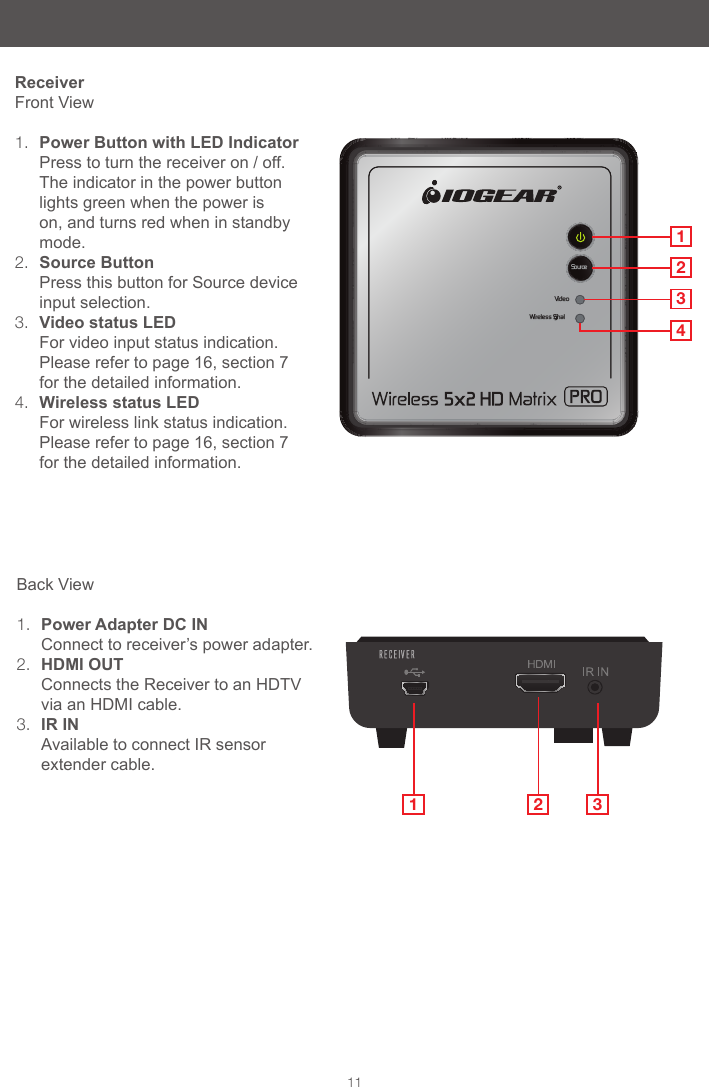
11ReceiverFront View1.  Power Button with LED Indicator Press to turn the receiver on / off. The indicator in the power button lights green when the power is on, and turns red when in standby mode.2.  Source Button                                   Press this button for Source device input selection.3.  Video status LED                                     For video input status indication. Please refer to page 16, section 7 for the detailed information.4.  Wireless status LED                      For wireless link status indication. Please refer to page 16, section 7 for the detailed information.VideoWi reless SignalSourceVi deoWi reless Signal1234Back View1.  Power Adapter DC IN                           Connect to receiver’s power adapter.2.  HDMI OUT                                           Connects the Receiver to an HDTV via an HDMI cable.3.  IR IN                                                      Available to connect IR sensor extender cable.1 2 3
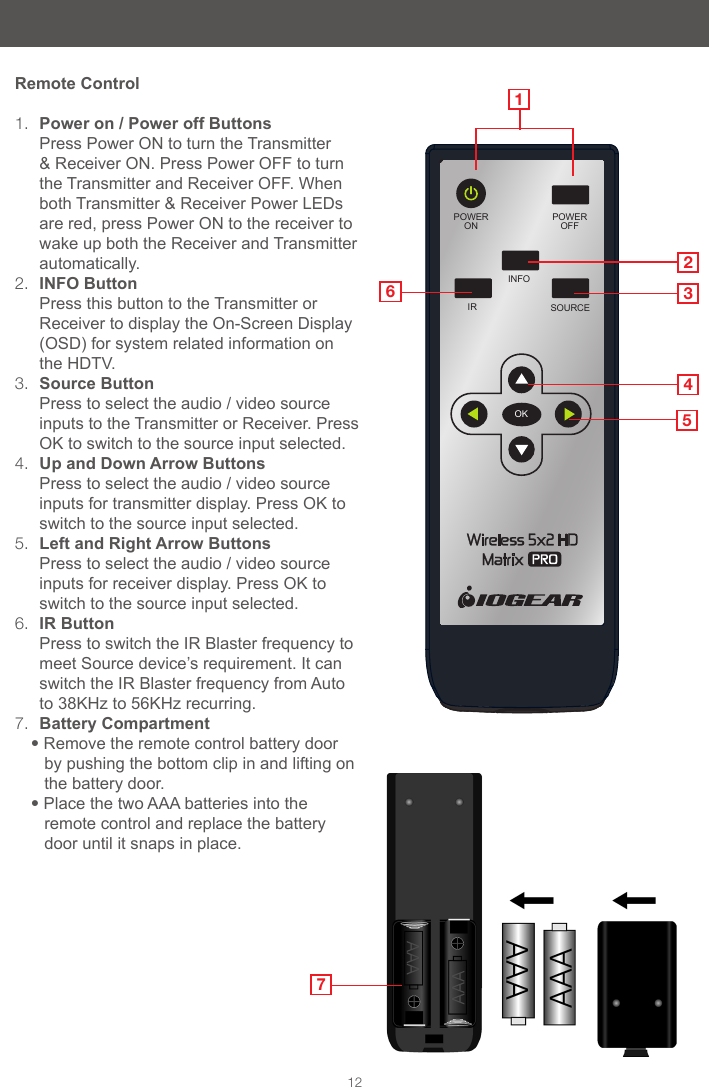
POWEROFFPOWERONINFOSOURCEIROK12Remote Control1.  Power on / Power off Buttons                 Press Power ON to turn the Transmitter & Receiver ON. Press Power OFF to turn the Transmitter and Receiver OFF. When both Transmitter & Receiver Power LEDs are red, press Power ON to the receiver to wake up both the Receiver and Transmitter automatically.2.  INFO Button                                            Press this button to the Transmitter or Receiver to display the On-Screen Display (OSD) for system related information on the HDTV.3.  Source Button                                      Press to select the audio / video source  inputs to the Transmitter or Receiver. Press OK to switch to the source input selected.4.  Up and Down Arrow Buttons                Press to select the audio / video source inputs for transmitter display. Press OK to switch to the source input selected.5.  Left and Right Arrow Buttons           Press to select the audio / video source   inputs for receiver display. Press OK to switch to the source input selected.6.  IR Button                                                Press to switch the IR Blaster frequency to meet Source device’s requirement. It can switch the IR Blaster frequency from Auto to 38KHz to 56KHz recurring.7.  Battery Compartment• Remove the remote control battery door by pushing the bottom clip in and lifting on the battery door.•Place the two AAA batteries into the remote control and replace the battery door until it snaps in place.2345167
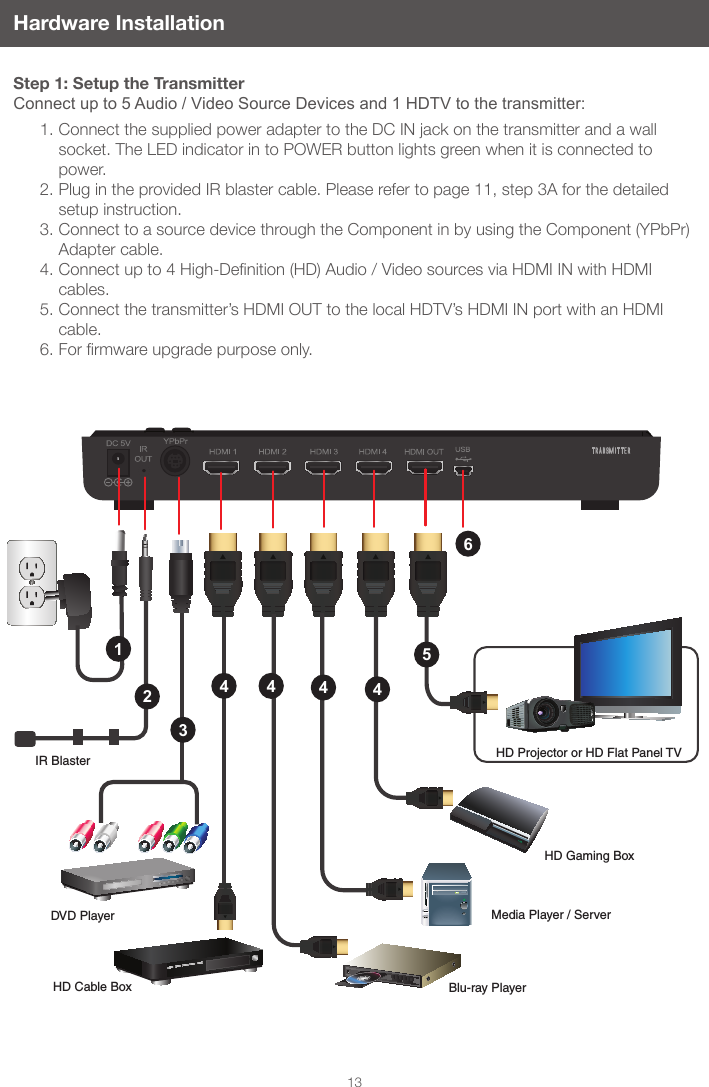
IR BlasterDVD PlayerHD Cable Box Blu-ray Player HD Gaming BoxMedia Player / ServerHD Projector or HD Flat Panel TV14443245613Hardware InstallationStep 1: Setup the TransmitterConnect up to 5 Audio / Video Source Devices and 1 HDTV to the transmitter:1. Connect the supplied power adapter to the DC IN jack on the transmitter and a wall socket. The LED indicator in to POWER button lights green when it is connected to power.2. Plug in the provided IR blaster cable. Please refer to page 11, step 3A for the detailed setup instruction.3. Connect to a source device through the Component in by using the Component (YPbPr) Adapter cable.4. Connectupto4High-Denition(HD)Audio/VideosourcesviaHDMIINwithHDMIcables.5. Connect the transmitter’s HDMI OUT to the local HDTV’s HDMI IN port with an HDMI cable.6. Forrmwareupgradepurposeonly.
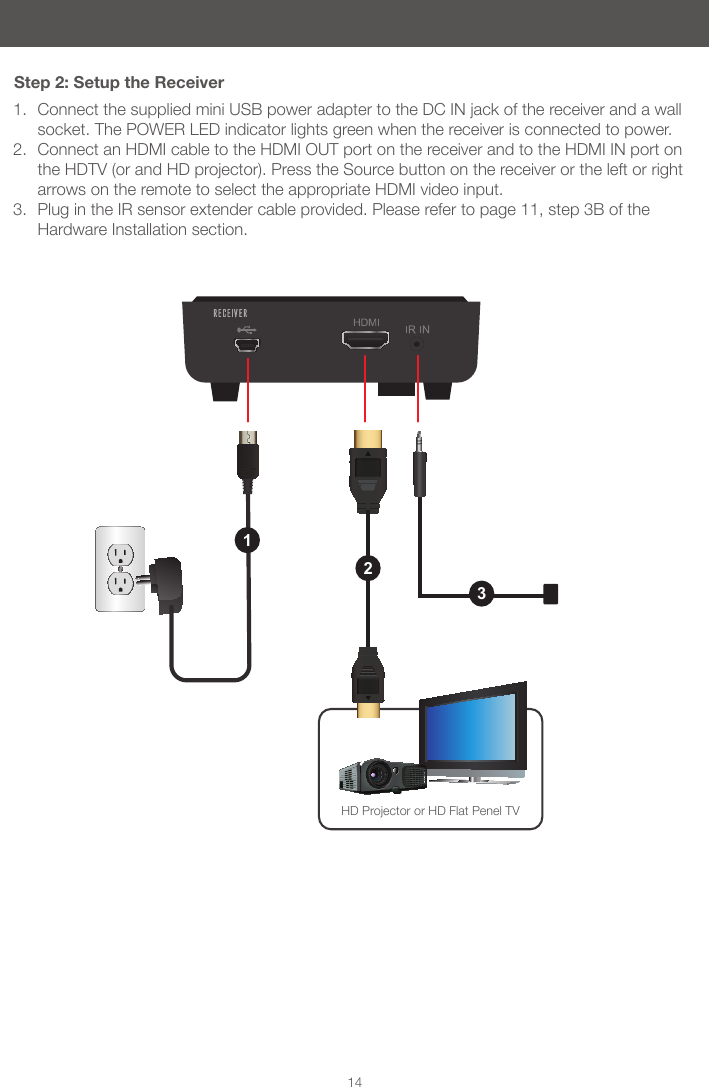
12314Step 2: Setup the ReceiverHD Projector or HD Flat Penel TV1.  Connect the supplied mini USB power adapter to the DC IN jack of the receiver and a wall socket. The POWER LED indicator lights green when the receiver is connected to power.2.  Connect an HDMI cable to the HDMI OUT port on the receiver and to the HDMI IN port on the HDTV (or and HD projector). Press the Source button on the receiver or the left or right arrows on the remote to select the appropriate HDMI video input.3.  Plug in the IR sensor extender cable provided. Please refer to page 11, step 3B of the Hardware Installation section.
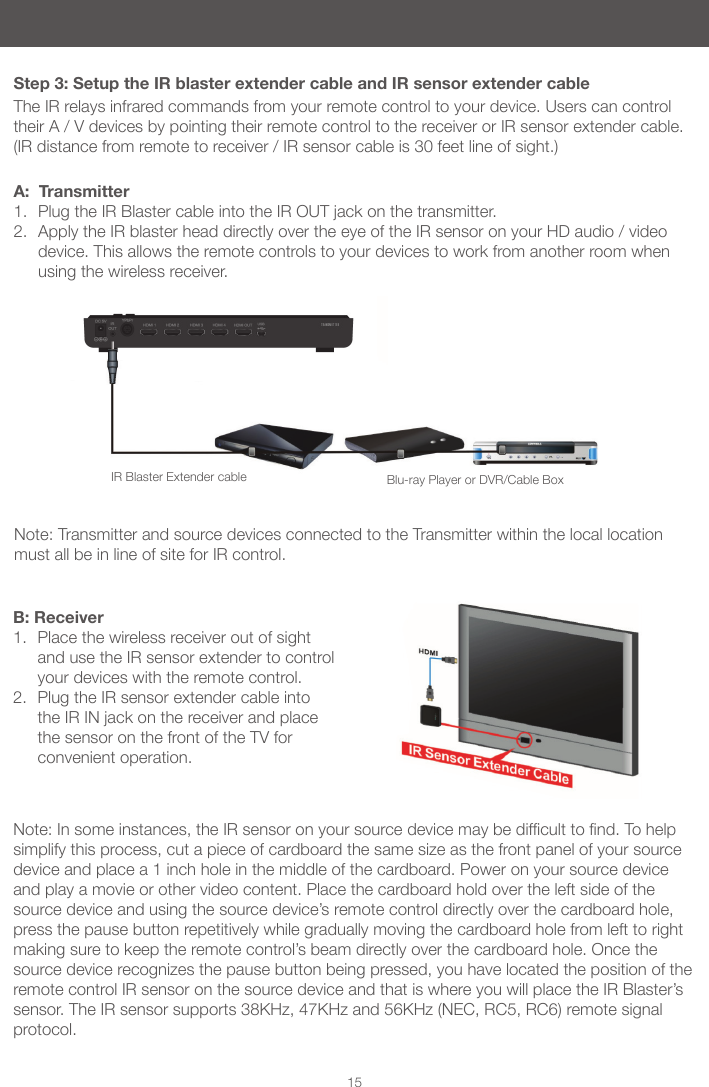
15Step 3: Setup the IR blaster extender cable and IR sensor extender cableThe IR relays infrared commands from your remote control to your device. Users can control their A / V devices by pointing their remote control to the receiver or IR sensor extender cable. (IR distance from remote to receiver / IR sensor cable is 30 feet line of sight.)A:  Transmitter1.  Plug the IR Blaster cable into the IR OUT jack on the transmitter.2.  Apply the IR blaster head directly over the eye of the IR sensor on your HD audio / video device. This allows the remote controls to your devices to work from another room when using the wireless receiver.B: Receiver1.  Place the wireless receiver out of sight and use the IR sensor extender to control your devices with the remote control.2.  Plug the IR sensor extender cable into the IR IN jack on the receiver and place the sensor on the front of the TV for convenient operation.Note:Insomeinstances,theIRsensoronyoursourcedevicemaybedifculttond.Tohelpsimplify this process, cut a piece of cardboard the same size as the front panel of your source device and place a 1 inch hole in the middle of the cardboard. Power on your source device and play a movie or other video content. Place the cardboard hold over the left side of the source device and using the source device’s remote control directly over the cardboard hole, press the pause button repetitively while gradually moving the cardboard hole from left to right making sure to keep the remote control’s beam directly over the cardboard hole. Once the source device recognizes the pause button being pressed, you have located the position of the remote control IR sensor on the source device and that is where you will place the IR Blaster’s sensor. The IR sensor supports 38KHz, 47KHz and 56KHz (NEC, RC5, RC6) remote signal protocol.IR Blaster Extender cable Blu-ray Player or DVR/Cable BoxNote: Transmitter and source devices connected to the Transmitter within the local location must all be in line of site for IR control.
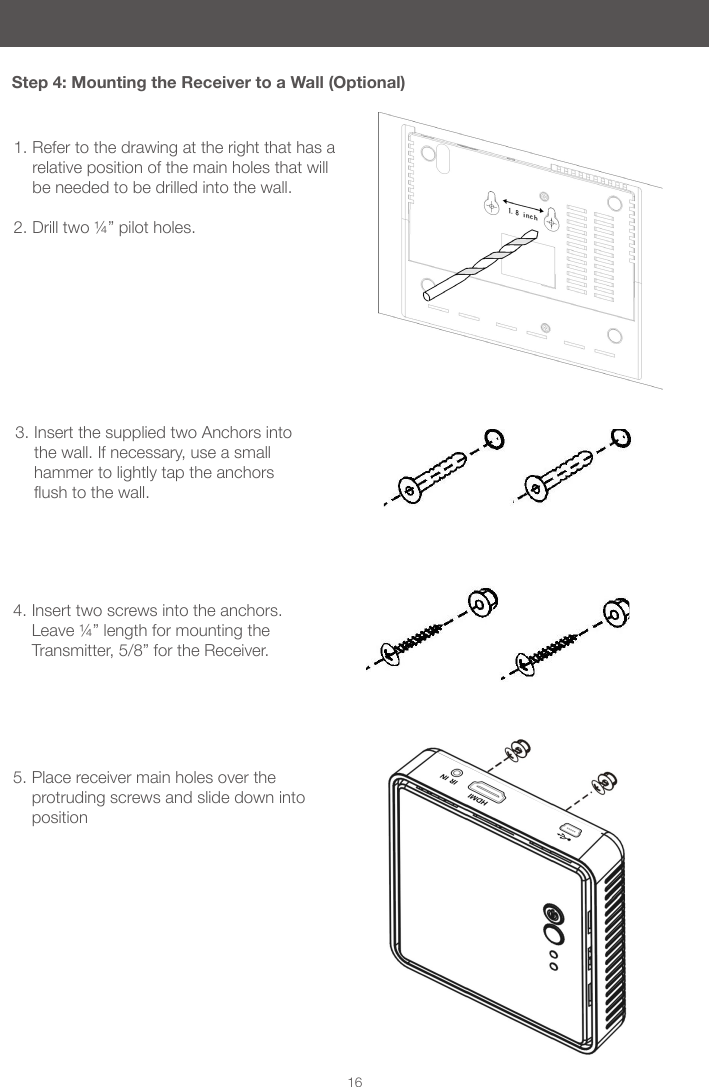
16Step 4: Mounting the Receiver to a Wall (Optional)1. Refer to the drawing at the right that has a relative position of the main holes that will be needed to be drilled into the wall. 2. Drill two ¼” pilot holes. 3. Insert the supplied two Anchors into the wall. If necessary, use a small hammer to lightly tap the anchors ushtothewall. 4. Insert two screws into the anchors. Leave ¼” length for mounting the Transmitter, 5/8” for the Receiver. 5. Place receiver main holes over the protruding screws and slide down into position
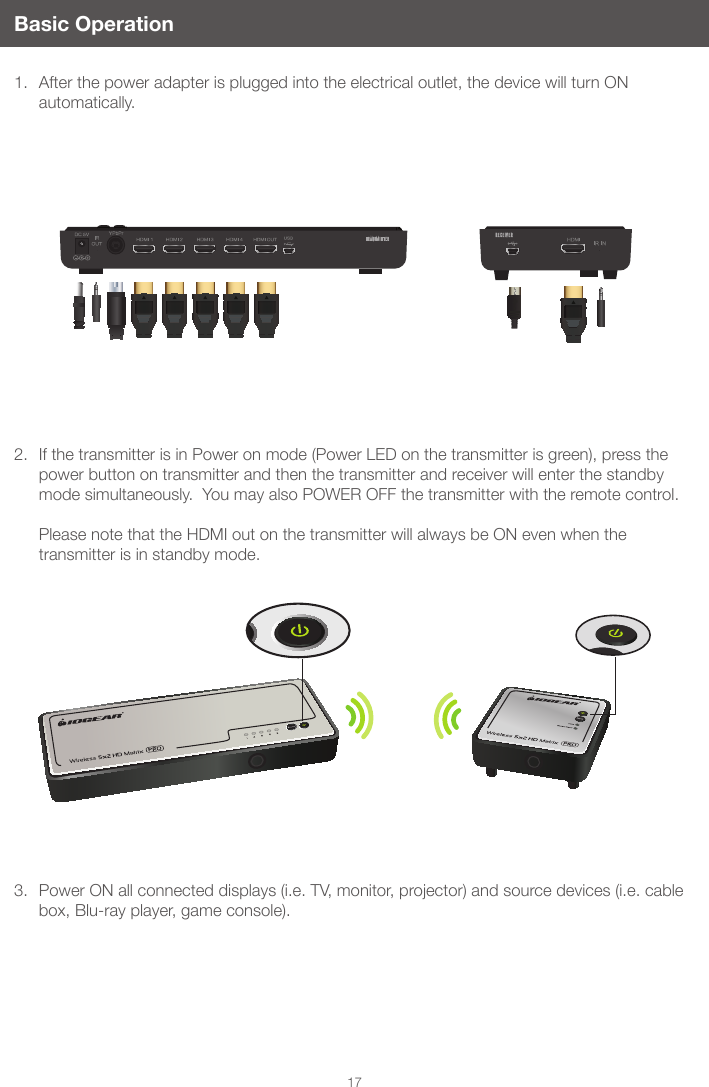
17Basic Operation1.  After the power adapter is plugged into the electrical outlet, the device will turn ON automatically.2.  If the transmitter is in Power on mode (Power LED on the transmitter is green), press the power button on transmitter and then the transmitter and receiver will enter the standby mode simultaneously.  You may also POWER OFF the transmitter with the remote control.   Please note that the HDMI out on the transmitter will always be ON even when the transmitter is in standby mode. 3.  Power ON all connected displays (i.e. TV, monitor, projector) and source devices (i.e. cable box, Blu-ray player, game console).
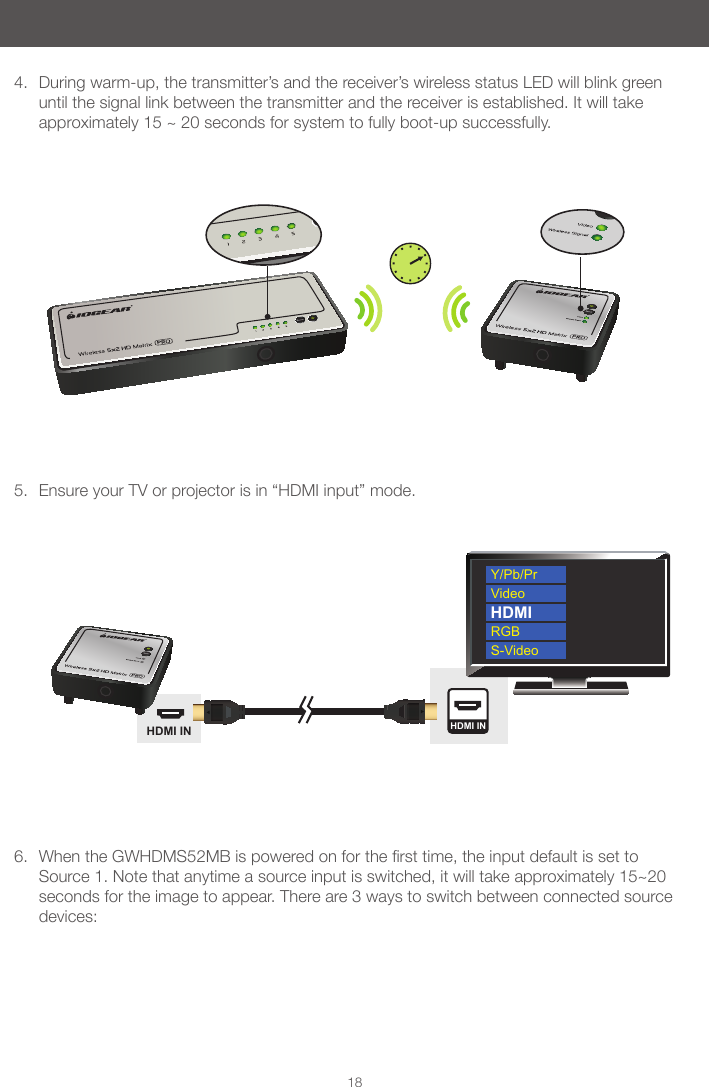
HDMI IN HDMI INY/Pb/PrVideoRGBS-VideoHDMI184.  During warm-up, the transmitter’s and the receiver’s wireless status LED will blink green until the signal link between the transmitter and the receiver is established. It will take approximately 15 ~ 20 seconds for system to fully boot-up successfully.5.  Ensure your TV or projector is in “HDMI input” mode.6.  WhentheGWHDMS52MBispoweredonforthersttime,theinputdefaultissettoSource 1. Note that anytime a source input is switched, it will take approximately 15~20 seconds for the image to appear. There are 3 ways to switch between connected source devices:
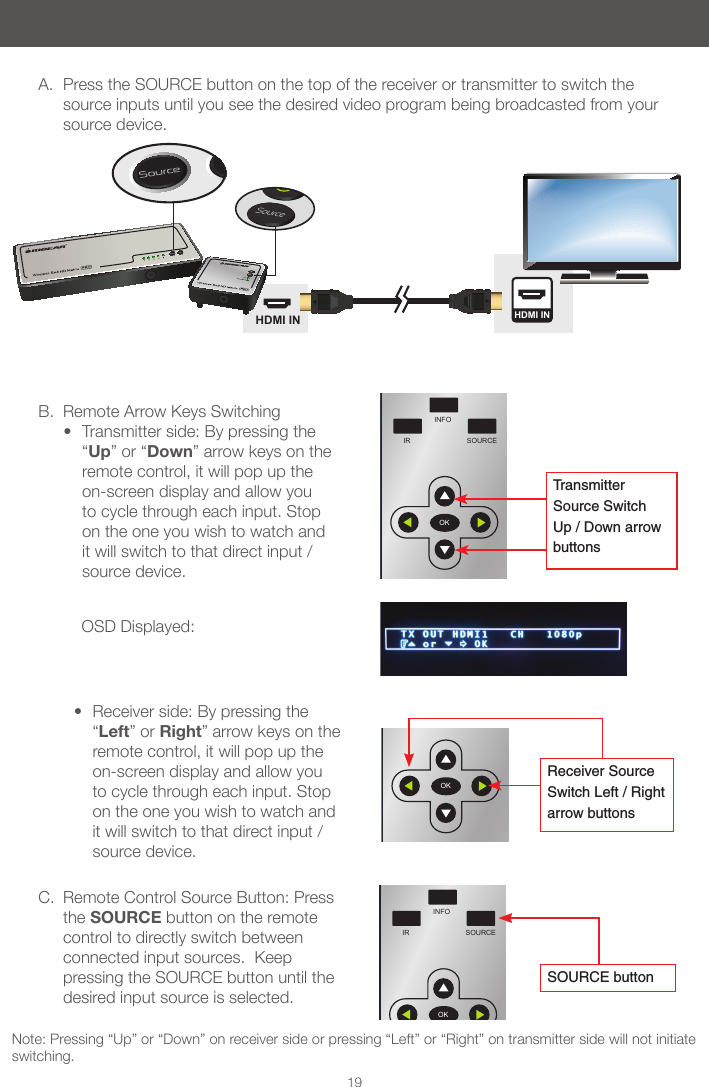
Note: Pressing “Up” or “Down” on receiver side or pressing “Left” or “Right” on transmitter side will not initiate switching.OSD Displayed:HDMI IN HDMI INPOWEROFFPOWERONINFOSOURCEIROKPOWEROFFPOWERONINFOSOURCEIROKPOWEROFFPOWERONINFOSOURCEIROK19B.  Remote Arrow Keys Switching• Transmitter side: By pressing the “Up” or “Down” arrow keys on the remote control, it will pop up the on-screen display and allow you to cycle through each input. Stop on the one you wish to watch and it will switch to that direct input / source device.  Receiver Source Switch Left / Right arrow buttonsTransmitter Source Switch Up / Down arrow buttonsA.  Press the SOURCE button on the top of the receiver or transmitter to switch the source inputs until you see the desired video program being broadcasted from your source device.• Receiver side: By pressing the “Left” or Right” arrow keys on the remote control, it will pop up the on-screen display and allow you to cycle through each input. Stop on the one you wish to watch and it will switch to that direct input / source device.C.  Remote Control Source Button: Press the SOURCE button on the remote control to directly switch between connected input sources.  Keep pressing the SOURCE button until the desired input source is selected.          SOURCE button
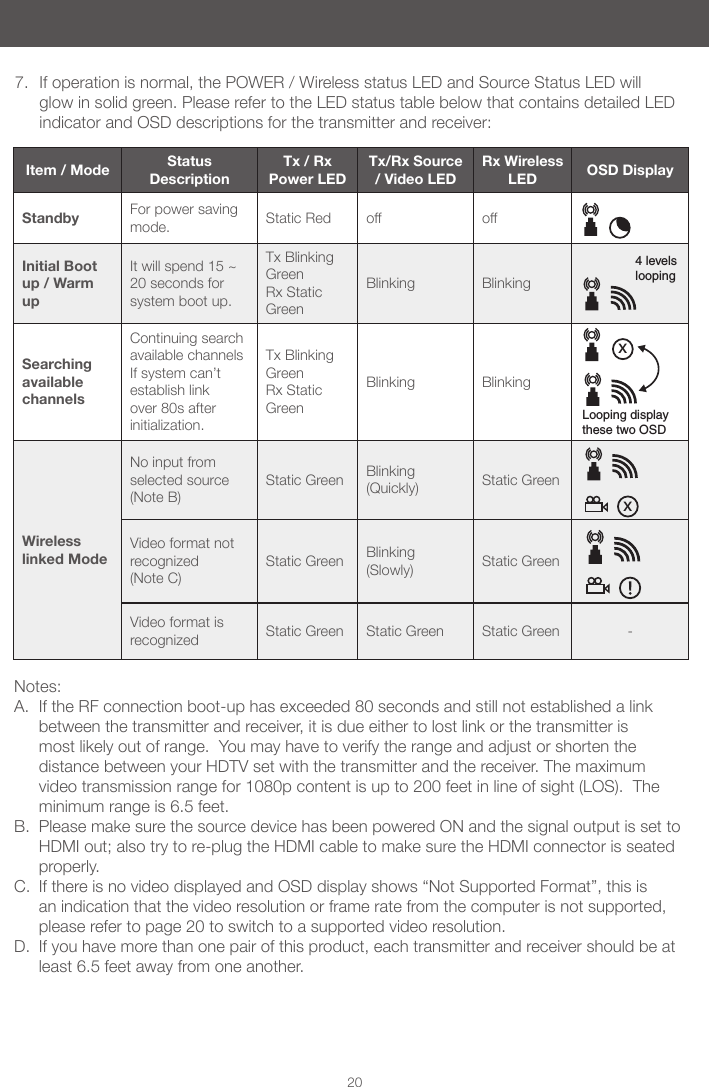
207.  If operation is normal, the POWER / Wireless status LED and Source Status LED will glow in solid green. Please refer to the LED status table below that contains detailed LED indicator and OSD descriptions for the transmitter and receiver:Item / Mode Status DescriptionTx / Rx Power LEDTx/Rx Source / Video LEDRx Wireless LED OSD DisplayStandby For power saving mode. Static Red off offInitial Boot up / Warm upIt will spend 15 ~ 20 seconds for system boot up.Tx Blinking Green  Rx Static GreenBlinking BlinkingSearching available channels Continuing search available channels If system can’t establish link over 80s after initialization.Tx Blinking Green  Rx Static GreenBlinking BlinkingWireless linked ModeNo input from selected source (Note B)Static Green Blinking(Quickly) Static GreenVideo format not recognized(Note C)Static Green Blinking(Slowly) Static GreenVideo format is recognized Static Green Static Green Static Green -Notes: A.  If the RF connection boot-up has exceeded 80 seconds and still not established a link between the transmitter and receiver, it is due either to lost link or the transmitter is most likely out of range.  You may have to verify the range and adjust or shorten the distance between your HDTV set with the transmitter and the receiver. The maximum video transmission range for 1080p content is up to 200 feet in line of sight (LOS).  The minimum range is 6.5 feet.B.  Please make sure the source device has been powered ON and the signal output is set to HDMI out; also try to re-plug the HDMI cable to make sure the HDMI connector is seated properly. C.  If there is no video displayed and OSD display shows “Not Supported Format”, this is an indication that the video resolution or frame rate from the computer is not supported, please refer to page 20 to switch to a supported video resolution.D.  If you have more than one pair of this product, each transmitter and receiver should be at least 6.5 feet away from one another. 4 levels loopingLooping display these two OSDxx
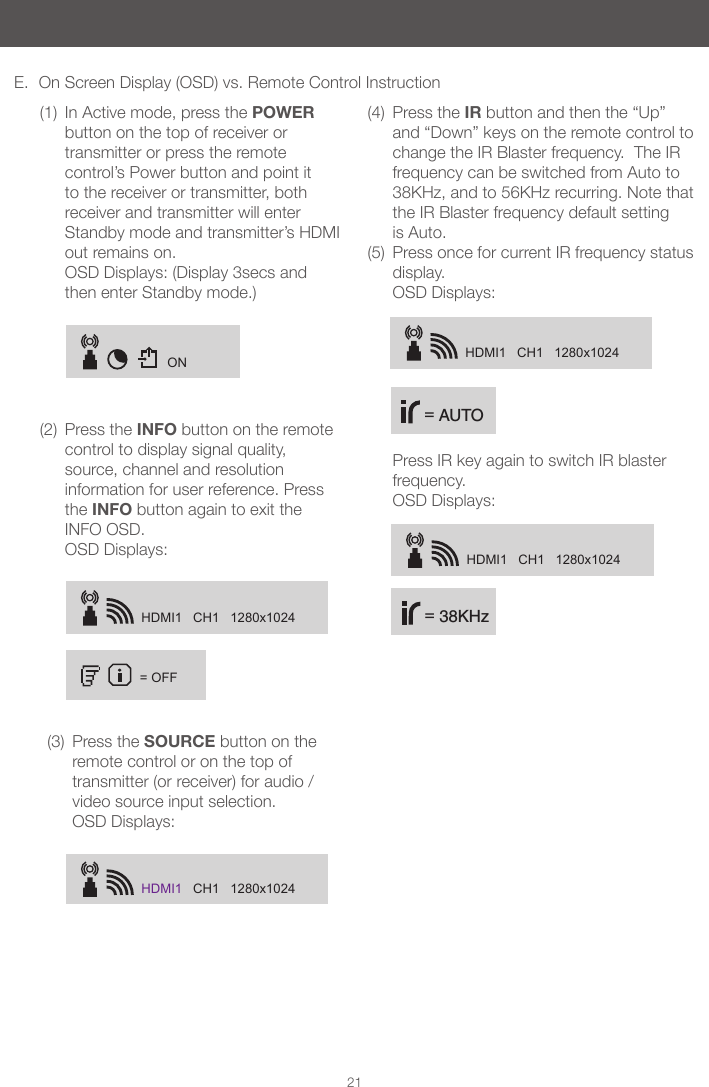
ONHDMI1   CH1   1280x1024= OFFHDMI1   CH1   1280x1024HDMI1   CH1   1280x1024HDMI1   CH1   1280x1024 = 38KHz = AUTO21E.  On Screen Display (OSD) vs. Remote Control Instruction(1)  In Active mode, press the POWER button on the top of receiver or transmitter or press the remote control’s Power button and point it to the receiver or transmitter, both receiver and transmitter will enter Standby mode and transmitter’s HDMI out remains on.  OSD Displays: (Display 3secs and then enter Standby mode.)(2)  Press the INFO button on the remote control to display signal quality, source, channel and resolution information for user reference. Press the INFO button again to exit the INFO OSD. OSD Displays: (3)  Press the SOURCE button on the remote control or on the top of transmitter (or receiver) for audio /video source input selection. OSD Displays:(4)  Press the IR button and then the “Up” and “Down” keys on the remote control to change the IR Blaster frequency.  The IR frequency can be switched from Auto to 38KHz, and to 56KHz recurring. Note that the IR Blaster frequency default setting is Auto.(5)  Press once for current IR frequency status display. OSD Displays:   Press IR key again to switch IR blaster frequency.  OSD Displays:
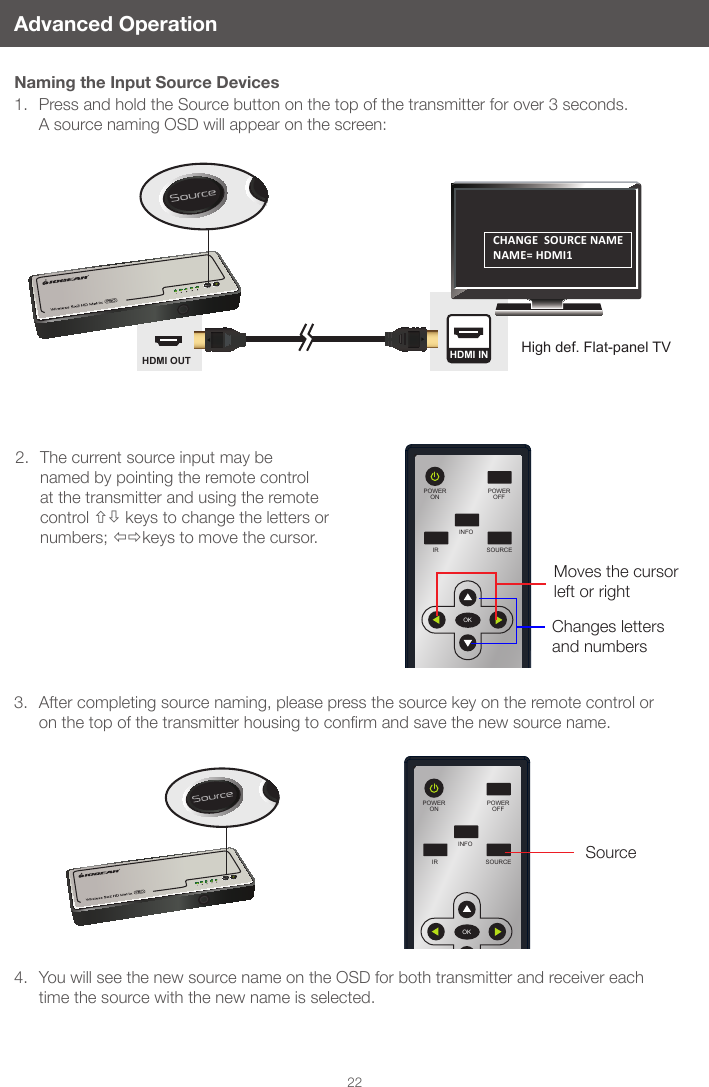
POWEROFFPOWERONINFOSOURCEIROKPOWEROFFPOWERONINFOSOURCEIROKHDMI OUTHigh def. Flat-panel TVHDMI IN22Advanced OperationNaming the Input Source Devices1.  Press and hold the Source button on the top of the transmitter for over 3 seconds.   A source naming OSD will appear on the screen:2.  The current source input may be named by pointing the remote control at the transmitter and using the remote control  keys to change the letters or numbers; keys to move the cursor.3.  After completing source naming, please press the source key on the remote control or onthetopofthetransmitterhousingtoconrmandsavethenewsourcename.4.  You will see the new source name on the OSD for both transmitter and receiver each time the source with the new name is selected.Moves the cursor left or rightChanges letters and numbersCHANGE  SOURCE NAME NAME= HDMI1Source
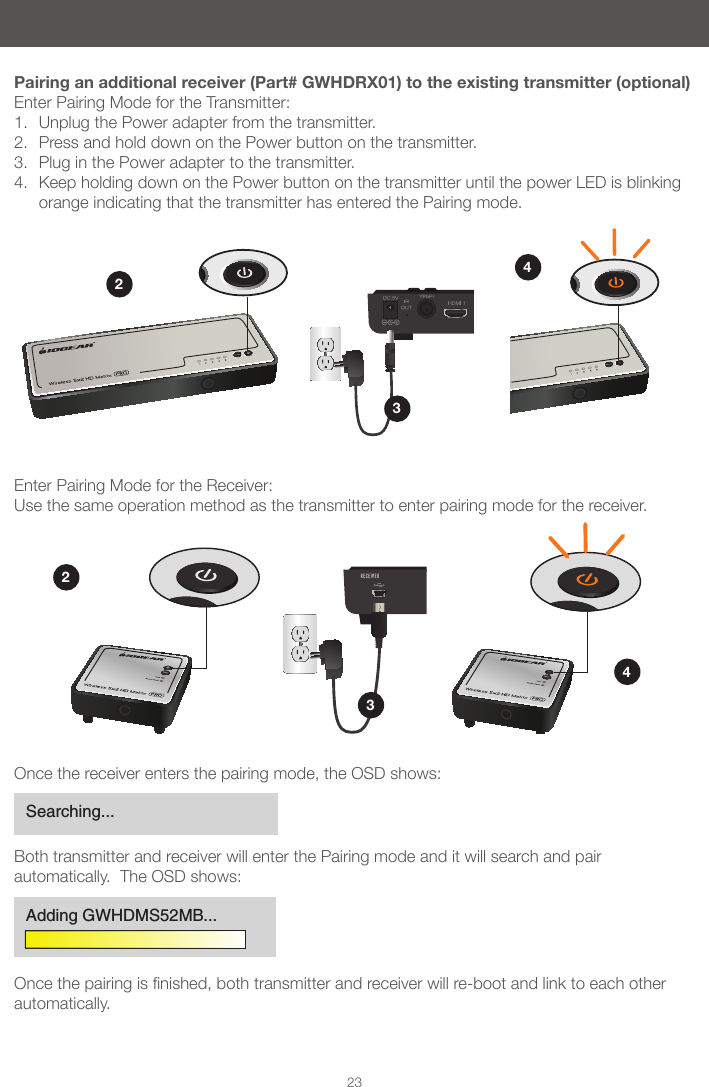
2223Pairing an additional receiver (Part# GWHDRX01) to the existing transmitter (optional)Enter Pairing Mode for the Transmitter:1.  Unplug the Power adapter from the transmitter.2.  Press and hold down on the Power button on the transmitter.3.  Plug in the Power adapter to the transmitter.4.  Keep holding down on the Power button on the transmitter until the power LED is blinking orange indicating that the transmitter has entered the Pairing mode.Enter Pairing Mode for the Receiver:Use the same operation method as the transmitter to enter pairing mode for the receiver.3434Once the receiver enters the pairing mode, the OSD shows:Both transmitter and receiver will enter the Pairing mode and it will search and pair automatically.  The OSD shows:Oncethepairingisnished,bothtransmitterandreceiverwillre-bootandlinktoeachotherautomatically.Searching...Adding GWHDMS52MB...
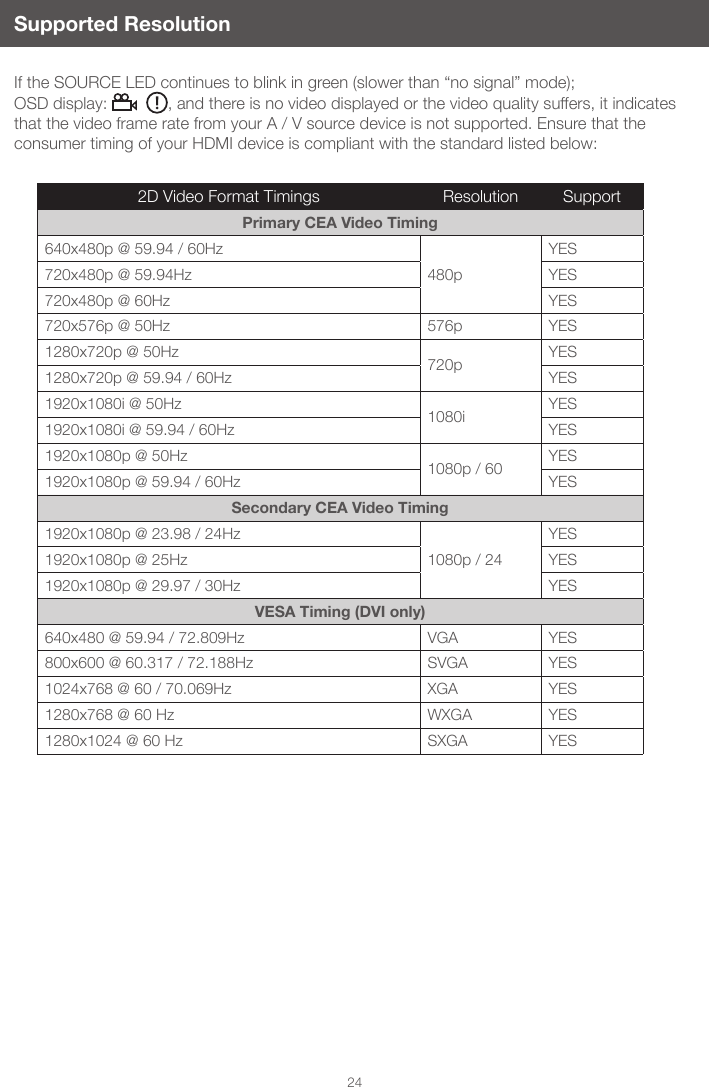
24Supported ResolutionIf the SOURCE LED continues to blink in green (slower than “no signal” mode); OSD display:  , and there is no video displayed or the video quality suffers, it indicates that the video frame rate from your A / V source device is not supported. Ensure that the consumer timing of your HDMI device is compliant with the standard listed below:2D Video Format Timings Resolution SupportPrimary CEA Video Timing640x480p @ 59.94 / 60Hz480pYES720x480p @ 59.94Hz YES720x480p @ 60Hz YES720x576p @ 50Hz 576p YES1280x720p @ 50Hz 720p YES1280x720p @ 59.94 / 60Hz YES1920x1080i @ 50Hz 1080i YES1920x1080i @ 59.94 / 60Hz YES1920x1080p @ 50Hz 1080p / 60 YES1920x1080p @ 59.94 / 60Hz YESSecondary CEA Video Timing1920x1080p @ 23.98 / 24Hz1080p / 24YES1920x1080p @ 25Hz YES1920x1080p @ 29.97 / 30Hz YESVESA Timing (DVI only)640x480 @ 59.94 / 72.809Hz VGA YES800x600 @ 60.317 / 72.188Hz SVGA YES1024x768 @ 60 / 70.069Hz XGA YES1280x768 @ 60 Hz WXGA YES1280x1024 @ 60 Hz SXGA YES
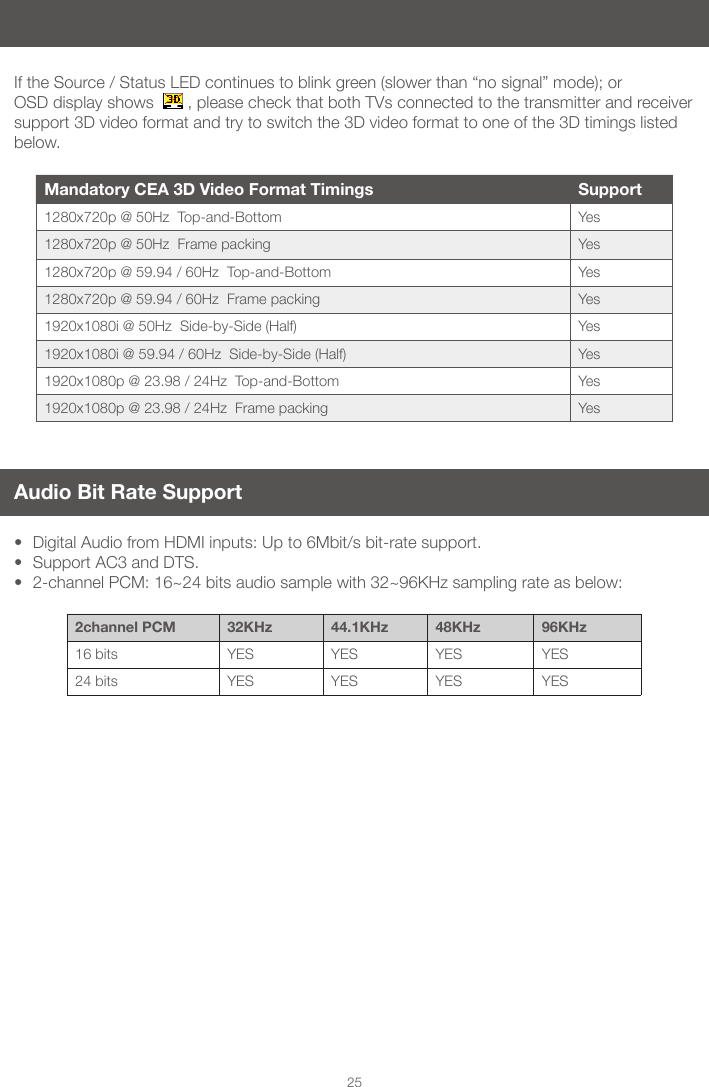
25If the Source / Status LED continues to blink green (slower than “no signal” mode); or OSD display shows    , please check that both TVs connected to the transmitter and receiver support 3D video format and try to switch the 3D video format to one of the 3D timings listed below. Mandatory CEA 3D Video Format Timings Support1280x720p @ 50Hz  Top-and-Bottom Yes1280x720p @ 50Hz  Frame packing Yes1280x720p @ 59.94 / 60Hz  Top-and-Bottom  Yes1280x720p @ 59.94 / 60Hz  Frame packing Yes1920x1080i @ 50Hz  Side-by-Side (Half) Yes1920x1080i @ 59.94 / 60Hz  Side-by-Side (Half) Yes1920x1080p @ 23.98 / 24Hz  Top-and-Bottom Yes1920x1080p @ 23.98 / 24Hz  Frame packing YesAudio Bit Rate Support• Digital Audio from HDMI inputs: Up to 6Mbit/s bit-rate support. • Support AC3 and DTS. • 2-channel PCM: 16~24 bits audio sample with 32~96KHz sampling rate as below:2channel PCM 32KHz 44.1KHz 48KHz 96KHz16 bits YES YES YES YES24 bits YES YES YES YES
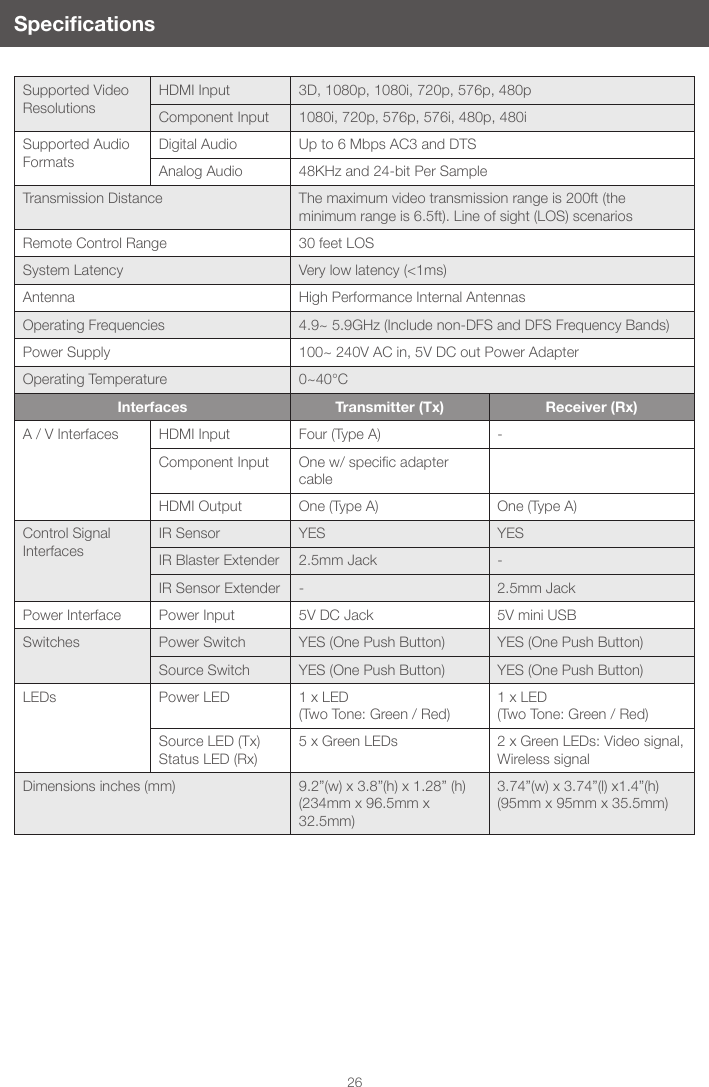
26SpecicationsSupported Video ResolutionsHDMI Input 3D, 1080p, 1080i, 720p, 576p, 480pComponent Input 1080i, 720p, 576p, 576i, 480p, 480iSupported Audio FormatsDigital Audio Up to 6 Mbps AC3 and DTSAnalog Audio 48KHz and 24-bit Per SampleTransmission Distance The maximum video transmission range is 200ft (the minimum range is 6.5ft). Line of sight (LOS) scenariosRemote Control Range 30 feet LOSSystem Latency Very low latency (<1ms)Antenna High Performance Internal AntennasOperating Frequencies 4.9~ 5.9GHz (Include non-DFS and DFS Frequency Bands)Power Supply 100~ 240V AC in, 5V DC out Power AdapterOperating Temperature 0~40°CInterfaces Transmitter (Tx) Receiver (Rx)A / V Interfaces HDMI Input Four (Type A) -Component Input Onew/specicadaptercable HDMI Output One (Type A) One (Type A)Control Signal InterfacesIR Sensor YES YESIR Blaster Extender 2.5mm Jack -IR Sensor Extender - 2.5mm JackPower Interface Power Input 5V DC Jack 5V mini USB Switches Power Switch YES (One Push Button) YES (One Push Button)Source Switch YES (One Push Button) YES (One Push Button)LEDs Power LED 1 x LED  (Two Tone: Green / Red)1 x LED  (Two Tone: Green / Red)Source LED (Tx)Status LED (Rx)5 x Green LEDs 2 x Green LEDs: Video signal, Wireless signalDimensions inches (mm) 9.2”(w) x 3.8”(h) x 1.28” (h)  (234mm x 96.5mm x 32.5mm)3.74”(w) x 3.74”(l) x1.4”(h)(95mm x 95mm x 35.5mm)
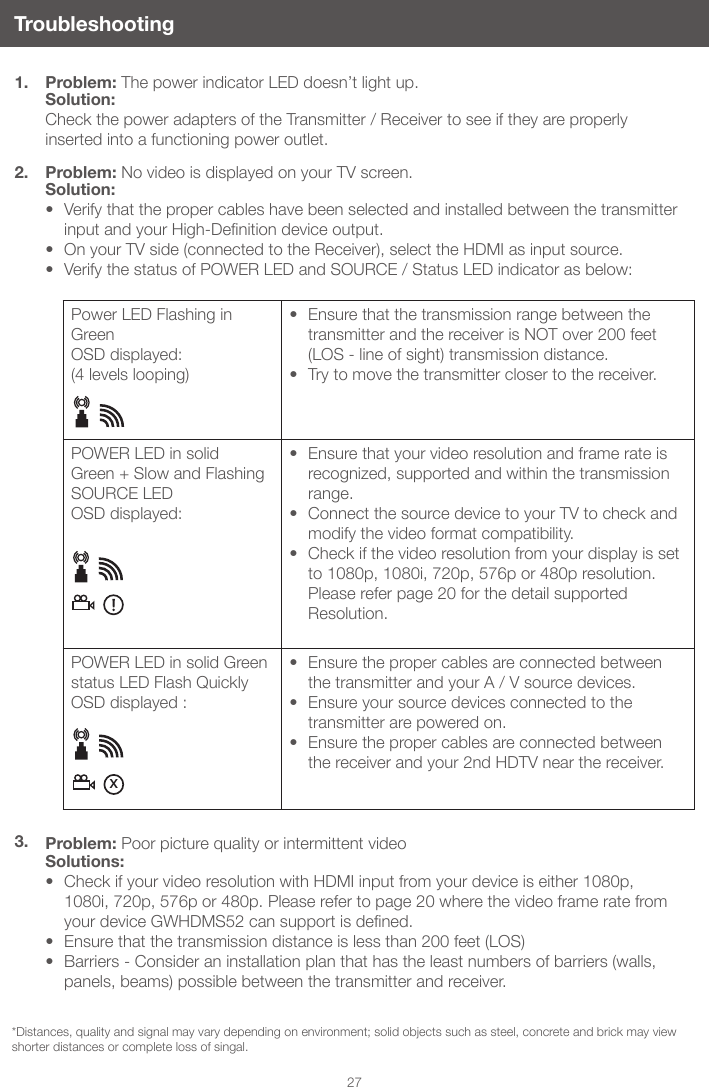
271. Problem: The power indicator LED doesn’t light up.Solution:  Check the power adapters of the Transmitter / Receiver to see if they are properly inserted into a functioning power outlet.2. Problem: No video is displayed on your TV screen.Solution:• Verify that the proper cables have been selected and installed between the transmitter inputandyourHigh-Denitiondeviceoutput.• On your TV side (connected to the Receiver), select the HDMI as input source.• Verify the status of POWER LED and SOURCE / Status LED indicator as below: Power LED Flashing in Green OSD displayed:  (4 levels looping)• Ensure that the transmission range between the transmitter and the receiver is NOT over 200 feet (LOS - line of sight) transmission distance. • Try to move the transmitter closer to the receiver.POWER LED in solid Green + Slow and Flashing SOURCE LED OSD displayed: • Ensure that your video resolution and frame rate is recognized, supported and within the transmission range.• Connect the source device to your TV to check and modify the video format compatibility.• Check if the video resolution from your display is set to 1080p, 1080i, 720p, 576p or 480p resolution.  Please refer page 20 for the detail supported Resolution.POWER LED in solid Green status LED Flash QuicklyOSD displayed : • Ensure the proper cables are connected between the transmitter and your A / V source devices.• Ensure your source devices connected to the transmitter are powered on.• Ensure the proper cables are connected between the receiver and your 2nd HDTV near the receiver.3. Problem: Poor picture quality or intermittent videoSolutions:• Check if your video resolution with HDMI input from your device is either 1080p, 1080i, 720p, 576p or 480p. Please refer to page 20 where the video frame rate from yourdeviceGWHDMS52cansupportisdened.• Ensure that the transmission distance is less than 200 feet (LOS)• Barriers - Consider an installation plan that has the least numbers of barriers (walls, panels, beams) possible between the transmitter and receiver. Troubleshootingx*Distances, quality and signal may vary depending on environment; solid objects such as steel, concrete and brick may view shorter distances or complete loss of singal.
284. Problem:  No audioSolution:• Check your TV’s volume is properly set and not set in “MUTE” mode.• Check if your source player’s audio volume has been turned up.• Ensure that the bit rate of audio from the source device can be supported by GWHDMS52MB. Please refer to the details in page 21 Audio Bit Rate Support. 5. Problem:  IR Blaster can’t control Source device.Solution:• Check where is IR sensor is located on the Source device. Make sure that the IR Blaster sensor is close and straight in front of the Source device’s IR sensor. Please refer Installation, step 3 for reference setup.• Change IR Blaster frequency to meet Source device’s requirement. See the page 11 for the IR blaster frequency switch.6. Problem: No 3D video output. OSD displayed: Tx             and/or RxSolutions: Check if both TVs (includingTx and Rx side) support 3D video format. If either one of the TVs only supports 2D format, then 3D output might not be supported.• If user wants to display 3D video on HDTV which supported 3D video, please turn off the 2D HDTV and RE-power On the 3D HDTV. Then set the source player to 3D video format output for the 3D display. • Check the video output setting of Source player (ex. Blu-ray Disc, PS3..etc.). If the video output setting of Source player is 3D video format, it might produce a display on the HDTV which not supports 3D format.• 3D video format do not support on current equipments status. If user wants to display 3D video on HDTV which supported 3D video, please turn off 2D HDTV and RE-power on 3D HDTV. Then set the source player to 3D video format output for the 3D display.• 3D video format do not support on current equipments status. Please switch the 3D video format to HDMI 1.4a 3D format. Please check page 21 for a list of all supported 3D format of this product.
29Federal Communications Commission (FCC) StatementTheuseriscautionedthatthisdeviceshouldbeusedonlyasspeciedwithinthismanualtomeet RF exposure requirements. Use of this device in a manner inconsistent with this manual could lead to excessive RF exposure conditions.WE’RE HERE TO HELP YOU! NEED ASSISTANCE SETTING UP THIS PRODUCT?Make sure you:1. Visit www.iogear.com for more product information 2. Visit www.iogear.com/support for live help and product support Warranty InformationThis product carries a 1 Year Limited Warranty. For the terms and conditions of this warranty, please go to http://www.iogear.com/support/warranty Register online at http://www.iogear.com/registerImportant Product InformationProduct ModelSerial NumberIOGEAR iogear.custhelp.comsupport@iogear.comwww.iogear.com19641 Da Vinci, Foothill Ranch, CA 92610This device has been tested and found to comply with the following European Union directives: Electromagnetic Capability (2004/108/EC), Low Voltage (2006/95/EC) and R&TTED (1999/5/EC).ContactCE Compliance Limited Warranty
©2014 IOGEAR®

Navigation menu