ATEN Technology IOGEAR GWU735 Wireless AC1200 Dual Band USB Adapter User Manual GWU735 Q1262 1 mv indd

ATEN Technology, Inc., dba IOGEAR Wireless AC1200 Dual Band USB Adapter GWU735 Q1262 1 mv indd

User manual

1Quick Start GuideWireless AC1200 Dual-BandUSB AdapterGWU735PART NO. Q1262www.iogear.com
© 2014 IOGEAR® Part No. Q1262IOGEAR, the IOGEAR logo, are trademarks or registered trademarks of IOGEAR. Microsoft and Windows are registered trademarks of Microsoft Corporation. All other brand and product names are trademarks or registered trademarks of their respective holders. IOGEAR makes no warranty of any kind with regards to the information presented in this document. All information furnished here is for informational purposes only and is subject to change without notice. IOGEAR assumes no responsi-bility for any inaccuracies or errors that may appear in this document.
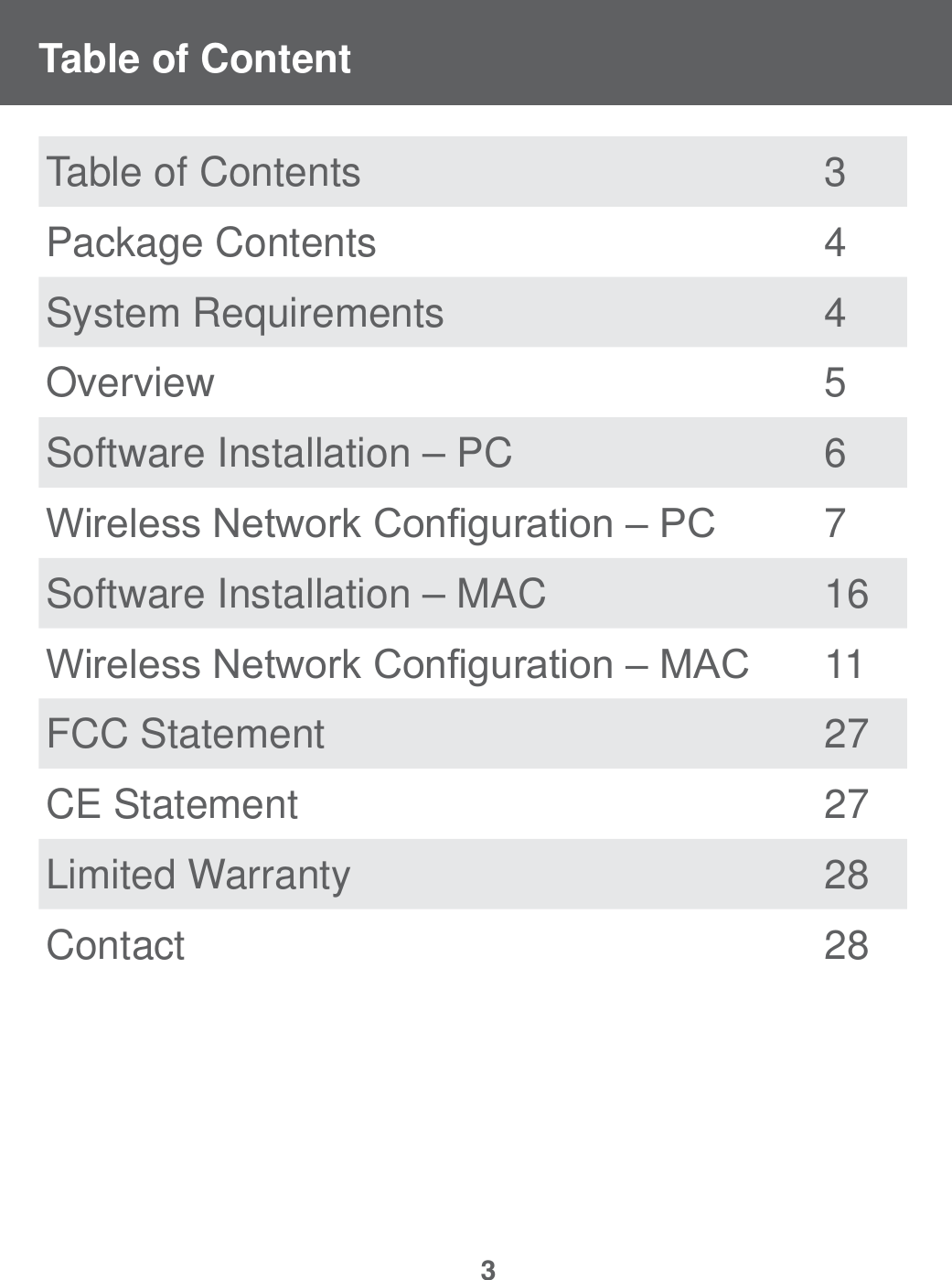
3Table of ContentTable of Contents  3Package Contents 4System Requirements 4Overview 5Software Installation – PC 6:LUHOHVV1HWZRUN&RQ¿JXUDWLRQ±3& 7Software Installation – MAC 16:LUHOHVV1HWZRUN&RQ¿JXUDWLRQ±0$& 11FCC Statement 27CE Statement 27Limited Warranty 28Contact 28
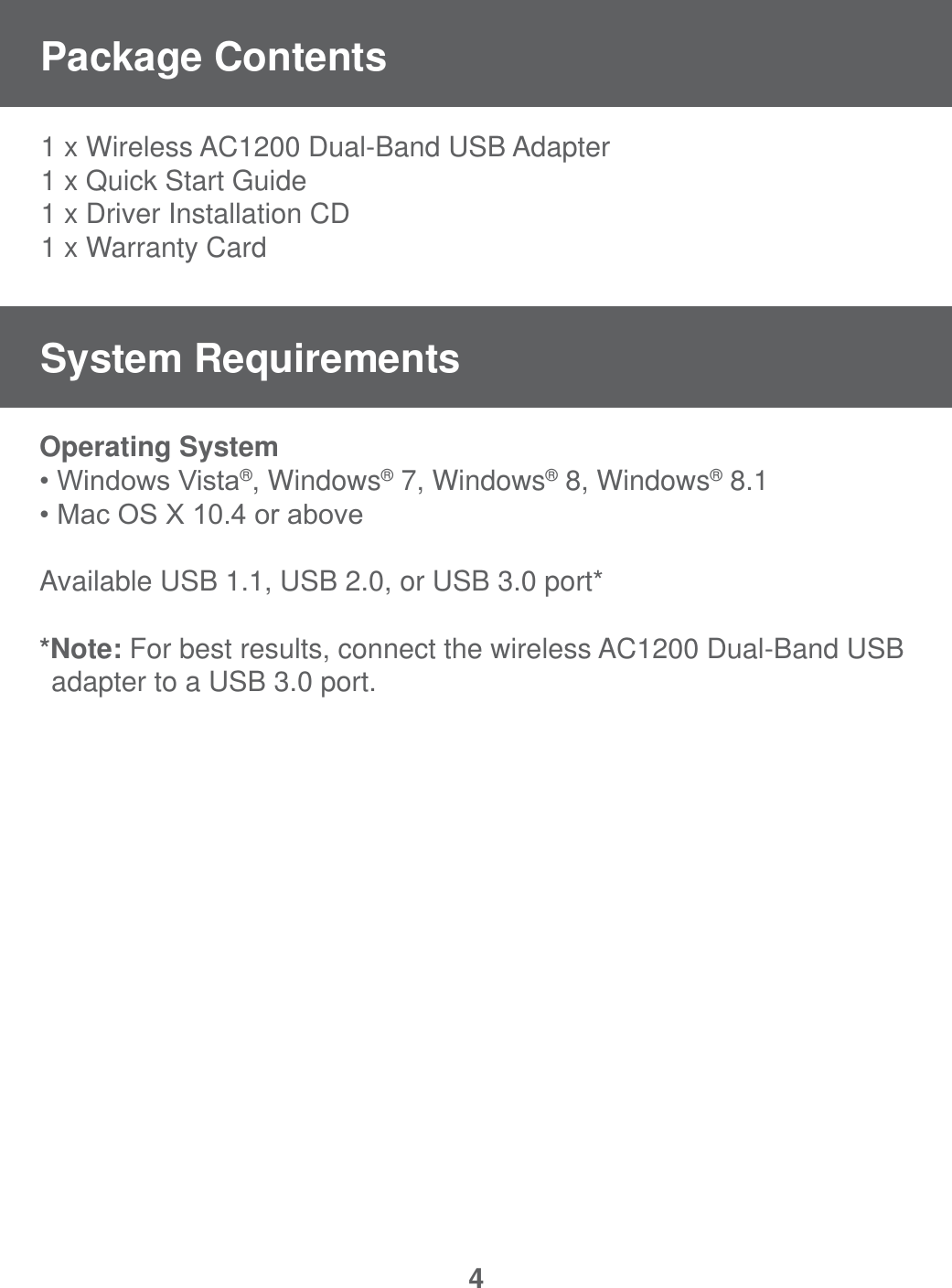
41 x Wireless AC1200 Dual-Band USB Adapter1 x Quick Start Guide1 x Driver Installation CD1 x Warranty CardOperating System :LQGRZV9LVWD®, Windows® 7, Windows® 8, Windows® 8.10DF26;RUDERYHAvailable USB 1.1, USB 2.0, or USB 3.0 port**Note: For best results, connect the wireless AC1200 Dual-Band USB   adapter to a USB 3.0 port.Package ContentsSystem Requirements
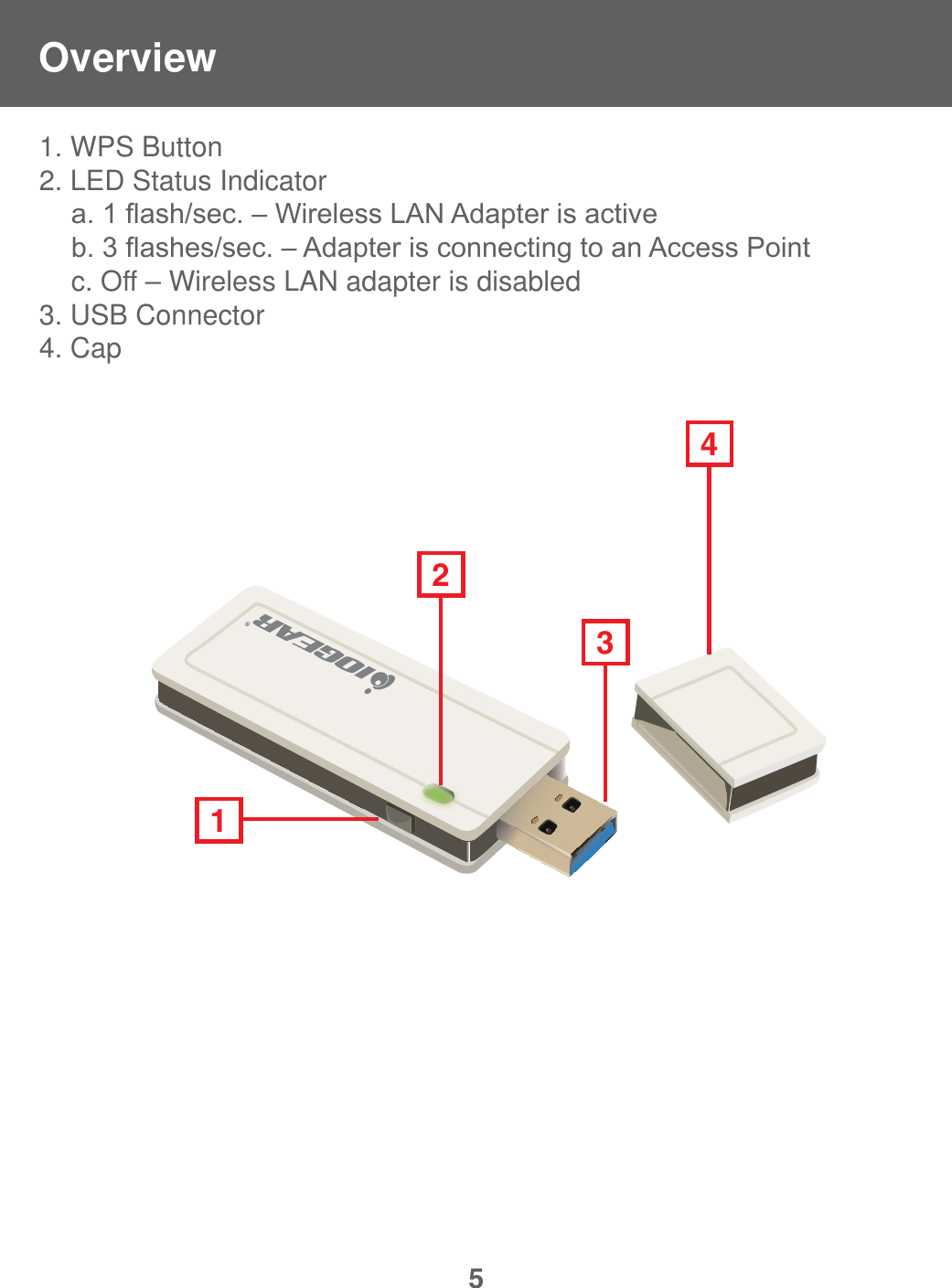
5Overview1. WPS Button2. LED Status Indicator DÀDVKVHF±:LUHOHVV/$1$GDSWHULVDFWLYH EÀDVKHVVHF±$GDSWHULVFRQQHFWLQJWRDQ$FFHVV3RLQW  c. Off – Wireless LAN adapter is disabled3. USB Connector 4. Cap3241
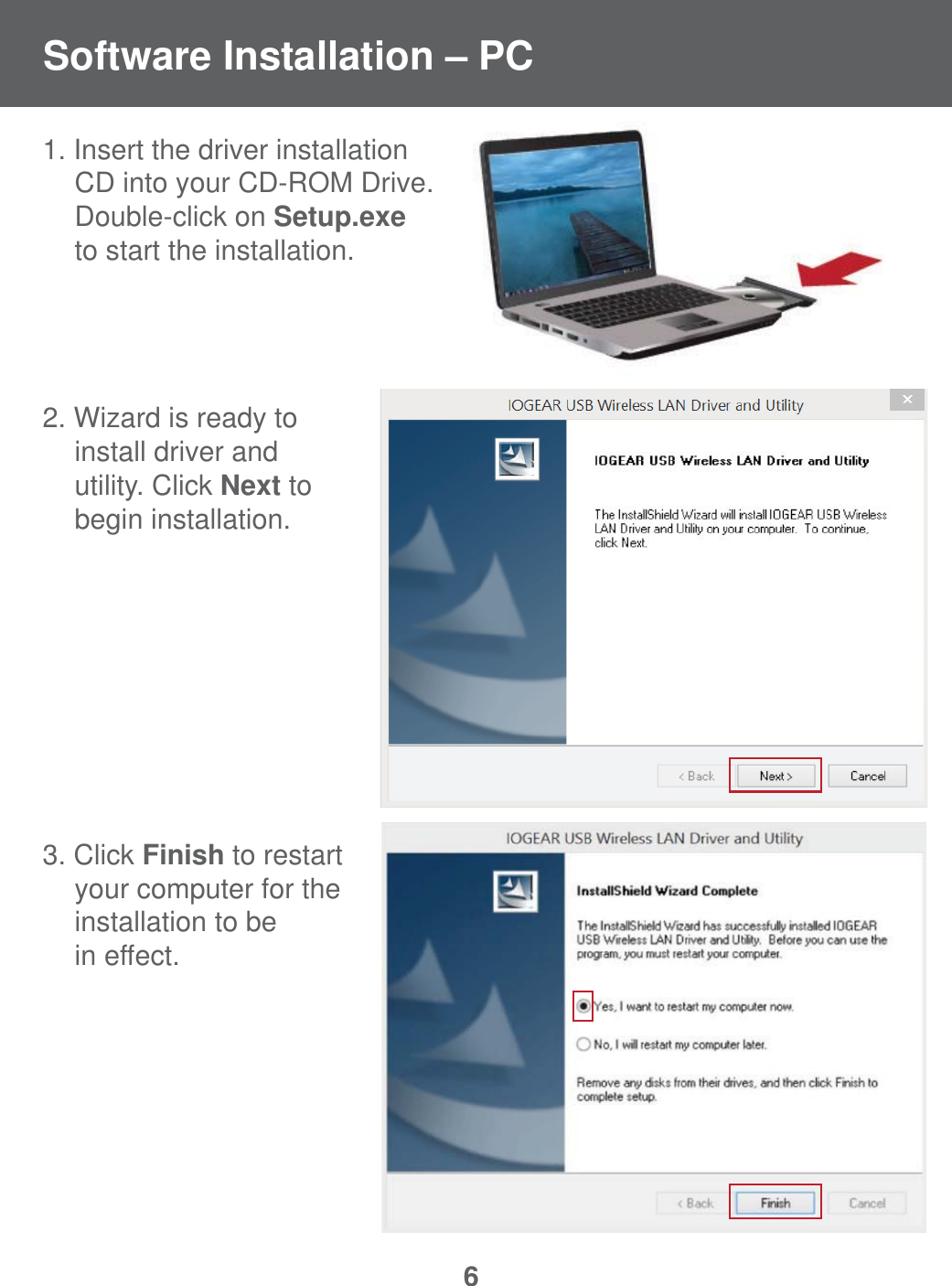
61. Insert the driver installation   CD into your CD-ROM Drive.  Double-click on Setup.exe   to start the installation.2. Wizard is ready to  install driver and  utility. Click Next to  begin installation.3. Click Finish to restart  your computer for the  installation to be  in effect.Software Installation – PC
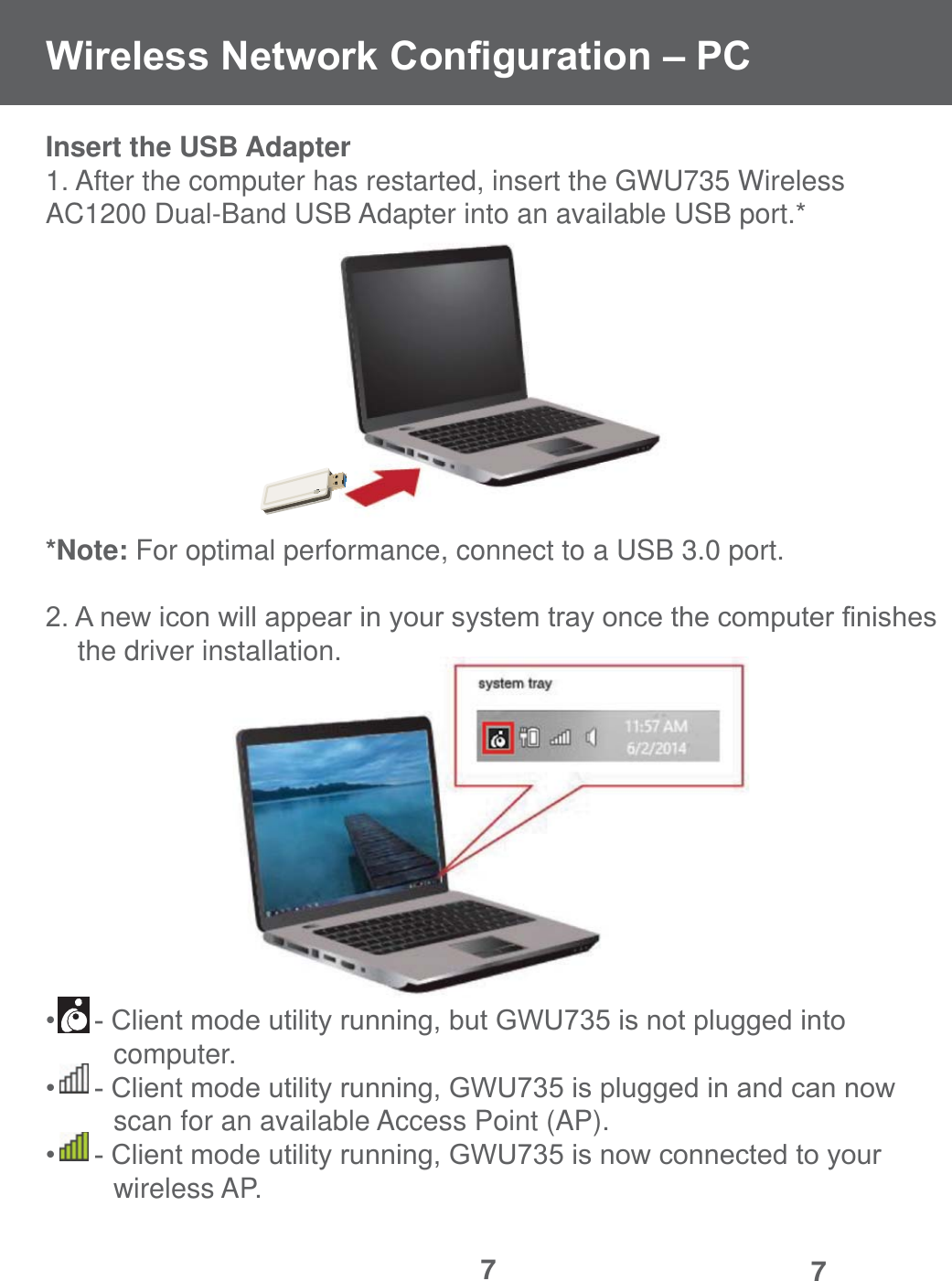
77Insert the USB Adapter1. After the computer has restarted, insert the GWU735 Wireless    AC1200 Dual-Band USB Adapter into an available USB port.**Note: For optimal performance, connect to a USB 3.0 port.$QHZLFRQZLOODSSHDULQ\RXUV\VWHPWUD\RQFHWKHFRPSXWHU¿QLVKHV  the driver installation.&OLHQWPRGHXWLOLW\UXQQLQJEXW*:8LVQRWSOXJJHGLQWR  computer.&OLHQWPRGHXWLOLW\UXQQLQJ*:8LVSOXJJHGLQDQGFDQQRZ  scan for an available Access Point (AP).&OLHQWPRGHXWLOLW\UXQQLQJ*:8LVQRZFRQQHFWHGWR\RXU  wireless AP.:LUHOHVV1HWZRUN&RQ¿JXUDWLRQ±3&
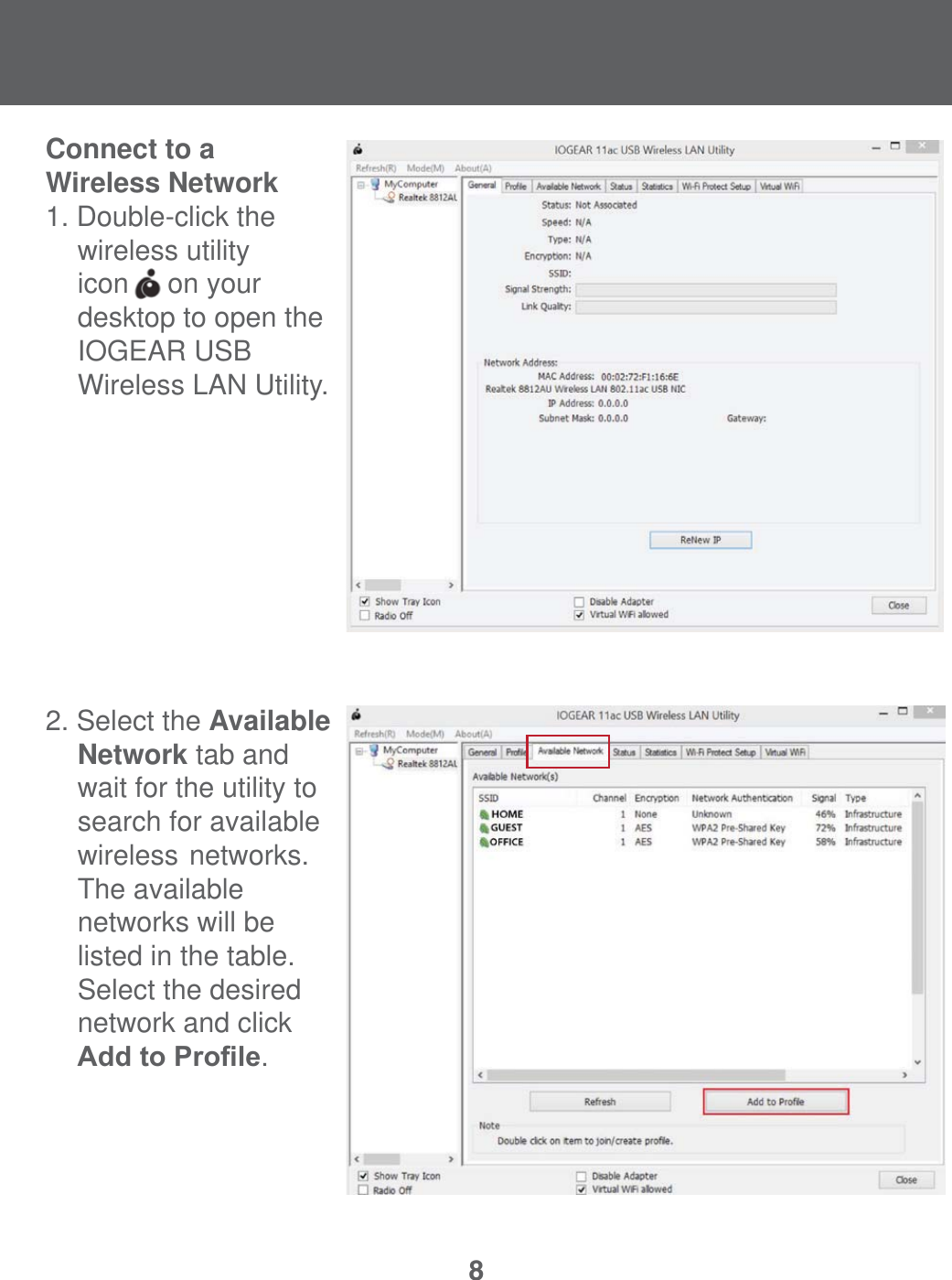
8Connect to a Wireless Network1. Double-click the     wireless utility  icon     on your   desktop to open the IOGEAR USB   Wireless LAN Utility. 2. Select the Available   Network tab and      wait for the utility to     search for available  wireless  networks.     The available   networks will be      listed in the table.   Select the desired      network and click     $GGWR3UR¿OH.
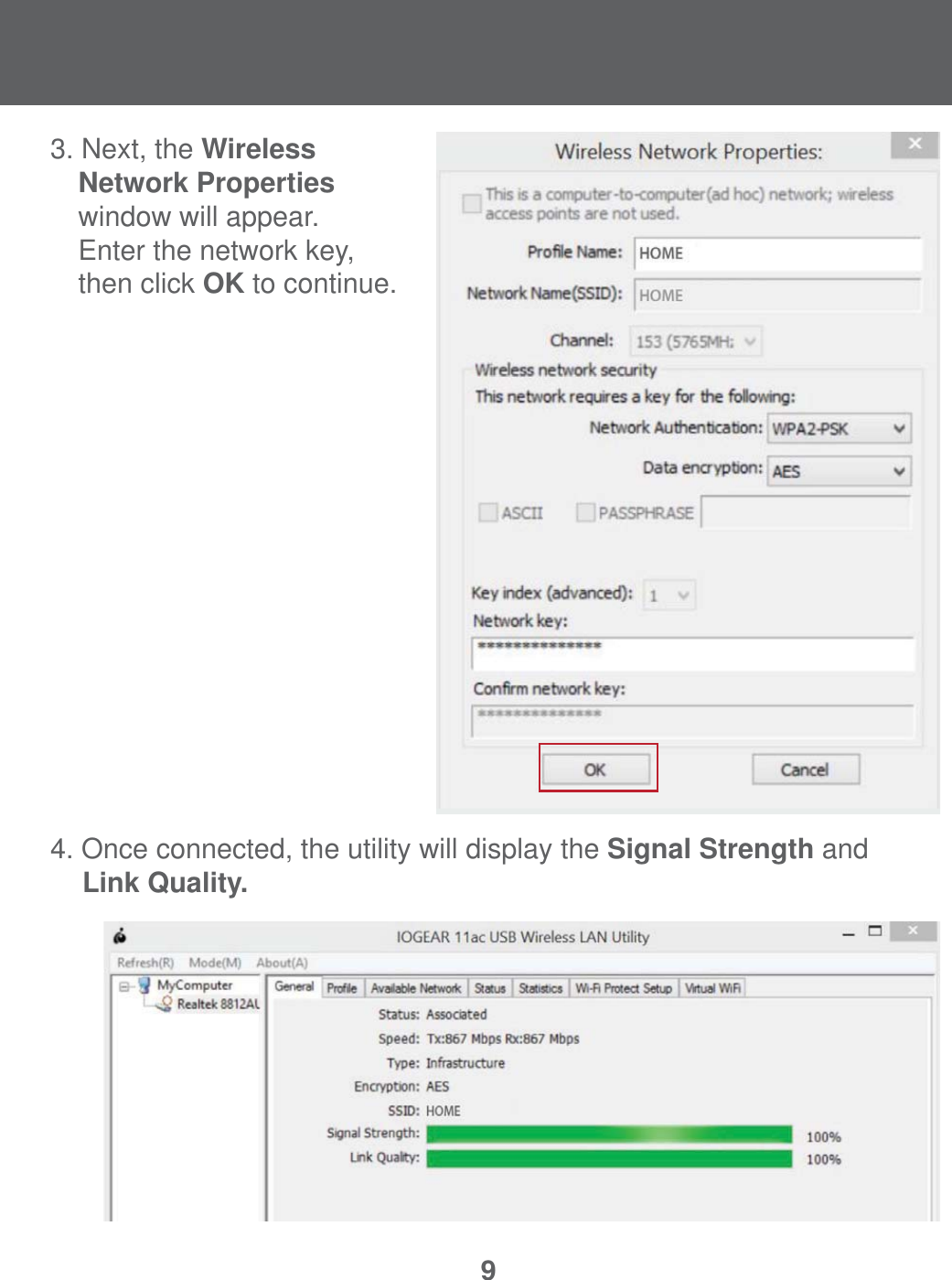
93. Next, the Wireless     Network Properties    window will appear.  Enter the network key,   then click OK to continue.4. Once connected, the utility will display the Signal Strength and  Link Quality.
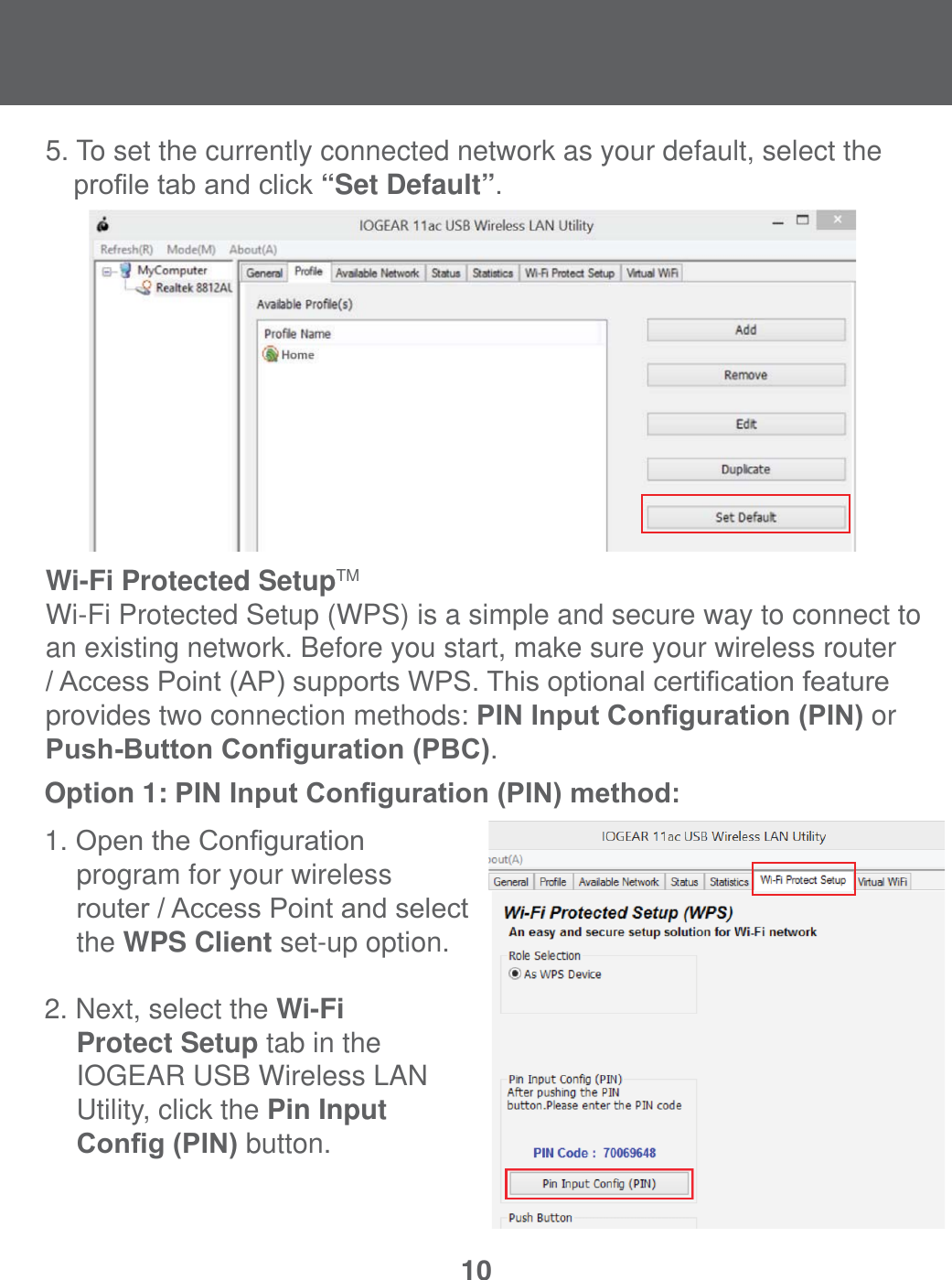
105. To set the currently connected network as your default, select the   SUR¿OHWDEDQGFOLFN“Set Default”.Wi-Fi Protected SetupTMWi-Fi Protected Setup (WPS) is a simple and secure way to connect to an existing network. Before you start, make sure your wireless router $FFHVV3RLQW$3VXSSRUWV:367KLVRSWLRQDOFHUWL¿FDWLRQIHDWXUHprovides two connection methods: 3,1,QSXW&RQ¿JXUDWLRQ3,1 or 3XVK%XWWRQ&RQ¿JXUDWLRQ3%&.Option 1: 3,1,QSXW&RQ¿JXUDWLRQ3,1PHWKRG1. 2SHQWKH&RQ¿JXUDWLRQ  program for your wireless  URXWHU$FFHVV3RLQWDQGVHOHFW   the WPS Client set-up option.2. Next, select the Wi-Fi Protect Setup tab in the          IOGEAR USB Wireless LAN          Utility, click the Pin Input  &RQ¿J3,1 button.
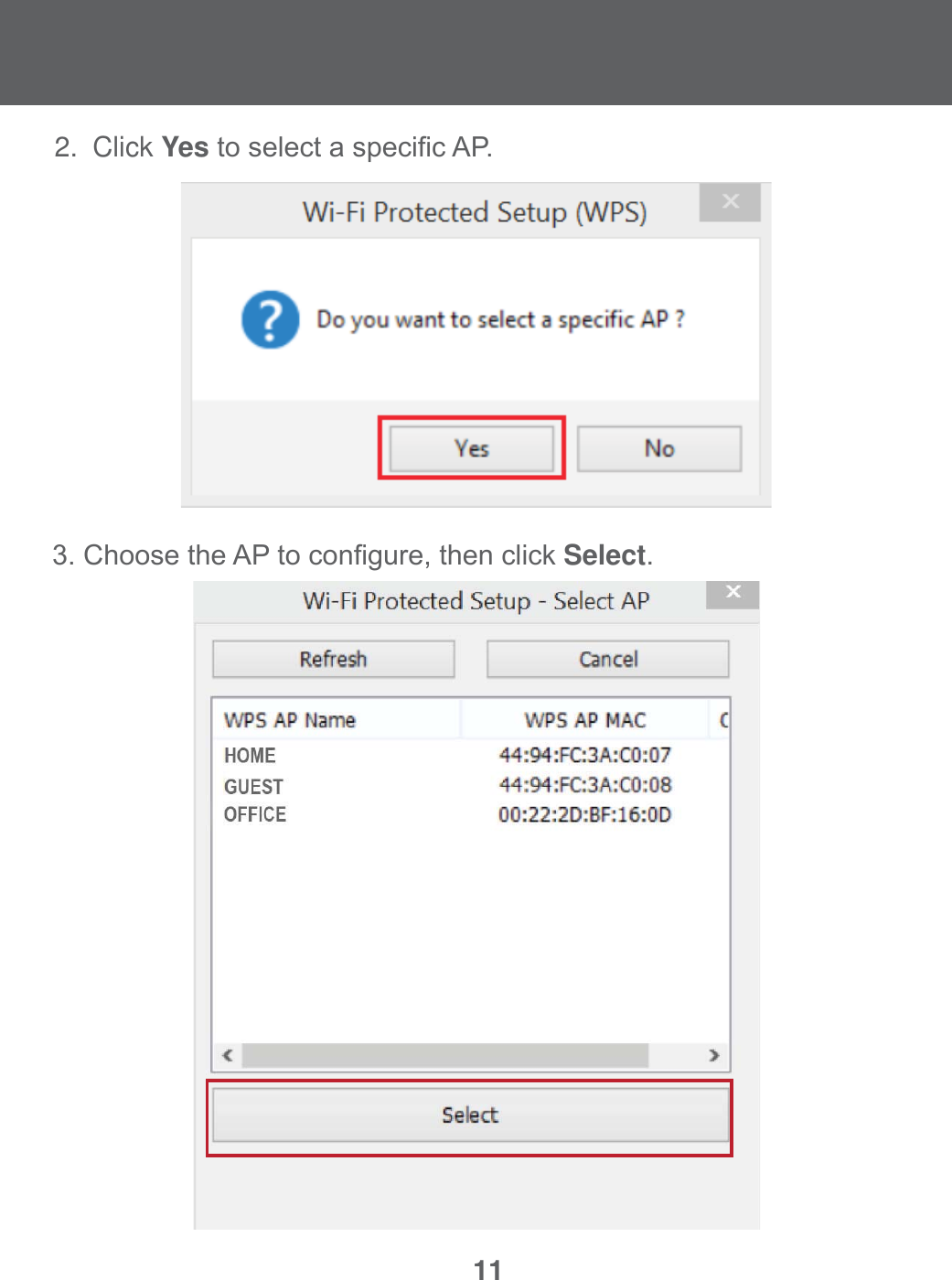
112.  Click YesWRVHOHFWDVSHFL¿F$3&KRRVHWKH$3WRFRQ¿JXUHWKHQFOLFNSelect.
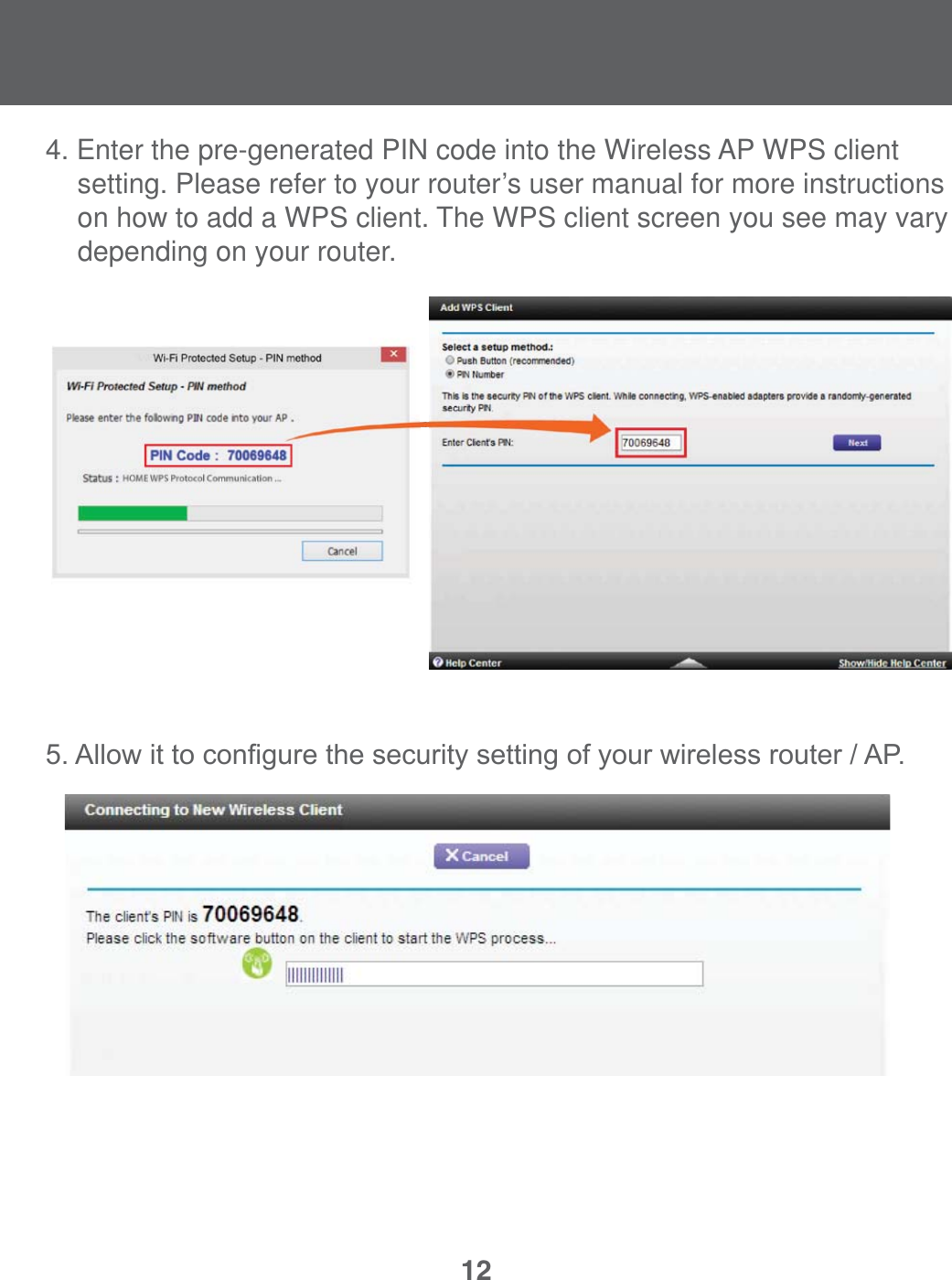
124. Enter the pre-generated PIN code into the Wireless AP WPS clientsetting. Please refer to your router’s user manual for more instructionson how to add a WPS client. The WPS client screen you see may vary  depending on your router.$OORZLWWRFRQ¿JXUHWKHVHFXULW\VHWWLQJRI\RXUZLUHOHVVURXWHU$3
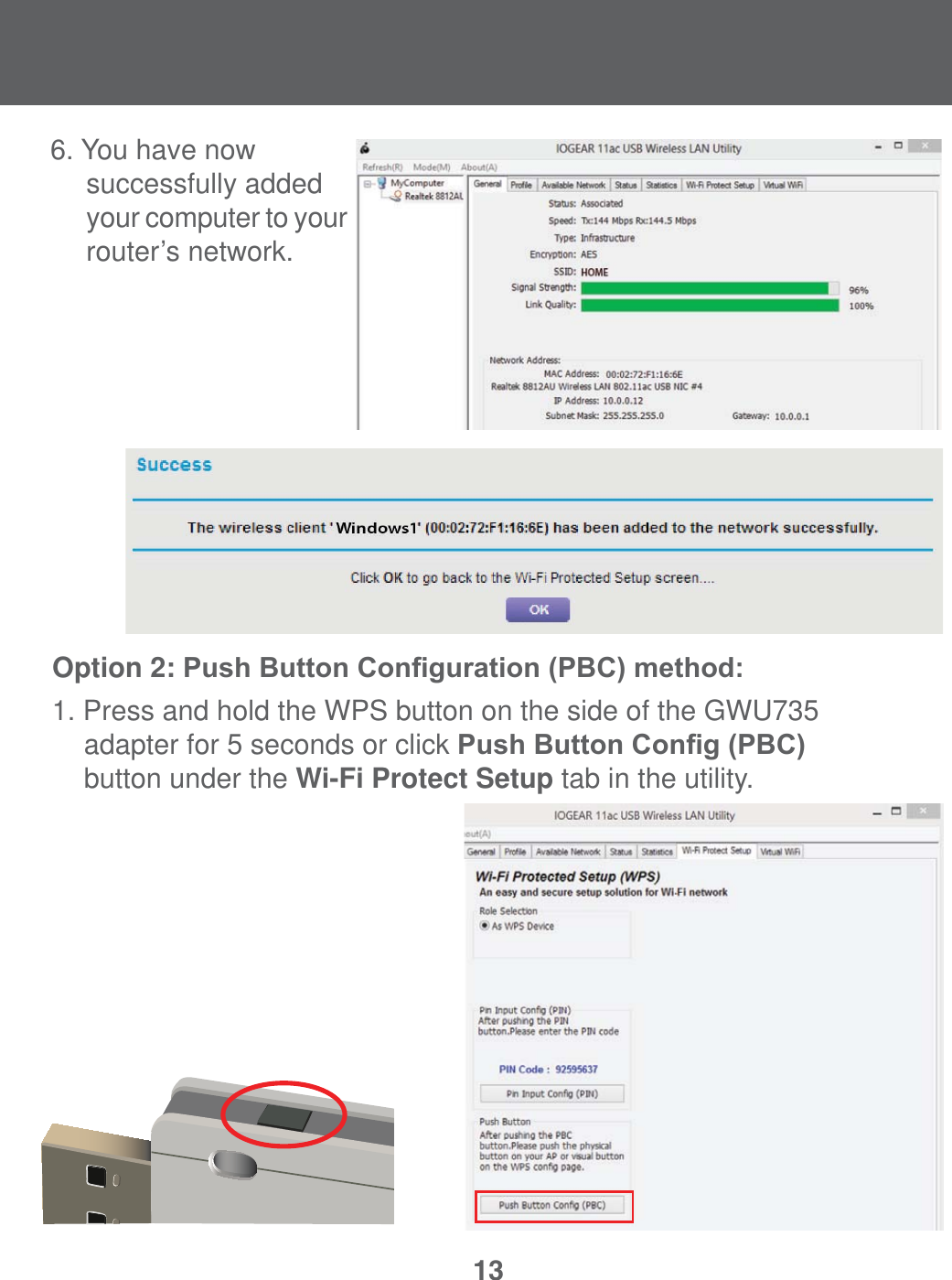
136. You have now      successfully added     your computer to your   router’s network. Option 2: 3XVK%XWWRQ&RQ¿JXUDWLRQ3%&PHWKRG 1. Press and hold the WPS button on the side of the GWU735  adapter for 5 seconds or click 3XVK%XWWRQ&RQ¿J3%&  button under the Wi-Fi Protect Setup tab in the utility.
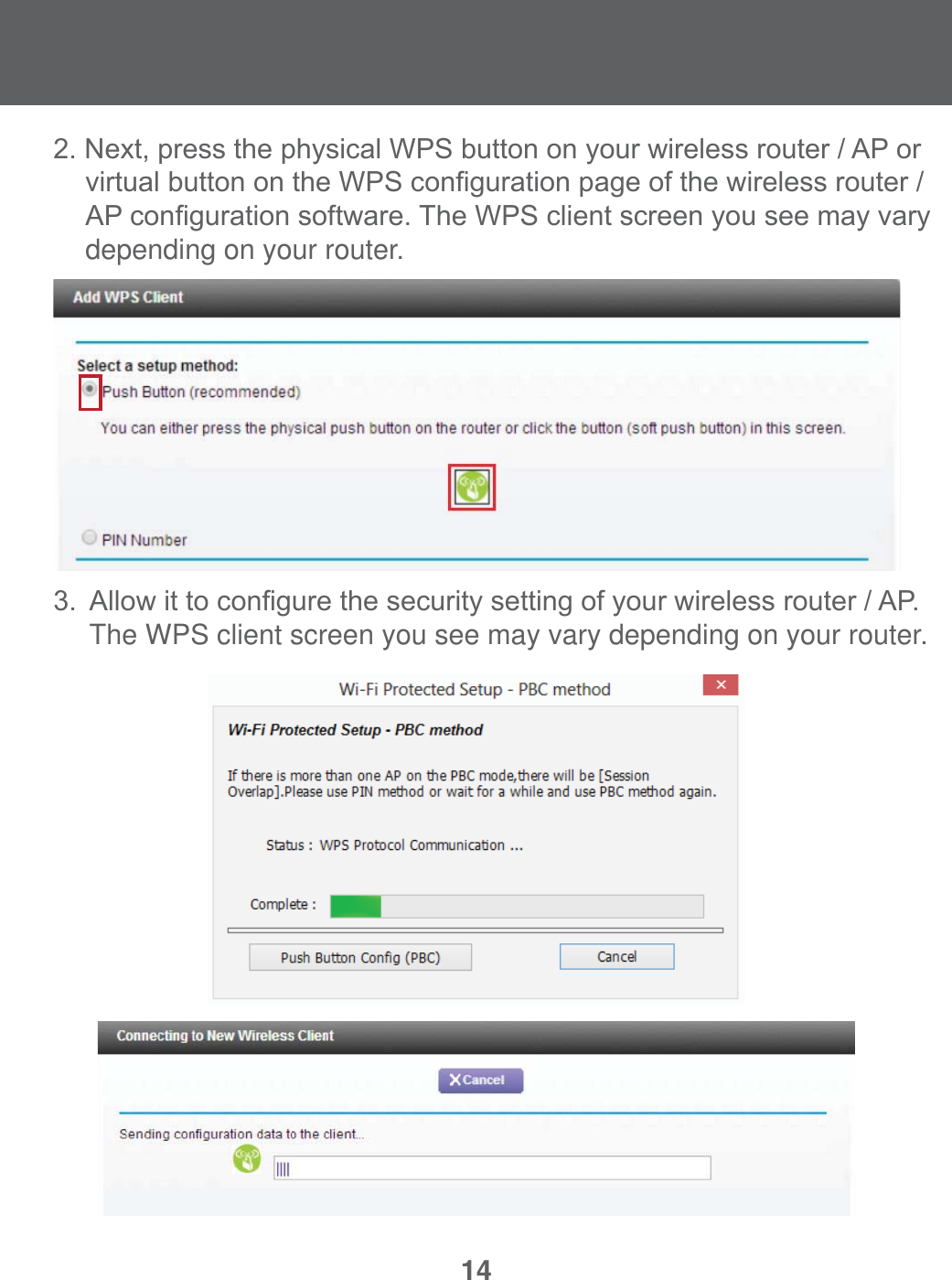
141H[WSUHVVWKHSK\VLFDO:36EXWWRQRQ\RXUZLUHOHVVURXWHU$3RU YLUWXDOEXWWRQRQWKH:36FRQ¿JXUDWLRQSDJHRIWKHZLUHOHVVURXWHU $3FRQ¿JXUDWLRQVRIWZDUH7KH:36FOLHQWVFUHHQ\RXVHHPD\YDU\  depending on your router.  $OORZLWWRFRQ¿JXUHWKHVHFXULW\VHWWLQJRI\RXUZLUHOHVVURXWHU$3  The WPS client screen you see may vary depending on your router.
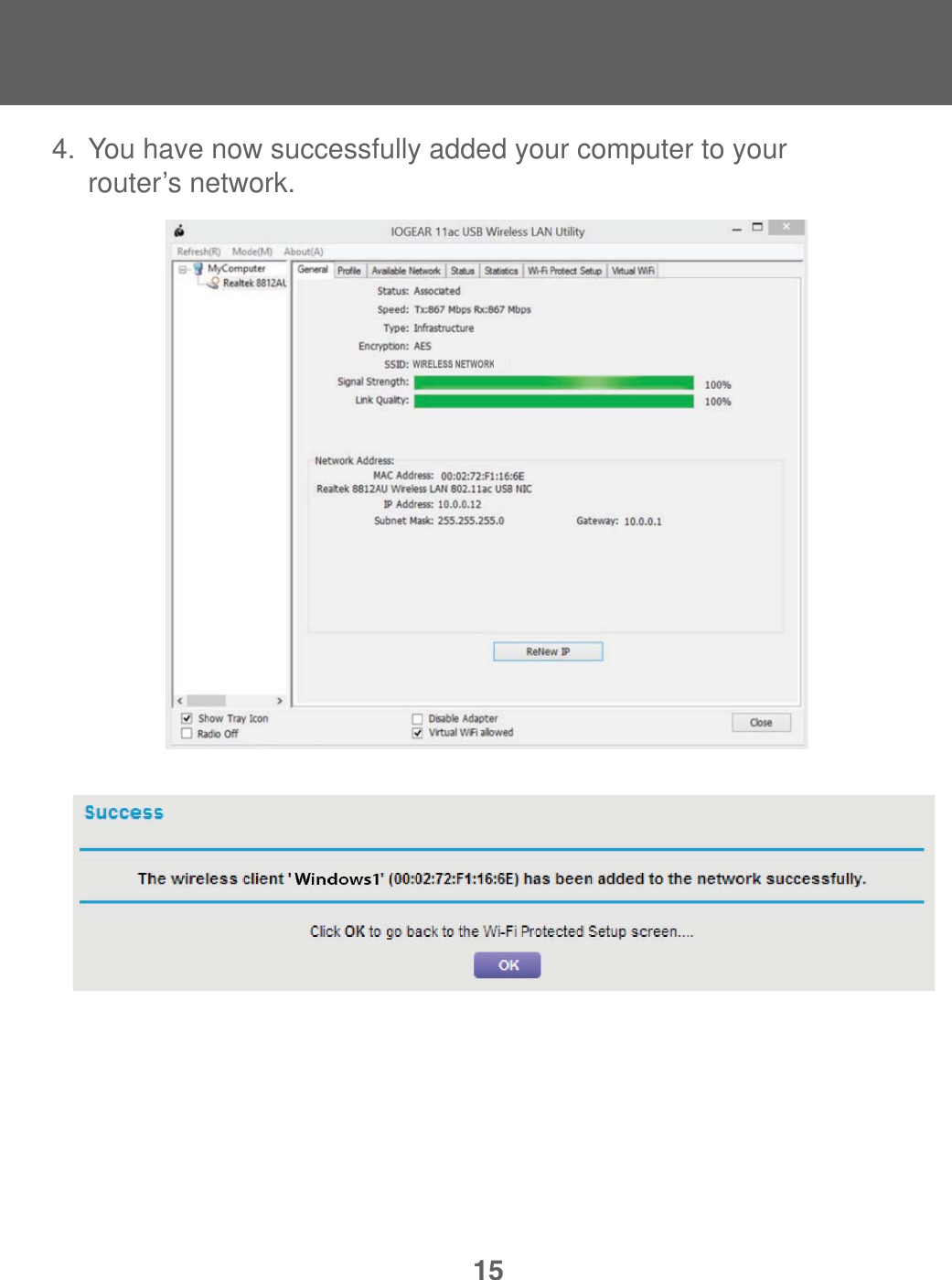
154.  You have now successfully added your computer to your   router’s network.
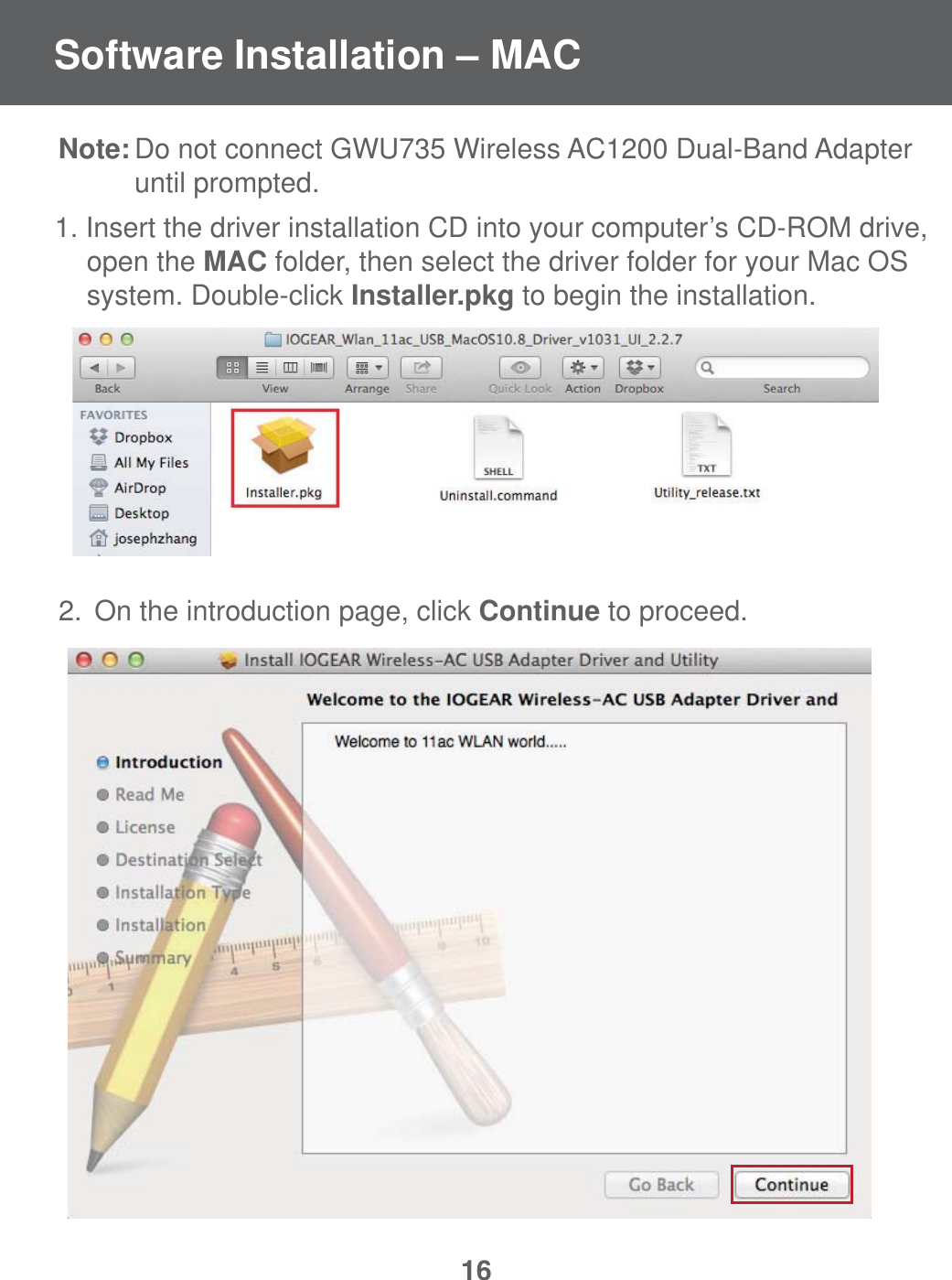
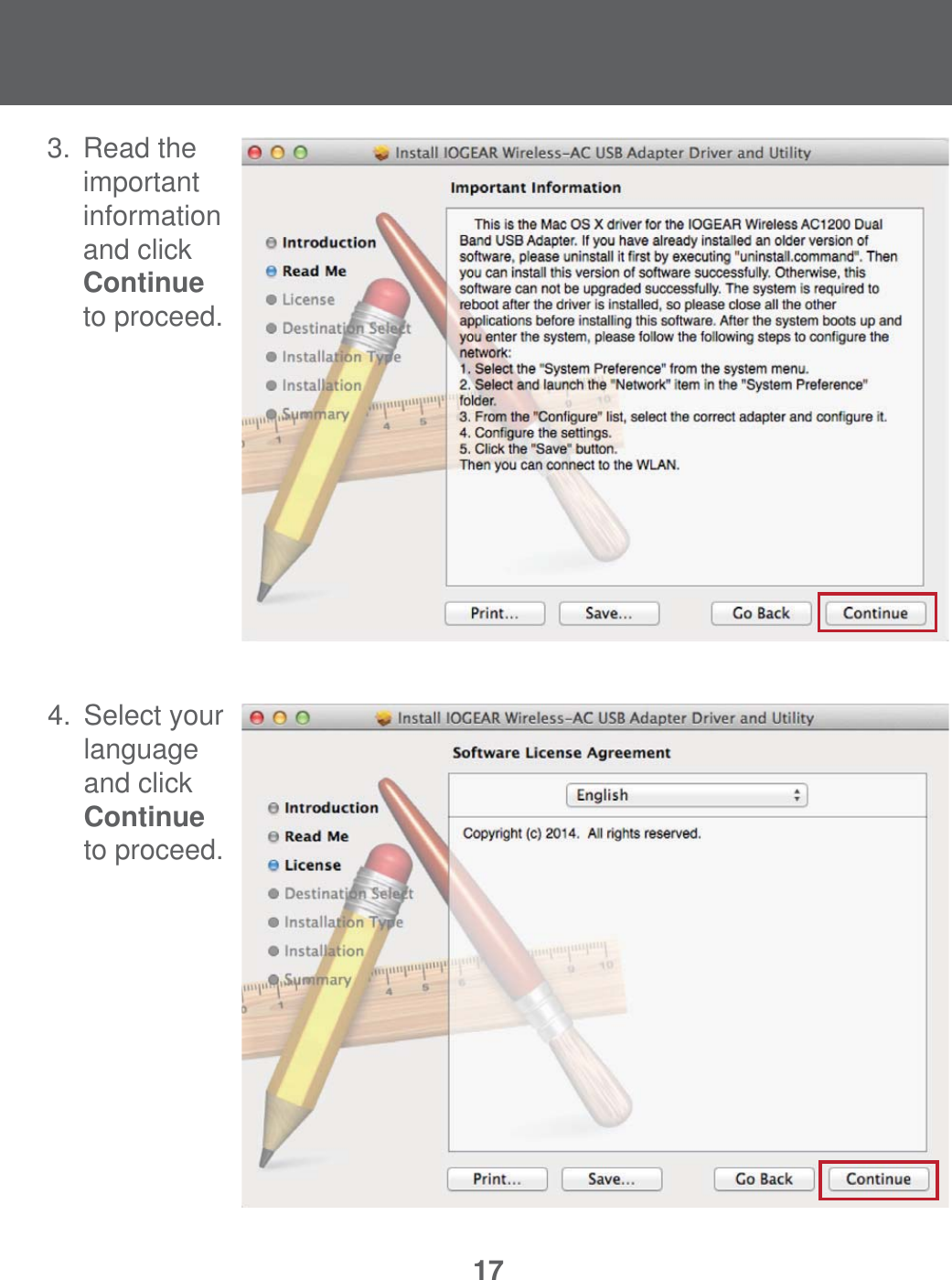
16Note: Do not connect GWU735 Wireless AC1200 Dual-Band Adapter    until prompted.1. Insert the driver installation CD into your computer’s CD-ROM drive,   open the MAC folder, then select the driver folder for your Mac OS    system. Double-click Installer.pkg to begin the installation.2.  On the introduction page, click Continue to proceed.Software Installation – MAC
174. Select your language   and click Continue  to proceed. 3. Read the important   information    and click   Continue   to proceed.
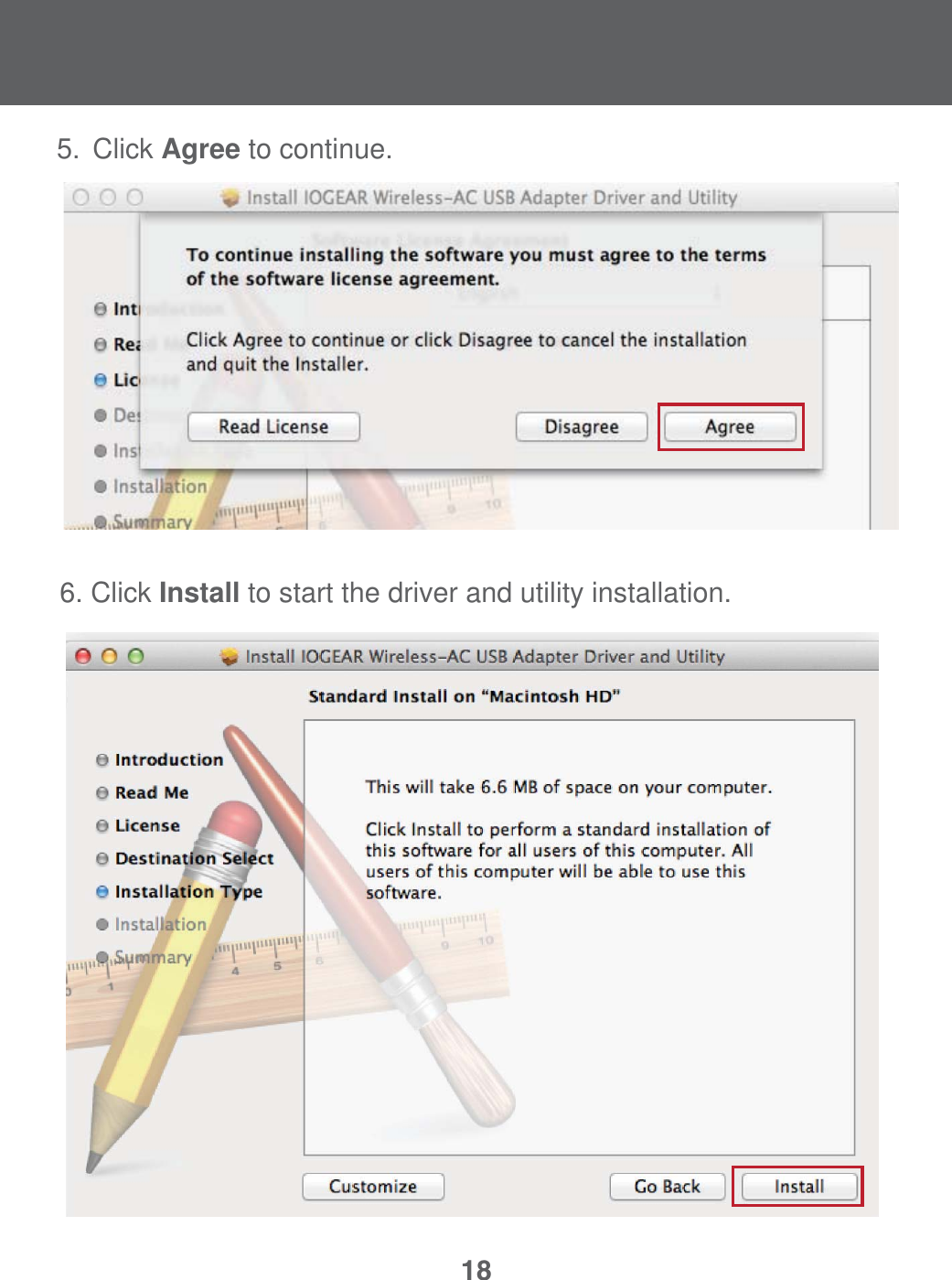
186. Click Install to start the driver and utility installation.5. Click Agree to continue.
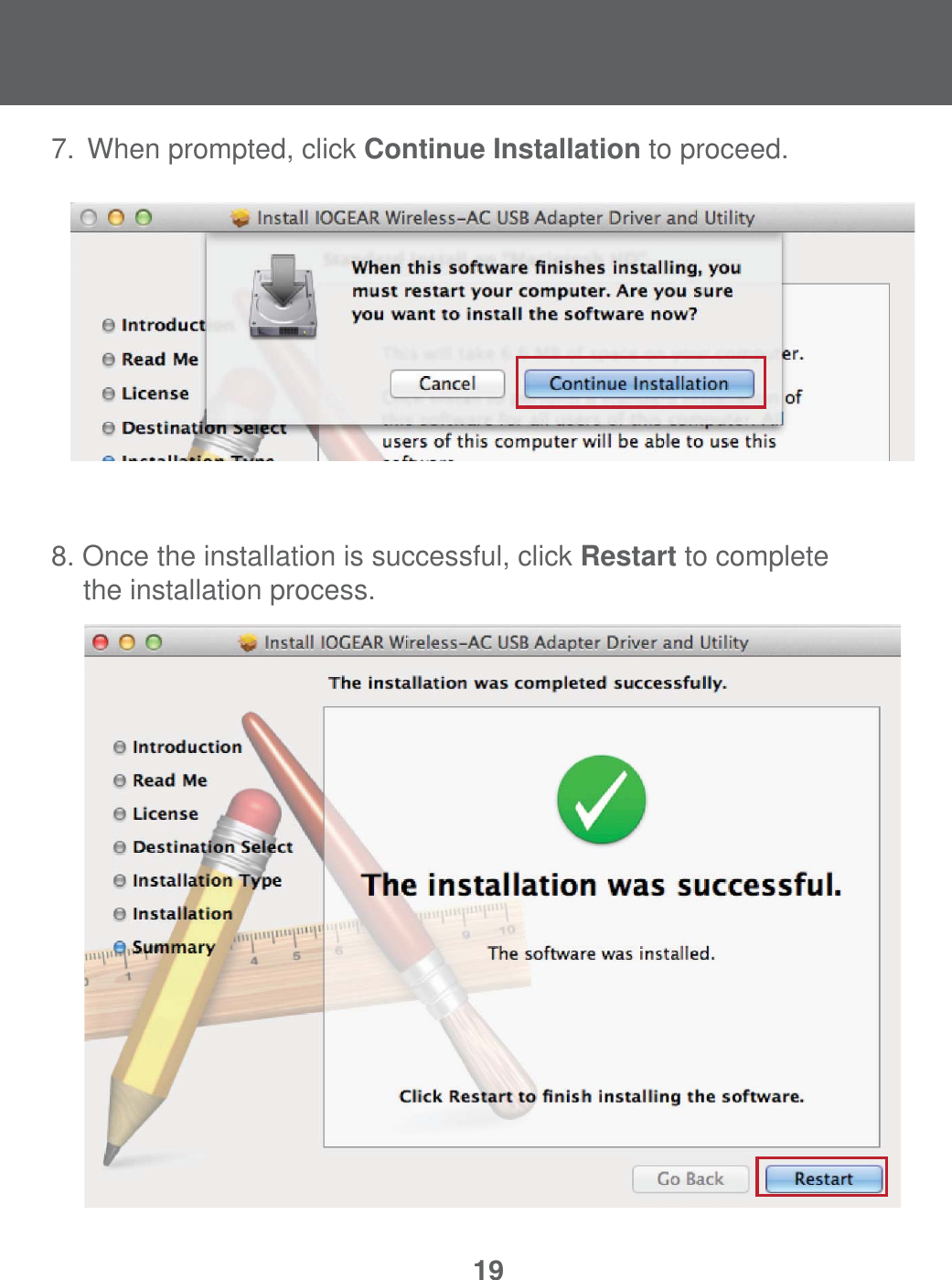
197.  When prompted, click Continue Installation to proceed.8. Once the installation is successful, click Restart to complete    the installation process.
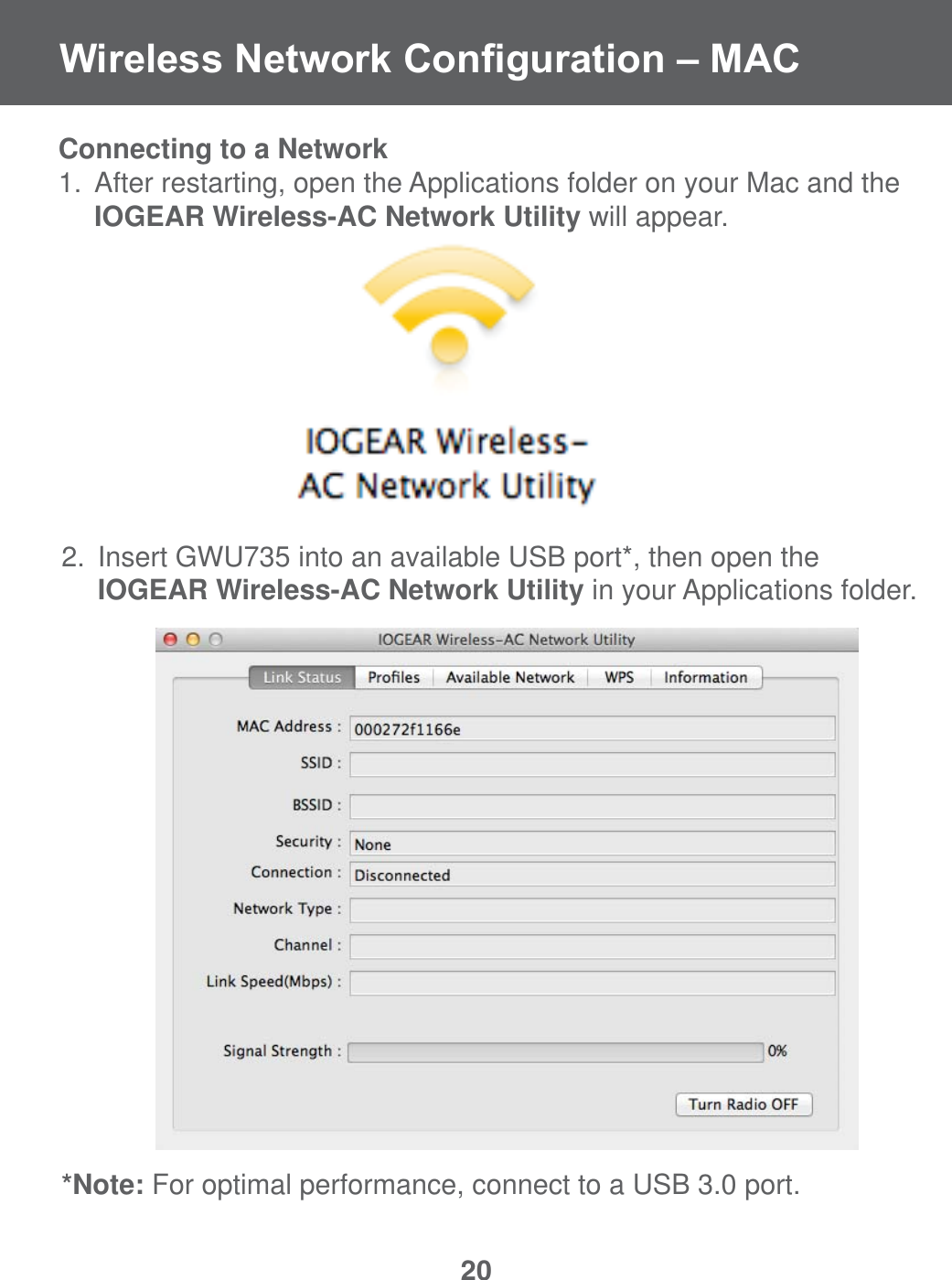
20:LUHOHVV1HWZRUN&RQ¿JXUDWLRQ±0$&Connecting to a Network1.  After restarting, open the Applications folder on your Mac and the     IOGEAR Wireless-AC Network Utility will appear. 2.  Insert GWU735 into an available USB port*, then open the     IOGEAR Wireless-AC Network Utility in your Applications folder.*Note: For optimal performance, connect to a USB 3.0 port.
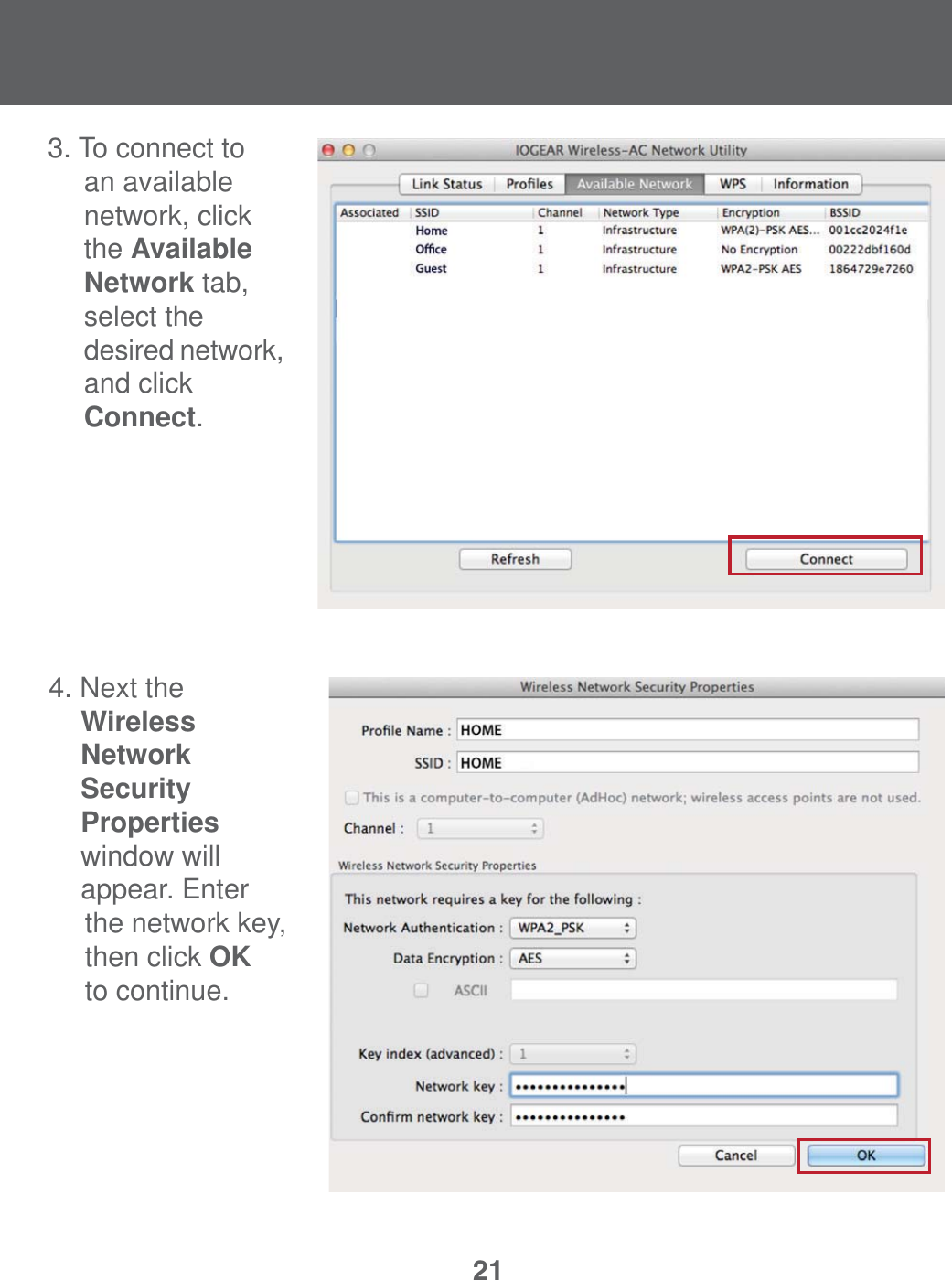
214. Next the    Wireless  Network Security   Properties    window will   appear. Enter   the network key, then click OK  to continue. 3. To connect to    an available    network, click   the Available   Network tab,  select the   desired network,    and click   Connect.
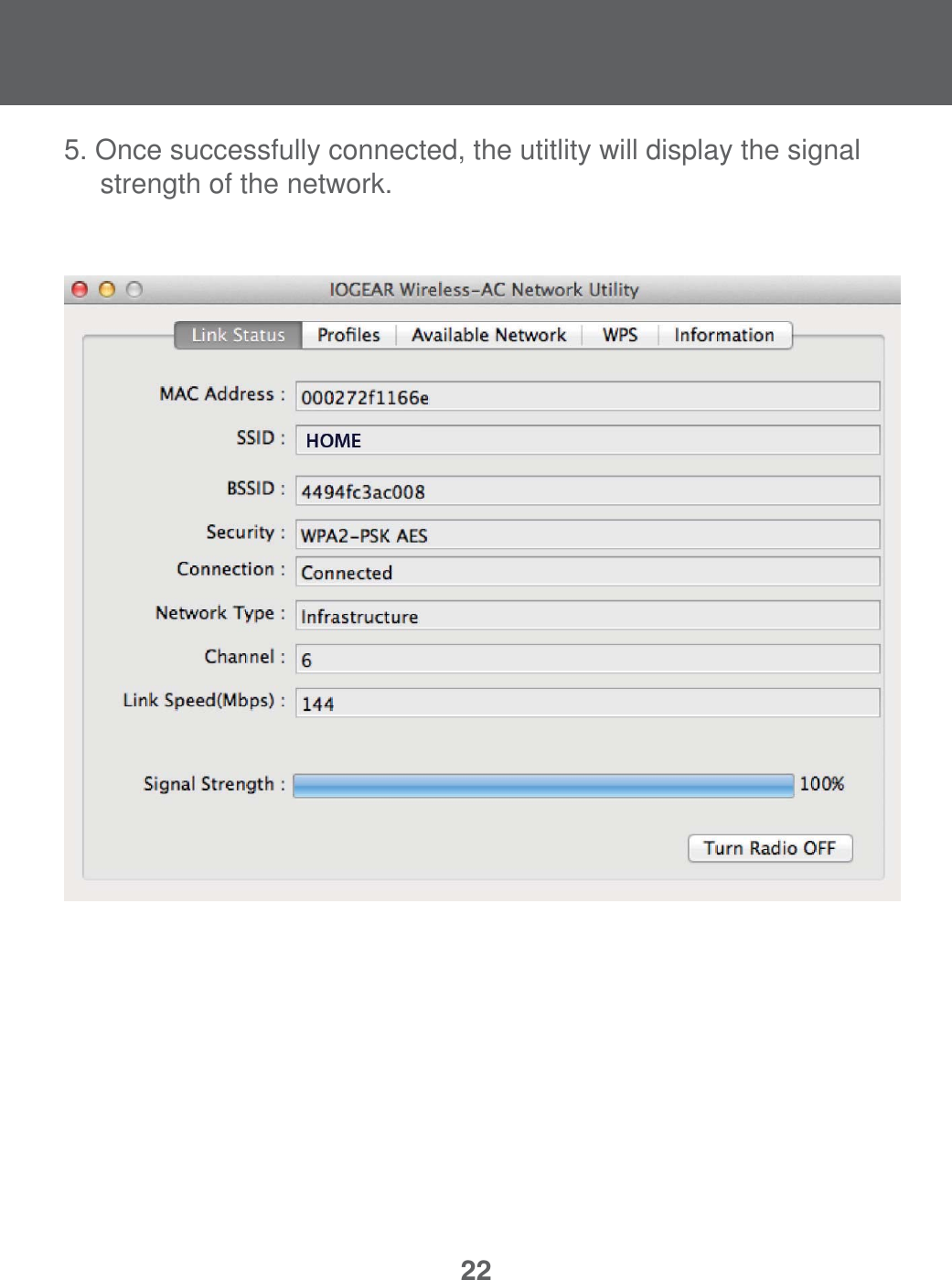
225. Once successfully connected, the utitlity will display the signal    strength of the network.
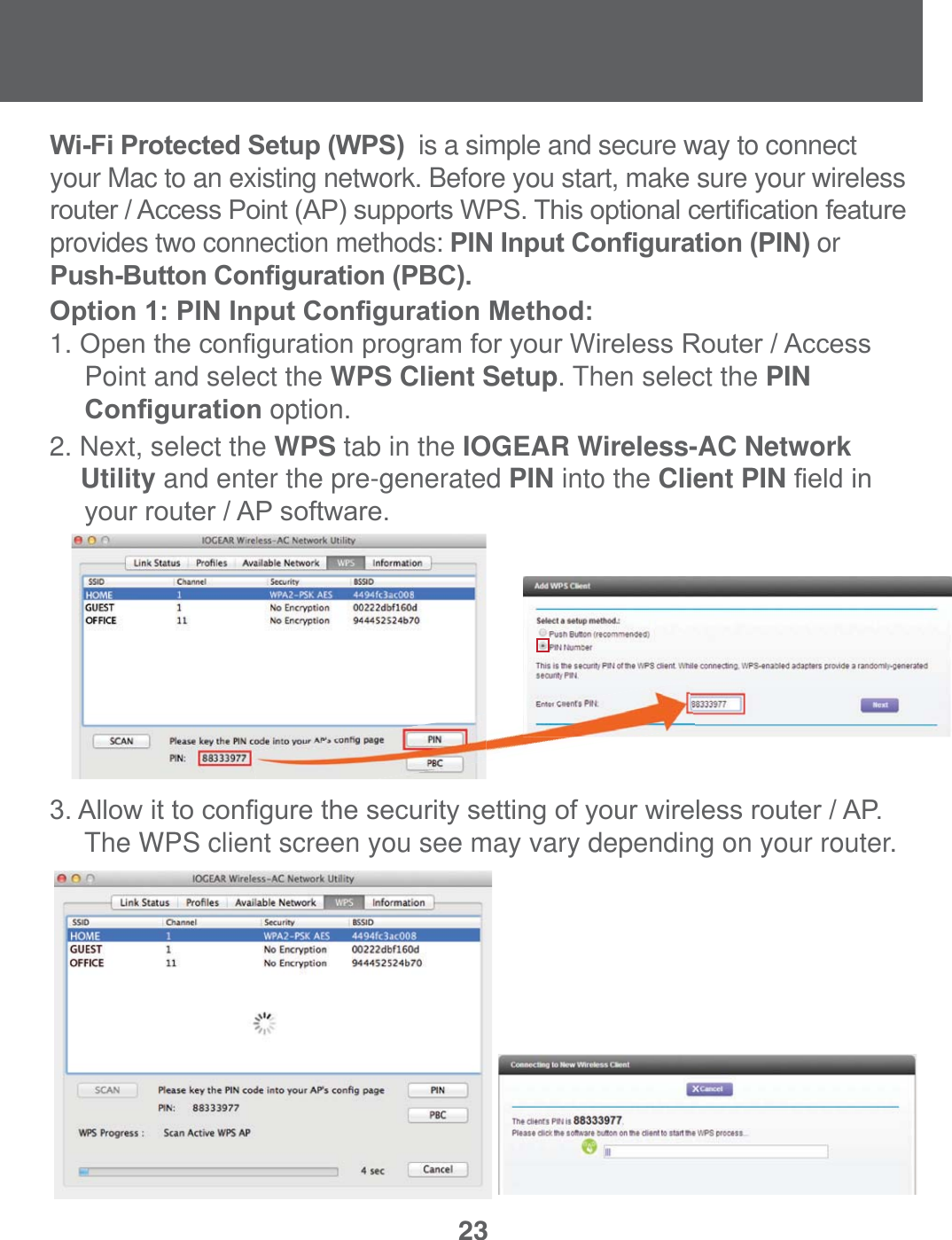
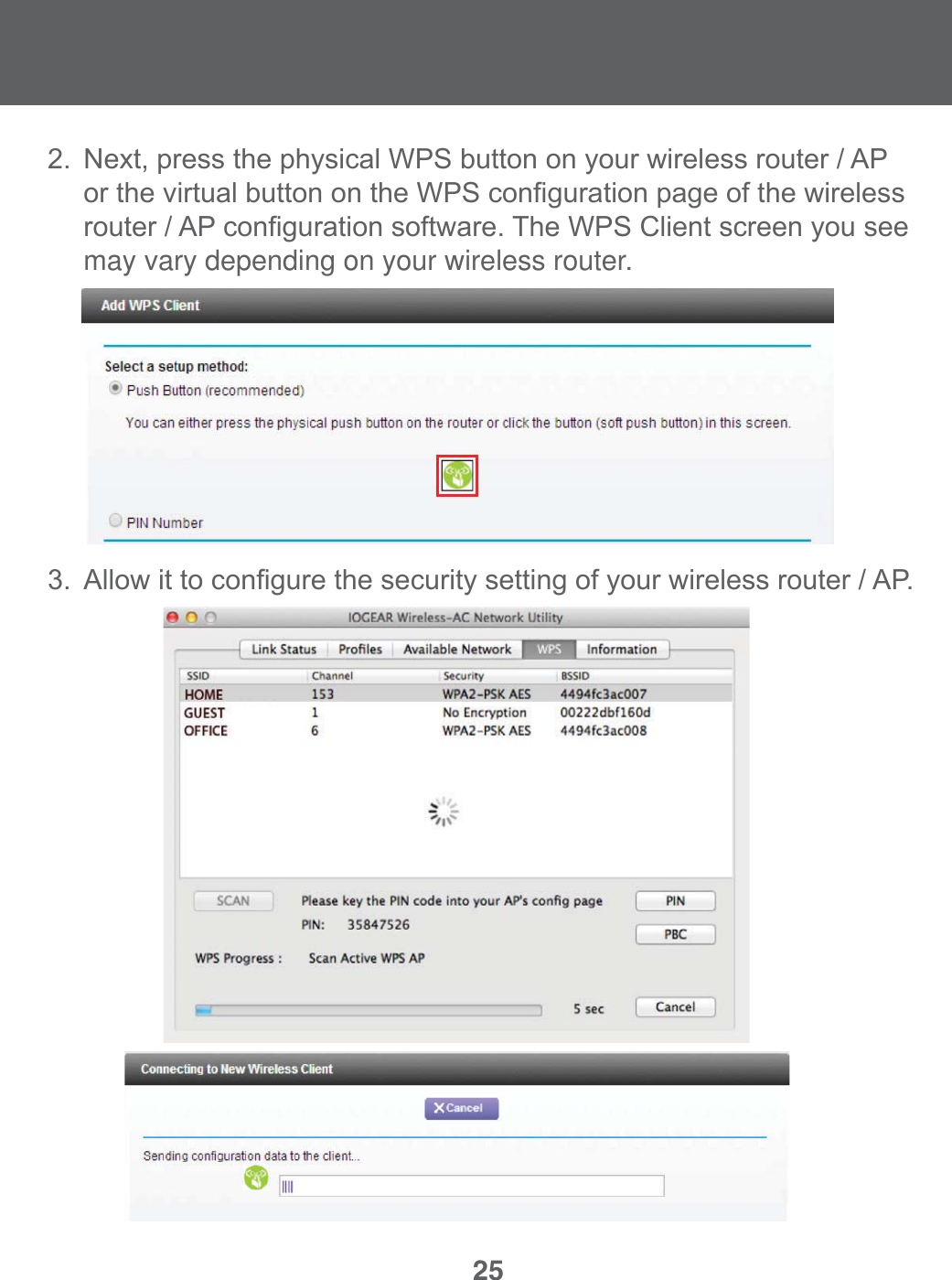
23$OORZLWWRFRQ¿JXUHWKHVHFXULW\VHWWLQJRI\RXUZLUHOHVVURXWHU$3  The WPS client screen you see may vary depending on your router.2. Next, select the WPS tab in the IOGEAR Wireless-AC Network     Utility and enter the pre-generated PIN into the Client PIN¿HOGLQ \RXUURXWHU$3VRIWZDUH2SWLRQ3,1,QSXW&RQ¿JXUDWLRQ0HWKRG1. 2SHQWKHFRQ¿JXUDWLRQSURJUDPIRU\RXU:LUHOHVV5RXWHU$FFHVV  Point and select the WPS Client Setup. Then select the PIN     &RQ¿JXUDWLRQ option. :L)L3URWHFWHG6HWXS:36 is a simple and secure way to connect your Mac to an existing network. Before you start, make sure your wireless URXWHU$FFHVV3RLQW$3VXSSRUWV:367KLVRSWLRQDOFHUWL¿FDWLRQIHDWXUHprovides two connection methods: 3,1,QSXW&RQ¿JXUDWLRQ3,1 or 3XVK%XWWRQ&RQ¿JXUDWLRQ3%&
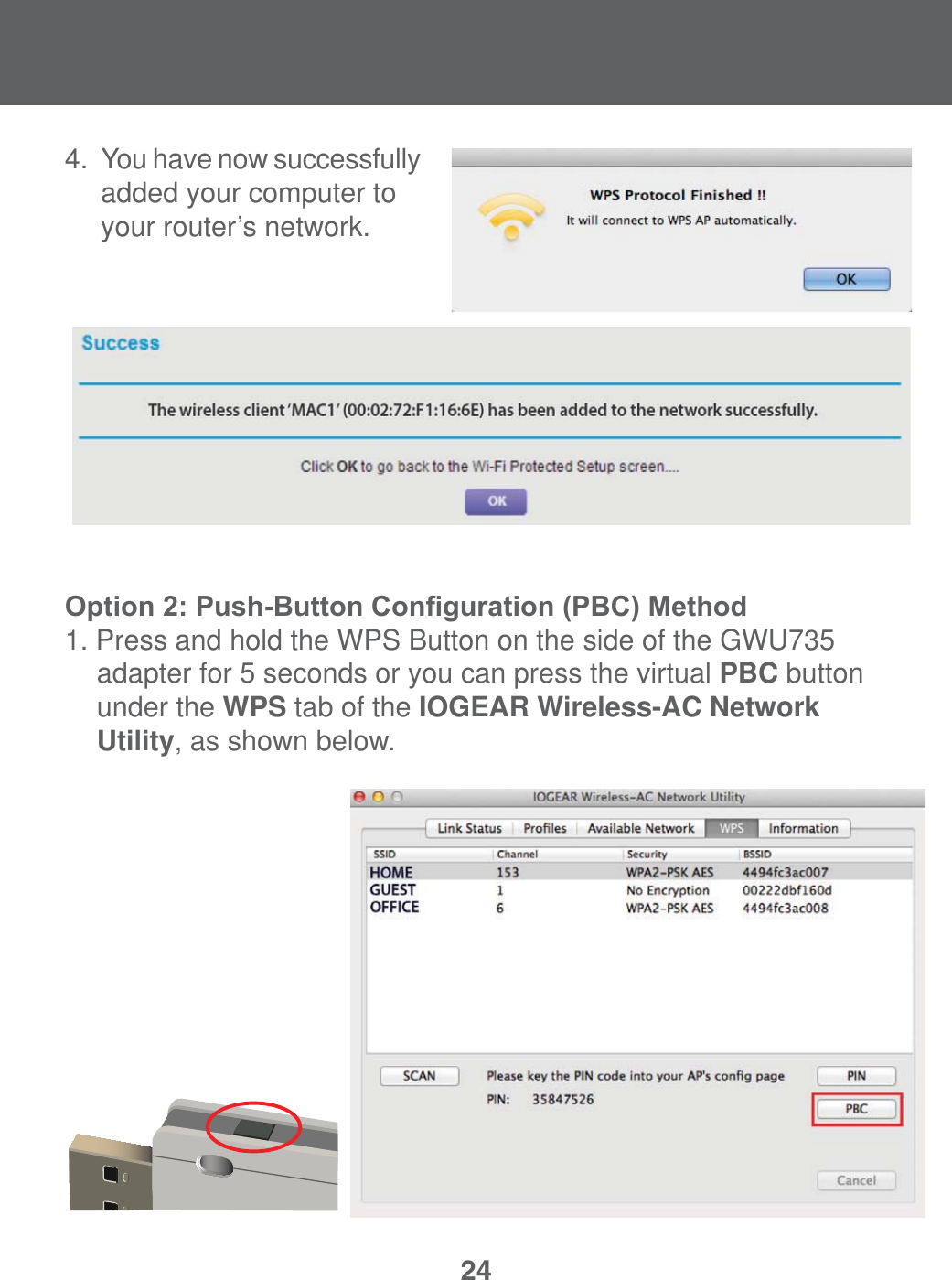
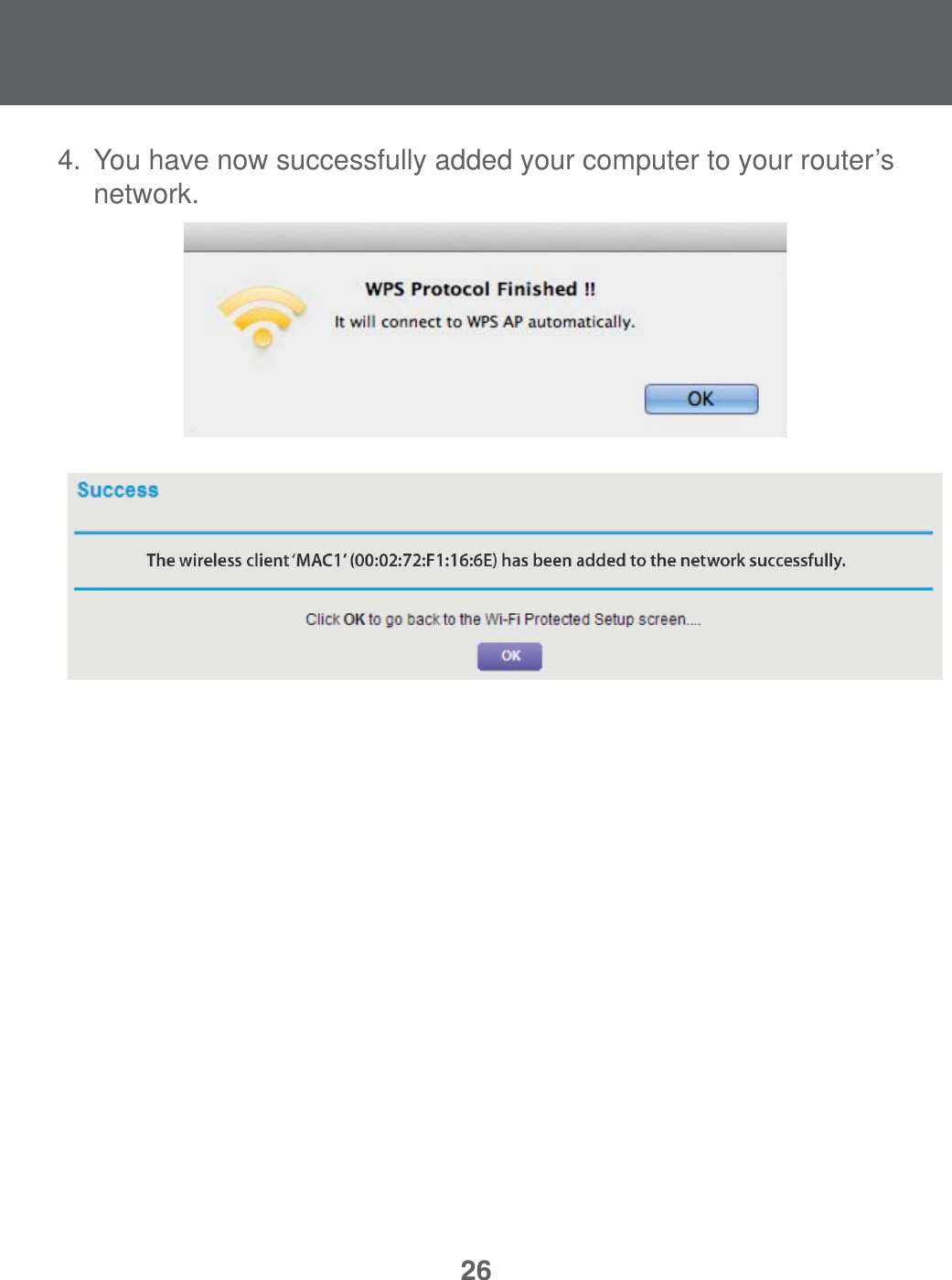
244.  You have now successfully    added your computer to    your router’s network. 2SWLRQ3XVK%XWWRQ&RQ¿JXUDWLRQ3%&0HWKRG 1. Press and hold the WPS Button on the side of the GWU735  adapter for 5 seconds or you can press the virtual PBC button under the WPS tab of the IOGEAR Wireless-AC Network Utility, as shown below.
25 $OORZLWWRFRQ¿JXUHWKHVHFXULW\VHWWLQJRI\RXUZLUHOHVVURXWHU$3 1H[WSUHVVWKHSK\VLFDO:36EXWWRQRQ\RXUZLUHOHVVURXWHU$3 RUWKHYLUWXDOEXWWRQRQWKH:36FRQ¿JXUDWLRQSDJHRIWKHZLUHOHVV URXWHU$3FRQ¿JXUDWLRQVRIWZDUH7KH:36&OLHQWVFUHHQ\RXVHH  may vary depending on your wireless router.
264.  You have now successfully added your computer to your router’s     network.
27This equipment has been tested and found to comply with the limits for a Class B digital device, pursuant to Part 15 of the FCC Rules. These limits are designed to provide reasonable protection against harmful interference in a residential setting. This product generates, uses, and can radiate radio frequency energy and, if not installed and used as directed, it may cause harmful interference to radio communications.  Although this product complies with the limits for a Class B digital device, there is no guarantee that interference will not occur in a particular installation.   This device has been tested and found to comply with the following (XURSHDQ8QLRQGLUHFWLYHV(OHFWURPDJQHWLF&DSDELOLW\(&/RZ9ROWDJH(&DQG577('(&Federal Communications Commission )&&6WDWHPHQWCE Statement
28Limited WarrantyWE’RE HERE TO HELP YOU! NEED ASSISTANCE SETTING UP THIS PRODUCT?Make sure you:9LVLWZZZLRJHDUFRPIRUPRUHSURGXFWLQIRUPDWLRQ9LVLWZZZLRJHDUFRPVXSSRUWIRUOLYHKHOSDQGSURGXFWVXSSRUWWarranty InformationThis product carries a 3 Year Limited. For the terms and conditions of WKLVZDUUDQW\SOHDVHJRWRKWWSZZZLRJHDUFRPVXSSRUWZDUUDQW\5HJLVWHURQOLQHDWKWWSZZZLRJHDUFRPUHJLVWHUImportant Product InformationProduct ModelSerial NumberIOGEARiogear.custhelp.comsupport@iogear.comwww.iogear.com'D9LQFL)RRWKLOO5DQFK&$CE Statement
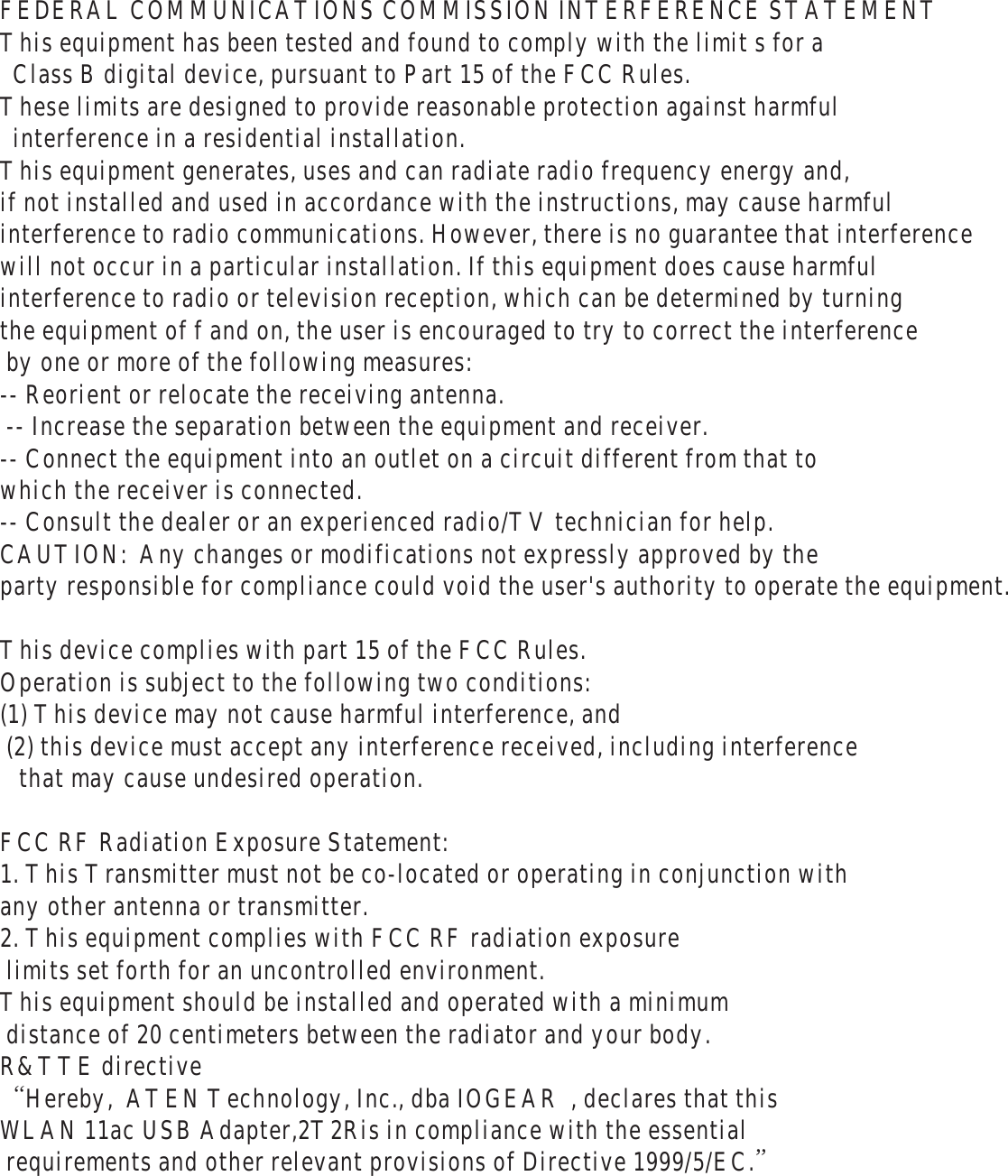
FEDERAL COMMUNICATIONS COMMISSION INTERFERENCE STATEMENT  This equipment has been tested and found to comply with the limit s for a    Class B digital device, pursuant to Part 15 of the FCC Rules.  These limits are designed to provide reasonable protection against harmful    interference in a residential installation.  This equipment generates, uses and can radiate radio frequency energy and,  if not installed and used in accordance with the instructions, may cause harmful  interference to radio communications. However, there is no guarantee that interference  will not occur in a particular installation. If this equipment does cause harmful  interference to radio or television reception, which can be determined by turning  the equipment of f and on, the user is encouraged to try to correct the interference  by one or more of the following measures:   -- Reorient or relocate the receiving antenna.   -- Increase the separation between the equipment and receiver.   -- Connect the equipment into an outlet on a circuit different from that to  which the receiver is connected.   -- Consult the dealer or an experienced radio/TV technician for help.   CAUTION:  Any changes or modifications not expressly approved by the  party responsible for compliance could void the user's authority to operate the equipment.    This device complies with part 15 of the FCC Rules.  Operation is subject to the following two conditions:  (1) This device may not cause harmful interference, and  (2) this device must accept any interference received, including interference    that may cause undesired operation.    FCC RF Radiation Exposure Statement:  1. This Transmitter must not be co-located or operating in conjunction with  any other antenna or transmitter.  2. This equipment complies with FCC RF radiation exposure   limits set forth for an uncontrolled environment.  This equipment should be installed and operated with a minimum  distance of 20 centimeters between the radiator and your body.  R&TTE directive     “Hereby,  ATEN Technology, Inc., dba IOGEAR  , declares that this  WLAN 11ac USB Adapter,2T2Ris in compliance with the essential  requirements and other relevant provisions of Directive 1999/5/EC.”
© 2014 IOGEAR®

Navigation menu