AVATARCONTROLS AWP01L Wifi Plug User Manual

SHENZHEN AVATARCONTROLS CO., LTD. Wifi Plug

User Manual

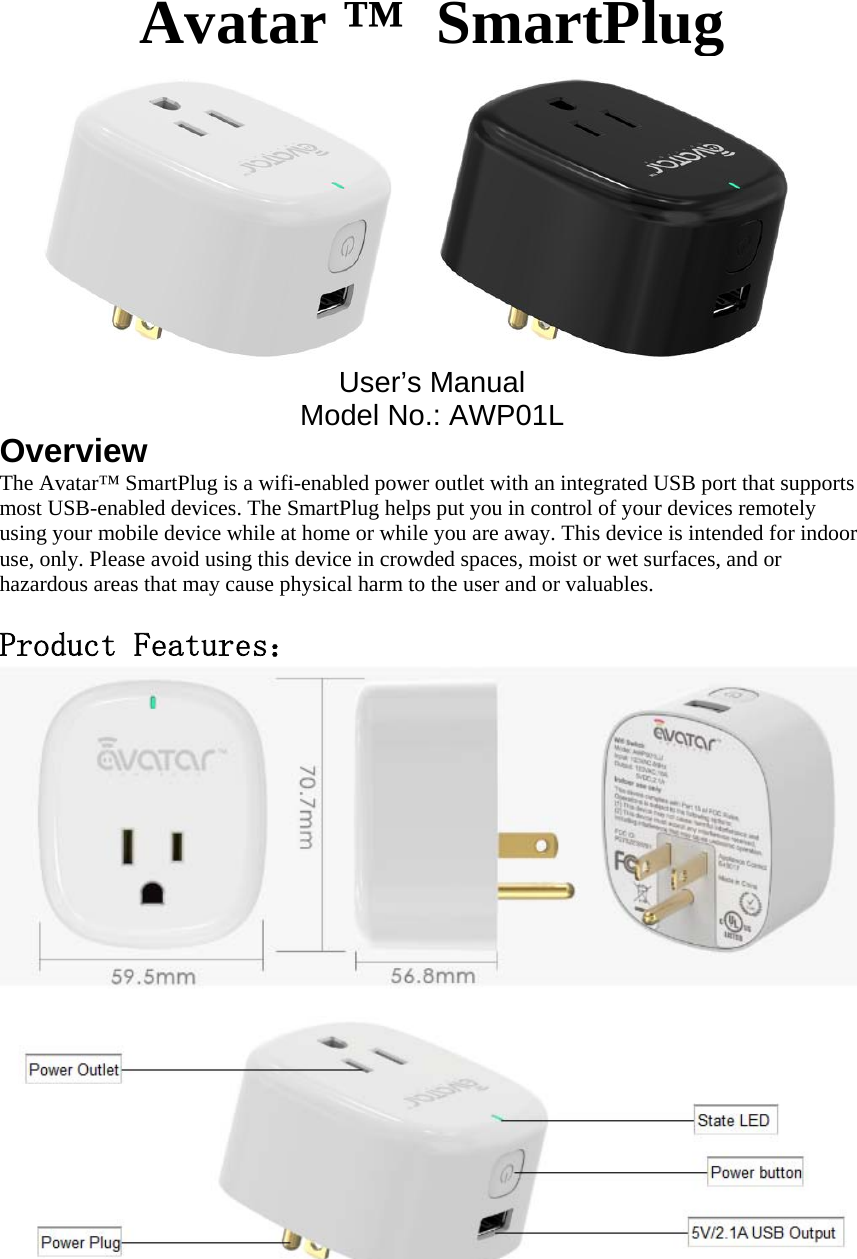
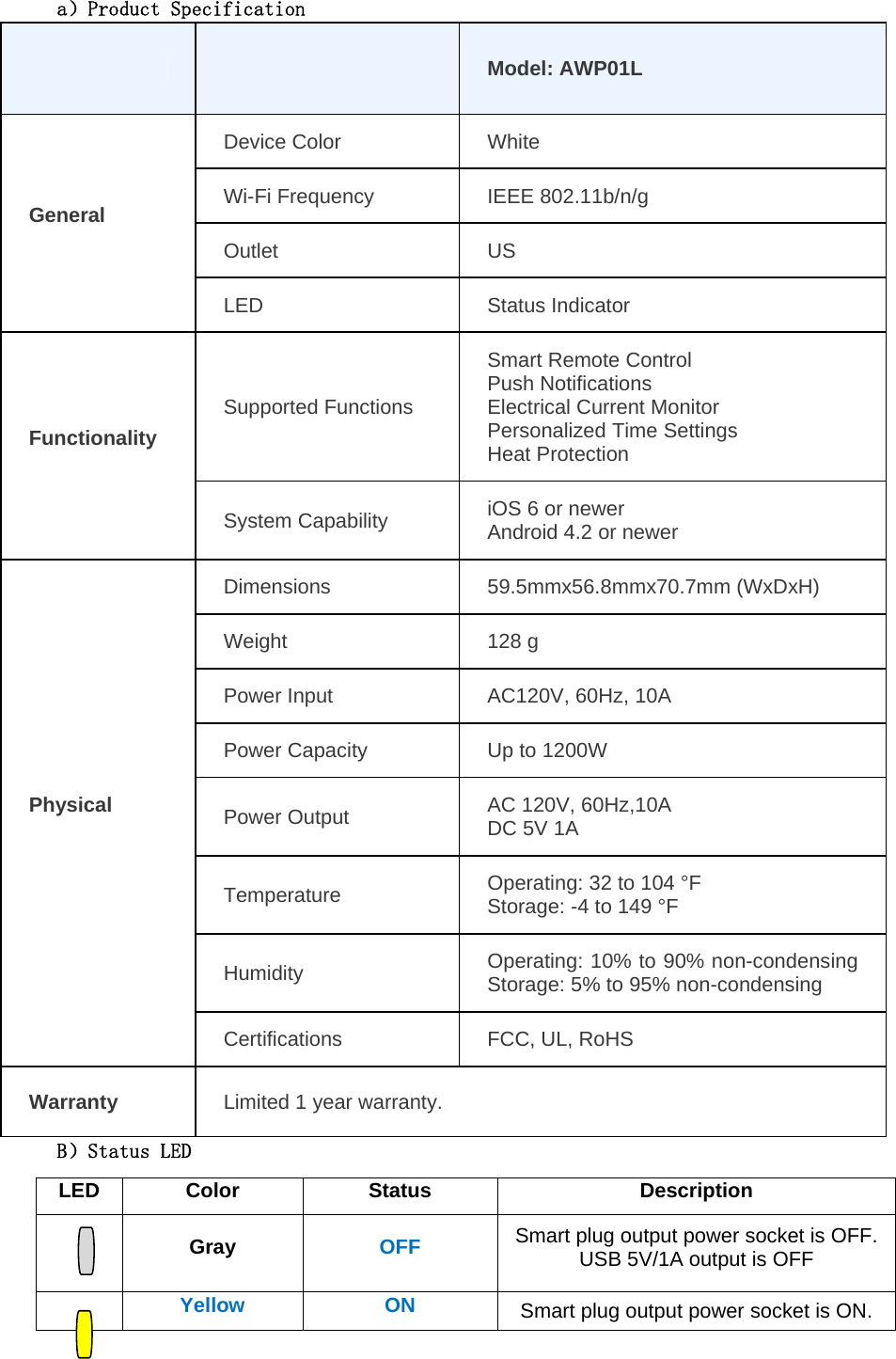
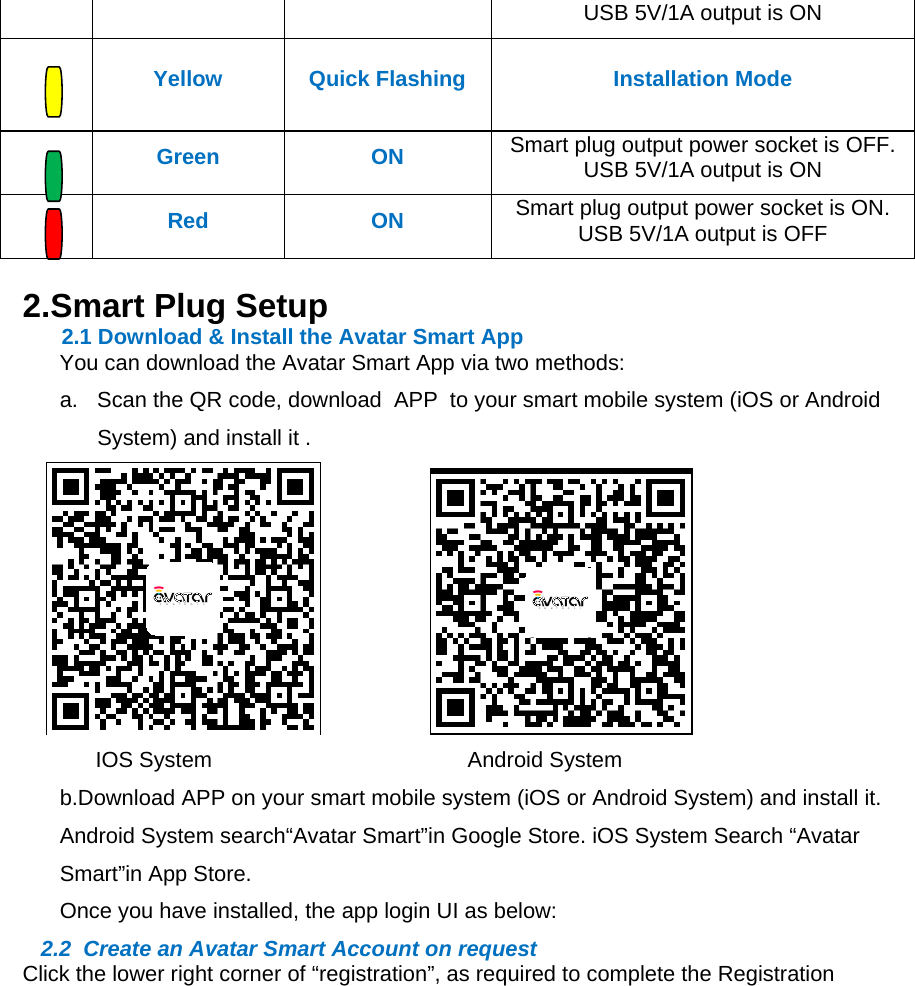
Avatar ™  SmartPlugUser’s ManualModel No.: AWP01LOverviewThe Avatar™ SmartPlug is a wifi-enabled power outlet with an integrated USB port that supports most USB-enabled devices. The SmartPlug helps put you in control of your devices remotely using your mobile device while at home or while you are away. This device is intended for indoor use, only. Please avoid using this device in crowded spaces, moist or wet surfaces, and or hazardous areas that may cause physical harm to the user and or valuables. Product Features:
a)Product Specification Model: AWP01LDevice ColorWhite Wi-Fi FrequencyIEEE 802.11b/n/gOutletUSGeneralLEDStatus Indicator Supported FunctionsSmart Remote Control Push Notifications Electrical Current MonitorPersonalized Time Settings Heat ProtectionFunctionalitySystem CapabilityiOS 6 or newer Android 4.2 or newerDimensions59.5mmx56.8mmx70.7mm (WxDxH)Weight128 gPower InputAC120V, 60Hz, 10APower CapacityUp to 1200W Power OutputAC 120V, 60Hz,10A  DC 5V 1A TemperatureOperating: 32 to 104 °F Storage: -4 to 149 °FHumidityOperating: 10% to 90% non-condensing Storage: 5% to 95% non-condensingPhysicalCertificationsFCC, UL, RoHSWarrantyLimited 1 year warranty. B)Status LEDLEDColorStatusDescriptionGrayOFFSmart plug output power socket is OFF. USB 5V/1A output is OFFYellowONSmart plug output power socket is ON.
USB 5V/1A output is ONYellowQuick FlashingInstallation ModeGreenONSmart plug output power socket is OFF. USB 5V/1A output is ONRedONSmart plug output power socket is ON. USB 5V/1A output is OFF2.Smart Plug Setup 2.1 Download & Install the Avatar Smart App You can download the Avatar Smart App via two methods:a.  Scan the QR code, download  APP  to your smart mobile system (iOS or Android System) and install it .                                     IOS System                                          Android Systemb.Download APP on your smart mobile system (iOS or Android System) and install it. Android System search“Avatar Smart”in Google Store. iOS System Search “Avatar Smart”in App Store.Once you have installed, the app login UI as below:       2.2  Create an Avatar Smart Account on request Click the lower right corner of “registration”, as required to complete the Registration
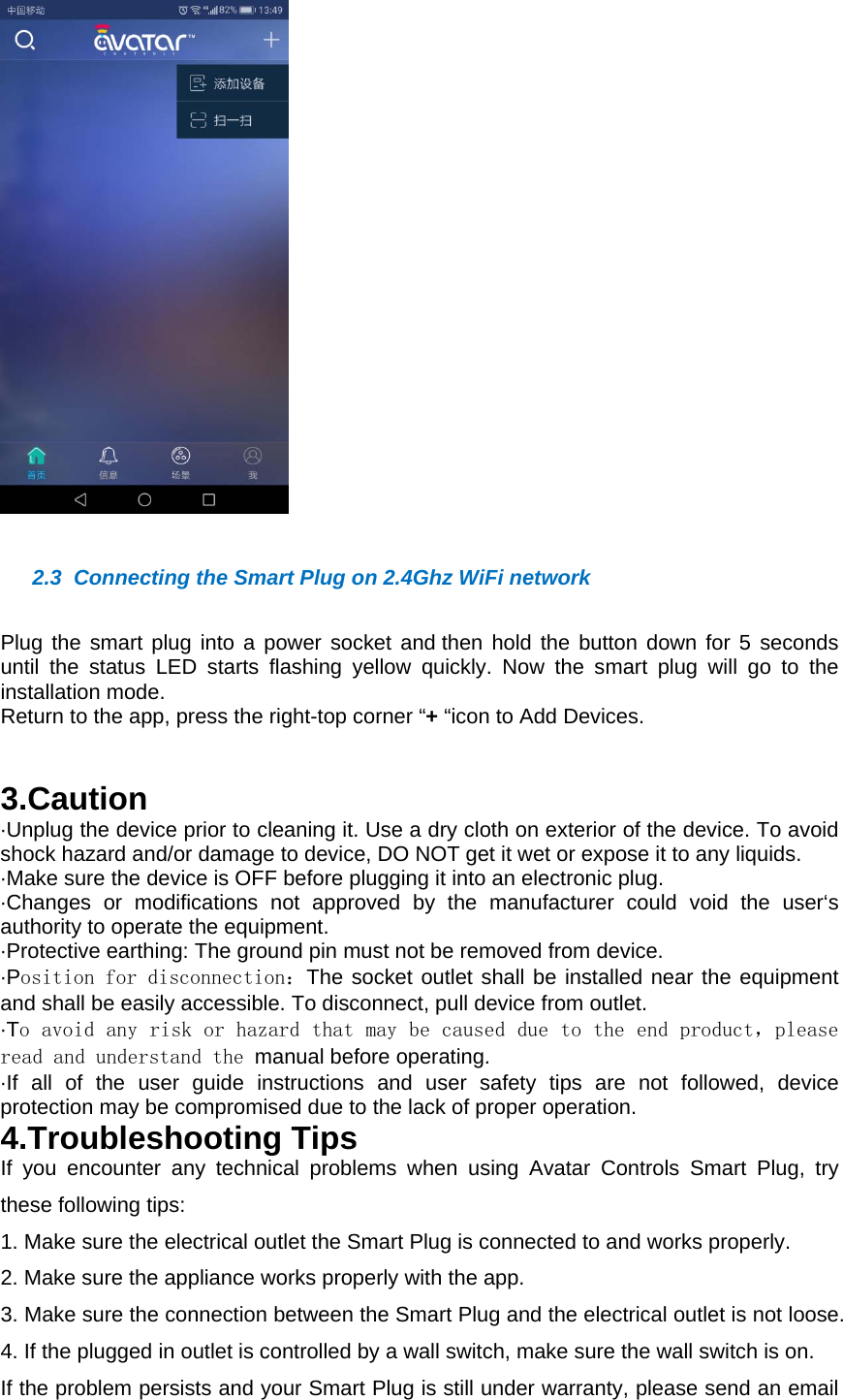
  2.3  Connecting the Smart Plug on 2.4Ghz WiFi networkPlug the smart plug into a power socket and then hold the button down for 5 seconds until the status LED starts flashing yellow quickly. Now the smart plug will go to the installation mode. Return to the app, press the right-top corner “+ “icon to Add Devices.    3.Caution·Unplug the device prior to cleaning it. Use a dry cloth on exterior of the device. To avoid shock hazard and/or damage to device, DO NOT get it wet or expose it to any liquids. ·Make sure the device is OFF before plugging it into an electronic plug. ·Changes or modifications not approved by the manufacturer could void the user‘s authority to operate the equipment.·Protective earthing: The ground pin must not be removed from device.·Position for disconnection:The socket outlet shall be installed near the equipment and shall be easily accessible. To disconnect, pull device from outlet. ·To avoid any risk or hazard that may be caused due to the end product,please read and understand the manual before operating.·If all of the user guide instructions and user safety tips are not followed, device protection may be compromised due to the lack of proper operation. 4.Troubleshooting TipsIf you encounter any technical problems when using Avatar Controls Smart Plug, try these following tips:1. Make sure the electrical outlet the Smart Plug is connected to and works properly.2. Make sure the appliance works properly with the app.3. Make sure the connection between the Smart Plug and the electrical outlet is not loose.4. If the plugged in outlet is controlled by a wall switch, make sure the wall switch is on.If the problem persists and your Smart Plug is still under warranty, please send an email
to info@avatarontrols.com for repair or replacement.  FCC STATEMENT 1.  This device complies with Part 15 of the FCC Rules. Operation is subject to the following two conditions: (1) This device may not cause harmful interference, and (2) This device must accept any interference received, including interference that may cause undesired operation. Changes or modifications not expressly approved by the party responsible for compliance could void the user’s authority to operate the equipment.  FCC Radiation Exposure Statement:  This equipment complies with FCC radiation exposure limits set forth for an uncontrolled environment. In order to avoid the possibility of exceeding the FCC radio frequency exposure limits, Human proximity to the antenna shall not be less than 20cm (8 inches) during normal operation. NOTE: This equipment has been tested and found to comply with the limits for a Class B digital, pursuant to Part 15 or the FCC Rules. These limits are designed to provide reasonable protection against harmful interference in a residential installation. This equipment generates, uses and can radiate radio frequency energy and, if not installed and used in accordance with the instructions, may casue harmful interference to radio communications, However, there is no guarantee that interference will not occur in a particular installation. If the equipment does cause harmful interference to radio or television reception, which can be determined by turning the equipment off and on, the user is encouraged to try to correct the interference by one or more of the following measures: --- Reorient or relocate the receiving antenna. --- Increase the separation between the equipment and receiver. --- Connect the equipment into an outlet on a circuit different   from that to which the receiver is connected. --- Consult the dealer or an experienced radio/ TV technician for help.

Navigation menu