AWOX ST2W HDMI WI-FI SMART TV STICK 2 User Manual

AWOX HDMI WI-FI SMART TV STICK 2

User Manual

www.awoxstriim.com AwoX StriimSTICK User Guide | 1 EN                                Lautstärke laut / leise Subir / Bajar el volumen  Äänenvoimakkuus ylös/alas Activer/réactiver la souris Retirez le récepteur sans fil (USB) Hangerő fel / le Főoldal Zwiększanie / zmniejszanie głośności  Povečanje/zmanjšanje glasnosti Добавить/понизить громкость User Guide – Mode d’emploi Benutzerhandbuch - Guía del usuario Guida utente  WIFI SMART TV STICK ST2-W AwoX StriimSTICK
www.awoxstriim.com AwoX StriimSTICK User Guide | 3 EN Contents AwoX StriimSTICK overview ................................................ 5 Air-mouse remote control ................................................... 6 AwoX StriimSTICK setup ...................................................... 8 AwoX StriimSTICK applications .......................................... 11 Main launcher icons .......................................................... 12 Media Center .................................................................... 12 Technical specifications ..................................................... 13     © 2014 AwoX. All rights reserved. StriimSTICK, AwoX, the AwoX logo and other AwoX marks are owned by AwoX. The Android name, the logo, and other trademarks are property of Google Inc. All other trademarks are the property of their respective owners. Information contained in this document is non-contractual. AwoX StriimStick User Guide v2 rev 01.    Awox StriimSTICK ST2-W
www.awoxstriim.com 4 | AwoX StriimSTICK User Guide  EN Welcome Congratulations and thank you for choosing the AwoX StriimSTICK™ smart TV adapter.  Simply plug this Android™ smart stick into any TV’s HDMI input and surf the Internet over a Wi-Fi connection and run your applications just like on a tablet or smartphone.  Enjoy this powerful and easy-to-use Wi-Fi / Internet HDMI smart stick to:  Use your TV just like an Android-powered tablet or smartphone  Access the on-line store to download thousands of applications  Share your photos, listen to music, stream videos  Access the Internet and your on-line services  Use your on-line e-mail accounts  Take AwoX StriimSTICK with you when you travel… use it anywhere you have an HDMI equipped TV and Wi-Fi Internet access!  This guide will show you how to set up your AwoX StriimSTICK™ adapter and turn your TV into an Android-powered smart TV in a few easy steps.
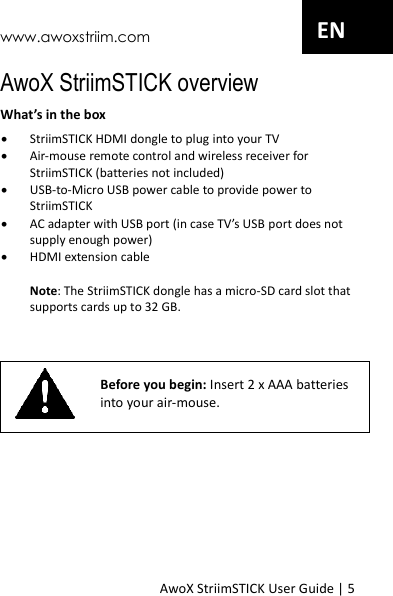
www.awoxstriim.com AwoX StriimSTICK User Guide | 5 EN AwoX StriimSTICK overview What’s in the box  StriimSTICK HDMI dongle to plug into your TV  Air-mouse remote control and wireless receiver for StriimSTICK (batteries not included)  USB-to-Micro USB power cable to provide power to StriimSTICK  AC adapter with USB port (in case TV’s USB port does not supply enough power)  HDMI extension cable  Note: The StriimSTICK dongle has a micro-SD card slot that supports cards up to 32 GB.    Before you begin: Insert 2 x AAA batteries into your air-mouse.
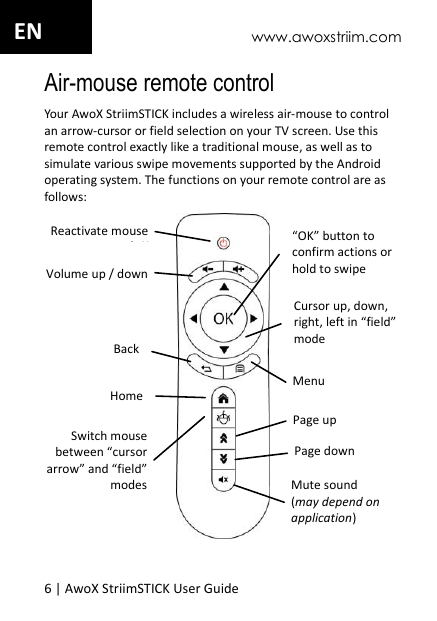
www.awoxstriim.com 6 | AwoX StriimSTICK User Guide  EN Air-mouse remote control Your AwoX StriimSTICK includes a wireless air-mouse to control an arrow-cursor or field selection on your TV screen. Use this remote control exactly like a traditional mouse, as well as to simulate various swipe movements supported by the Android operating system. The functions on your remote control are as follows:  “OK” button to confirm actions or hold to swipe  Reactivate mouse on/off  Cursor up, down, right, left in “field” mode Volume up / down Switch mouse between “cursor arrow” and “field” modes Home Back Page up Page down Menu Mute sound (may depend on application)
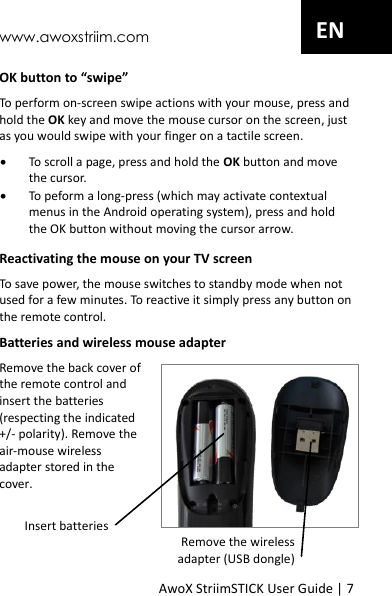
www.awoxstriim.com AwoX StriimSTICK User Guide | 7 EN OK button to “swipe” To perform on-screen swipe actions with your mouse, press and hold the OK key and move the mouse cursor on the screen, just as you would swipe with your finger on a tactile screen.  To scroll a page, press and hold the OK button and move the cursor.  To peform a long-press (which may activate contextual menus in the Android operating system), press and hold the OK button without moving the cursor arrow. Reactivating the mouse on your TV screen To save power, the mouse switches to standby mode when not used for a few minutes. To reactive it simply press any button on the remote control. Batteries and wireless mouse adapter Remove the back cover of the remote control and insert the batteries (respecting the indicated +/- polarity). Remove the air-mouse wireless adapter stored in the cover.  Insert batteries Remove the wireless  adapter (USB dongle)
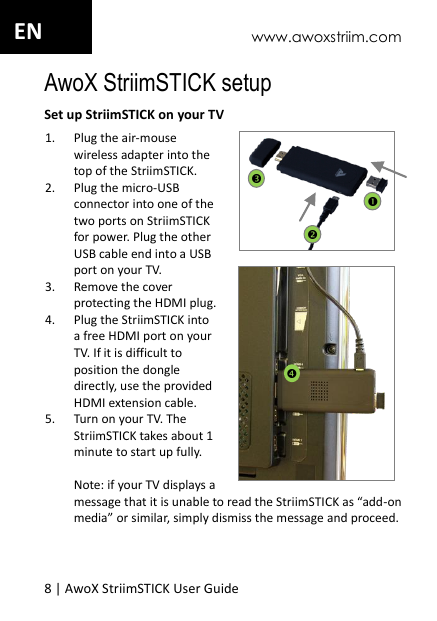
www.awoxstriim.com 8 | AwoX StriimSTICK User Guide  EN AwoX StriimSTICK setup Set up StriimSTICK on your TV 1. Plug the air-mouse wireless adapter into the top of the StriimSTICK. 2. Plug the micro-USB connector into one of the two ports on StriimSTICK for power. Plug the other USB cable end into a USB port on your TV.  3. Remove the cover protecting the HDMI plug. 4. Plug the StriimSTICK into a free HDMI port on your TV. If it is difficult to position the dongle directly, use the provided HDMI extension cable. 5. Turn on your TV. The StriimSTICK takes about 1 minute to start up fully.   Note: if your TV displays a message that it is unable to read the StriimSTICK as “add-on media” or similar, simply dismiss the message and proceed.     
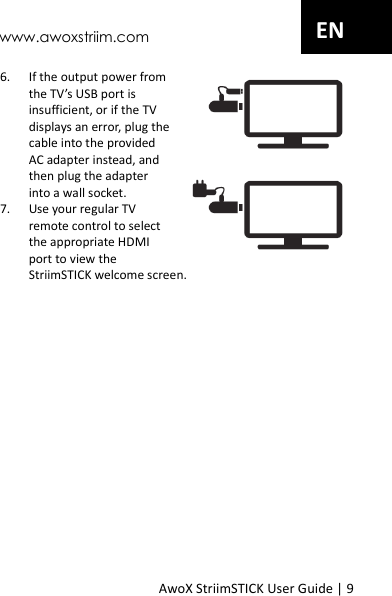
www.awoxstriim.com AwoX StriimSTICK User Guide | 9 EN 6. If the output power from the TV’s USB port is insufficient, or if the TV displays an error, plug the cable into the provided AC adapter instead, and then plug the adapter into a wall socket. 7. Use your regular TV remote control to select the appropriate HDMI port to view the StriimSTICK welcome screen.
www.awoxstriim.com 10 | AwoX StriimSTICK User Guide  EN First-time use: the AwoX setup wizard The AwoX Setup Wizard runs the first time you plug your AwoX StriimSTICK into your TV. Follow the simple steps on your TV screen to:  Choose the display language.  Connect to your home Wi-Fi router and enter your router’s password (note: some routers may be case-sensitive to the characters you enter here).  Set your time zone. At the end of the Wizard you are ready to use your air-mouse to navigate around the interface. For more details on using the Android system, apps and other features, please see www.google.com. You will find general options for configuring the Android operating system under Settings ( ).   If you would like to run the AwoX setup wizard again, go into Applications and click on the icon shown here.
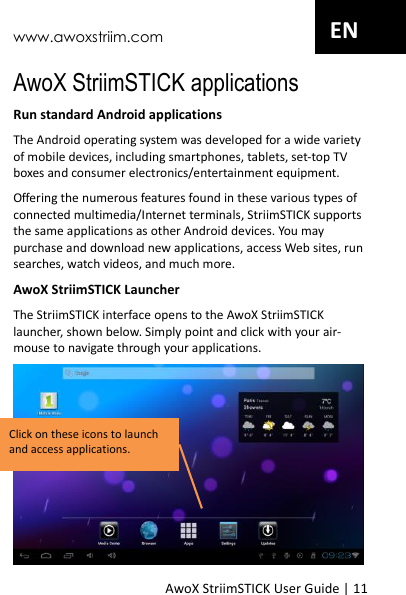
www.awoxstriim.com AwoX StriimSTICK User Guide | 11 EN AwoX StriimSTICK applications Run standard Android applications The Android operating system was developed for a wide variety of mobile devices, including smartphones, tablets, set-top TV boxes and consumer electronics/entertainment equipment. Offering the numerous features found in these various types of connected multimedia/Internet terminals, StriimSTICK supports the same applications as other Android devices. You may purchase and download new applications, access Web sites, run searches, watch videos, and much more. AwoX StriimSTICK Launcher The StriimSTICK interface opens to the AwoX StriimSTICK launcher, shown below. Simply point and click with your air-mouse to navigate through your applications.  Click on these icons to launch and access applications.
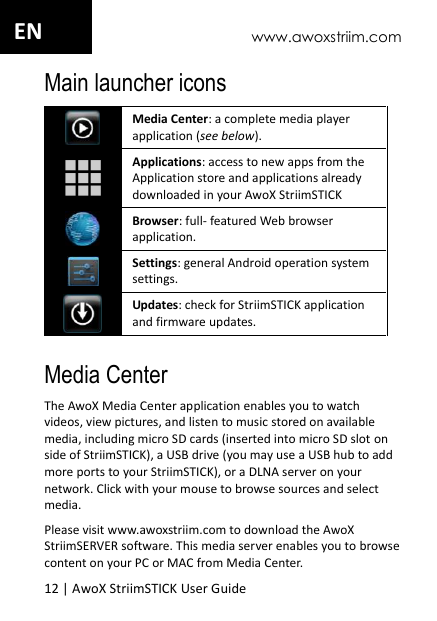
www.awoxstriim.com 12 | AwoX StriimSTICK User Guide  EN Main launcher icons  Media Center: a complete media player application (see below).  Applications: access to new apps from the Application store and applications already downloaded in your AwoX StriimSTICK  Browser: full- featured Web browser application.  Settings: general Android operation system settings.  Updates: check for StriimSTICK application and firmware updates.  Media Center The AwoX Media Center application enables you to watch videos, view pictures, and listen to music stored on available media, including micro SD cards (inserted into micro SD slot on side of StriimSTICK), a USB drive (you may use a USB hub to add more ports to your StriimSTICK), or a DLNA server on your network. Click with your mouse to browse sources and select media. Please visit www.awoxstriim.com to download the AwoX StriimSERVER software. This media server enables you to browse content on your PC or MAC from Media Center.
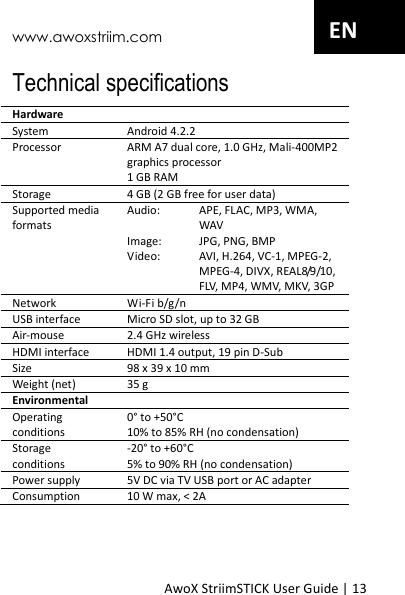
www.awoxstriim.com AwoX StriimSTICK User Guide | 13 EN Technical specifications Hardware System Android 4.2.2 Processor ARM A7 dual core, 1.0 GHz, Mali-400MP2 graphics processor 1 GB RAM Storage 4 GB (2 GB free for user data) Supported media formats Audio:  APE, FLAC, MP3, WMA, WAV Image:  JPG, PNG, BMP Video:  AVI, H.264, VC-1, MPEG-2, MPEG-4, DIVX, REAL8/9/10, FLV, MP4, WMV, MKV, 3GP Network Wi-Fi b/g/n USB interface Micro SD slot, up to 32 GB Air-mouse 2.4 GHz wireless HDMI interface HDMI 1.4 output, 19 pin D-Sub Size 98 x 39 x 10 mm Weight (net) 35 g Environmental Operating conditions 0° to +50°C 10% to 85% RH (no condensation) Storage conditions -20° to +60°C 5% to 90% RH (no condensation) Power supply 5V DC via TV USB port or AC adapter Consumption 10 W max, < 2A
FCC Notice  This device complies with Part 15 of the FCC Rules. Operation is subject to the following two conditions: (1) This device may not cause harmful interference, and (2) this device must accept any interference received, including interference that may cause undesired operation.  NOTE 1: This equipment has been tested and found to comply with the limits for a Class B digital device, pursuant to part 15 of the FCC Rules. These limits are designed to provide reasonable protection against harmful interference in a residential installation. This equipment generates, uses and can radiate radio frequency energy and, if not installed and used in accordance with the instructions, may cause harmful interference to radio communications. However, there is no guarantee that interference will not occur in a particular installation. If this equipment does cause harmful interference to radio or television reception, which can be determined by turning the equipment off and on, the user is encouraged to try to correct the interference by one or more of the following measures: - Reorient or relocate the receiving antenna. - Increase the separation between the equipment and receiver. -Connect the equipment into an outlet on a circuit different from that to which the receiver is connected. -Consult the dealer or an experienced radio/TV technician for help.   NOTE 2: Any changes or modifications to this unit not expressly approved by the party responsible for compliance could void the user's authority to operate the equipment.

Navigation menu