Alliance BCK-001 BLUETOOTH HAND-FREE CARKIT User Manual Bluetooth Car Kit

Taiwan Alliance Corporation BLUETOOTH HAND-FREE CARKIT Bluetooth Car Kit

USERS MANUAL

       Bluetooth Hands-Free Car Kit   Model No. BCK-001  Installation Guide
  Specification:  Product  Bluetooth Hands-Free Car Kit Bluetooth Compliance  Bluetooth 1.1 specification Bluetooth headset profiles Frequency Band  2.45 GHz ISM band 79 channels frequency hopping TX Output Power  0.36 mW Receiver Sensitivity  <-78dBm Operating Range  Up to 10 meters Security Encrypted link Maximum current  150mA Input Voltage  12V
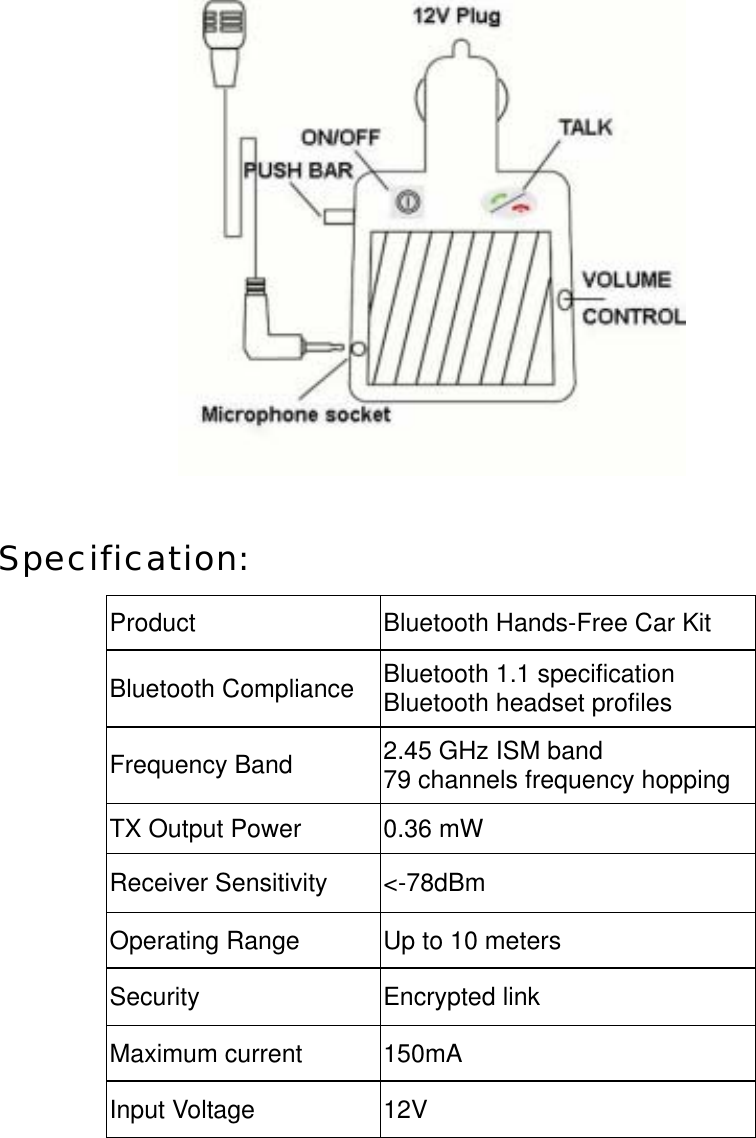
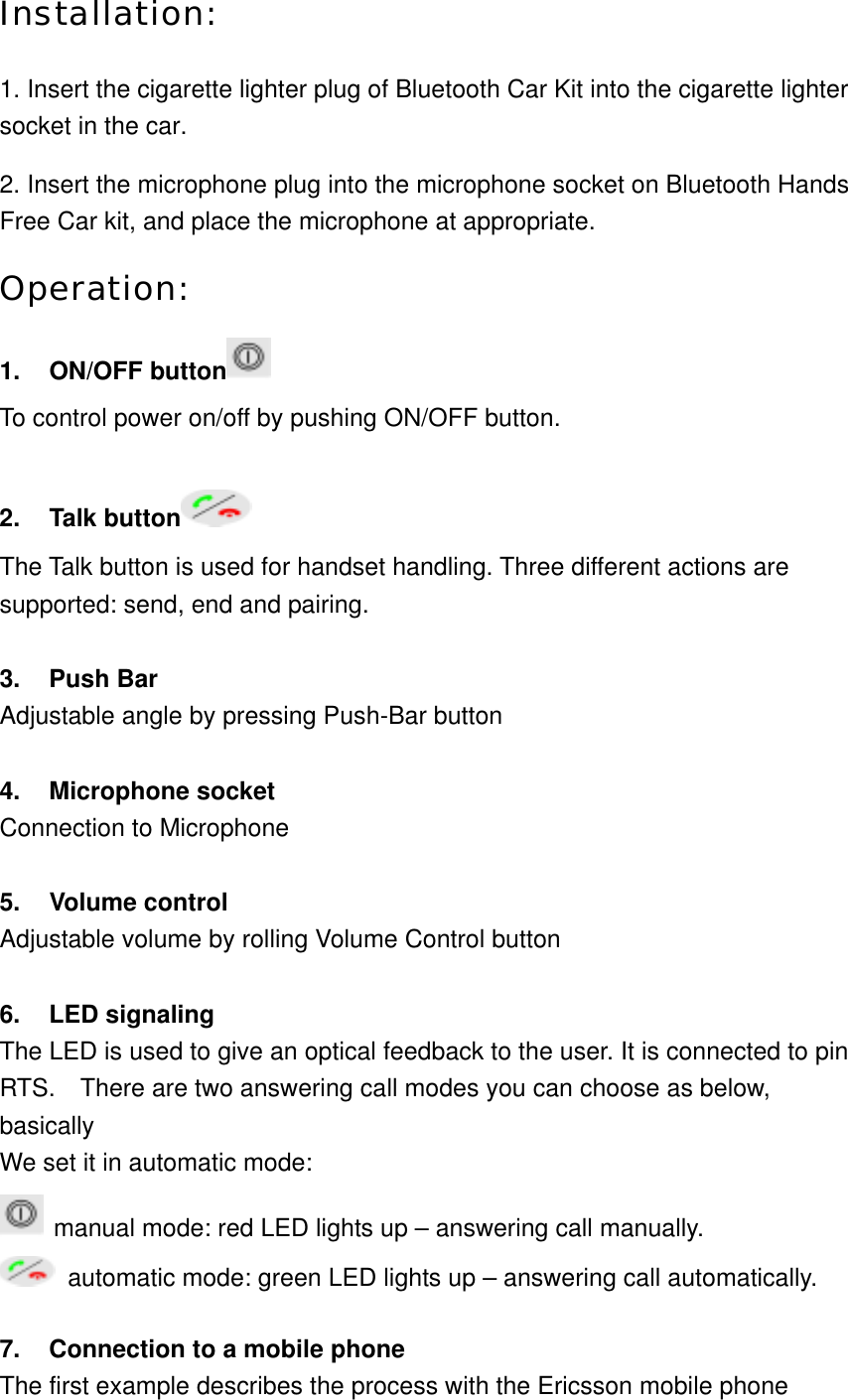
Installation: 1. Insert the cigarette lighter plug of Bluetooth Car Kit into the cigarette lighter socket in the car. 2. Insert the microphone plug into the microphone socket on Bluetooth Hands Free Car kit, and place the microphone at appropriate. Operation: 1. ON/OFF button  To control power on/off by pushing ON/OFF button.  2. Talk button  The Talk button is used for handset handling. Three different actions are supported: send, end and pairing.  3. Push Bar Adjustable angle by pressing Push-Bar button  4. Microphone socket Connection to Microphone  5. Volume control Adjustable volume by rolling Volume Control button  6. LED signaling The LED is used to give an optical feedback to the user. It is connected to pin RTS.  There are two answering call modes you can choose as below, basically We set it in automatic mode:  manual mode: red LED lights up – answering call manually.  automatic mode: green LED lights up – answering call automatically.  7.  Connection to a mobile phone The first example describes the process with the Ericsson mobile phone
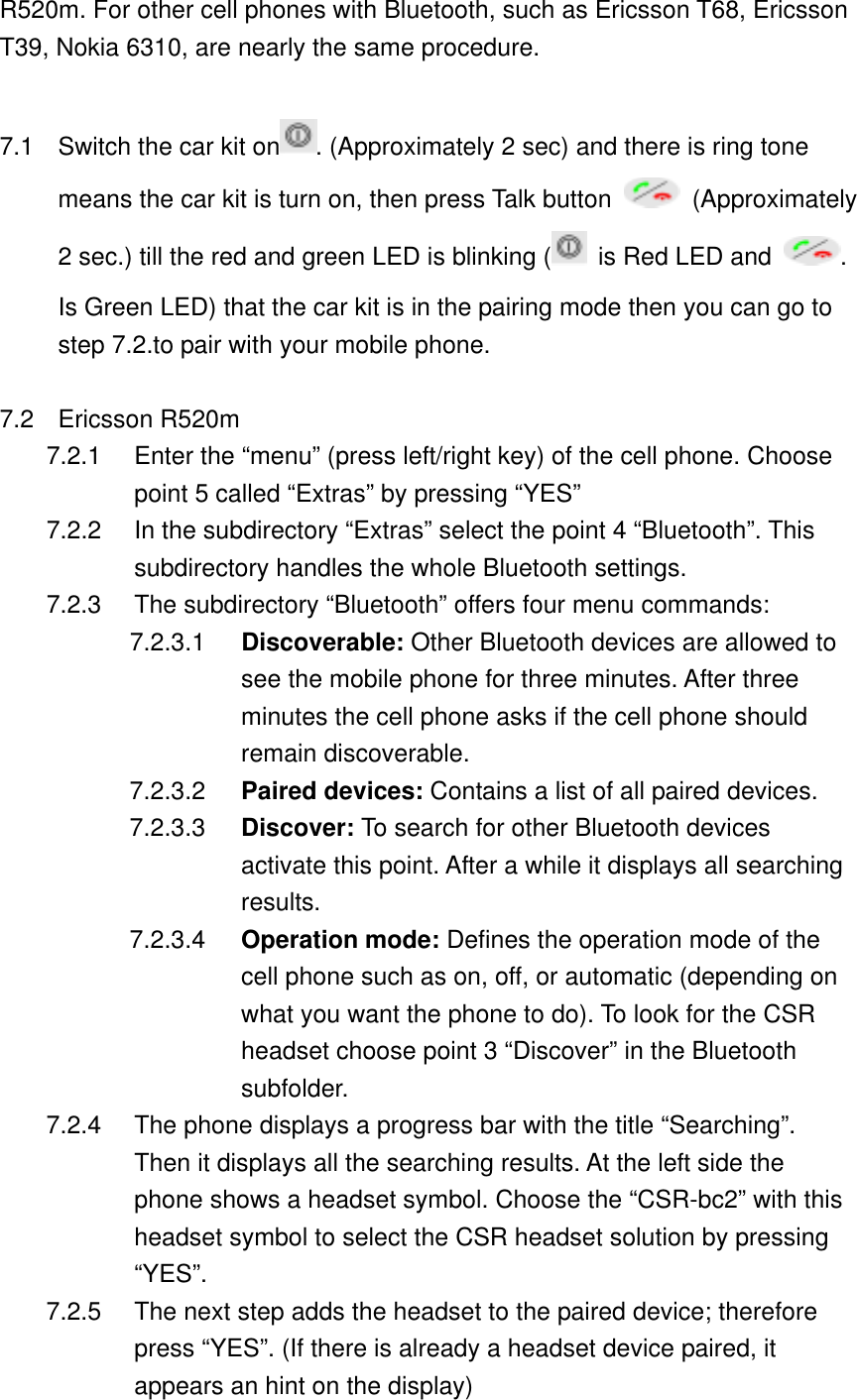
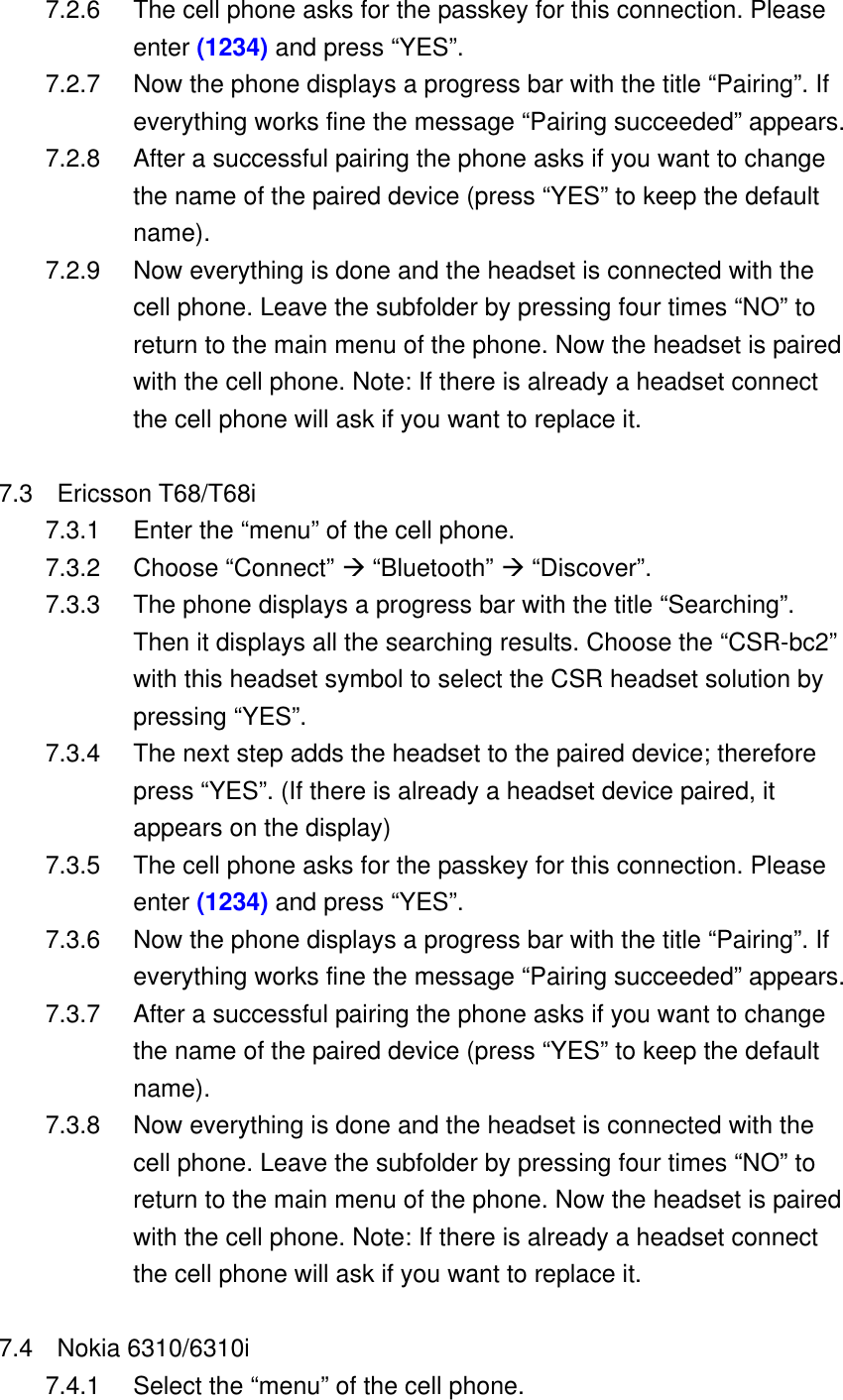
R520m. For other cell phones with Bluetooth, such as Ericsson T68, Ericsson T39, Nokia 6310, are nearly the same procedure.    7.1  Switch the car kit on . (Approximately 2 sec) and there is ring tone     means the car kit is turn on, then press Talk button   (Approximately 2 sec.) till the red and green LED is blinking (  is Red LED and  . Is Green LED) that the car kit is in the pairing mode then you can go to step 7.2.to pair with your mobile phone.  7.2 Ericsson R520m 7.2.1  Enter the “menu” (press left/right key) of the cell phone. Choose point 5 called “Extras” by pressing “YES” 7.2.2  In the subdirectory “Extras” select the point 4 “Bluetooth”. This subdirectory handles the whole Bluetooth settings. 7.2.3  The subdirectory “Bluetooth” offers four menu commands: 7.2.3.1  Discoverable: Other Bluetooth devices are allowed to see the mobile phone for three minutes. After three minutes the cell phone asks if the cell phone should remain discoverable. 7.2.3.2  Paired devices: Contains a list of all paired devices. 7.2.3.3  Discover: To search for other Bluetooth devices activate this point. After a while it displays all searching results. 7.2.3.4  Operation mode: Defines the operation mode of the cell phone such as on, off, or automatic (depending on what you want the phone to do). To look for the CSR headset choose point 3 “Discover” in the Bluetooth subfolder. 7.2.4  The phone displays a progress bar with the title “Searching”. Then it displays all the searching results. At the left side the phone shows a headset symbol. Choose the “CSR-bc2” with this headset symbol to select the CSR headset solution by pressing “YES”. 7.2.5  The next step adds the headset to the paired device; therefore press “YES”. (If there is already a headset device paired, it appears an hint on the display)
7.2.6  The cell phone asks for the passkey for this connection. Please enter (1234) and press “YES”. 7.2.7  Now the phone displays a progress bar with the title “Pairing”. If everything works fine the message “Pairing succeeded” appears. 7.2.8  After a successful pairing the phone asks if you want to change the name of the paired device (press “YES” to keep the default name). 7.2.9  Now everything is done and the headset is connected with the cell phone. Leave the subfolder by pressing four times “NO” to return to the main menu of the phone. Now the headset is paired with the cell phone. Note: If there is already a headset connect the cell phone will ask if you want to replace it.  7.3 Ericsson T68/T68i 7.3.1  Enter the “menu” of the cell phone. 7.3.2 Choose “Connect” Æ “Bluetooth” Æ “Discover”. 7.3.3  The phone displays a progress bar with the title “Searching”. Then it displays all the searching results. Choose the “CSR-bc2” with this headset symbol to select the CSR headset solution by pressing “YES”.   7.3.4  The next step adds the headset to the paired device; therefore press “YES”. (If there is already a headset device paired, it appears on the display) 7.3.5  The cell phone asks for the passkey for this connection. Please enter (1234) and press “YES”. 7.3.6  Now the phone displays a progress bar with the title “Pairing”. If everything works fine the message “Pairing succeeded” appears. 7.3.7  After a successful pairing the phone asks if you want to change the name of the paired device (press “YES” to keep the default name). 7.3.8  Now everything is done and the headset is connected with the cell phone. Leave the subfolder by pressing four times “NO” to return to the main menu of the phone. Now the headset is paired with the cell phone. Note: If there is already a headset connect the cell phone will ask if you want to replace it.  7.4 Nokia 6310/6310i 7.4.1  Select the “menu” of the cell phone.
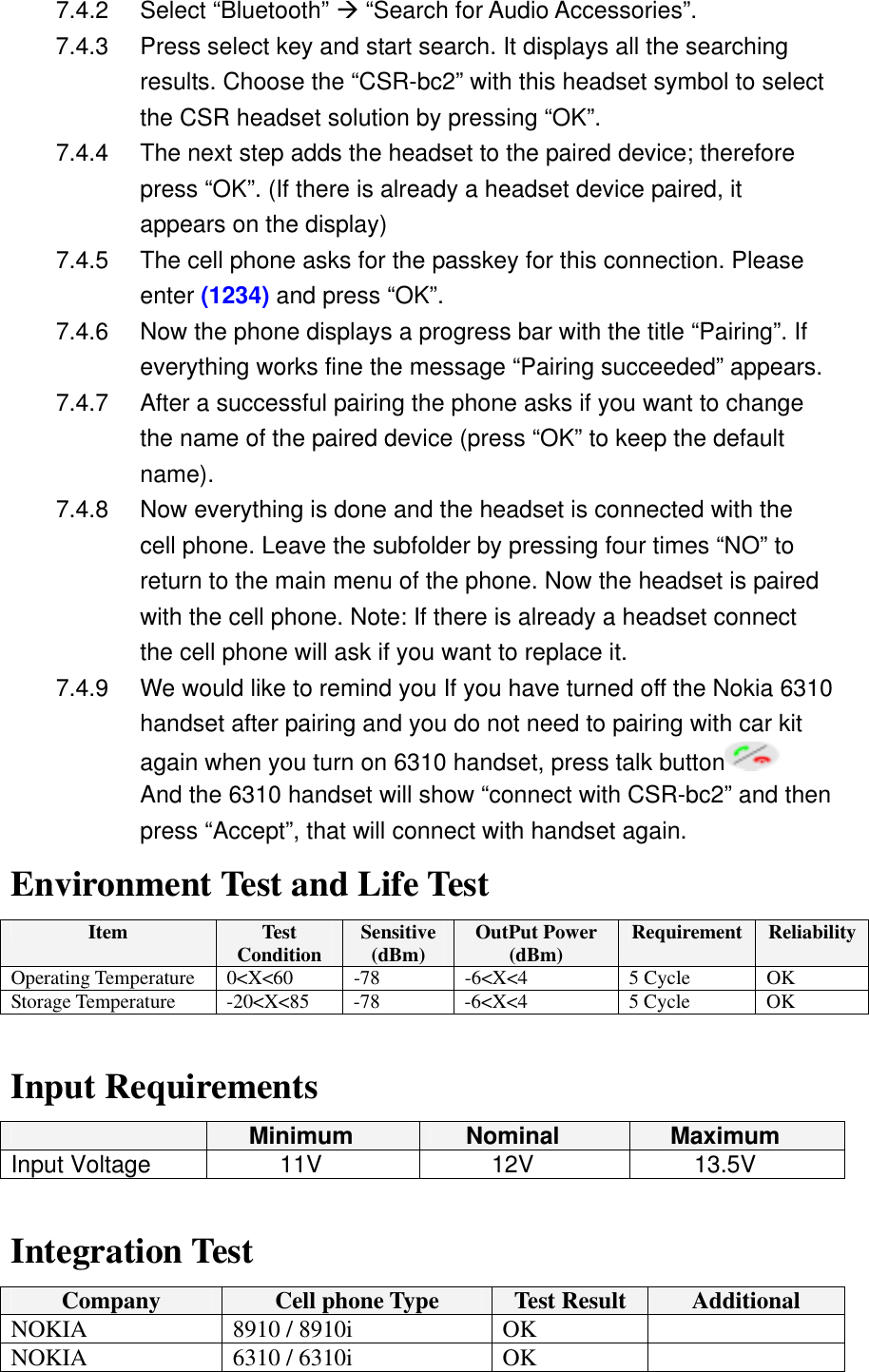
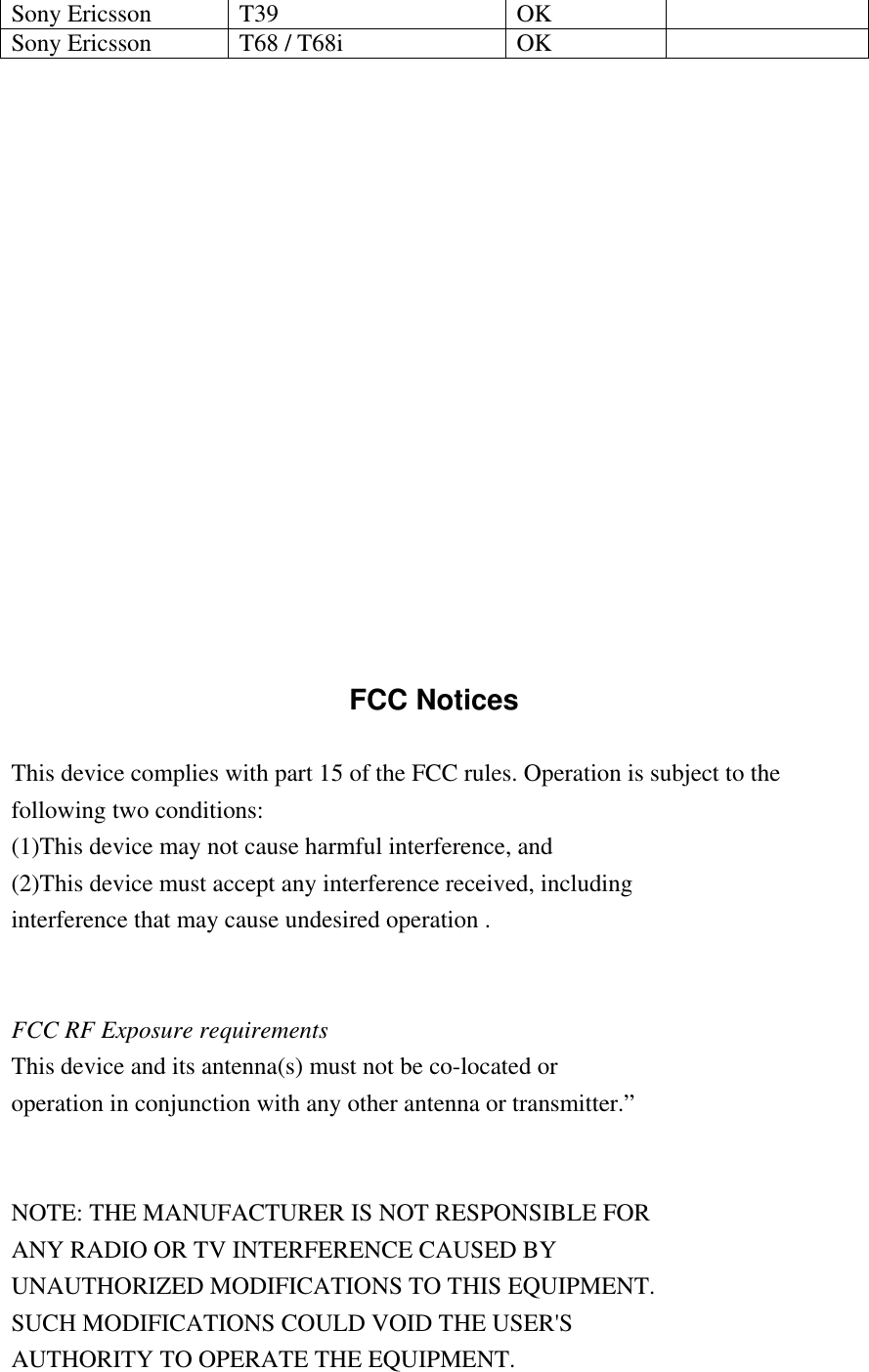
7.4.2 Select “Bluetooth” Æ “Search for Audio Accessories”. 7.4.3  Press select key and start search. It displays all the searching results. Choose the “CSR-bc2” with this headset symbol to select the CSR headset solution by pressing “OK”.   7.4.4  The next step adds the headset to the paired device; therefore press “OK”. (If there is already a headset device paired, it appears on the display) 7.4.5  The cell phone asks for the passkey for this connection. Please enter (1234) and press “OK”. 7.4.6  Now the phone displays a progress bar with the title “Pairing”. If everything works fine the message “Pairing succeeded” appears. 7.4.7  After a successful pairing the phone asks if you want to change the name of the paired device (press “OK” to keep the default name). 7.4.8  Now everything is done and the headset is connected with the cell phone. Leave the subfolder by pressing four times “NO” to return to the main menu of the phone. Now the headset is paired with the cell phone. Note: If there is already a headset connect the cell phone will ask if you want to replace it. 7.4.9  We would like to remind you If you have turned off the Nokia 6310 handset after pairing and you do not need to pairing with car kit again when you turn on 6310 handset, press talk button  And the 6310 handset will show “connect with CSR-bc2” and then press “Accept”, that will connect with handset again. Environment Test and Life Test Item  Test Condition  Sensitive(dBm)  OutPut Power (dBm)  Requirement  ReliabilityOperating Temperature  0<X<60  -78  -6<X<4  5 Cycle  OK Storage Temperature  -20<X<85  -78  -6<X<4  5 Cycle  OK  Input Requirements  Minimum  Nominal  Maximum Input Voltage  11V  12V  13.5V  Integration Test Company  Cell phone Type  Test Result  Additional NOKIA  8910 / 8910i  OK   NOKIA  6310 / 6310i  OK
Sony Ericsson  T39  OK   Sony Ericsson  T68 / T68i  OK                    FCC Notices  This device complies with part 15 of the FCC rules. Operation is subject to the following two conditions: (1)This device may not cause harmful interference, and (2)This device must accept any interference received, including interference that may cause undesired operation .   FCC RF Exposure requirements This device and its antenna(s) must not be co-located or operation in conjunction with any other antenna or transmitter.”   NOTE: THE MANUFACTURER IS NOT RESPONSIBLE FOR ANY RADIO OR TV INTERFERENCE CAUSED BY UNAUTHORIZED MODIFICATIONS TO THIS EQUIPMENT. SUCH MODIFICATIONS COULD VOID THE USER'S AUTHORITY TO OPERATE THE EQUIPMENT.

Navigation menu