Amgoo Telecom AM213 Mobile Phone User Manual AM213 instruction

Amgoo Telecom Co., Ltd. Mobile Phone AM213 instruction

user manual

mobilephoneUserManualModel:AM213Brand:AMGOOFCCID:UOSAM213
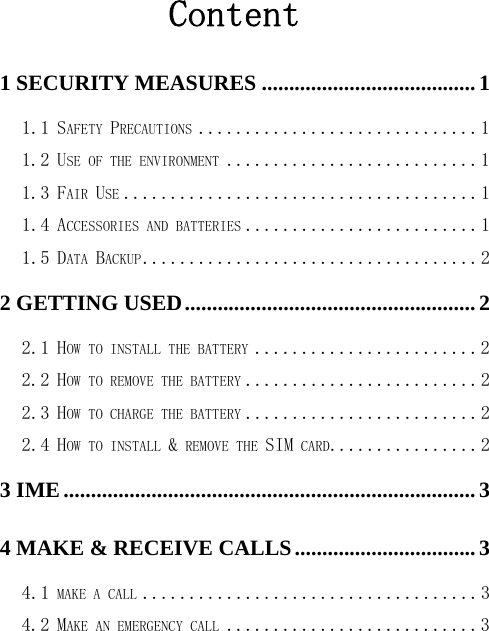
Content 1 SECURITY MEASURES ....................................... 1 1.1 SAFETY PRECAUTIONS .............................. 1 1.2 USE OF THE ENVIRONMENT ........................... 1 1.3 FAIR USE ...................................... 1 1.4 ACCESSORIES AND BATTERIES ......................... 1 1.5 DATA BACKUP .................................... 2 2 GETTING USED ..................................................... 2 2.1 HOW TO INSTALL THE BATTERY ........................ 2 2.2 HOW TO REMOVE THE BATTERY ......................... 2 2.3 HOW TO CHARGE THE BATTERY ......................... 2 2.4 HOW TO INSTALL & REMOVE THE SIM CARD................ 2 3 IME ........................................................................... 3 4 MAKE & RECEIVE CALLS ................................. 3 4.1 MAKE A CALL .................................... 3 4.2 MAKE AN EMERGENCY CALL ........................... 3
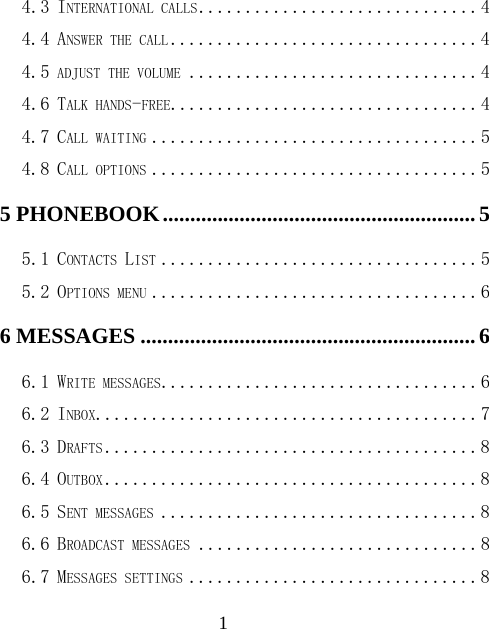
 14.3 INTERNATIONAL CALLS .............................. 4 4.4 ANSWER THE CALL ................................. 4 4.5 ADJUST THE VOLUME ............................... 4 4.6 TALK HANDS-FREE................................. 4 4.7 CALL WAITING ................................... 5 4.8 CALL OPTIONS ................................... 5 5 PHONEBOOK ......................................................... 5 5.1 CONTACTS LIST .................................. 5 5.2 OPTIONS MENU ................................... 6 6 MESSAGES ............................................................. 6 6.1 WRITE MESSAGES.................................. 6 6.2 INBOX......................................... 7 6.3 DRAFTS ........................................ 8 6.4 OUTBOX ........................................ 8 6.5 SENT MESSAGES .................................. 8 6.6 BROADCAST MESSAGES .............................. 8 6.7 MESSAGES SETTINGS ............................... 8
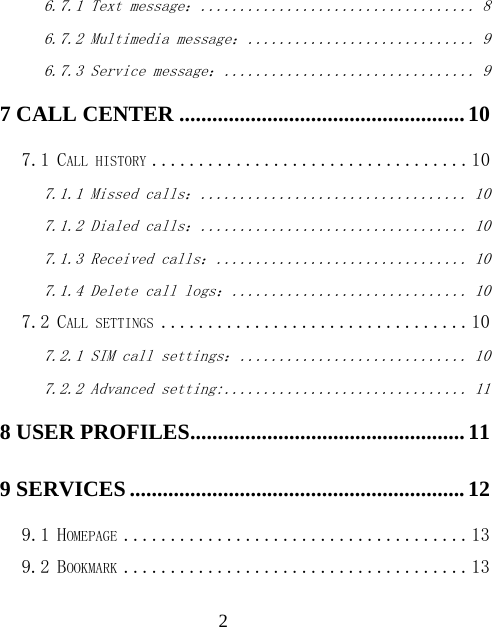
 26.7.1 Text message: ................................... 8 6.7.2 Multimedia message: ............................. 9 6.7.3 Service message: ................................ 9 7 CALL CENTER .................................................... 10 7.1 CALL HISTORY .................................. 10 7.1.1 Missed calls: .................................. 10 7.1.2 Dialed calls: .................................. 10 7.1.3 Received calls: ................................ 10 7.1.4 Delete call logs: .............................. 10 7.2 CALL SETTINGS ................................. 10 7.2.1 SIM call settings: ............................. 10 7.2.2 Advanced setting: ............................... 11 8 USER PROFILES .................................................. 11 9 SERVICES ............................................................. 12 9.1 HOMEPAGE ..................................... 13 9.2 BOOKMARK ..................................... 13
 39.3 SEARCH OR INPUT URL ............................ 13 9.4 RECENT PAGES .................................. 13 9.5 SETTING ...................................... 13 10 CALENDAR ......................................................... 14 11 ALARM ................................................................ 14 12 IMAGE VIEWER ................................................ 14 13 CAMERA ............................................................. 15 14 CALCULATOR ................................................... 15 15 AUDIO PLAYER................................................. 15 16 VIDEO PLAYER ................................................. 16 17 FM RADIO ........................................................... 16 18 VIDEO RECORDER .......................................... 17
 419 SOUND RECORDER ......................................... 17 20 MOBILE TV ........................................................ 17 21 FILE MANAGER ................................................ 18 22 EBOOK READER ............................................... 19 23 GAMES ................................................................. 19 24 SETTINGS ........................................................... 19 24.1 DUAL SIM SETTINGS ............................. 19 24.2 PEN CALIBRATION ............................... 19 24.3 PHONE SETTINGS................................ 19 24.4 NETWORK SETTINGS .............................. 20 24.5 SECURITY SETTINGS ............................. 20 24.6 CONNECTIVITY ................................. 21 24.7 RESTORE FACTORY SETTINGS ........................ 21 25 LOCK ................................................................... 22
 526 POWER OFF ....................................................... 22 27 MAINTENANCE AND HELP ........................... 22 27.1 MAINTENANCE AND REPAIR ......................... 22 27.2 MAINTENANCE OF THE BATTERY ...................... 23 27.3 HELP........................................ 24
 11 Security measures 1.1 Safety Precautions   When mobile Phone use is prohibited or the use may cause interference or danger, please do not turn on it, and turn off the automatic startup function.     Please  read  and  follow  the  simple  rules  to  prevent dangerous and illegal use. 1.2 Use of the environment   When you take a plane the phone should be turned off, wireless devices may cause interference in aircraft.   In the hospital should be powered off, the phone may make some medical equipment (such as pacemakers, hearing aids, etc.) have an impact.     At  gas  stations,  oil  depots,  chemical  plants,  where blasting operations or near flammable materials and chemicals areas, do not use the phone.  Do not use mobile phones while driving, before using, you should stop your car. 1.3 Fair Use   Just use your phone in the normal position.   When you connect it to other devices, please read the instructions    for  detailed  and  safety    actions,  do  not connect incompatible products.   Only qualified personnel can install and repair the phone. 1.4 Accessories and batteries   Use only the specified batteries and accessories.   The use of any unauthorized accessories may affect the
 2phone's  performance,  even  lead  to  physical  danger  or  in violation of state on the relevant provisions of communication terminal products. 1.5 Data Backup   Please note that back up all important data, so as to avoid loss. 2 Getting used 2.1 How to install the battery    Open the back cover.   Insert the battery into the battery slot.   Close the phone cover. 2.2 How to remove the battery   Open the back cover.   Remove the battery from the battery slot. Note: We recommend first off and then remove the battery to avoid loss of data in mobile phones. 2.3 How to charge the battery   Plug one end of the charger to the phone charging port, the other end into a household power outlet. Note: This machine can be connected to a computer USB port to charge.   When charging the battery level indicator on the screen icon was dynamic display, until the battery is full up.    After charging, disconnect the  power, then unplug the charger, so that the charger no-load. 2.4 How to install & remove the SIM card The machine supports two SIM cards. Before doing the following, make sure the phone is turned off and no charging.
 3  Open the back cover, remove the battery.  Make the golden contacts of the SIM card face down, Card gap facing the slot gap, and then put into it.  Install the battery and close the battery cover.  SIM card's removal and installation steps are in reverse. 3 IME   This phone supports multiple languages input. The IME can be  alternated  by  pressing  the  “ctrl”  key  in  the  edit interface. Then press the corresponding keys in the keyboard to input. 4 Make & receive calls 4.1 make a call  Enter the phone number in the dial screen, press the dial key with the selected SIM card to make calls.  During the call press the end key to end the call. You can also choose from a number of direct contacts to allocate;  Standby interface into the phone book, choose the number to dial.  Press dial key to call the selected number. Directly in the call log can also call:  In the idle screen press the dial button to enter the call log.  Select the number to dial.  Press the dial button dial telephone. 4.2 Make an emergency call Within the GSM system, you can make an emergency call. When
 4making an emergency call, please do not arbitrarily terminate the call. Phone without a SIM card can still make emergency calls.  Enter the emergency number. Press dial keys to make an emergency call. Note:  As  with  any  mobile  phone, due  to  the  network coverage reasons or wireless signal transmission case,may not support the characteristics of the mobile phones,Some networks do not even support the 112 emergency call service. Thus, for particularly critical communications (eg medical emergencies), should not rely solely on mobile phones. Please check with your local network operator and reconciliation. 4.3 International calls  In the Dial screen press "+" key then in turn enter the country code, area code and telephone number. Press dial key to make international calls. Note:  International dialing code of some networks is not "+" sign, please be discretion. 4.4 Answer the call  If there have an incoming call, press the dial key to answer the phone, hang up the keys to reject a call.  press the hang up key to end the call. 4.5 adjust the volume During the call you can press the joystick's left and right to adjust the volume. 4.6 Talk hands-free On the phone, you can click directly to open or close the hands-free speakerphone.
 54.7 Call waiting Conference call feature requires opening Call Waiting,If  the  network  supports  call  waiting  and  you  start  this feature,During a call when there are new calls you will hear the call waiting tone, you can answer or reject the new call. Enter the "call waiting" feature to enable or disable call waiting. 4.8 Call options      In the state of calling, press the left function key to enter the call option. In call option,You are able to maintain / restore, end the call, establish a new call, visit call logs, calls records, SMS,  sound  recording,  DTMF(dual-tone  multifrequency)  and other operations. 5 Phonebook  This feature can view and  manage the  telephone number information in the machine and in the SIM card. 5.1 Contacts List  Press the right function key in the standby screen to access Contacts.  Contacts list is displayed by default for all phonebook records in mobile phone and SIM card.,you can press "options" to enter the menu, then select "Contacts Settings -> preferred storage location" to re-set the display of the phone book..  In  the  list  of  pages  can  perform  the  following operations: -Select "Add Contact" you can add a SIM card or phone
 6number; -Enter the initials to quickly find the phone number; 5.2 Options menu In the Contacts Options menu you can do the following:  View: check the detail of the current contact number.  Sending text message: Sending messages to the current number.  Sending multimedia message: Sending multimedia message to the current number.  Call: Dial the current number; or make an IP phone call.  Edit: Edit the detail of the current number.  Delete: delete the current number.  Copy: Copy the current number.  Caller groups: Add and edit caller groups.  Phonebook settings: Able to take operations below: 1、Preferred storage: Choose the preferred position of storage. 2、Speed dial: Turn on “speed dial” and set the number. Speed dial is available by pressing the corresponding key in the standby interface for a longtime. 3、Extra numbers: Set the fixed dial. 4、Memory status: Memory status of SIM card and the phone can be checked. 6 Messages 6.1 Write messages Txt message:  Enter the interface of  the message editing , input the message content, Click options to enter the options menu;
 7 Select "Options" to enter the menu where you can select  "Send,  insert  commonly  used  statement,  insert  contact information,  insert  emoticons,  save  messages"  and  other options  Select the "send" enter the number of interface:   - Input number: input the recipient number directly; -  Add  from  Phonebook:  enter  the  phonebook  to  select recipients.  Enter the recipient number and then press the send to send text messages. Multimedia message:  Only  when the network operator support, you can use this feature. And only the phone with compatible multimedia message features can receive and display properly.   Enter  the  edit  screen.Able  to  choose  “send  to”, “input  method”,  “add  picture”,  “add  picture”,  “add sound”, “add video”, “add subjuect”, “preview MMS”, “slide option”, “advanced”, “save to drafts”. 6.2 Inbox  Inbox storage and manage the received messages. Enter the selected Inbox, press the navigation key to select text,and press the OK key to read its contents.  Press the left function key to access the Options menu, you can  restore, delete, forward, call, lock, mark, sort and so on.
 86.3 Drafts     When edit a sms which saved as a draft message can be for viewing and management, operation in this feature , please refer to the Inbox. 6.4 Outbox  Outbox storage and manage the messages being sent and failed being sent. Please refer to the Inbox. 6.5 Sent messages  Sent messages storage and manage the messages sent and stored. Please refer to the Inbox. 6.6 Broadcast messages  community radio is a one-way message service which the consultation service center provide for the user in the system , such as  weather and  traffic services.  the community radio Received will automatically be displayed in the standby screen, you can direct press the hang-up key cleared. For details, please consulting operator. 6.7 Messages settings 6.7.1 Text message: SIM  - Profile settings:setting the number of the SMS center - Validity period: setting SMS validity period - Message type: seting the type of SMS - Delivery report: setting the switch of SMS report
 9- Reply path: setting the switch of reply path - Preferred connection: setting a preferred connection of the SMS - Voice Mail server: Each SIM card can be set two voice mail number in the settings, press the “1”key for a longtime to make available to listen to dial voice mail number voice messages. This function should be supported by the network operator.  Memory status: The memory status of SIM card and the phone are visible.   Save sent message: setting the switch of the storage of sent messages.  Preferred storage: setting the preferred position of the storage of SMS. 6.7.2 Multimedia message: Data account: setting data account Common setting: able to check and set the status of “sending”, “retrieval”, “preferred storage”, “memory status” 6.7.3 Service message: Setting the  switch of  availability to  receive the  service message.
 107 Call center 7.1 Call history This function records related call records. Enter call records, choose a SIM card, you can see the SIM card related calling records options. 7.1.1 Missed calls: This  function  records  the  number  or  name  recently missed. .Press options to see the options from the list. The options that can be chosen are “view”, “call”, “send text message”, “send multimedia message”, “save to phonebook”, “edit before call”, “delete”. 7.1.2 Dialed calls: This function records the number or name recently called. for Operattions please reference Missed calls. 7.1.3 Received calls: This function records the number or name recently received. for Operattions please reference Missed calls. 7.1.4 Delete call logs: Choose whether or not to delete call record data. 7.2 Call settings 7.2.1 SIM call settings: Call  waiting:  Set  the  status  to  be  activated, deactivated,  query  status.  Note:  This  function depends on the network operator. Please ask the local network operator for more detail. Call divert: The options are “Divert all voice calls”, “Divert if unreachable”, “Divert if no answer”,
 11“Divert  if  busy”,  “Divert  all  data  calls”, “Cancel all diverts”. Note: This function depends on  the  network  operator.  Please  ask  the  local network operator for more detail. Call  barring:  The  options  are  “All  voice  calls”, “International  voice  calls”,  “International voice calls except to home”, “All voice calls”, “Voice  calls  when  roaming”,  “Cancel  all”, “Change barring password”. Note: This function depends on the network operator. Please ask the local network operator for more detail. Line switching: Able to switch line 1 or line 2. 7.2.2 Advanced setting: Auto radial: Able to open or close the function of auto radial. When it’s on, the phone shall redial automatically after you failed dialing. Call time reminder: You will be reminded when the call time reaches the time set before if it’s on. Answer mode: Able to set answer the call by pressing any key or auto answer when headset mode.  8 User profiles The  phone  provides  general,  silent,  meeting,  outdoor. Select it , click left  keys and you can choose to activate, customize  or  reset  the  mode.  Select  “activate”and  you activate  the  associated  function.  Select  “reset”and  you restore the profile to default mode. Select “customize” and you set associated function below:
 12Alert type:Able to set the alert type(alert way: ring, vibrate, silent, vibrate then ring) Ring type:Able to set ring type(alert way: repeat, ascending, beep once).  Incoming call:Able to set ringtone of SIM card incoming call. Ringtone volume: Set incoming call ring size. Message:Able to set ringtone of SIM card message. Message volume: Set message size. Keypad:  Able  to  set  the  sound  of  keypad  to  be “silent”, “click”, “tone”. Keypad volume: Set key volume. Power on: Set the tone when the phone is being powered on. Power off: Set the tone when the phone is being shut down. System alert:Set the system alert on or off. 9 Services
 13The internetwork is the application platform which wireless communication combine with with Internet ,it  can make you  get plentiful Internet information resources and electronic commerce application by phone.   Note:  1. Your Internet service provider may not support the certain functions, in order to guarantee the normal operation of the browser line, please confirm your SIM card has support the Internet service.  2.when you browse the web,it will costs related flow fee, the expenses please enquiry local operators.  9.1 Homepage The choice will be directly connected to home page which you set  in advance or the default. 9.2 Bookmark Choosing a bookmark can visit the website which was set by the bookmark. You can  reserve the commonly used web site in the favorites. Specific operation is as follows:  Add new bookmark: choose to add new bookmark, preserve after enter a new bookmark address and name. 9.3 Search or input URL Input the words to search or the website address to browse. 9.4 Recent pages Record your visited web addresses before. 9.5 Setting Able to set the homepage of the browser, configuration files, data account, browser setting, favorite, security.
 1410 Calendar   In the main interface of calendar,press left or right key of navigation keys to switch switch year and month.    Press the "options" to enter menu, you can  view the same day/all (task), add event, jump to a specified date, deal with weekly/monthly check ,turn on or off the lunar switch and so on. 11 Alarm you  can  set  5  alarm  clocks,  which  support  ring  when shutdown.   Enter the alarm function, choose a clock, and press left key to enter editing interface.   Press up or down of navigation key to choose seting items, Press  left or  right  of  navigation keys , or  use  a  digital keyboard  to  modify,  and  press  the  right  key  to  save  the settings. 12 Image viewer In  [image  viewer]  interface,  press  the  [option]  can undertake the following function:   View: Able to view the selected image.  Image information: Review images for details.  Browse style: Able to choose list style or matrix style.  Send: Send the image by the means of Bluetooth or MMS.  Use  as:  Set  the  pictures  selected  as  “Wallpaper”,  “Power on display”, “Power off display”.  Rename: Change the name of the selected pictures.  Delete: Delete the selected pictures.
 15 Sort by: Sort the images by there names, types, times or sizes. Storage: Set the default path of picture storage. 13 Camera Into the camera preview interface the main menu, click on the icon photo camera.  Enter into options menu with pressing options and you can do below concerned settings:     Switch to video recorder: Switch to video recorder.  Photos: Enter album.  Camera settings: On anti-flicker and delay timer set.  Image settings: On image size and image quality set. White Balance: Auto, Daylight, Tungsten, Fluorescent, Cloudy, Incandescent.  Scene Mode: Normal and Night.  Effect settings: Set photo effect.  Storage: Set photo storage path.  Restore default: The camera back to the default settings. 14 Calculator Calculator can execute addition, subtraction, multiplication, division, and four fundamental operations of arithmetic. 15 Audio player In the music player interface, can play, pause, stop, fast forward, rewind, on the song, under a modified volume etc. Into the playlist by options:   1、Play:The currently selected songs。
 16  2、Details: You can view the selected songs specific information。   3、Refresh list:The song list refresh。   4 、 Settings : The  list  auto  gen,  repeat,  shuffle, background play set。 16 Video player Enter video list.According to options can do the following:  Play:The selected video playback  Send:Via multimedia message or Bluetooth transmission  Rename:The selected video rename  Delete:Delete the selected video  Sort by:Selection sort  Storage:Select the video path Video playing interface can play, pause, fast forward, rewind, full screen, and volume etc. 17 FM radio  The phone has FM Radio function for listening broadcast, but the function is available only with the earphone inserting. Enter options can carry out the following operations:  Channel List: For compiling channel name and rate.  Manual Input: For inputting rate manually .  Auto Search: For searching channels automatically and saving the searched channels into Channel List.
 17 Settings: For setting radio conceirned parameters.  Record: Showing the recorded sounds.  File list: Can enter the recording list. 18 Video recorder Into the camera preview interface, click on the icon began to start recording..  Go to the options menu, you can do the following settings:     Switch to camera: Switch to camera.  Camcorder settings: On anti-flicker set.  Video settings: On video quality set. White Balance: Auto, Daylight, Tungsten, Fluorescent, Cloudy, Incandescent.  Effect settings: Set photo effect.  Storage: Set photo storage path.  Restore default: The camera back to the default settings. 19 Sound recorder Enters the recording interface, click on the icon began can record. Go to the options menu, Can be carried out new record, play, append, rename, delete, list, setting, use as, send Operation. 20 Mobile TV
 18Enter Mobile TV and search the effective channel to watch. The channels can be changed by the “up”and “down”button in the channel list. Press the side key to change the volume. Press the left function button to choose “Play”, “Update”, “Rename”, “Delete”. 21 File manager  File management features provide file management functions in the  phone  or  in  the  T  cards  storage  device  .  Enter  file management,there will be the current storage device list.   In the list, the phone and T card can be formated and all data will be deleted.  Click "open"  enters the selected folder;  Click Options, you can perform the following operations:   Open: open the current file.   Send: send the selected file by Bluetooth or MMS.  New folder: build a new folder in the current  storage device.  Rename: rename the current file.  Delete: delete the selected folders,this function for system folders is unavailable.  Sort by: according to folder name, date, size, sorting, type.  Mark several: mark for single or multiple folders.  Copy: copy the file into a certain document.  Move: move the file into a certain document.
 19 Delete all files: delete all the files.   Details: check the related information of the folder. 22 Ebook reader Ebooks whose formats are txt can be read. Note: Txt files should be stored under T card’s Ebook menu or in the phone.  When entering the reader, the files stored in the phone or T card are list in the interface. The options “open Ebook”, “global  settings”,  “book  informations”,  “delete”, “delete all files”, “sort by”, “help” are able to be operated. Among them, “global settings”has functions to set font size, scroll type, scroll speed and the storage position. When reading, press the left function key to enter the menu. “Full screen on”, “find”, “jump to”, “add bookmark”, “go to bookmark”, “delete bookmark”, “auto scroll on”, “close”. 23 Games The machine provides a puzzle game for the user.    24 Settings  24.1 Dual SIM settings Able to choose “Dual SIM open”, “Only SIM1 open” or “Only SIM2 open”. 24.2 Pen calibration Mobile phone touch screen calibration. 24.3 Phone settings  Time and date:Set the time, date and local city and its
 20format.  Schedule power on/off:Set up automatic open/shutdown of the time and switch. Open the automatic shutdown function,  when the time is out the phone will automatic turn on/off.  Language:Set the language the phone displays.  Pref.input method:Set fuzzy tone, hand to set the pace, handwritten font size, and font color handwritten.   Display:  Setting  “Wallpaper”,  “Power  on  display”, “Power off display”.  Flight mode:Setting the phone to be the common mode or the flight mode.  Misc.setting:Setting the lightness of the background light of LCD.  24.4 Network settings Setting to choose the network by hands or automatically. 24.5 Security settings  SIM card security:This function can open or close the password lock. PIN number need to be input to power on the phone after it being locked. Remarks: SIM card would be locked after 3  times  mistaking  the  PIN  number,  and  then  PUK  number  is necessary to unlock it.  Phone security:Open this function, when boot you need to input password, the default password  is 1234.  Auto keypad lock: Setting the waiting time of auto keypad lock. The keypad will be locked automatically after the set time has
 21passed in the standby interface without any operation. End key lock: Set whether can press the end key lock keyboard shortcut. 24.6 Connectivity Bluetooth:1. Power: Setting the power of Bluetooth.         2. Visibility: Setting the visibility of Bluetooth. When it’s off, other phones can’t search this phone though it has opened Bluetooth.         3.  My  device:  Searching  the  devices  which  has turned on Bluetooth nearby.        4.  Search  audio  device:  Searching  Bluetooth earphone nearby.           5. My name: The name shows on other phones when Bluetooth is on and the phone is searched.              6.  Advanced:  Setting  the  audio  path  and  the position of storage and check the Bluetooth address. Data account:View and edit data account. 24.7 Restore factory settings This function will be used for some settings which need restore the default Settings. Choose the item and input factory password for  confirmation  (factory  password is  1122),  the related parameters will return to factory Settings.
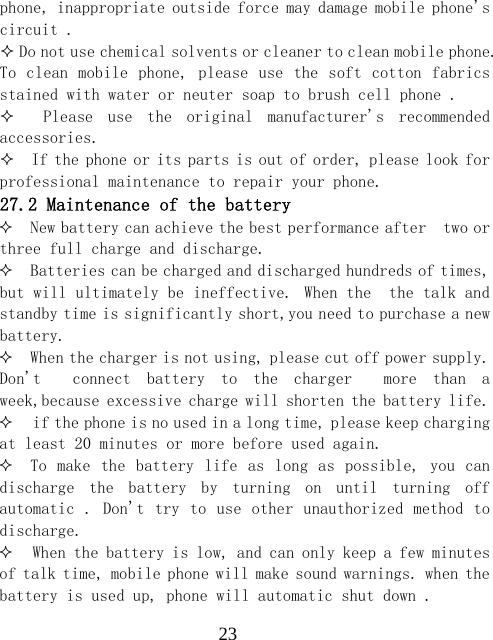
 2225 Lock   Enter into keypad locked status after clicking it. 26 Power off   Click it to shutdown the phone. 27 Maintenance and help 27.1 Maintenance and repair The phone is designed excellent, by understanding this cell phone's maintenance and repair, you can use safe and effective in a long time:   Please put your mobile and accessories where children can't touch.  Please keep the cell phone dry. Rain, moisture and liquid contain minerals, so will corrode phone's circuit .    Please don't put the phone on messy, dirty place.  Please do not use mobile phone or keep in high temperature . High  temperature  can  shorten  the  life  of  the  electronic components, damage to the battery, and make some plastic part ddeformed or melt.    Please do not use mobile phone or keep in low temperature . When the phone is in normal temperature, moisture in the phone internal may coagulate, which will cause the damage of the circuit board.   Do not disassemble the mobile phone, casual treatment may be damaged cell phone.      Please  avoid  falling,  beating  and  vibrating  mobile
 23phone, inappropriate outside force may damage mobile phone's circuit .   Do not use chemical solvents or cleaner to clean mobile phone. To clean mobile phone, please use the  soft cotton fabrics stained with water or neuter soap to brush cell phone .      Please  use  the  original  manufacturer's  recommended accessories.   If the phone or its parts is out of order, please look for professional maintenance to repair your phone. 27.2 Maintenance of the battery  New battery can achieve the best performance after  two or three full charge and discharge.  Batteries can be charged and discharged hundreds of times, but will ultimately be ineffective. When the  the talk and standby time is significantly short,you need to purchase a new battery.  When the charger is not using, please cut off power supply. Don't    connect  battery  to  the  charger    more  than  a week,because excessive charge will shorten the battery life.  if the phone is no used in a long time, please keep charging  at least 20 minutes or more before used again.  To make  the battery life as  long as possible, you  can discharge  the  battery  by  turning  on  until  turning  off automatic . Don't try to use  other unauthorized method to discharge.  When the battery is low, and can only keep a few minutes of talk time, mobile phone will make sound warnings. when the battery is used up, phone will automatic shut down .
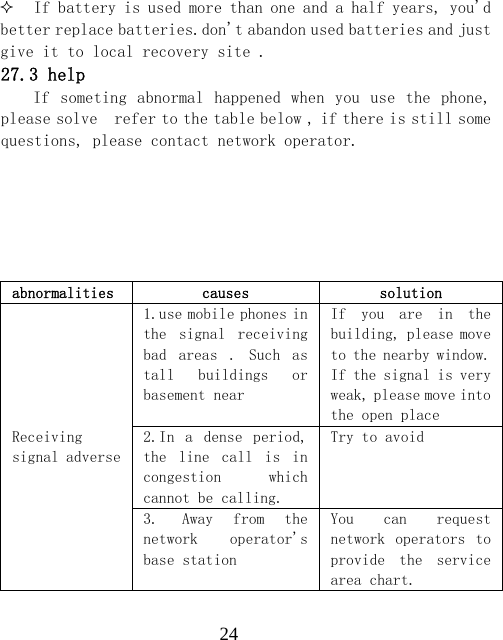
 24 If battery is used more than one and a half years, you'd better replace batteries.don't abandon used batteries and just give it to local recovery site . 27.3 help If  someting abnormal happened  when you  use the phone, please solve  refer to the table below , if there is still some questions, please contact network operator.       abnormalities  causes  solution Receiving signal adverse 1.use mobile phones in the  signal  receiving bad  areas  .  Such  as tall  buildings  or basement near If  you  are  in  the building, please move to the nearby window. If the signal is very weak, please move into the open place 2.In  a  dense  period, the  line  call  is  in congestion  which cannot be calling. Try to avoid 3. Away  from  the network  operator's base station You  can  request network  operators  to provide  the  service area chart.
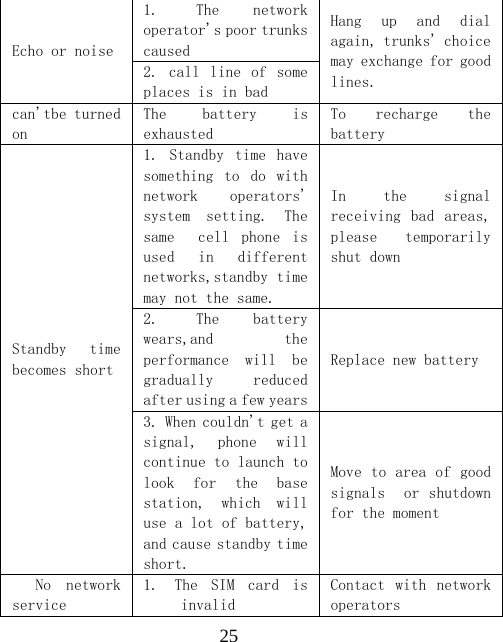
 25Echo or noise 1. The  network operator's poor trunks caused Hang  up  and  dial again, trunks' choice may exchange for good lines. 2.  call line  of  some places is in bad can'tbe turned on The  battery  is exhausted To  recharge  the battery Standby  time becomes short 1.  Standby  time  have something  to  do  with network  operators' system  setting.  The same    cell  phone  is used  in  different networks,standby time may not the same. In  the  signal receiving  bad  areas, please  temporarily shut down 2. The  battery wears,and  the performance  will  be gradually  reduced after using a few yearsReplace new battery 3. When couldn't get a signal,  phone  will continue to launch to look  for  the  base station,  which  will use a lot of battery, and cause standby time short. Move to area of good signals   or shutdown for the moment No  network service 1. The  SIM  card  is invalid Contact  with  network operators
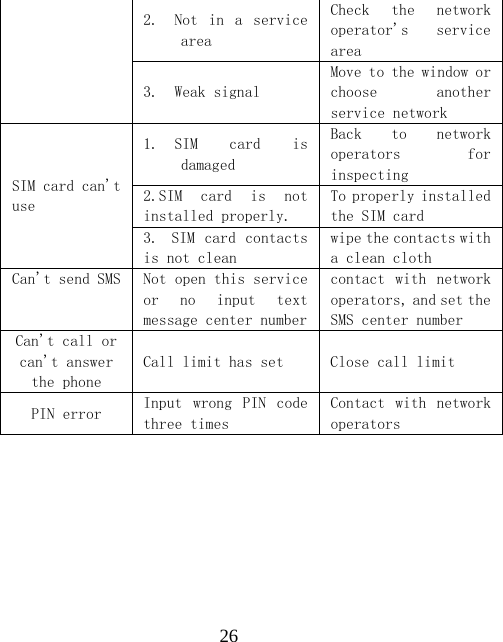
 262. Not  in  a  service area Check  the  network operator's  service area 3. Weak signal Move to the window or choose  another service network SIM card can't use 1. SIM  card  is damaged Back  to  network operators  for inspecting 2.SIM  card  is  not installed properly. To properly installed the SIM card 3. SIM card contacts is not clean wipe the contacts with a clean cloth Can't send SMS  Not open this service or  no  input  text message center numbercontact  with  network operators, and set the SMS center number Can't call or can't answer the phone Call limit has set  Close call limit PIN error  Input  wrong  PIN  code three times Contact  with  network operators
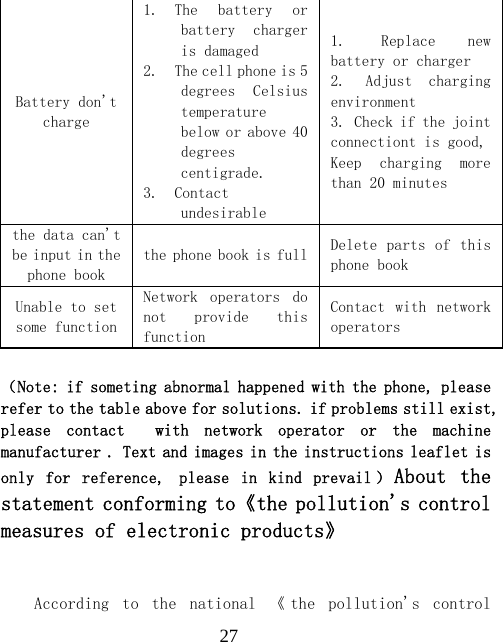
 27Battery don't charge 1. The  battery  or battery  charger is damaged 2. The cell phone is 5 degrees  Celsius temperature below or above 40 degrees centigrade. 3. Contact undesirable 1. Replace  new battery or charger 2. Adjust  charging environment 3. Check if the joint connectiont is good,Keep  charging  more than 20 minutes the data can't be input in the phone book the phone book is full Delete parts of this phone book Unable to set some function Network  operators  do not  provide  this function Contact  with  network operators (Note: if someting abnormal happened with the phone, please refer to the table above for solutions. if problems still exist, please  contact    with  network  operator  or  the  machine manufacturer . Text and images in the instructions leaflet is only  for  reference, please  in  kind  prevail ) About  the statement conforming to《the pollution's control measures of electronic products》   According  to  the  national  《 the  pollution's  control
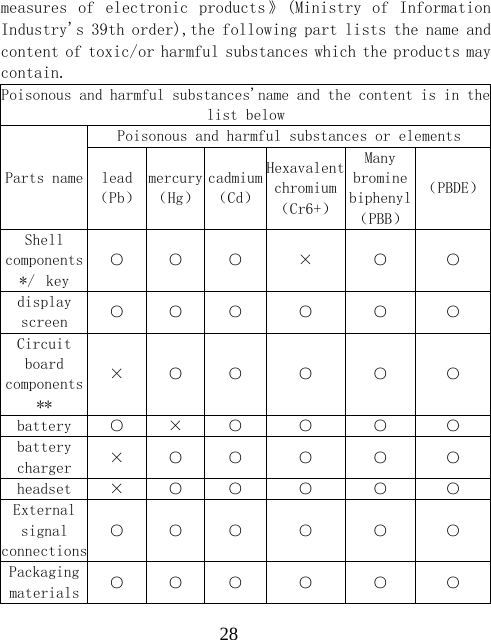
 28measures of  electronic  products》 (Ministry  of  Information Industry's 39th order),the following part lists the name and content of toxic/or harmful substances which the products may contain. Poisonous and harmful substances'name and the content is in thelist below Parts name Poisonous and harmful substances or elements lead(Pb)mercury(Hg)cadmium(Cd)Hexavalent chromium(Cr6+)Many bromine biphenyl(PBB)(PBDE)Shell components */ key ○  ○  ○  ×  ○  ○ display screen  ○  ○  ○  ○  ○  ○ Circuit board components ** ×  ○  ○  ○  ○  ○ battery  ○  ×  ○  ○  ○  ○ battery charger  ×  ○  ○  ○  ○  ○ headset  ×  ○  ○  ○  ○  ○ External signal connections○  ○  ○  ○  ○  ○ Packaging materials  ○  ○  ○  ○  ○  ○
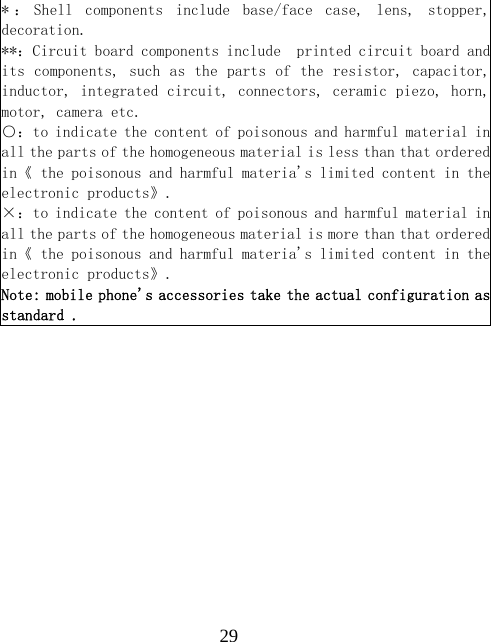
 29* : Shell  components  include  base/face  case,  lens,  stopper,decoration. **:Circuit board components include  printed circuit board andits components, such as the parts of the resistor, capacitor,inductor, integrated circuit, connectors, ceramic piezo, horn,motor, camera etc. ○:to indicate the content of poisonous and harmful material inall the parts of the homogeneous material is less than that orderedin《 the poisonous and harmful materia's limited content in theelectronic products》. ×:to indicate the content of poisonous and harmful material inall the parts of the homogeneous material is more than that orderedin《 the poisonous and harmful materia's limited content in theelectronic products》. Note: mobile phone's accessories take the actual configuration asstandard .
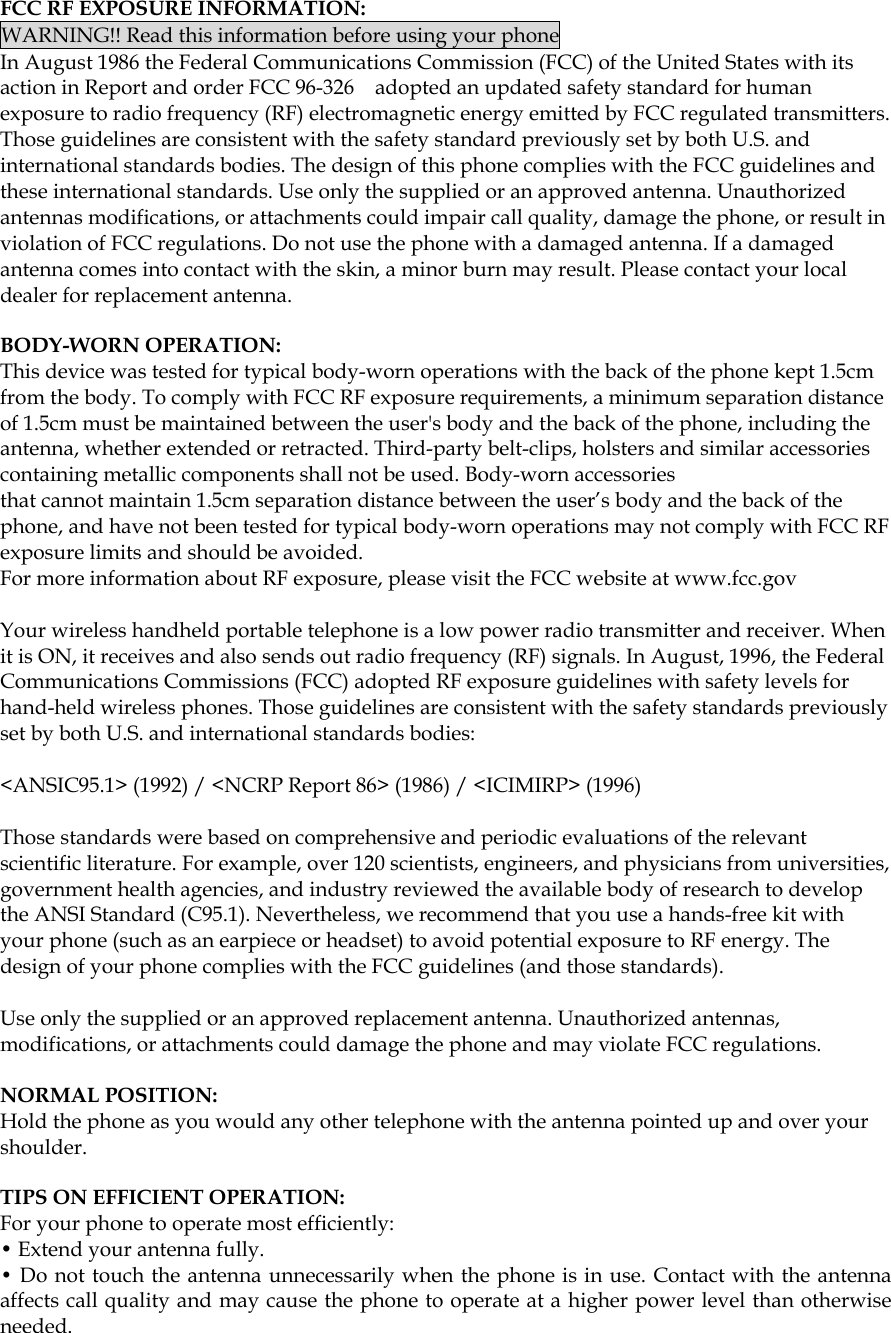
 FCC RF EXPOSURE INFORMATION: WARNING!! Read this information before using your phone In August 1986 the Federal Communications Commission (FCC) of the United States with its action in Report and order FCC 96-326    adopted an updated safety standard for human exposure to radio frequency (RF) electromagnetic energy emitted by FCC regulated transmitters. Those guidelines are consistent with the safety standard previously set by both U.S. and international standards bodies. The design of this phone complies with the FCC guidelines and these international standards. Use only the supplied or an approved antenna. Unauthorized antennas modifications, or attachments could impair call quality, damage the phone, or result in violation of FCC regulations. Do not use the phone with a damaged antenna. If a damaged antenna comes into contact with the skin, a minor burn may result. Please contact your local dealer for replacement antenna.  BODY-WORN OPERATION: This device was tested for typical body-worn operations with the back of the phone kept 1.5cm from the body. To comply with FCC RF exposure requirements, a minimum separation distance of 1.5cm must be maintained between the user's body and the back of the phone, including the antenna, whether extended or retracted. Third-party belt-clips, holsters and similar accessories containing metallic components shall not be used. Body-worn accessories that cannot maintain 1.5cm separation distance between the user’s body and the back of the phone, and have not been tested for typical body-worn operations may not comply with FCC RF exposure limits and should be avoided. For more information about RF exposure, please visit the FCC website at www.fcc.gov  Your wireless handheld portable telephone is a low power radio transmitter and receiver. When it is ON, it receives and also sends out radio frequency (RF) signals. In August, 1996, the Federal Communications Commissions (FCC) adopted RF exposure guidelines with safety levels for hand-held wireless phones. Those guidelines are consistent with the safety standards previously set by both U.S. and international standards bodies:  <ANSIC95.1> (1992) / <NCRP Report 86> (1986) / <ICIMIRP> (1996)  Those standards were based on comprehensive and periodic evaluations of the relevant scientific literature. For example, over 120 scientists, engineers, and physicians from universities, government health agencies, and industry reviewed the available body of research to develop the ANSI Standard (C95.1). Nevertheless, we recommend that you use a hands-free kit with your phone (such as an earpiece or headset) to avoid potential exposure to RF energy. The design of your phone complies with the FCC guidelines (and those standards).  Use only the supplied or an approved replacement antenna. Unauthorized antennas, modifications, or attachments could damage the phone and may violate FCC regulations.    NORMAL POSITION:   Hold the phone as you would any other telephone with the antenna pointed up and over your shoulder.  TIPS ON EFFICIENT OPERATION:  For your phone to operate most efficiently: • Extend your antenna fully. • Do not touch the antenna unnecessarily when the phone is in use. Contact with the antenna affects call quality and may cause the phone to operate at a higher power level than otherwise needed.
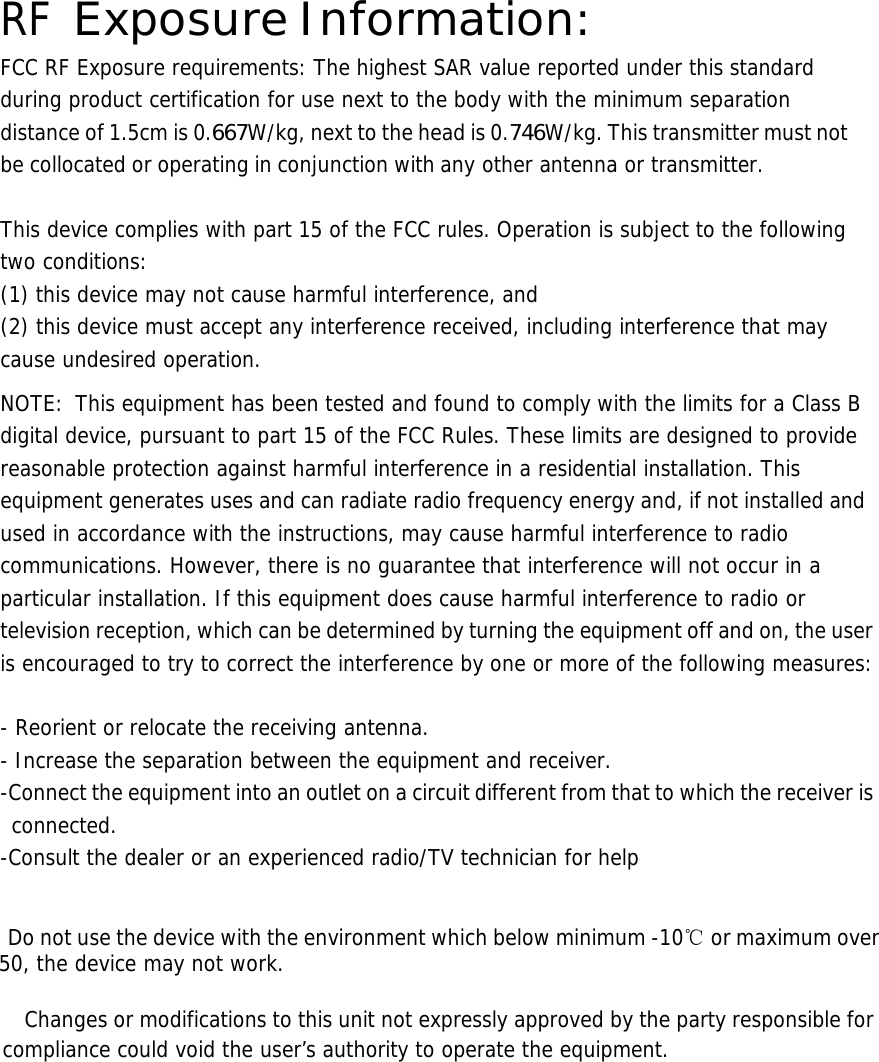
 RF Exposure Information: FCC RF Exposure requirements: The highest SAR value reported under this standard during product certification for use next to the body with the minimum separation distance of 1.5cm is 0.667W/kg, next to the head is 0.746W/kg. This transmitter must not be collocated or operating in conjunction with any other antenna or transmitter.   This device complies with part 15 of the FCC rules. Operation is subject to the following two conditions: (1) this device may not cause harmful interference, and (2) this device must accept any interference received, including interference that may cause undesired operation.  NOTE:  This equipment has been tested and found to comply with the limits for a Class B digital device, pursuant to part 15 of the FCC Rules. These limits are designed to provide reasonable protection against harmful interference in a residential installation. This equipment generates uses and can radiate radio frequency energy and, if not installed and used in accordance with the instructions, may cause harmful interference to radio communications. However, there is no guarantee that interference will not occur in a particular installation. If this equipment does cause harmful interference to radio or television reception, which can be determined by turning the equipment off and on, the user is encouraged to try to correct the interference by one or more of the following measures:   - Reorient or relocate the receiving antenna. - Increase the separation between the equipment and receiver. -Connect the equipment into an outlet on a circuit different from that to which the receiver is connected. -Consult the dealer or an experienced radio/TV technician for help     Do not use the device with the environment which below minimum -10℃ or maximum over 50, the device may not work.        Changes or modifications to this unit not expressly approved by the party responsible for compliance could void the user’s authority to operate the equipment.

Navigation menu