Amgoo Telecom AM85 Mobile User Manual AM85 s for Q181B 2
Amgoo Telecom Co., Ltd. Mobile AM85 s for Q181B 2
user manual
AMGOO
User Manual
AMGOO
Contents
Safety and Precaution .............................................................. 1
Instruction to Accessories .............................................. 1
Key Instruction ............................................................... 2
Icon Instruction ............................................................... 3
Begin to Use ............................................................................... 5
Install SIM Card and Battery .......................................... 5
Charge the Battery .......................................................... 5
Basic Function ........................................................................... 5
Dial ........................................................................... 5
Answer Incoming Call .............................................. 5
Function During Call ................................................ 6
Function of Functional List ..................................................... 7
Call center ....................................................................... 7
Call history ............................................................... 7
Call settings .............................................................. 7
Multimedia ..................................................................... 8
File manager ............................................................. 8
Camera ...................................................................... 8
Image viewer ............................................................ 9
Video recorder .......................................................... 9
Video player ........................................................... 10
Audio player ........................................................... 11
Play Music .............................................................. 11
Sound recorder ....................................................... 11
FM radio ................................................................. 12
Phonebook .................................................................... 13
Messaging ..................................................................... 14
Inbox ....................................................................... 14
Drafts ...................................................................... 15
Outbox .................................................................... 15
Templates ............................................................... 15
AMGOO
Message settings ..................................................... 15
Calendar .................................................................. 16
Alarm ...................................................................... 16
Calculator ............................................................... 17
Settings ......................................................................... 18
Dual SIM switch ..................................................... 18
Dual SIM settings ................................................... 18
Phone Settings ........................................................ 18
Network Settings .................................................... 19
Security Settings ..................................................... 19
Fun&Games .................................................................. 20
Internet service ....................................................... 20
Data account ........................................................... 21
AMGOO
1
Safety and Precaution
You should read the following information carefully before
using the phone in order to use it safely and effectively.
Power the phone on safely
Do not use the phone at the location where the phone is
prohibited using or the phone can cause the disturbance or
risks.
Disturbance
The mobile communication can be subject to the radio
disturbance, thus affecting its performance.
Accessories and batteries
Please use the batteries and adapter designed by our
company, or otherwise resulting in explosion.
User’s Manual for GSM/GPRS Digital Mobile Phone
This Manual is correct in the contents when it is published,
however Amgoo reserves the right to modify the technical
specifications without other notification. Some contents in
the Manual are possibly distinguished from the real phone
and will be different according to the installed software,
SIM cards and service providers
Remarks: AMGOO reserves the right to change or upgrade the
product without any prior notice
Instruction to Accessories
Please confirm the intact articles as follows are all in the
package. Please contact with the local distributer in case
of the missed ones.
A Phone An adapter
Battery USB data
AMGOO
2
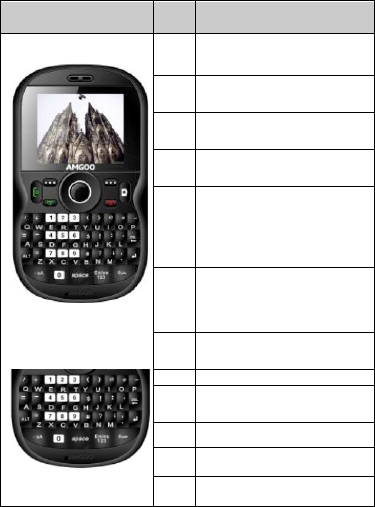
Key Instruction
Picture
Key
Description(Under
Standby Mode)
LSK
Enter in functional list
(Main menu).
RSK
Enter in the contact list in
phonebook.
Sen
d1
Enter in list window of all
call logs.
Sen
d2
Enter in list window of all
call logs.
END
Press to terminate a call or
refuse a call.
Press and hold to power
the phone off (or power the
phone on under power-off
mode).
OK/
Ligh
t
Enter in functional list
(Main menu)
Press and hold to turn on
or off flashlight
Aud
io
Enter in Audio play
UP
Enter in Shortcuts
dow
n
Enter in Alarm
Left
Enter in User profiles
Right
Enter in Add new contact
DEL
Delete
AMGOO
3
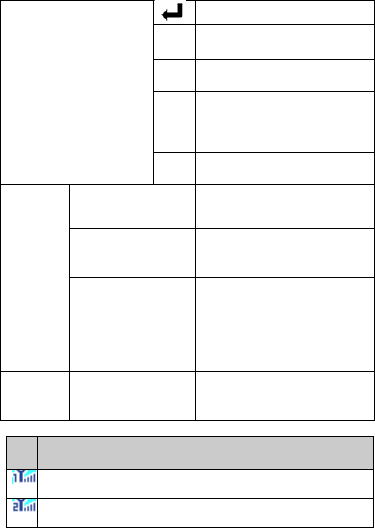
Switch to the next line
sym
input the punctuation
symbols
En/e
s12
3
Input method
spa
ce
Press to insert a space
character under all input
methods excepting the
number input method
Alt
Press key to switch input
method
1
Enter in dialing window
and input number 1.
*
Press to enter in dialing
and inputting window and
input symbol *.
#
Press to enter in dialing
and inputting window and
input symbol “#”.
Press and hold to switch
amid Mute/General Modes.
Keyboar
d lock
mode
LSK+RSK
Combination, Lock or
unlock keyboard
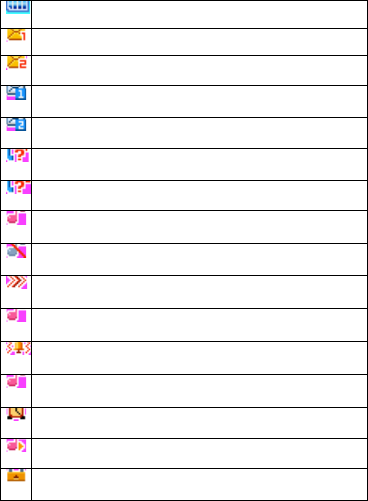
Icon Instruction
Ic
on
Description
Indicate the network signal strength for SIM card 1.
Indicate the network signal strength for SIM card 2.
AMGOO
4
Indicate the current battery capacity for battery
Indicate there is an unread SMS in SIM card 1.
Indicate there is an unread SMS in SIM card 2.
Indicate there is an unread MMS in SIM card 1.
Indicate there is an unread MMS in SIM card 2.
Indicate there is a missed call in SIM card 1.
Indicate there is a missed call in SIM card 2.
Indicate the current profile mode is the General
mode.
Indicate the current profile mode is the Silent mode.
Indicate the current profile mode is the Meeting
mode.
Indicate the current profile mode is the Power saving
mode.
Indicate the current profile mode is the Outdoor
mode.
Indicate the current profile mode is the My style
mode.
Indicate the current alarm clock is set as activated.
Indicate the current playing music.
Indicate current keypad-locked state.
AMGOO
5
Begin to Use
Install SIM Card and Battery
Please be sure to disconnect the phone with the adapter
before disassembling the battery.
Charge the Battery
The phone will release the warning tone displaying the
insufficient battery capacity with the indication of the empty
battery icon when the battery capacity is lower.
1. Insert the adapter in AC electric outlet, connect the
adapter to the phone.
2. The symbol indication of charging the battery appears
on the screen.
3. Pull the adapter apart from the power supply socket
and then pull the adapter out of the phone after
completion of the charge.
Basic Function
Dial
You can dial with several ways as follows:
Input the phone number and then press
[Send1/Send2] under the standby mode.
Press [Send1/Send2] to dial a phone number
listed in the recent call log under the standby
mode.
Press and hold numeric keys [2]-[9] to dial the
shortcut phone number.
Dial with the contact name or phone number in
the phone book.
Answer Incoming Call
You can perform as follows when there is an incoming call.
AMGOO
6
Press [Send1/Send2] to receive the incoming call. You
can use the earphone to answer the call when the generic
earphone Press [End] to decline an incoming call.
Function During Call
You can use many functions during the call process.
Option During call
Press <Options> to use the following options:
Hold single call: temporarily hold the current call.
End single call: end the current call.
New Call: call the opposite party to build a Call to Many.
Phonebook: enter in the phonebook menu.
Call history: view the information of the missed,
dialed or answered calls in SIM card 1 or 2.
Messaging: enter in the SMS menu.
Sound recorder: record the current call.
Mute: open or close the mute mode.
DTMF: open or close the DTMF function during the
call.
Launch or Close Hand-free Function
Press <H-Free>/<H-Held> to open or close the hand free
function.
Change Text Input Method
Press [Alt] key to select the desired input methods:
Multitap abc, Multitap es, Multitap fr, Multitap ru, Multitap
AR, Multitap AR123, Multitap FA, Multitap HI, Numeric.
Other operation
Press key [ ] under all input methods to input the
punctuation symbols.
Press numeric key [ ] to insert a space

AMGOO
7
character under all input methods
Press key [ ] to delete the character.
Press key [ ] to switch to the next line.
Press key [ ]to switch English input; pressing other
keys at the same time and then, enter the capital
letters
Function of Functional List
Call center
Press <Menu> and select Call center under the standby
mode if you are desired to enter in this function.
Call history
With this function, you can view the information of the
missed, dialed or answered calls in SIM card 1 or 2.
Call settings
Call waiting: After this function is launched, the
network will inform you for the newly incoming call
during the call. Please contact with your network
operator for details. Perform as follows:
Activate: launch the Call Wait function.
Deactivate: not launch this function.
Query status: view the present status of this
function.
Call divert: divert the incoming call of a service to a
designated phone number under the presetting
condition in the function of forwarding the network
service. Please contact with your network supplier to
launch this function.
Call barring: Set up the right of calling and answering.
This function requires the network support. You can
AMGOO
8
launch or close the function.
Multimedia
With this function, you can perform the multimedia
functions, such as snap, shoot or record the voice.
Press <Menu> and then select Multimedia under the
standby mode if desired to enter in this function.
File manager
After the T-Flash card is inserted, there are 3 operating
window pertaining to the file: Open, Format,Details. Please
confirm the store path when opening the folder.
Camera
Please insert the T-Flash card before using this function.
Press the [LSK] key to select it, enter in the camera
window, press [OK] key to snap. Press the [LSK] key to
select the option and you can perform
Use Camera Option
Press <LSK> to use the following options under the
following view-finding window.
Photos: enter in the album to view the photos.
Camera settings: set the Shutter sound, EV, Night
mode,Anti-flicker,Contrast,Delay timer, Cont. shot.
Image settings:set the Image size and quality.
White balance: adjust color balance of the photo.
Scene mode: select the snapping mode.
Effect settings: change the hues for the photos
snapped in the normal mode.
Storage: Set the path to preserve photos.
Restore default: recover all settings into the initial
values.
AMGOO
9
Image viewer
You can view the photos snapped with the camera through
this function.
Photo list option
Select a photo file and press <Options> under the photo
list window and perform:
View: view the selected image.
Image information:view the details.
Browse style : Select browsing mode
Send: send the selected image file to multimedia
Use as: use the selected image file to the wallpaper,
to the screen saver, to power on display, to power
off display and call picture.
Rename: change the name of the image.
Delete: delete the selected image.
Sort by: sort the images by the name, type, time,
size or None.
Delete all files: delete all selected images.
Storage: Set the path to preserve photos.
Video recorder
Please insert the T-Flash card before using this function.
Press the left soft key to select it, enter in the Digital
Camcorder window, press OK key to snap. Press the left
soft key to select the Option and you can perform.
Use Digital Video Camera Options
Press <LSK> under the video-finding window and perform:
Camcorder Settings: set up the video camera
parameters.
White balance: select from options: Auto, Daylight,
AMGOO
10
Tungsten,Fluorescent,Cloudand Incandescence.
E V: adjust the exposure to highlight the definition of
the image.
Night mode: set the function on or off.
Anti-flicker:set the anti-flicker value.
Video settings: set the video parameters.
Video quality: select video quality.
White balance: select from options: Auto, Daylight,
Tungsten,Fluorescent, Cloudy and Incandescence.
Effect settings: set the effect settings: Normal,
Grayscale, Sepia ,Sepia green, Sepia blue and
Color invert.
Storage: Set the path to preserve video.
Restore default: recover to the initial state.
Video player
Please insert the T-Flash card before using this function.
Enter in the video player window, select a video file, press
the [LSK] key to select it, performing: Play, Send, Rename,
Delete, Delete all files, Sort by,storage.
Play: play the Video.
Send: send the selected video file to multimedia
Rename: change the name of the current video file.
Delete: delete the currently-selected video file.
Delete all files: delete all the currently-selected video
files.
Sort by: sort the video files by menu: name, type,
time 、size or None.
Storage: Set the path to preserve video.
AMGOO
11
Audio player
You can enjoy the music with this function.
Play Music
You can use the following keys during the play.
Select a music file, press [LSK] to use the following
options:
Play: play the currently-selected song.
Details: view the detailed information of the
currently-selected song.
Refresh list: Update the music player list.
Settings: set up the music player.
Pre. playlist: Set the playlist path.
List auto gen: set up to turn on/off the function.
Repeat: set up to open/close in two menus: Single
Song Cycle and All Songs Cycle.
Shuffle: set up to open/close the function.
Background play: set up to open/close the
function.
Sound recorder
Press the [LSK] to select it, entering in the recorder
window to record file.
Record file list option
Select a record file and press <Options> under the record
file list window and perform:
New record: New call recording.
List: View recorded documents.
Play: play the selected record file.
Append: Selected to continue recording after the
recording.
AMGOO
12
Rename: rename the selected record file.
Delete: delete the selected record file.
Delete all files: delete all record files.
Use as: send the record file To User Profile.
Send: send to multimedia message,
Settings: set up the storage location, file
format,audio quality.
FM radio
You can receive the FM broadcast with this function.
Receive FM Broadcast
Press [OK] under the radio window to receive the FM
broadcast.
Key
Function
OK
Press to enter FM radio recording function.
DOWN
Press to open or stop the radio.
Left
Press to previous channel.
Press and hold to continuously tune up.
Right
Press to next channel.
Press and hold to continuously tune up.
“*”
Press to decrease the volume.
“#”
Press to increase the volume.
FM Radio option
Press <Options> under the radio window to use the
following options:
Channel list: play, edit or delete the saved
channels.
AMGOO
13
Manual input: manually input the channel to
search.
Auto search: automatically search the channel.
Settings: Can set the background play,
loudspeaker turn on/off,record formats: AMR / WAV, the
audio quality low / high, recorded files are stored.
Record: Recording the current FM program.
Append: continuously record after the previous
record file and append it after the record file.
File list: list all recorded files.
Phonebook
You can save the phone number in the memories of SIM
cards or phone.
Add new contact: With this function, you can add a
new contact in the phonebook.
To SIM1/SIM2
To Phone
Send text message: send an SMS to the current
contact.
Send Multimedia Message: send an MMS to the
current contact.
Call: Call use SIM1 or SIM2 selected contact
IP dial: You can conduct SIM1/SIM2 IP dial for the entry
if the SIM1/SIM2 IP dial function is activated.
Edit: edit the current contact.
Delete: delete the current contact.
Copy: You can copy the contact information to
phone,SIM1,SIM2.
Move: move the contact from phone to the SIM card 1
AMGOO
14
or SIM 2, move the contact from SIM 1 to SIM 2 or
phone, move the contact from SIM2 to SIM 1 or
phone.
Add to Blacklist: Add to blacklist the contact.
Messaging
Text message/ Multimedia message
Input the SMS/MMS and press <Options> under
the current window to perform:
Send to: directly input the contact phone number or
search a phone number of the receiver and finally
press Send button.
Input method: change the input method.
Insert template: insert the template.
Advanced: Insert the number,name,bookmark.
Save to Drafts: save to SMS/MMS drafts.
Inbox
Select a SMS/MMS entry and press <Options> under the
inbox list window to perform:
View: view the SMS/ MMS.
Reply : reply the SMS/MMS to the sender.
Call sender: You can call the sender.
Forward: forward the entry to other;
Delete: delete the entry of the message;
Save: Add contacts to SIM1, SIM2, phone.
Advanced:
Use number: use the numbers in the message.
Use URL: you can open the website link in the SMS.
Use USSD: Use the data dial-up or send to voice call
in the SMS.
AMGOO
15
Drafts
With this menu, you can create and save SMS/MMS as
draft. You can perform for some SMS as follows:
View: view the SMS/MMS.
Send: send the selected SMS/MMS.
Edit: edit the sent SMS/MMS.
Delete: delete the selected SMS/MMS.
Delete all: delete all SMS/MMS in the Drafts.
Outbox
Select a SMS/MMS entry and press <Option> under the
outbox list window to perform:
View: view the SMS/MMS.
Resend: resend the selected SMS/MMS.
Edit: edit or revise the entry of the SMS/MMS.
Delete: delete the selected SMS/MMS.
Delete all: delete all SMS/MMS in the outbox.
Templates
With this function, you can make or use the
frequently-used SMS templates.
Use: create a new message from the template.
Edit: edit the selected template.
Remove: delete the selected template.
Message settings
You can set UP various SMS service options with this
function.
Text message: Set up the SMS related settings.
Multimedia message: Set up the MMS related
settings
Service message: can set the enable push, enable
AMGOO
16
service loading .
Calendar
View the routines or the memo saved in the calendar.
The phone will prompt you with the related affairs in
assisting you to manage your daily schedule.
Select Date in Calendar
The screen will highlight the date of today after displays
the monthly calendar when you enter in the calendar
function.
I Press [Left/Right] to move by day.
II Press [UP/DOWN] to move by week.
Calendar Option
Press <Options> under the calendar window to use the
following options:
View: enter in the routines of the predetermined
date to view the event
View all: view the reminder, meeting, course.
Add event: create affairs under the selected date.
Delete event: delete the event.
Jump to date: return to the calendar window after
inputting the designated date with the cursor
stopping on the inputting date.
Go to today: Back to today date.
Go to weekly view: use the weekly view to see the
calendar.
Alarm
Set that the alarm clock will ring at specific time with this
function.
AMGOO
17
Set up alarm clock
1 Select an alarm clock and enter into alarm clock setup
window.
2 Set up the alarm clock with the following setting:
Set the alarm clock status as on or off.
Set the alarm clock time.
Select the ring mode as Everyday, Once or
Days.
Select the Snooze time.
Select alert type.
3 Press<done>.
Calculator
You can conduct the basic arithmetic operations.
1 Input the first number.
2 Press one of directional keys to select the arithmetic
operation sign.
3 Input the second number.
4 Press [LSK] or [OK] to view the calculation results.
Ebook reader
Open ebook: View the selected document.
Clean up bookshelf: Updated list of e-books.
Global settings: set the system contents of the
default.
Book info: E-book shows the details of the
selected.
Delete: delete the selected e-books.
Delete all files: delete all File List in the e-books.
Sort by: sort the e-books files by menu: Name,
Type, Time, Size or None.
AMGOO
18
Apply global settings: Return to system default.
Help: instruction to the game operation.
Settings
You can set various functions of the phone with these
functions.
Press <Menu> under the standby window and then select
Settings if you desire to enter in this function.
Dual SIM switch
Selected by the user to manually selected or automatically
decided by the SIM cards.
Dual SIM settings
Realize to switch amid the Dual SIM open, Only SIM1
open, Only SIM2 open.
Phone Settings
You can customize your favorite phone functions based
your interest with this function.
Flash Light: set up to turn on/off the function.
Time and date: you can set up time/date and time
zone for your phone.
Schedule power on/off: you can set up to power the
phone on/off at the set time. This function can be
opened or closed.
Language: select the language used for the phone.
Pref. input methods: select the default input method.
Display:
Wallpaper: select your favorite picture as the
wallpaper of the standby window.
Screen saver: select your favorite picture as
the screen protection.
AMGOO
19
Power on/off display: press the up and down
navigation keys to select the animation upon
powering the phone on/off.
Show date and time: set up to open/close the
function
Dedicated Key: edit the up, down left,right keys.
Flight mode:set up normal mode or flight mode.
LCD backlight: set the brightness and time.
Network Settings
Set up the phone network with this function.
SIM1/ SIM2 network settings:
Network selection: press the up and down
navigation keys to select the ways of connecting with
the network in Re-search, Select network and search
mode and press the OK button to finish the setup.
Security Settings
You can manage your phone safely with this function.
The phone password, SIM card password and PIN2
support 4-8digits, do not support other characters. The
original password of the phone when leaving the factory is
1234. The password and PIN2 and SIM card are provided
by the network operator
When the PIN/PIN2 is input wrongly in successively three
times, the SIM card will be locked.If the PUK is input
wrongly in successively 10 times. The SIM card will be
locked and discarded permanently.
SIM1/SIM2 security
PIN lock: open or close the PIN lock function.
When PIN lock is launched, the PIN shall be input
AMGOO
20
upon each power-on.
Change PIN: you can change the PIN.
Change PIN2: you can change the PIN2.
Auto keypad lock: press the left soft key to set up
for the keypad lock in menus: off, 5 Sec, 30 Sec, 1
min and 5 min.
Fun&Games
Internet service
You can surf on the network with this function. After
entering in the function, you can perform:
Homepage: indicate the default website of the
internet.
Bookmarks: to save the commonly-used website.
Input address: input the website to be searched and
press OK button to access to the network directly.
Recent pages: browse the saved record of the
browsed WebPages.
Settings: set up WAP-related service.
Homepage: set the default or user defined of
the network.
Select profile: select an SIM card to access to
WAP.
Data account: View data account information.
Browser options: you can clear away the
cache remained when at access to the
network and clear away the personal data
related when at registration of the network
and authentication to the network.
Preferences: set up the timeout,show
AMGOO
21
picture,cache,cookies.
Data account
Enter in GSM account list; select an entry to edit its
Account name: edit the name of the account.
APN: edit the accessed APN.
User name: the user’s name accessing to APN
server.
Password: edit the access password to APN server.
Auth.type: select one of certification modes used by
the WAP identity certificate.
SIM selection:select the SIM card.
Advanced settings:set up homepage,connection
type,use proxy,primary DNS,secondary DNS,IP
address,subnet mask.
Operating Environment
Please use the phone at applicable temperature range -
10 to 50.
Emergency Call
The phone uses the wireless signal similarly with other
ropeless phone and cannot be ensured to connect under
all cases. Thus, the important calls should do not rely on
wireless phone only, in stance medical emergency call.

FCC RF EXPOSURE INFORMATION:
WARNING!! Read this information before using your phone
In August 1986 the Federal Communications Commission (FCC) of the United States with its
action in Report and Outer FCC 96-326 adopted an updated safety standard for human exposure
to radio frequency (RF) electromagnetic energy emitted by FCC regulated transmitters. Those
guidelines are consistent with the safety standard previously set by both U.S. and international
standards bodies. The design of this phone complies with the FCC guidelines and these
international standards. Use only the supplied or an approved antenna. Unauthorized antennas
modifications, or attachments could impair call quality, damage the phone, or result in violation
of FCC regulations. Do not use the phone with a damaged antenna. If a damaged antenna comes
into contact with the skin, a minor burn may result. Please contact your local dealer for
replacement antenna.
BODY-WORN OPERATION:
This device was tested for typical body-worn operations with the back of the phone kept 1.5cm
from the body. To comply with FCC RF exposure requirements, a minimum separation distance
of 1.5cm must be maintained between the user's body and the back of the phone, including the
antenna, whether extended or retracted. Third-party belt-clips, holsters and similar accessories
containing metallic components shall not be used. Body-worn accessories
that cannot maintain 1.5cm separation distance between the user’s body and the back of the
phone, and have not been tested for typical body-worn operations may not comply with FCC RF
exposure limits and should be avoided.
For more information about RF exposure, please visit the FCC website at www.fcc.gov
Your wireless handheld portable telephone is a low power radio transmitter and receiver. When
it is ON, it receives and also sends out radio frequency (RF) signals. In August, 1996, the Federal
Communications Commissions (FCC) adopted RF exposure guidelines with safety levels for
hand-held wireless phones. Those guidelines are consistent with the safety standards previously
set by both U.S. and international standards bodies:
<ANSIC95.1> (1992) / <NCRP Report 86> (1986) / <ICIMIRP> (1996)
Those standards were based on comprehensive and periodic evaluations of the relevant
scientific literature. For example, over 120 scientists, engineers, and physicians from universities,
government health agencies, and industry reviewed the available body of research to develop
the ANSI Standard (C95.1). Nevertheless, we recommend that you use a hands-free kit with
your phone (such as an earpiece or headset) to avoid potential exposure to RF energy. The
design of your phone complies with the FCC guidelines (and those standards).
Use only the supplied or an approved replacement antenna. Unauthorized antennas,
modifications, or attachments could damage the phone and may violate FCC regulations.
NORMAL POSITION:
Hold the phone as you would any other telephone with the antenna pointed up and over your
shoulder.
TIPS ON EFFICIENT OPERATION:
For your phone to operate most efficiently:
• Extend your antenna fully.
• Do not touch the antenna unnecessarily when the phone is in use. Contact with the antenna
affects call quality and may cause the phone to operate at a higher power level than otherwise
needed.
Vehicle mounted external antenna (Optional, if available))
A minimum separation distance of 7.9 inches (20cm) must be maintained between the user / by
stander and the vehicle mounted external antenna to satisfy FCC RF exposure requirements.
RF
Exposure Information:
FCC RF Exposure requirements: The highest SAR value reported under this standard
during product certification for use next to the body with the minimum separation
distance of 1.5cm is 1.500
W
/
kg
, next to the head is 0.899
W/kg.
This transmitter
must not be collocated or operating in conjunction with any other antenna or transmitter.
This device complies with part 15 of the FCC rules. Operation is subject to the following
two conditions:
(1) this device may not cause harmful interference, and
(2) this device must accept any interference received, including interference that may
cause undesired operation.
NOTE: The manufacturer is not responsible for any radio or TV interference caused by
unauthorized modifications to this equipment. Such modifications could void the user’s
authority to operate the equipment.
NOTE: This equipment has been tested and found to comply with the limits for a Class B
digital device, pursuant to part 15 of the FCC Rules. These limits are designed to provide
reasonable protection against harmful interference in a residential installation. This
equipment generates uses and can radiate radio frequency energy and, if not installed and
used in accordance with the instructions, may cause harmful interference to radio
communications. However, there is no guarantee that interference will not occur in a
particular installation. If this equipment does cause harmful interference to radio or
television reception, which can be determined by turning the equipment off and on, the
user is encouraged to try to correct the interference by one or more of the following
measures:
- Reorient or relocate the receiving antenna.
- Increase the separation between the equipment and receiver.
-Connect the equipment into an outlet on a circuit different from that to which the receiver
is connected.
-Consult the dealer or an experienced radio/TV technician for help
Do not use the device with the environment which below minimum -10℃ ,the device
may not work.
Changes or modifications to this unit not expressly approved by the party responsible for
compliance could void the user’s authority to operate the equipment.