Anam Electronics DSB200 Bluetooth Speaker User Manual

Anam Electronics Co., Ltd. Bluetooth Speaker

User Manual

http://www.emc2000.co.kr)&& TEST REPORTReport No.: EMC-)&&-R0149User manualEMC compliance Ltd. Page: 1 of 1480-5 Shin-dong, Yeongtong-gu, Suwon-city, Gyunggi-do, 443-390, Korea 82 31 336 9919 (Main)  82 31 336 4767 (Fax)This test report shall not be reproduced except in full, Without the written approval.
1AppendixTroubleshootingPlaybackConnectionsPreparationContentsIndexDSB-200WIRELESS MUSIC SYSTEMOwner’s ManualYou can print more than one page of a PDF onto a single sheet of paper.Envaya
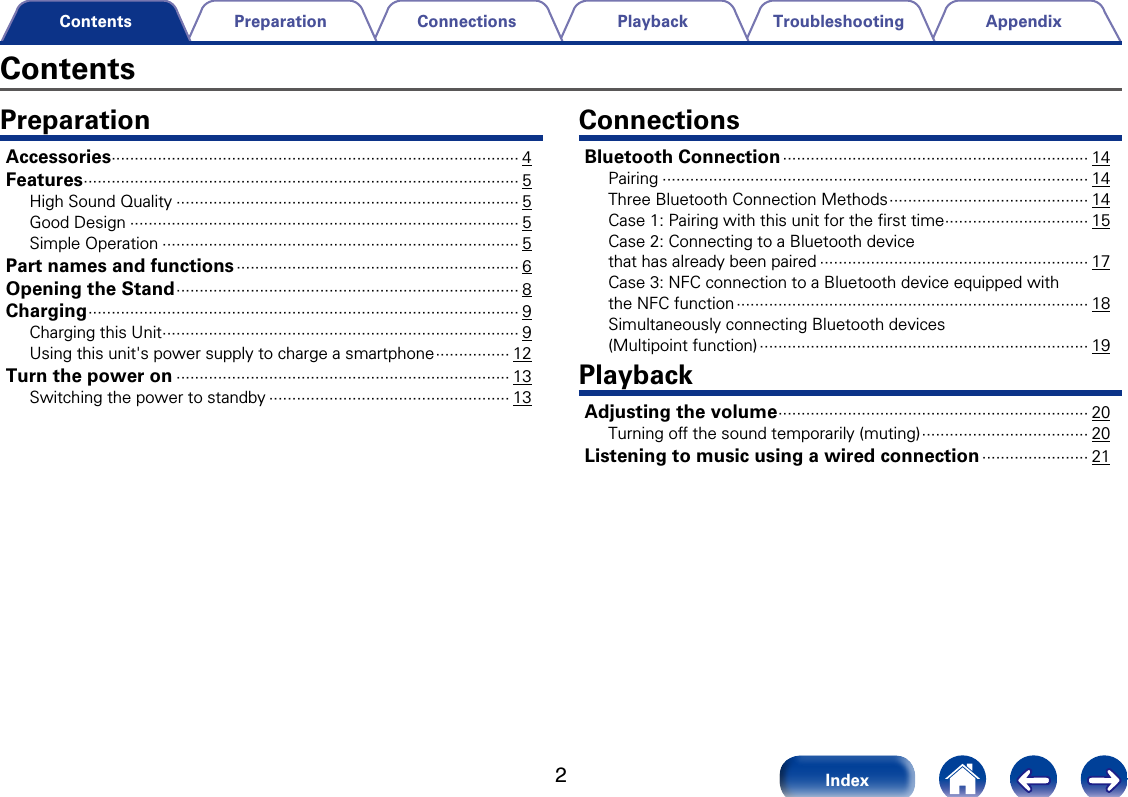
2AppendixTroubleshootingPlaybackConnectionsPreparationIndexContentsContentsPreparationAccessories ························································································ 4Features ······························································································ 5High Sound Quality ·········································································· 5Good Design ···················································································· 5Simple Operation ············································································· 5Part names and functions ····························································· 6Opening the Stand ·········································································· 8Charging ····························································································· 9Charging this Unit ············································································· 9Using this unit's power supply to charge a smartphone ················ 12Turn the power on ········································································ 13Switching the power to standby ···················································· 13ConnectionsBluetooth Connection ·································································· 14Pairing ···························································································· 14Three Bluetooth Connection Methods ··········································· 14Case 1:  Pairing with this unit for the first time ······························· 15Case 2: Connecting to a Bluetooth device  that has already been paired ·························································· 17Case 3: NFC connection to a Bluetooth device equipped with  the NFC function ············································································ 18Simultaneously connecting Bluetooth devices  (Multipoint function) ······································································· 19PlaybackAdjusting the volume ··································································· 20Turning o the sound temporarily (muting) ···································· 20Listening to music using a wired connection ······················· 21
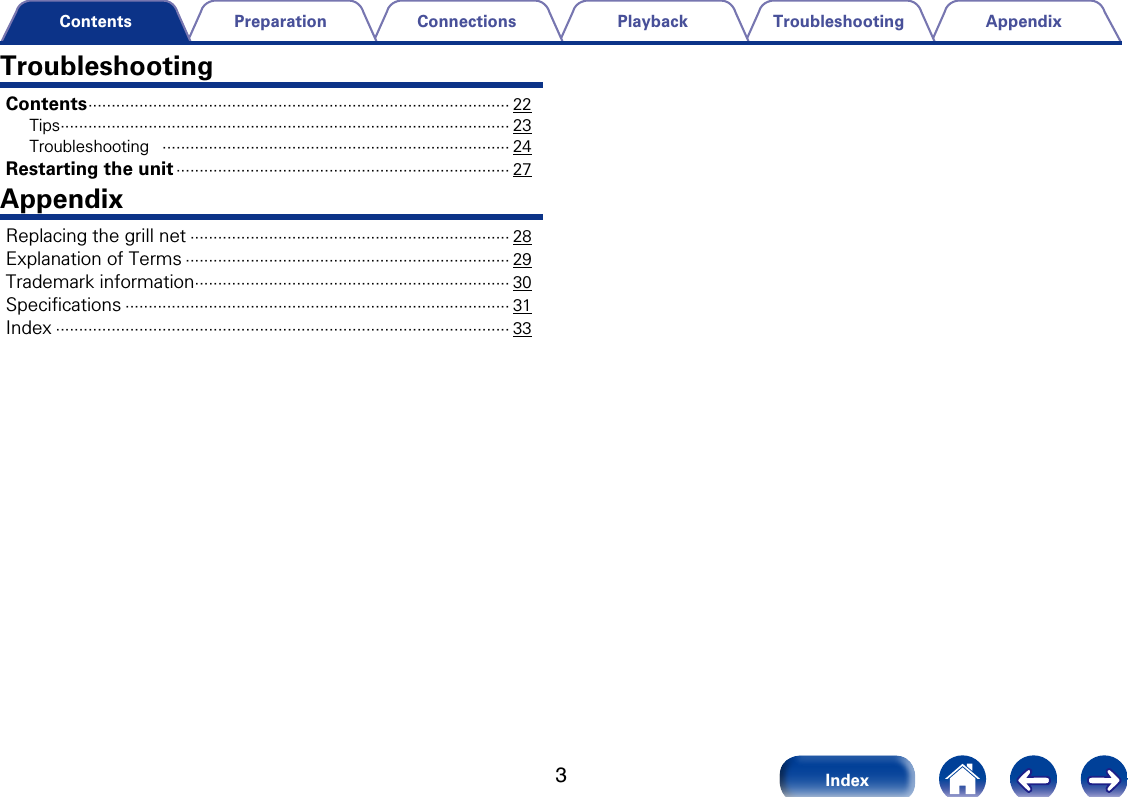
3AppendixTroubleshootingPlaybackConnectionsPreparationIndexContentsTroubleshootingContents ··························································································· 22Tips ································································································· 23Troubleshooting   ··········································································· 24Restarting the unit ········································································ 27AppendixReplacing the grill net ····································································· 28Explanation of Terms ······································································ 29Trademark information ···································································· 30Specifications ··················································································· 31Index ·································································································· 33
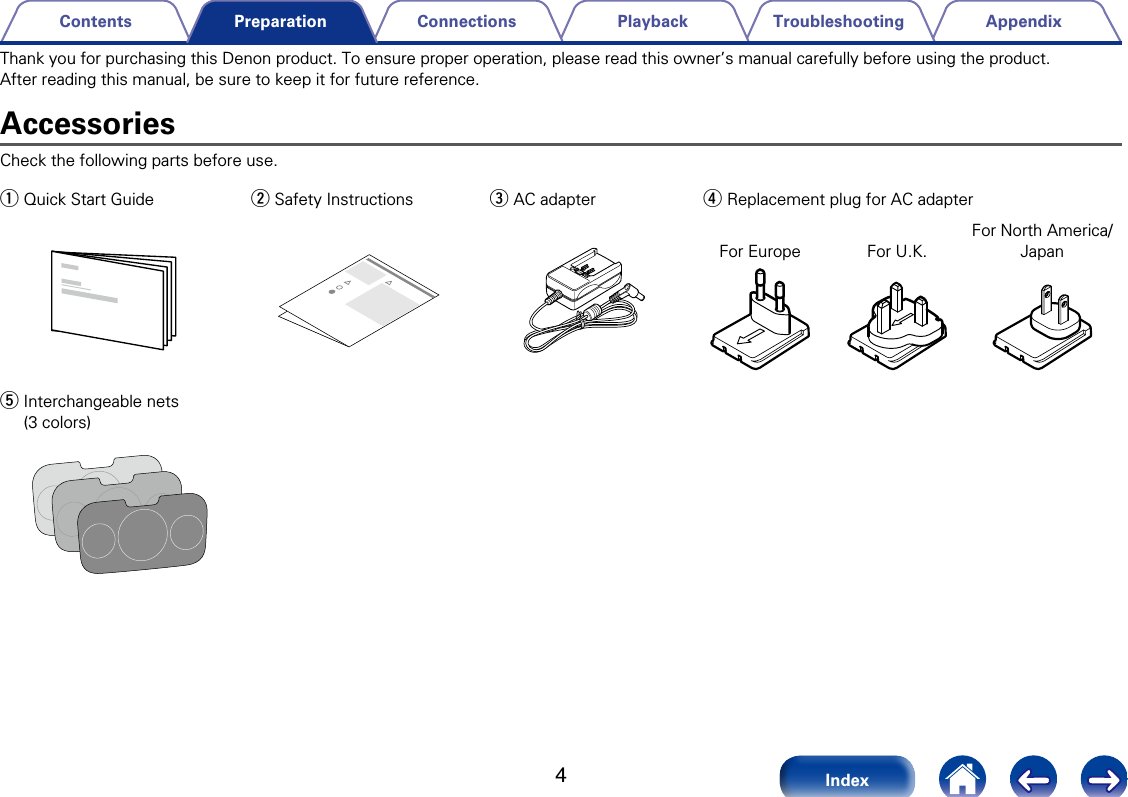
4AppendixTroubleshootingPlaybackConnectionsContentsIndexPreparationAccessoriesCheck the following parts before use. q Quick Start Guide w Safety Instructions e AC adapter r Replacement plug for AC adapter For Europe For U.K.For North America/Japant Interchangeable nets  (3 colors)Thank you for purchasing this Denon product. To ensure proper operation, please read this owner’s manual carefully before using the product.After reading this manual, be sure to keep it for future reference.
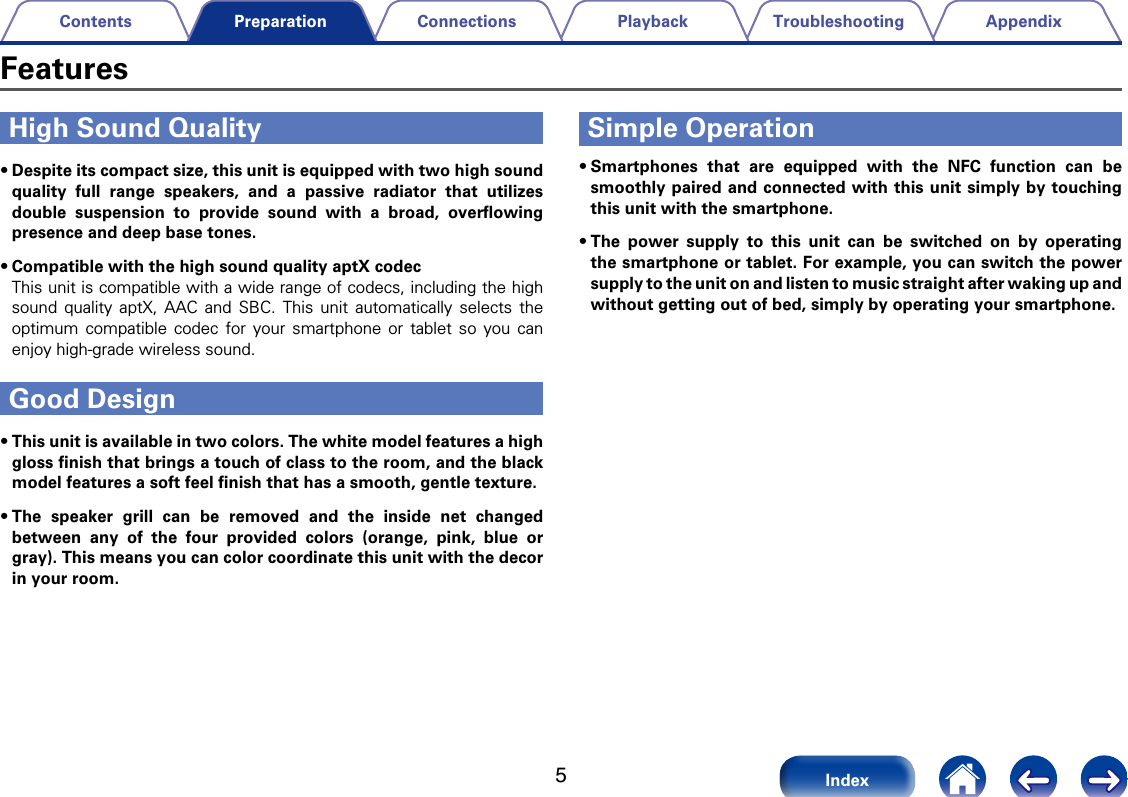
5AppendixTroubleshootingPlaybackConnectionsContentsIndexPreparationHigh Sound Quality•Despite its compact size, this unit is equipped with two high sound quality full range speakers, and a passive radiator that utilizes double suspension to provide sound with a broad, overflowing presence and deep base tones. •Compatible with the high sound quality aptX codecThis unit is compatible with a wide range of codecs, including the high sound quality aptX, AAC and SBC. This unit automatically selects the optimum compatible codec for your smartphone or tablet so you can enjoy high-grade wireless sound.Good Design•This unit is available in two colors. The white model features a high gloss finish that brings a touch of class to the room, and the black model features a soft feel finish that has a smooth, gentle texture. •The speaker grill can be removed and the inside net changed between any of the four provided colors (orange, pink, blue or gray). This means you can color coordinate this unit with the decor in your room. Simple Operation•Smartphones that are equipped with the NFC function can be smoothly paired and connected with this unit simply by touching this unit with the smartphone.•The power supply to this unit can be switched on by operating the smartphone or tablet. For example, you can switch the power supply to the unit on and listen to music straight after waking up and without getting out of bed, simply by operating your smartphone. Features
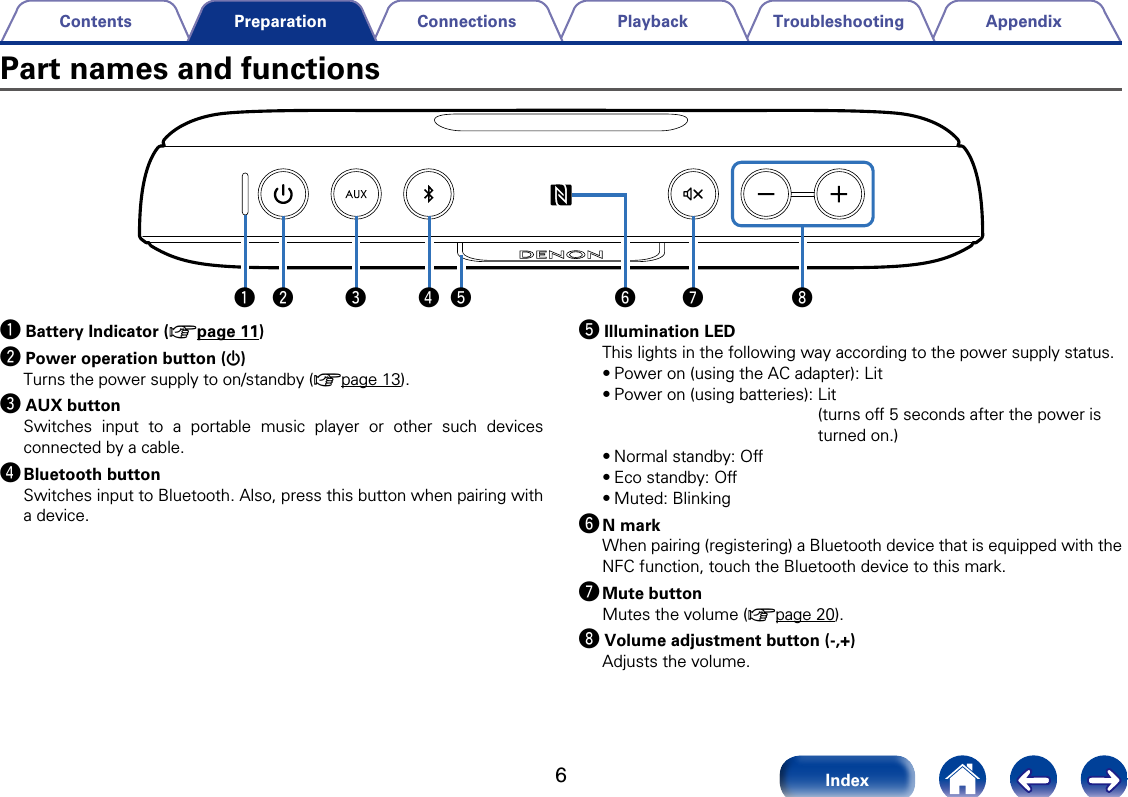
6AppendixTroubleshootingPlaybackConnectionsContentsIndexPreparationwq e r uyt iPart names and functionsq Battery Indicator (vpage11)w Power operation button (X)Turns the power supply to on/standby (vpage13).e AUX buttonSwitches input to a portable music player or other such devices connected by a cable. r Bluetooth buttonSwitches input to Bluetooth. Also, press this button when pairing with a device. t Illumination LEDThis lights in the following way according to the power supply status.•Power on (using the AC adapter): Lit•Power on (using batteries):  Lit  (turns o 5 seconds after the power is turned on.)•Normal standby: O•Eco standby: O•Muted: Blinkingy N markWhen pairing (registering) a Bluetooth device that is equipped with the NFC function, touch the Bluetooth device to this mark. u Mute buttonMutes the volume (vpage20).i Volume adjustment button (-,+)Adjusts the volume.
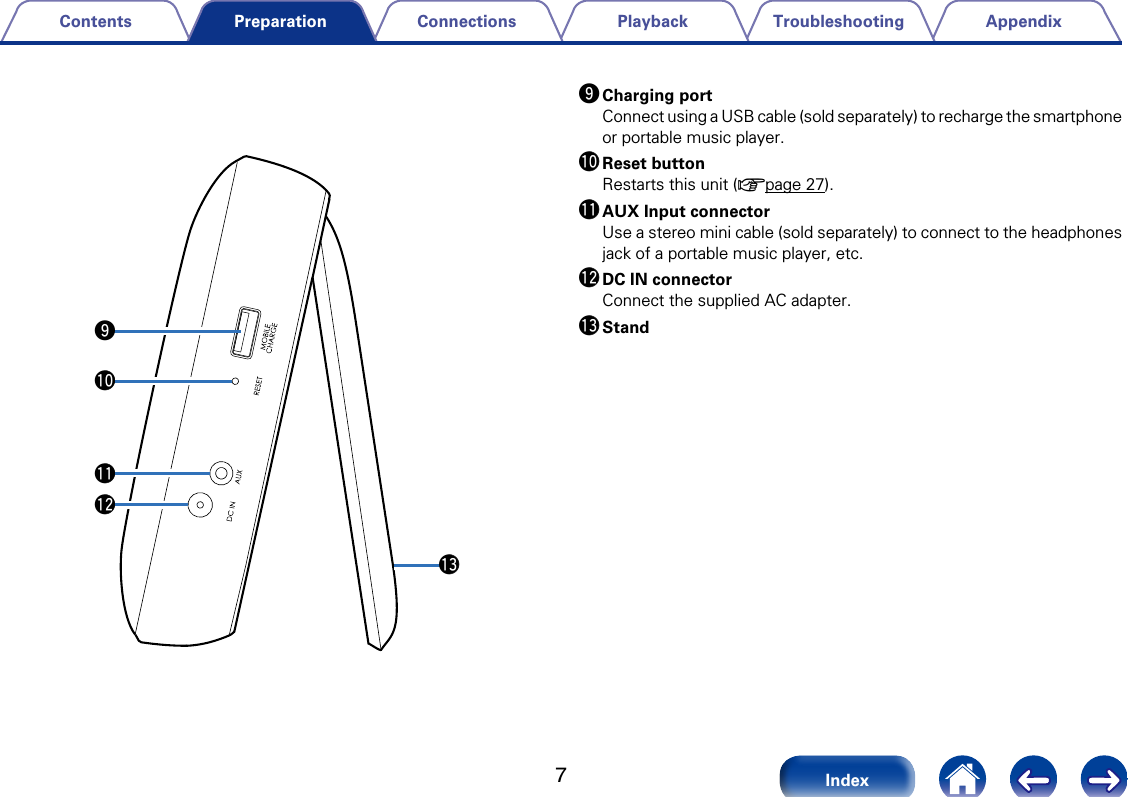
7AppendixTroubleshootingPlaybackConnectionsContentsIndexPreparationoQ3Q0Q1Q2o Charging portConnect using a USB cable (sold separately) to recharge the smartphone or portable music player.Q0 Reset buttonRestarts this unit (vpage27).Q1 AUX Input connectorUse a stereo mini cable (sold separately) to connect to the headphones jack of a portable music player, etc. Q2 DC IN connectorConnect the supplied AC adapter. Q3 Stand
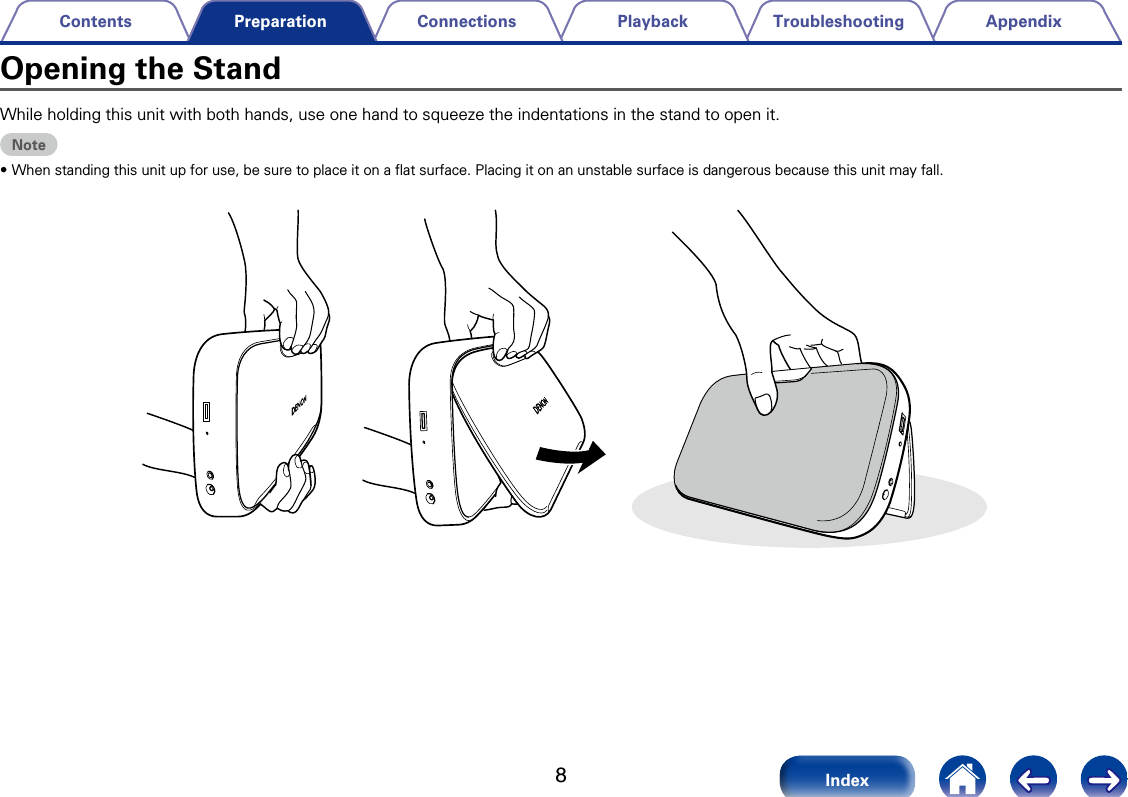
8AppendixTroubleshootingPlaybackConnectionsContentsIndexPreparationWhile holding this unit with both hands, use one hand to squeeze the indentations in the stand to open it. Note•When standing this unit up for use, be sure to place it on a flat surface. Placing it on an unstable surface is dangerous because this unit may fall. Opening the Stand
9AppendixTroubleshootingPlaybackConnectionsContentsIndexPreparationCharging this UnitThis unit can be charged for use. It can also be used with the supplied AC adapter connected to a wall socket. Before using for the first time, be sure to fully charge this unit.%•It takes approximately O hours to fully charge the battery when it is completely discharged.•This unit can be used for approximately O hours when the battery is fully charged.  2Replacing the AC Adapter Plug Attach the adapter plug that fits the power socket in your region as shown in the figure.[Removing a replacement AC adapter plug]While pressing the q button, slide in the direction of the arrow to remove.q[Attaching a replacement AC adapter plug]Push in the direction of the arrow until a “click” sound is heard.Charging
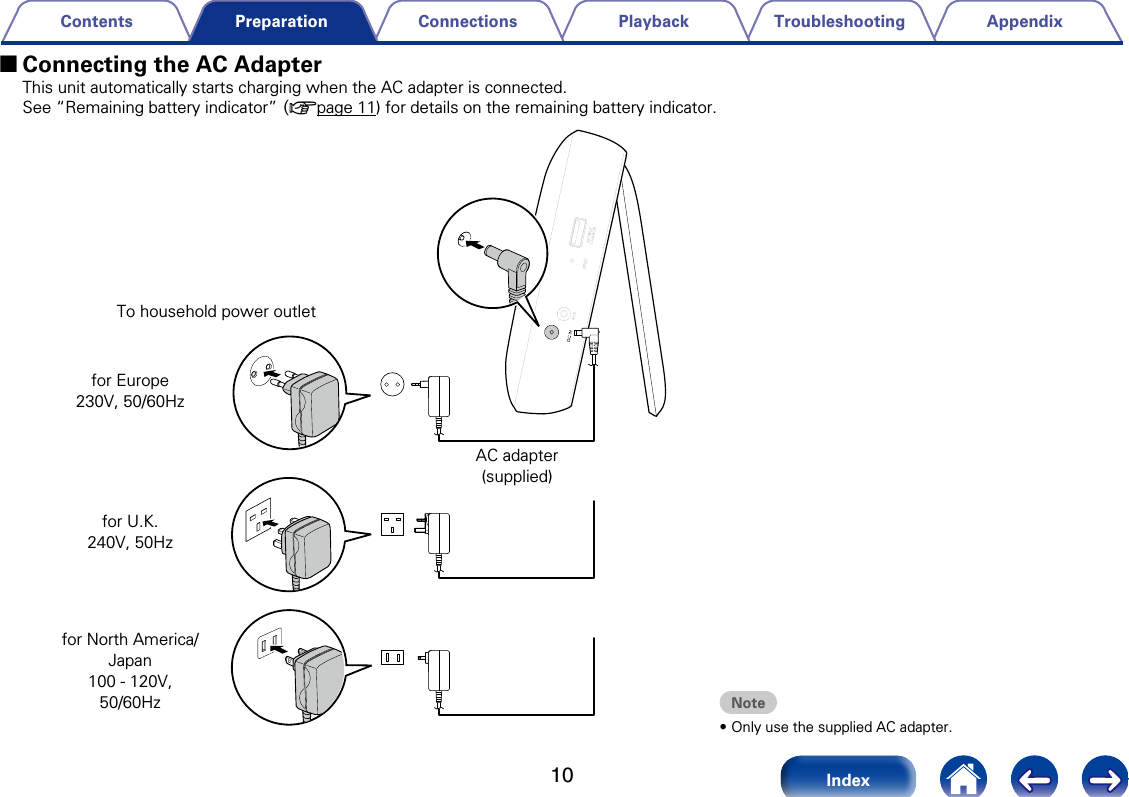
10AppendixTroubleshootingPlaybackConnectionsContentsIndexPreparation 2Connecting the AC AdapterThis unit automatically starts charging when the AC adapter is connected.See “Remaining battery indicator” (vpage11) for details on the remaining battery indicator. for U.K.240V, 50Hzfor North America/Japan100 - 120V, 50/60Hzfor Europe230V, 50/60HzAC adapter (supplied)Note•Only use the supplied AC adapter. To household power outlet
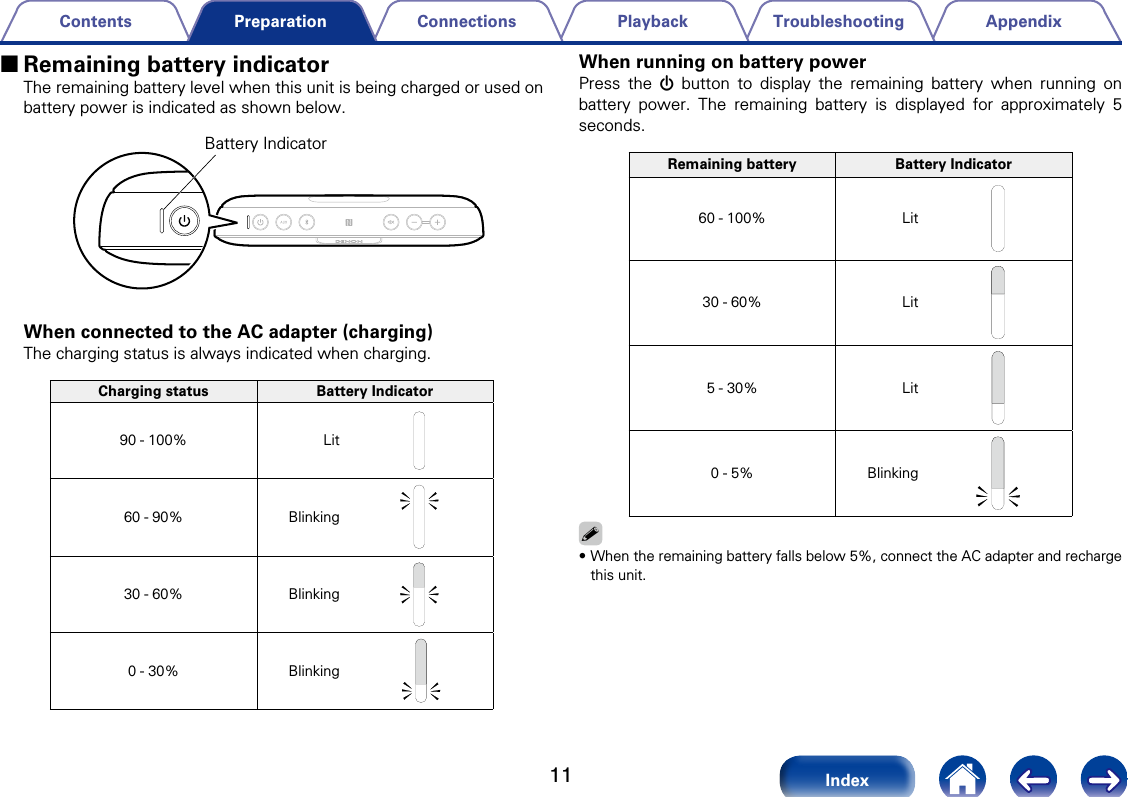
11AppendixTroubleshootingPlaybackConnectionsContentsIndexPreparation 2Remaining battery indicatorThe remaining battery level when this unit is being charged or used on battery power is indicated as shown below.Battery IndicatorWhen connected to the AC adapter (charging)The charging status is always indicated when charging.Charging status Battery Indicator90 - 100% Lit60 - 90% Blinking30 - 60% Blinking0 - 30% Blinking When running on battery powerPress the X button to display the remaining battery when running on battery power. The remaining battery is displayed for approximately 5 seconds.Remaining battery Battery Indicator60 - 100% Lit30 - 60% Lit5 - 30% Lit0 - 5% Blinking%•When the remaining battery falls below 5%, connect the AC adapter and recharge this unit.
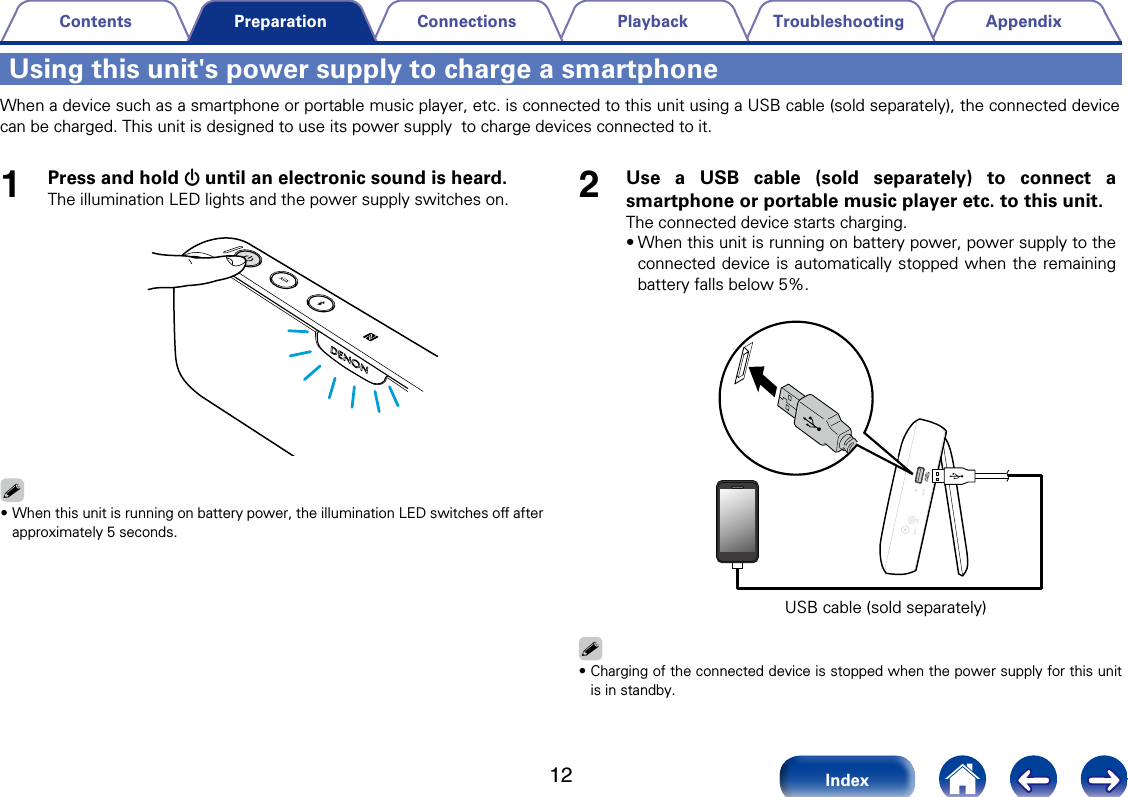
12AppendixTroubleshootingPlaybackConnectionsContentsIndexPreparationUsing this unit's power supply to charge a smartphoneWhen a device such as a smartphone or portable music player, etc. is connected to this unit using a USB cable (sold separately), the connected device can be charged. This unit is designed to use its power supply  to charge devices connected to it. 1Press and hold X until an electronic sound is heard.The illumination LED lights and the power supply switches on.%•When this unit is running on battery power, the illumination LED switches o after approximately 5 seconds.2Use a USB cable (sold separately) to connect a smartphone or portable music player etc. to this unit. The connected device starts charging. •When this unit is running on battery power, power supply to the connected device is automatically stopped when the remaining battery falls below 5%. USB cable (sold separately)%•Charging of the connected device is stopped when the power supply for this unit is in standby.
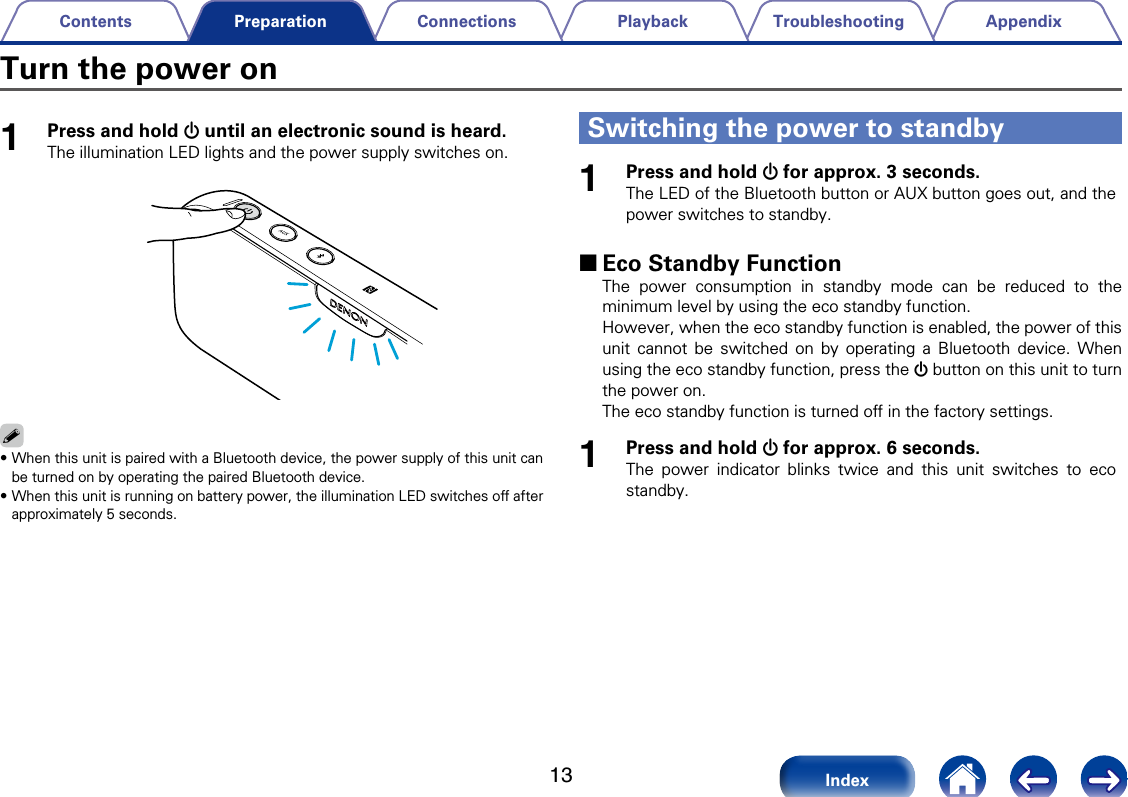
13AppendixTroubleshootingPlaybackConnectionsContentsIndexPreparation1Press and hold X until an electronic sound is heard.The illumination LED lights and the power supply switches on.%•When this unit is paired with a Bluetooth device, the power supply of this unit can be turned on by operating the paired Bluetooth device.•When this unit is running on battery power, the illumination LED switches o after approximately 5 seconds.1Press and hold X for approx. 3 seconds.The LED of the Bluetooth button or AUX button goes out, and the power switches to standby. 2Eco Standby FunctionThe power consumption in standby mode can be reduced to the minimum level by using the eco standby function.However, when the eco standby function is enabled, the power of this unit cannot be switched on by operating a Bluetooth device. When using the eco standby function, press the X button on this unit to turn the power on. The eco standby function is turned o in the factory settings. 1Press and hold X for approx. 6 seconds.The power indicator blinks twice and this unit switches to eco standby.Turn the power onSwitching the power to standby
14AppendixTroubleshootingPlaybackPreparationContentsIndexConnectionsBluetooth ConnectionYou can enjoy listening to music wirelessly by connecting this unit to a Bluetooth compatible device.Pairing (registration) is an operation that is required in order to connect a Bluetooth device to this unit using Bluetooth. When paired, the devices authenticate each other and can connect without mistaken connections occurring. When using Bluetooth connection for the first time, you need to pair this unit and the Bluetooth device to be connected. This unit can store pairing information for a maximum of 8 devices.Note•Multiple Bluetooth devices cannot be played back at the same time.There are three methods for connecting with Bluetooth. Use the connection method for your particular circumstances.Case 1  Pairing with this unit for the first time (vpage15)Case 2   Connecting to a Bluetooth device that has already been paired (vpage17)Case 3     NFC connection to a Bluetooth device equipped with the NFC function (vpage18)Three Bluetooth Connection MethodsPairing
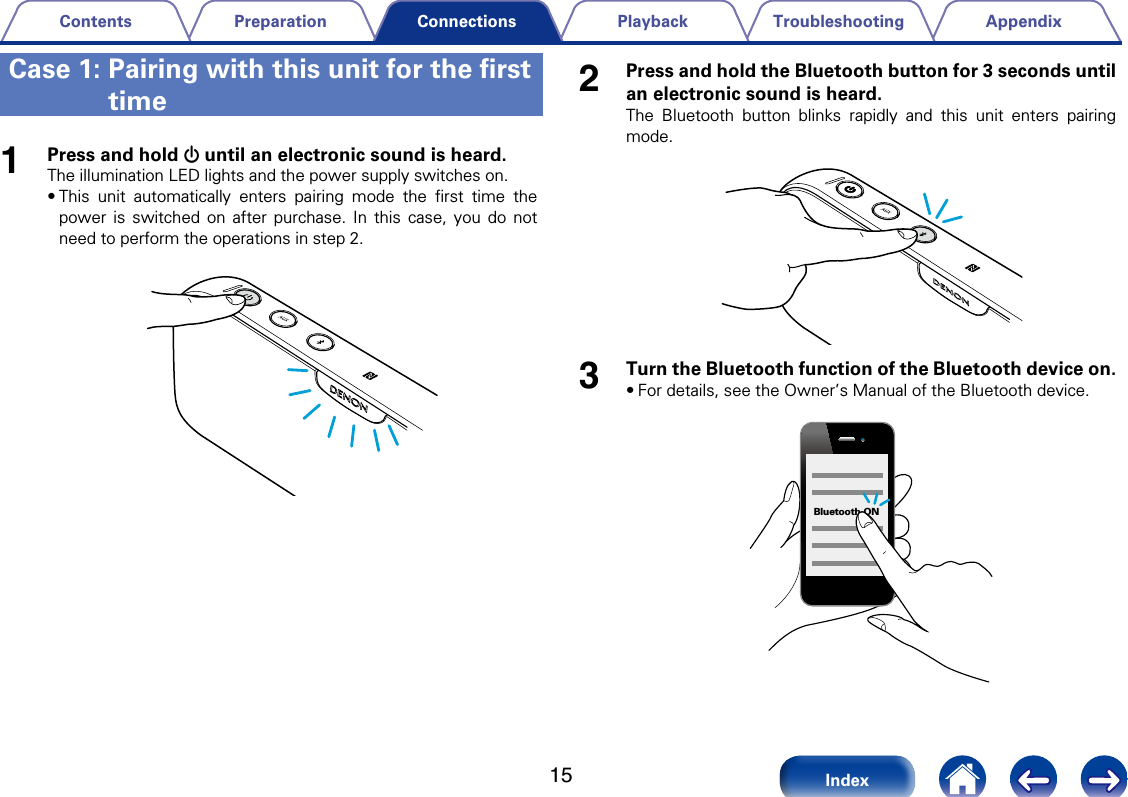
15AppendixTroubleshootingPlaybackPreparationContentsIndexConnections2Press and hold the Bluetooth button for 3 seconds until an electronic sound is heard.The Bluetooth button blinks rapidly and this unit enters pairing mode.3Turn the Bluetooth function of the Bluetooth device on. •For details, see the Owner’s Manual of the Bluetooth device. Bluetooth ON1Press and hold X until an electronic sound is heard.The illumination LED lights and the power supply switches on.•This unit automatically enters pairing mode the first time the power is switched on after purchase. In this case, you do not need to perform the operations in step 2.Case 1:  Pairing with this unit for the first time
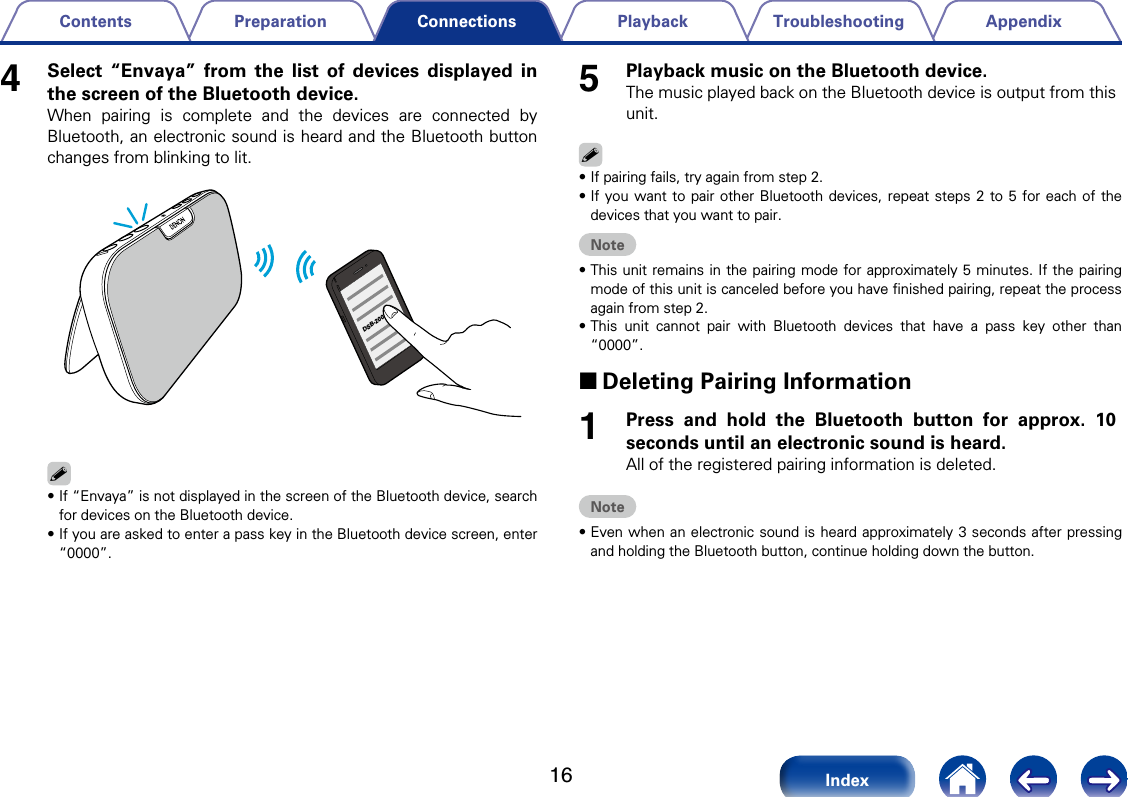
16AppendixTroubleshootingPlaybackPreparationContentsIndexConnections4Select “Envaya” from the list of devices displayed in the screen of the Bluetooth device. When pairing is complete and the devices are connected by Bluetooth, an electronic sound is heard and the Bluetooth button changes from blinking to lit.DSB-200%•If “Envaya” is not displayed in the screen of the Bluetooth device, search for devices on the Bluetooth device. •If you are asked to enter a pass key in the Bluetooth device screen, enter “0000”. 5Playback music on the Bluetooth device.The music played back on the Bluetooth device is output from this unit.%•If pairing fails, try again from step 2.•If you want to pair other Bluetooth devices, repeat steps 2 to 5 for each of the devices that you want to pair.Note•This unit remains in the pairing mode for approximately 5 minutes. If the pairing mode of this unit is canceled before you have finished pairing, repeat the process again from step 2. •This unit cannot pair with Bluetooth devices that have a pass key other than “0000”. 2Deleting Pairing Information1Press and hold the Bluetooth button for approx. 10 seconds until an electronic sound is heard.All of the registered pairing information is deleted.Note•Even when an electronic sound is heard approximately 3 seconds after pressing and holding the Bluetooth button, continue holding down the button.
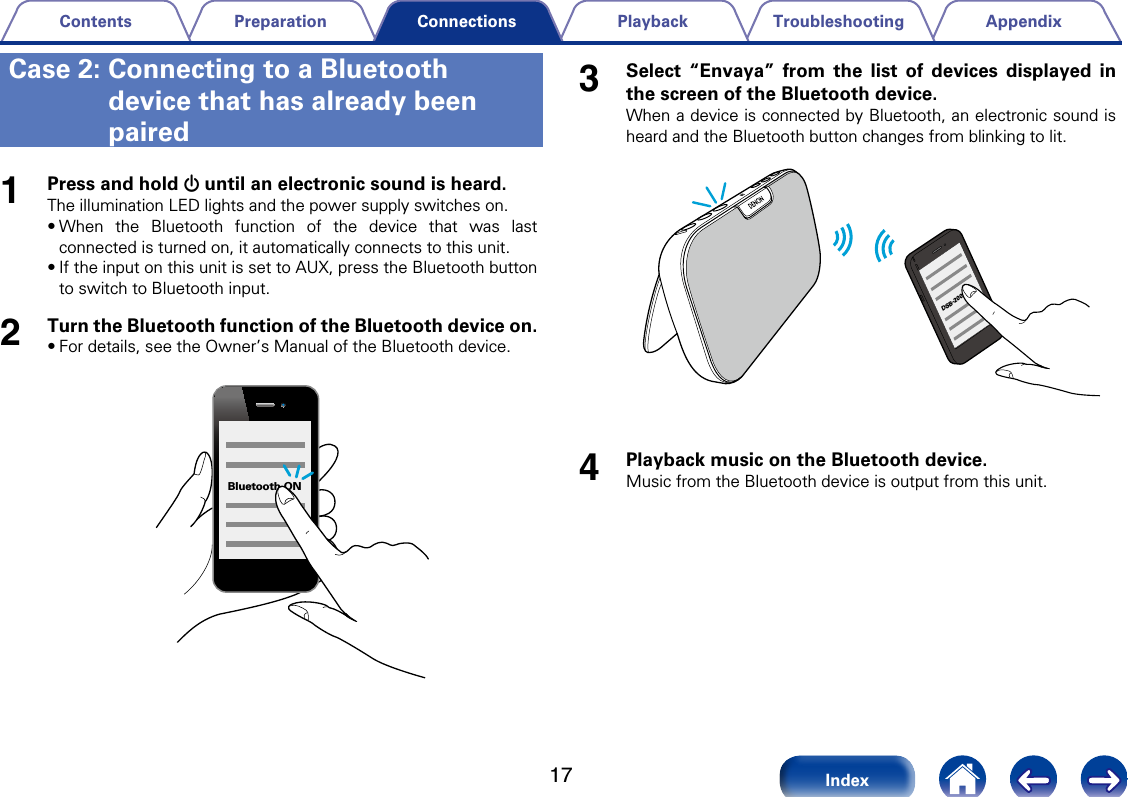
17AppendixTroubleshootingPlaybackPreparationContentsIndexConnections1Press and hold X until an electronic sound is heard.The illumination LED lights and the power supply switches on.•When the Bluetooth function of the device that was last connected is turned on, it automatically connects to this unit. •If the input on this unit is set to AUX, press the Bluetooth button to switch to Bluetooth input.2Turn the Bluetooth function of the Bluetooth device on.•For details, see the Owner’s Manual of the Bluetooth device.Bluetooth ON3Select “Envaya” from the list of devices displayed in the screen of the Bluetooth device.When a device is connected by Bluetooth, an electronic sound is heard and the Bluetooth button changes from blinking to lit.DSB-2004Playback music on the Bluetooth device.Music from the Bluetooth device is output from this unit.Case 2:  Connecting to a Bluetooth device that has already been paired
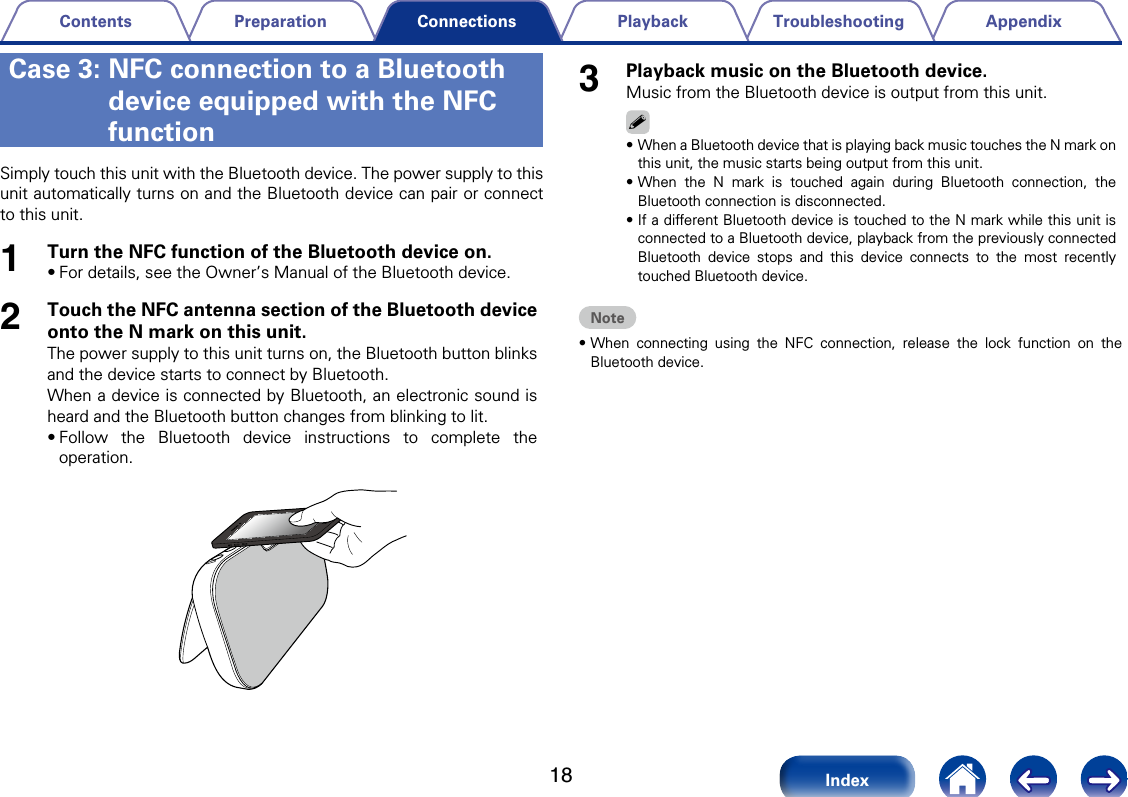
18AppendixTroubleshootingPlaybackPreparationContentsIndexConnectionsSimply touch this unit with the Bluetooth device. The power supply to this unit automatically turns on and the Bluetooth device can pair or connect to this unit. 1Turn the NFC function of the Bluetooth device on.•For details, see the Owner’s Manual of the Bluetooth device.2Touch the NFC antenna section of the Bluetooth device onto the N mark on this unit. The power supply to this unit turns on, the Bluetooth button blinks and the device starts to connect by Bluetooth.When a device is connected by Bluetooth, an electronic sound is heard and the Bluetooth button changes from blinking to lit.•Follow the Bluetooth device instructions to complete the operation.3Playback music on the Bluetooth device.Music from the Bluetooth device is output from this unit.%•When a Bluetooth device that is playing back music touches the N mark on this unit, the music starts being output from this unit. •When the N mark is touched again during Bluetooth connection, the Bluetooth connection is disconnected.•If a dierent Bluetooth device is touched to the N mark while this unit is connected to a Bluetooth device, playback from the previously connected Bluetooth device stops and this device connects to the most recently touched Bluetooth device.Note•When connecting using the NFC connection, release the lock function on the Bluetooth device.Case 3:  NFC connection to a Bluetooth device equipped with the NFC function
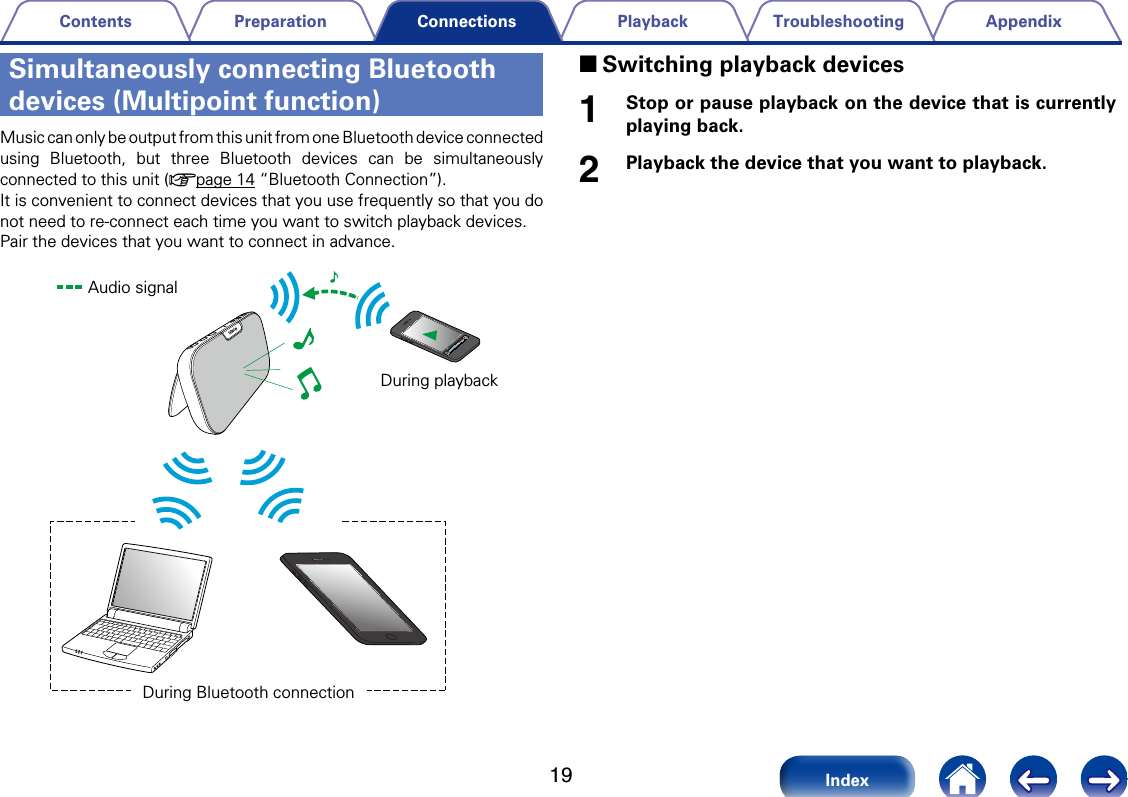
19AppendixTroubleshootingPlaybackPreparationContentsIndexConnectionsSimultaneously connecting Bluetooth devices (Multipoint function)Music can only be output from this unit from one Bluetooth device connected using Bluetooth, but three Bluetooth devices can be simultaneously connected to this unit (vpage14 “Bluetooth Connection”).It is convenient to connect devices that you use frequently so that you do not need to re-connect each time you want to switch playback devices. Pair the devices that you want to connect in advance. Audio signalDuring playbackDuring Bluetooth connection 2Switching playback devices1Stop or pause playback on the device that is currently playing back.2Playback the device that you want to playback.
20AppendixTroubleshootingConnectionsPreparationContentsIndexPlaybackThe volume of the music output from this unit can be adjusted both on the Bluetooth device and on this unit.1Connect this unit and a Bluetooth device.•For details on how to connect, see “Bluetooth Connection”(vpage14).2Adjust the volume on this unit to a low volume.3Check that the volume on the Bluetooth device is nottoo high, and start playback.•For details, see the Owner’s Manual of the Bluetooth device.4Adjust to the desired volume using the volumeadjustment button on this unit. Turning o the sound temporarily (muting)1Press :.The illumination LED blinks and the music output from this unit stops.%•To cancel muting, press the : button again. Muting can also be canceled byadjusting the volume while the sound is muted. Adjusting the volume
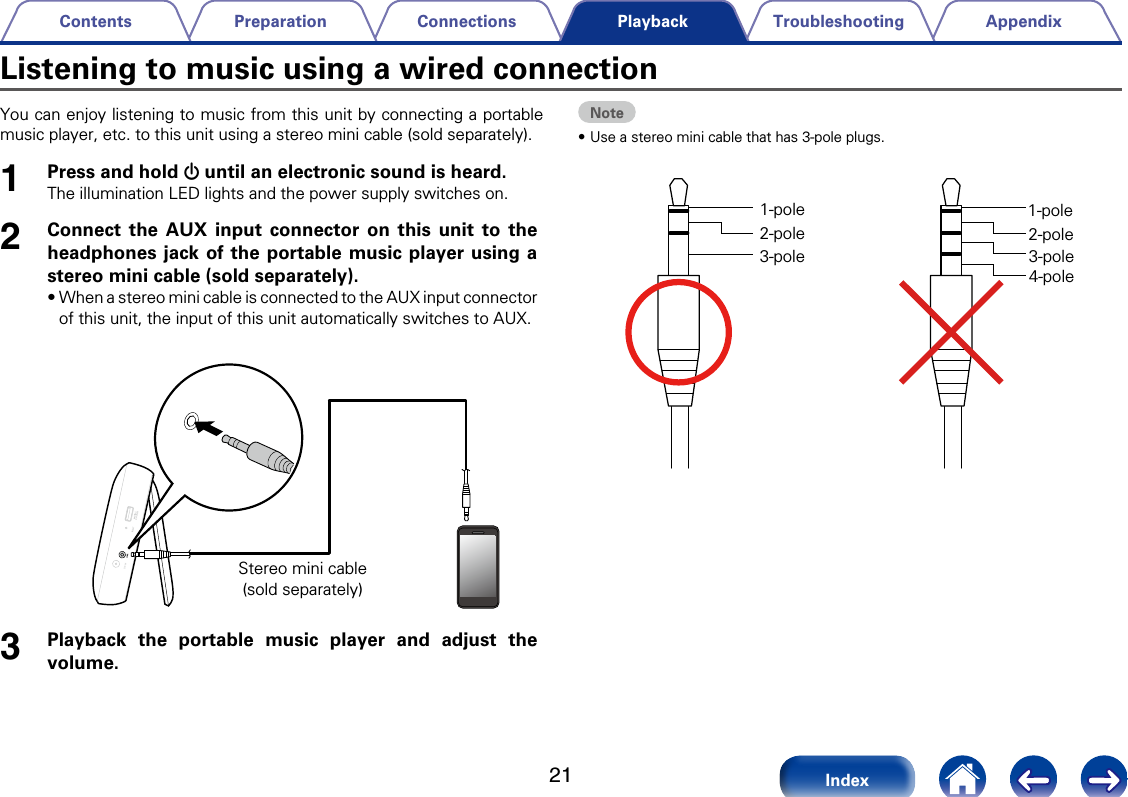
21AppendixTroubleshootingConnectionsPreparationContentsIndexPlaybackYou can enjoy listening to music from this unit by connecting a portable music player, etc. to this unit using a stereo mini cable (sold separately).1Press and hold X until an electronic sound is heard.The illumination LED lights and the power supply switches on.2Connect the AUX input connector on this unit to the headphones jack of the portable music player using a stereo mini cable (sold separately).•When a stereo mini cable is connected to the AUX input connector of this unit, the input of this unit automatically switches to AUX. Stereo mini cable(sold separately)3Playback the portable music player and adjust the volume.Note•Use a stereo mini cable that has 3-pole plugs. 1-pole2-pole3-pole1-pole2-pole3-pole4-poleListening to music using a wired connection
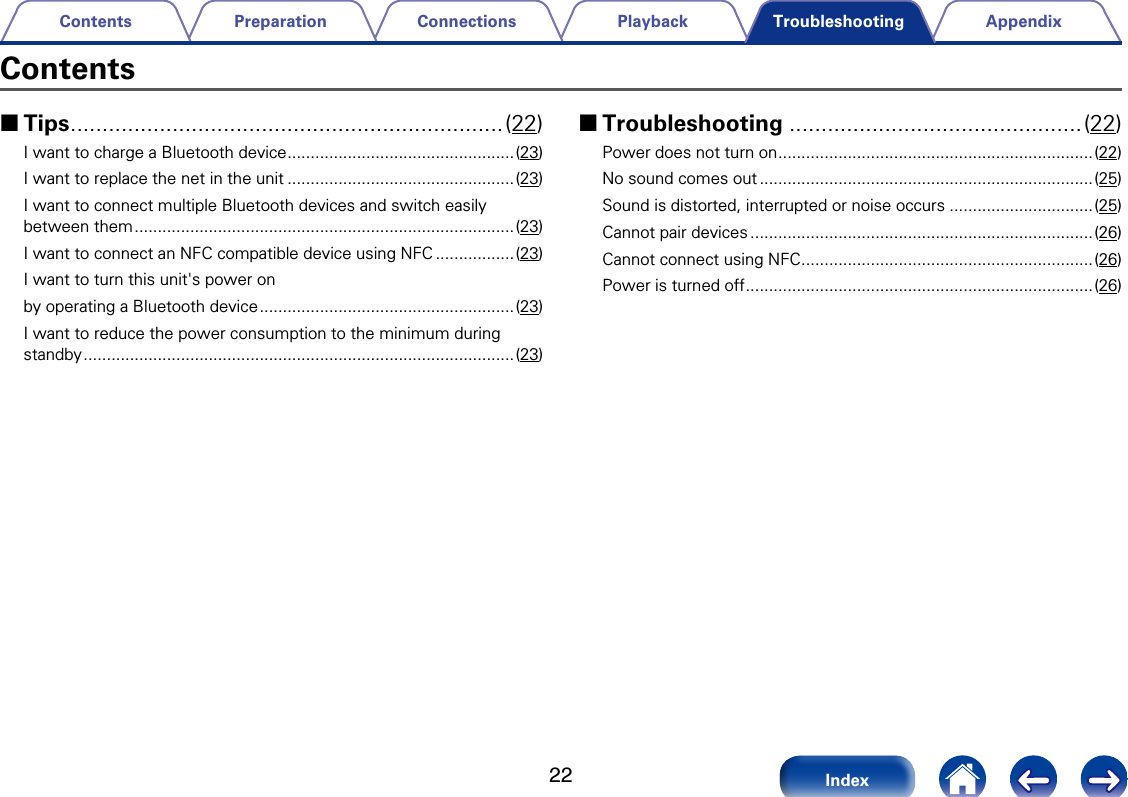
22AppendixPlaybackConnectionsPreparationContentsIndexTroubleshootingContents 2Tips ....................................................................(22)I want to charge a Bluetooth device .................................................(23)I want to replace the net in the unit .................................................(23)I want to connect multiple Bluetooth devices and switch easily between them .................................................................................. (23)I want to connect an NFC compatible device using NFC .................(23)I want to turn this unit's power on by operating a Bluetooth device ....................................................... (23)I want to reduce the power consumption to the minimum during standby ............................................................................................. (23) 2Troubleshooting ..............................................(22)Power does not turn on ....................................................................(22)No sound comes out ........................................................................(25)Sound is distorted, interrupted or noise occurs ...............................(25)Cannot pair devices ..........................................................................(26)Cannot connect using NFC ...............................................................(26)Power is turned off ...........................................................................(26)
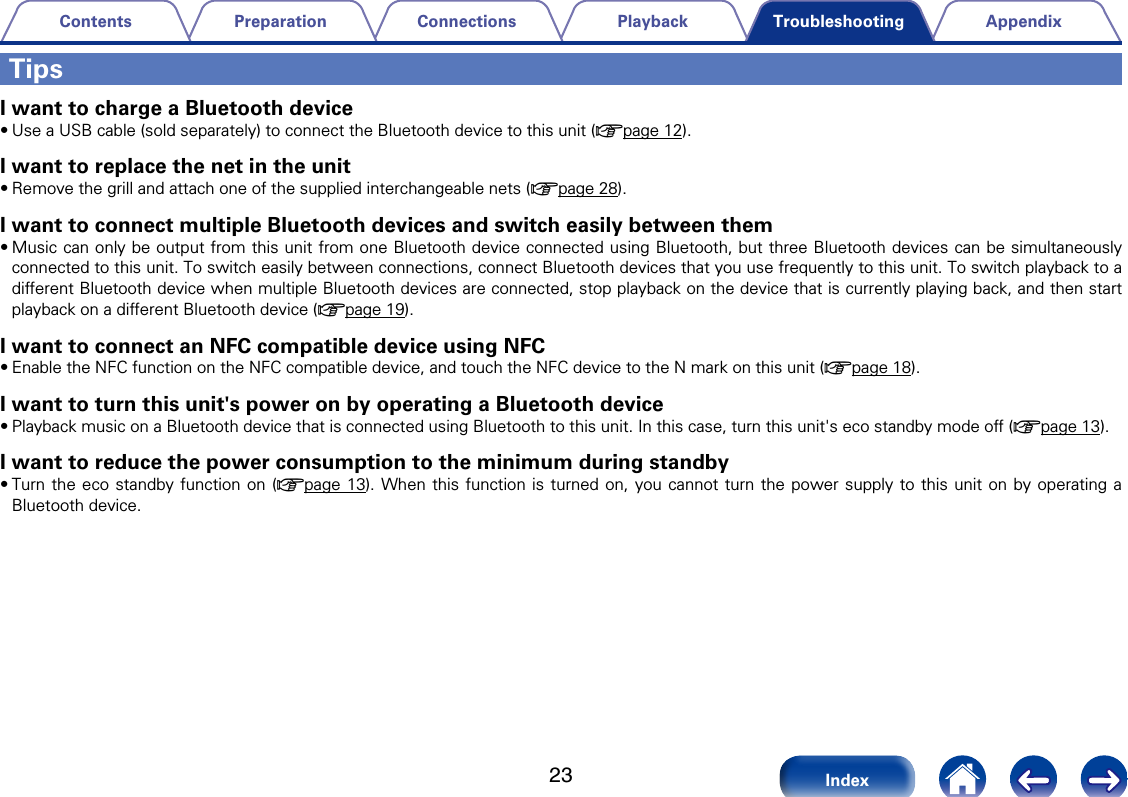
23AppendixPlaybackConnectionsPreparationContentsIndexTroubleshootingTipsI want to charge a Bluetooth device•Use a USB cable (sold separately) to connect the Bluetooth device to this unit (vpage12). I want to replace the net in the unit•Remove the grill and attach one of the supplied interchangeable nets (vpage28).I want to connect multiple Bluetooth devices and switch easily between them•Music can only be output from this unit from one Bluetooth device connected using Bluetooth, but three Bluetooth devices can be simultaneously connected to this unit. To switch easily between connections, connect Bluetooth devices that you use frequently to this unit. To switch playback to a dierent Bluetooth device when multiple Bluetooth devices are connected, stop playback on the device that is currently playing back, and then start playback on a dierent Bluetooth device (vpage19).I want to connect an NFC compatible device using NFC•Enable the NFC function on the NFC compatible device, and touch the NFC device to the N mark on this unit (vpage18).I want to turn this unit's power on by operating a Bluetooth device•Playback music on a Bluetooth device that is connected using Bluetooth to this unit. In this case, turn this unit's eco standby mode o (vpage13). I want to reduce the power consumption to the minimum during standby•Turn the eco standby function on (vpage13). When this function is turned on, you cannot turn the power supply to this unit on by operating a Bluetooth device.
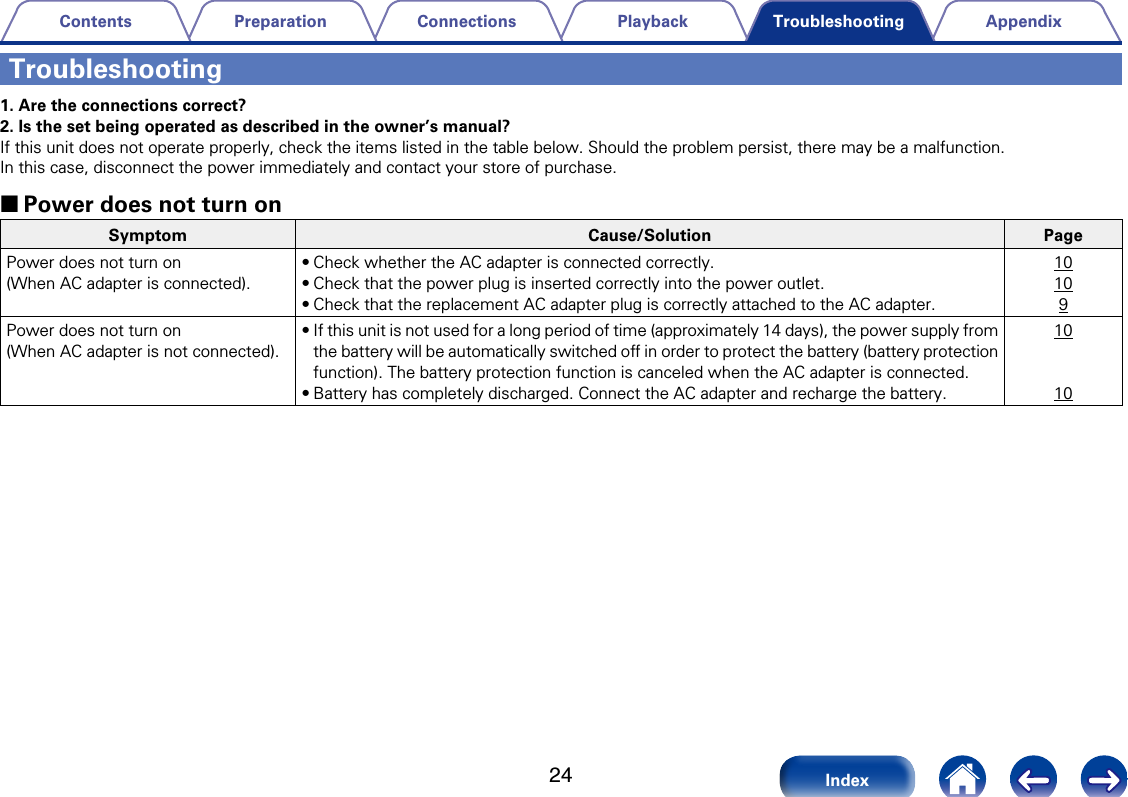
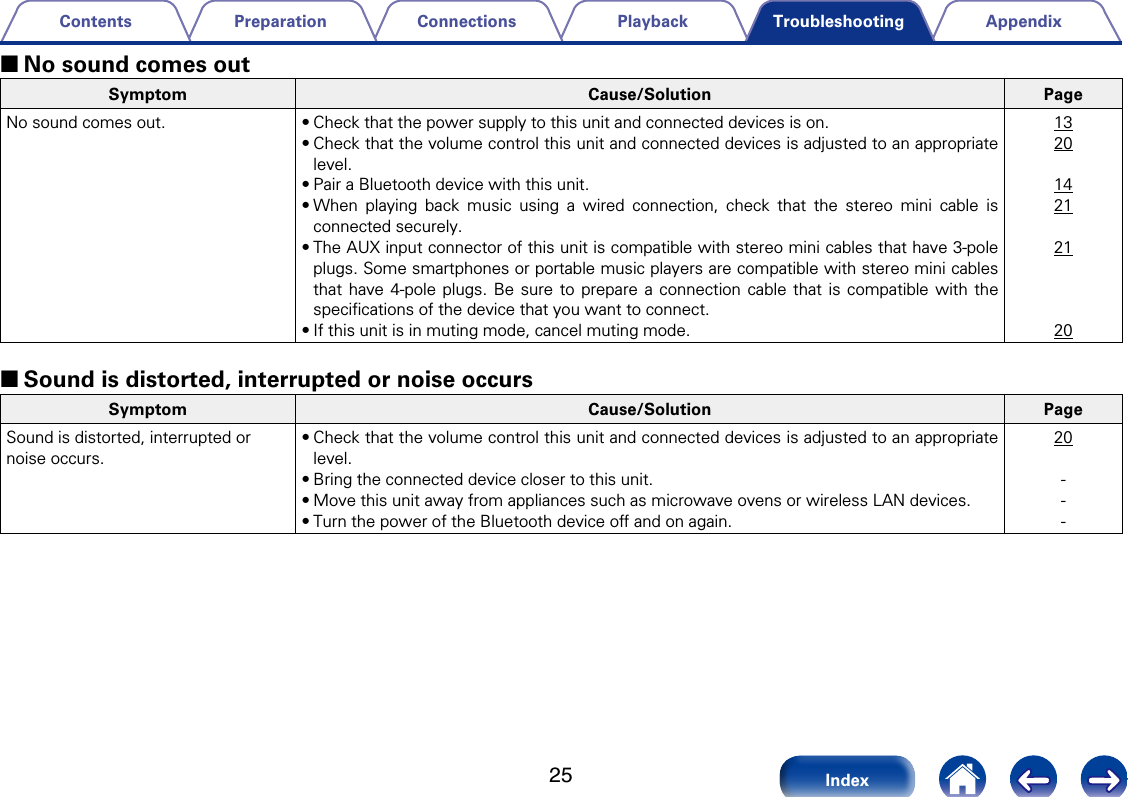
24AppendixPlaybackConnectionsPreparationContentsIndexTroubleshootingTroubleshooting1. Are the connections correct?2. Is the set being operated as described in the owner’s manual?If this unit does not operate properly, check the items listed in the table below. Should the problem persist, there may be a malfunction.In this case, disconnect the power immediately and contact your store of purchase. 2Power does not turn onSymptom Cause/Solution PagePower does not turn on(When AC adapter is connected).•Check whether the AC adapter is connected correctly.•Check that the power plug is inserted correctly into the power outlet.•Check that the replacement AC adapter plug is correctly attached to the AC adapter.10109Power does not turn on(When AC adapter is not connected).•If this unit is not used for a long period of time (approximately 14 days), the power supply from the battery will be automatically switched o in order to protect the battery (battery protection function). The battery protection function is canceled when the AC adapter is connected. •Battery has completely discharged. Connect the AC adapter and recharge the battery.1010
25AppendixPlaybackConnectionsPreparationContentsIndexTroubleshooting 2No sound comes outSymptom Cause/Solution PageNo sound comes out. •Check that the power supply to this unit and connected devices is on.•Check that the volume control this unit and connected devices is adjusted to an appropriate level.•Pair a Bluetooth device with this unit.•When playing back music using a wired connection, check that the stereo mini cable is connected securely.•The AUX input connector of this unit is compatible with stereo mini cables that have 3-pole plugs. Some smartphones or portable music players are compatible with stereo mini cables that have 4-pole plugs. Be sure to prepare a connection cable that is compatible with the specifications of the device that you want to connect.•If this unit is in muting mode, cancel muting mode.132014212120 2Sound is distorted, interrupted or noise occursSymptom Cause/Solution PageSound is distorted, interrupted or noise occurs.•Check that the volume control this unit and connected devices is adjusted to an appropriate level.•Bring the connected device closer to this unit.•Move this unit away from appliances such as microwave ovens or wireless LAN devices.•Turn the power of the Bluetooth device o and on again.20---
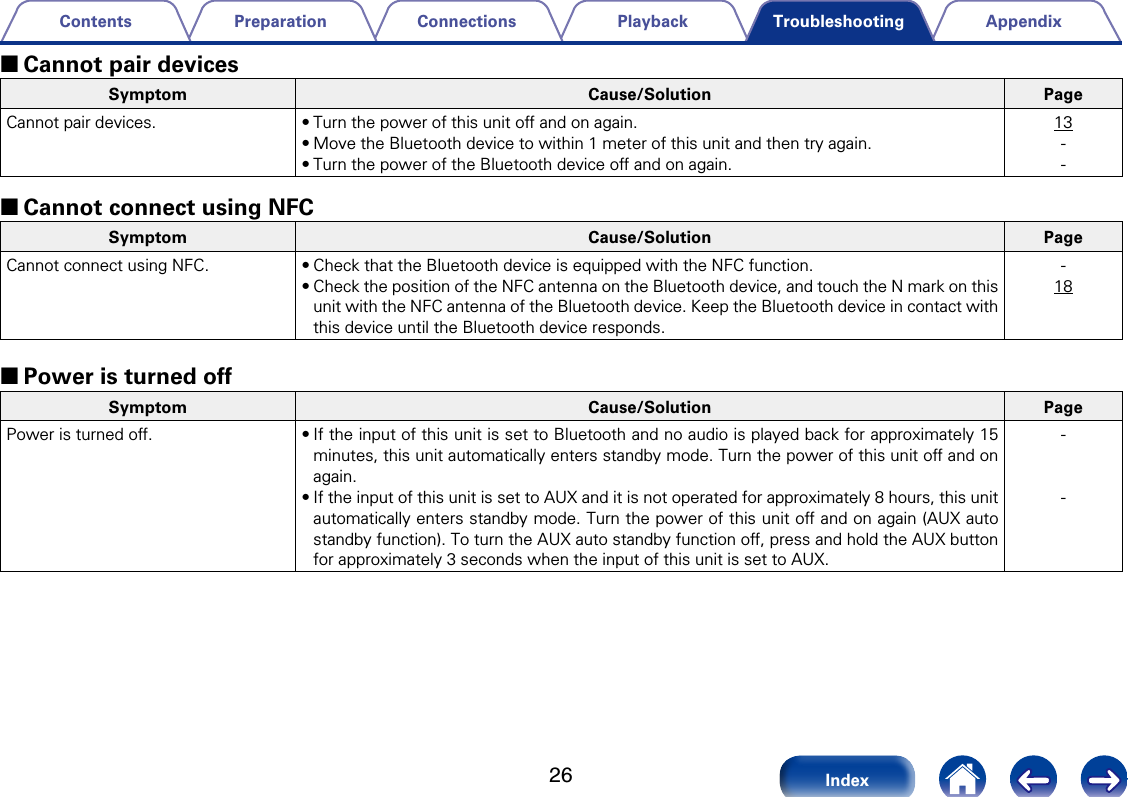
26AppendixPlaybackConnectionsPreparationContentsIndexTroubleshooting 2Cannot pair devicesSymptom Cause/Solution PageCannot pair devices. •Turn the power of this unit o and on again.•Move the Bluetooth device to within 1 meter of this unit and then try again.•Turn the power of the Bluetooth device o and on again.13-- 2Cannot connect using NFCSymptom Cause/Solution PageCannot connect using NFC. •Check that the Bluetooth device is equipped with the NFC function.•Check the position of the NFC antenna on the Bluetooth device, and touch the N mark on this unit with the NFC antenna of the Bluetooth device. Keep the Bluetooth device in contact with this device until the Bluetooth device responds.-18 2Power is turned oSymptom Cause/Solution PagePower is turned o. •If the input of this unit is set to Bluetooth and no audio is played back for approximately 15 minutes, this unit automatically enters standby mode. Turn the power of this unit o and on again.•If the input of this unit is set to AUX and it is not operated for approximately 8 hours, this unit automatically enters standby mode. Turn the power of this unit o and on again (AUX auto standby function). To turn the AUX auto standby function o, press and hold the AUX button for approximately 3 seconds when the input of this unit is set to AUX. --
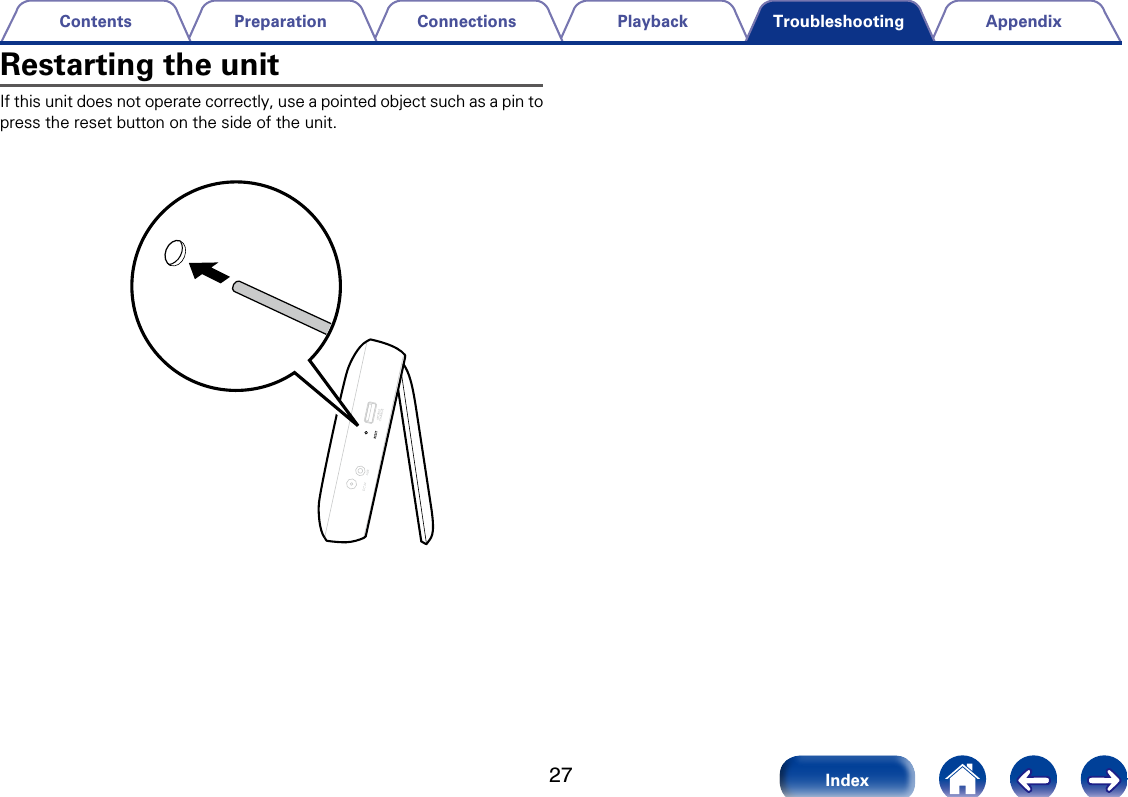
27AppendixPlaybackConnectionsPreparationContentsIndexTroubleshootingRestarting the unitIf this unit does not operate correctly, use a pointed object such as a pin to press the reset button on the side of the unit.
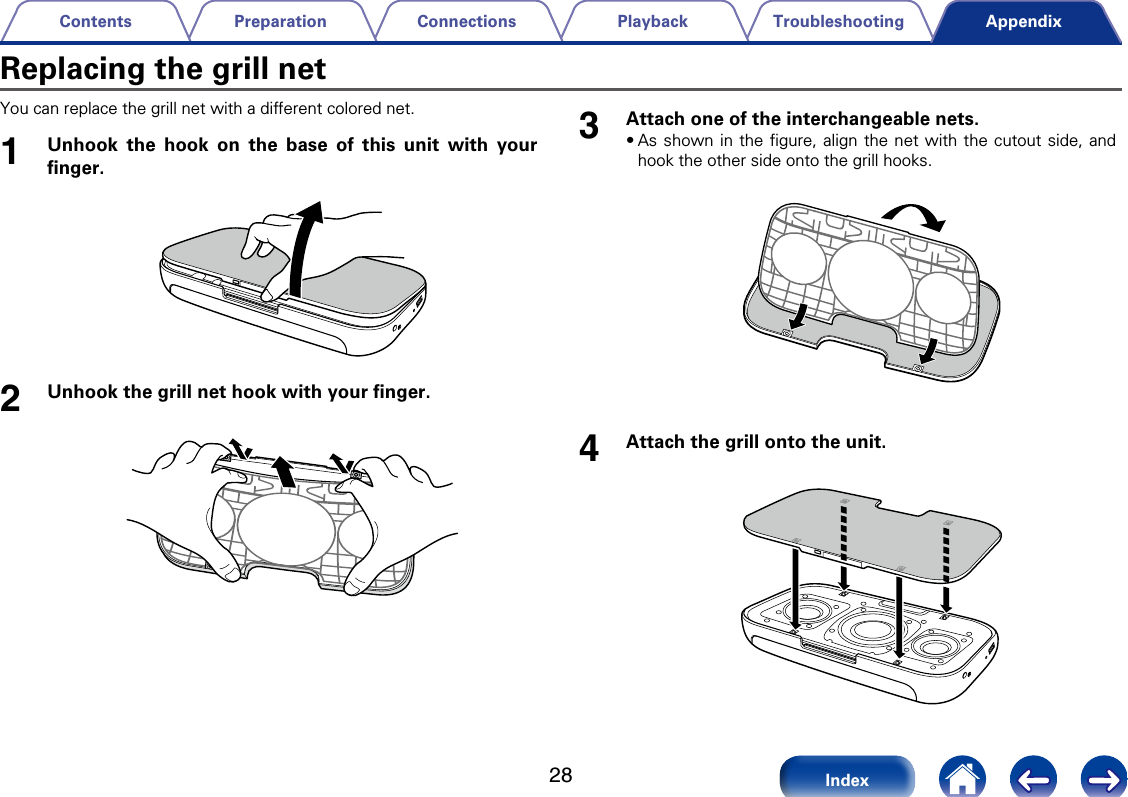
28TroubleshootingPlaybackConnectionsPreparationContentsIndexAppendixYou can replace the grill net with a dierent colored net. 1Unhook the hook on the base of this unit with your finger.2Unhook the grill net hook with your finger. 3Attach one of the interchangeable nets.•As shown in the figure, align the net with the cutout side, and hook the other side onto the grill hooks. 4Attach the grill onto the unit. Replacing the grill net
29TroubleshootingPlaybackConnectionsPreparationContentsIndexAppendixExplanation of TermsNNFC (Near Field Communication)This is technology that enables wireless communication over a short range. Terminals that are equipped with the NFC function can be easily connected to this unit simply by touching.
30TroubleshootingPlaybackConnectionsPreparationContentsIndexAppendixTrademark informationThe Bluetooth® word mark and logos are registered trademarks owned by Bluetooth SIG, Inc. and any use of such marks by D&M Holdings Inc. is under license. Other trademarks and trade names are those of their respective owners.©2013 CSR plc and its group companies.The aptX® mark and the aptX logo are trade marks of CSR plc or one of itsgroup companies and may be registered in one or more jurisdictions.The N mark is a trademark or registered trademark of NFC forum, Inc. in the United States and in other countries.
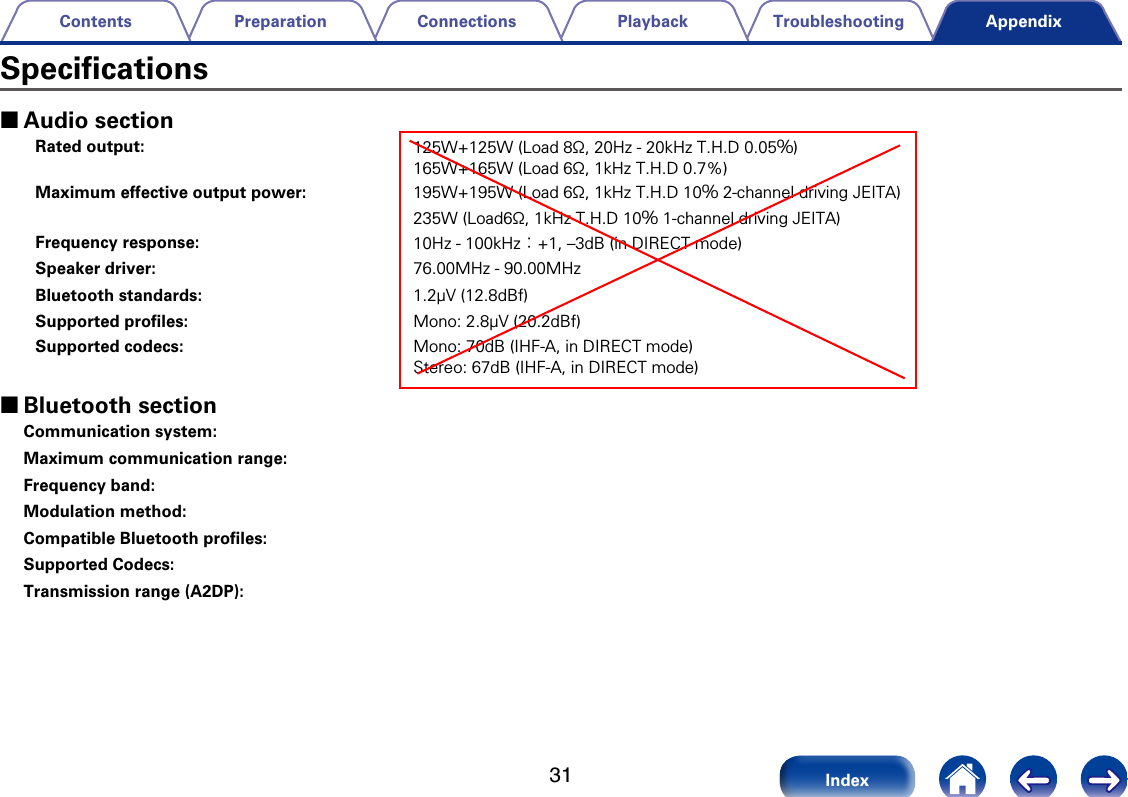
31TroubleshootingPlaybackConnectionsPreparationContentsIndexAppendix 2Audio sectionRated output: 125W+125W (Load 8Ω, 20Hz - 20kHz T.H.D 0.05%)165W+165W (Load 6Ω, 1kHz T.H.D 0.7%)Maximum eective output power: 195W+195W (Load 6Ω, 1kHz T.H.D 10% 2-channel driving JEITA)235W (Load6Ω, 1kHz T.H.D 10% 1-channel driving JEITA)Frequency response: 10Hz - 100kHz:+1, –3dB (in DIRECT mode)Speaker driver: 76.00MHz - 90.00MHzBluetooth standards: 1.2μV (12.8dBf)Supported profiles: Mono: 2.8μV (20.2dBf)Supported codecs: Mono: 70dB (IHF-A, in DIRECT mode)Stereo: 67dB (IHF-A, in DIRECT mode) 2Bluetooth sectionCommunication system:Maximum communication range:Frequency band:Modulation method:Compatible Bluetooth profiles:Supported Codecs:Transmission range (A2DP):Specifications
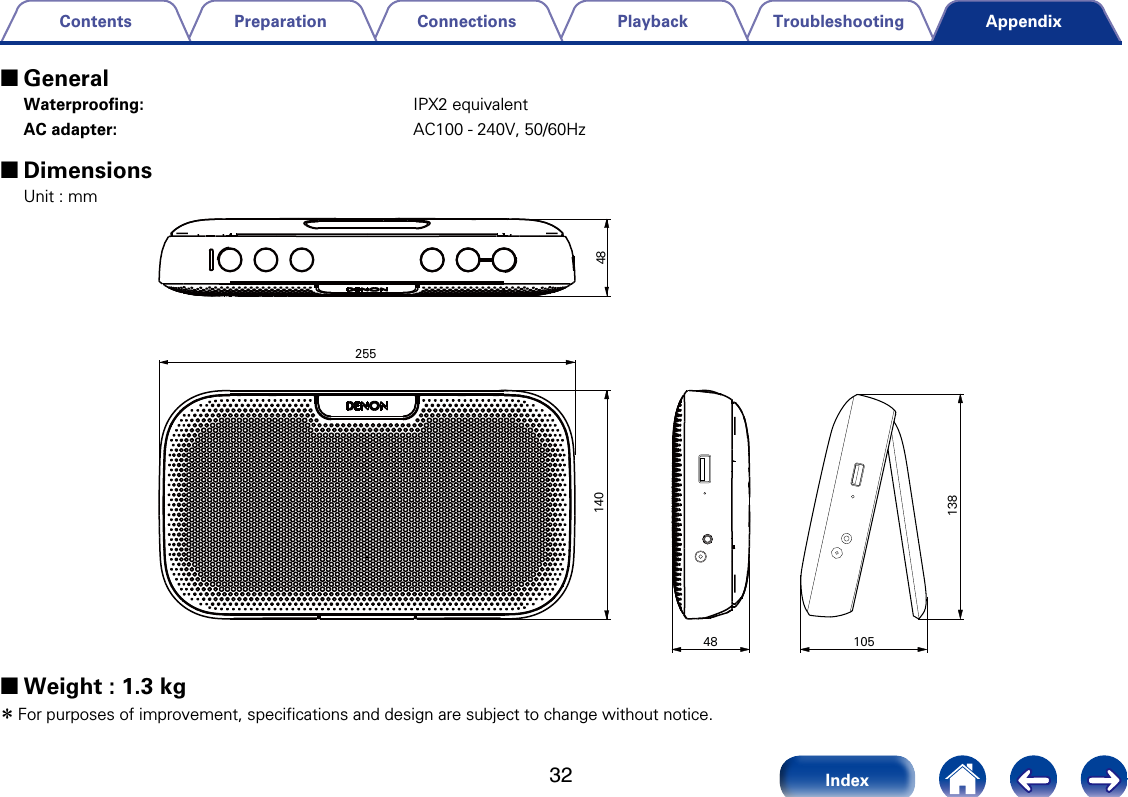
32TroubleshootingPlaybackConnectionsPreparationContentsIndexAppendix 2GeneralWaterproofing: IPX2 equivalentAC adapter: AC100 - 240V, 50/60Hz 2DimensionsUnit : mm4814025513810548 2Weight : 1.3 kg zFor purposes of improvement, specifications and design are subject to change without notice.
33TroubleshootingPlaybackConnectionsPreparationContentsIndexAppendix vAAccessories  ····························································· 4 vCConnections AC adapter ·························································· 10Bluetooth connection (Pairing)  ··························· 14USB Cable ··························································· 12 vMMultipoint function  ················································ 19 vNNFC Function  ···················································18、30 vPPairing ···································································· 14PlaybackAUX (wired) ························································· 21Bluetooth ····························································· 20Index  vRReplacing the grill net ············································ 28Return to the default settings  ······························· 27 vTTips  ······································································· 23Troubleshooting  ···················································· 24Turning the power on  ············································ 13
D&M Holdings Inc.3520 10324 00ADwww.denon.comIC“This device complies with Industry Canada license-exempt RSS standard(s). Operation is subject to the following two conditions: (1) this device may not cause interference, and (2) this device must accept any interference, including interference that may cause undesired operation of the device. The user is cautioned that this device should be used only as specified within this manual to meet RF exposure requirements”.Le présent appareil est conforme aux CNR d'Industrie Canada applicables aux appareils radio exempts de licence. L'exploitation est autorisée aux deux conditions suivantes:(1)  l'appareil ne doit pas produire de brouillage, et(2)  l'utilisateur de l'appareil doit accepter tout brouillage radioélectrique subi, même si le brouillage est susceptible d'en compromettre le fonctionnementWarningThis appliance and its antenna must not be co-located or operation in conjunction with any other antenna or transmitter. A minimum separation distance of 20 cm must be maintained between the antenna and the person for this appliance to satisfy the RF exposure requirements.FCCThis device complies with part 15 of the FCC Rules. Operation is subject to the following two conditions:(1) This device may not cause harmful interference, and(2) this device must accept any interference received, including interference that may cause undesired operation.Users are not permitted to make changes or modify the device in any way.Changes or modifications not expressly approved by Samsung will void the user’s authority to operate the equipment.

Navigation menu