Ansen Electronics Co 960071C Weather receiver User Manual L5C960071C Rev1

Ansen Electronics Co Weather receiver L5C960071C Rev1

L5C960071C User Manual Rev1

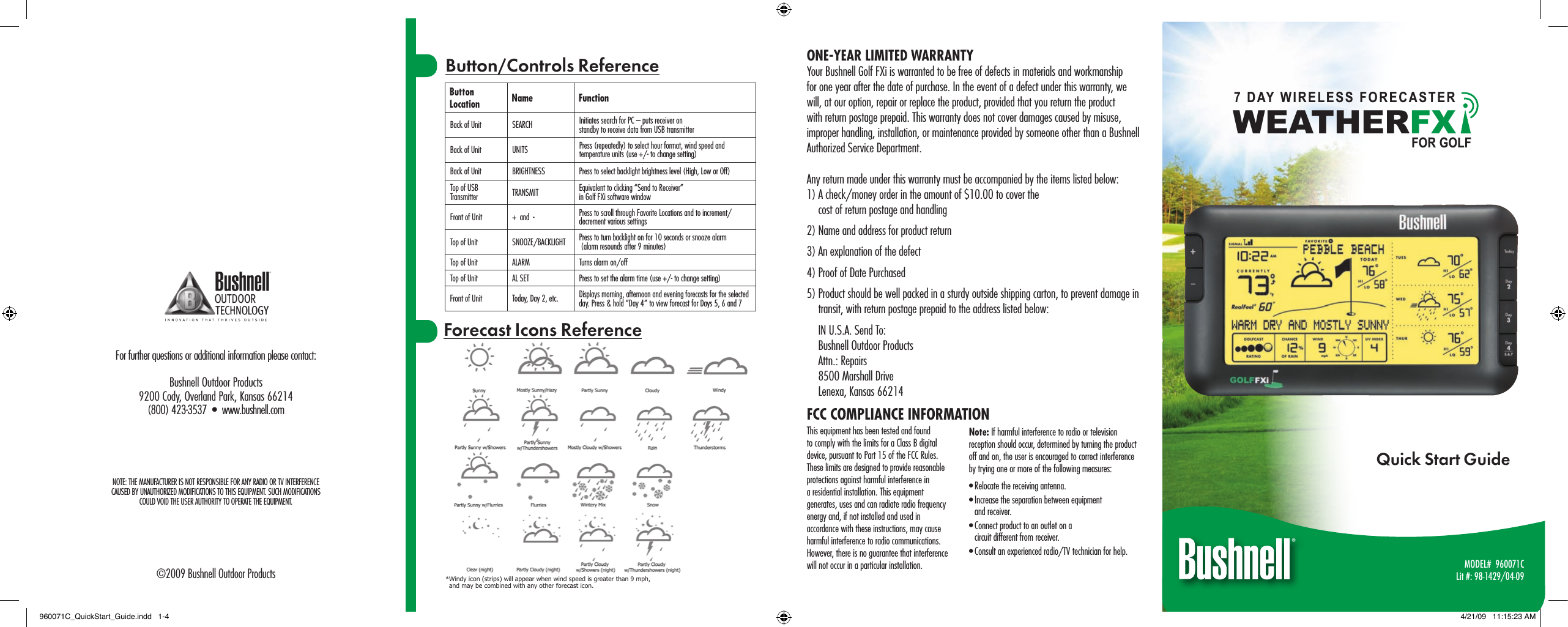
MODEL#  960071CLit #: 98-1429/04-09Quick Start GuideForecast Icons ReferenceButton Location Name FunctionBack of Unit SEARCH Initiates search for PC – puts receiver on  standby to receive data from USB transmitterBack of Unit UNITS Press (repeatedly) to select hour format, wind speed and temperature units (use +/- to change setting)Back of Unit BRIGHTNESS Press to select backlight brightness level (High, Low or Off)Top of USB Transmitter TRANSMIT Equivalent to clicking “Send to Receiver”  in Golf FXi software windowFront of Unit +  and  - Press to scroll through Favorite Locations and to increment/decrement various settingsTop of Unit SNOOZE/BACKLIGHT Press to turn backlight on for 10 seconds or snooze alarm   (alarm resounds after 9 minutes)Top of Unit ALARM Turns alarm on/offTop of Unit AL SET Press to set the alarm time (use +/- to change setting)Front of Unit Today, Day 2, etc. Displays morning, afternoon and evening forecasts for the selected day. Press & hold “Day 4” to view forecast for Days 5, 6 and 7Button/Controls ReferenceFor further questions or additional information please contact:Bushnell Outdoor Products9200 Cody, Overland Park, Kansas 66214(800) 423-3537  •  www.bushnell.com©2009 Bushnell Outdoor ProductsFCC COMPLIANCE INFORMATIONThis equipment has been tested and found to comply with the limits for a Class B digital device, pursuant to Part 15 of the FCC Rules. These limits are designed to provide reasonable protections against harmful interference in a residential installation. This equipment generates, uses and can radiate radio frequency energy and, if not installed and used in accordance with these instructions, may cause harmful interference to radio communications. However, there is no guarantee that interference will not occur in a particular installation.Note: If harmful interference to radio or television reception should occur, determined by turning the product off and on, the user is encouraged to correct interference by trying one or more of the following measures:• Relocate the receiving antenna.• Increase the separation between equipment  and receiver.• Connect product to an outlet on a  circuit different from receiver.• Consult an experienced radio/TV technician for help.ONE-YEAR LIMITED WARRANTYYour Bushnell Golf FXi is warranted to be free of defects in materials and workmanship for one year after the date of purchase. In the event of a defect under this warranty, we will, at our option, repair or replace the product, provided that you return the product with return postage prepaid. This warranty does not cover damages caused by misuse, improper handling, installation, or maintenance provided by someone other than a Bushnell Authorized Service Department.Any return made under this warranty must be accompanied by the items listed below:1) A check/money order in the amount of $10.00 to cover the  cost of return postage and handling2) Name and address for product return3) An explanation of the defect4) Proof of Date Purchased5) Product should be well packed in a sturdy outside shipping carton, to prevent damage in transit, with return postage prepaid to the address listed below:IN U.S.A. Send To:Bushnell Outdoor ProductsAttn.: Repairs8500 Marshall DriveLenexa, Kansas 66214* Windy icon (strips) will appear when wind speed is greater than 9 mph,  and may be combined with any other forecast icon.NOTE: THE MANUFACTURER IS NOT RESPONSIBLE FOR ANY RADIO OR TV INTERFERENCE  CAUSED BY UNAUTHORIZED MODIFICATIONS TO THIS EQUIPMENT. SUCH MODIFICATIONS  COULD VOID THE USER AUTHORITY TO OPERATE THE EQUIPMENT.WEAT HERFX7 DAY WIRELESS FORECASTERFOR GOLF960071C_QuickStart_Guide.indd   1-4 4/21/09   11:15:23 AM
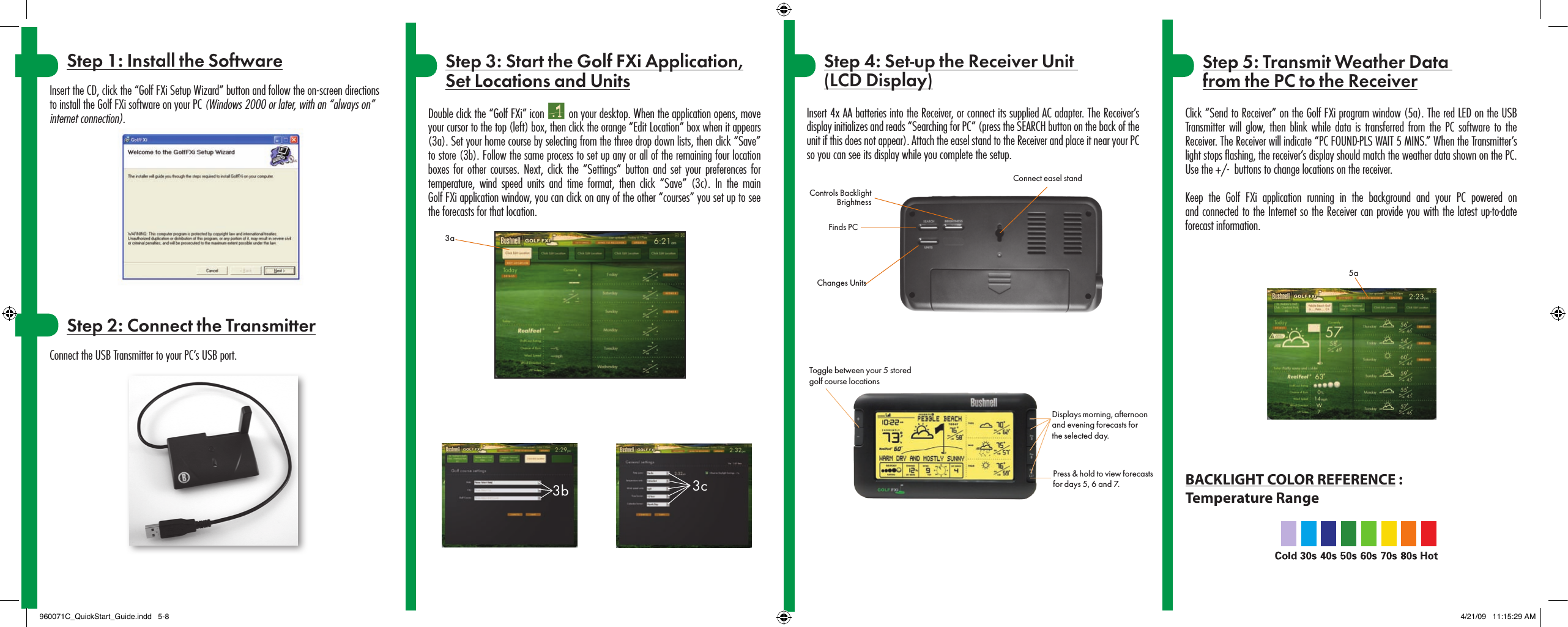
3a3b 3cStep 4: Set-up the Receiver Unit  (LCD Display)Insert 4x AA batteries into the Receiver, or connect its supplied AC adapter. The Receiver’s display initializes and reads “Searching for PC” (press the SEARCH button on the back of the unit if this does not appear). Attach the easel stand to the Receiver and place it near your PC so you can see its display while you complete the setup.BACKLIGHT COLOR REFERENCE :Temperature Range5aChanges UnitsFinds PCConnect easel standStep 1: Install the SoftwareInsert the CD, click the “Golf FXi Setup Wizard” button and follow the on-screen directions to install the Golf FXi software on your PC (Windows 2000 or later, with an “always on” internet connection).Step 2: Connect the TransmitterConnect the USB Transmitter to your PC’s USB port.Step 5: Transmit Weather Data  from the PC to the ReceiverClick “Send to Receiver” on the Golf FXi program window (5a). The red LED on the USB Transmitter will glow,  then  blink  while data is transferred from the PC software to  the Receiver. The Receiver will indicate “PC FOUND-PLS WAIT 5 MINS.” When the Transmitter’s light stops ashing, the receiver’s display should match the weather data shown on the PC. Use the +/-  buttons to change locations on the receiver. Keep  the  Golf  FXi  application  running  in  the  background  and  your  PC  powered  on  and connected to the Internet so the Receiver can provide you with the latest up-to-date  forecast information.Step 3: Start the Golf FXi Application, Set Locations and UnitsDouble click the “Golf FXi” icon   on your desktop. When the application opens, move your cursor to the top (left) box, then click the orange “Edit Location” box when it appears (3a). Set your home course by selecting from the three drop down lists, then click “Save” to store (3b). Follow the same process to set up any or all of the remaining four location boxes for  other  courses. Next,  click  the “Settings”  button  and set your  preferences  for temperature,  wind  speed  units  and  time  format,  then  click  “Save”  (3c).  In  the  main  Golf FXi application window, you can click on any of the other “courses” you set up to see the forecasts for that location.Displays morning, afternoon and evening forecasts for the selected day.Press & hold to view forecasts for days 5, 6 and 7.Controls Backlight BrightnessToggle between your 5 stored golf course locations960071C_QuickStart_Guide.indd   5-8 4/21/09   11:15:29 AM

Navigation menu