Ansen Electronics Co 960900T Weather FXi User Manual 960900C Weather FXi 7 Day 1LIM indd

Ansen Electronics Co Weather FXi 960900C Weather FXi 7 Day 1LIM indd

Manual

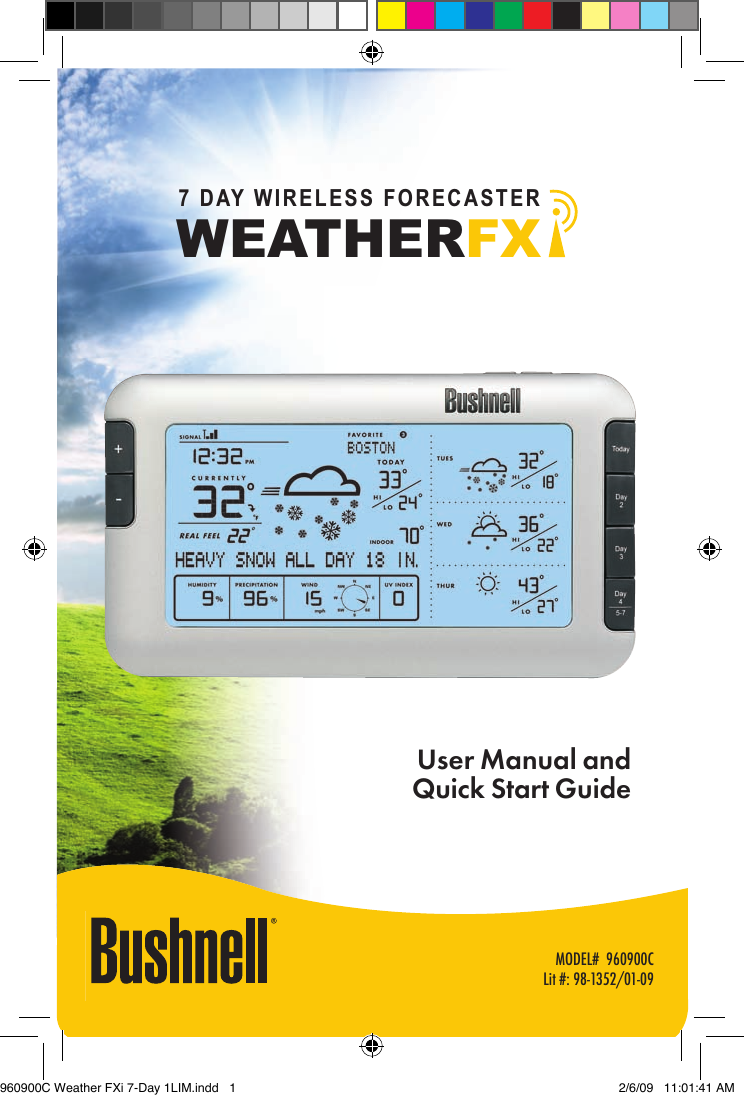
MODEL#  960900CLit #: 98-1352/01-09WEA T HERFX7 DAY WIRELESS FORECASTERUser Manual andQuick Start Guide960900C Weather FXi 7-Day 1LIM.indd   1 2/6/09   11:01:41 AM
2Thank you for purchasing the Bushnell Weather FXi,  an Internet based 7-day  weather forecaster. Designed  and  engineered  with state-of-art  wireless  technology,  this  instrument  will  provide accurate  and  reliable  weather  forecast  information  for  today and  the  next  six  days,  in  any  of  over  20,000  cities  worldwide.  No external sensors or subscriptions are required, and the Wireless Receiver  may  be  placed  anywhere  in  your  home. Weather  data is  automatically  updated  from  the  Internet  throughout  the  day via  AccuWeather.com  and  sent  to  the  Weather  FXi  unit  using  a wireless USB Transmitter connected to the user’s PC. Setup is easy – simply install and run the software, select your home location and up to 4 other cities, plug in the Transmitter and power up the Receiver. Read this manual carefully to fully explore the features and functions of your new Weather FXi forecaster.THE BUSHNELL WEATHER FXi FEATURES:Automatically Updated 7-DAY ForecastAs  long  as  your  PC  is  connected  to  the  Internet,  and  the Bushnell  Weather  FXi  software  is  active  (it  can  be  left  running in the background with minimal CPU usage, while you use your computer for  other  tasks),  the  7-day  forecast and  weather  data displayed  on  the  unit  will  be  automatically  updated  from  the Internet  throughout  the  day  via  AccuWeather.com  and  sent  to the Receiver unit wirelessly via the USB Transmitter. The Receiver may be placed anywhere in your home, up to about 245 feet (75 meters) away from the Transmitter.The Forecast Data includes:– Weather forecast– Current temperature with “RealFeel®”– High & low temperature – Relative humidity– Chance of precipitation– Maximum UV index960900C Weather FXi 7-Day 1LIM.indd   2 2/6/09   11:01:41 AM
3– Average wind speed & direction– Auto-synchronized (Internet) clock– Alarm function with snooze– Color backlight – color indicates current temp rangeForecast Data is available for over 20,000 cities worldwide, including:– Europe: Over 9,200 cities selection– North America: Over 10,900 cities selection–  Asia/Pacic: Over 300 cities selection in Japan,  Asia and Australia– Latin America: Selected citiesQuick Start Guide 1) Install the SoftwareInsert  the  CD, click  the “Weather  FXi  Setup  Wizard”  button  and follow the onscreen directions to install the Weather FXi software on  your  PC  (Windows  2000  or  later,  with  an  “always  on”  internet connection).2) Connect the TransmitterConnect the USB Transmitter to your PC’s USB port.3) Launch the Weather FXi application, Set Locations and UnitsDouble click  the “Weather  FXI”  icon on  your desktop. When  the application opens, move the cursor into the far left box at the top, then click “Edit Location” when it appears. Set your current location by selecting from the four drop down lists, then click “Save”. Follow the same process to setup any or all of the remaining four location boxes. Next, click the “Settings” button and set your preferences for temperature, wind speed units and time format, then click “Save”. In the main Weather FXi application window, you can click in any of  the  other “location  boxes”  you  set  up  to  see  the  forecast  for  that city.960900C Weather FXi 7-Day 1LIM.indd   3 2/6/09   11:01:42 AM
44) Setup the Receiver Unit (Remote Display)Insert 4xAA batteries into the Receiver, or connect its supplied AC adapter. The Receiver’s display initializes and reads “Searching for PC” (press the SEARCH button on the back of the unit if this does not appear). Attach the easel stand to the Receiver and place it near the PC so you can see its display while you complete the setup.5)  Transmit Weather Data from the PC Application to the ReceiverClick “Send to Receiver” on the Weather FXi program window. The red LED on the USB Transmitter will glow, then blink while data is transferred from the PC software to the Receiver. The Receiver will indicate “PC FOUND-PLS WAIT 5 MINS” When the Transmitter’s light stops ashing, check to see that the Receiver’s  display matches the weather data shown on the PC screen. Make sure the location box  selected  on  the Weather  FXi  application  and  the “Favorite” location # on the Receiver display are the same (use the +/- buttons on  the  Receiver  to  change  locations).  Also  be  sure  the  units  for temperature, wind speed, etc. are set the same (click “Settings” on the software screen, press UNITS on back of the Receiver and change them using the +/- buttons if necessary-press UNITS again to change other displayed units). Keep the Weather FXi application running in the background and keep your PC powered on and connected to the internet, so the Receiver can provide you with the latest up-to-date forecast information.Problems? Questions? Please read the following detailed Instructions  and Troubleshooting.INSTALLATION and SETUP INSTRUCTIONSSTEP 1: INSTALL THE SOFTWAREBefore  connecting  or  operating  the  Transmitter  or  Receiver hardware,  you  should  install  the Weather  FXi  software program on  your PC,  as  they  will  not  function  without  the  software. The 960900C Weather FXi 7-Day 1LIM.indd   4 2/6/09   11:01:42 AM
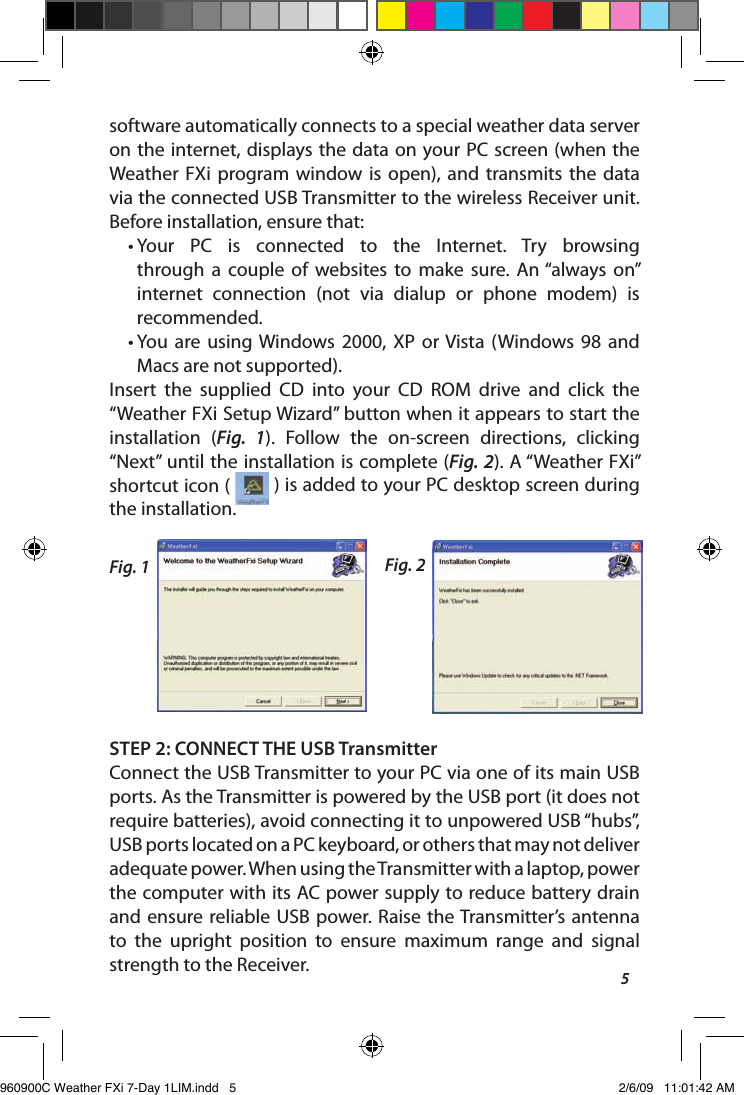
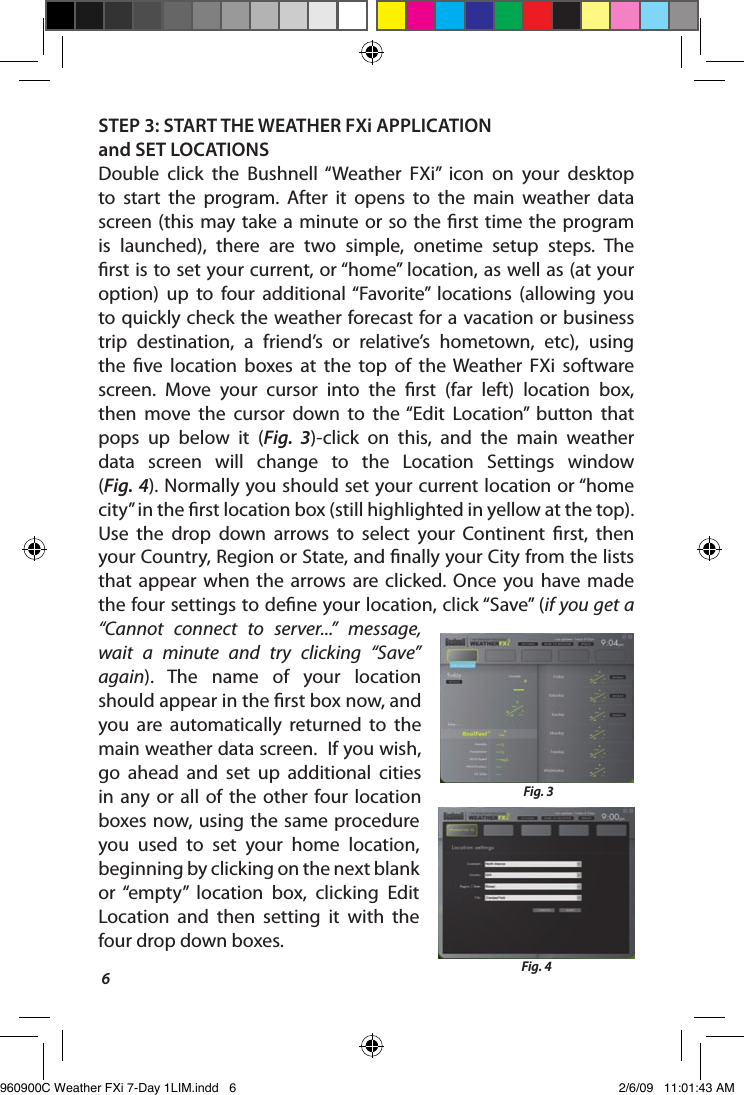
5software automatically connects to a special weather data server on the internet, displays the data on your PC screen (when the Weather  FXi  program window  is  open),  and  transmits  the  data via the connected USB Transmitter to the wireless Receiver unit. Before installation, ensure that: •  Your  PC  is  connected  to  the  Internet.  Try  browsing through  a  couple  of  websites  to  make  sure.  An “always  on” internet  connection  (not  via  dialup  or  phone  modem)  is recommended.•  You  are  using Windows 2000,  XP  or Vista  (Windows 98  and Macs are not supported).Insert  the  supplied  CD  into  your  CD  ROM  drive  and  click  the “Weather FXi Setup Wizard” button when it appears to start the installation  (Fig.  1).  Follow  the  on-screen  directions,  clicking “Next” until the installation is complete (Fig. 2). A “Weather FXi” shortcut icon (   ) is added to your PC desktop screen during the installation.STEP 2: CONNECT THE USB TransmitterConnect the USB Transmitter to your PC via one of its main USB ports. As the Transmitter is powered by the USB port (it does not require batteries), avoid connecting it to unpowered USB “hubs”, USB ports located on a PC keyboard, or others that may not deliver adequate power. When using the Transmitter with a laptop, power the computer with its AC power supply to reduce battery drain and ensure reliable USB  power.  Raise  the Transmitter’s  antenna to  the  upright  position  to  ensure  maximum  range  and  signal strength to the Receiver.Fig. 1 Fig. 2960900C Weather FXi 7-Day 1LIM.indd   5 2/6/09   11:01:42 AM
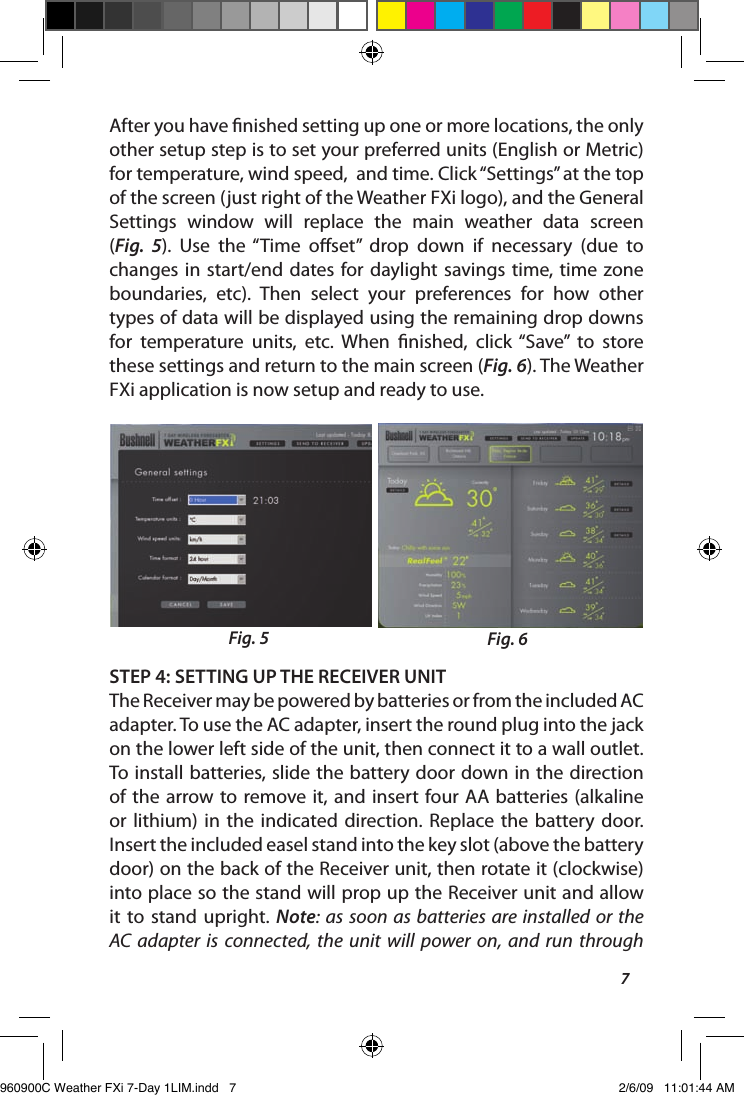
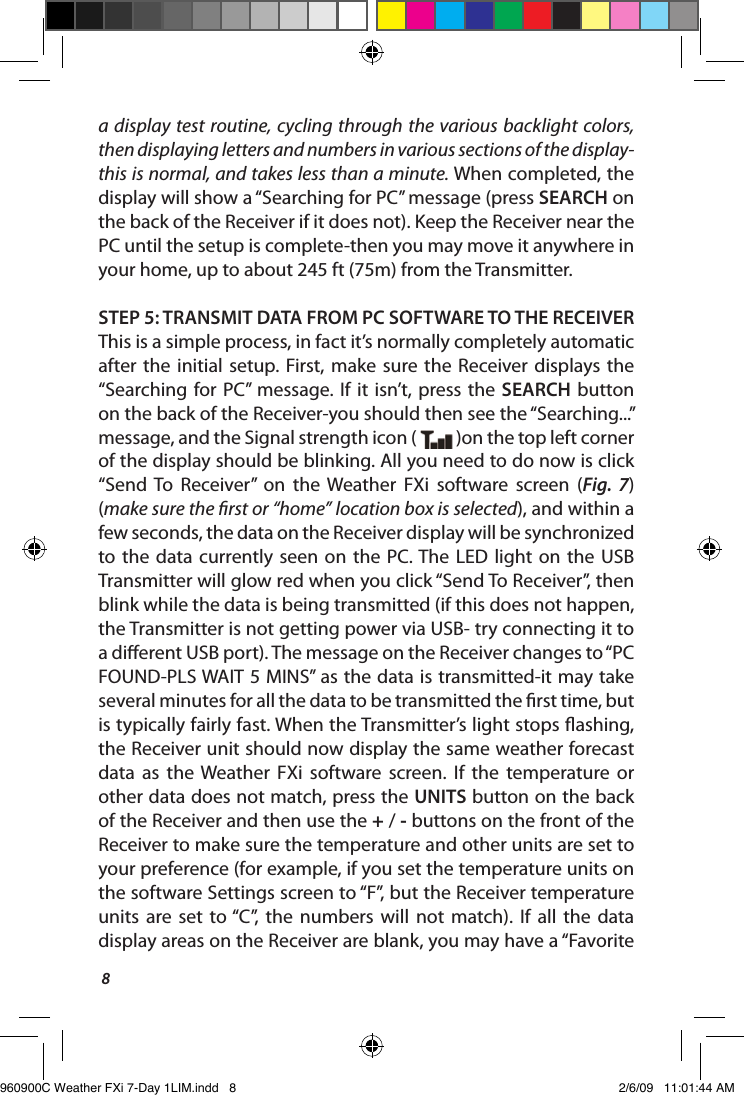
6STEP 3: START THE WEATHER FXi APPLICATION and SET LOCATIONSDouble  click  the  Bushnell “Weather  FXi”  icon  on  your  desktop to  start  the  program.  After  it  opens  to  the  main  weather  data screen (this may  take a  minute or so  the  rst  time  the program is  launched),  there  are  two  simple,  onetime  setup  steps.  The rst is to set your current, or “home” location, as well as (at your option)  up  to  four  additional “Favorite”  locations  (allowing  you to quickly check the weather forecast for a vacation or business trip  destination,  a  friend’s  or  relative’s  hometown,  etc),  using the  ve  location  boxes  at  the  top  of  the  Weather  FXi  software screen.  Move  your  cursor  into  the  rst  (far  left)  location  box, then  move  the  cursor  down  to  the “Edit  Location”  button  that pops  up  below  it  (Fig.  3)-click  on  this,  and  the  main  weather data  screen  will  change  to  the  Location  Settings  window  (Fig. 4). Normally you should set your current location or “home city” in the rst location box (still highlighted in yellow at the top). Use  the  drop  down  arrows  to  select  your  Continent  rst,  then your Country, Region or State, and nally your City from the lists that  appear  when  the  arrows are  clicked.  Once  you  have  made the four settings to dene your location, click “Save” (if you get a “Cannot  connect  to  server...”  message, wait  a  minute  and  try  clicking  “Save” again).  The  name  of  your  location should appear in the rst box now, and you  are  automatically  returned  to  the main weather data screen.  If you wish, go  ahead  and  set  up  additional  cities in  any  or  all  of  the  other  four location boxes  now, using  the same  procedure you  used  to  set  your  home  location, beginning by clicking on the next blank or  “empty”  location  box,  clicking  Edit Location  and  then  setting  it  with  the four drop down boxes. Fig. 3Fig. 4960900C Weather FXi 7-Day 1LIM.indd   6 2/6/09   11:01:43 AM
7After you have nished setting up one or more locations, the only other setup step is to set your preferred units (English or Metric) for temperature, wind speed,  and time. Click “Settings” at the top of the screen (just right of the Weather FXi logo), and the General Settings  window  will  replace  the  main  weather  data  screen  (Fig.  5).  Use  the “Time  oset”  drop  down  if  necessary  (due  to changes in  start/end dates  for daylight savings  time, time  zone boundaries,  etc).  Then  select  your  preferences  for  how  other types of data will be displayed using the remaining drop downs for  temperature  units,  etc.  When  nished,  click  “Save”  to  store these settings and return to the main screen (Fig. 6). The Weather FXi application is now setup and ready to use.STEP 4: SETTING UP THE RECEIVER UNITThe Receiver may be powered by batteries or from the included AC adapter. To use the AC adapter, insert the round plug into the jack on the lower left side of the unit, then connect it to a wall outlet. To install batteries, slide the battery door down in the direction of the  arrow to remove it, and insert  four AA batteries (alkaline or  lithium)  in  the  indicated  direction.  Replace  the  battery  door.  Insert the included easel stand into the key slot (above the battery door) on the back of the Receiver unit, then rotate it (clockwise) into place so the stand will prop up the Receiver unit and allow it  to stand  upright. Note:  as soon  as batteries are installed  or the AC adapter  is  connected,  the  unit  will  power  on,  and run  through Fig. 5 Fig. 6960900C Weather FXi 7-Day 1LIM.indd   7 2/6/09   11:01:44 AM
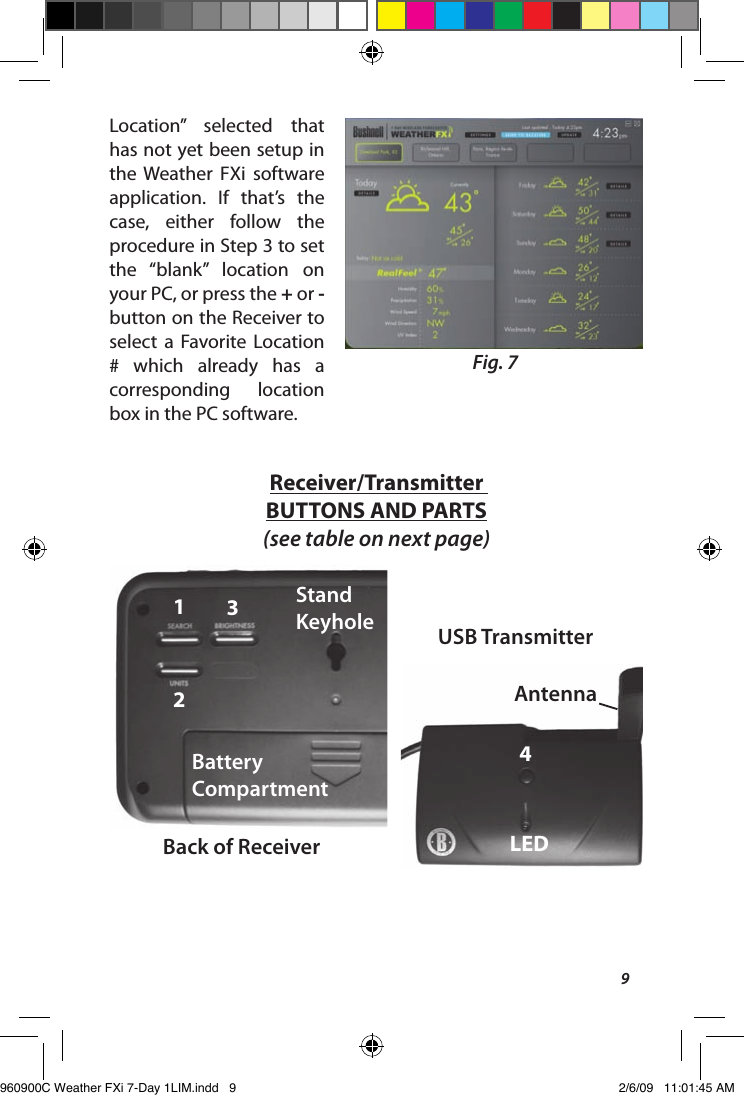
8a display test routine, cycling  through the various backlight colors, then displaying letters and numbers in various sections of the display-this is normal, and takes less than a minute. When completed, the display will show a “Searching for PC” message (press SEARCH on the back of the Receiver if it does not). Keep the Receiver near the PC until the setup is complete-then you may move it anywhere in your home, up to about 245 ft (75m) from the Transmitter.STEP 5: TRANSMIT DATA FROM PC SOFTWARE TO THE RECEIVERThis is a simple process, in fact it’s normally completely automatic after  the  initial setup. First, make  sure  the  Receiver displays the “Searching for PC”  message. If  it  isn’t,  press the  SEARCH button on the back of the Receiver-you should then see the “Searching...” message, and the Signal strength icon (   )on the top left corner of the display should be blinking. All you need to do now is click “Send  To  Receiver”  on  the  Weather  FXi  software  screen  (Fig.  7) (make sure the rst or “home” location box is selected), and within a few seconds, the data on the Receiver display will be synchronized to the  data  currently seen  on  the  PC. The  LED  light  on  the  USB Transmitter will glow red when you click “Send To Receiver”, then blink while the data is being transmitted (if this does not happen, the Transmitter is not getting power via USB- try connecting it to a dierent USB port). The message on the Receiver changes to “PC FOUND-PLS WAIT 5 MINS” as the data is transmitted-it may take several minutes for all the data to be transmitted the rst time, but is typically fairly fast. When the Transmitter’s light stops ashing, the Receiver unit should now display the same weather forecast data  as  the Weather  FXi  software  screen.  If  the  temperature  or other data does not match, press the UNITS button on the back of the Receiver and then use the + / - buttons on the front of the Receiver to make sure the temperature and other units are set to your preference (for example, if you set the temperature units on the software Settings screen to “F”, but the Receiver temperature units  are  set  to “C”,  the  numbers  will  not  match).  If  all  the  data display areas on the Receiver are blank, you may have a “Favorite 960900C Weather FXi 7-Day 1LIM.indd   8 2/6/09   11:01:44 AM
9Location”  selected  that has not yet been setup in the  Weather  FXi  software application.  If  that’s  the case,  either  follow  the procedure in Step 3 to set the  “blank”  location  on your PC, or press the + or - button on the Receiver to select  a  Favorite  Location #  which  already  has  a corresponding  location box in the PC software.Fig. 7Back of Receiver123Battery CompartmentStandKeyhole USB Transmitter4LEDAntennaReceiver/Transmitter BUTTONS AND PARTS(see table on next page)960900C Weather FXi 7-Day 1LIM.indd   9 2/6/09   11:01:45 AM
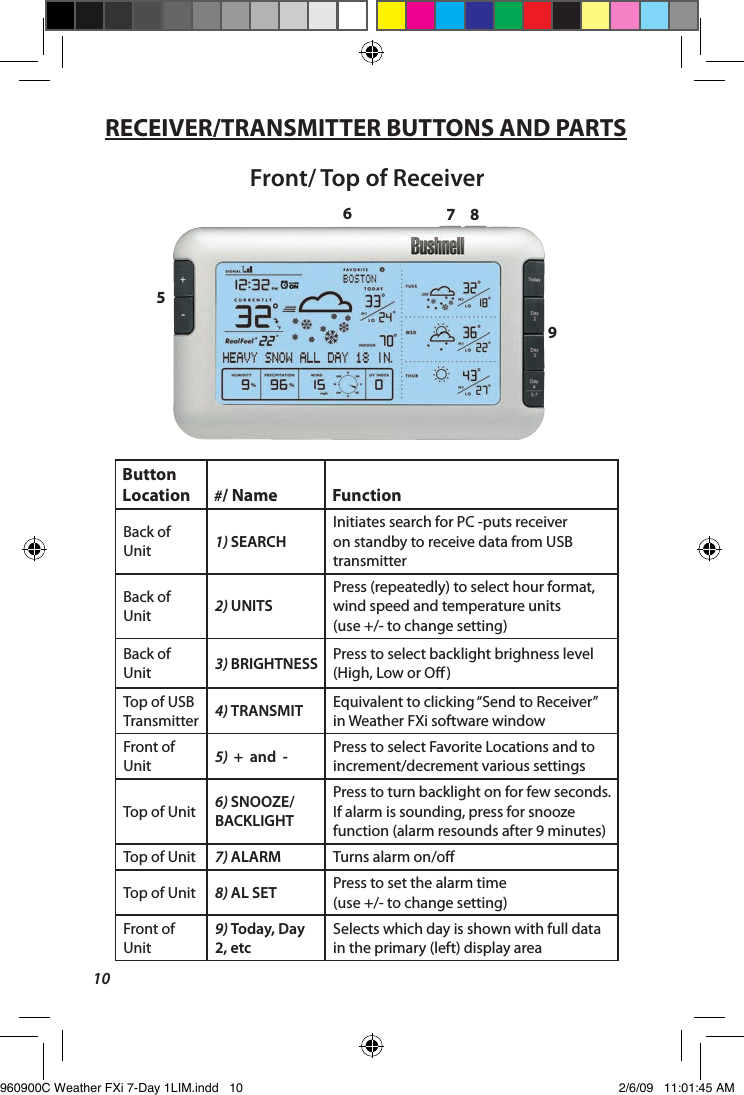
10Button Location #/ Name FunctionBack of Unit 1) SEARCHInitiates search for PC -puts receiver on standby to receive data from USB transmitterBack of Unit 2) UNITSPress (repeatedly) to select hour format, wind speed and temperature units  (use +/- to change setting)Back of Unit 3) BRIGHTNESS Press to select backlight brighness level (High, Low or O)Top of USB Transmitter 4) TRANSMIT Equivalent to clicking “Send to Receiver”  in Weather FXi software windowFront of Unit 5)  +  and  - Press to select Favorite Locations and to increment/decrement various settingsTop of Unit 6) SNOOZE/BACKLIGHTPress to turn backlight on for few seconds. If alarm is sounding, press for snooze function (alarm resounds after 9 minutes)Top of Unit 7) ALARM Turns alarm on/oTop of Unit 8) AL SET Press to set the alarm time  (use +/- to change setting)Front of Unit9) Today, Day 2, etcSelects which day is shown with full data  in the primary (left) display area5967 8Front/ Top of ReceiverRECEIVER/TRANSMITTER BUTTONS AND PARTS960900C Weather FXi 7-Day 1LIM.indd   10 2/6/09   11:01:45 AM
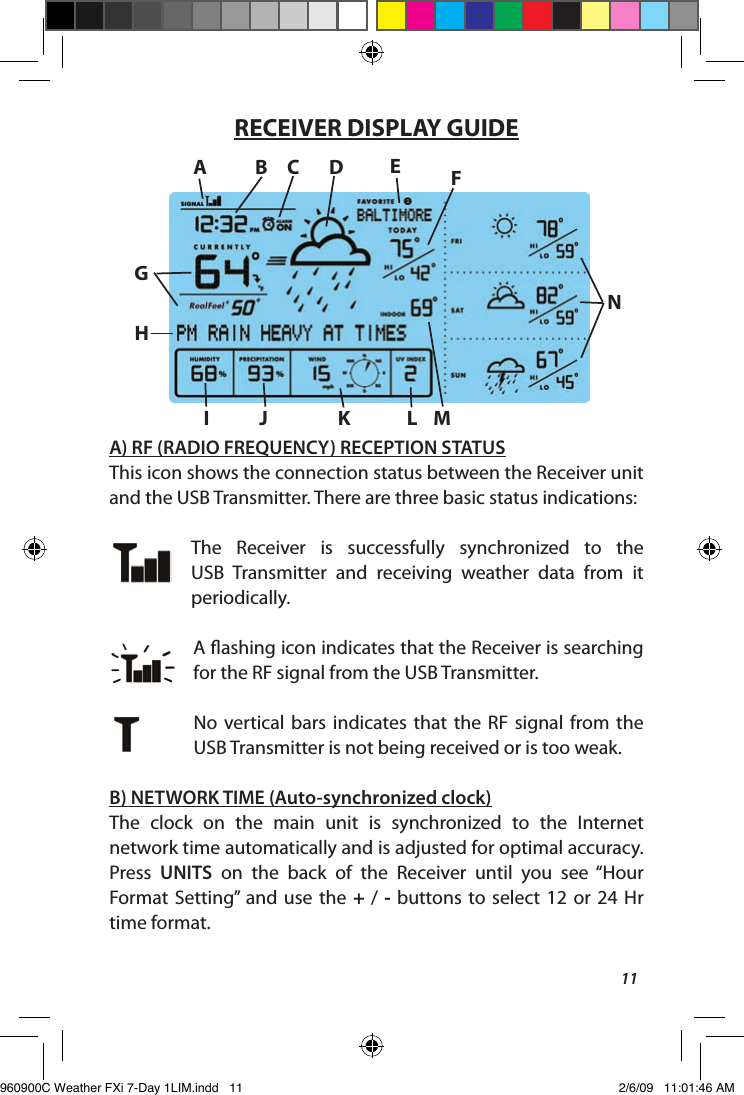
11RECEIVER DISPLAY GUIDEA) RF (RADIO FREQUENCY) RECEPTION STATUSThis icon shows the connection status between the Receiver unit and the USB Transmitter. There are three basic status indications:The  Receiver  is  successfully  synchronized  to  the USB  Transmitter  and  receiving  weather  data  from  it periodically. A ashing icon indicates that the Receiver is searching for the RF signal from the USB Transmitter.No  vertical  bars  indicates that  the  RF  signal  from  the USB Transmitter is not being received or is too weak. B) NETWORK TIME (Auto-synchronized clock)The  clock  on  the  main  unit  is  synchronized  to  the  Internet network time automatically and is adjusted for optimal accuracy. Press  UNITS  on  the  back  of  the  Receiver  until  you  see  “Hour Format  Setting”  and  use the  +  /  -  buttons to  select  12  or  24  Hr time format.AB C D FGEHI J K L MN   960900C Weather FXi 7-Day 1LIM.indd   11 2/6/09   11:01:46 AM
12NOTE: If your PC is not connected to the internet for a long period of time, the clock display may not be accurate. Once you reconnect to the internet, exit and then relaunch the Weather FXi software, then click “Send to Receiver”.C) ALARM ON INDICATORIcon  appears  conrming  the  alarm  has  been  set  by  pressing ALARM. D) WEATHER FORECAST SYMBOLS (ICONS)Please see the “Forecast Icons Reference” at the back of this manual for  a  complete  table  of  the  forecast  icons  for  the  Weather  FXi software screen and the Receiver display, along with the weather conditions they indicate.E) FAVORITE LOCATION INDICATORAll the displayed weather data is for the location currently selected on the Receiver. The numbers 1-5 shown here correspond to the location  boxes  (from  left  to  right)  across  the  top  of  the  screen in  the  Weather  FXi  application.  “Favorite  #1”  is  your  home  or current location, same as the rst box on the left in the Weather FXi software screen. Use the + or - buttons on the left side of the Receiver  to  change  the  Receiver’s  display  to  show  the  weather forecast for the other cities (you will see the names of locations 2-5). Note: if you select an “empty” location on the Receiver, which does  not have  a  location set  for  it  in  the  corresponding box  in  the software (the box is blank in the Weather FXi application), no data will be displayed on the Receiver. F) HI / LO TEMPERATURE FORECAST (Today)Indicates  the  forecasted  high  and  low  temperatures  for  the  current day. 960900C Weather FXi 7-Day 1LIM.indd   12 2/6/09   11:01:46 AM
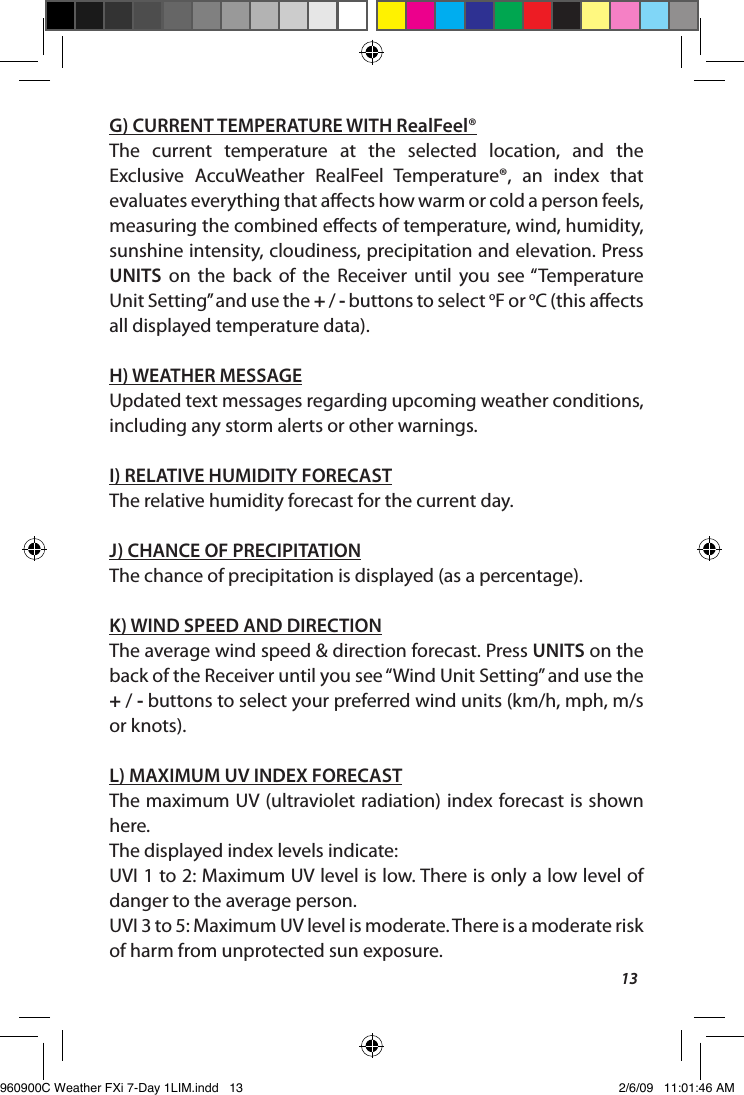
13G) CURRENT TEMPERATURE WITH RealFeel®The  current  temperature  at  the  selected  location,  and  the Exclusive  AccuWeather  RealFeel  Temperature®,  an  index  that evaluates everything that aects how warm or cold a person feels, measuring the combined eects of temperature, wind, humidity, sunshine intensity, cloudiness, precipitation and elevation. Press UNITS  on  the  back  of  the  Receiver  until  you  see “Temperature Unit Setting” and use the + / - buttons to select oF or oC (this aects all displayed temperature data).H) WEATHER MESSAGEUpdated text messages regarding upcoming weather conditions, including any storm alerts or other warnings.I) RELATIVE HUMIDITY FORECASTThe relative humidity forecast for the current day.J) CHANCE OF PRECIPITATIONThe chance of precipitation is displayed (as a percentage). K) WIND SPEED AND DIRECTIONThe average wind speed & direction forecast. Press UNITS on the back of the Receiver until you see “Wind Unit Setting” and use the + / - buttons to select your preferred wind units (km/h, mph, m/s or knots).L) MAXIMUM UV INDEX FORECASTThe maximum UV (ultraviolet radiation) index forecast is shown here.The displayed index levels indicate:UVI 1 to 2: Maximum UV level is low. There is only a low level of danger to the average person.UVI 3 to 5: Maximum UV level is moderate. There is a moderate risk of harm from unprotected sun exposure.960900C Weather FXi 7-Day 1LIM.indd   13 2/6/09   11:01:46 AM
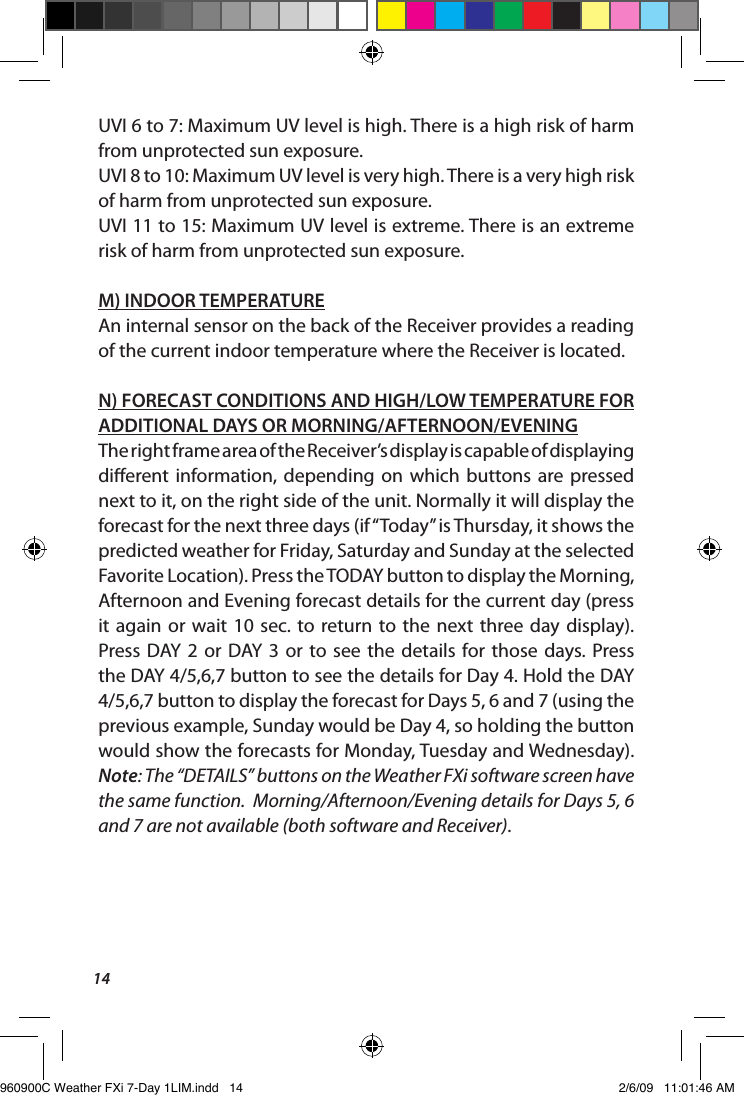
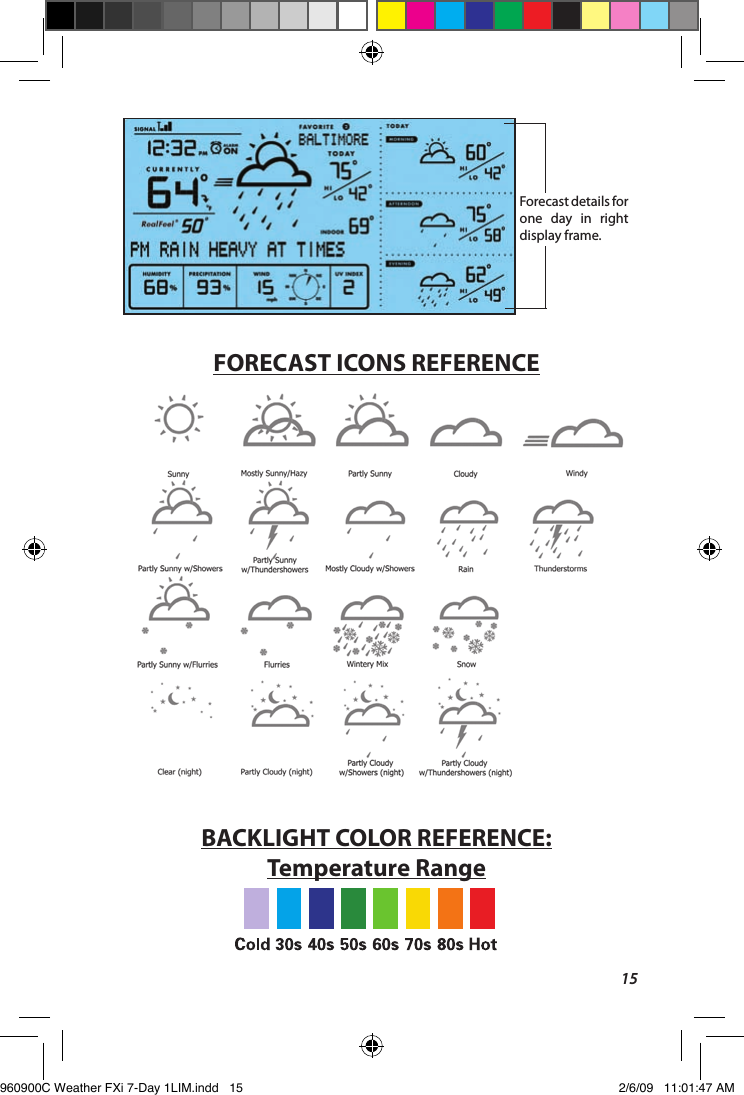
14UVI 6 to 7: Maximum UV level is high. There is a high risk of harm from unprotected sun exposure.UVI 8 to 10: Maximum UV level is very high. There is a very high risk of harm from unprotected sun exposure.UVI 11 to 15: Maximum UV level is extreme. There is an extreme risk of harm from unprotected sun exposure.M) INDOOR TEMPERATUREAn internal sensor on the back of the Receiver provides a reading of the current indoor temperature where the Receiver is located.N) FORECAST CONDITIONS AND HIGH/LOW TEMPERATURE FOR ADDITIONAL DAYS OR MORNING/AFTERNOON/EVENINGThe right frame area of the Receiver’s display is capable of displaying dierent  information,  depending  on  which  buttons  are pressed next to it, on the right side of the unit. Normally it will display the forecast for the next three days (if “Today” is Thursday, it shows the predicted weather for Friday, Saturday and Sunday at the selected Favorite Location). Press the TODAY button to display the Morning, Afternoon and Evening forecast details for the current day (press it again  or  wait  10  sec.  to  return to  the  next  three day  display). Press DAY  2  or  DAY  3  or  to  see  the details  for  those  days. Press the DAY 4/5,6,7 button to see the details for Day 4. Hold the DAY 4/5,6,7 button to display the forecast for Days 5, 6 and 7 (using the previous example, Sunday would be Day 4, so holding the button would show the forecasts for Monday, Tuesday and Wednesday). Note: The “DETAILS” buttons on the Weather FXi software screen have the same function.  Morning/Afternoon/Evening details for Days 5, 6 and 7 are not available (both software and Receiver).960900C Weather FXi 7-Day 1LIM.indd   14 2/6/09   11:01:46 AM
15Forecast details for one  day  in  right display frame.FORECAST ICONS REFERENCEBACKLIGHT COLOR REFERENCE: Temperature Range960900C Weather FXi 7-Day 1LIM.indd   15 2/6/09   11:01:47 AM
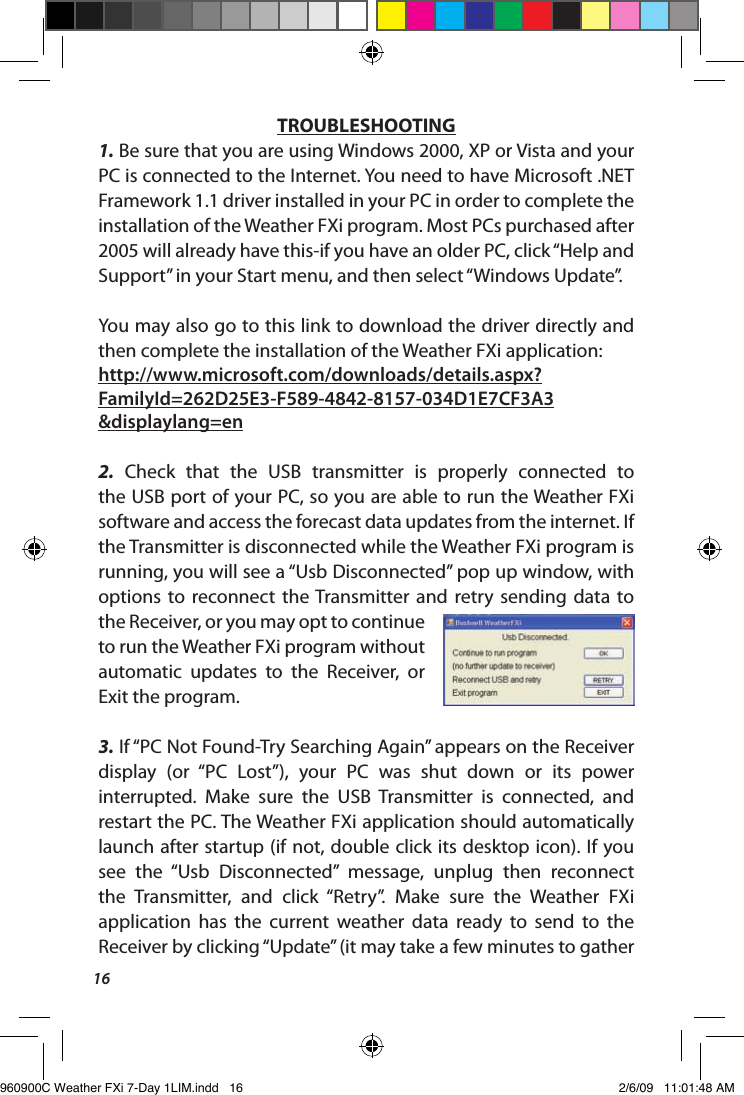
16TROUBLESHOOTING1. Be sure that you are using Windows 2000, XP or Vista and your PC is connected to the Internet. You need to have Microsoft .NET Framework 1.1 driver installed in your PC in order to complete the installation of the Weather FXi program. Most PCs purchased after 2005 will already have this-if you have an older PC, click “Help and Support” in your Start menu, and then select “Windows Update”. You may also go to this link to download the driver directly and then complete the installation of the Weather FXi application: http://www.microsoft.com/downloads/details.aspx?FamilyId=262D25E3-F589-4842-8157-034D1E7CF3A3&displaylang=en2.  Check  that  the  USB  transmitter  is  properly  connected  to the USB port of your PC, so you are able to run the Weather FXi software and access the forecast data updates from the internet. If the Transmitter is disconnected while the Weather FXi program is running, you will see a “Usb Disconnected” pop up window, with options  to  reconnect  the Transmitter  and  retry  sending  data  to the Receiver, or you may opt to continue to run the Weather FXi program without automatic  updates  to  the  Receiver,  or Exit the program.3. If “PC Not Found-Try Searching Again” appears on the Receiver display  (or  “PC  Lost”),  your  PC  was  shut  down  or  its  power interrupted.  Make  sure  the  USB  Transmitter  is  connected,  and restart the PC. The Weather FXi application should automatically launch after startup (if not, double click its desktop icon). If you see  the  “Usb  Disconnected”  message,  unplug  then  reconnect the  Transmitter,  and  click  “Retry”.  Make  sure  the  Weather  FXi application  has  the  current  weather  data  ready  to  send  to  the Receiver by clicking “Update” (it may take a few minutes to gather 960900C Weather FXi 7-Day 1LIM.indd   16 2/6/09   11:01:48 AM
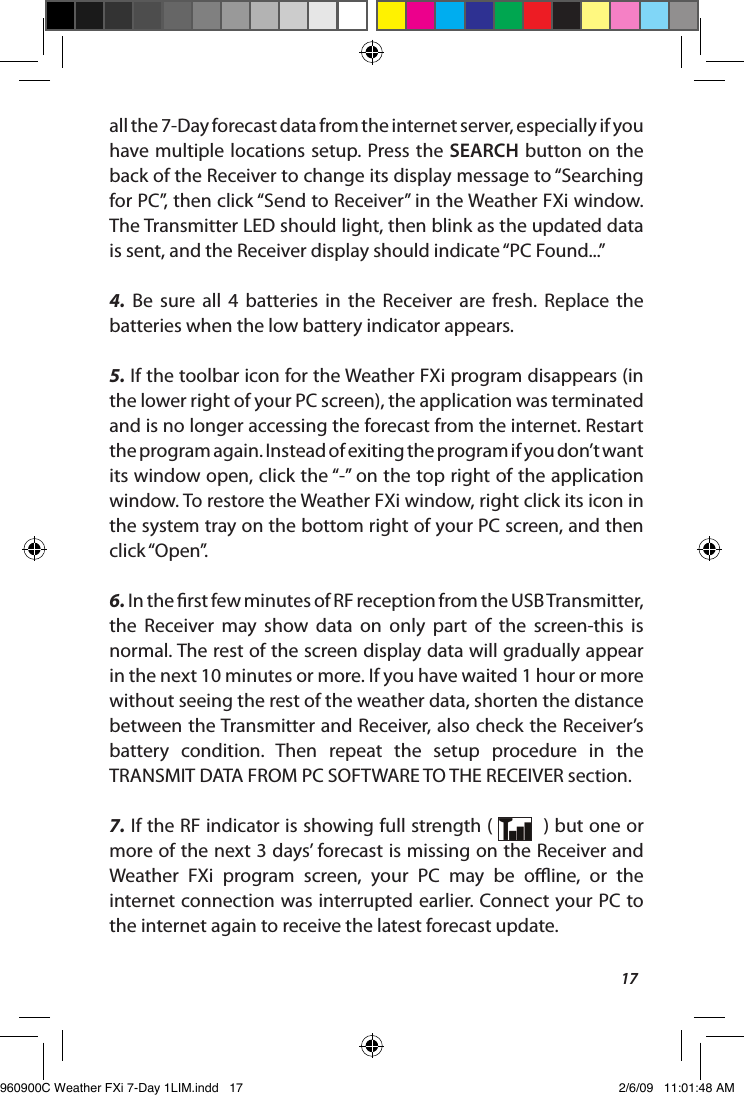
17all the 7-Day forecast data from the internet server, especially if you have multiple  locations setup. Press  the SEARCH button on  the back of the Receiver to change its display message to “Searching for PC”, then click “Send to Receiver” in the Weather FXi window. The Transmitter LED should light, then blink as the updated data is sent, and the Receiver display should indicate “PC Found...”4.  Be  sure  all  4  batteries  in  the  Receiver  are  fresh.  Replace  the batteries when the low battery indicator appears.5. If the toolbar icon for the Weather FXi program disappears (in the lower right of your PC screen), the application was terminated and is no longer accessing the forecast from the internet. Restart the program again. Instead of exiting the program if you don’t want its window open, click the “-” on the top right of the application window. To restore the Weather FXi window, right click its icon in the system tray on the bottom right of your PC screen, and then click “Open”.6. In the rst few minutes of RF reception from the USB Transmitter, the  Receiver  may  show  data  on  only  part  of  the  screen-this  is normal. The rest of the screen display data will gradually appear in the next 10 minutes or more. If you have waited 1 hour or more without seeing the rest of the weather data, shorten the distance between the Transmitter and Receiver, also check the Receiver’s battery  condition.  Then  repeat  the  setup  procedure  in  the TRANSMIT DATA FROM PC SOFTWARE TO THE RECEIVER section. 7. If the RF indicator is showing full strength (    ) but one or more of the next 3 days’ forecast is missing on the Receiver and Weather  FXi  program  screen,  your  PC  may  be  oine,  or  the internet connection was interrupted earlier. Connect your PC to the internet again to receive the latest forecast update.960900C Weather FXi 7-Day 1LIM.indd   17 2/6/09   11:01:48 AM
188. If all forecast information appears except the UV Index, your PC may have been oine for more than 1 day. Connect your PC to the internet again to receive the latest UVI forecast update.9.  If  the  forecast  reading  of  the Weather  FXi  software  does  not match with the Receiver, click “SEND TO RECEIVER” to re-transmit the signal again and wait for at least 10 minutes. 10. If your time on the Weather FXi software window and Receiver display  is  o  by  half  an  hour  or  more,  click “SETTINGS”  in  the Weather FXi application and set the hour oset until the proper time is set.11. If your city does not appear in the location list, select the one nearest to your home location.12.  Heavy  internet  trac  may  slow  down  the  response  time  of the weather data server temporary. Try again later if you wish to update the forecast manually by clicking “UPDATE” on the Weather FXi program screen.For any other problems or questions,please contact Bushnell Customer Service at: (800) 423-3537  •  www.bushnell.com960900C Weather FXi 7-Day 1LIM.indd   18 2/6/09   11:01:48 AM
NOTE: THE MANUFACTURER IS NOT RESPONSIBLE FOR ANY RADIO OR TV INTERFERENCE CAUSED BY UNAUTHORIZED MODIFICATIONS TO THIS EQUIPMENT. SUCH MODIFICATIONS COULD VOID THE USER AUTHORITY TO OPERATE THE EQUIPMENT
©2009 Bushnell Outdoor ProductsFor further questions or additional information please contact:Bushnell Outdoor Products9200 Cody, Overland Park, Kansas 66214(800) 423-3537  •  www.bushnell.com960900C Weather FXi 7-Day 1LIM.indd   20 2/6/09   11:01:49 AM

Navigation menu