Argus Technologies Co AGS-EW2104 Wireless Router User Manual WA601 WE2104

Argus Technologies Co Ltd Wireless Router WA601 WE2104

Manual

1                                       Web Edition Nov. 2001
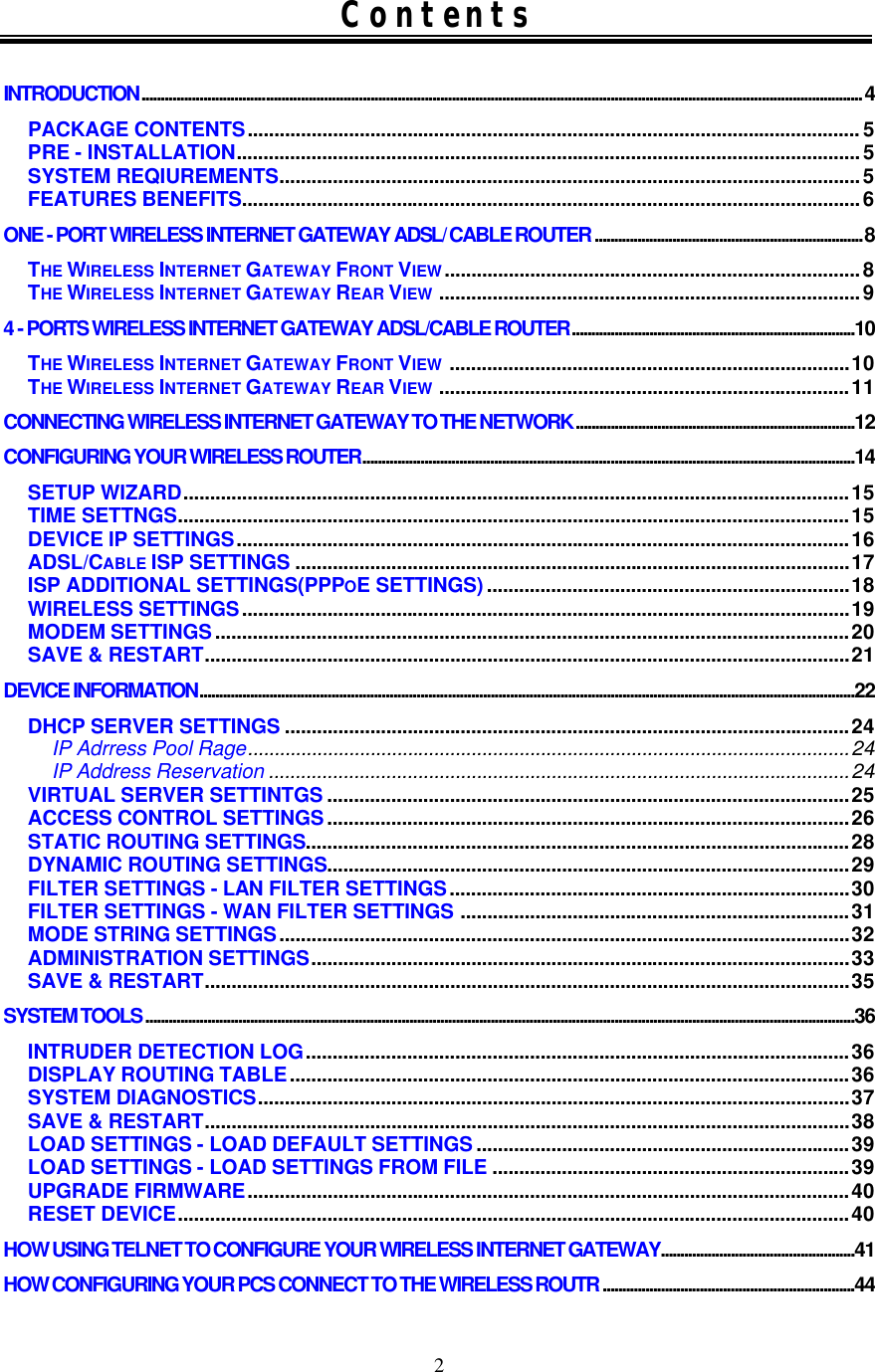
2 Contents  INTRODUCTION.......................................................................................................................................................................................... 4 PACKAGE CONTENTS................................................................................................................... 5 PRE - INSTALLATION.....................................................................................................................5 SYSTEM REQIUREMENTS.............................................................................................................5 FEATURES BENEFITS....................................................................................................................6 ONE - PORT WIRELESS INTERNET GATEWAY ADSL/ CABLE ROUTER .....................................................................8 THE WIRELESS INTERNET GATEWAY FRONT VIEW..............................................................................8 THE WIRELESS INTERNET GATEWAY REAR VIEW ...............................................................................9 4 - PORTS WIRELESS INTERNET GATEWAY ADSL/CABLE ROUTER.........................................................................10 THE WIRELESS INTERNET GATEWAY FRONT VIEW ...........................................................................10 THE WIRELESS INTERNET GATEWAY REAR VIEW .............................................................................11 CONNECTING WIRELESS INTERNET GATEWAY TO THE NETWORK........................................................................12 CONFIGURING YOUR WIRELESS ROUTER...............................................................................................................................14 SETUP WIZARD.............................................................................................................................15 TIME SETTNGS..............................................................................................................................15 DEVICE IP SETTINGS...................................................................................................................16 ADSL/CABLE ISP SETTINGS ........................................................................................................17 ISP ADDITIONAL SETTINGS(PPPOE SETTINGS)....................................................................18 WIRELESS SETTINGS..................................................................................................................19 MODEM SETTINGS.......................................................................................................................20 SAVE & RESTART.........................................................................................................................21 DEVICE INFORMATION.........................................................................................................................................................................22 DHCP SERVER SETTINGS ..........................................................................................................24 IP Adrress Pool Rage.................................................................................................................24 IP Address Reservation .............................................................................................................24 VIRTUAL SERVER SETTINTGS ..................................................................................................25 ACCESS CONTROL SETTINGS..................................................................................................26 STATIC ROUTING SETTINGS......................................................................................................28 DYNAMIC ROUTING SETTINGS..................................................................................................29 FILTER SETTINGS - LAN FILTER SETTINGS...........................................................................30 FILTER SETTINGS - WAN FILTER SETTINGS .........................................................................31 MODE STRING SETTINGS...........................................................................................................32 ADMINISTRATION SETTINGS.....................................................................................................33 SAVE & RESTART.........................................................................................................................35 SYSTEM TOOLS .......................................................................................................................................................................................36 INTRUDER DETECTION LOG......................................................................................................36 DISPLAY ROUTING TABLE.........................................................................................................36 SYSTEM DIAGNOSTICS...............................................................................................................37 SAVE & RESTART.........................................................................................................................38 LOAD SETTINGS - LOAD DEFAULT SETTINGS......................................................................39 LOAD SETTINGS - LOAD SETTINGS FROM FILE ...................................................................39 UPGRADE FIRMWARE.................................................................................................................40 RESET DEVICE..............................................................................................................................40 HOW USING TELNET TO CONFIGURE YOUR WIRELESS INTERNET GATEWAY..................................................41 HOW CONFIGURING YOUR PCS CONNECT TO THE WIRELESS ROUTR .................................................................44
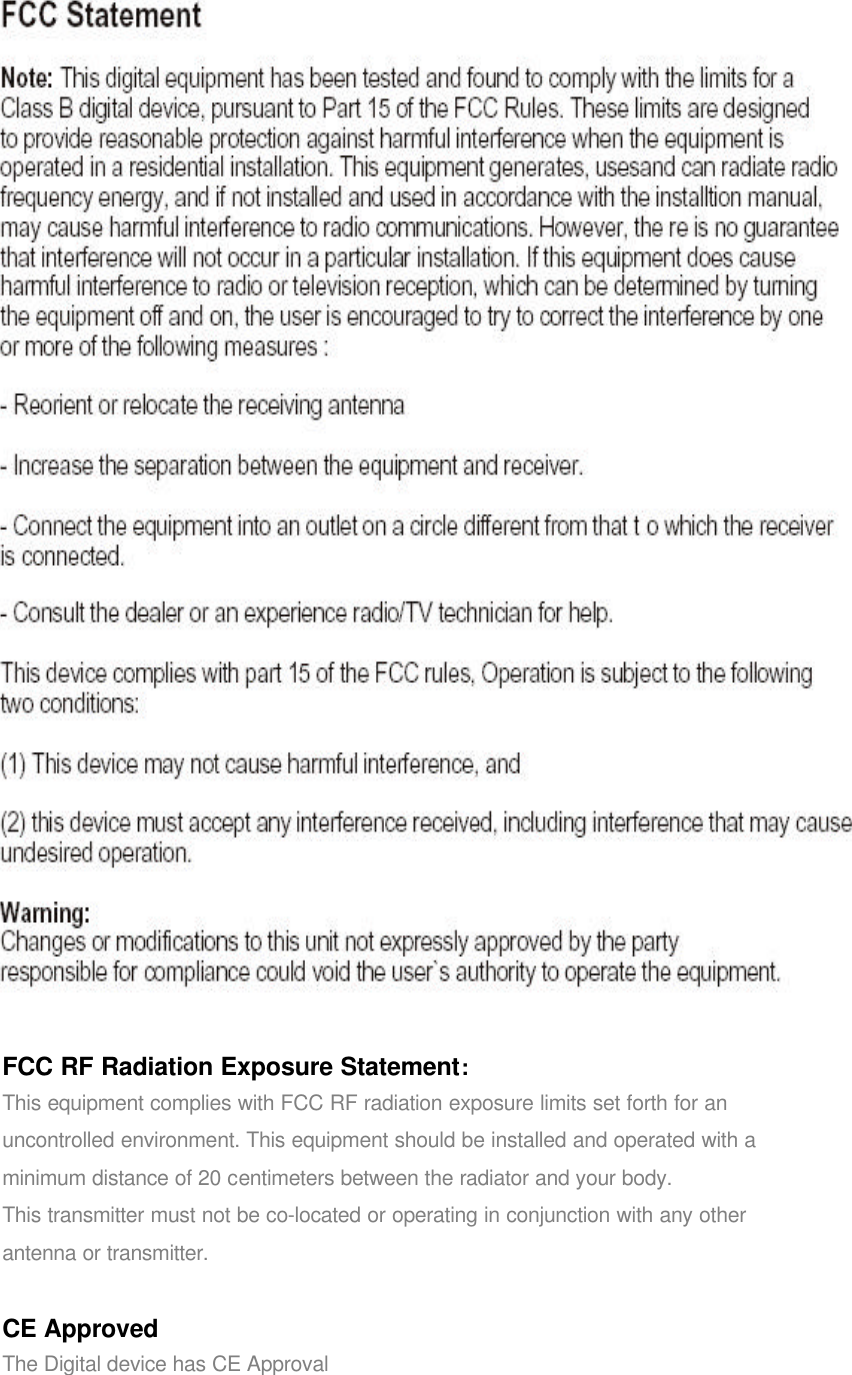
FCC RF Radiation Exposure Statement:This equipment complies with FCC RF radiation exposure limits set forth for anuncontrolled environment. This equipment should be installed and operated with aminimum distance of 20 centimeters between the radiator and your body.This transmitter must not be co-located or operating in conjunction with any otherantenna or transmitter.CE ApprovedThe Digital device has CE Approval
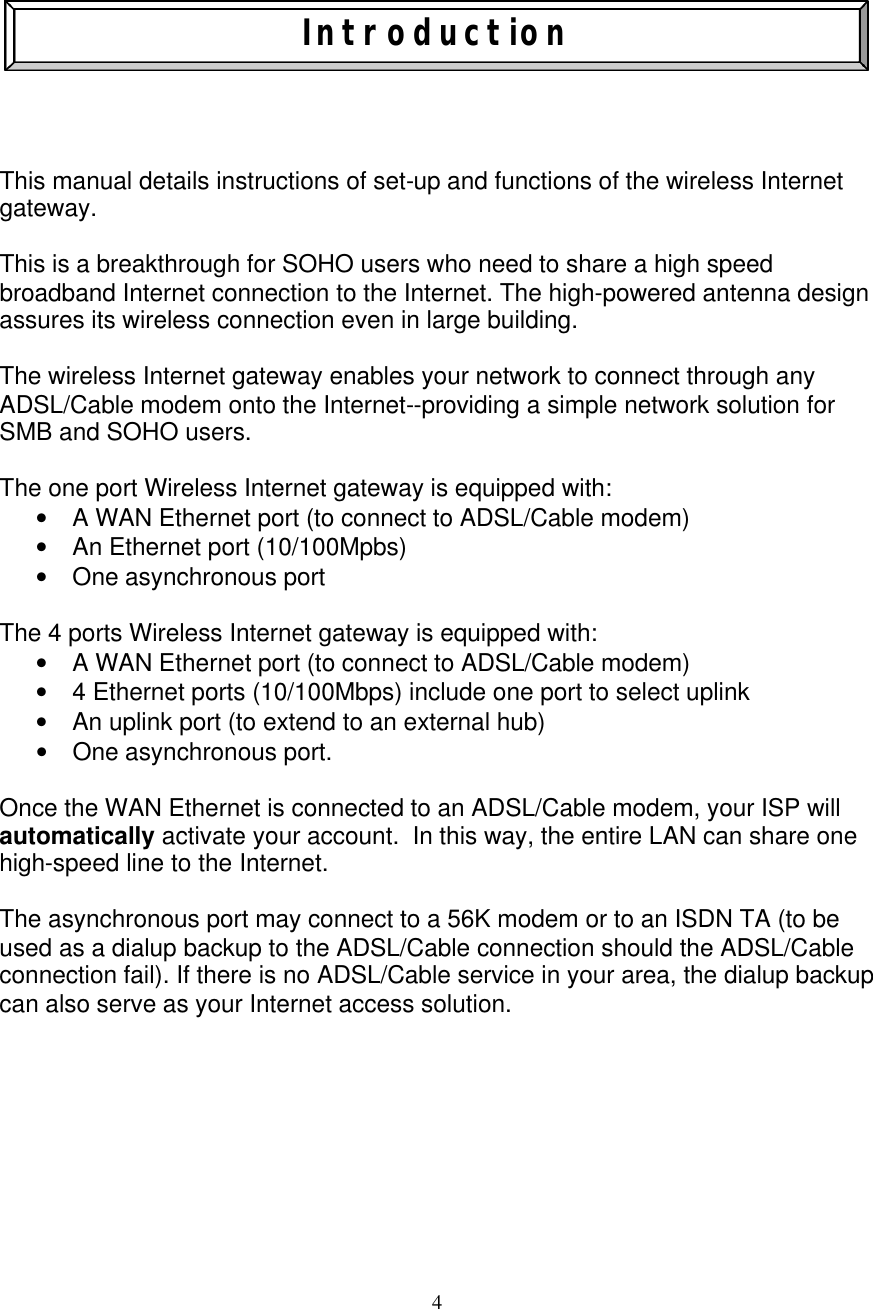
4    Introduction     This manual details instructions of set-up and functions of the wireless Internet gateway.  This is a breakthrough for SOHO users who need to share a high speed  broadband Internet connection to the Internet. The high-powered antenna design assures its wireless connection even in large building.  The wireless Internet gateway enables your network to connect through any ADSL/Cable modem onto the Internet--providing a simple network solution for SMB and SOHO users.   The one port Wireless Internet gateway is equipped with:  • A WAN Ethernet port (to connect to ADSL/Cable modem) • An Ethernet port (10/100Mpbs)    • One asynchronous port  The 4 ports Wireless Internet gateway is equipped with:  • A WAN Ethernet port (to connect to ADSL/Cable modem) • 4 Ethernet ports (10/100Mbps) include one port to select uplink    • An uplink port (to extend to an external hub)    • One asynchronous port.  Once the WAN Ethernet is connected to an ADSL/Cable modem, your ISP will automatically activate your account.  In this way, the entire LAN can share one high-speed line to the Internet.  The asynchronous port may connect to a 56K modem or to an ISDN TA (to be used as a dialup backup to the ADSL/Cable connection should the ADSL/Cable connection fail). If there is no ADSL/Cable service in your area, the dialup backup can also serve as your Internet access solution.
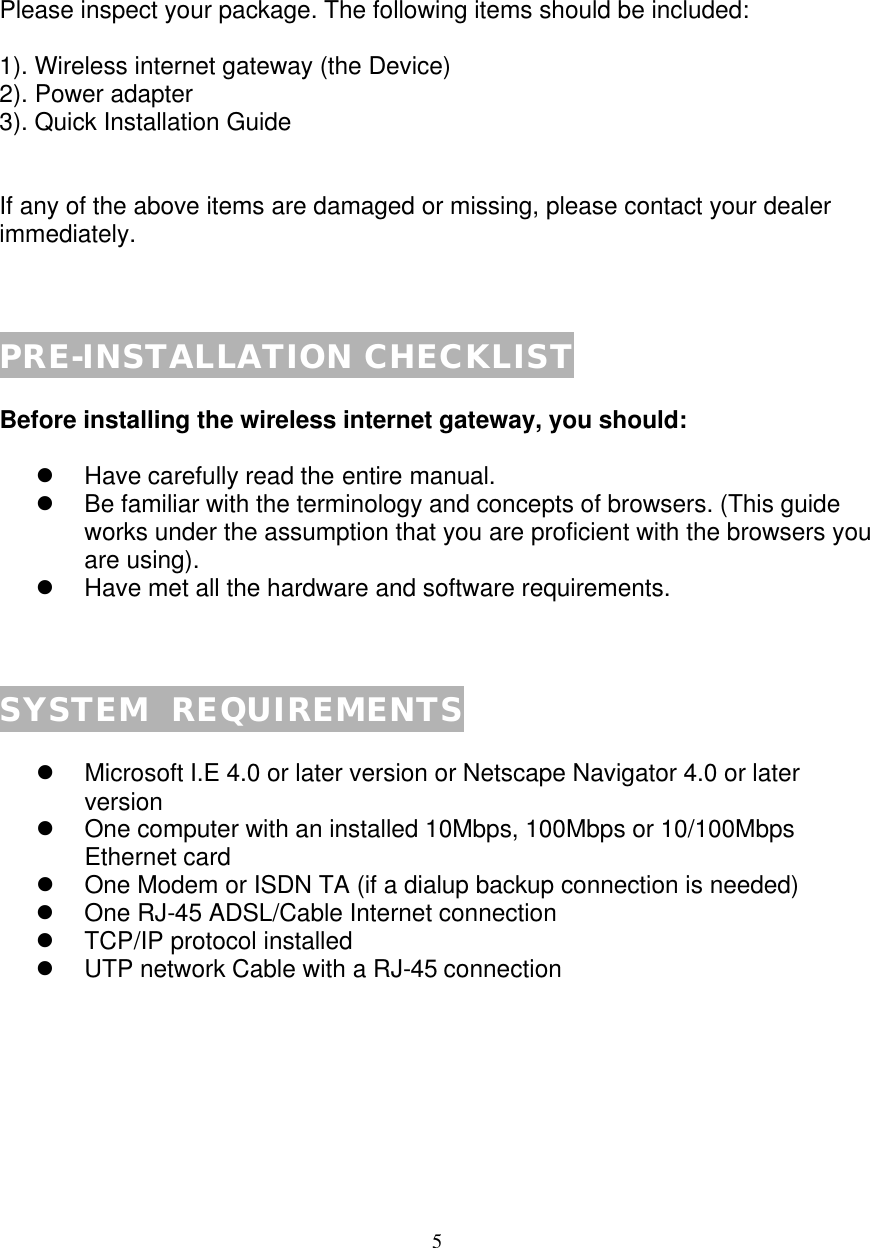
5   PACKAGE CONTENTS  Please inspect your package. The following items should be included:  1). Wireless internet gateway (the Device) 2). Power adapter 3). Quick Installation Guide   If any of the above items are damaged or missing, please contact your dealer immediately.    PRE-INSTALLATION CHECKLIST  Before installing the wireless internet gateway, you should:  l Have carefully read the entire manual. l Be familiar with the terminology and concepts of browsers. (This guide works under the assumption that you are proficient with the browsers you are using). l Have met all the hardware and software requirements.    SYSTEM  REQUIREMENTS  l Microsoft I.E 4.0 or later version or Netscape Navigator 4.0 or later version  l One computer with an installed 10Mbps, 100Mbps or 10/100Mbps Ethernet card l One Modem or ISDN TA (if a dialup backup connection is needed) l One RJ-45 ADSL/Cable Internet connection  l TCP/IP protocol installed l UTP network Cable with a RJ-45 connection
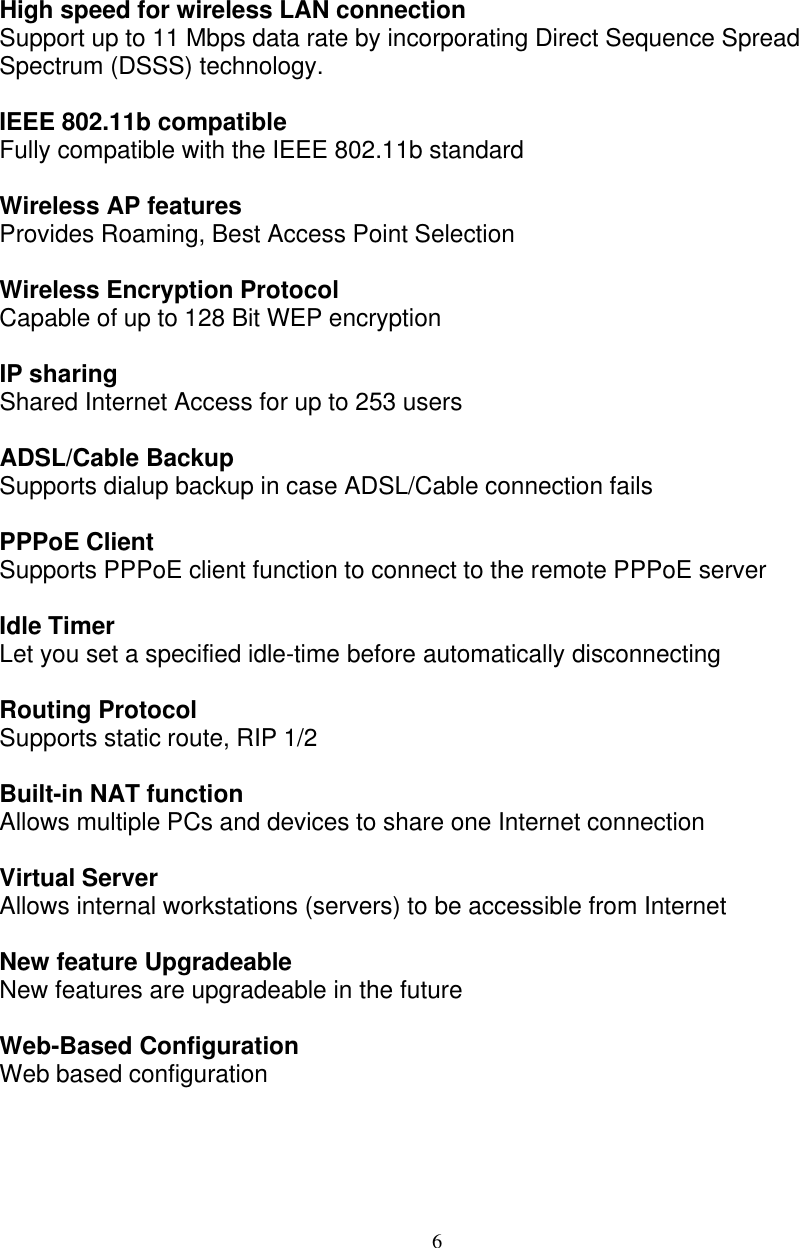
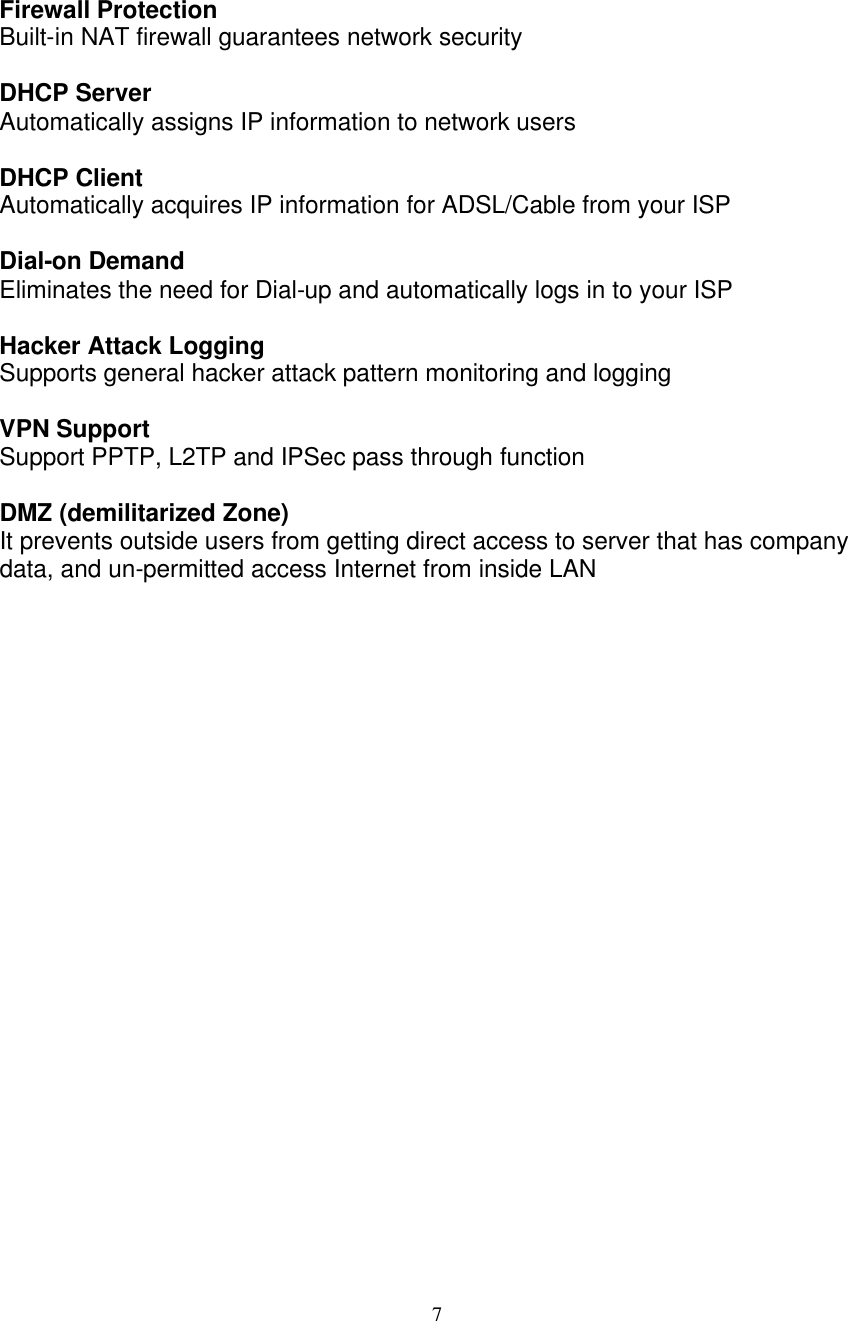
6   FEATURES AND BENEFITS  High speed for wireless LAN connection Support up to 11 Mbps data rate by incorporating Direct Sequence Spread Spectrum (DSSS) technology.  IEEE 802.11b compatible Fully compatible with the IEEE 802.11b standard  Wireless AP features Provides Roaming, Best Access Point Selection  Wireless Encryption Protocol Capable of up to 128 Bit WEP encryption  IP sharing Shared Internet Access for up to 253 users  ADSL/Cable Backup Supports dialup backup in case ADSL/Cable connection fails  PPPoE Client Supports PPPoE client function to connect to the remote PPPoE server  Idle Timer Let you set a specified idle-time before automatically disconnecting  Routing Protocol  Supports static route, RIP 1/2  Built-in NAT function Allows multiple PCs and devices to share one Internet connection  Virtual Server Allows internal workstations (servers) to be accessible from Internet  New feature Upgradeable New features are upgradeable in the future   Web-Based Configuration Web based configuration
7   Firewall Protection Built-in NAT firewall guarantees network security   DHCP Server Automatically assigns IP information to network users  DHCP Client Automatically acquires IP information for ADSL/Cable from your ISP  Dial-on Demand  Eliminates the need for Dial-up and automatically logs in to your ISP  Hacker Attack Logging  Supports general hacker attack pattern monitoring and logging  VPN Support Support PPTP, L2TP and IPSec pass through function  DMZ (demilitarized Zone) It prevents outside users from getting direct access to server that has company data, and un-permitted access Internet from inside LAN
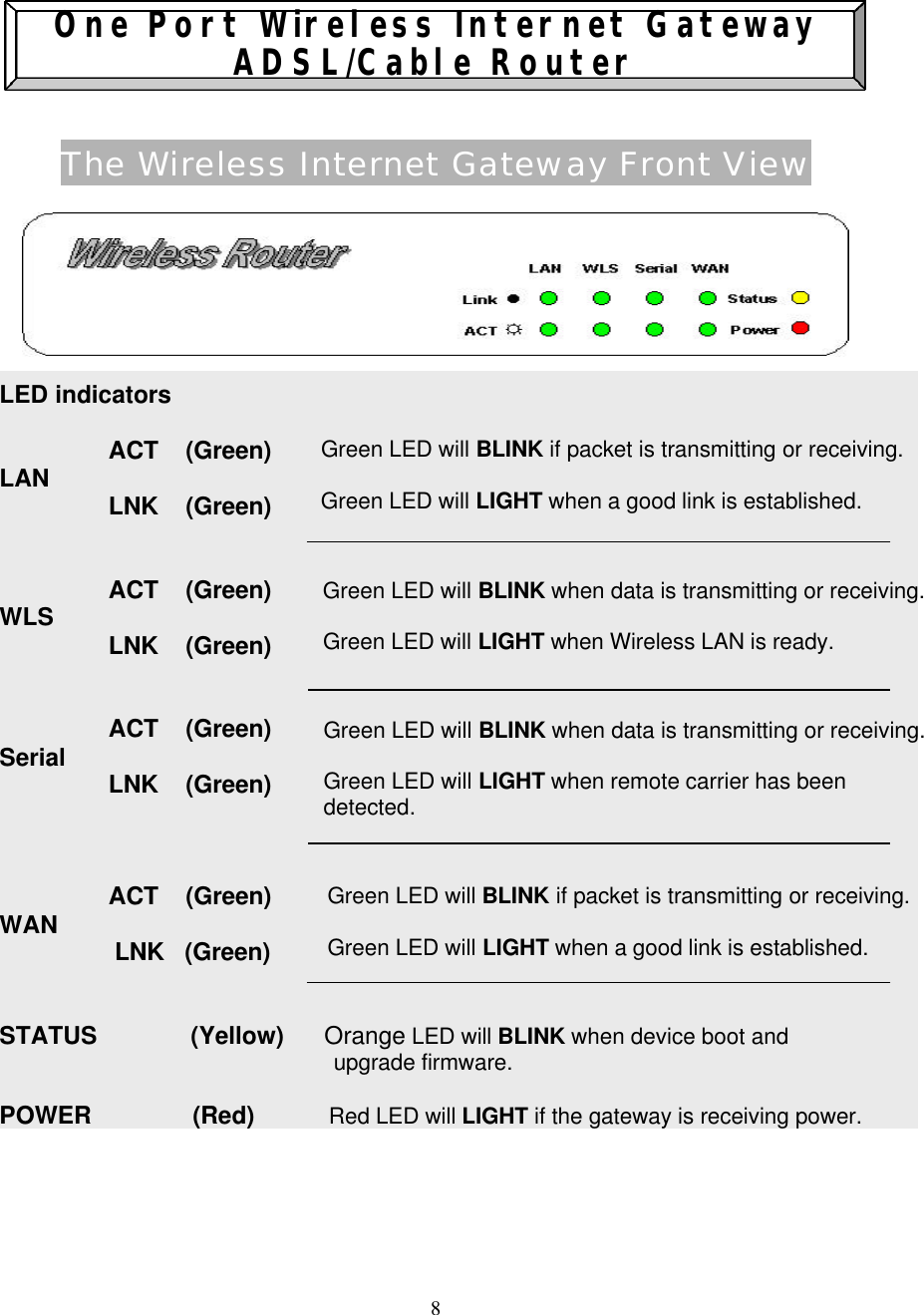
8     One Port Wireless Internet Gateway ADSL/Cable Router   The Wireless Internet Gateway Front View        LED indicators  ACT    (Green) LAN LNK    (Green)   ACT    (Green) WLS LNK    (Green)     ACT    (Green) Serial LNK    (Green)    ACT    (Green) WAN                  LNK   (Green)   STATUS              (Yellow)      Orange LED will BLINK when device boot and                                                         upgrade firmware.  POWER               (Red)           Red LED will LIGHT if the gateway is receiving power.     Green LED will BLINK when data is transmitting or receiving.  Green LED will LIGHT when Wireless LAN is ready.  Green LED will BLINK when data is transmitting or receiving.  Green LED will LIGHT when remote carrier has been detected.  Green LED will BLINK if packet is transmitting or receiving.   Green LED will LIGHT when a good link is established. Green LED will BLINK if packet is transmitting or receiving.   Green LED will LIGHT when a good link is established.
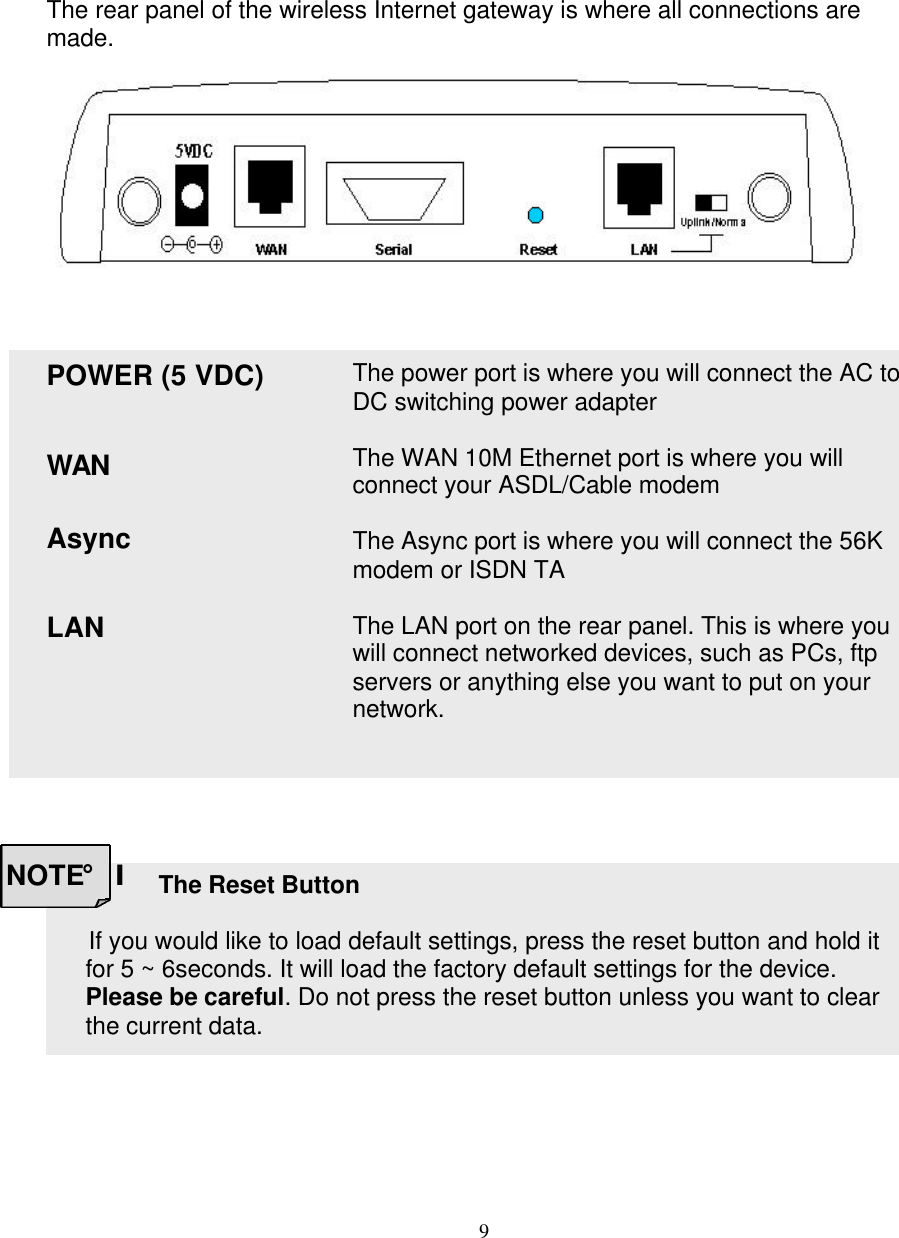
9    The Wireless Internet Gateway Rear View  The rear panel of the wireless Internet gateway is where all connections are made.            POWER (5 VDC)  WAN  Async   LAN    The power port is where you will connect the AC to DC switching power adapter  The WAN 10M Ethernet port is where you will connect your ASDL/Cable modem  The Async port is where you will connect the 56K modem or ISDN TA  The LAN port on the rear panel. This is where you will connect networked devices, such as PCs, ftp servers or anything else you want to put on your network.              The Reset Button      If you would like to load default settings, press the reset button and hold it for 5 ~ 6seconds. It will load the factory default settings for the device. Please be careful. Do not press the reset button unless you want to clear the current data. NOTE¡I
10      4 - Ports Wireless Internet Gateway ADSL/Cable Router    The Wireless Internet Gateway Front View           LED indicators  LINK (Green) LAN [1:4] Link/Act     ACT (Green)   Wireless       (Green)           Green LED will BLINK if packet is transmitting or receiving.  Serial            (Green)           Green LED will LIGHT when a good link is established.  WAN              (Green)           Green LED will LIGHT when a good link is established.  STATUS       (Yellow)           Yellow LED will BLINK when device boot and upgrade firmware.  POWER        (Red)               Red LED will LIGHT if the gateway is receiving power.  Green LED will LIGHT when a good link is established.  Green LED will BLINK if packet is transmitting or receiving.
11     The Wireless Internet Gateway Rear View  The rear panel of the wireless Internet gateway is where all connections are made.        POWER (5 VDC)      The power port is where you will connect the AC to DC switching power adapter.  WAN                         The WAN 10M Ethernet port is where you will connect your ASDL/Cable modem.  Serial                       The Serial port is where you will connect the 56K modem or ISDN TA.          LAN[1:4]                  The LAN port on the rear panel. This is where you will connect networked devices, such as PCs, ftp servers or anything else you want to put on your network.                      The Reset Button      If you would like to load default settings, press the reset button and hold it for 5 ~ 6 seconds. It will load the factory default settings for the device. Please be careful. Do not press the reset button unless you want to clear the current data. NOTE¡I
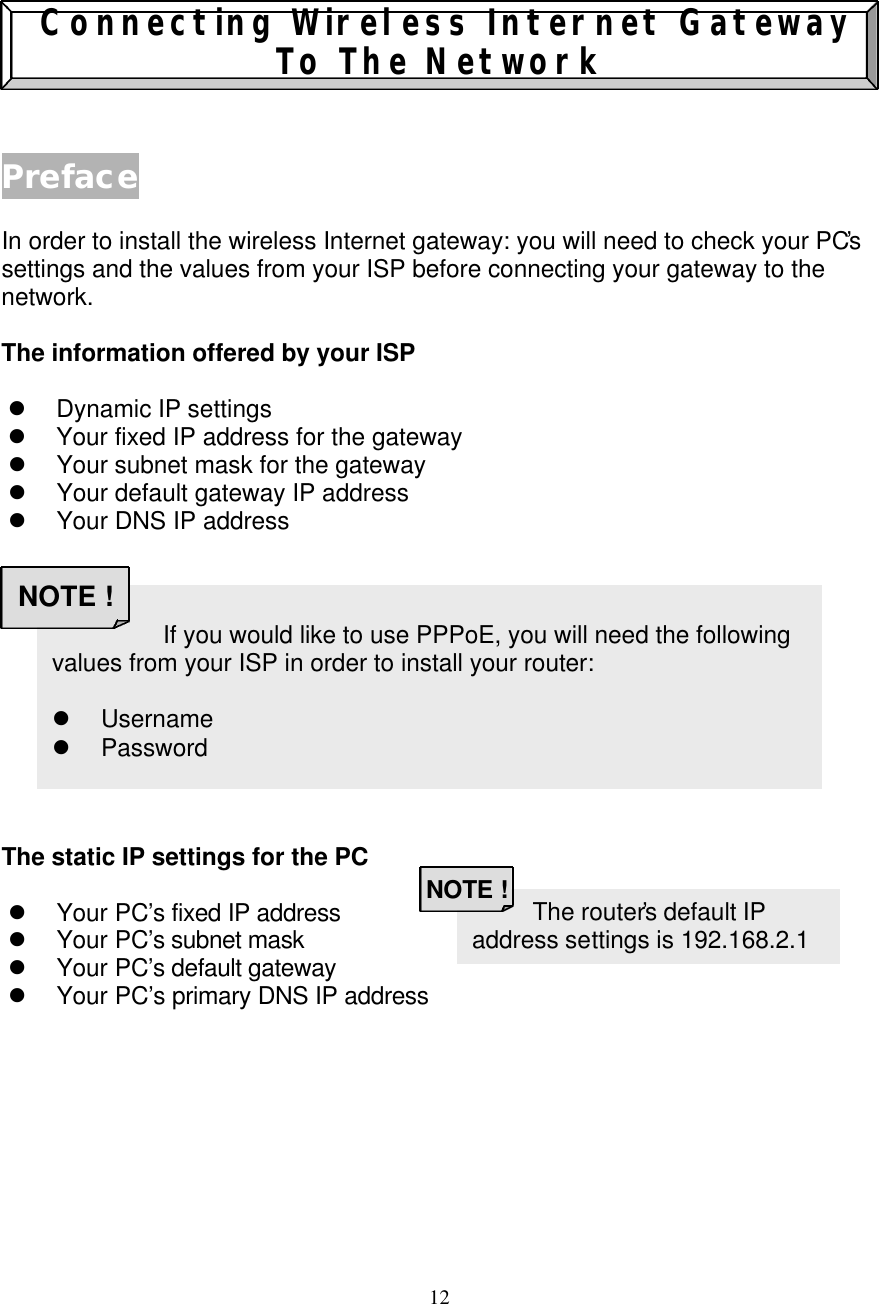
12     Connecting Wireless Internet Gateway To The Network   Preface  In order to install the wireless Internet gateway: you will need to check your PC’s settings and the values from your ISP before connecting your gateway to the network.  The information offered by your ISP  l Dynamic IP settings l Your fixed IP address for the gateway l Your subnet mask for the gateway l Your default gateway IP address l Your DNS IP address            The static IP settings for the PC  l Your PC’s fixed IP address  l Your PC’s subnet mask  l Your PC’s default gateway  l Your PC’s primary DNS IP address                    The router’s default IP address settings is 192.168.2.1 NOTE !                     If you would like to use PPPoE, you will need the following values from your ISP in order to install your router:  l Username l Password NOTE !
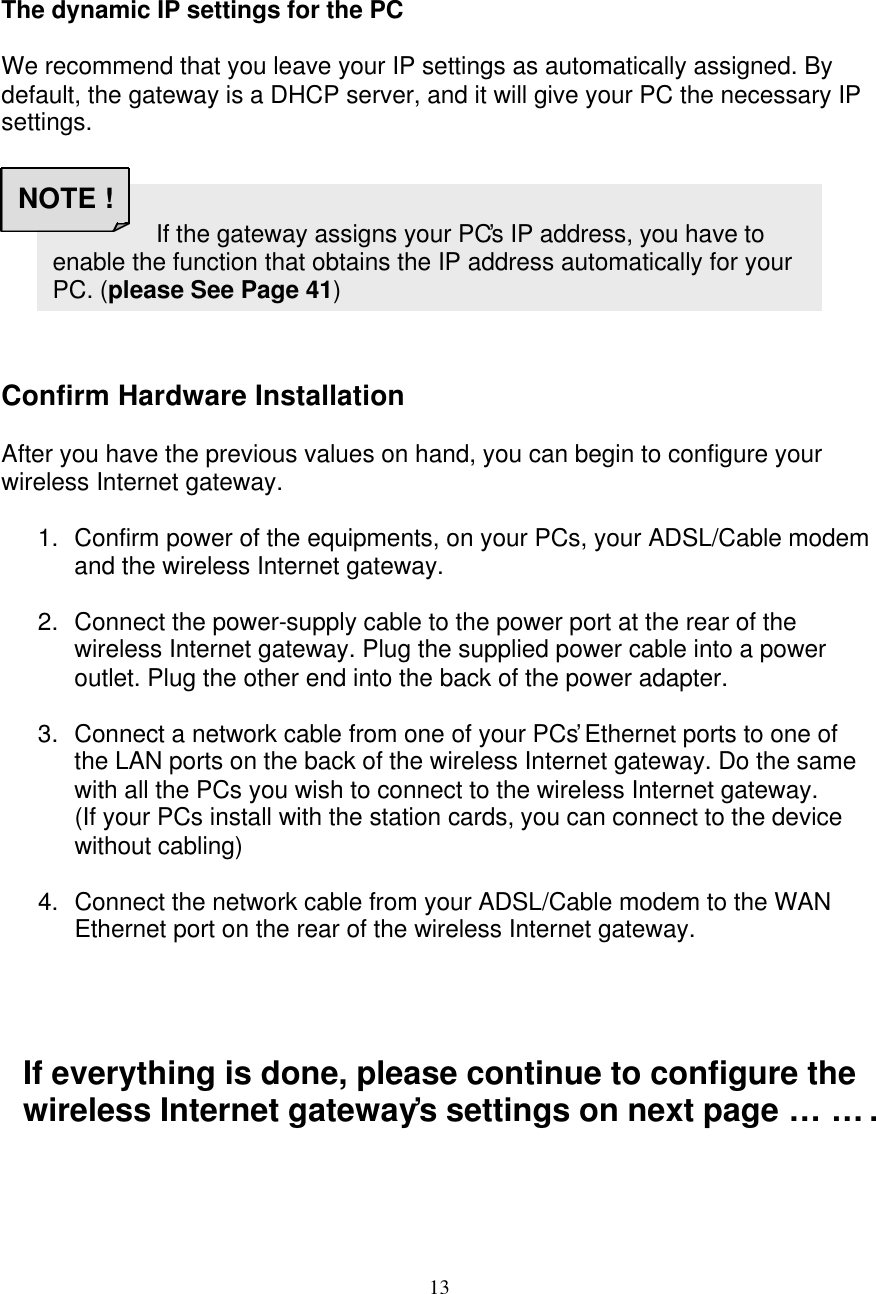
13    The dynamic IP settings for the PC  We recommend that you leave your IP settings as automatically assigned. By default, the gateway is a DHCP server, and it will give your PC the necessary IP settings.         Confirm Hardware Installation  After you have the previous values on hand, you can begin to configure your wireless Internet gateway.  1. Confirm power of the equipments, on your PCs, your ADSL/Cable modem and the wireless Internet gateway.  2. Connect the power-supply cable to the power port at the rear of the wireless Internet gateway. Plug the supplied power cable into a power outlet. Plug the other end into the back of the power adapter.  3. Connect a network cable from one of your PCs’ Ethernet ports to one of the LAN ports on the back of the wireless Internet gateway. Do the same with all the PCs you wish to connect to the wireless Internet gateway.  (If your PCs install with the station cards, you can connect to the device without cabling)  4. Connect the network cable from your ADSL/Cable modem to the WAN Ethernet port on the rear of the wireless Internet gateway.     If everything is done, please continue to configure the wireless Internet gateway’s settings on next page…….                       If the gateway assigns your PC’s IP address, you have to enable the function that obtains the IP address automatically for your PC. (please See Page 41) NOTE !
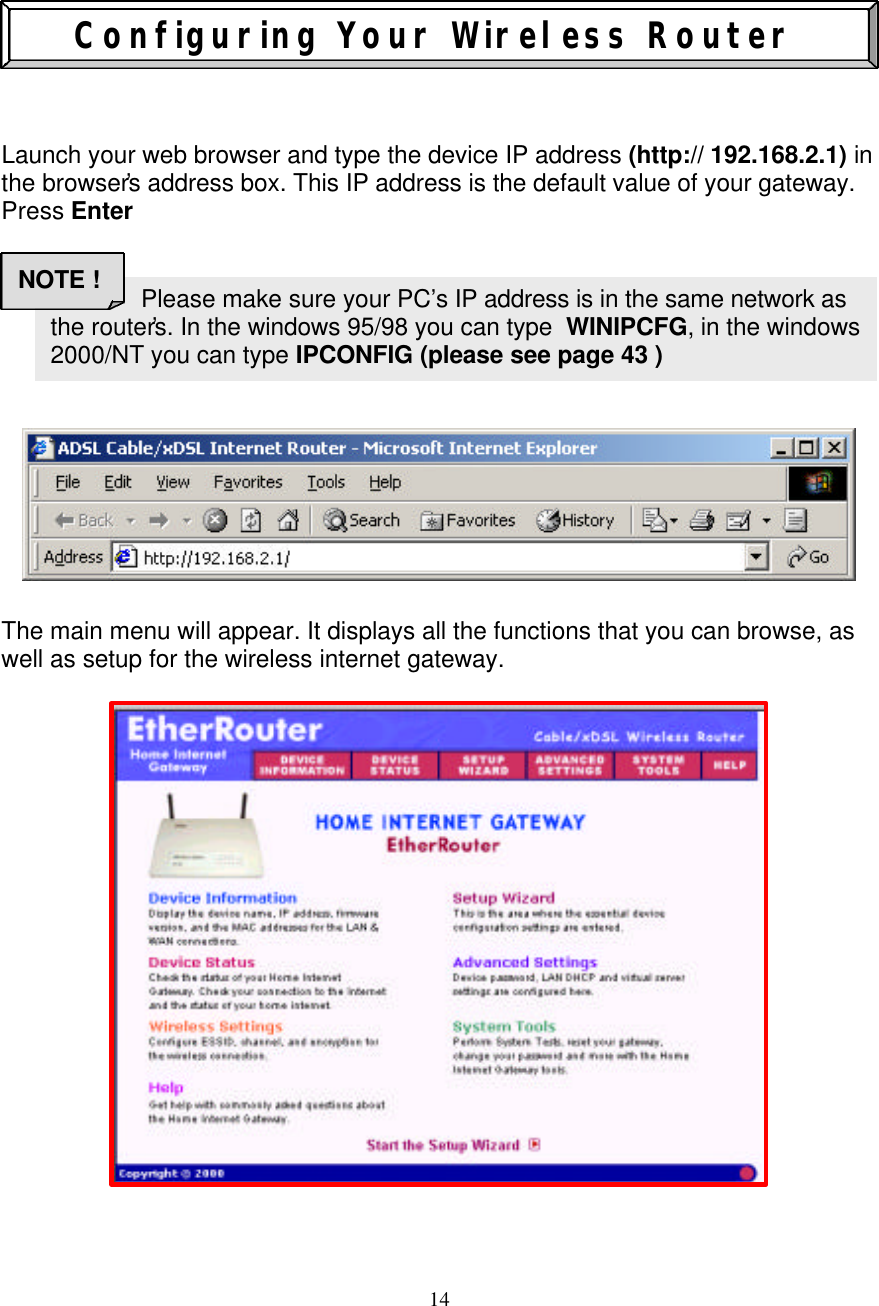
14                         Configuring Your Wireless Router    Launch your web browser and type the device IP address (http:// 192.168.2.1) in the browser’s address box. This IP address is the default value of your gateway. Press Enter               The main menu will appear. It displays all the functions that you can browse, as well as setup for the wireless internet gateway.                                    Please make sure your PC’s IP address is in the same network as the router’s. In the windows 95/98 you can type  WINIPCFG, in the windows 2000/NT you can type IPCONFIG (please see page 43 ) NOTE !
15   SETUP WIZARD  Setup wizard is a step-by-step process that will let you input all the basic settings.       Click the SETUP WIZARD   A username and password will appear. Leave the password box empty and type admin  (the default username) in the username box. Click OK The setup wizard’s page will appear.      TIME SETTINGS  Please choose the local time zone. After selecting please click Next button to continue to the next step. You can also click the buttons on the left to set up the configuration.                  If you would like to change the password please See Page 31 NOTE !
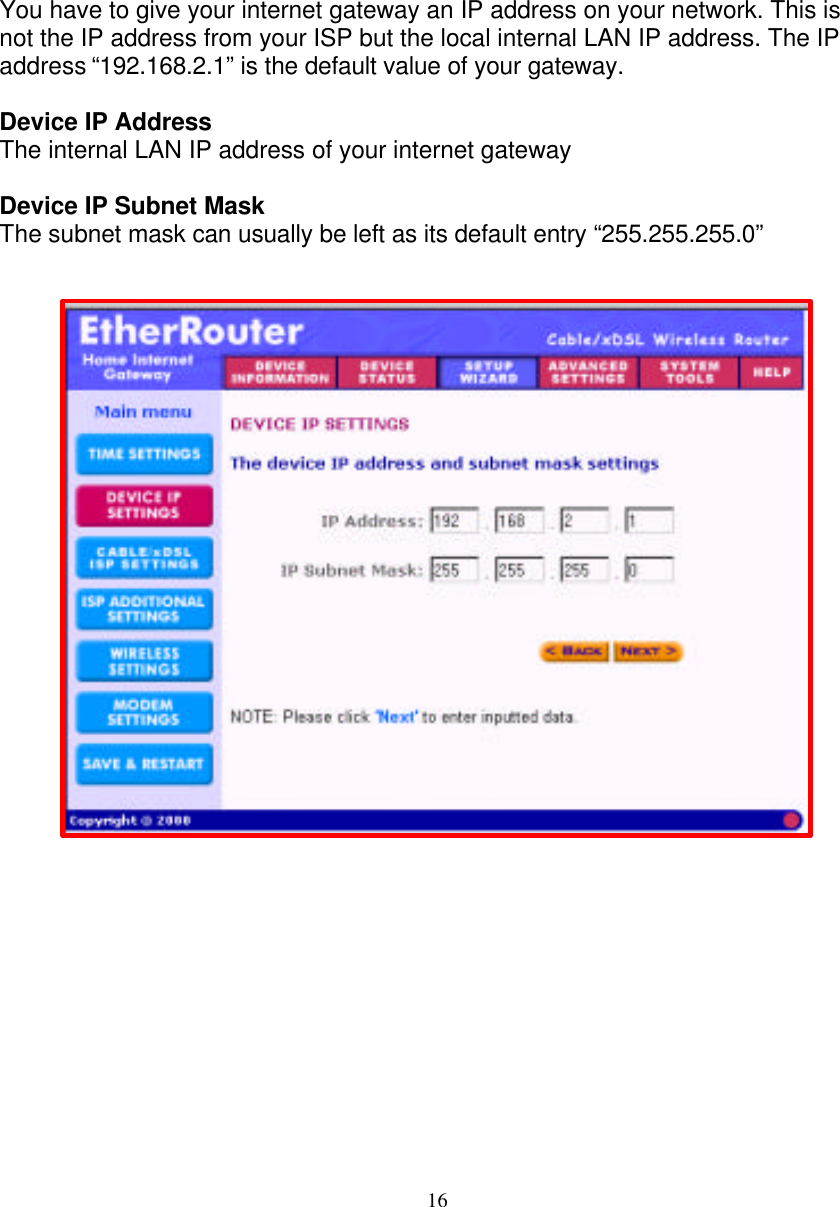
16   DEVICE IP SETTINGS   You have to give your internet gateway an IP address on your network. This is not the IP address from your ISP but the local internal LAN IP address. The IP address “192.168.2.1” is the default value of your gateway.   Device IP Address The internal LAN IP address of your internet gateway  Device IP Subnet Mask The subnet mask can usually be left as its default entry “255.255.255.0”
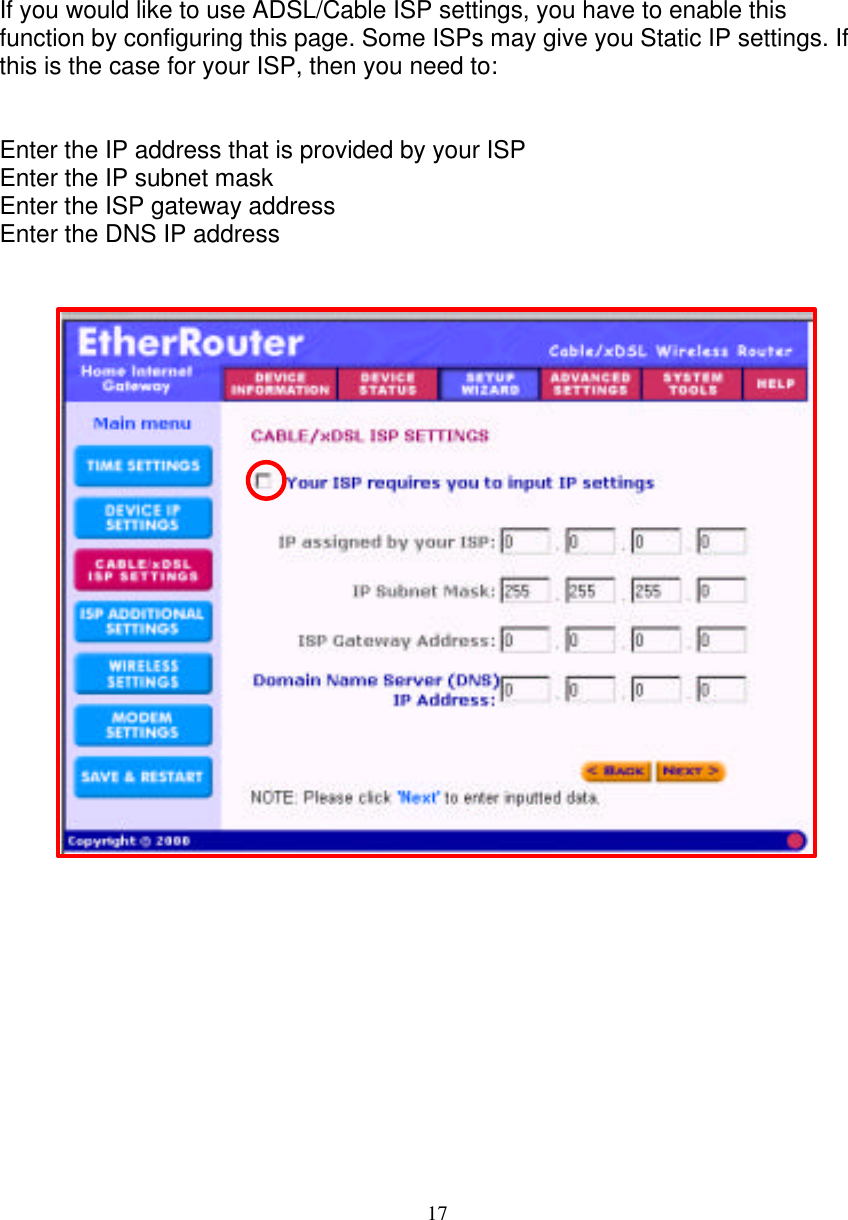
17   ADSL/Cable ISP SETTINGS   If you would like to use ADSL/Cable ISP settings, you have to enable this function by configuring this page. Some ISPs may give you Static IP settings. If this is the case for your ISP, then you need to:   Enter the IP address that is provided by your ISP Enter the IP subnet mask  Enter the ISP gateway address Enter the DNS IP address
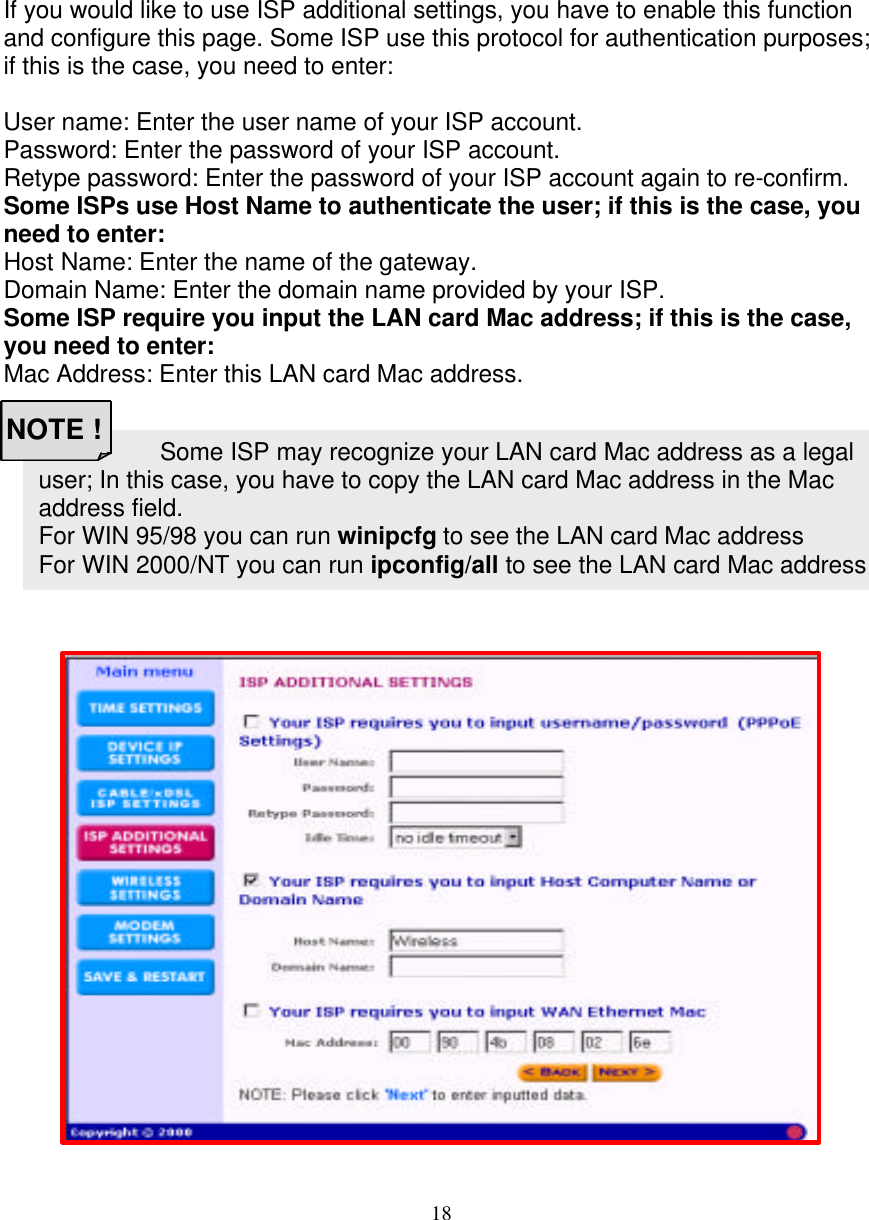
18 Some ISP may recognize your LAN card Mac address as a legal user; In this case, you have to copy the LAN card Mac address in the Mac address field. For WIN 95/98 you can run winipcfg to see the LAN card Mac address For WIN 2000/NT you can run ipconfig/all to see the LAN card Mac address   ISP ADDITIONAL SETTINGS (PPPoE SETTINGS)   If you would like to use ISP additional settings, you have to enable this function and configure this page. Some ISP use this protocol for authentication purposes; if this is the case, you need to enter:  User name: Enter the user name of your ISP account. Password: Enter the password of your ISP account. Retype password: Enter the password of your ISP account again to re-confirm. Some ISPs use Host Name to authenticate the user; if this is the case, you need to enter: Host Name: Enter the name of the gateway. Domain Name: Enter the domain name provided by your ISP. Some ISP require you input the LAN card Mac address; if this is the case, you need to enter: Mac Address: Enter this LAN card Mac address.                         NOTE !
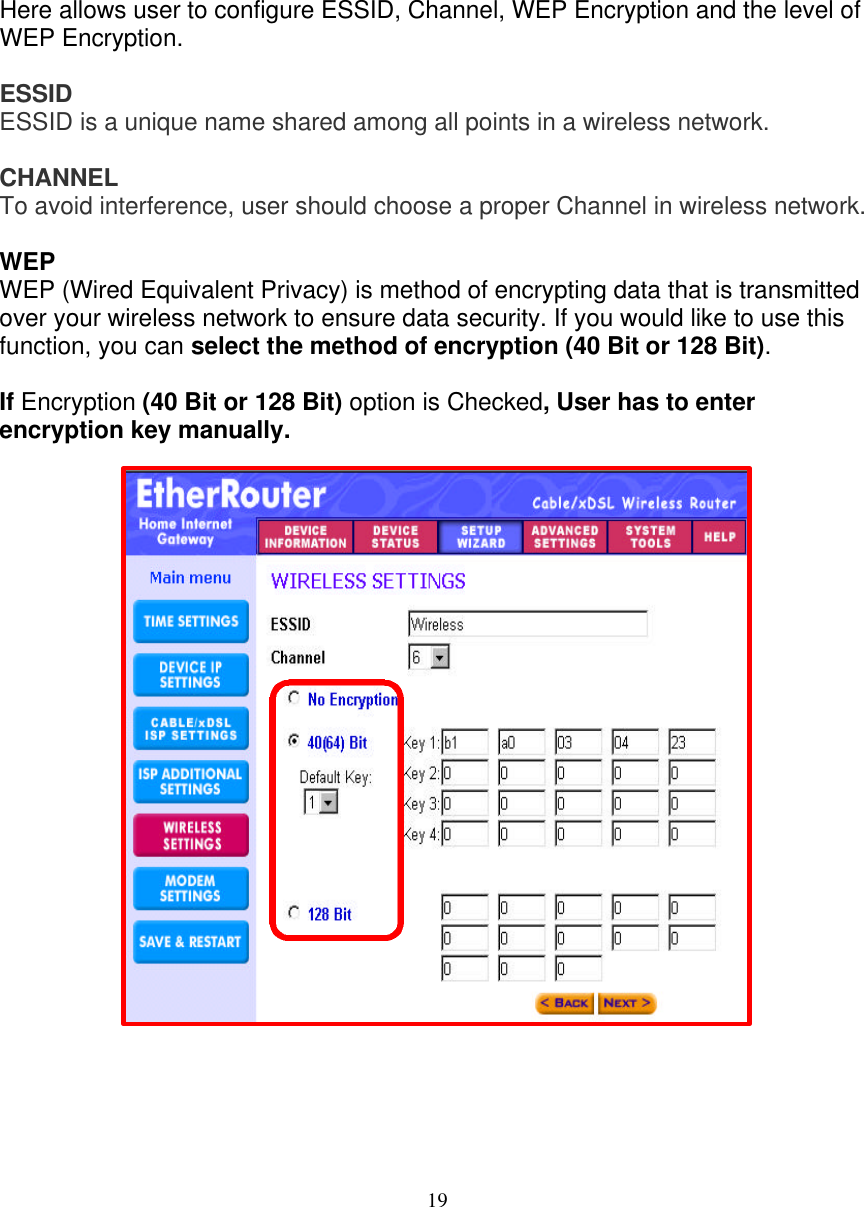
19   WIRELESS SETTINGS   Here allows user to configure ESSID, Channel, WEP Encryption and the level of WEP Encryption.   ESSID  ESSID is a unique name shared among all points in a wireless network.  CHANNEL  To avoid interference, user should choose a proper Channel in wireless network.   WEP  WEP (Wired Equivalent Privacy) is method of encrypting data that is transmitted over your wireless network to ensure data security. If you would like to use this function, you can select the method of encryption (40 Bit or 128 Bit).   If Encryption (40 Bit or 128 Bit) option is Checked, User has to enter encryption key manually.
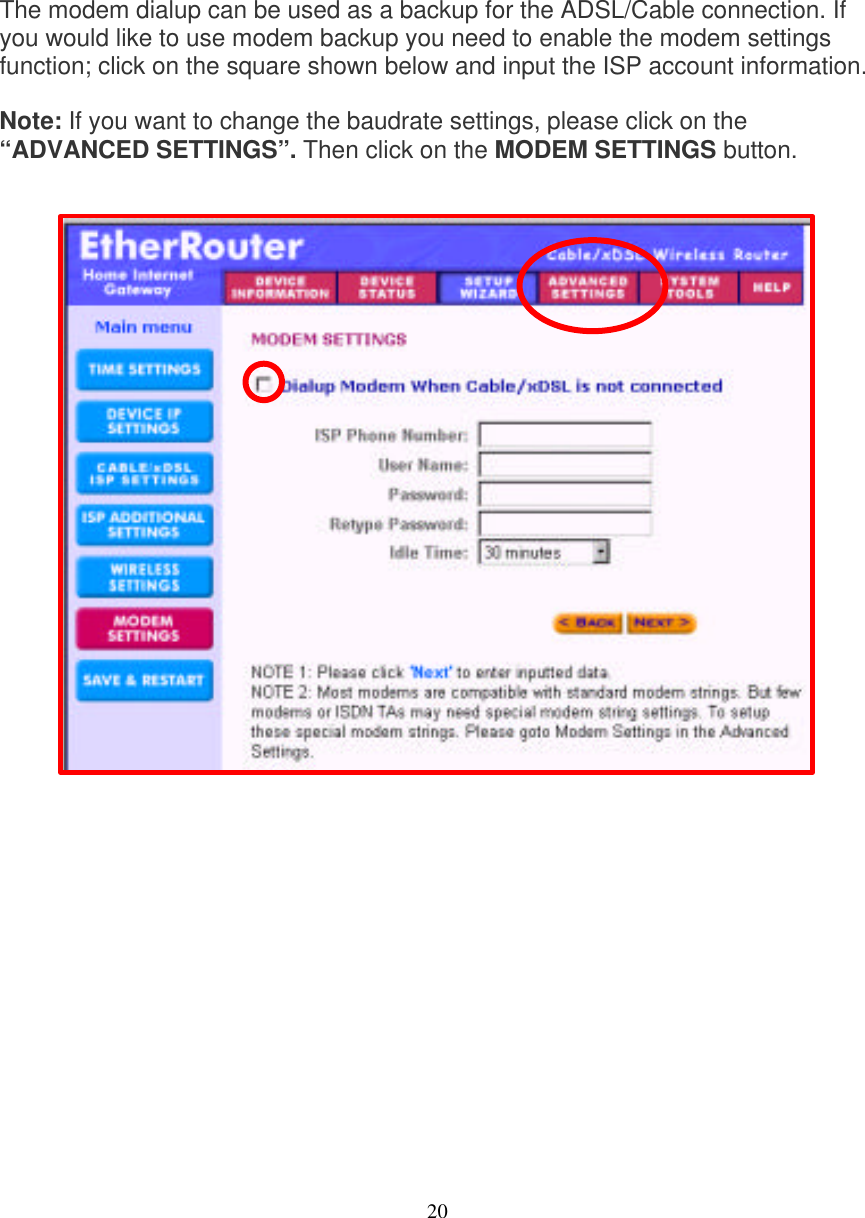
20   MODEM SETTINGS   The modem dialup can be used as a backup for the ADSL/Cable connection. If you would like to use modem backup you need to enable the modem settings function; click on the square shown below and input the ISP account information.  Note: If you want to change the baudrate settings, please click on the “ADVANCED SETTINGS”. Then click on the MODEM SETTINGS button.
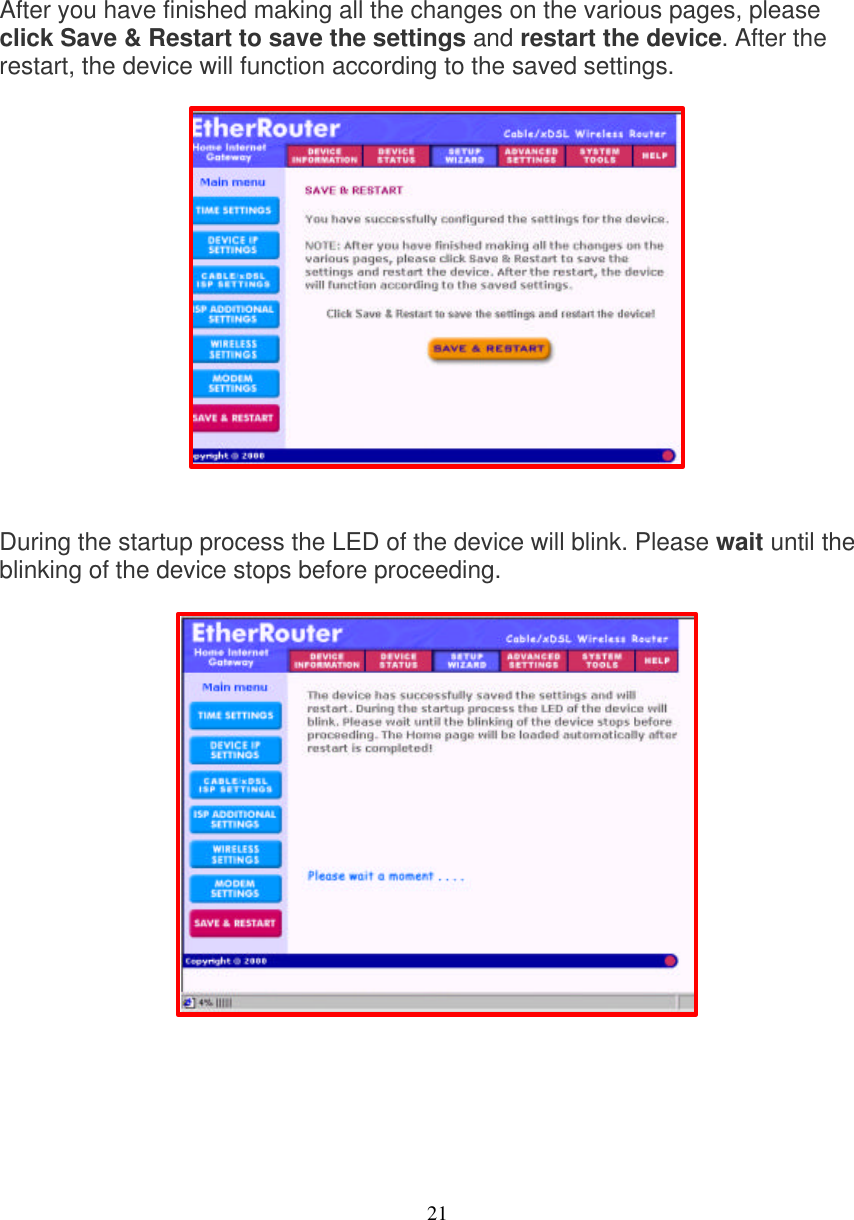
21   SAVE & RESTART   After you have finished making all the changes on the various pages, please click Save & Restart to save the settings and restart the device. After the restart, the device will function according to the saved settings.                 During the startup process the LED of the device will blink. Please wait until the blinking of the device stops before proceeding.
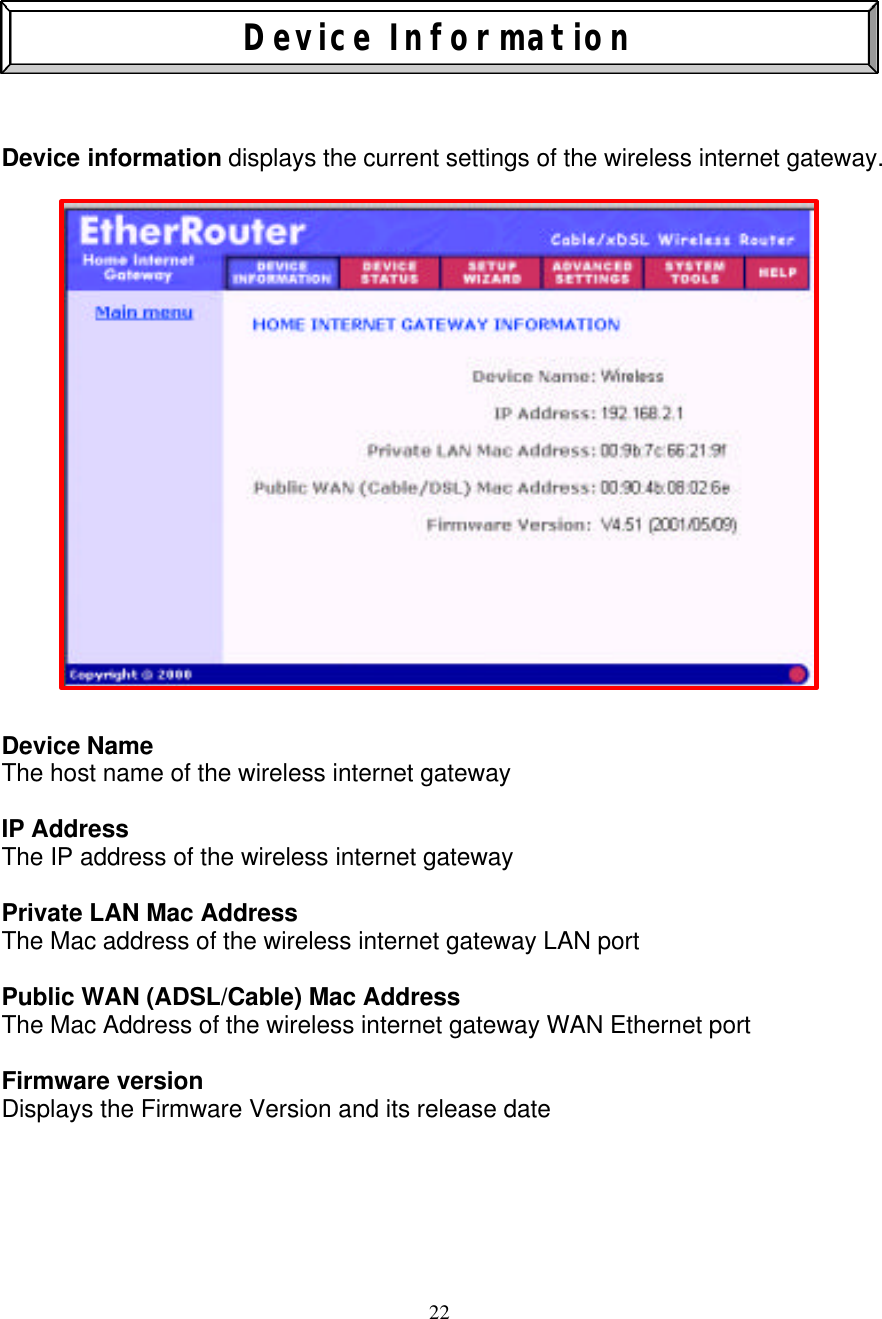
22    Device Information    Device information displays the current settings of the wireless internet gateway.                Device Name The host name of the wireless internet gateway  IP Address The IP address of the wireless internet gateway   Private LAN Mac Address The Mac address of the wireless internet gateway LAN port  Public WAN (ADSL/Cable) Mac Address The Mac Address of the wireless internet gateway WAN Ethernet port   Firmware version Displays the Firmware Version and its release date
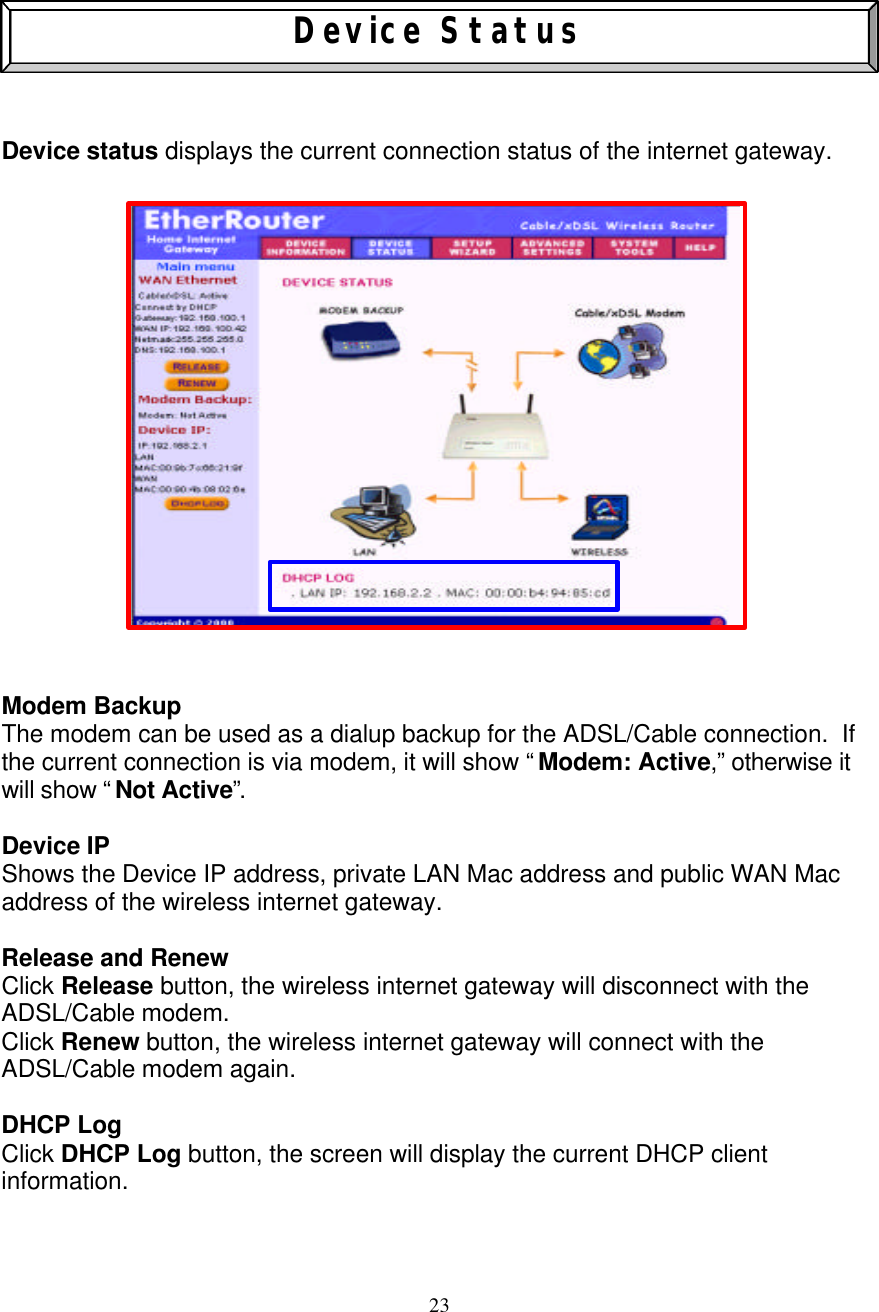
23    Device Status    Device status displays the current connection status of the internet gateway.                      Modem Backup The modem can be used as a dialup backup for the ADSL/Cable connection.  If the current connection is via modem, it will show “ Modem: Active,” otherwise it will show “ Not Active”.   Device IP Shows the Device IP address, private LAN Mac address and public WAN Mac address of the wireless internet gateway.  Release and Renew    Click Release button, the wireless internet gateway will disconnect with the ADSL/Cable modem. Click Renew button, the wireless internet gateway will connect with the ADSL/Cable modem again.  DHCP Log Click DHCP Log button, the screen will display the current DHCP client information.
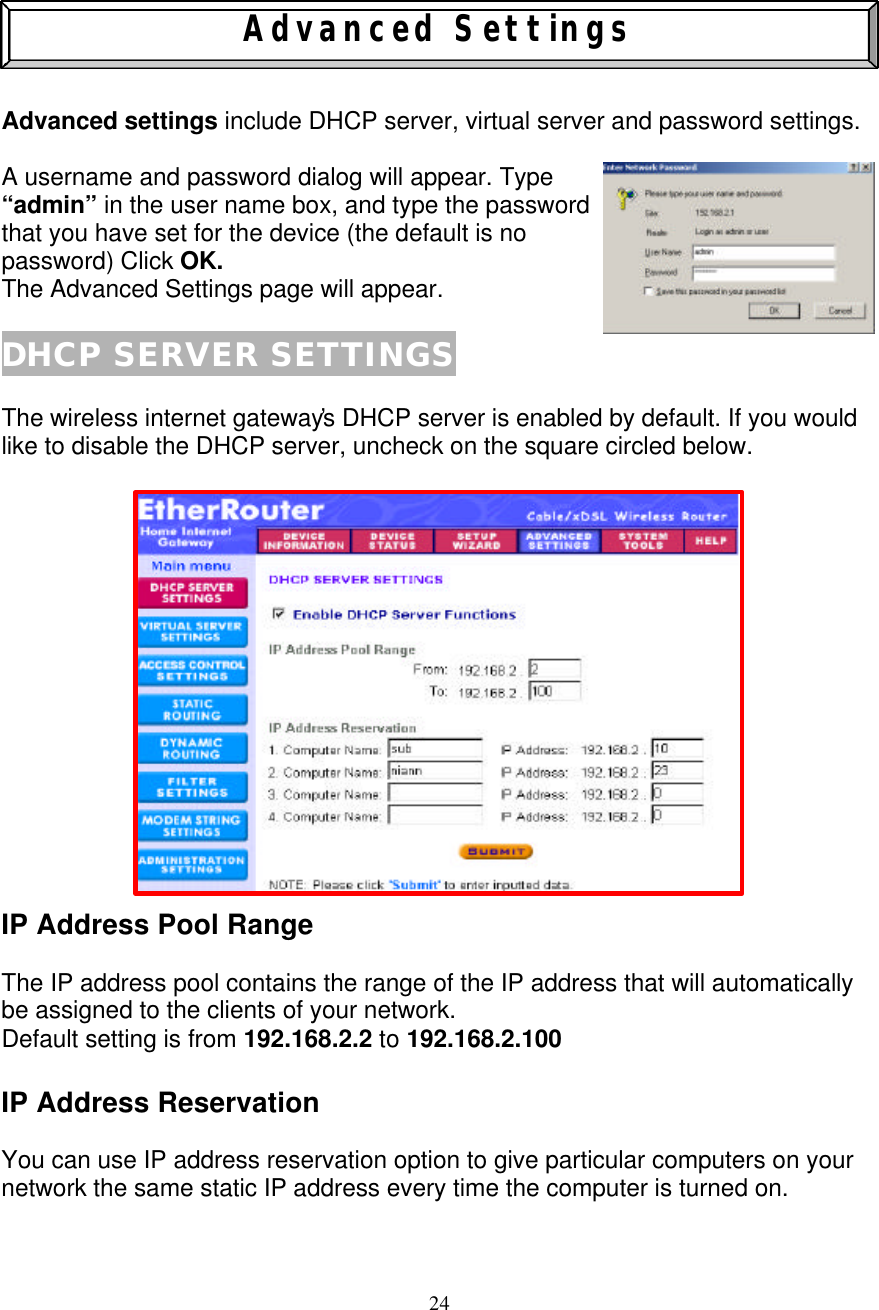
24    Advanced Settings   Advanced settings include DHCP server, virtual server and password settings.    A username and password dialog will appear. Type  “admin” in the user name box, and type the password that you have set for the device (the default is no  password) Click OK. The Advanced Settings page will appear.  DHCP SERVER SETTINGS  The wireless internet gateway’s DHCP server is enabled by default. If you would like to disable the DHCP server, uncheck on the square circled below.                 IP Address Pool Range  The IP address pool contains the range of the IP address that will automatically be assigned to the clients of your network. Default setting is from 192.168.2.2 to 192.168.2.100  IP Address Reservation  You can use IP address reservation option to give particular computers on your network the same static IP address every time the computer is turned on.
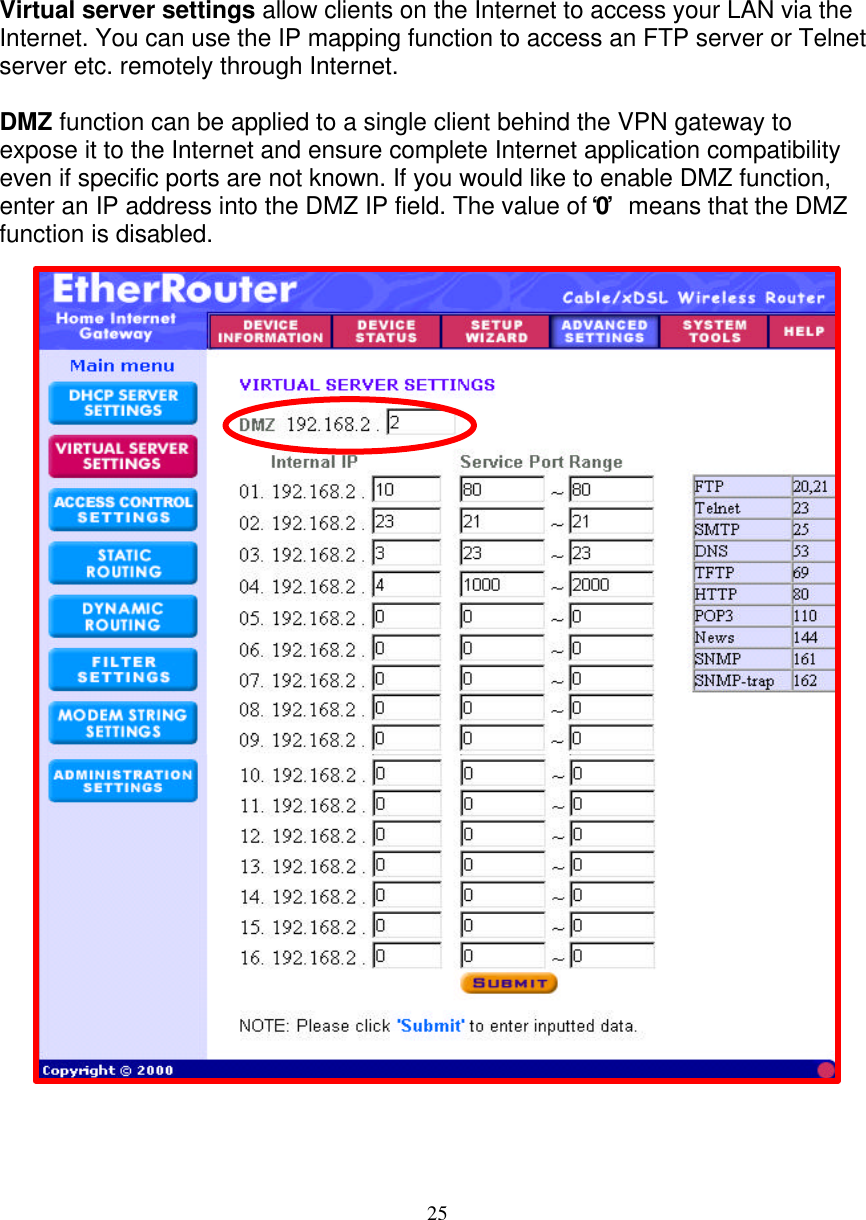
25   VIRTUAL SERVER SETTINGS   Virtual server settings allow clients on the Internet to access your LAN via the Internet. You can use the IP mapping function to access an FTP server or Telnet server etc. remotely through Internet.   DMZ function can be applied to a single client behind the VPN gateway to expose it to the Internet and ensure complete Internet application compatibility even if specific ports are not known. If you would like to enable DMZ function, enter an IP address into the DMZ IP field. The value of ‘0’  means that the DMZ function is disabled.
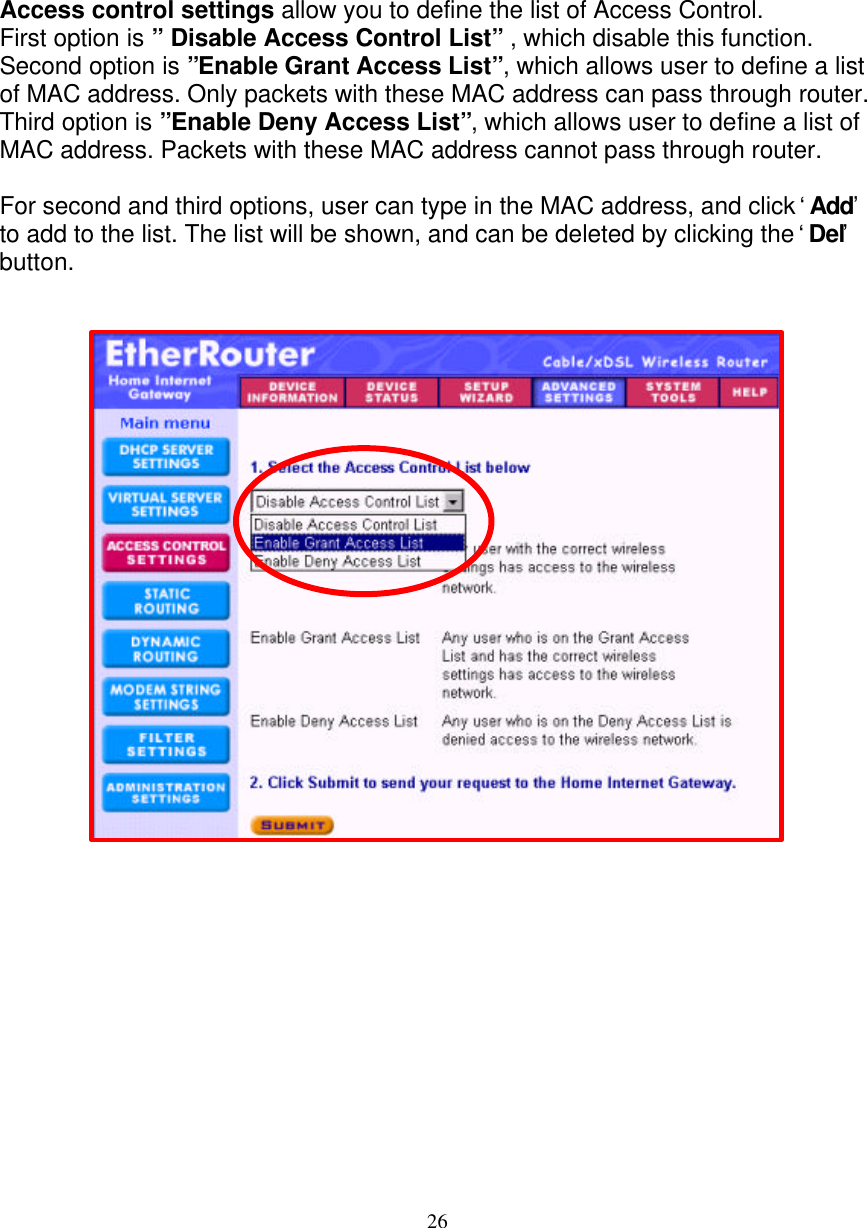
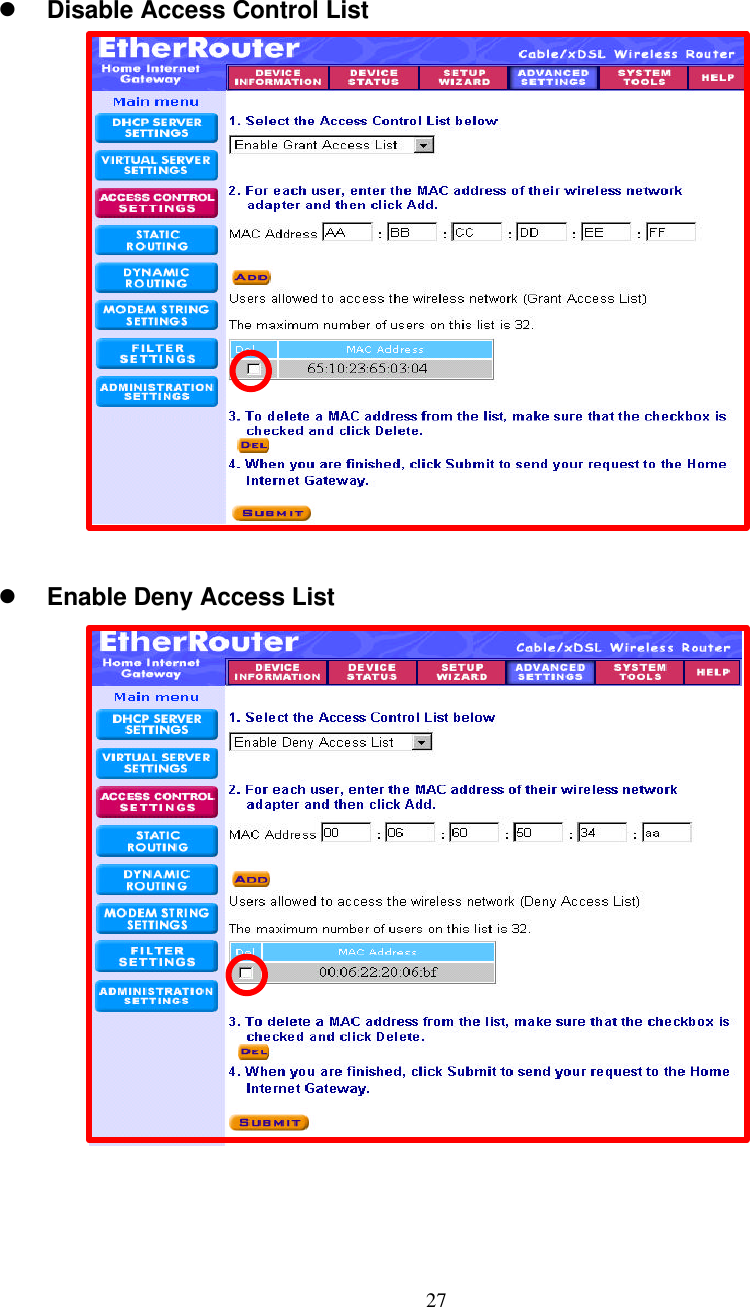
26   ACCESS CONTROL SETTINGS   Access control settings allow you to define the list of Access Control. First option is ” Disable Access Control List” , which disable this function. Second option is ”Enable Grant Access List”, which allows user to define a list of MAC address. Only packets with these MAC address can pass through router. Third option is ”Enable Deny Access List”, which allows user to define a list of MAC address. Packets with these MAC address cannot pass through router.  For second and third options, user can type in the MAC address, and click ‘ Add’ to add to the list. The list will be shown, and can be deleted by clicking the ‘ Del’ button.
27    l Disable Access Control List                     l Enable Deny Access List
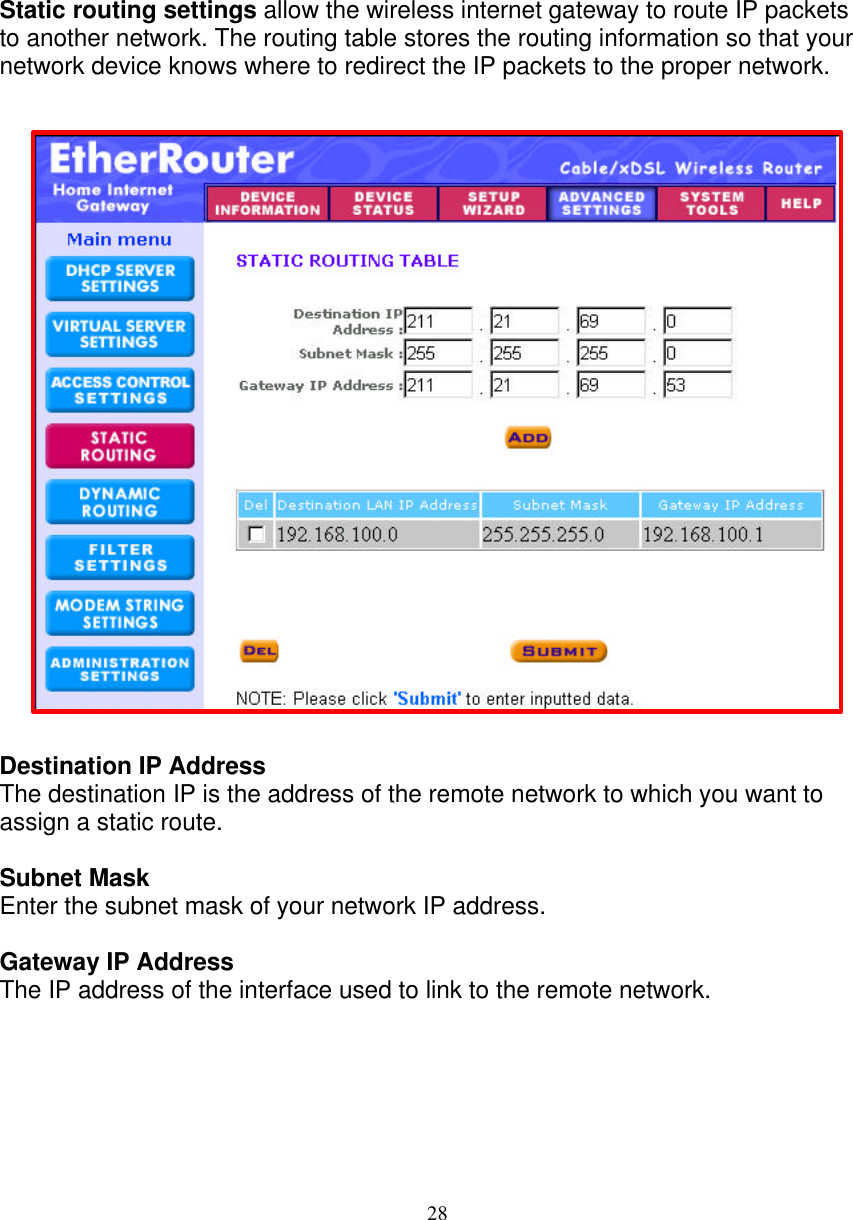
28   STATIC ROUTING SETTINGS   Static routing settings allow the wireless internet gateway to route IP packets to another network. The routing table stores the routing information so that your network device knows where to redirect the IP packets to the proper network.                         Destination IP Address The destination IP is the address of the remote network to which you want to assign a static route.  Subnet Mask  Enter the subnet mask of your network IP address.  Gateway IP Address The IP address of the interface used to link to the remote network.
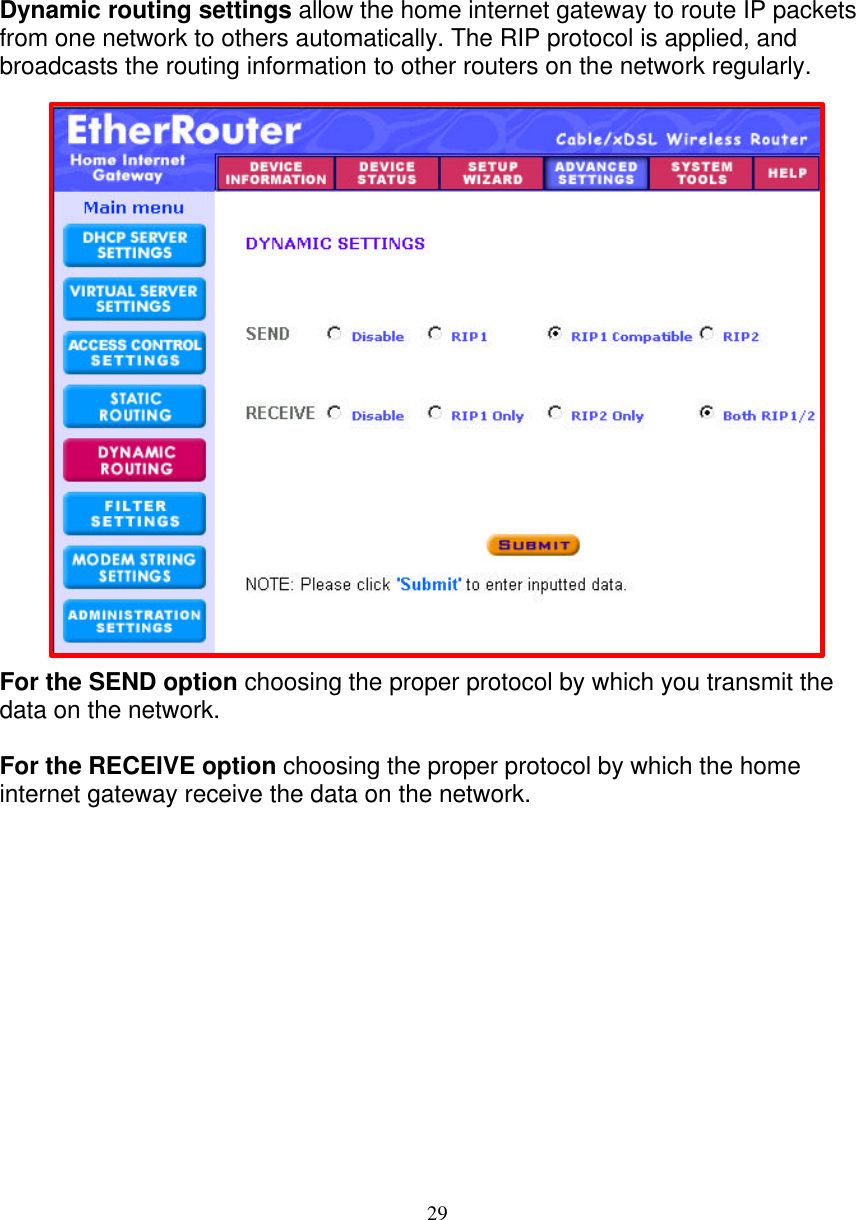
29   DYNAMIC ROUTING SETTINGS   Dynamic routing settings allow the home internet gateway to route IP packets from one network to others automatically. The RIP protocol is applied, and broadcasts the routing information to other routers on the network regularly.                         For the SEND option choosing the proper protocol by which you transmit the data on the network.  For the RECEIVE option choosing the proper protocol by which the home internet gateway receive the data on the network.
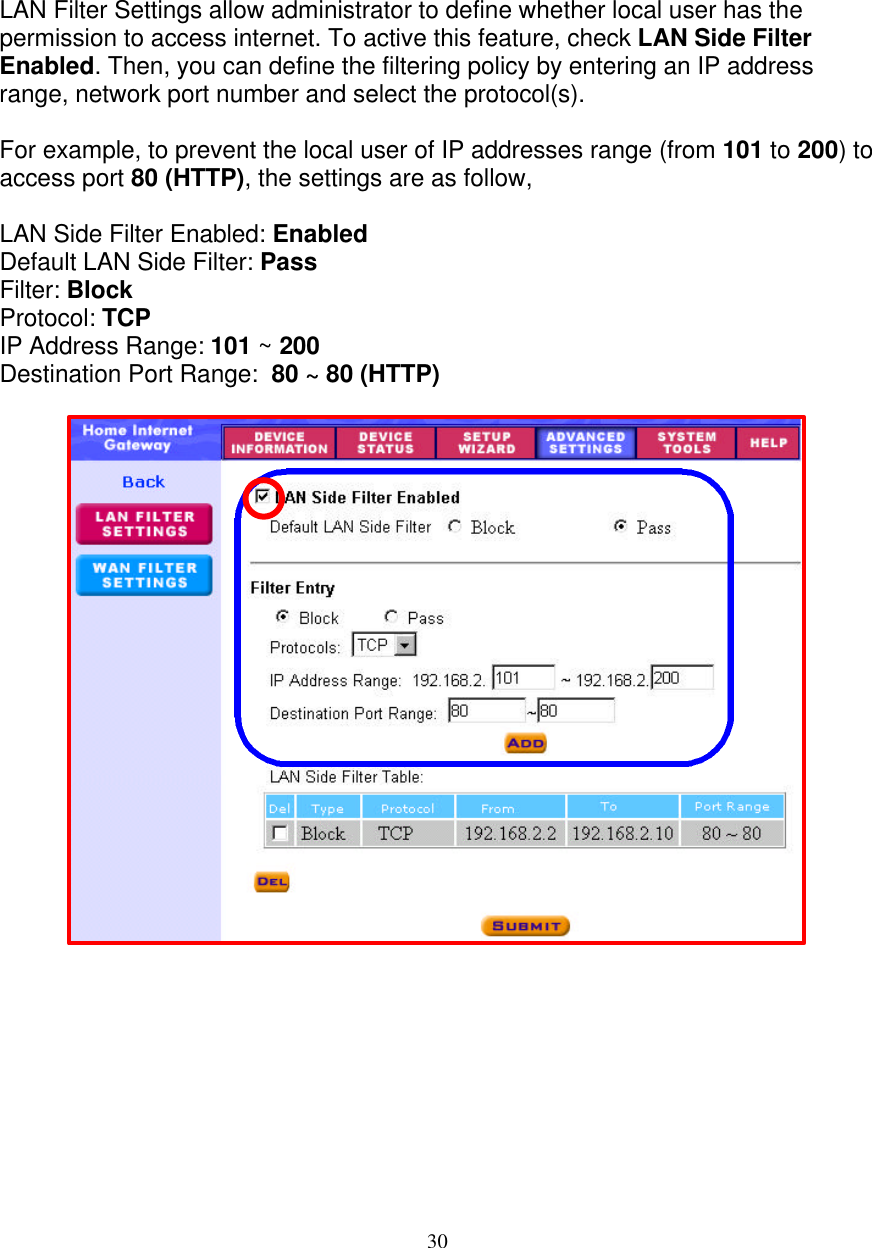
30   FILTER SETTINGS - LAN FILTER SETTINGS     LAN Filter Settings allow administrator to define whether local user has the permission to access internet. To active this feature, check LAN Side Filter Enabled. Then, you can define the filtering policy by entering an IP address range, network port number and select the protocol(s).  For example, to prevent the local user of IP addresses range (from 101 to 200) to access port 80 (HTTP), the settings are as follow,   LAN Side Filter Enabled: Enabled Default LAN Side Filter: Pass Filter: Block Protocol: TCP IP Address Range: 101 ~ 200 Destination Port Range:  80 ~ 80 (HTTP)
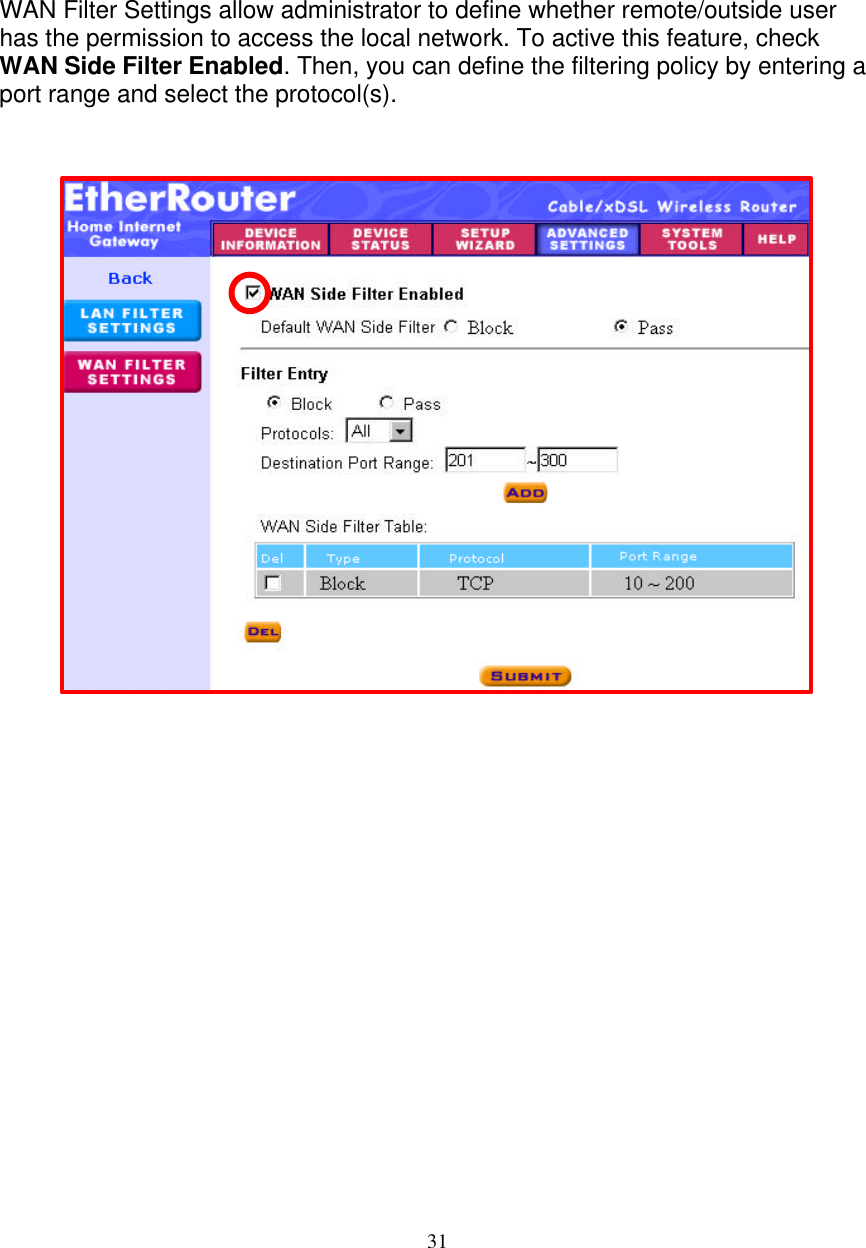
31   FILTER SETTINGS - WAN FILTER SETTINGS     WAN Filter Settings allow administrator to define whether remote/outside user has the permission to access the local network. To active this feature, check WAN Side Filter Enabled. Then, you can define the filtering policy by entering a port range and select the protocol(s).
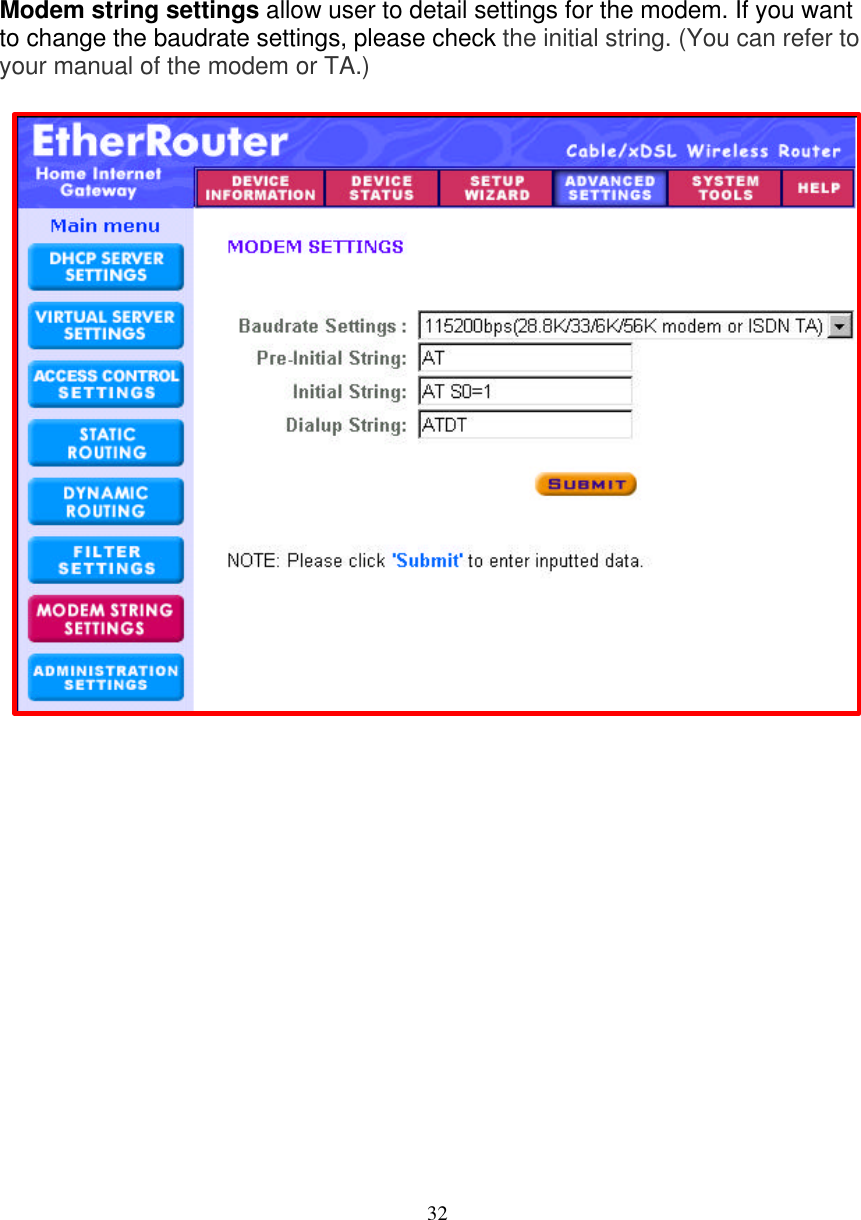
32   MODEM STRING SETTINGS   Modem string settings allow user to detail settings for the modem. If you want to change the baudrate settings, please check the initial string. (You can refer to your manual of the modem or TA.)
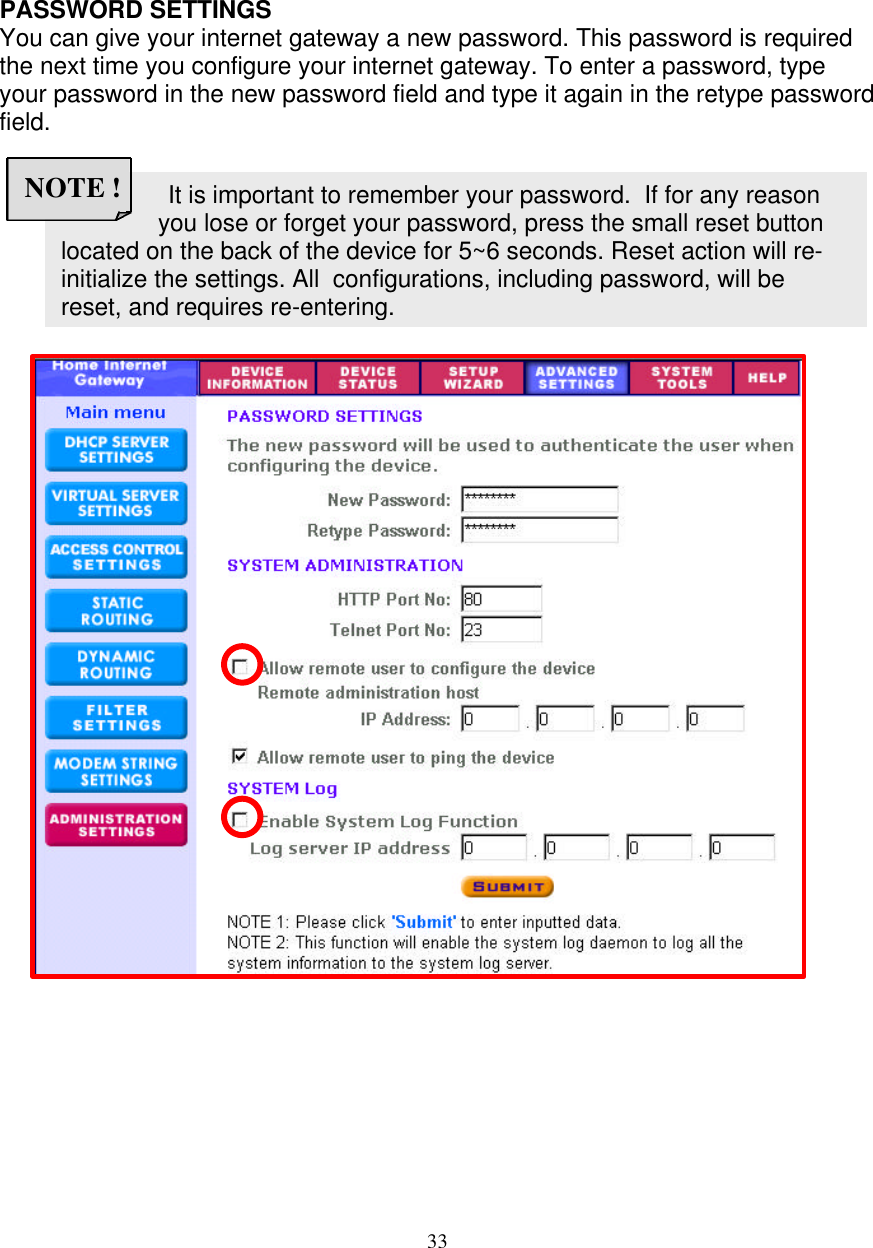
33                  It is important to remember your password.  If for any reason you lose or forget your password, press the small reset button  located on the back of the device for 5~6 seconds. Reset action will re- initialize the settings. All  configurations, including password, will be  reset, and requires re-entering. NOTE !   ADMINISTRATION SETTINGS  PASSWORD SETTINGS You can give your internet gateway a new password. This password is required the next time you configure your internet gateway. To enter a password, type your password in the new password field and type it again in the retype password field.
34 http://<WAN IP Address>: <Port No>  NOTE !    SYSTEM ADMINISTRATION Here allows remote user to configure and administrate the wireless internet gateway through Internet. The default port no for HTTP and TELNET are 80 and 23 respectively.  The default IP address of remote administration host is: 0.0.0.0. (IP address 0.0.0.0 means that any PC on the network can remote access and manage the wireless internet gateway)  If you use this function you have to enable the feature “Allow remote user to configure the device” first. Once you have enabled this function, type the wireless internet gateway WAN IP address (http://192.168.100.1:1023) into the browser of any or specific PC on the network.                                                   Once HTTP port no (NOT PORT 80) have be changed and the users of LAN terminal want to configure the wireless internet gateway,  the users have to type the wireless internet gateway LAN IP address with             port no (http://192.168.2.1:1023)   SYSTEM LOG System Log function allows the administrator to assign the IP address of a server, on which, a log server is running. When a particular event happens, the router sends a notification to the log server. The log server can then present the log to the users. [Free log server can be download from internet, such as Kiwis SysLog Daemon]  If you finished all the settings, please click Submit button to go to the next page…
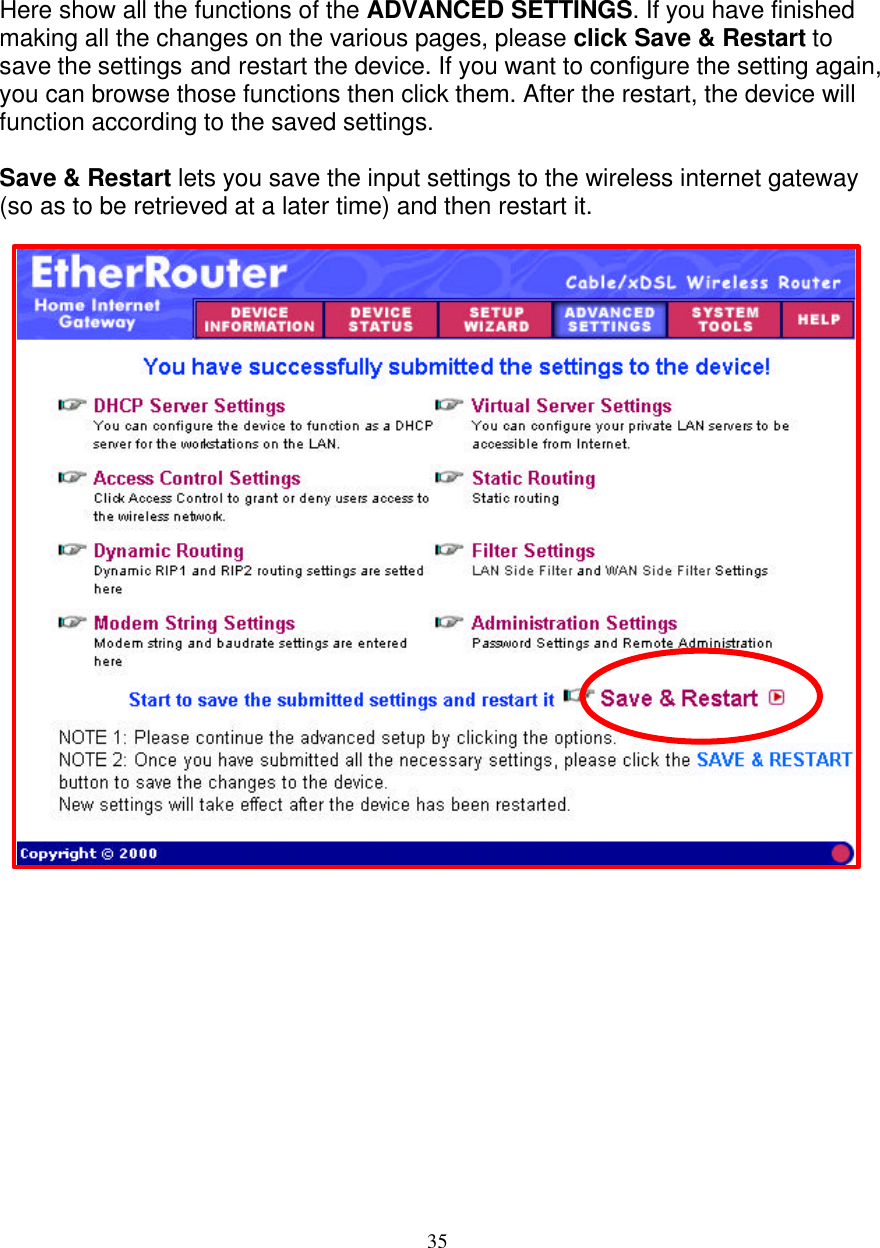
35   SAVE & RESTART  Here show all the functions of the ADVANCED SETTINGS. If you have finished making all the changes on the various pages, please click Save & Restart to save the settings and restart the device. If you want to configure the setting again, you can browse those functions then click them. After the restart, the device will function according to the saved settings.  Save & Restart lets you save the input settings to the wireless internet gateway (so as to be retrieved at a later time) and then restart it.
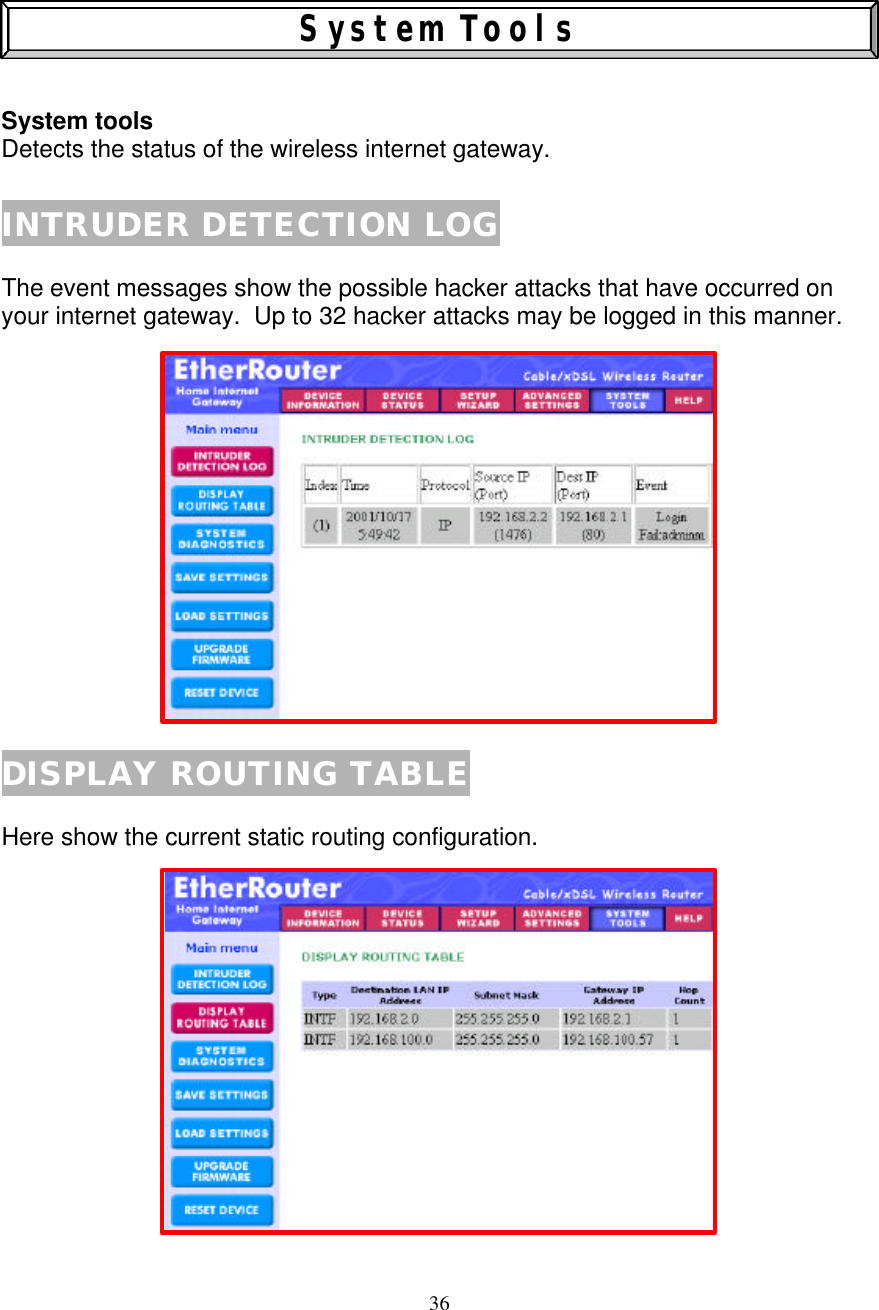
36    System Tools   System tools  Detects the status of the wireless internet gateway.  INTRUDER DETECTION LOG  The event messages show the possible hacker attacks that have occurred on your internet gateway.  Up to 32 hacker attacks may be logged in this manner.                DISPLAY ROUTING TABLE  Here show the current static routing configuration.
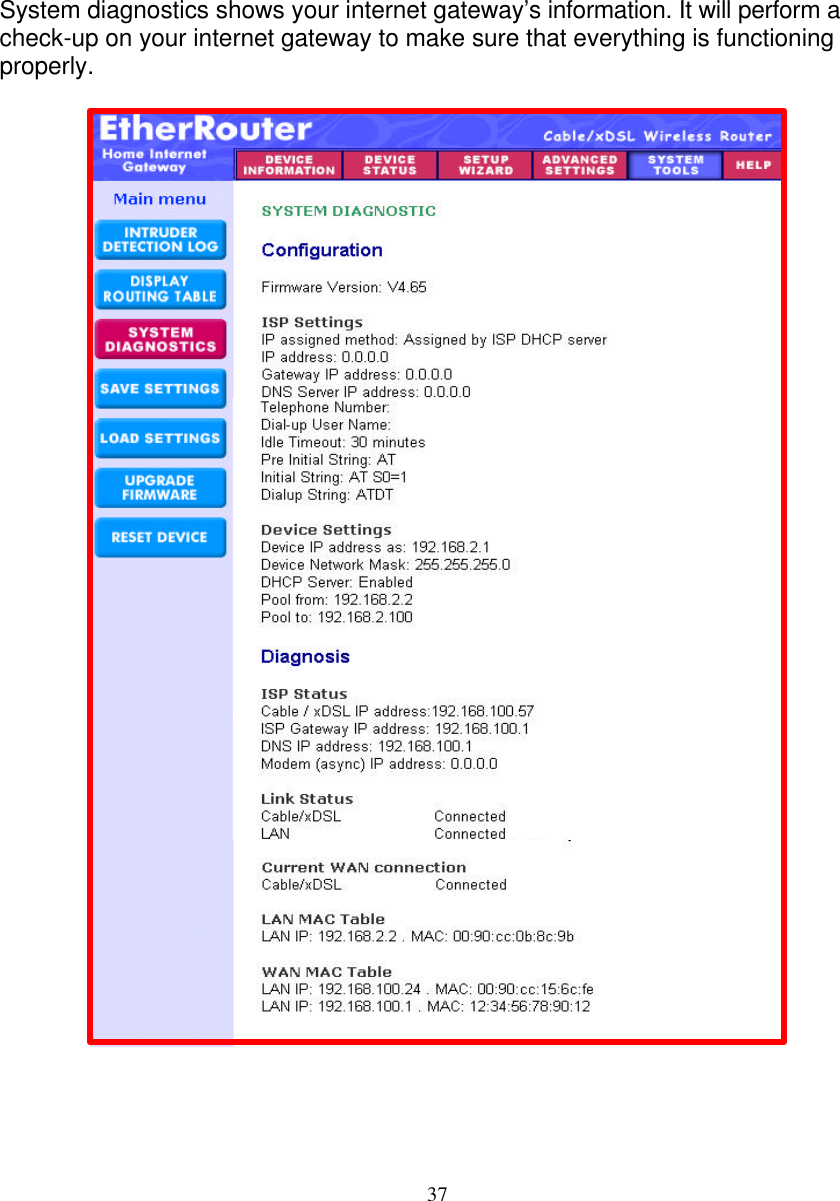
37   SYSTEM DIAGNOSTICS   System diagnostics shows your internet gateway’s information. It will perform a check-up on your internet gateway to make sure that everything is functioning properly.
38   SAVE SETTINGS  Here allow you to save the configuration to a file. If you would like to do this, click Save File to save your current settings to a file. Then click save this file to disk in the browsing wizard.
39   LOAD SETTINGS - LOAD DEFAULT SETTINGS  Here allow you to load the original default settings of your wireless broadband router.                  LOAD SETTINGS - LOAD SETTINGS FROM FILE  Here allow you to load the settings from a file.
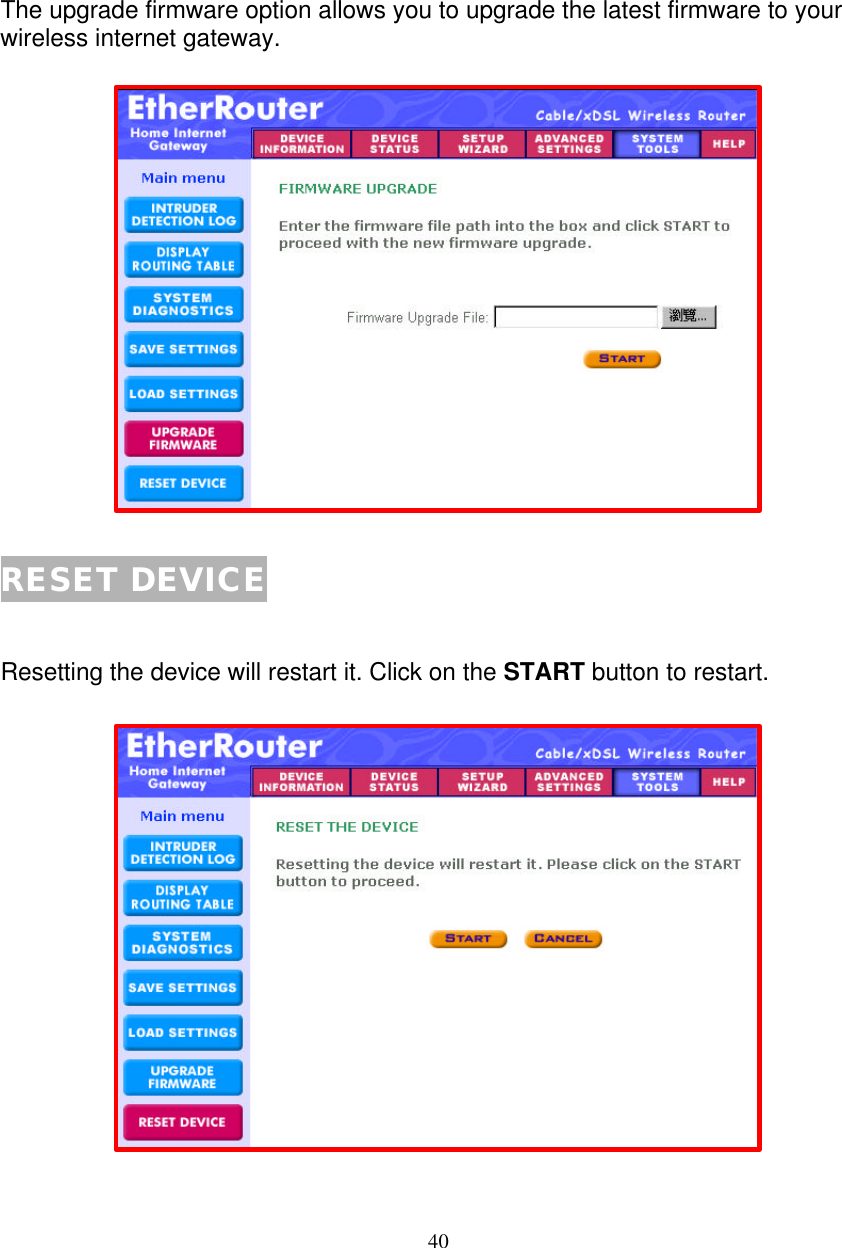
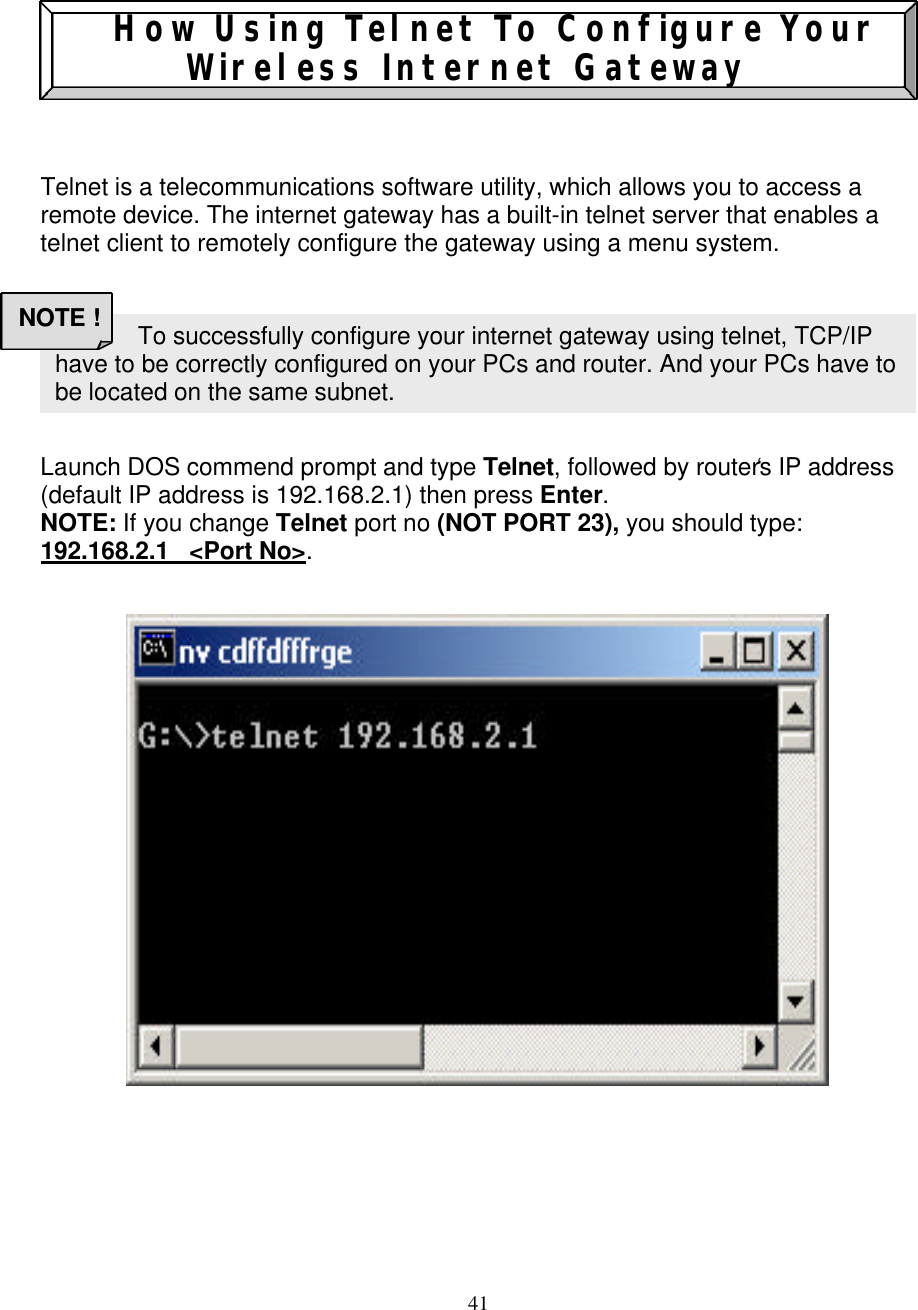
40   UPGRADE FIRMWARE  The upgrade firmware option allows you to upgrade the latest firmware to your wireless internet gateway.                   RESET DEVICE   Resetting the device will restart it. Click on the START button to restart.
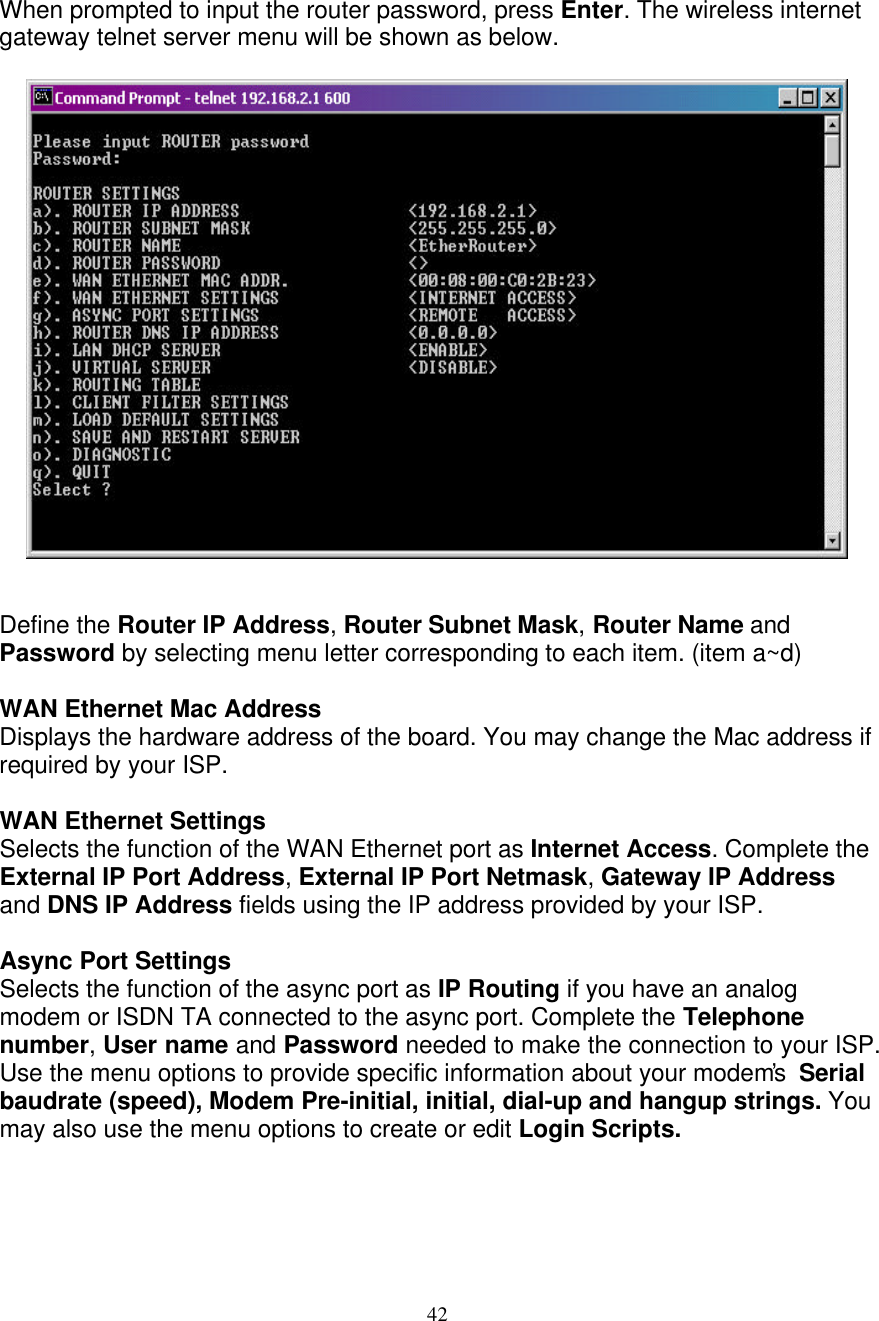
41    How Using Telnet To Configure Your Wireless Internet Gateway     Telnet is a telecommunications software utility, which allows you to access a remote device. The internet gateway has a built-in telnet server that enables a telnet client to remotely configure the gateway using a menu system.        Launch DOS commend prompt and type Telnet, followed by router‘s IP address (default IP address is 192.168.2.1) then press Enter.  NOTE: If you change Telnet port no (NOT PORT 23), you should type: 192.168.2.1   <Port No>.                                       To successfully configure your internet gateway using telnet, TCP/IP have to be correctly configured on your PCs and router. And your PCs have to be located on the same subnet.  NOTE !
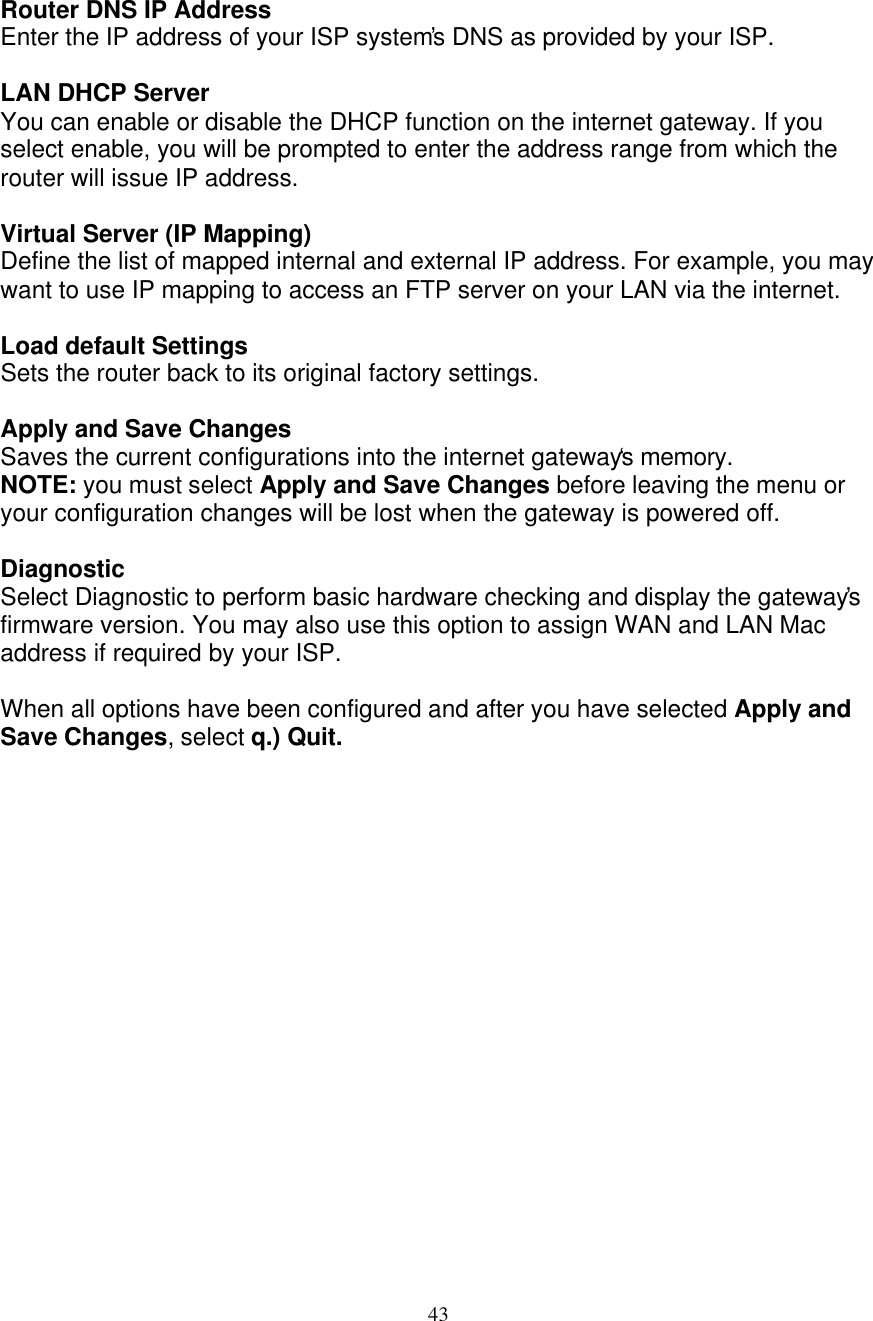
42   When prompted to input the router password, press Enter. The wireless internet gateway telnet server menu will be shown as below.                     Define the Router IP Address, Router Subnet Mask, Router Name and Password by selecting menu letter corresponding to each item. (item a~d)  WAN Ethernet Mac Address Displays the hardware address of the board. You may change the Mac address if required by your ISP.  WAN Ethernet Settings Selects the function of the WAN Ethernet port as Internet Access. Complete the External IP Port Address, External IP Port Netmask, Gateway IP Address and DNS IP Address fields using the IP address provided by your ISP.  Async Port Settings  Selects the function of the async port as IP Routing if you have an analog modem or ISDN TA connected to the async port. Complete the Telephone number, User name and Password needed to make the connection to your ISP. Use the menu options to provide specific information about your modem’s  Serial baudrate (speed), Modem Pre-initial, initial, dial-up and hangup strings. You may also use the menu options to create or edit Login Scripts.
43   Router DNS IP Address Enter the IP address of your ISP system’s DNS as provided by your ISP.   LAN DHCP Server You can enable or disable the DHCP function on the internet gateway. If you select enable, you will be prompted to enter the address range from which the router will issue IP address.  Virtual Server (IP Mapping) Define the list of mapped internal and external IP address. For example, you may want to use IP mapping to access an FTP server on your LAN via the internet.  Load default Settings Sets the router back to its original factory settings.  Apply and Save Changes Saves the current configurations into the internet gateway‘s memory.   NOTE: you must select Apply and Save Changes before leaving the menu or your configuration changes will be lost when the gateway is powered off.  Diagnostic Select Diagnostic to perform basic hardware checking and display the gateway’s firmware version. You may also use this option to assign WAN and LAN Mac address if required by your ISP.  When all options have been configured and after you have selected Apply and Save Changes, select q.) Quit.
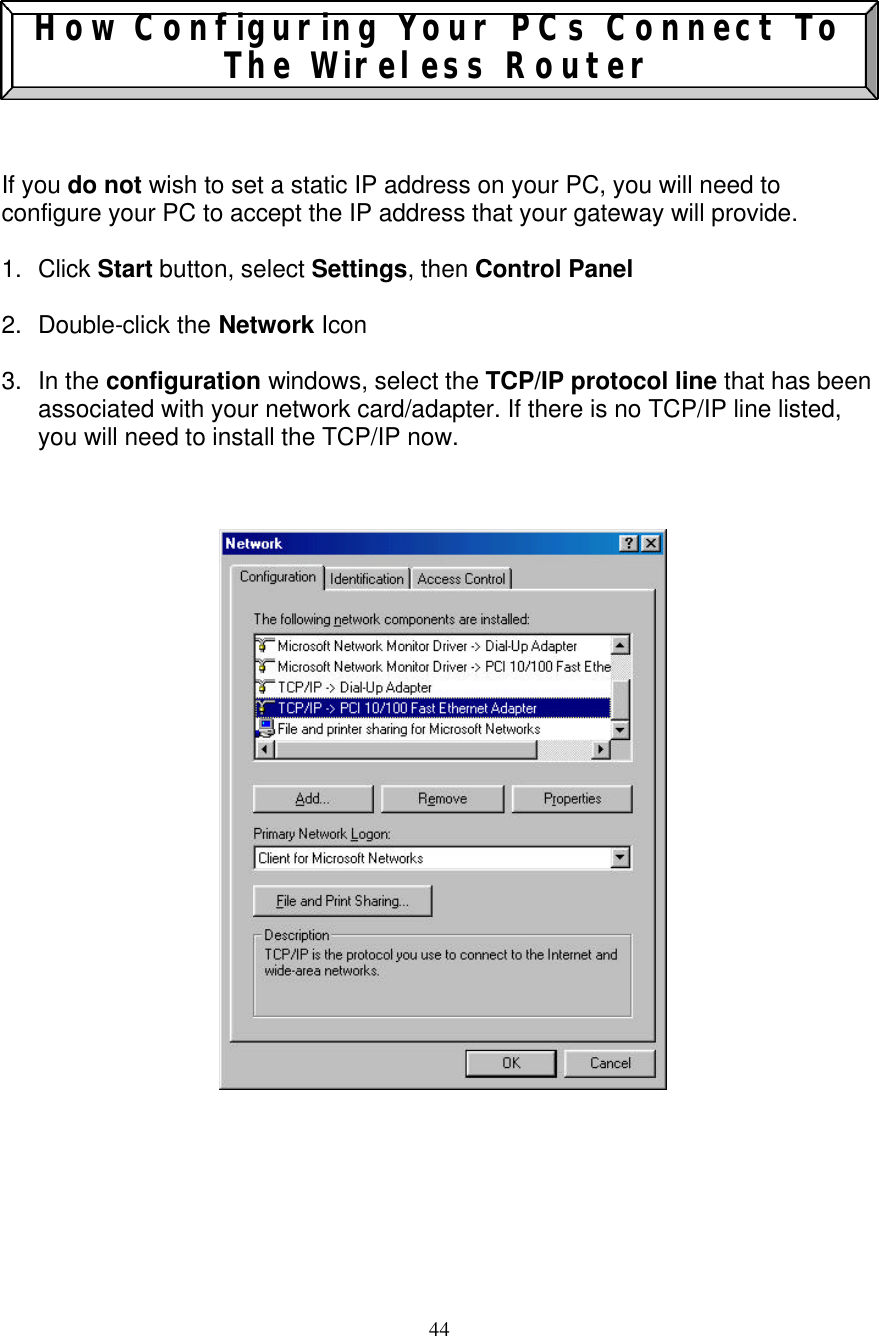
44   How Configuring Your PCs Connect To The Wireless Router    If you do not wish to set a static IP address on your PC, you will need to configure your PC to accept the IP address that your gateway will provide.  1. Click Start button, select Settings, then Control Panel   2. Double-click the Network Icon  3. In the configuration windows, select the TCP/IP protocol line that has been associated with your network card/adapter. If there is no TCP/IP line listed, you will need to install the TCP/IP now.
45  4. Click the Properties button, then choose the IP ADDRESS tab. Select Obtain an IP address automatically.                     5. Then select DNS configuration tab to add DNS IP address. If you do not wish to add DNS you can Disable DNS function. Press OK. You have completed the client settings.  6. After clicking OK, windows will ask you to restart the PC. Click Yes.
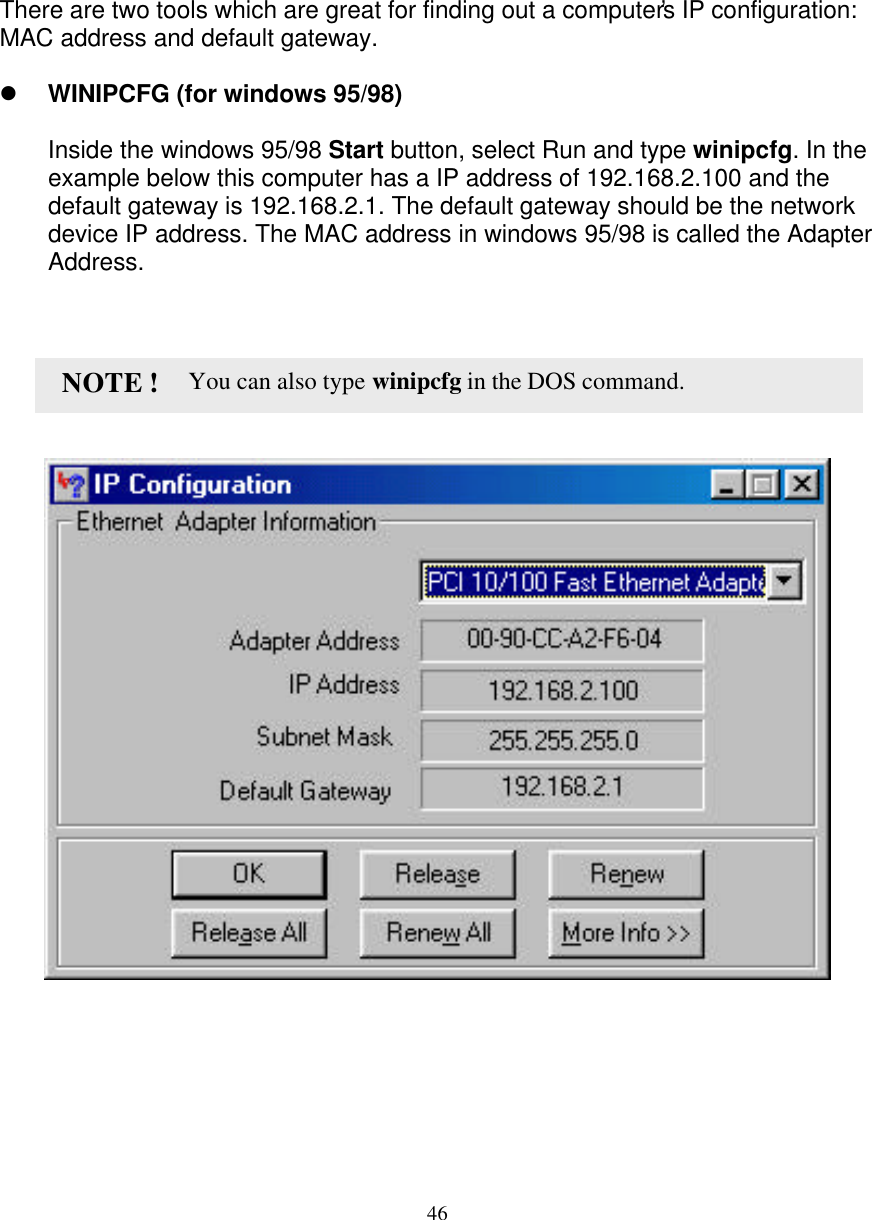
46   CONFIRM YOUR PC’s IP CONFIGURATION   There are two tools which are great for finding out a computer’s IP configuration: MAC address and default gateway.  l WINIPCFG (for windows 95/98)  Inside the windows 95/98 Start button, select Run and type winipcfg. In the example below this computer has a IP address of 192.168.2.100 and the default gateway is 192.168.2.1. The default gateway should be the network device IP address. The MAC address in windows 95/98 is called the Adapter Address.                                       You can also type winipcfg in the DOS command. NOTE !
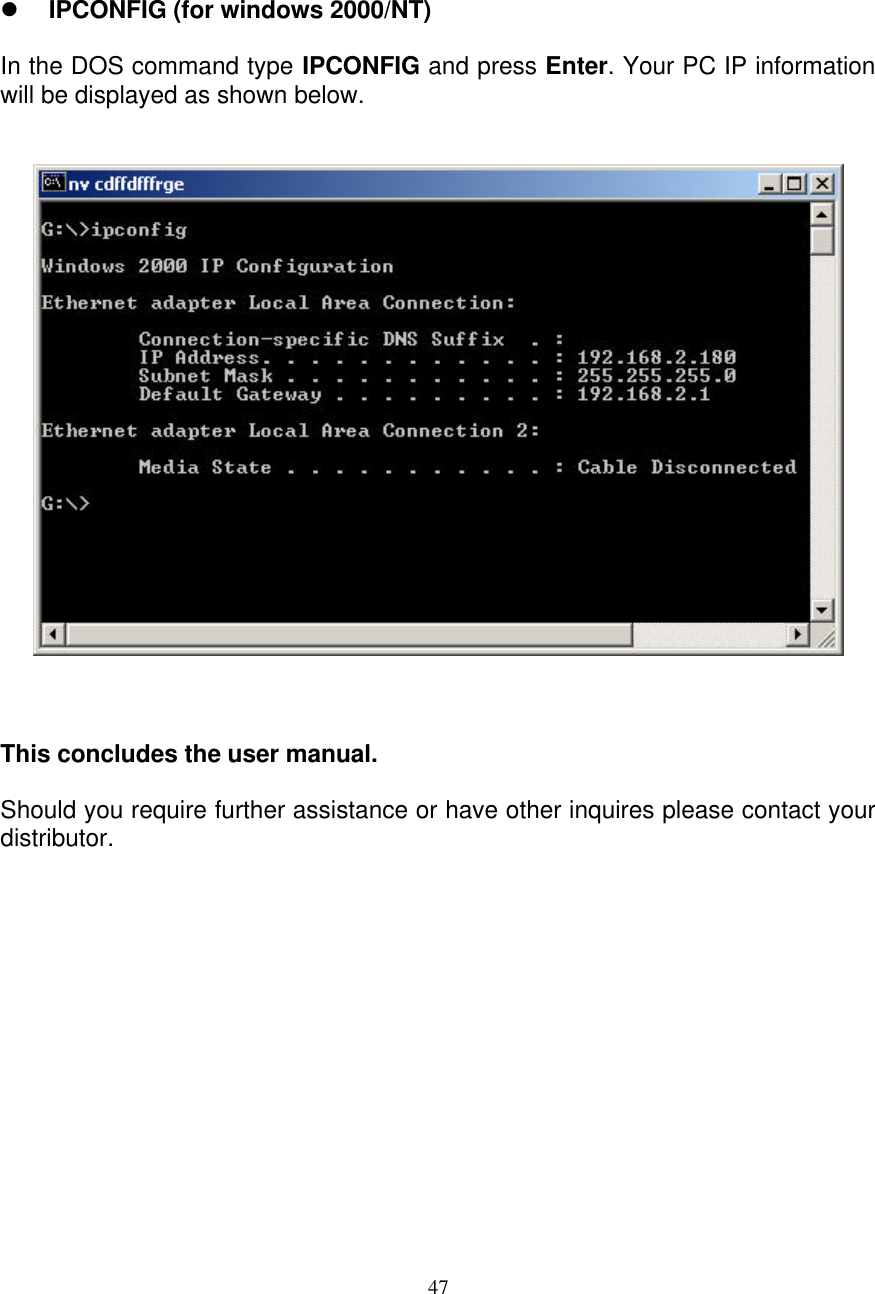
47    l IPCONFIG (for windows 2000/NT)  In the DOS command type IPCONFIG and press Enter. Your PC IP information will be displayed as shown below.       This concludes the user manual.  Should you require further assistance or have other inquires please contact your distributor.

Navigation menu