Ascalade Technologies DT19R42H 1.9 GHZ DECT CORDLESS PHONE-HANDSET User Manual DECT200QUG10

Ascalade Technologies, Inc. 1.9 GHZ DECT CORDLESS PHONE-HANDSET DECT200QUG10

Contents

USERS MANUAL 1

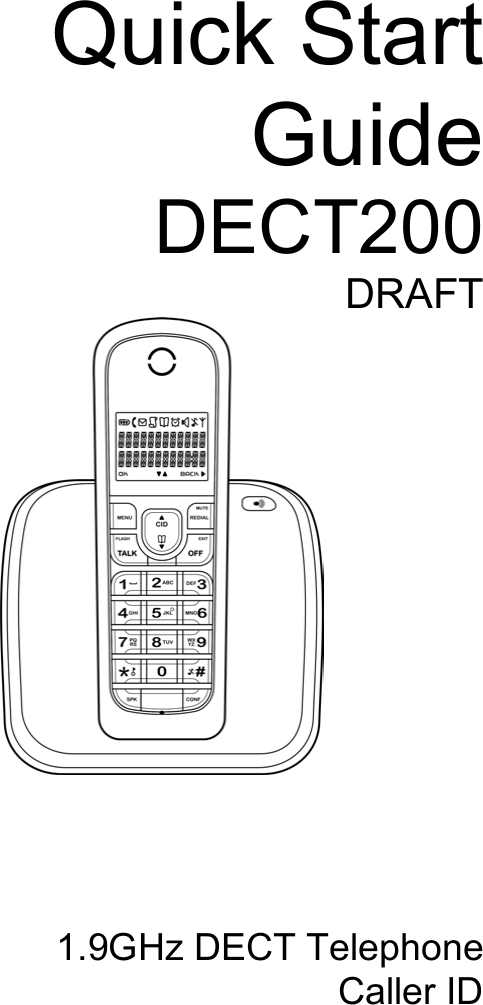
 Quick Start Guide DECT200 DRAFT        1.9GHz DECT Telephone Caller ID
Table of Contents  1 - Hands-free
- 2 -   BEFORE USING YOUR TELEPHONE EQUIPMENT, BASIC SAFETY PRECAUTIONS SHOUD ALWAYS BE FOLLOWED TO REDUCE THE RISK OF FIRE, ELECTRIC SHOCK AND INJURY, INCLUDING THE FOLLOWING. •  Read and follow all warnings and instructions marked on the product. •  Do not use this product near water, laundry tub, in a wet basement, or near a swimming pool. •  Do not place this product on an unstable table. The product may fall and be damaged. •  This product should never be placed near or over a radiator or heat register.   •  This product should be operated only from the type of power source indicated on the label.   •  Do not allow anything to rest on the power cord.  Do not locate this product where the cord will be abused by persons walking on it. •  Do not overload wall outlets and extension cords as this can result in the risk of fire or electric shock. •  Avoid using a telephone during an electrical storm.  There may be a remote risk of electric shock from lightning. •  Do not use this product to report a gas leak in the vicinity of the leak. •  Do not use this product near intensive care medical equipment or by persons with pacemakers. •  Due to the radio signals between base station and handset, wearers of hearing aids may experience interference in the form of a humming noise. •  Do not allow the handset to come into contact with liquids or moisture. •  Do not open the handset, base unit or charger. This could expose you to high voltages. •  Do not allow the charging contacts or the battery to come into contact with conductive materials. •  There is a slight chance that your product could be damaged by an electrical storm. We recommend that you unplug the product from the power supply and telephone socket during a storm. •  Do not use the handset in an explosive hazard area such as where there is gas leaking. •  It is recommended that this product is not used near intensive care medical equipments or by persons with pacemakers. •  This product can interfere with electrical equipment such as answering machine, television, radio, and computers if placed too close. We recommend that you position the base unit at least one meter from such appliances. •  This product is not designed for making emergency telephone calls when the power fails. Alternative arrangements should be made for access to emergency services.  BATTERIES •  Use only the battery type listed in the instruction manual.  Do not use lithium batteries. •  Do not dispose of the battery in a fire, as they can explode.   •  Do not open or mutilate the battery.  Released electrolyte is corrosive and can cause damage to the eyes or skin.  It can be toxic if swallowed. •  Avoid contact with metal objects when handling the battery.  These objects could short out the batteries or cause the conductor to overheat resulting in burns. •  Do not attempt to recharge the battery cell by heating it.  Sudden release of battery electrolyte can cause burns or irritation to the eyes or skin. •  Observe the proper polarity, or direction, of any battery.  Reverse insertion of the battery cell can result in leakage or explosion. •  Remove the battery cells if you do not plan to use the product for several months at a time.   •  Discard any “dead” batteries because they are likely to leak into the product. •  Do not store this product or the battery in a high temperature area.  Battery stored in a freezer or refrigerator should be protected from condensation during storage and defrosting.  Battery should be stabilized at room temperature before using. •  Your battery is rechargeable and can be recycled once it outlives its usefulness.  Depending upon your local and state law, it might be illegal to dispose of this battery into a municipal waste system.  Check with your local solid waste company for more information on your recycling options for the battery cells.  SAVE THESE INSTRUCTIONS Important Safety Instructions
Environment and Safety - 3 -
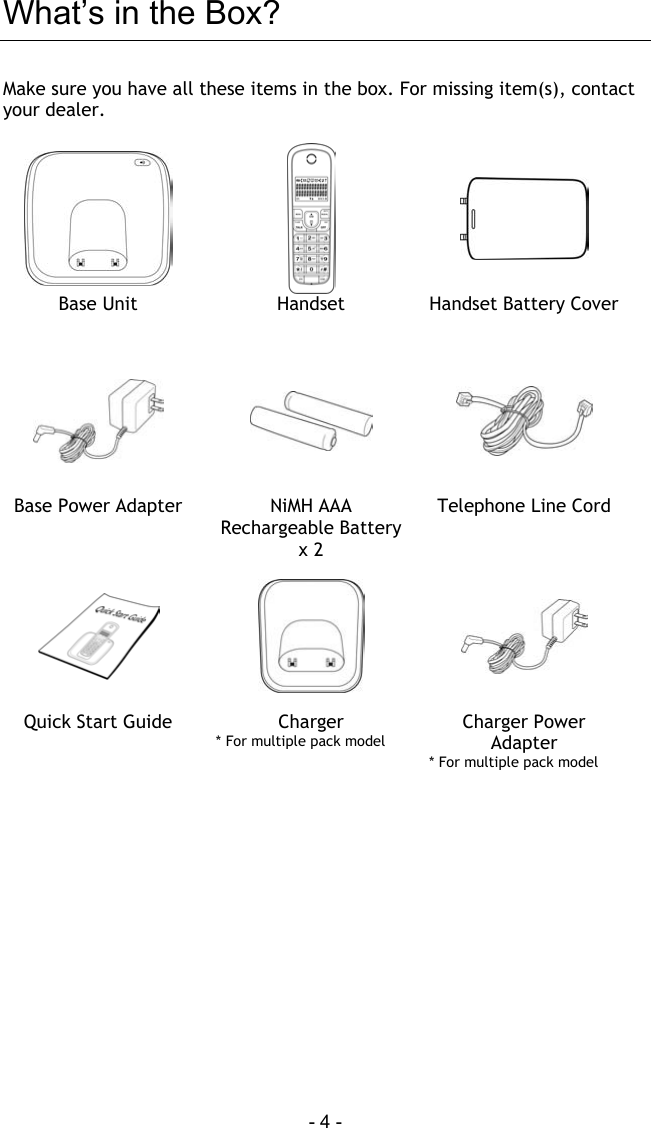
 - 4 - What’s in the Box? Make sure you have all these items in the box. For missing item(s), contact your dealer.     Base Unit  Handset  Handset Battery Cover     Base Power Adapter  NiMH AAA Rechargeable Battery  x 2 Telephone Line Cord      Quick Start Guide   Charger  * For multiple pack model  Charger Power Adapter * For multiple pack model
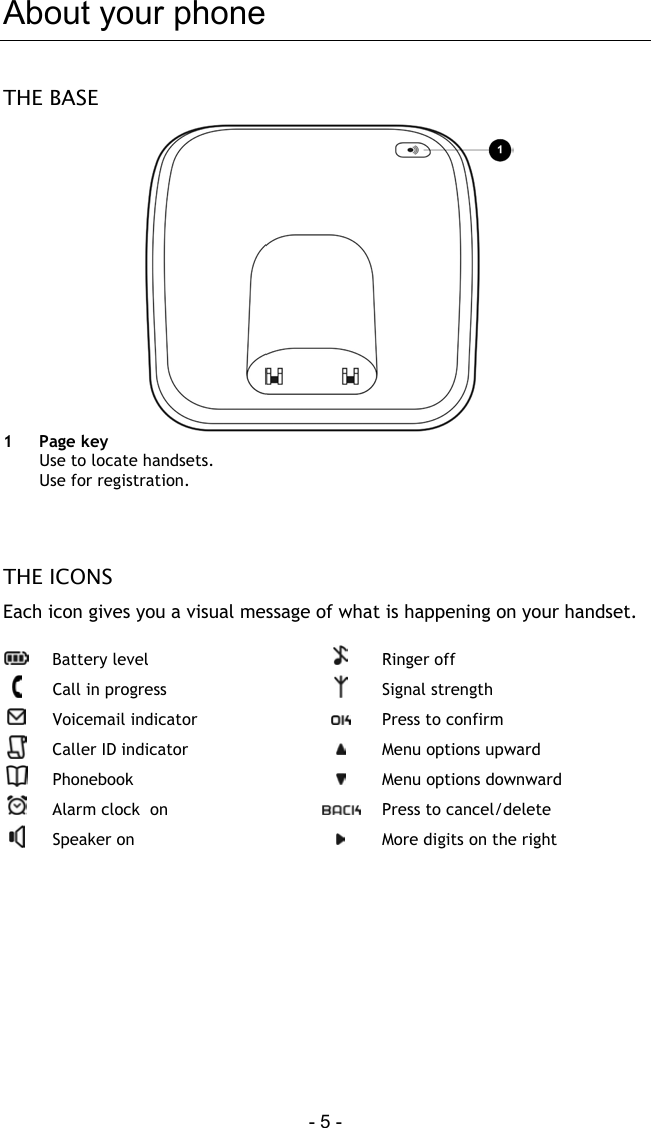
 - 5 - About your phone THE BASE   1 Page key Use to locate handsets. Use for registration.     THE ICONS Each icon gives you a visual message of what is happening on your handset.   Battery level   Ringer off  Call in progress   Signal strength  Voicemail indicator   Press to confirm  Caller ID indicator   Menu options upward  Phonebook   Menu options downward  Alarm clock  on   Press to cancel/delete  Speaker on   More digits on the right
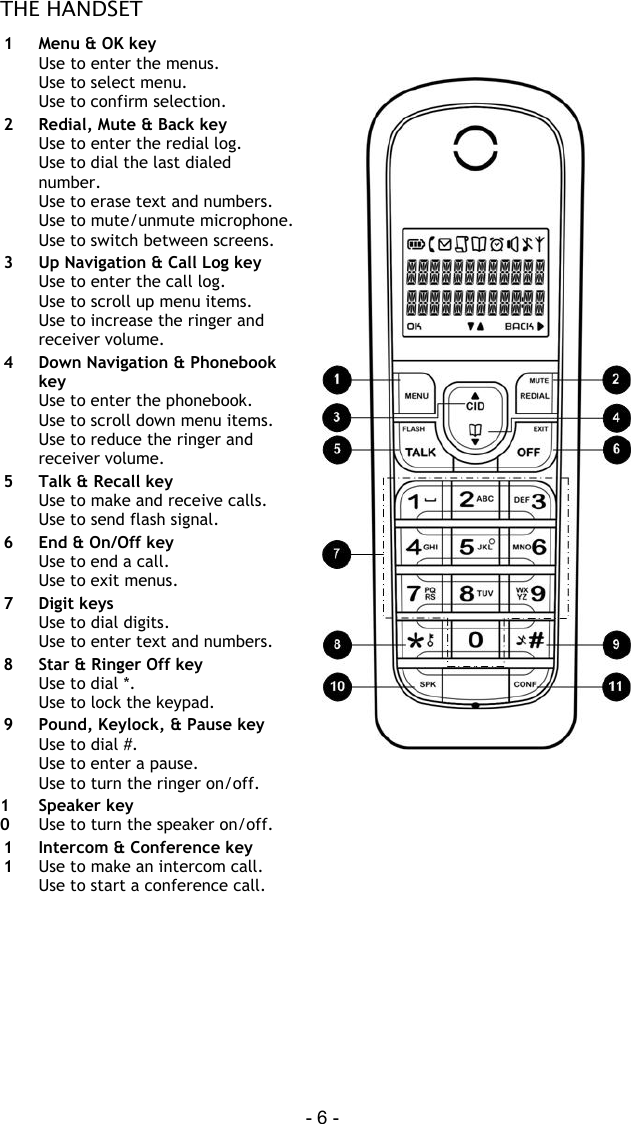
 - 6 - THE HANDSET 1  M e n u  &  O K  k e y  Use to enter the menus. Use to select menu. Use to confirm selection. 2  Redia l ,  Mu t e  &  B a c k  k e y  Use to enter the redial log. Use to dial the last dialed number. Use to erase text and numbers. Use to mute/unmute microphone. Use to switch between screens. 3   Up Navigation & Call Log key Use to enter the call log. Use to scroll up menu items. Use to increase the ringer and receiver volume. 4  Down Navigation & Phonebook key Use to enter the phonebook. Use to scroll down menu items. Use to reduce the ringer and receiver volume. 5  Talk & Recall key Use to make and receive calls. Use to send flash signal. 6  End & On/Off key Use to end a call. Use to exit menus. 7 D i g i t  k e y s  Use to dial digits. Use to enter text and numbers. 8  S t a r  &  R i n g e r  O f f  k e y  Use to dial *. Use to lock the keypad. 9  Pound, Keylock, & Pause key Use to dial #. Use to enter a pause. Use to turn the ringer on/off.  10 Speaker key Use to turn the speaker on/off.   11 Intercom & Conference key Use to make an intercom call. Use to start a conference call.
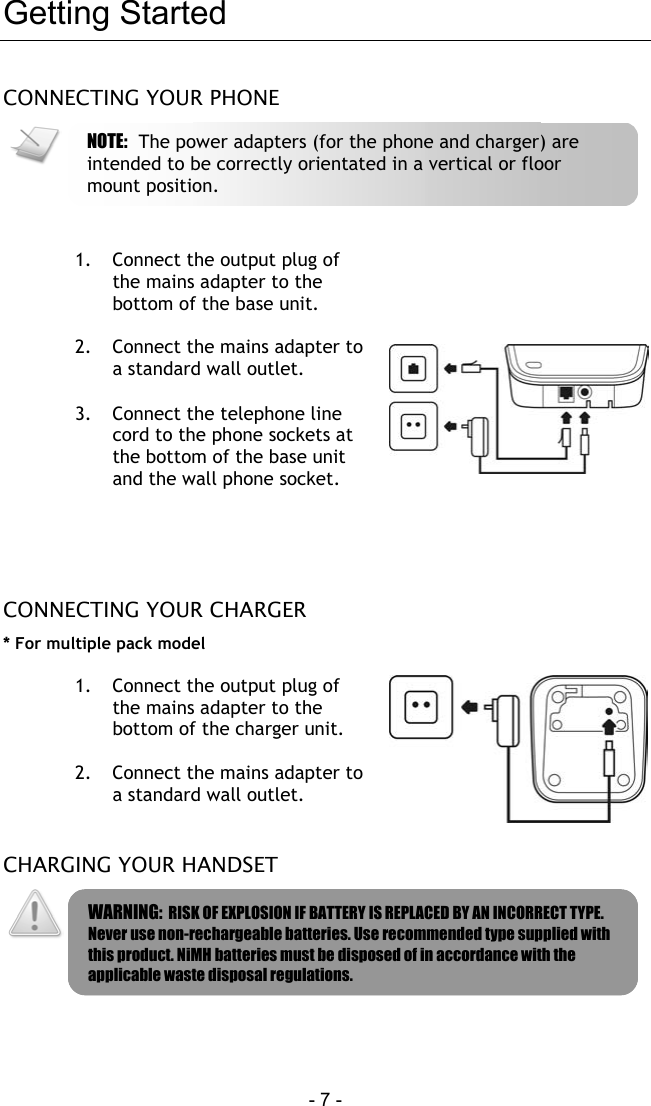
 - 7 -   Getting Started CONNECTING YOUR PHONE    1.  Connect the output plug of the mains adapter to the bottom of the base unit.  2.  Connect the mains adapter to a standard wall outlet.  3.  Connect the telephone line cord to the phone sockets at the bottom of the base unit and the wall phone socket.    CONNECTING YOUR CHARGER * For multiple pack model  1.  Connect the output plug of the mains adapter to the bottom of the charger unit.  2.  Connect the mains adapter to a standard wall outlet.   CHARGING YOUR HANDSET    WARNING:  RISK OF EXPLOSION IF BATTERY IS REPLACED BY AN INCORRECT TYPE. Never use non-rechargeable batteries. Use recommended type supplied with this product. NiMH batteries must be disposed of in accordance with the applicable waste disposal regulations. NOTE:  The power adapters (for the phone and charger) are intended to be correctly orientated in a vertical or floor mount position.
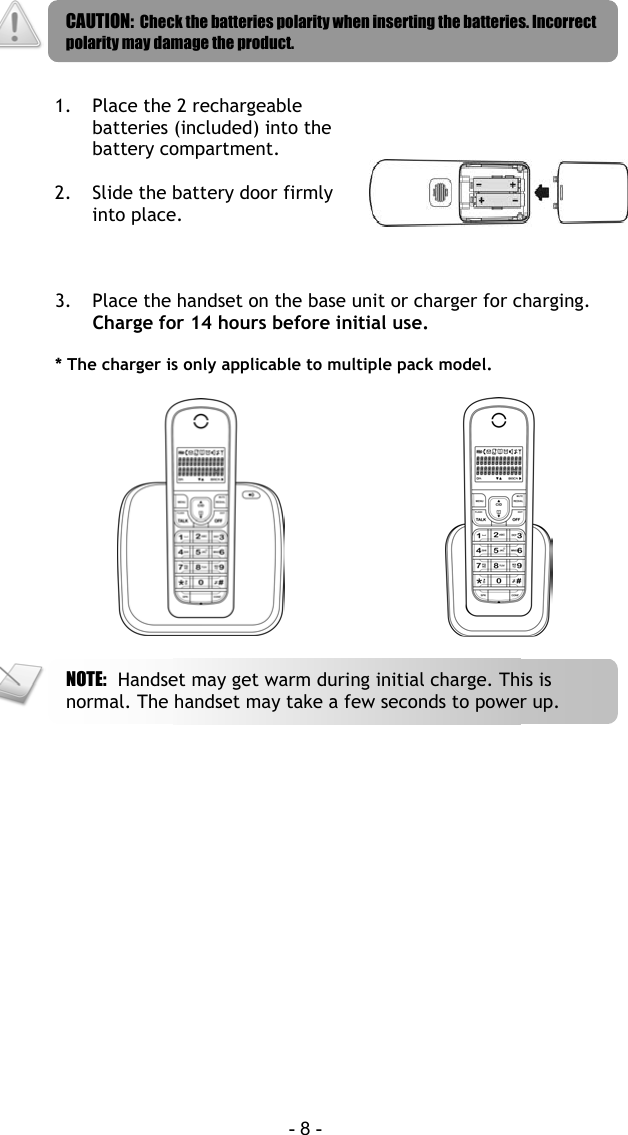
 - 8 -    1.  Place the 2 rechargeable batteries (included) into the battery compartment.  2.  Slide the battery door firmly into place.   3.  Place the handset on the base unit or charger for charging. Charge for 14 hours before initial use.  * The charger is only applicable to multiple pack model.       NOTE:  Handset may get warm during initial charge. This is normal. The handset may take a few seconds to power up. CAUTION:  Check the batteries polarity when inserting the batteries. Incorrect polarity may damage the product.
 - 9 - Call   MAKING A CALL This section describes the different ways to make a call.  1. Press  . 2.  Dial the phone number. The number displays on the screen and is dialed out.    ENDING A CALL 1. Press   or place the handset on the base unit or charger.  ANSWERING A CALL When you receive a call, your phone rings. Press   to answer the call.        TIP:  Silent Ringer. When the phone is ringing, press   to turn off the ringer for the incoming call. NOTE:  Caller ID Service.  Consult and subscribe from your service provider. NOTE:  Emergency Call. This telephone is not designed for making emergency telephone calls when the power fails. Alternate arrangements should be made for access to NOTE:  Call Timer.  During a call, the call timer displays the talk time of your current call.
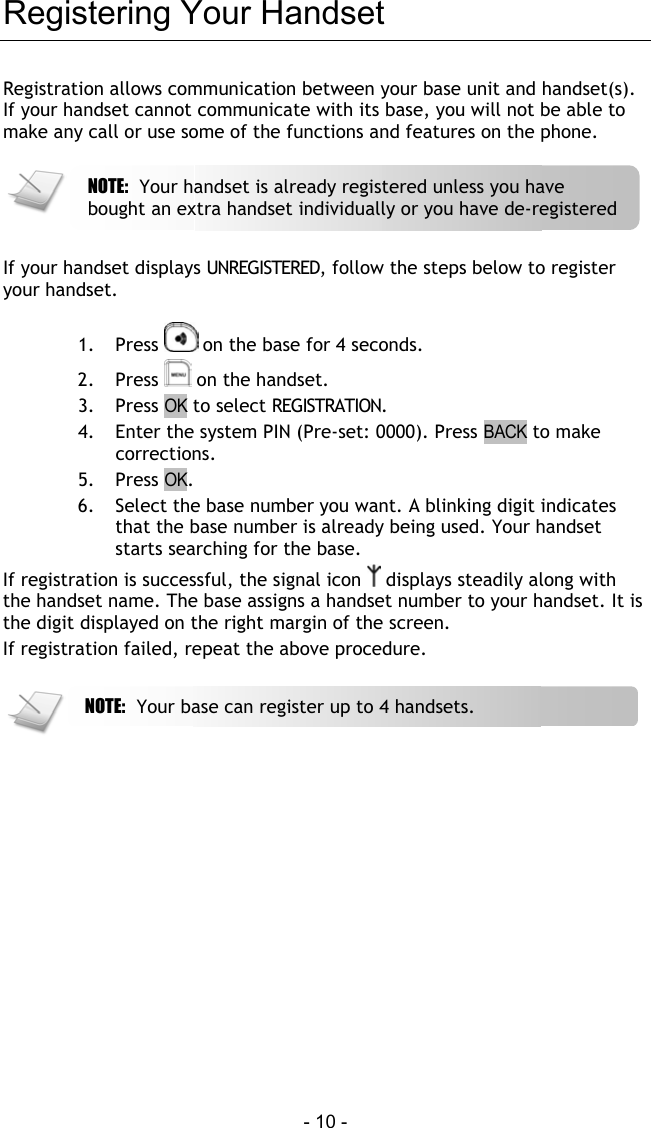
 - 10 - Registering Your Handset Registration allows communication between your base unit and handset(s). If your handset cannot communicate with its base, you will not be able to make any call or use some of the functions and features on the phone.      If your handset displays UNREGISTERED, follow the steps below to register your handset.  1. Press   on the base for 4 seconds.  2. Press   on the handset. 3. Press OK to select REGISTRATION. 4.  Enter the system PIN (Pre-set: 0000). Press BACK to make corrections. 5. Press OK. 6.  Select the base number you want. A blinking digit indicates that the base number is already being used. Your handset starts searching for the base. If registration is successful, the signal icon   displays steadily along with the handset name. The base assigns a handset number to your handset. It is the digit displayed on the right margin of the screen. If registration failed, repeat the above procedure.    NOTE:  Your base can register up to 4 handsets.  NOTE:  Your handset is already registered unless you have bought an extra handset individually or you have de-registered
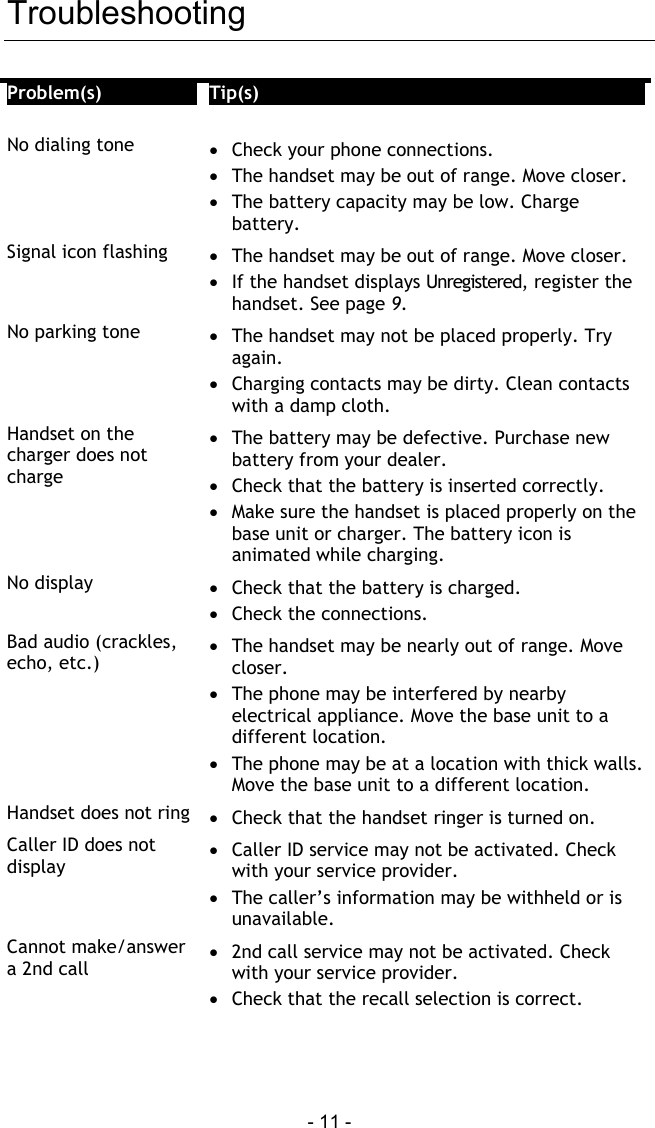
 - 11 - Troubleshooting Problem(s)  Tip(s)   No dialing tone  •  Check your phone connections. •  The handset may be out of range. Move closer. •  The battery capacity may be low. Charge battery. Signal icon flashing  •  The handset may be out of range. Move closer. •  If the handset displays Unregistered, register the handset. See page 9. No parking tone  •  The handset may not be placed properly. Try again. •  Charging contacts may be dirty. Clean contacts with a damp cloth. Handset on the charger does not charge •  The battery may be defective. Purchase new battery from your dealer. •  Check that the battery is inserted correctly. •  Make sure the handset is placed properly on the base unit or charger. The battery icon is animated while charging. No display  •  Check that the battery is charged. •  Check the connections. Bad audio (crackles, echo, etc.) •  The handset may be nearly out of range. Move closer. •  The phone may be interfered by nearby electrical appliance. Move the base unit to a different location. •  The phone may be at a location with thick walls. Move the base unit to a different location. Handset does not ring  •  Check that the handset ringer is turned on. Caller ID does not display •  Caller ID service may not be activated. Check with your service provider. •  The caller’s information may be withheld or is unavailable. Cannot make/answer a 2nd call •  2nd call service may not be activated. Check with your service provider. •  Check that the recall selection is correct.

Navigation menu