Authentrend TECHNOLOGY ATKEYBLE1 Bluetooth Fingerprint Authenticator User Manual ATKEY BLE QSG EN CHT 20171228r1

Authentrend TECHNOLOGY INC. Bluetooth Fingerprint Authenticator ATKEY BLE QSG EN CHT 20171228r1

User Manual

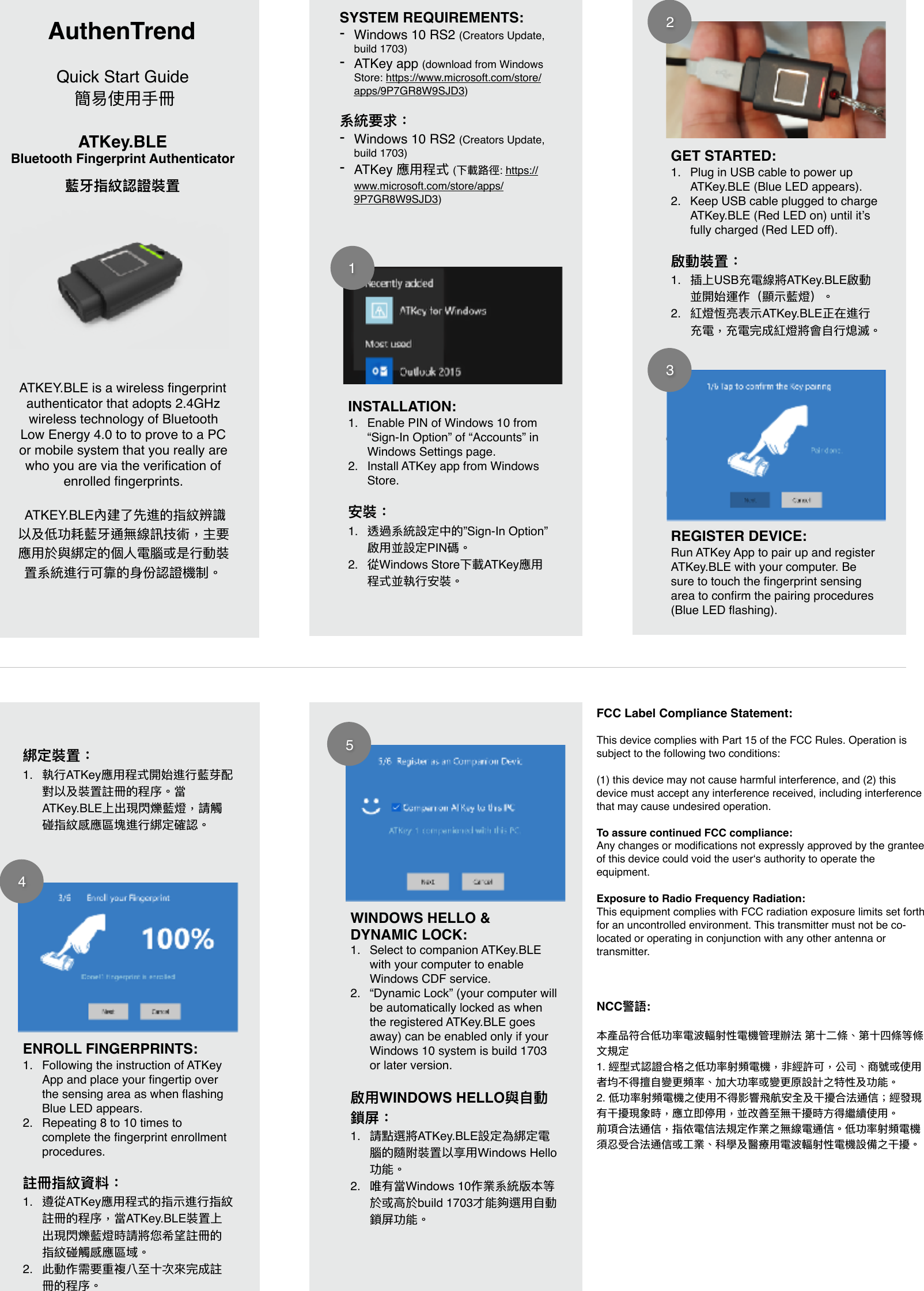
FCC Label Compliance Statement:This device complies with Part 15 of the FCC Rules. Operation is subject to the following two conditions: (1) this device may not cause harmful interference, and (2) this device must accept any interference received, including interference that may cause undesired operation.To assure continued FCC compliance:Any changes or modifications not expressly approved by the grantee of this device could void the user‘s authority to operate the equipment.Exposure to Radio Frequency Radiation:This equipment complies with FCC radiation exposure limits set forth for an uncontrolled environment. This transmitter must not be co-located or operating in conjunction with any other antenna or transmitter.NCC警語:本產品符合低功率電波󴲼射性電機管辦法 第條、第四條等條規定1. 經型式認證合格之低功率射頻電機,非經許可,公司、商號或使者均不得擅變頻率、加功率或變原設計之特性及功能。2. 低功率射頻電機之使不得影響󵍝航安全及擾合法通信;經發現有擾現象時,應立即停,並改善無擾時得繼續使。前項合法通信,指依電信法規定作業之無線電通信。低功率射頻電機須忍受合法通信或業、科學及醫療電波󴲼射性電機設備之擾。AuthenTrendQuick Start Guide 簡使冊 ATKey.BLE Bluetooth Fingerprint Authenticator 󶬡牙指紋認證裝置  ATKEY.BLE is a wireless fingerprint authenticator that adopts 2.4GHz wireless technology of Bluetooth Low Energy 4.0 to to prove to a PC or mobile system that you really are who you are via the verification of enrolled fingerprints. ATKEY.BLE內建先進的指紋辨識以及低功耗󶬡牙通無線訊技術,主要應於與綁定的個電腦或是󰀉動裝置系統進󰀉可靠的󶷫份認證機制。INSTALLATION:1. Enable PIN of Windows 10 from “Sign-In Option” of “Accounts” in Windows Settings page. 2. Install ATKey app from Windows Store.安裝:1. 透過系統設定中的”Sign-In Option”啟並設定PIN碼。2. 從Windows Store下載ATKey應程式並執󰀉安裝。12GET STARTED:1. Plug in USB cable to power up ATKey.BLE (Blue LED appears).2. Keep USB cable plugged to charge ATKey.BLE (Red LED on) until it’s fully charged (Red LED off).啟動裝置:1. 插上USB充電線將ATKey.BLE啟動並開始運作(顯󶖉󶬡燈)。2. 紅燈恆亮表󶖉ATKey.BLE正在進󰀉充電,充電完成紅燈將會󰀉熄滅。SYSTEM REQUIREMENTS:-Windows 10 RS2 (Creators Update, build 1703)-ATKey app (download from Windows Store: https://www.microsoft.com/store/apps/9P7GR8W9SJD3)系統要求:-Windows 10 RS2 (Creators Update, build 1703)-ATKey 應程式 (下載󰆡徑: https://www.microsoft.com/store/apps/9P7GR8W9SJD3)34REGISTER DEVICE:Run ATKey App to pair up and register ATKey.BLE with your computer. Be sure to touch the fingerprint sensing area to confirm the pairing procedures (Blue LED flashing).綁定裝置:1. 執󰀉ATKey應程式開始進󰀉󶬡芽配對以及裝置註冊的程序。當ATKey.BLE上出現閃爍󶬡燈,請觸碰指紋感應區塊進󰀉綁定確認。ENROLL FINGERPRINTS:1. Following the instruction of ATKey App and place your fingertip over the sensing area as when flashing Blue LED appears. 2. Repeating 8 to 10 times to complete the fingerprint enrollment procedures.註冊指紋資料:1. 遵從ATKey應程式的指󶖉進󰀉指紋註冊的程序,當ATKey.BLE裝置上出現閃爍󶬡燈時請將您希望註冊的指紋碰觸感應區域。2. 此動作需要重複八次󲈶完成註冊的程序。5WINDOWS HELLO & DYNAMIC LOCK:1. Select to companion ATKey.BLE with your computer to enable Windows CDF service. 2. “Dynamic Lock” (your computer will be automatically locked as when the registered ATKey.BLE goes away) can be enabled only if your Windows 10 system is build 1703 or later version.啟WINDOWS HELLO與動鎖屏:1. 請點選將ATKey.BLE設定為綁定電腦的隨附裝置以享Windows Hello功能。2. 唯有當Windows 10作業系統版本等於或󰕜於build 1703才能夠選動鎖屏功能。

Navigation menu