Avalan Wireless Systems orporated AW2400MR 2.4 GHz Wireless Ethernet Module User Manual Manual

Avalan Wireless Systems Incorporated 2.4 GHz Wireless Ethernet Module Manual

Manual

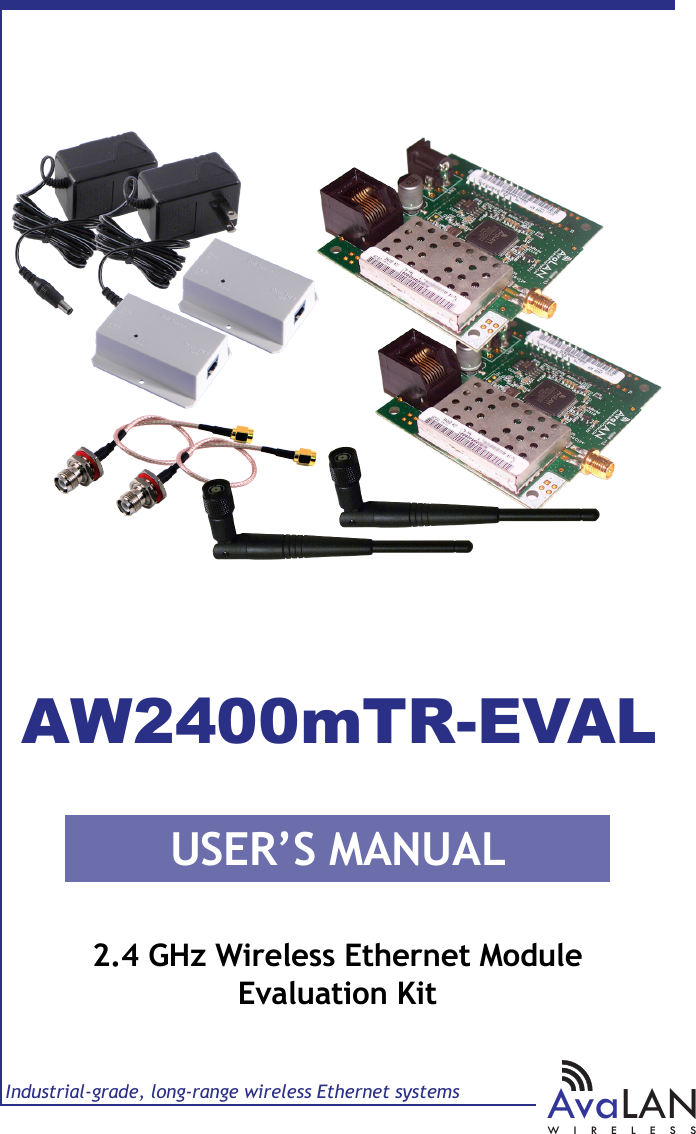
USER’S MANUALIndustrial-grade, long-range wireless Ethernet systemsAvaLANWIRELESS2.4 GHz Wireless Ethernet ModuleEvaluation KitAW2400mTR-EVAL
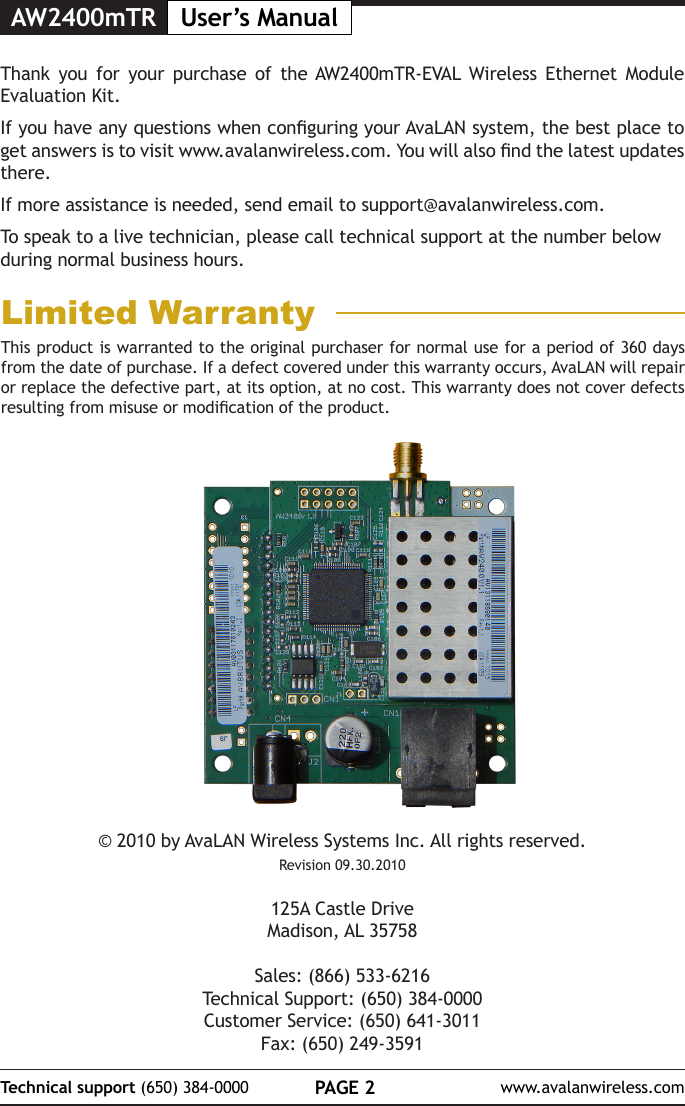
AW2400mTR User’s ManualPAGE 2Technical support (650) 384-0000 www.avalanwireless.com© 2010 by AvaLAN Wireless Systems Inc. All rights reserved.Revision 09.30.2010125A Castle DriveMadison, AL 35758Sales: (866) 533-6216Technical Support: (650) 384-0000Customer Service: (650) 641-3011Fax: (650) 249-3591Thank you for your purchase of the AW2400mTR-EVAL Wireless Ethernet Module Evaluation Kit.  If you have any questions when conguring your AvaLAN system, the best place to get answers is to visit www.avalanwireless.com. You will also nd the latest updates there.If more assistance is needed, send email to support@avalanwireless.com.To speak to a live technician, please call technical support at the number below during normal business hours.This product is warranted to the original purchaser for normal use for a period of 360 days from the date of purchase. If a defect covered under this warranty occurs, AvaLAN will repair or replace the defective part, at its option, at no cost. This warranty does not cover defects resulting from misuse or modication of the product.Limited Warranty
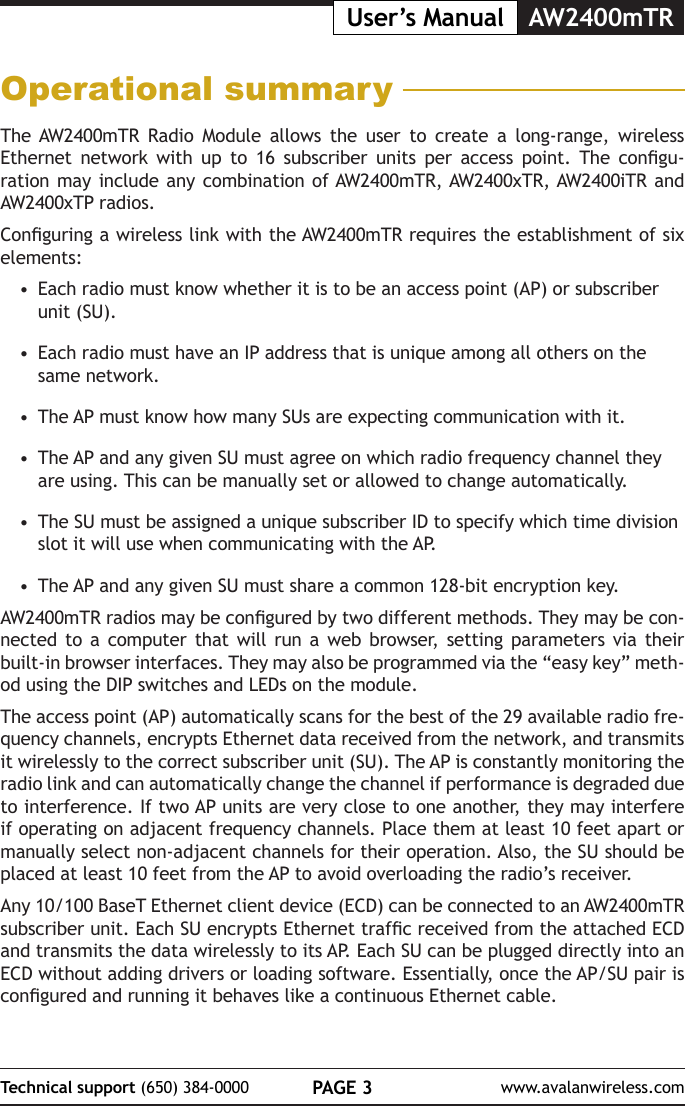
PAGE 3Technical support (650) 384-0000 www.avalanwireless.comUser’s Manual AW2400mTROperational summaryThe AW2400mTR Radio Module allows the user to create a long-range, wireless Ethernet  network  with  up  to  16  subscriber  units  per  access  point.  The  congu-ration may include any combination of AW2400mTR, AW2400xTR, AW2400iTR and AW2400xTP radios. Conguring a wireless link with the AW2400mTR requires the establishment of six elements:•  Each radio must know whether it is to be an access point (AP) or subscriber unit (SU).•  Each radio must have an IP address that is unique among all others on the same network.•  The AP must know how many SUs are expecting communication with it.•  The AP and any given SU must agree on which radio frequency channel they are  using.  This  can  be  manually  set  or  allowed  to  change  automatically.                                                                                                     •  The SU must be assigned a unique subscriber ID to specify which time division slot it will use when communicating with the AP.•  The AP and any given SU must share a common 128-bit encryption key. AW2400mTR radios may be congured by two different methods. They may be con-nected to a computer that will run a web browser, setting parameters via their built-in browser interfaces. They may also be programmed via the “easy key” meth-od using the DIP switches and LEDs on the module. The access point (AP) automatically scans for the best of the 29 available radio fre-quency channels, encrypts Ethernet data received from the network, and transmits it wirelessly to the correct subscriber unit (SU). The AP is constantly monitoring the radio link and can automatically change the channel if performance is degraded due to interference. If two AP units are very close to one another, they may interfere if operating on adjacent frequency channels. Place them at least 10 feet apart or manually select non-adjacent channels for their operation. Also, the SU should be placed at least 10 feet from the AP to avoid overloading the radio’s receiver.Any 10/100 BaseT Ethernet client device (ECD) can be connected to an AW2400mTR subscriber unit. Each SU encrypts Ethernet trafc received from the attached ECD and transmits the data wirelessly to its AP. Each SU can be plugged directly into an ECD without adding drivers or loading software. Essentially, once the AP/SU pair is congured and running it behaves like a continuous Ethernet cable.
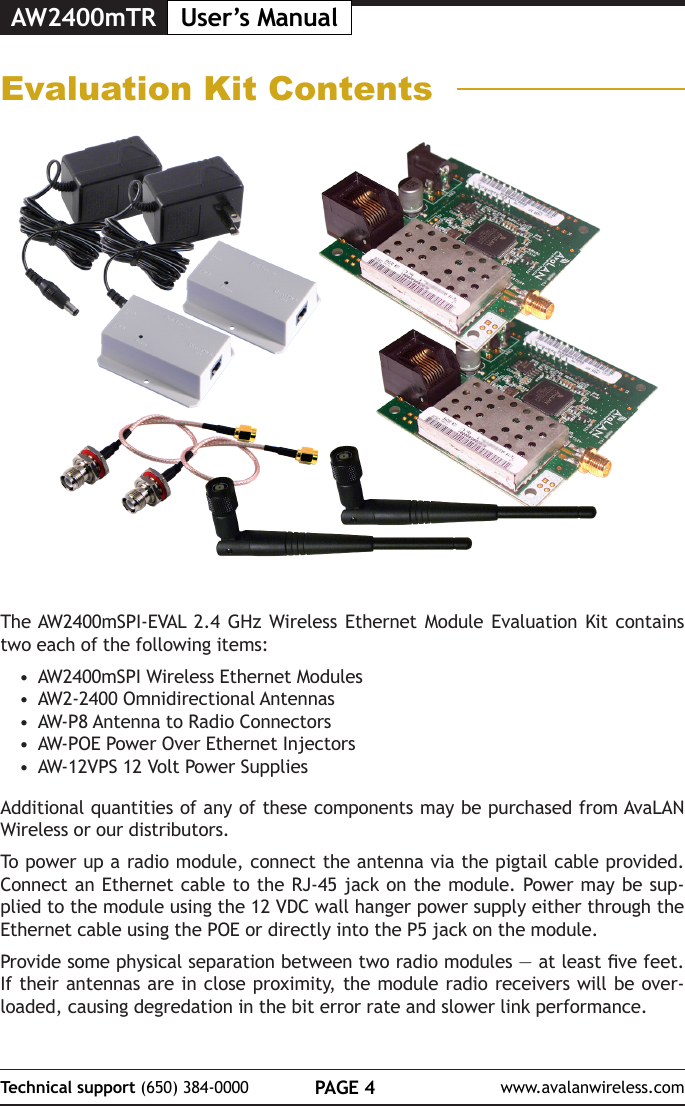
AW2400mTR User’s ManualPAGE 4Technical support (650) 384-0000 www.avalanwireless.comEvaluation Kit ContentsThe AW2400mSPI-EVAL 2.4 GHz Wireless Ethernet Module Evaluation Kit contains two each of the following items:•  AW2400mSPI Wireless Ethernet Modules•  AW2-2400 Omnidirectional Antennas•  AW-P8 Antenna to Radio Connectors•  AW-POE Power Over Ethernet Injectors•  AW-12VPS 12 Volt Power SuppliesAdditional quantities of any of these components may be purchased from AvaLAN Wireless or our distributors.To power up a radio module, connect the antenna via the pigtail cable provided. Connect an Ethernet cable to the RJ-45 jack on the module. Power may be sup-plied to the module using the 12 VDC wall hanger power supply either through the Ethernet cable using the POE or directly into the P5 jack on the module.Provide some physical separation between two radio modules — at least ve feet. If their antennas are in close proximity, the module radio receivers will be over-loaded, causing degredation in the bit error rate and slower link performance.
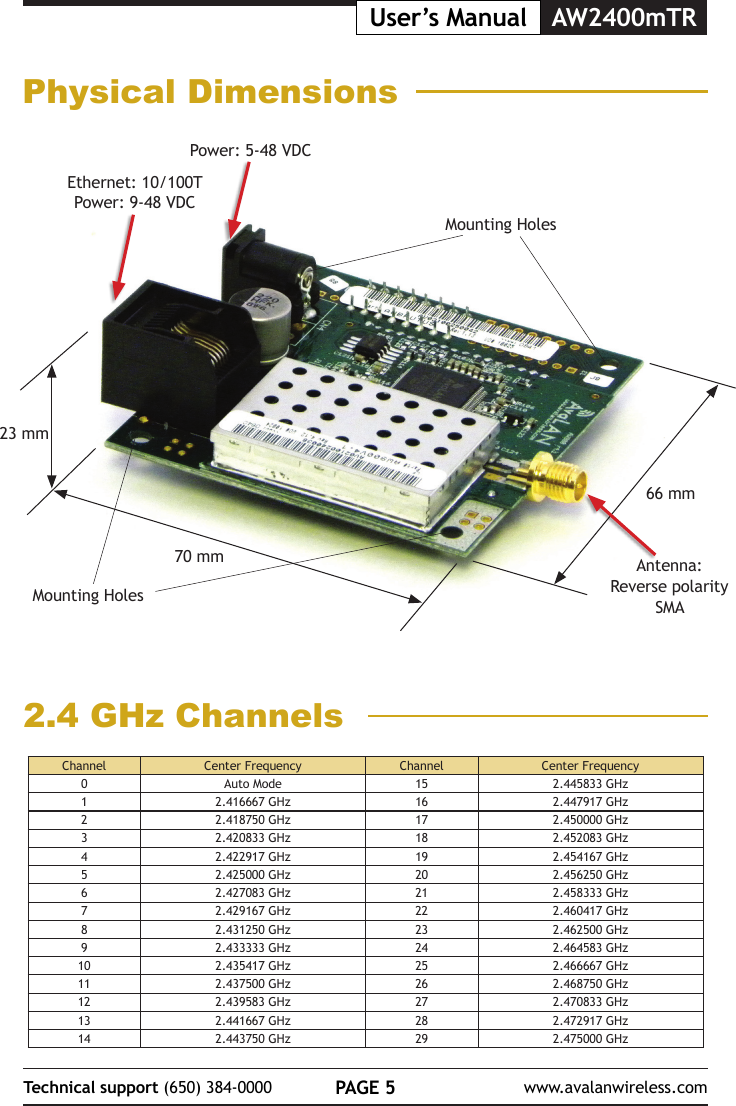
PAGE 5Technical support (650) 384-0000 www.avalanwireless.comUser’s Manual AW2400mTRPhysical Dimensions23 mm70 mm66 mmPower: 5-48 VDCEthernet: 10/100TPower: 9-48 VDCAntenna: Reverse polarity SMAMounting HolesMounting Holes2.4 GHz ChannelsChannel Center Frequency Channel Center Frequency0Auto Mode 15 2.445833 GHz12.416667 GHz 16 2.447917 GHz22.418750 GHz 17 2.450000 GHz32.420833 GHz 18 2.452083 GHz42.422917 GHz 19 2.454167 GHz52.425000 GHz 20 2.456250 GHz62.427083 GHz 21 2.458333 GHz72.429167 GHz 22 2.460417 GHz82.431250 GHz 23 2.462500 GHz92.433333 GHz 24 2.464583 GHz10 2.435417 GHz 25 2.466667 GHz11 2.437500 GHz 26 2.468750 GHz12 2.439583 GHz 27 2.470833 GHz13 2.441667 GHz 28 2.472917 GHz14 2.443750 GHz 29 2.475000 GHz
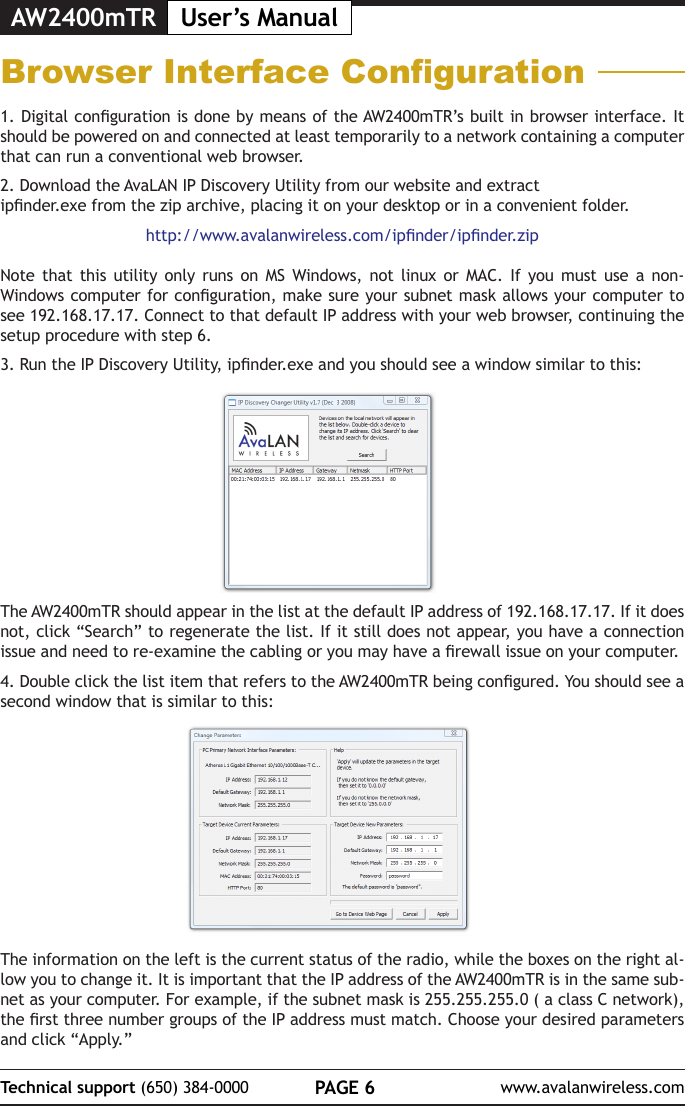
AW2400mTR User’s ManualPAGE 6Technical support (650) 384-0000 www.avalanwireless.comBrowser Interface Conguration1. Digital conguration is done by means of the AW2400mTR’s built in browser interface. It should be powered on and connected at least temporarily to a network containing a computer that can run a conventional web browser. 2. Download the AvaLAN IP Discovery Utility from our website and extract ipnder.exe from the zip archive, placing it on your desktop or in a convenient folder.http://www.avalanwireless.com/ipnder/ipnder.zipNote that this utility only runs on MS Windows, not linux or MAC. If you must use a non-Windows computer for conguration, make sure your subnet mask allows your computer to see 192.168.17.17. Connect to that default IP address with your web browser, continuing the setup procedure with step 6.3. Run the IP Discovery Utility, ipnder.exe and you should see a window similar to this:The AW2400mTR should appear in the list at the default IP address of 192.168.17.17. If it does not, click “Search” to regenerate the list. If it still does not appear, you have a connection issue and need to re-examine the cabling or you may have a rewall issue on your computer.4. Double click the list item that refers to the AW2400mTR being congured. You should see a second window that is similar to this:The information on the left is the current status of the radio, while the boxes on the right al-low you to change it. It is important that the IP address of the AW2400mTR is in the same sub-net as your computer. For example, if the subnet mask is 255.255.255.0 ( a class C network), the rst three number groups of the IP address must match. Choose your desired parameters and click “Apply.”
PAGE 7Technical support (650) 384-0000 www.avalanwireless.comUser’s Manual AW2400mTR7. The admin page has sections similar to the login page showing radio statistics and device information plus it adds several new sections. The Device Settings section allows setting the network information and choosing an RF frequency channel. The default is to allow the radio to choose  its own frequency  based on  minimizing interference. If  you set a  xed channel, make sure the AP and all SUs use the same one. References to DIPs on this and the next web page refer to the DIP switches on the module that are used in the “easy key” method of con-guration and may be ignored when using the browser method.If you scroll down in the Admin browser page, you will come to three more sections:•  A graphical spectrum analyzer display that may help you to select radio channels that avoid interference•  A section to be used if an update to the AW2400mTR’s rmware is required•  An Advanced Links section with a dire warning about advanced users only.5. Make note of the chosen IP address and password, then click “Go to Device Web Page.” This will cause your default web browser to launch with the device IP address in the browser address bar. Or you may launch the browser on your own and enter the web page address manually: http://[the IP address you just set]. 6. The browser page that loads rst shows the current device information and QoS statistics and provides a login at the upper right. Log in using the password you just specied (or “pass-word” if you kept the default). If the login succeeds, you will see an admin page similar to this:
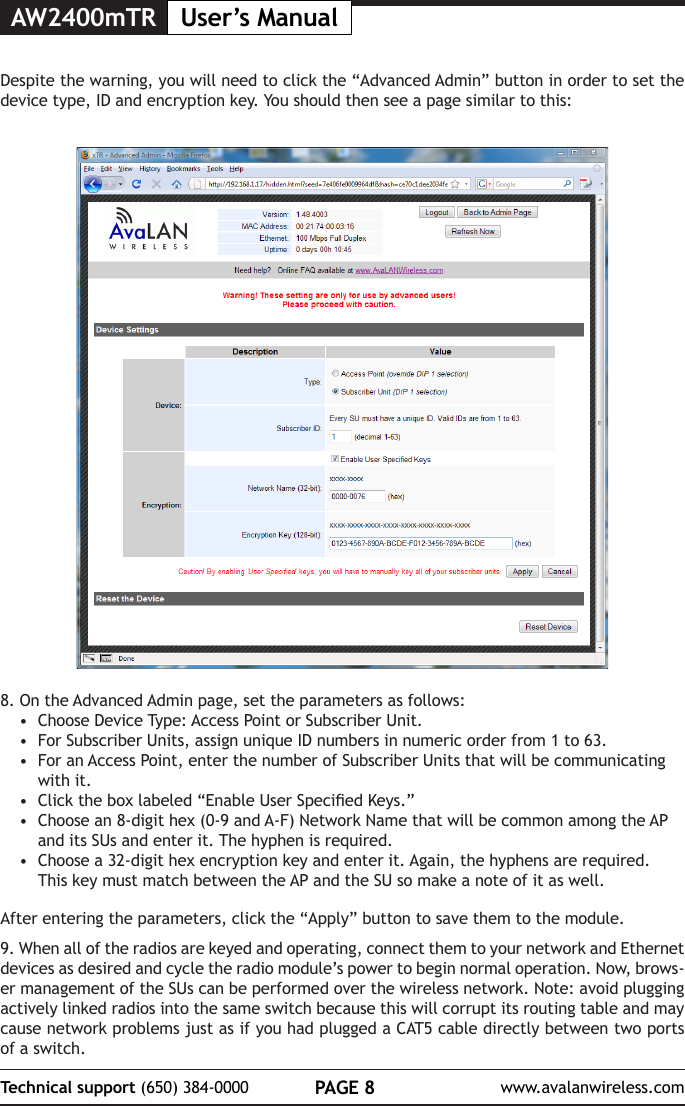
AW2400mTR User’s ManualPAGE 8Technical support (650) 384-0000 www.avalanwireless.com8. On the Advanced Admin page, set the parameters as follows:•  Choose Device Type: Access Point or Subscriber Unit.•  For Subscriber Units, assign unique ID numbers in numeric order from 1 to 63.•  For an Access Point, enter the number of Subscriber Units that will be communicating with it. •  Click the box labeled “Enable User Specied Keys.”•  Choose an 8-digit hex (0-9 and A-F) Network Name that will be common among the AP and its SUs and enter it. The hyphen is required.•  Choose a 32-digit hex encryption key and enter it. Again, the hyphens are required. This key must match between the AP and the SU so make a note of it as well. After entering the parameters, click the “Apply” button to save them to the module.9. When all of the radios are keyed and operating, connect them to your network and Ethernet devices as desired and cycle the radio module’s power to begin normal operation. Now, brows-er management of the SUs can be performed over the wireless network. Note: avoid plugging actively linked radios into the same switch because this will corrupt its routing table and may cause network problems just as if you had plugged a CAT5 cable directly between two ports of a switch.Despite the warning, you will need to click the “Advanced Admin” button in order to set the device type, ID and encryption key. You should then see a page similar to this:
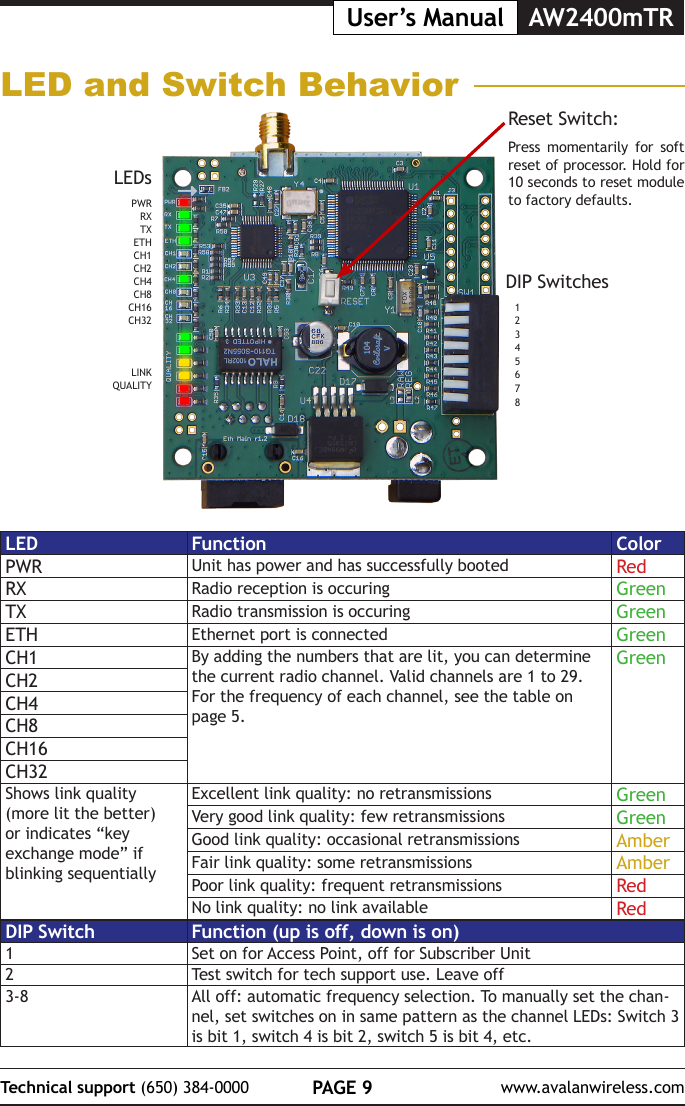
PAGE 9Technical support (650) 384-0000 www.avalanwireless.comUser’s Manual AW2400mTRLED and Switch BehaviorDIP Switches12345678LEDsPWRRXTXETHCH1CH2CH4CH8CH16CH32LINKQUALITYReset Switch:Press momentarily for soft reset of processor. Hold for 10 seconds to reset module to factory defaults.LED Function ColorPWR Unit has power and has successfully booted RedRX Radio reception is occuring GreenTX Radio transmission is occuring GreenETH Ethernet port is connected GreenCH1 By adding the numbers that are lit, you can determine the current radio channel. Valid channels are 1 to 29. For the frequency of each channel, see the table on page 5.GreenCH2CH4CH8CH16CH32Shows link quality (more lit the better) or indicates “key exchange mode” if blinking sequentiallyExcellent link quality: no retransmissions GreenVery good link quality: few retransmissions GreenGood link quality: occasional retransmissions AmberFair link quality: some retransmissions AmberPoor link quality: frequent retransmissions RedNo link quality: no link available RedDIP Switch Function (up is off, down is on)1Set on for Access Point, off for Subscriber Unit2Test switch for tech support use. Leave off3-8 All off: automatic frequency selection. To manually set the chan-nel, set switches on in same pattern as the channel LEDs: Switch 3  is bit 1, switch 4 is bit 2, switch 5 is bit 4, etc.
AW2400mTR User’s ManualPAGE 10Technical support (650) 384-0000 www.avalanwireless.com“Easy Key” CongurationIn most cases, the browser interface is a better choice for conguring the modules. But they also can be congured as a point-to-point bridge or a point-to-multipoint group using the DIP switches. When this method is used, the module that will oper-ate as the access point provides a unique network ID calculated from its MAC ad-dress and a unique random encryption key programmed into it during manufacture.If you do congure a set of modules this way, be aware that they will all have the factory default IP address of 192.168.1.17. If you later need access to a module via the browser interface, use the IP Finder utility, select the individual unit and give it a unique IP address.Initial Setup:1. Select the module that will operate as the access point (AP) and set its DIP switch 1 on (down). Set DIP switch 1 off (up) on the module(s) that will oper-ate as subscriber units (SUs).2. Select matching frequency channels on all modules or select automatic chan-nel selection by leaving DIP switches 3-8 off.3. Power up the AP module. Its link quality LEDs will begin blinking sequentially, showing that the module is hunting for an SU to exchange keys with.4. Power up an SU module (its DIP switch 1 is off). This module’s link quality LEDs will also begin blinking sequentially showing that it is hunting for an AP to supply a network key.5. Connect an Ethernet cable from the AP module to the SU module and the two modules will automatically exchange keys. (Do not connect through a switch or hub, but cable directly with a regular patch or crossover cable.)•  On the AP module, the link quality LEDs will still blink sequentially in key exchange mode and the TX LED will light showing successful key exchange•  On the SU module, the link quality LEDs will no longer blink sequentially, but one of the green link quality LEDs will slowly blink to indicate success-ful key exchange.6. Repeat steps 4 and 5 for any other SU modules to be congured to the same A P.7. disconnect the Ethernet cable and cycle power on all modules for the new keys to take effect. LED behavior should reect normal RF operation once the units are deployed.
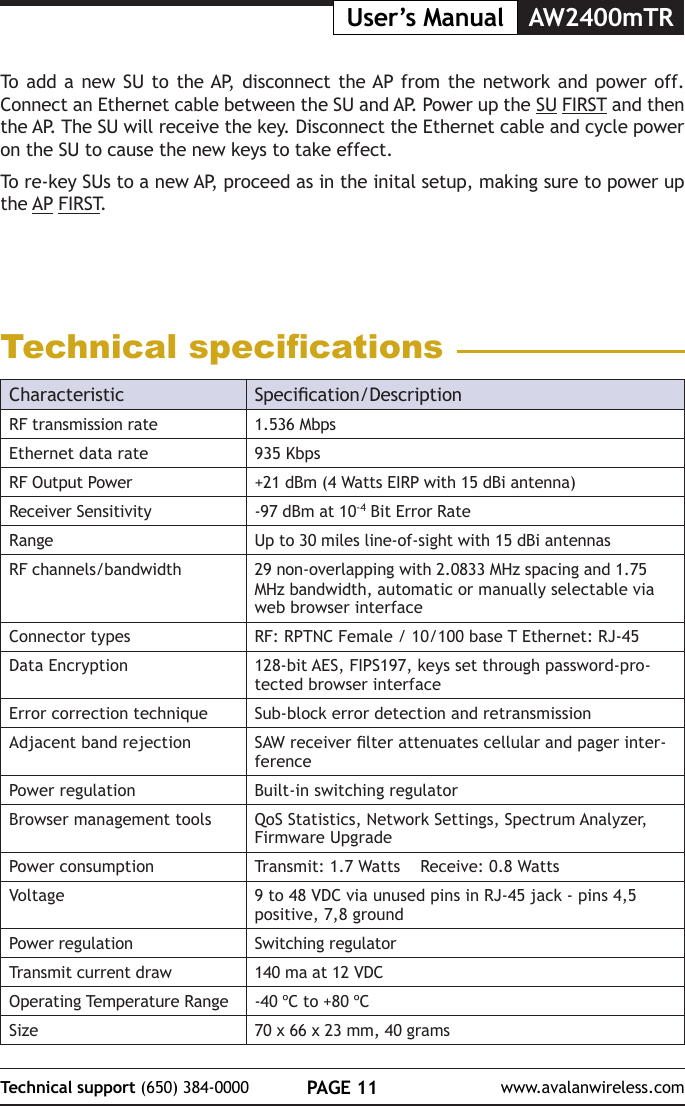
PAGE 11Technical support (650) 384-0000 www.avalanwireless.comUser’s Manual AW2400mTRTo add a new SU to the AP, disconnect the AP from the network and power off. Connect an Ethernet cable between the SU and AP. Power up the SU FIRST and then the AP. The SU will receive the key. Disconnect the Ethernet cable and cycle power on the SU to cause the new keys to take effect.To re-key SUs to a new AP, proceed as in the inital setup, making sure to power up the AP FIRST.Technical specicationsCharacteristic Specication/DescriptionRF transmission rate 1.536 MbpsEthernet data rate 935 KbpsRF Output Power +21 dBm (4 Watts EIRP with 15 dBi antenna)Receiver Sensitivity -97 dBm at 10-4 Bit Error RateRange Up to 30 miles line-of-sight with 15 dBi antennasRF channels/bandwidth 29 non-overlapping with 2.0833 MHz spacing and 1.75 MHz bandwidth, automatic or manually selectable via web browser interfaceConnector types RF: RPTNC Female / 10/100 base T Ethernet: RJ-45Data Encryption 128-bit AES, FIPS197, keys set through password-pro-tected browser interfaceError correction technique Sub-block error detection and retransmissionAdjacent band rejection SAW receiver lter attenuates cellular and pager inter-ferencePower regulation Built-in switching regulatorBrowser management tools QoS Statistics, Network Settings, Spectrum Analyzer, Firmware UpgradePower consumption Transmit: 1.7 Watts    Receive: 0.8 WattsVoltage 9 to 48 VDC via unused pins in RJ-45 jack - pins 4,5 positive, 7,8 groundPower regulation Switching regulatorTransmit current draw 140 ma at 12 VDCOperating Temperature Range -40 ºC to +80 ºCSize 70 x 66 x 23 mm, 40 grams
AW2400mTR User’s ManualPAGE 12Technical support (650) 384-0000 www.avalanwireless.comFCC CerticationThe AW2400MR OEM RF Module complies with Part 15 of the FCC rules and regulations. Compliance with labeling requirements, FCC notices and antenna regulations is required.Labeling RequirementsIn order to inherit AvaLAN’s FCC Certication, compliance requires the following be stated on the device and within its operation manual:FCC ID: R4N-AW2400MR This device complies with Part 15 of the FCC Rules. Operation is subject to the following two conditions: (1) this device may not cause harmful interference and (2) this device must accept any interference received, including interference that may cause undesired operation.Label Warning WARNING The Original Equipment Manufacturer (OEM) must ensure that FCC labeling requirements are met. This includes a clearly visible label on the outside of the nal product enclosure that displays the contents shown in the gure below.Figure A.1. Required FCC Label for OEM products containing the AvaLAN AW2400MR OEM RF ModuleContains FCC ID: R4N-AW2400MRThe enclosed device complies with Part 15 of the FCC Rules. Operation is subject to the following two conditions: (1) this device may not cause harmful interference and (2) this device must accept any interference received, including interference that may cause undesired operation.FCC NoticesAdherence to the following is required:IMPORTANT: The AW2400MR OEM RF Modules have been certied by the FCC for use with other products without any further certication (as per FCC section 2.1091). Changes or modications not expressly approved by AvaLAN could void the user’s authority to operate the equipment.IMPORTANT: OEMs must test their nal product to comply with unintentional radiators (FCC section 15.107 and 15.109) before declaring compliance of their nal product to Part 15 of the FCC Rules.IMPORTANT: The AW2400MR OEM RF Modules have been certied for xed base station and mobile applications. If modules will be used for portable applications, the device must undergo SAR testing.NOTE:This equipment has been tested and found to comply with the limits for a Class B digital device, pursuant to Part 15 of the FCC Rules. These limits are designed to provide reasonable protection against harmful interference in a residential installation. This equipment generates, uses and can radiate radio frequency energy and, if not installed and used in accordance with the instructions, may cause harmful interference to radio communications. However, there is no guarantee that interference will not occur in a particular installation. If this equipment does cause harmful interference to radio or television reception, which can be determined by turning the equipment off and on, the user is encouraged to try to correct the interference by one or more of the following measures:•  Reorient or relocate the receiving antenna.•  Increase the separation between the equipment and receiving module.•  Connect the equipment into an outlet on a circuit different from that to which the receiving module is connected.•  Consult the dealer or an experienced radio/TV technician for help.Antenna WarningWARNING: This device has been tested with Reverse Polarity SMA connectors with the antennas listed in Table 1 below. When integrated into OEM products, xed antennas require installation preventing end-users from replacing them with non-approved antennas. Antennas not listed in the tables must be tested to comply with FCC Section 15.203 (unique antenna connectors) and Section 15.247 (emissions).FCC-Approved Antennas (2400MR MHz)Fixed Base Station and Mobile ApplicationsAvaLAN Modules are pre-FCC approved for use in xed base station and mobile applications. When the antenna is mounted at least 20 cm (8”) from nearby persons, the application is considered a mobile application.Portable Applications and SAR TestingWhen the antenna is mounted closer than 20 cm to nearby persons, then the application is considered “portable” and requires an additional test be performed on the nal product. This test is called the Specic Absorption Rate (SAR) testing and measures the emissions from the module and how they affect the person.RF Exposure(This statement must be included as a CAUTION statement in OEM product manuals.) WARNING: This equipment is approved only for mobile and base station transmitting devices. Antenna(s) used for this transmitter must be installed to provide a separation distance of at least 20 cm from all persons and must not be co-located or operating in conjunction with any other antenna or transmitter.To fulll FCC Certication requirements:1. Integrator must ensure required text [Figure 1] is clearly placed on the outside of the nal product.2. AW2400MR Module may be used only with Approved Antennas that have been tested with this module. Antenna Type Type Maximum GainOmni directional Monopole ≤ 3dBiTable 1. Type certied Antennas:IC (Industry Canada) CerticationLabeling requirements for Industry Canada are similar to those of the FCC. A clearly visible label on the outside of the nal product enclosure must display the following text:Contains Model AW2400MR Radio, IC: 5303A-AW2400MRIntegrator is responsible for its product to comply with IC ICES-003 & FCC Part 15, Sub. B - Unintentional Radiators. ICES-003 is the same as FCC Part 15 Sub. B and Industry Canada accepts FCC test report or CISPR 22 test report for compliance with ICES-003.

Navigation menu