B and W Group PXWH Wireless Headphones User Manual Part 1

B&W; Group Ltd. Wireless Headphones Users Manual Part 1

Contents

Users Manual Part 1

PX Wireless Headphone
2ENGLISHwww.bowers-wilkins.com Welcome to Bowers & Wilkins and PX Wireless Headphones  Thank you for choosing Bowers & Wilkins. When John Bowers rst established our company he did so in the belief that imaginative design, innovative engineering and advanced technology were keys that could unlock the enjoyment of audio in the home. His belief is one that we continue to share and it inspires every product we design. PX is a high performance over-ear headphone that provides the highest quality personal audio experience combined with the convenience of wireless operation based on the latest Bluetooth audio standards. This manual will tell you everything you need to know to get the most from your PX. PX can be used either wirelessly, to play music streamed from your mobile phone, tablet or computer using Bluetooth wireless technology, or conventionally in “passive” mode connected by a cable to a suitable headphone output. PX can also be used for wireless telephony.  For wireless use, PX incorporate a rechargeable battery pack. When fully charged, the battery pack can provide up to 17 hours use at average volume levels. Battery power is not consumed when PX is used with acable.ENGLISHSoftware version - V7.1
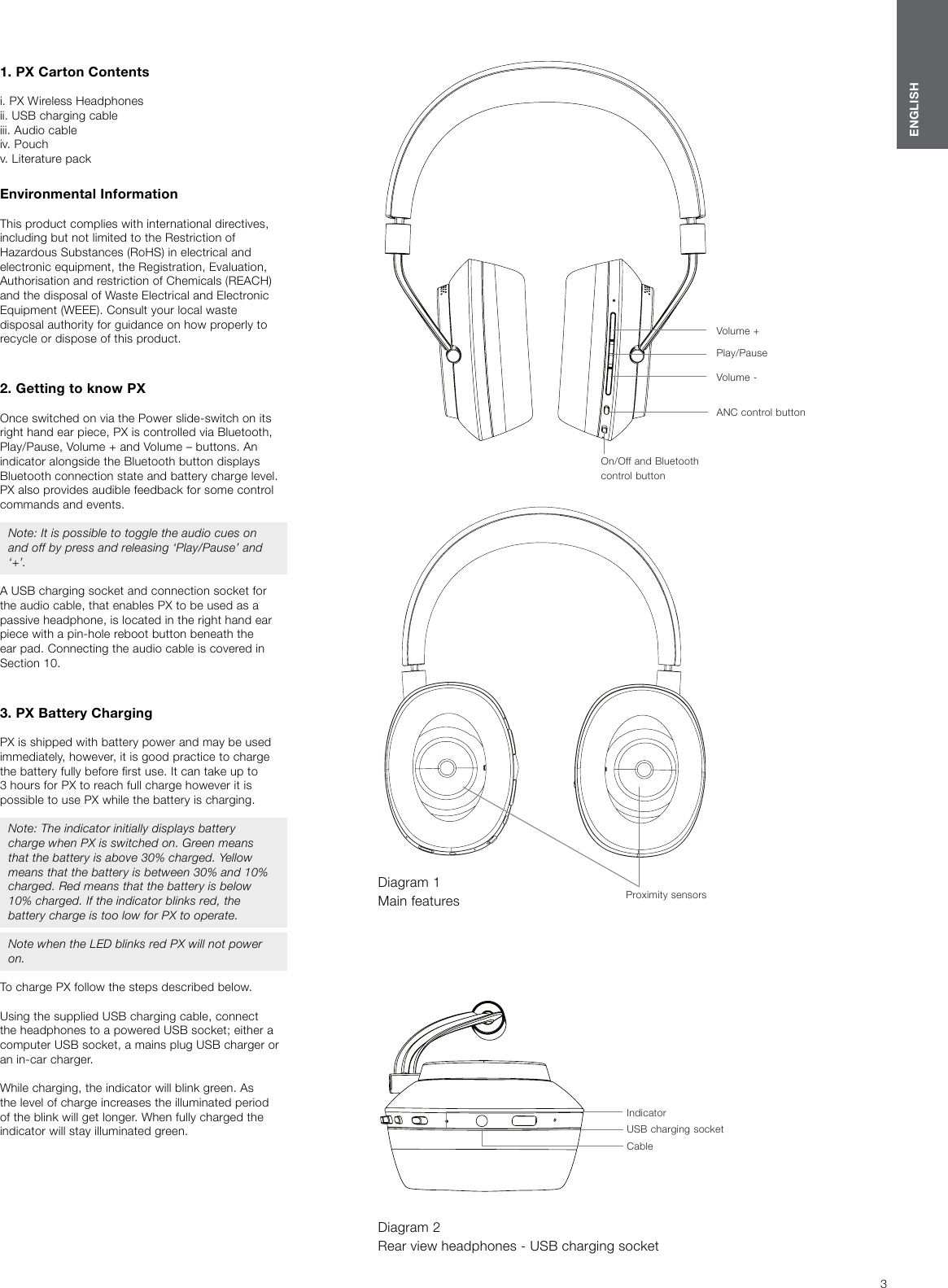
3ENGLISH1. PX Carton Contentsi. PX Wireless Headphonesii. USB charging cableiii. Audio cableiv. Pouchv. Literature packEnvironmental Information This product complies with international directives, including but not limited to the Restriction of Hazardous Substances (RoHS) in electrical and electronic equipment, the Registration, Evaluation, Authorisation and restriction of Chemicals (REACH) and the disposal of Waste Electrical and Electronic Equipment (WEEE). Consult your local waste disposal authority for guidance on how properly to recycle or dispose of this product.   2. Getting to know PXOnce switched on via the Power slide-switch on its right hand ear piece, PX is controlled via Bluetooth, Play/Pause, Volume + and Volume – buttons. An indicator alongside the Bluetooth button displays Bluetooth connection state and battery charge level. PX also provides audible feedback for some control commands and events. Note: It is possible to toggle the audio cues on and off by press and releasing ‘Play/Pause’ and ‘+’.A USB charging socket and connection socket for the audio cable, that enables PX to be used as a passive headphone, is located in the right hand ear piece with a pin-hole reboot button beneath the ear pad. Connecting the audio cable is covered in Section10.3. PX Battery ChargingPX is shipped with battery power and may be used immediately, however, it is good practice to charge the battery fully before rst use. It can take up to 3 hours for PX to reach full charge however it is possible to use PX while the battery is charging.Note: The indicator initially displays battery charge when PX is switched on. Green means that the battery is above 30% charged. Yellow means that the battery is between 30% and 10% charged. Red means that the battery is below 10% charged. If the indicator blinks red, the battery charge is too low for PX to operate.Note when the LED blinks red PX will not power on.To charge PX follow the steps described below. Using the supplied USB charging cable, connect the headphones to a powered USB socket; either a computer USB socket, a mains plug USB charger or an in-car charger. While charging, the indicator will blink green. As the level of charge increases the illuminated period of the blink will get longer. When fully charged the indicator will stay illuminated green.Diagram 1 Main featuresCableOn/Off and Bluetooth control buttonVolume -ANC control buttonProximity sensorsPlay/PauseVolume +Diagram 2 Rear view headphones - USB charging socketUSB charging socketIndicator
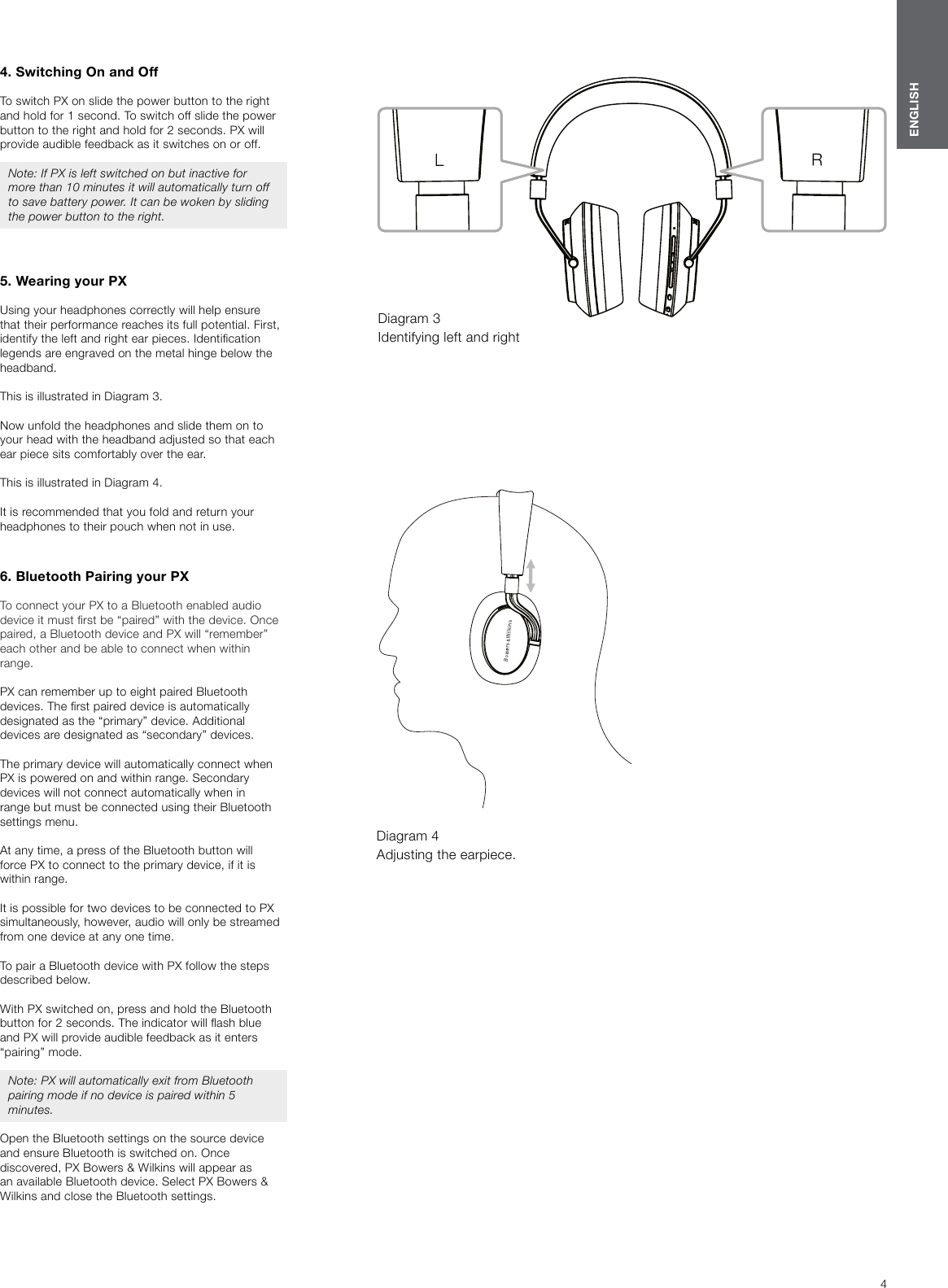
4ENGLISH4. Switching On and OffTo switch PX on slide the power button to the right and hold for 1 second. To switch off slide the power button to the right and hold for 2seconds. PX will provide audible feedback as it switches on or off.Note: If PX is left switched on but inactive for more than 10 minutes it will automatically turn off to save battery power. It can be woken by sliding the power button to the right.5. Wearing your PXUsing your headphones correctly will help ensure that their performance reaches its full potential. First, identify the left and right ear pieces. Identication legends are engraved on the metal hinge below the headband.This is illustrated in Diagram 3.Now unfold the headphones and slide them on to your head with the headband adjusted so that each ear piece sits comfortably over the ear.This is illustrated in Diagram 4.It is recommended that you fold and return your headphones to their pouch when not in use.6. Bluetooth Pairing your PXTo connect your PX to a Bluetooth enabled audio device it must rst be “paired” with the device. Once paired, a Bluetooth device and PX will “remember” each other and be able to connect when within range. PX can remember up to eight paired Bluetooth devices. The rst paired device is automatically designated as the “primary” device. Additional devices are designated as “secondary” devices. The primary device will automatically connect when PX is powered on and within range. Secondary devices will not connect automatically when in range but must be connected using their Bluetooth settings menu.At any time, a press of the Bluetooth button will force PX to connect to the primary device, if it is within range.It is possible for two devices to be connected to PX simultaneously, however, audio will only be streamed from one device at any one time.To pair a Bluetooth device with PX follow the steps described below. With PX switched on, press and hold the Bluetooth button for 2 seconds. The indicator will ash blue and PX will provide audible feedback as it enters “pairing” mode. Note: PX will automatically exit from Bluetooth pairing mode if no device is paired within 5 minutes. Open the Bluetooth settings on the source device and ensure Bluetooth is switched on. Once discovered, PX Bowers & Wilkins will appear as an available Bluetooth device. Select PX Bowers & Wilkins and close the Bluetooth settings. Diagram 3 Identifying left and rightDiagram 4 Adjusting the earpiece.
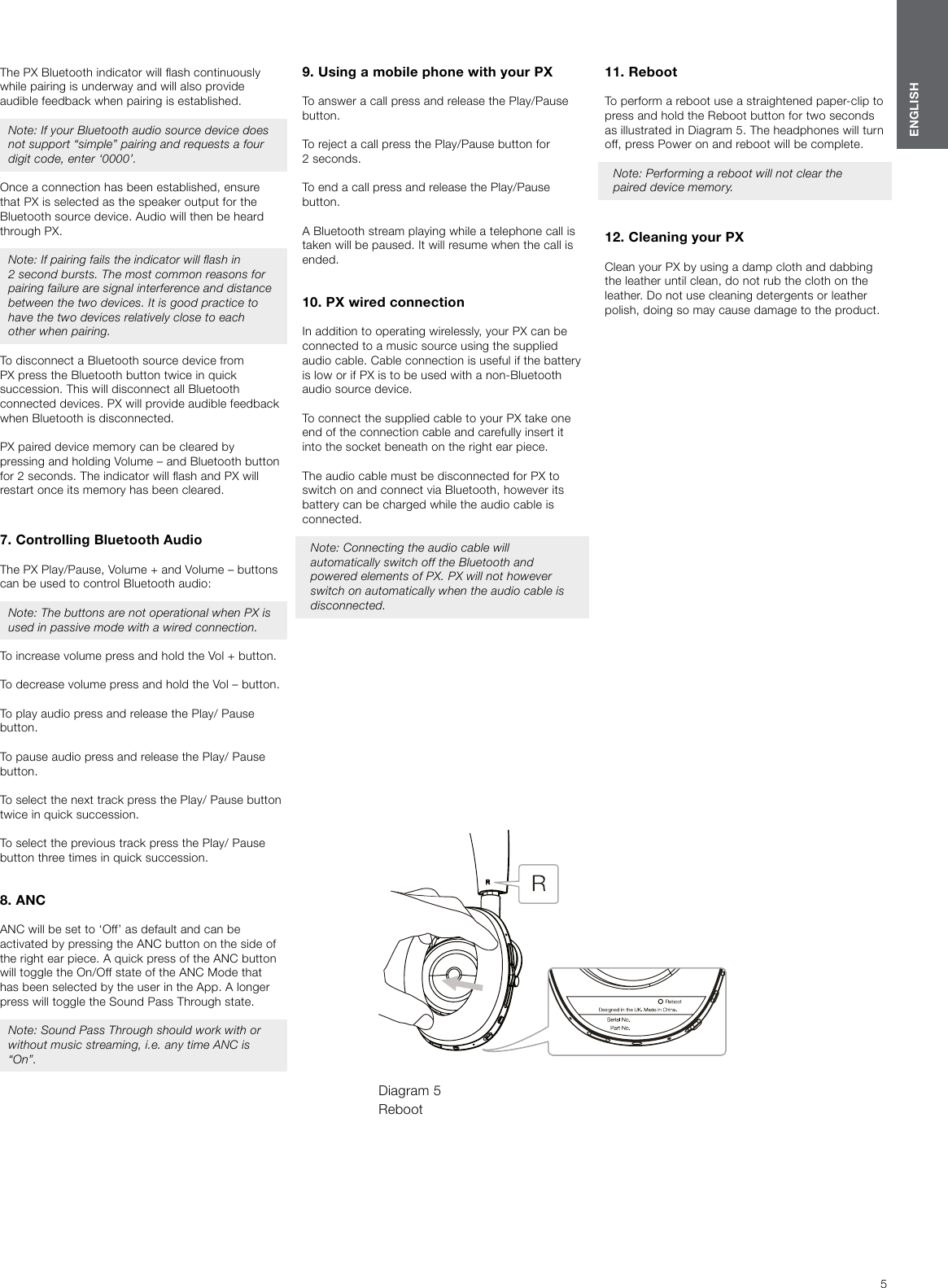
5ENGLISHThe PX Bluetooth indicator will ash continuously while pairing is underway and will also provide audible feedback when pairing is established. Note: If your Bluetooth audio source device does not support “simple” pairing and requests a four digit code, enter ‘0000’. Once a connection has been established, ensure that PX is selected as the speaker output for the Bluetooth source device. Audio will then be heard through PX.Note: If pairing fails the indicator will ash in 2second bursts. The most common reasons for pairing failure are signal interference and distance between the two devices. It is good practice to have the two devices relatively close to each other when pairing.To disconnect a Bluetooth source device from PX press the Bluetooth button twice in quick succession. This will disconnect all Bluetooth connected devices. PX will provide audible feedback when Bluetooth is disconnected. PX paired device memory can be cleared by pressing and holding Volume – and Bluetooth button for 2 seconds. The indicator will ash and PX will restart once its memory has been cleared. 7. Controlling Bluetooth AudioThe PX Play/Pause, Volume + and Volume – buttons can be used to control Bluetooth audio:Note: The buttons are not operational when PX is used in passive mode with a wired connection.To increase volume press and hold the Vol + button.To decrease volume press and hold the Vol – button.To play audio press and release the Play/ Pause button.To pause audio press and release the Play/ Pause button.To select the next track press the Play/ Pause button twice in quick succession.To select the previous track press the Play/ Pause button three times in quick succession.8. ANCANC will be set to ‘Off’ as default and can be activated by pressing the ANC button on the side of the right ear piece. A quick press of the ANC button will toggle the On/Off state of the ANC Mode that has been selected by the user in the App. A longer press will toggle the Sound Pass Through state.Note: Sound Pass Through should work with or without music streaming, i.e. any time ANC is “On”.9. Using a mobile phone with your PXTo answer a call press and release the Play/Pause button.To reject a call press the Play/Pause button for 2seconds.To end a call press and release the Play/Pause button.A Bluetooth stream playing while a telephone call is taken will be paused. It will resume when the call is ended.10. PX wired connectionIn addition to operating wirelessly, your PX can be connected to a music source using the supplied audio cable. Cable connection is useful if the battery is low or if PX is to be used with a non-Bluetooth audio source device.To connect the supplied cable to your PX take one end of the connection cable and carefully insert it into the socket beneath on the right ear piece.The audio cable must be disconnected for PX to switch on and connect via Bluetooth, however its battery can be charged while the audio cable is connected.Note: Connecting the audio cable will automatically switch off the Bluetooth and powered elements of PX. PX will not however switch on automatically when the audio cable is disconnected.11. Reboot To perform a reboot use a straightened paper-clip to press and hold the Reboot button for two seconds as illustrated in Diagram 5. The headphones will turn off, press Power on and reboot will be complete.Note: Performing a reboot will not clear the paired device memory.  12. Cleaning your PXClean your PX by using a damp cloth and dabbing the leather until clean, do not rub the cloth on the leather. Do not use cleaning detergents or leather polish, doing so may cause damage to the product.Diagram 5 Reboot
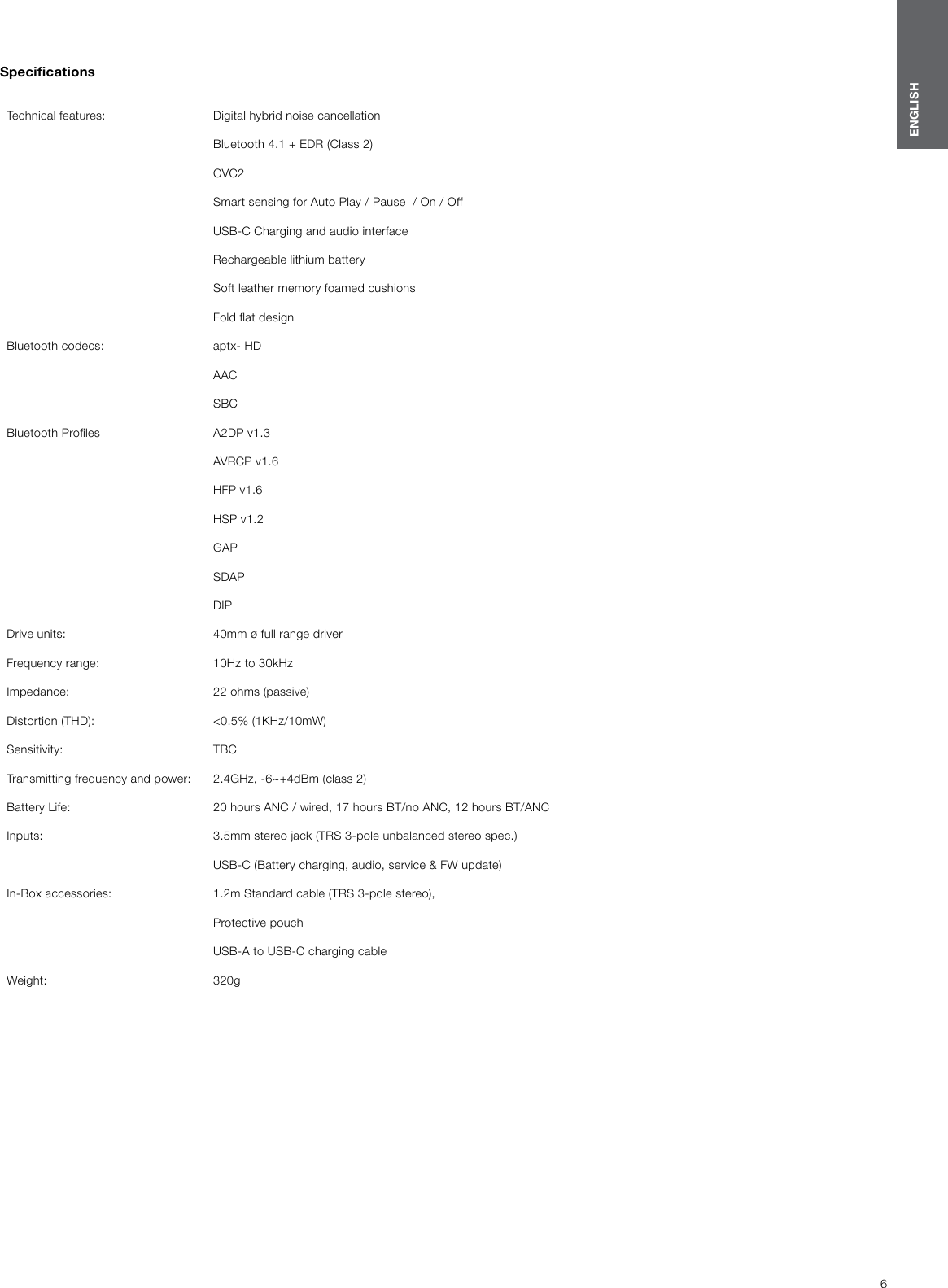
6ENGLISHSpecicationsTechnical features:  Digital hybrid noise cancellationBluetooth 4.1 + EDR (Class 2)CVC2Smart sensing for Auto Play / Pause  / On / OffUSB-C Charging and audio interfaceRechargeable lithium batterySoft leather memory foamed cushions Fold at designBluetooth codecs: aptx- HD AACSBCBluetooth Proles A2DP v1.3 AVRCP v1.6 HFP v1.6 HSP v1.2GAP SDAP DIP Drive units:  40mm ø full range driverFrequency range:  10Hz to 30kHzImpedance:  22 ohms (passive)Distortion (THD):  <0.5% (1KHz/10mW)Sensitivity: TBCTransmitting frequency and power: 2.4GHz, -6~+4dBm (class 2)Battery Life:  20 hours ANC / wired, 17 hours BT/no ANC, 12 hours BT/ANCInputs:  3.5mm stereo jack (TRS 3-pole unbalanced stereo spec.)USB-C (Battery charging, audio, service & FW update) In-Box accessories: 1.2m Standard cable (TRS 3-pole stereo), Protective pouchUSB-A to USB-C charging cableWeight: 320g

Navigation menu