B and W Group ZW Wireless music system User Manual UserManual

B&W; Group Ltd. Wireless music system UserManual

Contents

UserManual.pdf

DRAFTZeppelin Wireless
2ENGLISHwww.bowers-wilkins.com Welcome to Bowers & Wilkins and Zeppelin Wireless  Thank you for choosing Bowers & Wilkins. When John Bowers rst established our company he did so in the belief that imaginative design, innovative engineering and advanced technology were keys that could unlock the enjoyment of audio in the home. His belief is one that we continue to share and it inspires every product we design.Zeppelin Wireless can be used to: •  Stream audio via AirPlay using either a cable or wireless network connection. •  Play audio streams via either a cable or wireless network connection from Spotify® using the Spotify Connect feature  built into some Spotify apps. Note: A Spotify Premium account is required for Spotify Connect. Spotify functionality may be limited by region.•  Play music wirelessly from an iOS, Android or popular Bluetooth® devices. •  Play music via an Aux input from a conventional analogue source using a 3.5mm Jack connection cable. To control and operate your Zeppelin Wireless you can use either its buttons or the music streaming apps on your iOS, Android or Windows Mobile device. The Bowers & Wilkins Control app can also be used for Zeppelin Wireless network set up, stream playback and volume control, Bluetooth pair management and product registration. This manual will tell you everything you need to know to get the most from your Zeppelin Wireless. It begins by describing the contents of the Zeppelin Wireless carton.
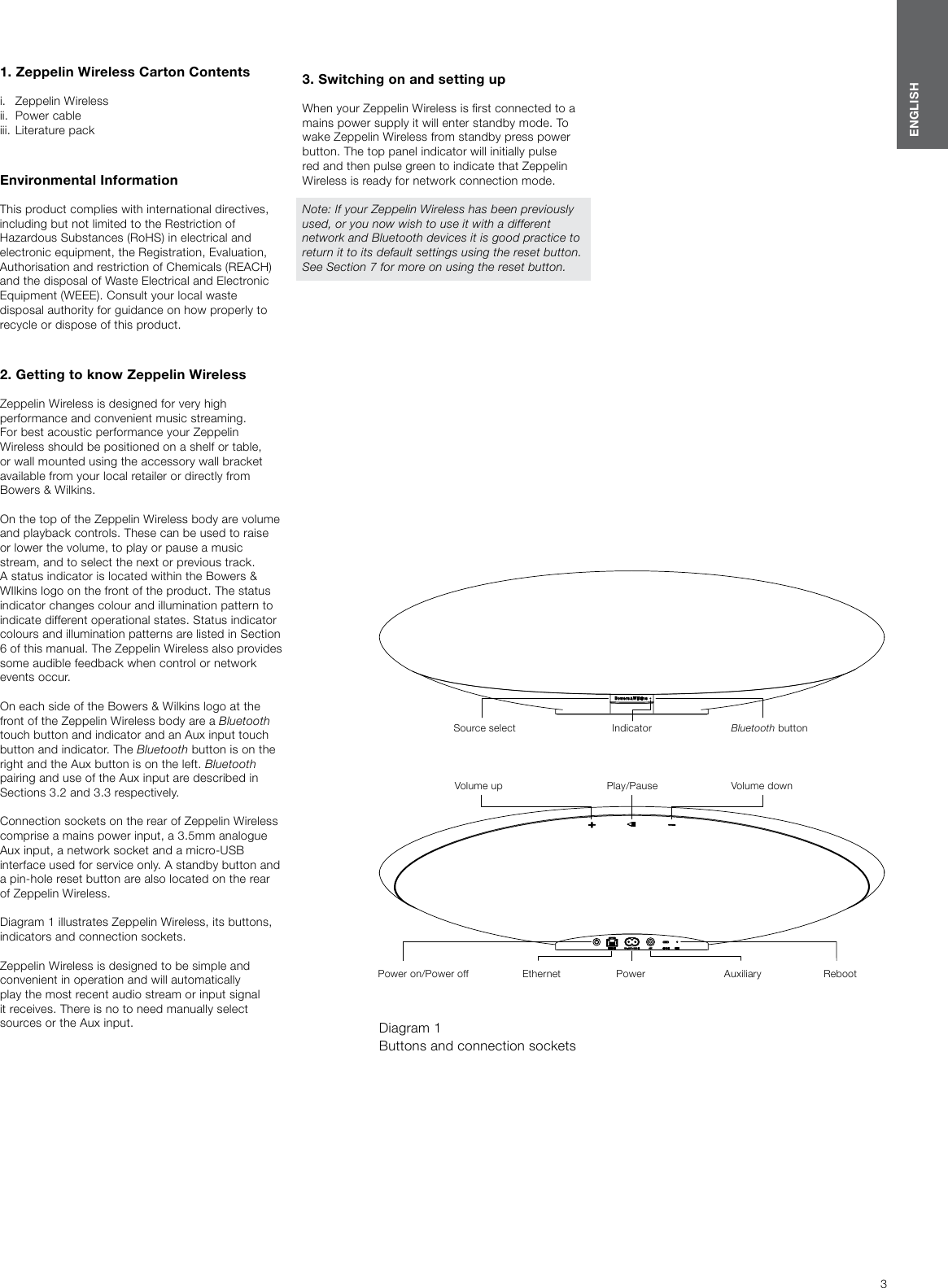
3ENGLISH1. Zeppelin Wireless Carton Contentsi.   Zeppelin Wireless ii.  Power cableiii.  Literature packEnvironmental Information This product complies with international directives, including but not limited to the Restriction of Hazardous Substances (RoHS) in electrical and electronic equipment, the Registration, Evaluation, Authorisation and restriction of Chemicals (REACH) and the disposal of Waste Electrical and Electronic Equipment (WEEE). Consult your local waste disposal authority for guidance on how properly to recycle or dispose of this product.  2. Getting to know Zeppelin WirelessZeppelin Wireless is designed for very high performance and convenient music streaming.  For best acoustic performance your Zeppelin Wireless should be positioned on a shelf or table, or wall mounted using the accessory wall bracket available from your local retailer or directly from  Bowers & Wilkins.On the top of the Zeppelin Wireless body are volume and playback controls. These can be used to raise or lower the volume, to play or pause a music stream, and to select the next or previous track. A status indicator is located within the Bowers & WIlkins logo on the front of the product. The status indicator changes colour and illumination pattern to indicate different operational states. Status indicator colours and illumination patterns are listed in Section 6 of this manual. The Zeppelin Wireless also provides some audible feedback when control or network events occur.On each side of the Bowers & Wilkins logo at the front of the Zeppelin Wireless body are a Bluetooth touch button and indicator and an Aux input touch button and indicator. The Bluetooth button is on the right and the Aux button is on the left. Bluetooth pairing and use of the Aux input are described in Sections 3.2 and 3.3 respectively.Connection sockets on the rear of Zeppelin Wireless comprise a mains power input, a 3.5mm analogue Aux input, a network socket and a micro-USB interface used for service only. A standby button and a pin-hole reset button are also located on the rear of Zeppelin Wireless.Diagram 1 illustrates Zeppelin Wireless, its buttons, indicators and connection sockets.Zeppelin Wireless is designed to be simple and convenient in operation and will automatically play the most recent audio stream or input signal it receives. There is no to need manually select sources or the Aux input. Diagram 1 Buttons and connection sockets3. Switching on and setting upWhen your Zeppelin Wireless is rst connected to a mains power supply it will enter standby mode. To wake Zeppelin Wireless from standby press power button. The top panel indicator will initially pulse red and then pulse green to indicate that Zeppelin Wireless is ready for network connection mode. Note: If your Zeppelin Wireless has been previously used, or you now wish to use it with a different network and Bluetooth devices it is good practice to return it to its default settings using the reset button. See Section 7 for more on using the reset button.Bluetooth buttonSource select  IndicatorPlay/PauseVolume up Volume downPower on/Power off Ethernet Power Auxiliary Reboot
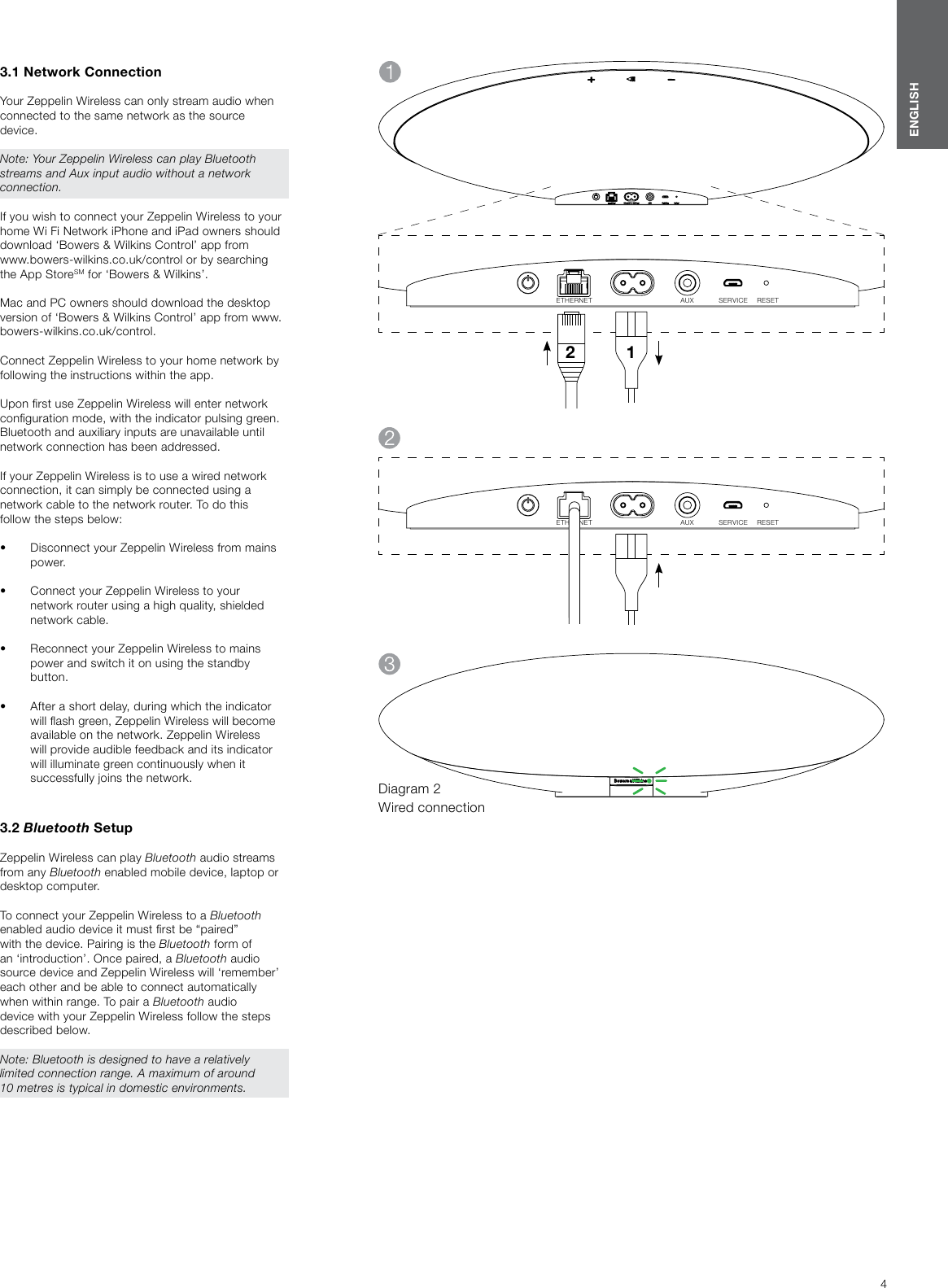
4ENGLISH3.1 Network ConnectionYour Zeppelin Wireless can only stream audio when connected to the same network as the source device.Note: Your Zeppelin Wireless can play Bluetooth streams and Aux input audio without a network connection.If you wish to connect your Zeppelin Wireless to your home Wi Fi Network iPhone and iPad owners should download ‘Bowers & Wilkins Control’ app from  www.bowers-wilkins.co.uk/control or by searching the App StoreSM for ‘Bowers & Wilkins’.Mac and PC owners should download the desktop version of ‘Bowers & Wilkins Control’ app from www.bowers-wilkins.co.uk/control.Connect Zeppelin Wireless to your home network by following the instructions within the app.Upon rst use Zeppelin Wireless will enter network conguration mode, with the indicator pulsing green. Bluetooth and auxiliary inputs are unavailable until network connection has been addressed. If your Zeppelin Wireless is to use a wired network connection, it can simply be connected using a network cable to the network router. To do this follow the steps below:•  Disconnect your Zeppelin Wireless from mains power.  •  Connect your Zeppelin Wireless to your network router using a high quality, shielded network cable. •  Reconnect your Zeppelin Wireless to mains power and switch it on using the standby button. •  After a short delay, during which the indicator will ash green, Zeppelin Wireless will become available on the network. Zeppelin Wireless will provide audible feedback and its indicator will illuminate green continuously when it successfully joins the network.3.2 Bluetooth SetupZeppelin Wireless can play Bluetooth audio streams from any Bluetooth enabled mobile device, laptop or desktop computer. To connect your Zeppelin Wireless to a Bluetooth enabled audio device it must rst be “paired” with the device. Pairing is the Bluetooth form of an ‘introduction’. Once paired, a Bluetooth audio source device and Zeppelin Wireless will ‘remember’ each other and be able to connect automatically when within range. To pair a Bluetooth audio device with your Zeppelin Wireless follow the steps described below.Note: Bluetooth is designed to have a relatively limited connection range. A maximum of around 10metres is typical in domestic environments.Diagram 2 Wired connectionET HE R NE T                                                         AUX                SERV IC E       RE SE T12ET HE R NE T                                                         AUX                SERV IC E       RE SE T
5ENGLISH•  With Zeppelin Wireless switched on, touch and hold its Bluetooth button for 2 seconds. The Bluetooth button illumination will ash and Zeppelin Wireless will enter pairing mode accompanied by audible feedback.  Note: Zeppelin Wireless will automatically exit from Bluetooth pairing mode if no device is paired within 5 minutes. To exit pairing mode manually touch the Zeppelin Wireless Bluetooth button twice is quick succession. •  Open the Bluetooth setup page on the audio source device and switch Bluetooth on. After a short delay your Zeppelin Wireless will be listed as an available Bluetooth device.  Select Zeppelin Wireless and close the setup page. The Zeppelin Wireless Bluetooth indicator will ash as pairing is underway and illuminate fully when pairing is established. Zeppelin Wireless will also provide audible feedback when pairing is established.  Note: If your Bluetooth audio source device does not support “simple” pairing and requests a four digit code, enter 1234. •  Open a Bluetooth enabled audio playback app on the audio source device and select the Zeppelin Wireless for playback. Audio selected in the playback app will now play through Zeppelin Wireless. Zeppelin Wireless can be paired with up to eight Bluetooth devices simultaneously. If a ninth device is paired it will automatically replace the eighth device paired. Simultaneous connection of two Bluetooth devices is also possible, in which case Zeppelin Wireless will play the most recent Bluetooth stream. To disconnect a Bluetooth source devices from Zeppelin Wireless touch the Zeppelin Wireless Bluetooth button twice in quick succession. This will disconnect all connected devices. Disconnection from the source end can simply be achieved by selecting an alternative device or the source device itself for playback. Zeppelin Wireless will provide audible feedback when Bluetooth is disconnected and its Bluetooth indicator will dim.A Bluetooth device can be deleted from the Zeppelin Wireless “memory” only by returning Zeppelin Wireless to its default settings using the reset button. All Bluetooth pairs will be deleted following a reset. See Section 7 for more on using the reset button.3.3 Aux InputZeppelin Wireless includes an analogue 3.5mm jack input socket for wired connection to audio source devices that incorporate an analogue output. Connect to the input socket using an appropriate cable. Zeppelin Wireless will select its analogue input automatically when a plug is inserted and deselect the input when the plug is removed. See Section 4 for more on Zeppelin Wireless input selection.If the analogue audio source connected to Zeppelin Wireless has an output volume control, set it initially to around half volume. Use the Zeppelin Wireless buttons to control volume rather than the source device volume controls. Only increase the source volume if Zeppelin Wireless maximum volume is inadequate.3.4 Spotify ConnectSpotify Connect lets you play Spotify through your home speakers or TV, using the Spotify app as remote. You’ll need a Spotify Premium account to use Spotify Connect. If you don’t have it, just go to www.spotify.com/freetrial for your free 30-day trial.Step 1. Connect your device to the same wi network as your phone, tablet or PC running the Spotify app.Step 2. Open the Spotify app, and play any song.Step 3. Tap the song image in the bottom left of the screen.Step 4. Tap the Connect iconStep 5. Pick your [device] from the list.For more information on how to set up and use Spotify Connect please visit www.spotify.com/connect4. Selecting Zeppelin Wireless Streams and Inputs Zeppelin Wireless will automatically play the most recent stream or input signal. For example:•  If an AirPlay stream is playing and a Bluetooth stream is received, Zeppelin Wireless will switch to its Bluetooth input. •  If a Bluetooth stream is playing and a Spotify Connect stream is received, Zeppelin Wireless will switch to its Spotify Connect input. •  If a Spotify Connect stream is playing and an Aux input plug is inserted or audio signal is detected on a previously inserted plug Zeppelin Wireless will switch to its Aux input. •  If an Aux input signal is playing and an AirPlay stream is received, Zeppelin Wireless will switch to its AirPlay input.The only circumstances in which manual input selection may be required is when an Aux input signal is too quiet to be detected for automatic switching. In these circumstances the Aux input  can be selected by touching the Aux input button.If Zeppelin Wireless is playing a stream and it is stopped or disconnected, Zeppelin Wireless will either switch back to the previous playing stream or input if it is still available, or remain silent until it receives a new stream or input signal.5. Operating Zeppelin WirelessTo increase or decrease volume press and hold the Zeppelin Wireless volume + or – buttons respectively. If no audio is playing when the volume reaches either its maximum or minimum level Zeppelin Wireless will provide audible feedback.To play or pause stream playback press the play/pause button.To select the next track press the play/pause button twice in quick succession. To select the previous track press the play/pause button three times in quick sucession.Note: Play, pause, next and previous functions do not operate on Aux input signals.To switch off the Zeppelin Wireless press and hold the Standby button.Note: In standby (off) mode the Zeppelin Wireless will disconnect from the network and any paired Bluetooth devices. It can only be switched on by pressing the standby button or inserting an Aux input plug.Note: The Zeppelin Wireless will automatically enter sleep mode if left idle for 20 minutes. The status indicator will illuminate dim red while in sleep mode. Zeppelin Wireless will remain connected to the network and to any paired Bluetooth devices within range. Zeppelin Wireless can be woken from sleep mode by streaming, connecting an AUX input, pressing the power, volume +/- or play/pause button or making new Bluetooth connection.Note: Bluetooth or AUX source button press will have no effect as both are dim and inactive when in sleep mode.
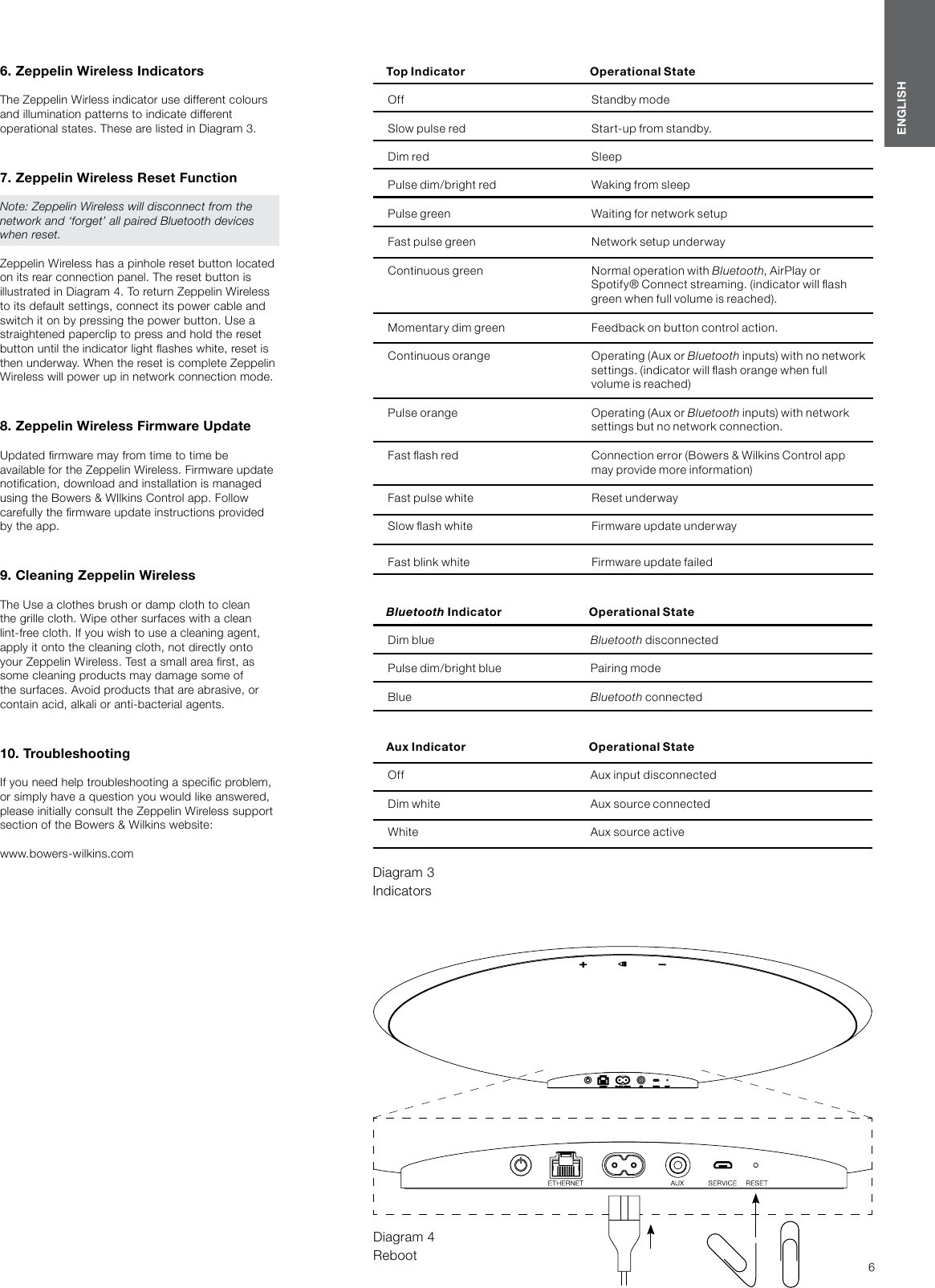
6ENGLISH6. Zeppelin Wireless IndicatorsThe Zeppelin Wirless indicator use different colours and illumination patterns to indicate different operational states. These are listed in Diagram 3.7. Zeppelin Wireless Reset FunctionNote: Zeppelin Wireless will disconnect from the network and ‘forget’ all paired Bluetooth devices when reset.Zeppelin Wireless has a pinhole reset button located on its rear connection panel. The reset button is illustrated in Diagram 4. To return Zeppelin Wireless to its default settings, connect its power cable and switch it on by pressing the power button. Use a straightened paperclip to press and hold the reset button until the indicator light ashes white, reset is then underway. When the reset is complete Zeppelin Wireless will power up in network connection mode.8. Zeppelin Wireless Firmware UpdateUpdated rmware may from time to time be available for the Zeppelin Wireless. Firmware update notication, download and installation is managed using the Bowers & WIlkins Control app. Follow carefully the rmware update instructions provided by the app.9. Cleaning Zeppelin WirelessThe Use a clothes brush or damp cloth to clean the grille cloth. Wipe other surfaces with a clean lint-free cloth. If you wish to use a cleaning agent, apply it onto the cleaning cloth, not directly onto your Zeppelin Wireless. Test a small area rst, as some cleaning products may damage some of the surfaces. Avoid products that are abrasive, or contain acid, alkali or anti-bacterial agents.10. TroubleshootingIf you need help troubleshooting a specic problem, or simply have a question you would like answered, please initially consult the Zeppelin Wireless support section of the Bowers & Wilkins website: www.bowers-wilkins.comDiagram 4 RebootDiagram 3 IndicatorsTop Indicator Operational StateOff Standby modeSlow pulse red Sta r t-up from standby.Dim re d SleepPulse dim/bright red Waking from sleep Pulse green Waiting for network setupFa st pulse g reen Net work setup un derwayContinuous green Normal operation with Bluetooth, AirPlay or      Spoti f y ® Conn ect stream ing. (indicator w ill as h            green when full volume is reac hed).Momentary dim green  Feedback on button control action.Continuous orange Operating (Aux or Bluetooth inputs) with no netwo rk       settin gs. ( indicator will ash orange whe n full     volume is reached)Pulse orange Operating (Aux or Bluetooth inputs) with network     settin gs but no n etwork conne ction.Fast ash red Con nection error (Bowers & Wilkins Co ntrol app     may provid e more i nformatio n)Fast pulse white Reset underwaySlow ash white Firmware update underwayFast blink white Firmware update failedBluetooth Indicator Operational StateDim blue Bluetooth disconnectedPulse dim/bright blue Pairing modeBlue Bluetooth connectedAux Indicator Operational StateOff Aux input disconnectedDim white Aux source connectedWhite Aux source a cti ve
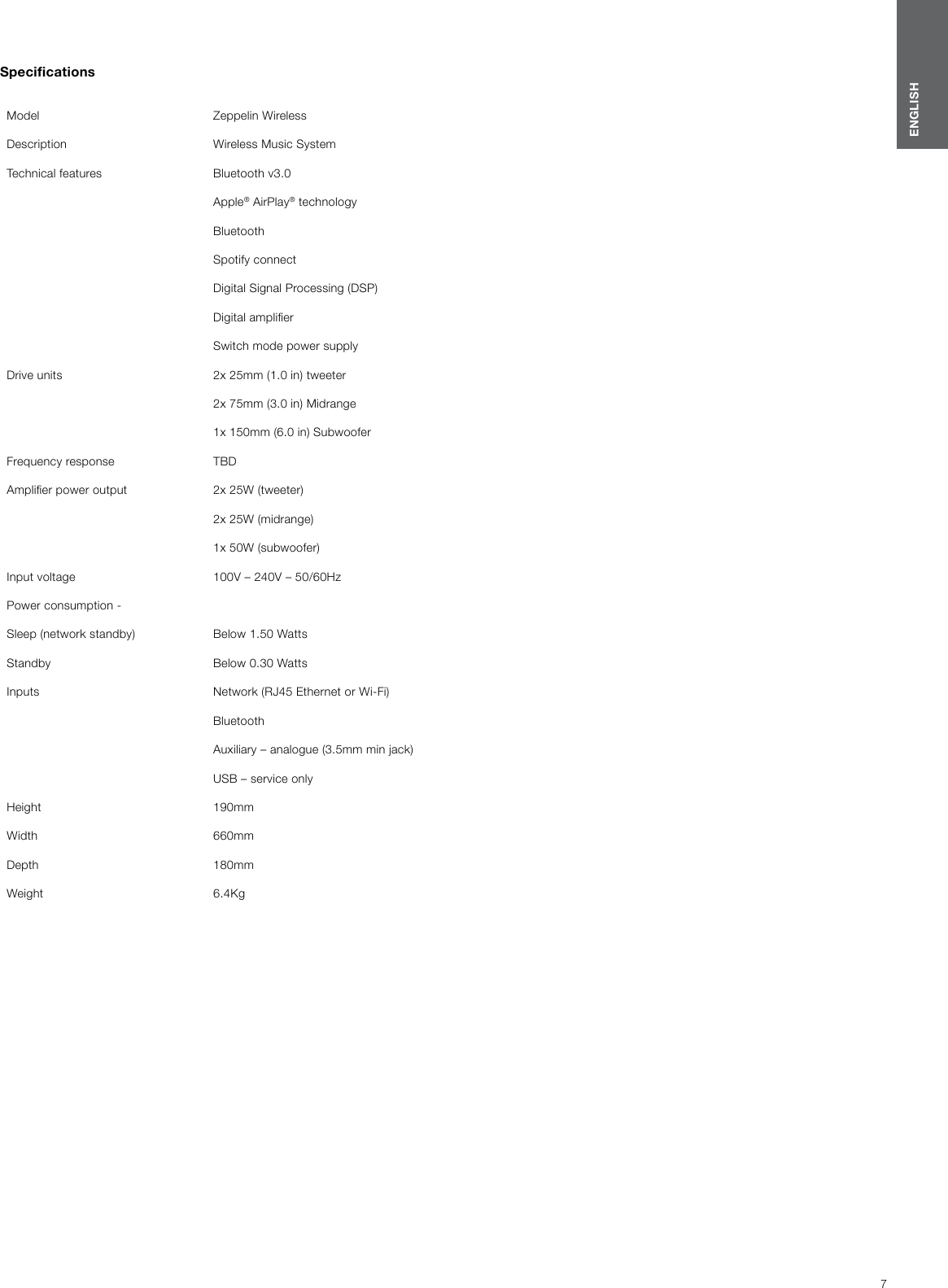
7ENGLISHSpecicationsModel Zeppelin WirelessDescription Wireless Music SystemTechnical features Bluetooth v3.0Apple® AirPlay® technologyBluetoothSpotify connectDigital Signal Processing (DSP)Digital amplierSwitch mode power supplyDrive units 2x 25mm (1.0 in) tweeter2x 75mm (3.0 in) Midrange1x 150mm (6.0 in) SubwooferFrequency response TBDAmplier power output 2x 25W (tweeter)2x 25W (midrange)1x 50W (subwoofer)Input voltage 100V – 240V – 50/60HzPower consumption -Sleep (network standby) Below 1.50 Watts Standby Below 0.30 WattsInputs Network (RJ45 Ethernet or Wi-Fi)BluetoothAuxiliary – analogue (3.5mm min jack)USB – service onlyHeight 190mmWidth 660mmDepth 180mmWeight 6.4Kg

Navigation menu