BAYCOM OPTO ELECTRONICS TECHNOLOGY EK20H WLAN IP CAM User Manual K20 QIG v14

BAYCOM OPTO-ELECTRONICS TECHNOLOGY CO., LTD. WLAN IP CAM K20 QIG v14

user manual

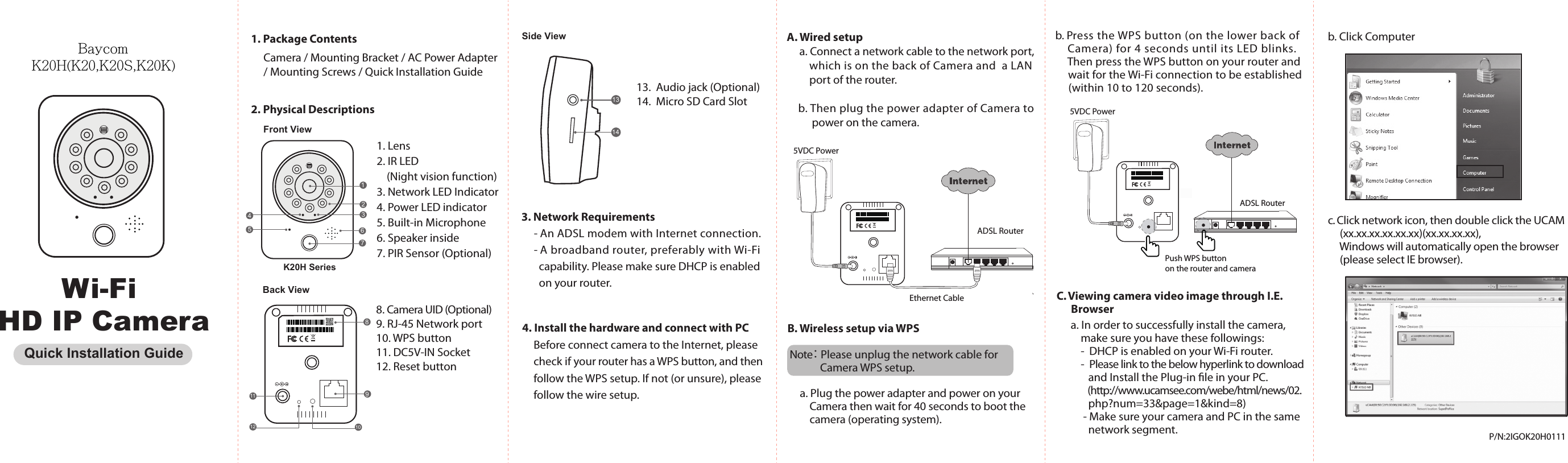
1. Lens2. IR LED(Night vision function)3. Network LED Indicator4. Power LED indicator5. Built-in Microphone6. Speaker inside7. PIR Sensor (Optional)1237541. Package ContentsCamera / Mounting Bracket / AC Power Adapter/ Mounting Screws / Quick Installation Guide2. Physical DescriptionsHD IP Camera3. Network Requirements- An ADSL modem with Internet connection.- A broadband router, preferably with Wi-Fi       capability. Please make sure DHCP is enabled        on your router.Wi-Fi P/N:2IGOK20H01114. Install the hardware and connect with PCBefore connect camera to the Internet, pleasecheck if your router has a WPS button, and thenfollow the WPS setup. If not (or unsure), pleasefollow the wire setup.A. Wired setupa. Connect a network cable to the network port,which is on the back of Camera and  a LANport of the router.b. Then plug the power adapter of Camera topower on the camera.C. Viewing camera video image through I.E.       BrowserK20H SeriesFront ViewSide View13. Audio jack (Optional)14.  Micro SD Card Slot13148. Camera UID (Optional)9. RJ-45 Network port10. WPS button 11. DC5V-IN Socket12. Reset buttonb. Click Computerc. Click network icon, then double click the UCAM(xx.xx.xx.xx.xx.xx)(xx.xx.xx.xx),Windows will automatically open the browser(please select IE browser).5VDC PowerEthernet CableADSL RouterPush WPS buttonon the router and cameraADSL Router5VDC Powerb. Press the WPS button (on the lower back ofCamera) for 4 seconds until its LED blinks.Then press the WPS button on your router andwait for the Wi-Fi connection to be established(within 10 to 120 seconds).B. Wireless setup via WPS Note: Please unplug the network cable for             Camera WPS setup.a. Plug the power adapter and power on yourCamera then wait for 40 seconds to boot thecamera (operating system).Quick Installation GuideBack View891112 10a. In order to successfully install the camera,make sure you have these followings:-  DHCP is enabled on your Wi-Fi router.-  Please link to the below hyperlink to download        and Install the Plug-in le in your PC.         (http://www.ucamsee.com/webe/html/news/02.       php?num=33&page=1&kind=8)     - Make sure your camera and PC in the same        network segment.6              Baycom K20H(K20,K20S,K20K)
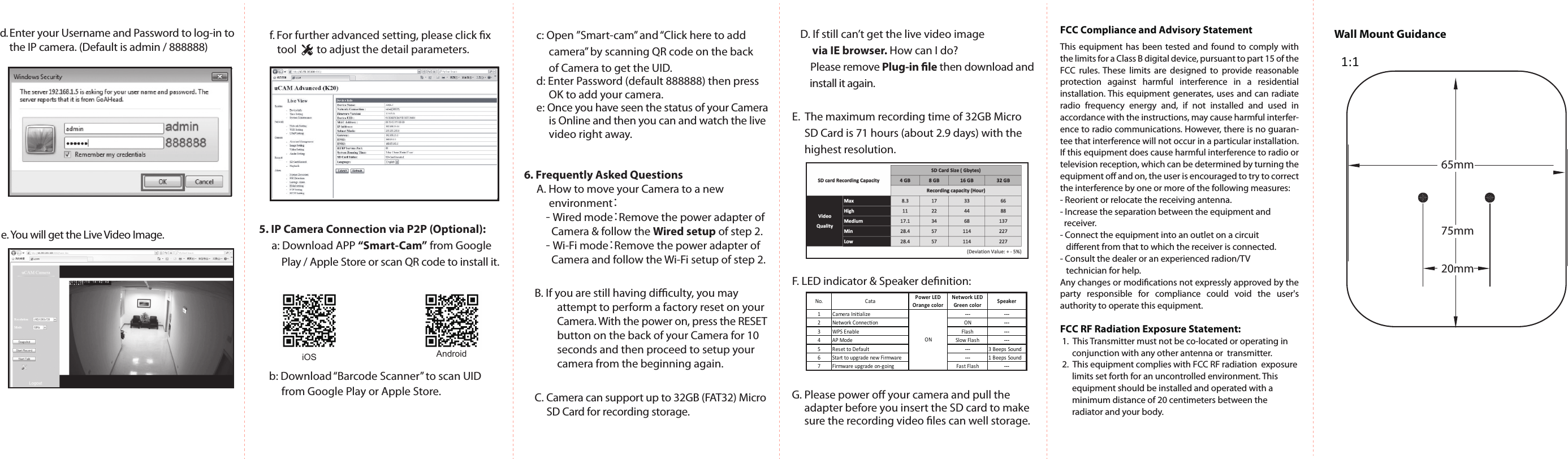
6. Frequently Asked Questions     A. How to move your Camera to a new           environment:        - Wired mode:Remove the power adapter of            Camera & follow the Wired setup of step 2.        - Wi-Fi mode:Remove the power adapter of            Camera and follow the Wi-Fi setup of step 2.  C. Camera can support up to 32GB (FAT32) Micro      SD Card for recording storage.B. If you are still having diculty, you may          attempt to perform a factory reset on your          Camera. With the power on, press the RESET          button on the back of your Camera for 10          seconds and then proceed to setup your          camera from the beginning again.E.  The maximum recording time of 32GB Micro      SD Card is 71 hours (about 2.9 days) with the      highest resolution.F. LED indicator & Speaker denition:Wall Mount Guidance 1:1 D. If still can’t get the live video image      via IE browser. How can I do?    Please remove Plug-in le then download and         install it again.65mm75mm20mmd. Enter your Username and Password to log-in to     the IP camera. (Default is admin / 888888) e. You will get the Live Video Image.f. For further advanced setting, please click x    tool        to adjust the detail parameters.    c: Open ”Smart-cam” and “Click here to add          camera” by scanning QR code on the back          of Camera to get the UID.    d: Enter Password (default 888888) then press            OK to add your camera.    e: Once you have seen the status of your Camera            is Online and then you can and watch the live            video right away.5. IP Camera Connection via P2P (Optional):     a: Download APP “Smart-Cam” from Google          Play / Apple Store or scan QR code to install it.        b: Download “Barcode Scanner” to scan UID          from Google Play or Apple Store.AndroidiOS No. Cata Power LEDOrange colorNetwork LEDGreen color Speaker1 Camera Inialize --- ---2 Network Connecon ON ---3 WPS Enable Flash ---4 AP Mode Slow Flash ---5 Reset to Default --- 3 Beeps Sound6 Start to upgrade new Firmware  --- 1 Beeps Sound7 Firmware upgrade on-going Fast Flash ---ONFCC Compliance and Advisory StatementThis equipment has been tested and found to comply with the limits for a Class B digital device, pursuant to part 15 of the FCC rules. These limits are designed to provide reasonable protection against harmful interference in a residential installation. This equipment generates, uses and can radiate radio frequency energy and, if not installed and used in accordance with the instructions, may cause harmful interfer-ence to radio communications. However, there is no guaran-tee that interference will not occur in a particular installation. If this equipment does cause harmful interference to radio or television reception, which can be determined by turning the equipment o and on, the user is encouraged to try to correct the interference by one or more of the following measures:- Reorient or relocate the receiving antenna.- Increase the separation between the equipment and   receiver.- Connect the equipment into an outlet on a circuit     dierent from that to which the receiver is connected.- Consult the dealer or an experienced radion/TV    technician for help.Any changes or modications not expressly approved by the party responsible for compliance could void the user's authority to operate this equipment.FCC RF Radiation Exposure Statement: 1.  This Transmitter must not be co‐located or operating in       conjunction with any other antenna or  transmitter. 2.  This equipment complies with FCC RF radiation  exposure        limits set forth for an uncontrolled environment. This       equipment should be installed and operated with a       minimum distance of 20 centimeters between the       radiator and your body.G. Please power o your camera and pull the      adapter before you insert the SD card to make      sure the recording video les can well storage.

Navigation menu