BESTODO TECH FC30 8BITDO Game Pad User Manual 1 Manual

SHENZHEN BESTODO TECH CO., LTD. 8BITDO Game Pad 1 Manual

Manual

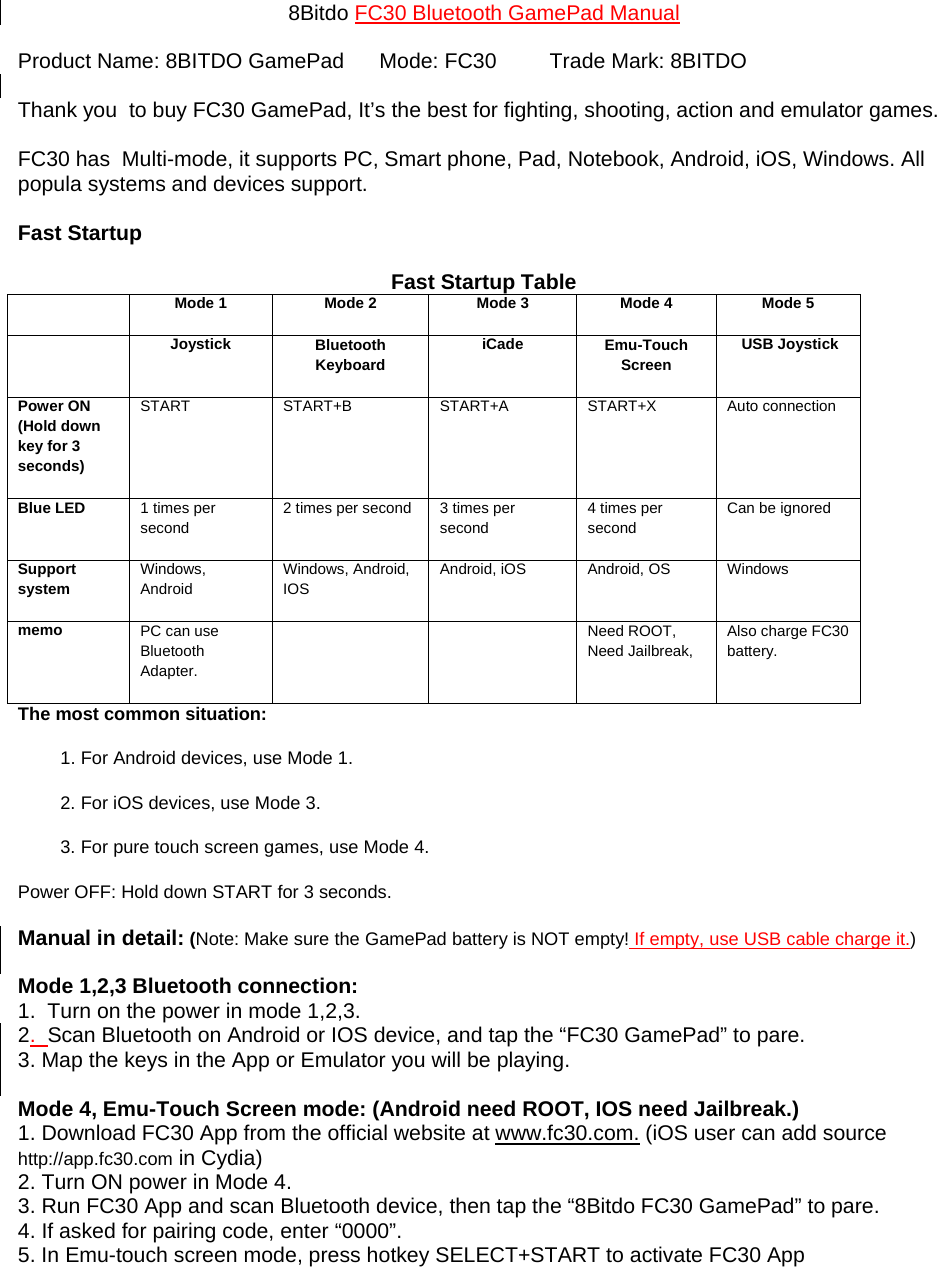
8Bitdo FC30 Bluetooth GamePad Manual  Product Name: 8BITDO GamePad      Mode: FC30         Trade Mark: 8BITDO  Thank you  to buy FC30 GamePad, It’s the best for fighting, shooting, action and emulator games.  FC30 has  Multi-mode, it supports PC, Smart phone, Pad, Notebook, Android, iOS, Windows. All  popula systems and devices support.   Fast Startup  Fast Startup Table  Mode 1  Mode 2 Mode 3 Mode 4 Mode 5  Joystick Bluetooth Keyboard  iCade Emu-Touch Screen  USB Joystick Power ON (Hold down key for 3 seconds) START START+B START+A START+X Auto connection Blue LED  1 times per second 2 times per second 3 times per second 4 times per second Can be ignored Support system  Windows, Android Windows, Android, IOS Android, iOS  Android, OS  Windows memo  PC can use Bluetooth Adapter.   Need ROOT, Need Jailbreak, Also charge FC30 battery. The most common situation: 1. For Android devices, use Mode 1.   2. For iOS devices, use Mode 3. 3. For pure touch screen games, use Mode 4. Power OFF: Hold down START for 3 seconds. Manual in detail: (Note: Make sure the GamePad battery is NOT empty! If empty, use USB cable charge it.) Mode 1,2,3 Bluetooth connection: 1.  Turn on the power in mode 1,2,3. 2.  Scan Bluetooth on Android or IOS device, and tap the “FC30 GamePad” to pare. 3. Map the keys in the App or Emulator you will be playing.  Mode 4, Emu-Touch Screen mode: (Android need ROOT, IOS need Jailbreak.) 1. Download FC30 App from the official website at www.fc30.com. (iOS user can add source http://app.fc30.com in Cydia) 2. Turn ON power in Mode 4. 3. Run FC30 App and scan Bluetooth device, then tap the “8Bitdo FC30 GamePad” to pare. 4. If asked for pairing code, enter “0000”. 5. In Emu-touch screen mode, press hotkey SELECT+START to activate FC30 App
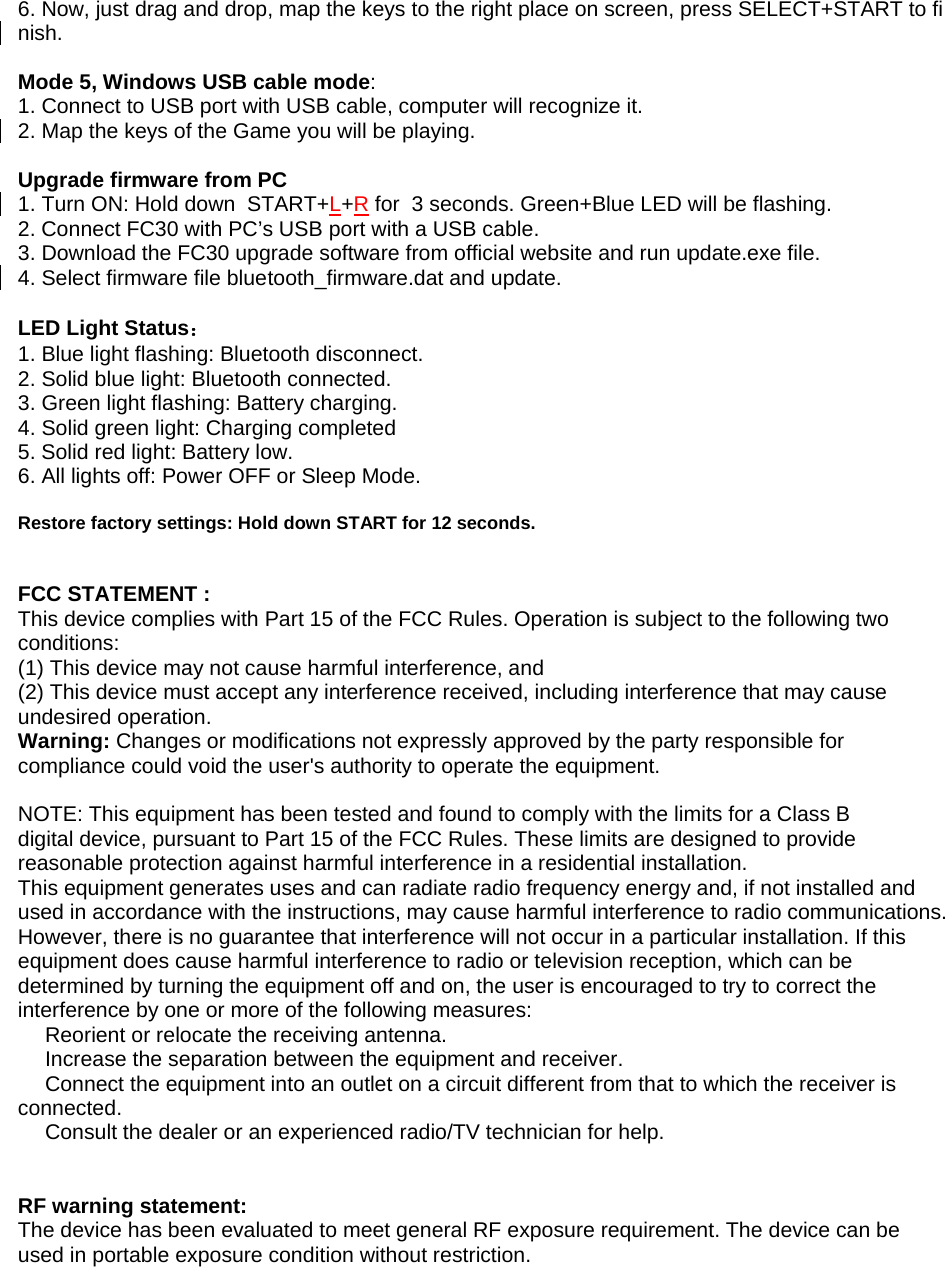
6. Now, just drag and drop, map the keys to the right place on screen, press SELECT+START to finish.  Mode 5, Windows USB cable mode: 1. Connect to USB port with USB cable, computer will recognize it. 2. Map the keys of the Game you will be playing.  Upgrade firmware from PC 1. Turn ON: Hold down  START+L+R for  3 seconds. Green+Blue LED will be flashing. 2. Connect FC30 with PC’s USB port with a USB cable. 3. Download the FC30 upgrade software from official website and run update.exe file. 4. Select firmware file bluetooth_firmware.dat and update.  LED Light Status: 1. Blue light flashing: Bluetooth disconnect.  2. Solid blue light: Bluetooth connected. 3. Green light flashing: Battery charging. 4. Solid green light: Charging completed 5. Solid red light: Battery low.  6. All lights off: Power OFF or Sleep Mode.  Restore factory settings: Hold down START for 12 seconds.  FCC STATEMENT :  This device complies with Part 15 of the FCC Rules. Operation is subject to the following two conditions: (1) This device may not cause harmful interference, and (2) This device must accept any interference received, including interference that may cause undesired operation. Warning: Changes or modifications not expressly approved by the party responsible for compliance could void the user's authority to operate the equipment.  NOTE: This equipment has been tested and found to comply with the limits for a Class B digital device, pursuant to Part 15 of the FCC Rules. These limits are designed to provide reasonable protection against harmful interference in a residential installation. This equipment generates uses and can radiate radio frequency energy and, if not installed and used in accordance with the instructions, may cause harmful interference to radio communications. However, there is no guarantee that interference will not occur in a particular installation. If this equipment does cause harmful interference to radio or television reception, which can be determined by turning the equipment off and on, the user is encouraged to try to correct the interference by one or more of the following measures:  Reorient or relocate the receiving an tenna.  Increase the separation between the equipment and receiver.   Connect the equipment into an outlet on a circuit different from that to which the receiver is  connected.  Consult the dealer or an experienced radio/TV technician for help.    RF warning statement: The device has been evaluated to meet general RF exposure requirement. The device can be used in portable exposure condition without restriction.

Navigation menu