BOOKEEN CYBOY10 Cybook Odyssey User Manual FCC Statement

BOOKEEN Cybook Odyssey FCC Statement

User manual

Cybook Odyssey User's ManualTouch | Wi-Fi | E Ink® Pearl screenCopyright © 2011 Bookeen. All rights reserved.
Cybook OdysseyUser's ManualInformation in this document is provided “as is” without warranty of any kindand  is  subject  to  change  without  notice.  Reproduction  in  any  mannerwhatsoever without the written permission of Bookeen is strictly forbidden. Allbrand  and  product  names  are  trademarks  or  registered  trademarks  of  theirrespective companies.Version 1© 2011 Bookeen. All rights reserved
1. Introduction1.1 WelcomeCongratulations on purchasing a Cybook Odyssey, the electronic book (eBook)reader  based on  E  Ink® technology.  Cybook  Odyssey  allows  you  to  keep  allyour  digital books  close  at  hand and read  them  anywhere  in a  wide  range oflighting  conditions,  including  direct  sunlight.  The  Cybook  Odyssey  screenpossesses a  paper-like high  contrast appearance. It  definitively gives  you theexperience of reading from paper.1.2 About this ManualThis manual contains  comprehensive information about your  Cybook Odysseyto  help  you  operate  the  device.  Throughout  the  manual,  the  followingconventions are used to distinguish elements of text.Note: Text set off in this manner indicates important information that requires specialattention or helps you make better use of your Cybook Odyssey.Caution: Text set off in this manner identifies important information that, if not followed,may result in loss of data or damage to your device.Any name of menu,  command, icon or button that you can  see on the screenis shown in a bold typeset. For example : "Font size…".1.3 Where to Find InformationQuick Start Guide: The Quick Start Guide is a paper document present inthe box. It explains briefly how to start using your Cybook Odyssey.Help about your Cybook Odyssey: This “User’s Manual” is present bydefault on your Cybook Odyssey. This “User’s Manual” appears in theCybook Odyssey's home, inside the Library section. If you want you canalso print the PDF version of this document.The latest on Cybook Odyssey device: Visit Bookeen web site atwww.bookeen.com and choose the F.A.Q. section.
2. Getting Started2.1 In the BoxOnce  you receive  your  Cybook  Odyssey, check  the  content  of  your  package.You will find in the box:> Default components:Cybook OdysseyQuick Start GuideUSB Cable2.2 About your Cybook OdysseyThe  illustrations  hereafter introduce  you  to  the various  buttons,  connectors,ports and physical features of your Cybook Odyssey.Front view[1] E Ink® touch screen: Touch, multi-touch, scroll, pan, swipe, pinch, rotate,flip... Your screen obeys at the touch of a finger.[2] Main menu button: This button takes you to the Cybook Odyssey's mainmenu wherever you are.[3] Page backward button: This button turns one page backward. If you holddown Page backward button, pages are browsed in accelerated mode.
[4] Page forward button: This button turns one page forward. If you hold downPage forward button, pages are browsed in accelerated mode.Back view[5] Activaty LED: When the device is operating, light is blue.[6] Charge LED: When charging battery through USB, light is orange. Whencharged, light is green.Caution: Label on the back indicates Serial and Model Numbers. Keep in mind that serialnumbers may be requested by Bookeen in case of interaction with support Service.Bottom view[7] earphone Connector: Accepts Bookeen's 3,5mm stereo earphones.[8] microUSB connector: it allows you to connect your Cybook to a computer ora USB Power adapter (not supplied) via USB cable.[9] microSD Slot: Enables you to add storage memory card.[10] Power Button: Slide the button and switch the Cybook Odyssey on andoff.2.3 Taking care of your Cybook Odyssey
To  keep your  Cybook Odyssey in good  condition and  working properly, followthese Guidelines.General GuidelinesKeep your Cybook Odyssey away from excessive moisture and extremetemperatures.Do not expose your Cybook Odyssey to liquids or precipitation.Avoid exposing your Cybook Odyssey to direct sunlight or strongultraviolet light for extended periods of time.Operating your Cybook outside supported temperature may alterusability. For example in a cold environment, Cybook Odyssey screenquality will decrease (ghosting, dimmed).Do not subject your Cybook Odyssey to sudden and severe temperaturechanges. This could cause moisture condensation inside the unit thatcould damage your Cybook Odyssey.In the event of moisture condensation, allow your Cybook Odyssey to dryout completely.Do not place anything on top of your Cybook Odyssey or drop objects ontop of your Cybook Odyssey.Do not drop your Cybook Odyssey or subject it to severe shock.Screen surface is easily scratched. Avoid touching it with pens, pencils orany other sharp objects.Clean your Cybook Odyssey by wiping the screen and the exterior with asoft, damp cloth lightly moistened only with water.Touching the screen with your fingers will leave a trace of natural oil thatmay alter on screen reading comfort.Be careful not to get sand or dirt inside your Cybook Odyssey.Store your Cybook Odyssey in a protective cover when not in use.Caution: Never attempt to disassemble, repair or make any modifications to yourCybook Odyssey. Disassembly, modification or any attempt at repair could causedamage to your Cybook Odyssey and even bodily injury or property damage. Neverattempt to repair or modify the Cybook Odyssey yourself. Disassembling it, includingthe removal of external screws, may cause damage that is not covered under thewarranty.Travel GuidelinesMake sure that the battery is fully charged.Take preferably an AC adapter with you. Use the AC adapter* withprovided USB cable for battery charging. See Bookeen's AC adapter onwww.bookeen.com/store/Keep your Cybook Odyssey inside its protective cover*. See Bookeen'sprotective covers on www.bookeen.com/store/If you plan to travel abroad with your Cybook Odyssey, be sure you havethe appropriate AC adapter for the country you are visiting, if you use anAC adapter.* Not included in the box2.4 Setting up your Cybook OdysseyPerforming initial startupInitial  startup  includes  connecting  to  power  and  charging  the  battery,
switching on and off the Cybook Odyssey.Connecting to power and charging the batteryThe  Cybook  Odyssey  has  an  internal  rechargeable  Li-Polymer  battery.  Itallows a large battery lifetime (around 25,000 continuous pages turned). Whenthe  battery is empty the  status  LED flashes  when starting  the  device.  It  canhappen that there is not enough battery to let the LED flash. Before the firstuse, you must charge completly the battery.If you have a USB power adapter, plug it into a wall AC power outlet andconnect the appropriate end of the USB cable to the AC adapter.If you have no USB power adapter, connect the appropriate end of theUSB cable to your computer USB connector.Connect the other end of the USB cable to the bottom of your CybookOdyssey.Charging time3 hours : 85%5 hours : 100%While  charging the  Cybook Odyssey  left LED indicator emits  an orange light.When  the  battery  is  fully charged,  charging  stops  automatically  (the  batterywill not overcharge).Caution: An image can remain on the screen even if the battery is completelydischarged (see below for further instruction).Switching the Cybook Odyssey on and offTo turn your Cybook Odyssey on and off, use the bottom switch button.Turn Off: Cybook Odyssey has 2 different Off modes.1.  "Full Off" mode: Cybook Odyssey screen is white with an icon displayedin the top right corner of the screen. In this mode the power consumptionis very close to zero, your device is completely switched off. To reach thisstate, go on the Home Page, then Settings, then Shutdown. Answer yesto the dialog, the screen will flash until reaching the white page with thetop right corner icon.2.  "Screensaver" mode: Cybook Odyssey screen displays a random imageor your personal image previously loaded (don't forget E Ink® screen canmaintain an image without power consumption). In this mode the powerconsumption is very low but not nil. To reach this state, just slide thebutton or wait for the device to reach this state after a timeout. Thisstate is equivalent to sleep or hibernate modes for a computer or a cellphone.Turn On1.  Turn On after "Full Off" mode: To turn your Cybook Odyssey on, slidethe power button and hold it for at least 1 second. The screen will displaya background static image that turns into an animation. This sequenceshould last around 20 seconds.2.  Turn on after "Screensaver" mode: Slide the power button. The device
will switch on in less than one second and come back to the sameposition as you left it.The left indicator emits a green and orange light at the same time as switching on theCybook Odyssey while charging. The LED indicator stops emitting a green light after onesecond of inactivity.Note: When you unbox your Cybook Odyssey, your device should be in "Full Off" mode.Follow the procedure to switch on your product (e.g. slide the power button and hold itfor at least two seconds).
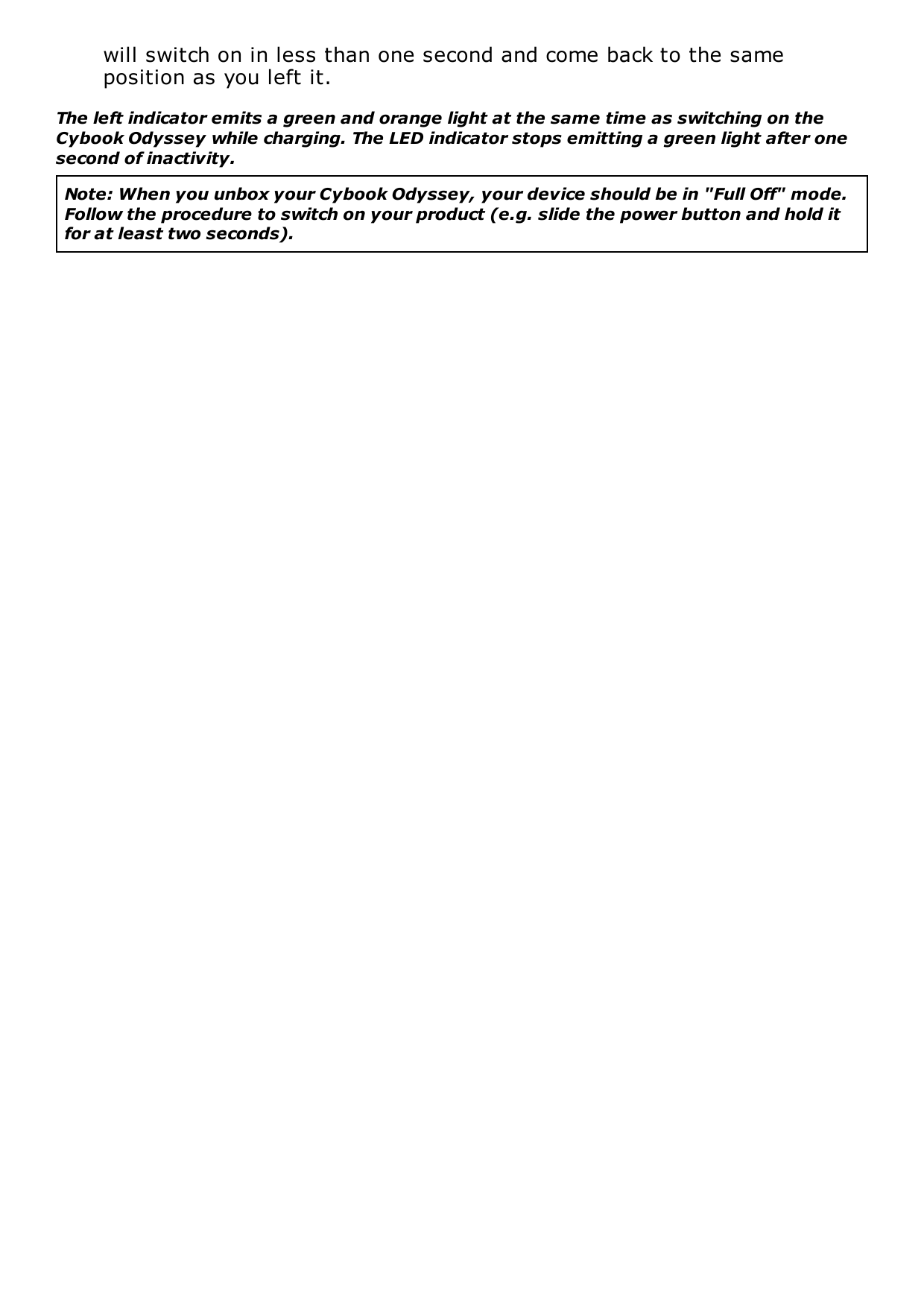
3. Basic SkillsThis  chapter  familiarizes  you  with  the  basic  operations  of  your  CybookOdyssey  such as  discovering the E Ink®  screen, using  the touchscreen,  usingthe buttons, understanding contextual menu and connection principles.3.1 The E Ink® Pearl ScreenThe  Cybook  shows  an  outstanding  black  and  white  screen,  utilizing  abreakthrough  technology:  the  E  Ink®  Pearl  display.  The  screen  acts  like  apaper page made of tiny ink particles which can migrate and modify the layoutof  your  screen  in  a  second.  An  E  Ink®  display  achieves  ultra-low  powerconsumption  in  a  thin,  light  form.  This  display  technology  can  maintain  animage  without  any  power  consumption.  Once  the  image  is  written,  it  willremain  indefinitely  without  consuming  any  additional  power.  The  E  Ink®display  technology  is  thus  energy  efficient  and  drastically  reduces  powerconsumption. Due to its innovative technology, when the screen switches froman  image  to  another  one,  the  screen goes  through  a  clearing  process  whichcauses a black to white transition.Note: Image can remain on screen even with an empty battery. So be cautious, don'tforget to refill your battery first when your device doesn't operate anymore.3.2 Touchscreen interfaceCybook Odyssey touchscreen is based on a capacitive technology:Only fingers or dedicated stylus can work with this touchscreen.Screen is very sensitive and you don't need to strongly press on thescreen to make it works.In fact the screen is so sensitive than it can react even if your touch isvery light.Cybook Odyssey touch interface follows some simple intuitive rules describedbelow.Tapping:  You  can select or  validate  a  choice  by  simply  touching  the  screenwith your fingertip. As said before, you don't need to strike the screen but onlyto touch it lightly.
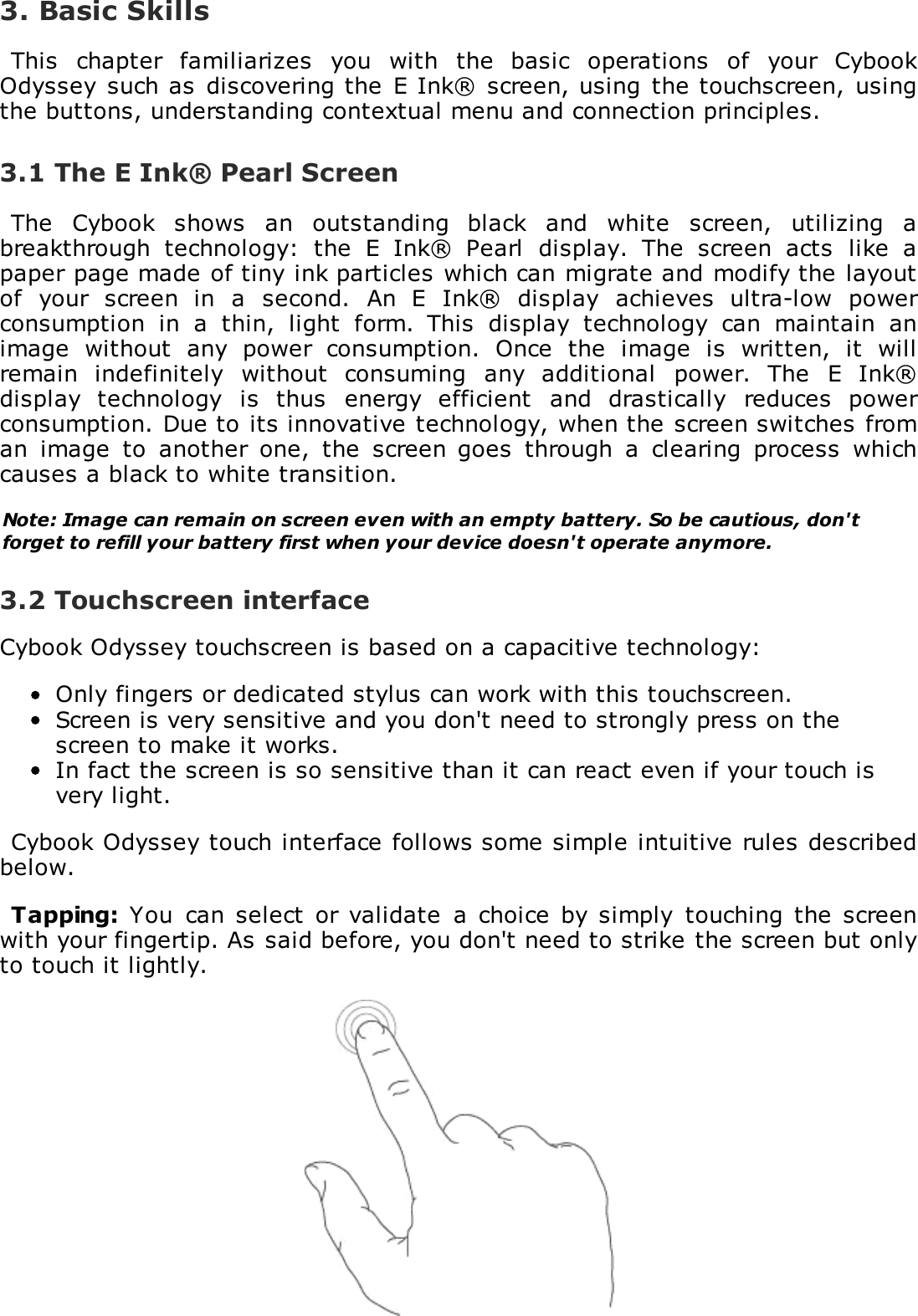
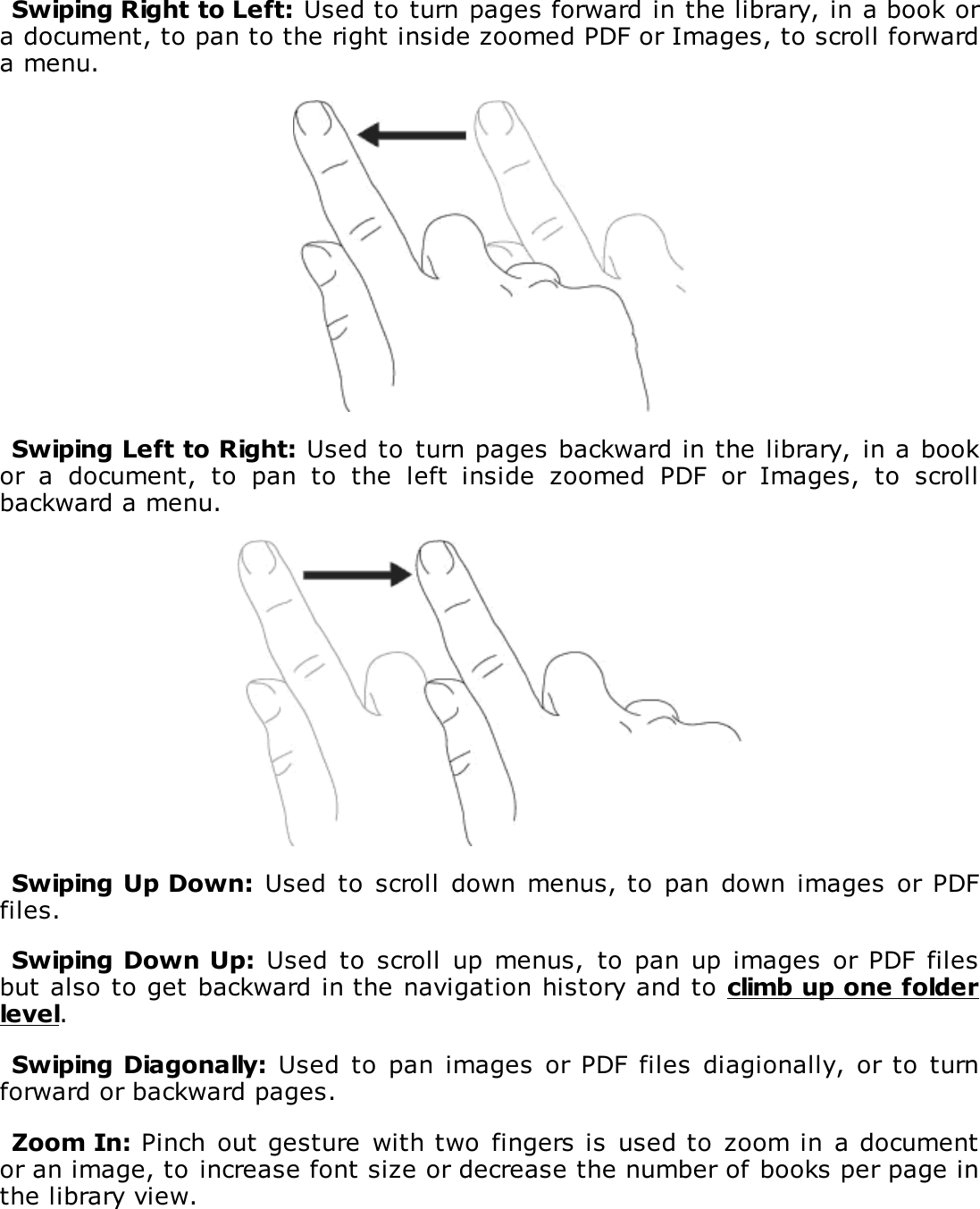
Swiping Right to Left: Used to turn pages forward in the library, in a book ora document, to pan to the right inside zoomed PDF or Images, to scroll forwarda menu.Swiping Left to Right: Used to  turn pages backward in the library,  in a bookor  a  document,  to  pan  to  the  left  inside  zoomed  PDF  or  Images,  to  scrollbackward a menu.Swiping Up Down:  Used  to  scroll  down menus, to  pan  down images  or PDFfiles.Swiping Down Up:  Used  to  scroll  up  menus,  to  pan up images  or PDF filesbut also to get backward in the navigation history and to climb up one folderlevel.Swiping Diagonally: Used  to  pan  images or  PDF  files diagionally, or to turnforward or backward pages.Zoom In: Pinch out gesture  with two  fingers is  used to  zoom in  a documentor an image, to increase font size or decrease the number of books per page inthe library view.
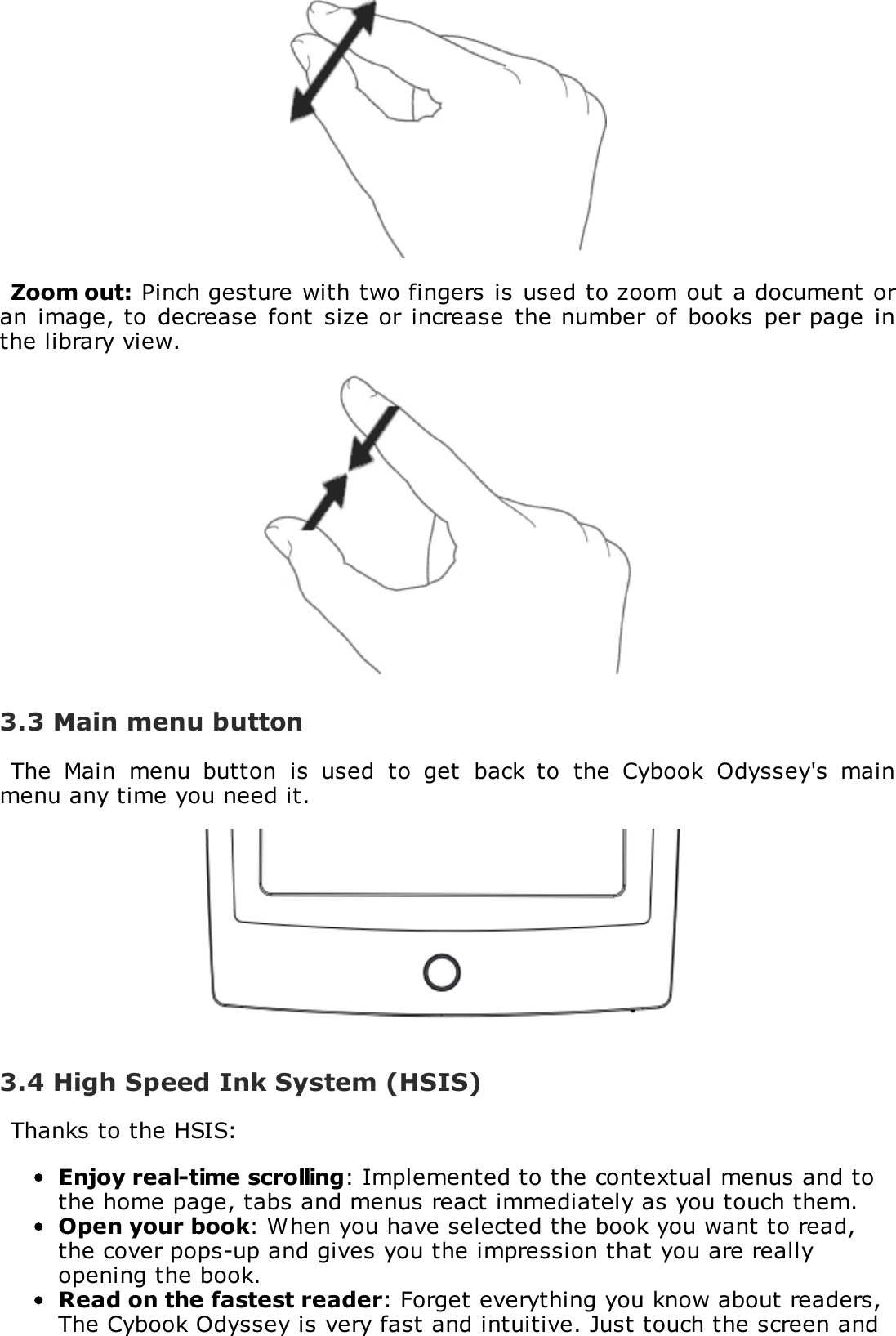
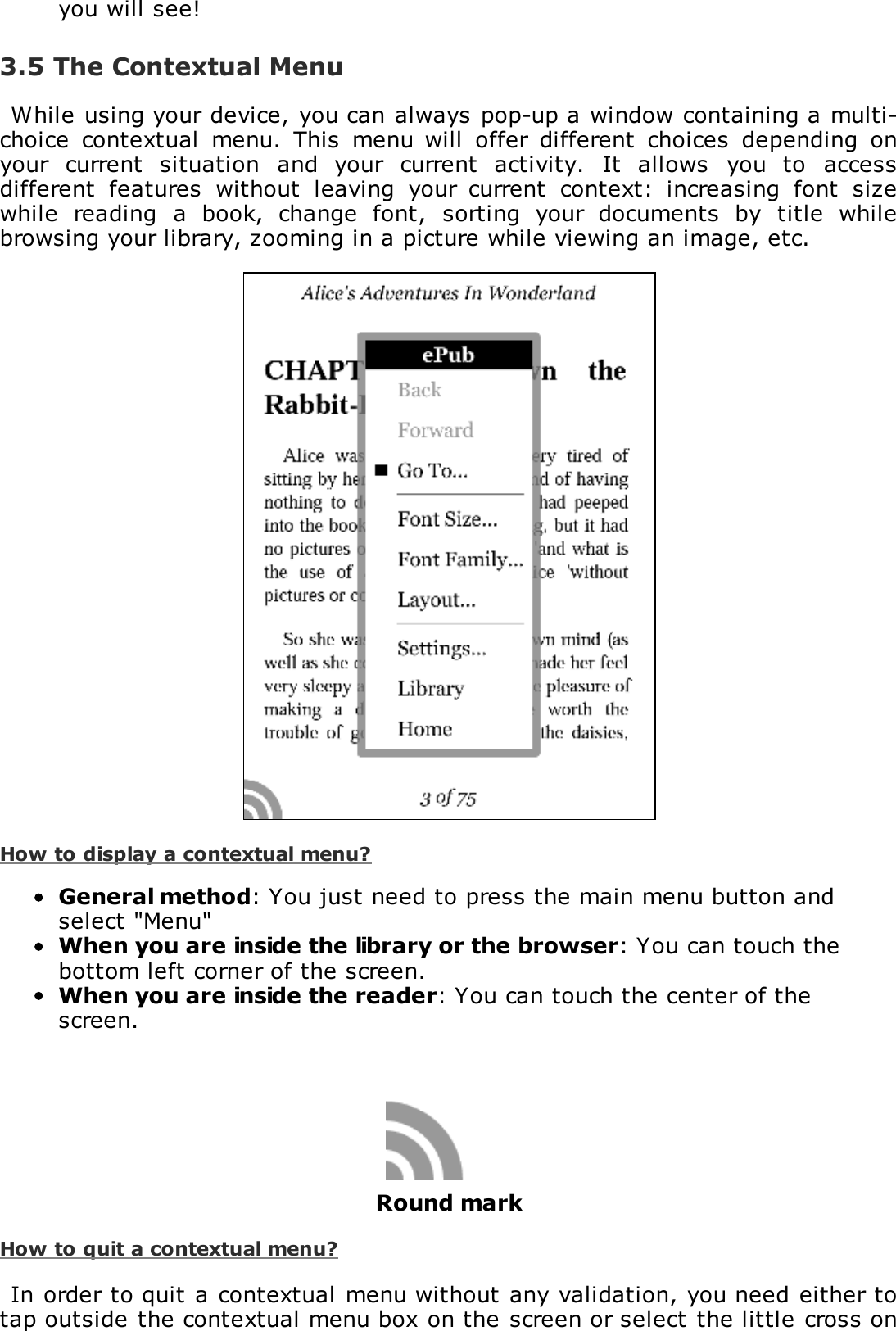
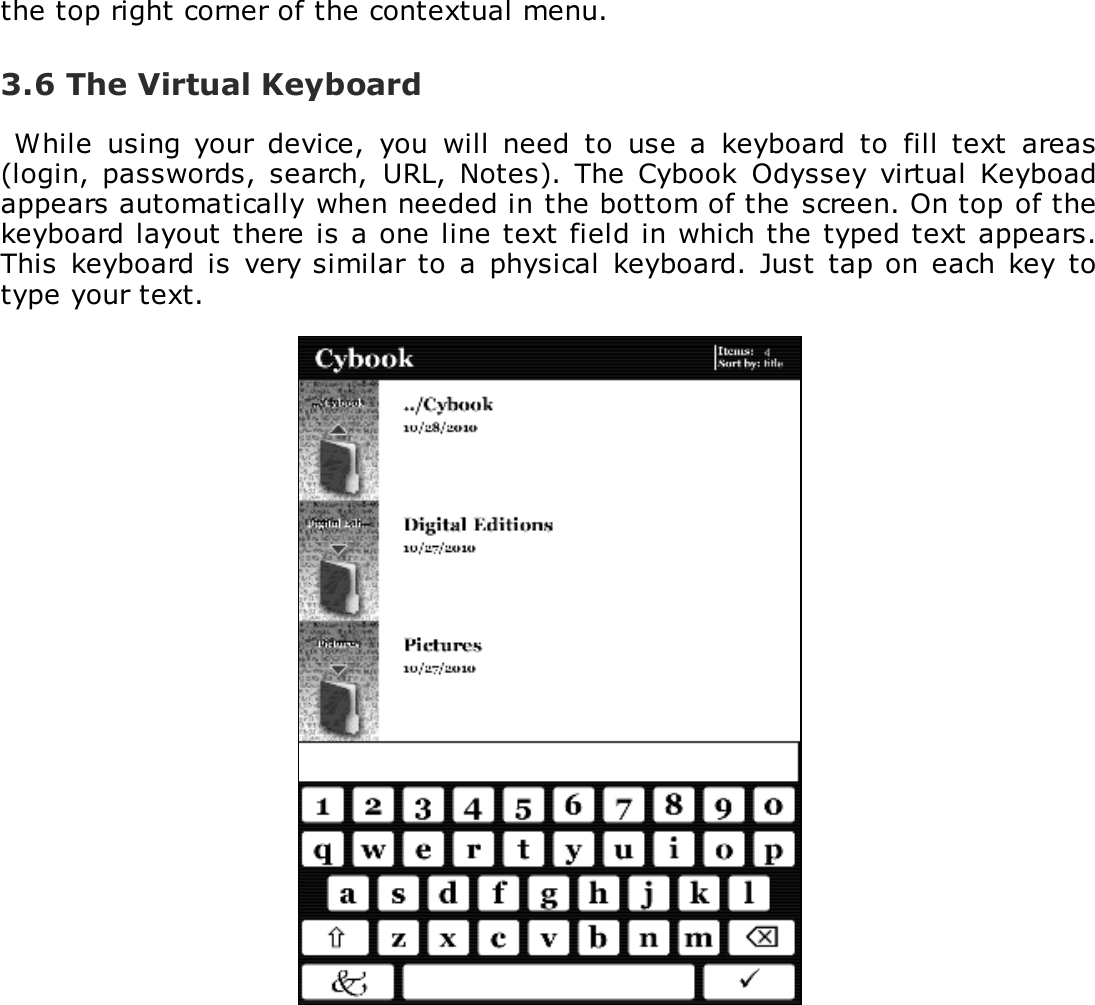
Zoom out: Pinch gesture with two fingers is used to zoom out a document oran image, to  decrease  font size or increase  the number of books  per page  inthe library view.3.3 Main menu buttonThe  Main  menu  button  is  used  to  get  back  to  the  Cybook  Odyssey's  mainmenu any time you need it.3.4 High Speed Ink System (HSIS)Thanks to the HSIS:Enjoy real-time scrolling: Implemented to the contextual menus and tothe home page, tabs and menus react immediately as you touch them.Open your book: When you have selected the book you want to read,the cover pops-up and gives you the impression that you are reallyopening the book.Read on the fastest reader: Forget everything you know about readers,The Cybook Odyssey is very fast and intuitive. Just touch the screen and
you will see!3.5 The Contextual MenuWhile using your device, you can always pop-up a window containing a multi-choice  contextual  menu.  This  menu will  offer  different  choices  depending  onyour  current  situation  and  your  current  activity.  It  allows  you  to  accessdifferent  features  without  leaving  your  current  context:  increasing  font  sizewhile  reading  a  book,  change  font,  sorting  your  documents  by  title  whilebrowsing your library, zooming in a picture while viewing an image, etc.How to display a contextual menu?General method: You just need to press the main menu button andselect "Menu"When you are inside the library or the browser: You can touch thebottom left corner of the screen.When you are inside the reader: You can touch the center of thescreen.Round markHow to quit a contextual menu?In order to quit a contextual menu without any validation, you need either totap outside the contextual menu box on the screen or select the little cross on
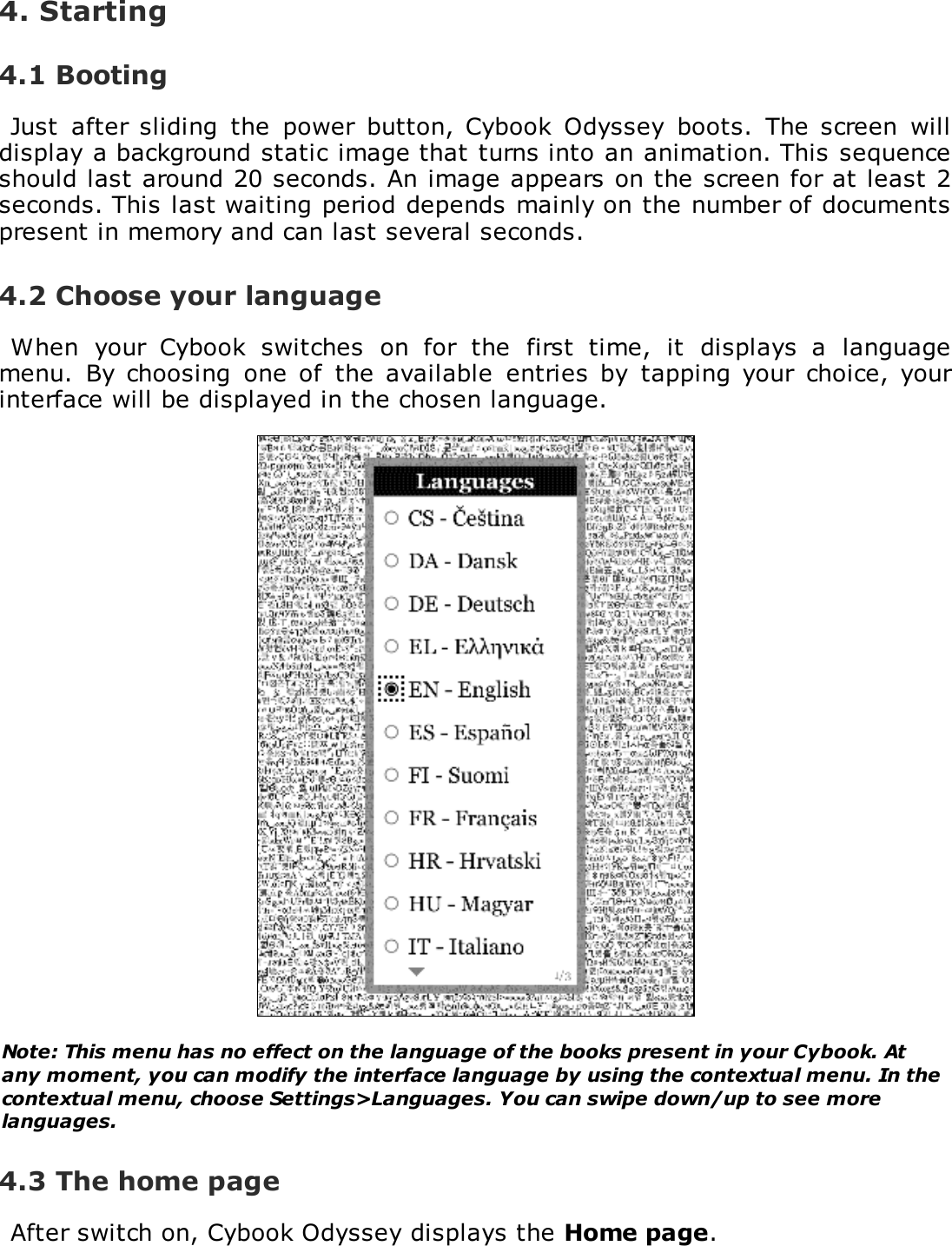
the top right corner of the contextual menu.3.6 The Virtual KeyboardWhile  using  your  device,  you  will  need  to  use  a  keyboard  to  fill  text  areas(login,  passwords,  search,  URL, Notes).  The Cybook  Odyssey  virtual  Keyboadappears automatically when needed in the bottom of the screen. On top of thekeyboard layout there is a one line text field in which the typed text appears.This keyboard is very similar to  a  physical  keyboard.  Just  tap on each key totype your text.
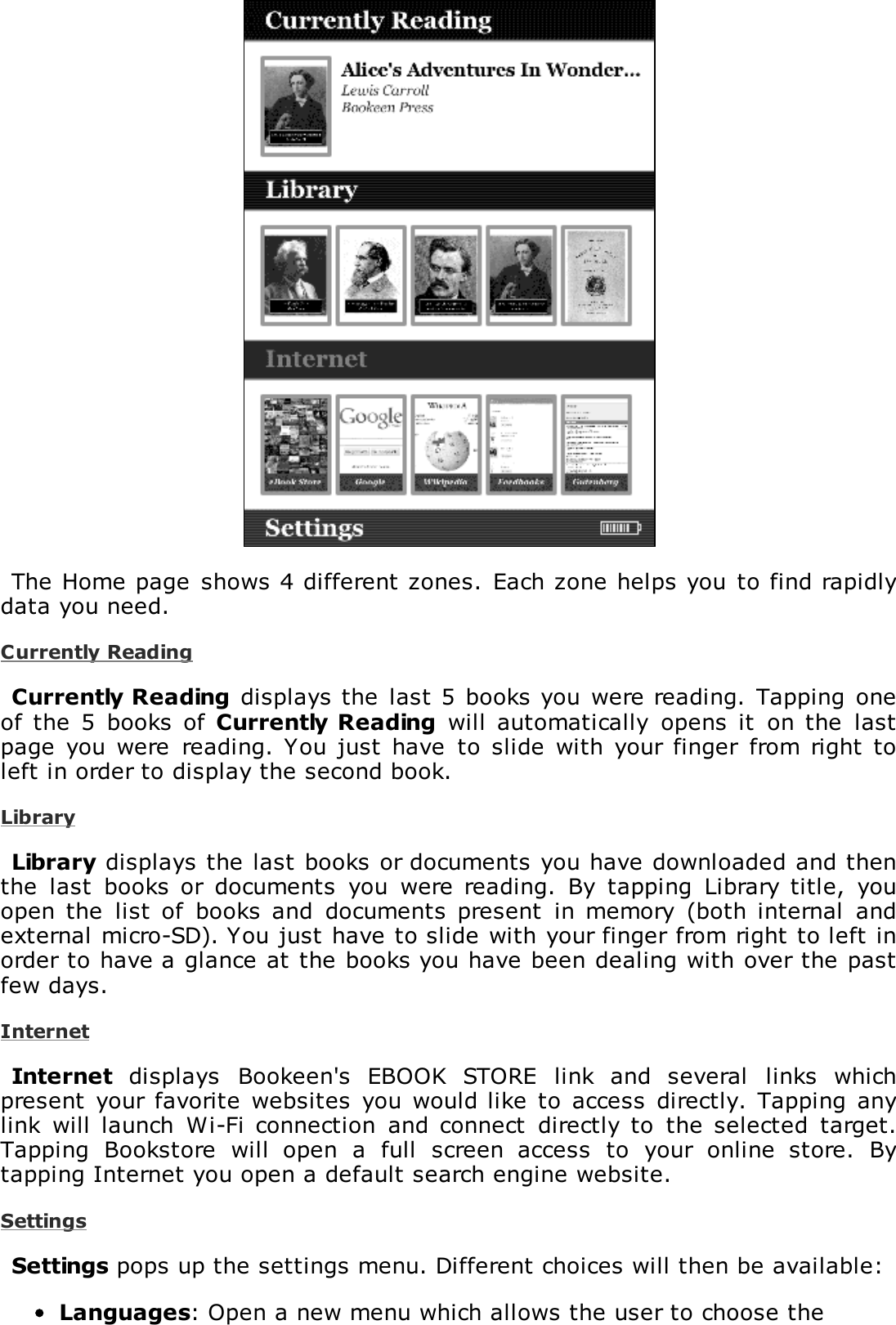
4. Starting4.1 BootingJust  after sliding  the  power  button,  Cybook  Odyssey  boots.  The  screen  willdisplay a background static image that turns into an animation. This sequenceshould last around 20 seconds. An image appears on the screen for at least 2seconds. This last waiting period depends mainly on the number of documentspresent in memory and can last several seconds.4.2 Choose your languageWhen  your  Cybook  switches  on  for  the  first  time,  it  displays  a  languagemenu.  By  choosing  one of  the  available  entries  by  tapping  your  choice,  yourinterface will be displayed in the chosen language.Note: This menu has no effect on the language of the books present in your Cybook. Atany moment, you can modify the interface language by using the contextual menu. In thecontextual menu, choose Settings>Languages. You can swipe down/up to see morelanguages.4.3 The home pageAfter switch on, Cybook Odyssey displays the Home page.
The Home page  shows 4 different zones.  Each zone helps you to find rapidlydata you need.Currently ReadingCurrently Reading  displays the  last 5 books you were reading. Tapping  oneof the  5  books  of  Currently Reading  will  automatically  opens  it  on the  lastpage  you were  reading.  You just have  to  slide  with  your finger  from right  toleft in order to display the second book.LibraryLibrary displays the last books or documents you have downloaded and thenthe  last  books  or  documents  you  were  reading.  By  tapping  Library  title,  youopen the  list of  books  and  documents  present  in memory  (both internal  andexternal micro-SD). You just have to slide with your finger from right to left inorder to have a glance at the books you have been dealing with over the pastfew days.InternetInternet  displays  Bookeen's  EBOOK  STORE  link  and  several  links  whichpresent your  favorite  websites  you  would like  to  access directly.  Tapping anylink  will  launch  Wi-Fi connection  and  connect  directly to  the  selected  target.Tapping  Bookstore  will  open  a  full  screen  access  to  your  online  store.  Bytapping Internet you open a default search engine website.SettingsSettings pops up the settings menu. Different choices will then be available:Languages: Open a new menu which allows the user to choose the
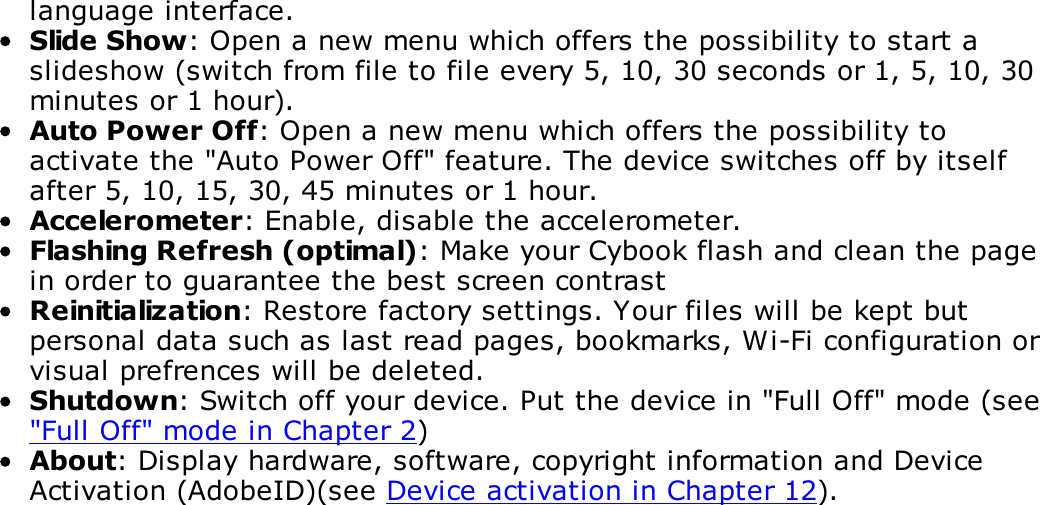
language interface.Slide Show: Open a new menu which offers the possibility to start aslideshow (switch from file to file every 5, 10, 30 seconds or 1, 5, 10, 30minutes or 1 hour).Auto Power Off: Open a new menu which offers the possibility toactivate the "Auto Power Off" feature. The device switches off by itselfafter 5, 10, 15, 30, 45 minutes or 1 hour.Accelerometer: Enable, disable the accelerometer.Flashing Refresh (optimal): Make your Cybook flash and clean the pagein order to guarantee the best screen contrastReinitialization: Restore factory settings. Your files will be kept butpersonal data such as last read pages, bookmarks, Wi-Fi configuration orvisual prefrences will be deleted.Shutdown: Switch off your device. Put the device in "Full Off" mode (see"Full Off" mode in Chapter 2)About: Display hardware, software, copyright information and DeviceActivation (AdobeID)(see Device activation in Chapter 12).
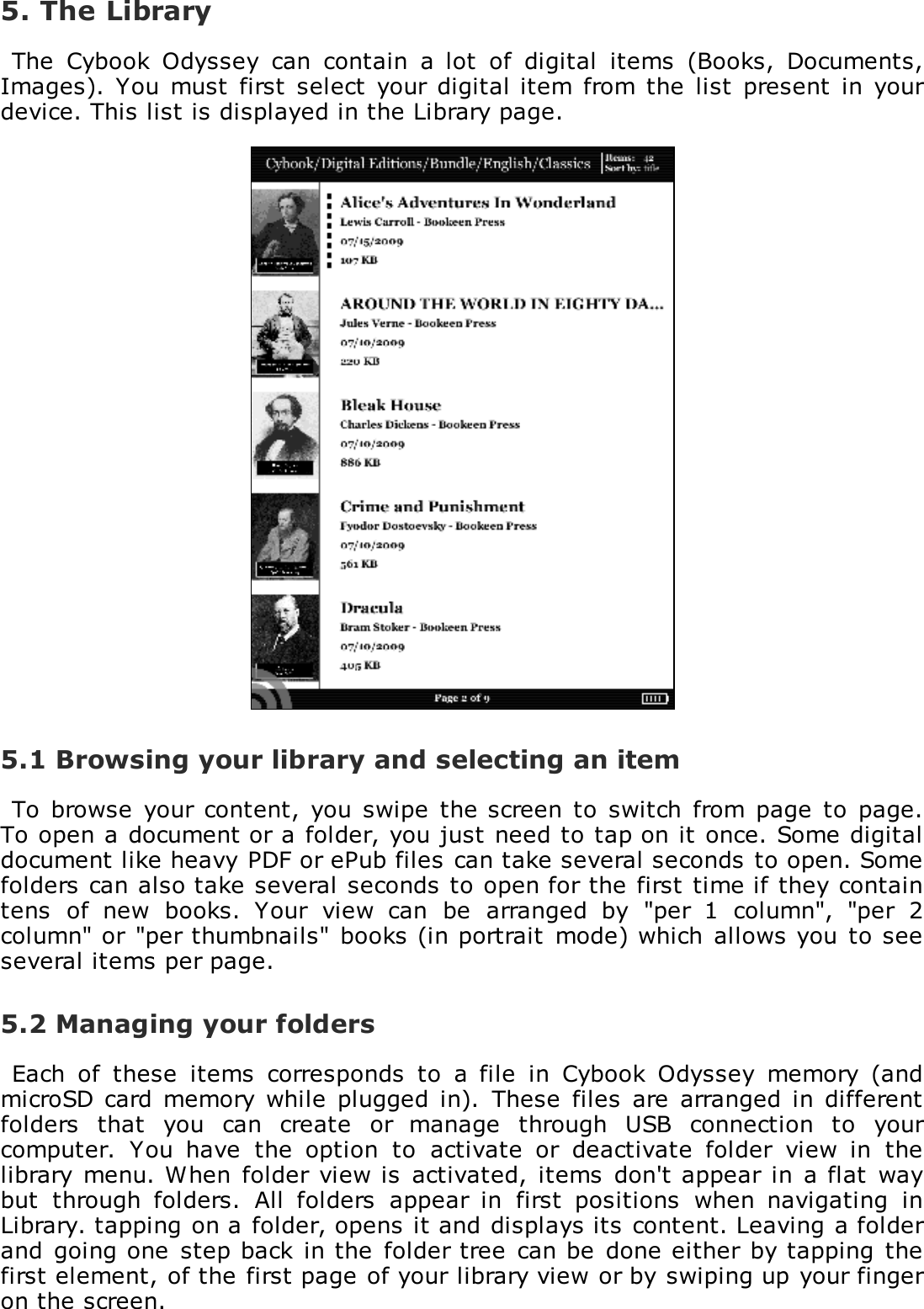
5. The LibraryThe  Cybook  Odyssey  can  contain  a  lot  of  digital  items  (Books,  Documents,Images).  You must  first  select  your digital item  from the  list  present  in yourdevice. This list is displayed in the Library page.5.1 Browsing your library and selecting an itemTo  browse  your  content,  you  swipe  the screen  to  switch  from page to  page.To open a document or a folder, you just need to tap on it once. Some digitaldocument like heavy PDF or ePub files can take several seconds to open. Somefolders can also take several seconds to open for the first time if they containtens  of  new  books.  Your  view  can  be  arranged  by  "per  1  column",  "per  2column" or  "per thumbnails" books (in portrait  mode) which  allows you to seeseveral items per page.5.2 Managing your foldersEach  of  these  items  corresponds  to  a  file  in  Cybook  Odyssey  memory  (andmicroSD  card  memory while  plugged  in).  These  files  are  arranged  in differentfolders  that  you  can  create  or  manage  through  USB  connection  to  yourcomputer.  You  have  the  option  to  activate  or  deactivate  folder  view  in  thelibrary menu. When folder view is  activated,  items  don't appear in a flat  waybut  through  folders.  All  folders  appear  in  first  positions  when  navigating  inLibrary. tapping on a folder, opens it and displays its content. Leaving a folderand going one  step back in the  folder tree  can be done either  by tapping thefirst element, of the first page of your library view or by swiping up your fingeron the screen.
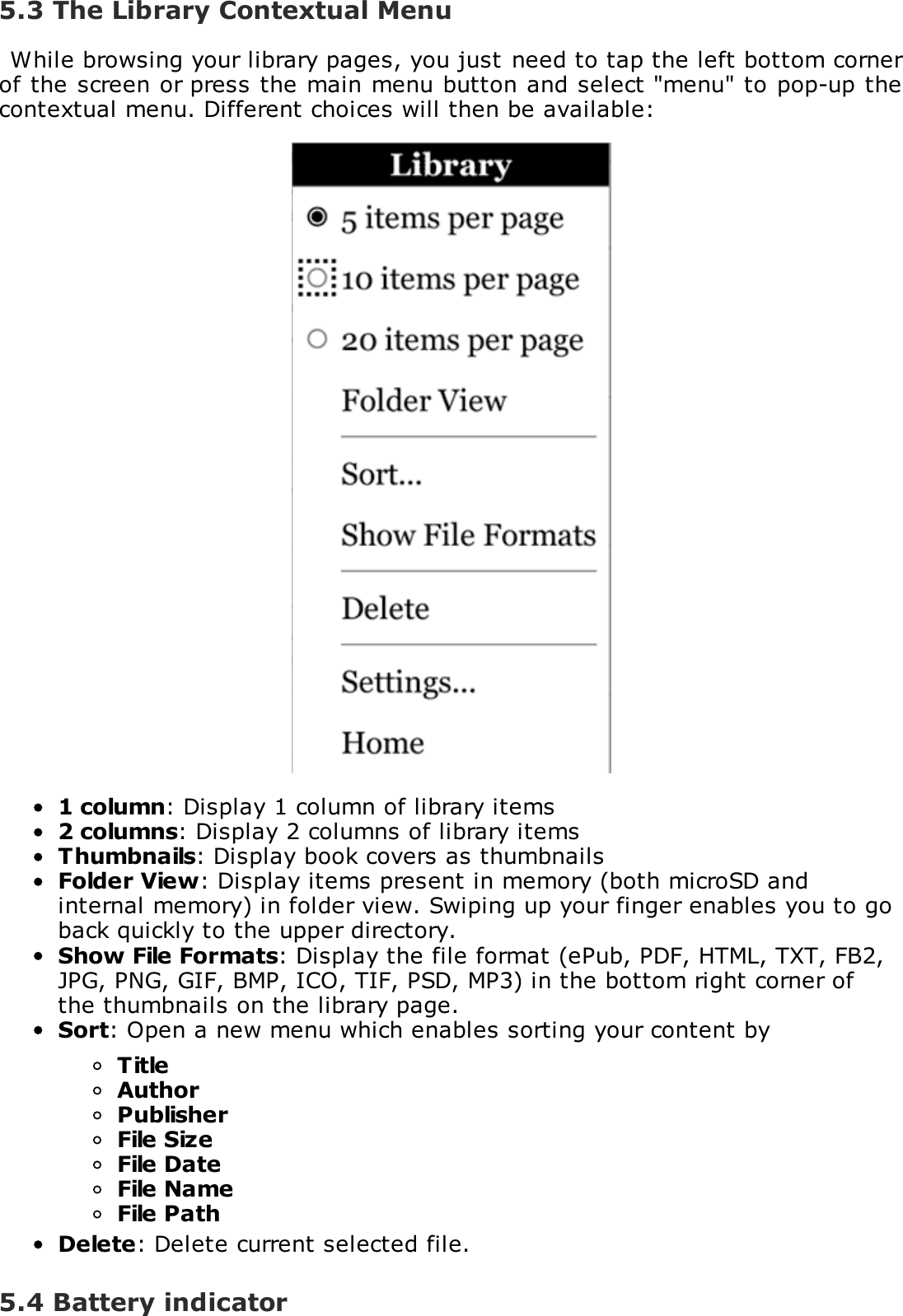
5.3 The Library Contextual MenuWhile browsing your library pages, you just need to tap the left bottom cornerof the screen or press the main menu button and select "menu" to pop-up thecontextual menu. Different choices will then be available:1 column: Display 1 column of library items2 columns: Display 2 columns of library itemsThumbnails: Display book covers as thumbnailsFolder View: Display items present in memory (both microSD andinternal memory) in folder view. Swiping up your finger enables you to goback quickly to the upper directory.Show File Formats: Display the file format (ePub, PDF, HTML, TXT, FB2,JPG, PNG, GIF, BMP, ICO, TIF, PSD, MP3) in the bottom right corner ofthe thumbnails on the library page.Sort: Open a new menu which enables sorting your content byTitleAuthorPublisherFile SizeFile DateFile NameFile PathDelete: Delete current selected file.5.4 Battery indicator
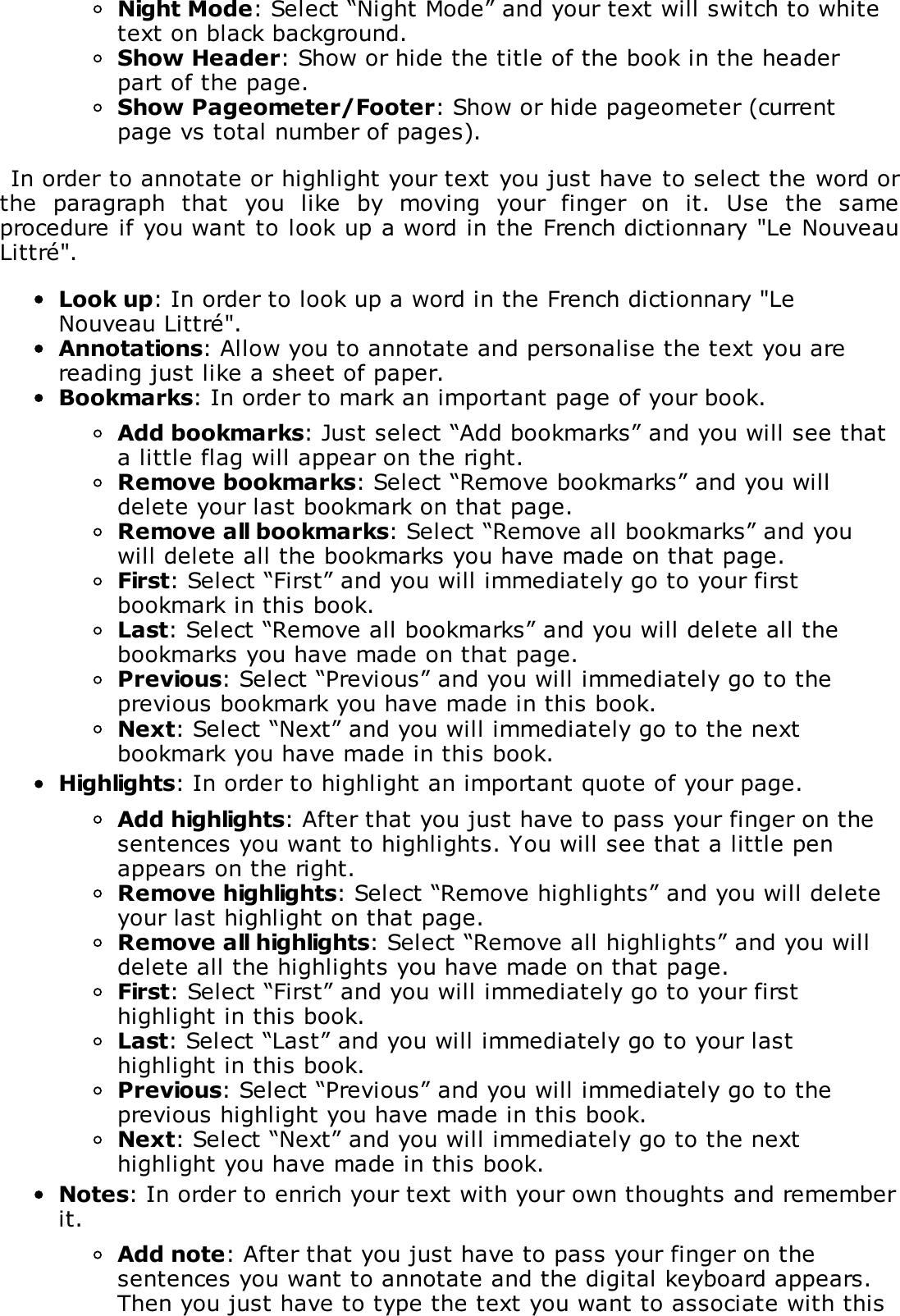
Inside the home and inside the library, the battery indicator is present in thebottom  right  corner.  This  10 levels battery indicator gives  an  estimation (0%to 100%) of the  current battery status. If the  power consumption is  very low,battery discharge  normally at low  pace rate (approximately 2 months, reading30 minutes a day).Note: Battery indicator is not updated in real time. It may not display updated batterylevel especially if Cybook remains on Library page for several hours.
6. ReadingOn the  library page,  once you have selected  an item,  tap it  once to  open it.To  identify which  type  (Book, PDF  Document,  Image) of  items  are  present  inyour  library,  you  can  activate  the  "Show  File  Formats"  option  of  the  Librarycontextual menu.6.1 Supported File FormatsAn  eBook  file  is  considered  to  be  a  digital  document.  It  can  be  a  book,  anewspaper,  a user's  manual, etc. These documents  are differentiated  by theirfile type or file format. Several file formats can be read on your device.ePub eBook filePDF eBook fileHTML eBook fileTXT eBook fileFB2 eBook file6.2 Reading an eBookOnce your eBook file is opened, the first page of your document is displayed.The first page may be a cover page.To go through your document, swipe (right to left) or press the right button togo  forward  in  the  document  (turn  a  page  forward) or  swipe  (left  to  right)  orpress the left button to go backward (turn a page backward). When  you reachthe beginning of your document you can’t go backward and when you reach theend of your document you can’t go forward.If  you  hold  down  the  page  forward  button,  you  will  start  browsing  thedocument  in  an  accelerated  mode.  This  feature  works  also  in  backwarddirection.Some pages contain hyperlinks  which allow  you to  jump  directly to a  certainreference  inside  the  current  eBook  file.  To  select the  hyperlinks,  tap  directlythe  hyperlink. To  leave  the  hyperlink  selection  mode,  turn  a  page  forward orbackward. In general Hyperlinks are underlined.After a  jump from an hyperlink,  you can go  back to  your original  location, byswiping up.6.3 The Reading EnvironmentThe page  does not show only  text or image but  also some  extra information(like page number, battery consumption or book title) in reserved areas of thescreen.While reading you just need to tap the middle of the screen or press the mainmenu  button  to  pop-up  the  Reading  contextual  menu.  Different  choices  willthen  be  available  depending  on  the  file  format  of  the  document  you  arereading.
Certain  formats  don’t  propose  the  same  features.  For  example,  you  can’tchange the font size of a PDF file; you can just zoom in or zoom out.The reading environment depends on the format of opened document.Reading Environment for ePub/FB2/HTML/TXT files (Reflowable content)Page areasThe header of the page displays the title of your document. For HTML and TXTdocument, it's the  filename. The Footer of the page displays the current pageon  the  total number  of  pages  of  the  document.  The header  and  footer areascan be hidden or shown via contextual menuNote: The number of pages is claculated according to an average number of charactersper paper page. Thus the total number of pages is not attached to the number ofscreens you will need to display to read the entire book. In general you have severalscreens per page. A direct consequence is that the number of pages doesn't vary withthe characters size.Contextual menuTable of content: Find the chapter you are looking for in the table ofcontent.Go To…: Allow you to jump directly to certain parts of the document. Itopens a second menu.First Page: Go to first page of the document.Last Page: Go to last page of the document.Page…: Open a small numeric keypad on the screen to enterdirectly the number of the page (use navigation button to chooseyour numbers).XXXXX: Go to XXXXX entry of the TOC. XXXXX will depend on theTable Of Contents of your document. All the entries of your TOC willappear here.Font Size...: Allow you to change the size of your text font. It opens asecond menu with a choice between 20 diferent sizes.Font Family...: Allow you to change the font of your text. It opens asecond menu.Layout…: Allow you to modify the layout of the book. It opens a secondmenu.Publisher Styles: Option to ignore publisher’s original styles(allows full customization of the publication and also fasterprocessing of complex editions).Hyphenation: Select “Hyphenation” and you will hyphenate text forbetter typographic white space.Ligatures: Make ligatures between letters in order to improve thequality of the text.Justified Text: Force the text to be justified (aligned both to theright and left borders).Emboldened Text: Emboldened the text (make the font bold).
Night Mode: Select “Night Mode” and your text will switch to whitetext on black background.Show Header: Show or hide the title of the book in the headerpart of the page.Show Pageometer/Footer: Show or hide pageometer (currentpage vs total number of pages).In order to annotate or highlight your text you just have to select the word orthe  paragraph  that  you  like  by  moving  your  finger  on  it.  Use  the  sameprocedure if you want to look up a word in the French dictionnary "Le NouveauLittré".Look up: In order to look up a word in the French dictionnary "LeNouveau Littré".Annotations: Allow you to annotate and personalise the text you arereading just like a sheet of paper.Bookmarks: In order to mark an important page of your book.Add bookmarks: Just select “Add bookmarks” and you will see thata little flag will appear on the right.Remove bookmarks: Select “Remove bookmarks” and you willdelete your last bookmark on that page.Remove all bookmarks: Select “Remove all bookmarks” and youwill delete all the bookmarks you have made on that page.First: Select “First” and you will immediately go to your firstbookmark in this book.Last: Select “Remove all bookmarks” and you will delete all thebookmarks you have made on that page.Previous: Select “Previous” and you will immediately go to theprevious bookmark you have made in this book.Next: Select “Next” and you will immediately go to the nextbookmark you have made in this book.Highlights: In order to highlight an important quote of your page.Add highlights: After that you just have to pass your finger on thesentences you want to highlights. You will see that a little penappears on the right.Remove highlights: Select “Remove highlights” and you will deleteyour last highlight on that page.Remove all highlights: Select “Remove all highlights” and you willdelete all the highlights you have made on that page.First: Select “First” and you will immediately go to your firsthighlight in this book.Last: Select “Last” and you will immediately go to your lasthighlight in this book.Previous: Select “Previous” and you will immediately go to theprevious highlight you have made in this book.Next: Select “Next” and you will immediately go to the nexthighlight you have made in this book.Notes: In order to enrich your text with your own thoughts and rememberit.Add note: After that you just have to pass your finger on thesentences you want to annotate and the digital keyboard appears.Then you just have to type the text you want to associate with this
quote. You will see that a little document appears on the right.Edit note: You select the note’s pictogram you want to modify. Thenote contextual menu will appear. You are now allowed to select“Edit note”. The digital keyboard will show up and you can type anew note.Remove note: Select “Remove note” and you will delete your lastnote on that page.Remove all notes: Select “Remove all notes” and you will delete allthe notes you have made on that page.First: Select “First” and you will immediately go to your first note inthis book.Last: Select “Last” and you will immediately go to your last note inthis book.Previous: Select “Previous” and you will immediately go to theprevious highlight you have made in this book.Next: Select “Next” and you will immediately go to the next noteyou have made in this book.Remove all annotations: Select “Remove all annotations” and confirmyour decision by answering “yes” to the question “Do you want to removeall annotations?” Once you have removed all the annotations, all markswill disappear on your text.Add bookmarks: A shortcut in order to add a bookmark in a click.Remove boomark: A shortcut in order to remove a bookmark in a click.Tapping  directly  on  the  Page  Header  is  a  shortcut  for  Go  To….  Tappingdirectly on the Page Footer is a shortcut for Go To…>Page….Reading Environment for PDF files (Non reflowable)Page areasThe  footer  of  the  page  is  a  status  bar  which  displays  the  title  of  yourdocument, your position in the document (current page/total number of pages)and  your  level  of  zoom  in  %.  The  footer  areas  can  be  hidden  or  shown  viacontextual menu.Contextual menuGo To…: Allow you to jump directly to certain parts of the document. Itopens a second menu.First Page: Go to first page of the document.Last Page: Go to last page of the document.Page…: Open a small numeric keypad on the screen to enterdirectly the number of the page (use navigation button to chooseyour numbers).Zoom...: Allow you to zoom in and out in the page. It opens a secondmenu..Fit Page: Get the document page fit entirely inside the screenlimits.Note: in landscape mode this effect corresponds to a "zoom out" function fora standard document.
Fit Width: Get the document page width correspond to screenwidth. In landscape mode this effect corresponds to a "zoom in"function for a standard document.Fit Height: Get the document page height correspond to screenheight. In landscape mode this effect corresponds to a "zoom out"function for a standard document.50%: Display half of the actual size.60%: Display 60% of the actual size.70%: Display 70% of the actual size.80%: Display 80% of the actual size.90%: Display 90% of the actual size.100%: Display actual size.Rotation...: Options to rotate the screen. It opens a second menu.Note: This option is dimmed while accelerometer is activated.0°: Display the document in portrait mode (default).90°: Display the document in landscape mode (90° rotation).Flipped: Display the page upside down.Crop Margin : Enable you to crop the margin. If this option is activated,some pictures might not be shown.Show status bar: Display or hide a status bar which appears at thebottom of the screen and shows the name of the file, the current pageversus the total number of pages, and the zoom factor.6.4 Opening a password protected documentCertain PDF  and  ePub  documents can  be  password  protected.  When openingthem,  the  virtual  keyboard  appears  asking  for  the  password.  Type  thepassword and validate. Once validated, the password won't be prompted againfor this file.
7. Viewing ImagesOn the library page, once you have selected  an image file, tap on it or pressthe  OK  button to  open it.  An  image entry  can be  identified  by  activating  the"Show File  Formats"  option of  the Library  contextual menu.  In  this case  JPG,PNG, GIF, BMP, ICO, TIF, PSD files are considered as image files.7.1 The Image ViewerOnce your image file is opened, the image is displayed. If you swipe, you willjump from image to image. If the "Auto Rotate" option is activated, the imagecan be displayed either in portrait or landscape mode.If  the  image  is  bigger  than  the  screen  (arrow  icons  should  appear  on  thesides  of  the  images) use swiping (up/dwon/right/left/diagonal) to  browse  theimage. In this mode you won’t jump from image to image.Indicator  on  the  page  Status  bar:  This  bar  appears  at  the  bottom  of  thescreen and shows the name of the file and the zoom factor.7.2 The Image Contextual MenuFit screen: Get the image fit entirely inside the screen limits.Actual size: Show the image in its real size.Rotation...: Options to rotate the screen. It opens a second menu. Thisoption is dimmed while accelerometer is activated.Auto Rotate: This option enables the image viewer toautomatically detect if the image should be displayed in portrait orlandscape mode.0°: Display the document in portrait mode (default).90°: Display the document in landscape mode (90° rotation).Flipped: Display the page upside down.Show status bar: Display or hide a status bar which appears at thebottom of the screen and shows the name of the file and the zoomfactor.Next Picture: Display next picture in according to the library order.Previous Picture: Display previous picture in according to the libraryorder.Set as screensaver: Display this picture as screensaver.
8. Listening musicOn the library page, once you have selected an audio file, tap on it to open it.Only mp3 files are considered as music files.8.1 Play musicOnce  your  file is  open you just have to select "play" to  listen to  your  musicwhile reading or enjoy audio books. Then just select "stop" in order to stop thelistening.
9. The AccelerometerYour Cybook Odyssey  embeds  an accelerometer which enables  you to  switchautomatically  the  screen  orientation  (Portrait,  Landscape)  only  by  turningaround the  device.  The  layout  will  automatically  follow(0°,  90°,  180°,  270°).You can disable the accelerometer via Settings menu.
10. Wi-Fi connectionYour Cybook  Odyssey  embeds  a Wi-Fi module  which  enables  you to  connectto a Wi-Fi Access Point. Once connected you will be able to download contentand get access to Internet.10.1 Start Wi-Fi connectionThe  Wi-Fi  connection  will  start  while  accessing  the  eBook  store  or  theInternet via the Home page. You can also start the Wi-Fi connection from theHome  page  if  you select  Menu  and  Wi-Fi  Networks  when  the  menu pops-up.The Wi-Fi module will start automatically and will try to connect to an alreadyconfigured network or will scan available networks.10.2 Scanning available networksFor first connection or if any configured Wi-Fi network is in the range, a menuscanning all the  available  Access Networks  will show up.  Pick  up the networkyou want to connect at. If the chosen network is secured, you will be asked fora password and the virtual keyboard will appear automatically.10.3 Wi-Fi signal qualityIf signal quality is bad or if you are too far away from your Access Point, theCybook  Odyssey  may  loose  the  connection.  An  alert  window  will  open  andrescan  the  networks  in  order  to  choose  a  new  network.  If  you  observe  toomany timeout messages, we suggest you either to get closer to your selectedAP (Access Point) or to pick up a new AP.10.4 Free Wi-Fi hotspotsYou  can connect to  free  Wi-Fi  hotspots.  Either  in  Bookstore or Free  Internetinterface, you wil be prompted  for Login and Password (if  needed). Once,  youhave type your Login and Password, you should be able to access Internet.10.5 Updates and DownloadsIf any new  download  or software  updates  is available, a  window will  promptjust  after  Wi-fi  connection to  propose  you  to  accept  the  new  download.  Youcan cancel the possibility to download these new data to your device. Howeverthe questions will be prompted again together with a new connection.If you  accept to install a new  update please  be sure your  battery is  at leastat  60%. The  update  process is  fully  automatic and can take several minutes.Once  you  have  accepted  the  update  you  don't  need  to  operate  the  deviceanymore until  it  comes  back  to  the  Home  page.  During  this  process  you willhave  an  automatic  sequence  displaying  numerous  messages  and  progressbars.10.6 Turn off the Wi-Fi
If you want to turn off the Wi-Fi, you have to go to the Home page and selectMenu. When the menu pops-up, you touch Wi-Fi Networks and select Wi-Fi off.
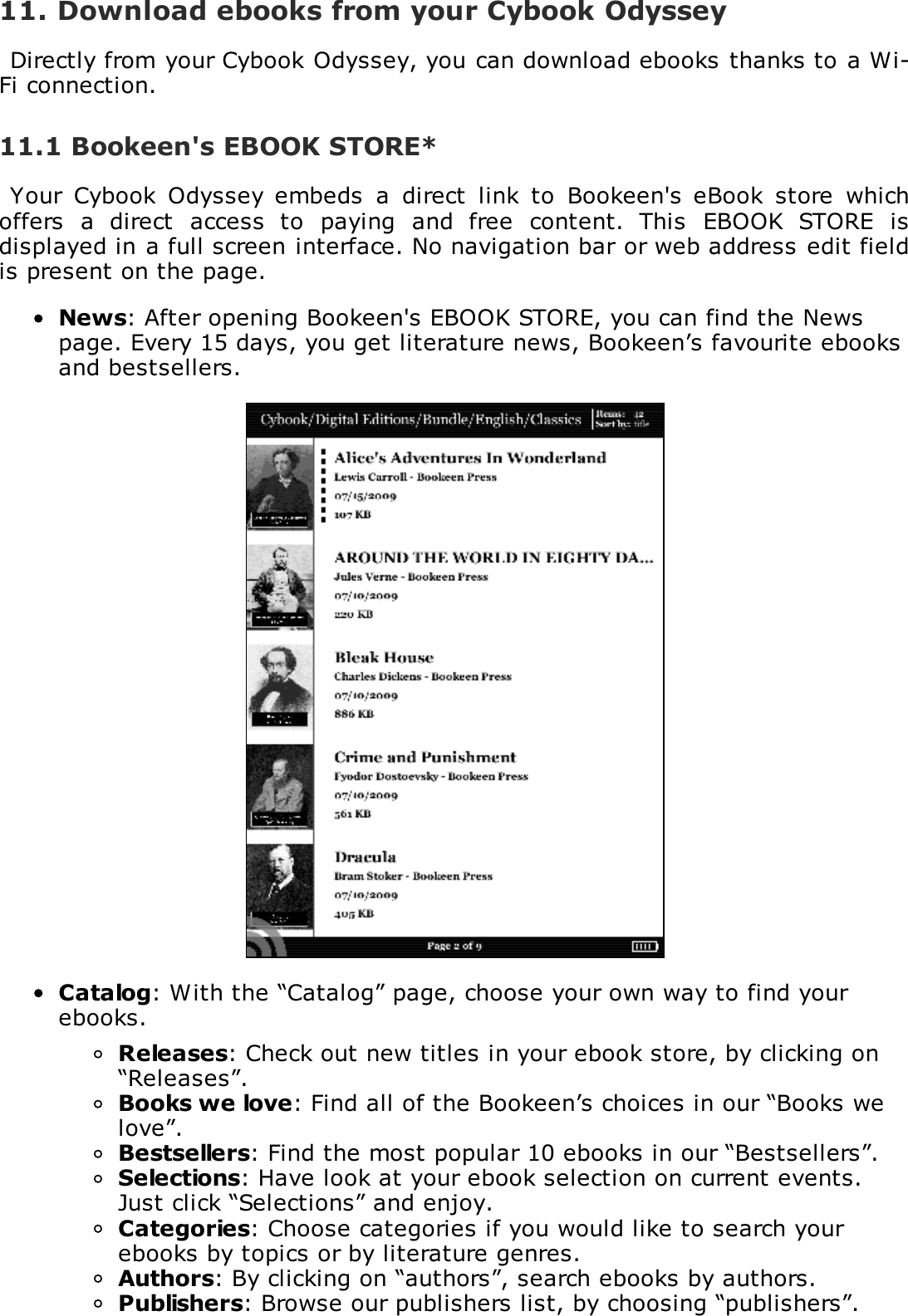
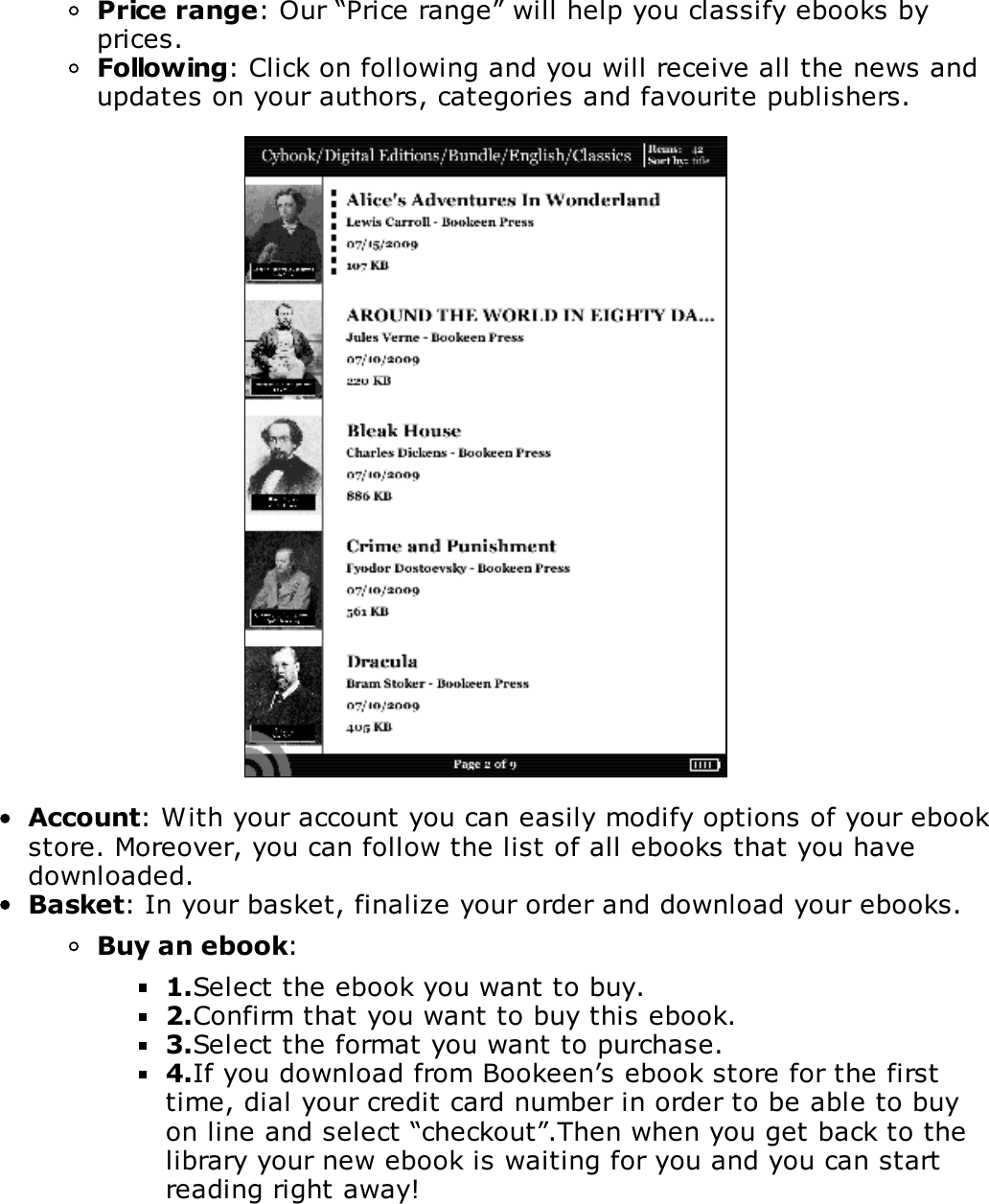
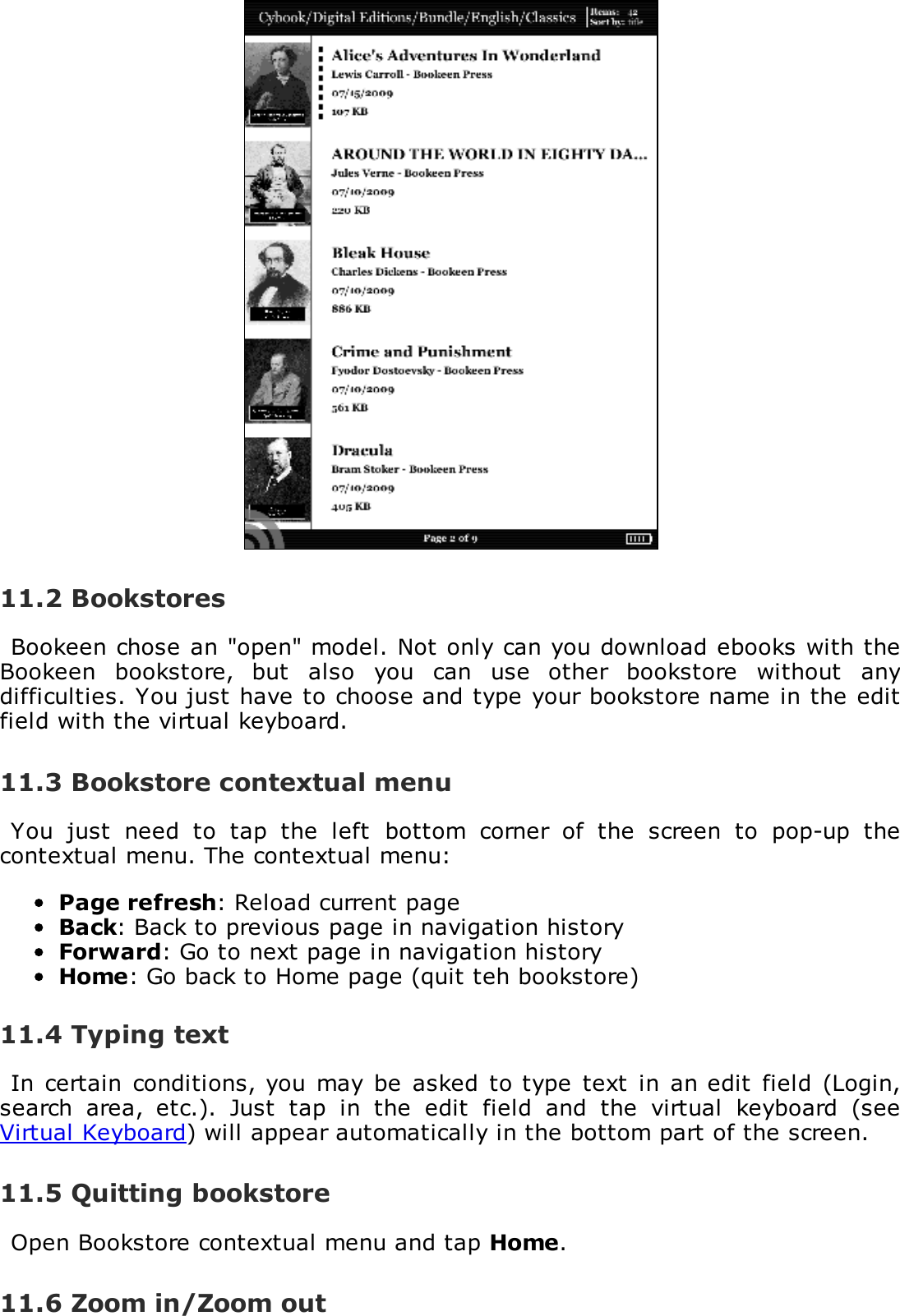
11. Download ebooks from your Cybook OdysseyDirectly from your Cybook Odyssey, you can download ebooks thanks to a Wi-Fi connection.11.1 Bookeen's EBOOK STORE*Your  Cybook  Odyssey  embeds  a  direct  link  to  Bookeen's  eBook  store  whichoffers  a  direct  access  to  paying  and  free  content.  This  EBOOK  STORE  isdisplayed in a full screen interface. No navigation bar or web address edit fieldis present on the page.News: After opening Bookeen's EBOOK STORE, you can find the Newspage. Every 15 days, you get literature news, Bookeen’s favourite ebooksand bestsellers.Catalog: With the “Catalog” page, choose your own way to find yourebooks.Releases: Check out new titles in your ebook store, by clicking on“Releases”.Books we love: Find all of the Bookeen’s choices in our “Books welove”.Bestsellers: Find the most popular 10 ebooks in our “Bestsellers”.Selections: Have look at your ebook selection on current events.Just click “Selections” and enjoy.Categories: Choose categories if you would like to search yourebooks by topics or by literature genres.Authors: By clicking on “authors”, search ebooks by authors.Publishers: Browse our publishers list, by choosing “publishers”.
Price range: Our “Price range” will help you classify ebooks byprices.Following: Click on following and you will receive all the news andupdates on your authors, categories and favourite publishers.Account: With your account you can easily modify options of your ebookstore. Moreover, you can follow the list of all ebooks that you havedownloaded.Basket: In your basket, finalize your order and download your ebooks.Buy an ebook:1.Select the ebook you want to buy.2.Confirm that you want to buy this ebook.3.Select the format you want to purchase.4.If you download from Bookeen’s ebook store for the firsttime, dial your credit card number in order to be able to buyon line and select “checkout”.Then when you get back to thelibrary your new ebook is waiting for you and you can startreading right away!
11.2 BookstoresBookeen chose an "open" model. Not only can you download ebooks with theBookeen  bookstore,  but  also  you  can  use  other  bookstore  without  anydifficulties. You just have to choose and type your bookstore name in the editfield with the virtual keyboard.11.3 Bookstore contextual menuYou  just  need  to  tap  the  left  bottom  corner  of  the  screen  to  pop-up  thecontextual menu. The contextual menu:Page refresh: Reload current pageBack: Back to previous page in navigation historyForward: Go to next page in navigation historyHome: Go back to Home page (quit teh bookstore)11.4 Typing textIn  certain conditions, you may  be  asked  to type text  in an edit  field (Login,search  area,  etc.).  Just  tap  in  the  edit  field  and  the  virtual  keyboard  (seeVirtual Keyboard) will appear automatically in the bottom part of the screen.11.5 Quitting bookstoreOpen Bookstore contextual menu and tap Home.11.6 Zoom in/Zoom out
Use  the  zoom  in/zoom out  gestures  (see  touch  gestures) to  zoom  in  or outthe page.11.7 Moving into the page (panning)If your page is bigger than the screen,  you will need  to move into  the page.Use  the  sliding  gestures  (up,  down,  right,  left,  diagonals)  to  move  yourviewing window.11.8 Downloading filesOnce  you  have  selected  download  option  a  message  box  will  open  with  adownload  message.  Once  the  message  box  is  closed,  your  file  is  fullydownloaded in memory.IMPORTANT NOTE: All new files are automatically downloaded through wireless in DigitalEditions folder. The new files appear automatically in first position of Library section ofCybook Odyssey Home page.*France and Germany are countries concerned by Bookeen's EBOOK STORE
12. Internet accessYour  Cybook  Odyssey  embeds  a  direct  link  to  free  Internet  and  favoritewebsites.  The  favorite  websites  are  available  directly  through  Home  pageunder Internet section.12.1 Internet interfaceThe Internet interface is very close to Internet browser interface on computer.You have a navigation bar on the top of the page. This bar is made of an URLedit  field  and  three  shortcut  buttons:  Back,  Forward,  favorite  and  Home.  Toenter a new  URL, you just need  to tap  into the Navigation Bar  Edit field, thevirtual  keyboard  will  appear  automatically.  Tapping  "Enter"  key  will  validatethe typed URL.12.2 Internet contextual menuYou just need to tap the left bottom corner of the screen or press the centralbutton to pop-up the contextual menu. The contextual menu:Start page: Go back to start page of Internet browserOpen: Type an URL addressPage refresh: Reload current pageBack: Go back to previous page in navigation historyForward: Go to next page in navigation history12.3 Typing textIn  certain conditions, you may  be  asked  to type text  in an edit  field (Login,search  area,  etc.).  Just  tap  in  the  edit  field  and  the  virtual  keyboard  (seeVirtual Keyboard) will appear automatically in the bottom part of the screen.12.4 Add/delete favoritesIf  you want  to  add as  favorite  the  page  you are  browsing  on  Internet,  youjust  have  to  tap  the little  star  on the  top  of the  screen.  The  Internet menupops up  and you  select "Add favorite". The vitual keyboard shows up  and youcan  give  a  special  name  to  this  favorite.  Once  you  have  confirmed  yourchanges,  the  favorite  appears  in  the  list.  If  you  want  to  delete  it,  you  justhave to tap the bin and confirm that you really mean to delete this favorite.12.5 Quitting InternetOpen Internet contextual menu and tap Home.12.6 Zoom in/Zoom outUse  the  zoom  in/zoom out  gestures  (see  touch  gestures) to  zoom  in  or outthe page.
12.7 Moving into the page (panning)If your page is bigger than the screen,  you will need  to move into  the page.Use either the sliding gestures (up, down, right, left, diagonals) to move yourviewing window or use the arrow keys.12.8 Downloading fileOnce  you  have  selected  download  option  a  message  box  will  open  with  adownload  message.  Once  the  message  box  is  closed,  your  file  is  fullydownloaded in memory.IMPORTANT NOTE: All new files are automatically downloaded through wireless in DigitalEditions folder. The new files appear automatically in first position of Library section ofCybook Odyssey Home page.
13. Authentication/Device activation in order to downloadfrom a Cybook OdysseyIn order to download paid content, you will need to authenticate your CybookOdyssey.The  authentication  process  takes  place  when  you  try  to  reach  the  EBOOKSTORE. After  tapping the  EBOOK  STORE  link  on  the  Home  page  and  gettingconnected  via  Wi-Fi,  you  will  be  asked  to  create  an  account.  This  accountcreation process will authenticate your device and enable you to buy encrypted(DRM  protected)  content.  This  process  will  bind  your  device  to  a  unique  IDcalled Adobe ID.13.1 DRM principleDRM  (Digital  Right  Management)  is  a  software  protection  which  encryptsdownloaded  file  with  a  unique  identifier  (ID).  This  ID  is  attached  to  yourdevice.  To  summarize,  Files  downloaded  from  your Odyssey can  be  read  onlyon your Odyssey and in any other peripheral with the same ID (AdobeID).13.2 Adobe ID/Adobe DRMThe  DRM system  used  by the  Cybook  Odyssey EBOOK  STORE and also  whenyou download from you computer has been developed by  Adobe (ACS4: AdobeContent  Server  4).  The  ID  used  to  authenticate  your  device  is  thus  calledAdobe  ID.  Adobe  ID  is  in  fact  an  email/password  that  you  provide  duringAccount creation at Bookeen.13.3 Account creationWhile creating your account, you will have two options.Option 1: You don't have any Adobe ID. Adobe ID is thus createdautomatically based on your email and password given for the CybookOdyssey Account Creation.Option 2: You already have an Adobe ID, thus you will be prompted toenter it separately from your Odyssey Account information.Note: Once your account has been created and your device activated, the creation pagewon't appear again. In order to authenticate your device with another account, pleasecontact Bookeen customer service.13.4 Is my device already activated?You can see if your device is already activated by tapping Settings>About. Ifactivated, Adobe ID is displayed in this messagebox.
14. Authentication/Device activation in order to downloadfrom a computerYou  can  also  download  ebooks  from  your  computer  and  put  them  on  yourCybook Odyssey via the USB cable.14.1 Install ADE on your computerFirst of all, you have to plug your Cybook Odyssey to your computer. In orderto  get  your  Adobe  login  (Adobe  ID),  you  have  to  get  connected  to  thiswebsite:  https://www.adobe.com/cfusion/membership/index.cfm?nf=1&nl=1Then you just have to download and install ADE14.2 Open Adobe Digital Edition (ADE)You  have  to  enter  your  Abobe  ID  and  allow  the  computer  access.  This  isnecessary in order to use the Cybook with ADE.14.3 Use ADEOpen  the software  and connect  the Cybook to the  computer. During  the firstCybook connection, ADE wants to activate it. If you don't activate your device,you will  not  be able  to  read  encrypted  (DRM protected) content.  The  Cybookicon will appear on the left, this indicates that it has been recognised by ADE.14.4 Shift ebooks from ADE to your Cybook OdysseyWhen you download a book from ADE, it is integrated to the software library.Open ADE and connect the Cybook Odyssey to your computer.ADE recognises the device and an icon appears on the left of the libary.Select the ebook you want to transfer and slip it to the Cybook icon. Theebook will be automatically store inside the "digital edition" folder in theCybook Odyssey.
15. Managing your Cybook15.1 Managing Power> Charging the batteryTo  charge  your Cybook connect  it  via  USB to  a host  computer  or to  the  USBcharger provided by Bookeen.Whenever possible, keep your Cybook Odyssey connected to AC power. Doingso  keeps  the  battery  charged.  When  the  battery  is  fully  charged,  chargingstops automatically (the battery will not overcharge).> Power saving tipsTo maximize battery’s operating time, particularly when you are relying solelyon the battery power for extended time periods:Switch off the Cybook Odyssey when not in use, even for short periods oftime.We strongly recommend activating the "Auto Power Off" option whichpreserves very efficiently your battery.15.2 Managing MemoryAdditional storage memoryUse  a  microSD  card  to  increase  storage  memory  or  to  transfer  large  filesbetween the  Cybook Odyssey  and other  devices.  MicroSD HC  (High  Capacity)cards are supported.15.3 Performing a ResetOccasionally,  you  may  need  to  reset  your  Cybook  Odyssey.  Resetting  yourCybook  Odyssey  is  similar  to  restarting  your  desktop  computer.  It  stops  allrunning applications, stops the operating system but does not erase any data.Reset using ON/OFF buttonSlide  for  2  seconds  the  ON/OFF  button  until  your  Cybook  Odyssey's  screenstarts  to  flash.  Slide  the  ON/OFF  button  again  and  the  Cybook Odyssey  willrestart.
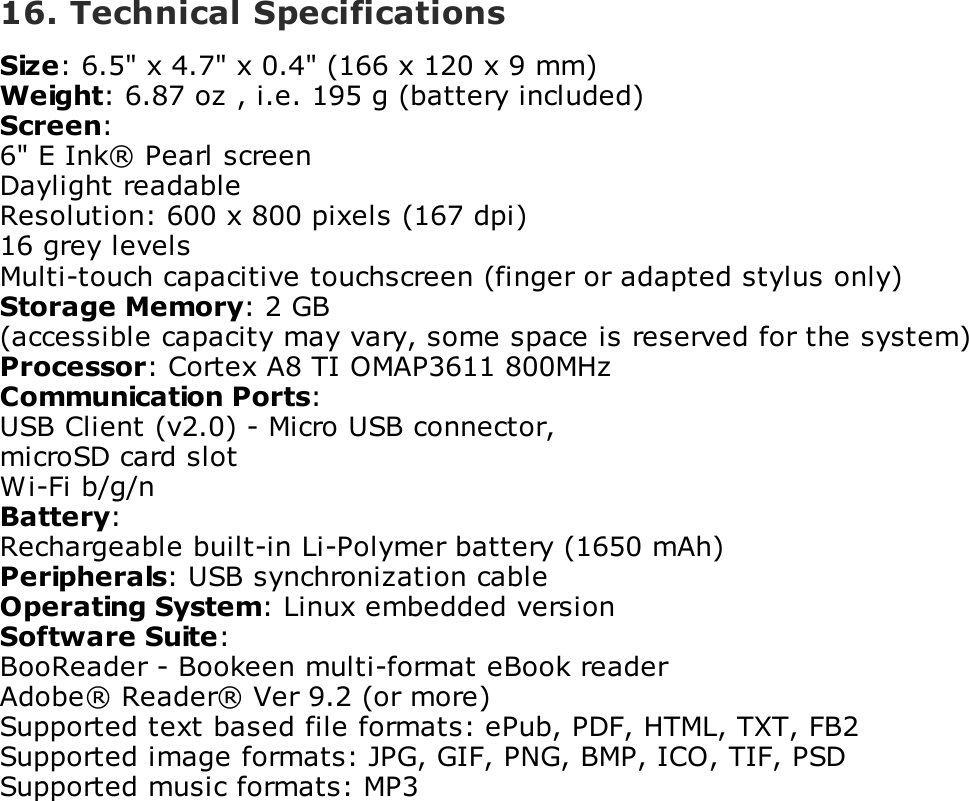
16. Technical SpecificationsSize: 6.5" x 4.7" x 0.4" (166 x 120 x 9 mm)Weight: 6.87 oz , i.e. 195 g (battery included)Screen:6" E Ink® Pearl screenDaylight readableResolution: 600 x 800 pixels (167 dpi)16 grey levelsMulti-touch capacitive touchscreen (finger or adapted stylus only)Storage Memory: 2 GB(accessible capacity may vary, some space is reserved for the system)Processor: Cortex A8 TI OMAP3611 800MHzCommunication Ports:USB Client (v2.0) - Micro USB connector,microSD card slotWi-Fi b/g/nBattery:Rechargeable built-in Li-Polymer battery (1650 mAh)Peripherals: USB synchronization cableOperating System: Linux embedded versionSoftware Suite:BooReader - Bookeen multi-format eBook readerAdobe® Reader® Ver 9.2 (or more)Supported text based file formats: ePub, PDF, HTML, TXT, FB2Supported image formats: JPG, GIF, PNG, BMP, ICO, TIF, PSDSupported music formats: MP3
17. Additional information17.1 AccessoriesPlease  contact  your  dealer  or  visit  the  www.bookeen.com  web  site  for  theavailability of accessories for your Cybook Odyssey.The  use  of  unadapted  accessories  will  void  your  warranty.  For  detailedinformation  on  using  the  accessories, see  the  instructions  supplied  with  theaccessories.Contacting Bookeen www.bookeen.comAdobe and Reader are trademarks of Adobe Systems Inc.
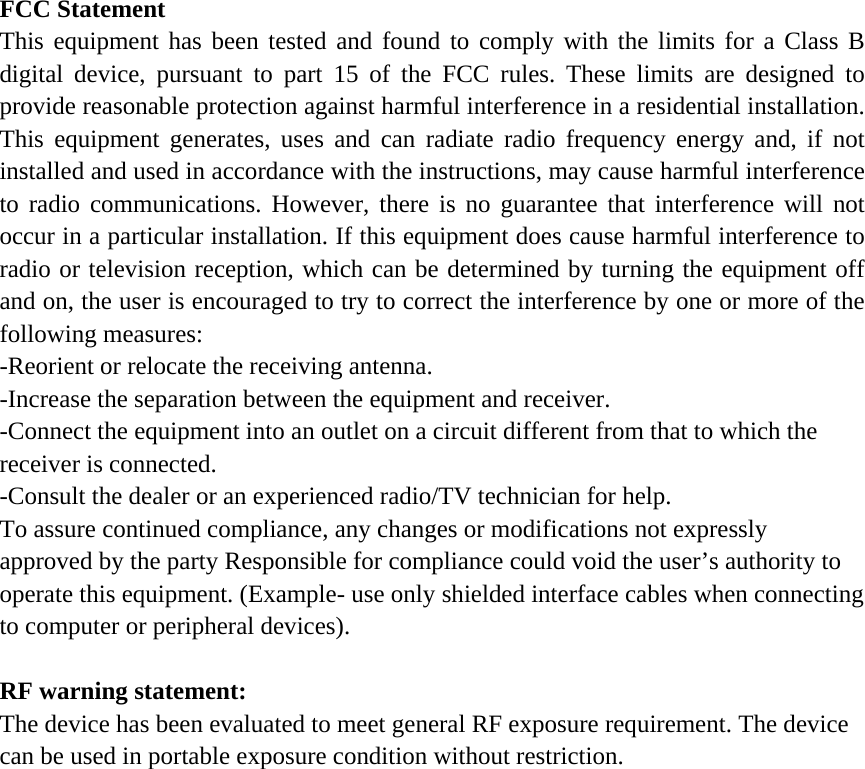
FCC Statement This equipment has been tested and found to comply with the limits for a Class B digital device, pursuant to part 15 of the FCC rules. These limits are designed to provide reasonable protection against harmful interference in a residential installation. This equipment generates, uses and can radiate radio frequency energy and, if not installed and used in accordance with the instructions, may cause harmful interference to radio communications. However, there is no guarantee that interference will not occur in a particular installation. If this equipment does cause harmful interference to radio or television reception, which can be determined by turning the equipment off and on, the user is encouraged to try to correct the interference by one or more of the following measures: -Reorient or relocate the receiving antenna. -Increase the separation between the equipment and receiver. -Connect the equipment into an outlet on a circuit different from that to which the receiver is connected. -Consult the dealer or an experienced radio/TV technician for help. To assure continued compliance, any changes or modifications not expressly approved by the party Responsible for compliance could void the user’s authority to operate this equipment. (Example- use only shielded interface cables when connecting to computer or peripheral devices).  RF warning statement: The device has been evaluated to meet general RF exposure requirement. The device can be used in portable exposure condition without restriction.

Navigation menu