Beijing InHand Networks Technology IR9 Industrial Cellular Router User Manual 12 24

Beijing InHand Networks Technology Co., Ltd. Industrial Cellular Router 12 24

User Manual 12.24

 1        InRouter900 Series User's Manual              InHand Network   www.inhandnetworks.com  Version: V3.0 July 2015
 2 Preface Thanks for choosing InRouter900 series industrial routers! This user’s manual will guide you in detail on how to configure InRouter900. The preface includes the following contents:  Readers  Conventions in the Manual  Obtaining Documentation  Technical Support  Readers Information Feedback This manual is mainly intended for the following engineers:   Network planners  On-site technical support and maintenance personnel   Network administrators responsible for network configuration and maintenance Conventions in the Manual 1.  Format Conventions on Command Line Format  Significance Bold Keywords of command line (the part that should be remained unchanged in command and be entered as it is) are expressed with bold font. Italic The parameters of command line (the part that must be replaced with the actual value in command) are expressed in italic. [ ] Indicating that the part in “[]” is optional in command configuration. { x | y | ... } Indicating to select one from multiple options. [ x | y | ... ] Indicating to select one or not to select from multiple options. { x | y | ... } * Indicating to select at least one from multiple options. [ x | y | ... ] * Indicating to select one or more or not to select from multiple options. &<1-n> Indicating that the parameter in front of the symbol & can be repeatedly entered for 1~n times. # The lines starting from no. “#” are comment lines.   2.  Format Conventions on Graphic Interface Format Significance
 3 <> The content in angle brackets "<>" indicates button name, e.g. "click <OK> button.” [ ] The content in square brackets "[]" indicates window name, menu name or data sheet, e.g. “pop-up the [New User] window”. / Multi-level menu is separated by "/". For example, the multi-level menu [File / New / Folder] indicates the menu item [Folder] under the submenu [New] under the menu [File].   3.  Various Signs The manual also uses a variety of eye-catching signs to indicate the places to which special attention should be paid in operation. The significances of these signs are as follows:    It indicates matters to be noted. Improper operation may cause data loss or damage to the device.  The necessary complement or description on the contents of operation. Obtaining Documentation The latest product information is available on the website of InHand (www. inhandnetworks.com): The main columns related to product information on the website of InHand  are described as follows:     [Service Support / Document Center]: Product information in terms of hardware installation, software upgrade, configuration, etc., is available.       [Product Technology]: Documents on product introduction and technology introduction including relevant introduction on product, technical introduction, technical white papers, etc., are available.       [Service Support / Software Download]: The supporting information on software version is available.   Technical Support E-mail: support@inhandneworks.com   Website: www.inhandnetworks.com   Information Feedback If you have any question on product information in use, you can feed back through the following ways: E-mail:info@inhandnetworks.com   Thanks for your feedback to let us do better!
 4  CONTENTS 1. INROUTER900 INTRODUCTION   ............................................................................................................................ 71.1 Overview   ...................................................................................................................................................................... 71.2 Product Features   ......................................................................................................................................................... 72. LOGIN ROUTER   ....................................................................................................................................................... 112.1 Establish Network Connection   ................................................................................................................................ 112.1.1 Automatic acquisition of IP address (recommended)   .......................................................................................... 112.1.2 Set a static IP address   .......................................................................................................................................... 142.2 Confirm that the network between the supervisory PC and router is connected   ............................................... 152.3 Cancel the Proxy Server   ........................................................................................................................................... 163. WEB CONFIGURATION   ......................................................................................................................................... 183.1 Login the Web Setting Page of Router   .................................................................................................................... 193.2 Management   .............................................................................................................................................................. 193.2.1 System   ................................................................................................................................................................. 203.2.2 System Time   ........................................................................................................................................................ 213.2.3 Admin Access   ...................................................................................................................................................... 243.2.4 AAA   ..................................................................................................................................................................... 283.2.5 Configuration Management   ................................................................................................................................. 323.2.6 SNMP   .................................................................................................................................................................. 333.2.7 Alarm   ................................................................................................................................................................... 373.2.8 System Log   .......................................................................................................................................................... 413.2.9 System Upgrading   ............................................................................................................................................... 423.2.10 Reboot   ............................................................................................................................................................... 433.2.11 Device Management   .......................................................................................................................................... 433.3 Network   ..................................................................................................................................................................... 453.3.1 Ethernet Port   ........................................................................................................................................................ 453.3.2 Dialup Port  ........................................................................................................................................................... 483.3.3 PPPoE   .................................................................................................................................................................. 523.3.4 Loopback   ............................................................................................................................................................. 533.3.5DHCP service   ....................................................................................................................................................... 533.3.6 DNS Services   ....................................................................................................................................................... 573.3.7 Dynamic Domain Name   ...................................................................................................................................... 583.3.8 SMS   ..................................................................................................................................................................... 61
 5 3.4 Link Backup   .............................................................................................................................................................. 623.4.1 SLA   ..................................................................................................................................................................... 623.4.2 Track Module   ....................................................................................................................................................... 633.4.3 VRRP   ................................................................................................................................................................... 643.4.4 Interface Backup   .................................................................................................................................................. 693.5 Routing   ...................................................................................................................................................................... 733.5.1 Static Route   ......................................................................................................................................................... 733.5.2 Dynamic Routing   ................................................................................................................................................. 753.5.3 Multicast Routing   ................................................................................................................................................ 843.6 Firewall   ...................................................................................................................................................................... 873.6.1 Access Control   ..................................................................................................................................................... 873.6.2 NAT   ..................................................................................................................................................................... 923.7Qos   .............................................................................................................................................................................. 963.7.1QoS   ....................................................................................................................................................................... 973.7.2 QoS Application Example   ................................................................................................................................... 993.8VPN   ............................................................................................................................................................................. 993.8.1IPSec   ................................................................................................................................................................... 1003.8.2GRE   .................................................................................................................................................................... 1073.8.3 DMVPN   ............................................................................................................................................................. 1093.8.4L2TP   ................................................................................................................................................................... 1173.8.5OPENVPN   .......................................................................................................................................................... 1183.8.6 Certificate Management   .................................................................................................................................... 1223.9 Industrial   ................................................................................................................................................................. 1233.9.1 DTU   ................................................................................................................................................................... 1233.9.2 IO  ....................................................................................................................................................................... 1303.10 Tools   ....................................................................................................................................................................... 1303.10.1PING   ................................................................................................................................................................. 1303.10.2 Routing detection   ............................................................................................................................................. 1313.10.3 Link Speed Test   ............................................................................................................................................... 1323.11 Configuration Wizard   ........................................................................................................................................... 1323.11.1 New LAN   ........................................................................................................................................................ 1323.11.2New WAN   ......................................................................................................................................................... 1333.11.3 New Cellualr   .................................................................................................................................................... 1333.11.4 New IPSce Tunnel   ........................................................................................................................................... 1343.11.5 New Port Mapping   ........................................................................................................................................... 1353.12 Network Mode   ....................................................................................................................................................... 1353.12.1 Cellular Dialup   ................................................................................................................................................ 1353.12.2 WAN   ................................................................................................................................................................ 135APPENDIX 1 TROUBLESHOOTING  ....................................................................................................................... 137
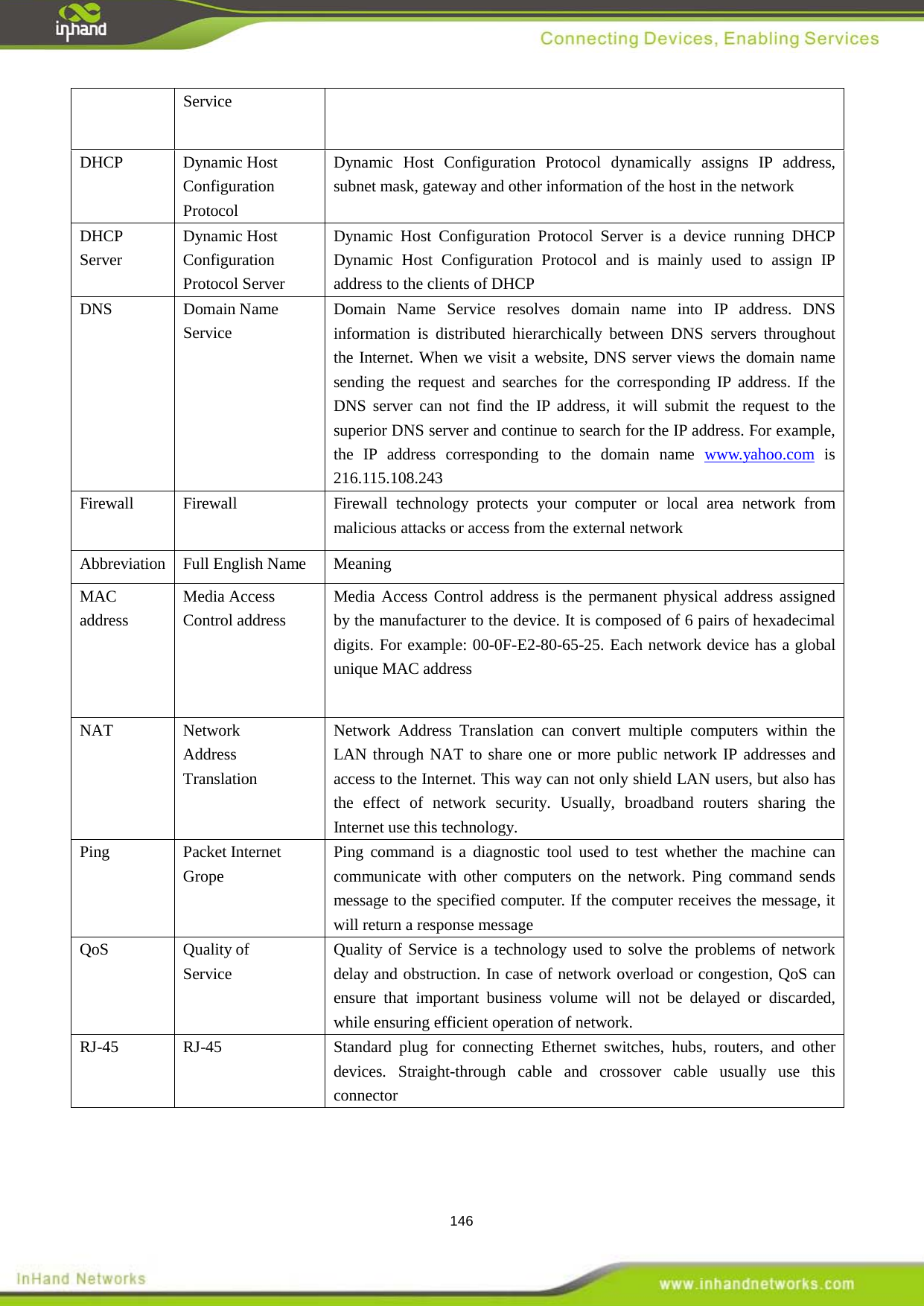
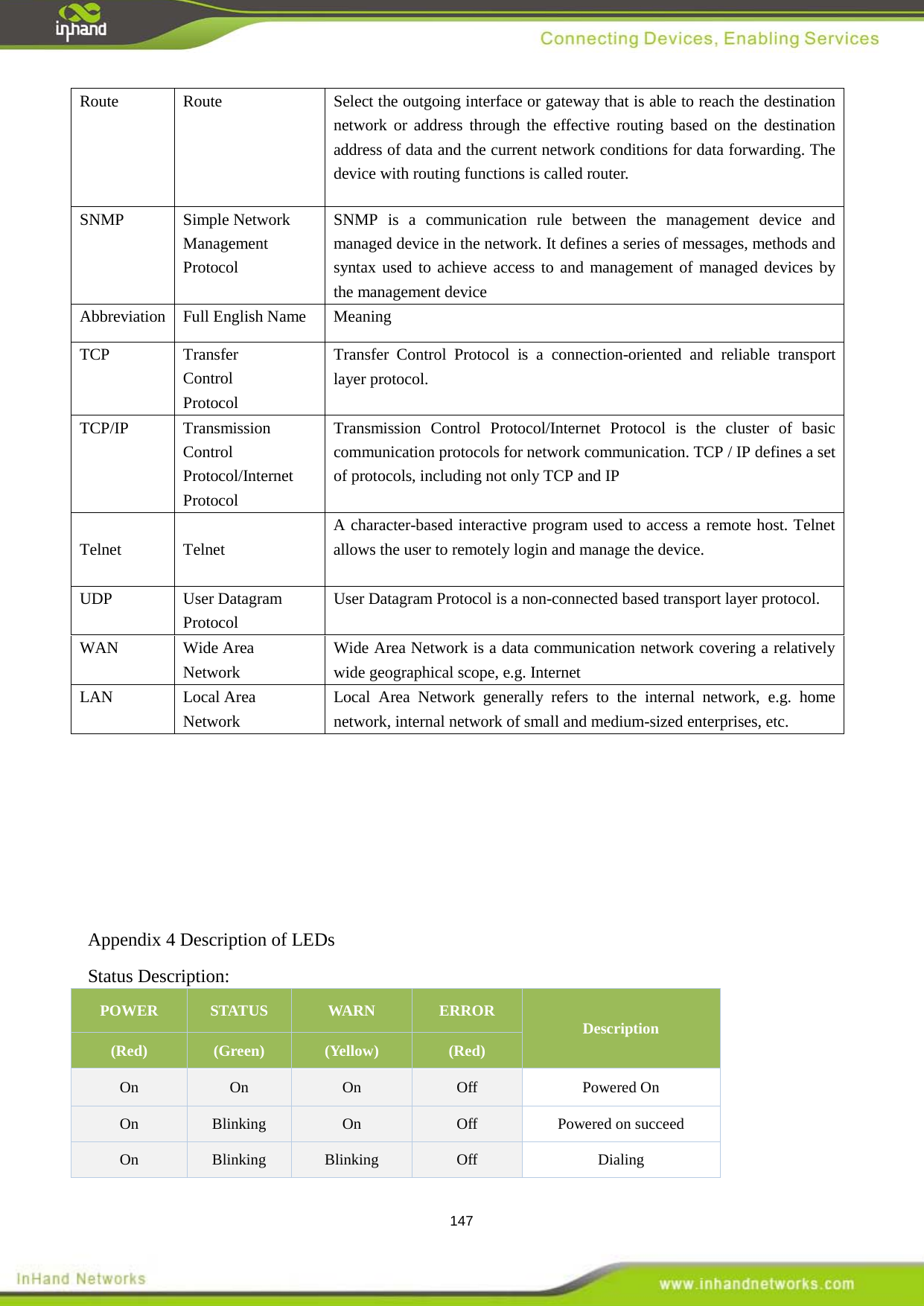
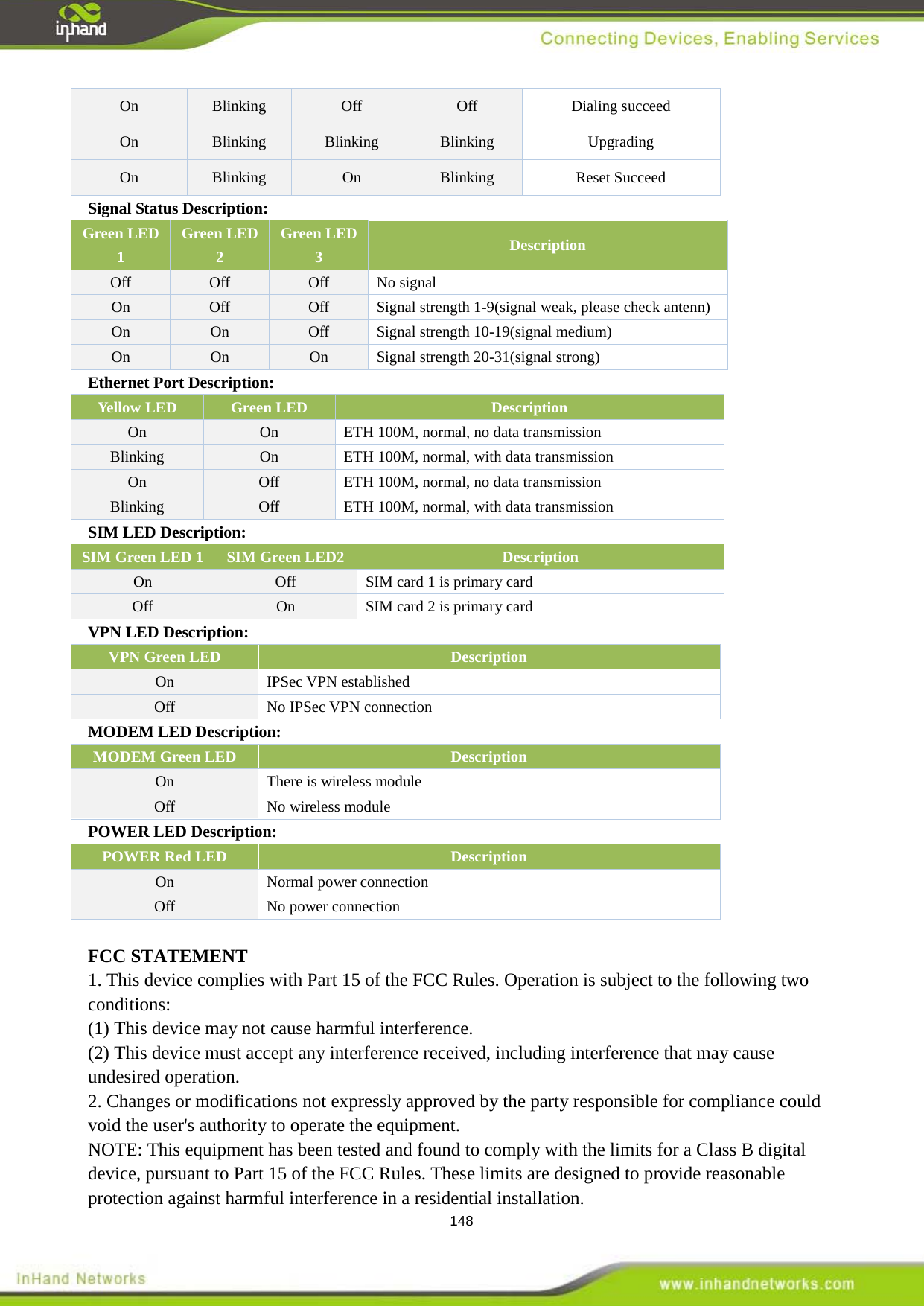
 6 APPENDIX 2 INSTRUCTION OF COMMAND LINE   ........................................................................................... 139APPENDIX 3 GLOSSARY OF TERMS   ..................................................................................................................... 145APPENDIX 4 DESCRIPTION OF LEDS   .................................................................................................................. 147
 7 1. InRouter900 Introduction This chapter includes the following parts:     Overview     Product Features 1.1 Overview Thanks for choosing IR900 series industrial router. InRouter900 (“IR900” thereinafter) is the new generation of industrial router developed by InHand Networks for M2M in 4G era.   Integrating 4G LTE and various broadband WANs, IR900 provides uninterrupted access to internet. With the features of complete security and wireless service, IR900 can connect up to ten thousand devices. IR900  has also been built for rapid deployment and easy management, which enables enterprises to quickly set up large scale industrial network with minimized cost and time.   There are currently three IR900 series: IR9x2, IR9x5, IR9x8, which can provide up to 8 intelligent ports and they support LAN/WAN protocol. IR900 products not only offer more options on WAN port access, but also effectively save additional purchasing cost on switch equipments.   1.2 Product Features  Uninterrupted Access to Internet from Anywhere Redundant WAN connection, 2 Ethernet ports, 3G/4G embedded, various DSL, InRouter 900 is built to support various WAN and ensure network availability. Whether the device is located in commercial region or wild field, it can always keep on line with broadband service or widespread 3G/4G connection. Furthermore, InRouter 900 can automatically switch over between broadband and 3G/4G when one link is failed, so as to ensure uninterrupted WAN connection. With InRouter 900, your business is always online.  Support Large Scale Deployment In your M2M application, there are thousands of remote machines, or tens of thousands of VPN connection, which turns out to be a big challenge for network management. InRouter 900 make large scale deployment much easier with following features:  Multiple configuration tools including Web and CLI, enable administrator to rapidly configure thousands of InRouter
 8  Remote Network Management: InRouter 900 works with network management platforms installed in application center or headquarter. To remotely batch configure, download and upload configuration file, upgrade firmware, monitor status of connection and VPN tunnel… all these become essential for operating a M2M system especially when a large number of devices scatter widely with limited field staff or even totally unattended.  InRouter 900 supports industrial standard SNMP and 3rd InRouter 900 also collaborates with InHand Device Manager to handle cellular specialty of network management. InHand Device Manager can be cloud based or installed within enterprise’s intranet. InHand Device Manager improves for cellular circumstance to monitor cellular data flow, signal strength on site, location of the device. Even better, there’s no need to apply costly private network from telecomm operator, and you can build your worldwide M2M system across multiple operators.    SNMP software platform, so as to integrate into enterprise level IT management system.  Multiple diagnostic tools, supporting 3G/4G modem status, IMEI, IMSI and registration status of cellular networks, help engineer out of complex network circumstance.  Support dynamic routing of RIP, OSPF, automatically update routing of whole network, largely increase efficiency of large scale deployment.  Support Dynamic Multipoint VPN (DM VPN), greatly reduce workload to configure thousands of remote InRouter 900. Establishing a large & secured remote network never made so easy!  Robust Security    Secured VPN Connections Support GRE, L2TP, IPSec VPN, DMVPN, OpenVPN; CA, ensure data security  Security of Network Support firewall functions to protect from network attacks, such as: Stateful Packet Inspection (SPI), Access Control List (ACL), resist DoS attack, intrusion protection, attack protection, IP/MAC Binding and etc.  Security of Devices Support AAA, TACACS, Radius, LDAP, local authentication, and multi levels user authority, so as to establish a secured mechanism on centralized authentication and authorization of device access.
 9  High Reliability  Redundancy WAN Redundancy: support link backup, VRRP to support automatic switch over between WANs. Dual SIM cards: backup between different mobile operators to ensure networks availability and bargaining power on data plan.  Automatic Link Detection & Recovery PPP Layer Detection: keep the connection with mobile network, prevent forced hibernation, able to detect dial link stability. Network connection Detection: automatic redial when link broken, keep Long Connection. VPN Tunnel Detection: sustain VPN tunnel, to ensure availability of business.  InRouter Auto-recovery InRouter embeds hardware watchdog, able to automatically recover from various failure, ensure highest level of availability.   Entirely Ruggedized InRouter 900 inherits InHand Networks’ legacy on best-in-class ruggedized design. From component selection to circuit layout, InRouter 900 satisfies electric power and industrial applications on EMC, IP protection, temperature range and etc. InRouter 900 is designed to last in harshest circumstances.  High Performance, High Bandwidth  Equipped with powerful Cortex-A8 processor and 256MB memory, support more application needs    Support 4G/LTE (100Mbps downlink and 50Mbps uplink) and HSPA+ (21Mbps downlink and 5.76Mbps uplink)    InHand Network Operation System: INOS 2.0 InHand Network Operation System (INOS) has been built as the highly reliable & real-time basis for all network functions, as well as easy-to-use configuration interface via Web, CLI or SNMP. INOS is in modular design, expandable, and adaptable to various M2M applications.      Embed WIFI AP and Client, Easy to Establish Versatile Wireless Network    Support 802.11 b/g/n standard, fulfill the need to connect WLAN devices, up to 150Mbps
 10 throughput  Easily establish wireless LAN, support WEP/WPA/WPA2 for network security  WIFI can be the backup WAN link for 3G/4G
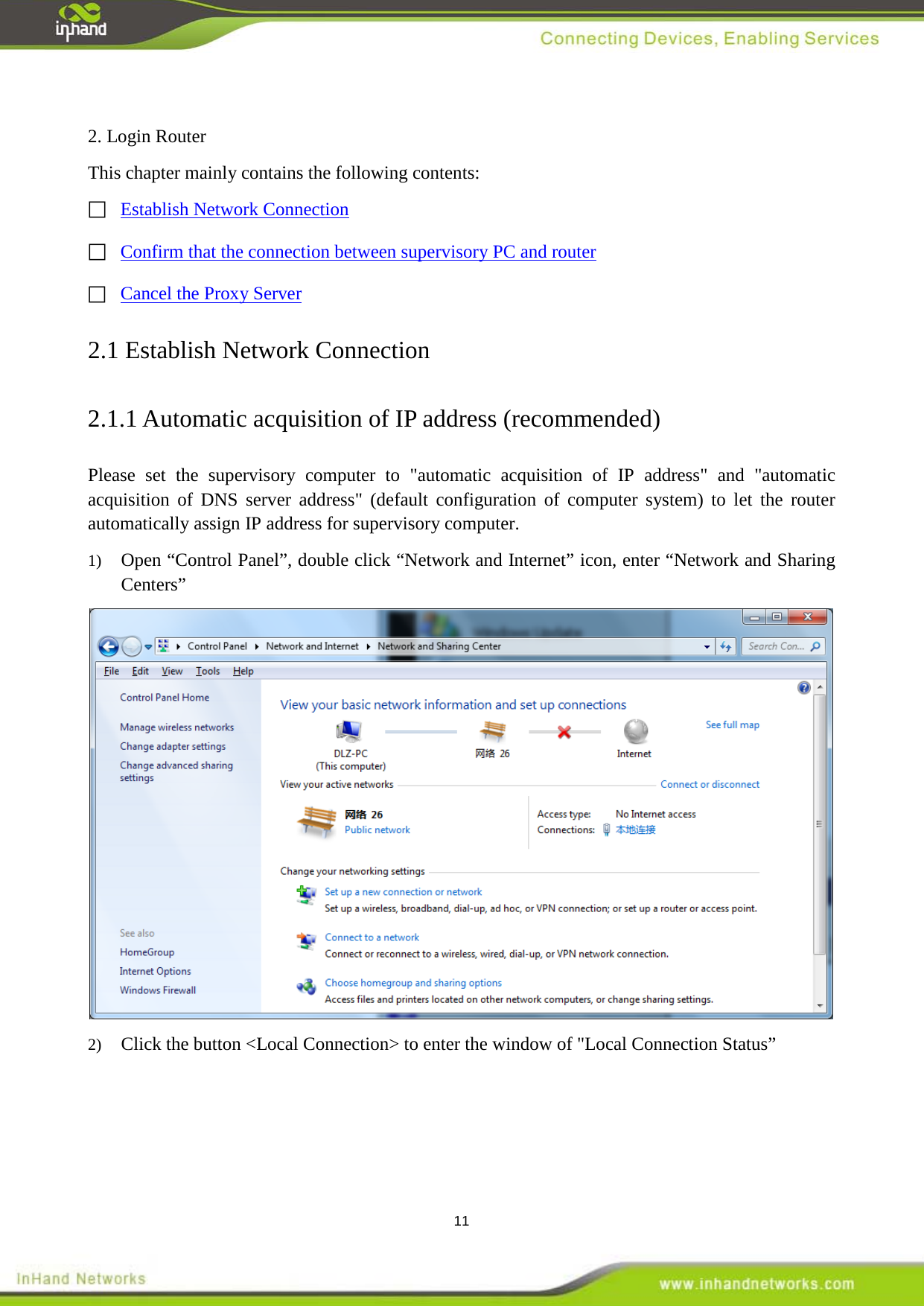
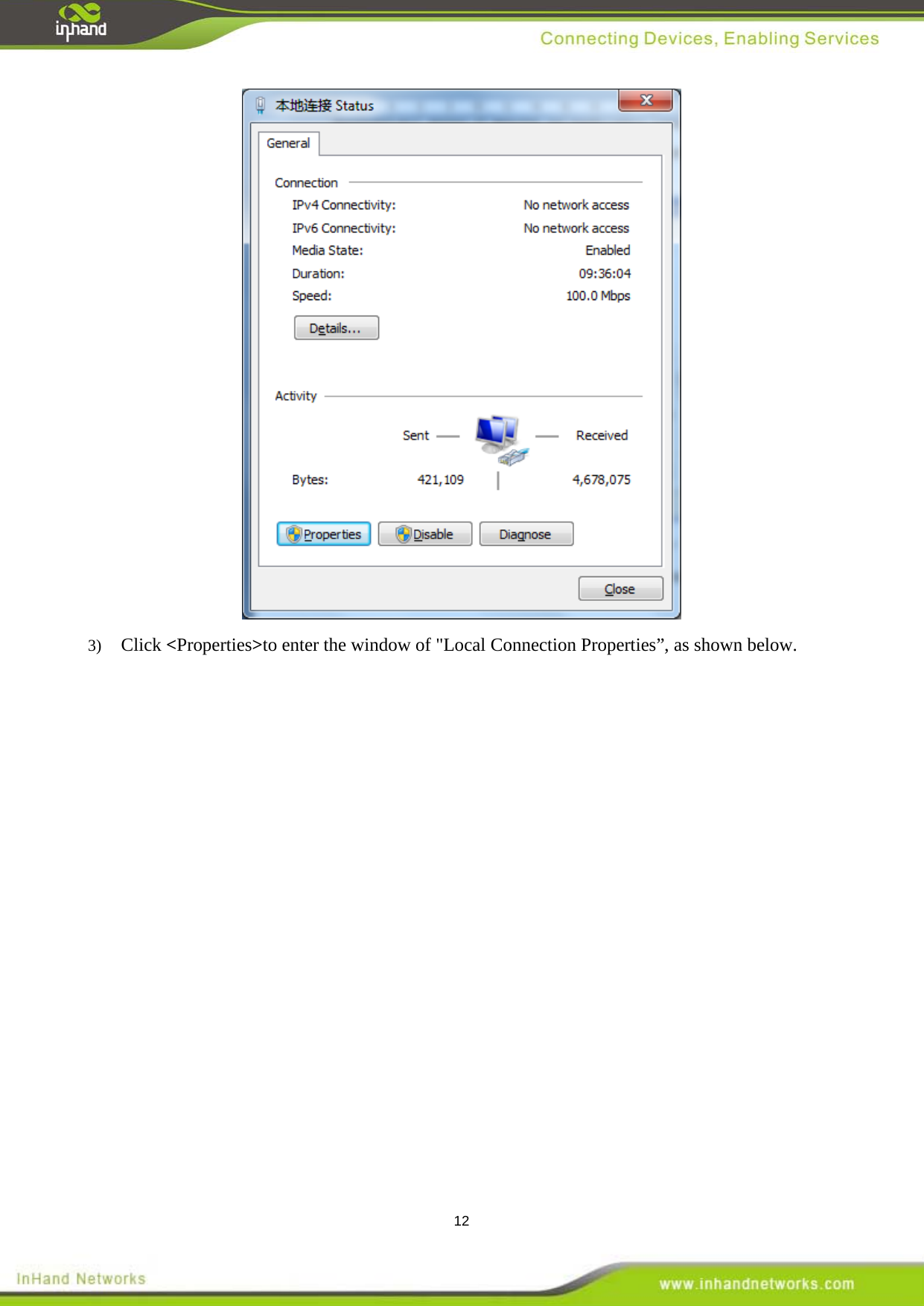
 11  2. Login Router This chapter mainly contains the following contents:   Establish Network Connection Confirm that the connection between supervisory PC and router  Cancel the Proxy Server   2.1 Establish Network Connection 2.1.1 Automatic acquisition of IP address (recommended) Please set the supervisory computer to "automatic acquisition of IP address" and "automatic acquisition of DNS server address" (default configuration of computer system) to let the router automatically assign IP address for supervisory computer. 1)  Open “Control Panel”, double click “Network and Internet” icon, enter “Network and Sharing Centers”    2)  Click the button <Local Connection> to enter the window of "Local Connection Status”
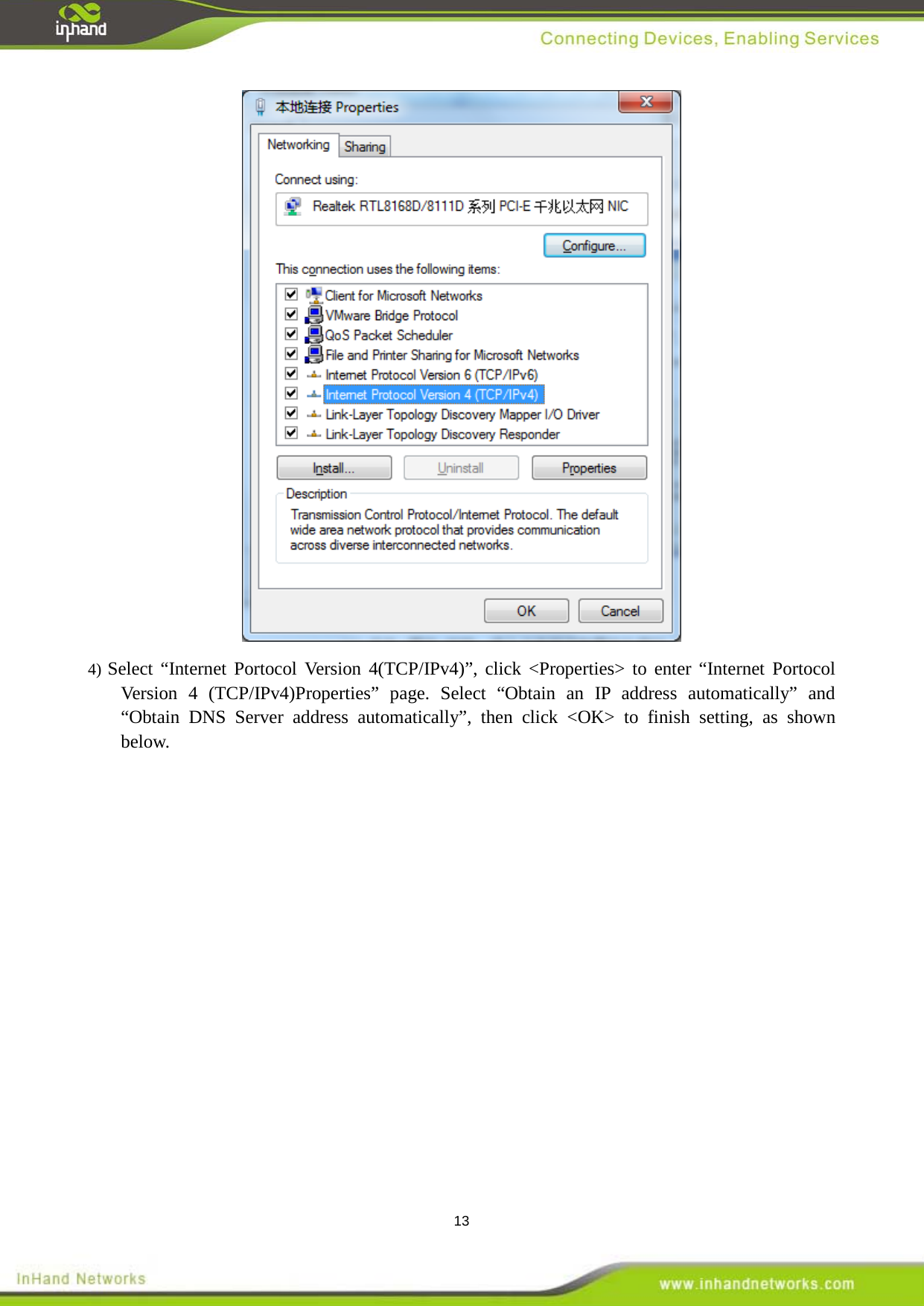
 12  3)  Click <Properties>to enter the window of "Local Connection Properties”, as shown below.
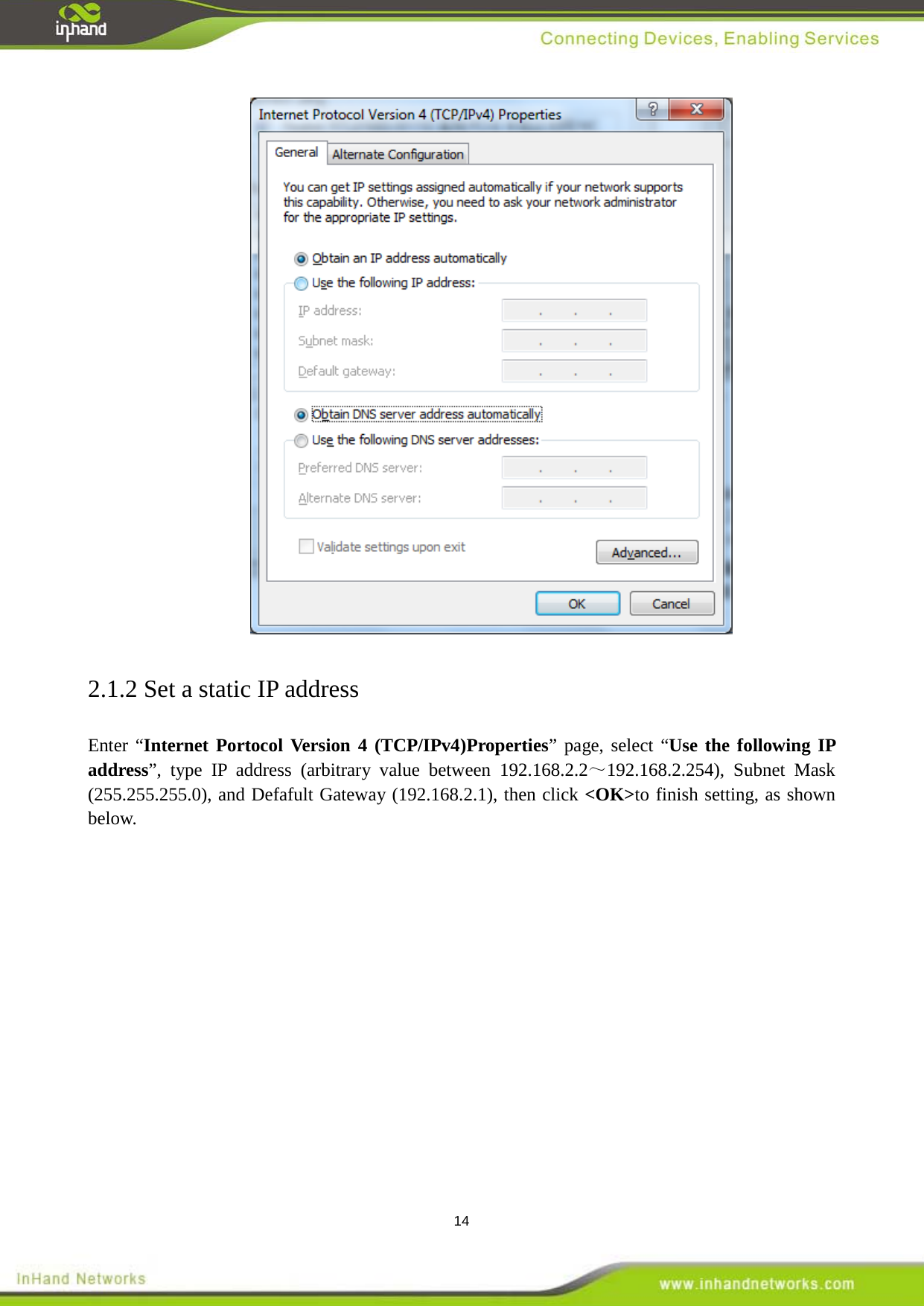
 13  4) Select “Internet Portocol Version 4(TCP/IPv4)”, click <Properties> to enter “Internet Portocol Version 4 (TCP/IPv4)Properties” page. Select “Obtain an IP address automatically” and “Obtain DNS Server address automatically”, then click <OK> to finish setting, as shown below.
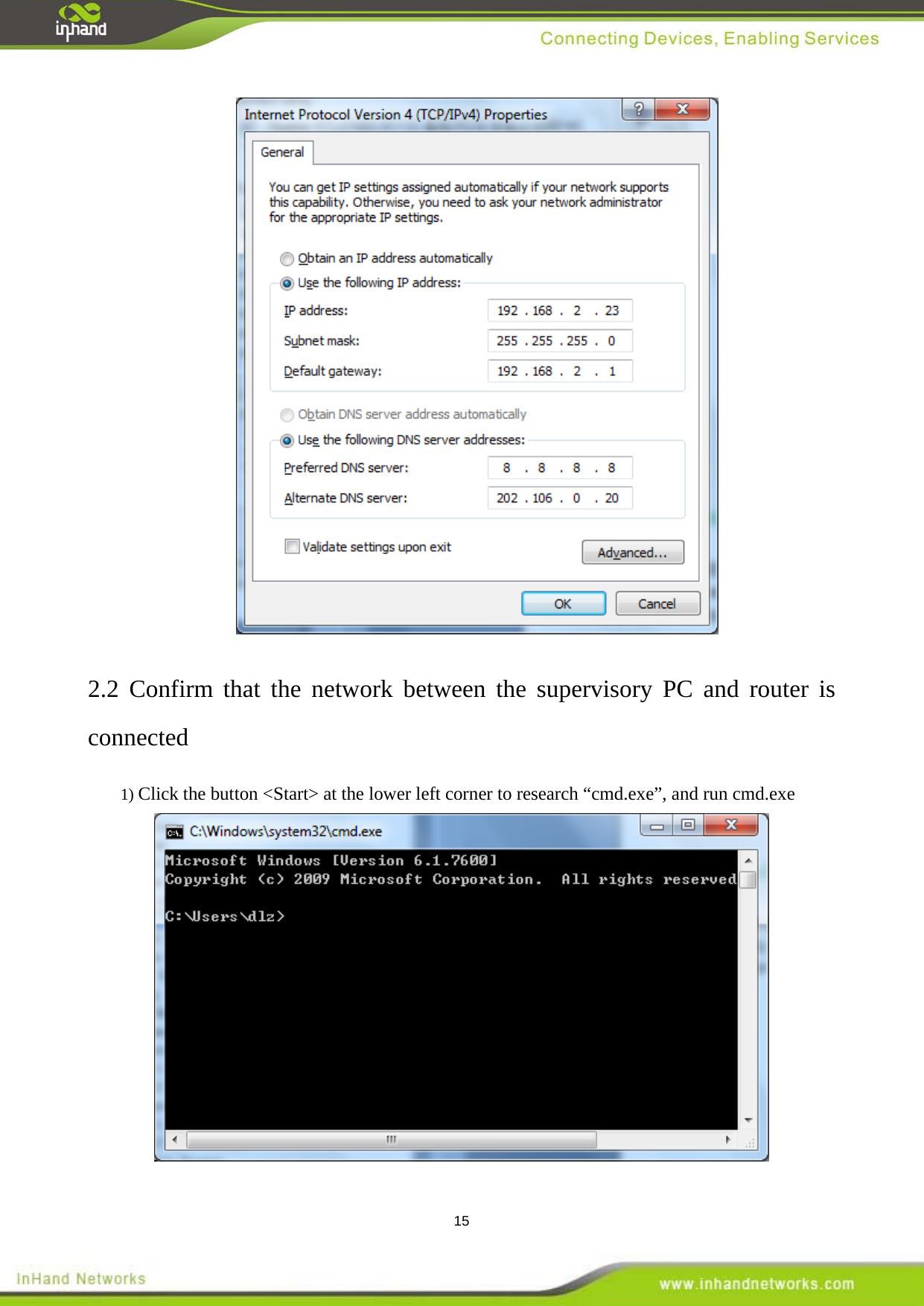
 14  2.1.2 Set a static IP address Enter “Internet Portocol Version 4 (TCP/IPv4)Properties” page, select “Use the following IP address”, type IP address (arbitrary value between 192.168.2.2~192.168.2.254), Subnet Mask (255.255.255.0), and Defafult Gateway (192.168.2.1), then click <OK>to finish setting, as shown below.
 15  2.2  Confirm that the network between the supervisory PC and router is connected 1) Click the button <Start> at the lower left corner to research “cmd.exe”, and run cmd.exe
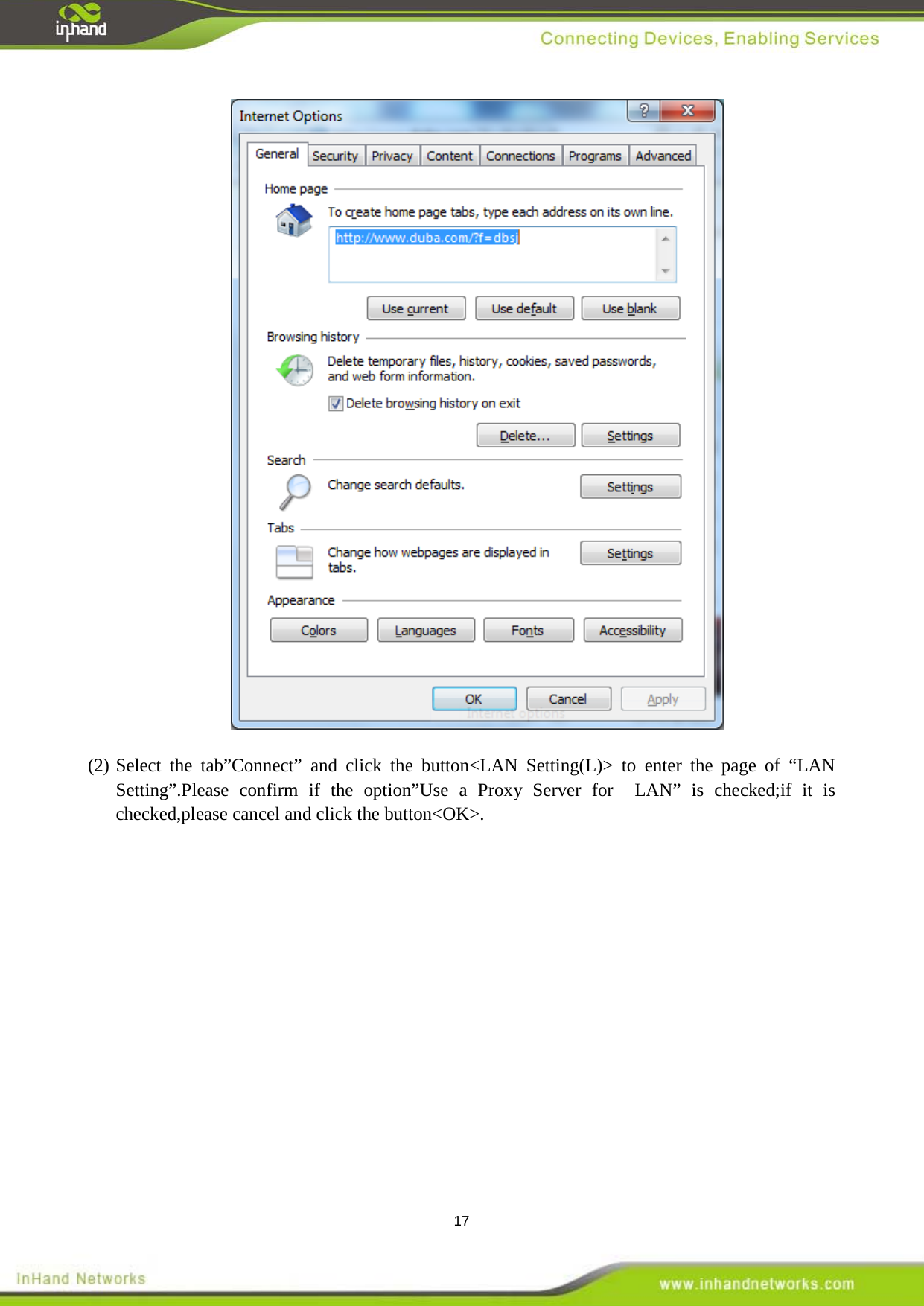
 16 2) Enter "ping 192.168.2.1 (IP address of router; it is the default IP address), and click the button <OK>. If the pop-up dialog box shows the response returned from the router side, it indicates that the network is connected; otherwise, check the network connection.  2.3 Cancel the Proxy Server If the current supervisory computer uses a proxy server to access the Internet, it is required to cancel the proxy service and the operating steps are as follows: (1) Select [Tools/Internet OPtions] in the browser to enter the window of [Internet Options]
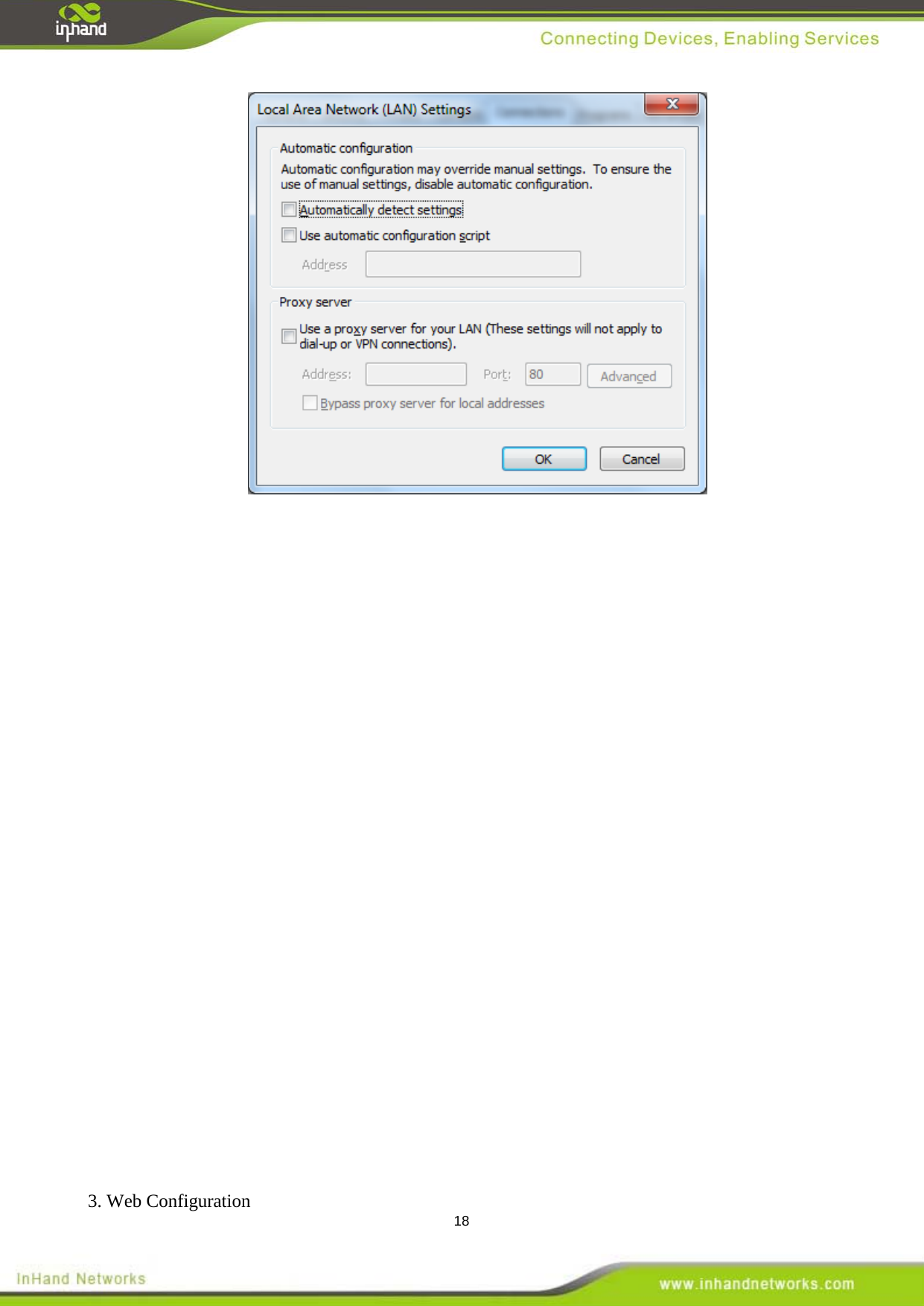
 17  (2) Select the tab”Connect” and click the button<LAN Setting(L)> to enter the page of “LAN Setting”.Please confirm if the option”Use a Proxy Server for  LAN” is checked;if it is checked,please cancel and click the button<OK>.
 18                     3. Web Configuration
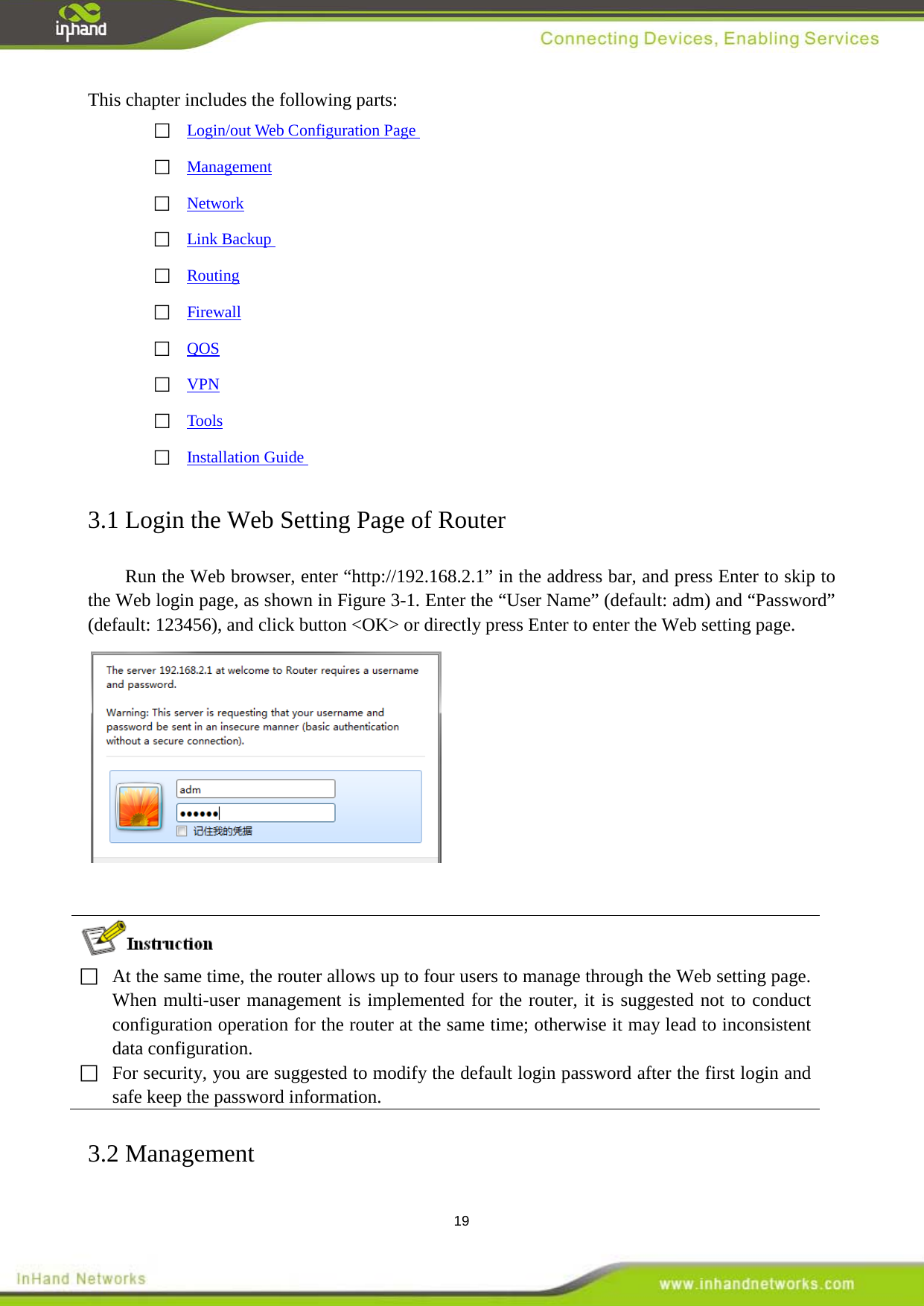
 19 This chapter includes the following parts:  Login/out Web Configuration Page   Management  Network  Link Backup   Routing  Firewall  QOS  VPN  Tools  Installation Guide  3.1 Login the Web Setting Page of Router Run the Web browser, enter “http://192.168.2.1” in the address bar, and press Enter to skip to the Web login page, as shown in Figure 3-1. Enter the “User Name” (default: adm) and “Password” (default: 123456), and click button <OK> or directly press Enter to enter the Web setting page.    At the same time, the router allows up to four users to manage through the Web setting page. When multi-user management is implemented for the router, it is suggested not to conduct configuration operation for the router at the same time; otherwise it may lead to inconsistent data configuration.  For security, you are suggested to modify the default login password after the first login and safe keep the password information. 3.2 Management
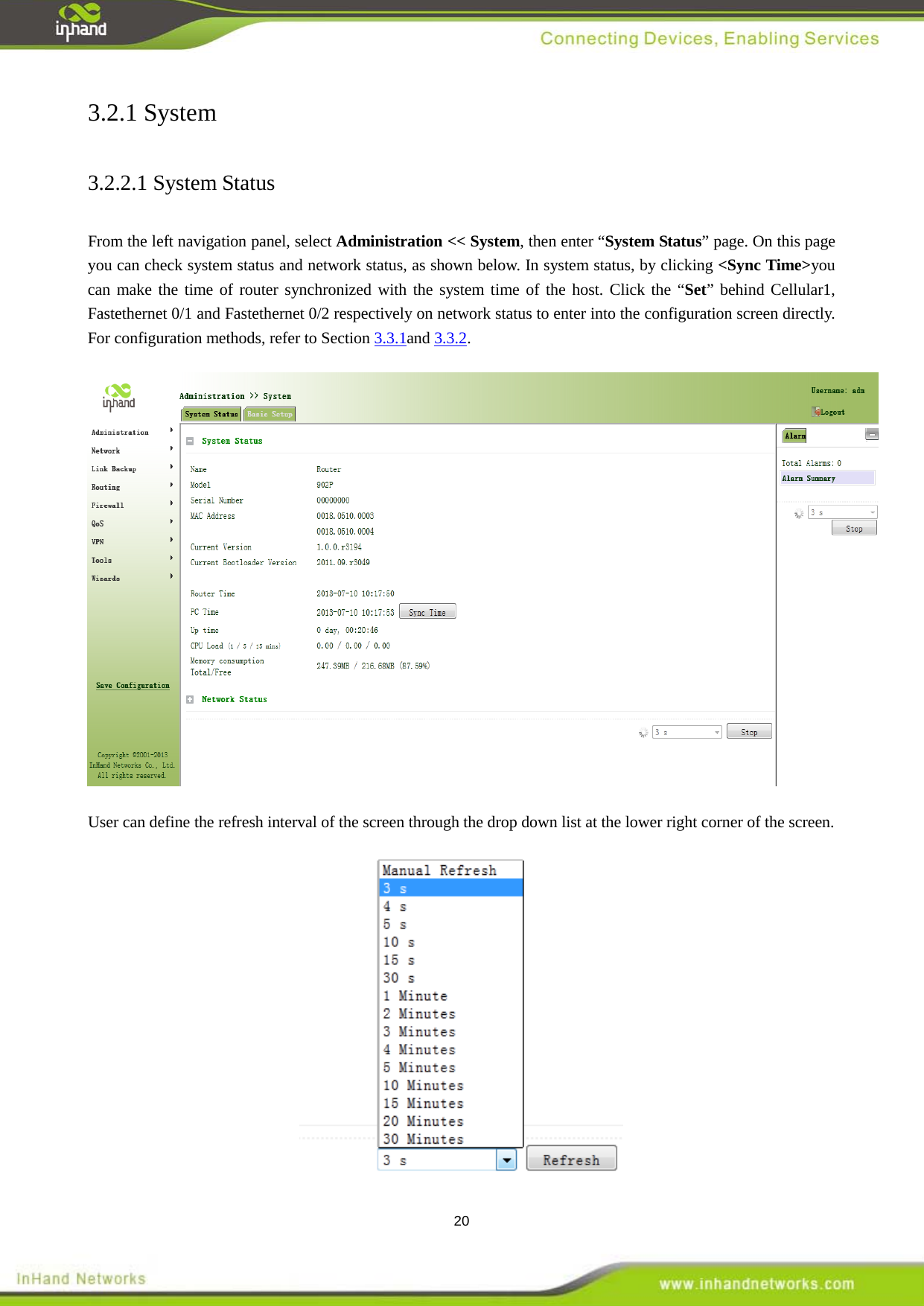
 20 3.2.1 System 3.2.2.1 System Status  From the left navigation panel, select Administration << System, then enter “System Status” page. On this page you can check system status and network status, as shown below. In system status, by clicking <Sync Time>you can make the time of router synchronized with the system time of the host. Click the “Set” behind Cellular1, Fastethernet 0/1 and Fastethernet 0/2 respectively on network status to enter into the configuration screen directly. For configuration methods, refer to Section 3.3.1and 3.3.2.  User can define the refresh interval of the screen through the drop down list at the lower right corner of the screen.
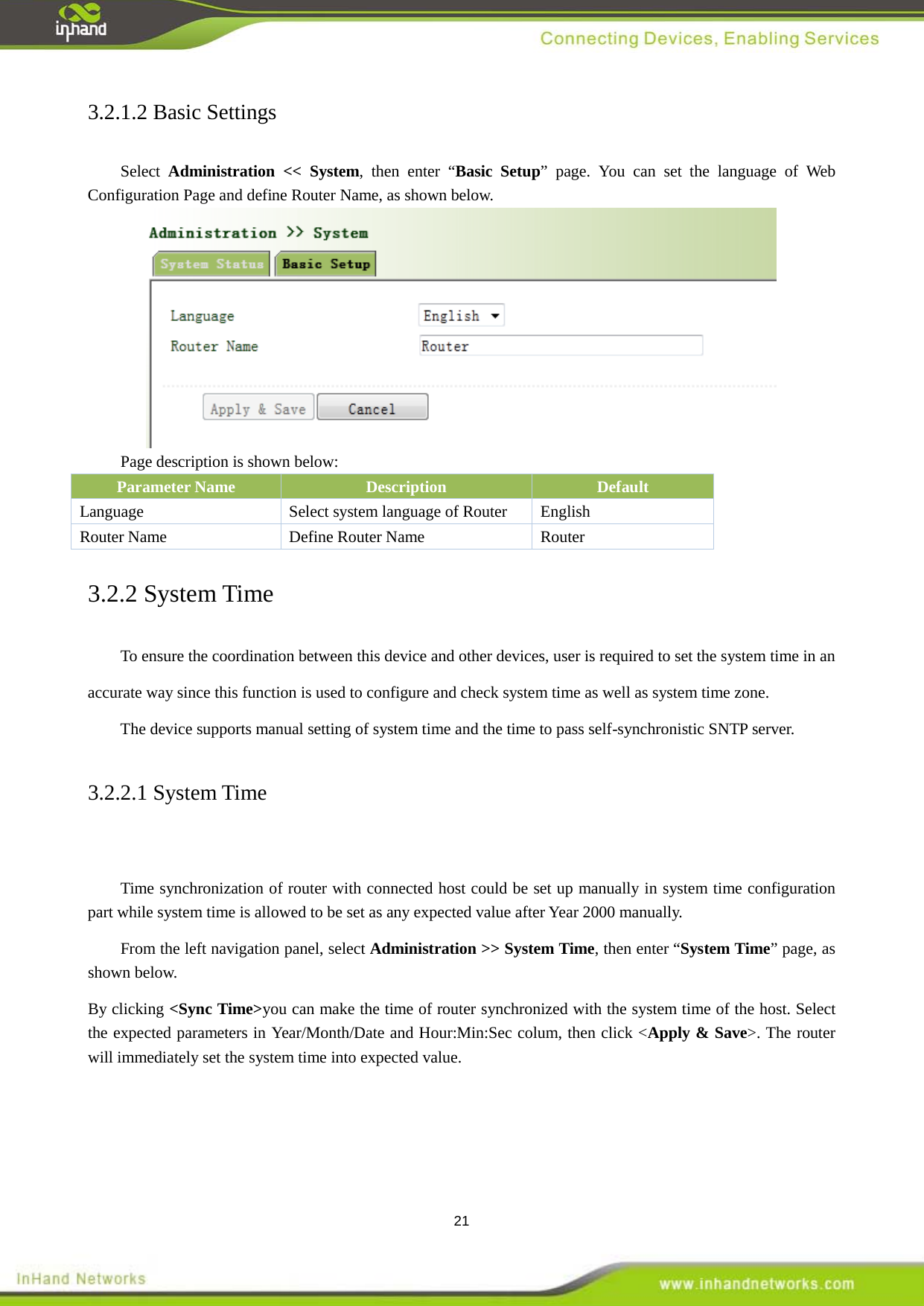
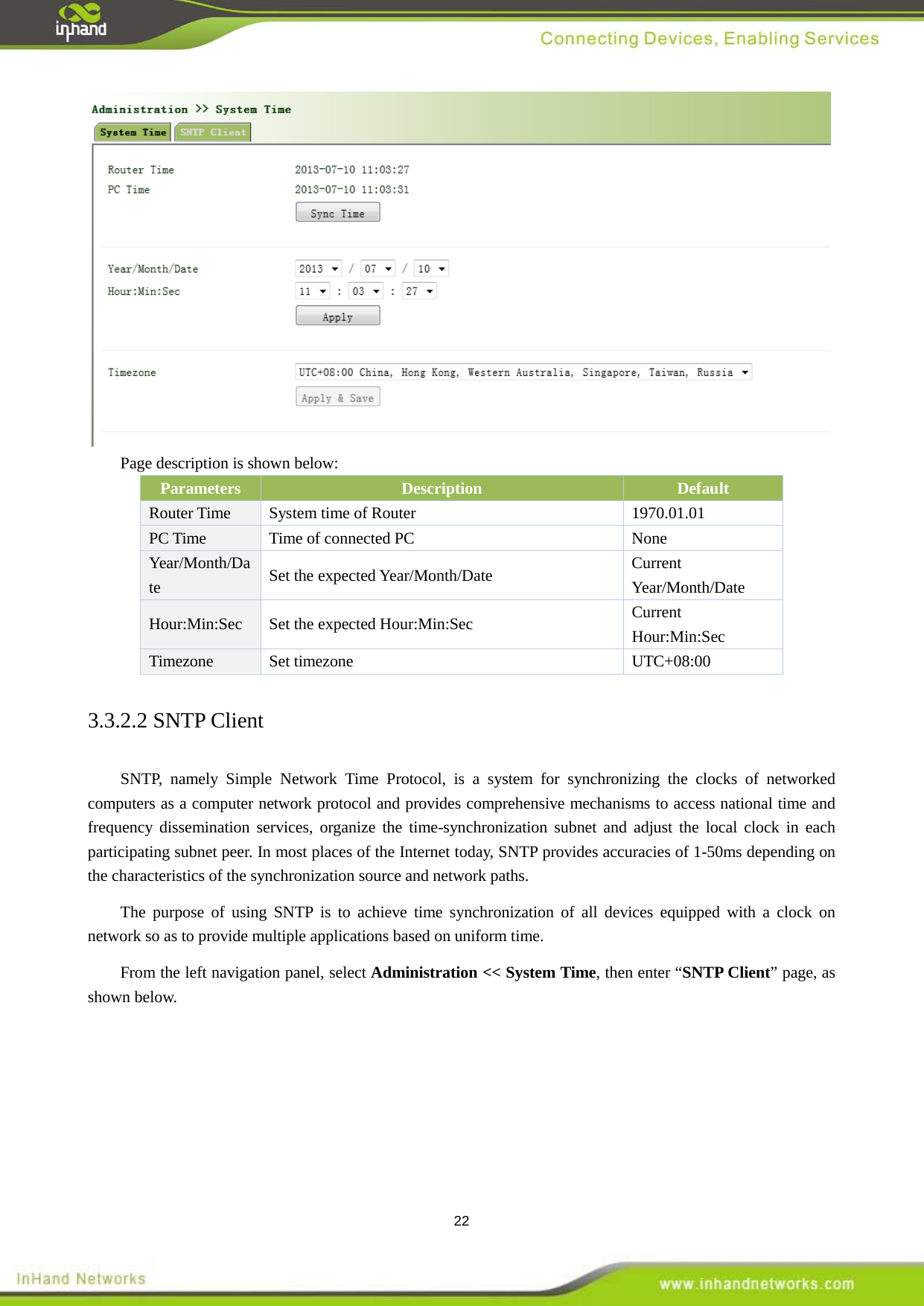
 21 3.2.1.2 Basic Settings Select  Administration << System, then enter “Basic Setup” page. You can set the language of Web Configuration Page and define Router Name, as shown below.    Page description is shown below: Parameter Name Description Default Language  Select system language of Router  English   Router Name Define Router Name    Router 3.2.2 System Time To ensure the coordination between this device and other devices, user is required to set the system time in an accurate way since this function is used to configure and check system time as well as system time zone.   The device supports manual setting of system time and the time to pass self-synchronistic SNTP server. 3.2.2.1 System Time      Time synchronization of router with connected host could be set up manually in system time configuration part while system time is allowed to be set as any expected value after Year 2000 manually.   From the left navigation panel, select Administration >> System Time, then enter “System Time” page, as shown below. By clicking <Sync Time>you can make the time of router synchronized with the system time of the host. Select the expected parameters in Year/Month/Date and Hour:Min:Sec colum, then click <Apply & Save>. The router will immediately set the system time into expected value.
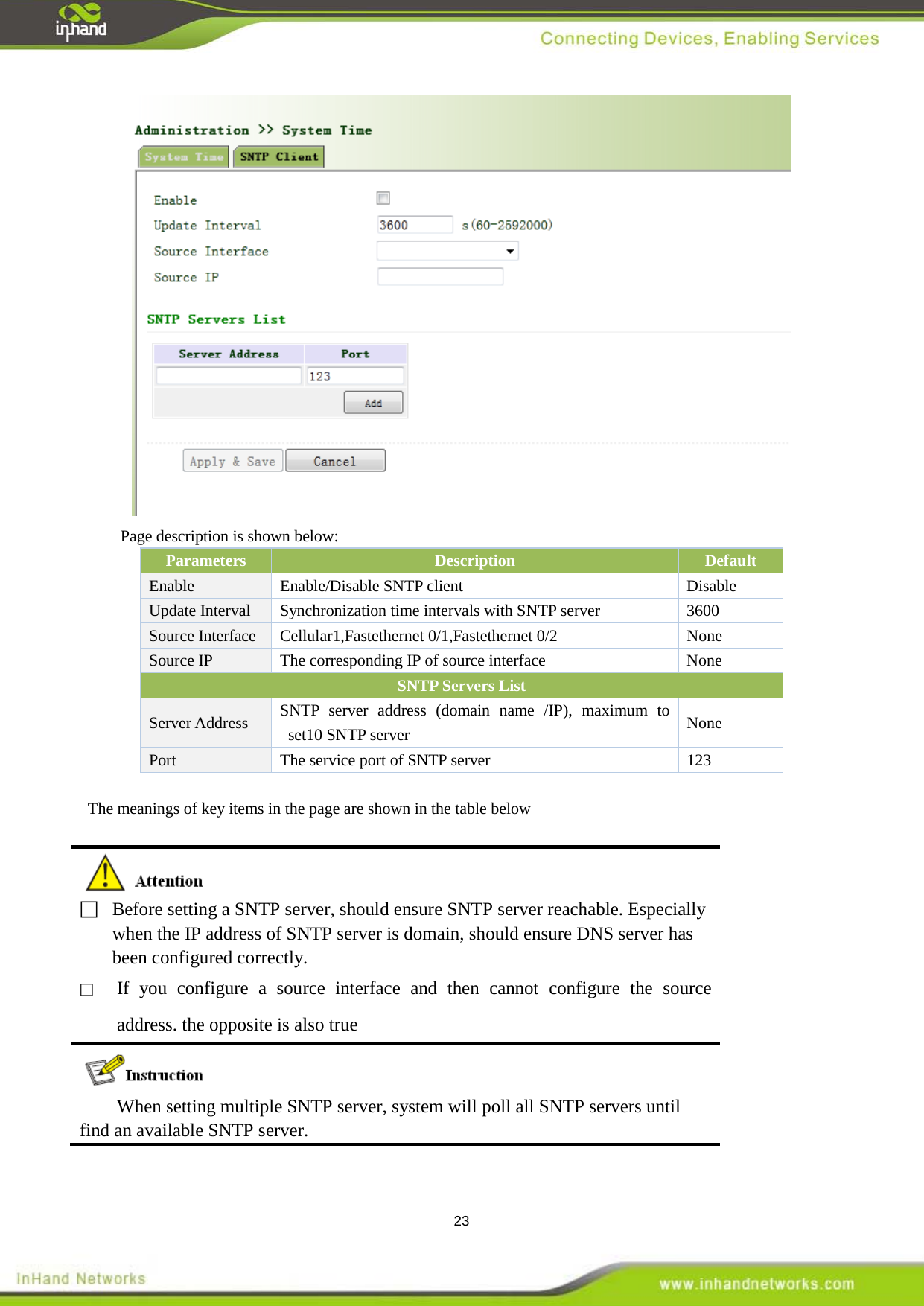
 22  Page description is shown below: Parameters Description   Default   Router Time System time of Router  1970.01.01   PC Time Time of connected PC  None Year/Month/Date Set the expected Year/Month/Date Current Year/Month/Date Hour:Min:Sec  Set the expected Hour:Min:Sec  Current Hour:Min:Sec Timezone Set timezone    UTC+08:00 3.3.2.2 SNTP Client SNTP, namely Simple Network Time Protocol, is a system for synchronizing the clocks of networked computers as a computer network protocol and provides comprehensive mechanisms to access national time and frequency dissemination services, organize the time-synchronization subnet and adjust the local clock in each participating subnet peer. In most places of the Internet today, SNTP provides accuracies of 1-50ms depending on the characteristics of the synchronization source and network paths.   The purpose of using SNTP is to achieve time synchronization of all devices equipped with a clock on network so as to provide multiple applications based on uniform time.   From the left navigation panel, select Administration << System Time, then enter “SNTP Client” page, as shown below.
 23  Page description is shown below: Parameters Description Default Enable  Enable/Disable SNTP client Disable Update Interval Synchronization time intervals with SNTP server  3600 Source Interface Cellular1,Fastethernet 0/1,Fastethernet 0/2  None Source IP  The corresponding IP of source interface  None SNTP Servers List   Server Address SNTP server address (domain name /IP), maximum to set10 SNTP server None Port   The service port of SNTP server  123  The meanings of key items in the page are shown in the table below    Before setting a SNTP server, should ensure SNTP server reachable. Especially when the IP address of SNTP server is domain, should ensure DNS server has been configured correctly.    If you configure a source interface and then cannot configure the source address. the opposite is also true  When setting multiple SNTP server, system will poll all SNTP servers until find an available SNTP server.
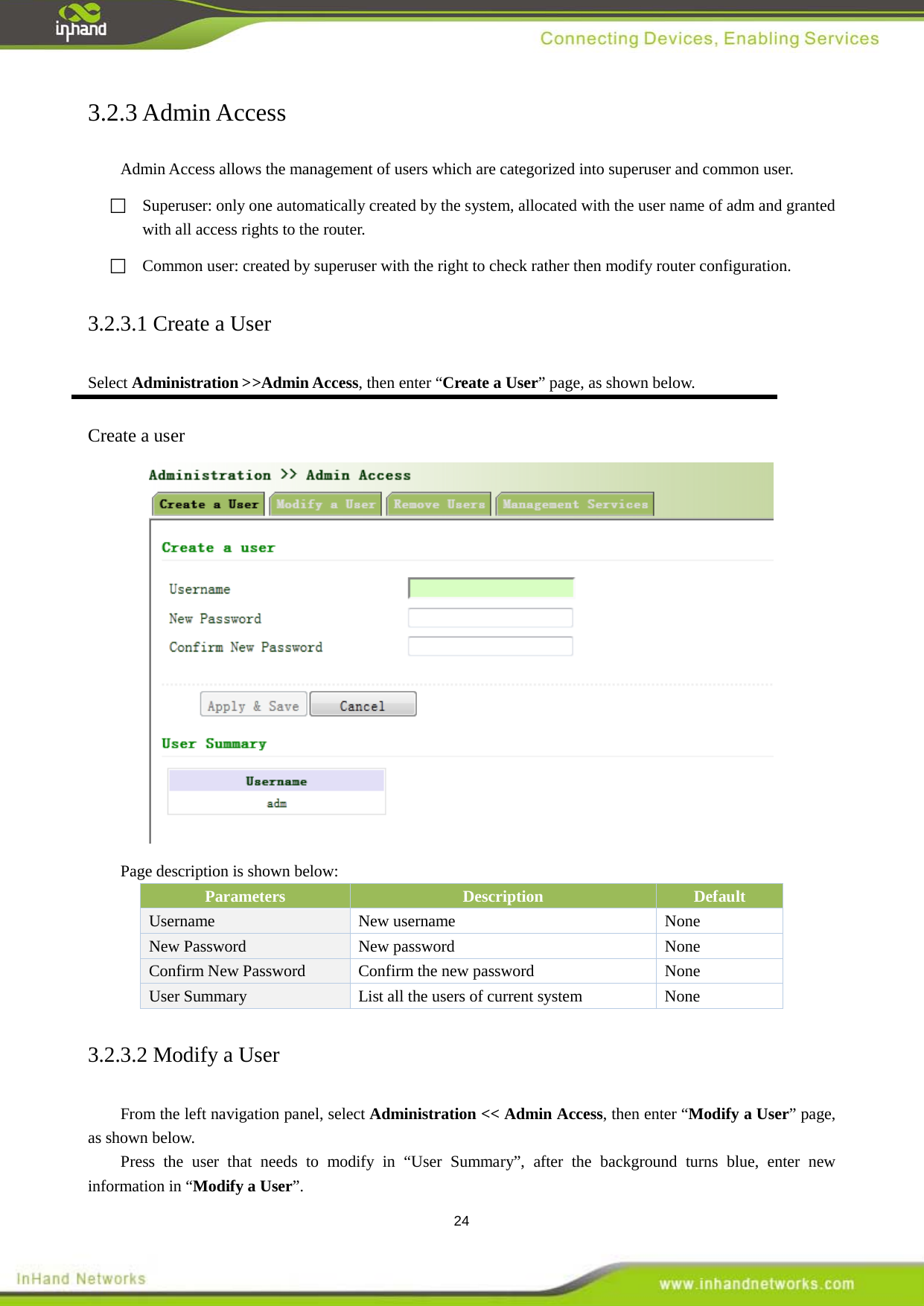
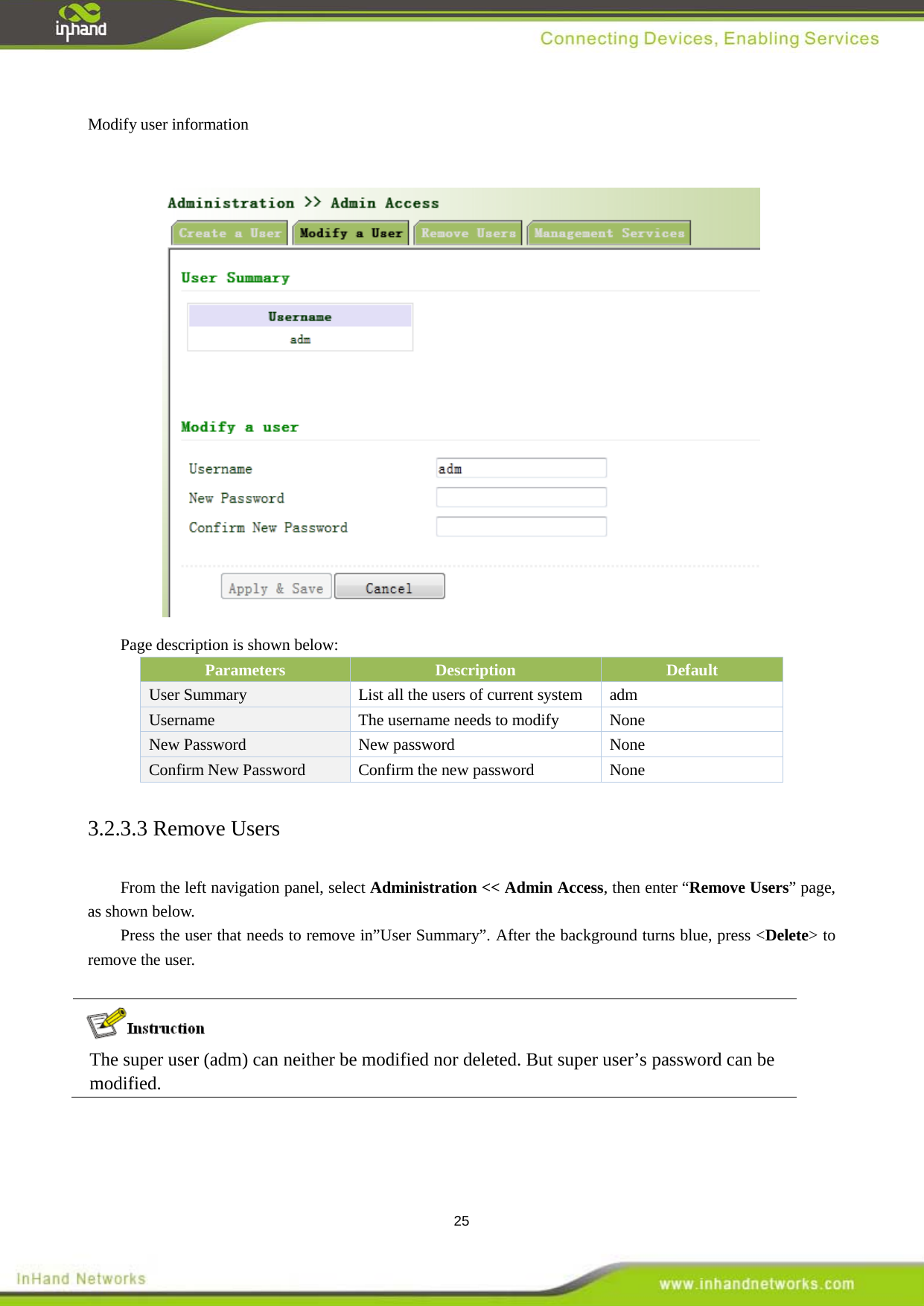
 24 3.2.3 Admin Access Admin Access allows the management of users which are categorized into superuser and common user.     Superuser: only one automatically created by the system, allocated with the user name of adm and granted with all access rights to the router.     Common user: created by superuser with the right to check rather then modify router configuration. 3.2.3.1 Create a User Select Administration >>Admin Access, then enter “Create a User” page, as shown below.  Create a user  Page description is shown below: Parameters Description Default Username New username    None   New Password   New password    None Confirm New Password  Confirm the new password    None User Summary   List all the users of current system    None 3.2.3.2 Modify a User From the left navigation panel, select Administration << Admin Access, then enter “Modify a User” page, as shown below. Press the user that needs to modify in “User Summary”, after the background turns blue, enter new information in “Modify a User”.
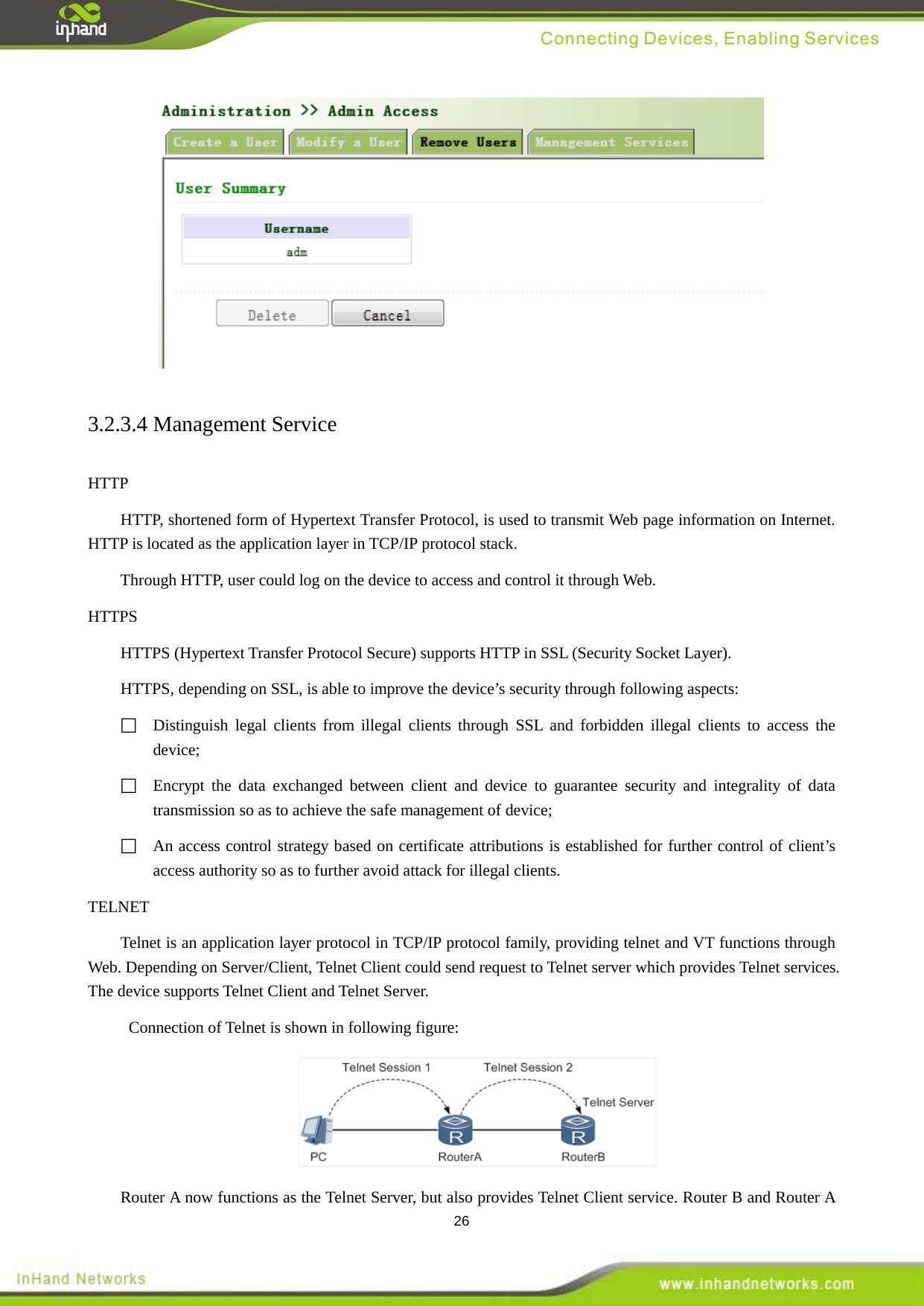
 25  Modify user information   Page description is shown below: Parameters Description   Default User Summary   List all the users of current system adm Username    The username needs to modify  None New Password   New password    None Confirm New Password    Confirm the new password  None 3.2.3.3 Remove Users From the left navigation panel, select Administration << Admin Access, then enter “Remove Users” page, as shown below. Press the user that needs to remove in”User Summary”. After the background turns blue, press <Delete> to remove the user.      The super user (adm) can neither be modified nor deleted. But super user’s password can be modified.
 26  3.2.3.4 Management Service HTTP HTTP, shortened form of Hypertext Transfer Protocol, is used to transmit Web page information on Internet. HTTP is located as the application layer in TCP/IP protocol stack. Through HTTP, user could log on the device to access and control it through Web.   HTTPS HTTPS (Hypertext Transfer Protocol Secure) supports HTTP in SSL (Security Socket Layer).   HTTPS, depending on SSL, is able to improve the device’s security through following aspects:    Distinguish legal clients from illegal clients through SSL and forbidden illegal clients to access the device;    Encrypt the data exchanged between client and device to guarantee security and integrality of data transmission so as to achieve the safe management of device;    An access control strategy based on certificate attributions is established for further control of client’s access authority so as to further avoid attack for illegal clients.     TELNET Telnet is an application layer protocol in TCP/IP protocol family, providing telnet and VT functions through Web. Depending on Server/Client, Telnet Client could send request to Telnet server which provides Telnet services. The device supports Telnet Client and Telnet Server.   Connection of Telnet is shown in following figure:    Router A now functions as the Telnet Server, but also provides Telnet Client service. Router B and Router A
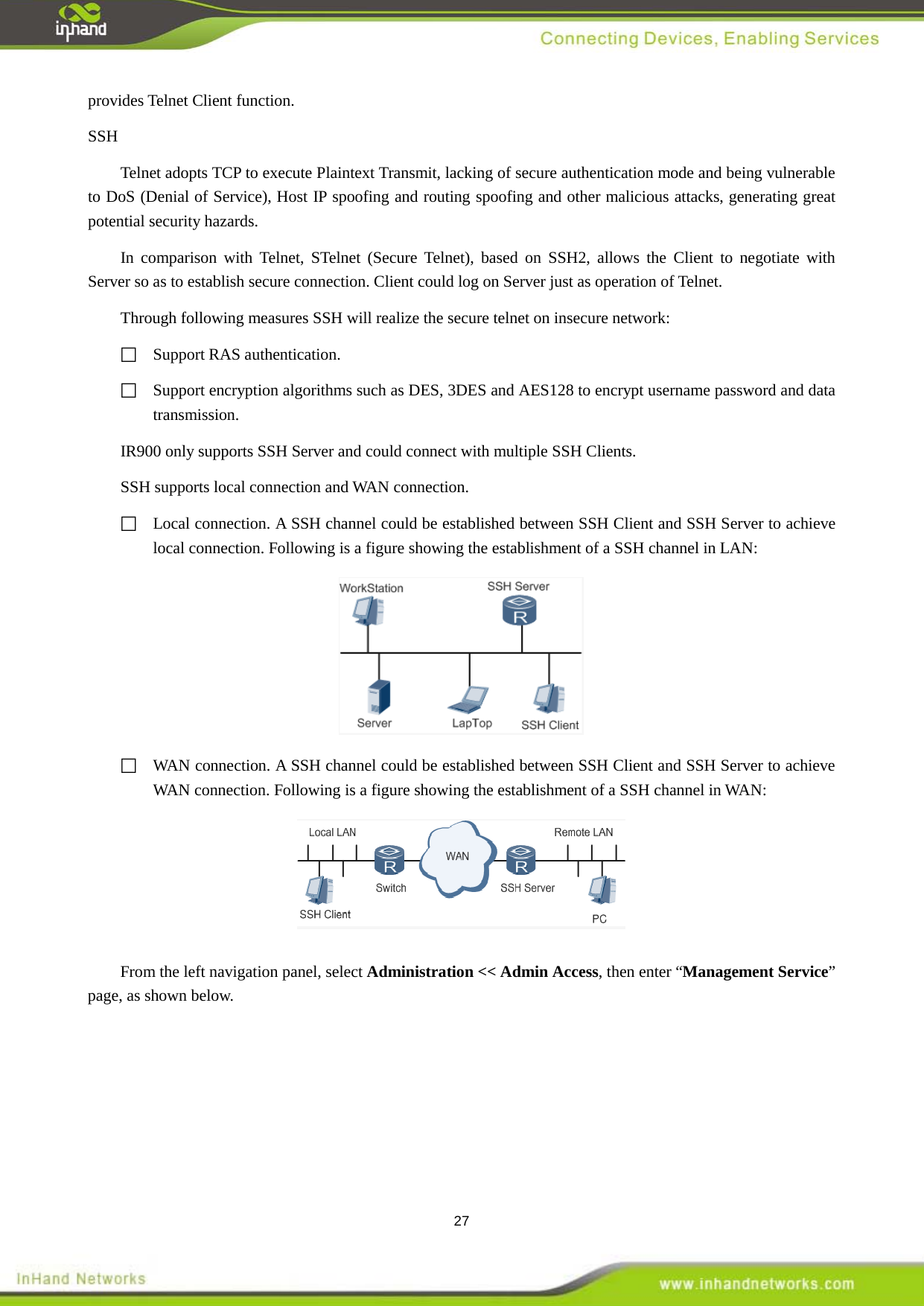
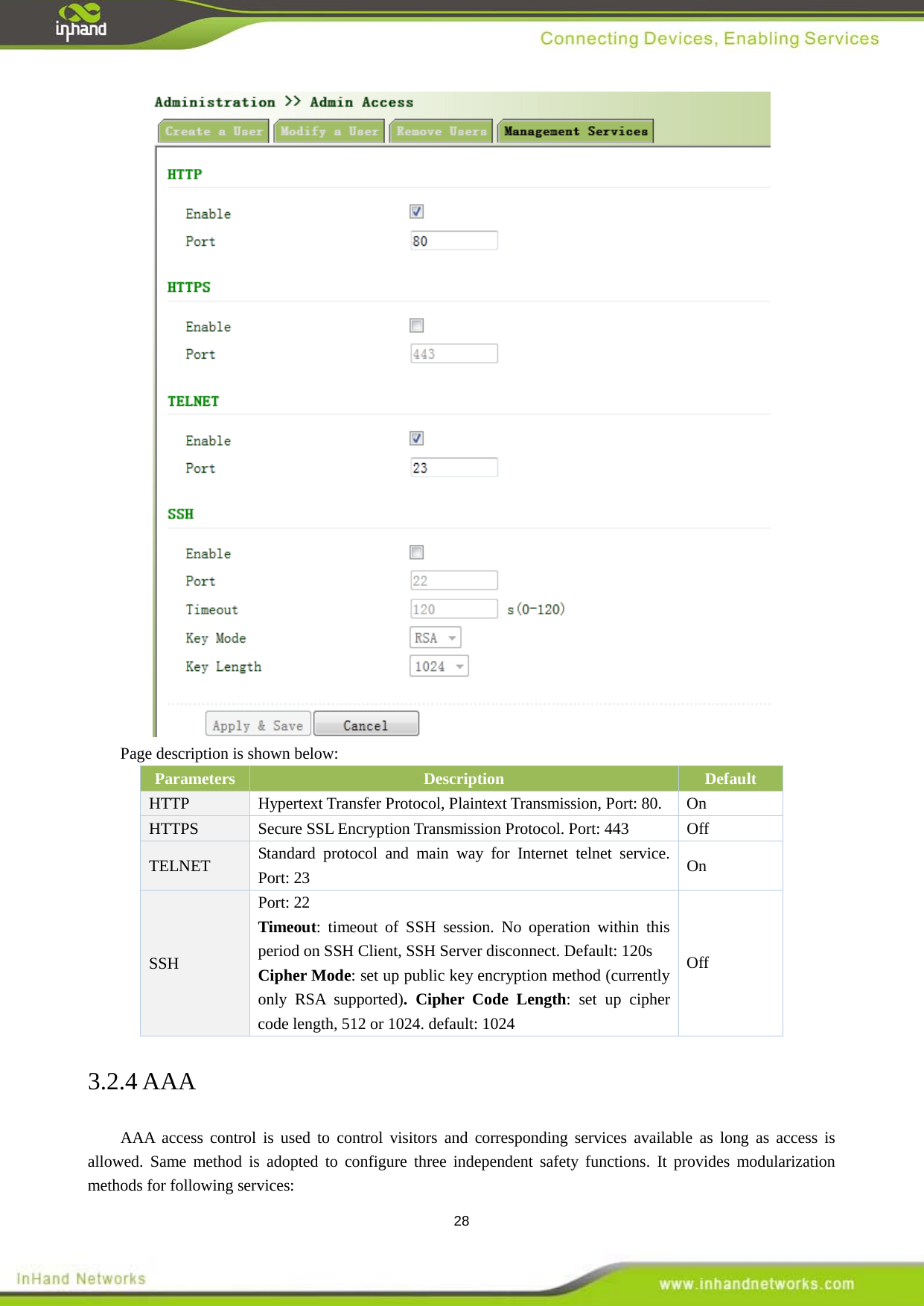
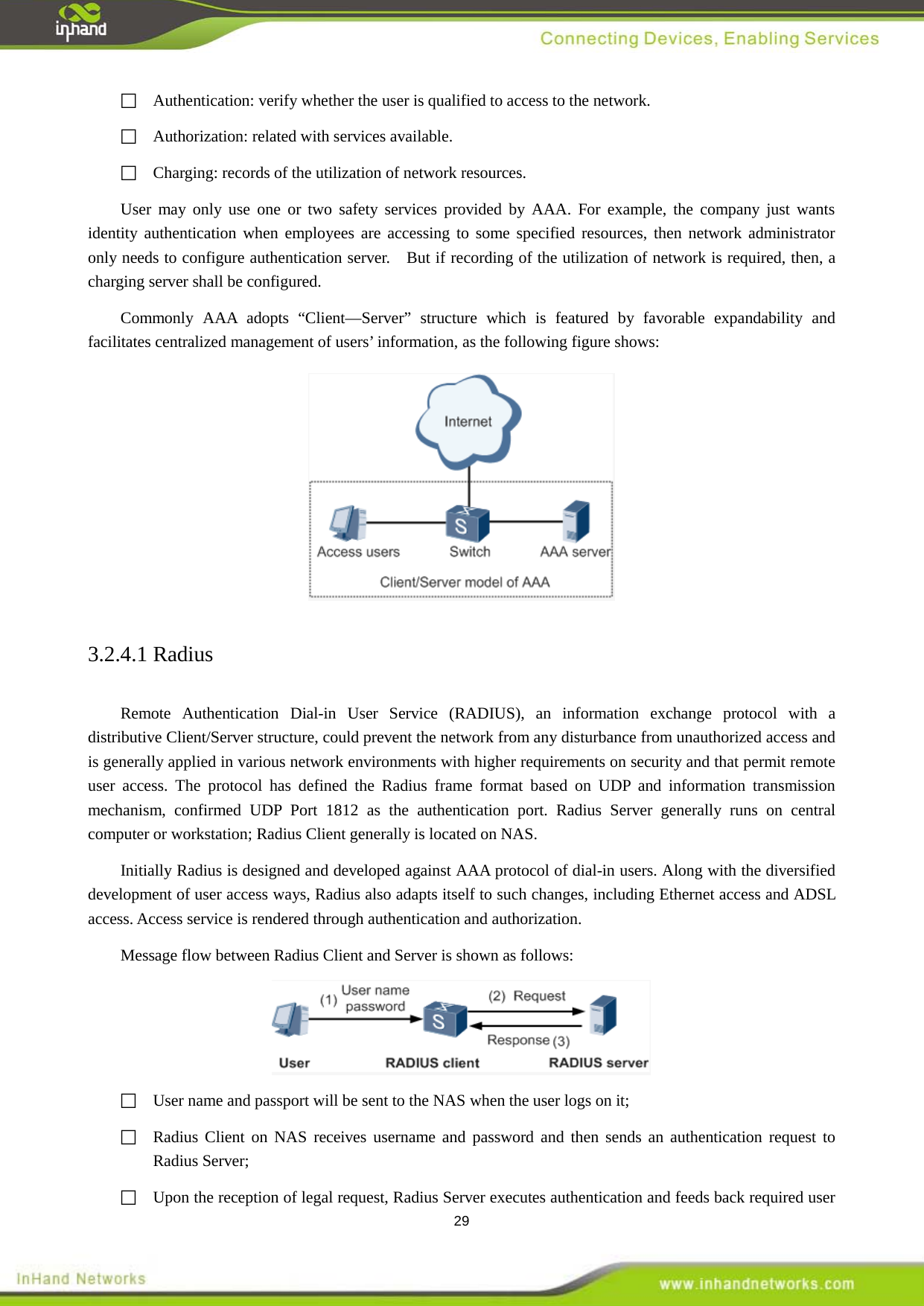
 27 provides Telnet Client function.   SSH Telnet adopts TCP to execute Plaintext Transmit, lacking of secure authentication mode and being vulnerable to DoS (Denial of Service), Host IP spoofing and routing spoofing and other malicious attacks, generating great potential security hazards.   In comparison with Telnet, STelnet (Secure Telnet), based on SSH2, allows the Client to negotiate with Server so as to establish secure connection. Client could log on Server just as operation of Telnet.   Through following measures SSH will realize the secure telnet on insecure network:    Support RAS authentication.    Support encryption algorithms such as DES, 3DES and AES128 to encrypt username password and data transmission.   IR900 only supports SSH Server and could connect with multiple SSH Clients.   SSH supports local connection and WAN connection.    Local connection. A SSH channel could be established between SSH Client and SSH Server to achieve local connection. Following is a figure showing the establishment of a SSH channel in LAN:   WAN connection. A SSH channel could be established between SSH Client and SSH Server to achieve WAN connection. Following is a figure showing the establishment of a SSH channel in WAN:   From the left navigation panel, select Administration << Admin Access, then enter “Management Service” page, as shown below.
 28  Page description is shown below: Parameters Description Default HTTP  Hypertext Transfer Protocol, Plaintext Transmission, Port: 80.  On HTTPS  Secure SSL Encryption Transmission Protocol. Port: 443  Off TELNET Standard protocol and main way for Internet telnet service. Port: 23 On SSH Port: 22 Timeout: timeout of SSH session. No operation within this period on SSH Client, SSH Server disconnect. Default: 120s Cipher Mode: set up public key encryption method (currently only RSA supported). Cipher Code Length: set up cipher code length, 512 or 1024. default: 1024 Off 3.2.4 AAA AAA access control is used to control visitors and corresponding services available as long as access is allowed. Same method is adopted to configure three independent safety functions. It provides modularization methods for following services:
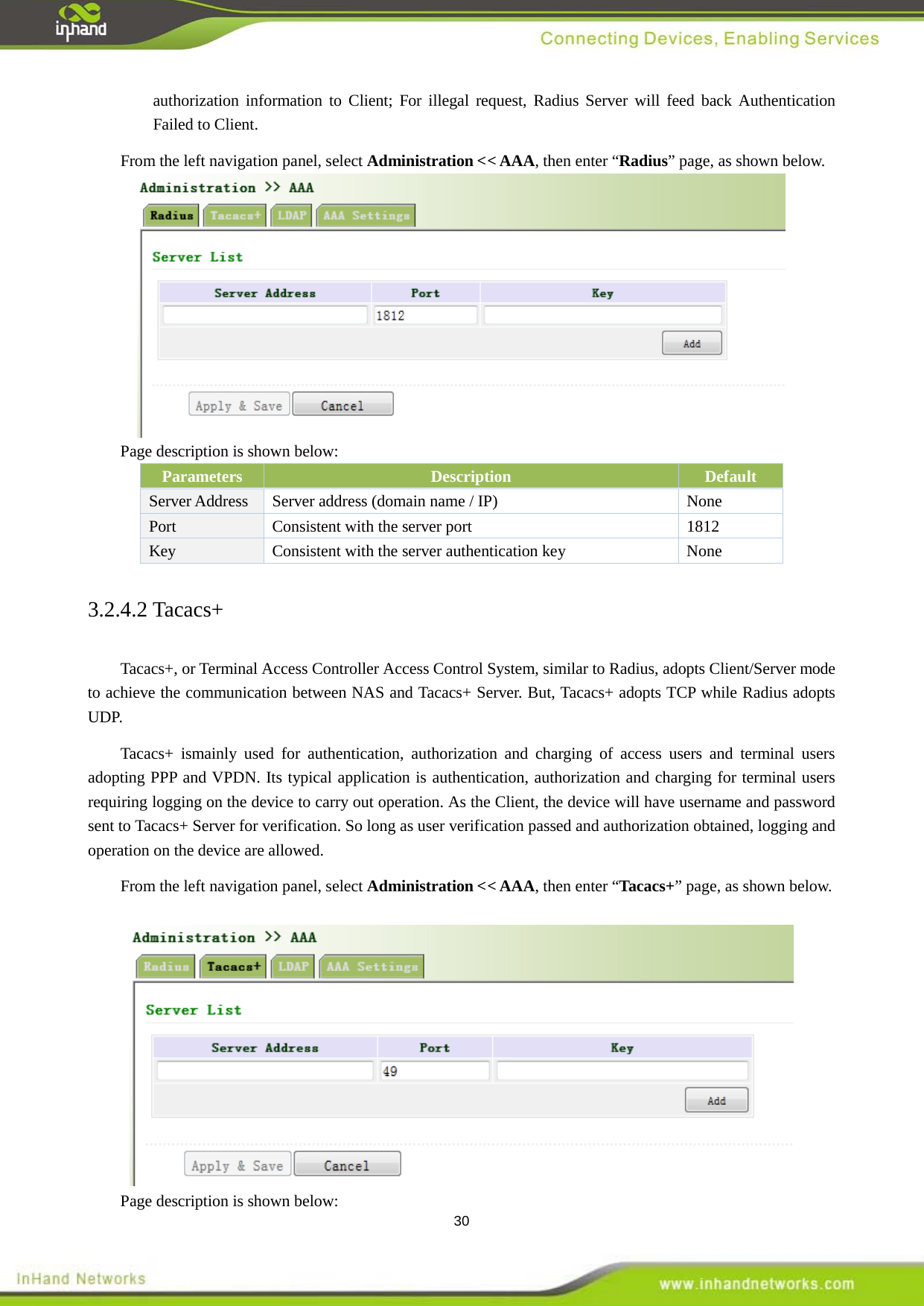
 29  Authentication: verify whether the user is qualified to access to the network.  Authorization: related with services available.     Charging: records of the utilization of network resources.   User may only use one or two safety services provided by AAA. For example, the company just wants identity authentication when employees are accessing to some specified resources, then network administrator only needs to configure authentication server.    But if recording of the utilization of network is required, then, a charging server shall be configured.   Commonly AAA adopts “Client—Server” structure which is featured by favorable expandability and facilitates centralized management of users’ information, as the following figure shows:      3.2.4.1 Radius Remote Authentication Dial-in User Service (RADIUS), an information exchange protocol with a distributive Client/Server structure, could prevent the network from any disturbance from unauthorized access and is generally applied in various network environments with higher requirements on security and that permit remote user access. The protocol has defined the Radius frame format based on UDP and information transmission mechanism, confirmed UDP Port 1812 as the authentication port. Radius Server generally runs on central computer or workstation; Radius Client generally is located on NAS.   Initially Radius is designed and developed against AAA protocol of dial-in users. Along with the diversified development of user access ways, Radius also adapts itself to such changes, including Ethernet access and ADSL access. Access service is rendered through authentication and authorization.   Message flow between Radius Client and Server is shown as follows:      User name and passport will be sent to the NAS when the user logs on it;    Radius Client on NAS receives username and password and then sends an authentication request to Radius Server;    Upon the reception of legal request, Radius Server executes authentication and feeds back required user
 30 authorization information to Client; For illegal request, Radius Server will feed back Authentication Failed to Client. From the left navigation panel, select Administration << AAA, then enter “Radius” page, as shown below.  Page description is shown below: Parameters Description Default Server Address Server address (domain name / IP)  None Port  Consistent with the server port  1812 Key Consistent with the server authentication key  None 3.2.4.2 Tacacs+ Tacacs+, or Terminal Access Controller Access Control System, similar to Radius, adopts Client/Server mode to achieve the communication between NAS and Tacacs+ Server. But, Tacacs+ adopts TCP while Radius adopts UDP.   Tacacs+ ismainly used for authentication, authorization and charging of access users and terminal users adopting PPP and VPDN. Its typical application is authentication, authorization and charging for terminal users requiring logging on the device to carry out operation. As the Client, the device will have username and password sent to Tacacs+ Server for verification. So long as user verification passed and authorization obtained, logging and operation on the device are allowed.   From the left navigation panel, select Administration << AAA, then enter “Tacacs+” page, as shown below.   Page description is shown below:
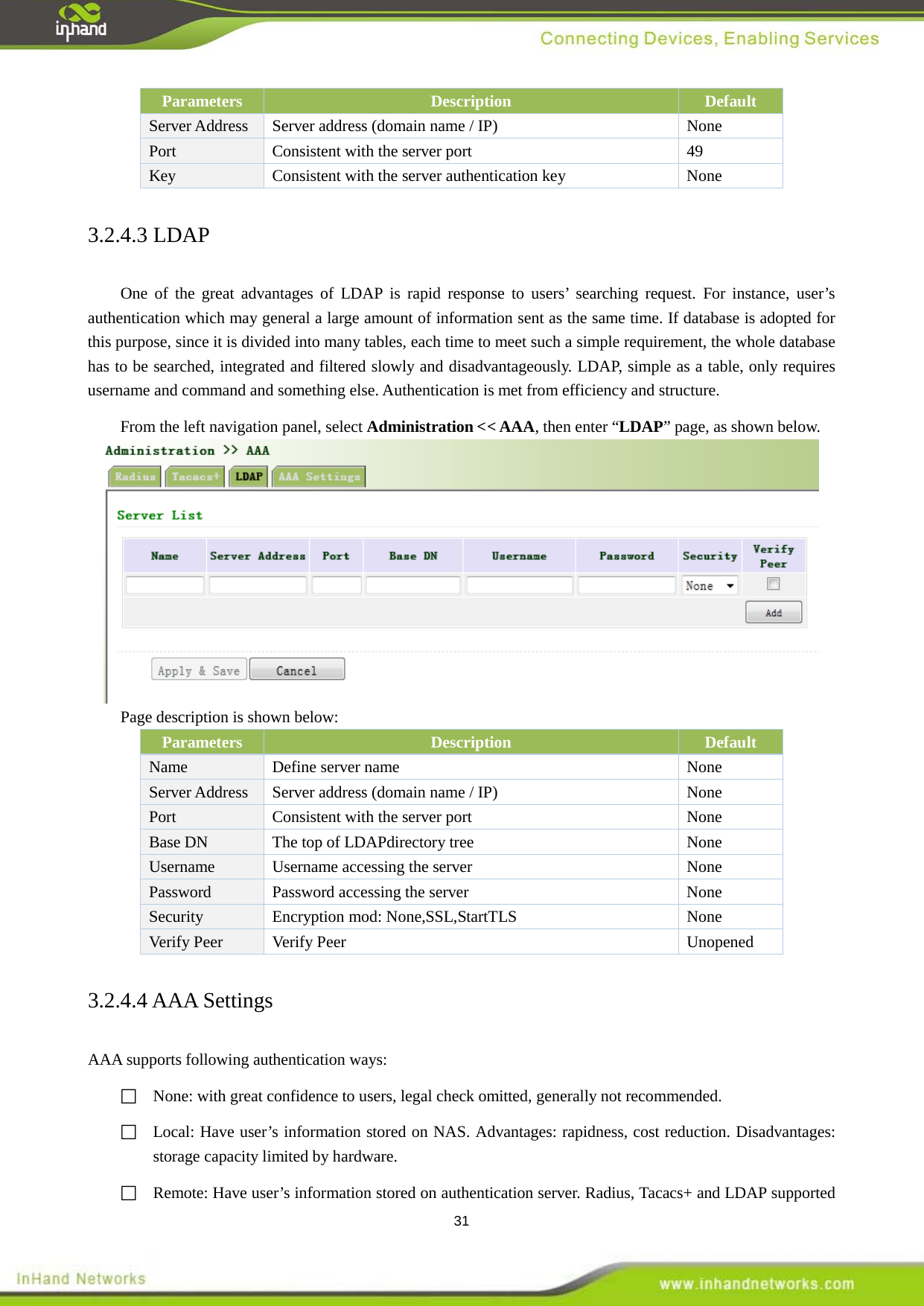
 31 Parameters Description Default Server Address Server address (domain name / IP)  None Port  Consistent with the server port  49 Key Consistent with the server authentication key  None 3.2.4.3 LDAP One of the great advantages of LDAP is rapid response to users’ searching request. For instance, user’s authentication which may general a large amount of information sent as the same time. If database is adopted for this purpose, since it is divided into many tables, each time to meet such a simple requirement, the whole database has to be searched, integrated and filtered slowly and disadvantageously. LDAP, simple as a table, only requires username and command and something else. Authentication is met from efficiency and structure.   From the left navigation panel, select Administration << AAA, then enter “LDAP” page, as shown below.  Page description is shown below: Parameters Description Default Name   Define server name  None Server Address Server address (domain name / IP)  None Port  Consistent with the server port  None Base DN  The top of LDAP None directory tree Username Username accessing the server  None Password Password accessing the server  None Security   Encryption mod: None,SSL,StartTLS  None Verify Peer   Verify Peer  Unopened 3.2.4.4 AAA Settings AAA supports following authentication ways:     None: with great confidence to users, legal check omitted, generally not recommended.    Local: Have user’s information stored on NAS. Advantages: rapidness, cost reduction. Disadvantages: storage capacity limited by hardware.    Remote: Have user’s information stored on authentication server. Radius, Tacacs+ and LDAP supported
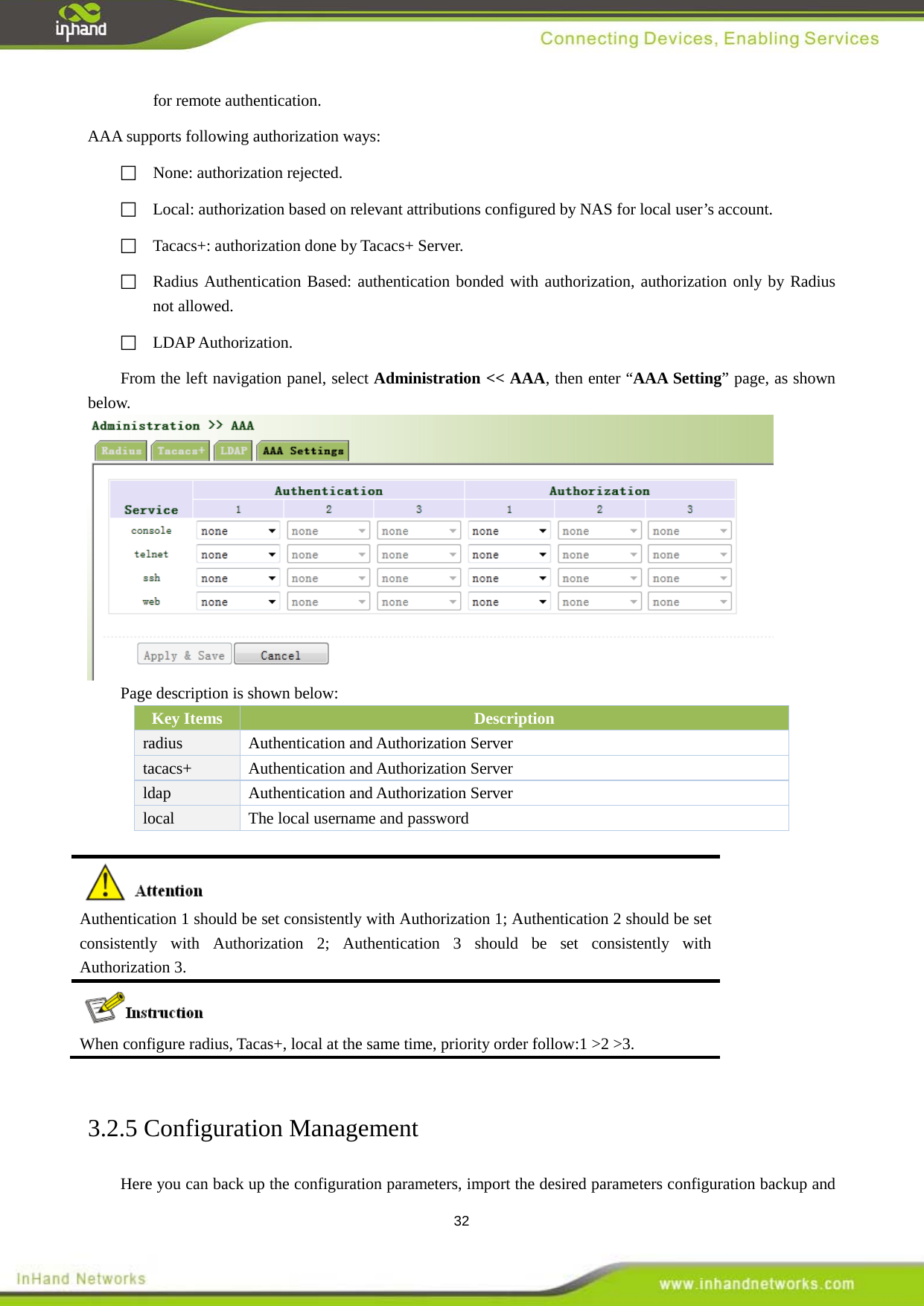
 32 for remote authentication.   AAA supports following authorization ways:   None: authorization rejected.     Local: authorization based on relevant attributions configured by NAS for local user’s account.    Tacacs+: authorization done by Tacacs+ Server.    Radius Authentication Based: authentication bonded with authorization, authorization only by Radius not allowed.    LDAP Authorization.   From the left navigation panel, select Administration << AAA, then enter “AAA Setting” page, as shown below.  Page description is shown below: Key Items Description radius  Authentication and Authorization Server tacacs+  Authentication and Authorization Server ldap  Authentication and Authorization Server local   The local username and password   Authentication 1 should be set consistently with Authorization 1; Authentication 2 should be set consistently with Authorization 2; Authentication 3 should be set consistently with Authorization 3.  When configure radius, Tacas+, local at the same time, priority order follow:1 >2 >3.  3.2.5 Configuration Management Here you can back up the configuration parameters, import the desired parameters configuration backup and
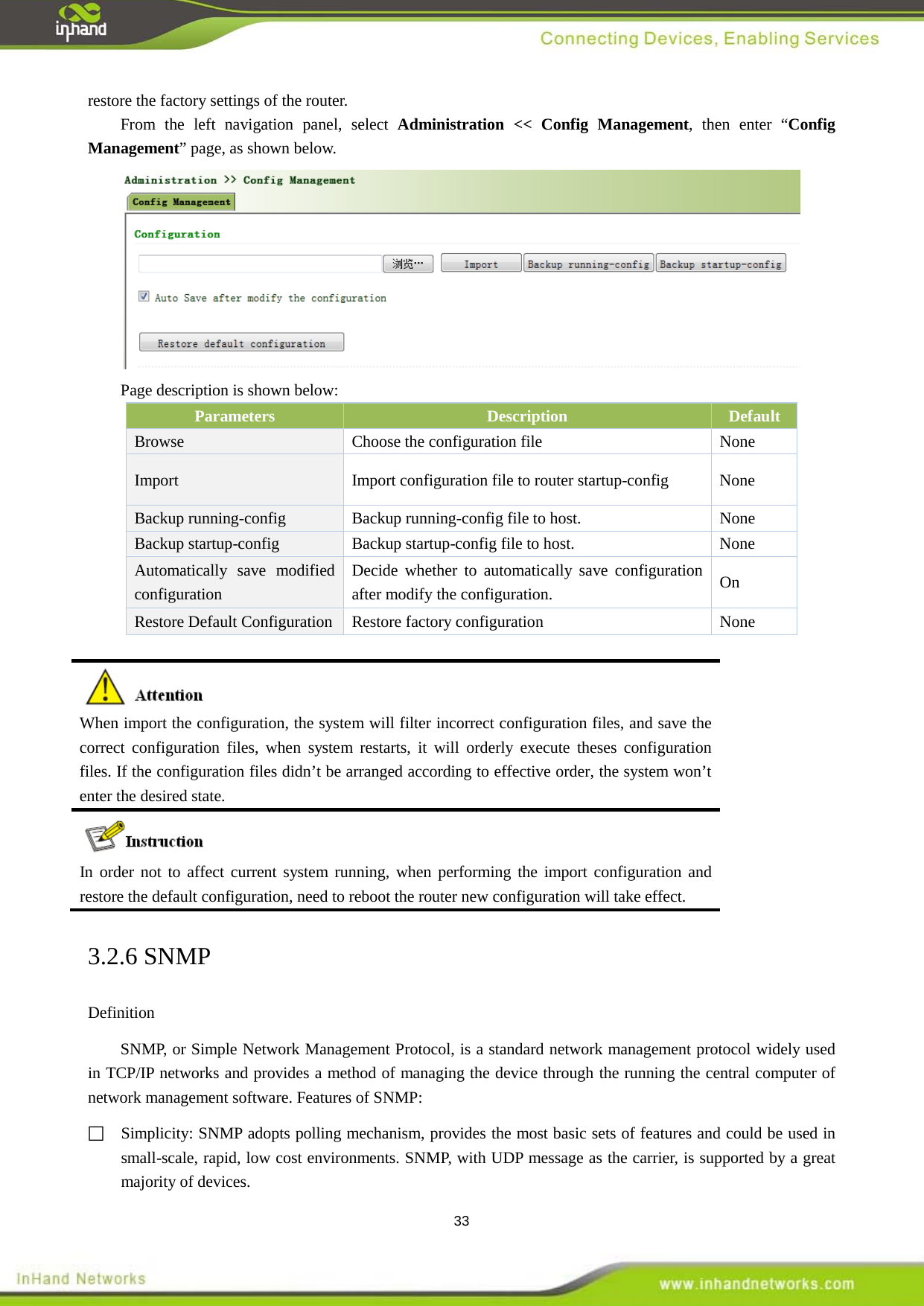
 33 restore the factory settings of the router.   From the left navigation panel, select Administration << Config Management, then enter “Config Management” page, as shown below.  Page description is shown below: Parameters Description Default Browse  Choose the configuration file  None Import  Import configuration file to router startup-config    None Backup running-config  Backup running-config file to host.  None Backup startup-config  Backup startup-config file to host.  None Automatically save modified configuration Decide whether to automatically save configuration after modify the configuration.  On Restore Default Configuration  Restore factory configuration  None   When import the configuration, the system will filter incorrect configuration files, and save the correct configuration files, when system restarts, it will orderly execute theses configuration files. If the configuration files didn’t be arranged according to effective order, the system won’t enter the desired state.  In order not to affect current system running, when performing the import configuration and restore the default configuration, need to reboot the router new configuration will take effect. 3.2.6 SNMP Definition   SNMP, or Simple Network Management Protocol, is a standard network management protocol widely used in TCP/IP networks and provides a method of managing the device through the running the central computer of network management software. Features of SNMP:  Simplicity: SNMP adopts polling mechanism, provides the most basic sets of features and could be used in small-scale, rapid, low cost environments. SNMP, with UDP message as the carrier, is supported by a great majority of devices.
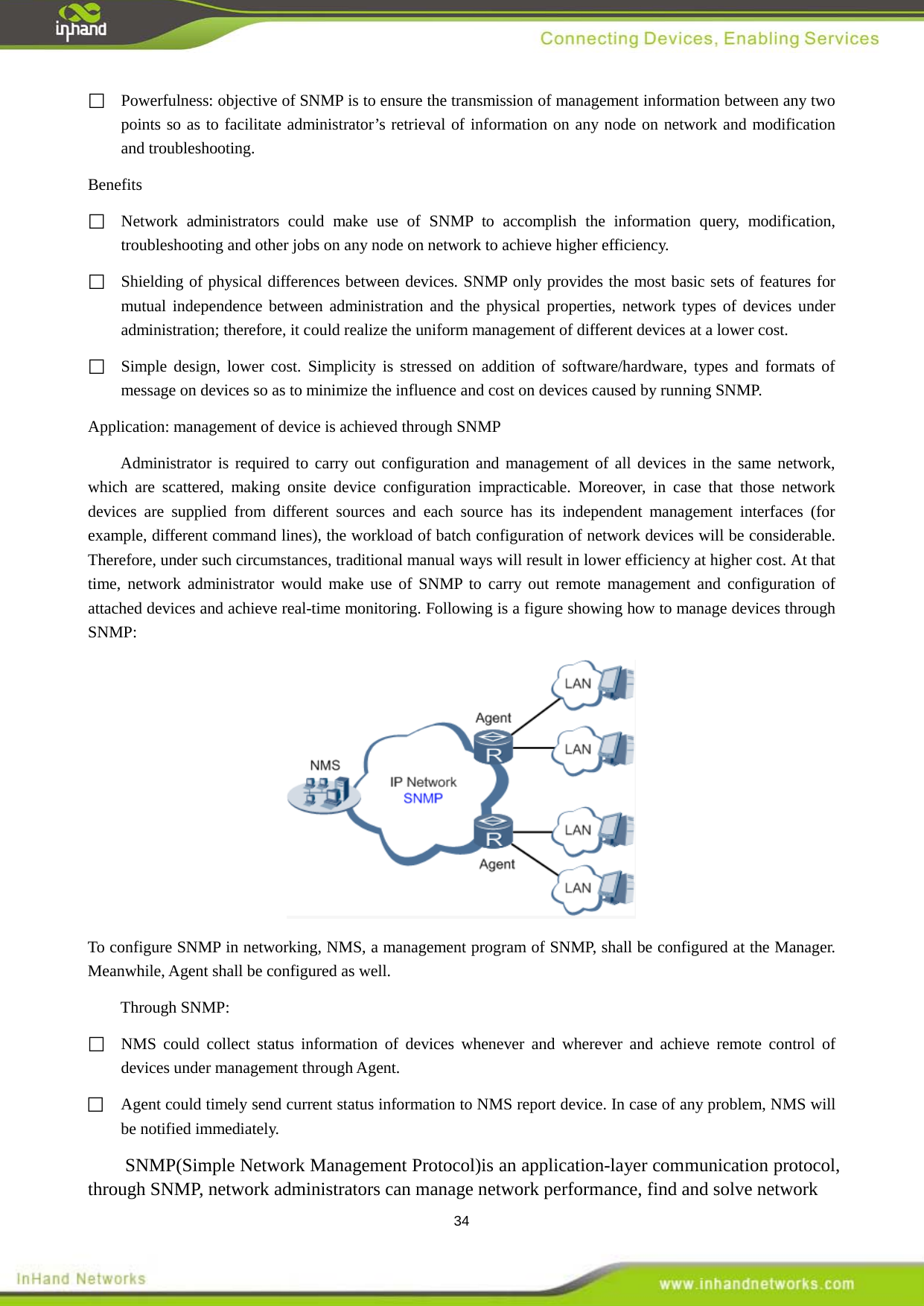
 34  Powerfulness: objective of SNMP is to ensure the transmission of management information between any two points so as to facilitate administrator’s retrieval of information on any node on network and modification and troubleshooting.   Benefits    Network administrators could make use of SNMP to accomplish the information query, modification, troubleshooting and other jobs on any node on network to achieve higher efficiency.    Shielding of physical differences between devices. SNMP only provides the most basic sets of features for mutual independence between administration and the physical properties, network types of devices under administration; therefore, it could realize the uniform management of different devices at a lower cost.    Simple design, lower cost. Simplicity is stressed on addition of software/hardware, types and formats of message on devices so as to minimize the influence and cost on devices caused by running SNMP. Application: management of device is achieved through SNMP   Administrator is required to carry out configuration and management of all devices in the same network, which are scattered, making onsite device configuration impracticable. Moreover, in case that those network devices are supplied from different sources and each source has its independent management interfaces (for example, different command lines), the workload of batch configuration of network devices will be considerable. Therefore, under such circumstances, traditional manual ways will result in lower efficiency at higher cost. At that time, network administrator would make use of SNMP to carry out remote management and configuration of attached devices and achieve real-time monitoring. Following is a figure showing how to manage devices through SNMP:    To configure SNMP in networking, NMS, a management program of SNMP, shall be configured at the Manager. Meanwhile, Agent shall be configured as well.   Through SNMP:  NMS could collect status information of devices whenever and wherever and achieve remote control of devices under management through Agent.    Agent could timely send current status information to NMS report device. In case of any problem, NMS will be notified immediately.   SNMP(Simple Network Management Protocol)is an application-layer communication protocol, through SNMP, network administrators can manage network performance, find and solve network
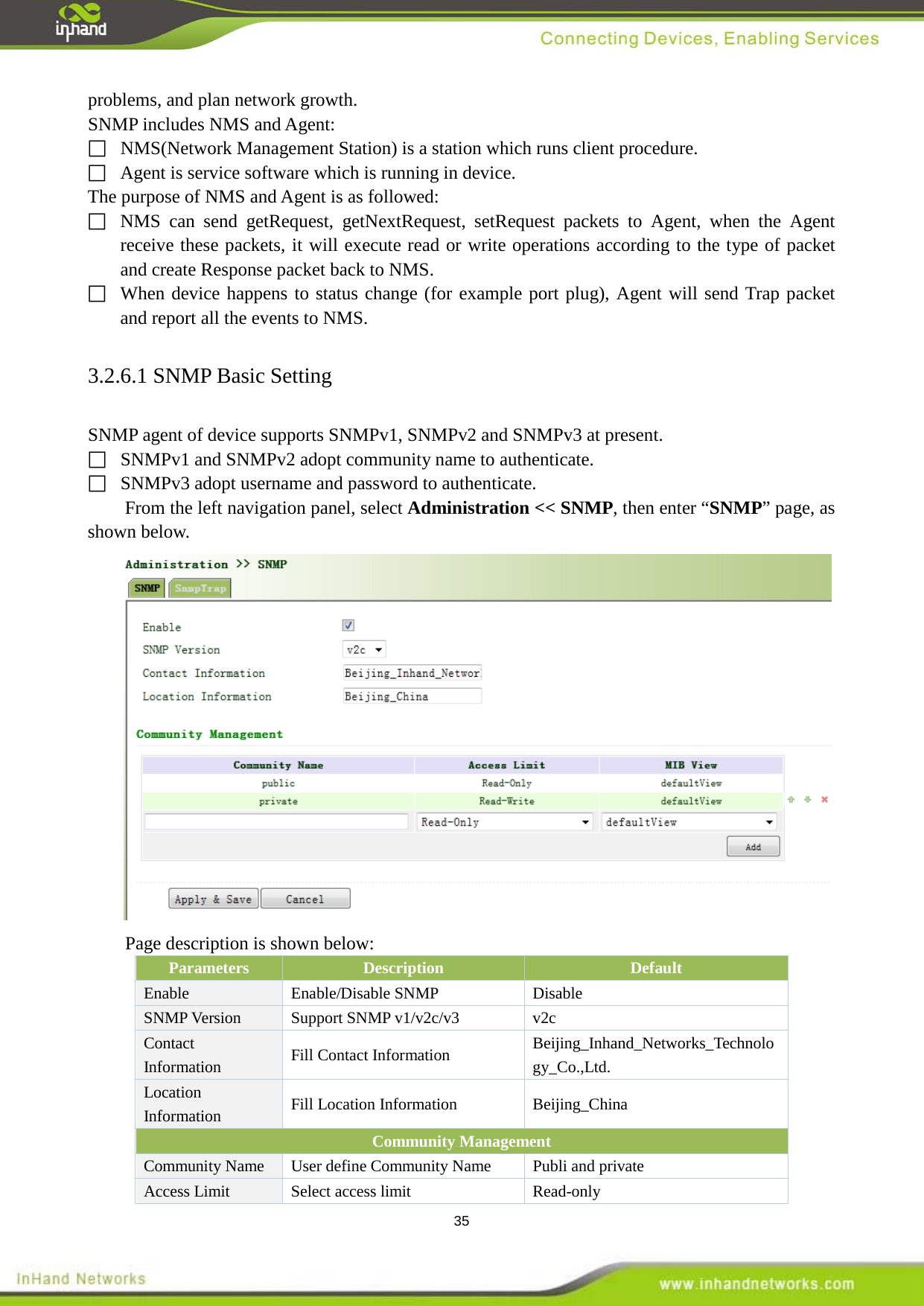
 35 problems, and plan network growth. SNMP includes NMS and Agent:   NMS(Network Management Station) is a station which runs client procedure.   Agent is service software which is running in device. The purpose of NMS and Agent is as followed:  NMS can send getRequest, getNextRequest, setRequest packets to Agent, when the Agent receive these packets, it will execute read or write operations according to the type of packet and create Response packet back to NMS.  When device happens to status change (for example port plug), Agent will send Trap packet  and report all the events to NMS. 3.2.6.1 SNMP Basic Setting SNMP agent of device supports SNMPv1, SNMPv2 and SNMPv3 at present.   SNMPv1 and SNMPv2 adopt community name to authenticate.   SNMPv3 adopt username and password to authenticate. From the left navigation panel, select Administration << SNMP, then enter “SNMP” page, as shown below.  Page description is shown below: Parameters Description Default Enable  Enable/Disable SNMP Disable SNMP Version  Support SNMP v1/v2c/v3  v2c Contact Information  Fill Contact Information Beijing_Inhand_Networks_Technology_Co.,Ltd. Location Information  Fill Location Information Beijing_China Community Management   Community Name    User define Community Name  Publi and private Access Limit Select access limit Read-only
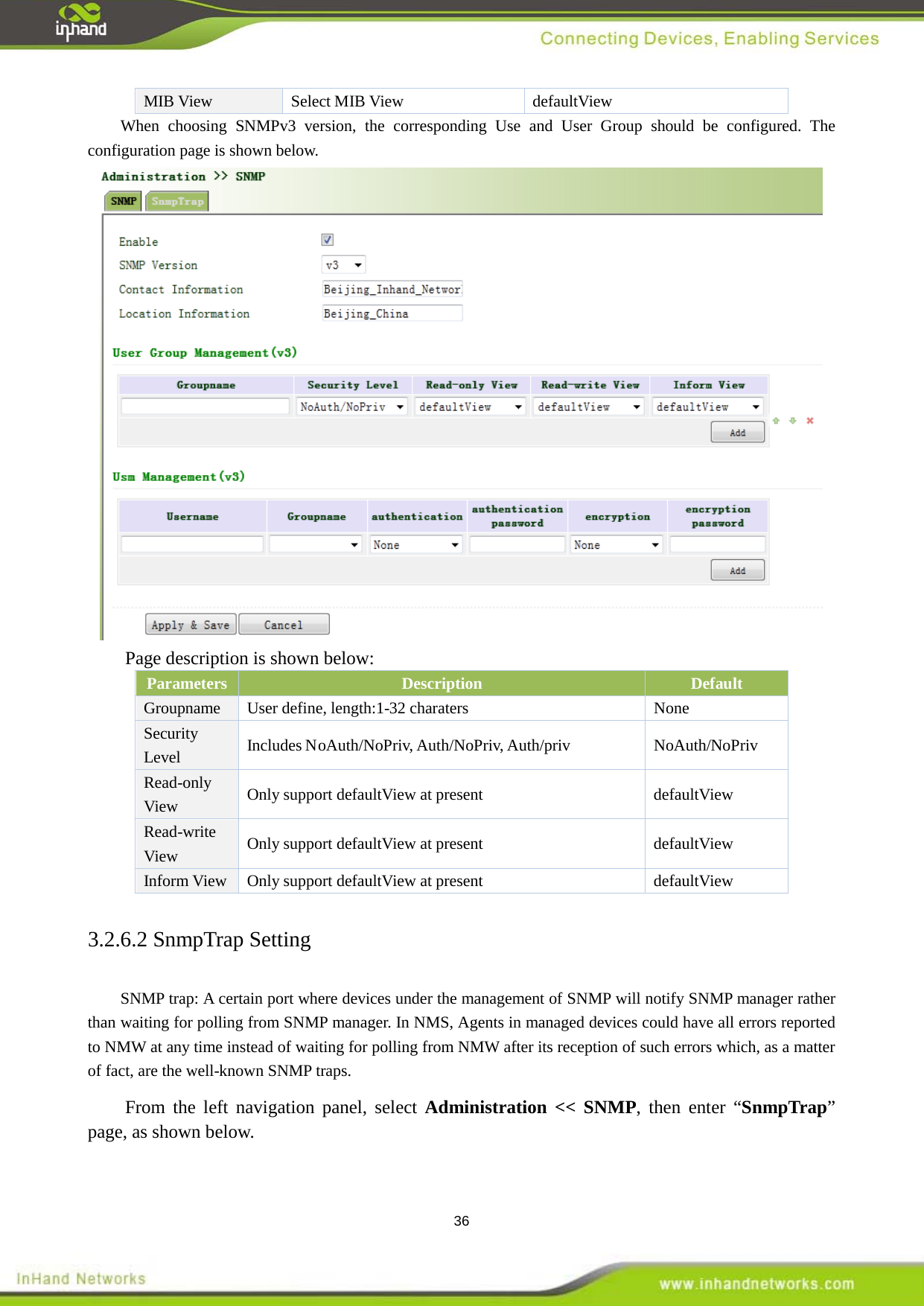
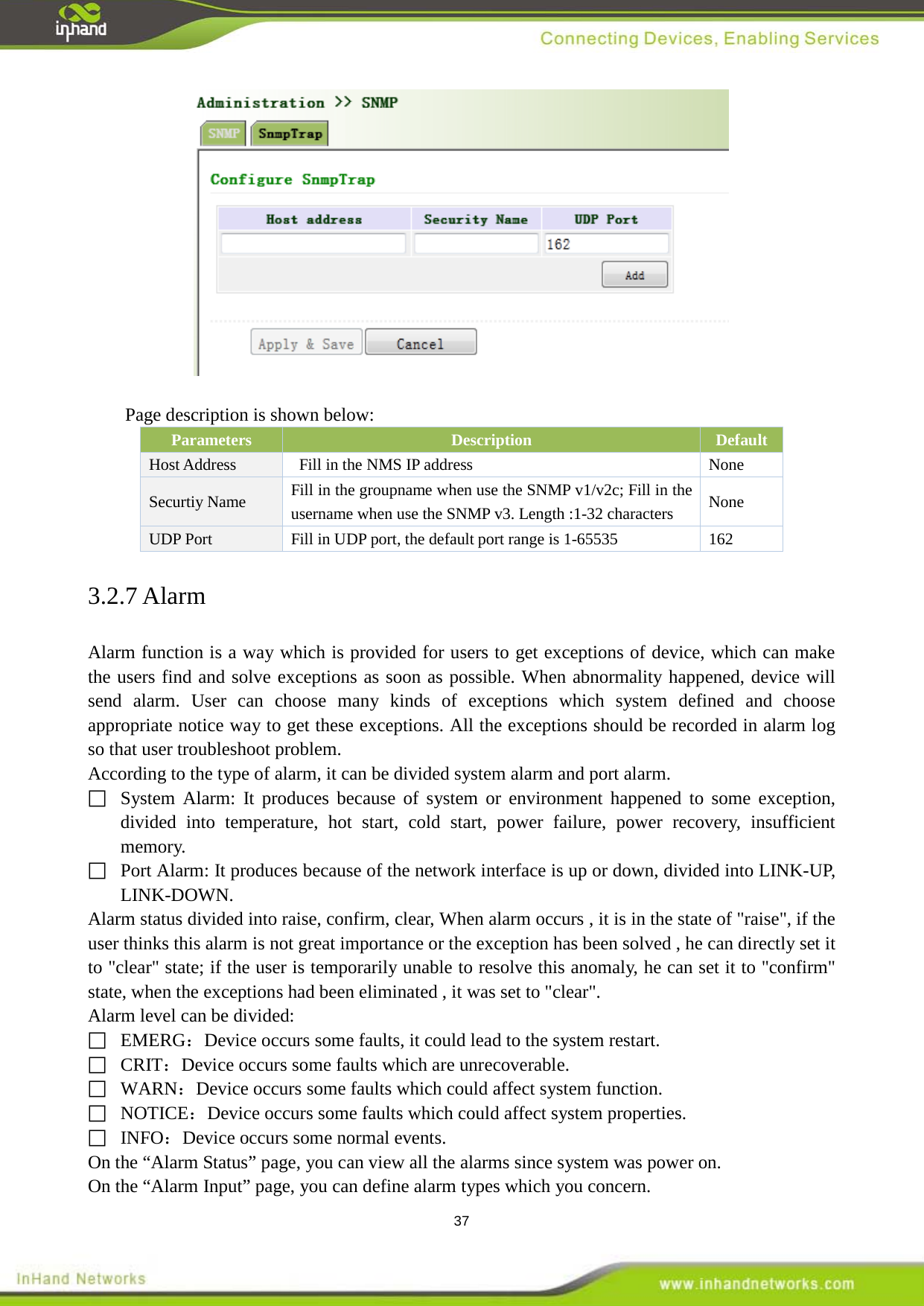
 36 MIB View   Select MIB View defaultView When choosing SNMPv3 version, the corresponding Use and User Group should be configured. The configuration page is shown below.    Page description is shown below: Parameters Description Default Groupname  User define, length:1-32 charaters  None Security Level Includes NoAuth/NoPriv, Auth/NoPriv, Auth/priv NoAuth/NoPriv Read-only View Only support defaultView at present  defaultView Read-write View Only support defaultView at present  defaultView Inform View  Only support defaultView at present  defaultView 3.2.6.2 SnmpTrap Setting SNMP trap: A certain port where devices under the management of SNMP will notify SNMP manager rather than waiting for polling from SNMP manager. In NMS, Agents in managed devices could have all errors reported to NMW at any time instead of waiting for polling from NMW after its reception of such errors which, as a matter of fact, are the well-known SNMP traps.     From the left navigation panel, select Administration << SNMP, then enter “SnmpTrap” page, as shown below.
 37   Page description is shown below: Parameters Description Default Host Address Fill in the NMS IP address  None Securtiy Name   Fill in the groupname when use the SNMP v1/v2c; Fill in the username when use the SNMP v3. Length :1-32 characters None UDP Port   Fill in UDP port, the default port range is 1-65535  162 3.2.7 Alarm Alarm function is a way which is provided for users to get exceptions of device, which can make the users find and solve exceptions as soon as possible. When abnormality happened, device will send alarm. User can choose many kinds of exceptions which system defined and choose appropriate notice way to get these exceptions. All the exceptions should be recorded in alarm log so that user troubleshoot problem. According to the type of alarm, it can be divided system alarm and port alarm.  System Alarm: It produces because of system or environment happened to some exception, divided into temperature, hot start, cold start, power failure, power recovery, insufficient memory.  Port Alarm: It produces because of the network interface is up or down, divided into LINK-UP, LINK-DOWN. Alarm status divided into raise, confirm, clear, When alarm occurs , it is in the state of "raise", if the user thinks this alarm is not great importance or the exception has been solved , he can directly set it to "clear" state; if the user is temporarily unable to resolve this anomaly, he can set it to "confirm" state, when the exceptions had been eliminated , it was set to "clear". Alarm level can be divided:  EMERG:Device occurs some faults, it could lead to the system restart.  CRIT:Device occurs some faults which are unrecoverable.  WARN:Device occurs some faults which could affect system function.  NOTICE:Device occurs some faults which could affect system properties.  INFO:Device occurs some normal events. On the “Alarm Status” page, you can view all the alarms since system was power on. On the “Alarm Input” page, you can define alarm types which you concern.
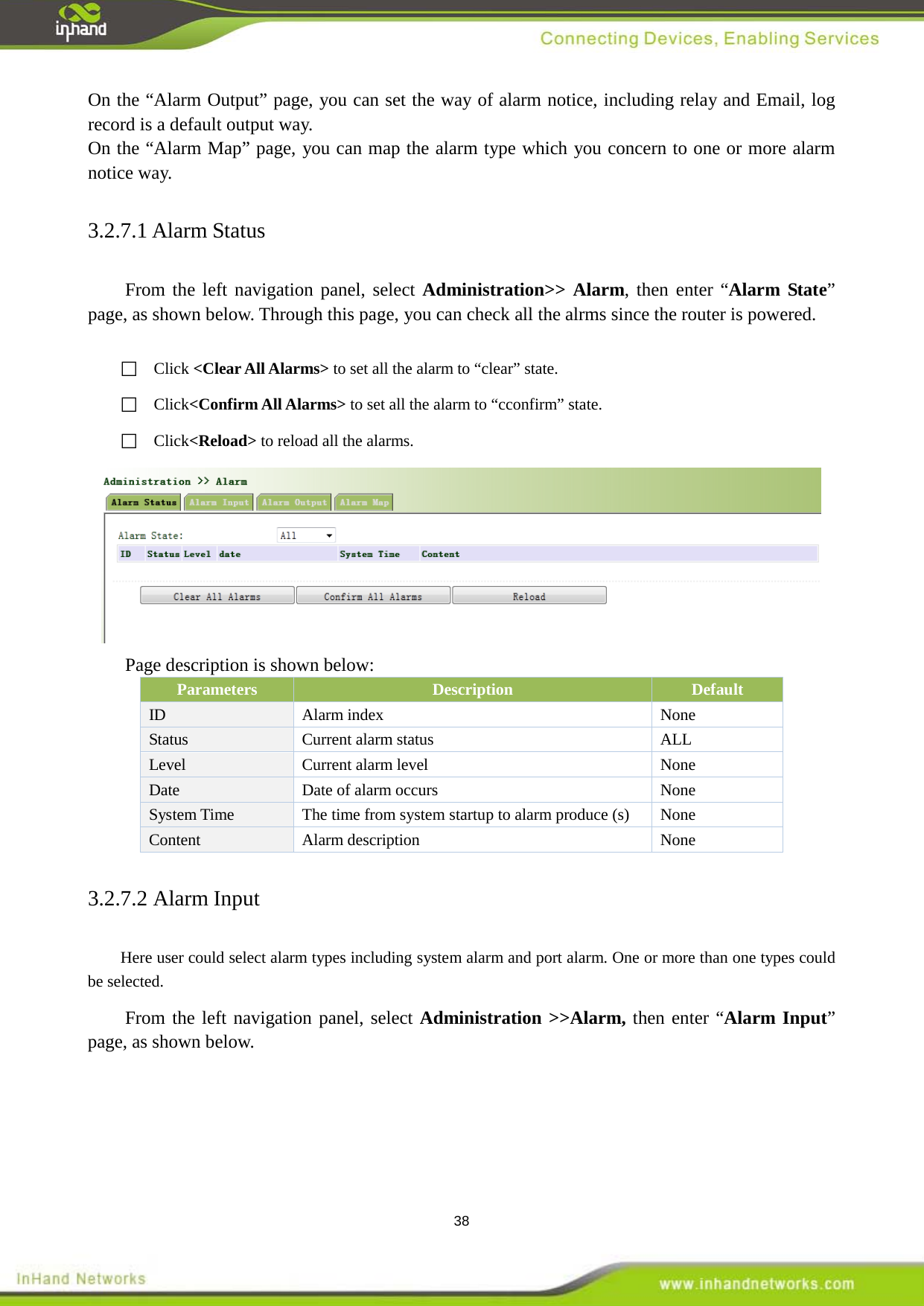
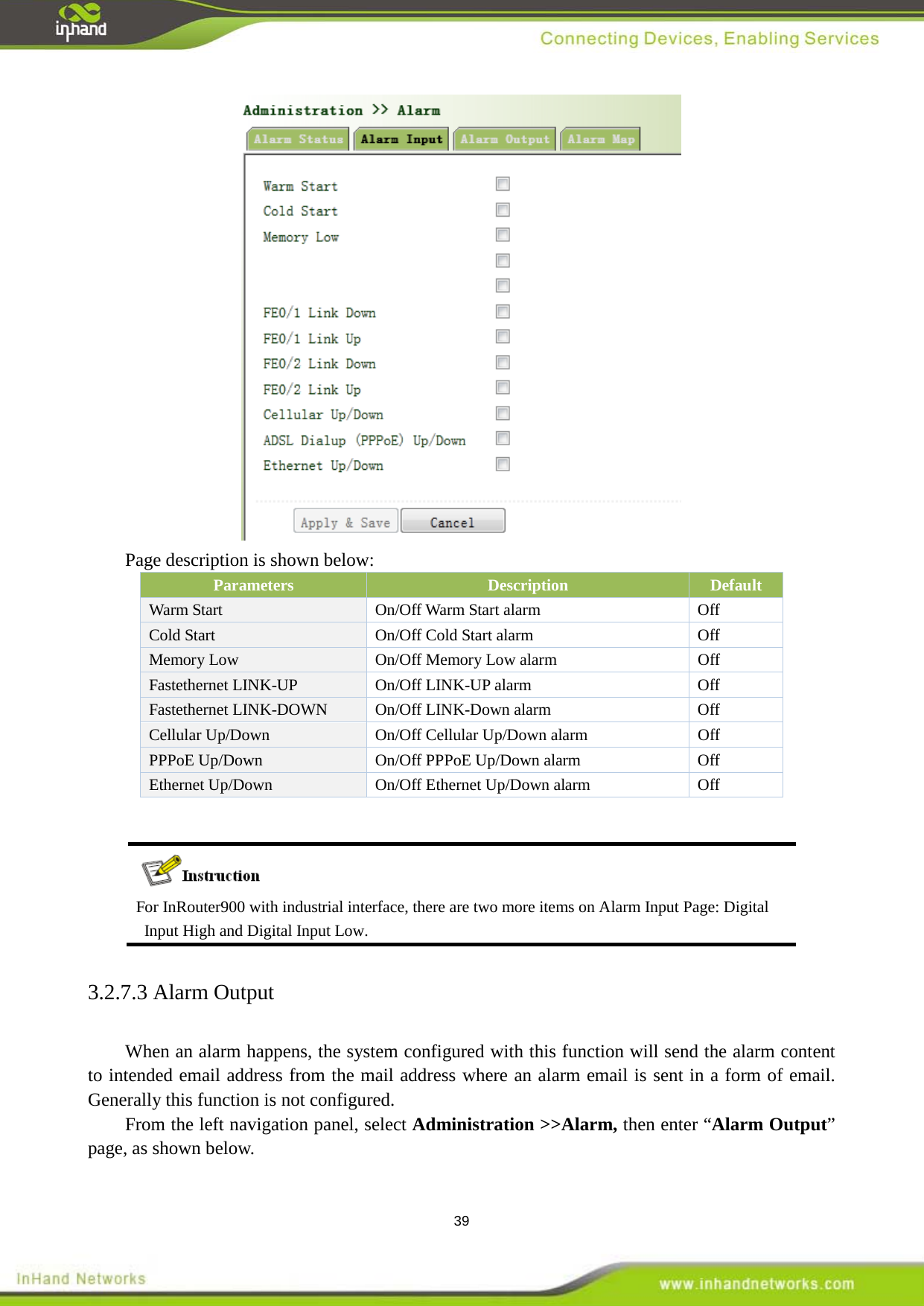
 38 On the “Alarm Output” page, you can set the way of alarm notice, including relay and Email, log record is a default output way. On the “Alarm Map” page, you can map the alarm type which you concern to one or more alarm notice way.   3.2.7.1 Alarm Status From the left navigation panel, select Administration>> Alarm, then enter “Alarm State” page, as shown below. Through this page, you can check all the alrms since the router is powered.     Click <Clear All Alarms> to set all the alarm to “clear” state.  Click<Confirm All Alarms> to set all the alarm to “cconfirm” state.  Click<Reload> to reload all the alarms.    Page description is shown below: Parameters Description Default ID Alarm index  None Status Current alarm status   ALL Level Current alarm level    None   Date Date of alarm occurs    None System Time The time from system startup to alarm produce (s)  None Content  Alarm description    None 3.2.7.2 Alarm Input Here user could select alarm types including system alarm and port alarm. One or more than one types could be selected.   From the left navigation panel, select Administration >>Alarm, then enter “Alarm Input” page, as shown below.
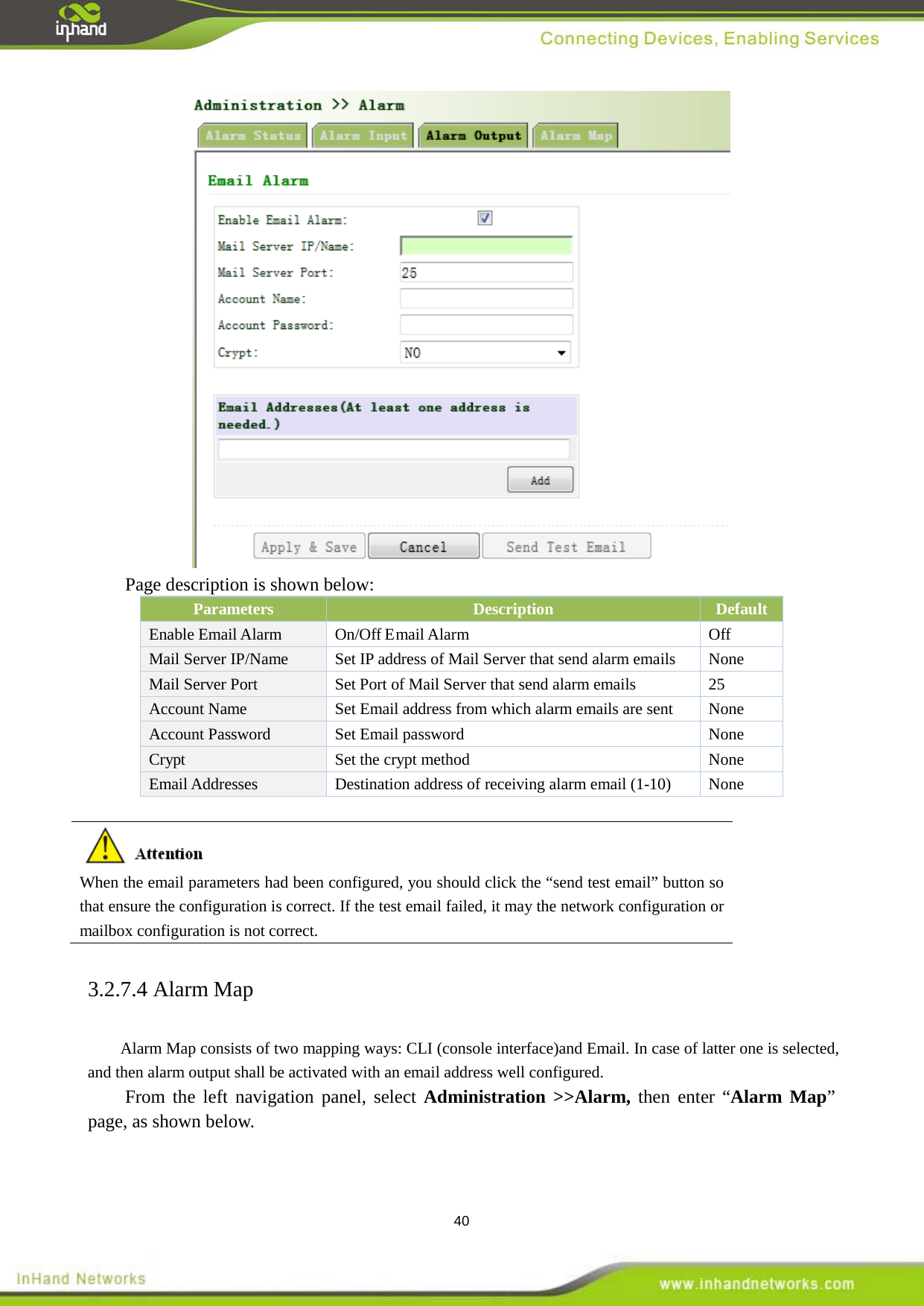
 39  Page description is shown below: Parameters Description Default Warm Start   On/Off Warm Start alarm   Off Cold Start   On/Off Cold Start alarm Off Memory Low   On/Off Memory Low alarm Off Fastethernet LINK-UP On/Off LINK-UP alarm Off Fastethernet LINK-DOWN On/Off LINK-Down alarm Off Cellular Up/Down  On/Off Cellular Up/Down alarm  Off PPPoE Up/Down  On/Off PPPoE Up/Down alarm  Off Ethernet Up/Down  On/Off Ethernet Up/Down alarm  Off  3.2.7.3 Alarm Output When an alarm happens, the system configured with this function will send the alarm content to intended email address from the mail address where an alarm email is sent in a form of email. Generally this function is not configured. From the left navigation panel, select Administration >>Alarm, then enter “Alarm Output” page, as shown below.  For InRouter900 with industrial interface, there are two more items on Alarm Input Page: Digital Input High and Digital Input Low.
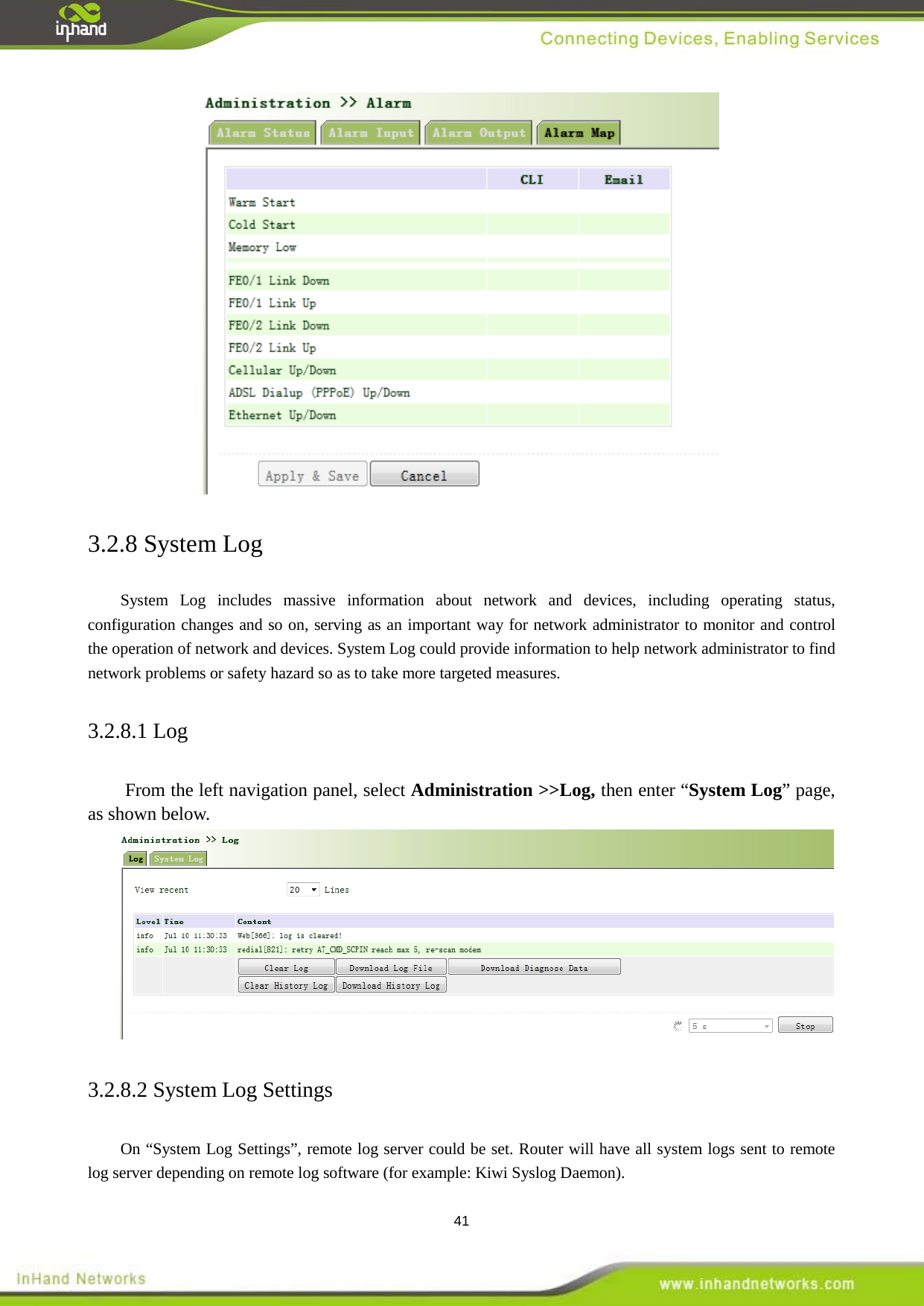
 40  Page description is shown below: Parameters Description Default Enable Email Alarm On/Off Email Alarm Off Mail Server IP/Name Set IP address of Mail Server that send alarm emails    None Mail Server Port Set Port of Mail Server that send alarm emails  25 Account Name   Set Email address from which alarm emails are sent  None Account Password   Set Email password    None Crypt Set the crypt method  None Email Addresses Destination address of receiving alarm email (1-10)  None   When the email parameters had been configured, you should click the “send test email” button so that ensure the configuration is correct. If the test email failed, it may the network configuration or mailbox configuration is not correct. 3.2.7.4 Alarm Map Alarm Map consists of two mapping ways: CLI (console interface)and Email. In case of latter one is selected, and then alarm output shall be activated with an email address well configured. From the left navigation panel, select Administration >>Alarm, then enter “Alarm Map” page, as shown below.
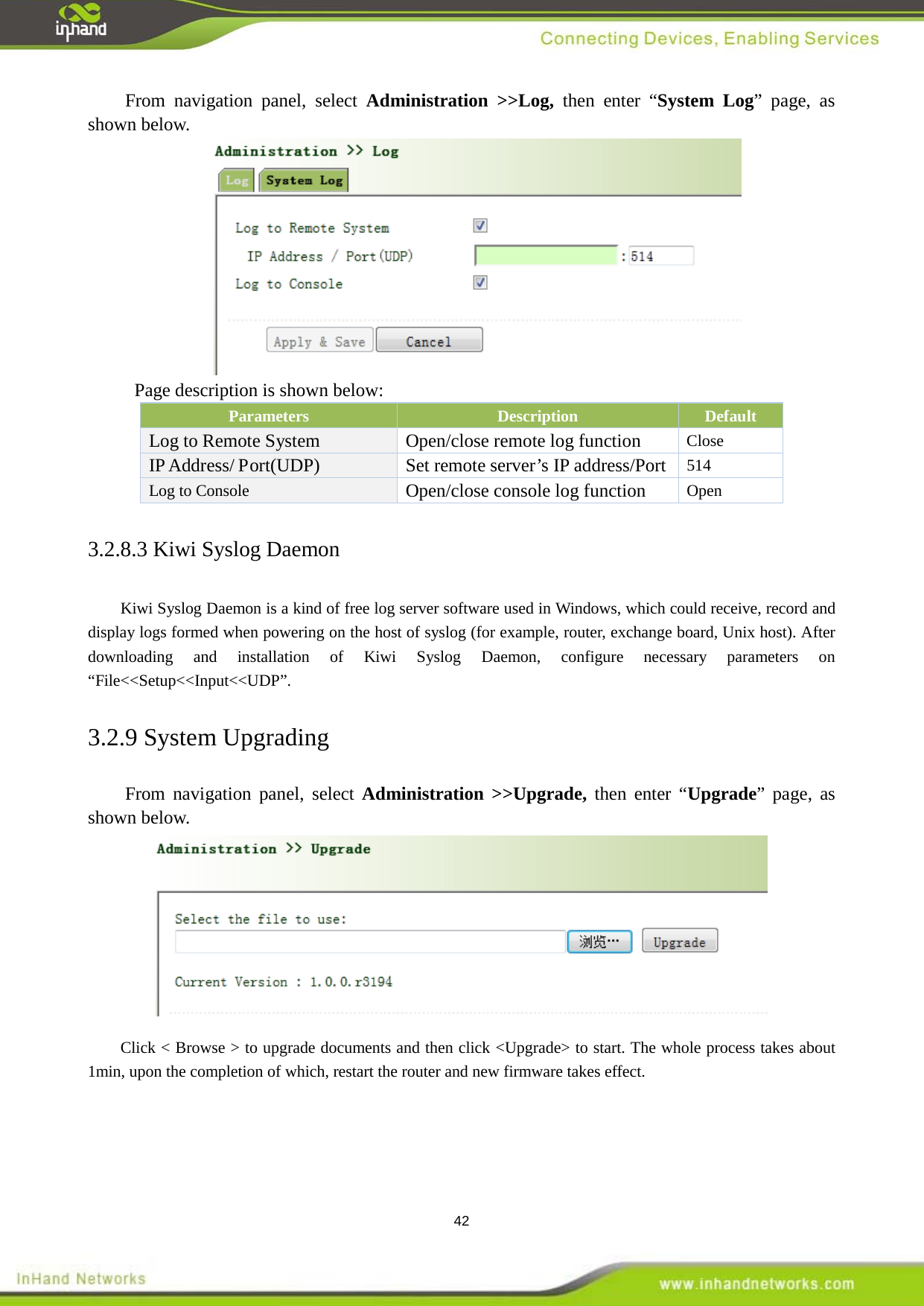
 41  3.2.8 System Log System Log includes massive information about network and devices, including operating status, configuration changes and so on, serving as an important way for network administrator to monitor and control the operation of network and devices. System Log could provide information to help network administrator to find network problems or safety hazard so as to take more targeted measures. 3.2.8.1 Log From the left navigation panel, select Administration >>Log, then enter “System Log” page, as shown below.  3.2.8.2 System Log Settings On “System Log Settings”, remote log server could be set. Router will have all system logs sent to remote log server depending on remote log software (for example: Kiwi Syslog Daemon).
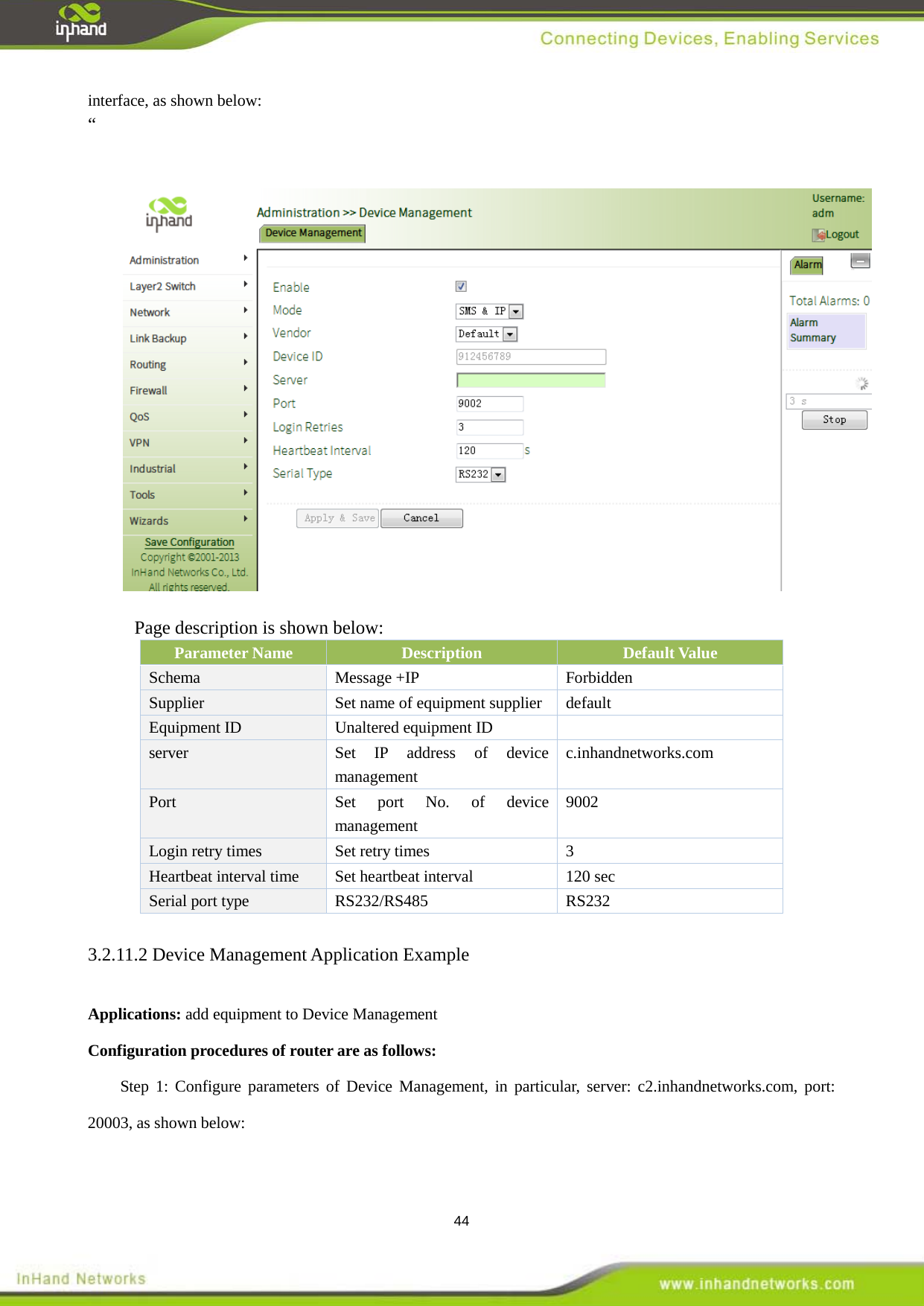
 42 From navigation panel, select Administration >>Log, then enter “System Log” page, as shown below.  Page description is shown below: Parameters Description Default Log to Remote System Open/close remote log function Close IP Address/ Port(UDP) Set remote server’s IP address/Port 514 Log to Console Open/close console log function Open 3.2.8.3 Kiwi Syslog Daemon  Kiwi Syslog Daemon is a kind of free log server software used in Windows, which could receive, record and display logs formed when powering on the host of syslog (for example, router, exchange board, Unix host). After downloading and installation of Kiwi Syslog Daemon, configure necessary parameters on “File<<Setup<<Input<<UDP”.   3.2.9 System Upgrading From navigation panel, select Administration >>Upgrade, then enter “Upgrade” page, as shown below.  Click < Browse > to upgrade documents and then click <Upgrade> to start. The whole process takes about 1min, upon the completion of which, restart the router and new firmware takes effect.
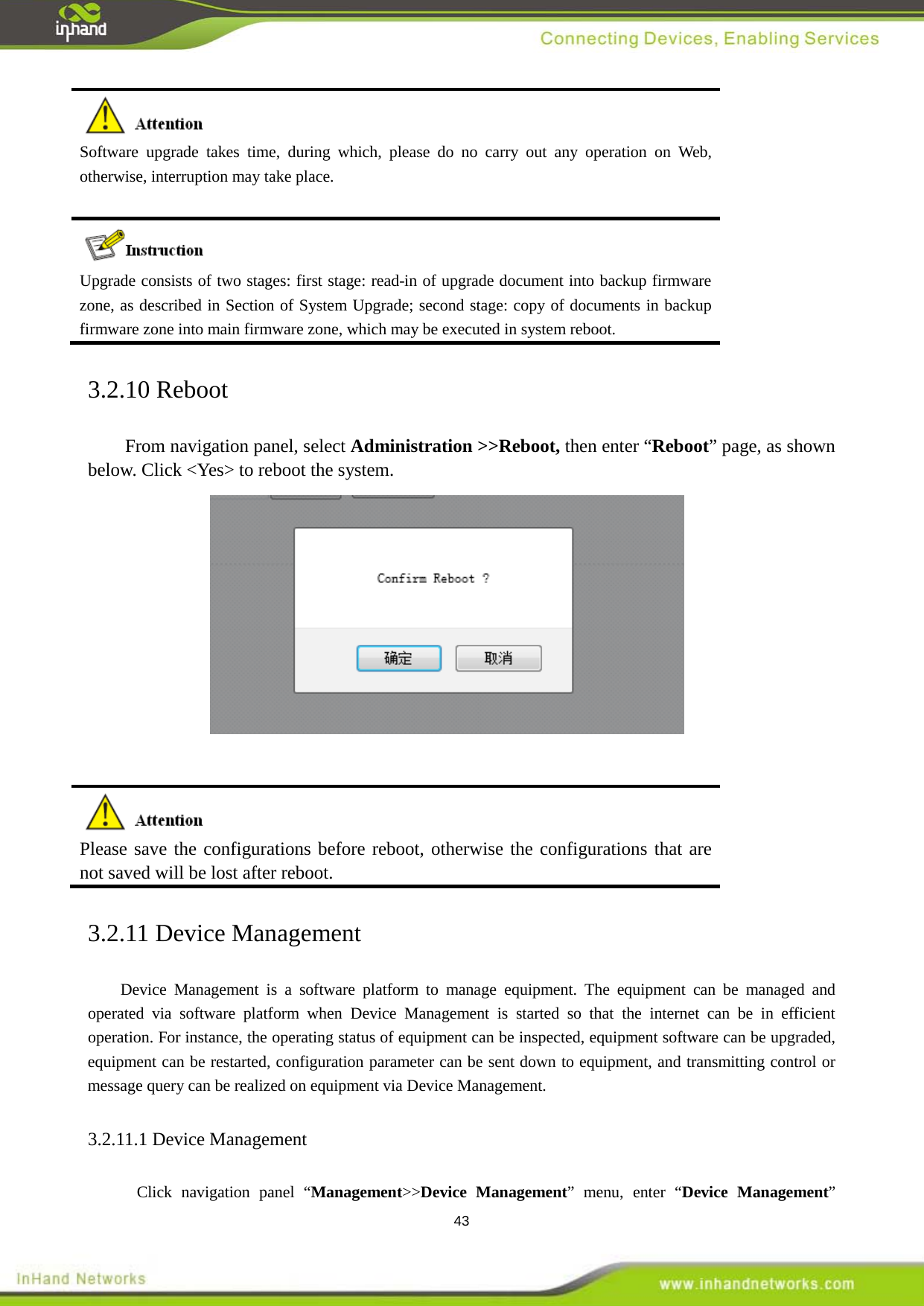
 43  Software upgrade takes time, during which, please do no carry out any operation on Web, otherwise, interruption may take place.  Upgrade consists of two stages: first stage: read-in of upgrade document into backup firmware zone, as described in Section of System Upgrade; second stage: copy of documents in backup firmware zone into main firmware zone, which may be executed in system reboot. 3.2.10 Reboot From navigation panel, select Administration >>Reboot, then enter “Reboot” page, as shown below. Click <Yes> to reboot the system.      Please save the configurations before reboot, otherwise the configurations that are not saved will be lost after reboot.   3.2.11 Device Management Device  Management is a  software platform to  manage equipment. The equipment can be managed and operated via software platform when Device  Management is started so that the internet can be in efficient operation. For instance, the operating status of equipment can be inspected, equipment software can be upgraded, equipment can be restarted, configuration parameter can be sent down to equipment, and transmitting control or message query can be realized on equipment via Device Management.   3.2.11.1 Device Management Click navigation panel “Management>>Device  Management” menu, enter “Device Management”
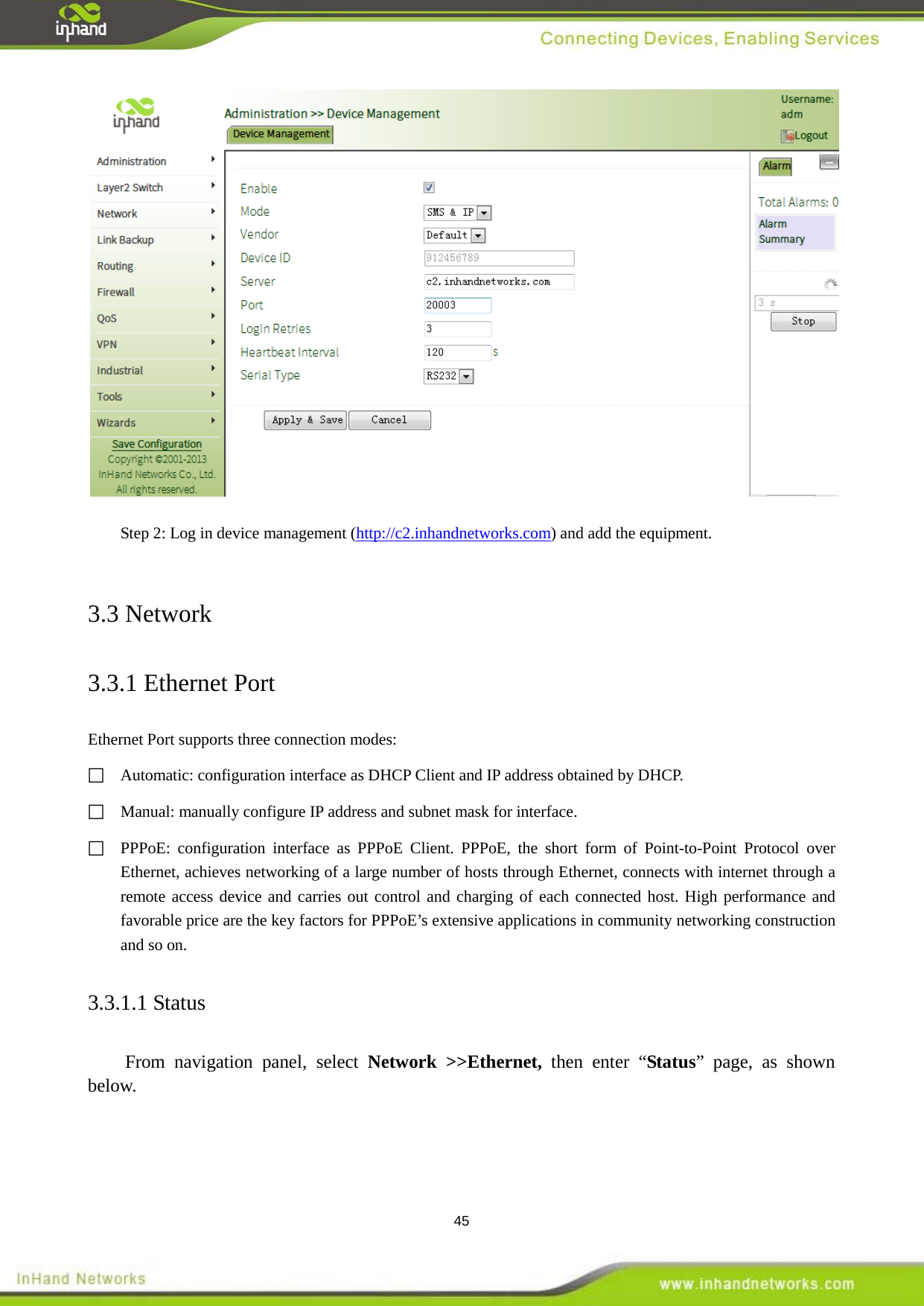
 44 interface, as shown below: “    Page description is shown below:  Parameter Name Description Default Value Schema   Message +IP  Forbidden   Supplier    Set name of equipment supplier  default Equipment ID    Unaltered equipment ID   server Set IP address of device management   c.inhandnetworks.com Port Set port No. of device management   9002 Login retry times    Set retry times    3 Heartbeat interval time Set heartbeat interval  120 sec Serial port type  RS232/RS485  RS232 3.2.11.2 Device Management Application Example Applications: add equipment to Device Management   Configuration procedures of router are as follows:   Step 1: Configure parameters of Device Management, in particular, server: c2.inhandnetworks.com, port: 20003, as shown below:
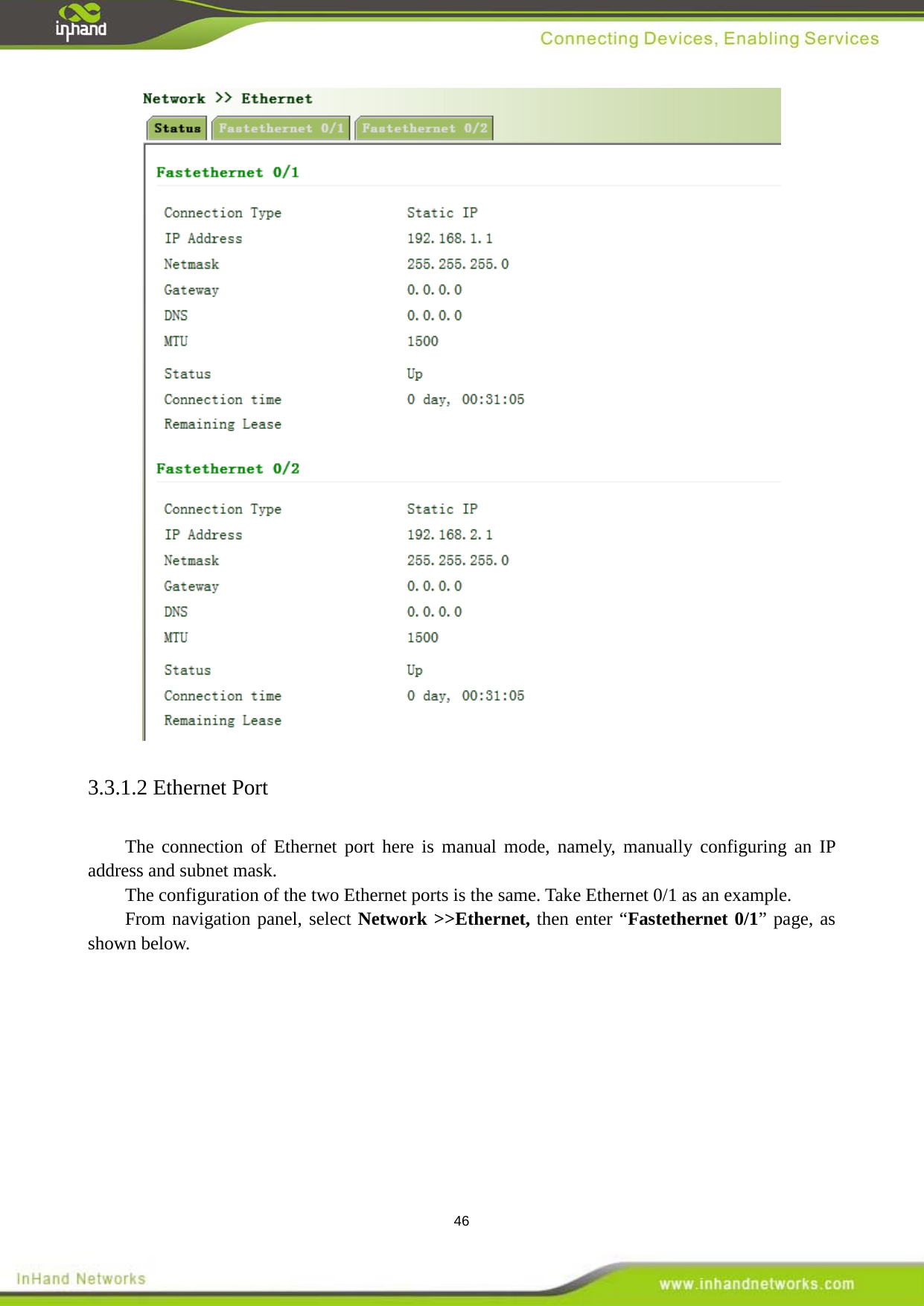
 45  Step 2: Log in device management (http://c2.inhandnetworks.com) and add the equipment.    3.3 Network 3.3.1 Ethernet Port Ethernet Port supports three connection modes:   Automatic: configuration interface as DHCP Client and IP address obtained by DHCP.       Manual: manually configure IP address and subnet mask for interface.  PPPoE: configuration interface as PPPoE Client. PPPoE, the short form of Point-to-Point Protocol over Ethernet, achieves networking of a large number of hosts through Ethernet, connects with internet through a remote access device and carries out control and charging of each connected host. High performance and favorable price are the key factors for PPPoE’s extensive applications in community networking construction and so on.   3.3.1.1 Status From navigation panel, select Network >>Ethernet, then enter “Status” page, as shown below.
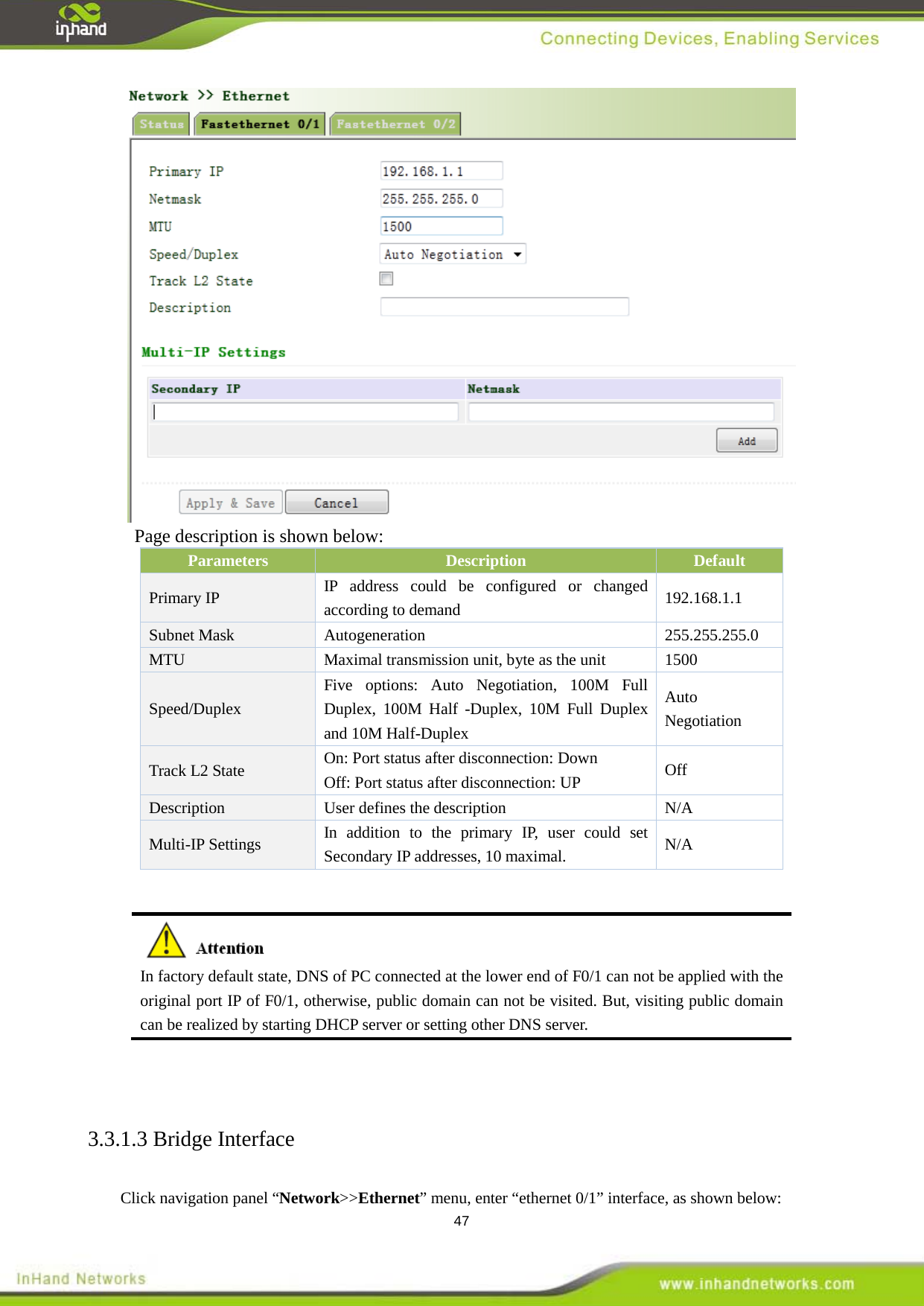
 46  3.3.1.2 Ethernet Port   The connection of Ethernet port here is manual mode, namely, manually configuring an IP address and subnet mask. The configuration of the two Ethernet ports is the same. Take Ethernet 0/1 as an example. From navigation panel, select Network >>Ethernet, then enter “Fastethernet 0/1” page, as shown below.
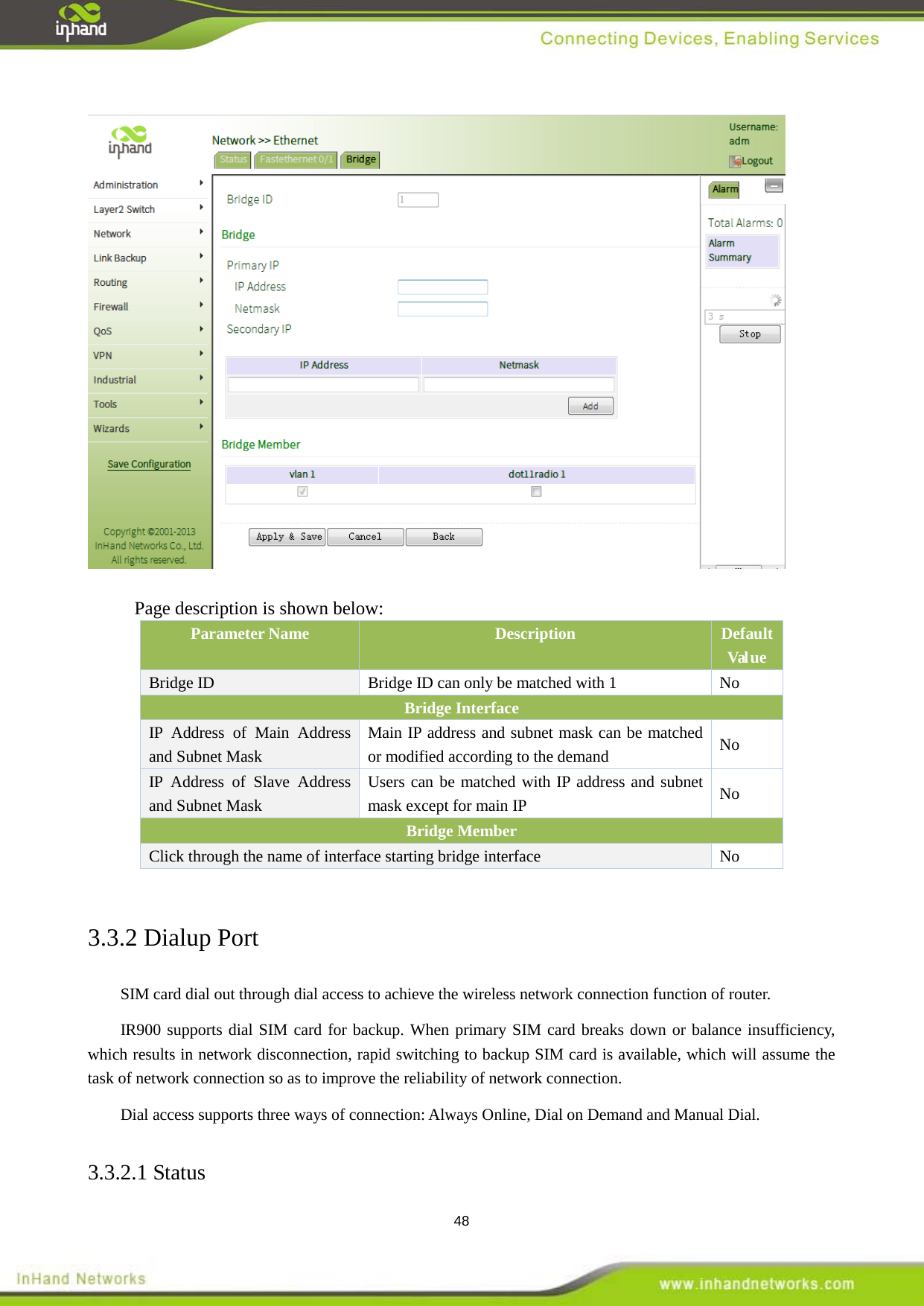
 47  Page description is shown below: Parameters Description Default   Primary IP IP address could be configured or changed according to demand  192.168.1.1 Subnet Mask  Autogeneration  255.255.255.0 MTU Maximal transmission unit, byte as the unit  1500 Speed/Duplex Five options: Auto Negotiation, 100M Full Duplex, 100M Half -Duplex, 10M Full Duplex and 10M Half-Duplex Auto Negotiation Track L2 State On: Port status after disconnection: Down Off: Port status after disconnection: UP Off Description User defines the description N/A Multi-IP Settings In addition to the primary IP, user could set Secondary IP addresses, 10 maximal. N/A   3.3.1.3 Bridge Interface   Click navigation panel “Network>>Ethernet” menu, enter “ethernet 0/1” interface, as shown below:    In factory default state, DNS of PC connected at the lower end of F0/1 can not be applied with the original port IP of F0/1, otherwise, public domain can not be visited. But, visiting public domain can be realized by starting DHCP server or setting other DNS server.
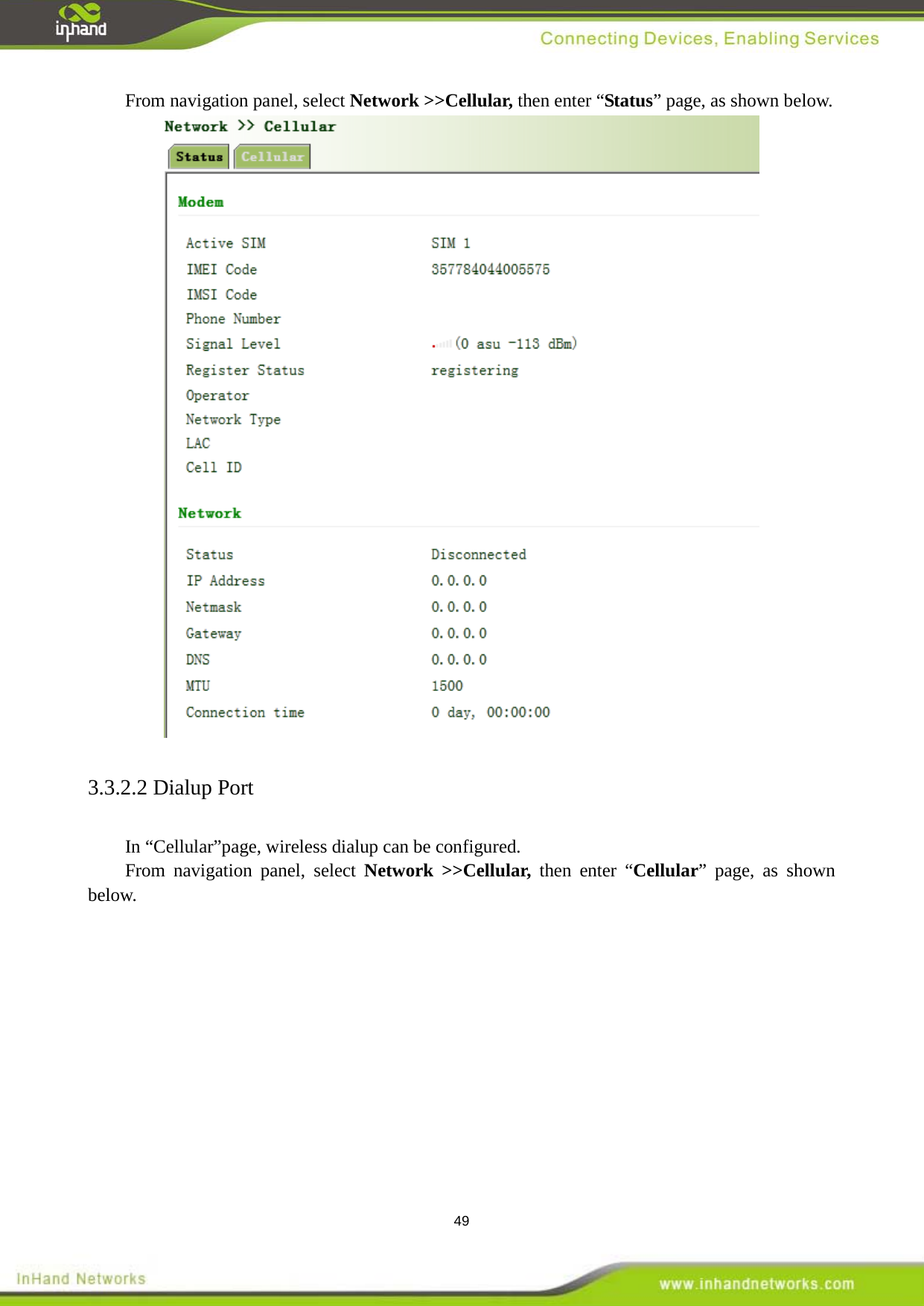
 48                      Page description is shown below:  Parameter Name Description   Default Val ue   Bridge ID  Bridge ID can only be matched with 1  No Bridge Interface IP Address of Main Address and Subnet Mask Main IP address and subnet mask can be matched or modified according to the demand    No IP Address of Slave Address and Subnet Mask Users can be matched with IP address and subnet mask except for main IP   No Bridge Member Click through the name of interface starting bridge interface No  3.3.2 Dialup Port SIM card dial out through dial access to achieve the wireless network connection function of router.   IR900 supports dial SIM card for backup. When primary SIM card breaks down or balance insufficiency, which results in network disconnection, rapid switching to backup SIM card is available, which will assume the task of network connection so as to improve the reliability of network connection.   Dial access supports three ways of connection: Always Online, Dial on Demand and Manual Dial. 3.3.2.1 Status
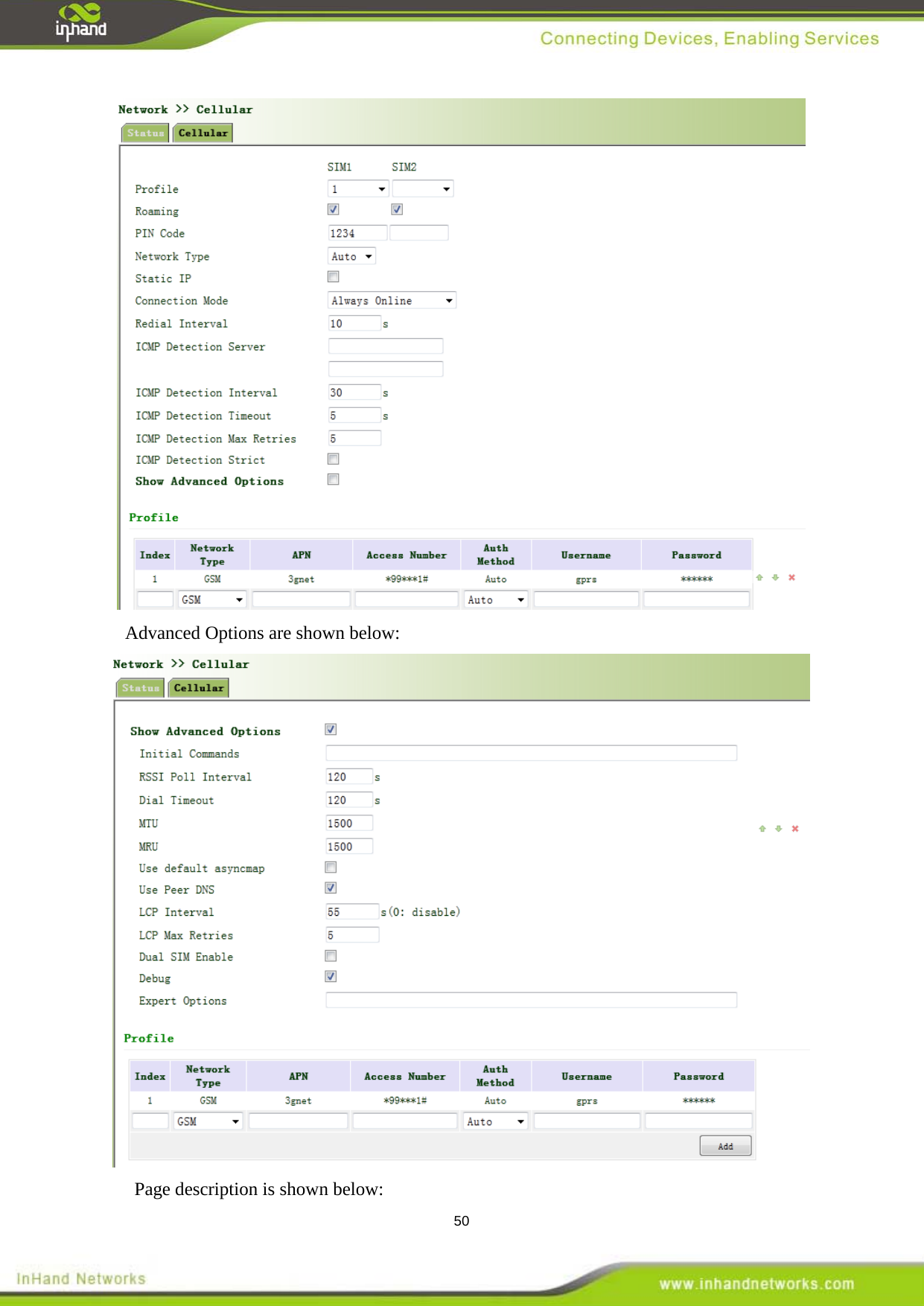
 49 From navigation panel, select Network >>Cellular, then enter “Status” page, as shown below.  3.3.2.2 Dialup Port In “Cellular”page, wireless dialup can be configured.   From navigation panel, select Network >>Cellular, then enter “Cellular” page, as shown below.
 50  Advanced Options are shown below:    Page description is shown below:
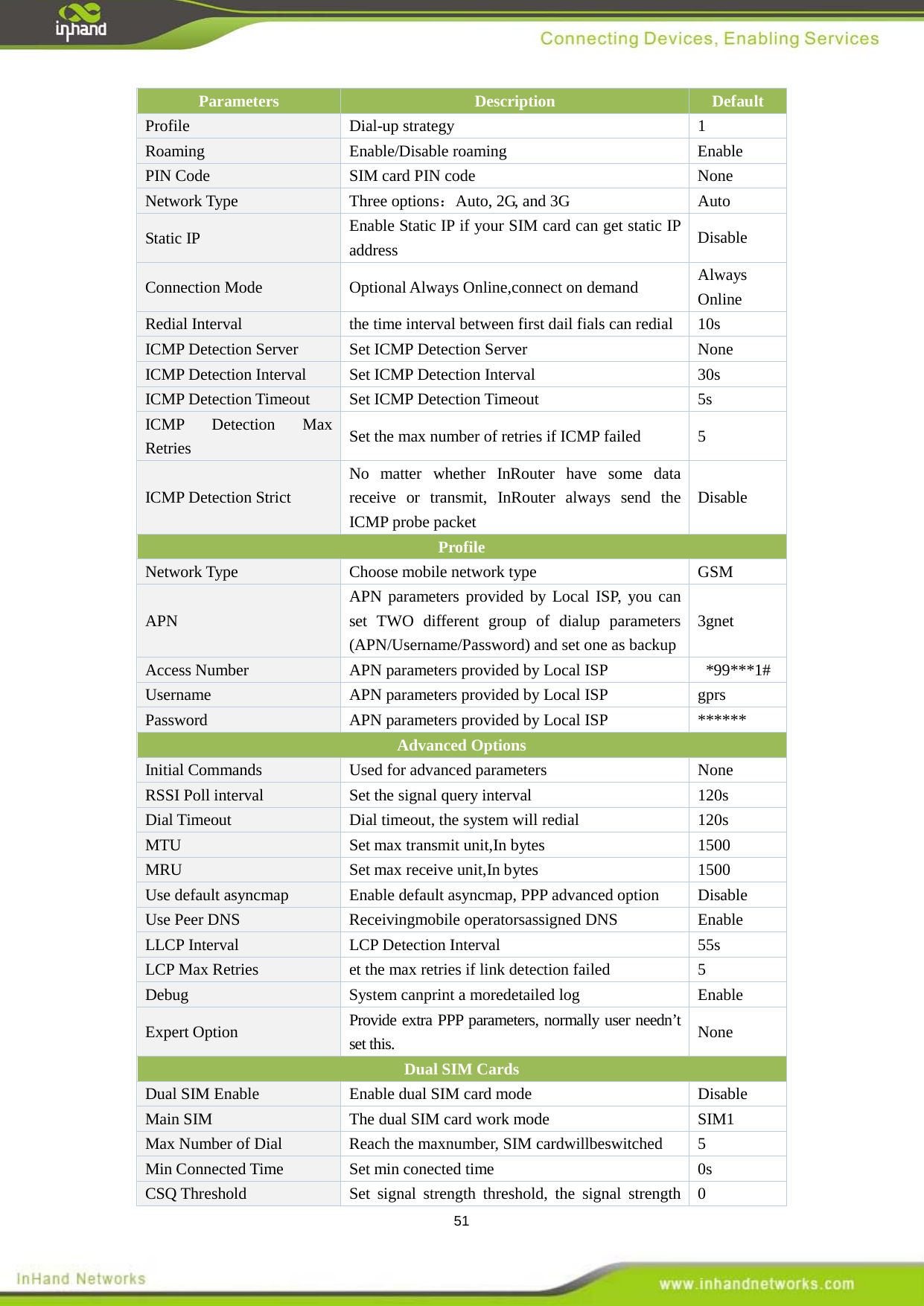
 51 Parameters Description   Default Profile   Dial-up strategy 1 Roaming  Enable/Disable roaming  Enable PIN Code SIM card PIN code  None Network Type Three options:Auto, 2G, and 3G  Auto Static IP Enable Static IP if your SIM card can get static IP address Disable Connection Mode  Optional Always Online,connect on demand  Always Online Redial Interval the time interval between first dail fials can redial  10s ICMP Detection Server Set ICMP Detection Server  None ICMP Detection Interval Set ICMP Detection Interval  30s ICMP Detection Timeout Set ICMP Detection Timeout  5s ICMP Detection Max Retries Set the max number of retries if ICMP failed  5   ICMP Detection Strict No matter whether InRouter have some data receive or transmit, InRouter always send the ICMP probe packet Disable Profile Network Type    Choose mobile network type  GSM APN APN parameters provided by Local ISP, you can set TWO different group of dialup parameters (APN/Username/Password) and set one as backup 3gnet Access Number APN parameters provided by Local ISP    *99***1# Username   APN parameters provided by Local ISP  gprs Password   APN parameters provided by Local ISP  ******   Advanced Options Initial Commands Used for advanced parameters  None RSSI Poll interval Set the signal query interval  120s Dial Timeout Dial timeout, the system will  120s redial MTU Set max transmit unit, 1500 In bytes MRU Set max receive unit, 1500 In bytes Use default asyncmap  Enable default asyncmap, PPP advanced option    Disable Use Peer DNS  Enable Receivingmobile operatorsassigned DNS LLCP Interval LCP Detection Interval  55s LCP Max Retries et the max retries if link detection failed  5 Debug  Enable System canprint a moredetailed log Expert Option Provide extra PPP parameters, normally user needn’t set this. None Dual SIM Cards Dual SIM Enable  Enable dual SIM card mode  Disable Main SIM The dual SIM card work mode  SIM1 Max Number of Dial  5 Reach the maxnumber, SIM cardwillbeswitched Min Connected Time Set min conected time  0s CSQ Threshold Set signal strength threshold, the signal strength  0
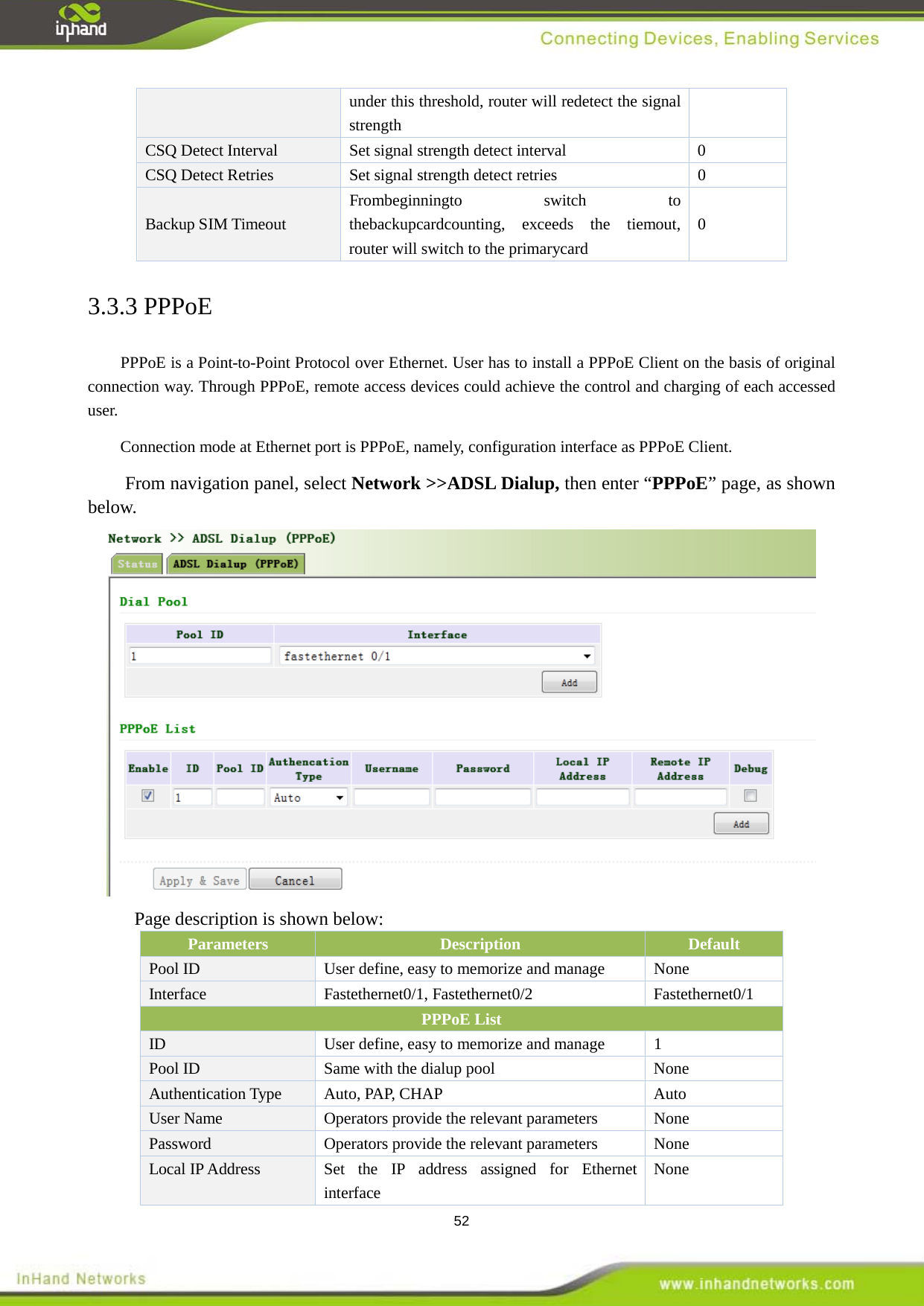
 52 under this threshold, router will redetect the signal strength CSQ Detect Interval Set signal strength detect interval    0 CSQ Detect Retries Set signal strength detect retries  0 Backup SIM Timeout Frombeginningto switch to thebackupcardcounting,  exceeds the tiemout, router will 0 switch to the primarycard 3.3.3 PPPoE PPPoE is a Point-to-Point Protocol over Ethernet. User has to install a PPPoE Client on the basis of original connection way. Through PPPoE, remote access devices could achieve the control and charging of each accessed user.   Connection mode at Ethernet port is PPPoE, namely, configuration interface as PPPoE Client. From navigation panel, select Network >>ADSL Dialup, then enter “PPPoE” page, as shown below.  Page description is shown below: Parameters Description Default   Pool ID    User define, easy to memorize and manage  None Interface   Fastethernet0/1, Fastethernet0/2 Fastethernet0/1 PPPoE List   ID User define, easy to memorize and manage  1 Pool ID  Same with the dialup pool  None Authentication Type Auto, PAP, CHAP Auto User Name   Operators provide the relevant parameters  None Password   Operators provide the relevant parameters  None Local IP Address Set the IP address assigned for Ethernet interface None
 53 Remote IP Address Set the IP of remote device  None 3.3.4 Loopback Loopback Interface is to take place of router’s ID since as long as an active interface is used, when it turns to DOWN, ID of router has to be selected again, resulting to long convergence time of OSPF. Therefore, generally Loopback Interface is recommended as the ID of router.   Loopback Interface is a logic and virtual interface. As default, a router has no Loopback Interface which can be created for a number. Those interfaces are the same as physical interfaces on router: addressing information allocated, including their network number in router upgrade and even IP connection could be terminated on them. From navigation panel, select Network >>Loopback, then enter “Loopback” page, as shown below.  Page description is shown below: Parameters Description Default   IP Address  Users can not change  127.0.0.1 Netmask  Users can not change  255.0.0.0 Multi-IP Settings Apart from above IP, user can configure other IP address N/A   Since loopback interface takes up one IP address, subnet mask is suggested to be 255.255.255.255 for the purpose of saving resources. 3.3.5 DHCP service Along with the continuous expansion of network size and complication of network, number of computers often exceeds distributable IP addresses. Meanwhile, in pace with the extensive application of portable devices and wireless network, position of computer changes frequently, resulting to the frequent upgrade of IP address, leading to a more and more complicated network configuration. DHCP (Dynamic Host Configuration Protocol)is a product for such demands.
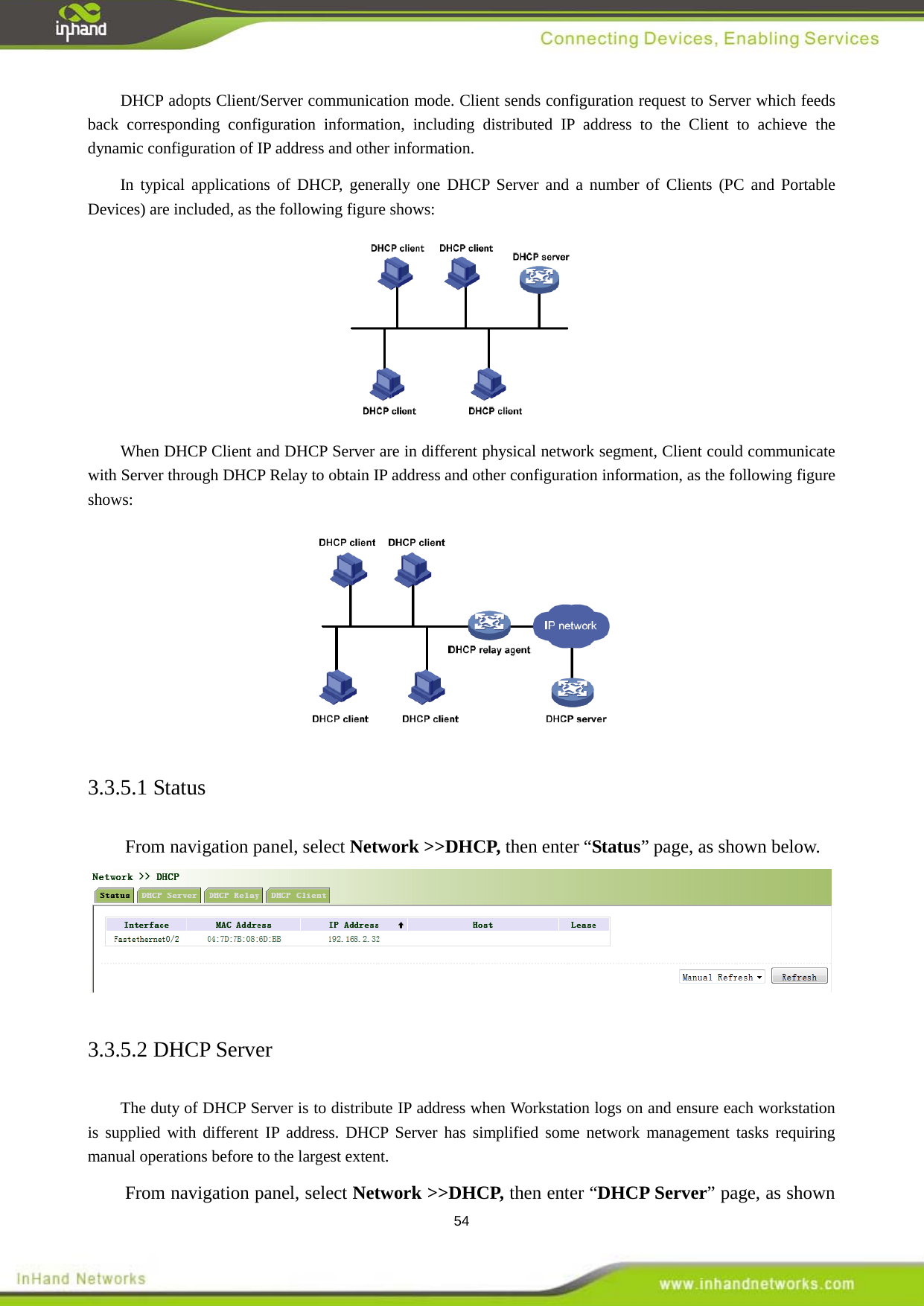
 54 DHCP adopts Client/Server communication mode. Client sends configuration request to Server which feeds back corresponding configuration information, including distributed IP address to the Client to achieve the dynamic configuration of IP address and other information.   In typical applications of DHCP, generally one DHCP Server and a number of Clients (PC and Portable Devices) are included, as the following figure shows:    When DHCP Client and DHCP Server are in different physical network segment, Client could communicate with Server through DHCP Relay to obtain IP address and other configuration information, as the following figure shows:    3.3.5.1 Status From navigation panel, select Network >>DHCP, then enter “Status” page, as shown below.  3.3.5.2 DHCP Server The duty of DHCP Server is to distribute IP address when Workstation logs on and ensure each workstation is supplied with different IP address. DHCP Server has simplified some network management tasks requiring manual operations before to the largest extent.   From navigation panel, select Network >>DHCP, then enter “DHCP Server” page, as shown
 55 below.  Page description is shown below: Parameters Description Default   Enable  On/Off Off Interface Fastethernet0/1and Fastethernet0/2 available Fastethernet0/1 Starting Address Dynamical distribution of starting IP address N/A Ending Address Dynamical distribution of ending IP address N/A Lease Dynamical distribution of IP validity  1440 DNS Server One or two, or None N/A WINS  Setup of WINS, generally left blank  N/A Static IP Setup MAC Address Set up a static specified DHCP’s MAC address  (different from other MACs to avoid confliction) 0000.0000.0000 IP Address Set up a static specified IP address (within the scope from start IP to end IP) N/A    If the host connected with router chooses to obtain IP address automatically, then such service must be activated. Static IP setup could help a certain host to obtain specified IP address.  InRouter900 F0/2 enable DHCP server by default; obtaining IP address automatically is suggested.
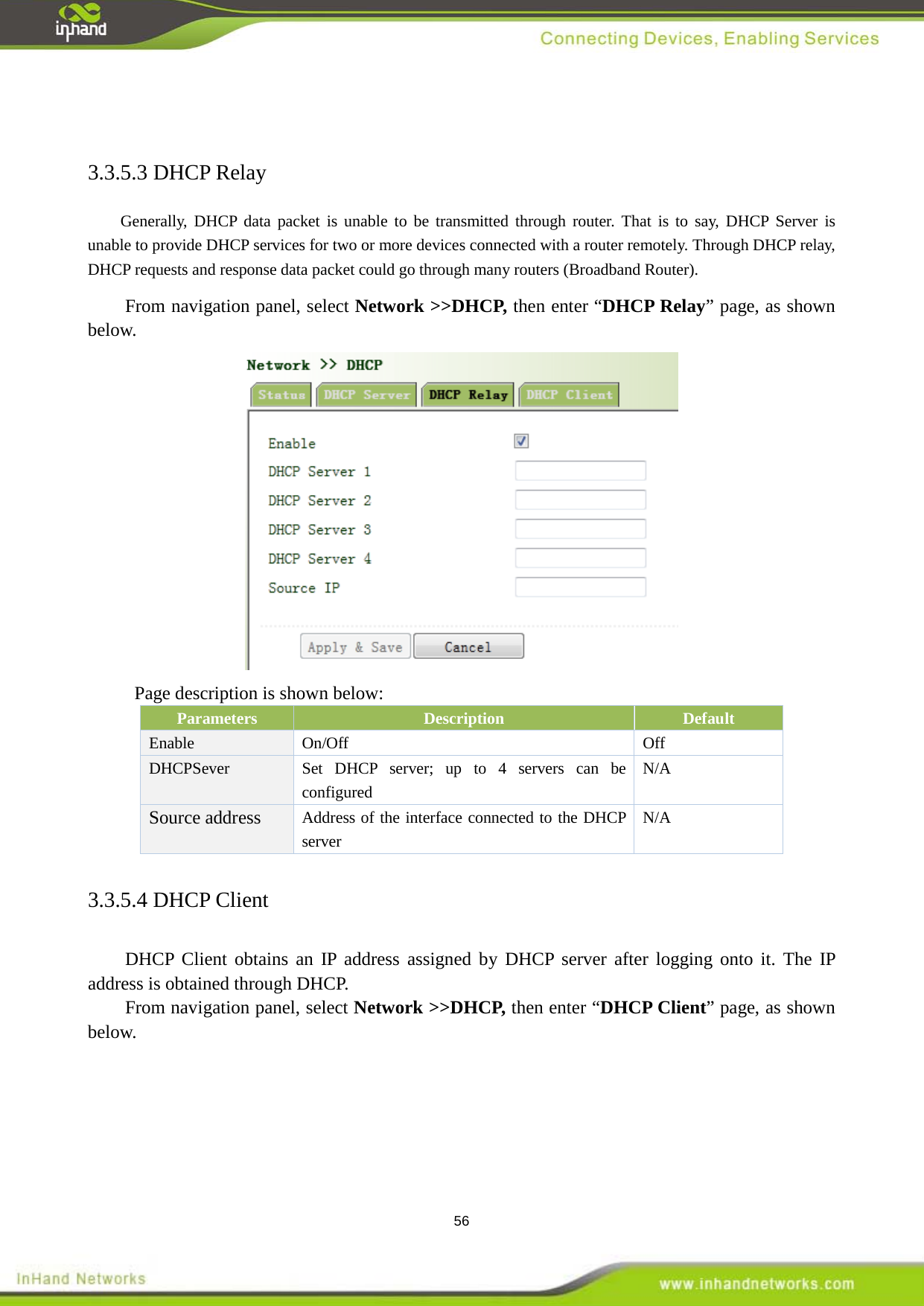
 56  3.3.5.3 DHCP Relay   Generally, DHCP data packet is unable to be transmitted through router. That is to say, DHCP Server is unable to provide DHCP services for two or more devices connected with a router remotely. Through DHCP relay, DHCP requests and response data packet could go through many routers (Broadband Router).   From navigation panel, select Network >>DHCP, then enter “DHCP Relay” page, as shown below.  Page description is shown below: Parameters Description Default Enable  On/Off Off DHCPSever Set DHCP server; up to 4 servers can be configured N/A Source address Address of the interface connected to the DHCP server N/A 3.3.5.4 DHCP Client   DHCP Client obtains an IP address assigned by DHCP server after logging onto it. The IP address is obtained through DHCP.   From navigation panel, select Network >>DHCP, then enter “DHCP Client” page, as shown below.
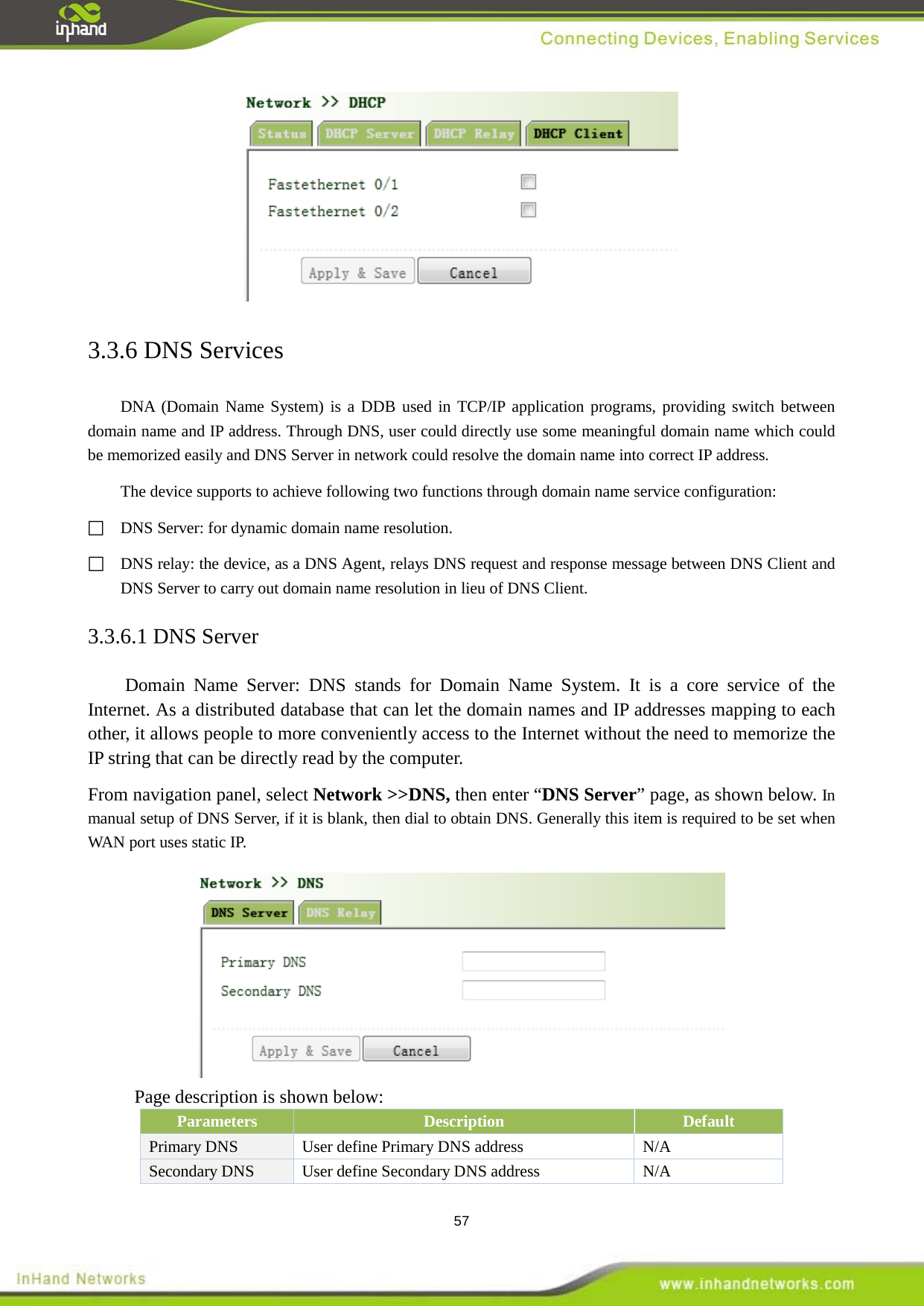
 57  3.3.6 DNS Services DNA (Domain Name System) is a DDB used in TCP/IP application programs, providing switch between domain name and IP address. Through DNS, user could directly use some meaningful domain name which could be memorized easily and DNS Server in network could resolve the domain name into correct IP address.   The device supports to achieve following two functions through domain name service configuration:  DNS Server: for dynamic domain name resolution.    DNS relay: the device, as a DNS Agent, relays DNS request and response message between DNS Client and DNS Server to carry out domain name resolution in lieu of DNS Client.   3.3.6.1 DNS Server Domain Name Server: DNS stands for Domain Name System. It is a core service of the Internet. As a distributed database that can let the domain names and IP addresses mapping to each other, it allows people to more conveniently access to the Internet without the need to memorize the IP string that can be directly read by the computer. From navigation panel, select Network >>DNS, then enter “DNS Server” page, as shown below. In manual setup of DNS Server, if it is blank, then dial to obtain DNS. Generally this item is required to be set when WAN port uses static IP.    Page description is shown below: Parameters Description Default Primary DNS User define Primary DNS address   N/A Secondary DNS User define Secondary DNS address N/A
 58 3.3.6.2 DNS Relay DNS forwarding: DNS forwarding is open by default. You can set the specified [Domain Name <=> IP Address] to let IP address match with the domain name, thus allowing access to the appropriate IP through accessing to the domain name.   From navigation panel, select  Network >>DNS, then enter “DNS Relay” page, as shown below.  Page description is shown below: Parameters Description Default Enable DNS Relay On/Off On Host Domain Name N/A IP Address 1 Set IP Address 1 N/A IP Address 2 Set IP Address 2 N/A   Once DHCP is turned on, DNS relay will be turned on as default and can’t be turned off; to turn off DNS rely, DHCP Server has to be closed firstly. 3.3.7 Dynamic Domain Name DDNS is the abbreviation of Dynamic Domain Name Server. DDNS maps user's dynamic IP address to a fixed DNS service. When the user connects to the network, the client program will pass the host’s dynamic IP address to the server program on the service provider’s host through information passing. The server program is responsible for providing DNS service and realizing dynamic DNS. It means that DDNS captures user's each change of IP address and matches it with the domain name, so that other Internet users can communicate through the domain name. What end customers have to remember is the domain name assigned by the dynamic domain name registrar, regardless of how it is achieved.   DDNS serves as a client tool of DDNS and is required to coordinate with DDNS Server.
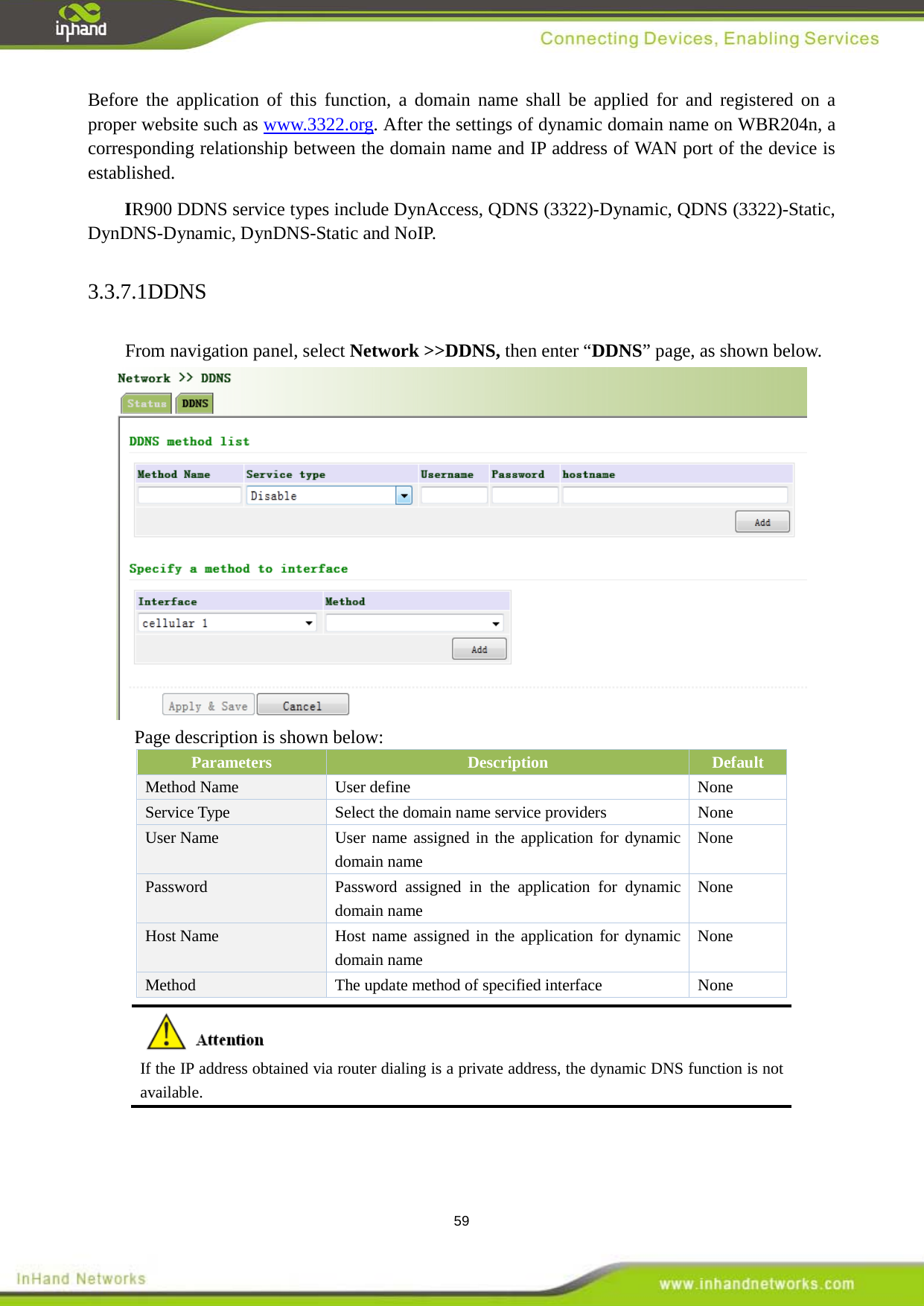
 59 Before the application of this function, a domain name shall be applied for and registered on a proper website such as www.3322.org. After the settings of dynamic domain name on WBR204n, a corresponding relationship between the domain name and IP address of WAN port of the device is established.   IR900 DDNS service types include DynAccess, QDNS (3322)-Dynamic, QDNS (3322)-Static, DynDNS-Dynamic, DynDNS-Static and NoIP. 3.3.7.1DDNS From navigation panel, select Network >>DDNS, then enter “DDNS” page, as shown below.  Page description is shown below: Parameters Description Default Method Name User define    None Service Type Select the domain name service providers  None User Name User name assigned in the application for dynamic domain name None Password Password assigned in the application for dynamic domain name   None Host Name Host name assigned in the application for dynamic domain name None Method  The update method of specified interface  None    If the IP address obtained via router dialing is a private address, the dynamic DNS function is not available.
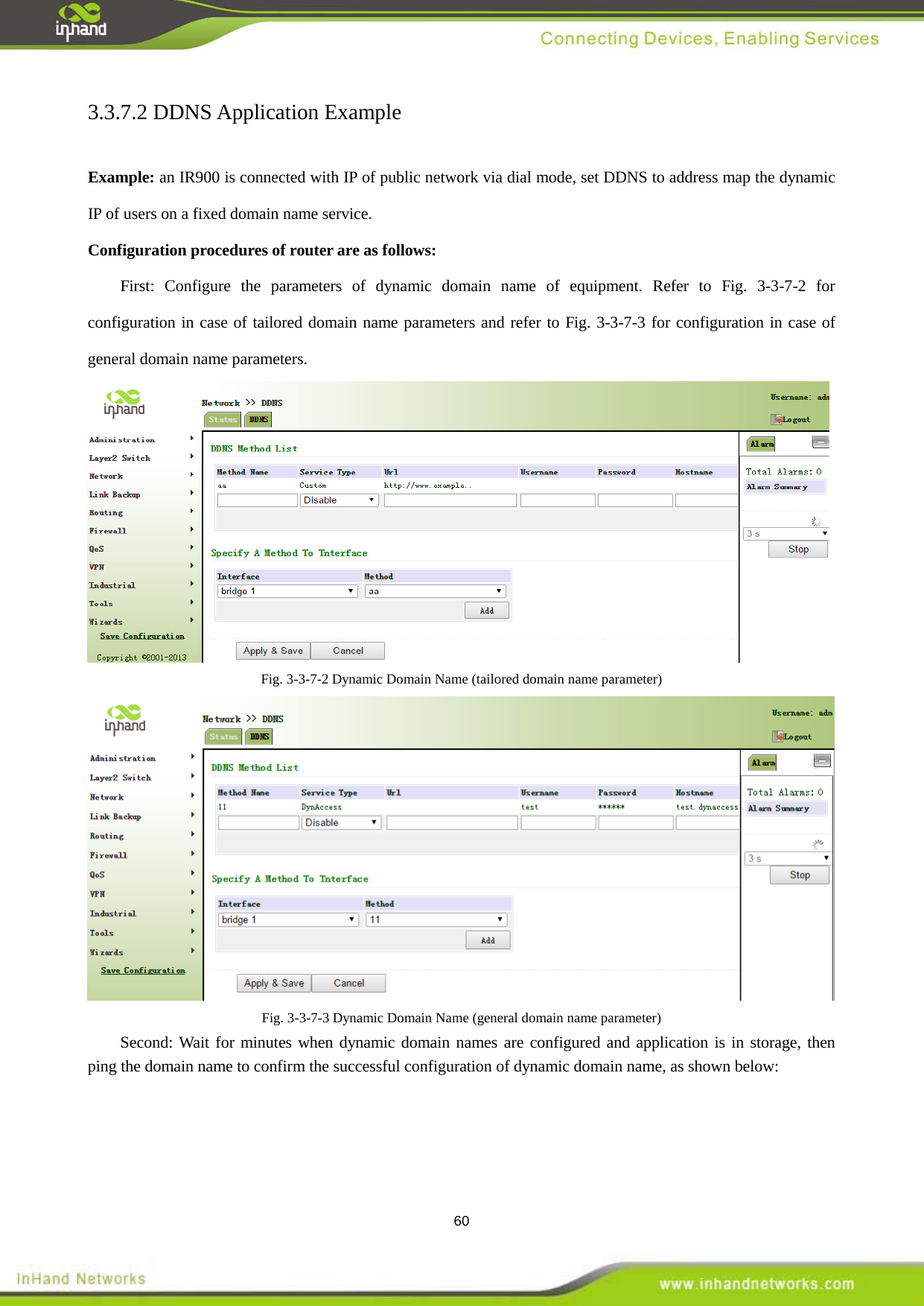
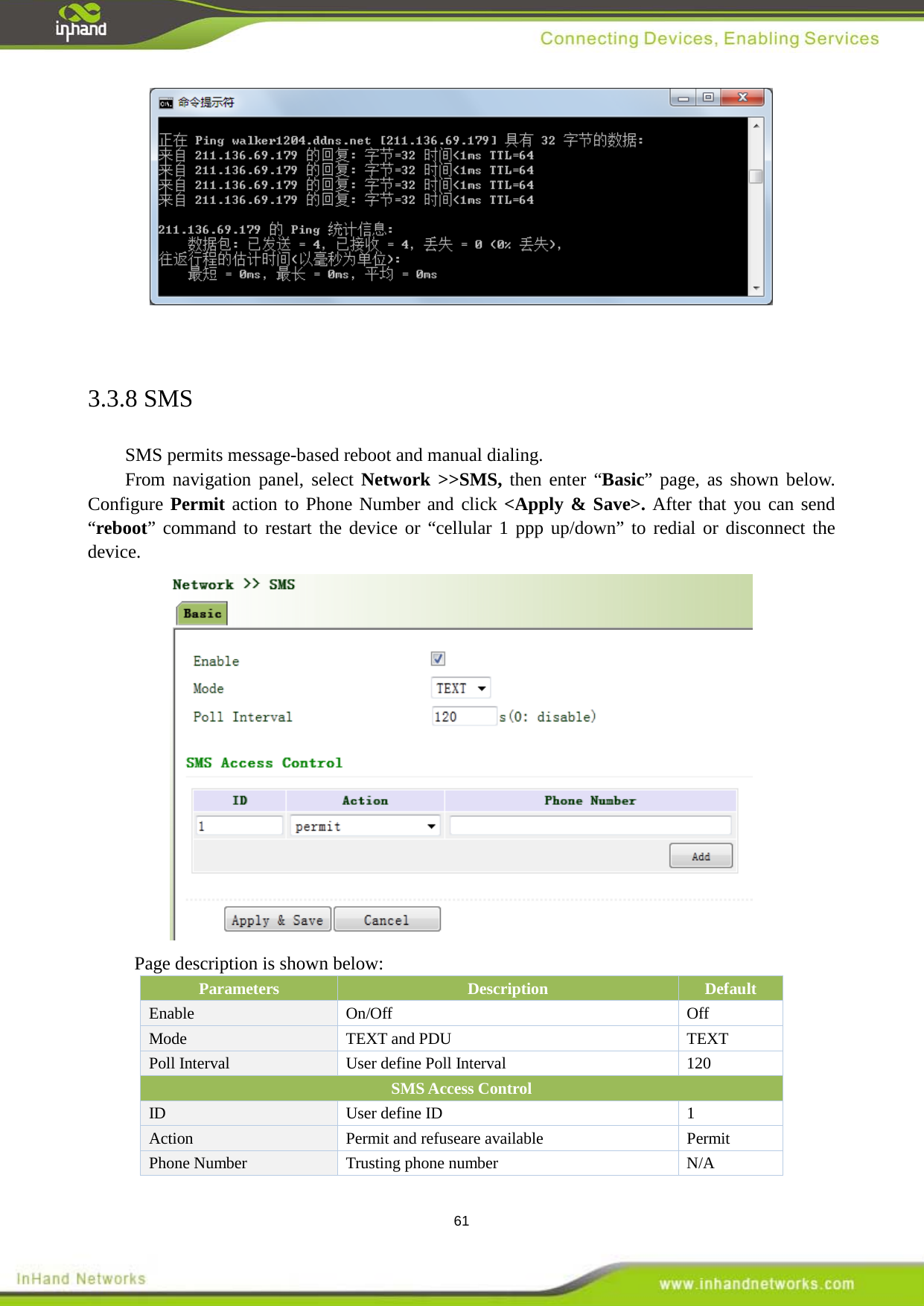
 60 3.3.7.2 DDNS Application Example     Example: an IR900 is connected with IP of public network via dial mode, set DDNS to address map the dynamic IP of users on a fixed domain name service.   Configuration procedures of router are as follows:   First: Configure the parameters of dynamic domain name of equipment. Refer to Fig. 3-3-7-2 for configuration in case of tailored domain name parameters and refer to Fig. 3-3-7-3 for configuration in case of general domain name parameters.    Fig. 3-3-7-2 Dynamic Domain Name (tailored domain name parameter)  Fig. 3-3-7-3 Dynamic Domain Name (general domain name parameter) Second: Wait for minutes when dynamic domain names are configured and application is in storage, then ping the domain name to confirm the successful configuration of dynamic domain name, as shown below:
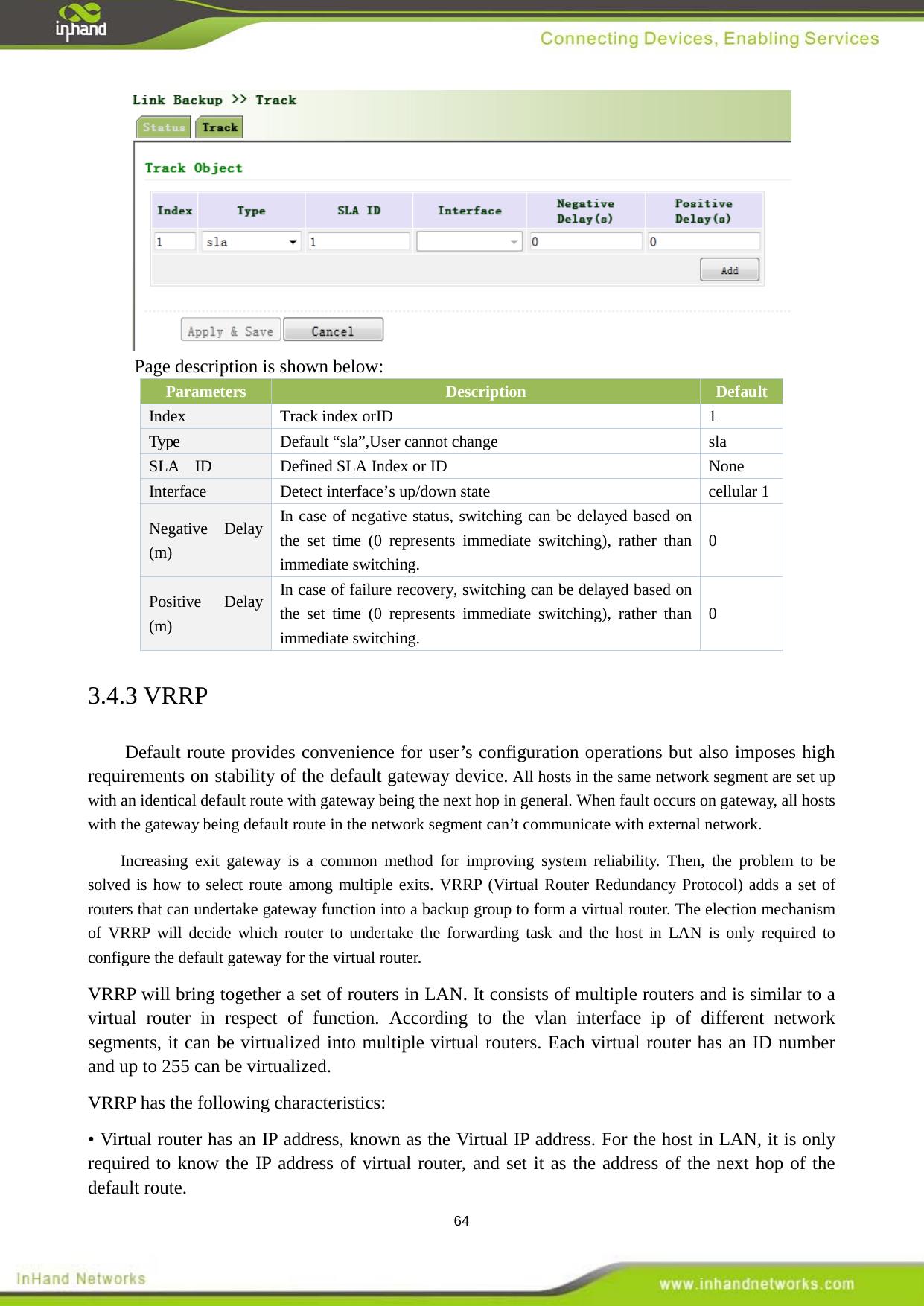
 61    3.3.8 SMS SMS permits message-based reboot and manual dialing.   From navigation panel, select Network >>SMS, then enter “Basic” page, as shown below. Configure Permit action to Phone Number and click <Apply & Save>. After that you can send “reboot” command to restart the device or “cellular 1 ppp up/down” to redial or disconnect the device.  Page description is shown below: Parameters Description Default Enable  On/Off Off Mode  TEXT and PDU TEXT Poll Interval   User define Poll Interval    120 SMS Access Control   ID User define ID  1 Action   Permit and refuseare available   Permit   Phone Number    Trusting phone number  N/A
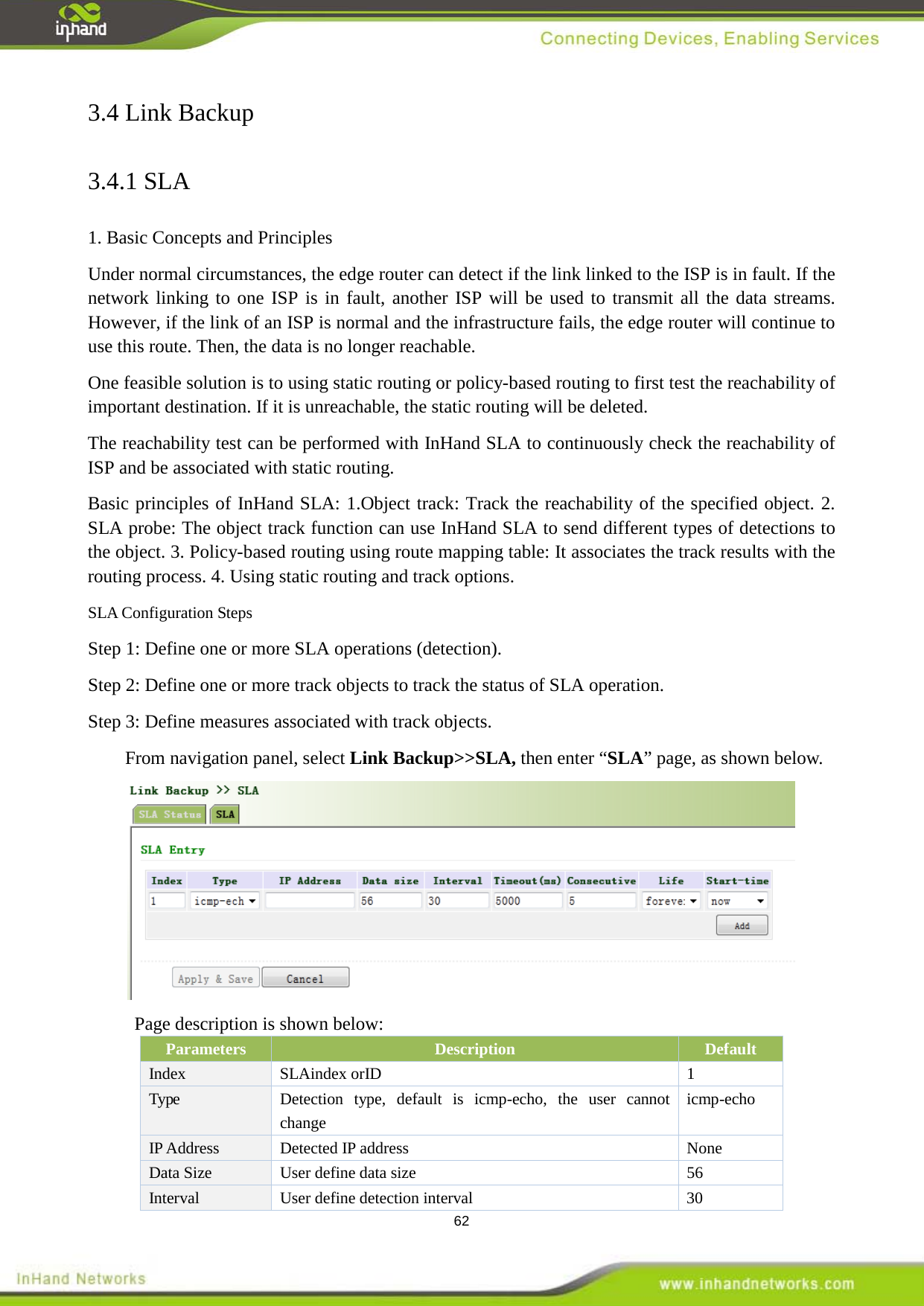
 62 3.4 Link Backup 3.4.1 SLA 1. Basic Concepts and Principles   Under normal circumstances, the edge router can detect if the link linked to the ISP is in fault. If the network linking to one ISP is in fault, another ISP will be used to transmit all the data streams. However, if the link of an ISP is normal and the infrastructure fails, the edge router will continue to use this route. Then, the data is no longer reachable.   One feasible solution is to using static routing or policy-based routing to first test the reachability of important destination. If it is unreachable, the static routing will be deleted. The reachability test can be performed with InHand SLA to continuously check the reachability of ISP and be associated with static routing. Basic principles of InHand SLA: 1.Object track: Track the reachability of the specified object. 2. SLA probe: The object track function can use InHand SLA to send different types of detections to the object. 3. Policy-based routing using route mapping table: It associates the track results with the routing process. 4. Using static routing and track options. SLA Configuration Steps Step 1: Define one or more SLA operations (detection). Step 2: Define one or more track objects to track the status of SLA operation. Step 3: Define measures associated with track objects. From navigation panel, select Link Backup>>SLA, then enter “SLA” page, as shown below.  Page description is shown below: Parameters Description Default Index  1 SLAindex orID Type Detection type,  default is icmp-echo, the user cannot change   icmp-echo IP Address Detected IP address  None Data Size   User define data size    56   Interval   User define detection interval    30
 63 Timeout (ms) User define,Timeout for detection to fail  5000 Connecutive  Detection retries  5 Life Default is “forever”, user cannot change   forever Start-time Detection Start-time, select “now” or None  now 3.4.2 Track Module Track is designed to achieve linkage consisting of application module, Track module and monitoring module. Linkage refers to achieve the linkage amongst different modules through the establishment of linkage items, namely, the monitoring module could trigger application module to take a certain action through Track module. Monitoring module is responsible for detection of link status, network performance and notification to application module of detection results via Track module. Once the application module finds out any changes in network status, corresponding measures will be taken on a timely basis so as to avoid interruption of communication or reduction of service quality. Track module is located between application module and monitoring module with main functions of shielding the differences of different monitoring modules and providing uniform interfaces for application module. Track Module and Monitoring Module Linkage   Through configuration, the linkage relationship between Track module and monitoring module is established. Monitoring module is responsible for detection of link status, network performance and notification to application module of detection results via Track module so as to carry out timely change of the status of Track item:   Successful detection, corresponding track item is Positive   Failed detection, corresponding track item is Negative   Track Module and Application Module Linkage Through configuration, the linkage relationship between Track module and application module is established. In case of any changes in track item, a notification requiring correspondent treatment will be sent to application module. Currently, application modules which could achieve linkage with track module include: VRRP, static routing, strategy-based routing and interface backup.   Under certain circumstances, once any changes in Track item are founded, if a timely notification is sent to application module, then communication may be interrupted due to routing’s failure in timely restoration and other reasons. For example, Master router in VRRP backup group could monitor the status of upstream interface through Track. In case of any fault in upstream interface, Master router will be notified to reduce priority so that Backup router may ascend to the new Master to be responsible for relay of message. Once upstream interface is recovered, so long as Track immediately sends a message to original Master router to recover priority, then the router will take over the task of message relay. At that time, message relay failure may occur since the router has not restored to the upstream router. Under such circumstances, user to configure that once any changes take place in Track item, delays a period of time to notify the application module.   From navigation panel, select Link Backup>>Track, then enter “Track” page, as shown below.
 64  Page description is shown below: Parameters Description Default Index    Track 1  index orID Type Default “sla”,User cannot change sla SLA  ID  Defined SLA Index or ID  None Interface Detect interface’s up/down state cellular 1 Negative Delay (m) In case of negative status, switching can be delayed based on the set time (0 represents immediate switching), rather than immediate switching. 0 Positive Delay (m) In case of failure recovery, switching can be delayed based on the set time (0 represents immediate switching), rather than immediate switching. 0 3.4.3 VRRP Default route provides convenience for user’s configuration operations but also imposes high requirements on stability of the default gateway device. All hosts in the same network segment are set up with an identical default route with gateway being the next hop in general. When fault occurs on gateway, all hosts with the gateway being default route in the network segment can’t communicate with external network.   Increasing exit gateway is a common method for improving system reliability. Then, the problem to be solved is how to select route among multiple exits. VRRP (Virtual Router Redundancy Protocol) adds a set of routers that can undertake gateway function into a backup group to form a virtual router. The election mechanism of VRRP will decide which router to undertake the forwarding task and the host in LAN is only required to configure the default gateway for the virtual router. VRRP will bring together a set of routers in LAN. It consists of multiple routers and is similar to a virtual router in respect of function. According to the vlan interface ip of different network segments, it can be virtualized into multiple virtual routers. Each virtual router has an ID number and up to 255 can be virtualized. VRRP has the following characteristics: • Virtual router has an IP address, known as the Virtual IP address. For the host in LAN, it is only required to know the IP address of virtual router, and set it as the address of the next hop of the default route.
 65 • Host in the network communicates with the external network through this virtual router. •  1 router will be selected from the set of routers based on priority to undertake the gateway function. Other routers will be used as backup routers to perform the duties of gateway for the gateway router in case of fault of gateway router, thus to guarantee uninterrupted communication between the host and external networkVRRP Networking Scheme:  As shown in Figure above, Router A and Router C compose a virtual router. This virtual router has its own IP address. The host in LAN will set the virtual router as the default gateway. Router A or Router C, the one with the highest priority, will be used as the gateway router to undertake the function of gateway. Another router will be used as a Backup router.Monitor interface function of VRRP better expands backup function: the backup function can be offered when interface of a certain router has fault or other interfaces of the router are unavailable.   When interface connected with the uplink is at the state of Down or Removed, the router actively reduces its priority so that the priority of other routers in the backup group is higher and thus the router with highest priority becomes the gateway for the transmission task.   3.4.3.1 VRRP Configuration From navigation panel, select Link Backup>>VRRP, then enter “VRRP” page, as shown below.  Page description is shown below: Parameters Description Default Enable  Enable/Disable  Enable Virtual Route ID User define Virtual Route ID  None Interface  Configure the interface of Virtual Route  None Virtual IP Address  Configure the IP address of Virtual Route  None
 66 Parameters Description Default Priority The VRRP priority range is 0-255 (a larger number indicates a higher priority). The router with higher priority will be more likely to become the gateway router. 100 Advertisement Interval Heartbeat package transmission time interval between routers in the virtual ip group  1 Preemption Mode If the router works in the preemptive mode, once it finds that its own priority is higher than that of the current gateway router, it will send VRRP notification package, resulting in re-election of gateway router and eventually replacing the original gateway router. Accordingly, the original gateway router will become a Backup router.   Enable Track ID Trace Detection, select the definedTrack index or ID    None 3.4.3.2 VRRP Typical Configuration Example 1. Networking Demand   Mainframe A makes VRRP backup combined with router A and router B as its default gateway to visit the mainframe B on internet.   VRRP backup is composed of:     Backup group ID 1  IP address of backup group virtual router 192.168.2.254/24  Interchanger A Master   Interchanger B backup interchanger preemptive allowable Router   Ethernet interface connected with hostA   IP address of interface connected with hostA   Priority  Working mode   R_A F0/1  192.168.2.1  110  preemptive R_B F0/1  192.168.2.2  100  preemptive 2. Networking Diagram
 67  3. Configuration Procedures  (1) Configure router A   First: Configure F0/1 Click navigation panel “Link Backup>>VRRP”, enter “VRRP” interface, configure VRRP, as shown in the following figure:            Click navigation panel “Link Backup>>VRRP”, enter “VRRP” interface, examine VRRP, as shown in the following figure:    Second: Configure F0/2 Click navigation panel “Internet>>Ethernet Interface”, enter “Ethernet Interface 0/2”, configure Ethernet interface 0/2, as shown in the following figure:
 68  (2) Configure router B:   First: Configure F0/1 Click navigation panel “Link Backup>>VRRP”, enter “VRRP” interface, configure VRRP, as shown in the following figure:   Click navigation panel “Link Backup>>VRRP”, enter “VRRP” interface, examine VRRP, as shown in the following figure:   Second: Configure F0/2
 69 Click navigation panel “Internet>>Ethernet Interface”, enter “Ethernet Interface 0/2”, configure Ethernet interface 0/2, as shown in Fig. 3-4-3-7:    Default gateway of mainframe A is 192.168.2.254. Router A functions as the gateway under normal working conditions and router B will take over the function when router A closes down or breaks down. Setting preemption is to keep the function of router A as gateway under Master when router A returns to work.    3.4.4 Interface Backup Interface backup refers to backup relationship formed between appointed interfaces in the same equipment. When service transmission can’t be carried out normally due to fault of a certain interface or lack of bandwidth, rate of flow can be switched to backup interface quickly and the backup interface will carry out service transmission and share network flow so as to raise reliability of communication of data equipment.   When link state of main interface is switched from up to down, system will wait for preset delay first instead of switching to link of backup interface immediately. Only if the state of main interface still keeps down after the delay, system will switch to link of backup interface. Otherwise, system will not switch.   After link state of main interface is switched from down to up, system will wait for preset delay first instead of switching back to main interface immediately. Only if state of main interface still keeps up after the delay, system will switch back to main interface. Otherwise, system will not switch.   3.4.4.1 Interface Backup From navigation panel, select Link Backup>>Interface Backup, then enter “Interface Backup” page, as shown below.
 70  Page description is shown below: Parameters Description Default Primary Interface The interface being used cellular 1 Backup Interface Interface to be switched cellular 1 Start-up Delay Set how long to wait for the start-up tracking detection policy to take effect 60 Up Delay When the primary interface switches from failed detection to successful detection, switching can be delayed based on the set time (0 represents immediate switching), rather than immediate switching. 0 Down Delay When the primary interface switches from successful detection to failed detection, switching can be delayed based on the set time (0 represents immediate switching), rather than immediate switching. 0 Track ID Trace Detection, select the definedTrack index or ID  None 3.4.4.2 Interface Backup Application Example Example: a router IR900 is connected with PC at its fastethernet 0/2, fastethernet 0/1 of IR900 is connected with the internet via wired network, topological graph is shown in the following figure. Establish interface backup in configuring router so that it can surf the internet through dial-up in malfunction of wired network.    Configuration Procedures of router are as follows:   Step 1: Open “Wizards>>New WAN”, configure parameters of wired network, as shown in the following figure.    LAN Gateway Enterprise Gateway
 71   Step 2: Open “DNS” in “Network>>DNS”, configure corresponding parameters, as shown in the following figure. Examine PC to ensure its normal access to the internet after configuration.     Step 3: Open “Link Backup>>SLA”, configure corresponding parameters, the IP address shall be the host address explored by ICMP in public network or private network, for instance, 203.86.63.233 is the gateway address of enterprise where PC is affiliated, as shown in the following figure.     Step 4: Open “Link Backup>>Track”, configure corresponding parameters, as shown in Fig. 3-4-4-5.
 72  Step 5: Open “Link Backup>>Interface Backup”, configure corresponding parameters, as shown in the following figure.    Step 6: Open “Routing>>Static Routing”, configure corresponding parameters and add 3 routes, 10.5.3.234 is the gateway of LAN where PC is affiliated, as shown below. The distance parameter indicates the priority, the smaller the numerical the more the priorities.
 73  Step 7: Pull up cable to make malfunction of wired internet, then router can have access to internet via dial-up through cellular; cable internet can be applied once again when cable is set again.    3.5 Routing 3.5.1 Static Route Static routing is a special routing that requires your manual setting. After setting static routing, the package for the specified destination will be forwarded according to the path designated by you. In the network with relatively simple networking structure, it is required to set static routing to achieve network interworking. Proper setting and use static routing can improve the performance of network and can guarantee bandwidth for important network applications. Disadvantages of static routing: It cannot automatically adapt to the changes in the network topology. The network failure or changes in topology may cause the route unreachable and network interrupted. Then, you are required to manually modify the setting of static routing. Static Routing performs different purposes in different network environments.  When the network structure is comparatively simple, the network can work normally only with Static Routing.  While in complex network environment, Static Routing can improve the performance of network and ensure bandwidth for important application.   Static Routing can be used in VPN examples, mainly for the management of VPN route. 3.5.1.1 Static Routing Status From navigation panel, select Routing>>Static Routing, then enter “Route Table” page, as shown below.
 74  3.5.1.2 Static Routing From navigation panel, select Routing>>Static Routing, then enter “Static Routing,” page, as shown below. Add/delete additional Router static routing. Normally users don not need to configure this item.     Page description is shown below: Parameters Description Default Destination address Enter the destination IP address need to be reached  0.0.0.0 Subnet Mask  Enter the subnet mask of destination address need to be reached  0.0.0.0 Interface The interface through which the data reaches the destination address  Cellular1 Gateway IP address of the next router to be passed by before the input data reaches the destination address None Distance  Priority, smaller value contributes to higher priority  None Track ID Select the definedTrack index or ID  None 3.5.1.3 Static Routing Application Example   Example: Establish static routing between two LAN for their intercommunication; refer to the following figure for topological graph.
 75   Configuration procedures of router are as follows:   Step 1: Configure IR900a, the parameter configuration is shown in the following figure.     Step 2: Configure IR900b, parameter configuration is as follows:     Step 3: PC1 and PC2 can be intercommunicated, adding static routing is successful.    3.5.2 Dynamic Routing
 76 The routing table entry on dynamic router is obtained in accordance with certain algorithm optimization through the information exchange between the connected routers, while the routing information is continuously updating in certain time slot so as to adapt to the continuously changing network and obtain the optimized pathfinding effects at any time.   In order to achieve efficient pathfinding of IP packet, IETF has developed a variety of pathfinding protocols, including Open Shortest Path First (OSPF) and Routing Information Protocol (RIP) for Autonomous System (AS) interior gateway protocol. The so-called autonomous system refers to the collection of hosts, routers and other network devices under the management of the same entity (e.g. schools, businesses, or ISP)3.5.2.1 Dymamic Routing status From navigation panel, select Routing>>Dynamic Routing, then enter “Route Table” page,as shown below.  3.5.2.2 RIP RIP (Routing Information Protocol) is a relatively simple interior gateway protocol (IGP), mainly used for smaller networks. The complex environments and large networks general do not use RIP. RIP uses Hop Count to measure the distance to the destination address and it is called RoutingCost. In RIP, the hop count from the router to its directly connected network is 0 and the hop count of network to be reached through a router is 1 and so on. In order to limit the convergence time, the specified RoutingCost of RIP is an integer in the range of 0~15 and hop count larger than or equal to 16 is defined as infinity, which means that the destination network or host is unreachable. Because of this limitation, the RIP is not suitable for large-scale networks. To improve performance and prevent routing loops, RIP supports split horizon function. RIP also introduces routing obtained by other routing protocols. It is specified in RFC1058 RIP that RIP is controlled by three timers, i.e. Period update, Timeout and Garbage-Collection: Each router that runs RIP manages a routing database, which contains routing entries to reach all reachable destinations. The routing entries contain the following information:     Destination address: IP address of host or network.
 77  Address of next hop: IP address of interface of the router’s adjacent router to be passed by on the way to reach the destination.   Output interface: The output interface for the router to forward package.     RoutingCost: Cost for the router to reach the destination.   Routing time: The time from the last update of router entry to the present. Each time the router entry is updated, the routing time will be reset to 0.   From navigation panel, select Routing>>Dynamic Routing, then enter “RIP” page,as shown below.  Advanced Options are shown as below.
 78  Page description is shown below: Parameters Description Default Enable  Enable/ Disable Disable Update timer  It defines the interval to send routing updates  30 Timeout timer It defines the routing aging time. If no update package on a routing is received within the aging time, the routing’s Routing Cost in the routing table will be set to 16. 180 Clear Timer It defines the time from the time when the RoutingCost of a routing becomes 16 to the time when it is deleted from the routing table. In the time of Garbage-Collection, RIP uses 16 as the RoutingCost for sending updates of the routing. In case of timeout of Garbage-Collection and the routing still has not been updated, the routing will be completely removed from the routing table. 120 Version  Version number of RIP  V2
 79 Network  None The first IP addressand subnet mask of the segment Advanced Options Filter In   Only send RIP packets do not receive RIP packets Disable Filter Out RIP packets sent to the default routing interface Disable Default-Information Originate Default information will be released Disable Default Metric  The default overhead of the router reach to destination  1 Distance Set the RIP routing administrative distance  120 Redistribute router Introduce the directly connected, static, OSPF protocols into the RIP protocol    Disable Passivie Default  None Interfaceonly receivesRIP packetsdo notsend RIP packets Neighbor  For neighboring routers, after configuring neighbors, rip package will only be sent to neighboring routers  None 3.5.2.3 OSPF Open Shortest Path First (OSPF) is a link status based interior gateway protocol developed by IETF.   Router ID If a router wants to run the OSPF protocol, there should be a Router ID. Router ID can be manually configured. If no Router ID is configured, the system will automatically select one IP address of interface as the Router ID. The selection order is as follows:  If a Loopback interface address is configured, then the last configured IP address of Loopback interface will be used as the Router ID;  If no LoopBack interface address is configured, choose the interface with the biggest IP adress from other interfaces as the Router ID. OSPF has five types of packets:  Hello Packet    DD Packet (Database Description Packet)  LSR packet (Link State Request Packet)  LSU Packet (Link State Update Packet)  LSAck packet (Link State Acknowledgment Packet) Neighbor and Neighboring After the start-up of OSPF router, it will send out Hello packets through the OSPF interface. Upon receipt of Hello packet, OSPF router will check the parameters defined in the packet. If both are consistent, a neighbor relationship will be formed. Not all both sides in neighbor relationship can form the adjacency relationship. It is determined based on the network type. Only when both sides successfully exchange DD packets and LSDB synchronization is achieved, the adjacency in the true
 80 sense can be formed. LSA describe the network topology around a router, LSDB describe entire network topology. From navigation panel, select Routing>>Dynamic Routing, then enter “OSPF” page,as shown below.  Page description is shown below: Parameters Description Default Enable  Enable/Disable Disable Router ID  RouterID oftheoriginating the  None LSA Advanced Options Default Metric The default overhead of the router reach to destination None Redistribute Router Introduce the directly connected, static, RIP protocols into the OSPF protocol Disable Network IP Address   IP Address of local network    None Subnet Mask    Subnet Mask of IP Address of local network  None Area ID  Area ID of router which originating LSA    None Interface Interface   The interfae    None Hello Interval   Send interval of Hello packet. If the the Hello time between two adjacent routers is different, you can not establish a neighbor relationship. None Dead Interval Dead Time. If no Hello packet is received from the neighbors, the neighbor is considered failed. If dead times of two adjacent routers are different, the neighbor relationship can not be established. None Network Select OSPF network type  None
 81 Priority Set the OSPF priority of interface  None Retransmit Interval When the router notifies an LSA to its neighbor, it is required to make acknowledgement. If no acknowledgement packet is received within the retransmission interval, this LSA will be retransmitted to the neighbor. None 3.5.2.4 Filtering Route   Click navigation panel “Routing>>Dynamic Routing” menu, enter “Filtering Route” interface, as shown in the following figure.     Page information is shown below:     Parameter Name Description Default Val ue   Access Control List Access list User defined   None Action  Permit and deny  Permit Any Address   Any address after clicking, no matching IP address and subnet mask again Forbidden   IP Address   User defined   None Subnet Mask  User defined   None Prefix List   Prefix Name List User defined   None Serial Number   A prefix name list can be matched with multiple rules, one rule is matched with one serial number   None Action  Permit and deny  Permit Any Address Any address after clicking, no matching IP address and subnet mask again None IP Address   User defined   None
 82 Subnet Mask  User defined   None Grand Equal Prefix Length  Filling in network marking length of subnet mask and restricting the minimum IP address in IP section None Less Equal Prefix Length    Filling in network marking length of subnet mask and restricting the maximum IP address in IP section None 3.5.2.5 Dynamic Routing Application Example Example: Establish dynamic routing between two LANs for intercommunication; refer to the following figure for the topological graph.    1. RIP Configuration procedures of router are as follows:   First: Configure IR900a; refer to the following figure for the parameter configuration.     Second: Configure IR900b and refer to the following figure for parameter configuration.
 83   Third: PC1 and PC 2 can be intercommunicated and adding dynamic routing is successful.   2. OSPF Configuration procedures of router are as follows:   First: Configure IR900a and refer to the following figure for parameter configuration.     Second: Configure IR900b and refer to the following figure for parameter configuration.
 84   Third: PC1 and PC2 can be intercommunicated and adding dynamic routing is successful.   3.5.3 Multicast Routing Multicast routing sets up an acyclic data transmission route from data source end to multiple receiving ends, which refers to the establishment of a  multicast distribution tree. The multicast routing protocol is used for establishing and maintaining the multicast routing and forrelaying multicast data packet correctly and efficiently.   3.5.3.1 Basic The basic is mainly to define the source of multicast routing.   From navigation panel, select Routing>>Multicast Routing, then enter “Basic” page,as shown below.  Page description is shown below: Parameters Description Default
 85 Enable  Open/Close  Close Source  IP Address of Source    None Netmask    Netmask of Source    255.255.255.0 Interface   Interface of Source cellular1 3.5.3.2 IGMP IGMP, being a multicast protocol in Internet protocol family,  which is used for IP host to report its constitution to any directly adjacent router, defines the way for multicast communication of hosts amongst different network segments with precondition that the router itself supports multicast and is used for setting and maintaining the relationship between multicast members between IP host and the directly adjacent multicast routing. IGMP defines the way for maintenance of member information between host and multicast routing in a network segment.   In the multicast communication model, sender, without paying attention to the position information of receiver, only needs to send data to the appointed destination address, while the information about receiver will be collected and maintained by network facility. IGMP is such a signaling mechanism for a host used in the network segment of receiver to the router. IGMP informs the router the information about members and the router will acquire whether the multicast member exists on the subnet connected with the router via IGMP.   Function of multicast routing protocol:  Discovering upstream interface and interface closest to the source for the reason that multicast routing protocol only cares the shortest route to the source.    Deciding the real downstream interface via (S, G). A multicast tree will be finished after all routers acquire their upstream and downstream interfaces with root being router directly connected with the source host and branches being routers directly connected via subnet with member discovered by IGMP.    Managing multicast tree. The message can be transferred once the address of next hop can be acquired by unicast routing, while multicast refers to relay message generated by source to a group.   From navigation panel, select Routing>>Multicast Routing, then enter “IGMP” page,as shown below.
 86  3.5.3.3 Multicast Routing Application Example   Example: Set router to receive the multicast data from network and refer to the following figure for topological graph.    Configuration procedures of router are as follows:   Step 1: Start multicast routing and configure parameters for multicast routing, as shown in the following figure.
 87   Step 2: Configure IGMP parameter, as shown in the following figure.     3.6 Firewall With the expansion of network and increase in flow, the control over network safety and the allocation of bandwidth become the important contents of network management. The firewall function of the router implements corresponding control to data flow at entry direction (from Internet to local area network) and exit direction (from local area network to Internet) according to the content features of message (such as: protocol style, source/destination IP address, etc.) and ensures safe operation of router and host in local area network. 3.6.1 Access Control ACL, namely access control list, implements permission or prohibition of access for appointed data flow (such as prescribed source IP address and account number, etc.) via configuration of a series of matching rules so
 88 as to filter the network interface data. After message is received by port of router, the field is analyzed according to ACL rule applied on the current port. And after the special message is identified, the permission or prohibition of corresponding packet is implemented according to preset strategy.   ACL classifies data packages through a series of matching conditions. These conditions can be data packages’ source MAC address, destination MAC address, source IP address, destination IP address, port number, etc.   The data package matching rules as defined by ACL can also be used by other functions requiring flow distinguish. From navigation panel, select Firewall>>ACL, then enter “ACL” page,as shown below.  Click <Add> to add new access control list, as shown below.  Page description is shown below:
 89 Parameters Description Default Type Standard ACL can block all communication flows from a network, or allow all communication flows from a particular network, or deny all communication flows of a protocol stack (e.g. IP) of. The extended ACL provides a wider range of control than that provided by the standard ACL. For example, if the network administrator wants to "allow external Web communication flows to pass through and reject external communication flows, e.g. FTP and Telnet”, the extended ACL can be used to achieve the objective. The standard ACL can not be controlled so precisely. Extended ID User define Permit Action Permit/Deny   Permit Protocol  Access Control Protocol ip Source IP Address   IP Address of Source  None Destination IP   IP Address of Destination  None 3.6.1.1 ACL Click navigation panel “Firewall>>ACL” menu, enter “ACL” interface, as shown in the following figure.     Click <Add>, enter the new configuration interface and add new ACL list, as shown in the following figure.
 90  Page information is shown below:    Parameter Name   Description Default Val ue   Type Standard ACL can prevent all the communication flow of some network or permit all the communication flow of some network or refuse all the communication flow of some protocol stack (like IP).   Expanded ACL can provide more extensive control scope than standard ACL does. For instance, network manager can make use of expanded ACL instead of standard ACL to permit Web communication flow, refuse FTP and Telnet because the control of ACL is not as desired.   Expanded  ID User self-defined number    No Action Permit/refuse   Permit   Agreement ACP Ip Source IP address  Source network address (blank in case of any configuration)  No Source address wildcard mask Radix-minus-one complement of mask in source network address   No Destination IP address Destination network address (blank in case of any configuration)  No Destination address wildcard mask Radix-minus-one complement of mask in destination address No Writing log Click starting and the log about access control will be recorded in the system after starting Forbidden Description   Convenient for recording parameters of access control   No Network Interface List   Port name   Select the name of network interface   cellular1 Rule    Select the rules for in and out and management    none 3.6.1.2 Access Control Application Example
 91 Example: a router IR900 is connected with intranet at its FE 0/1, the net section of intranet is 192.168.1.2/254; FE 0/2 is connected with intranet, net section of intranet is 192.168.2.2/254. configure router for no access into the internet with FE 0/2 and access into Internet can be realized when FE 0/1 is connected with intranet.   Configuration procedures of router are as follows:   Step 1: Open “ACL”, click <add> for access control list and configure parameters as shown in the following figure.     Step 2: Click <Apply and Store> when parameter configuration is done, then ID “101” can be seen on the newly established access control list.     Step 3: Select “cellular1” in “Port Name” of “Network Port List”, select “101” in “Out Rules”, click <add> and store, as shown in the following figure.
 92  3.6.2 NAT NAT can achieve Internet access by multiple hosts within the LAN through one or more public network IP addresses. It means that few public network IP addresses represent more private network IP addresses, thus saving public network IP addresses. From navigation panel, select Firewall>>NAT, then enter “NAT” page,as shown below.
 93 Click <Add>to add new NAT rules, as shown below.  Page description is shown below: Parameters Description Default Action SNAT:Source NAT: Translate IP packet's source address into another address DNAT:Destination NAT: Map a set of local internal addresses to a set of legal global addresses.   1:1NAT:  Transfer IP address one to one. SNAT Source Network Inside:Inside address Outside:Outside address  Inside Translation Type Select the Translation Type IP to IP   Private network IP address refers to the IP address of internal network or host, while public network IP address is a globally unique IP address on the Internet. RFC 1918 three IP address blocks for the private network as follows:  Class A: 10.0.0.0 ~ 10.255.255.255    Class B: 172.16.0.0~ 172.31.255.255  Class A: 192.168.0.0~ 192.168.255.255 The addresses within the above three ranges will not be allocated on the Internet. Therefore, they can be freely used in companies or enterprises without the need to make application to the operator or registration center 3.6.2.1 NAT Click navigation panel “Firewall>>NAT” menu, enter “NAT” interface, as shown in the following figure.
 94    NAT rule is to apply ACL into address pool, and only address matched with ACL can be translated.   Click <Add>, enter new configuration interface and add new NAT rules, as shown in the following figure.       Page information is shown below:
 95 Parameter Name Description Default Val ue Action SNAT: Source address translation: to translate the source address of IP data package to another address.   DNAT: Destination address translation: to map a group of local home address to a group of legal global address.   1:1NAT: 1 to 1 translation of IP address SNAT Source Network Inside: home address Outside: foreign address  Inside Translation Type   Select the translation type of NAT  IP to IP   Private network IP address refers to the IP address of home network or mainframe, and IP address of public network refers to the only global IP address on the internet. RFC 1918 reserves 3 IP addresses for private network, as shown followed:   A: 10.0.0.0~10.255.255.255 B: 172.16.0.0~172.31.255.255 C: 192.168.0.0~192.168.255.255 The addresses in the three types above will not be distributed on the internet, so they can be used in companies or enterprises instead of being applied to operator or registration center.   3.6.2.2 NAT Application Example   Example: a router IR900 has access to internet via dial-up; FE 0/2 is connected with a server whose IP address is 192.168.2.23. Configure router to make public network have access to the server.   (Port mapping way) configuration of router is as follows:      (DMZ way) configuration of router is as follows:
 96  3.7Qos In the traditional IP network, all packets are treated equally without distinction. Each network device uses first in first out strategy for packet processing. The best-effort network sends packets to the destination, but it cannot guarantee transmission reliability and delay.   QoS can control network traffic, avoid and manage network congestion, and reduce packet dropping rate. Some applications bring convenience to users, but they also take up a lot of network bandwidth. To ensure all LAN users can normally get access to network resources, IP traffic control function can limit the flow of specified host on local network. QoS provides users with dedicated bandwidth and different service quality for different applications, greatly improving the network service capabilities. Users can meet various requirements of different applications like guaranteeing low latency of time-sensitive business and bandwidth of multimedia services. QoS can guarantee high priority data frames receiving, accelerate high-priority data frame transmission, and ensure that critical services are unaffected by network congestion. IR900 supports four service levels, which can be identified by receiving port of data frame, Tag priority and IP priority.   From navigation panel, select Qos>>Traffic Control, then enter “Traffic Control” page,as shown below.
 97  Page description is shown below: Parameters Description Default Name Name Name   Any Packets    Click Startup for flow control to any packets    Forbidden Source   Source address of flow control  N/A Destination   Destination address of flow control  N/A Protocol   Click to select protocol style N/A Policy Name Name of user defined flow control strategy  N/A Classifier   Name of style defined above N/A Guaranteed Bandwidth Kbps  User defined guaranteed bandwidth  N/A Maximum Bandwidth Kbps  User defined maximum bandwidth  N/A Local Priority  Local priority of selection strategy N/A Apply Qos Interface Selection of flow control interface cellular1 Ingress Max bandwidth Kbps User define, bigger than maximum bandwidth of input strategy N/A Egress Max bandwidth Kbps User define, bigger than maximum bandwidth of output strategy N/A Ingress Policy   Name of policy defined above  N/A Egress Policy Name of policy defined above  N/A 3.7.1QoS
 98 Click navigation panel “QoS>>flow control” menu, enter “flow control” interface, as shown in the following figure.      Refer to Table 3-7-1 for page information.   Table 3-7-1 Parameter Description of Flow Control   Parameter Name Description Default Val ue   Type Name Name of user self-defined flow control    No   Any Message Click starting, control the flow of any message after starting   Forbidden Source Address Source address of flow control (blank in case of any configuration)  No   Destination Address Destination address of flow control (blank in case of any configuration)  No   Protocol    Click protocol type    No   Strategy   Name Name of user self-defined flow control strategy  No   Type    Name of defined types above  No   Assured Bandwidth Kbps  Assured bandwidth in user self-definition  No   Maximum Bandwidth Kbps  Maximum bandwidth in user self-definition  No   Local Preference Local preference in selecting strategy    No   Application Qos
 99 Port    Control port of selecting flow  cellular1 Maximum Input Bandwidth Kbps Maximum bandwidth more than input strategy in user self-definition No   Maximum Output Bandwidth Kbps Maximum bandwidth more than output strategy in user self-definition No   Input Strategy Strategy name defined above    No   Output Strategy   Strategy name defined above  No   3.7.2 QoS Application Example   Example: Set router to distribute local preference to different downloading channels.   Configuration procedures of router are as follows:   Step 1: Add “type” to describe downloading flow, for example, the IP address of local mainframe appointed shall be the destination.   Step 2: Add “strategy” to guarantee the bandwidth and local preference of each “type”.   Step 3: Select the out-port in strategy application and distribute a out maximum bandwidth for port, as shown in the following figure.     3.8VPN VPN is a new technology that rapidly developed in recent years with the extensive application of Internet. It is for building a private dedicated network on a public network. 'Virtuality" mainly refers to that the network is a logical network. Two Basic Features of VPN:    Private: the resources of VPN are unavailable to unauthorized VPN users on the internet; VPN can ensure and protect its internal information from external intrusion.
 100  Virtual: the communication among VPN users is realized via public network which, meanwhile can be used by unauthorized VPN users so that what VPN users obtained is only a logistic private network. This public network is regarded as VPN Backbone.   Fundamental Principle of VPN   The fundamental principle of VPN indicates  to enclose VPN message into tunnel with tunneling technology and to establish a private data transmission channel utilizing VPN Backbone so as to realize the transparent message transmission.   Tunneling technology encloses the other protocol message with one protocol. Also, encapsulation protocol itself can be enclosed or carried by other encapsulation protocols. To the users, tunnel is logical extension of PSTN/link of ISDN, which is similar to the operation of actual physical link.   The common tunnel protocols include L2TP, PPTP, GRE, IPSec, MPLS, etc.   3.8.1IPSec A majority of data contents  are Plaintext Transmission on the Internet, which has many potential dangers such as password and bank account information stolen and tampered, user identity imitated, suffering from malicious network attack, etc. After disposal of IPSec on the network, it can protect data transmission and reduce risk of information disclosure.   IPSec is a group of open network security protocol made by IETF, which can ensure the security of data transmission between two parties on the Internet, reduce the risk of disclosure and eavesdropping, guarantee data integrity and confidentiality as well as maintain security of service transmission of users via data origin authentication, data encryption, data integrity and anti-replay function on the IP level.   IPSec, including AH, ESP and IKE, can protect one and more date flows between  hosts, between  host and gateway, and between gateways. The security protocols of AH and ESP can ensure security and IKE is used for cipher code exchange.   IPSec can establish bidirectional Security Alliance on the IPSec peer pairs to form a secure and interworking IPSec tunnel and to realize the secure transmission of data on the Internet.   3.8.1.1IPsec Phase 1 IKE can provide automatic negotiation cipher code exchange and establishment of SA for IPSec to simplify the operation and management of IPSec. The self-protection mechanisms of IKE can complete identity authentication and key distribution in an insecure network.   From navigation panel, select VPN>>IPSec, then enter “IPSec Phase 1” page,as shown below.
 101  Page description is shown below: Parameters   Description Default   Keyring Name   User define key   N/A IP Address    End-to-end IP address N/A Subnet Mask  End-to-end subnet mask  N/A Key User define key content N/A Policy Identification    Policy identification of user defined IKE    N/A Authentication   Alternative authentication: shared key and digital certificate Shared key   Encryption   3des: encrypt plaintext with three DES cipher codes of 64bit des: encrypt a 64bit plaintext block with 64bit cipher code   Aes: encrypt plaintext block with AES Algorithm with cipher code length of 128bit, 192bit or 256bit 3des  Hash    md5: input information of arbitrary length to obtain 128bit message digest. sha-1: input information with shorter length of bit to obtain 160bit message digest.   Comparing both, md5 is faster while sha-1 is safer.   md5 Diffie-Hellman Key Exchange    Three options: Group 1, Group 2 and Group 5  Group 2 Lifetime Active time of policy    86400 ISAKMP Profile Name   Name of user defined ISAKMP Profile N/A   Negotiation Mode  Main mode: as an exchange method of IKE, main mode shall be established in the situation where stricter identity protection is required.   Aggressivemode: as an exchange method of IKE, aggressive mode exchanging fewer message, can accelerate negotiation in the situation where Main mode
 102 ordinary identity protection is required. Local ID Type Select type of local identification IP Address   Local ID The local ID corresponding to the selected local ID N/A   Remote ID Type Select type of Remote ID IP Address   Remote ID  The Remote ID corresponding to the selected peer identification  N/A   Policy   The defined strategy identification in the IKE Strategy list    N/A   Key Ring The defined key set in the key set list          N/A DPD Interval Used for detection interval of IPSec neighbor state.   After initiating DPD, If receiving end can not receive IPSec cryptographic message sent by peer end within interval of triggering DPD, receiving end can make DPD check, send request message to opposite end automatically, detect whether IKE peer pair exists.    N/A DPD Timeout   Receiving end will make DPD check and send request message automatically to opposite end for check. If it does not receive IPSec cryptographic message from peer end beyond timeout, ISAKMP Profile will be deleted.    N/A   The security level of three encryption algorithms ranks successively: AES, 3DES, DES. The implementation mechanism of encryption algorithm with stricter security is complex and slow arithmetic speed. DES algorithm can satisfy the ordinary safety requirements. 3.8.1.2IPsec Phase 2 From navigation panel, select VPN>>IPSec, then enter “IPSec Phase 2” page,as shown below.   Page description is shown below:  Parameters Description Default   Name   User define Transform Set name    N/A Encapsulation    Choose encapsulation forms of data packet    esp
 103 AH: protect integrity and authenticity of data packet from hacker intercepting data packet or inserting false data packet on the internet.   ESP: encrypt the user data needing protection, and then enclose into IP packet for the purpose of confidentiality of data.   Encryption    Three options: AES, 3DES, DES  3des Authentication  Alternative authentication: md5 and sha-1  md5 IPSec Mode   Tunnel Mode: besides source host and destination host, special gateway will be operated with password to ensure the safety from gateway to gateway.   TransmissionMode: source host and destination host must directly be operated with all passwords for the purpose of higher work efficiency, but comparing with tunnel mode the security will be inferior.   Tunnel Mode   3.8.1.3IPsec configuration From navigation panel, select VPN>>IPSec, then enter “IPSec Setting” page,as shown below.  Page description is shown below: Parameters Description Default IPSec Profile Name User define IPSecProfile name N/A ISAKMP Profile ISAKMP Profile names defined in the first stage of parameters of IPSec N/A Transform Set Transform Set defined in the first stage of parameters of IPSec N/A Perfect Forward Security (PFS) Means the reveal of one cipher code will not endanger information protected by other cipher codes.    Forbidden
 104 Lifetime Lifetime of IPSecProfile N/A Rekey Margin (S)  Reconnection time for the second stage  N/A Rekey Fuzz (%)  Deviation percentage of the reconnection time for the second stage  N/A SIM Card Binding    With this function activated, successful dialing of the card with which IPSec is bonded is a precondition for the use of IPSec.    Forbidden Crypto Map Name User define name of crypto map N/A ID User define ID of crypto map N/A Peer Address Peer IP Address N/A ACL ID  ID of ACL defined in ACL of firewall  N/A ISAKMP Profile ISAKMP Profile names defined in the first stage of parameters of IPSec N/A Transform Set  Transform Set defined in the first stage of parameters of IPSec N/A Perfect Forward Security (PFS) Means the reveal of one cipher code will not endanger information protected by other cipher codes.    Forbidden Lifetime Validity of Crypto Map N/A Rekey Margin (S) Reconnection time for the second stage  N/A Rekey Fuzz (%)  Deviation percentage of the reconnection time for the second stage  N/A Parameters Description Default Interface <==> Crypto Map MAP Interface   Select Interface Name cellular1 Map Name  Select from defined names of Crypto Map. One name is matched with several marks.   none 3.8.1.4 IPSec VPN Configuration Example   Building a secure channel between Router A and Router B to ensure the secure data flow between Customer Branch A‘s subnet (192.168.1.0/24) and Customer Branch B‘s subnet (172.16.1.0/24). Security protocol is ESP, the encryption algorithm is 3DES, and authentication algorithm is SHA. The topology is as follows:    Configuration Steps:   (1) Router A Settings   Step 1: IPSec Setting Phase 1 From navigation panel, select VPN>>IPSec, then enter “IPSec Setting Phase 1” page,as shown below. Customer Branch A Customer Branch B
 105   No need to fill in Local ID Type and Remote ID Type.   Step 2: IPSec Setting Phase 2 From navigation panel, select VPN>>IPSec, then enter “IPSec Setting Phase 2” page,as shown below.   Step 3: IPSec Setting   From navigation panel, select VPN>>IPSec, then enter “IPSec Setting” page,as shown below.
 106   IPSec Profile setting is needed only when it’s DMVPN.     (2) Router B Settings   Step 1: IPSec Setting Phase 1 From navigation panel, select VPN>>IPSec, then enter “IPSec Setting Phase 1” page,as shown below.    Step 2: IPSec Setting Phase 2
 107 From navigation panel, select VPN>>IPSec, then enter “IPSec Setting Phase 2” page,as shown below.   Step 3: IPSec Setting   From navigation panel, select VPN>>IPSec, then enter “IPSec Setting” page,as shown below.   (3) VPN Status Checking   From navigation panel, select VPN>>IPSec, then enter “IPSec Status” page,as shown below.  3.8.2GRE
 108 Generic Route Encapsulation (GRE) defines the encapsulation of any other network layer protocol on a network layer protocol. GRE could be used as the L3TP of VPN to provide a transparent transmission channel for VPN data. In simple terms, GRE is a tunneling technology which provides a channel through which encapsulated data message could be transmitted and encapsulation and decapsulation could be realized at both ends. GRE tunnel application networking shown as the following figure:  Along with the extensive application of IPv4, to have messages from some network layer protocol transmitted on IPv4 network, those messages could by encapsulated by GRE to solve the transmission problems between different networks.   In following circumstances GRE tunnel transmission:    GRE tunnel could transmit multicast data packets as if it were a true network interface. Single use of IPSec can not achieve the encryption of multicast.   A certain protocol adopted can not be routed.       A network of different IP address shall be required to connect other two similar networks.     GRE application example: combined with IPSec to protect multicast data GRE can encapsulate and transmit multicast data in GRE tunnel, but IPSec, currently, could only carry out encryption protection against unicast data. In case of multicast data requiring to be transmitted in IPSec tunnel, a GRE tunnel could be established first for GRE encapsulation of multicast data and then IPSec encryption of encapsulated message so as to achieve the encryption transmission of multicast data in IPSec tunnel.   From navigation panel, select VPN>>GRE, then enter “GRE” page,as shown below. X  X GRE
 109  Page description is shown below: Parameters Description Default Enable    Click to open    Open   Index    Set GRE tunnel name    None Network Type Select GRE network type   点对点 Local Virtual IP Set Local Virtual IP Address  None Peer Virtual IP Set Peer Virtual IP Address  None Source Type Select source type and set the according IP address or interface IP Local IP Set Local IP Address  None Peer IP Set Peer IP Address    None Key Set the key of tunnel None Description   Add description  None 3.8.3 DMVPN 3.8.3.1DMVPN Introduction   VPN is a combination of MGRE, NHRP and IPSec, shortened as DMVPN. It could provide a low cast safe interconnection plan based on Internet for enterprises and companies with a large number of branches in many cities. Its backbone network adopts Hub and Spoke. Dynamic tunneling is allowed to be established between different branches for data transmission. When two branches are in the same city but the center is in another, data could be directly transmitted between the two branches to reduce delay and consumption of central router, being
 110 much more economical; adding of branches will not change the configuration of the center and other branches while maintenance work is reduced exponentially; branch node could use dynamic IP address for saving IP address resource in public network; dynamic tunnel is featured by a large network scale. Those advantages make it extremely suitable for the safe interconnection of enterprises and companies with a large number of branches in many cities.   3.8.3.2 DMVPN Solution   DMVPN  is achieved through the combination of multi-point GRE (mGRE) and Next Hop Resolution Protocol (NHRP). In DMVPN solution, IPSec is used to achieve encryption, GRE or multi-point GRE (mGRE) is used to create a tunnel, and NHRP is used to resolve the problem of dynamic address. DMVPN only requires that the center nodes must apply for a static public IP address. Next Hop Resolution Protocol (NHRP) is defined in RFC 2332 by the IETF. It is used to obtain the interconnected network layer address and NBMA subnetwork address for reaching the “next hop” of destination nodes for the source node (host or router) on the non-broadcast multiple access (NBMA) network.   Automatic Starting of IPSec Encryption be encrypted. It means that when there is a data package matching the defined ACL, the IPSec encryption tunnel will be created. When GRE Over IPSec is used, GRE tunnel configuration has included the address of GRE tunnel’s opposite end. This address is also on the address of the opposite terminal of IPSec tunnel. Therefore, it is unnecessary to separately define matching ACL for IPSec. Through binding GRE tunneling with IPSec, once the GRE tunnel is established, IPSec encryption will be immediately triggered.  Dynamic Tunnel Establishment of Spoke-to-Hub In DMVPN network, there is no branch GRE or IPSec configuration information on the center router, while it is required to configure GRE tunnel according to the external network’s public IP address and NHRP protocol of the center router. When the branch router is energized and started up, the IP address can be obtained through DHCP at ISP, and an IPSec encrypted GRE tunnel can be automatically established and the IP address of external port can be registered at the center router through NHRP. There are reasons in three aspects: 1)  Since the IP address of branch router’s external network port is automatically obtained, the IP address may be different every time. Therefore, the center router can not be configured based on the address information. 2)  The center router is not required to configure GRE or IPSec information for all branches, which will greatly simplify the configuration of the center router. All relevant information can be automatically obtained through NHRP. 3)  In case of DMVPN network expansion, it is not required to change the configuration of the center router and other branch routers. The new branch routers will be automatically registered
 111 in the center router. Through the dynamic routing protocol, all other branch routers can learn this new routing and the new branch routers can also learn the routing information to reach all other routers.  Dynamic Tunnel Establishment of Spoke−to−Spoke In DMVPN network, the Spoke−to−Hub tunnel, once established, will persi st, while it is not required to directly configure a continuous tunnel between branches. When a branch wants to transmit data package to another branch, it will use NHRP to dynamically acquire the IP address of destination branch. In this process, the center router acts as the NHRP server to respond to the request of NHRP and provide the public network address of destination branch to the source branch. Hence, an IPSec tunnel can be dynamically established between two branches through the mGRE port for data transmission. The tunnel will be automatically removed after a predefined cycle.  Support for Dynamic Routing Protocols DMVPN is based on GRE tunnel, while GRE tunnel supports the transmission of multicast or broadcast IP packet in tunnel. Therefore, DMVPN network supports running dynamic routing protocols on IPSec and mGRE tunnels. It should be pointed out that NHRP must be configured as dynamic multicast mapping, so that when the branch router registers unicast mapped address on the               NHRP server (center router), NHRP will also establish a multicast / broadcast mapping for the branch router.   We have mentioned above that IPSec tunnel does not support multicast / broadcast packet encapsulation, while GRE tunnel encapsulates multicast / broadcast packet in GRE packet, and GRE packet is a unicast packet and can be encrypted by IPSec. In encryption of GRE packet with IPSec, IPSec can be configured to the transmission mode, because GRE has encapsulated the original packet as the unicast IP packet and it is unnecessary to let IPSec re-encapsulate a header. The transmission mode IPSec requires that the source and destination addresses of encrypted data packet must match with the addresses of the IPSec tunnel’s both terminals. It means that the addresses of the GRE tunnel’s both terminals must be the same with those of the IPSec tunnel’s both terminals. Since the routers on both terminals of GRE tunnel are the same routers on both terminals of IPSec tunnel, so this can be guaranteed. Through the combination of GRE tunnel and IPSec encryption, we can utilize the dynamic routing protocol to update the routing tables on the routers at both ends of the encrypted tunnel. The subnet learned from the tunnel peer will contain the IP address of tunnel’s opposite terminal as the next hop address of the opposite terminal’s subnet. So that, in case of change in the network at any terminal of tunnel, the other end will dynamically learn this change and maintain the connectivity of network without changing the configuration of router. 3.8.3.3 We have mentioned above that in the DMVPN network, the Spoke−to−Hub  tunnel,  once established, will persist, while there is no persistent tunnel between branches. So that, after the initialization of router, the center router will announce the reachable routings of other branch subnets to branch routers through the persistent tunnel. Therefore, the "next hop" address reaching Realization of Dynamic Routing Protocol in DMVPN Network
 112 other branch subnet in the branch router's routing table will be the address of center router’s tunnel port instead of the address of other branch router’s tunnel port. Thus, the data transmission between branches will still pass through the center router. To solve this problem, it is required to set on the center router. When a branch subnet’s reachable routing is announced on the port of mGRE tunnel, the "next hop" address is the address of this branch router’s tunnel port instead of the address of the center router.   In RIP or EIGRP equidistant vector routing protocol, the function of split horizon is usually achieved, to prevent sending the routing information back to its source port and avoid routing loop on the adjacent routers. If RIP or EIGRP protocol runs on the DMVPN network, it is required to turn off the split horizon function. Otherwise, the branch routers will not be able to learn the routing to the other branch subnets. For RIP, this is enough, because when RIP sends the routing to the routing information source port, its "next hop" address will not be changed and remains to be the original address. When EIGRP sends the routing to the routing information source port, its "next hop" address will change to the address of the port. Therefore, it is necessary to turn off this feature (EIGRP is private protocol of CISCO. The IOS command to turn off this feature is no ip next-hop-self eigrp). OSPF is a link status type routing protocol and itself does not have the problem of split horizon. However, in configuring OSPF network type, it is required to be configured as a broadcast rather than the point-to-multipoint type. Otherwise, the above problems will be caused. In addition, it should also be noted that it is required to configure the center router (Hub) of DMVPN as the designated router (DR) of OSPF, which can be achieved by specifying a higher OSPF priority for the center router (Hub). 3.8.3.4 DMVPN Configuration Example     Topology
 113    Networking Environment  1)  R1: Must have a fixed and public IP address (as HUB); 2)  R2/R3/R4: Dial-up, dynamically get public IP address (as Spoke); 3)  Establish DMVPN between R2/R3/R4 and HUB, make all the LANs can access each other; 4)  Related to the points: GRE tunnel/NHRP/Dynamical routing/IPsec VP  1.  Configuration (1)  Settings of R2/R3/R4  Step 1: Configure IPsec Navigate to “VPN>>IPsec”, enter the page “IPsec Phase 1”, configuration is shown below:
 114   Navigate to “VPN>>IPsec”, enter the page “IPsec Phase 2”, configuration is shown below:    Navigate to “VPN>>IPsec”, enter the page “IPsec Setting”, configuration is shown below:
 115   Step 2: Configure GRE Navigate to “VPN>>GRE”, enter the “GRE” page, click on “Add”, configuration is shown below:    Step 3: Configure RIP
 116    (2)  Settings of R1 (Hub)  Step 1: Configure IPsec VPN  crypto isakmp policy 1 encr aes authentication pre-share group 2 crypto isakmp key hola address 0.0.0.0 0.0.0.0 crypto isakmp keepalive 60 crypto ipsec security-association lifetime seconds 86400 crypto ipsec transform-set ESP_3DES_MD5 esp-3des esp-md5-hmac mode transport crypto ipsec profile abc set security-association lifetime seconds 3600 set transform-set ESP_3DES_MD5  Step 2: Configure GRE and NHRP  interface Tunnel1 ip address 192.168.77.1 255.255.255.0 ip mtu 1436 ip nhrp map multicast dynamic ip nhrp network-id 10 ip nhrp holdtime 180 no ip split-horizon
 117 tunnel source FastEthernet0/1 tunnel mode gre multipoint tunnel key 123456 tunnel protection ipsec profile abc  Step 3: Configure Dynamical Routing HUB(config)#router rip HUB(config-router)#network192.168.0.1 255.255.255.0 HUB(config-router)#network192.168.77.1255.255.255.0     For now InRouter900 can only be used as the Spoke for the DMVPN 3.8.4L2TP L2TP, one of VPDN TPs, has expanded the applications of PPP, known as a very important VPN technology for remote dial-in user to access the network of enterprise headquarters.   L2TP, through dial-up network (PSTN/ISDN), based on negotiation of PPP, could establish a tunnel between enterprise branches and enterprise headquarters so that remote user has access to the network of enterprise headquarters. PPPoE is applicable in L2TP. Through the connection of Ethernet and Internet, a L2TP tunnel between remote mobile officers and enterprise headquarters could be established.   L2TP-Layer 2 Tunnel Protocol, encapsulates private data from user network at the head of L2 PPP. No encryption mechanism is available, thus IPSes is required to ensure safety.    Main Purpose: branches in other places and employees on a business trip could access to the network of enterprise headquarter through a virtual tunnel by public network remotely.   VPN →L2TP →L2TP Client From navigation panel, select VPN>>L2TP, then enter “L2TP Client” page,as shown below.
 118  Page description is shown below: Parameters Description Default      L2TP Class   Name L2TP class name  None Host Name  Local host name  None Challenge Secret   Set challenge secret  None Pseudowire Class Name   User define Pseudowire Class name  None Source Interface   Select source interface name cellular 1 L2TP Tunnel   Enable   Click to enable   Enable   L2TP Server Set L2TP Server address  None Pseudowire Class Pseudowire Class name  None Authentication Type   Select Authentication Type     Auto Username Peer Server username    None Password Peer Server password  None Local IP Address   Set local IP address None Remote IP Address   Set remote IP address None 3.8.5OPENVPN Single point participating in the establishment of VPN is allowed to carry out ID verification by preset private key, third-party certificate or username/password. OpenSSL encryption library and SSLv3/TLSv1 protocol are massively used.
 119 In OpenVpn, if a user needs to access to a remote virtual address (address family matching virtual network card), then OS will send the data packet (TUN mode) or data frame (TAP mode) to the visual network card through routing mechanism. Upon the reception, service program will receive and process those data and send them out through outer net by SOCKET, owing to which, the remote service program will receive those data and carry out processing, then send them to the virtual network card, then application software receive and accomplish a complete unidirectional transmission, vice versa.   From navigation panel, select VPN>>OPENVPN, then enter “OPENVPN Client” page,as shown below.  3.8.5.1 OPENVPN Click navigation panel “VPN>>OPENVPN” menu, enter “OPENVPN customer end” menu, as shown in the following figure.
 120   Refer to Table 3-8-5-1 for page information.   Table 3-8-5-1 Parameter Description of OPENVPN Customer End   Parameter Name Description Default Value Starting   Click starting   Starting   ID Set channel ID No Server IP Address  Fill in IP address of backend server  No Port Number  Fill in port number of backend server  1194 Certification Type   Select certification type and configure corresponding parameters of certification type   User name/Password User Name   Keep consistency with server   No Password Keep consistency with server No Channel Description  Content described in user’s self-defined channel   No Advanced Options Source Port Select name of source port No Network Type Select type of network Net30 Port Type Select the data form sending out from the port. tun-data package, tap-data frame Tun Protocol Type   Protocol in server communication and keep consistency with server protocol  udp Advanced Options Encryption Algorithm  Keep consistency with server Default LZO Compression Click starting  Closed
 121 Connection Testing Interval   Set connecting testing time interval No Connection Testing Overtime Set connecting testing overtime    No Expert Configuration  Set expert option: blank advisable    No   Import configurations can be directly imported into the configured documents generated from backend server and manual configuration of OPENVPN customer end parameter is in no need after import.   3.8.5.2 OPENVPN Application Example Example: OpenVPN is based on TCP/UDP and can be applied to any port. Refer to the following figure for topological graph.    In the figure, an OpenVPN channel is established on equipment A and OpenVPN server. The virtual IPs at both sides of the channel are respectively 192.168.5.2 and 192.168.5.1.   a. If OpenVPN of equipment A is in routing mode, the routing to 192.168.8.0/24 will be to OpenVPN channel and OpenVPN server. Accordingly, a static routing will be added to OpenVPN server so that the packet routing to 192.168.9.0/24 will be to OpenVPN channel. In this way, PC A and PC B is intercommunicated via OpenVPN and two-way visit can be realized.   b. if OpenVPN is in NAT mode via equipment A, OpenVPN server is in no need to increase the static routing about 192.168.9.0/24. Now, PC A can have access into PC B, but PC B cannot directly have access into PC A. It is applied to initial uploading.   Configuration procedures of router are as follows:   Step 1: Configure relevant parameters of OpenVPN, as shown in the following figure.
 122   Step 2: Configure different certificates in accordance with different certification demand when the channel is successfully established. The type of certification and certificate are as follows:   None ------ in no need of certificate Pre-shared Key ----- in no need of certificate User/Password ----- only CA certificate like ca.crt X.509 Cert (multi-client), X.509 Cert ----- in need of CA certificate, equipment public key certificate, equipment private key certificate like ca.crt, my.crt, my.key.  1. The suffix of CA and public key certificate is .crt and the suffix of private key certificate is .key.   2. The time of equipment must be accurate in using certificate.   Step 3: Configure OpenVPN server after router is configured. Add a static routing to 192.168.2.0/24, route add -net 192.168.2.0 netmask 255.255.255.0 dev tun0 (suppose the net port of OpenVPN server is tun0). 3.8.6 Certificate Management From navigation panel, select VPN>>Certificate Management, then enter “Certificate Management” page,as shown below.
 123  3.9 Industrial Router’s industrial interface has two types: serial port and IO interface. Serial port has RS232 and RS485 modes and IO interface has digital input and relay output modes.   RS232 adopts full-duplex communication with one transmission line, one receiving line and one ground line. RS232 is generally used for communication within 20m. RS485 adopts half-duplex communication to achieve long-distance transmission of serial communication data. RS485 is used for communication from tens of meters to kilometers. Digital input of IO interface can convert electrical signals into binary digital control signals. The digital is a logical variable or switch variable with only two values 0 and 1. Low voltage corresponds to the "0" and high voltage to "1" IO’s relay output functions as an "auto switch" to automatically adjust protect and switch circuit.    This part only applies to InRouter900 with industrial interface.   3.9.1 DTU 3.9.1.1 Serial Port Settings  Setting the parameters of router’s serial port according to the serial port of the terminal device connected with router to achieve the normal communication between router and terminal device.   From navigation panel, select Industrial >>DTU, then enter “DTU” page,as shown below.
 124   Page description is shown below: Parameters   Description Default   Serial Type   Serial Port 1 is RS232, Serial Port 2 is RS485; cannot be changed RS232/RS485 Baudrate   Same with the baudrate of connected terminal device    9600 Data Bit Same with the data bit of connected terminal device 8 bits Parity Same with the parity of connected terminal device  None Stop Bit  Same with the stop bit of connected terminal device  1 bits Software Flow Control Click to enable   Off Description User define    None
 125  The parameters of router’s serial port must be the same with that of terminal device connected. 3.9.1.2 DTU 1 From navigation panel, select Industrial >>DTU, then enter “DTU 1” page,as shown below.   Page description is shown below:  Parameters   Description Default   Enable   Click to enable   Off   DTU Protocol     Transparent and TCP: router used as client when Transparent choosed, router used as server when TCP choosed. RFC2217: no need to configure serial port Transparent
 126 IEC101-104: for power industry, similar with TCP in function   Protocol   TCP or UDP TCP   Connection Type  Long-lived or Short-lived    Long-lived Keepalive Interval User define    60 Keepalive Retry User define, TOP connection is off when reaching retry limit 5 Serial Buffer Frame User define  4 Pacaket Size   User define  1024 Force Transmit Timer User define  100  Parameters   Description Default   Min Reconnect Interval   User define  15 Max Reconnect Interval User define  180 Multi-server Policy   Parallel: connect the center of destination IP address list at the same time Polling: connect to the first address in the list, if connect fail, continue to connect next address until connect one successfully, then stop. Parallel Source Interface    4 options; No need to choose    IP Local IP Address   The device’s IP when source interface select “IP”.No need to configure    None   Enable Debug   Click to enable   Off Destination IP Address Server Address   User define  None   Server Port   User define  None     Destination IP Addresses maximum 10.     DTU 2 configuration is same with DTU 1. 3.9.1.3 DTU Application Example Example: An IR900 shall be functioned with DTU for the intercommunication between it and server, and refer to the following figure for topological graph.
 127  Configuration procedures of router are as follows:    Step 1: Configure DTU serial port parameter. The serial port parameter shall be kept in consistency with the serial port parameter of end equipment, as shown in the following figure.    Step 2: Configure DTU function parameters, as shown in the following figure.
 128  Step 3: Establish and start server, IR900 is connected with server via DTU function and will automatically send DTU marks (no sending in case of the blank parameter of DTU mark) to server, as shown below:                        Step 4: Via DTU function, the PC connected with IR900 and the server can send data to each other, as shown below:
 129
 130 3.9.2 IO Relay output is off by default and it can be turned on/off manually. The disconnect time can be set manually and after reaching the set parameters relay output is automatically turned off.   From navigation panel, select Industrial>>IO, then enter “Status” page,as shown below.   Page description is shown below:  Parameters   Description Default   Digital Input 1   Digital Input 1 Vlotage under 10Vcorrespond to LOW (0)   Vlotage above 10Vcorrespond to High (1)    LOW (0) Relay Output   Relay Output 1 Off by default. Can be turned on manually, otherwise it is remains off.   Off   Action   Off: Click to turn on On: Click to turn on Off->On: user define off time, after off time, it turns on automatically.   Off time: 1000ms 3.10 Tools 3.10.1PING
 131 From navigation panel, select Tools>>Ping, then enter “Ping” page,as shown below.  Page description is shown below: Parameters Description Default Host It requires the destination host address of PING detection 192.168.2.1 Ping Count  Set Ping detection count    4   Packet Size   Set packet size of ping detection    32 bytes   Expert Options Advanced parameters of ping can be used  3.10.2 Routing detection It is used to detect network routing failure.   From navigation panel, select Tools>>Traceroute, then enter “Traceroute” page,as shown below.
 132  Page description is shown below: Parameters Description Default Host  Host address needs to detect    192.168.2.1 Maxium Hops  Set the maxium hops of routing detection    20 Timeout  Set timeout of routing detection  3 secs   Protocol  Select ICMP/UDP UDP Expert Options    Advanced parameters of ping can be used   3.10.3 Link Speed Test Through upload and download files, link speed can be tested.   From navigation panel, select Tools>>Link Speed Test, then enter “Link Speed Test” page,as shown below.   3.11 Configuration Wizard Simplified normal configuration allows the rapid, simple and basic configuration of router, but can not display the results of configuration which can be checked in corresponding configuration details previously upon the accomplishment.   3.11.1 New LAN
 133 From navigation panel, select Wizards>>New LAN, then enter “New LAN” page,as shown below.  3.11.2 New WAN From navigation panel, select Wizards>>New WAN, then enter “New WAN” page,as shown below.  3.11.3 New Cellular From navigation panel, select Wizards>>New Cellular, then enter “New Cellular” page,as shown below.
 134  3.11.4 New IPSec Tunnel From navigation panel, select Wizards>>New IPSec Tunnel, then enter “New IPSec Tunnel” page,as shown below.
 135 3.11.5 New Port Mapping Click navigation panel “Wizard>>New Port Mapping” menu, enter “New Port Mapping” interface, as shown below:   Page information is shown below:   Parameter Name Description Default Protocol  TCP or UDP for protocol  TCP Outside Interface Users select port connecting outer net according to the demand Cellular 1 Service Port  TCP or UDP data communication port  None   Internal Address  Equipment address of mapping object  None   Internal Port  TCP or UDP port of mapping object  None   Description User define  None   3.12 Network Mode 3.12.1 Cellular   The default network mode is via cellular. Connect the antenna and insert the SIM card to access internet.   3.12.2 ADSL Dialup (PPPoE) Example: Choose ADSL Dialup (PPPoE) instead of Cellular.  Configuration procedures of router are as follows:   Step 1: Disable cellular as shown below.
 136   Step 2: Establish WAN, which is divided into three types, static IP type and ADSL dial-up (PPPoE) are respectively shown in Fig. 3-12-2 and Fig. 3-12-3.    Fig. 3-12-2  Fig. 3-12-3 Step 3: Configure corresponding parameters of DNS service in case that static IP type is applied in the step above, as shown below. Confirm the normal internet access of PC after configuration.
 137                  Appendix 1 Troubleshooting  Please check: 1.  InRouter is powered on, but can not access Internet? Whether the InRouter is inserted with a SIM card. Whether the SIM card is enabled with data service, whether the service of the SIM card is suspended because of an overdue charge. Whether the dialup parameters, e.g. APN, dialup number, account, and password are correctly configured. Whether the IP Address of your computer is the same subnet with InRouter and the gateway address is InRouter LAN address. Please check if the network crossover cable is in good condition. 2.  InRouter is powered on, have a ping to detect InRouter from your PC and find packet loss?
 138 Method 1: connect InRouter with serial cable, configure it through console port. 3.  Forget the setting after revising IP address and cannot configure InRouter? Method 2: within 5 seconds after InRouter is powered on, press and hold the Restore button until the ERROR LED flashes, then release the button and the ERROR LED should goes off, press and hold the button again until the ERROR LED blinks 6 times, the InRouter is now restored to factory default settings. You may configure it now. Please check: 4.  After InRouter is powered on, it frequently auto restarts. Why does this happen? Whether the module works normally. Whether the InRouter is inserted with a SIM card. Whether the SIM card is enabled with data service, whether the service of the SIM card is suspended because of an overdue charge. Whether the dialup parameters, e.g. APN, dialup number, account, and password are correctly configured. Whether the signal is normal. Whether the power supply voltage is normal.  Please check: 5.  Why does upgrading the firmware of my InRouter always fail? When upgrading locally, check if the local PC and InRouter are in the same network segment. When upgrading remotely, please first make sure the InRouter can access Internet.   Please make sure the firewall of your computer is disabled. 6.  After InRouter establishes VPN with the VPN server, your PC under InRouter can connect to the server, but the center cannot connect to your PC under InRouter?   Please make sure “Shared Connection” on “Network=>WAN” or “Network=>Dialup” is enabled in the configuration of InRouter. 7.  After InRouter establishes VPN with the VPN server, Your PC cannot connect to the server? Check if the protective tube is burn out. 8.  InRouter is powered on, but the Power LED is not on? Check the power supply voltage range and if the positive and negative electrodes are correctly connected. When the PC and InRouter are connected with a network cable, please check whether a network crossover cable is used. 9.  InRouter is powered on, but the Network LED is not on when connected to PC? Check if the network cable is in good condition. Please set the network card of the PC to 10/100M and full duplex. Check if the IP Address of the PC and InRouter are in the same subnet and the gateway address is InRouter LAN address. 10.  InRouter is powered on, when connected with PC, the Network LED is normal but cannot have a ping detection to the InRouter? Whether the IP Address of your computer is the same subnet with InRouter and the gateway address is InRouter LAN address. 11. InRouter is powered on, but cannot configure through the web interface? Check the firewall settings of the PC used to configure InRouter, whether this function is shielded by the firewall.    Please restore InRouter to factory default settings and configure the parameters again. 12.  The InRouter dialup always fails, I cannot find out why?   - IR900 routers: 13.  How to restore InRouter to factory default settings?       1. Press and hold the Restore button, power on InRouter;
 139 2. Release the button until after the STATUS LED flashes and the ERROR LED is on; 3. After the button is released, the ERROR LED will go off, within 30s press and hold the Restore button again until      the ERROR LED flashes; 4. Release the button, the system is now successfully restored to factory default settings.                               Appendix 2 Instruction of Command Line Help command can be obtained after entering help or “?” into console, “?” can be entered at any time during the process of command input to obtain the current command or help from command parameters, and command or parameters can be automatically complemented in case of only command or command parameter.   1 Help Command   1.1 help [Command] help [<cmd>] [Function] get help from command   [View] all views [Parameter]<cmd> command name [Example]
 140  enter: help Get the list of all current available command.     enter: help show Display all the parameters of show command and using instructions thereof.   2.1 enable 2 View Switchover Command   [Command] enable [15 [<password>]] [Function] Switchover to privileged user level. [View] Ordinary user view. [Parameter]15      User right limit level, only supports right limit 15 (super users) at current. <password>  Password corresponded to privileged user limit level, hint of password inputting will be given in case of no entering. [Example] Enterenable adm in ordinary user view Switchover to super users and the password 123456 2.2 disable [Command] disable [Function] Exit the privileged user level. [View] Super user view, configure view [Parameter] No [Example] Enter disable in super user view Return to ordinary user view.   2.3 end and ! [Command]end or ! [Function] Exit the current view and return to the last view.   [View] Configure view. [Parameter] No [Example] Enter end in configured view Return to super user view. 2.4 exit [Command]exit [Function] Exit the current view and return to the last view (exit console in case that it is ordinary user) [View] all views [Parameter] No [Example]   enter exit in configured view Return to super user view.   enter exit in ordinary user view Exit console. 3.1 show version 3 Check system state command   [Command] show version [Function] Display the type and version of software of router [View] all views [Parameter] No [Example] enter: show version Display the following information:
 141 Type                 : display the current factory type of equipment Serial number                    : display the current factory serial number of equipment   Description            : www.inhandnetworks.com Current version         : display the current version of equipment  Current version of Bootloader: display the current version of equipment   3.2 show system [Command] show system [Function] display the information of router system   [View] all views [Parameter] No [Example] enter: show system Display the following information Example: 00:00:38 up 0 min, load average: 0.00, 0.00, 0.00 3.3 show clock [Command] show clock [Function] display the system time of router [View] all views [Parameter] No [Example] enter: show clock Display the following information:   For example Sat Jan 1 00:01:28 UTC 2000 3.4 show modem [Command] show modem [Function] Display the MODEM state of router [View] all views [Parameter] No [Example] Enter: show modem Display the following information:   Modem type   state manufacturer product name   signal level register state IMSI number Internet state 3.5 show log [Command] show log [lines <n>] [Function] display the log of router system and display the latest 100 logs in default. [View] all views [Parameter]lines <n> limits the log numbers displayed, wherein, n indicates the latest n logs in case that it is positive integer and indicates the earliest n logs in case that it is negative integer and indicates all the logs in case that it is 0.   [Example] enter: show log Display the latest 100 log records.   3.6 show users
 142 [Command] show users [Function] display the user list of router.   [View] all views [Parameter] No [Example] input: show users Displayed user list of system is as follows:     User: ------------------------------------------------- * adm      ------ Wherein, user marked with * is super user.   3.7 show startup-config [Command]show startup-config [Function] Display the starting device of router.   [View] super user view and configuration view [Parameter] No [Example] enter: show startup-config Display the starting configuration of system.   3.8 show running-config [Command] show running-config [Function] display the operational configuration of router [View] super user view, configuration view [Parameter] No [Example] Enter: show running-config  Display the operational configuration of system. 4.1 show interface 4 Check the Command of Internet State [Command] show interface [Function] Display the information of port state of router   [View] all views [Parameter] No [Example]enter: show interface Display the state of all ports. 4.2show route [Command] Show ip route [Function] Display the routing list of router [View] all views [Parameter] No [Example] enter: Show ip route Display the routing list of system   4.3 show arp [Command] show arp [Function] Display the ARP list of router [View] all views [Parameter] No
 143 [Example] enter: show arp Display the ARP list of system   Router has provided ping, telnet and traceroute for internet testing.   5 Internet Testing Command 5.1 ping [Command]ping <hostname> [count <n>] [size <n>] [source <ip>] [Function] apply ICMP testing for appointed mainframe.   [View] all views   [Parameter]<hostname> tests the address or domain name of mainframe. count <n> testing times size <n> tests the size of data package (byte) source <ip> IP address of appointed testing   [Example] enter: ping www.g.cn Test www.g.cn and display the testing results 5.2 telnet [Command] telnet <hostname> [<port>] [source <ip>] [Function] telnet logs in the appointed mainframe [View] all views [Parameter]<hostname> in need of the address or domain name of mainframe logged in. <port>telnet port source <ip> appoints the IP address of telnet logged in. [Example] enter: telnet 192.168.2.2 telnet logs in 192.168.2.2 5.3 traceroute [Command] traceroute <hostname> [maxhops <n>] [timeout <n>] [Function] test the acting routing of appointed mainframe.   [View] all views [Parameter]<hostname> tests the address or domain name of mainframe maxhops <n> tests the maximum routing jumps   timeout <n> timeout of each jumping testing (sec)   [Example] enter: traceroute www.g.cn Apply the routing of www.g.cn and display the testing results.   In super user view, router can use configure command to switch it over configure view for management. Some setting command can support no and default, wherein, no indicates the setting of cancelling some parameter and default indicates the recovery of default setting of some parameter.     6 Configuration Command   6.1 configure [Command] configure terminal [Function] switchover to configuration view and input the equipment at the terminal end.   [View] super user view   [Parameter] No [Example] enter configure terminal in super user view Switchover to configuration view.   6.2 hostname [Command] hostname [<hostname>] default hostname
 144 [Function] Display or set the mainframe name of router. [View] Configuration view [Parameter]<hostname> new mainframe name [Example]   enter hostname in configuration view Display the mainframe name of router.   enter hostname MyRouter in configuration view Set the mainframe name of router MyRouter.     enter default hostname in configuration view Recover the mainframe name of router to the factory setting. 6.3 clock timezone [Command] clock timezone <timezone><n> default clock timezone [Function] set the time zone information of router.   [View] Configuration view [Parameter]<timezone> timezone name, 3 capitalized English letters <n> time zone deviation value, -12~+12 [Example]  enter clock timezone CST -8 in configuration view The time zone of router set is east eighth area and the name is CST (China’s standard time).     enter default clock timezone in configuration view The time zone of recovered router is at the factory setting.   [Command]clock set <YEAR/MONTH/DAY> [<HH:MM:SS>] 6.4 clock set [Function] set the date and time of router.   [View] Configuration view [Parameter]<YEAR/MONTH/DAY> date, format: Y-M-D <HH:MM:SS > time, format: H-M-S [Example] enter clock set 2009-10-5 10:01:02 in configuration view The time of router set is 10:01:02 of Oct. 5th6.5 ntp server , 2009 morning.   [Command]ntp server <hostname> no ntp server default ntp server [Function] set the customer end of internet time server   [View] configuration view [Parameter]<hostname> address or domain name of mainframe of time server [Example] enter sntp-client server pool.ntp.org in configuration view   Set the address of internet time server pool.ntp.org.   7.1 reboot 7 System Management Command   [Command] reboot [Function] System restarts. [View] super user view, configuration view [Parameter] No [Example] enter reboot in super user view
 145 System restarts.   7.2enable password [Command] enable password [<password>] [Function] modify the password of super user. [View] configuration view [Parameter]<password> new super user password [Example] enter enable password in configuration view Enter password according to the hint.   7.3username [Command] username <name> [password [<password>]] no username <name> default username [Function] set user name, password   [View] configuration view [Parameter] No [Example]   enter username abc password 123 in configuration view   Add an ordinary user, the name is abc and the password is 123.   enter no username abc in configuration view Delete the ordinary user with the name of abc.     enter default username in configuration view.   Delete all the ordinary users.            Appendix 3 Glossary of Terms Abbreviation Full English Name  Meaning 100Base-TX  100Base-TX 100Mbit / s baseband Ethernet specification uses two pairs of category 5 twisted-pair connection, which can provide the maximum transmission rate of 100Mbit / s   10Base-T  10Base-T  10Mbit / s baseband Ethernet specification uses two pairs of twisted-pair (category 3/4/5 twisted pair) connection, one of which will be used for sending data and the other for receiving data, which can provide the maximum transmission rate of 10Mbit / s   DDNS  Dynamic Domain Name Dynamic Domain Name Service can achieve the resultion between the fixed domain name and the dynamic IP address
 146 Service DHCP  Dynamic Host Configuration Protocol Dynamic Host Configuration Protocol dynamically assigns IP address, subnet mask, gateway and other information of the host in the network   DHCP Server Dynamic Host Configuration Protocol Server Dynamic Host Configuration Protocol Server is a device running DHCP Dynamic Host Configuration Protocol and is mainly used to assign IP address to the clients of DHCP   DNS Domain Name Service Domain Name Service resolves domain name into IP address. DNS information is distributed hierarchically between DNS servers throughout the Internet. When we visit a website, DNS server views the domain name sending the request and searches for the corresponding IP address. If the DNS server can not find the IP address, it will submit the request to the superior DNS server and continue to search for the IP address. For example, the IP address corresponding to the domain name www.yahoo.com is 216.115.108.243 Firewall Firewall Firewall technology protects your computer or local area network from malicious attacks or access from the external network Abbreviation Full English Name Meaning MAC address Media Access Control address Media Access Control address is the permanent physical address assigned by the manufacturer to the device. It is composed of 6 pairs of hexadecimal digits. For example: 00-0F-E2-80-65-25. Each network device has a global unique MAC address NAT Network Address Translation Network Address Translation can convert multiple computers within the LAN through NAT to share one or more public network IP addresses and access to the Internet. This way can not only shield LAN users, but also has the effect of network security. Usually, broadband routers sharing the Internet use this technology. Ping Packet Internet Grope   Ping command is a diagnostic tool used to test whether the machine can communicate with other computers on the network. Ping command sends message to the specified computer. If the computer receives the message, it will return a response message QoS  Quality of Service Quality of Service is a technology used to solve the problems of network delay and obstruction. In case of network overload or congestion, QoS can ensure that important business volume will not be delayed or discarded, while ensuring efficient operation of network. RJ-45  RJ-45 Standard plug for connecting Ethernet switches, hubs, routers, and other devices. Straight-through cable and crossover cable usually use this connector
 147 Route  Route  Select the outgoing interface or gateway that is able to reach the destination network or address through the effective routing based on the destination address of data and the current network conditions for data forwarding. The device with routing functions is called router.   SNMP  Simple Network Management Protocol   SNMP is a communication rule between the management device and managed device in the network. It defines a series of messages, methods and syntax used to achieve access to and management of managed devices by the management device Abbreviation Full English Name Meaning TCP  Transfer Control Protocol Transfer Control Protocol is a connection-oriented and reliable transport layer protocol. TCP/IP  Transmission Control Protocol/Internet Protocol Transmission Control Protocol/Internet Protocol is the cluster of basic communication protocols for network communication. TCP / IP defines a set of protocols, including not only TCP and IP  Telnet   Telnet A character-based interactive program used to access a remote host. Telnet allows the user to remotely login and manage the device. UDP  User Datagram Protocol User Datagram Protocol is a non-connected based transport layer protocol. WAN Wide Area Network Wide Area Network is a data communication network covering a relatively wide geographical scope, e.g. Internet LAN Local Area Network Local Area Network generally refers to the internal network, e.g. home network, internal network of small and medium-sized enterprises, etc.       Appendix 4 Description of LEDs Status Description:   POWER STATUS WARN ERROR Description (Red) (Green) (Yellow) (Red) On On On Off Powered On On Blinking On Off Powered on succeed On Blinking Blinking Off Dialing
 148 On Blinking Off Off Dialing succeed On Blinking Blinking Blinking Upgrading On Blinking On Blinking Reset Succeed Signal Status Description: Green LED 1 Green LED 2 Green LED 3  Description Off Off Off No signal   On Off Off Signal strength 1-9(signal weak, please check antenn) On On Off Signal strength 10-19(signal medium) On On On Signal strength 20-31(signal strong) Ethernet Port Description:   Yellow LED Green LED Description On On ETH 100M, normal, no data transmission Blinking On ETH 100M, normal, with data transmission On Off ETH 100M, normal, no data transmission Blinking Off ETH 100M, normal, with data transmission SIM LED Description:   SIM Green LED 1 SIM Green LED2 Description On Off SIM card 1 is primary card   Off On SIM card 2 is primary card VPN LED Description: VPN Green LED   Description On IPSec VPN established   Off   No IPSec VPN connection   MODEM LED Description: MODEM Green LED Description On There is wireless module   Off   No wireless module POWER LED Description: POWER Red LED Description On Normal power connection   Off   No power connection    FCC STATEMENT 1. This device complies with Part 15 of the FCC Rules. Operation is subject to the following two conditions: (1) This device may not cause harmful interference. (2) This device must accept any interference received, including interference that may cause undesired operation. 2. Changes or modifications not expressly approved by the party responsible for compliance could void the user's authority to operate the equipment. NOTE: This equipment has been tested and found to comply with the limits for a Class B digital device, pursuant to Part 15 of the FCC Rules. These limits are designed to provide reasonable protection against harmful interference in a residential installation.
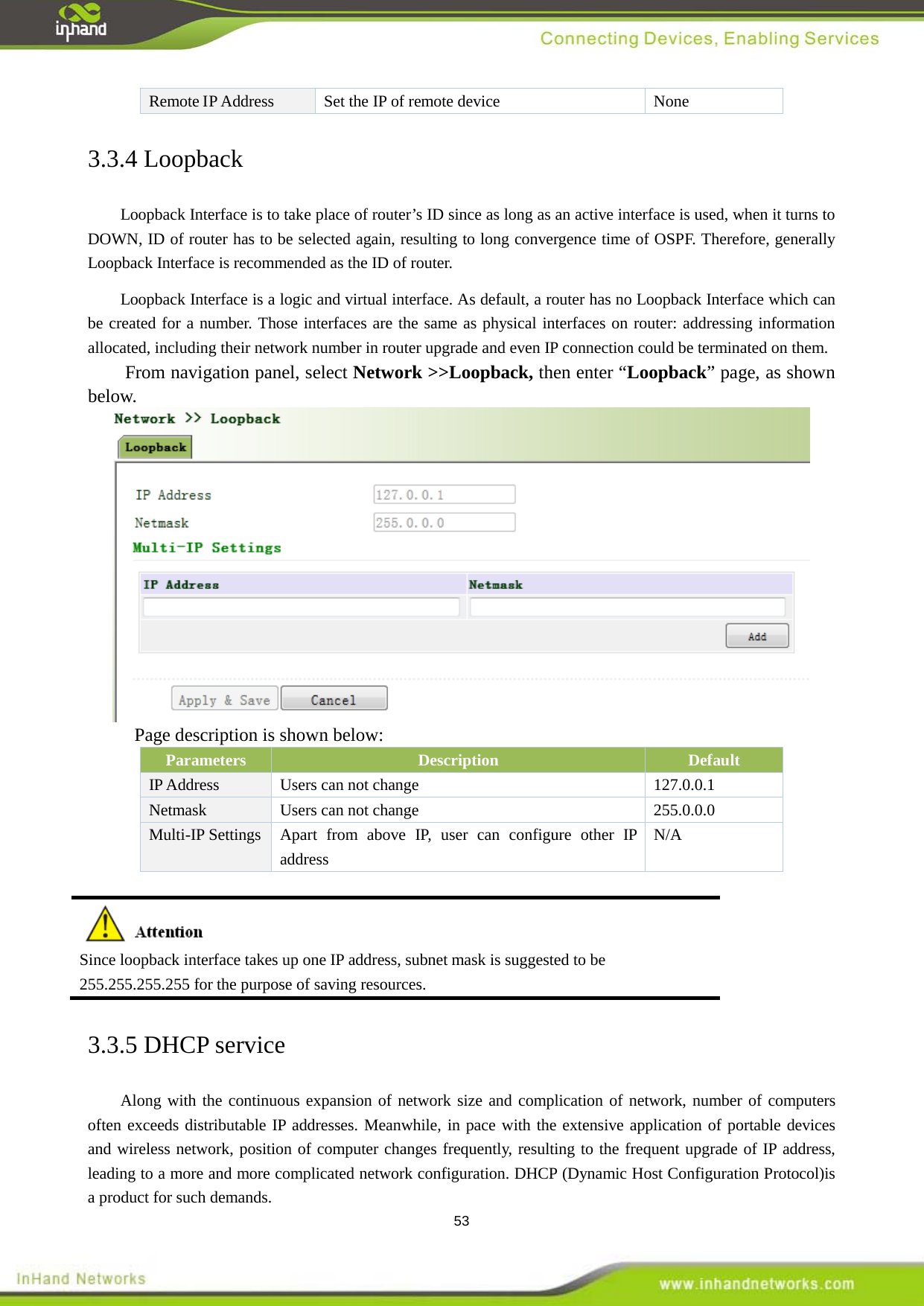
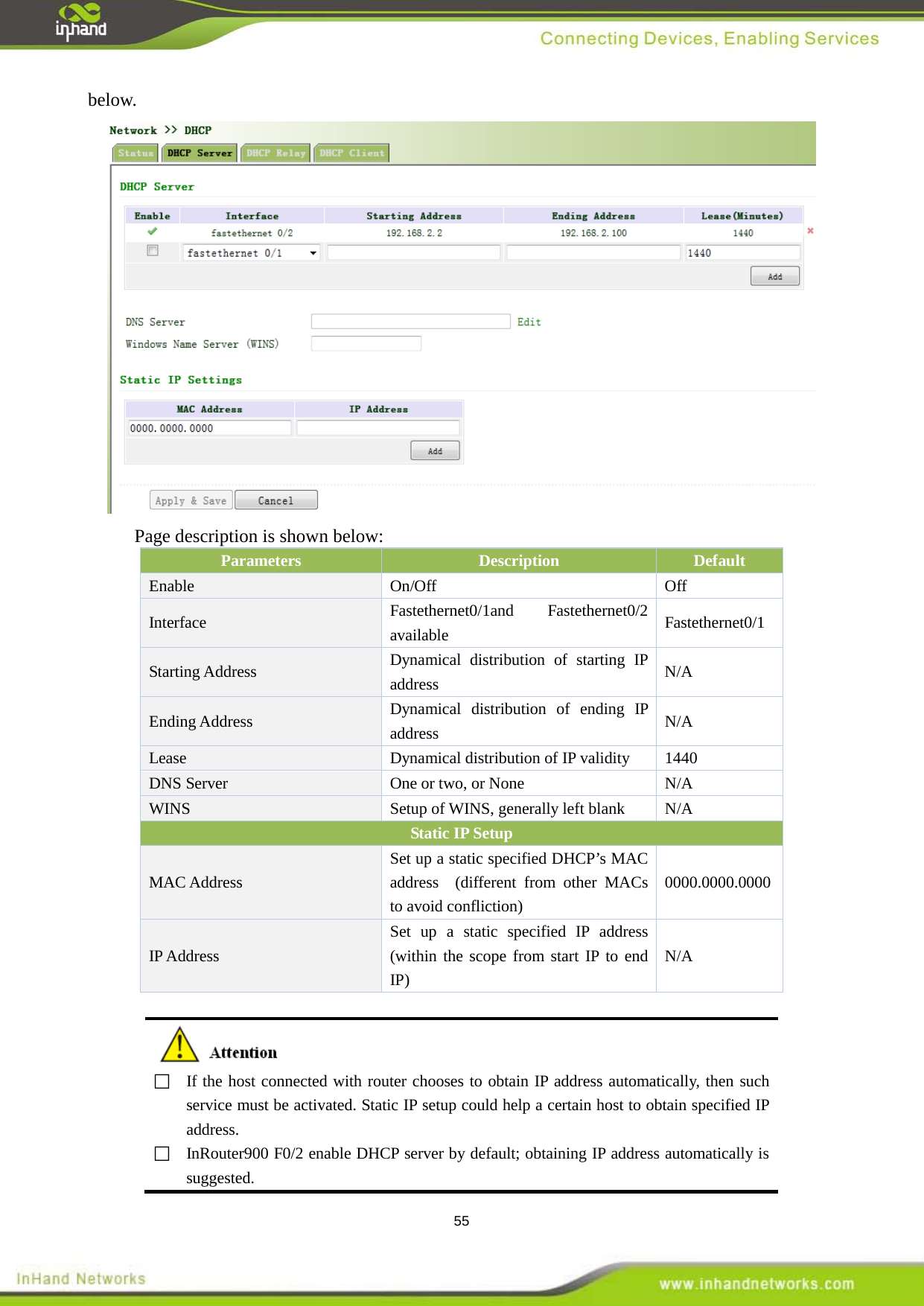
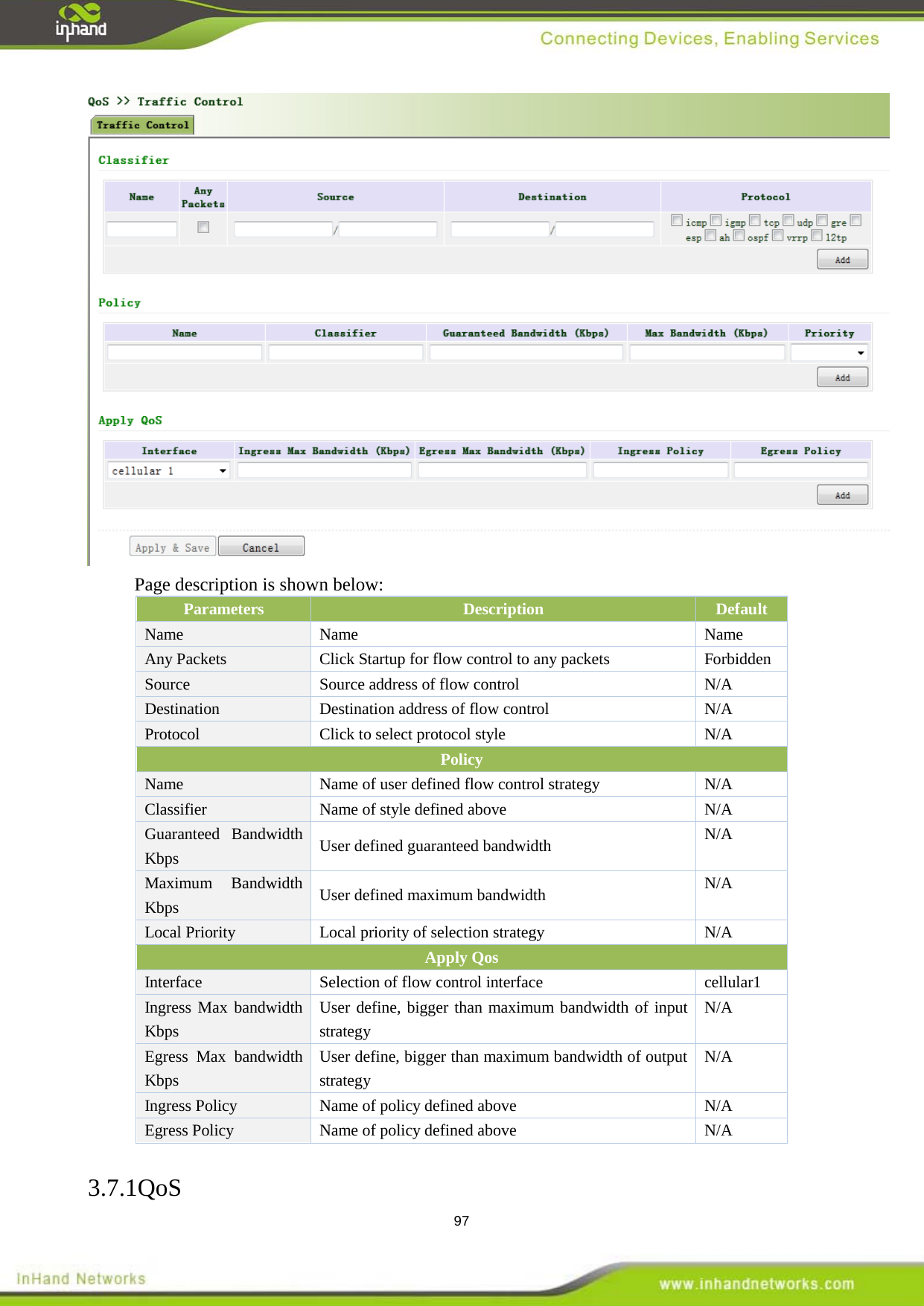
 149 This equipment generates uses and can radiate radio frequency energy and, if not installed and used in accordance with the instructions, may cause harmful interference to radio communications. However, there is no guarantee that interference will not occur in a particular installation. If this equipment does cause harmful interference to radio or television reception, which can be determined by turning the equipment off and on, the user is encouraged to try to correct the interference by one or more of the following measures:   Reorient or relocate the receiving antenna.   Increase the separation between the equipment and receiver.    Connect the equipment into an outlet on a circuit different from that to which the receiver is connected.    Consult the dealer or an experienced radio/TV technician for help. This equipment complies with FCC radiation exposure limits set forth for an uncontrolled environment. This equipment must be installed and operated in accordance with provided instructions and the antenna(s) used for this transmitter must be installed to provide a separation distance of at least 20 cm from all persons and must not be collocated or operating in conjunction with any other antenna or transmitter.    This device contains the FCC ID: QIPPLS8-X as a 2/3/4G wireless module, the module FCC information can be find at https://apps.fcc.gov/oetcf/eas/reports/GenericSearch.cfm , input Grantee Code: QIP and Product Code: PLS8-X then you can find the detailed information.                  InHand Networks
 150  7926 Jones Branch Dr. Suite 110 McLean, Virginia, 22102 USA T: +1-703-348-2988 F:+1-703-348-2988 info@inhandnetworks.com www.inhandnetworks.com InHand Networks InHand Networks provides reliable, secured and intelligent M2M solution for electric power, industrial automation, commercial and medical devices. Recognized by world class customers and partners. Proven by a large install base. Expanding with intensive investments in research and development.Enduring for long-term support.  InHand Networks has become leader in industrial grade network technology by providing industrial cellular routers, industrial Ethernet switches, wireless sensor network devices and cloud based M2M platforms.  Connecting devices, enabling services.

Navigation menu