Benro Precision MCD01 Digital Motion Control User Manual AC 06 001999
Benro Precision Industrial Co.,Ltd Digital Motion Control AC 06 001999
Contents
- 1. Users Manual
- 2. Users Manual Addendum
Users Manual
Move On
MCD01 MotionControl
Operating Instructions
中山百诺精密工业有限公司
BENRO PRECISION INDUSTRIAL CO.,LTD.
单页尺寸:130X85mm
中山百诺精密工业有限公司
以下
以下
以下
以下
适 用 机 型
说明书
128g铜 纸板
总页数 共 11 页
当前页码 第 页
2016.5.5
杨柳 规格 AC-06-001999
MCD01
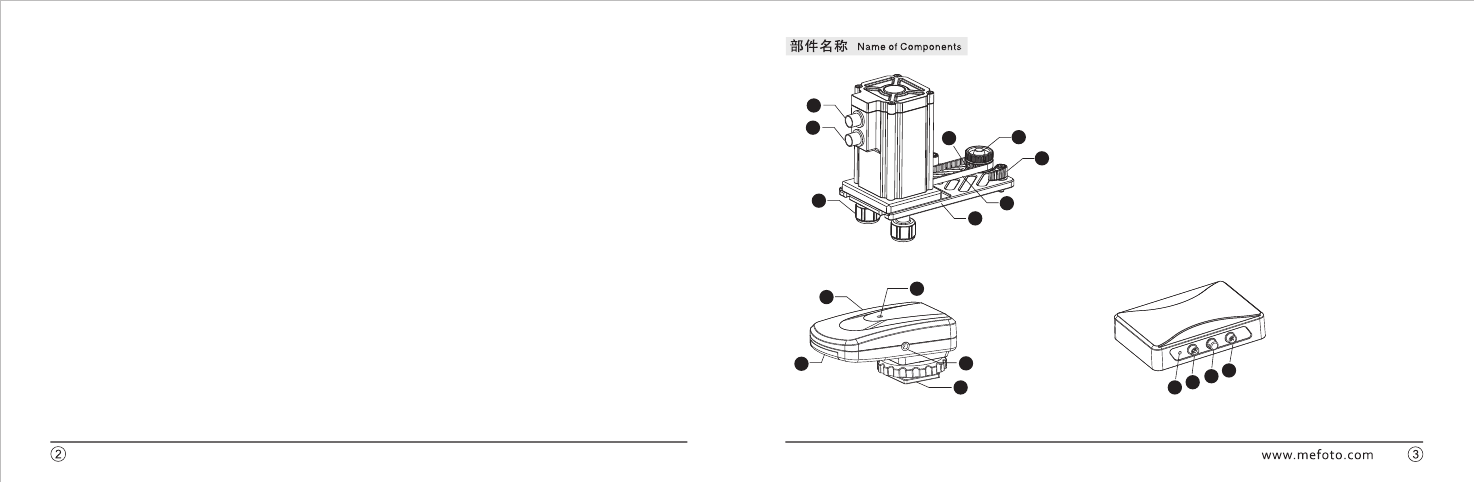
7.同步带
6.托板固定旋钮
5.同步轮固定旋钮
4.同步轮
2.主控制盒
3.电机座固定旋钮
8.电机座托板
Main Control Box
Motor Base Lock Knob
Synchronizing Wheel
Synchronizing Wheel Lock Knob
Supporting Plate Lock Knob
Synchronizing Belt
Motor Base Supporting Plate
1.电源接口
Power Port
1
2
3
45
6
7
8
1.开关
3.LED灯
2.电池盖
4.快门线
5.锁紧座
power switch
LED Light
battery cover
Shutter Cable
Locking Base
1
2
3
4
51234
2.迷你六芯航空插头
1.LED灯
LED Light
Mini four-core aviation plug
Hang Rope Holder
Mini six-core aviation plug
4.迷你四芯航空插
3.挂绳座
Thank you for making BENRO your choice for
professional video equipment.
Your BENRO gear is manufactured
to provide years of dependable service.
In order to obtain optimum satisfaction and performance,
we suggest that you carefully read these instructions.
感谢您选用百诺专业摄像器材,
百诺产品提供
值得您信赖的售后服务。
为了让您
对百诺产品的使用更加满意,
我们建议您仔细阅读下面的使用说明。
单页尺寸:130X85mm
中山百诺精密工业有限公司
以下
以下
以下
以下
适 用 机 型
说明书
128g铜 纸板
总页数 共 11 页
当前页码 第 页
2016.5.5
杨柳 规格 AC-06-001999
MCD01
名称 数量
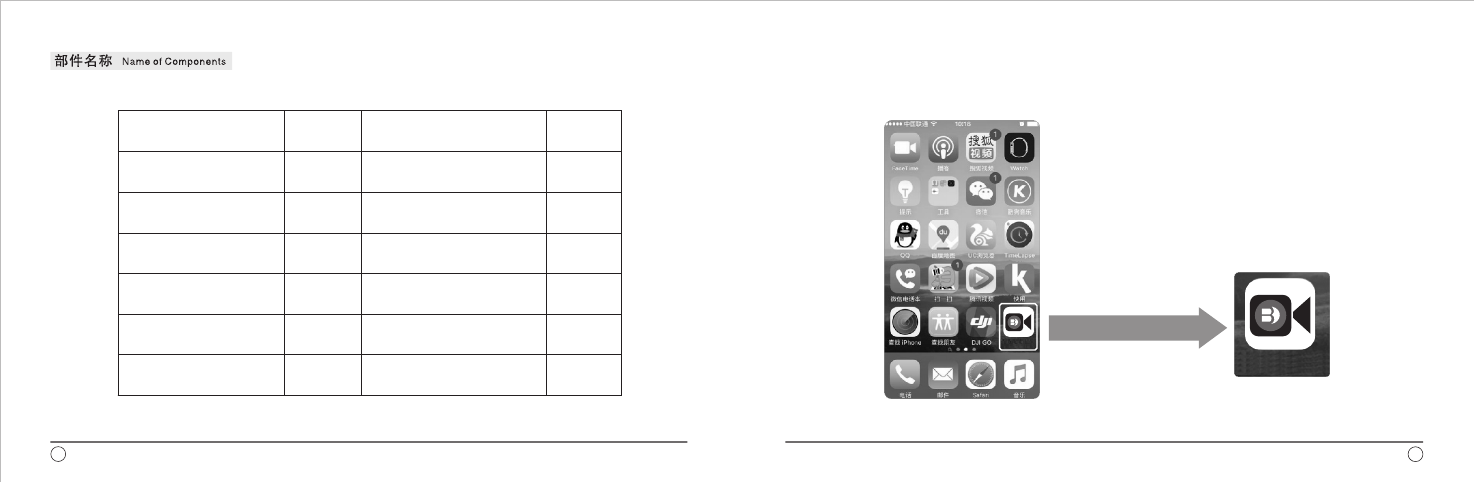
同步轮
同步轮固定旋钮
电源线
遥控器电机座连接线
主控制盒
相机控制器
相机快门线
电机座
电机座托板
托板固定旋钮
1
1
4
1
1
2
1
1
1
1
1
Name
名称
NameQuantity(pcs)
数量
Quantity(pcs)
Main Control Box
Motor Base
Motor Base Supporting plate
Supporting Plate Fixing Knob
Synchronizing Wheel
Synchronizing Wheel Fixing Knob
Power Cord
Cable for Remote Control and Motor Base
Power Adapter
电源适配器
Camera Controller
Camera Shutter Release
www.mefoto.com
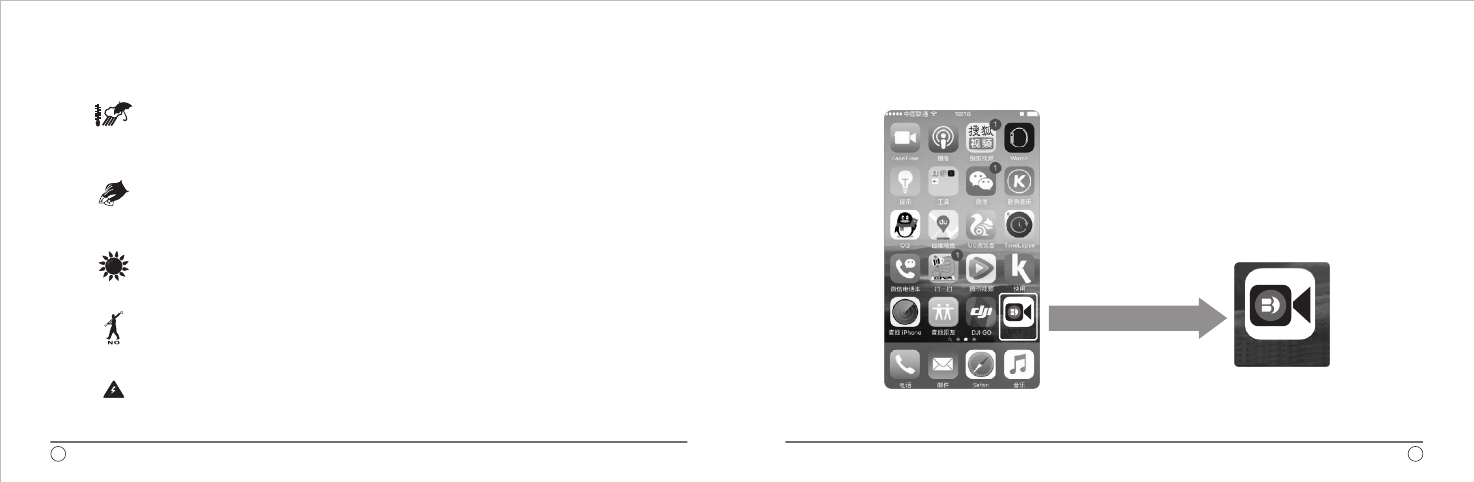
APP Icon on Smartphone Interface
Operation Instruction
Move Over e less Operation SystemWir
45
BENRO
BENRO
单页尺寸:130X85mm
中山百诺精密工业有限公司
以下
以下
以下
以下
适 用 机 型
说明书
128g铜 纸板
总页数 共 11 页
当前页码 第 页
2016.5.5
杨柳 规格 AC-06-001999
MCD01

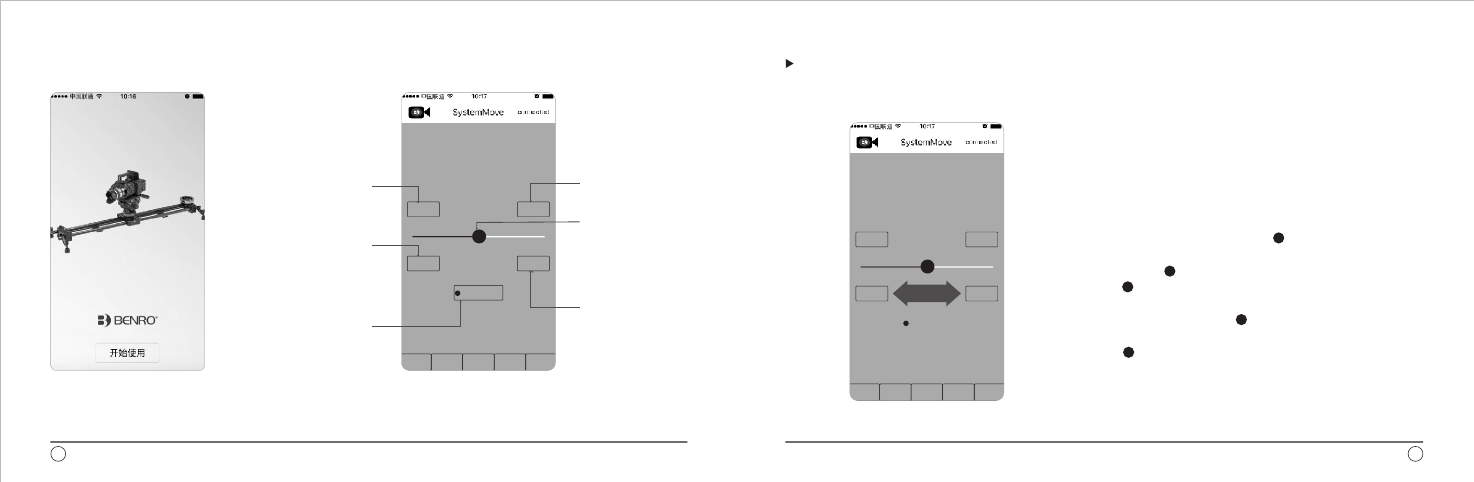
Click the icon to enter into
APP interface ,Click “Start”
to enter into operation Interface.
1、Boot Screen
www.mefoto.com
“Preset Track”Interface Command Introduction
Operation Context 1
1. Plug in the main control box, the LED lights.
2. Open “settings” on the phone and open the “WLAN” to search
the available WIFI with name “BENRO”, enter password
“0123456789”. The software can be used with successful
connection.
3. Click the software icon to start the program, and the words
shown at the right corner “connected” shows blue, which
means the WIFI has successfully connected; if it shows red,
the connection failed.
4. After confirm the hardware connected, drag the “ ”point
right and left to realize the left and right movement of slider.
5.Drag the “ ” left and right. If the movement direction of the
slider carriage and the drag direction is not conformed with
your use habit, press “direction exchange” button to change
the movement direction. Example: drag the “ ” leftward, the
carriage of slider will move leftward. If you press “direction
exchange” button, drag the “ ” leftward, the carriage will
move rightward.
Specifications and design are subject to change without notice.7
6
预设轨迹 视频短片 延时拍摄 定格动画 配置
始点 终点
限位A 限位B
方向切换
A B
2、
For setting “Track”
start point
Click the key when
the carriage moves to
some point to settle
it to be limit A
To change the
direction of
slider movement
controlled by the
rocker key
For setting “Track”
end point
Rocker key to control
the slider right and left
direction manually
“Preset Track”Interface Command Introduction
Click the key when
the carriage moves to
some point to settle
it to be limit B
预设轨迹 视频短片 延时拍摄 定格动画 配置
A B
始点 终点
限位A 限位B
方向切换
左右拖动
单页尺寸:130X85mm
中山百诺精密工业有限公司
以下
以下
以下
以下
适 用 机 型
说明书
128g铜 纸板
总页数 共 11 页
当前页码 第 页
2016.5.5
杨柳 规格 AC-06-001999
MCD01
www.mefoto.com
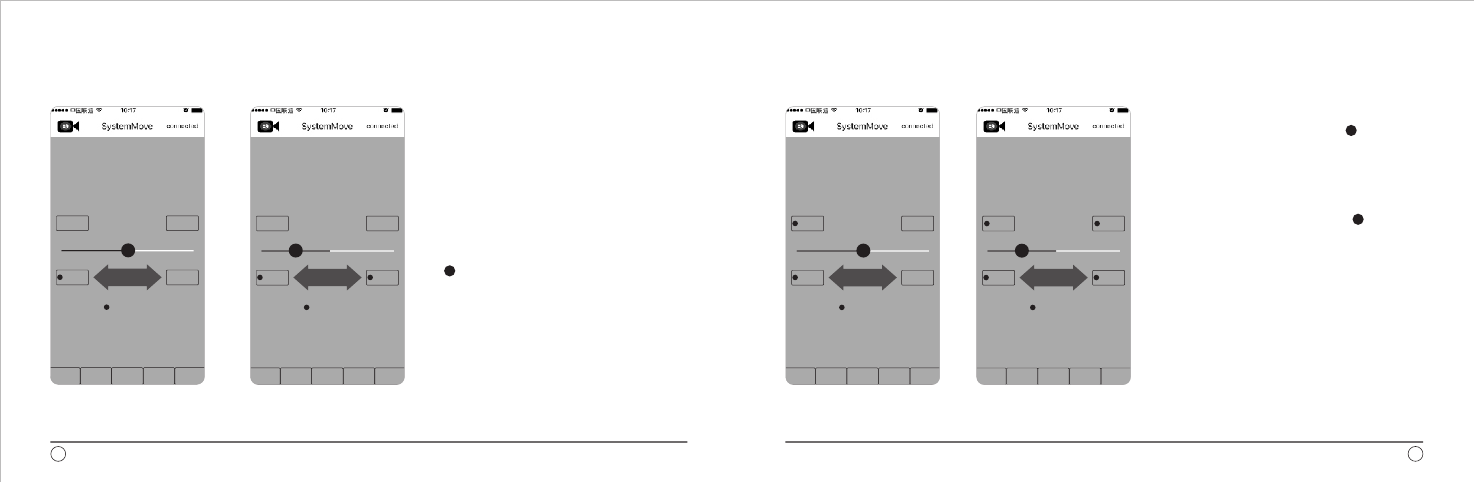
Operation Context 2
Track Setting:
1. After set the limit of track, drag the “ ” to
move the carriage to the start point of planed
shooting track, and click “start point” button to
set the start point of track, If the button shows red,
it means the setting succeeded.
2. After set the start point, drag the “ ” to
move the carriage to the planed shooting end
point, and click “end point” button to set the
end point of circulation. If the button shows
red, it means the setting succeeded.
Operation Context 3
Limit Setting:
1. To confirm the movement range of shooting
according to shooting solution, and confirm to
limit the carriage movement range.
2. Move the carriage to the first limiting position,
and click “limit A” to set the “first point” of limit
track. It shows red before order, which means
setting succeeded.
3. After set the first limit point (limit A), drag the
“ ”left and right to move the carriage to the
needed limit point 2, and click “limit B”, the button
is on in red, which means the setting succeeded.
Specifications and design are subject to change without notice.9
8
预设轨迹 视频短片 延时拍摄 定格动画 配置
A B
始点 终点
限位A 限位B
方向切换
左右拖动
预设轨迹 视频短片 延时拍摄 定格动画 配置
A B
始点 终点
限位A 限位B
方向切换
左右拖动
预设轨迹 视频短片 延时拍摄 定格动画 配置
A B
始点 终点
限位A 限位B
方向切换
左右拖动
预设轨迹 视频短片 延时拍摄 定格动画 配置
A B
始点 终点
限位A 限位B
方向切换
左右拖动
单页尺寸:130X85mm
中山百诺精密工业有限公司
以下
以下
以下
以下
适 用 机 型
说明书
128g铜 纸板
总页数 共 11 页
当前页码 第 页
2016.5.5
杨柳 规格 AC-06-001999
MCD01
www.mefoto.com
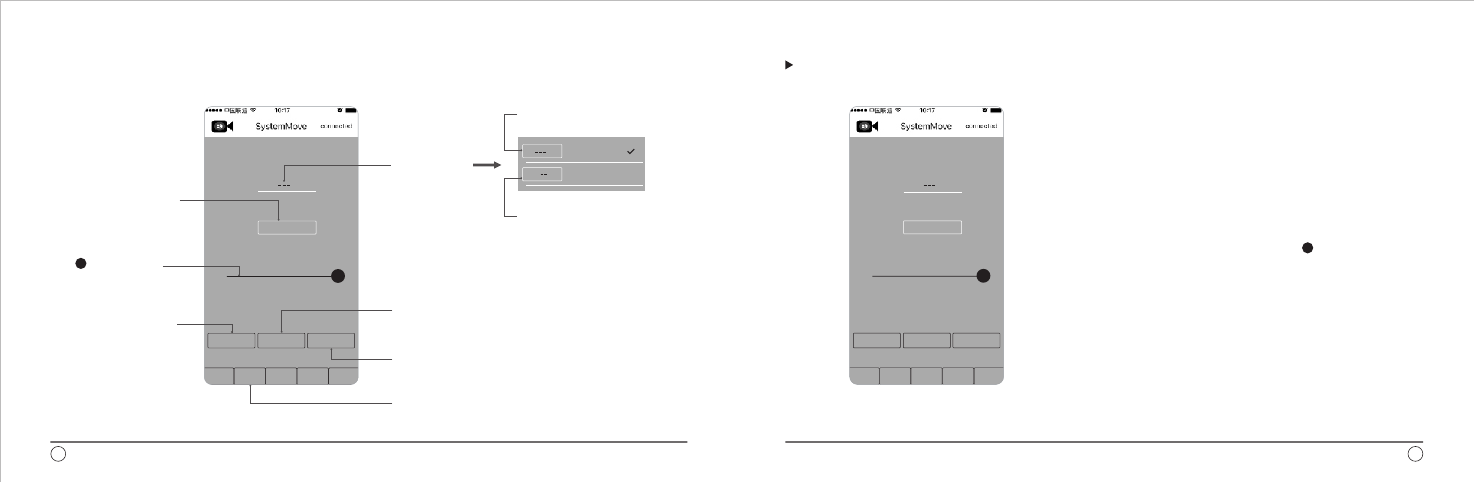
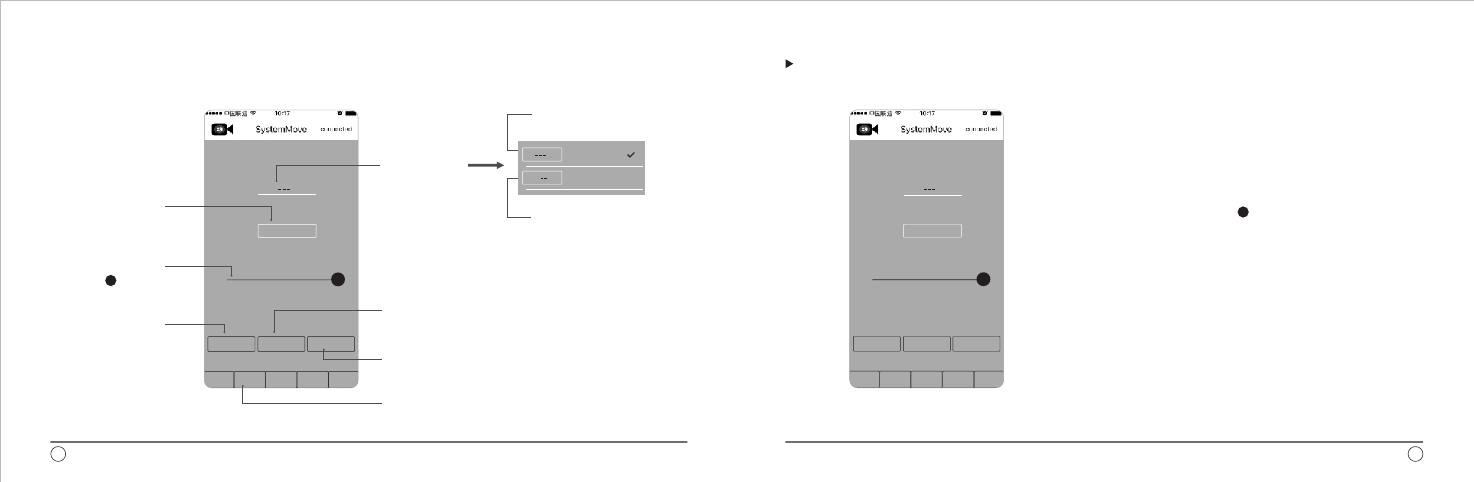
3、Video Clip”Interface Command Introduction“
It means the one time
movement from A to B.
It stops when finish.
“Video Clip”Operation
Video Clip Function Operation:
1. To set the track at “Preset Track” function (please refer to
track setting function for details)
2. Select the track movement mode “A→B” or “A↔B”. Note: if
the “track” is selected to be “A B”, the “movement times” also
needs to be selected.
3. Click the box to input the movement duration; input the
duration, the unit the second.
4. Acceleration setting. Manually drag the “ ” to set the
needed acceleration.
5. After finish the setting, click “Implement” button, the
carriage starts to move.
6. If you need to pause, press “pause” key, and the carriage
will stop moving. Press “pause” key to continue the movement.
7. After finish the preset movement, press the “return” key to
return to the start point if you need, and the carriage will
return to the set start point automatically.
↔
Specifications and design are subject to change without notice.
10 11
预设轨迹 视频短片 延时拍摄 定格动画 配置
时长 秒
30
加速度 100%
返回 执行 暂停
轨迹 A > B
Click the button can make the carriage
moving from the set start point to end
port, or circulating.
Click the button can pause the carriage
movement
First change to “video clip” interface
which is for video recording
Click the button can
make the carriage
returnto the set
“start point”
The users can drag
“ ” to adjust
speed according
to the actual use.
“Track” button
is to set the
circulation
mode. It means from A to B, B to A
circulated movement. When it
counts, A-B-A means one time.
Set the time of
onetime movement
from A to B
A > B
A < > B
预设轨迹 视频短片 延时拍摄 定格动画 配置
轨迹 A > B
时长 秒
30
加速度 100%
返回 执行 暂停
单页尺寸:130X85mm
中山百诺精密工业有限公司
以下
以下
以下
以下
适 用 机 型
说明书
128g铜 纸板
总页数 共 11 页
当前页码 第 页
2016.5.5
杨柳 规格 AC-06-001999
MCD01
www.mefoto.com
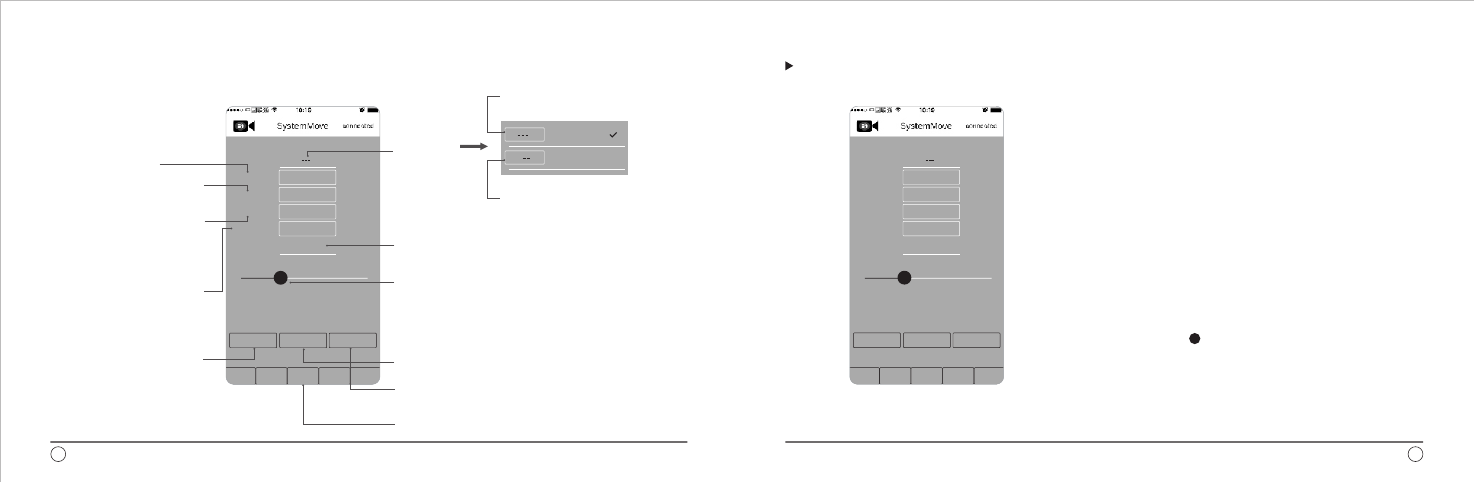
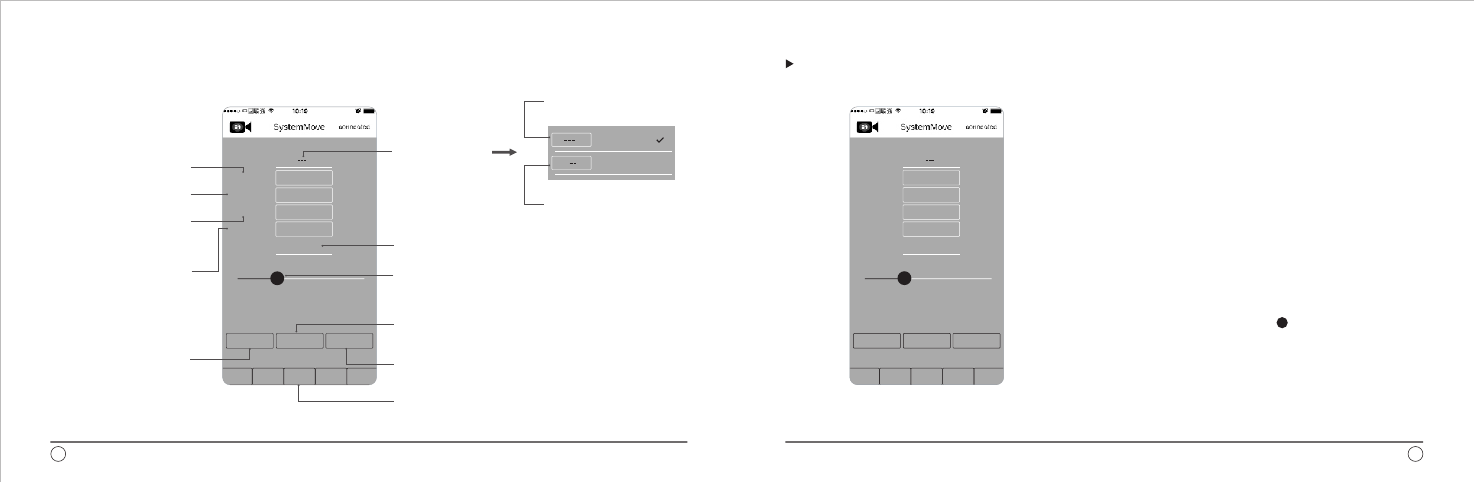
4、Time-Lapse”Interface Command Introduction“
The movement duration from A to B.
Format; h m s
Press the key to move the carriage from the set start point
to end point, or circulate.
Change to “TimeLapse” interface, which is used for
timelapse special effect shotting.
It means the one time movement
from A to B. It stops when finish.
It means from A to B, B to A circulated
movement. When it counts, A-B-A
means one time.
press the key to pause the moving carriage.
Interval proportion is the proportion distribution between
movement and stop duration. If this was selected,
the “Pre exposure interval” and “Pre movement interval”
would be in grey color, which is invalid setting.
“Time-Lapse” Operation
Time-Lapse Operation:
1. Set the planed shooting track, please refer to “Preset Track”
for more operations.
2. Select “Track”, “A B” or A B”. Note: If the “track” selected
“A B”, the “movement times” would be selected.
3. Set the number of shots, to calculate the needed numbers
and input the number.
4. Set the exposure duration
5. Set the time of “Pre exposure interval”
6. Set the time of “Pre movement interval”
7. Set the “Duration” and the needed time of “A B”. Note: if select
“A B” track, the time is still the single movement time of “A B”,
Unit is H:M:S
8. Manually drag the “ ” to set the “interval proportion”.
Note: if this is set, “Pre exposure interval” and “Pre movement
interval” become the invalid functions.
9. After finish the setting, press “implement” key to implement
the program.
→↔
↔
→
↔→
Specifications and design are subject to change without notice.13
12
A > B
A < > B
“track” key
to set the
circulation
mode
预设轨迹 视频短片 延时拍摄 定格动画 配置
返回 执行 暂停
轨迹 A > B
拍摄张数
曝光时间
曝光前间隔
运动前间隔
时长
间隔比例
600
0.5
0.5
0.5
帧photos
秒
秒
秒
00:00:00
30%
Press the key to return the
carriage to the set “start point”
Make sure the movement
stop time duration before
camera exposure.
Set the shooting quantities
during movement
Camera Exposure Duration
The interval duration between
after finished exposure and
before carriage movement
预设轨迹 视频短片 延时拍摄 定格动画 配置
返回 执行 暂停
轨迹 A > B
拍摄张数
曝光时间
曝光前间隔
运动前间隔
时长
间隔比例
600
0.5
0.5
0.5
帧photos
秒
秒
秒
00:00:00
30%
单页尺寸:130X85mm
中山百诺精密工业有限公司
以下
以下
以下
以下
适 用 机 型
说明书
128g铜 纸板
总页数 共 11 页
当前页码 第 页
2016.5.5
杨柳 规格 AC-06-001999
MCD01
www.mefoto.com
Specifications and design are subject to change without notice.
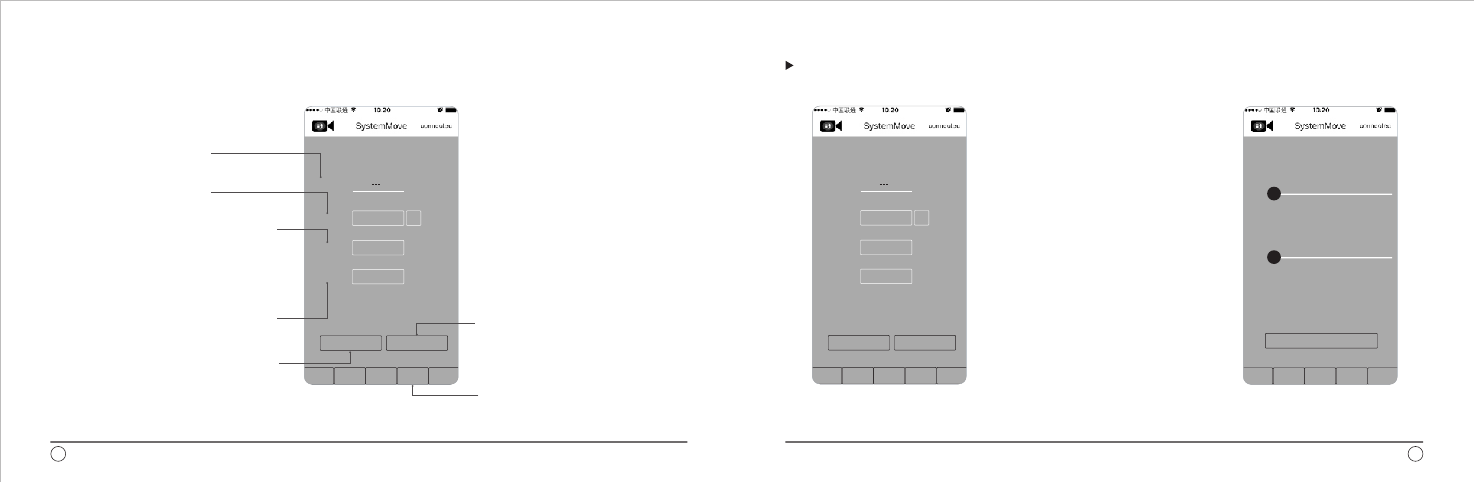
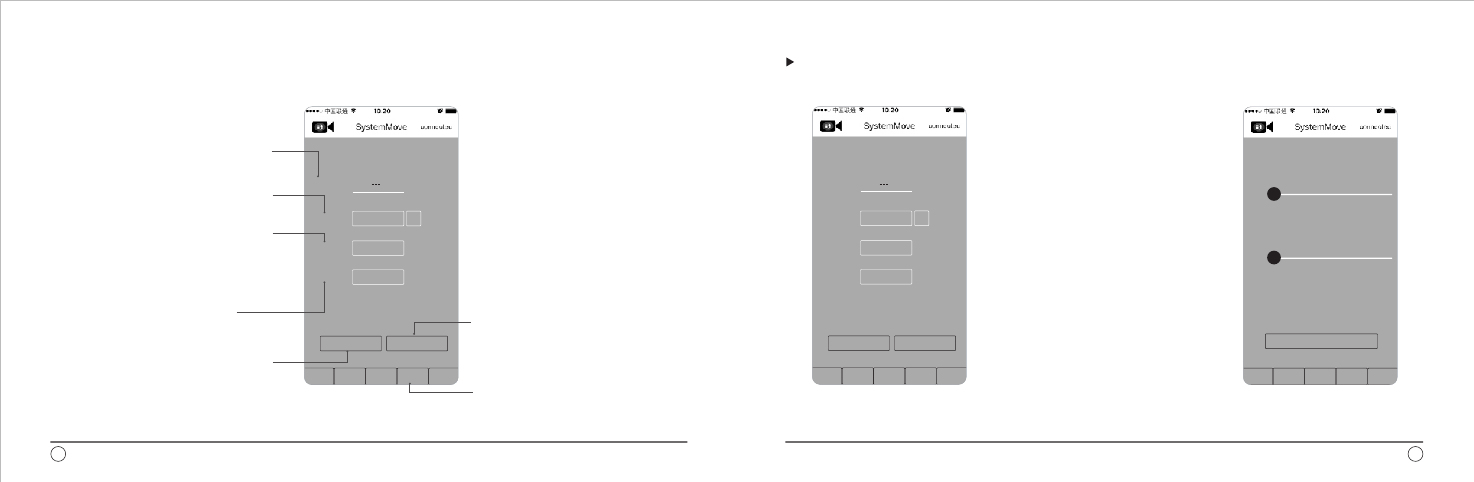
5、Stop-Motion Animation” Interface Command Introduction“ “Stop-Motion Animation” Operation
Note: Configuration item will be
used after updating
6、Configuration Interface
Command Introduction
Operation
1、Set the planed shooting track, please
refer to the “Preset Track” operation.
2. Press “unlock” and fill in the needed
number of shots.
The “remained shots” would be filled
automatically.
3. Set “exposure duration”
4. Press “implement” key. The camera
will move to next
shooting point after this operation.
5. After finish shooting, press “Return”
key to make the carriage return to the
start point.
15
14
预设轨迹 视频短片 延时拍摄 定格动画 配置
轨迹 A > B
拍摄张数
剩余张数
曝光时长
300
300
1秒
帧photos
帧photos
开锁
执行 返回
Circulation mode: it cannotbe selected
as there is only one mode.
Set the number of shots.
The number is linked to the number
of shots. It counts automatically, so it
cannot be set. The number is the set
“number of shots” minus the number
of shot images.
Set the exposure duration of camera.
Press one time to get one picture, and
the carriage will move to next shooting
point. Movement distance=track range/(number of shots-1)
Change to “Stop-motion animation”
interface, which is used to manually
shoots in different angels within the
range.
Return to the shot start point.
预设轨迹 视频短片 延时拍摄 定格动画 配置
轨迹 A > B
拍摄张数
剩余张数
曝光时长
300
300
1秒
帧photos
帧photos
开锁
执行 返回
预设轨迹 视频短片 延时拍摄 定格动画 配置
最大速度配置
最大加速度配置
0%
0%
执行
单页尺寸:130X85mm
中山百诺精密工业有限公司
以下
以下
以下
以下
适 用 机 型
说明书
128g铜 纸板
总页数 共 11 页
当前页码 第 页
2016.5.5
杨柳 规格 AC-06-001999
MCD01
APP显示于手机界面图标
使用方法(简体中文)
BENRO
www.mefoto.com
USER NOTICE
Do not use this product below
temperatures of -4°F or
above +158°F(-20°C/+70°C)
Clean with mild detergent or alcohol
to remove dirt, dust or sand from locks
and threads. Clean and dry with a soft
cloth. Do not use this product in the
ocean.
Avoid leaving the product in high
temperature areas for long periods
of time.
Avoid leaving any products
unattended in areas where people
could trip over the gear and get hurt.
For your safety, don’t let your Benro
gear come in contact with any electrical
power source.
LIMITED WARRANTY COVERAGE
Your Benro product has been carefully
manufactured, has passed many quality assurance
checks and has been thoroughly tested before
shipment. It is warranted in the country from which
you purchased it based on the date of purchase
to the original owner, against defects in materials
and workmanship. Please contact your local
Benro dealer for further information and details
about your warranty. The Warranty does not
apply to damages caused by mishandling,
dropping, or leaking batteries, nor modification
or servicing performed by others.
Benro Precision Industrial Co.,Ltd
Tel: 86-760-86738666
Fax:86-760-86211711
Web: www.benro.com www.benro.cn
Email: sales @benro.com
17
16
BENRO
BENRO
单页尺寸:130X85mm
中山百诺精密工业有限公司
以下
以下
以下
以下
适 用 机 型
说明书
128g铜 纸板
总页数 共 11 页
当前页码 第 页
2016.5.5
杨柳 规格 AC-06-001999
MCD01
www.mefoto.com
点击图标后,进入APP界面,
点击“开始使用”进入操作
界面。
一、开机画面 二、”预设轨迹”界面命令介绍 “预设轨迹”操作说明
1、主控制盒插上电源,LED灯亮;
2、打开手机“设置”,打开“无线局域网”,搜索到可
用WIFI,选择“BENRO”,输入密码“0123456789”
连接成功后即可使用软件;
3、点击软件图标,打开软件,此时若右上角的英文
“CONNECTED”显示为蓝色, 即表示WIFI连接成功,
显示为红色, ;
4、确认硬件连接好之后,左右拖动“ ”点,可实现滑轨
左右移动;
5、左右拖动 “ ” 时 , 如果滑轨的滑动面板运动方向
与“ ” 拖动方 向 不符合你的使用习惯,可以点击
“方向切换”按 键,即可将滑动板的左右运动方向对换。
示例:初始时向左拖动“ ”,滑 轨 的 滑 动 面 板 向
左 移 动 ,此时如果按下“方向切换”键,再次向左拖
动“ ”,这时滑轨的滑动面板会向右移动。
即表示连接失败
操作详解(1)
美孚保留随时变更设计及说明书内资料权利,恕不另行通知。 19
18
预设轨迹 视频短片 延时拍摄 定格动画 配置
始点 终点
限位A 限位B
方向切换
A B
预设轨迹 视频短片 延时拍摄 定格动画 配置
A B
始点 终点
限位A 限位B
方向切换
左右拖动
用于设置
“轨迹”起点
滑轨 面板移动到
某处,点击此键,
即 可 设 置该处为
限位A
可切 换摇杆键控
制滑 轨滑动面板
移动 的方向
用于设置
“轨迹”终点
摇杆键,手动控制
滑轨滑动面板左右
移动
滑轨面板移动到某
处,点击此键,即
可设置该处为限位B
单页尺寸:130X85mm
中山百诺精密工业有限公司
以下
以下
以下
以下
适 用 机 型
说明书
128g铜 纸板
总页数 共 11 页
当前页码 第 页
2016.5.5
杨柳 规格 AC-06-001999
MCD01

www.mefoto.com
操作详解(2)
限位设置:
1、根据拍摄方案,确认想要拍摄的移动范围,
确定需要限制滑动面板移动的范围;
2、将滑动面板移动到想要限制的第一个位置 ,
点 击 “ 限 位A ” ,设置限位轨迹 第一个点,
命令前显示红色点,表示设置成功。
3、第一个限位点(限位A)设置成功后,左右
拖动“ ”,移动滑轨滑动面板到所需限位
的第二个点,点击“限位B”,按键显示红点,
表示设置成功。
操作详解(3)
轨迹设置:
1、设置好轨迹的限位之后,拖动“ ” ,
移动滑动面板到计划拍摄轨迹的起点,
点击“ 始 点 ”按键,设置轨迹的起
始点,按 键前方 显 示 红 色 点 , 表示
设置成功。
2、起点设置成功后,拖动“ ”,将滑
轨滑动面板移动至 计划拍摄的终点 ,
点击“ 终点”按键,设置循环的终点。
按键前方显示红色点,表示设置成功。
美孚保留随时变更设计及说明书内资料权利,恕不另行通知。 21
20
预设轨迹 视频短片 延时拍摄 定格动画 配置
A B
始点 终点
限位A 限位B
方向切换
左右拖动
预设轨迹 视频短片 延时拍摄 定格动画 配置
A B
始点 终点
限位A 限位B
方向切换
左右拖动
预设轨迹 视频短片 延时拍摄 定格动画 配置
A B
始点 终点
限位A 限位B
方向切换
左右拖动
预设轨迹 视频短片 延时拍摄 定格动画 配置
A B
始点 终点
限位A 限位B
方向切换
左右拖动
单页尺寸:130X85mm
中山百诺精密工业有限公司
以下
以下
以下
以下
适 用 机 型
说明书
128g铜 纸板
总页数 共 11 页
当前页码 第 页
2016.5.5
杨柳 规格 AC-06-001999
MCD01
www.mefoto.com
三、“视频短片”界面命令介绍
表示从A到B移动一次,
完成后停止。
“视频短片”操作说明
视频短片功能操作:
1、在“预设轨迹”功能中设定好轨迹(具体操作参照轨
迹设定功能);
2、选择轨迹运行模式“A → B”或“A ↔ B”。注:如果“轨迹”
选择了“A B”,则还需要选择“运行次数”;
3、输入运行时长,点击方框,输入时长,单位为秒;
4、加速度设置,手动拖动“ ”设置所需加速度;
5、设置完成后,点击“执行”按键,滑动面板开始运动;
6、如果中途因为需要而想暂停,按下“暂停”键,滑动
面板会停止动作,需要继续时,再次按下“暂停”键,
滑动面板再次启动;
7、当预设运动完成后,需要回到起点时,按“返回”键,
滑动面板会自动返回到设定的起点。
↔
美孚保留随时变更设计及说明书内资料权利,恕不另行通知。 23
22
预设轨迹 视频短片 延时拍摄 定格动画 配置
时长 秒
30
加速度 100%
返回 执行 暂停
轨迹 A > B
预设轨迹 视频短片 延时拍摄 定格动画 配置
轨迹 A > B
时长 秒
30
加速度 100%
返回 执行 暂停
点击此键可使滑轨滑动面板
开始从设定的始点向终点间
移动,或者循环移动
点击此键可使滑轨滑动面板
在移动状态中暂停
首先切换至“视频短片”界
面,该界面用于视频拍摄。
点击此键可使
滑轨滑动面板
返回到所设定
的“始点”
设置运行一次
A到B的 时 间
用户可以根据
实际情况,拖
动“ ”调整
加速 度
“轨迹”按键,
用于设置循环
方式
表示从A到B,B到A,A到
B循环运动,在计算次数
时,A-B-A为一次。
A > B
A < > B
单页尺寸:130X85mm
中山百诺精密工业有限公司
以下
以下
以下
以下
适 用 机 型
说明书
128g铜 纸板
总页数 共 11 页
当前页码 第 页
2016.5.5
杨柳 规格 AC-06-001999
MCD01
www.mefoto.com
6
四、“延时拍摄”界面命令介绍
5
表示从A到B移动一次,
完成后停止。
“延时拍摄”操作说明
延时拍摄操作说明:
1、设定好计划拍摄的轨迹,具体操作参照“预设轨迹”功
能操作说明;
2、选择“轨迹”,“A B”或”A B”。注:如果“轨
迹”选择了“A B”,则还需要选择“运行次数”;
3、设定拍摄张数,根据需要计算出所需拍摄张数,输入所
需张数;
4、设定曝光时长;
5、设定“曝光前间隔”时间;
6、设定“运动前间隔”时间;
7、设定“ 时长”, 设 定“A B”所需时间注 :如果选
择“A B”轨迹,时间仍为”A B”单次运行时间;
单位为H:M:S
8、设定“间隔比例”,手动拖动“ ”图标调整。
注:如果设定了此项,“曝光前间隔”和“运动前间隔”
就成为无效功能;
9、设定完成后,点击“执行”按键,程序开始执行。
→ ↔
↔
→
↔ →
美孚保留随时变更设计及说明书内资料权利,恕不另行通知。 25
24
A > B
A < > B
预设轨迹 视频短片 延时拍摄 定格动画 配置
返回 执行 暂停
轨迹 A > B
拍摄张数
曝光时间
曝光前间隔
运动前间隔
时长
间隔比例
600
0.5
0.5
0.5
帧photos
秒
秒
秒
00:00:00
30%
预设轨迹 视频短片 延时拍摄 定格动画 配置
返回 执行 暂停
轨迹 A > B
拍摄张数
曝光时间
曝光前间隔
运动前间隔
时长
间隔比例
600
0.5
0.5
0.5
帧photos
秒
秒
秒
00:00:00
30%
点击此键可使滑轨滑
动面板返回所设定的
“始点”
相机曝光前滑动面板
运动停止时间长度
设置在移动过程中需
要拍摄照片的数量
A B所需运动时长,格式为:时:分:秒 →
点击此键可使滑轨滑动面板开始从设定的始点向终点
移动,或者循环移动
切换至“延时拍摄”界面,该界面用于延时特效
摄影。
“轨迹”按键,
用于设置循环
方式
表示从A到B,B到A,A到
B循环运动,在计算次数
时,A-B-A为一次。
相机曝光时长
曝光完成后与滑动面
板移动前的间隔时长
点击此键可使滑轨滑动面板在移动状态下暂停
间隔比例为运动与停止时长的比例分配,如果选择
了该项,则“曝光前间隔”和“运动前间隔”选项
为灰色,成为无效设置
单页尺寸:130X85mm
中山百诺精密工业有限公司
以下
以下
以下
以下
适 用 机 型
说明书
128g铜 纸板
总页数 共 11 页
当前页码 第 页
2016.5.5
杨柳 规格 AC-06-001999
MCD01
www.mefoto.com
五、“定格动画”界面命令介绍 “定格动画”操作说明
注:配置项为后期升级用。
六、配置界面命令介绍
操作说明:
1、设定好计划拍摄的轨
迹,具体操作参照
“预设轨迹”功能操作
说明;
2、点击“开锁”,填写
需要拍摄张数,“剩
余张数”会自动填写;
3、设定“曝光时长”;
4、按“执行”键,相机
拍照后运行到下一拍
摄点;
5、拍摄 完成后,点击
“返回”键,滑动面板
自动返到起点。
美孚保留随时变更设计及说明书内资料权利,恕不另行通知。 27
26
预设轨迹 视频短片 延时拍摄 定格动画 配置
轨迹 A > B
拍摄张数
剩余张数
曝光时长
300
300
1秒
帧photos
帧photos
开锁
执行 返回
预设轨迹 视频短片 延时拍摄 定格动画 配置
轨迹 A > B
拍摄张数
剩余张数
曝光时长
300
300
1秒
帧photos
帧photos
开锁
执行 返回
预设轨迹 视频短片 延时拍摄 定格动画 配置
最大速度配置
最大加速度配置
0%
0%
执行
循环方式,只有一种方式,
不可以选择
设置需要拍摄照片的数量
数据与拍摄张数挂钩,自
动计算,无法设置,数量
为设定的“拍摄张数”减
去已拍张数
设定相机曝光时长
点击一次,相机拍摄一张,
然后滑轨滑动面板移动到
下一张拍摄点,移动距离
=轨迹范围/(拍摄张数-1) 切换至“定格动画”界面,
该界面用于范围内不同角
度手动拍摄照片。
返回拍摄起点
单页尺寸:130X85mm
中山百诺精密工业有限公司
以下
以下
以下
以下
适 用 机 型
说明书
128g铜 纸板
总页数 共 11 页
当前页码 第 页
2016.5.5
杨柳 规格 AC-06-001999
MCD01
www.mefoto.com
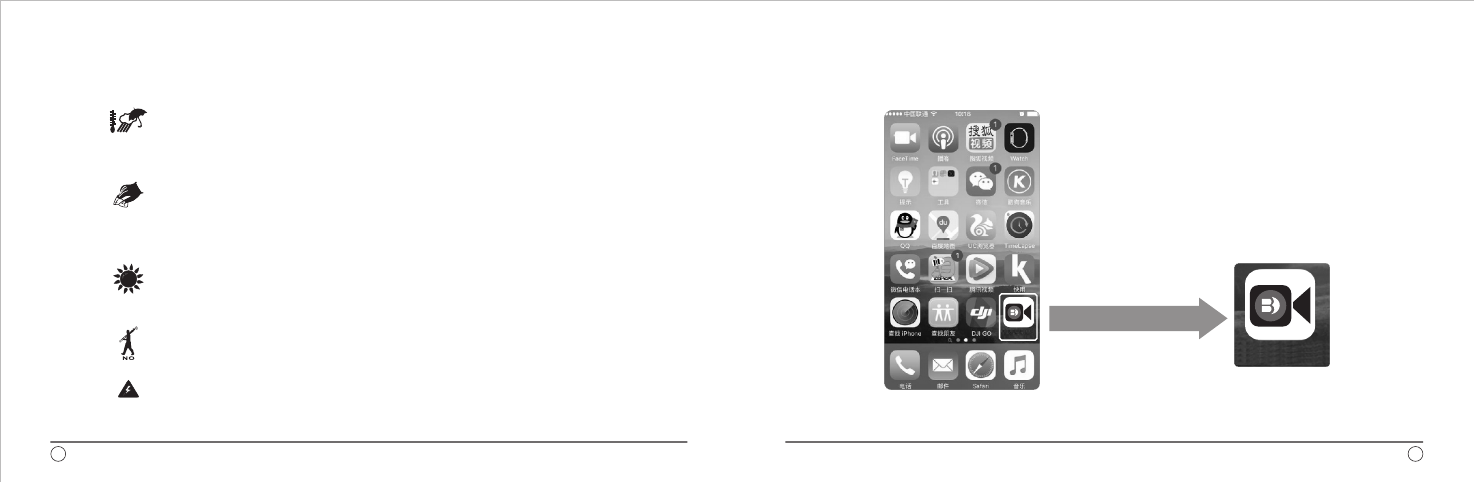
APP显示于手机界面图标
使用方法(繁体中文)
注意事项:
请勿长时间将产品放置在太阳
下,避免长时间将产品放置在
高温下, 例如靠近汽车玻璃数
小时。
在潮湿,泥沙,风尘等环境中
使用过后,一定要用干布将琐
紧螺牙和可能藏有泥沙的部分
清除干净,可使用无水酒精,
消毒酒精,清洁剂等擦洗。不
推荐在海水中使用本产品。
请勿在低于零下30度或高于零
上60度的温度下使用本产品。
为了人身 安 全,使用 本 产品
时,请勿靠近高电压区域, 或
与强效化学接触。
禁止搭载摄像设备 一起携带
移动。
您所使用的百诺产品是经过精密加工,
多项严密质量检测,所有功能严格测
试才完整包装出厂的。所有材料或者
工艺方面的瑕疵,可以在您所购买的
区域免费维修或者更换。详细的质量
保修可以联系您所在地的经销商。所
有人为原因所造成的产品损坏不在保
修范围内,例如:错误操作,严重摔落,
或者电池漏电液体损坏。
地址 广东省中山市坦洲镇第三工业
区火炬路 号
邮编:
电话: -
传真: -
Http:www.benro.com
www.benro.cn
Email:sales@benro.com
中山百诺精密工业有限公司
:
59
528467
0760 86738666
0760 86211711
保修范围
2928
BENRO
BENRO
单页尺寸:130X85mm
中山百诺精密工业有限公司
以下
以下
以下
以下
适 用 机 型
说明书
128g铜 纸板
总页数 共 11 页
当前页码 第 页
2016.5.5
杨柳 规格 AC-06-001999
MCD01
www.mefoto.com
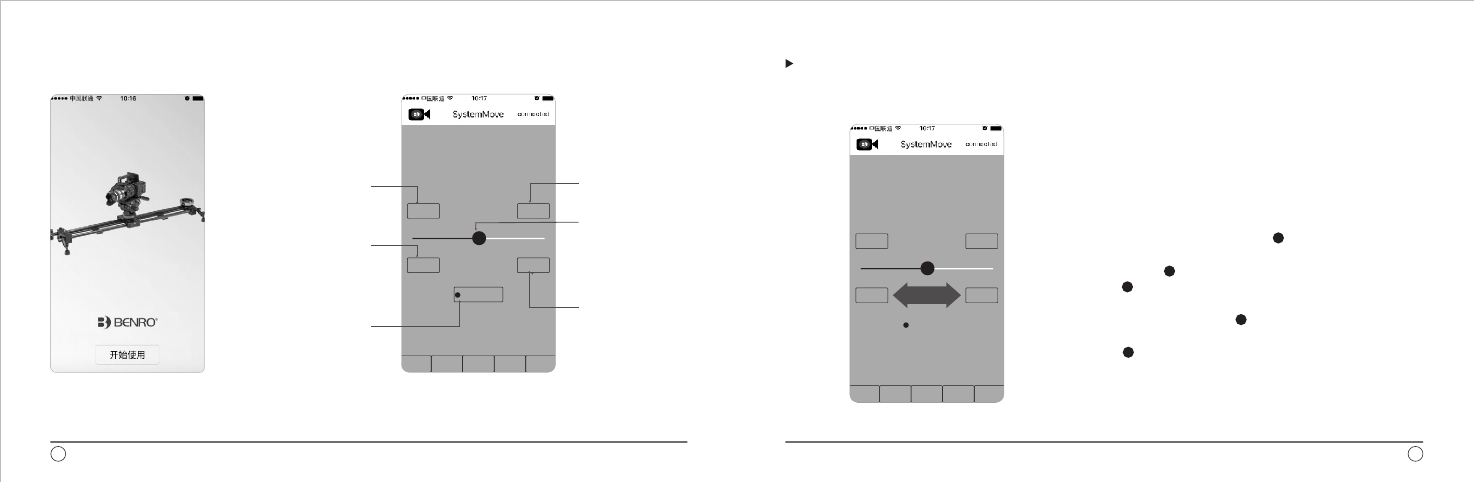
“预设轨迹”操作说明
1、主控制盒插上电源,LED灯亮;
2、打开手机“设置”,打开“无线局域网”,搜索到可
用WIFI,选择“BENRO”,输入密码“0123456789”
连接成功后即可使用软件;
3、点击软件图标,打开软件,此时若右上角的英文
“CONNECTED”显示为蓝色, 即表示WIFI连接成功,
显示为红色, ;
4、确认硬件连接好之后,左右拖动“ ”点,可实现滑轨
左右移动;
5、左右拖动 “ ” 时 , 如果滑轨的滑动面板运动方向
与“ ” 拖动方 向 不符合你的使用习惯,可以点击
“方向切换”按 键,即可将滑动板的左右运动方向对换。
示例:初始时向左拖动“ ”,滑 轨 的 滑 动 面 板 向
左 移 动 ,此时如果按下“方向切换”键,再次向左拖
动“ ”,这时滑轨的滑动面板会向右移动。
即表示连接失败
操作详解(1)
点击图标后,进入APP界面,
点击“开始使用”进入操作
界面。
一、开机画面 二、”预设轨迹”界面命令介绍
用于设置
“轨迹”起点
滑轨 面板移动到
某处,点击此键,
即 可 设 置该处为
限位A
可切 换摇杆键控
制滑 轨滑动面板
移动 的方向
用于设置
“轨迹”终点
摇杆键,手动控制
滑轨滑动面板左右
移动
滑轨面板移动到某
处,点击此键,即
可设置该处为限位B
美孚保留随时变更设计及说明书内资料权利,恕不另行通知。 31
30
预设轨迹 视频短片 延时拍摄 定格动画 配置
始点 终点
限位A 限位B
方向切换
A B
预设轨迹 视频短片 延时拍摄 定格动画 配置
A B
始点 终点
限位A 限位B
方向切换
左右拖动
单页尺寸:130X85mm
中山百诺精密工业有限公司
以下
以下
以下
以下
适 用 机 型
说明书
128g铜 纸板
总页数 共 11 页
当前页码 第 页
2016.5.5
杨柳 规格 AC-06-001999
MCD01

www.mefoto.com
操作详解(2)
限位设置:
1、根据拍摄方案,确认想要拍摄的移动范围,
确定需要限制滑动面板移动的范围;
2、将滑动面板移动到想要限制的第一个位置 ,
点 击 “ 限 位A ” ,设置限位轨迹 第一个点,
命令前显示红色点,表示设置成功。
3、第一个限位点(限位A)设置成功后,左右
拖动“ ”,移动滑轨滑动面板到所需限位
的第二个点,点击“限位B”,按键显示红点,
表示设置成功。
操作详解(3)
轨迹设置:
1、设置好轨迹的限位之后,拖动“ ” ,
移动滑动面板到计划拍摄轨迹的起点,
点击“ 始 点 ”按键,设置轨迹的起
始点,按 键前方 显 示 红 色 点 , 表 示
设置成功。
2、起点设置成功后,拖动“ ”,将滑
轨滑动面板移动至 计划拍摄的终点 ,
点击“ 终点”按键,设置循环的终点。
按键前方显示红色点,表示设置成功。
美孚保留随时变更设计及说明书内资料权利,恕不另行通知。 33
32
预设轨迹 视频短片 延时拍摄 定格动画 配置
A B
始点 终点
限位A 限位B
方向切换
左右拖动
预设轨迹 视频短片 延时拍摄 定格动画 配置
A B
始点 终点
限位A 限位B
方向切换
左右拖动
预设轨迹 视频短片 延时拍摄 定格动画 配置
A B
始点 终点
限位A 限位B
方向切换
左右拖动
预设轨迹 视频短片 延时拍摄 定格动画 配置
A B
始点 终点
限位A 限位B
方向切换
左右拖动
单页尺寸:130X85mm
中山百诺精密工业有限公司
以下
以下
以下
以下
适 用 机 型
说明书
128g铜 纸板
总页数 共 11 页
当前页码 第 页
2016.5.5
杨柳 规格 AC-06-001999
MCD01
www.mefoto.com
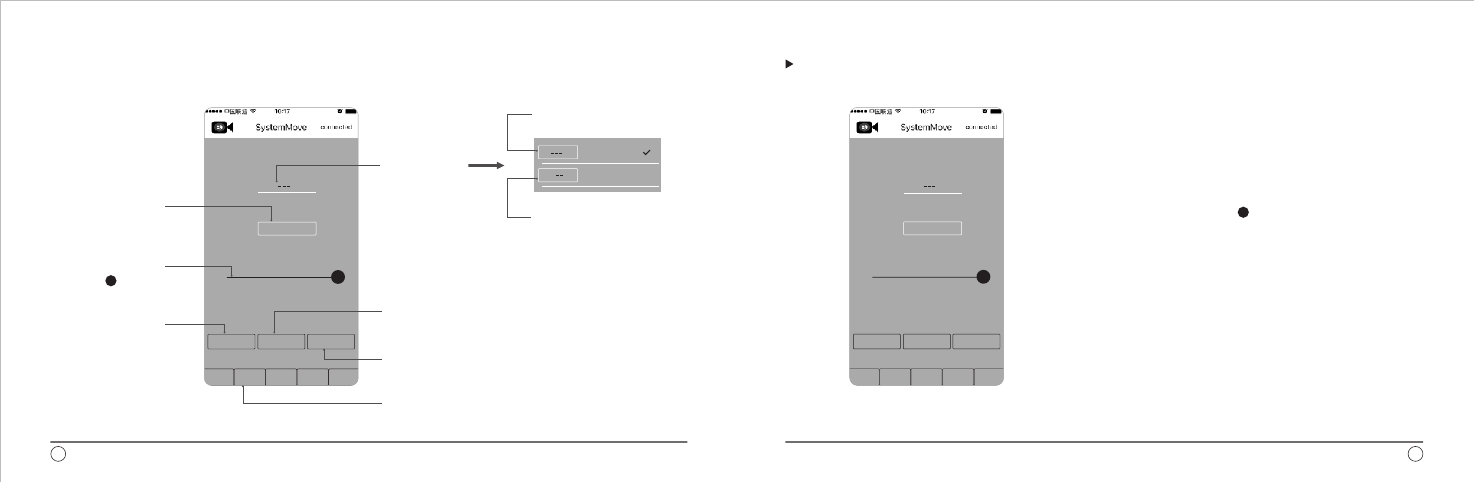
三、“视频短片”界面命令介绍
表示从A到B移动一次,
完成后停止。
表示从A到B,B到A,A到
B循环运动,在计算次数
时,A-B-A为一次。
“视频短片”操作说明
视频短片功能操作:
1、在“预设轨迹”功能中设定好轨迹(具体操作参照轨
迹设定功能);
2、选择轨迹运行模式“A → B”或“A ↔ B”。注:如果“轨 迹”
选择了“A B”,则还需要选择“运行次数”;
3、输入运行时长,点击方框,输入时长,单位为秒;
4、加速度设置,手动拖动“ ”设置所需加速度;
5、设置完成后,点击“执行”按键,滑动面板开始运动;
6、如果中途因为需要而想暂停,按下“暂停”键,滑动
面板会停止动作,需要继续时,再次按下“暂停”键,
滑动面板再次启动;
7、当预设运动完成后,需要回到起点时,按“返回”键,
滑动面板会自动返回到设定的起点。
↔
美孚保留随时变更设计及说明书内资料权利,恕不另行通知。 3534
预设轨迹 视频短片 延时拍摄 定格动画 配置
时长 秒
30
加速度 100%
返回 执行 暂停
轨迹 A > B
预设轨迹 视频短片 延时拍摄 定格动画 配置
轨迹 A > B
时长 秒
30
加速度 100%
返回 执行 暂停
A > B
A < > B
点击此键可使滑轨滑动面板
开始从设定的始点向终点间
移动,或者循环移动
点击此键可使滑轨滑动面板
在移动状态中暂停
首先切换至“视频短片”界
面,该界面用于视频拍摄。
点击此键可使
滑轨滑动面板
返回到所设定
的“始点”
设置运行一次
A到B的 时 间
用户可以根据
实际情况,拖
动“ ”调整
加速 度
“轨迹”按键,
用于设置循环
方式
单页尺寸:130X85mm
中山百诺精密工业有限公司
以下
以下
以下
以下
适 用 机 型
说明书
128g铜 纸板
总页数 共 11 页
当前页码 第 页
2016.5.5
杨柳 规格 AC-06-001999
MCD01
www.mefoto.com
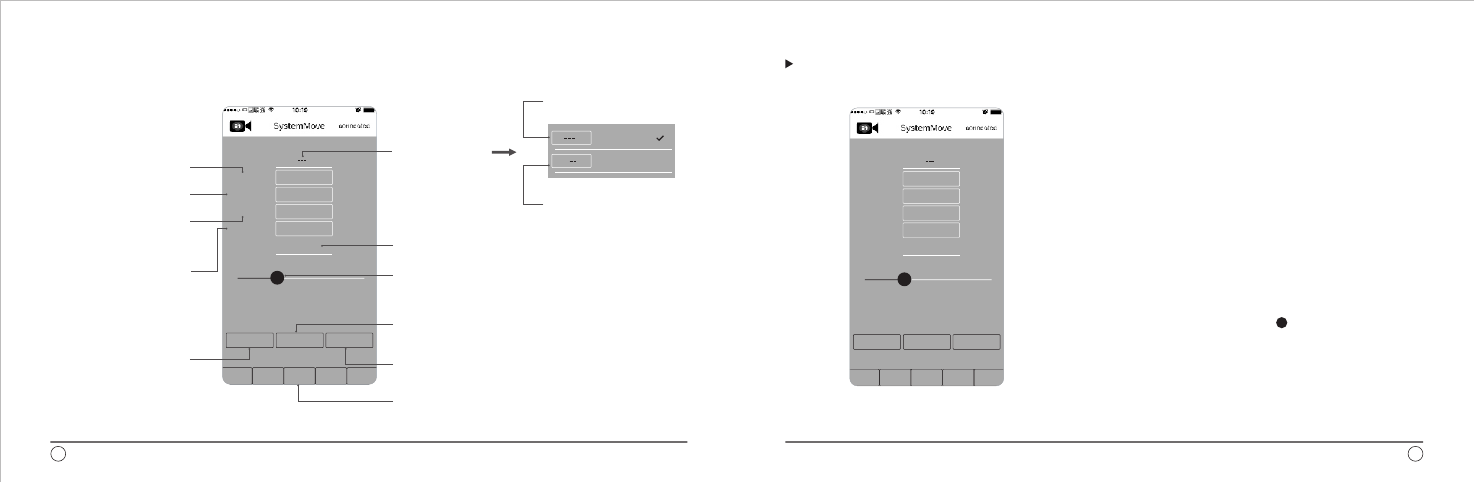
四、“延时拍摄”界面命令介绍
A B所需运动时长,格式为:时:分:秒 →
点击此键可使滑轨滑动面板开始从设定的始点向终点
移动,或者循环移动
切换至“延时拍摄”界面,该界面用于延时特效
摄影。
表示从A到B移动一次,
完成后停止。
表示从A到B,B到A,A到
B循环运动,在计算次数
时,A-B-A为一次。
点击此键可使滑轨滑动面板在移动状态下暂停
间隔比例为运动与停止时长的比例分配,如果选择
了该项,则“曝光前间隔”和“运动前间隔”选项
为灰色,成为无效设置
“延时拍摄”操作说明
延时拍摄操作说明:
1、设定好计划拍摄的轨迹,具体操作参照“预设轨迹”功
能操作说明;
2、选择“轨迹”,“A B”或”A B”。注:如果“轨
迹”选择了“A B”,则还需要选择“运行次数”;
3、设定拍摄张数,根据需要计算出所需拍摄张数,输入所
需张数;
4、设定曝光时长;
5、设定“曝光前间隔”时间;
6、设定“运动前间隔”时间;
7、设定“ 时 长”, 设 定“A B”所需时间注 :如果选
择“A B”轨迹,时间仍为”A B”单次运行时间;
单位为H:M:S
8、设定“间隔比例”,手动拖动“ ”图标调整。
注:如果设定了此项,“曝光前间隔”和“运动前间隔”
就成为无效功能;
9、设定完成后,点击“执行”按键,程序开始执行。
→ ↔
↔
→
↔ →
美孚保留随时变更设计及说明书内资料权利,恕不另行通知。 37
36
A > B
A < > B
预设轨迹 视频短片 延时拍摄 定格动画 配置
返回 执行 暂停
轨迹 A > B
拍摄张数
曝光时间
曝光前间隔
运动前间隔
时长
间隔比例
600
0.5
0.5
0.5
帧photos
秒
秒
秒
00:00:00
30%
预设轨迹 视频短片 延时拍摄 定格动画 配置
返回 执行 暂停
轨迹 A > B
拍摄张数
曝光时间
曝光前间隔
运动前间隔
时长
间隔比例
600
0.5
0.5
0.5
帧photos
秒
秒
秒
00:00:00
30%
点击此键可使滑轨滑
动面板返回所设定的
“始点”
相机曝光前滑动面板
运动停止时间长度
设置在移动过程中需
要拍摄照片的数量
“轨迹”按键,
用于设置循环
方式
相机曝光时长
曝光完成后与滑动面
板移动前的间隔时长
单页尺寸:130X85mm
中山百诺精密工业有限公司
以下
以下
以下
以下
适 用 机 型
说明书
128g铜 纸板
总页数 共 11 页
当前页码 第 页
2016.5.5
杨柳 规格 AC-06-001999
MCD01
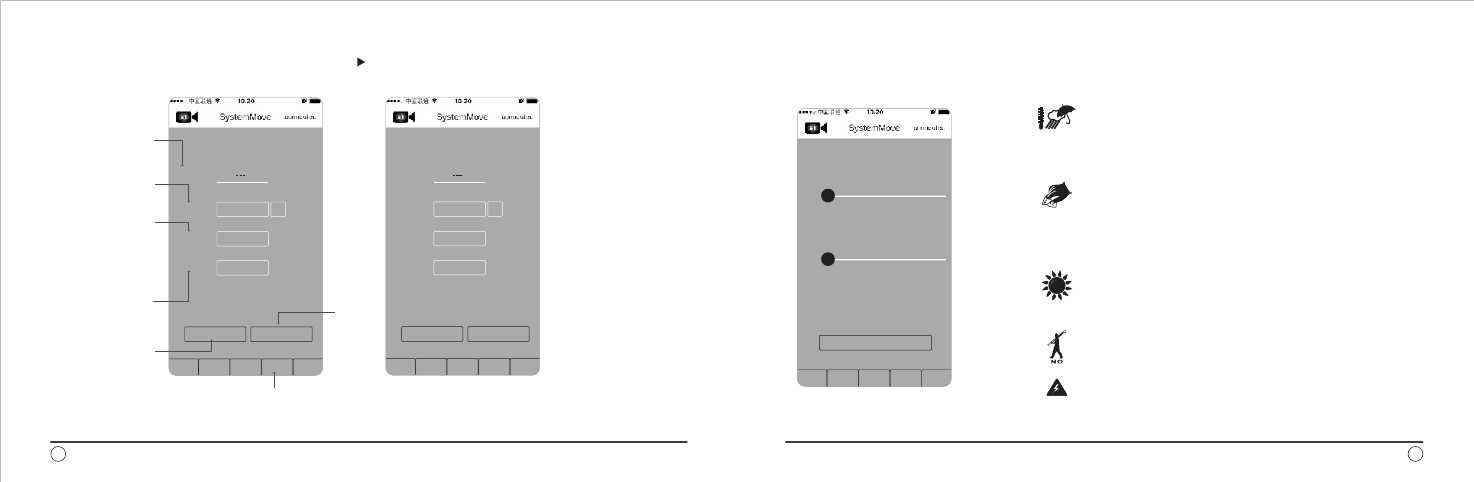
www.mefoto.com
美孚保留随时变更设计及说明书内资料权利,恕不另行通知。
五、“定格动画”界面命令介绍 “定格动画”操作说明
注:配置项为后期升级用。
六、配置界面命令介绍
操作说明:
1、设定好计划拍摄的轨
迹,具体操作参照
“预设轨迹”功能操作
说明;
2、点击“开锁”,填写
需要拍摄张数,“剩
余张数”会自动填写;
3、设定“曝光时长”;
4、按“执行”键,相机
拍照后运行到下一拍
摄点;
5、拍摄 完成后,点击
“返回”键,滑动面板
自动返到起点。
39
38
预设轨迹 视频短片 延时拍摄 定格动画 配置
轨迹 A > B
拍摄张数
剩余张数
曝光时长
300
300
1秒
帧photos
帧photos
开锁
执行 返回
预设轨迹 视频短片 延时拍摄 定格动画 配置
轨迹 A > B
拍摄张数
剩余张数
曝光时长
300
300
1秒
帧photos
帧photos
开锁
执行 返回
预设轨迹 视频短片 延时拍摄 定格动画 配置
最大速度配置
最大加速度配置
0%
0%
执行
循环方式,只有一
种方式,不可以选
择
设置需要拍摄照片
的数量
数据与拍摄张数挂
钩,自动计算,无
法设置,数量为设
定 的 “ 拍 摄 张 数”
减去已拍张数
设定相机曝光时长
点击一次,相机拍
摄一张, 然后滑轨
滑动面板移动到下
一张拍摄点,
移动距离=轨迹范围
/(拍摄张数-1) 切换至“定格动画”界面,
该界面用于范围内不同角
度手动拍摄照片。
返回
拍摄
起点
注意事项:
请勿长时间将产品放置在
太阳下,避免长时间将产
品放置在高温下, 例如靠
近汽车玻璃数小时。
在潮湿,泥沙,风尘等环
境中使用过后,一定要用
干布将琐紧螺牙和可能藏
有泥沙的部分清除干净 ,
可使用无水酒精,消毒酒
精,清洁剂等擦洗。不推
荐在海水中使用本产品。
请勿在低于零下30度或高
于零上60度的温度下使用
本产品。
为了 人 身 安 全 , 使 用 本
产品时,请勿靠近高电压
区域, 或与强效化学接触。
禁止搭 载摄像设备 一起
携带移动。
您所使用的百诺产品是经过精密
加工,多项严密质量检测,所有
功能严格测试才完整包装出厂的。
所有材料或者工艺方面的瑕疵,
可以在您所购买的区域免费维修
或者更换。详细的质量保修可以
联系您所在地的经销商。所有人
为原 因所造 成的产 品损坏 不在
保修范围内,例如:错误操作,
严重摔落,或者电池漏电液体损
坏。
地址 广东省中山市坦洲镇第三
工业区火炬路 号
邮编:
电话: -
传真: -
Http:www.benro.com
www.benro.cn
Email:sales@benro.com
中山百诺精密工业有限公司
:
59
528467
0760 86738666
0760 86211711
保修范围
单页尺寸:130X85mm
中山百诺精密工业有限公司
以下
以下
以下
以下
适 用 机 型
说明书
128g铜 纸板
总页数 共 11 页
当前页码 第 页
2016.5.5
杨柳 规格 AC-06-001999
MCD01