Bittium Wireless DT40ISAP Integrated Service Access Point User Manual ISAP User Guide ENU

Bittium Wireless Ltd. Integrated Service Access Point ISAP User Guide ENU

08 User Guide

Integrated Service Access Point  Page    1User Guide of    30     Copyright © BMW AG / Integrated Service Access PointVersion 1.0/ March 08         Integrated Service Access Point Product Description User Guide       Version: 1.0 Date:   February 08
Integrated Service Access Point  Page    2User Guide of    30     Copyright © BMW AG / Integrated Service Access PointVersion 1.0/ March 08 Table of Contents  1 Introduction................................................................................................................... 4 1.1 Welcome........................................................................................................................................... 4 1.2 Safety notes ..................................................................................................................................... 5 1.2.1 General safety warnings....................................................................................................... 5 1.2.2 Important warnings for use of device.................................................................................. 5 1.3 About this document....................................................................................................................... 6 1.4 Regulatory information.................................................................................................................... 7 1.5 Delivery content............................................................................................................................... 7 2 Technical Data............................................................................................................... 9 3 Components ................................................................................................................ 10 3.1 Access Point ..................................................................................................................................10 3.1.1 LED functions......................................................................................................................11 3.1.2 Antenna connectors ...........................................................................................................12 3.1.3 Reset button........................................................................................................................12 3.1.4 LAN connector....................................................................................................................12 3.1.5 USB connector....................................................................................................................12 3.1.6 AC connector ......................................................................................................................13 3.2 Antennas ........................................................................................................................................13 3.3 Mounting plate and installation kit ...............................................................................................14 3.4 Accessories....................................................................................................................................14 3.4.1 Power cord .......................................................................................................................... 14 3.4.2 LAN cable............................................................................................................................14 4 Unpacking and Installation........................................................................................... 15 4.1 Unpacking instructions.................................................................................................................. 15 4.2 Installation location........................................................................................................................15 4.3 Mounting instructions ...................................................................................................................16 4.3.1 Fixing mounting plate.........................................................................................................17 4.3.2 Placing ISAP on mounting plate........................................................................................18 4.3.3 Connecting cables.............................................................................................................. 20 4.3.4 Removing ISAP from mounting plate................................................................................20 5 Registration, Configuration and Operation .................................................................. 21 5.1 Registration of ISAP ......................................................................................................................21 5.1.1 Automatic registration........................................................................................................ 21 5.1.2 Manual registration.............................................................................................................21 5.2 Configuration and operation .........................................................................................................21 5.2.1 Configuration ......................................................................................................................21 5.2.2 Channel scanning ............................................................................................................... 21 6 Maintenance................................................................................................................ 23 6.1 Status information .........................................................................................................................23 6.2 Cleaning ISAP ................................................................................................................................23 6.3 Cable state .....................................................................................................................................23 6.4 Replacing a defective cable ..........................................................................................................23 6.5 Replacing antennas .......................................................................................................................23 6.6 Reset to factory settings...............................................................................................................24
Integrated Service Access Point  Page    3User Guide of    30     Copyright © BMW AG / Integrated Service Access PointVersion 1.0/ March 08 6.7 Replacing ISAP for maintenance purposes................................................................................. 25 7 Troubleshooting .......................................................................................................... 26 8 Terms and Abbreviations............................................................................................. 28 9 References................................................................................................................... 29 10 List of Figures .............................................................................................................. 30
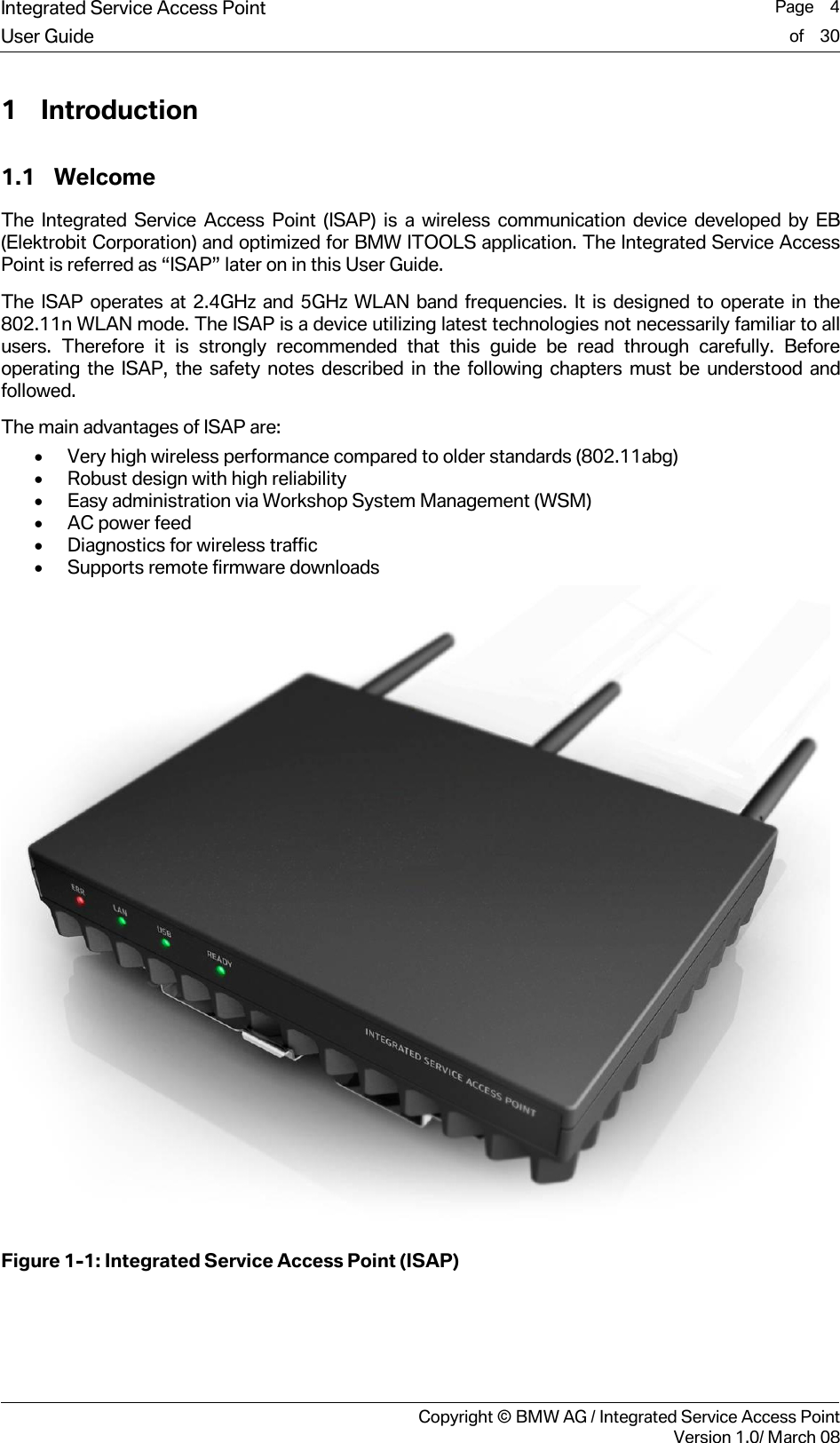
Integrated Service Access Point  Page    4User Guide of    30     Copyright © BMW AG / Integrated Service Access PointVersion 1.0/ March 08 1 Introduction 1.1 Welcome The Integrated Service Access Point (ISAP) is a wireless communication device developed by EB (Elektrobit Corporation) and optimized for BMW ITOOLS application. The Integrated Service Access Point is referred as “ISAP” later on in this User Guide. The ISAP operates at 2.4GHz and 5GHz WLAN band frequencies. It is designed to operate in the 802.11n WLAN mode. The ISAP is a device utilizing latest technologies not necessarily familiar to all users. Therefore it is strongly recommended that this guide be read through carefully. Before operating the ISAP, the safety notes described in the following chapters must be understood and followed.  The main advantages of ISAP are: • Very high wireless performance compared to older standards (802.11abg) • Robust design with high reliability • Easy administration via Workshop System Management (WSM) • AC power feed • Diagnostics for wireless traffic • Supports remote firmware downloads  Figure 1-1: Integrated Service Access Point (ISAP)
Integrated Service Access Point  Page    5User Guide of    30     Copyright © BMW AG / Integrated Service Access PointVersion 1.0/ March 08 1.2 Safety notes  This part introduces the different signs that will be used all along this user guide and the important warnings to remember at all times when using the device.  1.2.1 General safety warnings  Danger!  Means that by not following the instruction there is a possibility of death and/or serious injury.  Warning!  Means that by not following the instruction there is a possibility of serious injury and/or damage in ISAP and/or surrounded materials.  Attention!  Means that not following the instruction can cause damages to the device or data.   Info!  Tips and hints for easier operation.  1.2.2 Important warnings for use of device Please pay careful attention to the following remarks.   Danger! Do not use damaged equipment and/or accessories such as damaged power cord.  Danger! Do not use any other accessories than those provided with the device. The use of any other parts will cause danger and void the warranty.  Danger! Never try to open the device. By trying to open the device you will be exposed to a risk of death or injury.  Danger! Do not use this product during thunderstorm, floods and other dangerous climate events susceptible to cause serious harm to persons.    Danger! Never operate ISAP near open fuel tanks. There is a risk of fire or explosion.  Warning! Read this user guide carefully before mounting, installing and operating the device.   Warning! Do not use extension cord for power cable, use only the power cable delivered with the device.  i
Integrated Service Access Point  Page    6User Guide of    30     Copyright © BMW AG / Integrated Service Access PointVersion 1.0/ March 08  Warning! Never unplug equipment from the electrical outlet by holding the cord only, always disconnect the cable by applying force directly to the plug.  Warning! Ensure sufficient air cooling when installing ISAP.  Warning! Do not apply any forces with any tools to the antenna connectors’ threads when connecting or disconnection the antennas. The antennas shall be connected and fixed by hand only.  Warning! Do not operate the device in any other environmental conditions than it is designed for.  Warning! Do not open the housing of the ISAP. There are no serviceable parts inside!  1.3 About this document This document provides instructions regarding the installation, the set up and the operation of the device.  • Chapter one gives general information regarding the product safety and legal notifications. It is very important that this chapter is read carefully before operating ISAP.  • Chapter two provides information on technical details and environmental restrictions of the access point.  • Chapter three describes in detail the components delivered with the ISAP.  • Chapter four presents all needed steps in order to install the access point.  • Chapter five gives hints on registration, configuration and operation of the ISAP. • Chapter six covers maintenance. • Chapter seven is a troubleshooting guide in case of unexpected behavior.
Integrated Service Access Point  Page    7User Guide of    30     Copyright © BMW AG / Integrated Service Access PointVersion 1.0/ March 08 1.4 Regulatory information Regulatory Information Product Name: ISAP Product Type: IP40 version Further Description:  As described in this document meets the requirements for EMC and Electrical Safety according to CE-Directives  1999/5/EC, Radio and Telecommunications Terminal Equipment (R&TTE)  2004/108/EC, Electromagnetic Compatibility (EMC)  2006/95/EC, Low Voltage Directive (LVD)  2002/95/EC, Restriction of Hazardous Substances Directive (RoHS)  2002/96/EC, Waste Electrical and Electronic Equipment (WEEE), Note 1) UL listed  E319085 Note 1) Waste Electrical and Electronic Equipment (WEEE) Directive 2002/96/EC This product complies with the WEEE Directive (2002/96/EC) marking requirements. The affixed product label (see beside) indicates that you must not discard this electronic product in domestic household waste. This mark on the product, the packaging or the relevant documentation indicates that this product may not be treated as ordinary household garbage. Please contact first level support on how to organize disposal at your country. FCC Statement: This equipment has been tested and found to comply with the limits for a Class B digital device, pursuant to Part 15 of the FCC Rules. These limits are designed to provide reasonable protection against harmful interference in a residential installation. This equipment generates, uses and can radiate radio frequency energy and, if not installed and used in accordance with the instructions,  may cause harmful interference to radio communications. However, there is no guarantee that interference will not occur in a particular installation. If this equipment does cause harmful interference to radio or television reception, which can be determined by turning the equipment off and on, the user is encouraged to try to correct the interference by one or more of the following measures: • Reorient or relocate the receiving antenna. • Increase the separation between the equipment and receiver. • Connect the equipment into an outlet on a circuit different from that to which the receiver is connected. • Consult the dealer or an experienced radio/TV technician for help. This device complies with Part 15 of the FCC Rules and with RSS-210 of Industry Canada. Operation is subject to the following two conditions: (1) This device may not cause harmful interference, and (2) This device must accept any interference received, including interference that may cause undesired operation. This Class B digital apparatus complies with Canadian ICES-003.  Cet appareil numérique de la classe B est conforme à la norme NMB-003 du Canada.
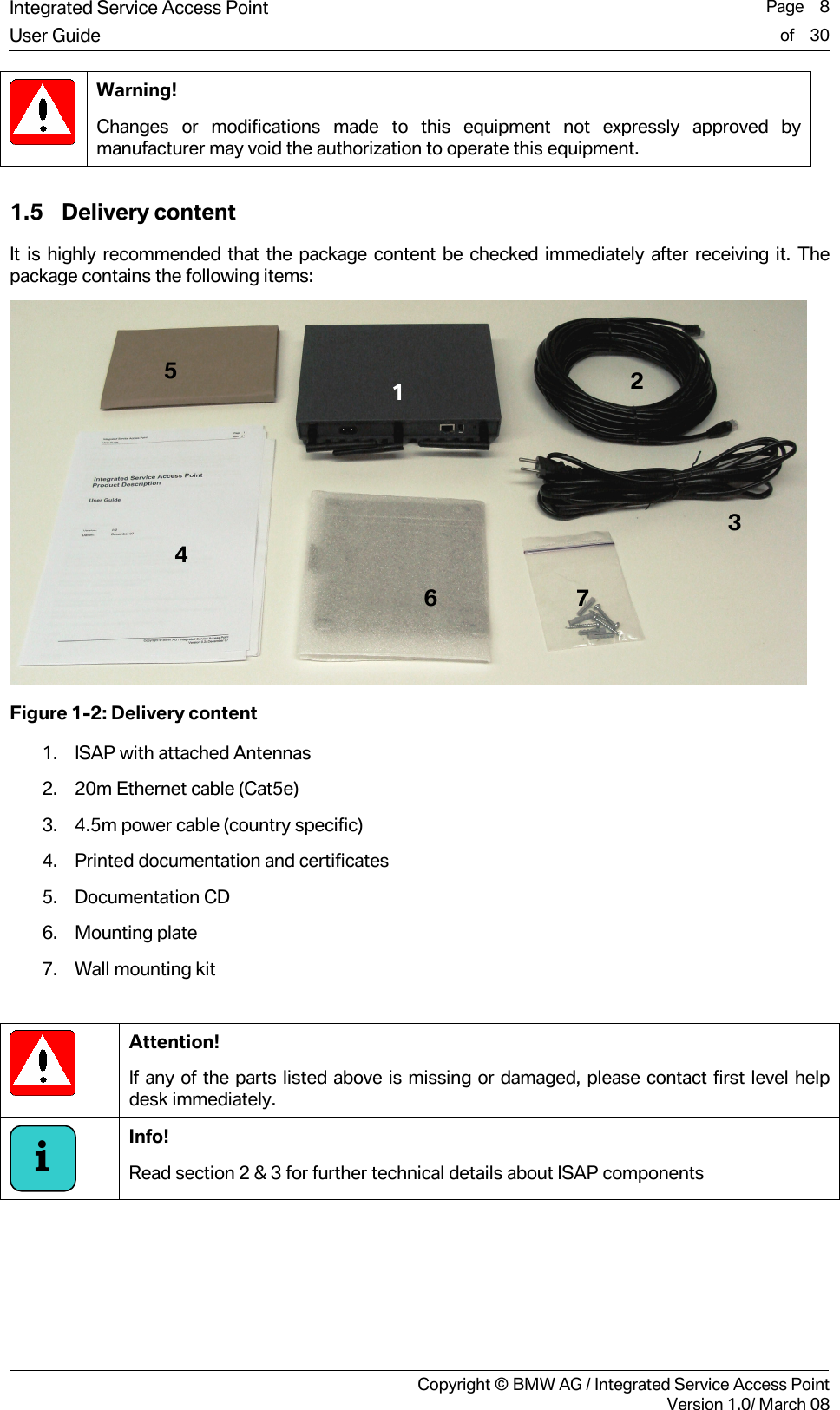
Integrated Service Access Point  Page    8User Guide of    30     Copyright © BMW AG / Integrated Service Access PointVersion 1.0/ March 08  Warning! Changes or modifications made to this equipment not expressly approved by manufacturer may void the authorization to operate this equipment. 1.5 Delivery content It is highly recommended that the package content be checked immediately after receiving it. The package contains the following items:   Figure 1-2: Delivery content 1. ISAP with attached Antennas  2. 20m Ethernet cable (Cat5e) 3. 4.5m power cable (country specific) 4. Printed documentation and certificates 5. Documentation CD 6. Mounting plate  7. Wall mounting kit   Attention!  If any of the parts listed above is missing or damaged, please contact first level help desk immediately.  Info!  Read section 2 & 3 for further technical details about ISAP components  i5 4 2 3 6 7 1
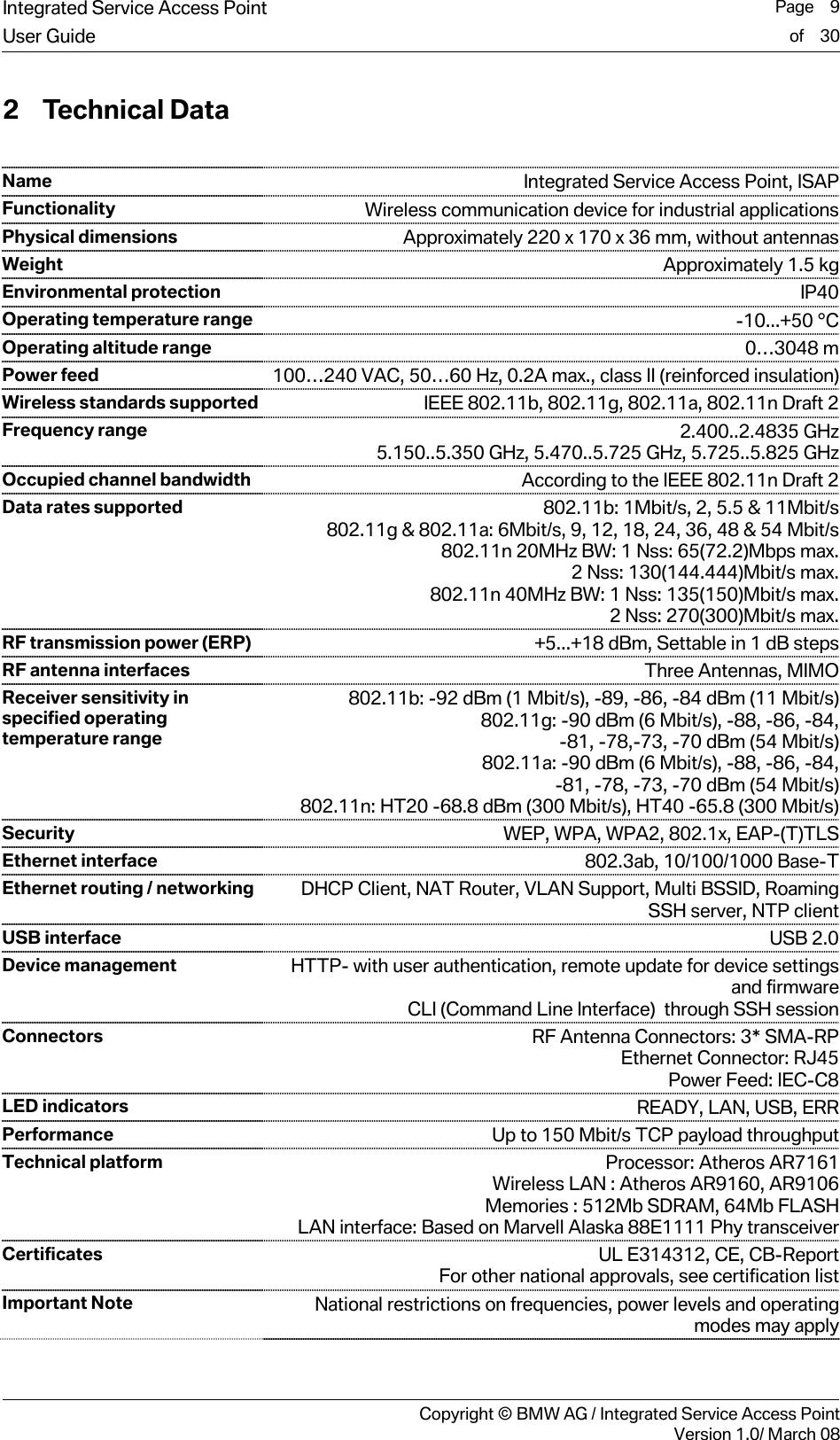
Integrated Service Access Point  Page    9User Guide of    30     Copyright © BMW AG / Integrated Service Access PointVersion 1.0/ March 08 2 Technical Data  Name Integrated Service Access Point, ISAPFunctionality Wireless communication device for industrial applicationsPhysical dimensions Approximately 220 x 170 x 36 mm, without antennasWeight Approximately 1.5 kgEnvironmental protection IP40Operating temperature range -10...+50 °COperating altitude range 0…3048 mPower feed 100…240 VAC, 50…60 Hz, 0.2A max., class II (reinforced insulation)Wireless standards supported IEEE 802.11b, 802.11g, 802.11a, 802.11n Draft 2Frequency range 2.400..2.4835 GHz5.150..5.350 GHz, 5.470..5.725 GHz, 5.725..5.825 GHzOccupied channel bandwidth According to the IEEE 802.11n Draft 2Data rates supported 802.11b: 1Mbit/s, 2, 5.5 & 11Mbit/s802.11g & 802.11a: 6Mbit/s, 9, 12, 18, 24, 36, 48 & 54 Mbit/s802.11n 20MHz BW: 1 Nss: 65(72.2)Mbps max.2 Nss: 130(144.444)Mbit/s max. 802.11n 40MHz BW: 1 Nss: 135(150)Mbit/s max.2 Nss: 270(300)Mbit/s max.RF transmission power (ERP) +5...+18 dBm, Settable in 1 dB stepsRF antenna interfaces  Three Antennas, MIMOReceiver sensitivity in specified operating temperature range 802.11b: -92 dBm (1 Mbit/s), -89, -86, -84 dBm (11 Mbit/s)802.11g: -90 dBm (6 Mbit/s), -88, -86, -84,-81, -78,-73, -70 dBm (54 Mbit/s)802.11a: -90 dBm (6 Mbit/s), -88, -86, -84,-81, -78, -73, -70 dBm (54 Mbit/s)802.11n: HT20 -68.8 dBm (300 Mbit/s), HT40 -65.8 (300 Mbit/s)Security WEP, WPA, WPA2, 802.1x, EAP-(T)TLSEthernet interface 802.3ab, 10/100/1000 Base-TEthernet routing / networking DHCP Client, NAT Router, VLAN Support, Multi BSSID, RoamingSSH server, NTP clientUSB interface USB 2.0Device management HTTP- with user authentication, remote update for device settingsand firmwareCLI (Command Line Interface)  through SSH sessionConnectors RF Antenna Connectors: 3* SMA-RPEthernet Connector: RJ45Power Feed: IEC-C8LED indicators READY, LAN, USB, ERRPerformance Up to 150 Mbit/s TCP payload throughputTechnical platform Processor: Atheros AR7161Wireless LAN : Atheros AR9160, AR9106Memories : 512Mb SDRAM, 64Mb FLASHLAN interface: Based on Marvell Alaska 88E1111 Phy transceiverCertificates UL E314312, CE, CB-ReportFor other national approvals, see certification listImportant Note National restrictions on frequencies, power levels and operatingmodes may apply
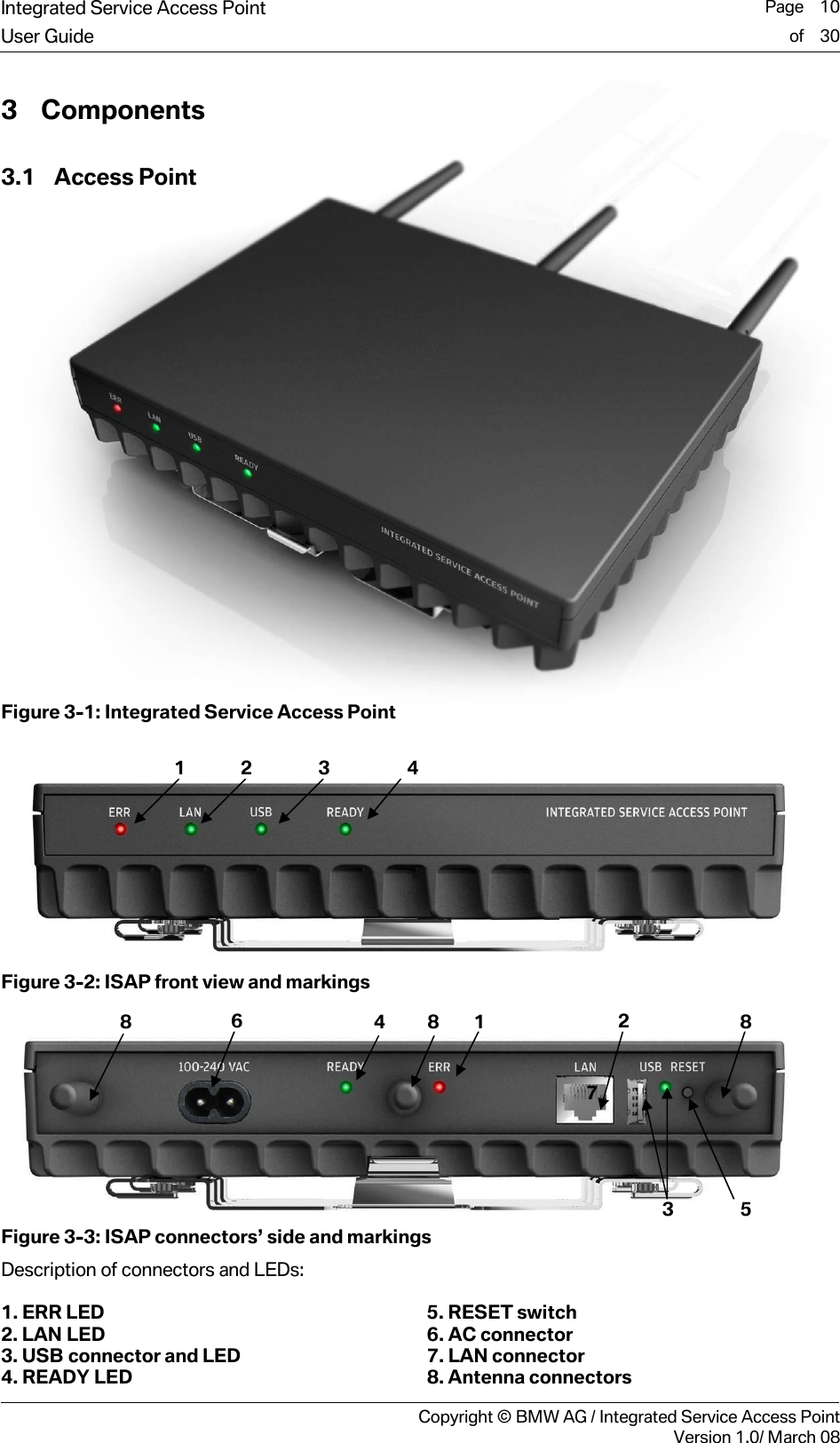
Integrated Service Access Point  Page    10User Guide of    30     Copyright © BMW AG / Integrated Service Access PointVersion 1.0/ March 08 3 Components 3.1 Access Point              Figure 3-1: Integrated Service Access Point   Figure 3-2: ISAP front view and markings   Figure 3-3: ISAP connectors’ side and markings Description of connectors and LEDs:  1. ERR LED  5. RESET switch 2. LAN LED 6. AC connector 3. USB connector and LED 7. LAN connector 4. READY LED 8. Antenna connectors 4 3 1  2 6 8  4  8  1 7 2 3  5 8
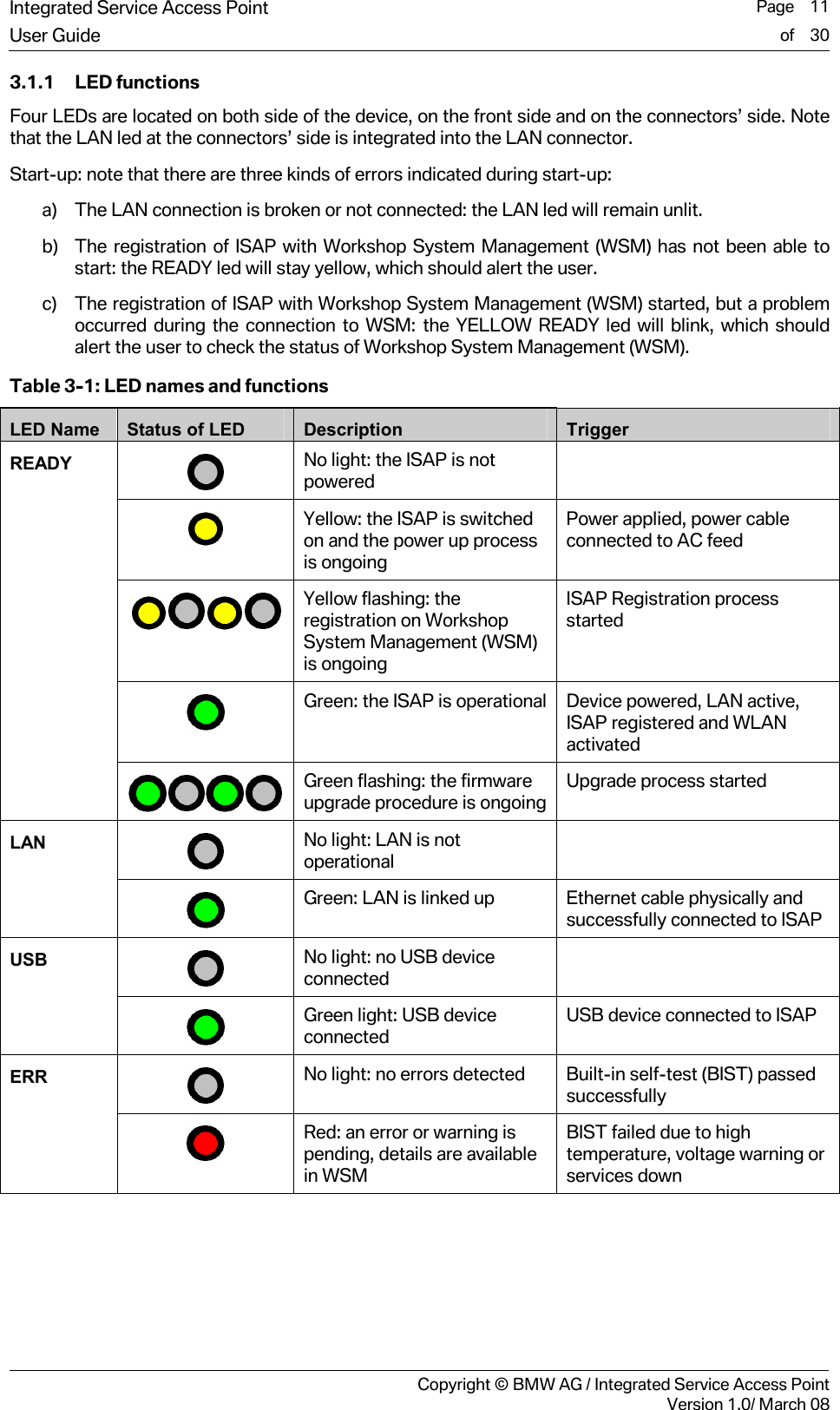
Integrated Service Access Point  Page    11User Guide of    30     Copyright © BMW AG / Integrated Service Access PointVersion 1.0/ March 08 3.1.1 LED functions Four LEDs are located on both side of the device, on the front side and on the connectors’ side. Note that the LAN led at the connectors’ side is integrated into the LAN connector. Start-up: note that there are three kinds of errors indicated during start-up:  a) The LAN connection is broken or not connected: the LAN led will remain unlit. b) The registration of ISAP with Workshop System Management (WSM) has not been able to start: the READY led will stay yellow, which should alert the user. c) The registration of ISAP with Workshop System Management (WSM) started, but a problem occurred during the connection to WSM: the YELLOW READY led will blink, which should alert the user to check the status of Workshop System Management (WSM). Table 3-1: LED names and functions LED Name  Status of LED  Description  Trigger  No light: the ISAP is not powered   Yellow: the ISAP is switched on and the power up process is ongoing Power applied, power cable connected to AC feed  Yellow flashing: the registration on Workshop System Management (WSM) is ongoing ISAP Registration process started  Green: the ISAP is operational  Device powered, LAN active, ISAP registered and WLAN activated READY  Green flashing: the firmware upgrade procedure is ongoing Upgrade process started  No light: LAN is not operational  LAN  Green: LAN is linked up  Ethernet cable physically and successfully connected to ISAP  No light: no USB device connected  USB  Green light: USB device connected  USB device connected to ISAP  No light: no errors detected  Built-in self-test (BIST) passed successfully ERR  Red: an error or warning is pending, details are available in WSM BIST failed due to high temperature, voltage warning or services down
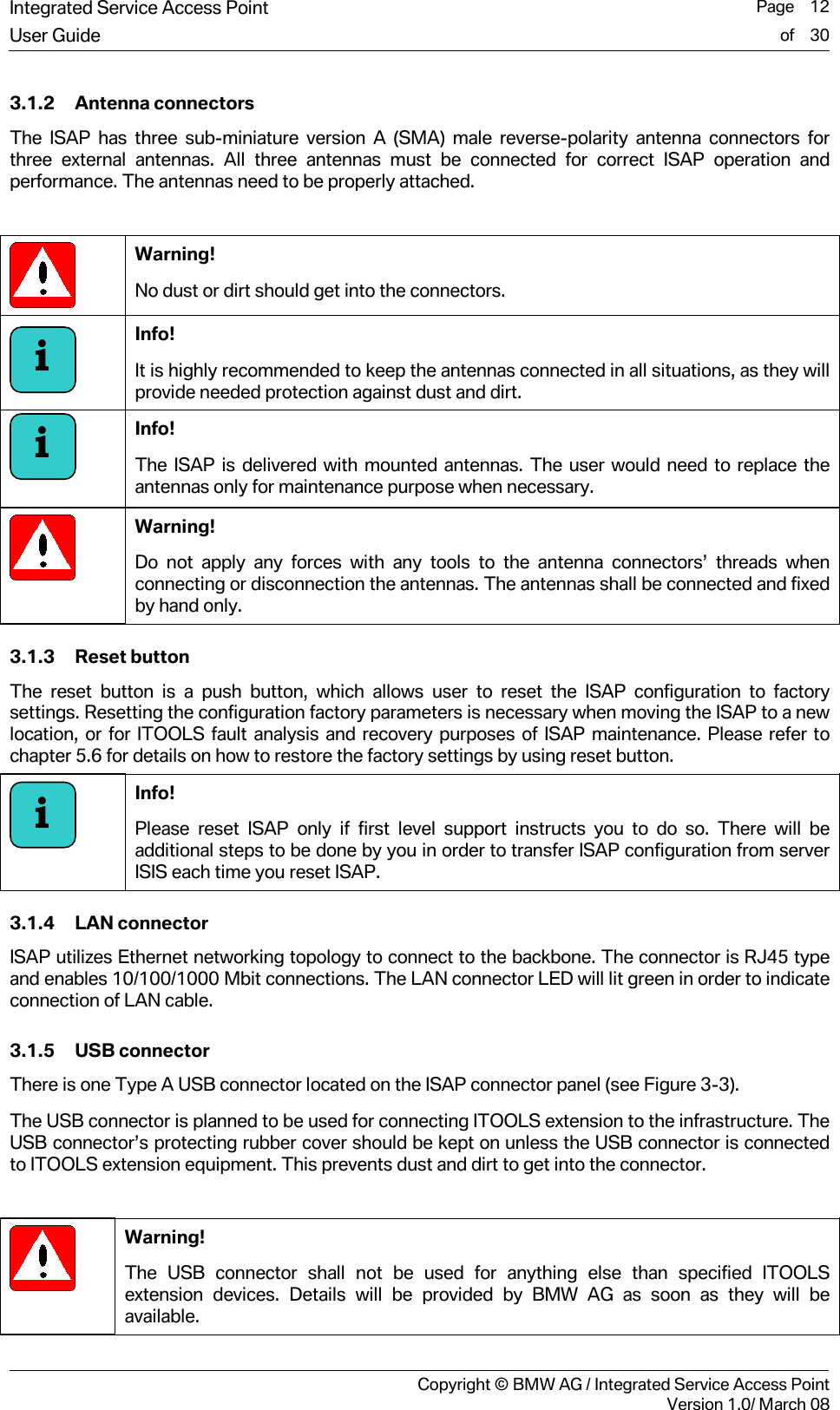
Integrated Service Access Point  Page    12User Guide of    30     Copyright © BMW AG / Integrated Service Access PointVersion 1.0/ March 08 3.1.2 Antenna connectors The ISAP has three sub-miniature version A (SMA) male reverse-polarity antenna connectors for three external antennas. All three antennas must be connected for correct ISAP operation and performance. The antennas need to be properly attached.   Warning!  No dust or dirt should get into the connectors.  Info!  It is highly recommended to keep the antennas connected in all situations, as they will provide needed protection against dust and dirt.  Info!  The ISAP is delivered with mounted antennas. The user would need to replace the antennas only for maintenance purpose when necessary.  Warning! Do not apply any forces with any tools to the antenna connectors’ threads when connecting or disconnection the antennas. The antennas shall be connected and fixed by hand only. 3.1.3 Reset button The reset button is a push button, which allows user to reset the ISAP configuration to factory settings. Resetting the configuration factory parameters is necessary when moving the ISAP to a new location, or for ITOOLS fault analysis and recovery purposes of ISAP maintenance. Please refer to chapter 5.6 for details on how to restore the factory settings by using reset button.   Info!  Please reset ISAP only if first level support instructs you to do so. There will be additional steps to be done by you in order to transfer ISAP configuration from server ISIS each time you reset ISAP. 3.1.4 LAN connector ISAP utilizes Ethernet networking topology to connect to the backbone. The connector is RJ45 type and enables 10/100/1000 Mbit connections. The LAN connector LED will lit green in order to indicate connection of LAN cable. 3.1.5 USB connector There is one Type A USB connector located on the ISAP connector panel (see Figure 3-3).  The USB connector is planned to be used for connecting ITOOLS extension to the infrastructure. The USB connector’s protecting rubber cover should be kept on unless the USB connector is connected to ITOOLS extension equipment. This prevents dust and dirt to get into the connector.   Warning! The USB connector shall not be used for anything else than specified ITOOLS extension devices. Details will be provided by BMW AG as soon as they will be available. iii
Integrated Service Access Point  Page    13User Guide of    30     Copyright © BMW AG / Integrated Service Access PointVersion 1.0/ March 08  3.1.6 AC connector The connector used for ISAP is an IEC60320-C8 power plug. The power supply module is integrated into the ISAP and can be connected to mains voltages of 100…240 VAC, 50…60Hz with the power cable provided.   Danger! Do not use any other power cord than the one delivered with the device. The use of any other cord will cause danger and void the warranty.  Warning! Do not use extension cord for power cable, use only the power cable delivered with the device. 3.2 Antennas ISAP includes external WLAN Tri-band small diameter antennas, which cover frequencies from 2.4 to 6 GHz. Omni-directional patterns with gain in upper frequencies give optimal coverage for workshop environment. The antenna has a gain of 2.1 dBi at 2.45 GHz and 2.5 dBi at 5.875 GHz. The antennas should be placed so that they are pointing all into different directions. The performance of ISAP is maximized when antennas create as different (i.e. non-correlating) spatial streams as possible. See Figure 3-4 below for example how to point antennas.  Figure 3-4: Example of antenna directions  Warning! Do not push the antennas to the angles which the flexible joint doesn’t easily allow. Otherwise you might break the joints.  Warning! Use only the antennas which are delivered with the device – changes to antenna configuration void operating permission and certificates.
Integrated Service Access Point  Page    14User Guide of    30     Copyright © BMW AG / Integrated Service Access PointVersion 1.0/ March 08 3.3 Mounting plate and installation kit A metal mounting plate is delivered with the ISAP. It enables mounting the ISAP vertically on a wall, made from concrete. Always use the delivered mounting plate for fixing the ISAP. It is designed to enable efficient cooling of the ISAP and proper mounting and holding. The installation kit includes the required screws and dowels for fixing the mounting plate on the wall. 3.4 Accessories 3.4.1 Power cord A 4.5 meter long power cord is delivered with the ISAP, with improved resistance to media normally found in the workshop environment. Depending on the AC wall adapters used in each country, one or more of the cables is supplied with each ISAP  Danger! Do not use any other power cord than the one provided with the device. The use of any other cord will result in danger and void the warranty. In some countries using a different power cord than the one supplied may also void ISAP type approvals.  Warning! Do not use any extension cord, use only the power cable delivered with the device.   Warning! Never unplug equipment from the electrical outlet by holding the cord only, always disconnect the cord by applying force directly to the plug. 3.4.2 LAN cable A 20 meter long LAN cable is delivered with the ISAP. This is a Cat5e shielded cable with RJ45 connectors on both ends.     Warning! Do not use any extension cables, use only the LAN cable delivered with the device. In some countries using a different LAN cable than the one supplied may also void ISAP type approvals.
Integrated Service Access Point  Page    15User Guide of    30     Copyright © BMW AG / Integrated Service Access PointVersion 1.0/ March 08 4 Unpacking and Installation  Warning! Only installation by a professional is allowed. 4.1 Unpacking instructions The ISAP delivery box is made of carton which can be recycled through standard process used for carton materials. However, the box has been approved with logistical experts and should be kept in safe in case there will be need to send ISAP back to another location or to repair. The content is packed in two separate spaces. The ISAP main device is packed directly inside the package with two carton parts which hold it in correct place. The other material can be found from the internal carton box below ISAP main device.  1. Open and remove the first outside cover carton box  2. Open the second cover carton box and lift up the ISAP main device 3. Open the internal box which include all the other delivery content 4. Check that  the delivery content is according to chapter 0 4.2 Installation location If there were no problems with previous the Access Point in Workshop, it is a good idea to consider mounting the ISAP to the place where the previous generation Access Point has been mounted before. For best performance the following notes should be considered and mounting locations should be selected based on given hints: 1. The mounting location should be selected so that it is central for assumed ITOOLS operations: o Mount the ISAP near to the place where wireless networks will be mostly used o Allow a line of sight contact between the ISAP and the workplace where ITOOLS will be used  o Installing ISAP high on the wall typically allows best radio coverage and optimum operation, minimum height of 2 meters is recommended  2. Select the mounting location so that it is free from unnecessary obstacles, or removing obstacles nearby ISAP installation location o Obstacles, such as metal surfaces in desks, filing cabinets, bookshelves, and wastebaskets close to the ISAP may degrade the performance 3. Mounting location distance from the Workshop LAN backbone (ISIS) o ISAP is connected to ISIS backbone with a 20 meters Ethernet cable  o ISAP mounting point shall be selected so that the supplied 20 meters cable can connect the ISAP to the ISIS backbone without any cable extension. The Ethernet connection cable should be installed and fixed in a way that cable does not cause
Integrated Service Access Point  Page    16User Guide of    30     Copyright © BMW AG / Integrated Service Access PointVersion 1.0/ March 08 problems for workshop operations. The cable should be fixed at a safe distance from any moving tools, vehicles, etc. In order to connect the ISAP to the ISIS, please use the ISIS Gigabit switch or Layer-2-switch. If you use a router instead, make sure that it is configured correctly. For detailed information please refer to the special information on workshop cabling and installation provided by your market. o Observe local regulations regarding cable installation! 4. The distance to other operational wireless networks should be maximized. 5. Interference from other wireless networks may be eliminated or reduced by:  o Changing the channel of ISAP operation by using Workshop System Management (WSM) or changing the operational channels of surrounding wireless networks. You should consider using the built-in Channel Scanning feature of the ISAP. This feature will help you to detect other wireless networks in surrounding environment and will help you to select an appropriate channel to minimize disturbances and interferences from other transmitters. Please refer to Chapter 5.2 for more details on Channel Scanning. o Adjusting the power levels of other wireless networks nearby. Please check with your IT responsible person on the preconditions of WLAN operation. 4.3 Mounting instructions  Warning! Do not use any other mounting equipment than those provided with the device. Using other mounting equipment may cause damage to the device, personnel or surrounding environment.   Warning! The total weight of the ISAP is almost 2 kg. The wall must be made from appropriate material to be able to handle the weight of the ISAP through the four mounting screws.
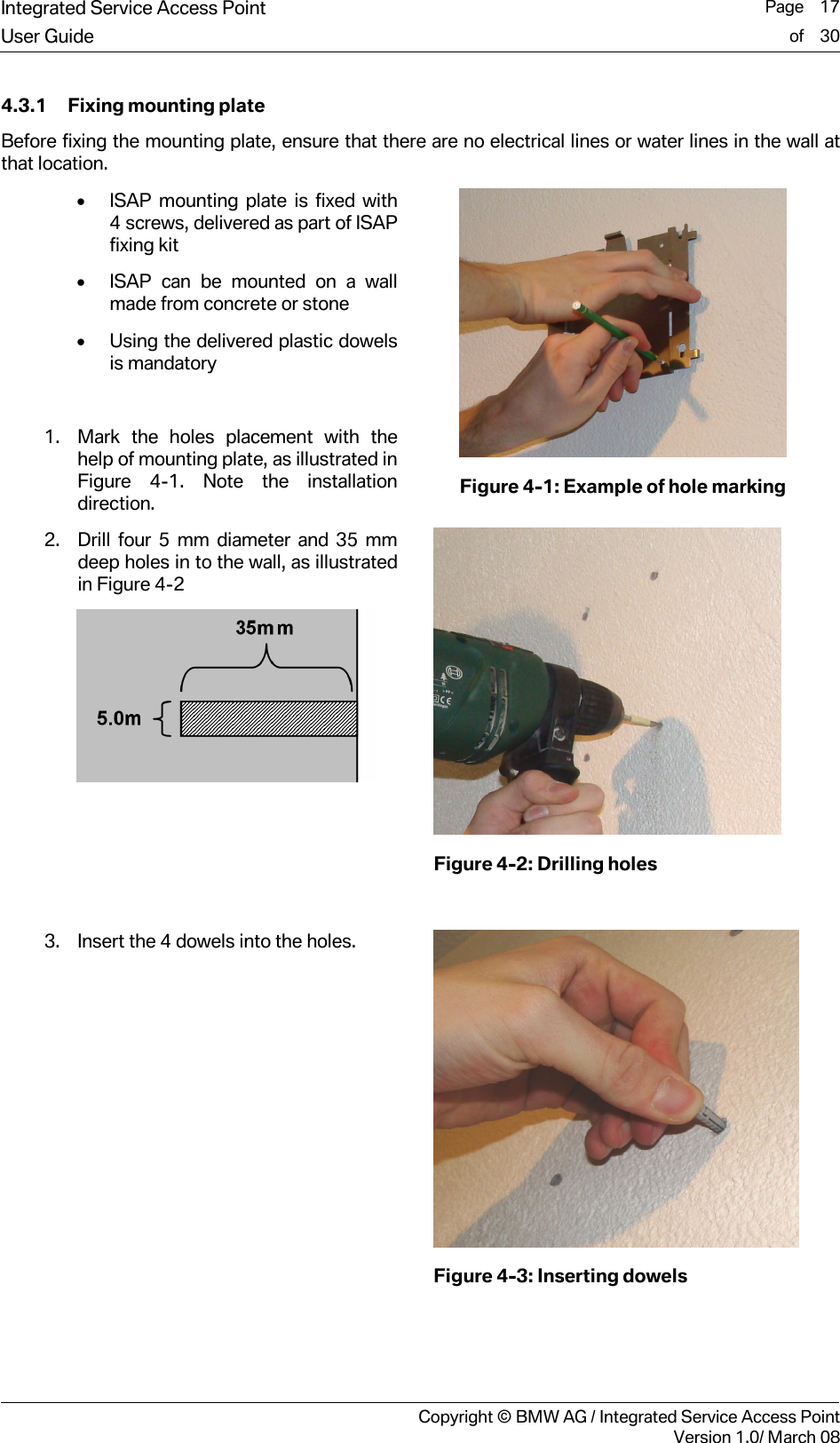
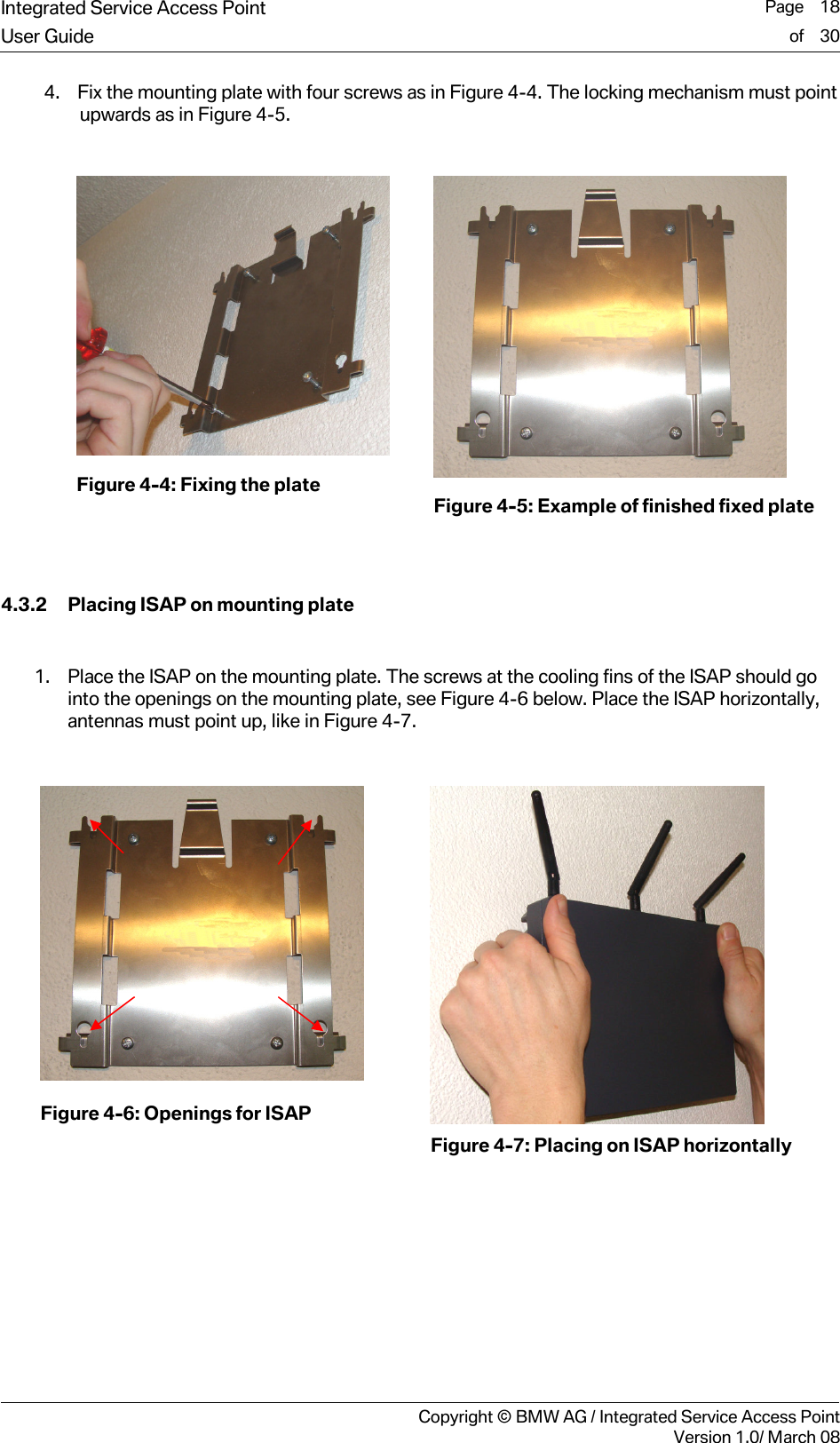
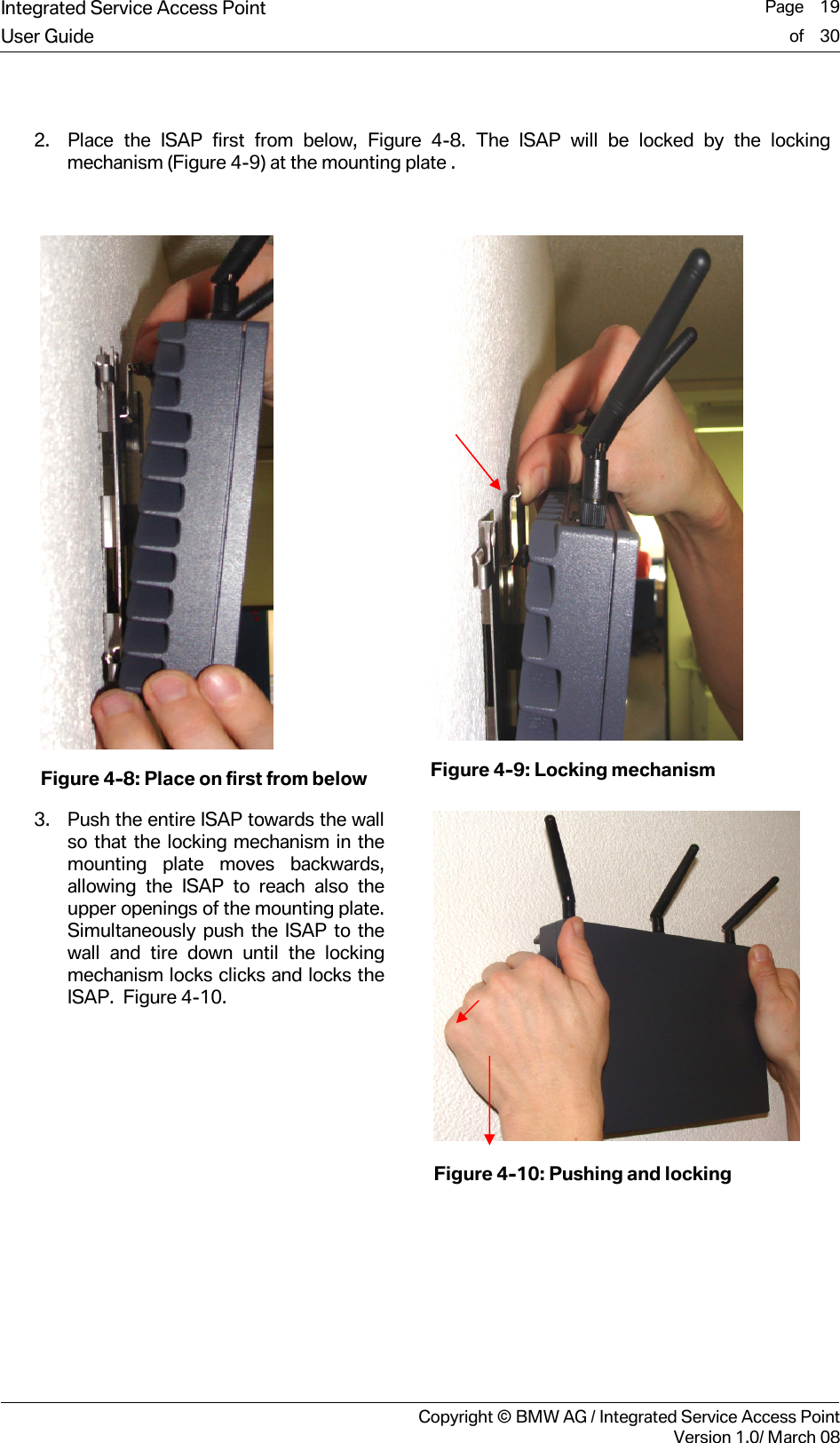
Integrated Service Access Point  Page    17User Guide of    30     Copyright © BMW AG / Integrated Service Access PointVersion 1.0/ March 08 4.3.1 Fixing mounting plate Before fixing the mounting plate, ensure that there are no electrical lines or water lines in the wall at that location.  • ISAP mounting plate is fixed with 4 screws, delivered as part of ISAP fixing kit • ISAP can be mounted on a wall made from concrete or stone • Using the delivered plastic dowels is mandatory  1. Mark the holes placement with the help of mounting plate, as illustrated in Figure 4-1. Note the installation direction.  Figure 4-1: Example of hole marking 2. Drill four 5 mm diameter and 35 mm deep holes in to the wall, as illustrated in Figure 4-2    Figure 4-2: Drilling holes  3. Insert the 4 dowels into the holes.  Figure 4-3: Inserting dowels
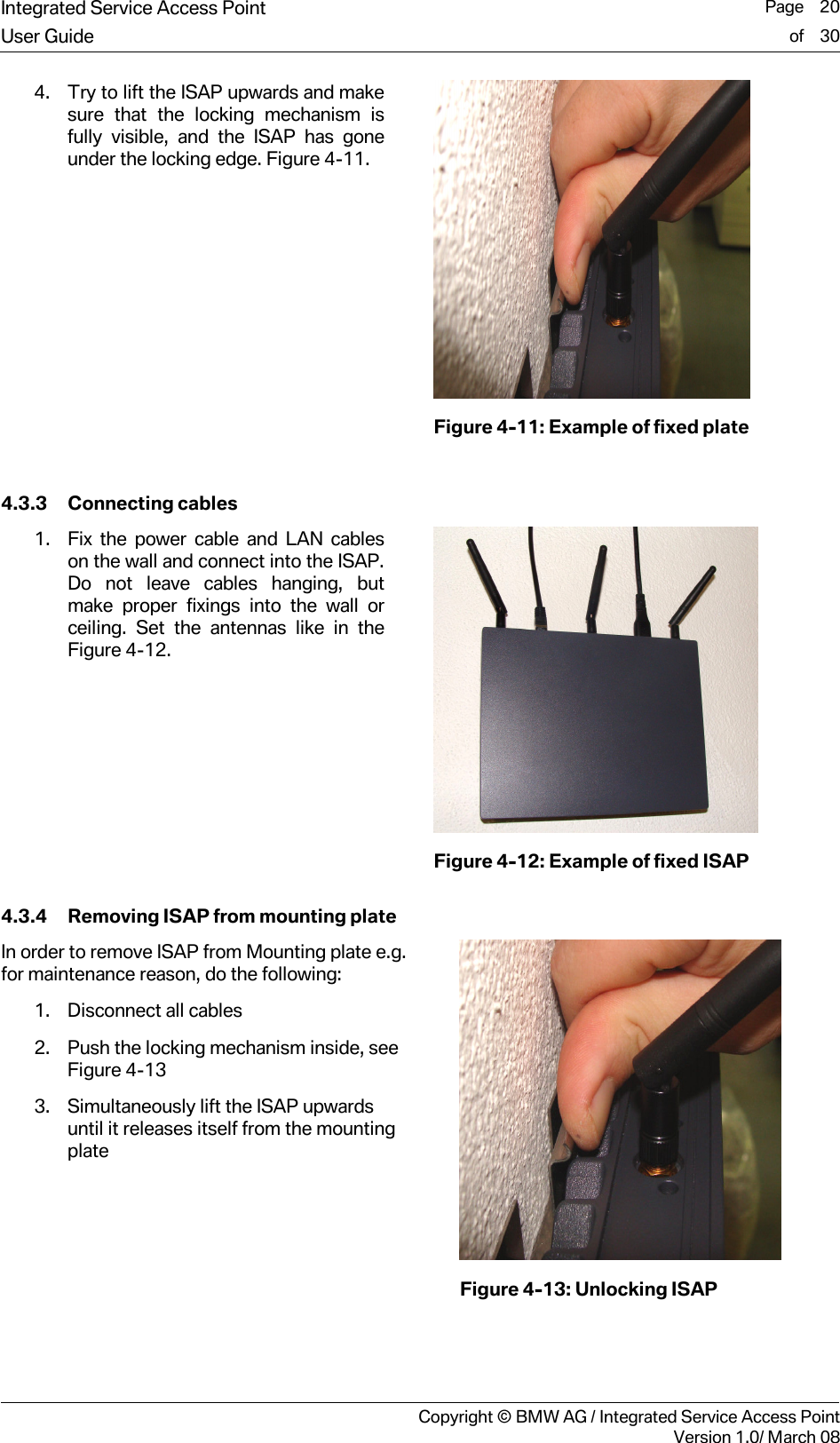
Integrated Service Access Point  Page    18User Guide of    30     Copyright © BMW AG / Integrated Service Access PointVersion 1.0/ March 08 4. Fix the mounting plate with four screws as in Figure 4-4. The locking mechanism must point upwards as in Figure 4-5.    Figure 4-4: Fixing the plate               Figure 4-5: Example of finished fixed plate   4.3.2 Placing ISAP on mounting plate  1. Place the ISAP on the mounting plate. The screws at the cooling fins of the ISAP should go into the openings on the mounting plate, see Figure 4-6 below. Place the ISAP horizontally, antennas must point up, like in Figure 4-7.   Figure 4-6: Openings for ISAP    Figure 4-7: Placing on ISAP horizontally
Integrated Service Access Point  Page    19User Guide of    30     Copyright © BMW AG / Integrated Service Access PointVersion 1.0/ March 08  2. Place the ISAP first from below, Figure 4-8. The ISAP will be locked by the locking mechanism (Figure 4-9) at the mounting plate .   Figure 4-8: Place on first from below  Figure 4-9: Locking mechanism 3. Push the entire ISAP towards the wall so that the locking mechanism in the mounting plate moves backwards, allowing the ISAP to reach also the upper openings of the mounting plate. Simultaneously push the ISAP to the wall and tire down until the locking mechanism locks clicks and locks the ISAP.  Figure 4-10.      Figure 4-10: Pushing and locking
Integrated Service Access Point  Page    20User Guide of    30     Copyright © BMW AG / Integrated Service Access PointVersion 1.0/ March 08 4. Try to lift the ISAP upwards and make sure that the locking mechanism is fully visible, and the ISAP has gone under the locking edge. Figure 4-11.   Figure 4-11: Example of fixed plate  4.3.3 Connecting cables 1. Fix the power cable and LAN cables on the wall and connect into the ISAP. Do not leave cables hanging, but make proper fixings into the wall or ceiling. Set the antennas like in the Figure 4-12.   Figure 4-12: Example of fixed ISAP 4.3.4 Removing ISAP from mounting plate In order to remove ISAP from Mounting plate e.g. for maintenance reason, do the following: 1. Disconnect all cables 2. Push the locking mechanism inside, see Figure 4-13 3. Simultaneously lift the ISAP upwards until it releases itself from the mounting plate   Figure 4-13: Unlocking ISAP
Integrated Service Access Point  Page    21User Guide of    30     Copyright © BMW AG / Integrated Service Access PointVersion 1.0/ March 08 5 Registration, Configuration  and Operation 5.1 Registration of ISAP Every ISAP must be registered before the wireless operation is possible. This chapter provides an overview of ISAP registration.  5.1.1 Automatic registration Most of the workshops have live connection to BMW AG backend systems. In this normal use case, the registration of the ISAP is done automatically through Workshop System Management (WSM) within the first start-up. For further information please refer to the WSM User Guide [1].  5.1.2 Manual registration In case the workshop does not have a live connection to the workshop database, the registration of ISAP must be done manually through a registration fax. For further information please refer to the WSM User Guide [1].  5.2 Configuration and operation 5.2.1 Configuration The ISAP is configured through Workshop System Management (WSM) software. Please refer to the WSM User Guide [1] for details on how to configure the ISAP.  5.2.2 Channel scanning In the workshops there might be no professional site survey available during initial ITOOLS installation. Therefore the existing other WLAN band activities and users are not necessary known. In many cases this is not assumed to be a problem, as workshop is normally relatively well controlled environment. Additional to the disturbances from the workshop there can potentially be other WLAN Networks from uncontrollable environments close to the workshop, i.e. from other companies. These devices might be causing disturbances to ITOOLS Wireless Network operation.  Due to these issues it is highly beneficial that ITOOLS operation is adjusted based on the environment radio operating conditions. Optimally selected radio frequency channel will improve the ITOOLS operation quality, performance, and service availability.  Channel Scanning introduces a possibility to analyze the installation environment for potential problems during configuration and also later on- one of causes for problems is the use of shared radio channels, and the fact that other surrounding networks may change they operation without notifying for ITOOLS administration. For this reason ISAP is able to provide information about channel allocation. Channel Scanning can be activated through Workshop System Management (WSM), in order to get the channel scan information from ISAP.   Info!  In Workshop System Management (WSM) channel scanning is referred to as the Channel Wizard. It can be started via the Device Details tab in WSM.  Caution! Normal operation of the ISAP is deactivated for the channel scan.  i
Integrated Service Access Point  Page    22User Guide of    30     Copyright © BMW AG / Integrated Service Access PointVersion 1.0/ March 08 The Channel Scan operation is based on reporting all Radio Frequency (RF) signal strength values for the least used channels, taking into account the other surrounding networks. As a result channel scan will deliver one recommended channel in 2.4 GHz band as well as one recommended channel in the 5 GHz band. It will also deliver some least used channels for each of the two bands. For more details on using channel scanning please refer to the WSM User Guide [1].
Integrated Service Access Point  Page    23User Guide of    30     Copyright © BMW AG / Integrated Service Access PointVersion 1.0/ March 08 6 Maintenance 6.1 Status information The status information of the ISAP can be seen in the Workshop System Management (WSM) graphical user interface. More information about the queries of the ISAP status is available in the WSM User Guide [1].  6.2 Cleaning ISAP The ISAP is not designed to be in direct contact with dust, dirt or other generally harmful substances. The media found in workshops, such as oils, acids and cleaners are especially dangerous when applied directly to the ISAP. In addition, the vapors of such substances are harmful, an adequate air circulation is recommended. Due to these restrictions, it is highly recommended that the ISAP and the nearby environment of the ISAP are kept clean of substances mentioned above.   Use only a moist cloth to clean the device. Do not use petroleum based substances or solvents as this may cause corrosion of the surface of the ISAP. 6.3 Cable state There are two cables delivered with the ISAP: the LAN cable and the power cable.  It is recommended that the user periodically check the condition of these cables. A simple visual check is adequate. The cable shall not have any visible cut or scratches. If any damage is visible, the broken cable must be replaced with a new one.     Danger! Be careful when checking the power cable. The cable must be disconnected from the power outlet prior to the checking to avoid the risk of an electric shock.  6.4 Replacing a defective cable Replacement parts can be ordered through the first level helpdesk. Disconnect the ISAP from power outlet before replacing a defective cable.  6.5 Replacing antennas The antennas might be replaced for maintenance purposes. The replacement of the antennas might be ordered through first level helpdesk. To replace an antenna, proceed with the following steps:  1. Unplug the ISAP power cable 2. Unscrew the antenna(s) 3. Attach the new antenna(s) by hand    Warning! Do not use any tools when attaching or detaching antennas. Applying an excessively high momentum force may destroy the connectors. Fixing the antennas by hand is sufficient.
Integrated Service Access Point  Page    24User Guide of    30     Copyright © BMW AG / Integrated Service Access PointVersion 1.0/ March 08 6.6 Reset to factory settings A reset to factory settings can be issued by the user with external hardware operation as described below. The user configuration file will be overwritten with the factory default values. A new configuration with Workshop System Management (WSM) will be necessary. Please refer to the WSM User Guide [1] for more information about the configuration of ISAP. Please reset the ISAP only if first level supports tells you to do so.   Figure 6-1: Reset to factory settings   Figure 6-2: Reset button Follow these steps to reset the ISAP to the factory settings: 1. Preferred: unplug the power cable, wait 5 seconds, reattach the power cable. Alternative: if the ISAP is operational, push the reset button (see Figure 6-2) for at least 2 seconds, this will also reboot the ISAP. 2. Push the Reset button (see Figure 6-2) again and hold it down approximately 40 seconds until ALL the LEDs of the ISAP flash several times. 3. The flashing of all LEDs indicates that the ISAP is set back to factory settings. Release the reset button now.   Info!  After resetting to factory settings, the ISAP must be configured initially again through Workshop System Management (WSM).  Info!  In case the READY LED did not switch over to constant yellow, the reset to factory settings has failed; please try again.  ii
Integrated Service Access Point  Page    25User Guide of    30     Copyright © BMW AG / Integrated Service Access PointVersion 1.0/ March 08 6.7 Replacing ISAP for maintenance purposes • Remove the defective ISAP as described in chapter 4.3.4. • Install the new ISAP device as described in chapters 4.3.2 and 4.3.3. • In case you plan to use same location for reinstalling ISAP, you may leave the mounting plate installed on the wall.
Integrated Service Access Point  Page    26User Guide of    30     Copyright © BMW AG / Integrated Service Access PointVersion 1.0/ March 08 7 Troubleshooting   Warning! Do not open the housing of the ISAP. There are no serviceable parts inside!   Problem description  Solution Nothing happens even when the power cord is connected.  Please check that the power outlet connection has 100…240VAC connected and that all fuses / circuit breakers are intact. The READY led stays YELLOW after startup for a very long time.  Is the LAN led green?  If not, then check the LAN cable connection. If yes, then wait 10 minutes, if READY led doesn’t start flashing or turns to green, contact first level support. Note: When started in cold temperatures, it is normal that the start-up procedure takes longer. The READY LED is flashing yellow for a very long time.  There is problem with the registration process to WSM, please check the LAN connection and the check the status of WSM.   The wireless network is no longer functional. Check the status of the ISAP from the WSM User Interface. Reboot the ISAP by disconnecting and reconnecting the power cord. Check the status of other ITOOLS. Is their wireless communication functional? The wireless network connection is not stable.  Try and run the Channel Wizard at WSM to optimize the used channel.  ERR LED is on  There is a problem in ISAP, please check  ISAP Status from WSM user interface, see WSM User Guide [1]  READY LED is flashing green.  ISAP is performing a Firmware update, do not disconnect the power because ISAP will restart itself after update is finished ISAP is not responding  Please check the ISAP status from the WSM user interface, see WSM User Guide [1]. Is radar detected? If not please try rebooting the ISAP by reattaching the power cable. If the problem is not solved please contact support. “Temperature warning” at WSM ISAP Status Check operating conditions of ISAP. Make sure that the ambient temperature around ISAP is not exceeding +50 °C. Contact support if the warning doesn’t disappear. “Services not running” at WSM ISAP Status Please reboot ISAP, by re-attaching the power cable. Check that all services at WSM are running, see WSM User Guide [1]. Contact support in case the warning doesn’t disappear. “Hardware failure” at WSM ISAP Status Please contact support. “Interface problem” at WSM ISAP Status Check validity of ISAP settings in WSM user interface, see WSM User Guide [1].
Integrated Service Access Point  Page    27User Guide of    30     Copyright © BMW AG / Integrated Service Access PointVersion 1.0/ March 08 “Radar detected” at WSM ISAP Status You are using the 5GHz band, radar has been detected and selection of new channel is ongoing. Please wait 2 minutes until the new channel has been selected and the ISAP is allowed to operate further.
Integrated Service Access Point  Page    28User Guide of    30     Copyright © BMW AG / Integrated Service Access PointVersion 1.0/ March 08 8 Terms and Abbreviations   Abbreviation Name BIST  Build In Self Test CLI  Command Line Interface EMC  Electro Magnetic Compatibility ICOM  Integrated Communication Optical Module IEEE  Institute of Electrical and Electronics Engineers IMIB  Integrated Measurement Interface Box ISAP  Integrated Service Access Point ISID  Integrated Service Information Display LAN  Local Area Network LED  Light Emitting Diode MAC-Address  Media Access Control – Address =  Hardware address R&TTE  Radio and Telecommunications Terminal Equipment Directive ROHS  Restriction of Hazardous Substances Directive USB  Universal Serial Bus; for linking a computer to external devices  VAC  Volt Alternating Current VGA  Video Graphics Array is a graphical computer standard WEEE  Waste Electric and Electronic Equipment WLAN  Wireless Local Area Network WSM  Workshop System Management Nss  Number of Spatial Streams
Integrated Service Access Point  Page    29User Guide of    30     Copyright © BMW AG / Integrated Service Access PointVersion 1.0/ March 08 9 References  #  "Title", Author, Place, Year [1]  “WSM User Guide”, BMW, February 2008
Integrated Service Access Point  Page    30User Guide of    30     Copyright © BMW AG / Integrated Service Access PointVersion 1.0/ March 08 10 List of Figures  Figure 1-1: Integrated Service Access Point (ISAP)................................................................................... 4 Figure 1-2: Delivery content......................................................................................................................... 8 Figure 3-1: Integrated Service Access Point ............................................................................................10 Figure 3-2: ISAP front view and markings.................................................................................................10 Figure 3-3: ISAP connectors’ side and markings .....................................................................................10 Figure 3-4: Example of antenna directions ...............................................................................................13 Figure 4-1: Example of hole marking.........................................................................................................17 Figure 4-2: Drilling holes ............................................................................................................................17 Figure 4-3: Inserting dowels.......................................................................................................................17 Figure 4-4: Fixing the plate ........................................................................................................................18 Figure 4-5: Example of finished fixed plate...............................................................................................18 Figure 4-6: Openings for ISAP...................................................................................................................18 Figure 4-7: Placing on ISAP horizontally...................................................................................................18 Figure 4-8: Place on first from below ........................................................................................................19 Figure 4-9: Locking mechanism ................................................................................................................19 Figure 4-10: Pushing and locking..............................................................................................................19 Figure 4-11: Example of fixed plate...........................................................................................................20 Figure 4-12: Example of fixed ISAP...........................................................................................................20 Figure 4-13: Unlocking ISAP......................................................................................................................20 Figure 6-1: Reset to factory settings.........................................................................................................24 Figure 6-2: Reset button ............................................................................................................................24

Navigation menu