Bittium Wireless SD-41 Tough Mobile User Manual

Bittium Wireless Ltd. Tough Mobile

User Manual

Bittium  Tough MobileQuick start guide
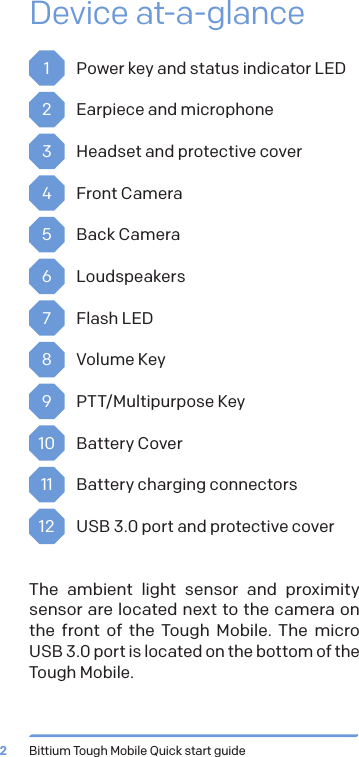
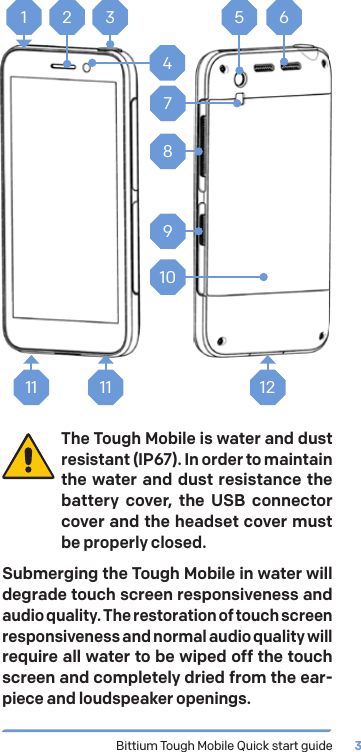
Bittium Tough Mobile Quick start guide2Device at-a-glance1  Power key and status indicator LED2  Earpiece and microphone3  Headset and protective cover4  Front Camera5  Back Camera 6 Loudspeakers7  Flash LED8  Volume Key9  PTT/Multipurpose Key10   Battery Cover11   Battery charging connectors12   USB 3.0 port and protective coverThe ambient light sensor and proximity sensor are located next to the camera on the front of the Tough Mobile. The micro USB 3.0 port is located on the bottom of the Tough Mobile.
Bittium Tough Mobile Quick start guide 31 2 345 67891011 11 12The Tough Mobile is water and dust resistant (IP67). In order to maintain the water and dust resistance the battery cover, the USB connector cover and the headset cover must be properly closed.Submerging the Tough Mobile in water will degrade touch screen responsiveness and audio quality. The restoration of touch screen responsiveness and normal audio quality will require all water to be wiped off the touch screen and completely dried from the ear-piece and loudspeaker openings.
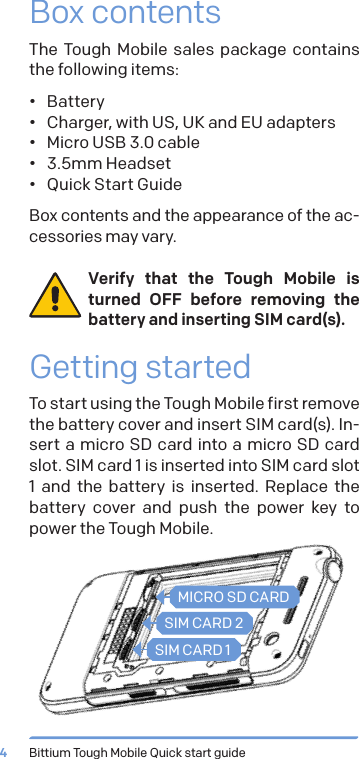
Bittium Tough Mobile Quick start guide4Box contentsThe Tough Mobile sales package contains  the following items:•  Battery•  Charger, with US, UK and EU adapters•  Micro USB 3.0 cable•  3.5mm Headset•  Quick Start GuideBox contents and the appearance of the ac-cessories may vary. Verify that the Tough Mobile is turned OFF before removing the battery and inserting SIM card(s).Getting startedTo start using the Tough Mobile first remove the battery cover and insert SIM card(s). In-sert a micro SD card into a micro SD card slot. SIM card 1 is inserted into SIM card slot 1 and the battery is inserted. Replace the battery cover and push the power key to power the Tough Mobile.MICRO SD CARDSIM CARD 2SIM CARD 1
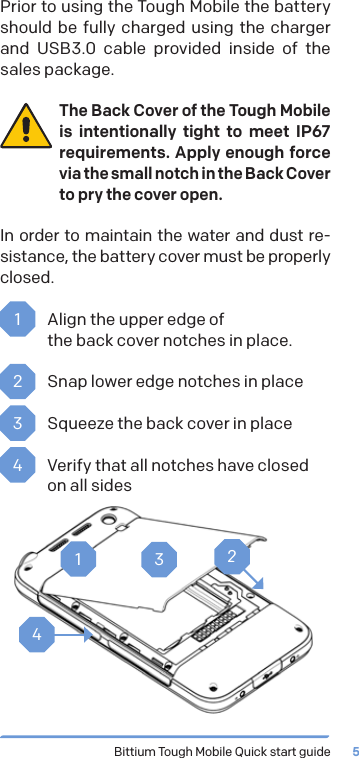
Bittium Tough Mobile Quick start guide 5Prior to using the Tough Mobile the battery should be fully charged using the charger and USB3.0 cable provided inside of the sales package.The Back Cover of the Tough Mobile is intentionally tight to meet IP67 requirements. Apply enough force via the small notch in the Back Cover to pry the cover open.In order to maintain the water and dust re-sistance, the battery cover must be properly closed.1  Align the upper edge of  the back cover notches in place.2  Snap lower edge notches in place3  Squeeze the back cover in place4  Verify that all notches have closed on all sides1234
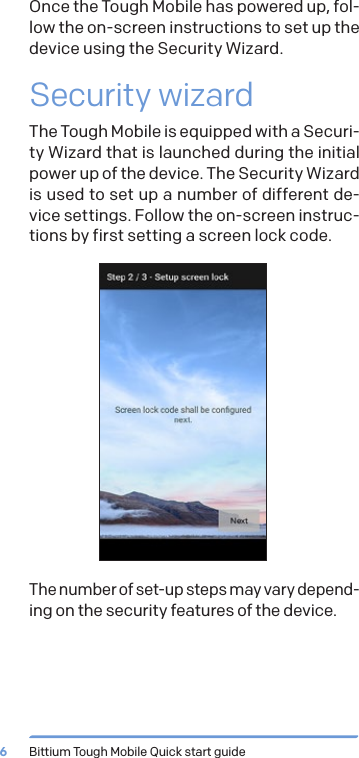
Bittium Tough Mobile Quick start guide6Once the Tough Mobile has powered up, fol-low the on-screen instructions to set up the device using the Security Wizard.Security wizardThe Tough Mobile is equipped with a Securi-ty Wizard that is launched during the initial power up of the device. The Security Wizard is used to set up a number of different de-vice settings. Follow the on-screen instruc-tions by first setting a screen lock code.The number of set-up steps may vary depend-ing on the security features of the device.
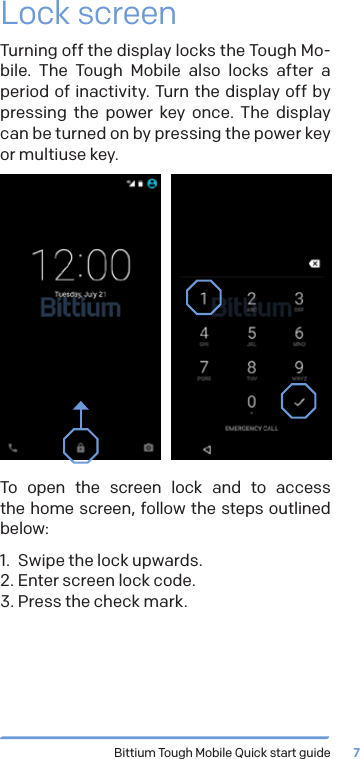
Bittium Tough Mobile Quick start guide 7Lock screenTurning off the display locks the Tough Mo-bile. The Tough Mobile also locks after a period of inactivity. Turn the display off by pressing the power key once. The display can be turned on by pressing the power key or multiuse key.To open the screen lock and to access  the home screen, follow the steps outlined below:1.  Swipe the lock upwards.2. Enter screen lock code.3. Press the check mark.
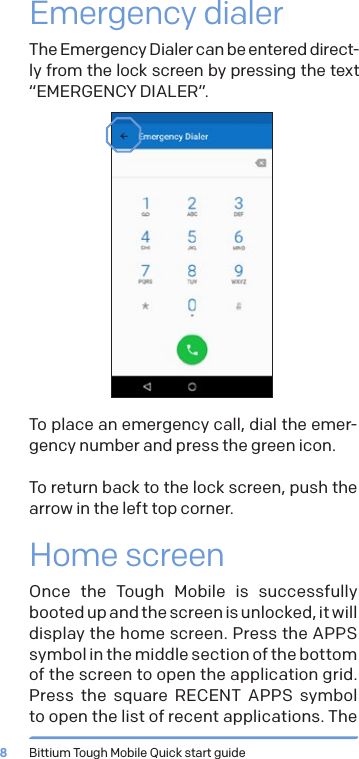
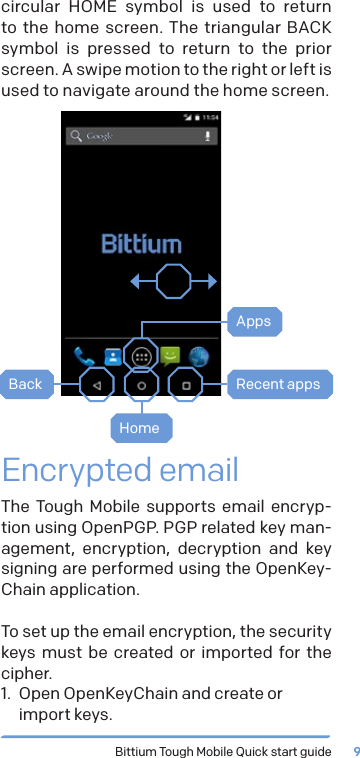
Bittium Tough Mobile Quick start guide8Emergency dialerThe Emergency Dialer can be entered direct-ly from the lock screen by pressing the text “EMERGENCY DIALER”.To place an emergency call, dial the emer-gency number and press the green icon.To return back to the lock screen, push the arrow in the left top corner.Home screenOnce the Tough Mobile is successfully booted up and the screen is unlocked, it will display the home screen. Press the APPS symbol in the middle section of the bottom of the screen to open the application grid. Press the square RECENT APPS symbol to open the list of recent applications. The
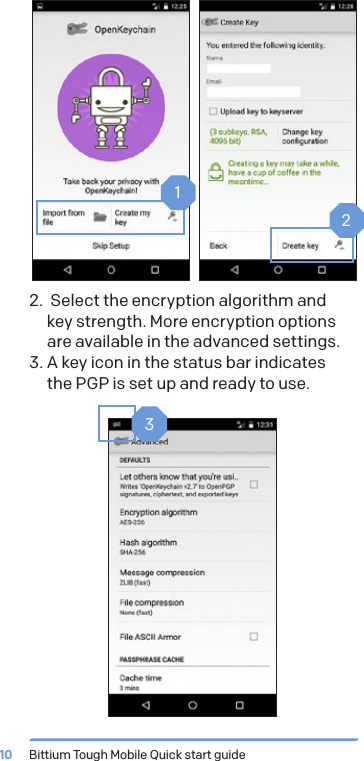
Bittium Tough Mobile Quick start guide 9circular HOME symbol is used to return to the home screen. The triangular BACK symbol is pressed to return to the prior screen. A swipe motion to the right or left is used to navigate around the home screen.Back Recent appsAppsHomeEncrypted emailThe Tough Mobile supports email encryp-tion using OpenPGP. PGP related key man-agement, encryption, decryption and key signing are performed using the OpenKey-Chain application.To set up the email encryption, the security keys must be created or imported for the cipher.1.   Open OpenKeyChain and create or import keys.
Bittium Tough Mobile Quick start guide102.  Select the encryption algorithm and  key strength. More encryption options are available in the advanced settings.3. A key icon in the status bar indicates  the PGP is set up and ready to use.123
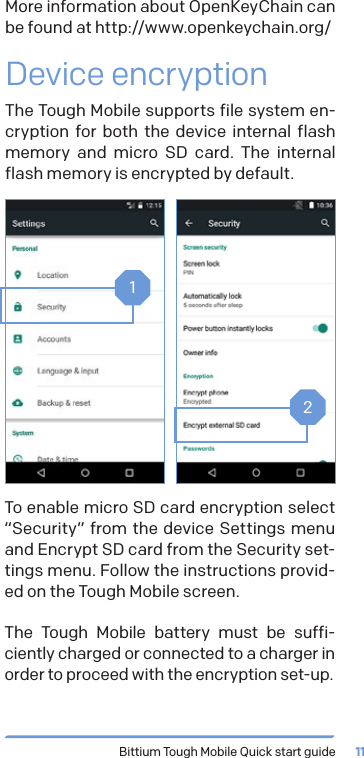
Bittium Tough Mobile Quick start guide 11More information about OpenKeyChain can be found at http://www.openkeychain.org/Device encryptionThe Tough Mobile supports file system en-cryption for both the device internal flash memory and micro SD card. The internal flash memory is encrypted by default.12To enable micro SD card encryption select “Security” from the device Settings menu and Encrypt SD card from the Security set-tings menu. Follow the instructions provid-ed on the Tough Mobile screen.The Tough Mobile battery must be suffi-ciently charged or connected to a charger in order to proceed with the encryption set-up.
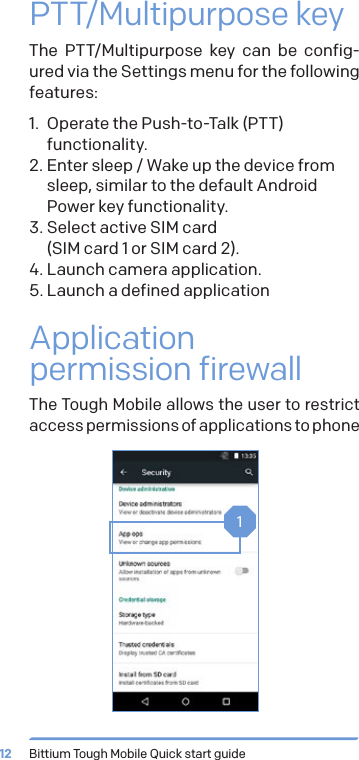
Bittium Tough Mobile Quick start guide12PTT/Multipurpose keyThe PTT/Multipurpose key can be config-ured via the Settings menu for the following features:1.  Operate the Push-to-Talk (PTT) functionality.2. Enter sleep / Wake up the device from sleep, similar to the default Android Power key functionality.3. Select active SIM card  (SIM card 1 or SIM card 2).4. Launch camera application.5. Launch a defined applicationApplication permission firewallThe Tough Mobile allows the user to restrict access permissions of applications to phone 1
Bittium Tough Mobile Quick start guide 13data. This allows the user to control the data which applications may access.Change the application permissions from the Security Settings menu.Tampering detectionThe Tough Mobile is equipped with hard-ware tamper detection. An intrusion, other than opening the back cover, will result in a notification from the Security Wizard. The Security Wizard will notify the user the device integrity has possibly been com-promised. Upon detection of a tampering event, the user data, including encryption keys, will be erased.Tamper Detection is also triggered when the Tough Mobile battery has drained and the phone has lost all power. Once the Tough Mobile has been re-charged and powered on again, the Security Wizard will ask the user whether the phone should be shut down or the warning should be ignored.
Bittium Tough Mobile Quick start guide14Important health and safety precautions informationWhen using this product, the safety pre-cautions below must be taken to avoid pos-sible legal liabilities and damages. DANGER Only use the batteries, antennas, and chargers approved by The Bit-tium Wireless Ltd. The use of any other type may be dangerous.DANGER  Allow only authorized personnel to service the phone and its accesso-ries. Unauthorized service can inval-idate the warranty.CAUTION The material used in the display is glass. The display can break if your handset is dropped or if it receives significant impact. Please do not use the device if the screen is bro-ken or cracked as this may cause an injury to you.CAUTION Any modification to this product is prohibited and will void warranty. The opening of the unit and use of the components for purposes not oth-erwise authorized by this document, including any use in airplanes or any other Aviation application, is prohib-ited and will void your warranty.
Bittium Tough Mobile Quick start guide 15CAUTION Permanent hearing loss may occur if earphones or headphones are used at high volume for prolonged periods of time.CAUTION Do not allow children to play with the Tough Mobile since it contains small parts that could become detached and create a choking hazard.NOTE  When using your device for pro-longed periods of time, such as when you’re talking on the phone, charging the battery or browsing the web, the device may become warm. In most cases, this condition is normal and therefore should not be interpreted as a problem with the device.NOTE When driving, check and obey the laws and regulations on the use of mobile phones in the area where you drive. If you are going to use your phone while driving, always give full attention to driving and use a Handsfree Solution, if available. The law in many countries requires the use of a vehicle Hands-free Solution while driving.NOTE  Always create a backup of data you want to keep (such as contacts and calendar notes) before sending your device for service.
Bittium Tough Mobile Quick start guide16Important  customer informationThe Tough Mobile is a wireless device, containing a radio transmitter and receiver which emit radio fre-quency energy during its use. Most modern electron-ic equipment is shielded from RF signals. However, certain electronic equipment may not be shielded against the radio signals from a wireless phone.Do not use the Tough Mobile near medical equipment without permission. A minimum of six (6) inches should be maintained between the Tough Mobile and an implantable medical device, such as a pacemaker or implantable cardiac defibrilla-tor in order to avoid potential interference with the medical device. Persons having implanted medical devices should follow instructions from the manu-facturer of the medical device for safe use within proximity of wireless devices. Wireless phones may also interfere with some hearing aids. In the event of such interference, consult the service provider or call customer service line to discuss alternatives.Radio signals may interfere with improperly in-stalled or inadequately shielded electronic systems in motor vehicles. Check with the vehicle manufac-turer or its representative regarding your vehicle. Aftermarket electronics which have been added to the vehicle should also be checked.Any modification of the Tough Mobile is prohib-ited. Only authorized personnel should service the Tough Mobile and its accessories.Only use software updates provided by Bittium. Accessories for the Tough Mobile should be either purchased from or approved by Bittium.Only use the battery specified by and provided by Bittium in the Tough Mobile. Do not short-circuit the battery. Do not use the battery with a charging system which has not been approved by Bittium.
Bittium Tough Mobile Quick start guide 17Turn the Tough Mobile OFF in any facility where posted notices so require.To avoid interfering with blasting operations turn Tough Mobile OFF when in a blasting area or in areas posted: “Turn off two-way radio”. Obey all signs and instructions.Turn the Tough Mobile OFF when in areas with a potentially explosive atmosphere and obey all signs and instructions. Sparks in such areas could cause an explosion or fire resulting in bodily injury or even death. Areas with a potentially explosive atmosphere are often, but not always, marked clearly. Potential areas may include fueling areas (such as gas stations); below deck on boats; fuel or chemical transfer or storage facilities; vehicles using liquefied petroleum gas (such as propane or butane); areas where the air contains chemicals or particles (such as grain, dust, or metal powders); and any other area where you would normally be advised to turn off your vehicle engine.An emergency call can be made only within a service area. For an emergency call, make sure that you are within a service area and that the de-vice is turned on.The device does not meet all specifications in extreme temperatures. Battery capacity (use time) is limited in low temperatures and the battery is not charged under 0°C temperatures. Device perfor-mance may be limited in high temperatures.Declaration of conformity 1588Hereby, The Bittum Wireless ltd. declares that this Tough Mobile product is in compliance with the es-sential requirements and other relevant provisions of Directive 1999/5/EC. A copy of the Declaration of Conformity can be found at www.bittium.com
Bittium Tough Mobile Quick start guide18FCC notice to usersThis device complies with Part 15 of the FCC Rules. Operation is subject to the following two conditions: (1) this device may not cause interference, and (2) this device must accept any interference, including interference that may cause undesired operation of the device. This equipment has been tested and found to comply with the limits for a Class B digital device, pursuant to part 15 of the FCC Rules. These limits are designed to provide reasonable protection against harmful interference in a residential installa-tion. This equipment generates, uses, and can radi-ate radio frequency energy and, if not installed and used in accordance with the instructions, may cause harmful interference to radio communications. However, there is no guarantee that interference will not occur in a particular installation.If this equipment does cause harmful interfer-ence to radio or television reception, which can be determined by turning the equipment off and on, the user is encouraged to try to correct the interfer-ence by one or more of the following measures: Re-orient or relocate the receiving antenna on the radio or television equipment, increase the separation between the equipment and receiver, connect the equipment into an outlet on a circuit different from that to which the receiver is connected. Consult the radio or television equipment dealer.Radiation exposure statementThis device complies with FCC radiation exposure limits set forth for an uncontrolled environment and meets the FCC radio frequency (RF) Exposure Guidelines in Supplement C to OET65.This trans-mitter must not be co-located or operated in con-junction with any other antenna or transmitter.
Bittium Tough Mobile Quick start guide 19Specific absorption rate (SAR) certification informationThis device has been shown to be capable of com-pliance for localized specific absorption rate (SAR) for uncontrolled environment/general population exposure limits specified in ANSI/IEEE Std. C95.1-1992 and has been tested in accordance with the measurement procedures specified in FCC/OET Bulletin 65 Supplement C (2001) and IEEE Std. 1528-2003 Ministry of Health (Canada), Safety Code 6. The standards include a substantial safe-ty margin designed to assure the safety of all per-sons, regardless of age and health. The exposure standard for wireless mobile phones employs a unit of measurement known as the Specific Ab-sorption Rate, or SAR. The SAR limit set by the FCC is 1.6W/kg. The standard incorporates a substan-tial margin of safety to give additional protection for the public and to account for any variations.The highest SAR value reported under these guidelines when used at the ear is 0.79 W/kg and when correctly worn on the body is 1.06W/kg.Limited warrantyFor a period of 1 year from the date of purchase, Bit-tium Wireless Ltd. (“Bittium”) warrants this Prod-uct, including all accessories provided in the sales box, against defects in materials or workmanship. If this Product is determined to be defective with-in the 1 year warranty period, Bittium will repair the Product or replace it with a new or refurbished Product, at its option, at no charge to the customer, except as set forth below.This warranty does not cover cosmetic dam-age or damage due to misuse, abuse, negligence, accident, or modification of any part of the Prod-uct. This warranty does not cover damage due to improper operation or maintenance, connection
to improper voltage supply, or attempted repair by anyone other than a facility authorized by Bittium to service this Product.To obtain warranty service, you must receive a Return Authorization from Bittium and ship the Product at your expense to Bittium’s authorized service facility. You must ship the Product in either its original packaging or packaging affording an equal degree of protection. This warranty does not cover customer instruction, set up or set up adjust-ments or network coverage problems.  Published by:Bittium Wireless Ltd.Tutkijantie 890590 OuluFinlandPhone: +358 40 344 2000Fax: +358 8 343 032www.bittium.comLegal NoticeCopyright 2015 Bittium. All rights reserved. The infor-mation contained herein is subject to change with-out notice. Bittium retains ownership of and all other rights to the material expressed in this document. Any reproduction of the content of this document without prior written permission from Bittium is prohibited.NoticeBittium reserves the right to change its products and the information in this document without notice due to continuous improvement and development. Bit-tium makes no warranty of any kind with regard to this material, including, but not limited to, the implied warranties of merchantability or fitness for a particu-lar purpose. Bittium shall not be liable for errors con-tained herein or for damages in connection with the furnishing, performance, or use of this material.www.bittium.com

Navigation menu