Bittium Wireless SSD-52 Satellite Smartphone User Manual Rugged Basic Terminal

Bittium Wireless Ltd. Satellite Smartphone Rugged Basic Terminal

Users guide

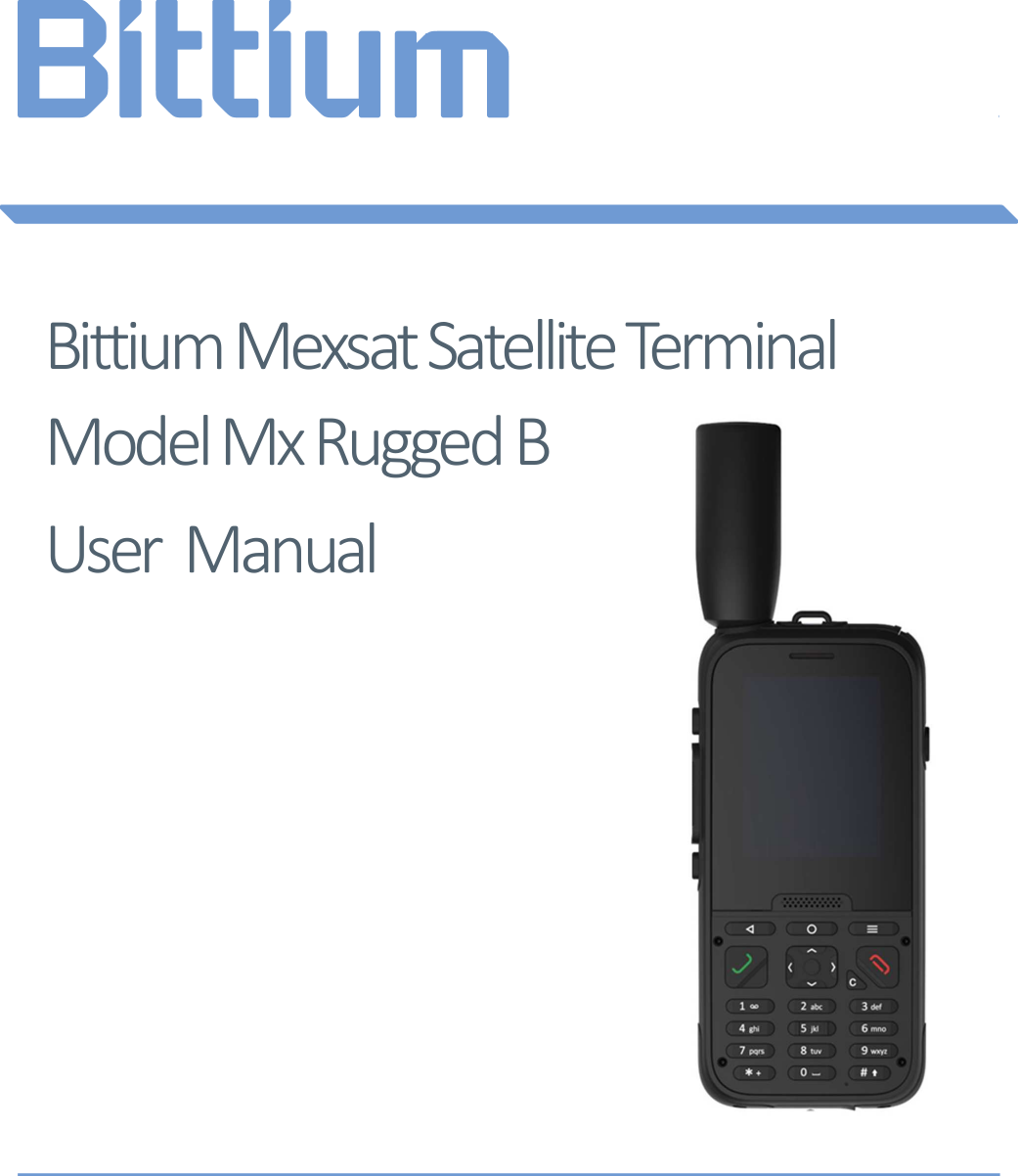
    Bittium Mexsat Satellite Terminal Model Mx Rugged B User Manual
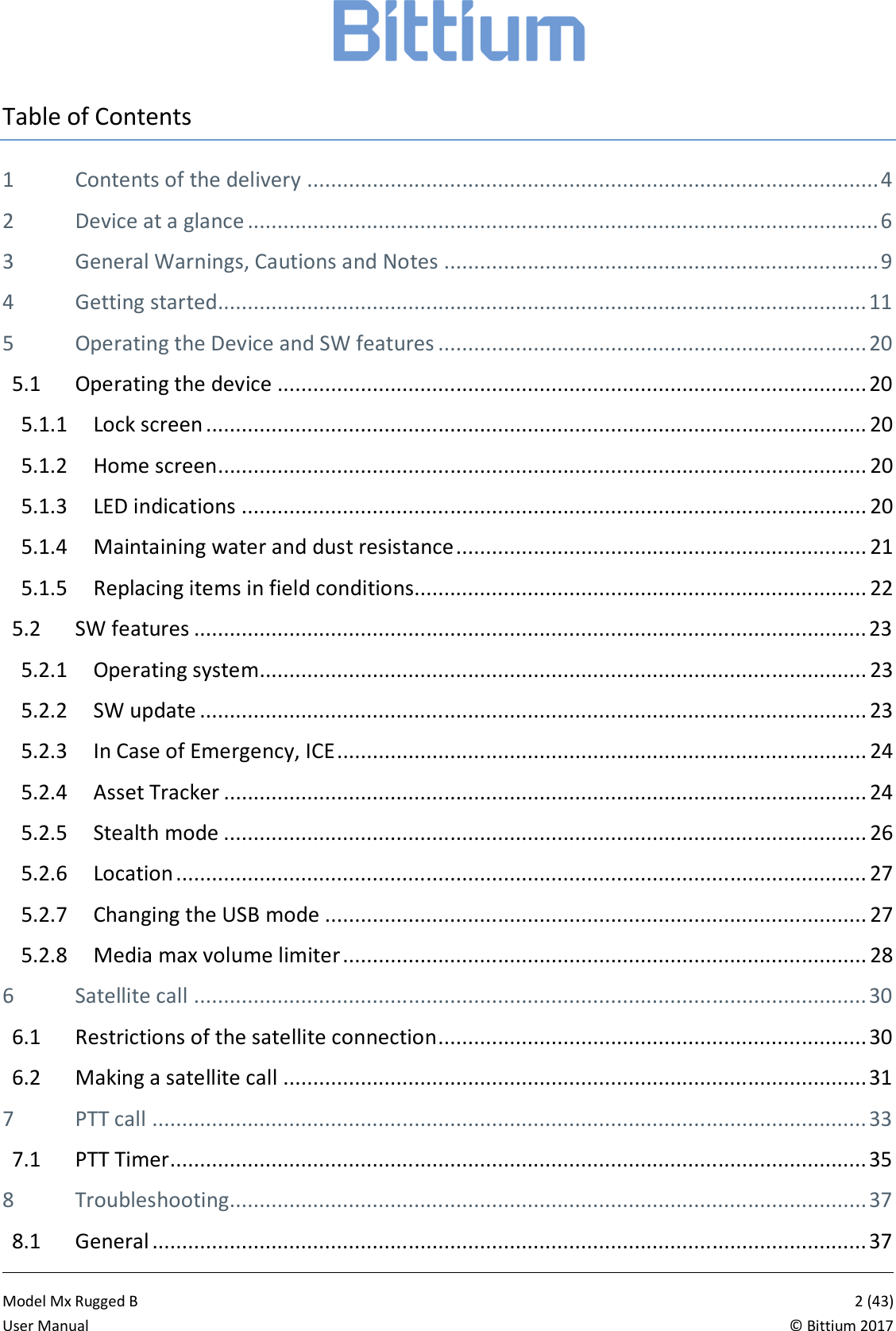
           Model Mx Rugged B       2 (43)User Manual  © Bittium 2017 Table of Contents 1 Contents of the delivery ................................................................................................ 4 2 Device at a glance .......................................................................................................... 6 3 General Warnings, Cautions and Notes ......................................................................... 9 4 Getting started............................................................................................................. 11 5 Operating the Device and SW features ........................................................................ 20 5.1 Operating the device ................................................................................................... 20 5.1.1 Lock screen ............................................................................................................... 20 5.1.2 Home screen ............................................................................................................. 20 5.1.3 LED indications ......................................................................................................... 20 5.1.4 Maintaining water and dust resistance ..................................................................... 21 5.1.5 Replacing items in field conditions............................................................................ 22 5.2 SW features ................................................................................................................. 23 5.2.1 Operating system...................................................................................................... 23 5.2.2 SW update ................................................................................................................ 23 5.2.3 In Case of Emergency, ICE ......................................................................................... 24 5.2.4 Asset Tracker ............................................................................................................ 24 5.2.5 Stealth mode ............................................................................................................ 26 5.2.6 Location .................................................................................................................... 27 5.2.7 Changing the USB mode ........................................................................................... 27 5.2.8 Media max volume limiter ........................................................................................ 28 6 Satellite call ................................................................................................................. 30 6.1 Restrictions of the satellite connection ........................................................................ 30 6.2 Making a satellite call .................................................................................................. 31 7 PTT call ........................................................................................................................ 33 7.1 PTT Timer ..................................................................................................................... 35 8 Troubleshooting........................................................................................................... 37 8.1 General ........................................................................................................................ 37
           Model Mx Rugged B       3 (43)User Manual  © Bittium 2017 8.2 Satellite calls ................................................................................................................ 37 9 Important Customer Information ................................................................................ 38 9.1 Federal Communications Commission (FCC) notice to users ........................................ 39 9.2 Radiation exposure statement ..................................................................................... 39 9.3 Specific Absorption Rate (SAR) certification information ............................................. 40 9.4 Instituto Federal de Telecomunicaciones (IFT) notice to users .................................... 40 9.5 Mexican importer information .................................................................................... 40 9.6 Limited warranty statement ........................................................................................ 40 9.7 Disposal of device ........................................................................................................ 43
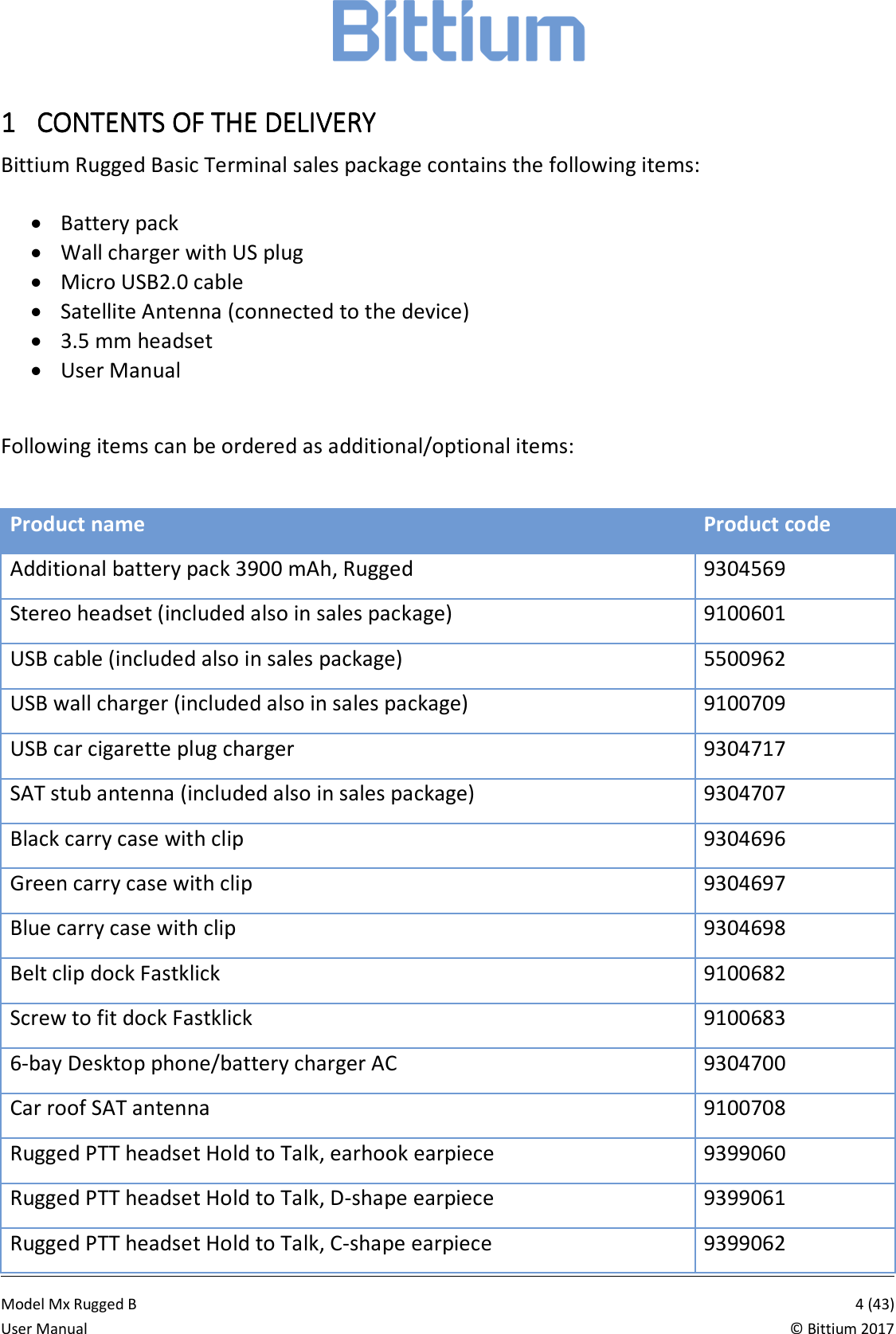
           Model Mx Rugged B       4 (43)User Manual  © Bittium 2017 1111 CONTENTS OF THE DELICONTENTS OF THE DELICONTENTS OF THE DELICONTENTS OF THE DELIVERYVERYVERYVERY    Bittium Rugged Basic Terminal sales package contains the following items:  • Battery pack • Wall charger with US plug • Micro USB2.0 cable • Satellite Antenna (connected to the device) • 3.5 mm headset • User Manual  Following items can be ordered as additional/optional items:  Product name Product code Additional battery pack 3900 mAh, Rugged 9304569 Stereo headset (included also in sales package) 9100601 USB cable (included also in sales package) 5500962 USB wall charger (included also in sales package) 9100709 USB car cigarette plug charger 9304717 SAT stub antenna (included also in sales package) 9304707 Black carry case with clip 9304696 Green carry case with clip 9304697 Blue carry case with clip 9304698 Belt clip dock Fastklick 9100682 Screw to fit dock Fastklick 9100683 6-bay Desktop phone/battery charger AC 9304700 Car roof SAT antenna 9100708 Rugged PTT headset Hold to Talk, earhook earpiece 9399060 Rugged PTT headset Hold to Talk, D-shape earpiece 9399061 Rugged PTT headset Hold to Talk, C-shape earpiece 9399062
           Model Mx Rugged B       5 (43)User Manual  © Bittium 2017 Throat Mic PTT headset, Hold to Talk 9399063 Inline PTT headset, Hold to talk 9399064 Helmet mic PTT headset 9399065 Remote speaker&microphone (Wired) 9100692 Remote speaker&microphone (Bluetooth) 9100691  Note that the box contents and the appearance of the items may vary.  Always place the device in a Bittium approved accessory if you wear the device on your body.  Using accessories that are not supplied by Bittium may cause the device to exceed RF energy exposure guidelines.
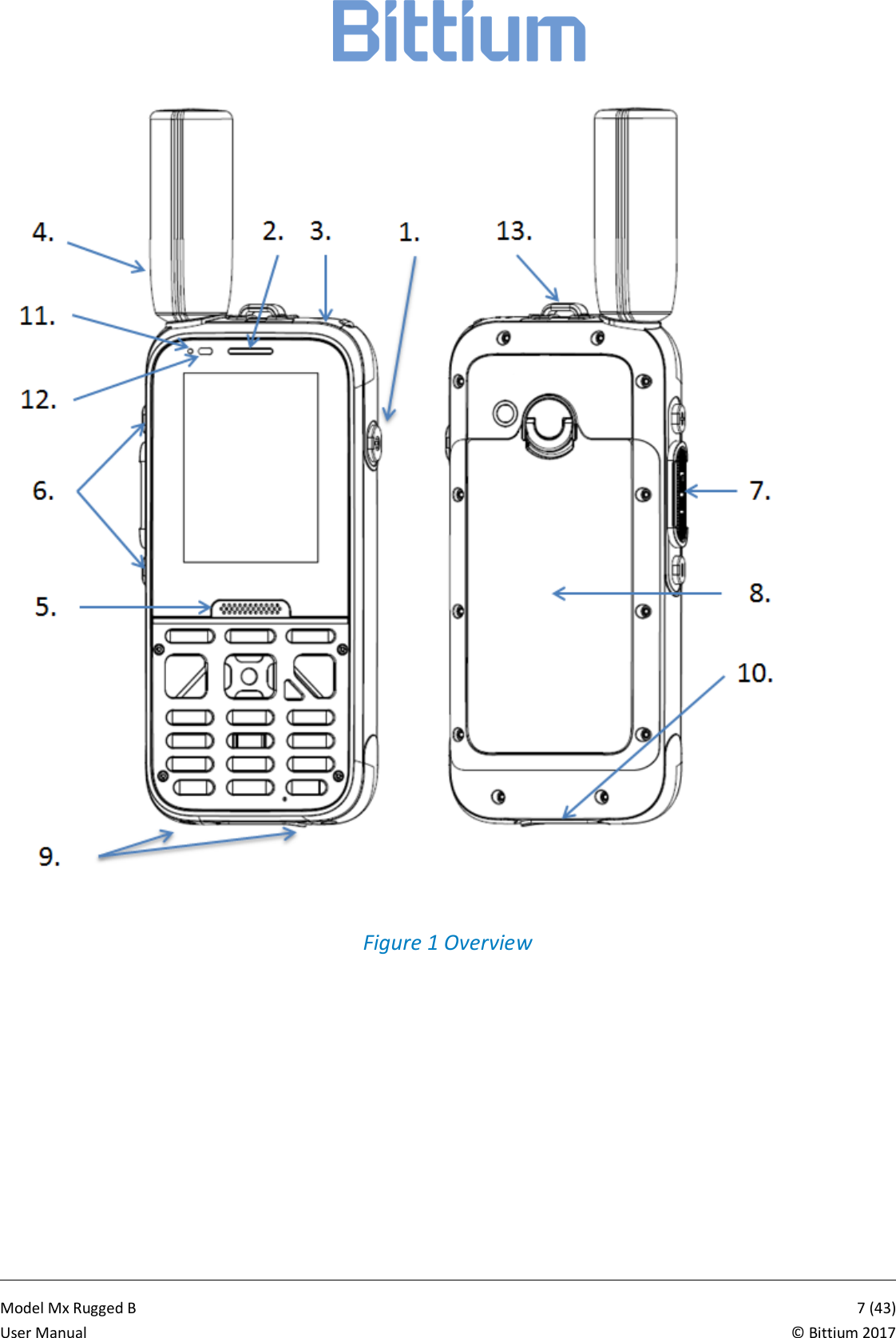
           Model Mx Rugged B       6 (43)User Manual  © Bittium 2017 2222 DEVICE AT A GDEVICE AT A GDEVICE AT A GDEVICE AT A GLANCELANCELANCELANCE    1. Power/emergency key 2. Earpiece 3. Headset connector and protective cover 4. Satellite antenna 5. Loudspeakers 6. Volume keys 7. Push to Talk key (PTT) 8. Battery pack 9.  Dock charge connectors 10.  USB 2.0 data and charging port connector and protective cover 11.  Status LED 12.  Combined proximity and ALS sensor 13.  Lanyard loop
           Model Mx Rugged B       7 (43)User Manual  © Bittium 2017   Figure 1 Overview
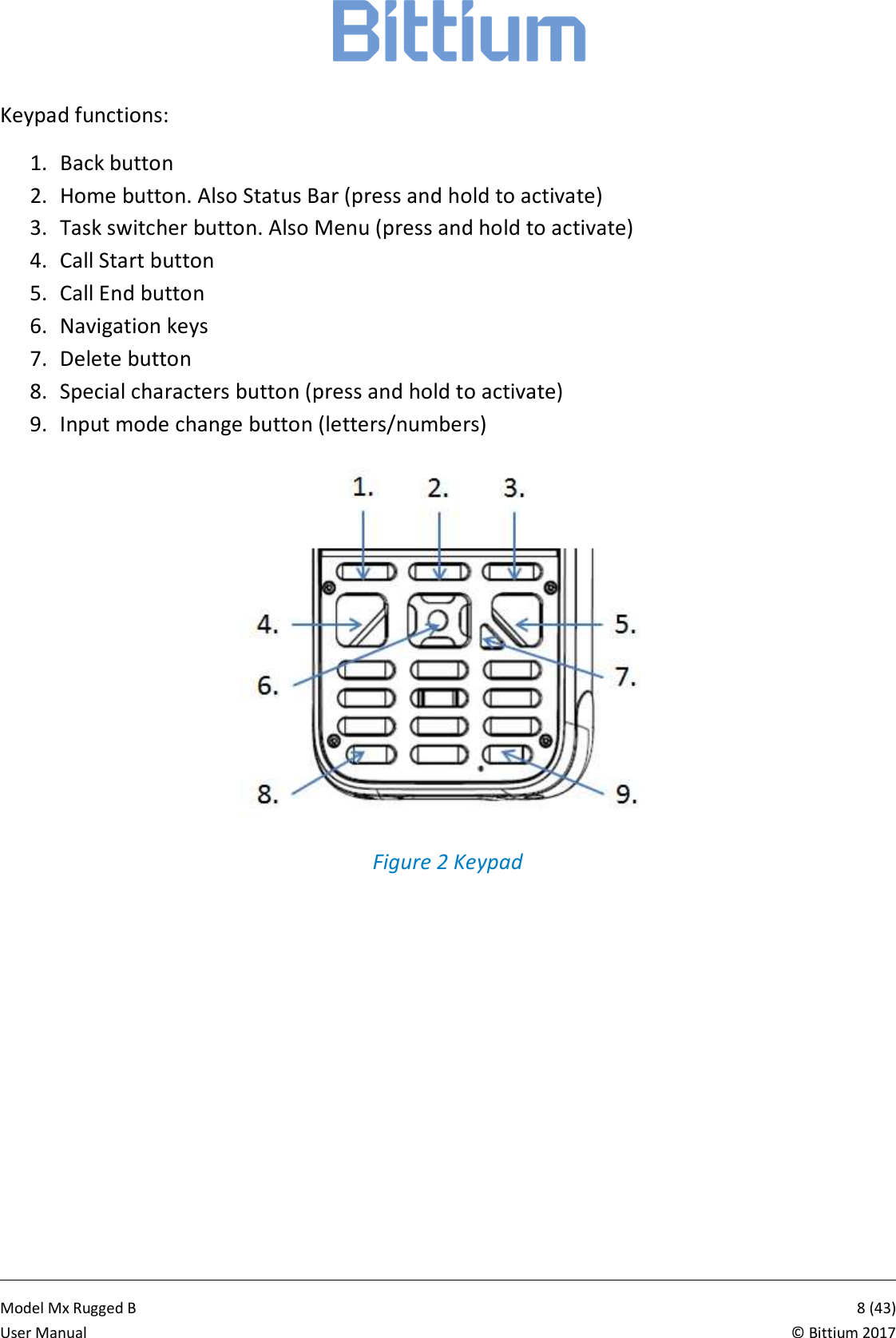
           Model Mx Rugged B       8 (43)User Manual  © Bittium 2017 Keypad functions: 1. Back button 2. Home button. Also Status Bar (press and hold to activate) 3. Task switcher button. Also Menu (press and hold to activate) 4. Call Start button 5. Call End button 6. Navigation keys 7. Delete button 8. Special characters button (press and hold to activate) 9. Input mode change button (letters/numbers)  Figure 2 Keypad
           Model Mx Rugged B       9 (43)User Manual  © Bittium 2017 3333 GENERAL GENERAL GENERAL GENERAL WARNINGS, CAUTIONS AWARNINGS, CAUTIONS AWARNINGS, CAUTIONS AWARNINGS, CAUTIONS AND NOTESND NOTESND NOTESND NOTES     Please use Bittium Rugged Basic with the following safety precautions: Type Description Warning Permanent hearing loss may occur if earphones or head-phones are used at high volume for prolonged periods of time. Warning Only use batteries, antennas and chargers approved by Bittium Wireless Ltd. The use of non-Bittium approved bat-teries, antennas, and chargers may be dangerous. Warning Do not use the battery or charger if it has a visible defect, or if you suspect it is damaged. Warning Do not allow children to play with the device since it contains small parts that can become detached and create a choking hazard. Warning This device must be turned off at all times while on board aircraft. Caution The material used in the display is glass. The display can break if your handset is dropped or if it receives a significant impact. Do not use the device if the screen is broken or cracked as this may cause an injury. Caution Any modification to this product is prohibited and will make the warranty void. The opening of the unit and use of the components for purposes not otherwise authorized by this document, including any use in airplanes or any other avia-tion application, is prohibited and will make the warranty void. Caution Allow only authorized personnel to service the device and its accessories. Unauthorized service will make the warranty void. Caution The device may become warm when using your device for prolonged periods of time, such as talking on the device, charging the battery or browsing the web. In most cases, this condition is normal and therefore should not be interpreted as a problem with the device. Caution Do not expose the plastic surfaces of the device to sun lotion or mosquito oil.  Note When driving, check and obey the laws and regulations on
           Model Mx Rugged B       10 (43)User Manual  © Bittium 2017 the use of mobile phones in the area where you drive. If you are going to use your device while driving, always pay full attention to driving and use a handsfree solution, if available. The law in many countries requires the use of a vehicle handsfree solution while driving. Note Always create a backup of data you want to keep (such as contacts and calendar notes) before sending your device for service.
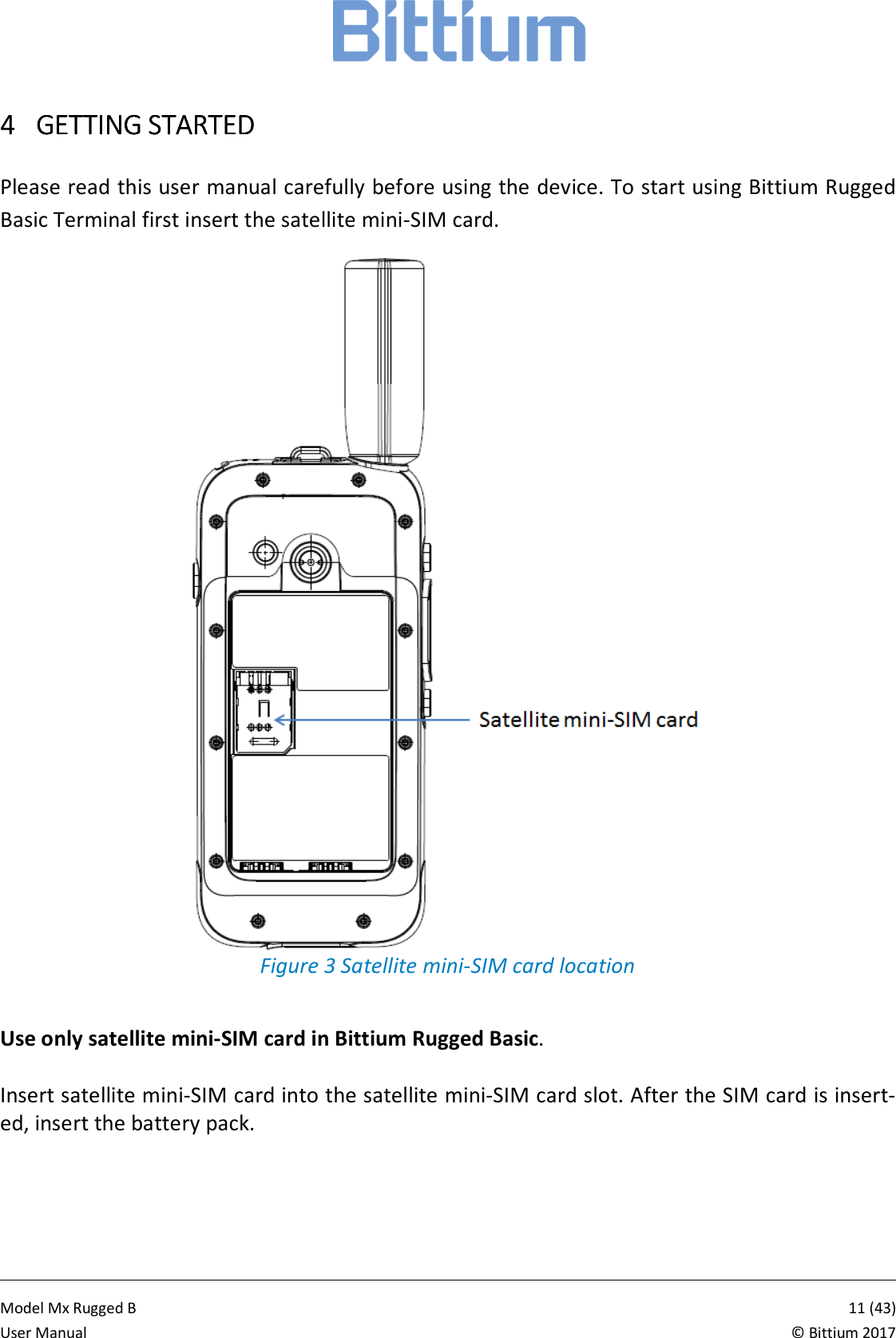
           Model Mx Rugged B       11 (43)User Manual  © Bittium 2017 4444 GETTING STARTEDGETTING STARTEDGETTING STARTEDGETTING STARTED     Please read this user manual carefully before using the device. To start using Bittium Rugged Basic Terminal first insert the satellite mini-SIM card.  Figure 3 Satellite mini-SIM card location  Use only satellite mini-SIM card in Bittium Rugged Basic.  Insert satellite mini-SIM card into the satellite mini-SIM card slot. After the SIM card is insert-ed, insert the battery pack.
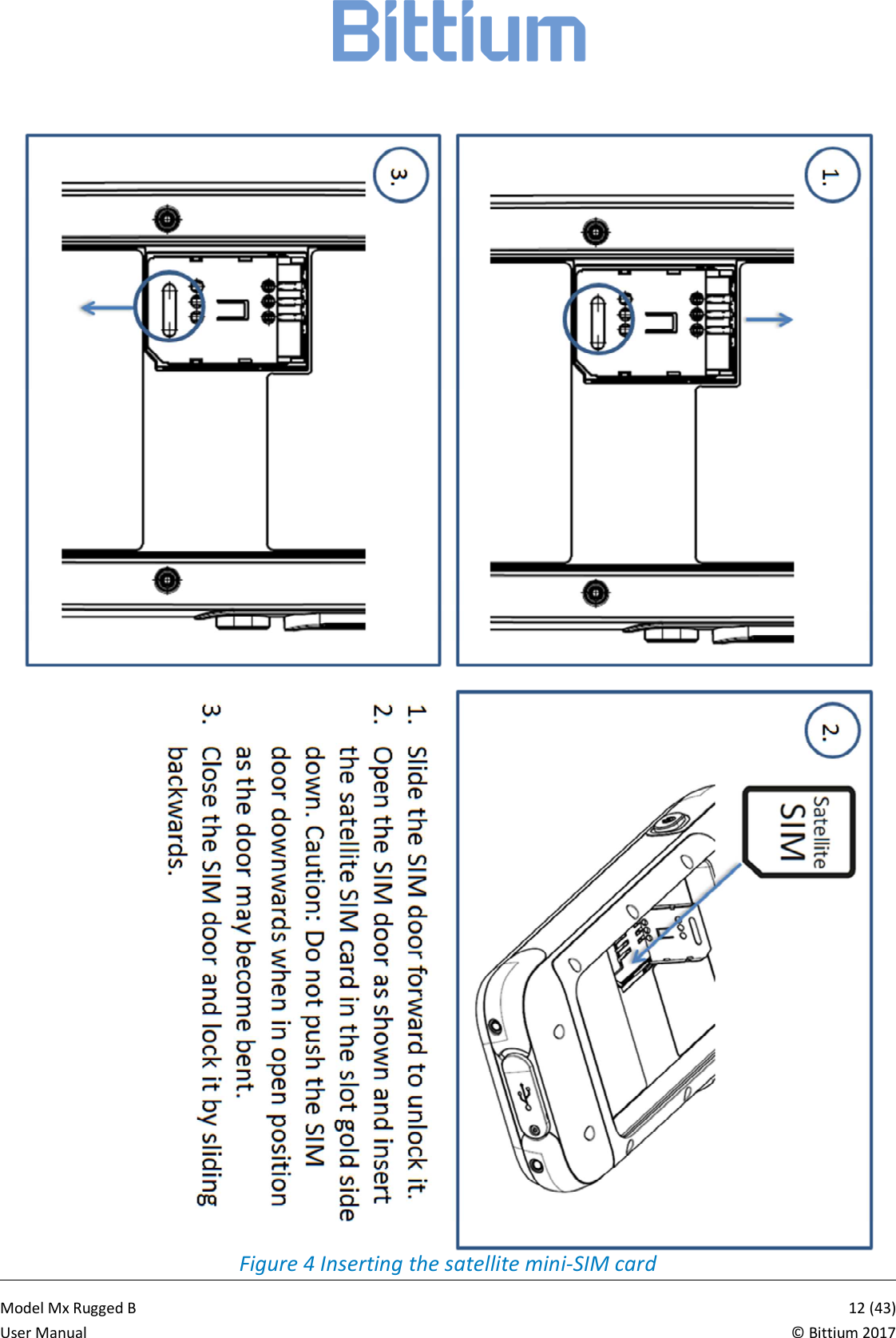
           Model Mx Rugged B       12 (43)User Manual  © Bittium 2017 Figure 4 Inserting the satellite mini-SIM card
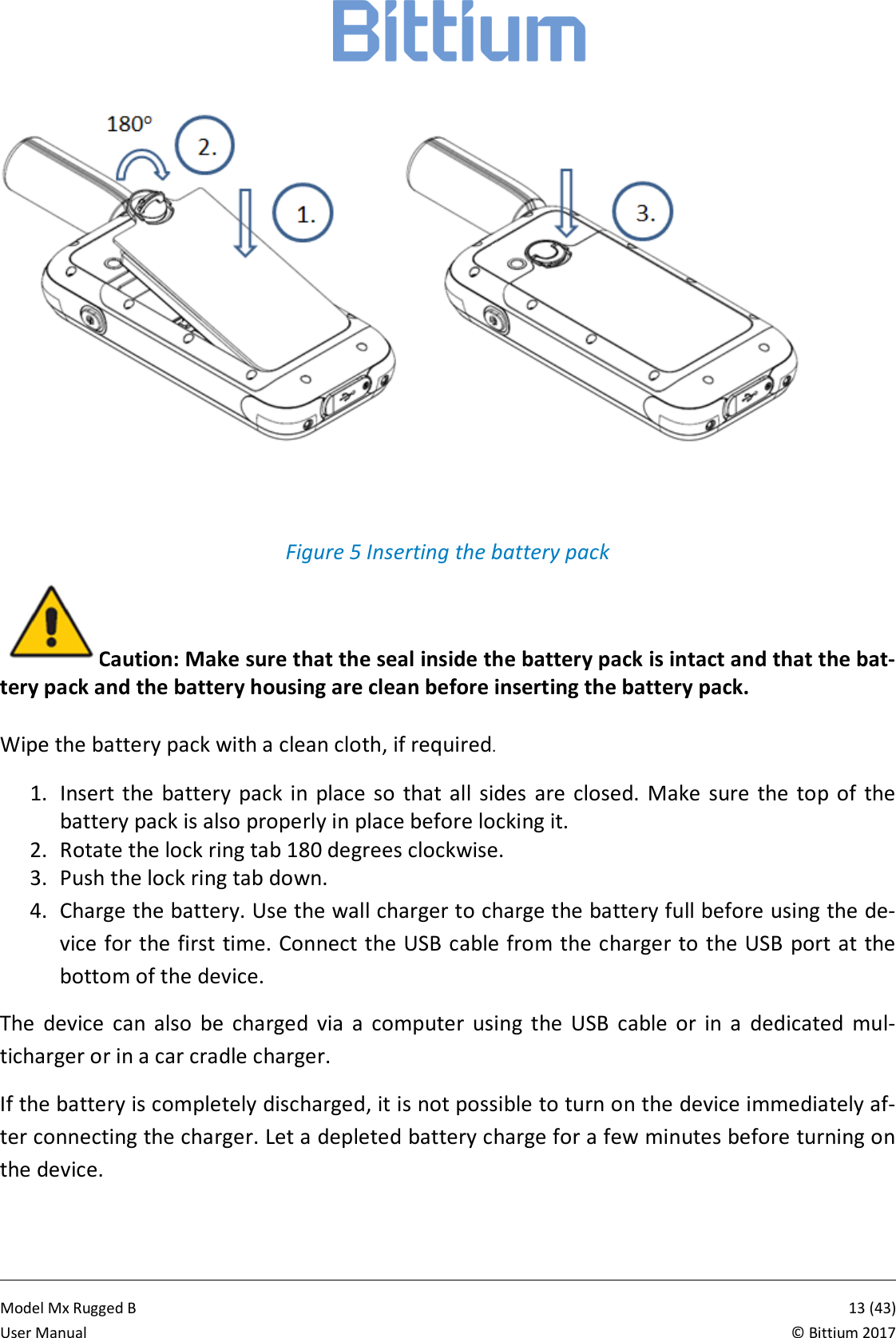
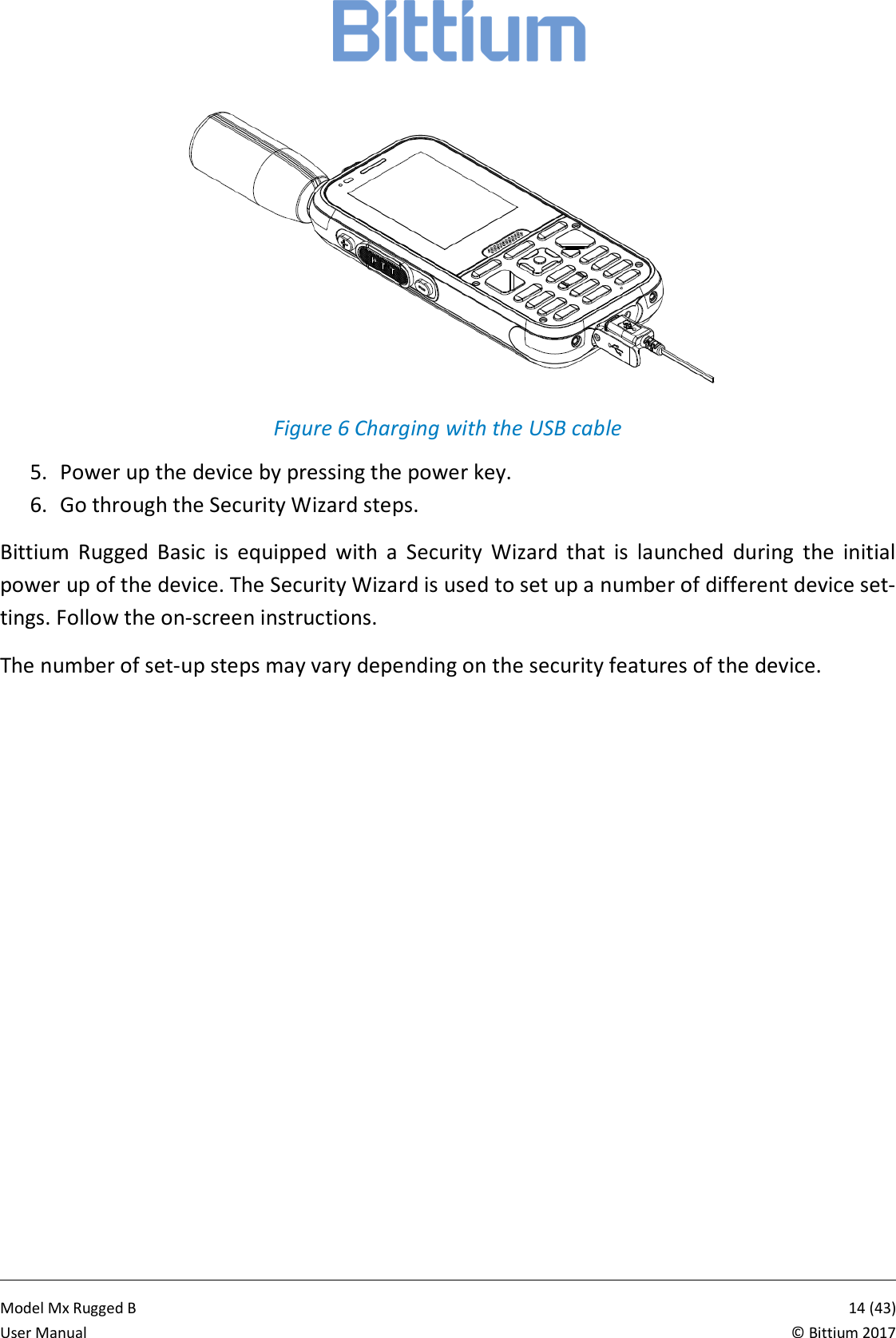
           Model Mx Rugged B       13 (43)User Manual  © Bittium 2017  Figure 5 Inserting the battery pack Caution: Make sure that the seal inside the battery pack is intact and that the bat-tery pack and the battery housing are clean before inserting the battery pack.   Wipe the battery pack with a clean cloth, if required.  1. Insert  the  battery  pack  in place  so  that  all  sides  are  closed.  Make  sure  the  top  of  the battery pack is also properly in place before locking it. 2. Rotate the lock ring tab 180 degrees clockwise. 3. Push the lock ring tab down. 4. Charge the battery. Use the wall charger to charge the battery full before using the de-vice for the first time. Connect the USB cable from the charger to the USB port at  the bottom of the device. The  device  can  also  be  charged  via  a  computer  using  the  USB  cable  or  in  a  dedicated  mul-ticharger or in a car cradle charger.  If the battery is completely discharged, it is not possible to turn on the device immediately af-ter connecting the charger. Let a depleted battery charge for a few minutes before turning on the device.
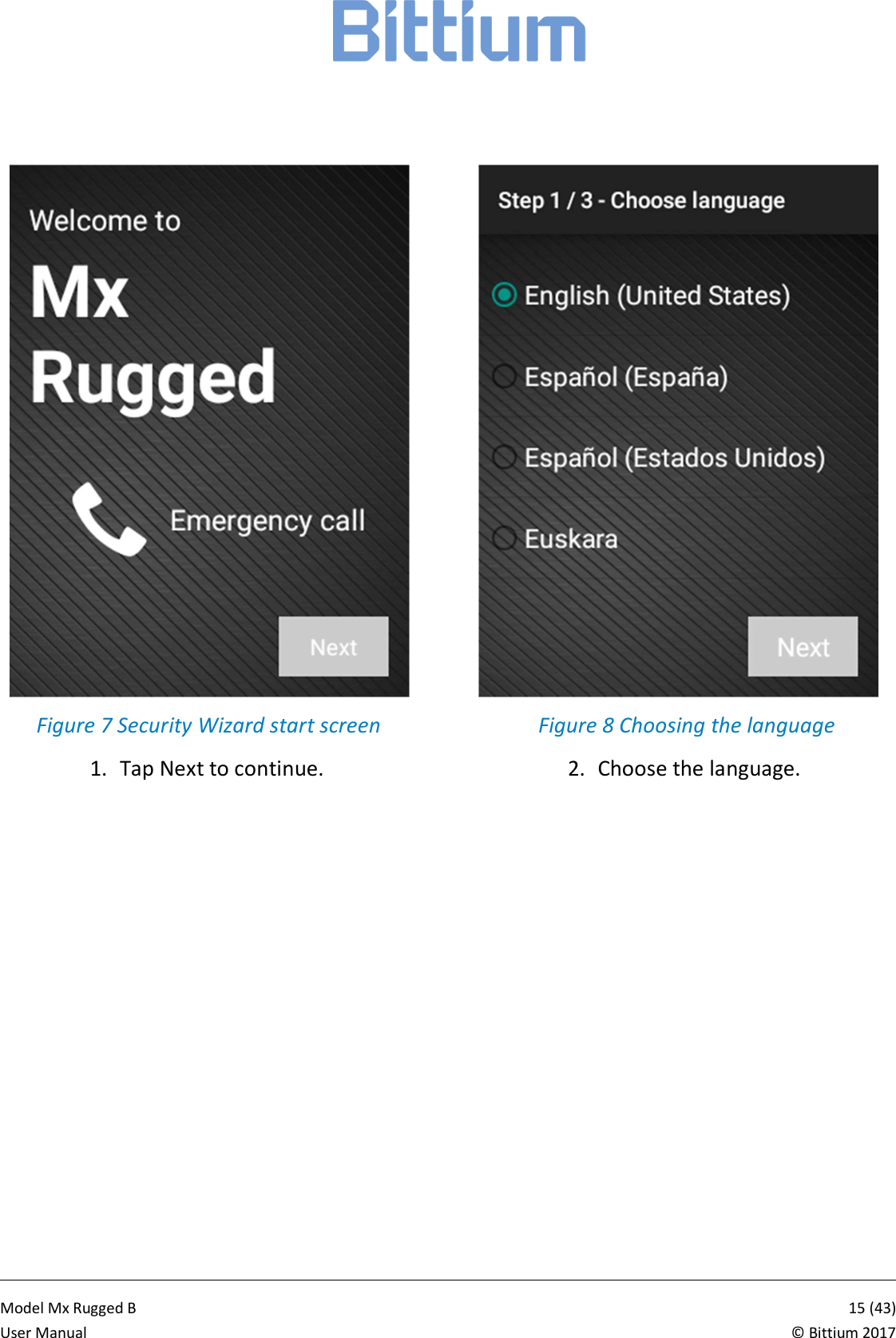
           Model Mx Rugged B       14 (43)User Manual  © Bittium 2017  Figure 6 Charging with the USB cable 5. Power up the device by pressing the power key. 6. Go through the Security Wizard steps. Bittium  Rugged  Basic  is  equipped  with  a  Security  Wizard  that  is  launched  during  the  initial power up of the device. The Security Wizard is used to set up a number of different device set-tings. Follow the on-screen instructions. The number of set-up steps may vary depending on the security features of the device.
           Model Mx Rugged B       15 (43)User Manual  © Bittium 2017  Figure 7 Security Wizard start screen 1. Tap Next to continue.   Figure 8 Choosing the language 2. Choose the language.
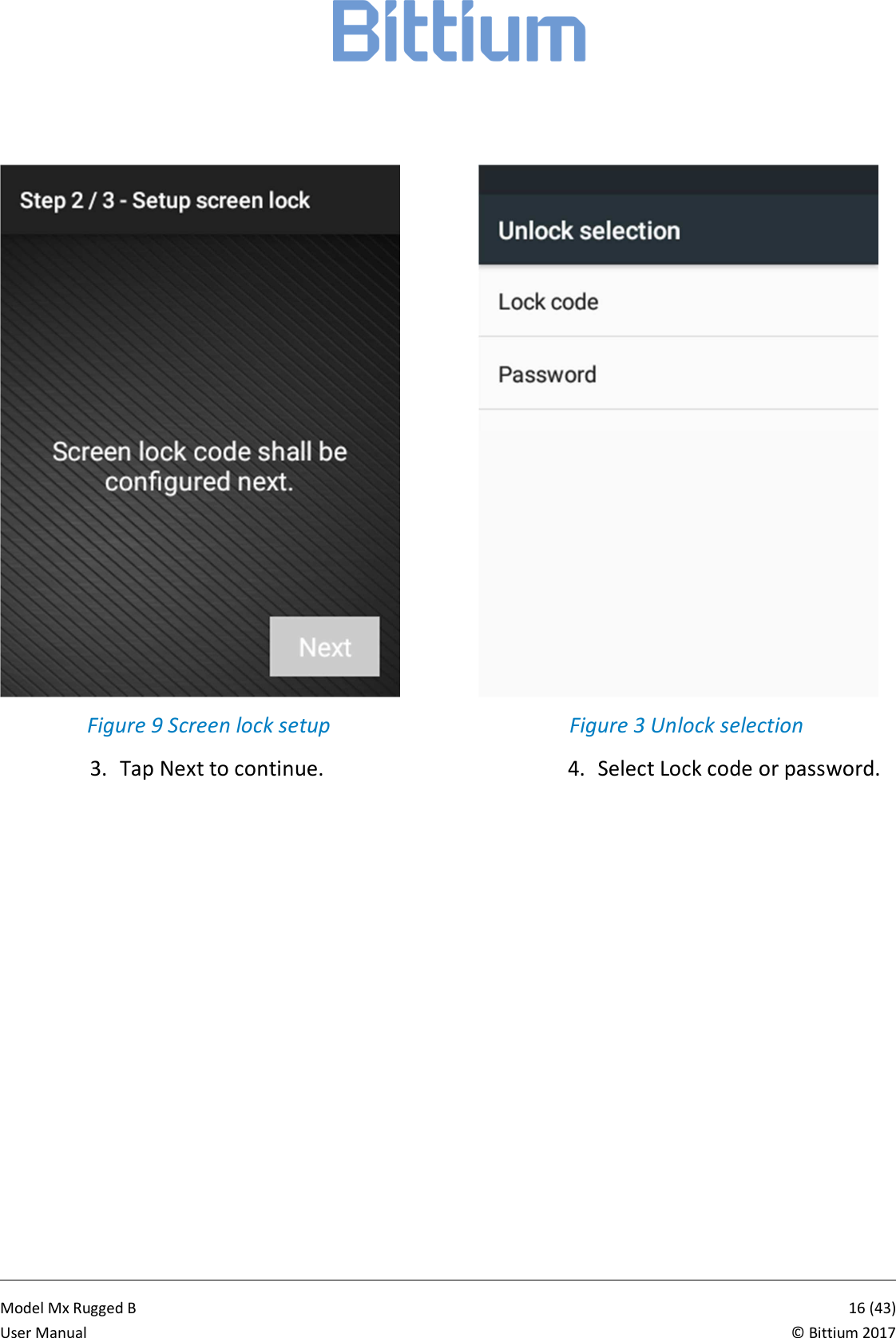
           Model Mx Rugged B       16 (43)User Manual  © Bittium 2017  Figure 9 Screen lock setup 3. Tap Next to continue.  Figure 3 Unlock selection 4. Select Lock code or password.
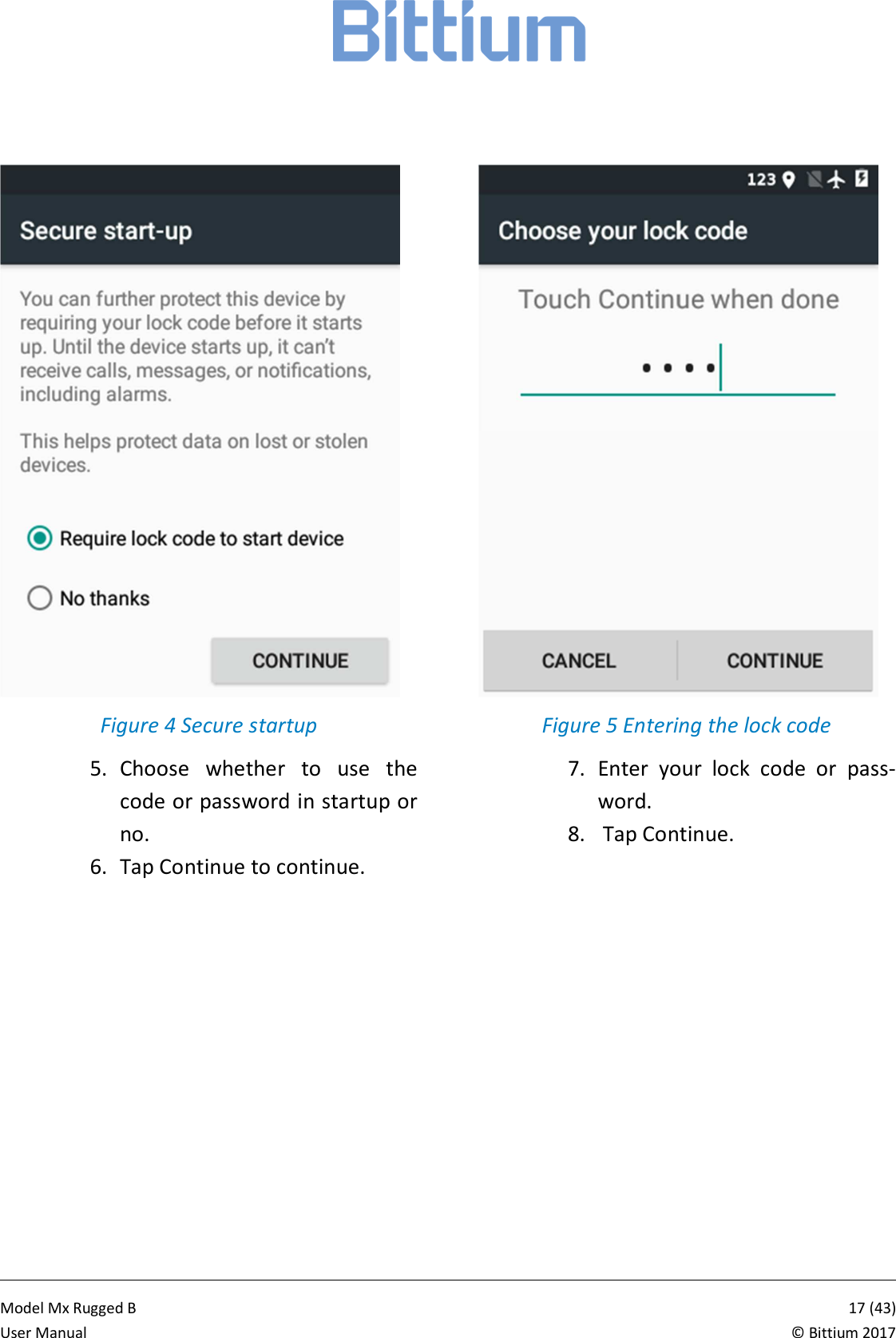
           Model Mx Rugged B       17 (43)User Manual  © Bittium 2017  Figure 4 Secure startup 5. Choose  whether  to  use  the code or password in startup or no. 6. Tap Continue to continue.  Figure 5 Entering the lock code 7. Enter  your  lock  code  or  pass-word. 8.  Tap Continue.
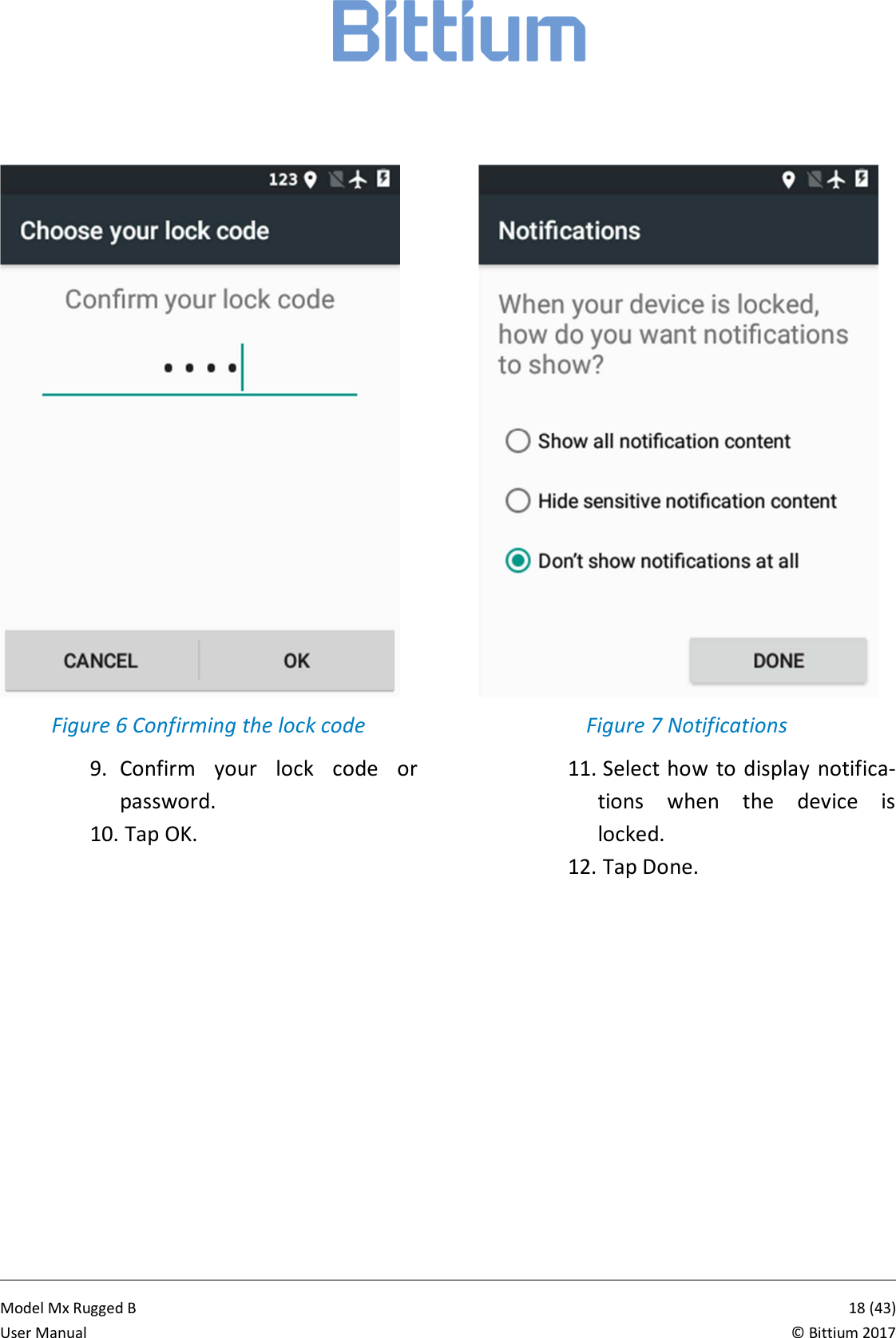
           Model Mx Rugged B       18 (43)User Manual  © Bittium 2017  Figure 6 Confirming the lock code 9. Confirm  your  lock  code  or password. 10.  Tap OK.  Figure 7 Notifications 11.  Select how  to display  notifica-tions  when  the  device  is locked. 12.  Tap Done.
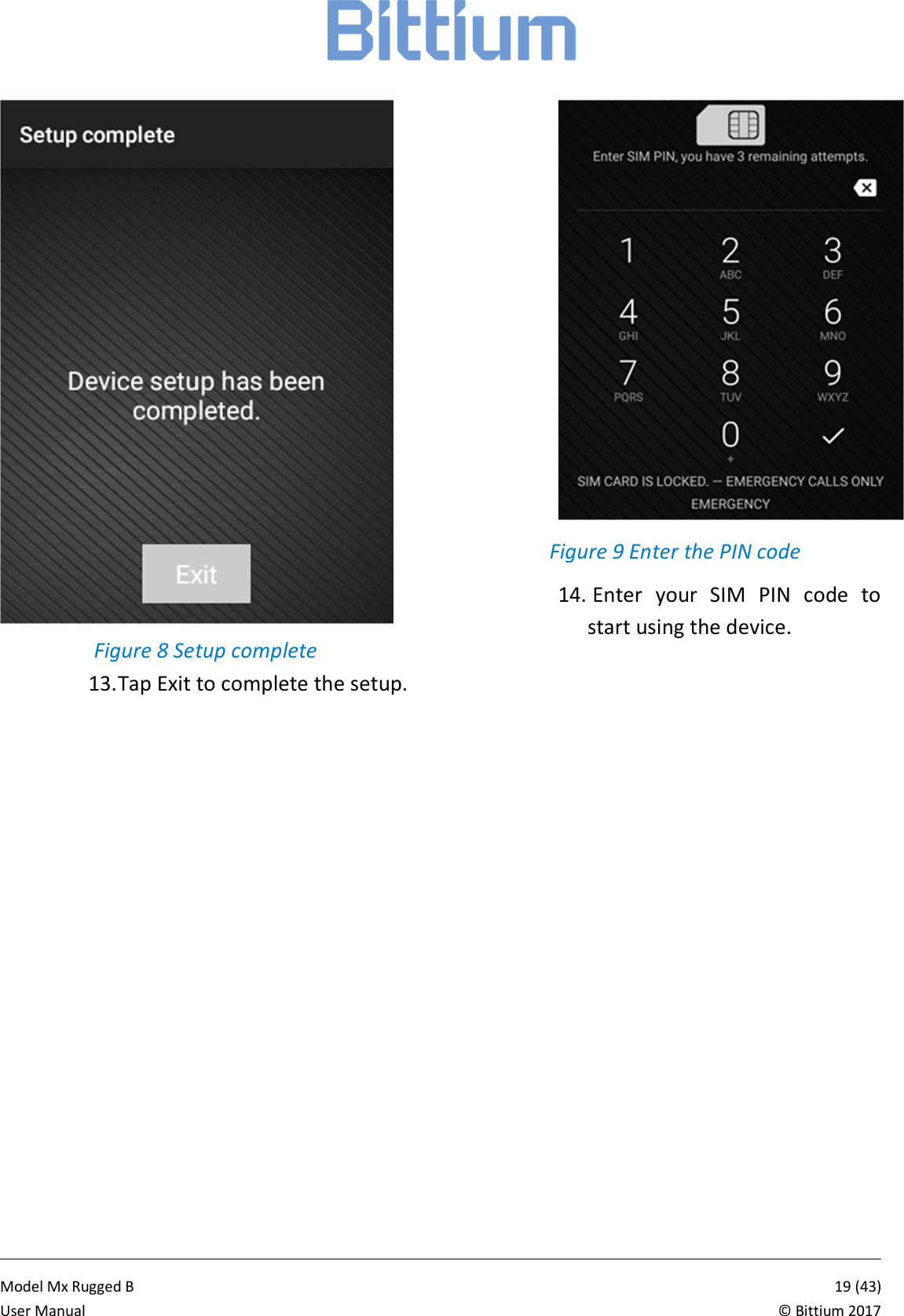
           Model Mx Rugged B       19 (43)User Manual  © Bittium 2017  Figure 8 Setup complete  Figure 9 Enter the PIN code 14.  Enter  your  SIM  PIN  code  to start using the device. 13. Tap Exit to complete the setup.
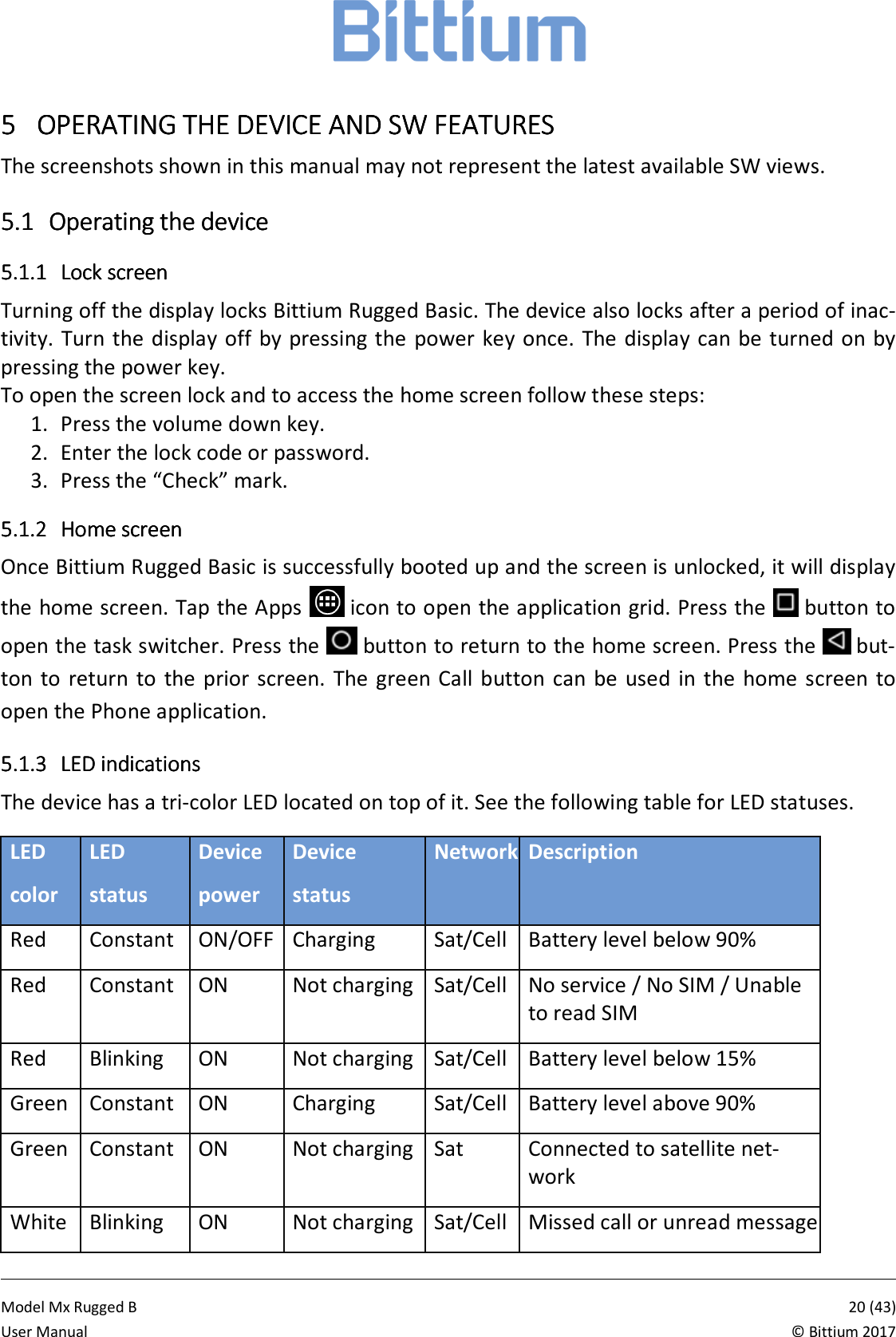
           Model Mx Rugged B       20 (43)User Manual  © Bittium 2017 5555 OPERATING THE OPERATING THE OPERATING THE OPERATING THE DEVICEDEVICEDEVICEDEVICE    AND AND AND AND SWSWSWSW    FEATURESFEATURESFEATURESFEATURES    The screenshots shown in this manual may not represent the latest available SW views. 5.15.15.15.1 Operating the deviceOperating the deviceOperating the deviceOperating the device    5.1.15.1.15.1.15.1.1 Lock screenLock screenLock screenLock screen    Turning off the display locks Bittium Rugged Basic. The device also locks after a period of inac-tivity. Turn the display off  by pressing the  power key once.  The display can be turned on by pressing the power key. To open the screen lock and to access the home screen follow these steps: 1. Press the volume down key. 2. Enter the lock code or password. 3. Press the “Check” mark. 5.1.25.1.25.1.25.1.2 Home screenHome screenHome screenHome screen    Once Bittium Rugged Basic is successfully booted up and the screen is unlocked, it will display the home screen. Tap the Apps   icon to open the application grid. Press the   button to open the task switcher. Press the   button to return to the home screen. Press the   but-ton to  return  to  the prior  screen.  The green Call button  can  be used  in  the  home screen  to open the Phone application.  5.1.35.1.35.1.35.1.3 LED indicationsLED indicationsLED indicationsLED indications    The device has a tri-color LED located on top of it. See the following table for LED statuses. LED  color LED  status Device  power Device  status Network Description Red Constant ON/OFF Charging Sat/Cell Battery level below 90% Red Constant ON Not charging Sat/Cell No service / No SIM / Unable to read SIM Red Blinking ON Not charging Sat/Cell Battery level below 15% Green Constant ON Charging Sat/Cell Battery level above 90% Green Constant ON Not charging Sat Connected to satellite net-work White Blinking ON Not charging Sat/Cell Missed call or unread message
           Model Mx Rugged B       21 (43)User Manual  © Bittium 2017  5.1.45.1.45.1.45.1.4 Maintaining water and dust resistanceMaintaining water and dust resistanceMaintaining water and dust resistanceMaintaining water and dust resistance    Follow the water and dust protection information carefully to prevent damage  to the device and to maintain the water resistance and dust protection. • The device may be damaged if water or dust enters it. Do not immerse the device in wa-ter on purpose. The device is not designed for purposeful underwater or shower usage. Purposeful use of the device in these environments will result in a void of the warranty. • The device is water and dust resistant (IP67) meaning that the device can survive acci-dental  dips  and  up  to  30  minute  submersion  at  1  meter  depth  in  water.  In  order  to maintain the water and dust resistance the battery cover, the USB connector cover, sat-ellite antenna connector cover and the headset cover must be properly closed. • The battery cover, USB connector cover, satellite antenna connector cover and headset jack covers  may  be loosened during  normal use  or may  be broken  or  deformed if  the device is dropped or receives an impact. For IP67 rating ensure that all the covers are in good condition and are properly aligned and tightly closed. • Submerging  the  device  in  water  will  degrade  touch  screen  responsiveness  and  audio quality. To restore the touch screen responsiveness and normal audio quality dry all wa-ter from the touch screen, earpiece, satellite antenna connector and loudspeaker open-ings.  • Do  not expose  the device  to water which is moving with force, such as  water running from a tap, shower, hose, drips, sprays or splashes.  • If  the device is exposed  to salt water, rinse it softly with fresh water immediately and dry it thoroughly with a clean, soft cloth.  • Dry your hands before opening the device’s back cover. Do not open the device's back cover if the device is wet, in water or in very humid environment.  • Be careful when opening or closing the battery cover to avoid damaging the rubber seal. Also, clean the battery cover and the rubber seal from all water and debris before clos-ing it. • The  USB,  satellite  antenna  connector  and  headset  ports  must  be  completely  dry  and free of any dirt before use.
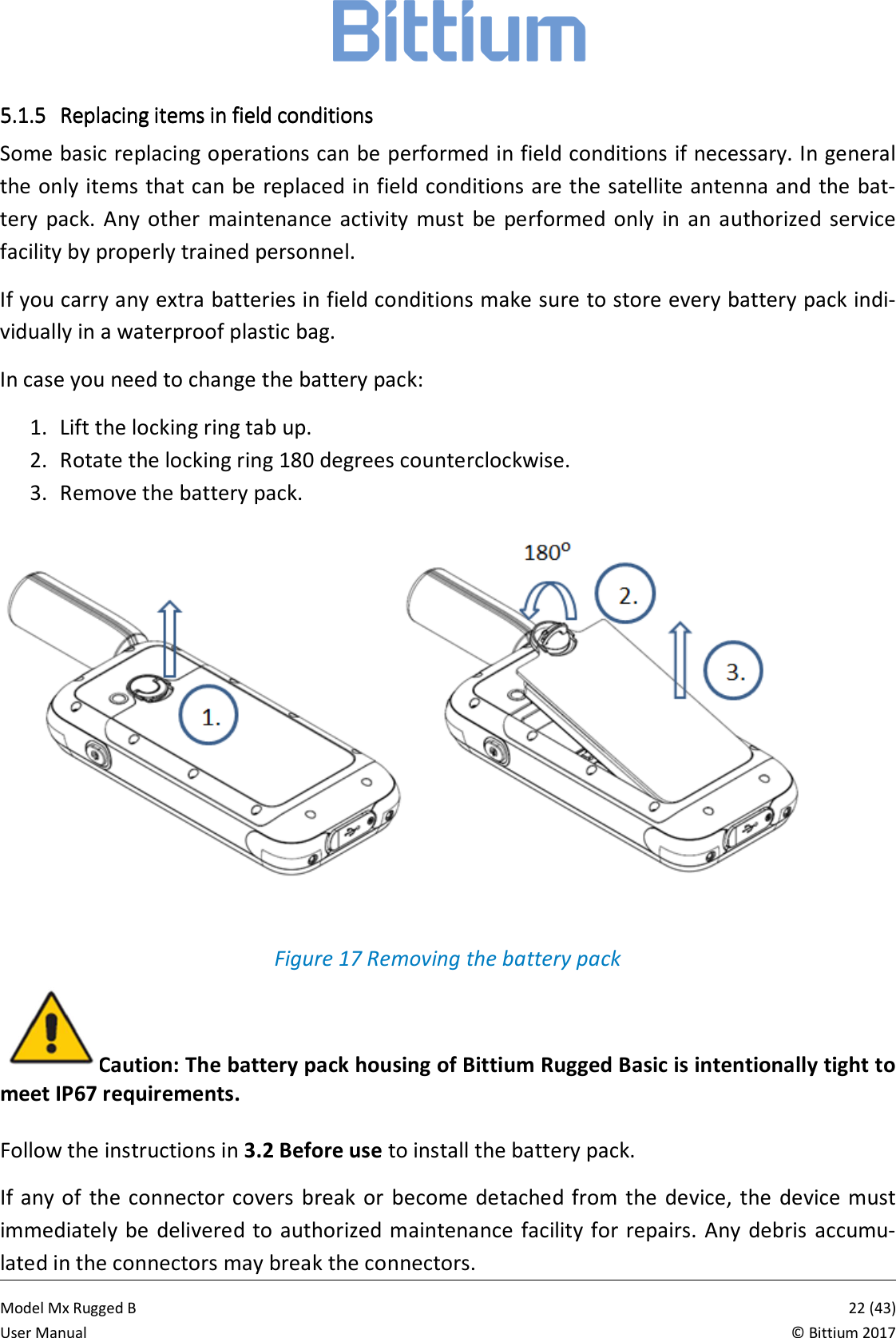
           Model Mx Rugged B       22 (43)User Manual  © Bittium 2017 5.1.55.1.55.1.55.1.5 Replacing items in field conditionsReplacing items in field conditionsReplacing items in field conditionsReplacing items in field conditions    Some basic replacing operations can be performed in field conditions if necessary. In general the only items that can be replaced in field conditions are the satellite antenna and the bat-tery  pack.  Any  other  maintenance  activity  must  be  performed  only  in  an  authorized  service facility by properly trained personnel. If you carry any extra batteries in field conditions make sure to store every battery pack indi-vidually in a waterproof plastic bag. In case you need to change the battery pack: 1. Lift the locking ring tab up. 2. Rotate the locking ring 180 degrees counterclockwise. 3. Remove the battery pack.  Figure 17 Removing the battery pack Caution: The battery pack housing of Bittium Rugged Basic is intentionally tight to meet IP67 requirements.  Follow the instructions in 3.2 Before use to install the battery pack.  If  any of  the connector covers break or  become detached from  the device, the  device must immediately be  delivered to  authorized maintenance facility for repairs.  Any  debris  accumu-lated in the connectors may break the connectors.
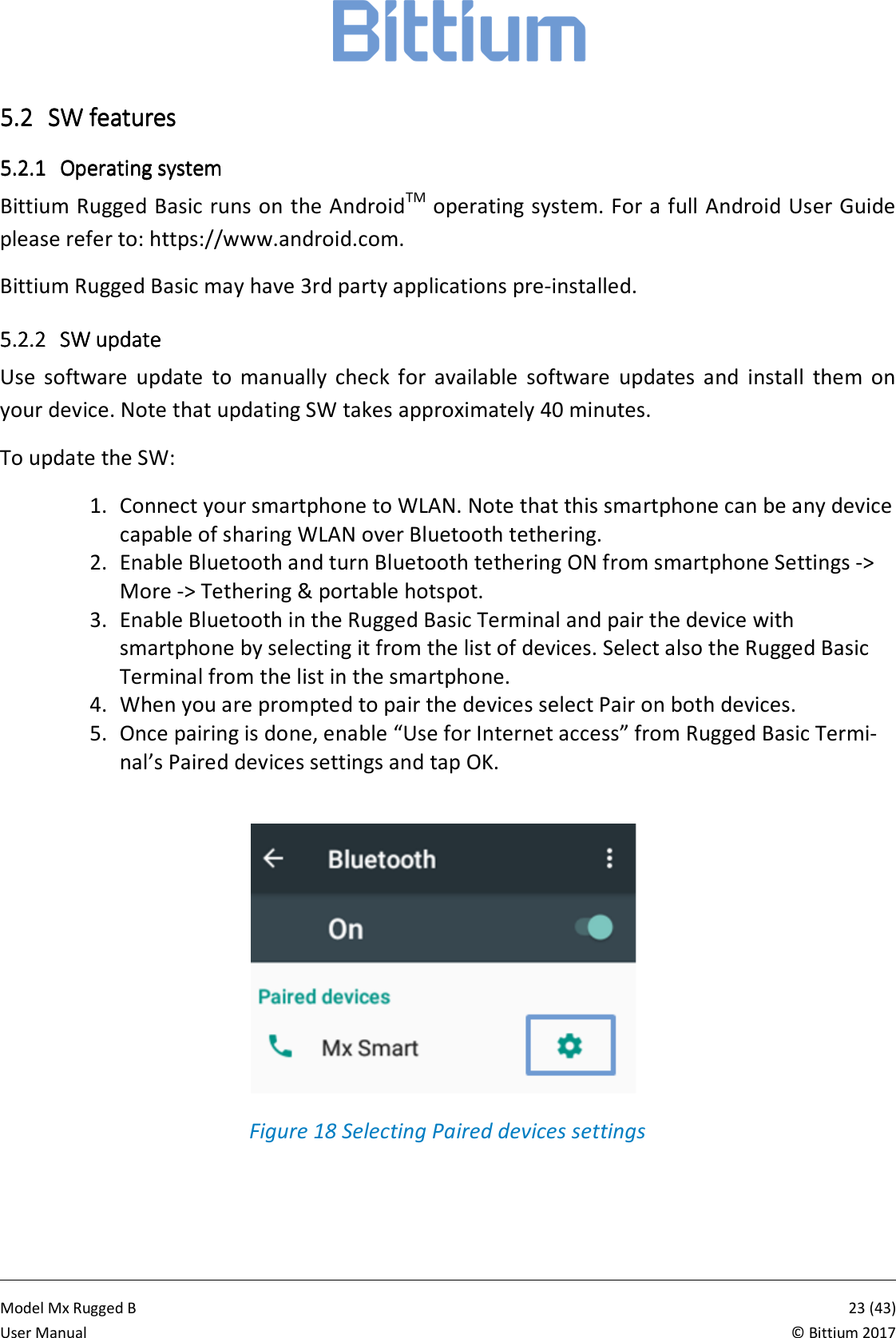
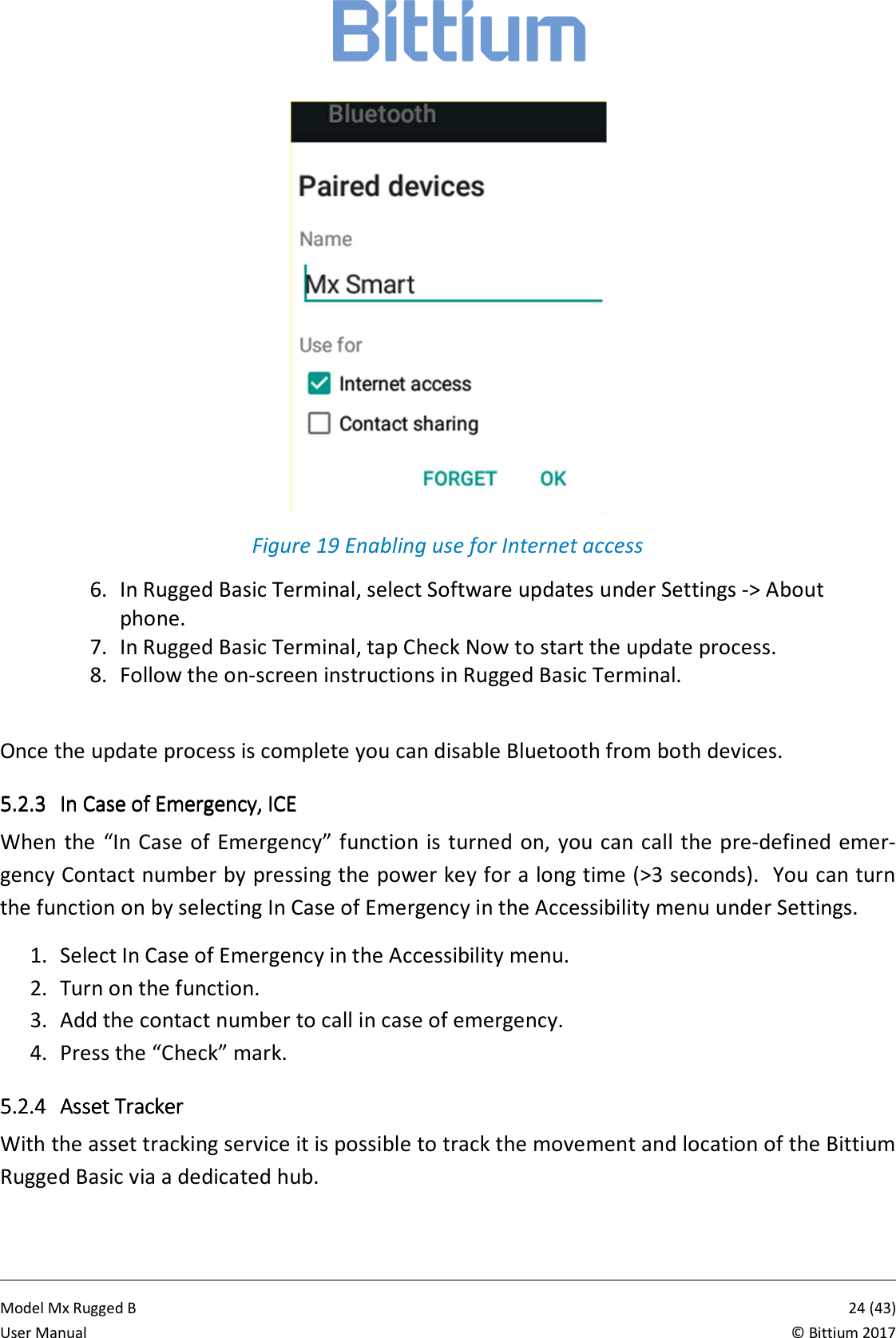
           Model Mx Rugged B       23 (43)User Manual  © Bittium 2017 5.25.25.25.2 SW featuresSW featuresSW featuresSW features    5.2.15.2.15.2.15.2.1 Operating systemOperating systemOperating systemOperating system    Bittium Rugged Basic runs on the AndroidTM operating system. For a full Android User Guide please refer to: https://www.android.com. Bittium Rugged Basic may have 3rd party applications pre-installed. 5.2.25.2.25.2.25.2.2 SW updateSW updateSW updateSW update    Use  software  update  to  manually  check  for  available  software  updates  and  install  them  on your device. Note that updating SW takes approximately 40 minutes. To update the SW: 1. Connect your smartphone to WLAN. Note that this smartphone can be any device capable of sharing WLAN over Bluetooth tethering. 2. Enable Bluetooth and turn Bluetooth tethering ON from smartphone Settings -> More -> Tethering & portable hotspot. 3. Enable Bluetooth in the Rugged Basic Terminal and pair the device with smartphone by selecting it from the list of devices. Select also the Rugged Basic Terminal from the list in the smartphone.  4. When you are prompted to pair the devices select Pair on both devices. 5. Once pairing is done, enable “Use for Internet access” from Rugged Basic Termi-nal’s Paired devices settings and tap OK.    Figure 18 Selecting Paired devices settings
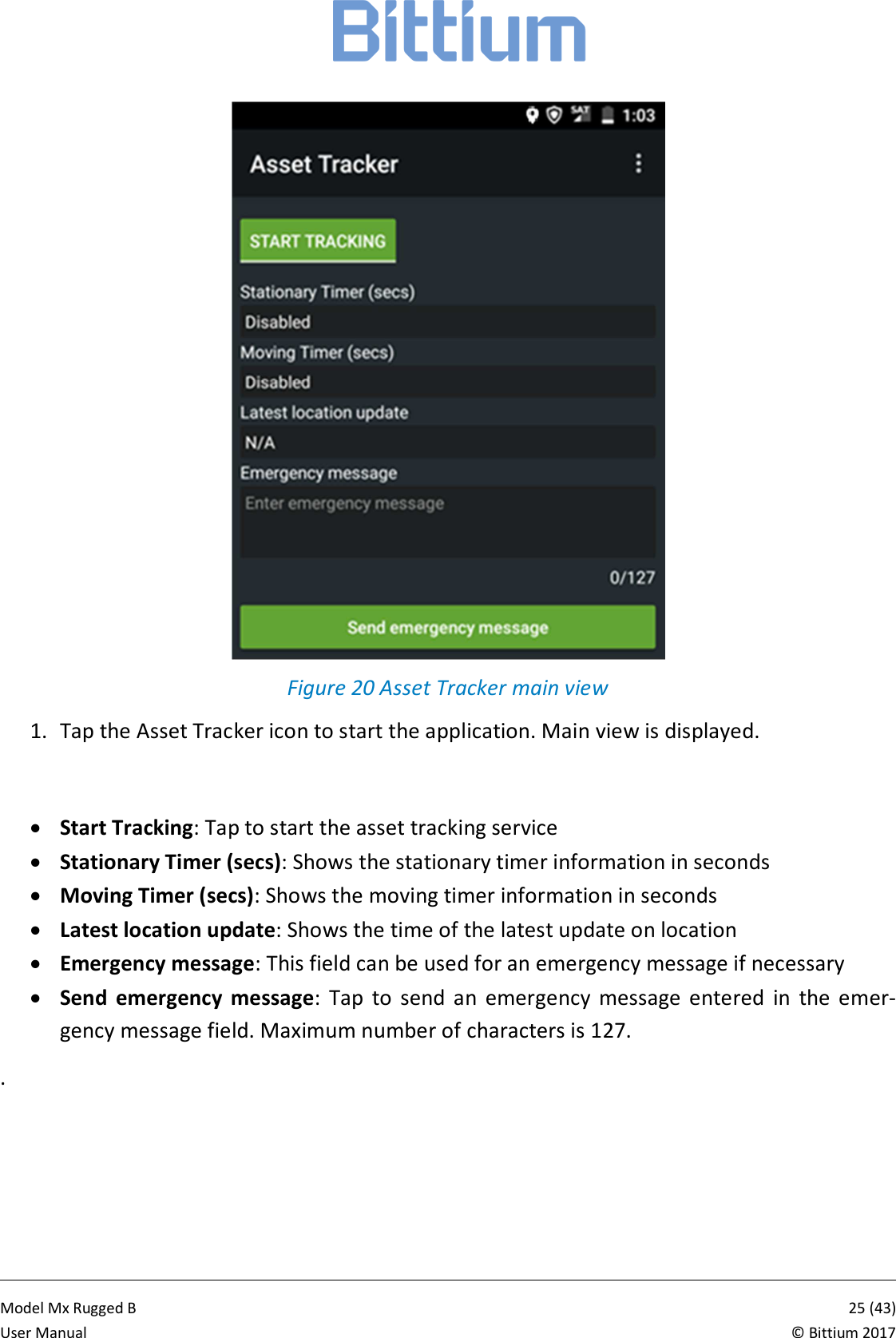
           Model Mx Rugged B       24 (43)User Manual  © Bittium 2017  Figure 19 Enabling use for Internet access 6. In Rugged Basic Terminal, select Software updates under Settings -> About phone. 7. In Rugged Basic Terminal, tap Check Now to start the update process. 8. Follow the on-screen instructions in Rugged Basic Terminal.  Once the update process is complete you can disable Bluetooth from both devices. 5.2.35.2.35.2.35.2.3 In Case of Emergency, ICEIn Case of Emergency, ICEIn Case of Emergency, ICEIn Case of Emergency, ICE    When  the “In Case of Emergency” function is turned on, you can call the pre-defined emer-gency Contact number by pressing the power key for a long time (>3 seconds).  You can turn the function on by selecting In Case of Emergency in the Accessibility menu under Settings. 1. Select In Case of Emergency in the Accessibility menu. 2. Turn on the function. 3. Add the contact number to call in case of emergency. 4. Press the “Check” mark. 5.2.45.2.45.2.45.2.4 Asset TrackerAsset TrackerAsset TrackerAsset Tracker    With the asset tracking service it is possible to track the movement and location of the Bittium Rugged Basic via a dedicated hub.
           Model Mx Rugged B       25 (43)User Manual  © Bittium 2017  Figure 20 Asset Tracker main view 1. Tap the Asset Tracker icon to start the application. Main view is displayed.  • Start Tracking: Tap to start the asset tracking service • Stationary Timer (secs): Shows the stationary timer information in seconds • Moving Timer (secs): Shows the moving timer information in seconds • Latest location update: Shows the time of the latest update on location • Emergency message: This field can be used for an emergency message if necessary • Send  emergency  message:  Tap  to  send  an  emergency  message  entered  in  the  emer-gency message field. Maximum number of characters is 127. .
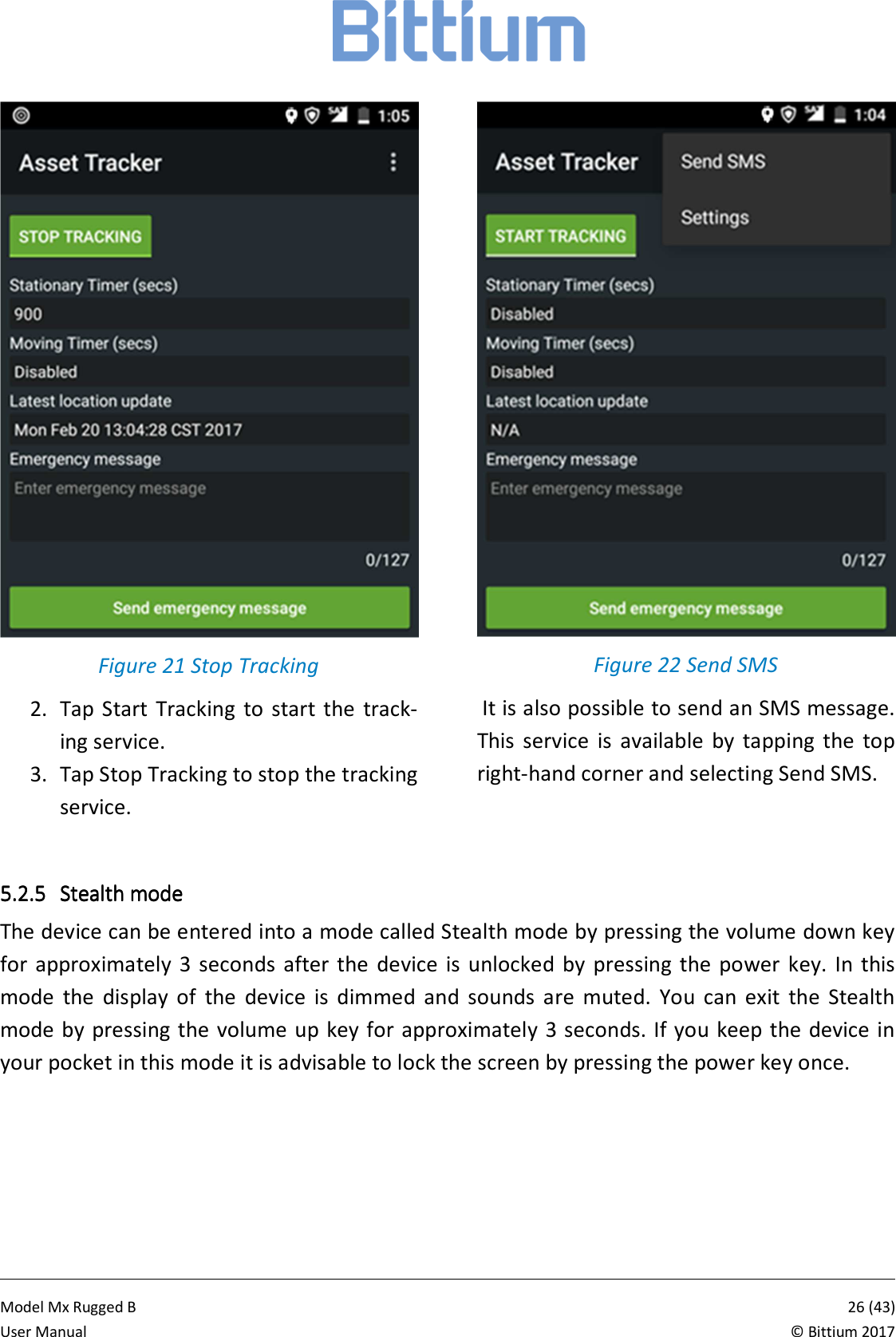
           Model Mx Rugged B       26 (43)User Manual  © Bittium 2017  Figure 21 Stop Tracking 2. Tap Start  Tracking  to  start  the  track-ing service. 3. Tap Stop Tracking to stop the tracking service.  Figure 22 Send SMS  It is also possible to send an SMS message. This  service  is  available  by  tapping  the  top right-hand corner and selecting Send SMS.  5.2.55.2.55.2.55.2.5 Stealth modeStealth modeStealth modeStealth mode    The device can be entered into a mode called Stealth mode by pressing the volume down key for  approximately  3  seconds  after  the  device  is  unlocked  by  pressing  the  power  key.  In  this mode  the  display  of  the  device  is  dimmed  and  sounds  are  muted.  You  can  exit  the  Stealth mode by pressing the  volume up key for approximately 3 seconds. If you keep the device in your pocket in this mode it is advisable to lock the screen by pressing the power key once.
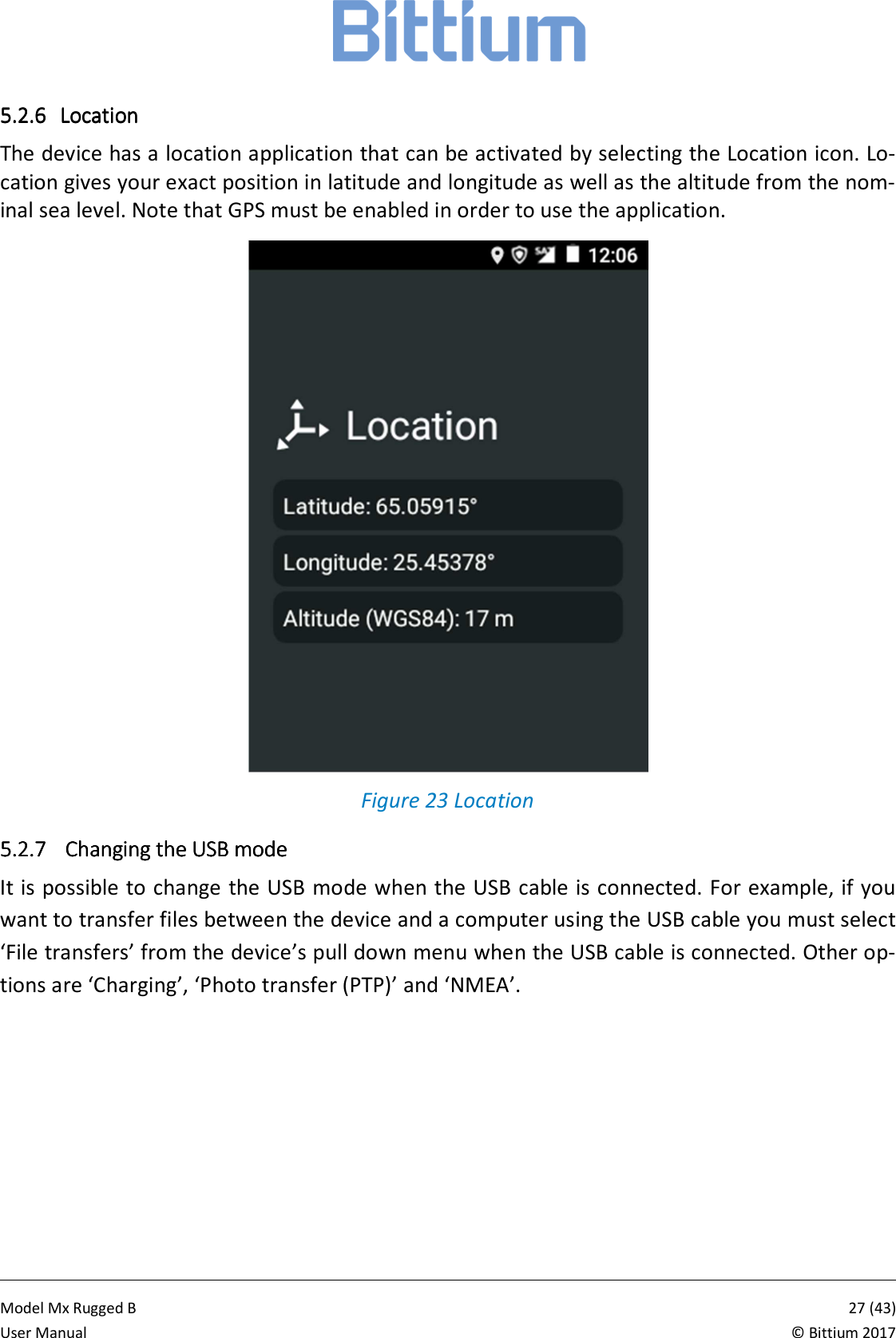
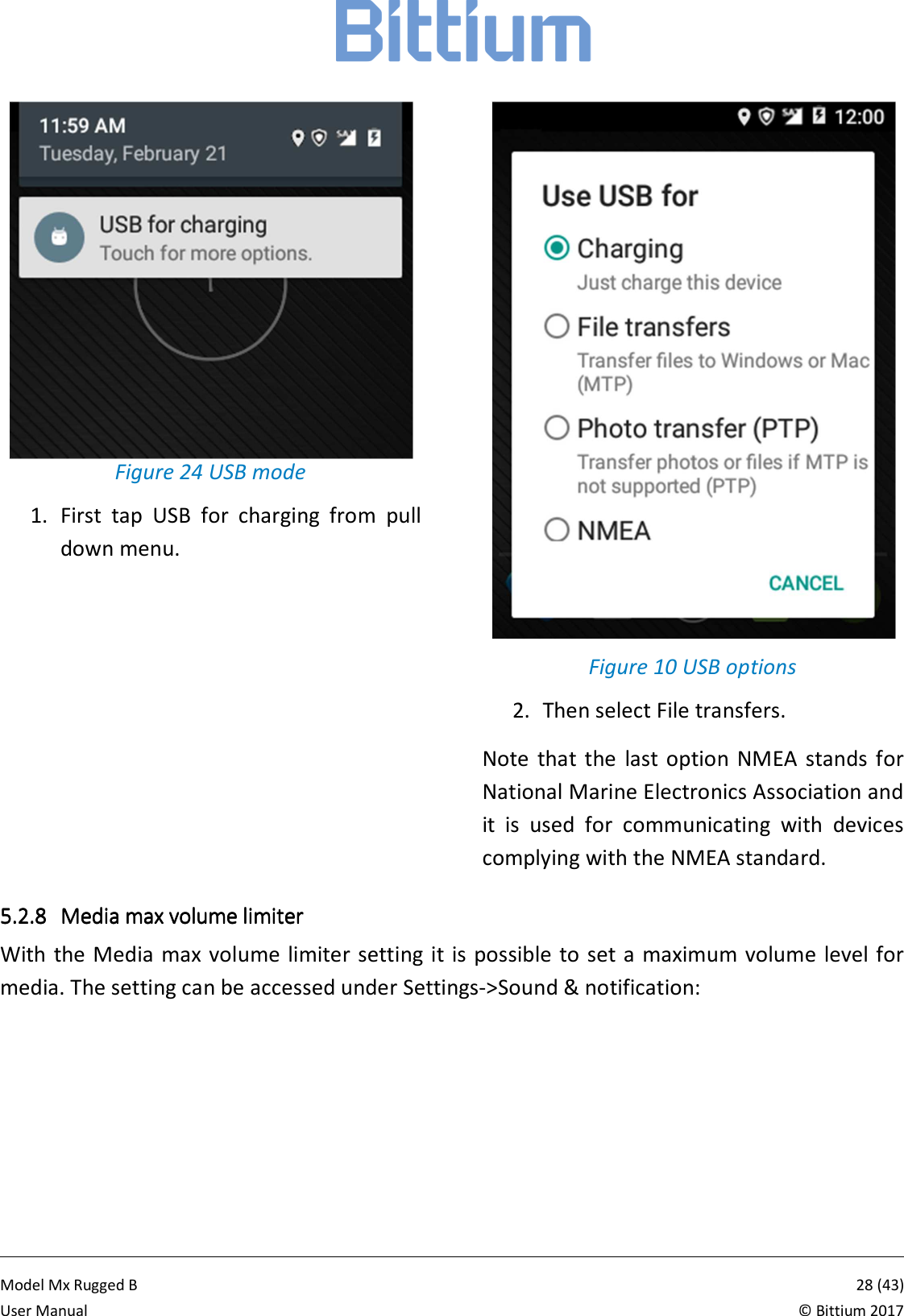
           Model Mx Rugged B       27 (43)User Manual  © Bittium 2017 5.2.65.2.65.2.65.2.6 LocationLocationLocationLocation    The device has a location application that can be activated by selecting the Location icon. Lo-cation gives your exact position in latitude and longitude as well as the altitude from the nom-inal sea level. Note that GPS must be enabled in order to use the application.  Figure 23 Location 5.2.75.2.75.2.75.2.7     Changing the USB modeChanging the USB modeChanging the USB modeChanging the USB mode    It is possible to change the USB mode when the USB cable is connected. For example, if you want to transfer files between the device and a computer using the USB cable you must select ‘File transfers’ from the device’s pull down menu when the USB cable is connected. Other op-tions are ‘Charging’, ‘Photo transfer (PTP)’ and ‘NMEA’.
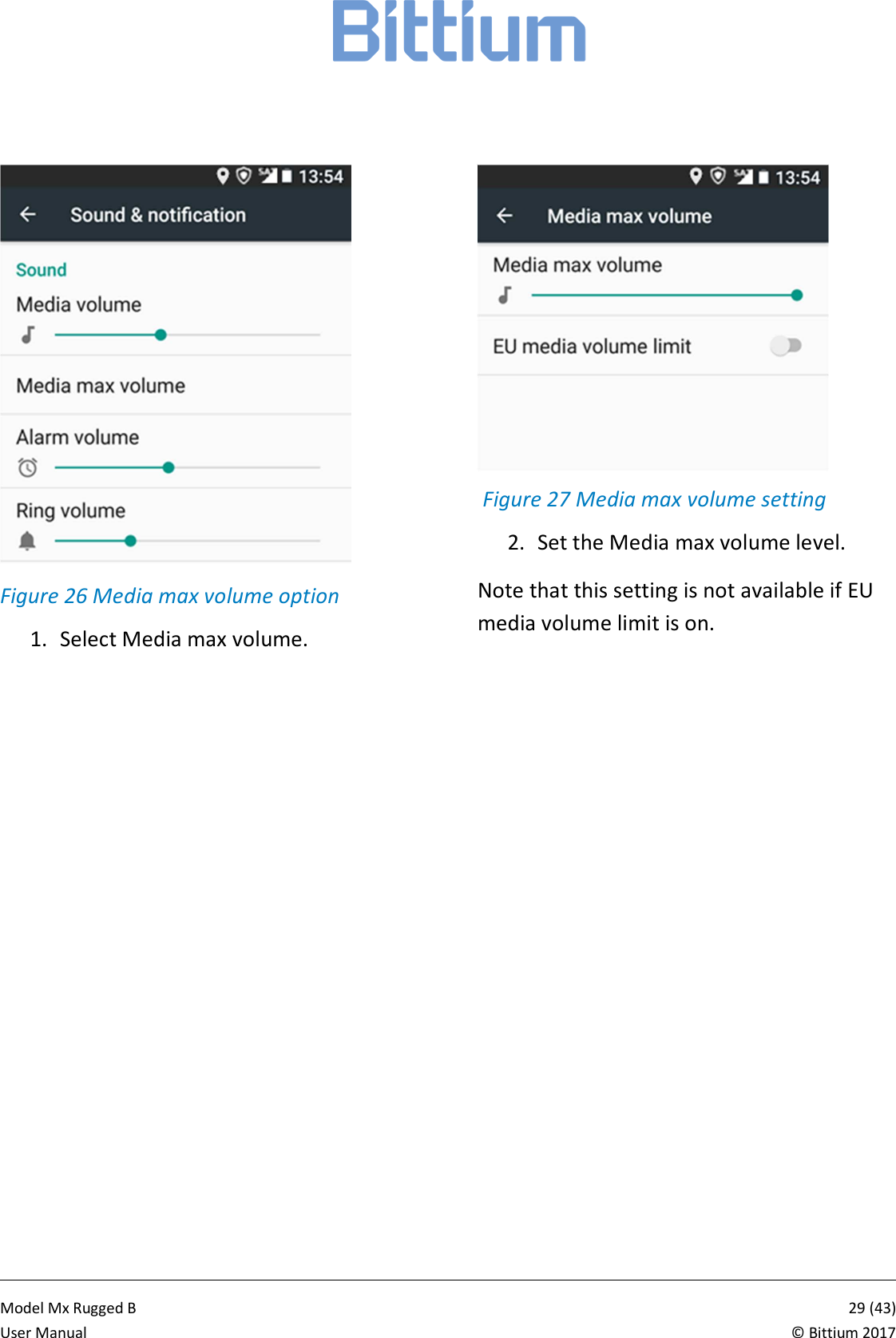
           Model Mx Rugged B       28 (43)User Manual  © Bittium 2017 Figure 24 USB mode 1. First  tap  USB  for  charging  from  pull down menu.  Figure 10 USB options 2. Then select File transfers. Note  that  the  last  option  NMEA  stands  for National Marine Electronics Association and it  is  used  for  communicating  with  devices complying with the NMEA standard. 5.2.85.2.85.2.85.2.8 Media max volume limiterMedia max volume limiterMedia max volume limiterMedia max volume limiter    With the Media max volume limiter setting it is  possible to  set a maximum volume level for media. The setting can be accessed under Settings->Sound & notification:
           Model Mx Rugged B       29 (43)User Manual  © Bittium 2017  Figure 26 Media max volume option 1. Select Media max volume.    Figure 27 Media max volume setting 2. Set the Media max volume level. Note that this setting is not available if EU media volume limit is on.
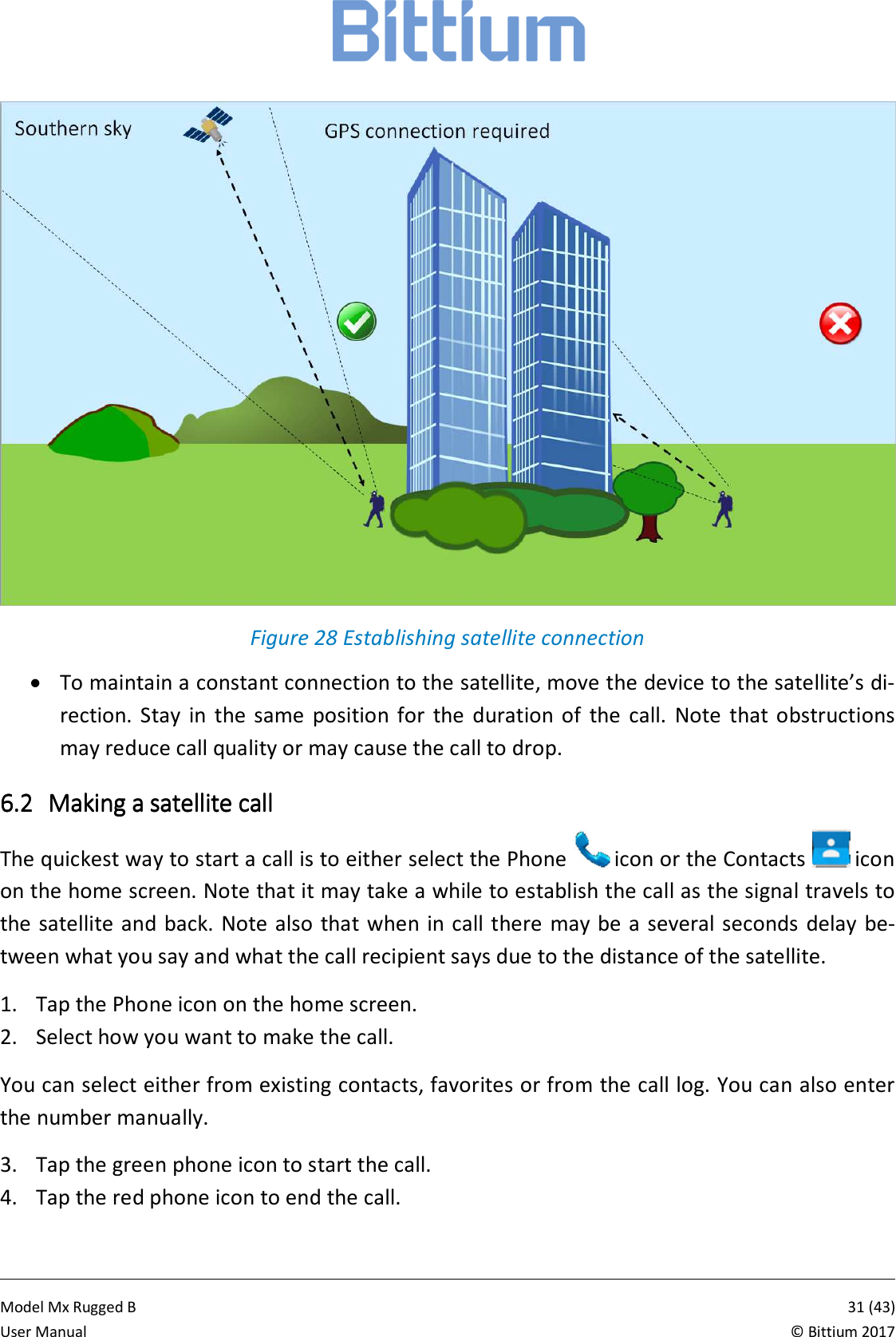
           Model Mx Rugged B       30 (43)User Manual  © Bittium 2017 6666 SATELLITE CALLSATELLITE CALLSATELLITE CALLSATELLITE CALL    Make sure the device has a clear view of the southern sky. Using your device on satellite network has the following differences compared to cellular net-work: • Establishing a satellite call can take several minutes due to the physical distance of the satellite. • There is a delay of 2 to 4 seconds before what you say reaches the recipient and before you hear the recipient. • Applications may be slower when on satellite network. • Avoid data transfers when on satellite network. • To preserve battery power, keep the device on satellite network only when necessary. 6.16.16.16.1 Restrictions of the satellite connectionRestrictions of the satellite connectionRestrictions of the satellite connectionRestrictions of the satellite connection    When  using  the  satellite  call  function  there  are  some  restrictions  that  should  be  taken  into account. • Ensure that the device has a clear view of the southern sky. • Ensure you have a GPS connection and that the clock is set to local time. See page 33 for a description of the Location icon. • Ensure there are no obstacles between the satellite and the device. • To maintain the view of the satellite during a satellite call, it is recommended to use a wired headset and a vest clip, for example. See list of accessories for options. • If you are expecting an incoming call, maintain a clear view of the southern sky (do not keep the device in your pocket). Make sure not to block the signal with your own body, for example. • Note  that  a  high  power alert  dialog  will  be  displayed  when a  satellite  call  is  incoming and the signal path to the satellite is very weak. The dialog changes to standard Android call dialog when the signal is strong enough.
           Model Mx Rugged B       31 (43)User Manual  © Bittium 2017  Figure 28 Establishing satellite connection • To maintain a constant connection to the satellite, move the device to the satellite’s di-rection.  Stay  in  the  same  position  for  the  duration  of  the  call.  Note  that obstructions may reduce call quality or may cause the call to drop. 6.26.26.26.2 Making a satellite callMaking a satellite callMaking a satellite callMaking a satellite call    The quickest way to start a call is to either select the Phone   icon or the Contacts   icon on the home screen. Note that it may take a while to establish the call as the signal travels to the satellite and back. Note also that when in call there  may be a several seconds  delay  be-tween what you say and what the call recipient says due to the distance of the satellite. 1. Tap the Phone icon on the home screen. 2. Select how you want to make the call. You can select either from existing contacts, favorites or from the call log. You can also enter the number manually.  3. Tap the green phone icon to start the call. 4. Tap the red phone icon to end the call.
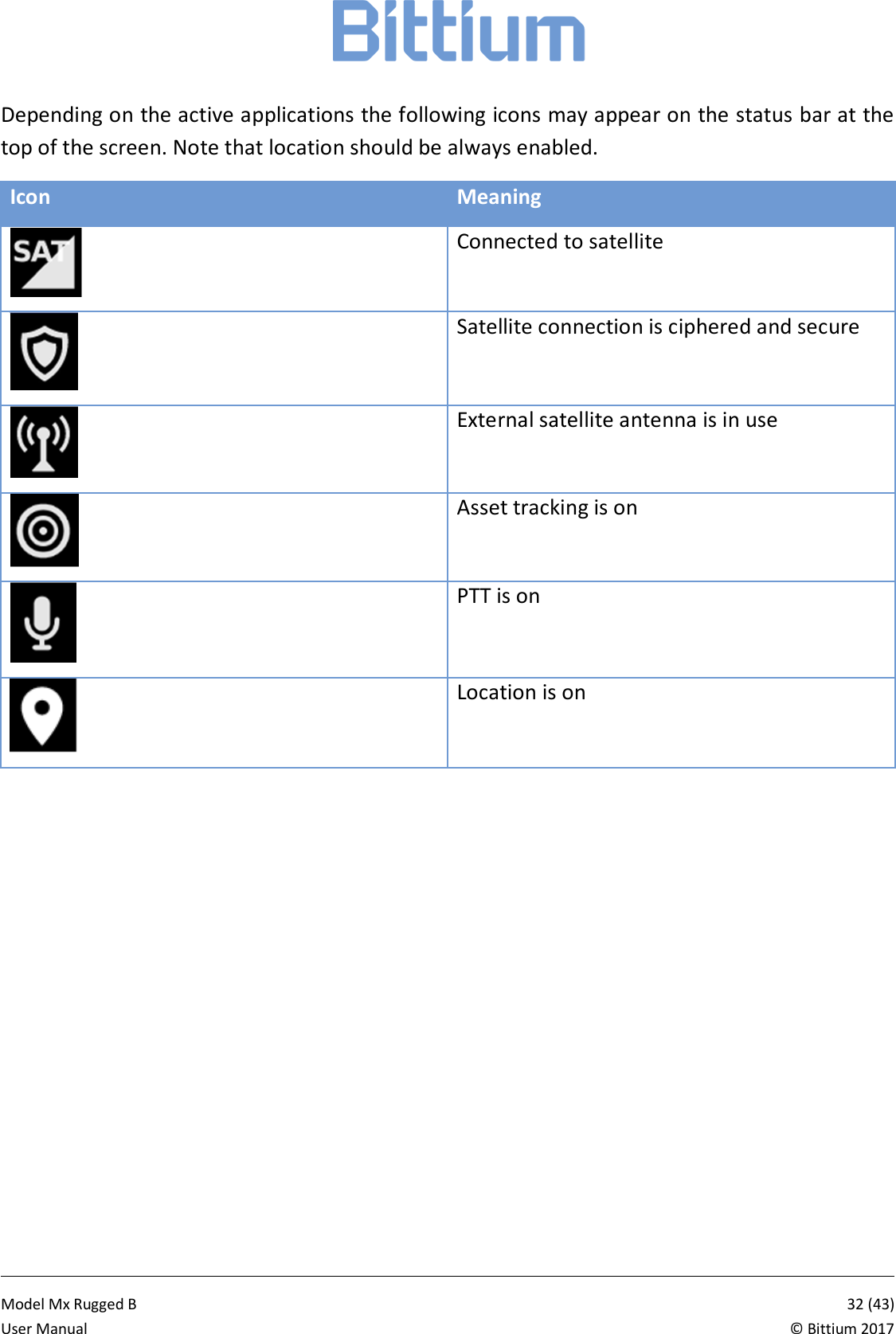
           Model Mx Rugged B       32 (43)User Manual  © Bittium 2017 Depending on the active applications the following icons may appear on the status bar at the top of the screen. Note that location should be always enabled. Icon Meaning  Connected to satellite  Satellite connection is ciphered and secure  External satellite antenna is in use  Asset tracking is on  PTT is on  Location is on
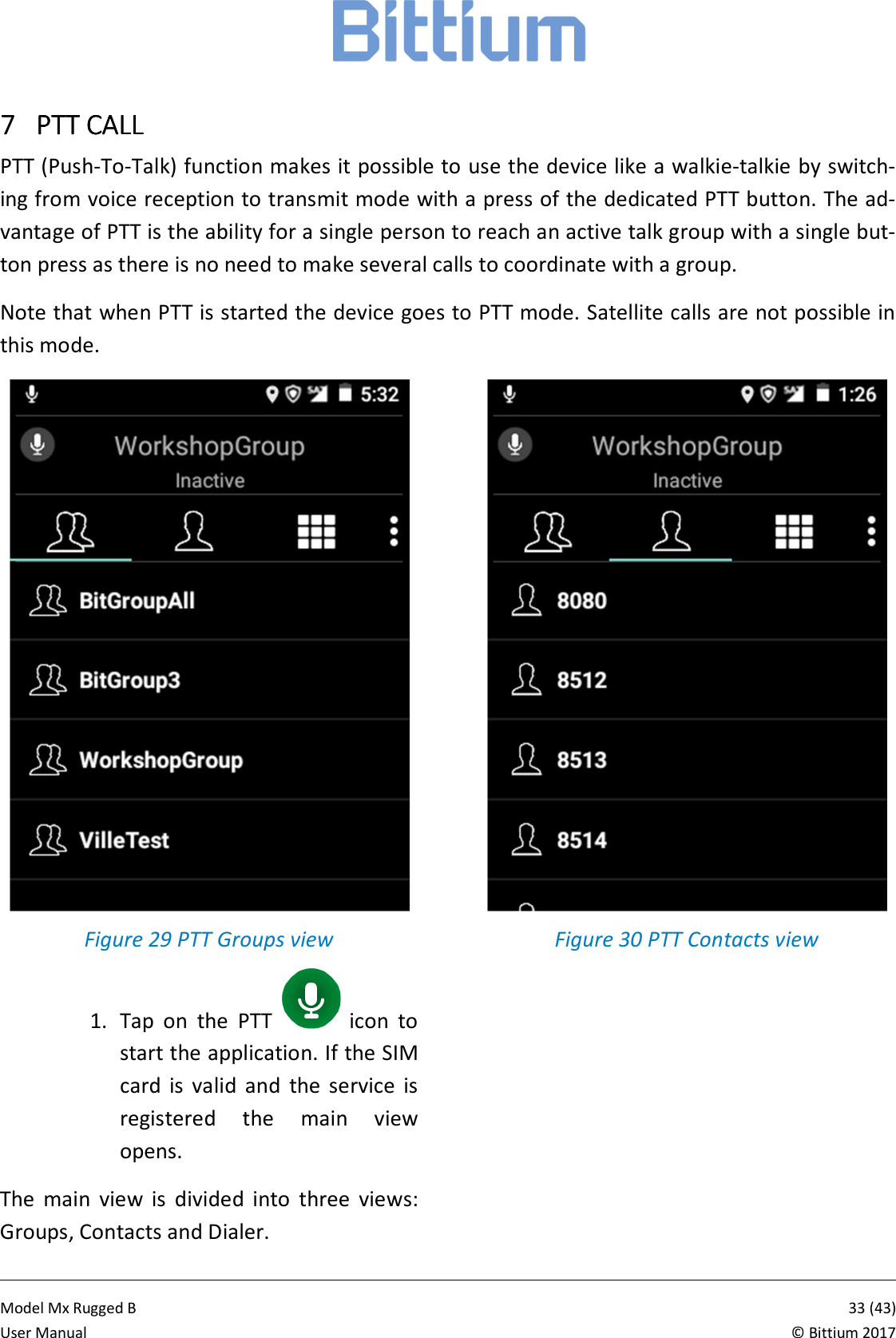
           Model Mx Rugged B       33 (43)User Manual  © Bittium 2017 7777 PTT CALLPTT CALLPTT CALLPTT CALL    PTT (Push-To-Talk) function makes it possible to use the device like a walkie-talkie by switch-ing from voice reception to transmit mode with a press of the dedicated PTT button. The ad-vantage of PTT is the ability for a single person to reach an active talk group with a single but-ton press as there is no need to make several calls to coordinate with a group.  Note that when PTT is started the device goes to PTT mode. Satellite calls are not possible in this mode.  Figure 29 PTT Groups view 1. Tap  on  the  PTT    icon  to start the application. If the SIM card  is  valid  and  the  service  is registered  the  main  view opens. The  main  view  is  divided  into  three  views: Groups, Contacts and Dialer.  Figure 30 PTT Contacts view
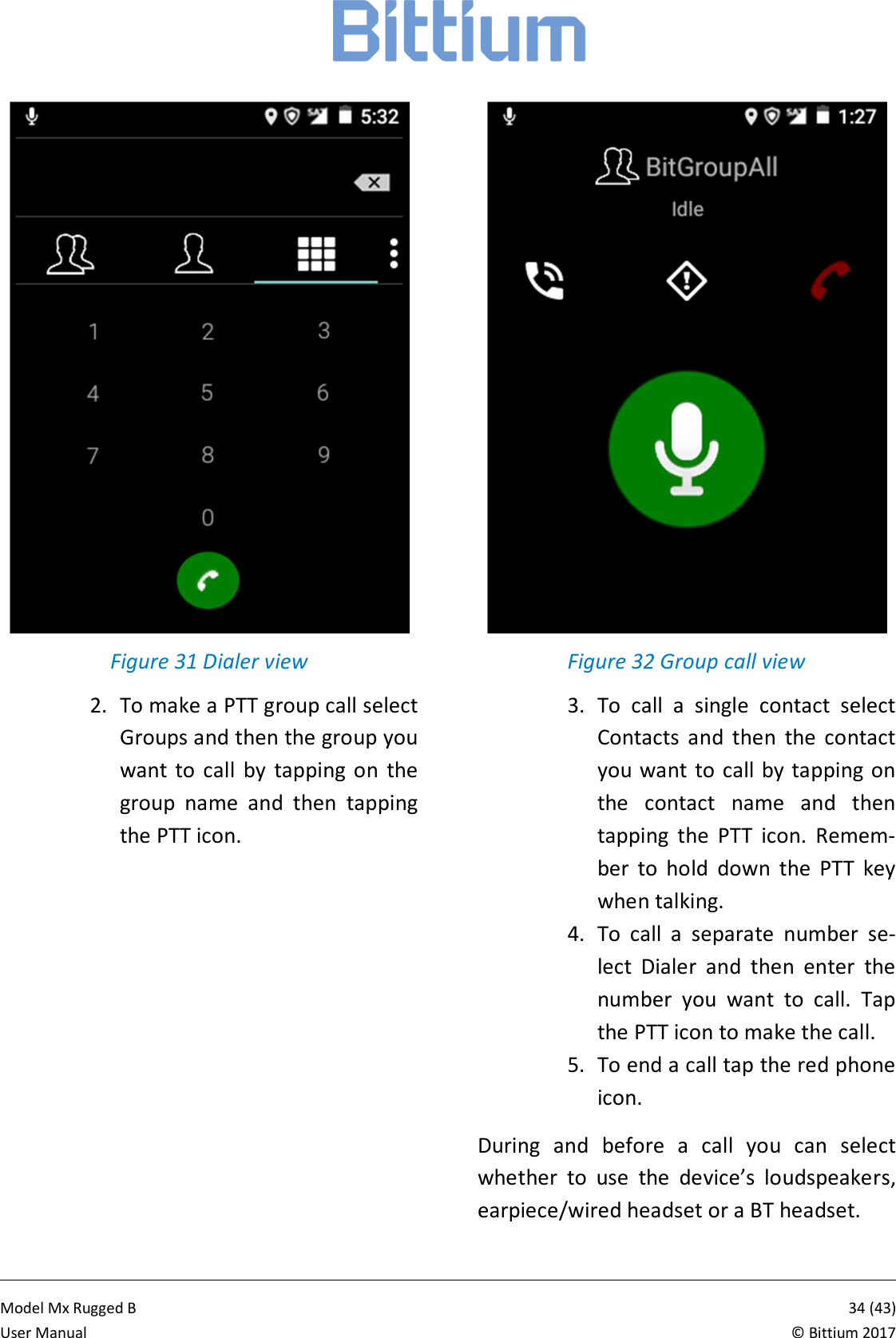
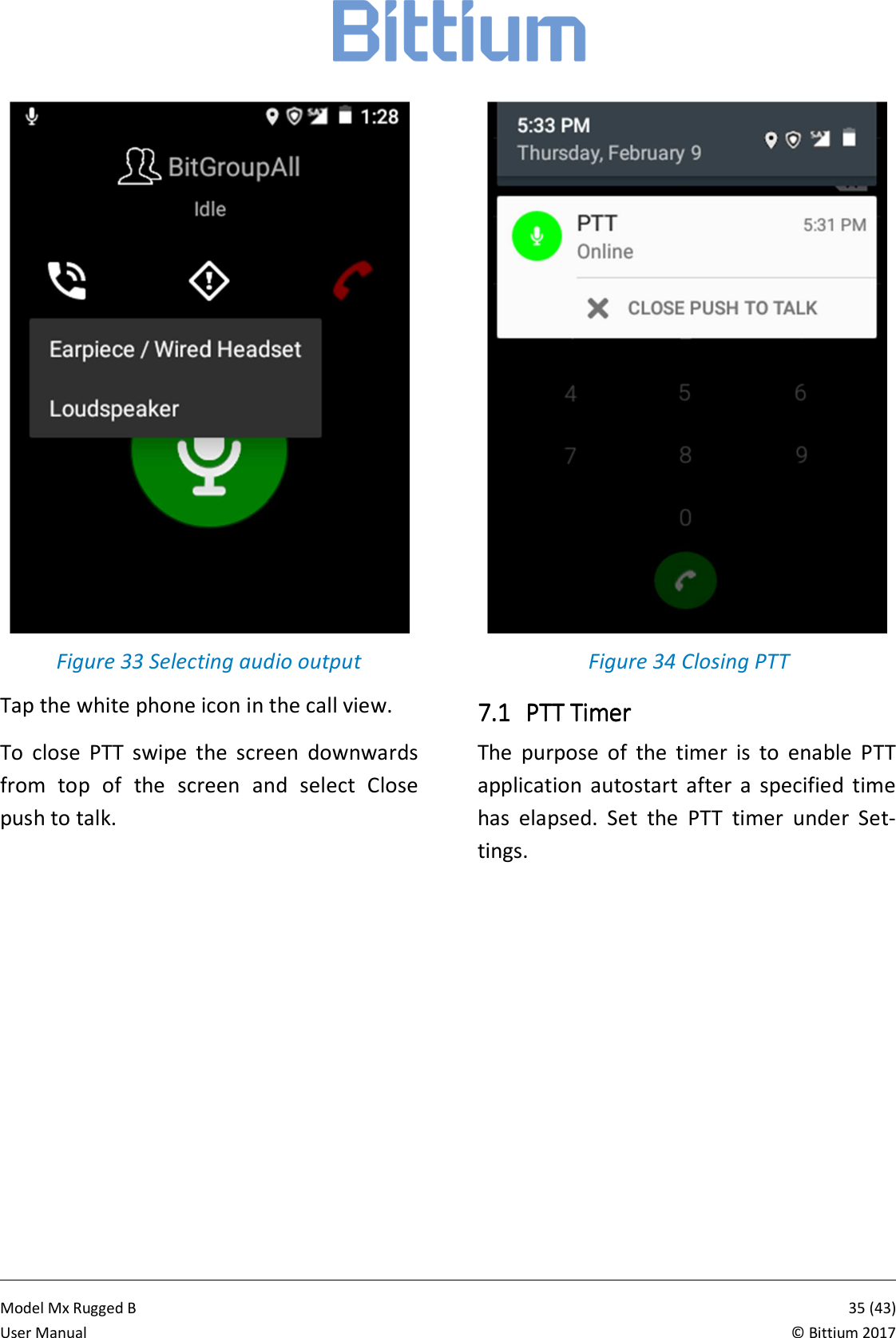
           Model Mx Rugged B       34 (43)User Manual  © Bittium 2017  Figure 31 Dialer view 2. To make a PTT group call select Groups and then the group you want  to  call  by  tapping  on  the group  name  and  then  tapping the PTT icon.  Figure 32 Group call view 3. To  call  a  single  contact  select Contacts  and  then  the  contact you want to call by tapping on the  contact  name  and  then tapping  the  PTT  icon.  Remem-ber  to  hold  down  the  PTT  key when talking. 4. To  call  a  separate  number  se-lect  Dialer  and  then  enter  the number  you  want  to  call.  Tap the PTT icon to make the call. 5. To end a call tap the red phone icon. During  and  before  a  call  you  can  select whether  to  use  the  device’s  loudspeakers, earpiece/wired headset or a BT headset.
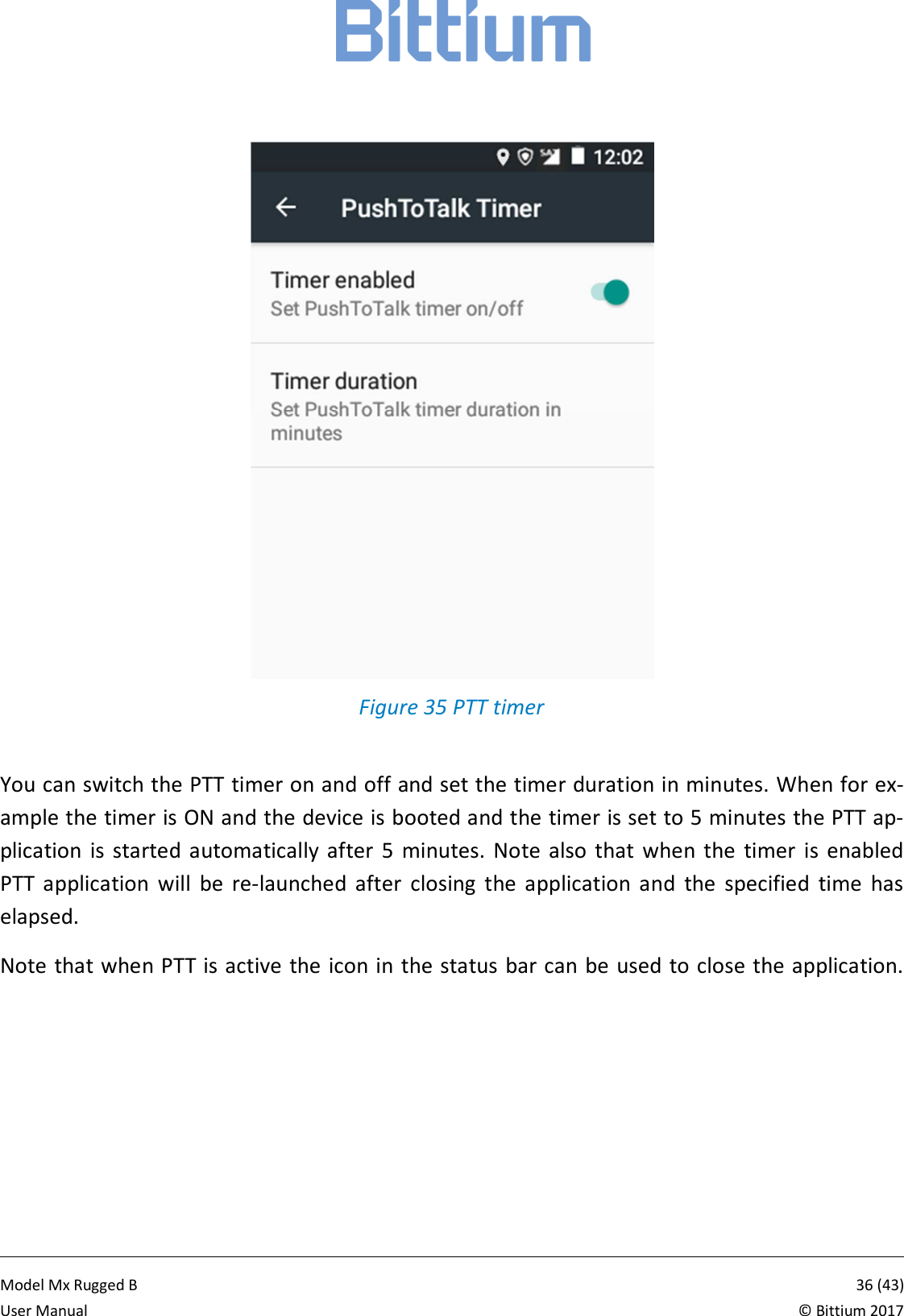
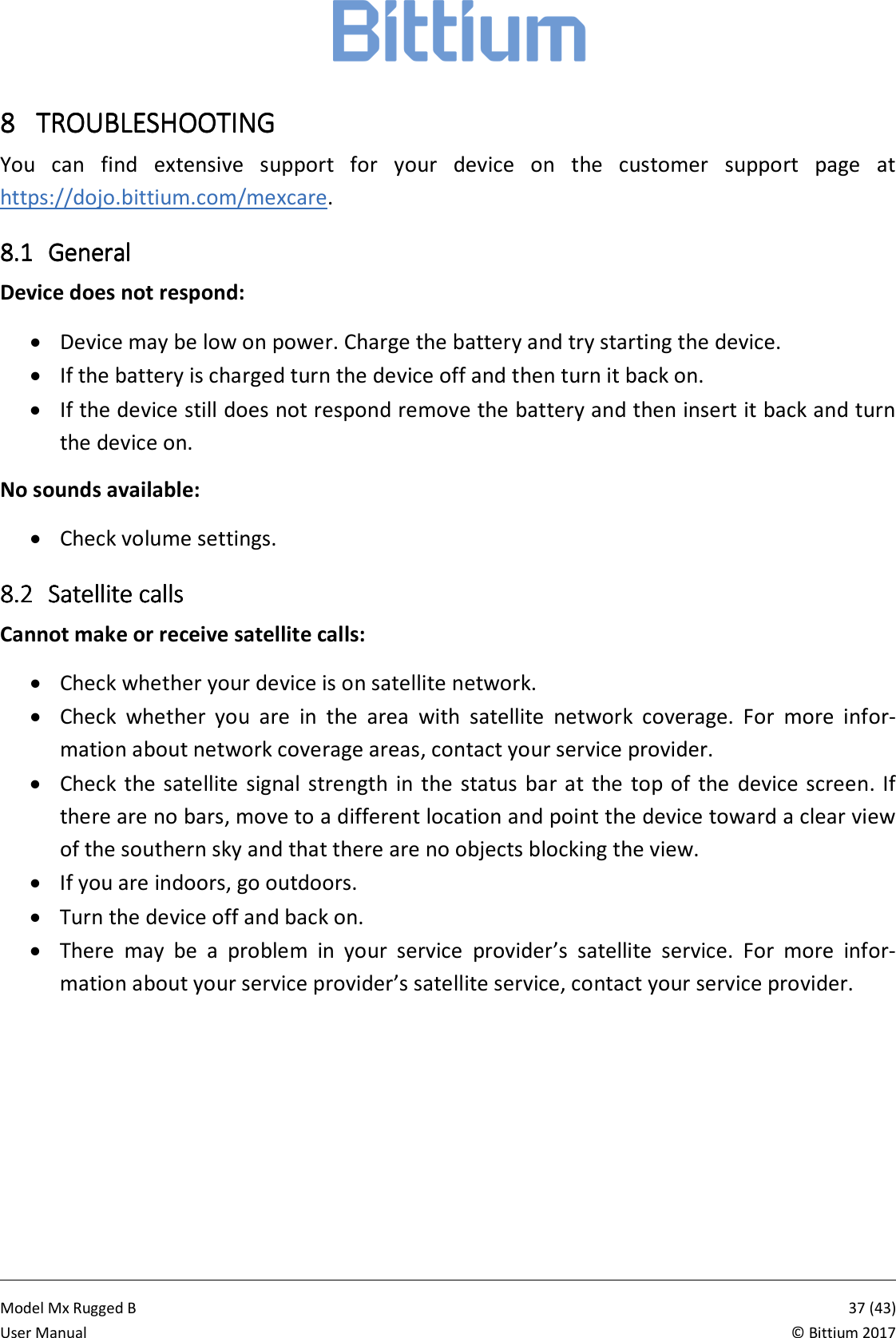
           Model Mx Rugged B       35 (43)User Manual  © Bittium 2017  Figure 33 Selecting audio output Tap the white phone icon in the call view. To  close  PTT  swipe  the  screen  downwards from  top  of  the  screen  and  select  Close push to talk.   Figure 34 Closing PTT 7.17.17.17.1 PTT TimerPTT TimerPTT TimerPTT Timer    The  purpose  of  the  timer  is  to  enable  PTT application  autostart  after  a  specified  time has  elapsed.  Set  the  PTT  timer  under  Set-tings.
           Model Mx Rugged B       36 (43)User Manual  © Bittium 2017   Figure 35 PTT timer  You can switch the PTT timer on and off and set the timer duration in minutes. When for ex-ample the timer is ON and the device is booted and the timer is set to 5 minutes the PTT ap-plication  is started  automatically  after  5  minutes.  Note  also  that  when  the  timer  is  enabled PTT  application  will  be  re-launched  after  closing  the  application  and  the  specified  time  has elapsed.  Note that when PTT is active the icon in the status bar can be used to close the application.
           Model Mx Rugged B       37 (43)User Manual  © Bittium 2017 8888 TROUBLESHOOTINGTROUBLESHOOTINGTROUBLESHOOTINGTROUBLESHOOTING    You  can  find  extensive  support  for  your  device  on  the  customer  support  page  at https://dojo.bittium.com/mexcare.  8.18.18.18.1 GeneralGeneralGeneralGeneral    Device does not respond:  • Device may be low on power. Charge the battery and try starting the device.  • If the battery is charged turn the device off and then turn it back on.  • If the device still does not respond remove the battery and then insert it back and turn the device on. No sounds available:  • Check volume settings. 8.28.28.28.2 Satellite cSatellite cSatellite cSatellite callsallsallsalls    Cannot make or receive satellite calls:  • Check whether your device is on satellite network. • Check  whether  you  are  in  the  area  with  satellite  network  coverage.  For  more  infor-mation about network coverage areas, contact your service provider. • Check  the satellite  signal strength  in the  status  bar at  the top of  the  device screen. If there are no bars, move to a different location and point the device toward a clear view of the southern sky and that there are no objects blocking the view. • If you are indoors, go outdoors. • Turn the device off and back on. • There  may  be  a  problem  in  your  service  provider’s  satellite  service.  For  more  infor-mation about your service provider’s satellite service, contact your service provider.
           Model Mx Rugged B       38 (43)User Manual  © Bittium 2017 9999 IMPORTANT CUSTOMER IIMPORTANT CUSTOMER IIMPORTANT CUSTOMER IIMPORTANT CUSTOMER INFORMATIONNFORMATIONNFORMATIONNFORMATION    Bittium  Rugged  Basic  is  a  wireless  device,  containing  a  radio  transmitter  and receiver  which emit  radio  frequency  energy  during  its  use.  Most  modern  electronic  equipment  is  shielded from RF signals. However, certain electronic equipment may not be shielded against the radio signals from a wireless device. Do not use Bittium Rugged Basic near medical equipment without permission. A minimum of six (6) inches should be maintained between Bittium Rugged Basic and an implantable medical device,  such  as  a  pacemaker  or  implantable  cardiac  defibrillator  in  order  to  avoid  potential interference with the medical device. Persons having implanted medical devices should follow instructions  from  the  manufacturer  of  the  medical  device  for  safe  use  within  proximity  of wireless devices. Wireless devices may also interfere with some hearing aids. In the event of such interference, consult the service provider or call customer service line to discuss alterna-tives. Radio signals may interfere with improperly installed or inadequately shielded electronic sys-tems in  motor  vehicles. Check  with the  vehicle manufacturer or  its representative  regarding your  vehicle.  Aftermarket  electronics  which  have  been  added  to  the  vehicle  should  also  be checked. Any modification of Bittium Rugged Basic is prohibited. Only authorized personnel should ser-vice Bittium Rugged Basic and its accessories. Only use software updates provided by Bittium. Accessories for Bittium Rugged Basic should be either purchased from or approved by Bittium. Only use the battery specified by and provided by Bittium in the Bittium Rugged Basic. Do not short-circuit the  battery. Do not use the  battery  with a charging system which has  not been approved by Bittium. Turn Bittium Rugged Basic OFF in any facility where posted notices so require. To avoid interfering with blasting operations turn Bittium Rugged Basic OFF when in a blasting area or in areas posted: “Turn off two-way radio”. Obey all signs and instructions. Turn  Bittium  Rugged  Basic  OFF  when  in  areas  with  a  potentially  explosive  atmosphere  and obey all signs and instructions. Sparks in such areas could cause an explosion or fire resulting in bodily  injury or even  death. Areas  with a potentially  explosive  atmosphere are  often,  but not always,  marked  clearly.  Potential  areas  may  include  fueling  areas  (such  as  gas  stations);
           Model Mx Rugged B       39 (43)User Manual  © Bittium 2017 below deck on boats; fuel or chemical transfer or storage facilities; vehicles using liquefied pe-troleum gas (such as propane or butane); areas where the air contains chemicals or particles (such as grain, dust, or metal powders); and any other area where you would normally be ad-vised to turn off your vehicle engine. An emergency call can be made only within a service area. For an emergency call, make sure that you are within a service area and that the device is turned on. The device does not necessarily meet all  specifications in extreme temperatures. Battery ca-pacity (use time) is limited in low temperatures, and the device performance may be limited in high temperatures. The device is equipped with intelligent battery charging control that limits battery charging in extremely hot and cold temperatures to ensure battery safety and extend-ed operating life. 9.19.19.19.1 Federal Communications Commission (Federal Communications Commission (Federal Communications Commission (Federal Communications Commission (FCCFCCFCCFCC))))    notice to usersnotice to usersnotice to usersnotice to users    Bittium has not approved any changes or modifications to this device by the user. Any changes or modifications could void the user’s authority to operate the equipment. This device complies with Part 15 of the FCC Rules. Operation is subject to the following two conditions: (1) this device may not cause interference, and (2) this device must accept any in-terference,  including  interference  that  may  cause  undesired  operation  of  the  device.  This equipment has been  tested and found  to comply with  the  limits  for a Class B  digital  device, pursuant to part 15 of the FCC Rules. These limits are designed to provide reasonable protec-tion against harmful interference in a residential installation. This equipment generates, uses, and can radiate radio frequency energy and, if not installed and used in accordance with the instructions, may cause harmful interference to radio communications. However, there is no guarantee that interference will not occur in a particular installation. If this equipment does cause harmful interference to radio or television reception, which can be determined by turning the equipment off and on, the user is encouraged to try to correct the interference by one or more of the following measures: Reorient or relocate the receiving antenna  on  the  radio  or  television  equipment,  increase  the  separation  between  the  equip-ment and  receiver,  connect the equipment into an outlet on a circuit  different from that to which the receiver is connected. Consult the radio or television equipment dealer. 9.29.29.29.2 Radiation exposure statementRadiation exposure statementRadiation exposure statementRadiation exposure statement    This device complies with FCC radiation exposure limits set forth for an uncontrolled environ-ment and meets the FCC radio frequency (RF) Exposure Guidelines. This transmitter must not
           Model Mx Rugged B       40 (43)User Manual  © Bittium 2017 be co-located or operated in conjunction with any other antenna or transmitter. To satisfy the FCC RF Exposure requirements for mobile transmitting devices, a separation distance of 10mm should be maintained between the antennas of this device and persons during operation. To ensure compliance, operations at closer distances than this are not recommended. 9.39.39.39.3 Specific Absorption Rate (SAR) certification informationSpecific Absorption Rate (SAR) certification informationSpecific Absorption Rate (SAR) certification informationSpecific Absorption Rate (SAR) certification information    This device has been shown to be capable of compliance for localized specific absorption rate (SAR) for uncontrolled environment/general population exposure limits specified in ANSI/IEEE Std. C95.1-1992 and has been tested in accordance with the measurement procedures speci-fied in FCC RF Exposure guidelines and IEEE Std. 1528-2013. The standards include a substan-tial safety margin designed  to assure the  safety of all persons, regardless of  age and health. The exposure standard for wireless mobile phones employs a unit of measurement known as the Specific Absorption Rate, or SAR. The SAR limit set by the FCC is 1.6 W/kg. The standard incorporates a substantial margin of safety to give additional protection for the public and to account for any variations. The highest SAR value reported under these guidelines when used at the ear is 1.52 W/kg and when correctly worn on the body is 0.41 W/kg. 9.49.49.49.4 Instituto Federal de Telecomunicaciones (Instituto Federal de Telecomunicaciones (Instituto Federal de Telecomunicaciones (Instituto Federal de Telecomunicaciones (IFTIFTIFTIFT))))    notice to usersnotice to usersnotice to usersnotice to users    Para cumplimiento de la IFT: La operación de este equipo está sujeta a las siguientes dos con-diciones: (1) es posible que este equipo o  dispositivo  no  cause  interferencia perjudicial y  (2) este  equipo  o  dispositivo  debe  aceptar  cualquier  interferencia,  incluyendo  la  que  pueda causar su operación no deseada. 9.59.59.59.5 Mexican importer informationMexican importer informationMexican importer informationMexican importer information    BITTIUM MEXICO, S.A. DE C.V. CASTILLO DE KENT 20, COL. CONDADO DE SAYAVEDRA, C.P. 52938, ATIZAPAN DE ZARAGOZA, EDO. DE MEXICO, MEXICO. 9.69.69.69.6 Limited warrantyLimited warrantyLimited warrantyLimited warranty    statementstatementstatementstatement    This limited warranty applies to Bittium Rugged Basic Terminal deliveries. This limited warran-ty is subject to the following terms and conditions:
           Model Mx Rugged B       41 (43)User Manual  © Bittium 2017 •  For a period of 1 year from the date of purchase, Bittium Wireless Communications Ltd. (“Bittium”) warrants this Product (including any accessories provided in the sales pack-age) against defects in materials or workmanship.  •  Exclusions: •  Normal wear and tear of visual surfaces, batteries or display.  •  Cosmetic damage or damage due to misuse, abuse, negligence, accident, or modi-fication of any part of the Product. •  Damage  due  to  improper  operation  or  maintenance,  connection  to  improper voltage supply, or attempted repair by anyone other than a facility authorized by Bittium to service this Product.  •  Performance  issues  or  an  incompatibility  caused  by  editing  of  the  registry  set-tings, modifications of the operating software or 3rd party application downloads. Using custom operating system software may cause your device and application to work incorrectly. •  Product failures which have been caused by use of accessories or other peripheral devices which are not the original accessories intended for use with the Product defined by Bittium. •  To ensure the water and dust resistance of your device, all openings, including the co-vers for the battery, headset connector, satellite antenna connector and the micro USB port must be firmly closed. If the covers are missing or damaged, including use that is contrary  to  the instructions  provided  by  Bittium  (e.g.,  as set out  in the Product’s  user guide) the Product warranty is void. •  Warranty will not apply if the product serial number, the accessory date code, the IMEI number,  water  indicator  or  the  warranty  seal  has  been  removed,  erased,  defaced,  al-tered or is illegible. •  To obtain warranty service, you must receive a Return Merchandise Authorization from Bittium  and  ship  the  Product  at  your  expense  to  Bittium’s  authorized  service  facility. You  must  ship  the  Product  in  either  its  original  packaging  or  packaging  affording  an equal degree of protection.  •  This  warranty  does  not  cover  customer  instruction,  set  up  or  set  up  adjustments  or network coverage problems.
           Model Mx Rugged B       42 (43)User Manual  © Bittium 2017 •  When Bittium or its authorized service provider repairs or replaces the Product, the re-paired or replaced Product will be warranted for the remaining time of the original war-ranty period or for ninety (90) days from the date of repair, whichever is longer. Repair or replacement may involve the use of functionally equivalent reconditioned units. Re-placed parts or components will become the property of Bittium. •  This warranty does not cover Product failures caused by installations, modifications, or repair, or opening of the Product performed by a person not authorized by Bittium. •  A  rechargeable  battery  can  be  charged  and  discharged  more  than  a  hundred  times. However,  it  will  eventually  wear  out—this  is  not  a  defect  and  corresponds  to  normal wear and tear. When the talk-time or standby time is noticeably shorter, it is time to re-place  the  battery.  Bittium  recommends  that  you  use  only  batteries  and  chargers  ap-proved by Bittium. •  Minor variations in display brightness and color may occur between devices. There may be defective pixels, either bright or dark dots on the display. This occurs when individual pixels have malfunctioned and cannot  be adjusted. Three defective pixels are deemed acceptable. •  Since the cellular system on which the Product is to operate is provided by a carrier in-dependent from Bittium, Bittium will not be responsible for the operation, availability, coverage, services, or range of that system. •  Tampering with any of the seals on the Product will void the warranty. •  Warranty is void if the defect was caused by a defective function of the cellular network or  any  other  network  within  a  limited  area,  or  the  Product  software  needs  to  be  up-graded due to changes in network parameters. Please contact https://dojo.bittium.com/mexcare for warranty support.
           Model Mx Rugged B       43 (43)User Manual  © Bittium 2017  Published by: Bittium Wireless Ltd. Tutkijantie 8 90590 Oulu Finland Phone: +358 40 344 2000 Fax: +358 8 343 032 www.bittium.com 5800564A01, version 1.0 9.79.79.79.7 Disposal of deviceDisposal of deviceDisposal of deviceDisposal of device     This marking on the product or accessories indicates that they should not be dis-posed of with other household waste.  This marking on the battery indicates that it should not be disposed of with other household waste.

Navigation menu