Blocks wearables BLKS001 Smart Watch User Manual Blocks 0808 key

Blocks wearables Inc. Smart Watch Blocks 0808 key

Users Manual

1User ManualBlocks Proprietary and Confidential ©FCC ID: 2AHBVBLKS001S/N: 2121531119A1M/N: BLKS001
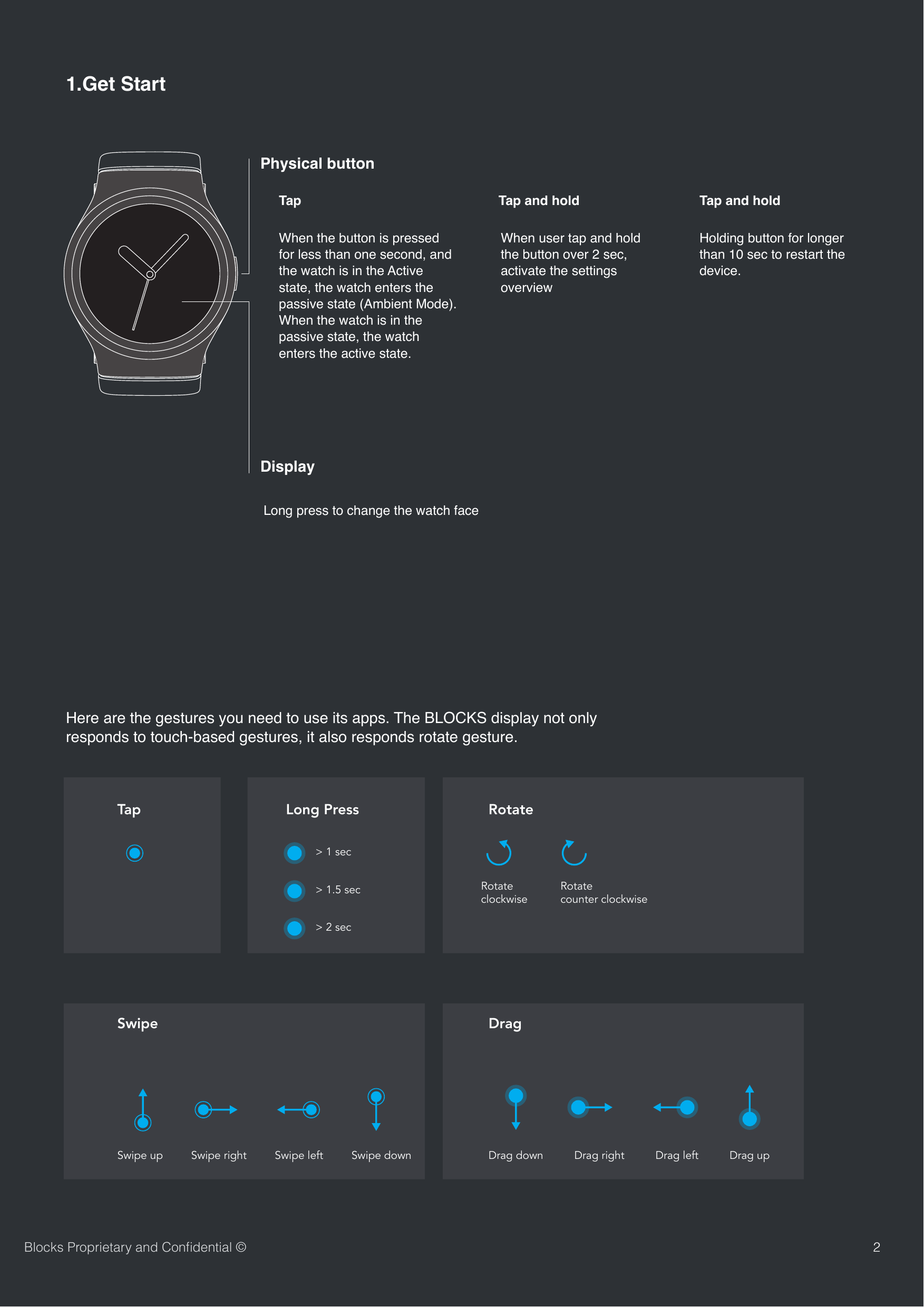
SwipeTapDragLong Press RotateSwipe up Swipe right> 1 secRotateclockwiseRotatecounter clockwiseSwipe left Swipe down Drag down Drag right Drag left Drag up> 1.5 sec> 2 secHere are the gestures you need to use its apps. The BLOCKS display not only responds to touch-based gestures, it also responds rotate gesture.21.Get StartPhysical buttonWhen the button is pressed for less than one second, and the watch is in the Active state, the watch enters the passive state (Ambient Mode). When the watch is in the passive state, the watch enters the active state.When user tap and hold the button over 2 sec, activate the settings overview Holding button for longer than 10 sec to restart the device. DisplayLong press to change the watch faceBlocks Proprietary and Confidential ©Tap  Tap and hold   Tap and hold
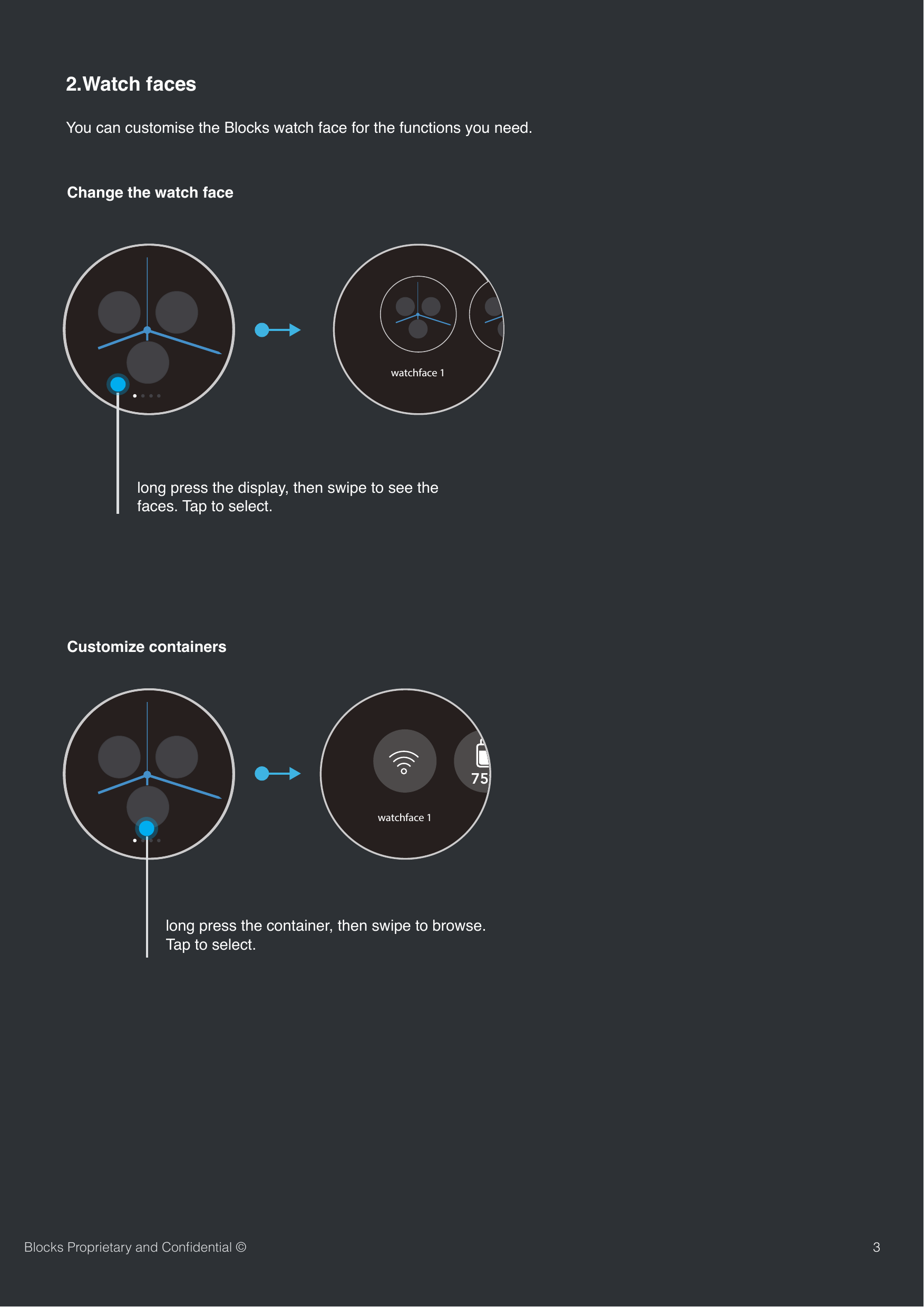
You can customise the Blocks watch face for the functions you need. 32.Watch facesChange the watch faceBlocks Proprietary and Confidential ©long press the display, then swipe to see the faces. Tap to select. Customize containers long press the container, then swipe to browse. Tap to select.watchface 1watchface 175%
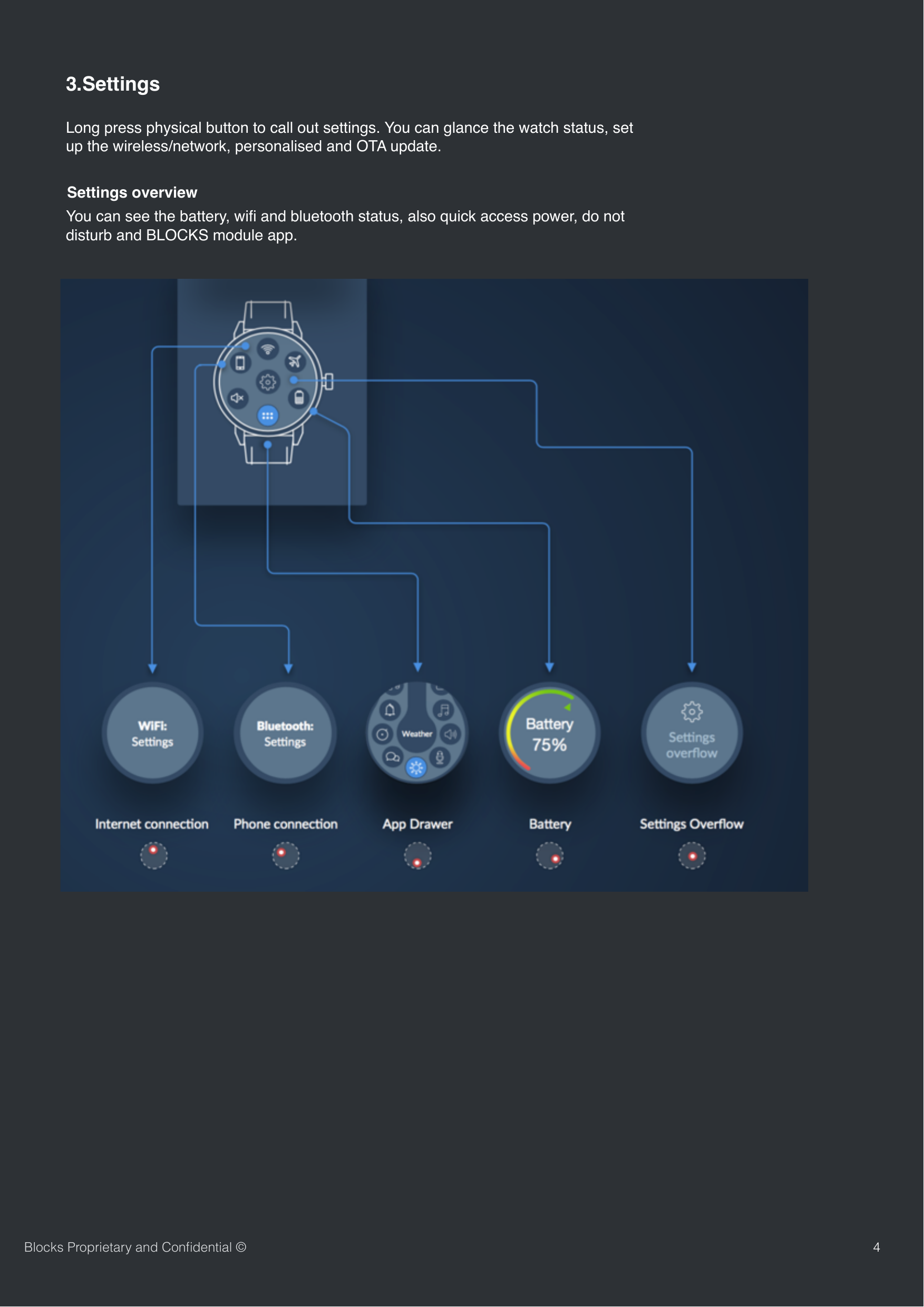
Long press physical button to call out settings. You can glance the watch status, set up the wireless/network, personalised and OTA update.43.SettingsYou can see the battery, wifi and bluetooth status, also quick access power, do not disturb and BLOCKS module app.Settings overviewBlocks Proprietary and Confidential ©
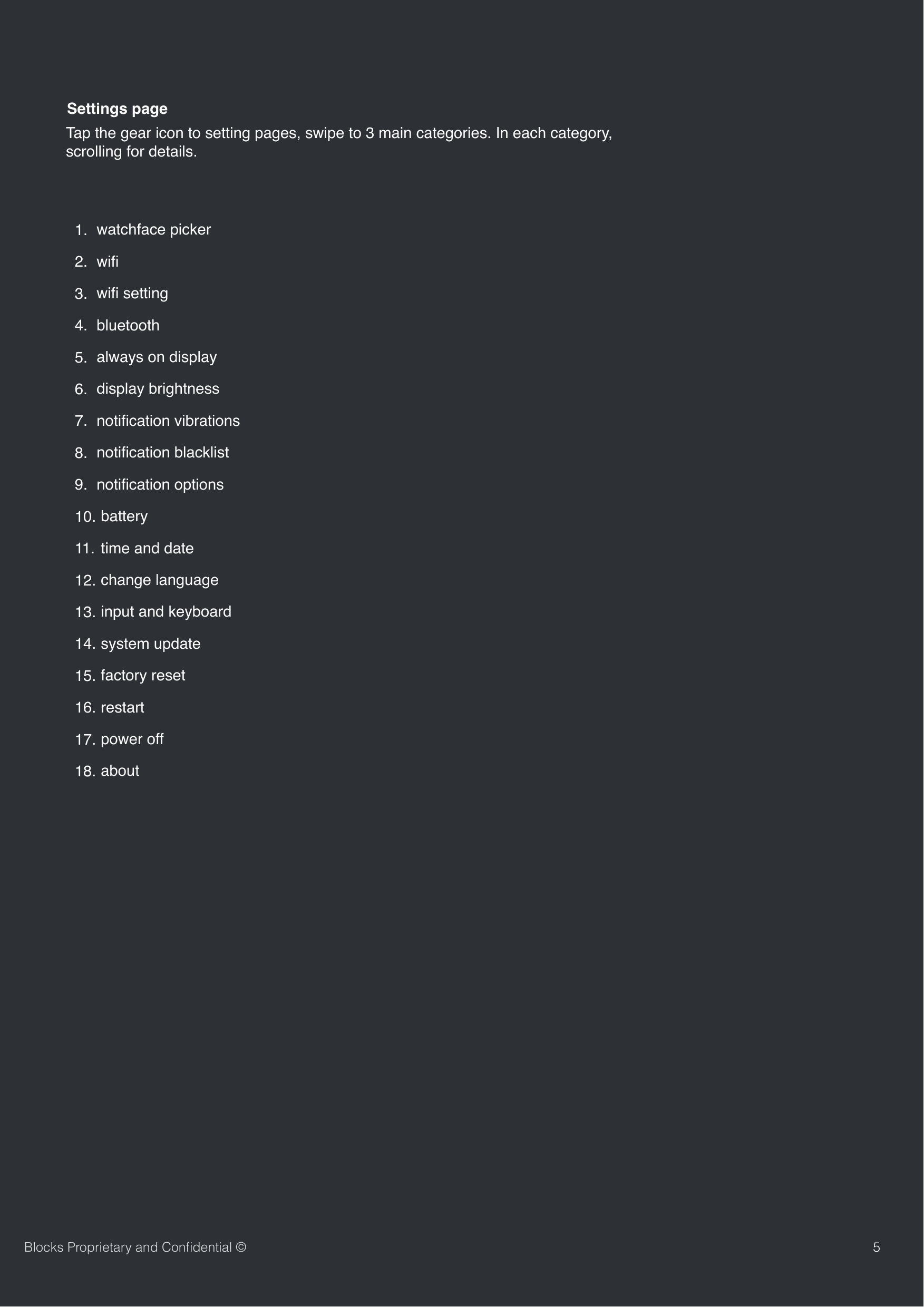
5Blocks Proprietary and Confidential ©Tap the gear icon to setting pages, swipe to 3 main categories. In each category, scrolling for details.  Settings page1. watchface picker2. wifi 3. wifi setting4. bluetooth5. always on display6. display brightness 7. notification vibrations8. notification blacklist9. notification options10. battery11.  time and date12. change language13. input and keyboard14. system update15. factory reset16. restart17. power off18. about
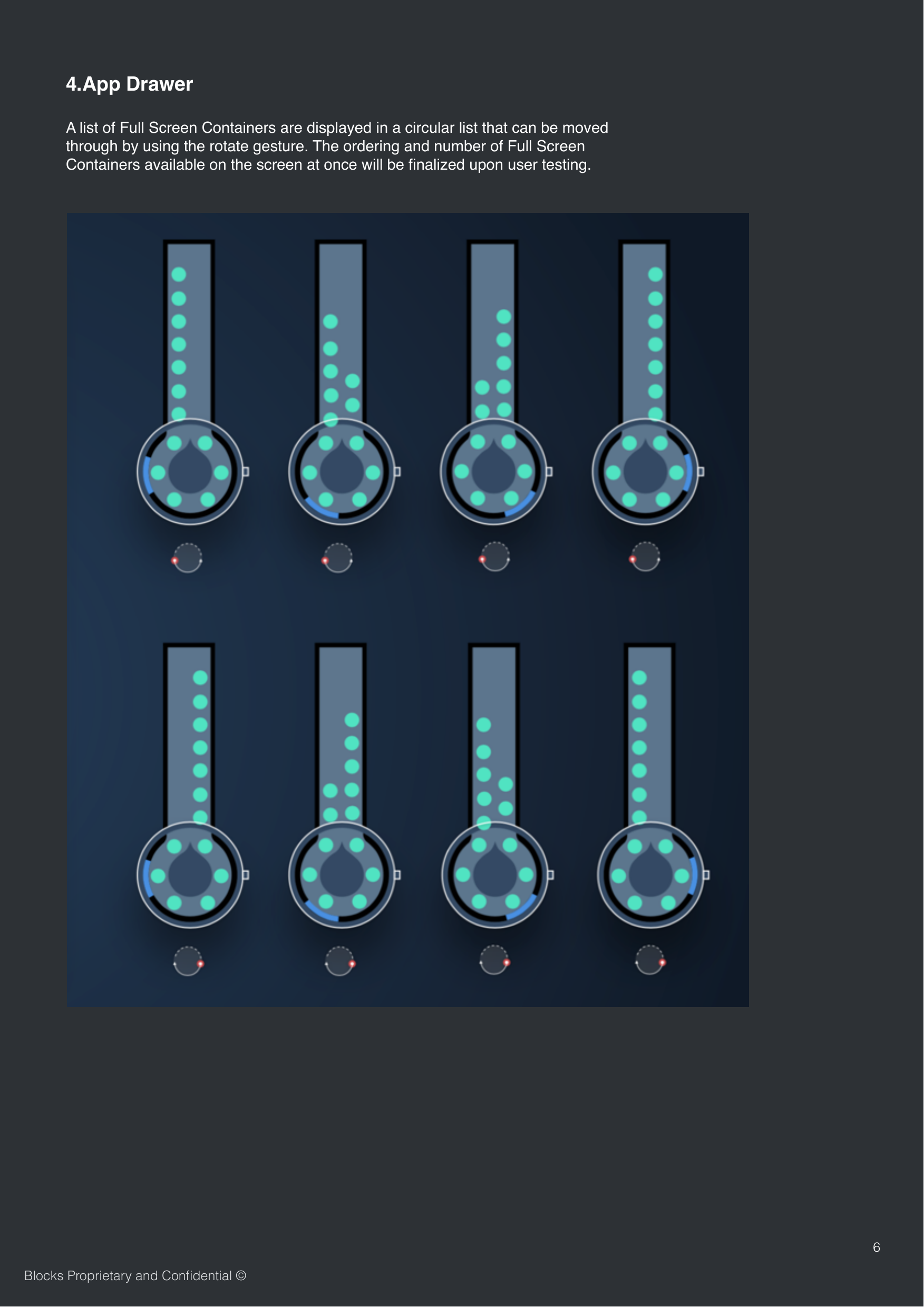
6Blocks Proprietary and Confidential ©A list of Full Screen Containers are displayed in a circular list that can be moved through by using the rotate gesture. The ordering and number of Full Screen Containers available on the screen at once will be finalized upon user testing. 4.App Drawer
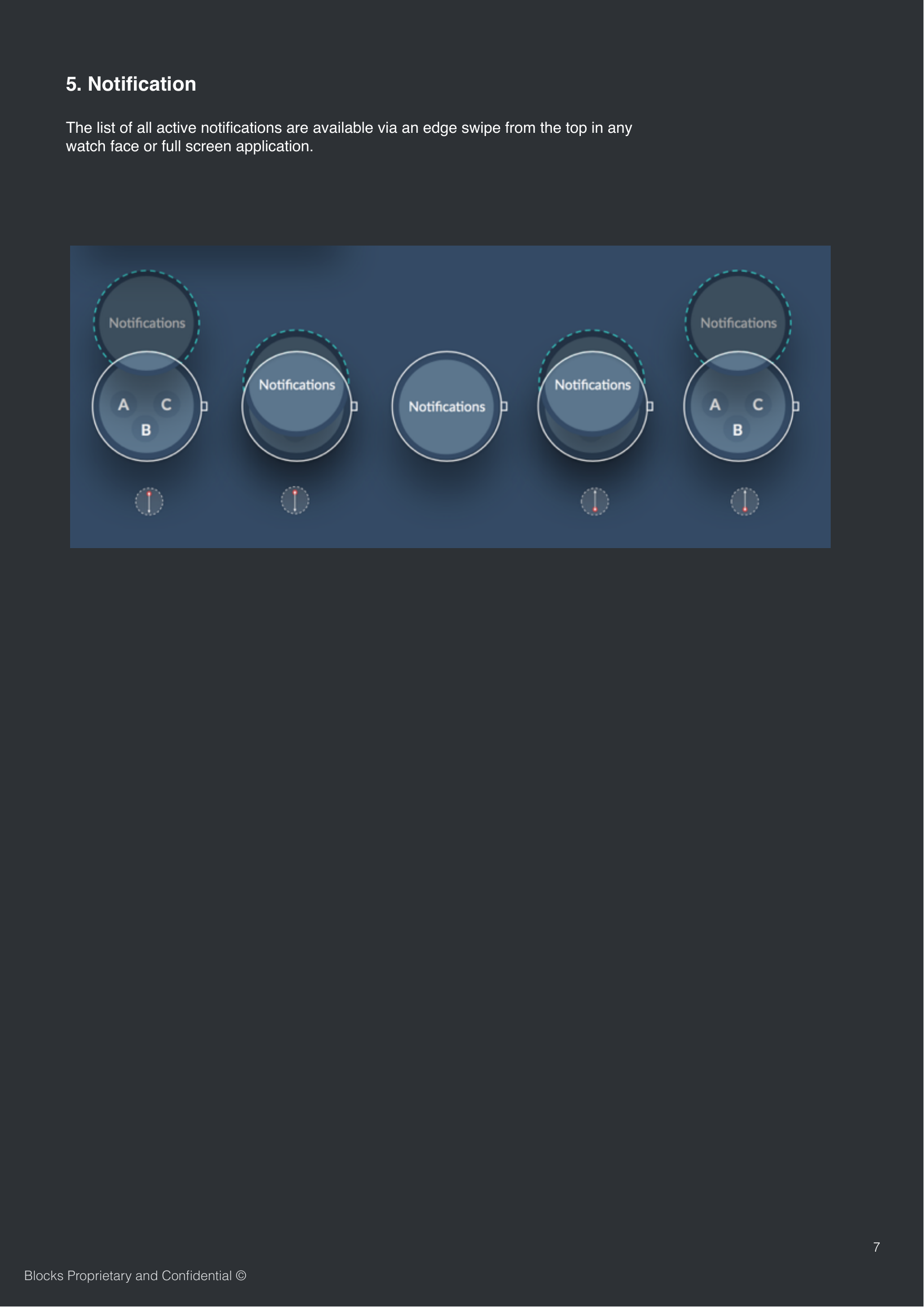
7Blocks Proprietary and Confidential ©The list of all active notifications are available via an edge swipe from the top in any watch face or full screen application. 5. Notification
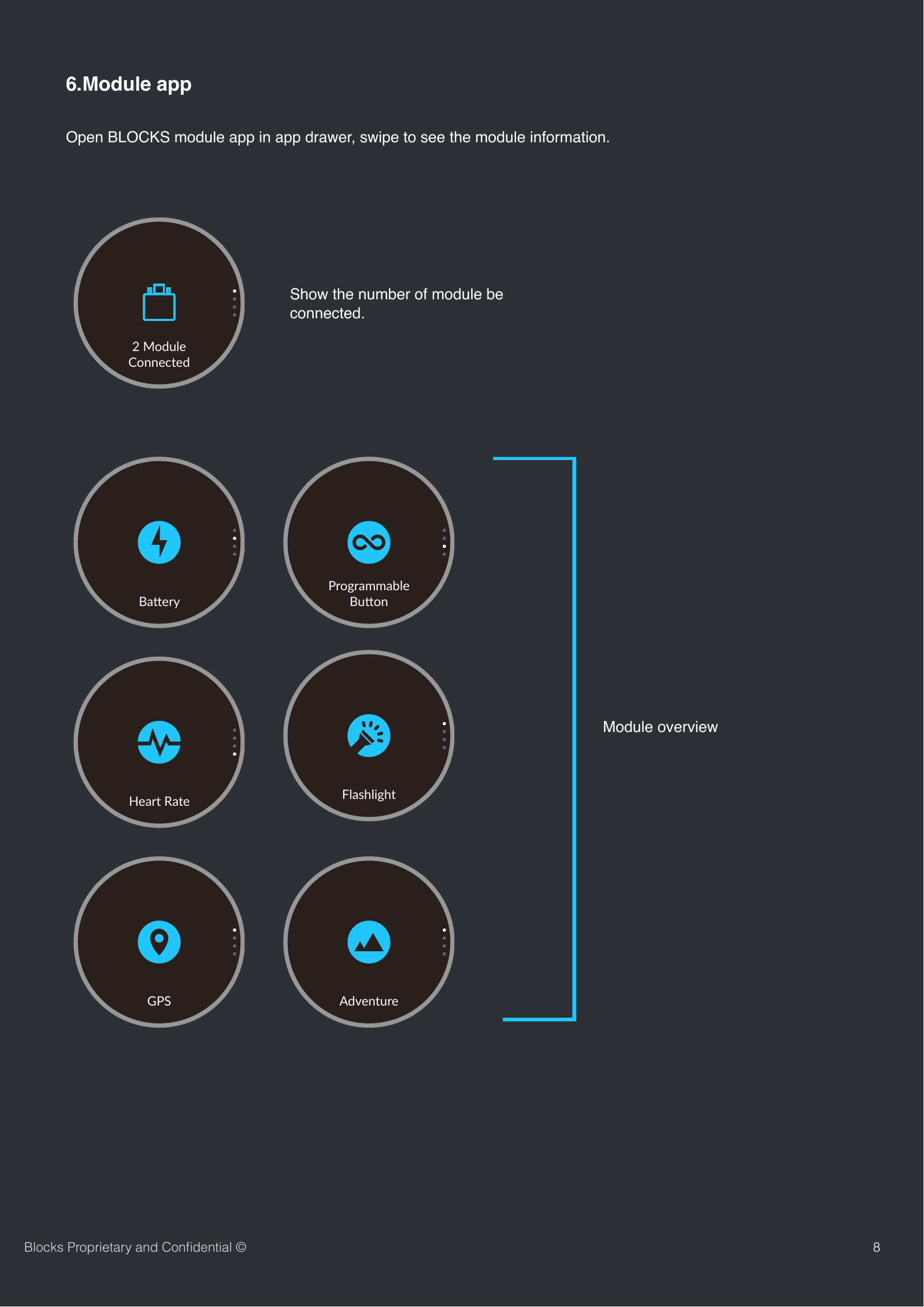
Open BLOCKS module app in app drawer, swipe to see the module information. 86.Module appBlocks Proprietary and Confidential ©Ba#eryProgrammable Bu-onHeart RateFlashlightAdventureGPS2 ModuleConnectedShow the number of module be connected.Module overview
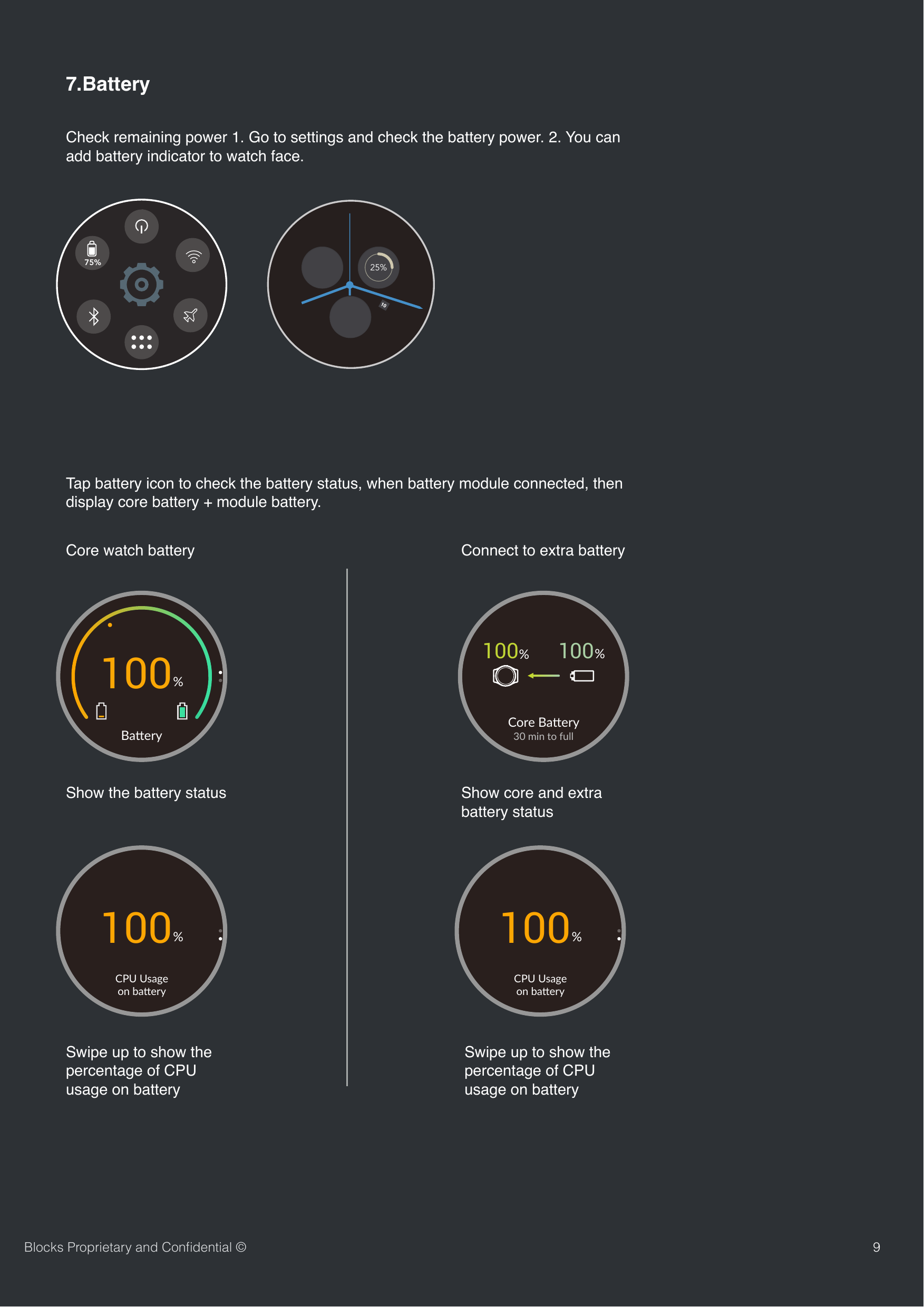
Check remaining power 1. Go to settings and check the battery power. 2. You can add battery indicator to watch face. 97.Battery 25%Tap battery icon to check the battery status, when battery module connected, then display core battery + module battery.Core watch batteryBlocks Proprietary and Confidential ©75%Ba#ery100%CPU Usage on ba,ery100%100%100%Core Ba)ery30 min to fullConnect to extra batteryShow the battery status Show core and extra battery statusSwipe up to show the percentage of CPU usage on batteryCPU Usage on ba,ery100%Swipe up to show the percentage of CPU usage on battery
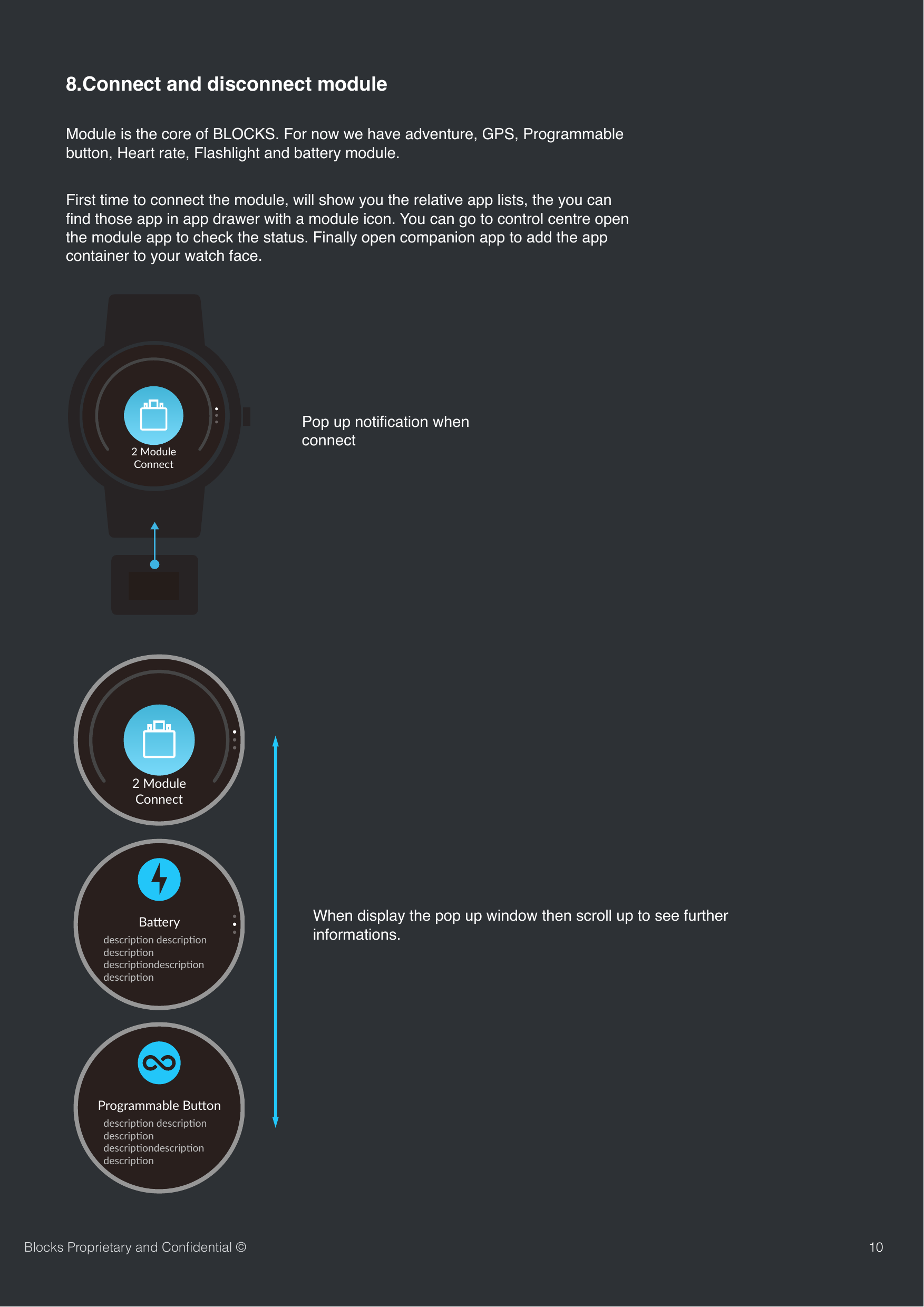
108.Connect and disconnect moduleModule is the core of BLOCKS. For now we have adventure, GPS, Programmable button, Heart rate, Flashlight and battery module. First time to connect the module, will show you the relative app lists, the you can find those app in app drawer with a module icon. You can go to control centre open the module app to check the status. Finally open companion app to add the app container to your watch face.GPSGPSConnectedPop up notification when connectWhen display the pop up window then scroll up to see further informations.Blocks Proprietary and Confidential ©2 ModuleConnect2 ModuleConnectBa#erydescrip,on descrip,ondescrip,on descrip,ondescrip,on descrip,onProgrammable Bu-ondescrip4on descrip4ondescrip4on descrip4ondescrip4on descrip4on
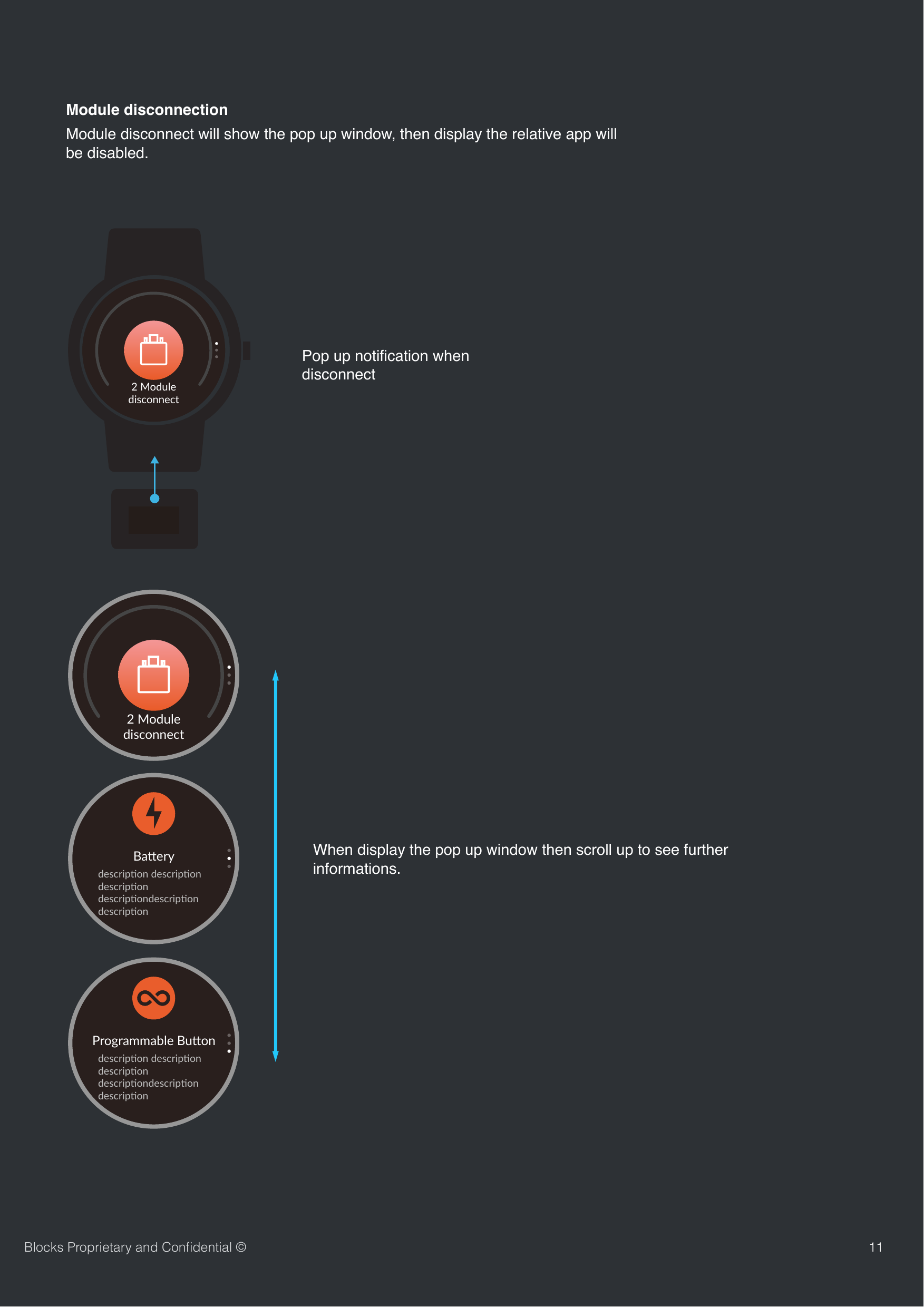
11Blocks Proprietary and Confidential ©Module disconnect will show the pop up window, then display the relative app will be disabled. GPSGPSConnectedPop up notification when disconnectWhen display the pop up window then scroll up to see further informations.2 ModuleConnectModule disconnection2 Moduledisconnect2 ModuledisconnectBa#erydescrip,on descrip,ondescrip,on descrip,ondescrip,on descrip,onProgrammable Bu-ondescrip4on descrip4ondescrip4on descrip4ondescrip4on descrip4on
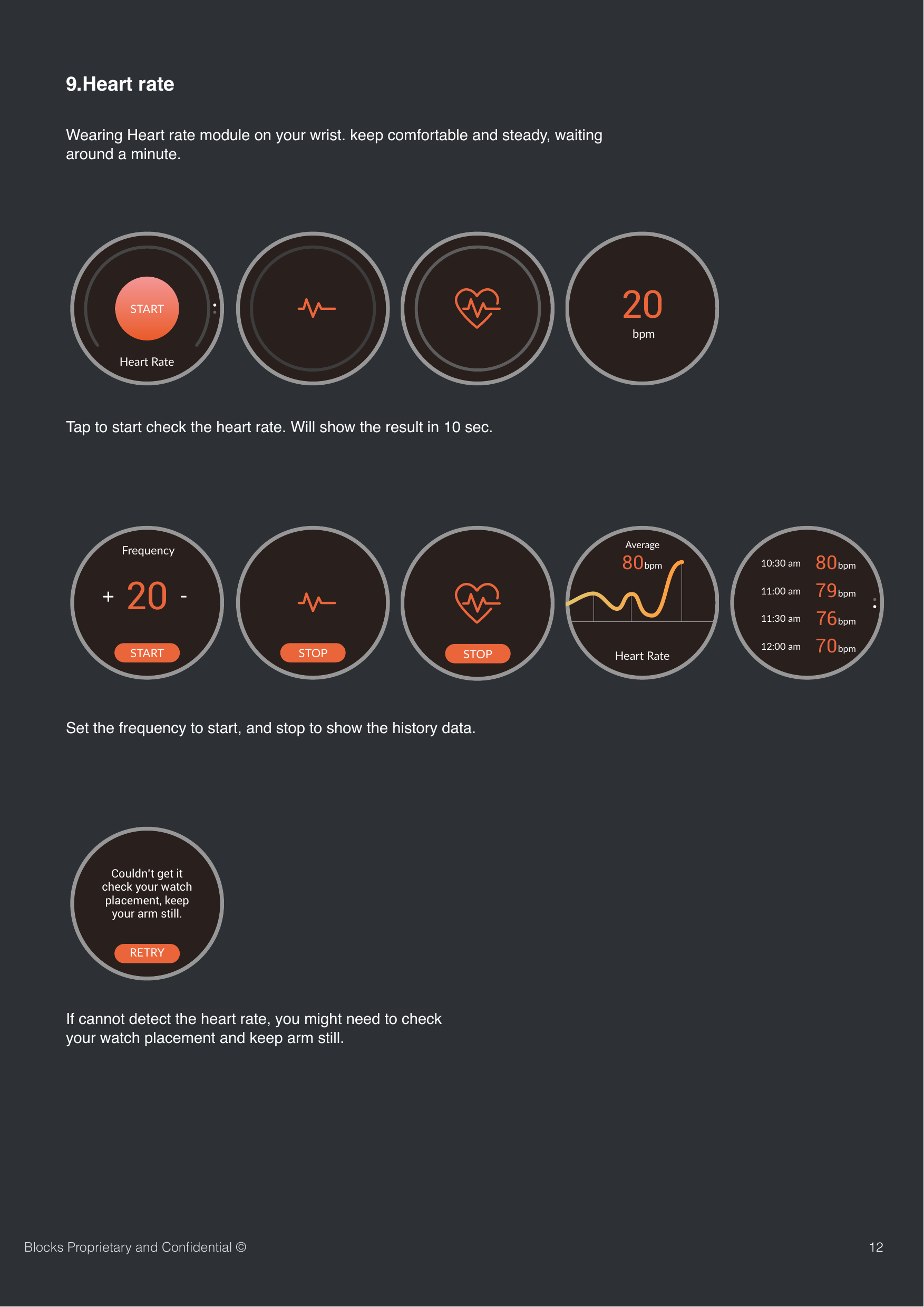
129.Heart rateWearing Heart rate module on your wrist. keep comfortable and steady, waiting around a minute.  Blocks Proprietary and Confidential ©Heart RateSTART20bpmCouldn’t get itcheck your watch placement, keep your arm still.RETRYHeart RateSTART20FrequencySTOPSTOP80bpmAverageHeart Rate80bpm79bpm76bpm70bpm10:30 am11:00 am11:30 am12:00 amTap to start check the heart rate. Will show the result in 10 sec.If cannot detect the heart rate, you might need to check your watch placement and keep arm still.Set the frequency to start, and stop to show the history data.
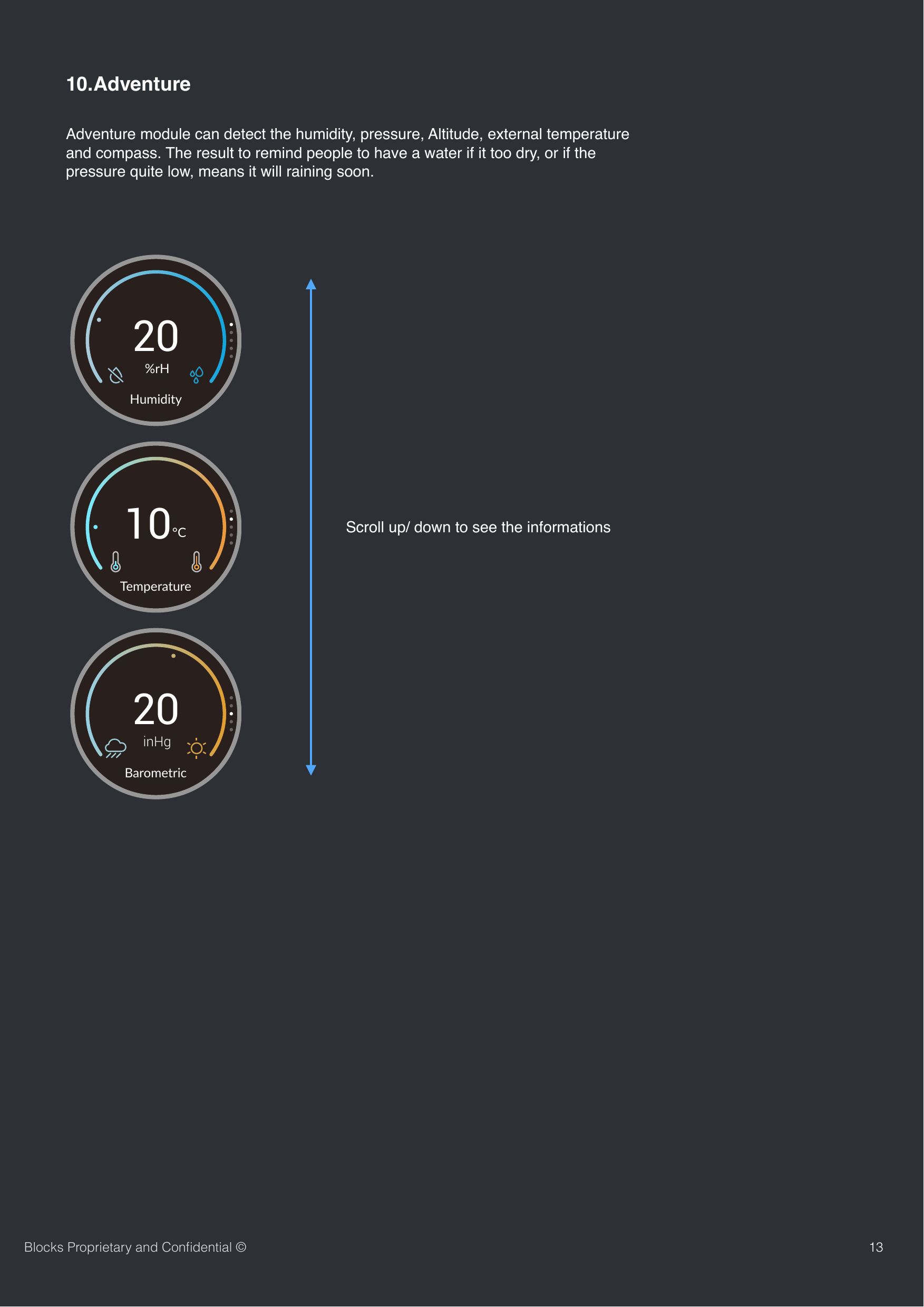
1310.AdventureAdventure module can detect the humidity, pressure, Altitude, external temperature and compass. The result to remind people to have a water if it too dry, or if the pressure quite low, means it will raining soon.Scroll up/ down to see the informationsBlocks Proprietary and Confidential ©20%rHHumidity10°C Temperature20inHgBarometric
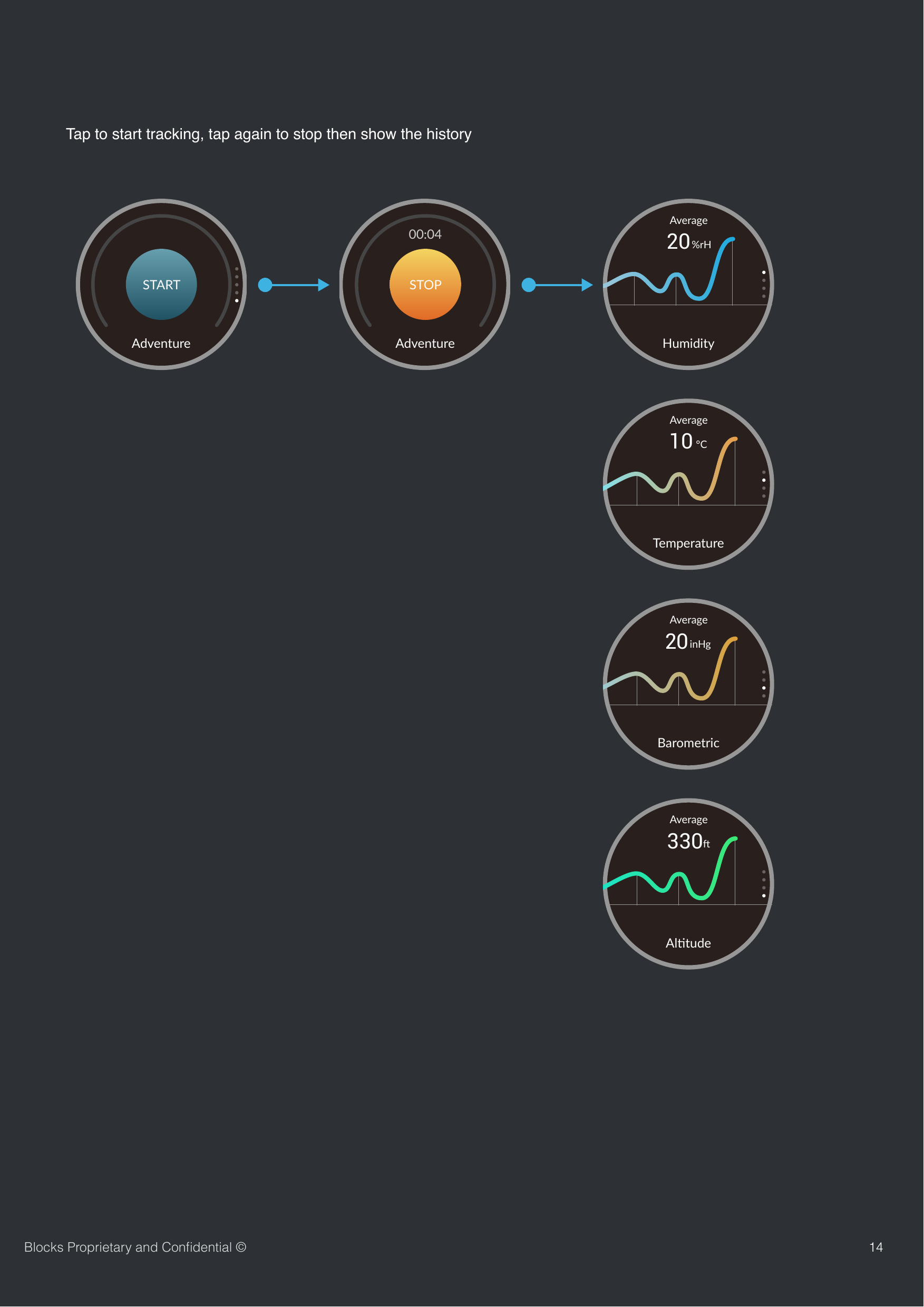
14Blocks Proprietary and Confidential ©AdventureSTARTTap to start tracking, tap again to stop then show the historyAdventure00:04STOPHumidity20%rHAverageTemperature10 °C AverageBarometricAverage20inHg Al#tudeAverage330,
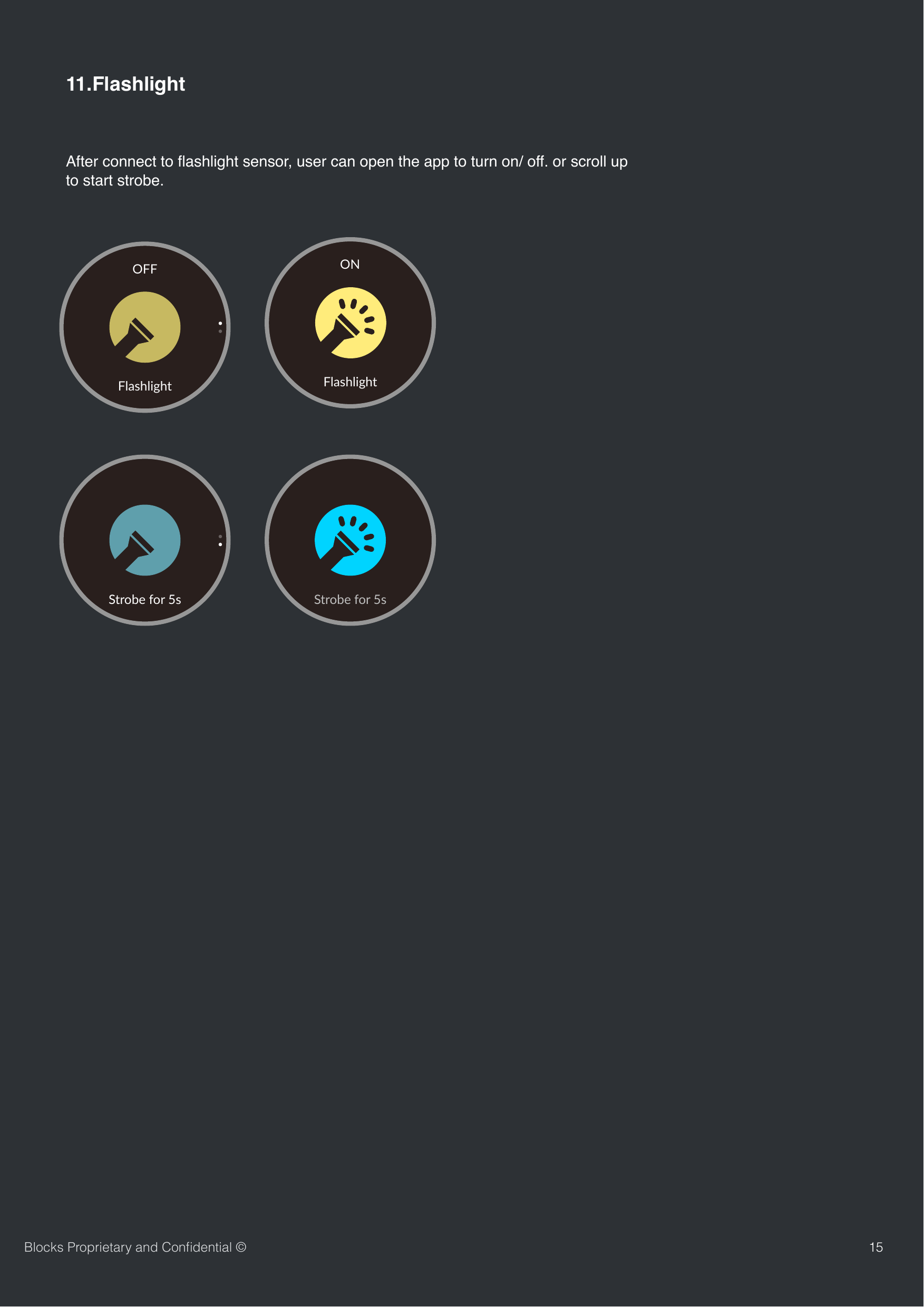
1511.FlashlightAfter connect to flashlight sensor, user can open the app to turn on/ off. or scroll up to start strobe. Blocks Proprietary and Confidential ©FlashlightOFFStrobe for 5sFlashlightONStrobe for 5s
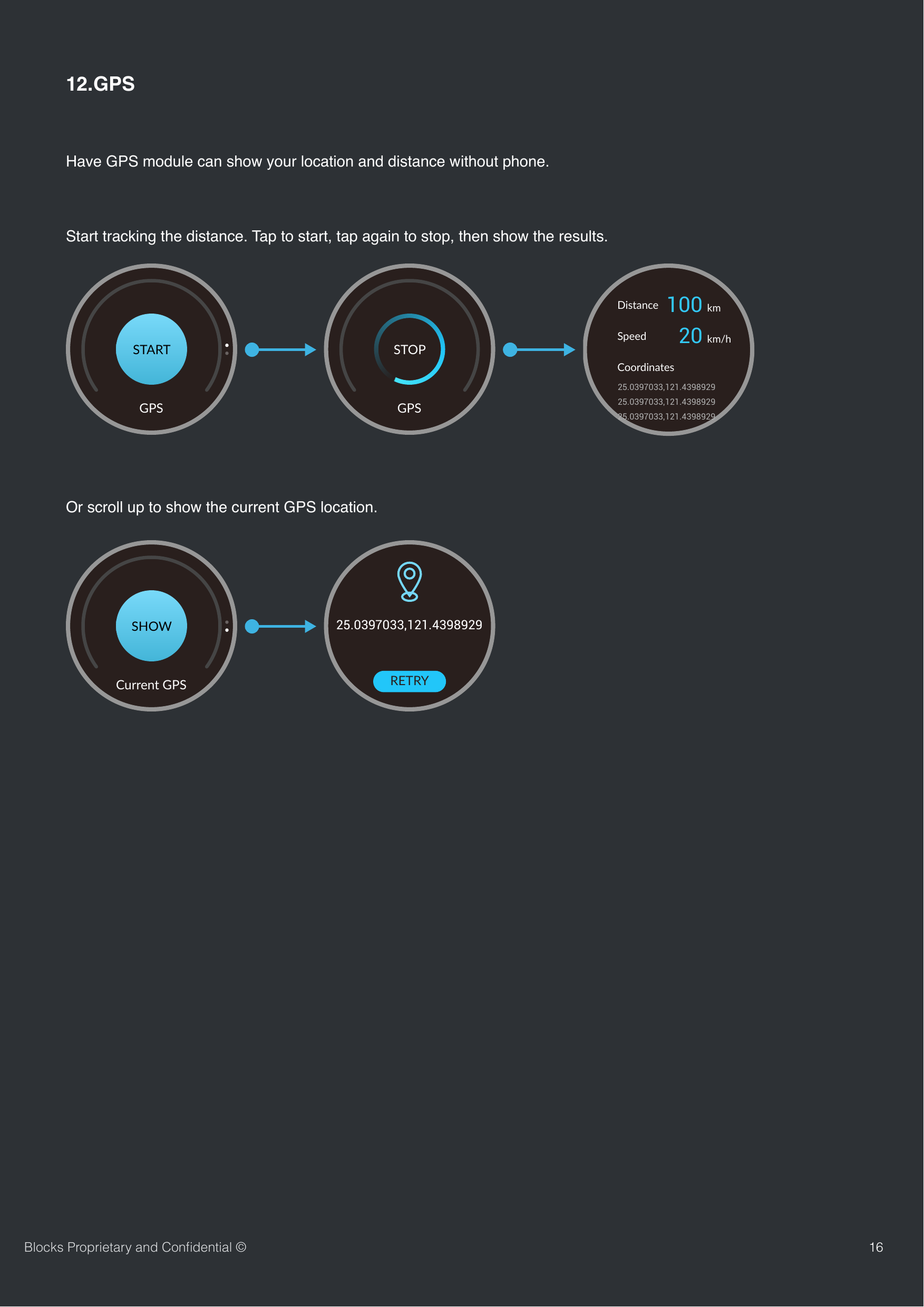
1612.GPSHave GPS module can show your location and distance without phone.Blocks Proprietary and Confidential ©GPSSTARTGPSSTOP100 km20 km/hDistanceSpeedCoordinates25.0397033,121.439892925.0397033,121.439892925.0397033,121.4398929SHOWCurrent GPS25.0397033,121.4398929RETRYStart tracking the distance. Tap to start, tap again to stop, then show the results.Or scroll up to show the current GPS location.
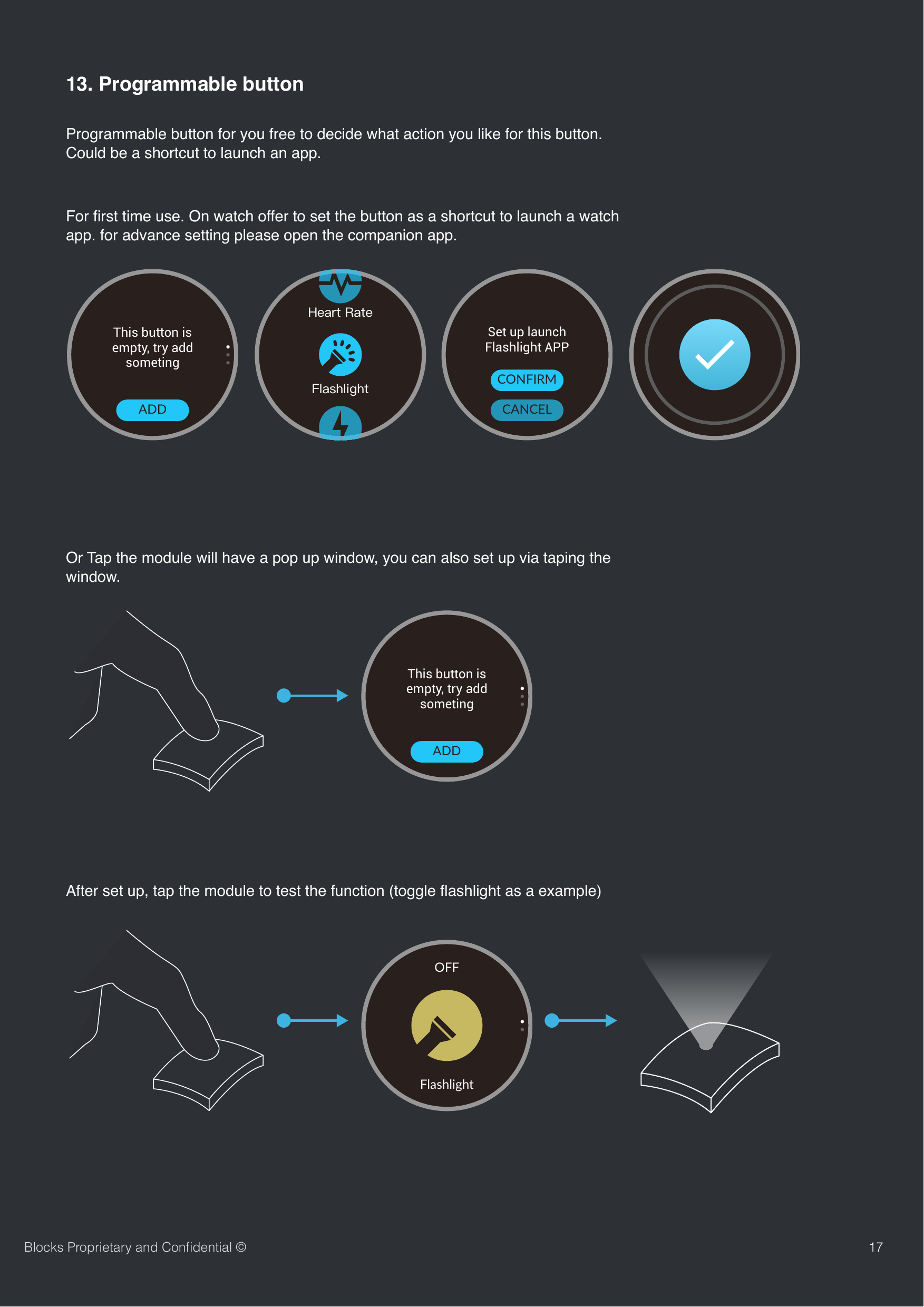
1713. Programmable buttonProgrammable button for you free to decide what action you like for this button. Could be a shortcut to launch an app.For first time use. On watch offer to set the button as a shortcut to launch a watch app. for advance setting please open the companion app.Or Tap the module will have a pop up window, you can also set up via taping the window.After set up, tap the module to test the function (toggle flashlight as a example)Blocks Proprietary and Confidential ©TapThis button is empty, try add someting ADDTapSet up launch Flashlight APPCANCELCONFIRMTapThis button is empty, try add someting ADDFlashlightOFF
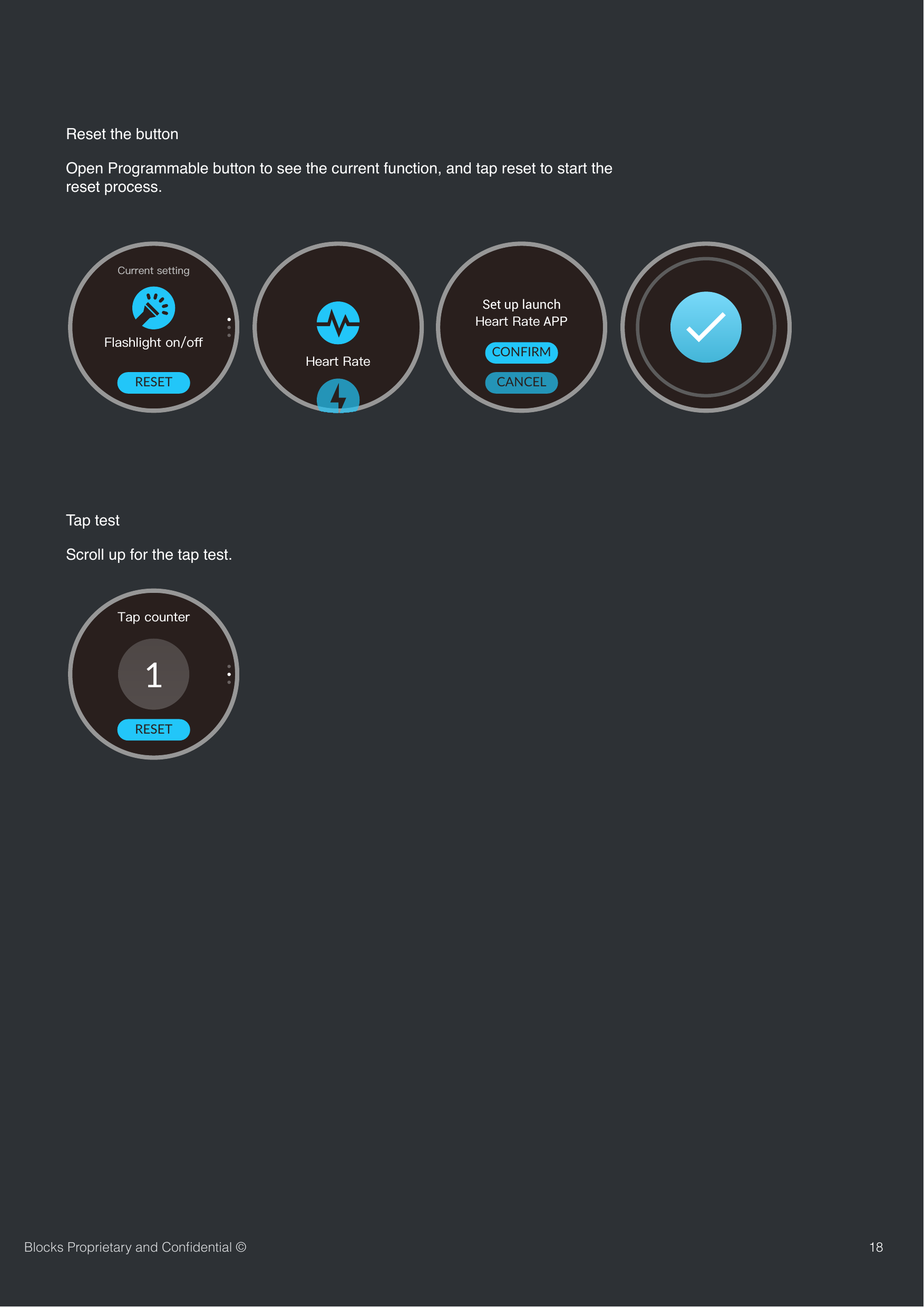
18Blocks Proprietary and Confidential ©Reset the buttonTapRESETTapSet up launch  APPCANCELCONFIRMOpen Programmable button to see the current function, and tap reset to start the reset process.1RESETTap testScroll up for the tap test.
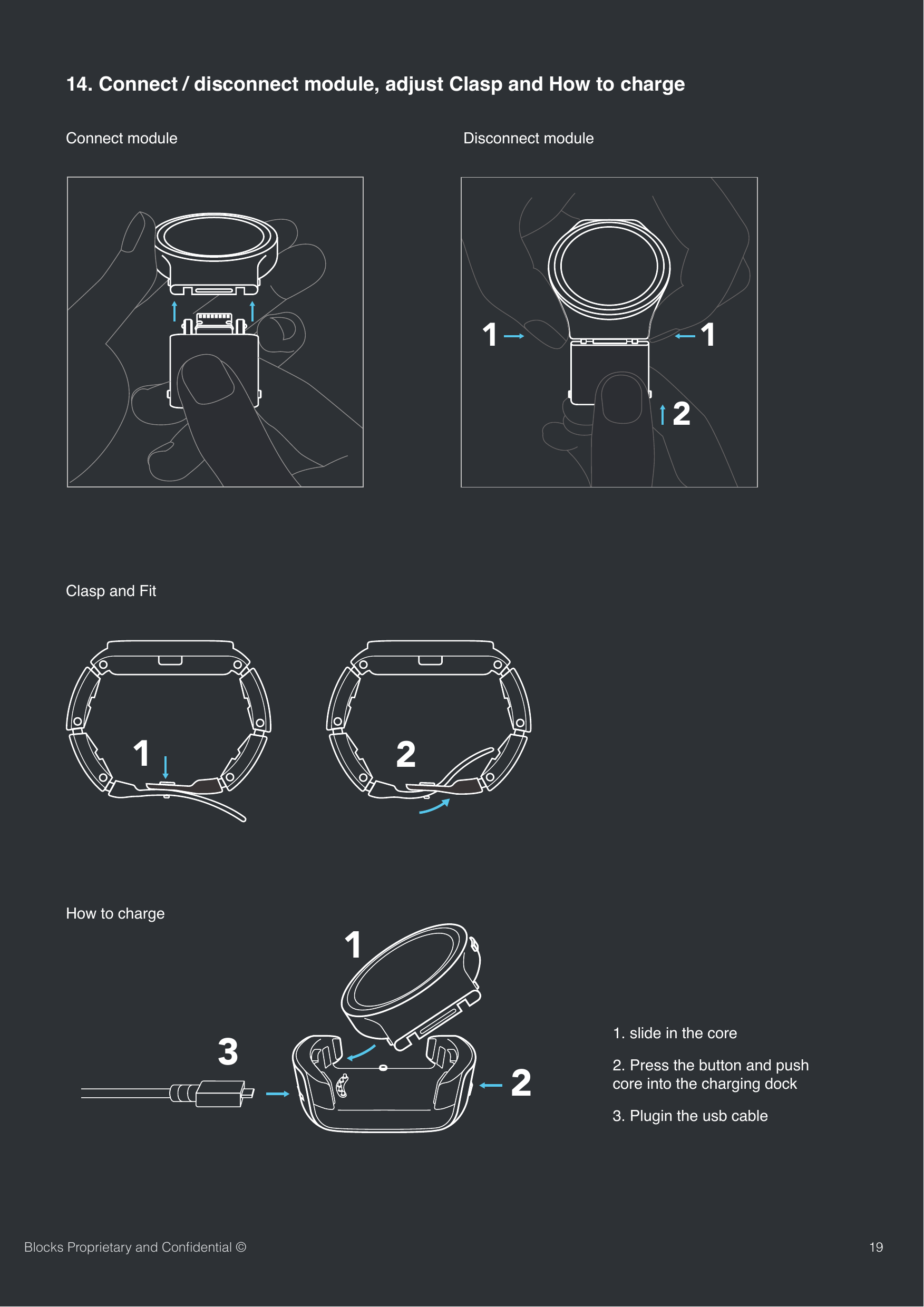
19Blocks Proprietary and Confidential ©Connect module14. Connect / disconnect module, adjust Clasp and How to charge 1 12Disconnect module12Clasp and Fit How to charge 1231. slide in the core2. Press the button and push core into the charging dock3. Plugin the usb cable
20Blocks Proprietary and Confidential ©Federal Communications Commission (FCC) Statement15.21You are cautioned that changes or modifications not expressly approved by the part responsible for compliance could void the user’s authority to operate the equipment.15.105(b)This equipment has been tested and found to comply with the limits for a Class B digital device, pursuant to part 15 of the FCC rules. These limits are designed to provide reasonable protection against harmful interference in a residential installation. This equipment generates, uses and can radiate radio frequency energy and, if not installed and used in accordance with the instructions, may cause harmful interference to radio communications. However, there is no guarantee that interference will not occur in a particular installation. If this equipment does cause harmful interference to radio or television reception, which can be determined by turning the equipment off and on, the user is encouraged to try to correct the interference by one or more of the following measures:-Reorient or relocate the receiving antenna.-Increase the separation between the equipment and receiver.-Connect the equipment into an outlet on a circuit different from that to which the receiver is connected.-Consult the dealer or an experienced radio/TV technician for help.This device complies with Part 15 of the FCC Rules. Operation is subject to the following two conditions:1) this device may not cause harmful interference, and2) this device must accept any interference received, including interference that may cause undesired operation of the device.FCC RF Radiation Exposure Statement:1. This Transmitter must not be co-located or operating in conjunction with any other antenna or transmitter.2. This equipment complies with FCC RF radiation exposure limits set forth for an uncontrolled environment. This equipment should be installed and operated with a minimum distance of 0 centimeters between the radiator and your body.FCC compliance statement
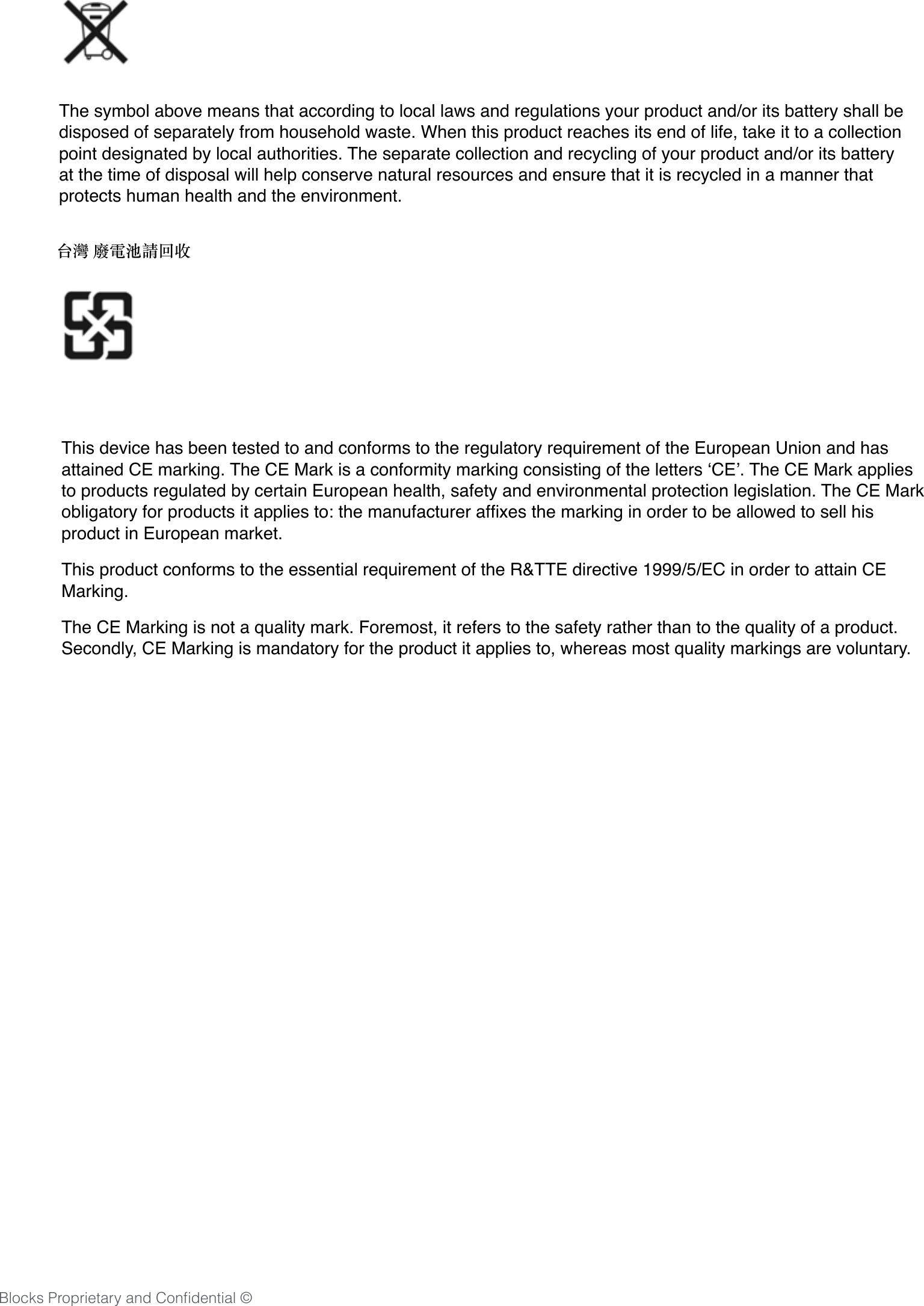
21The symbol above means that according to local laws and regulations your product and/or its battery shall be disposed of separately from household waste. When this product reaches its end of life, take it to a collection point designated by local authorities. The separate collection and recycling of your product and/or its battery at the time of disposal will help conserve natural resources and ensure that it is recycled in a manner that protects human health and the environment. 台灣 廢電池請回收 This device has been tested to and conforms to the regulatory requirement of the European Union and has attained CE marking. The CE Mark is a conformity marking consisting of the letters ‘CE’. The CE Mark applies to products regulated by certain European health, safety and environmental protection legislation. The CE Mark obligatory for products it applies to: the manufacturer affixes the marking in order to be allowed to sell his product in European market. This product conforms to the essential requirement of the R&TTE directive 1999/5/EC in order to attain CE Marking. The CE Marking is not a quality mark. Foremost, it refers to the safety rather than to the quality of a product. Secondly, CE Marking is mandatory for the product it applies to, whereas most quality markings are voluntary. Blocks Proprietary and Confidential ©

Navigation menu