BlueExpert Technology BES112 Bluetooth Head Phone User Manual

BlueExpert Technology Corp. Bluetooth Head Phone

User Manual

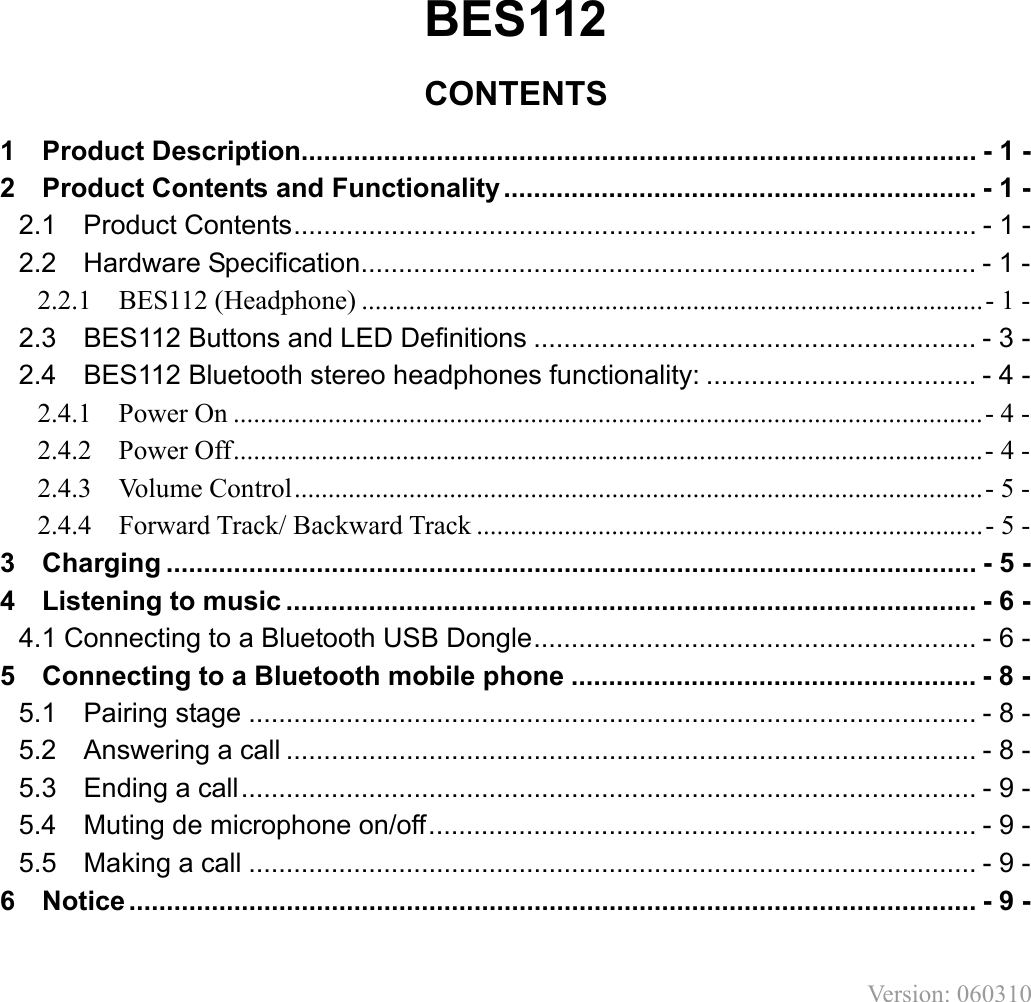
BES112  CONTENTS 1    Product Description.......................................................................................... - 1 - 2    Product Contents and Functionality............................................................... - 1 - 2.1    Product Contents........................................................................................... - 1 - 2.2  Hardware Specification.................................................................................. - 1 - 2.2.1    BES112 (Headphone) ............................................................................................- 1 - 2.3  BES112 Buttons and LED Definitions ........................................................... - 3 - 2.4  BES112 Bluetooth stereo headphones functionality: .................................... - 4 - 2.4.1  Power On ...............................................................................................................- 4 - 2.4.2  Power Off...............................................................................................................- 4 - 2.4.3  Volume Control......................................................................................................- 5 - 2.4.4    Forward Track/ Backward Track ...........................................................................- 5 - 3  Charging ............................................................................................................ - 5 - 4    Listening to music ............................................................................................ - 6 - 4.1 Connecting to a Bluetooth USB Dongle........................................................... - 6 - 5  Connecting to a Bluetooth mobile phone ...................................................... - 8 - 5.1  Pairing stage ................................................................................................. - 8 - 5.2  Answering a call ............................................................................................ - 8 - 5.3  Ending a call.................................................................................................. - 9 - 5.4  Muting de microphone on/off......................................................................... - 9 - 5.5  Making a call ................................................................................................. - 9 - 6  Notice ................................................................................................................. - 9 -  Version: 060310
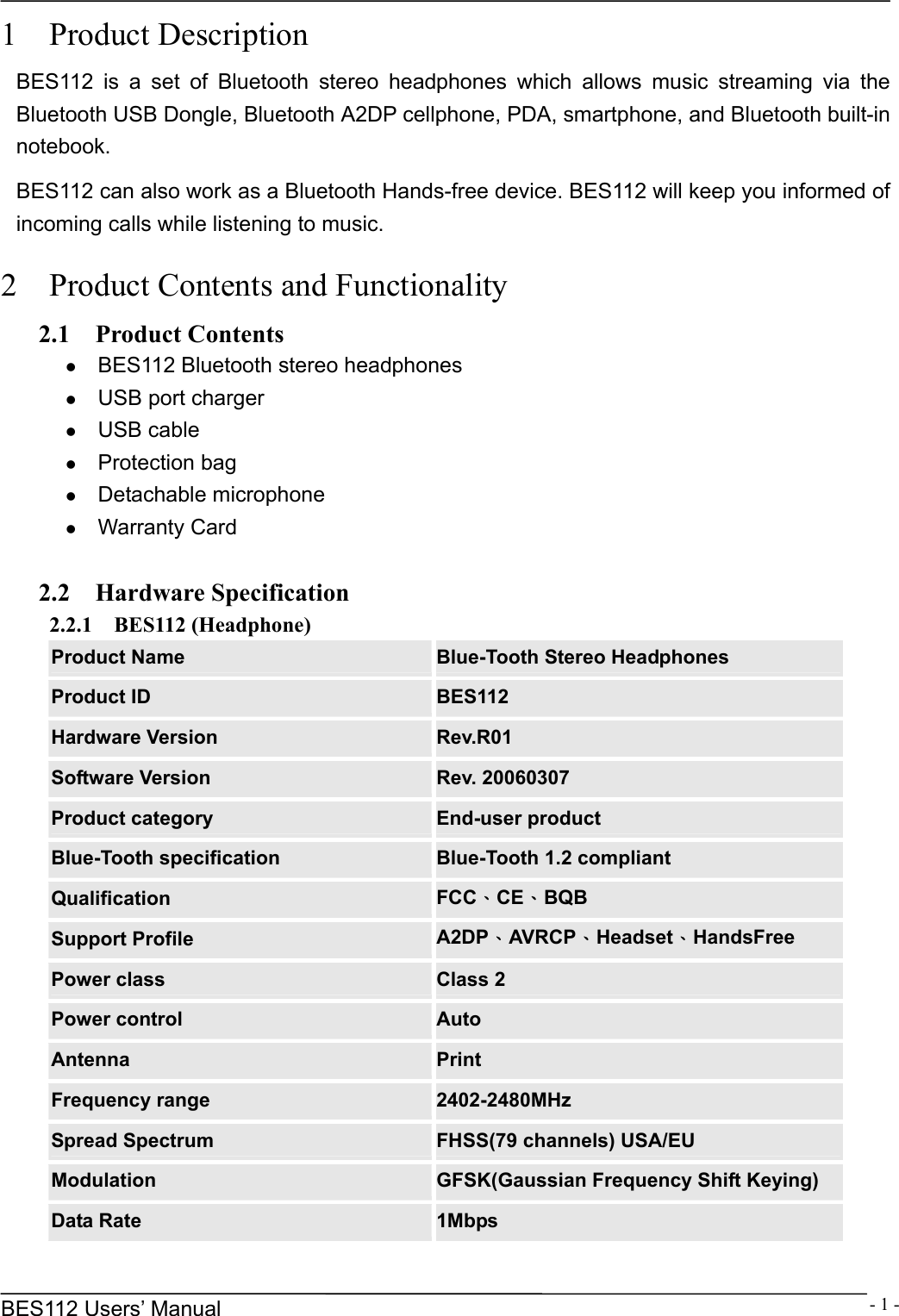
     BES112 Users’ Manual  - 1 -1  Product Description BES112 is a set of Bluetooth stereo headphones which allows music streaming via the Bluetooth USB Dongle, Bluetooth A2DP cellphone, PDA, smartphone, and Bluetooth built-in notebook.   BES112 can also work as a Bluetooth Hands-free device. BES112 will keep you informed of incoming calls while listening to music.  2    Product Contents and Functionality 2.1  Product Contents z BES112 Bluetooth stereo headphones z USB port charger z USB cable z Protection bag z Detachable microphone z Warranty Card  2.2  Hardware Specification 2.2.1  BES112 (Headphone) Product Name  Blue-Tooth Stereo Headphones Product ID  BES112 Hardware Version  Rev.R01 Software Version  Rev. 20060307 Product category  End-user product Blue-Tooth specification  Blue-Tooth 1.2 compliant Qualification  FCC、CE、BQB Support Profile  A2DP、AVRCP、Headset、HandsFree Power class  Class 2 Power control  Auto Antenna  Print Frequency range  2402-2480MHz Spread Spectrum  FHSS(79 channels) USA/EU Modulation  GFSK(Gaussian Frequency Shift Keying) Data Rate  1Mbps
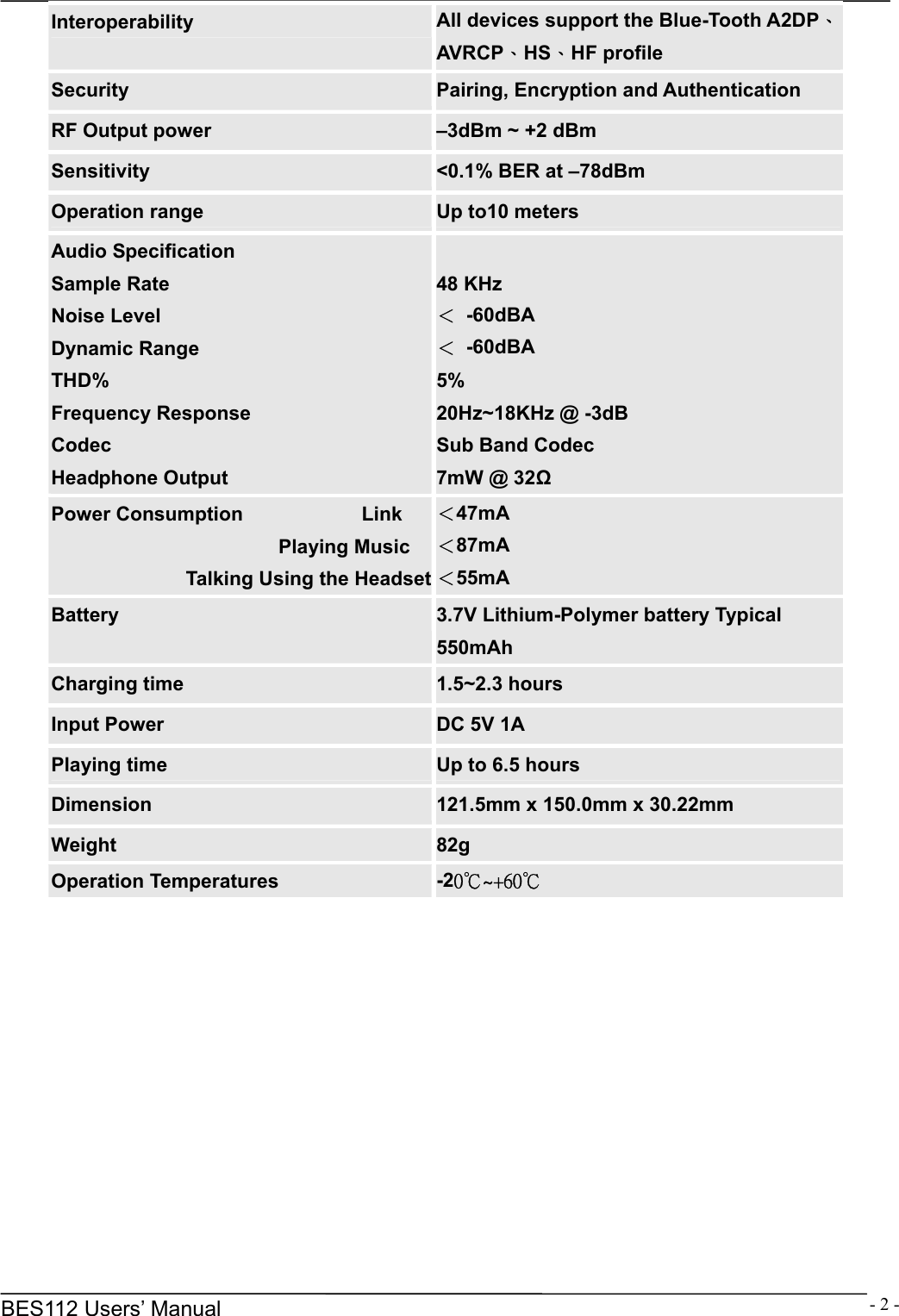
     BES112 Users’ Manual  - 2 -Interoperability  All devices support the Blue-Tooth A2DP、AVRCP、HS、HF profile Security  Pairing, Encryption and Authentication RF Output power  –3dBm ~ +2 dBm Sensitivity  <0.1% BER at –78dBm Operation range  Up to10 meters Audio Specification   Sample Rate Noise Level Dynamic Range THD% Frequency Response Codec Headphone Output  48 KHz < -60dBA < -60dBA 5% 20Hz~18KHz @ -3dB Sub Band Codec 7mW @ 32Ω Power Consumption            Link                        Playing Music Talking Using the Headset <47mA <87mA <55mA Battery  3.7V Lithium-Polymer battery Typical 550mAh Charging time  1.5~2.3 hours Input Power  DC 5V 1A Playing time  Up to 6.5 hours Dimension  121.5mm x 150.0mm x 30.22mm Weight  82g Operation Temperatures  -20℃~+60℃
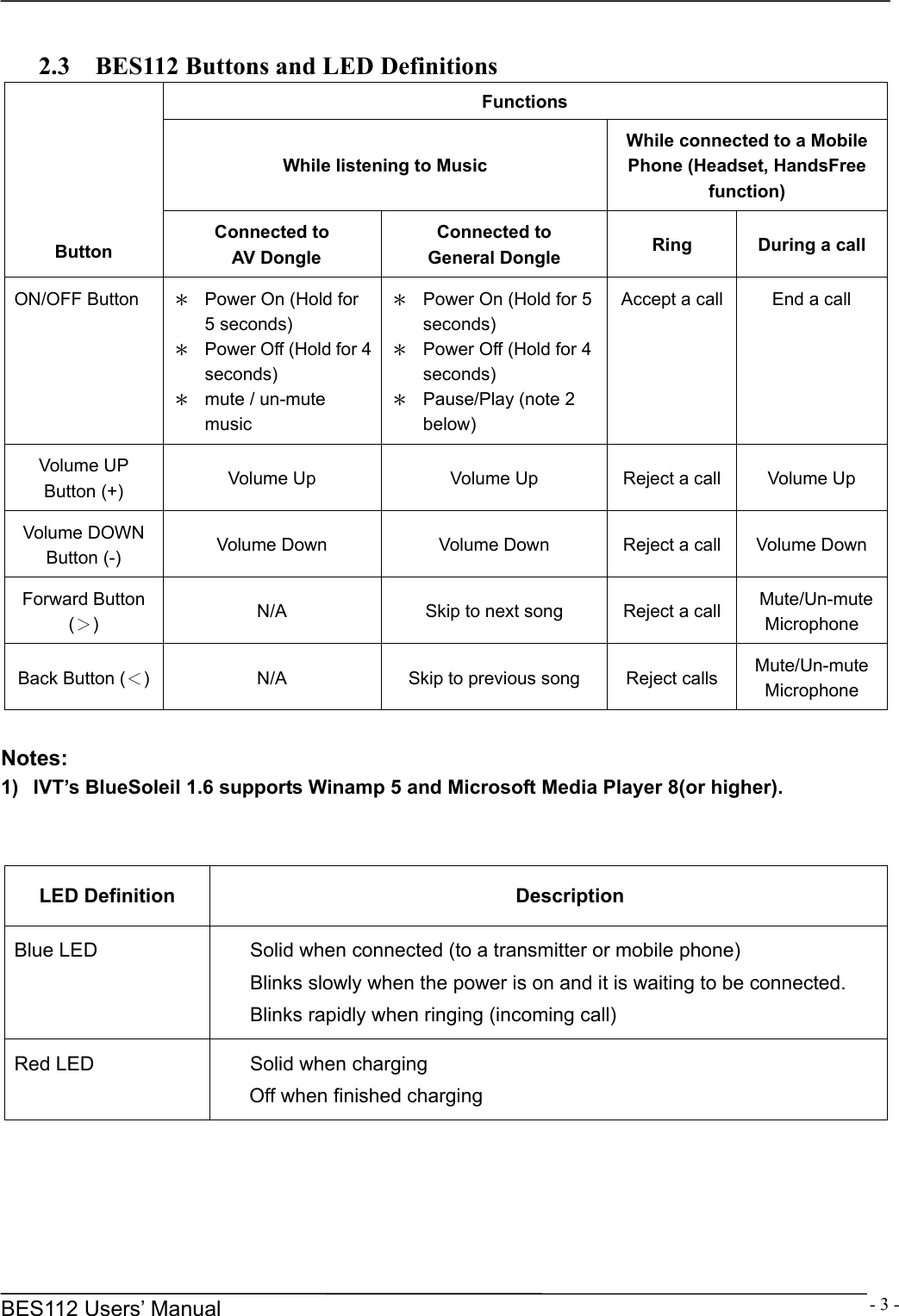
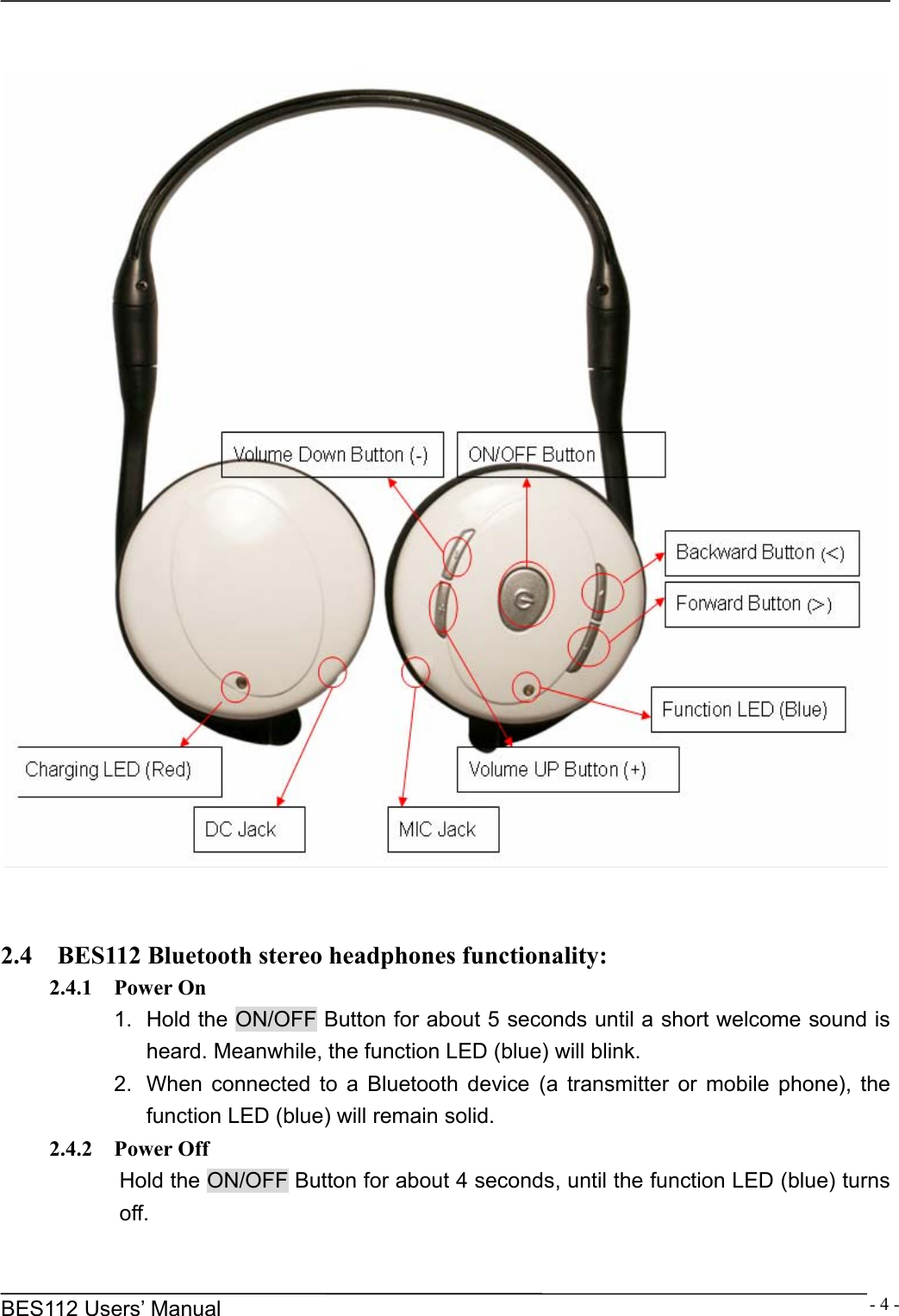
     BES112 Users’ Manual  - 3 - 2.3    BES112 Buttons and LED Definitions Functions While listening to Music While connected to a Mobile Phone (Headset, HandsFree function) Button  Connected to  AV Dongle Connected to General Dongle  Ring  During a call ON/OFF Button  *  Power On (Hold for 5 seconds) *  Power Off (Hold for 4 seconds) *  mute / un-mute music *  Power On (Hold for 5 seconds) *  Power Off (Hold for 4 seconds) *  Pause/Play (note 2 below) Accept a call  End a call Volume UP Button (+)  Volume Up  Volume Up  Reject a call  Volume Up Volume DOWN Button (-)  Volume Down  Volume Down  Reject a call  Volume Down Forward Button (>)  N/A  Skip to next song  Reject a call   Mute/Un-mute Microphone Back Button (<)  N/A  Skip to previous song  Reject calls  Mute/Un-mute Microphone   Notes: 1)  IVT’s BlueSoleil 1.6 supports Winamp 5 and Microsoft Media Player 8(or higher).   LED Definition  Description Blue LED  Solid when connected (to a transmitter or mobile phone) Blinks slowly when the power is on and it is waiting to be connected. Blinks rapidly when ringing (incoming call) Red LED  Solid when charging Off when finished charging
     BES112 Users’ Manual  - 4 -     2.4    BES112 Bluetooth stereo headphones functionality: 2.4.1  Power On 1.  Hold the ON/OFF Button for about 5 seconds until a short welcome sound is heard. Meanwhile, the function LED (blue) will blink. 2.  When connected to a Bluetooth device (a transmitter or mobile phone), the function LED (blue) will remain solid. 2.4.2  Power Off Hold the ON/OFF Button for about 4 seconds, until the function LED (blue) turns off.
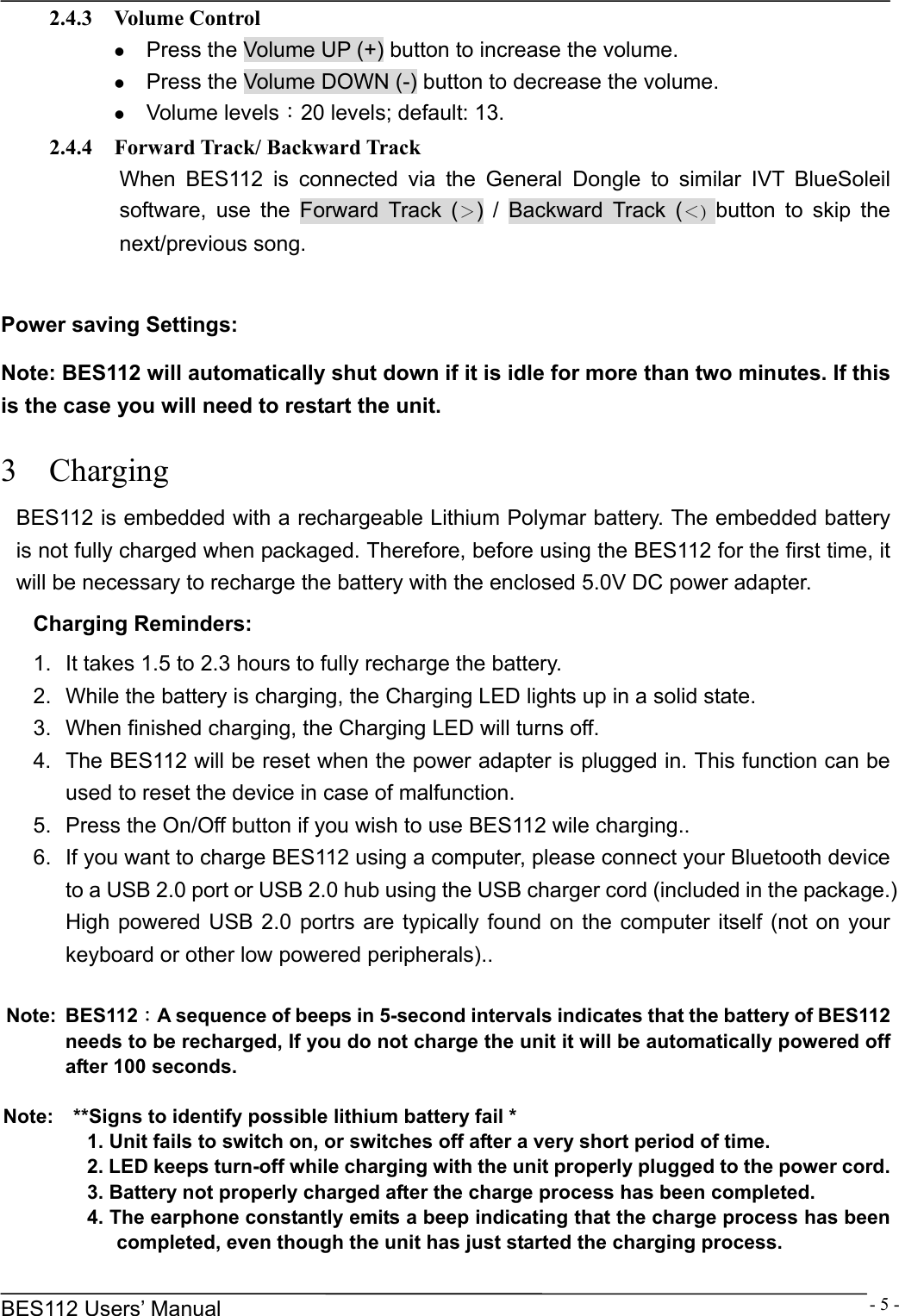
     BES112 Users’ Manual  - 5 -2.4.3  Volume Control z Press the Volume UP (+) button to increase the volume. z Press the Volume DOWN (-) button to decrease the volume. z Volume levels:20 levels; default: 13.   2.4.4  Forward Track/ Backward Track When BES112 is connected via the General Dongle to similar IVT BlueSoleil software, use the Forward Track (>) / Backward Track (<) button to skip the next/previous song.  Power saving Settings: Note: BES112 will automatically shut down if it is idle for more than two minutes. If this is the case you will need to restart the unit. 3  Charging BES112 is embedded with a rechargeable Lithium Polymar battery. The embedded battery is not fully charged when packaged. Therefore, before using the BES112 for the first time, it will be necessary to recharge the battery with the enclosed 5.0V DC power adapter. Charging Reminders: 1.  It takes 1.5 to 2.3 hours to fully recharge the battery.   2.  While the battery is charging, the Charging LED lights up in a solid state. 3.  When finished charging, the Charging LED will turns off. 4.  The BES112 will be reset when the power adapter is plugged in. This function can be used to reset the device in case of malfunction. 5.  Press the On/Off button if you wish to use BES112 wile charging.. 6.  If you want to charge BES112 using a computer, please connect your Bluetooth device to a USB 2.0 port or USB 2.0 hub using the USB charger cord (included in the package.) High powered USB 2.0 portrs are typically found on the computer itself (not on your keyboard or other low powered peripherals)..  Note: BES112:A sequence of beeps in 5-second intervals indicates that the battery of BES112 needs to be recharged, If you do not charge the unit it will be automatically powered off after 100 seconds.  Note:    **Signs to identify possible lithium battery fail * 1. Unit fails to switch on, or switches off after a very short period of time. 2. LED keeps turn-off while charging with the unit properly plugged to the power cord. 3. Battery not properly charged after the charge process has been completed. 4. The earphone constantly emits a beep indicating that the charge process has been completed, even though the unit has just started the charging process.
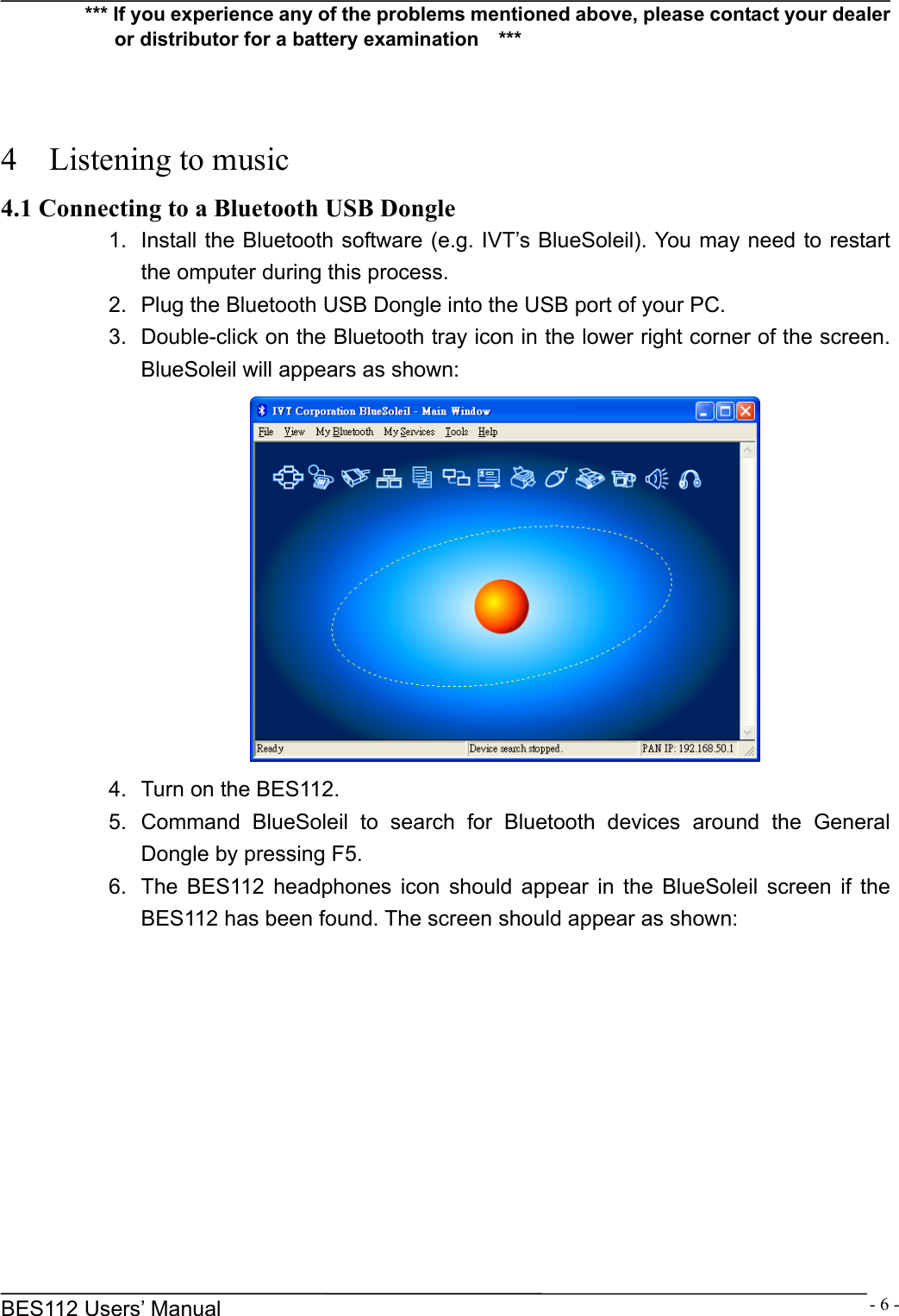
     BES112 Users’ Manual  - 6 -*** If you experience any of the problems mentioned above, please contact your dealer or distributor for a battery examination    ***    4  Listening to music 4.1 Connecting to a Bluetooth USB Dongle 1.  Install the Bluetooth software (e.g. IVT’s BlueSoleil). You may need to restart the omputer during this process. 2.  Plug the Bluetooth USB Dongle into the USB port of your PC. 3.  Double-click on the Bluetooth tray icon in the lower right corner of the screen. BlueSoleil will appears as shown:  4.  Turn on the BES112. 5. Command BlueSoleil to search for Bluetooth devices around the General Dongle by pressing F5. 6.  The BES112 headphones icon should appear in the BlueSoleil screen if the BES112 has been found. The screen should appear as shown:
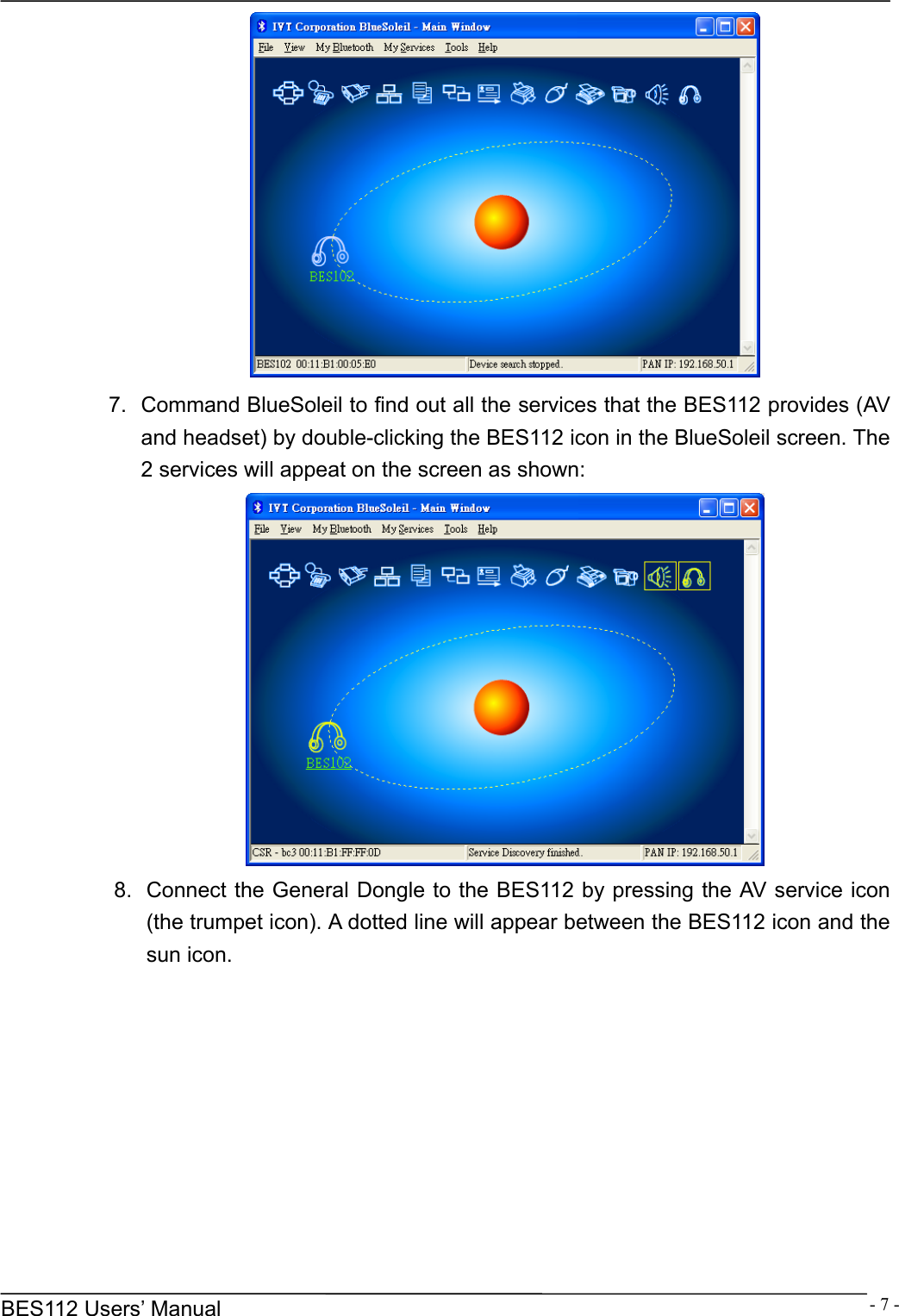
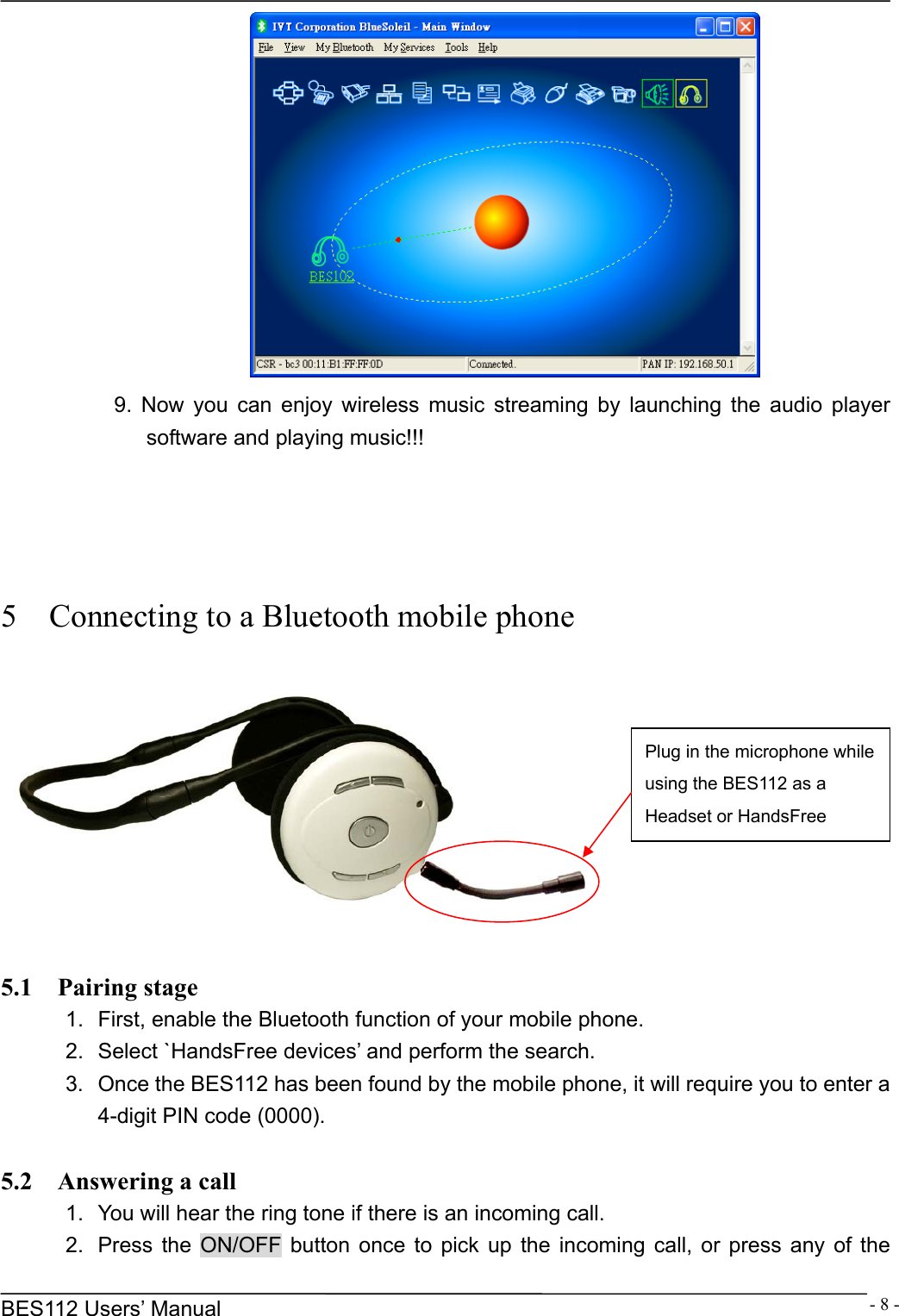
     BES112 Users’ Manual  - 7 - 7.  Command BlueSoleil to find out all the services that the BES112 provides (AV and headset) by double-clicking the BES112 icon in the BlueSoleil screen. The 2 services will appeat on the screen as shown:    8.  Connect the General Dongle to the BES112 by pressing the AV service icon (the trumpet icon). A dotted line will appear between the BES112 icon and the sun icon.
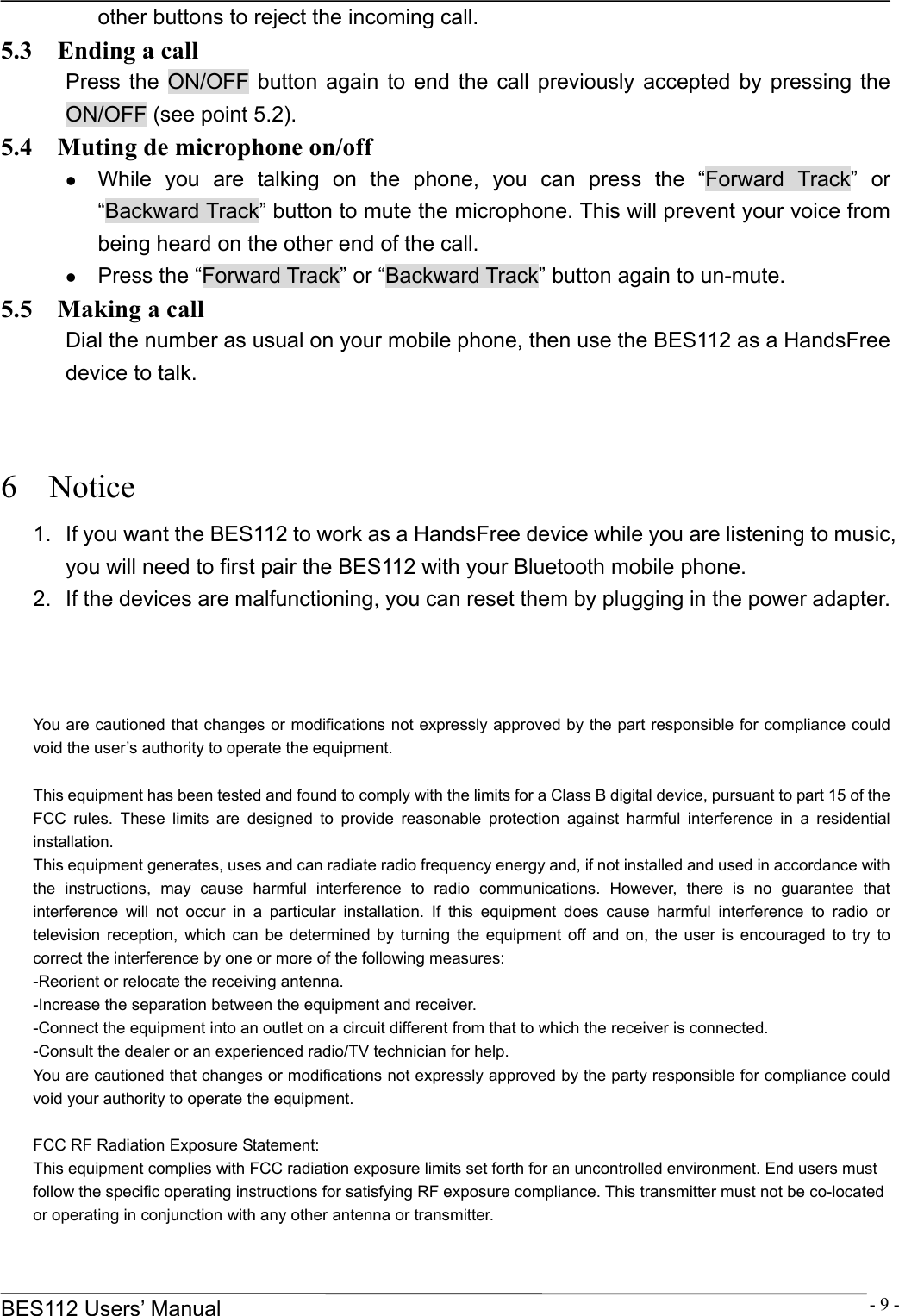
     BES112 Users’ Manual  - 8 - 9. Now you can enjoy wireless music streaming by launching the audio player software and playing music!!!     5    Connecting to a Bluetooth mobile phone    5.1  Pairing stage 1.  First, enable the Bluetooth function of your mobile phone. 2.  Select `HandsFree devices’ and perform the search. 3.  Once the BES112 has been found by the mobile phone, it will require you to enter a 4-digit PIN code (0000).  5.2  Answering a call 1.  You will hear the ring tone if there is an incoming call. 2.  Press the ON/OFF button once to pick up the incoming call, or press any of the Plug in the microphone while using the BES112 as a Headset or HandsFree
     BES112 Users’ Manual  - 9 -other buttons to reject the incoming call. 5.3    Ending a call Press the ON/OFF button again to end the call previously accepted by pressing the ON/OFF (see point 5.2). 5.4    Muting de microphone on/off z While you are talking on the phone, you can press the “Forward Track” or “Backward Track” button to mute the microphone. This will prevent your voice from being heard on the other end of the call. z Press the “Forward Track” or “Backward Track” button again to un-mute. 5.5  Making a call Dial the number as usual on your mobile phone, then use the BES112 as a HandsFree device to talk.   6  Notice 1.  If you want the BES112 to work as a HandsFree device while you are listening to music, you will need to first pair the BES112 with your Bluetooth mobile phone. 2.  If the devices are malfunctioning, you can reset them by plugging in the power adapter.    You are cautioned that changes or modifications not expressly approved by the part responsible for compliance could void the user’s authority to operate the equipment.   This equipment has been tested and found to comply with the limits for a Class B digital device, pursuant to part 15 of the FCC rules. These limits are designed to provide reasonable protection against harmful interference in a residential installation. This equipment generates, uses and can radiate radio frequency energy and, if not installed and used in accordance with the instructions, may cause harmful interference to radio communications. However, there is no guarantee that interference will not occur in a particular installation. If this equipment does cause harmful interference to radio or television reception, which can be determined by turning the equipment off and on, the user is encouraged to try to correct the interference by one or more of the following measures: -Reorient or relocate the receiving antenna. -Increase the separation between the equipment and receiver. -Connect the equipment into an outlet on a circuit different from that to which the receiver is connected. -Consult the dealer or an experienced radio/TV technician for help. You are cautioned that changes or modifications not expressly approved by the party responsible for compliance could void your authority to operate the equipment.   FCC RF Radiation Exposure Statement: This equipment complies with FCC radiation exposure limits set forth for an uncontrolled environment. End users must follow the specific operating instructions for satisfying RF exposure compliance. This transmitter must not be co-located or operating in conjunction with any other antenna or transmitter.

Navigation menu