Bluenio NIO3S nio Bluetooth Security Tag User Manual nio 3s User guide

Bluenio Limited nio Bluetooth Security Tag nio 3s User guide

User Manual

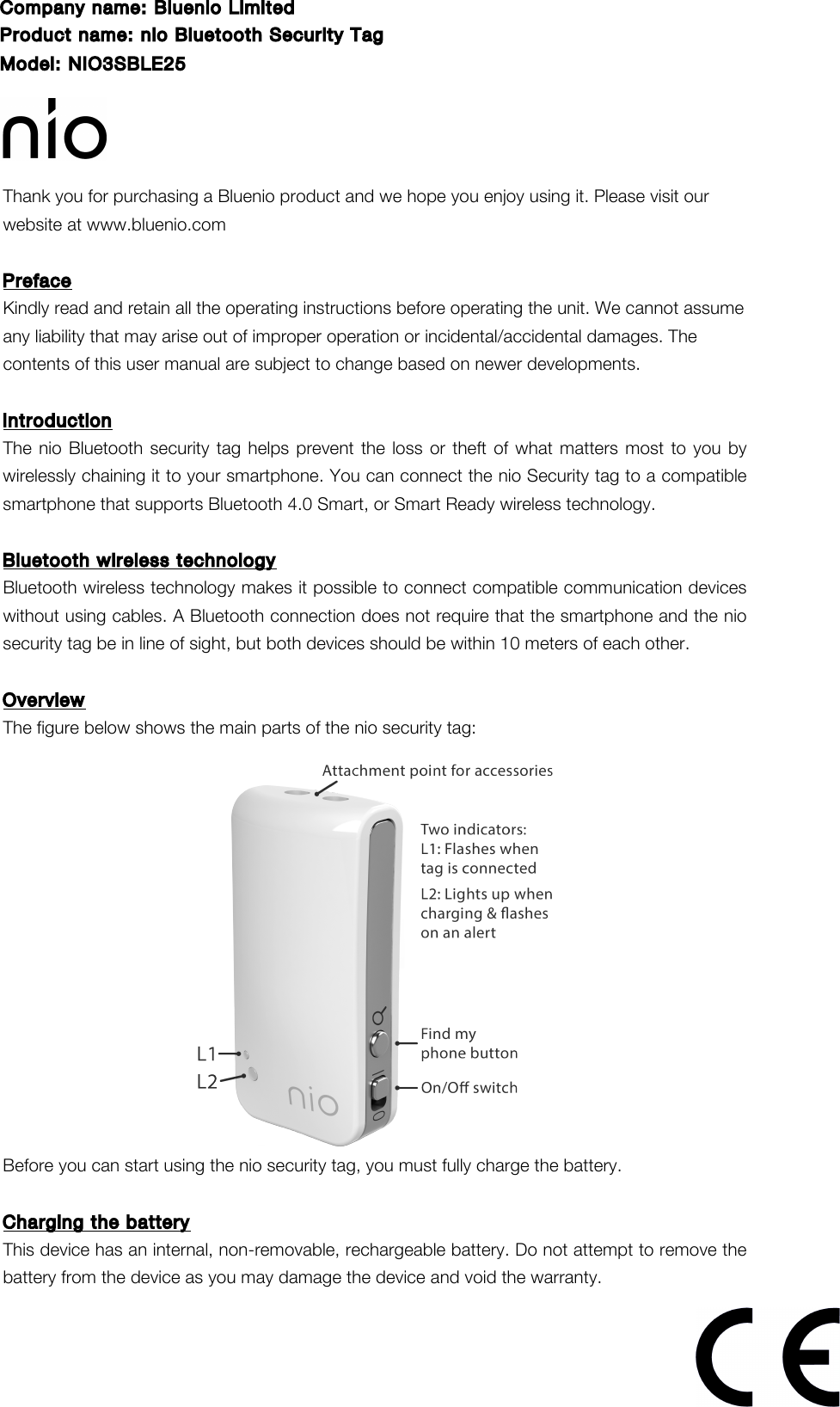
  Thank you for purchasing a Bluenio product and we hope you enjoy using it. Please visit our website at www.bluenio.com      Preface Kindly read and retain all the operating instructions before operating the unit. We cannot assume any liability that may arise out of improper operation or incidental/accidental damages. The contents of this user manual are subject to change based on newer developments.    Introduction The nio Bluetooth security tag helps prevent the loss or theft of what matters most to you by wirelessly chaining it to your smartphone. You can connect the nio Security tag to a compatible smartphone that supports Bluetooth 4.0 Smart, or Smart Ready wireless technology.  Bluetooth wireless technology Bluetooth wireless technology makes it possible to connect compatible communication devices without using cables. A Bluetooth connection does not require that the smartphone and the nio security tag be in line of sight, but both devices should be within 10 meters of each other.    Overview The figure below shows the main parts of the nio security tag:   Before you can start using the nio security tag, you must fully charge the battery.  Charging the battery This device has an internal, non-removable, rechargeable battery. Do not attempt to remove the battery from the device as you may damage the device and void the warranty. Company name: Bluenio LimitedProduct name: nio Bluetooth Security TagModel: NIO3SBLE25
1. Connect the charging cable to the nio security tag. 2. Connect the other end of the charging cable to an available USB port on your computer or laptop. (The computer or laptop must be powered on to change the headset.) The red indicator light  on the nio security tag is displayed  during  charging.  If  the  charging light does not come on, disconnect the charging cable and retry. Full charge may take up to 1.5 hours. 3. When the battery is fully charged, the red indicator light (L2) on the nio security tag will turn off. 4. Disconnect the charging cable from the nio security tag and computer or laptop.  The fully charged battery will power the headset for up to 4 months of standby time and 1 month of constant use. Please note these values may vary depending on the various usage scenarios and with different smartphones. When the battery is running low on power, the red indicator light (L2) will start to flash.  Turn the nio security tag ON / OFF 1. To switch the nio security tag ON, switch the button on the nio security tag from ‘0’ to ‘1’. The blue indicator light (L1) will flash 3 times and the nio security tag will beep once.   2. To switch the nio security tag OFF, switch the button from ‘1’ to ‘0’.  Pairing the nio security tag 1. Make sure your nio security tag is turned ON. 2. Open the nio app on your smartphone. 3. Within the app press the “Add a nio” button. The app will begin to search for your nio security tag. 4. Once found the app will display “nio3S” under a heading of “Select a Bluetooth Device”. Select nio3S. 5. You are now paired.  Connecting to the nio security tag To create a Bluetooth connection (wireless chain) between your smartphone and nio security tag do the following; 1. Make sure your nio security tag is paired and is turned ON. 2. Open the nio app on your smartphone. 3. On the HOME screen switch the CONNECT button from OFF to ON. 4. The  status  radar  will  switch  from  grey  to  green  once  a  Bluetooth  connection  is established. The CONNECT button will now say CONNECTED and the nio security tag will beep once and the blue light (L1) will flash once. 5. To  remove  the  wireless  chain,  simply  stop  the  Bluetooth  connection  by  switching the CONNECTED button from ON to OFF. The status radar will switch from green to grey.    Locating your nio security tag The locate feature in the nio app allows your to find your nio security tag if it’s connected to your smartphone.
1. On the HOME screen switch the LOCATE NIO button from OFF to ON. 2. The status radar will turn orange and display a signal strength indicator and a location beep. 3. The closer you and your smartphone are to your nio security tag the more lines you will see on the signal strength indicator and the faster the beep will become. 4. To stop locating switch the LOCATE NIO button from ON to OFF.  Using the anti-theft feature Your nio security tag has an inbuilt motion sensor. Activating anti-theft on your nio app will alert you if someone tries to move any item that your nio security tag is physically attached to. 1. Make sure your nio security tag is paired and is turned ON. 2. On the HOME screen switch the ANTI-THEFT button from OFF to ON. This will activate the motion sensor on your nio security tag. 3. If someone tries to move your tagged item, both your smartphone and the nio security tag will alarm. 4. To deactivate anti-theft switch the ANTI-THEFT button from ON to OFF.    Setting the length (Proximity) of your wireless chain Proximity determines how far your smartphone and nio security tag can be separated before the system alarms. To vary the proximity (length of wireless chain); 1. The proximity slider on the HOME screen is used to set the size of the proximity zone. Left  is  nearer  and  right  is  further  away.  Move  the slider  to  your  preference.  You  can change it at any time. 2. You must be  connected  to  your  nio  security  tag  in  order  for  the  proximity  zone  to  be active.    Troubleshooting If you cannot connect the nio security tag to your smartphone, do as follows: 1. Ensure the nio security tag is charged then go through the steps listed to pair your nio. 2. Ensure that the Bluetooth feature is activated on your smartphone. 3. Check to  ensure the  nio security tag is  within 10  meters  of your smartphone  and  that there are no obstructions that may prevent connectivity.  Battery information 1. Your device is powered by a rechargeable battery. The full performance of a new battery is achieved only after two or three complete charge and discharge cycles.   2. Do  not  leave  a  fully  charged  battery  connected  to  the  computer  or  laptop,  as overcharging may shorten the rechargeable battery lifetime.   3. Do not dispose of batteries in a fire as they may explode. Batteries may also explode if damaged.  Dispose  of  batteries  according  to  local  regulations.  Please  recycle  when possible. Do not dispose as household waste.  Care and maintenance Your nio security tag is a product of  superior design and craftsmanship and should be treated
with  care.  The  suggestions  below  will  help  you  protect  your  warranty  coverage.  Keep  all accessories and enhancements out of the reach of small children. 1. Keep  the  device  dry.  Precipitation,  humidity,  and  all  types  of  liquids  or  moisture  can contain minerals that will corrode electronic circuits. If your device does get wet, wipe it dry immediately and allow it to dry completely. 2. Do  not  use  or  store  the  device  in  dusty,  dirty  areas.  Its  moving  parts  and  electronic components can be damaged. 3. Do not store the device in hot areas. High temperatures can shorten the life of electronic devices, damage batteries, and warp or melt certain plastics. 4. Do not store the device in cold areas. When the device returns to its normal temperature, moisture can form inside the device and damage electronic circuit boards. 5. Do  not  drop,  knock,  or  shake  the  device.  Rough  handling  can  break  internal  circuit boards and fine mechanics. 6. Do not use harsh chemicals, cleaning solvents, or strong detergents to clean the device. 7. Do not paint the device. Paint can clog the moving parts and prevent proper operation.   Need assistance? Please email us! If you encounter any difficulties with this product, please visit our website at www.bluenio.com and review our support section or email us at support@bluenio.com. Our representatives are ready to help you with any questions about your product. We can guide you through connections, first-time use, or any of the features.  FCC warning statements:This equipment has been tested and found to comply with the limits for a Class B digital device, pursuant to part 15 of the FCC Rules. These limits are designed to provide reasonable protection against harmful interference in a residential installation. This equipment generates, uses and can radiate radio frequency energy and, if not installed and used in accordance with the instructions, may cause harmful interference to radio communications. However, there is no guarantee that interference will not occur in a particular installation. If this equipment does cause harmful interference to radio or television reception, which can be determined by turning the equipment off and on, the user is encouraged to try to correct the interference by one or more of the following measures:Reorient or relocate the receiving antenna...Increase the separation between the equipment and receiver..Connect the equipment into an outlet on a circuit different from that to which the receiver is connected..Consult the dealer or an experienced radio/TV technician for help.Caution: Any changes or modifications to this device not explicitly approved by manufacturer could void your authority to operate this equipment.This device complies with part 15 of the FCC Rules. Operation is subject to the following two conditions: (1) This device may not cause harmful interference, and (2) this device must accept any interference received, including interference that may cause undesired operation.The device has been evaluated to meet general RF exposure requirement. The device can be used in portable exposure condition without restriction.

Navigation menu