Bluetree Wireless Data BTX600 CDMA Wireless Radio Modem User Manual BT4600 5600 User Guide Draft1

Bluetree Wireless Data Inc. CDMA Wireless Radio Modem BT4600 5600 User Guide Draft1

User guide

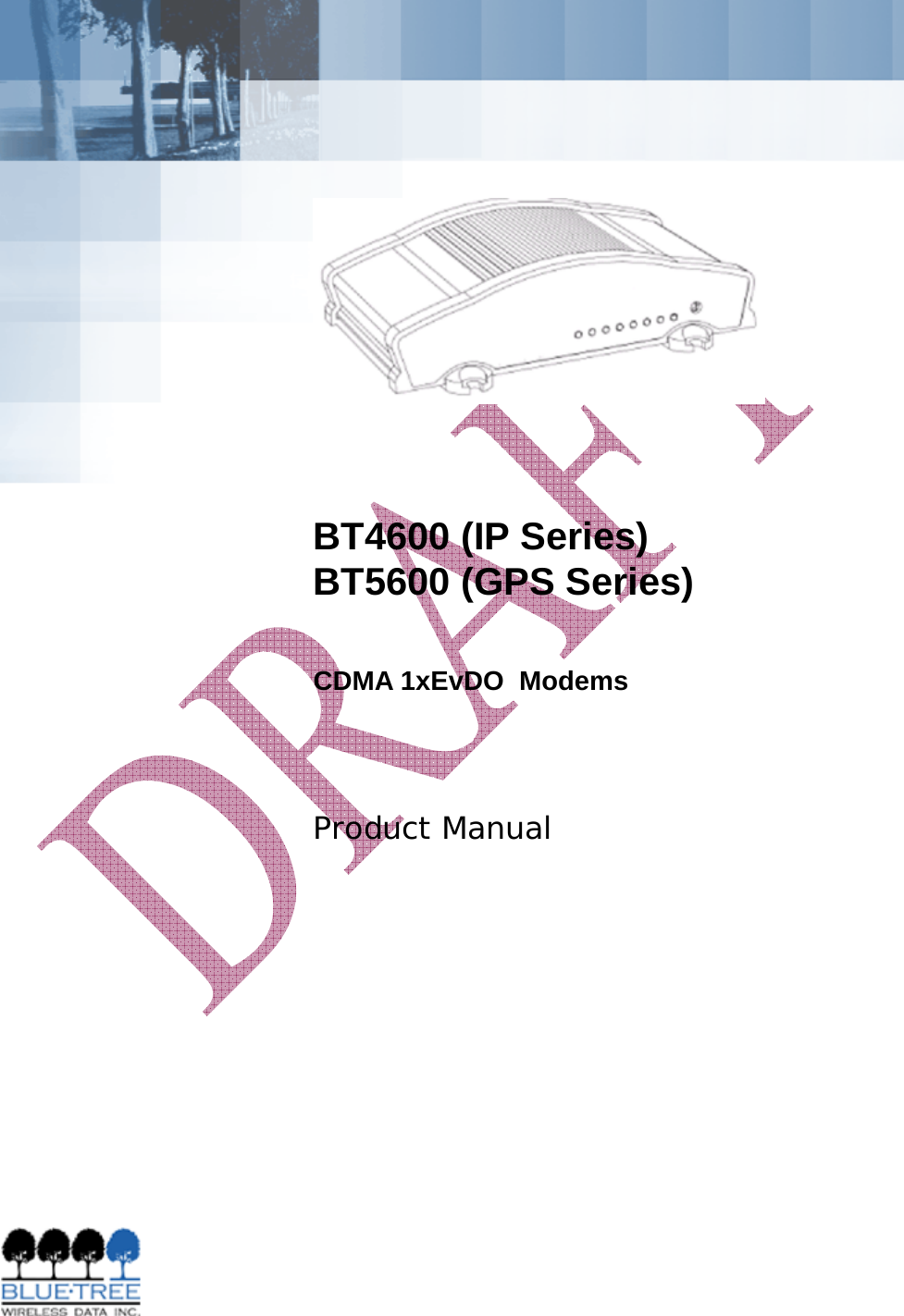
            BT4600 (IP Series) BT5600 (GPS Series) CDMA 1xEvDO  Modems   Product Manual
  BlueTree Wireless BT4600 and BT5600 CDMA 1xEvDO Modems Product Manual November 2005                           UG-BT4600 & BT5600 CDMA
   BlueTree Wireless Data, Inc. 2425 46th Avenue Lachine, QC, Canada H8T 3C9  Tel: +1 (514) 422-9110 Toll Free: 1-877-422-9110 www.bluetreewireless.com Copyright © 2004/2005 by BlueTree Wireless Data, Inc. All Rights Reserved Printed in Canada BlueTree™, the BlueTree logo, and BlueVue™ are trademarks of BlueTree Wireless Data, Inc. All other trademarks are the property of their respective owners.
 Draft 1  BlueTree Wireless BT-4600/BT-5600 Product Manual   4 Patents Portions of this product are covered by some or all of the following patents:    Declaration of Conformity FCC Compliance and Industry Canada Statement FCC ID: (TBD) Industry Canada: (TBD) The device complies with Part 15 of FCC rules and with ICES-003 of Industry Canada Rules. Operation is subject to the following two conditions: 1.   This device may not cause harmful interference. 2.   This device must accept any interference received, including interference that may cause undesired operation.  Caution: Unauthorized modifications or changes not expressly approved by BlueTree Wireless Data, Inc. could void compliance with regulatory rules, and thereby your authority to use this equipment.  This equipment generates uses and can radiate radio frequency energy and, if not installed and used in accordance with the manufacturer's instructions, may cause interference harmful to radio communications. However, there is no guarantee that interference will not occur in a particular installation. If this equipment does cause harmful interference to radio or television reception, which can be determined by turning the equipment off and on, the user is encouraged to try to correct the interference by one or more of the following measures: • Reorient or relocate the receiving antenna. • Increase the separation between the equipment and receiver. • Connect the equipment into an outlet on a circuit different from that to which the receiver is connected. • Consult the dealer or an experienced radio/TV technician for help.
 Draft 1  BlueTree Wireless BT-4600/BT-5600 Product Manual   5  Warning: “Antenna must not exceed 3 dBi for Cellular band and 4 dBi for PCS band. This device must be used in mobile configurations. The antenna(s) used for this transmitter must be installed to provide a separation distance of at least 30 cm or 12 inches from all persons and must not be co-located or operating in conjunction with any other antenna or transmitter. Users and Installers must be provided with antenna installation instruction and transmitter operating conditions for satisfying RF exposure compliance”   Liability Notice While every effort has been made to achieve technical accuracy, information in this document is subject to change without notice and does not represent a commitment on the part of BlueTree Wireless Data, Inc., or any of its subsidies, affiliates, agents, licensors, or resellers. There are no warranties, express or implied, with respect to the content of this document. Safety Do not operate the BlueTree Wireless Data BT4600 or BT5600 modem in areas near medical equipment, where blasting is in progress, where explosive atmospheres may be present, or near any equipment that may be susceptible to any form of radio interference.
 Draft 1  BlueTree Wireless BT-4600/BT-5600 Product Manual   6 Contents  Chapter 1: Introduction .........................................................7 Welcome................................................................................... 7 Customer Support...................................................................... 7 Chapter 2: Product Description..............................................8 Overview .................................................................................. 8 Available Models ........................................................................ 8 Modem Features ........................................................................ 9 Operational Description..............................................................10 Physical Description...................................................................12 Technical Specifications..............................................................17 Chapter 3: Installation Requirements.................................. 18 Cellular antenna........................................................................18 GPS antenna ............................................................................18 Serial cable ..............................................................................19 Ethernet cable ..........................................................................19 USB cable ................................................................................19 Power source............................................................................19 Mounting Hardware ...................................................................19 Wireless network account...........................................................19 Chapter 4: Installing the Modem.......................................... 20 1) Unpacking the Modem............................................................20 2) Mounting the Modem .............................................................20 3) Installing the Cellular Antenna ................................................20 4) Installing the GPS Antenna .....................................................21 5) Installing the Power Cable ......................................................22 6) Connecting the Data Cables....................................................24 7) Configuring the modem..........................................................25 8) Connecting to a wireless network using the serial port (DB9).......25 9) Connecting to a wireless network using the Ethernet port (RJ45)..26 Appendix A: Warranty and Customer Support...................... 28 Warranty .................................................................................28
 Draft 1  BlueTree Wireless BT-4600/BT-5600 Product Manual   7 Chapter 1:  Introduction  Welcome Thank you for choosing the BT4600/5600, BlueTree’s CDMA wireless data modem. Customer Support  Help desk  Toll-free 1-877-422-9110  Phone   (514) 422-9110  Hours  09:00 - 17:00 Eastern Time  Email support@bluetreewireless.com Sales desk  Phone   (514) 422-9110  Hours  09:00 - 17:00 Eastern Time  Email info@bluetreewireless.com Mail  BlueTree Wireless Data, Inc. 2425 46th Avenue Lachine, QC, Canada H8T 3C9  Fax  (514) 422-3338   Web  www.bluetreewireless.com
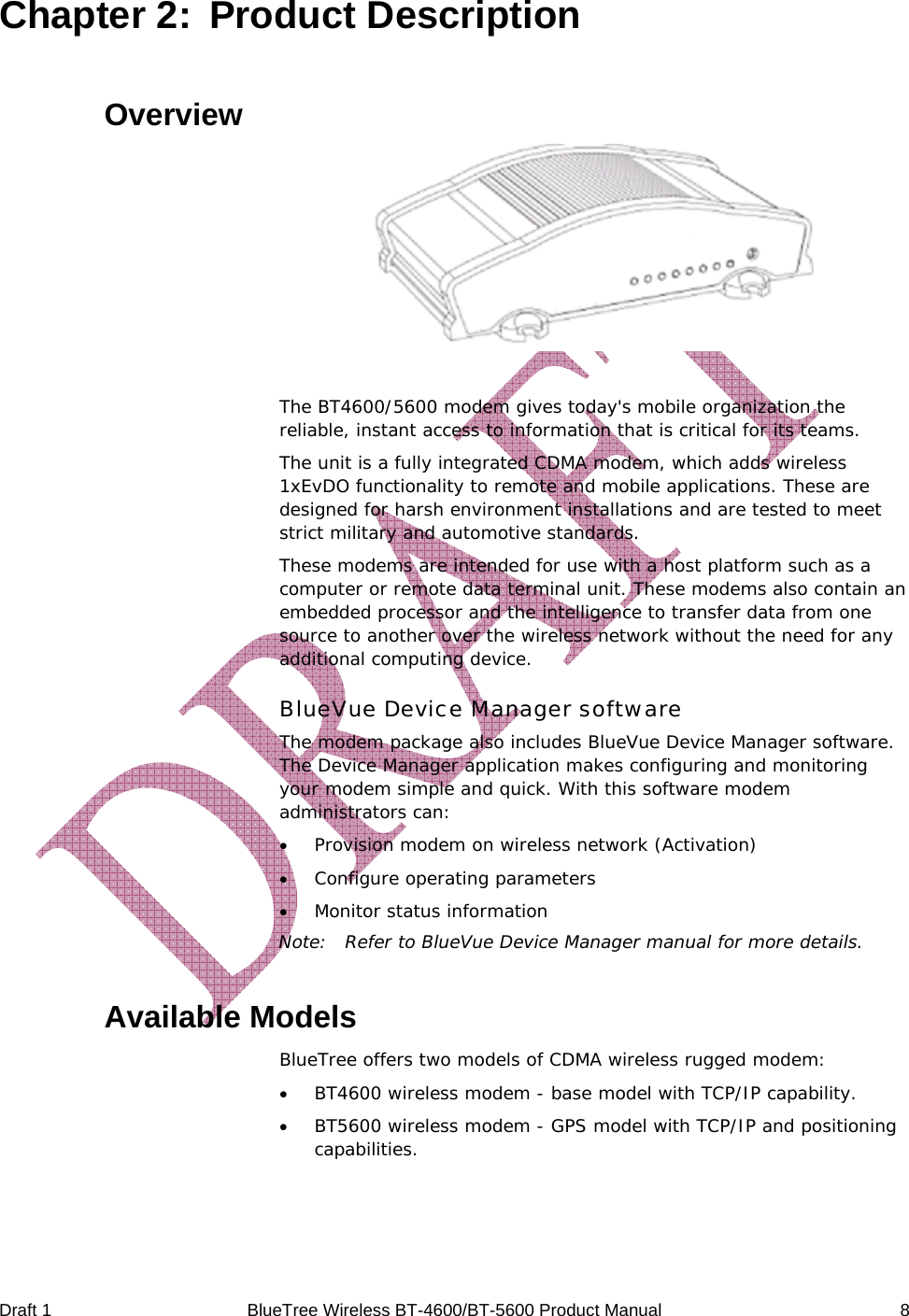
 Draft 1  BlueTree Wireless BT-4600/BT-5600 Product Manual   8 Chapter 2:  Product Description Overview   The BT4600/5600 modem gives today's mobile organization the reliable, instant access to information that is critical for its teams. The unit is a fully integrated CDMA modem, which adds wireless 1xEvDO functionality to remote and mobile applications. These are designed for harsh environment installations and are tested to meet strict military and automotive standards. These modems are intended for use with a host platform such as a computer or remote data terminal unit. These modems also contain an embedded processor and the intelligence to transfer data from one source to another over the wireless network without the need for any additional computing device. BlueVue Device Manager software The modem package also includes BlueVue Device Manager software. The Device Manager application makes configuring and monitoring your modem simple and quick. With this software modem administrators can: • Provision modem on wireless network (Activation) • Configure operating parameters • Monitor status information Note:  Refer to BlueVue Device Manager manual for more details. Available Models BlueTree offers two models of CDMA wireless rugged modem: • BT4600 wireless modem - base model with TCP/IP capability. • BT5600 wireless modem - GPS model with TCP/IP and positioning capabilities.
 Draft 1  BlueTree Wireless BT-4600/BT-5600 Product Manual   9 Modem Features The BT4600/5600 modems offers the following features: CDMA Dual-band  Supports both North American frequency bands: 800 and 1900 MHz CDMA 1xEvDO  Compatible with CDMA IS-2000 (1xEvDO ) Wireless data services. Backward compatible with IS95 protocols. Short Message Services (SMS)  Supports both mobile originate and mobile terminate text messaging 3 different data connection interfaces Serial/RS-232, Ethernet, and USB.  Note: USB is not available on product release 1.0 TPC/IP Stack  Fully integrated TCP/IP protocols allowing the modem to connect autonomously to the packet network (internet). This feature enables capabilities such as: In-call diagnostic, Serial-IP, stand-alone GPS, remote configuration, and remote firmware upgrade. In-call diagnostic  Allows the user to get modem status information while in a data call, without interrupting the data session. Serial-IP  Encapsulates data coming from the serial port into a TCP or UDP packet and sends it to a remote server on the packet network. Decapsulates IP packets coming from the network and sends raw data to the serial port. Remote configuration  Using the BlueVue Device Manager, this feature allows the administrator to remotely configure or perform remote diagnostics on the modem. Note: For more information, refer to the BlueVue Device Manager manual.  Remote firmware upgrade  Using the BlueVue Device Manager, this feature allows the administrator to remotely upgrade the modem’s firmware. Note: For more information, refer to the BlueVue Device Manager manual. Remote access security  For remote configuration, the modem offers access protection through username and password authentication. Integrated GPS Receiver  Available on the BT5600 only, a Trimble GPS receiver is embedded into the modem for Automatic Vehicle Location (AVL). The modem can report this positioning data locally to any of the data interfaces (serial, Ethernet, USB), or also remotely to a predefined server (see stand-alone).
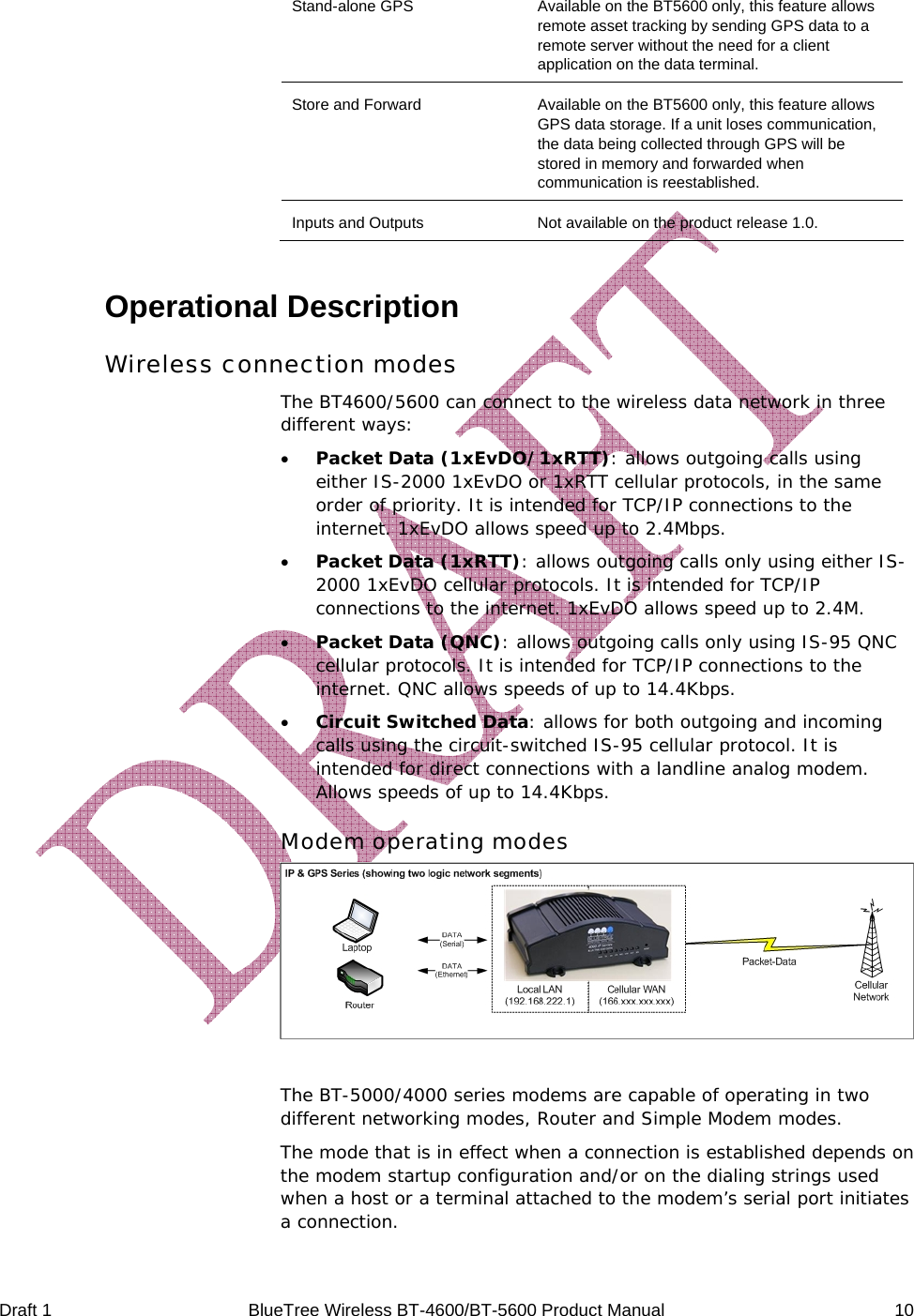
 Draft 1  BlueTree Wireless BT-4600/BT-5600 Product Manual   10 Stand-alone GPS  Available on the BT5600 only, this feature allows remote asset tracking by sending GPS data to a remote server without the need for a client application on the data terminal. Store and Forward  Available on the BT5600 only, this feature allows GPS data storage. If a unit loses communication, the data being collected through GPS will be stored in memory and forwarded when communication is reestablished. Inputs and Outputs  Not available on the product release 1.0. Operational Description Wireless connection modes The BT4600/5600 can connect to the wireless data network in three different ways: • Packet Data (1xEvDO/1xRTT): allows outgoing calls using either IS-2000 1xEvDO or 1xRTT cellular protocols, in the same order of priority. It is intended for TCP/IP connections to the internet. 1xEvDO allows speed up to 2.4Mbps. • Packet Data (1xRTT): allows outgoing calls only using either IS-2000 1xEvDO cellular protocols. It is intended for TCP/IP connections to the internet. 1xEvDO allows speed up to 2.4M. • Packet Data (QNC): allows outgoing calls only using IS-95 QNC cellular protocols. It is intended for TCP/IP connections to the internet. QNC allows speeds of up to 14.4Kbps. • Circuit Switched Data: allows for both outgoing and incoming calls using the circuit-switched IS-95 cellular protocol. It is intended for direct connections with a landline analog modem. Allows speeds of up to 14.4Kbps. Modem operating modes   The BT-5000/4000 series modems are capable of operating in two different networking modes, Router and Simple Modem modes. The mode that is in effect when a connection is established depends on the modem startup configuration and/or on the dialing strings used when a host or a terminal attached to the modem’s serial port initiates a connection.
 Draft 1  BlueTree Wireless BT-4600/BT-5600 Product Manual   11 Router mode: In router mode, the modem establishes a PPP Client connection with the network on the WAN side while a PPP Server accepts connections on the LAN side over the serial port. Packets are routed between the two connections for proper forwarding. Note:  Ethernet and future USB LAN-side connections automatically assume a router mode. Simple Modem mode: In Simple Modem mode, there are no PPP negotiations established by the modem. The modem simply operates at the physical layer and the PPP negotiations are passed-through between the LAN and WAN sides. The next sections assume host connections over the serial port. Modem configured to start in Always-On mode The modem can be configured to start in Always On mode. The modem configuration is accomplished using AT commands from a connection terminal like Microsoft® HyperTerminal, or using BlueTree Device Manager. Upon modem startup, this mode causes the modem to automatically establish and maintain a PPP connection with the network on the WAN side. This connection requires a connection profile to be configured in the modem prior to connecting. Note:  In this mode, the modem can achieve autonomous communication, like reporting GPS data to preconfigured IP destinations, without the need for a host. When a host, attached to the serial port of a modem in the Always-On mode, sends a dial command to the modem, the following connection behavior applies: • If the dial string is the special string “#BTPPPS” or is the same dial string used in the modem connection profile of the modem, router mode comes in effect, PPP server is started and accepts the connection. • If the dial string is not “#BTPPPS” and is different from the one used in the configured connection profile, then the WAN-side connection is terminated and the modem reverts to the Simple Modem mode as described above. Modem configured to start in On-Demand mode In this mode, the same logic applies as in the Always-On mode with the exception that the WAN connection is established only when a dial command is received from the LAN-side. If no connection profile is configured in the modem, the On-Demand connection always puts the modem in Simple Modem mode except when the “#BTPPPS” dial string is used. In this case, PPP server starts on the LAN side and a PPP connection is established with the modem only.
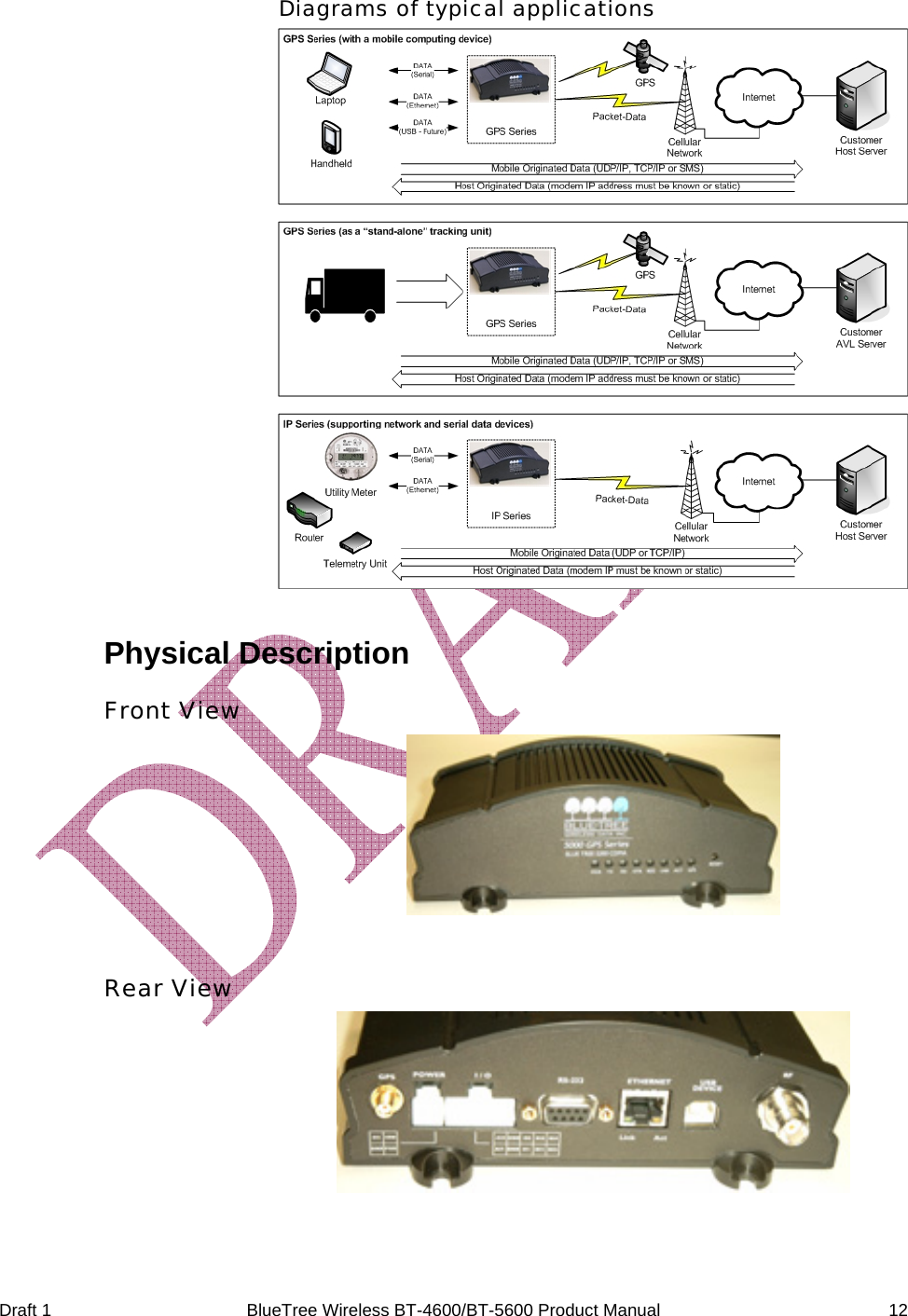
 Draft 1  BlueTree Wireless BT-4600/BT-5600 Product Manual   12 Diagrams of typical applications  Physical Description Front View   Rear View
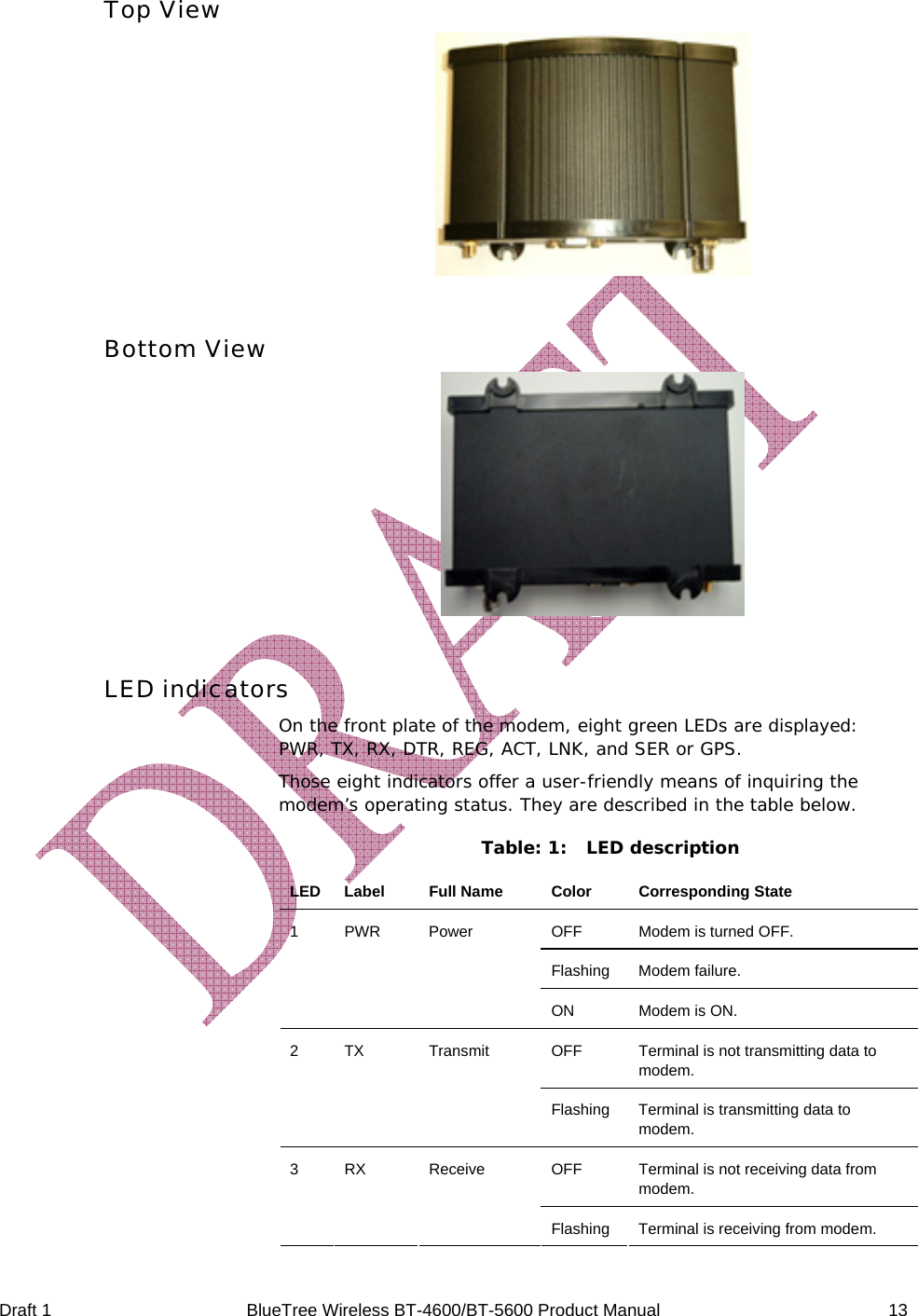
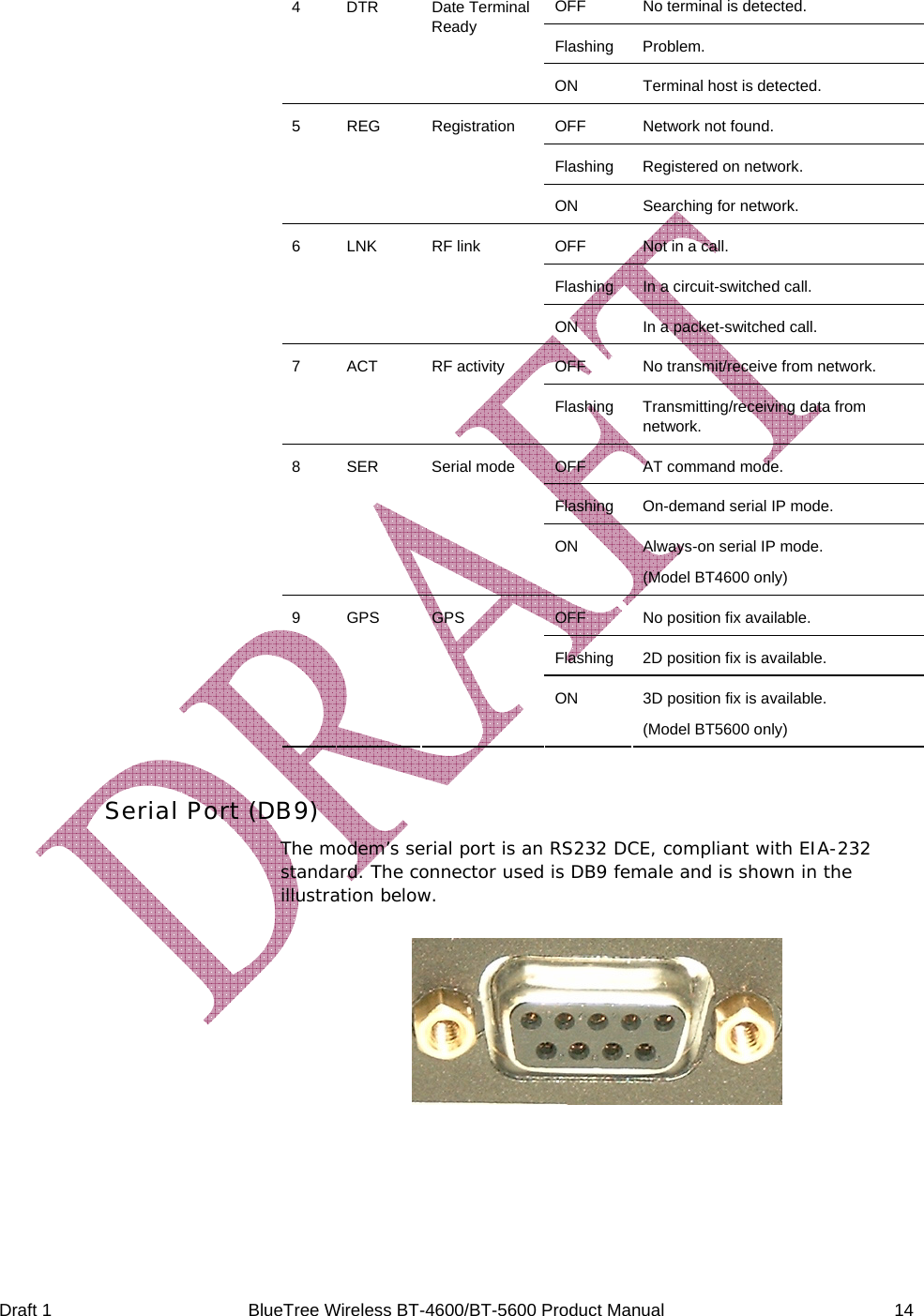
 Draft 1  BlueTree Wireless BT-4600/BT-5600 Product Manual   13 Top View   Bottom View   LED indicators On the front plate of the modem, eight green LEDs are displayed: PWR, TX, RX, DTR, REG, ACT, LNK, and SER or GPS.  Those eight indicators offer a user-friendly means of inquiring the modem’s operating status. They are described in the table below. Table: 1:  LED description LED Label  Full Name  Color  Corresponding State OFF  Modem is turned OFF. Flashing Modem failure. 1 PWR  Power ON  Modem is ON. OFF  Terminal is not transmitting data to modem. 2 TX  Transmit Flashing Terminal is transmitting data to modem. OFF  Terminal is not receiving data from modem. 3 RX  Receive Flashing  Terminal is receiving from modem.
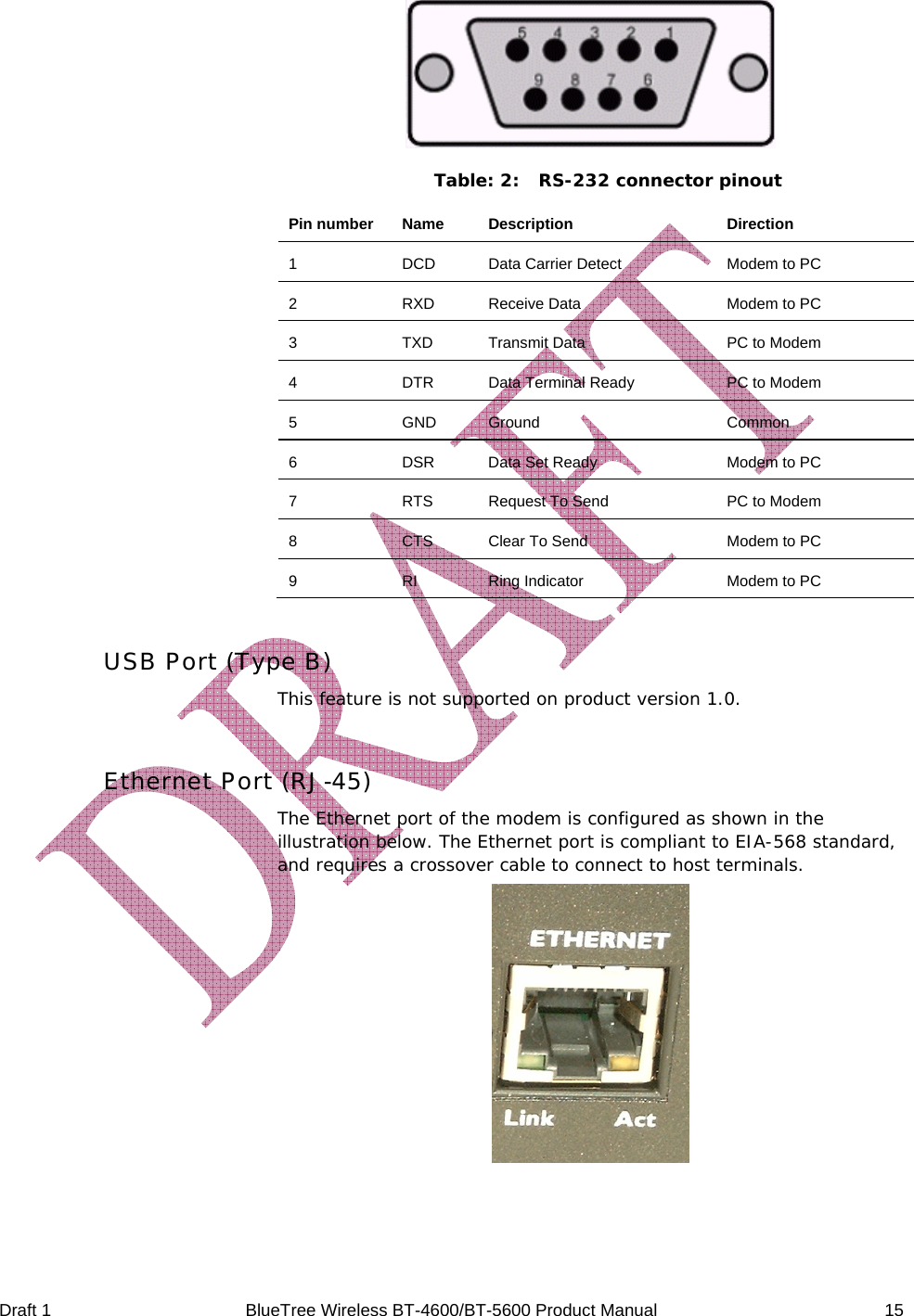
 Draft 1  BlueTree Wireless BT-4600/BT-5600 Product Manual   14 OFF  No terminal is detected. Flashing Problem. 4 DTR  Date Terminal Ready ON  Terminal host is detected. OFF  Network not found. Flashing  Registered on network. 5 REG  Registration ON  Searching for network. OFF  Not in a call. Flashing  In a circuit-switched call. 6 LNK  RF link ON  In a packet-switched call. OFF  No transmit/receive from network. 7 ACT  RF activity Flashing Transmitting/receiving data from network. OFF  AT command mode. Flashing  On-demand serial IP mode. 8 SER  Serial mode ON  Always-on serial IP mode. (Model BT4600 only) OFF  No position fix available. Flashing 2D position fix is available. 9 GPS  GPS ON  3D position fix is available. (Model BT5600 only)  Serial Port (DB9) The modem’s serial port is an RS232 DCE, compliant with EIA-232 standard. The connector used is DB9 female and is shown in the illustration below.
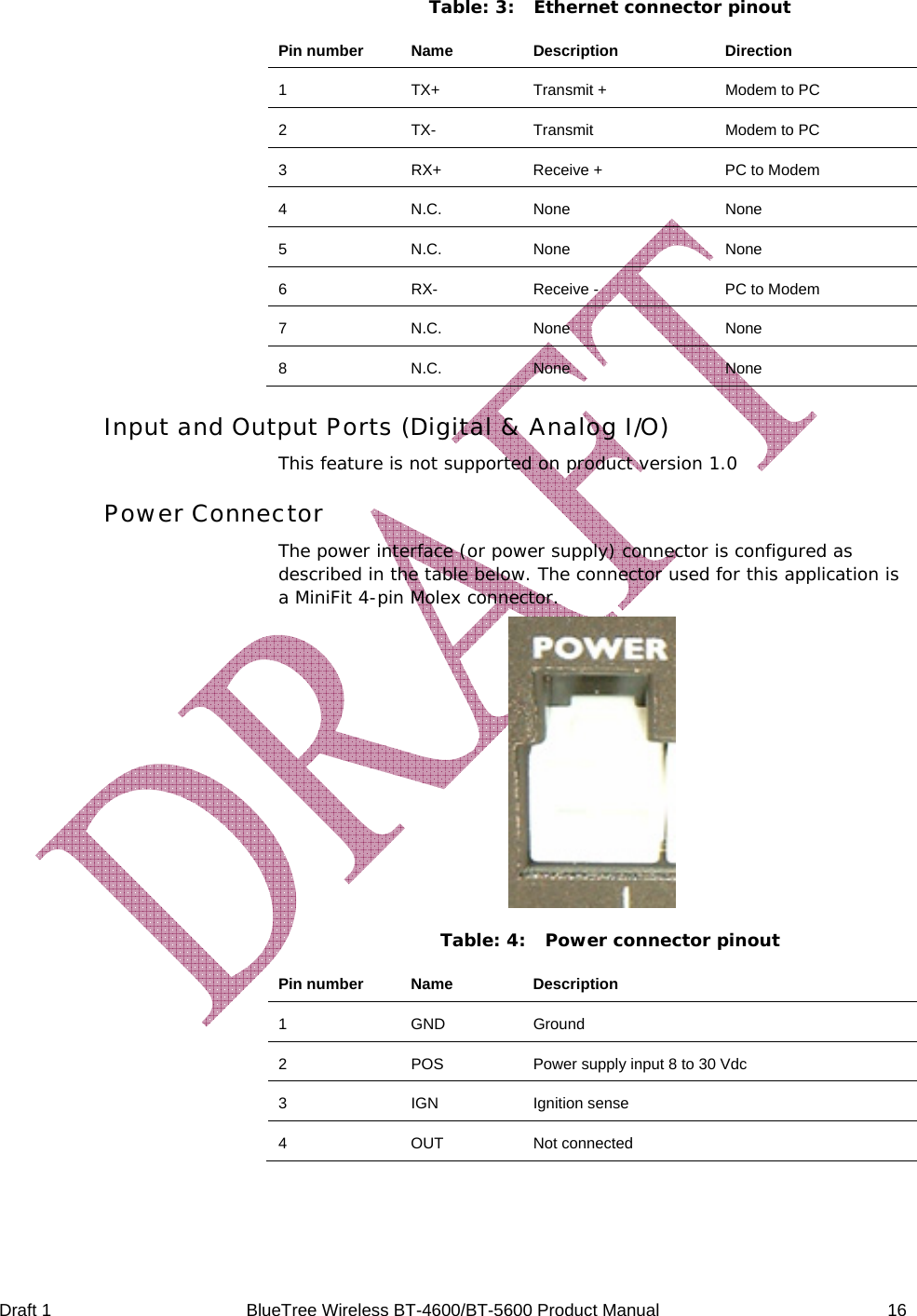
 Draft 1  BlueTree Wireless BT-4600/BT-5600 Product Manual   15  Table: 2:  RS-232 connector pinout Pin number  Name  Description  Direction 1  DCD  Data Carrier Detect  Modem to PC 2  RXD  Receive Data  Modem to PC 3  TXD  Transmit Data  PC to Modem 4  DTR  Data Terminal Ready  PC to Modem 5 GND Ground  Common 6  DSR  Data Set Ready  Modem to PC 7  RTS  Request To Send  PC to Modem 8  CTS  Clear To Send  Modem to PC 9  RI  Ring Indicator  Modem to PC  USB Port (Type B) This feature is not supported on product version 1.0.  Ethernet Port (RJ-45) The Ethernet port of the modem is configured as shown in the illustration below. The Ethernet port is compliant to EIA-568 standard, and requires a crossover cable to connect to host terminals.
 Draft 1  BlueTree Wireless BT-4600/BT-5600 Product Manual   16 Table: 3:  Ethernet connector pinout Pin number  Name  Description  Direction 1  TX+  Transmit +  Modem to PC 2  TX-  Transmit  Modem to PC 3  RX+  Receive +  PC to Modem 4 N.C. None  None 5 N.C. None  None 6  RX-  Receive -  PC to Modem 7 N.C. None  None 8 N.C. None  None Input and Output Ports (Digital & Analog I/O) This feature is not supported on product version 1.0 Power Connector The power interface (or power supply) connector is configured as described in the table below. The connector used for this application is a MiniFit 4-pin Molex connector.  Table: 4:  Power connector pinout Pin number  Name  Description 1 GND Ground 2  POS  Power supply input 8 to 30 Vdc 3 IGN Ignition sense 4 OUT Not connected
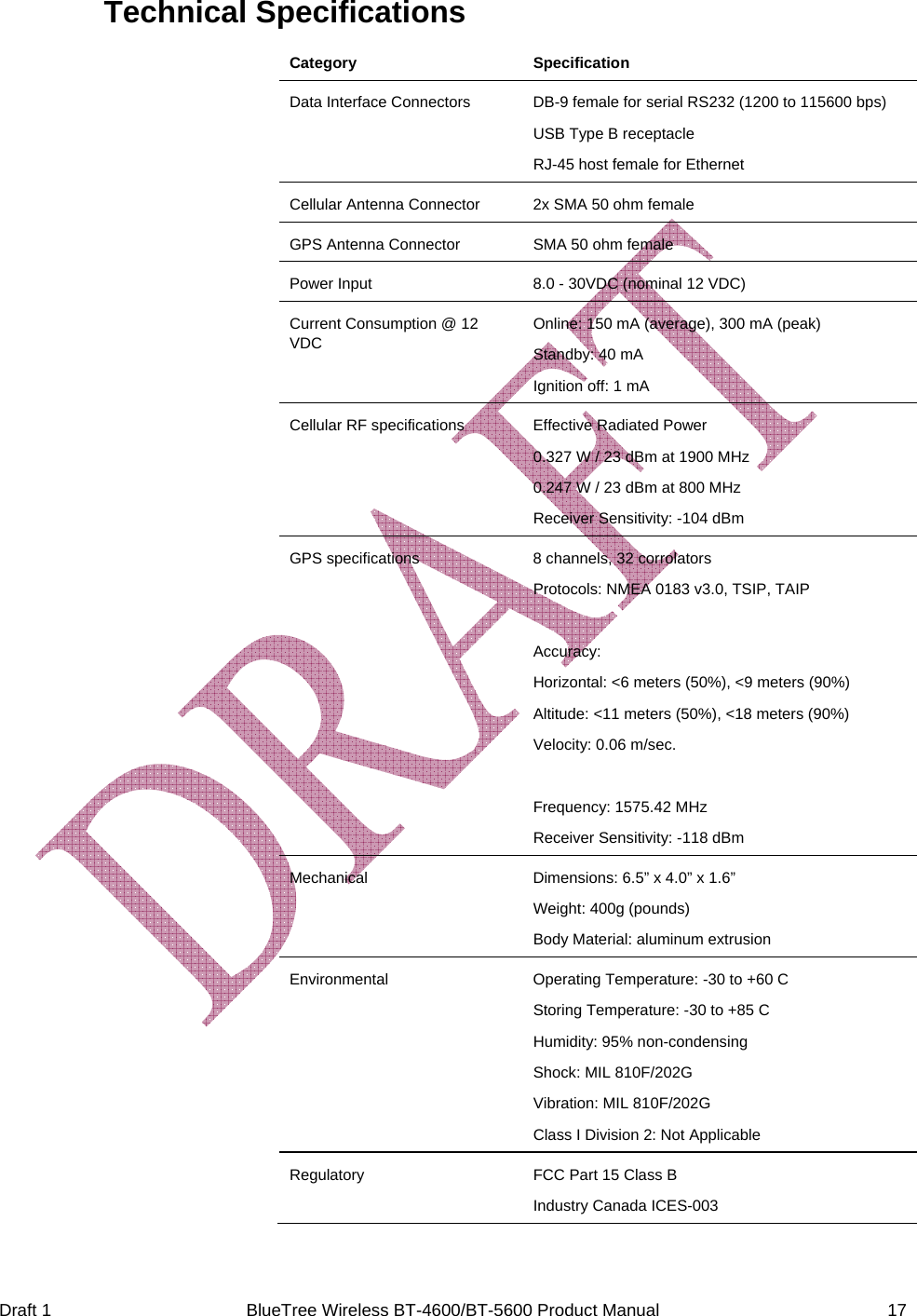
 Draft 1  BlueTree Wireless BT-4600/BT-5600 Product Manual   17 Technical Specifications Category Specification Data Interface Connectors  DB-9 female for serial RS232 (1200 to 115600 bps) USB Type B receptacle RJ-45 host female for Ethernet Cellular Antenna Connector  2x SMA 50 ohm female GPS Antenna Connector  SMA 50 ohm female Power Input  8.0 - 30VDC (nominal 12 VDC) Current Consumption @ 12 VDC Online: 150 mA (average), 300 mA (peak) Standby: 40 mA Ignition off: 1 mA Cellular RF specifications  Effective Radiated Power 0.327 W / 23 dBm at 1900 MHz 0.247 W / 23 dBm at 800 MHz Receiver Sensitivity: -104 dBm GPS specifications  8 channels, 32 corrolators Protocols: NMEA 0183 v3.0, TSIP, TAIP  Accuracy: Horizontal: <6 meters (50%), <9 meters (90%) Altitude: <11 meters (50%), <18 meters (90%) Velocity: 0.06 m/sec.  Frequency: 1575.42 MHz Receiver Sensitivity: -118 dBm Mechanical  Dimensions: 6.5” x 4.0” x 1.6” Weight: 400g (pounds) Body Material: aluminum extrusion Environmental  Operating Temperature: -30 to +60 C Storing Temperature: -30 to +85 C Humidity: 95% non-condensing Shock: MIL 810F/202G Vibration: MIL 810F/202G Class I Division 2: Not Applicable Regulatory  FCC Part 15 Class B Industry Canada ICES-003
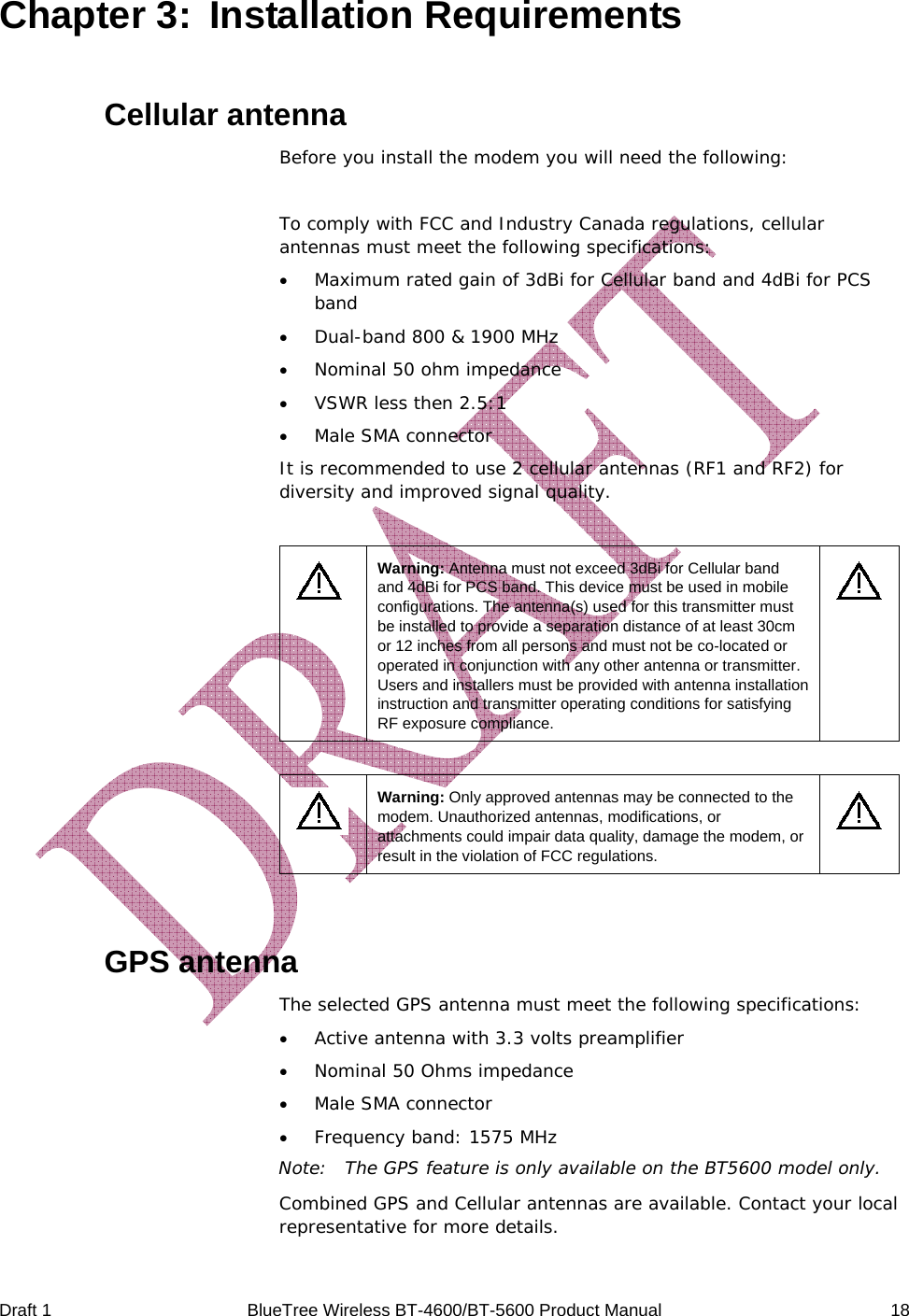
 Draft 1  BlueTree Wireless BT-4600/BT-5600 Product Manual   18 Chapter 3:  Installation Requirements Cellular antenna Before you install the modem you will need the following:  To comply with FCC and Industry Canada regulations, cellular antennas must meet the following specifications: • Maximum rated gain of 3dBi for Cellular band and 4dBi for PCS band • Dual-band 800 & 1900 MHz • Nominal 50 ohm impedance • VSWR less then 2.5:1 • Male SMA connector It is recommended to use 2 cellular antennas (RF1 and RF2) for diversity and improved signal quality.   Warning: Antenna must not exceed 3dBi for Cellular band and 4dBi for PCS band. This device must be used in mobile configurations. The antenna(s) used for this transmitter must be installed to provide a separation distance of at least 30cm or 12 inches from all persons and must not be co-located or operated in conjunction with any other antenna or transmitter. Users and installers must be provided with antenna installation instruction and transmitter operating conditions for satisfying RF exposure compliance.     Warning: Only approved antennas may be connected to the modem. Unauthorized antennas, modifications, or attachments could impair data quality, damage the modem, or result in the violation of FCC regulations.    GPS antenna   The selected GPS antenna must meet the following specifications: • Active antenna with 3.3 volts preamplifier • Nominal 50 Ohms impedance • Male SMA connector • Frequency band: 1575 MHz Note:  The GPS feature is only available on the BT5600 model only. Combined GPS and Cellular antennas are available. Contact your local representative for more details.
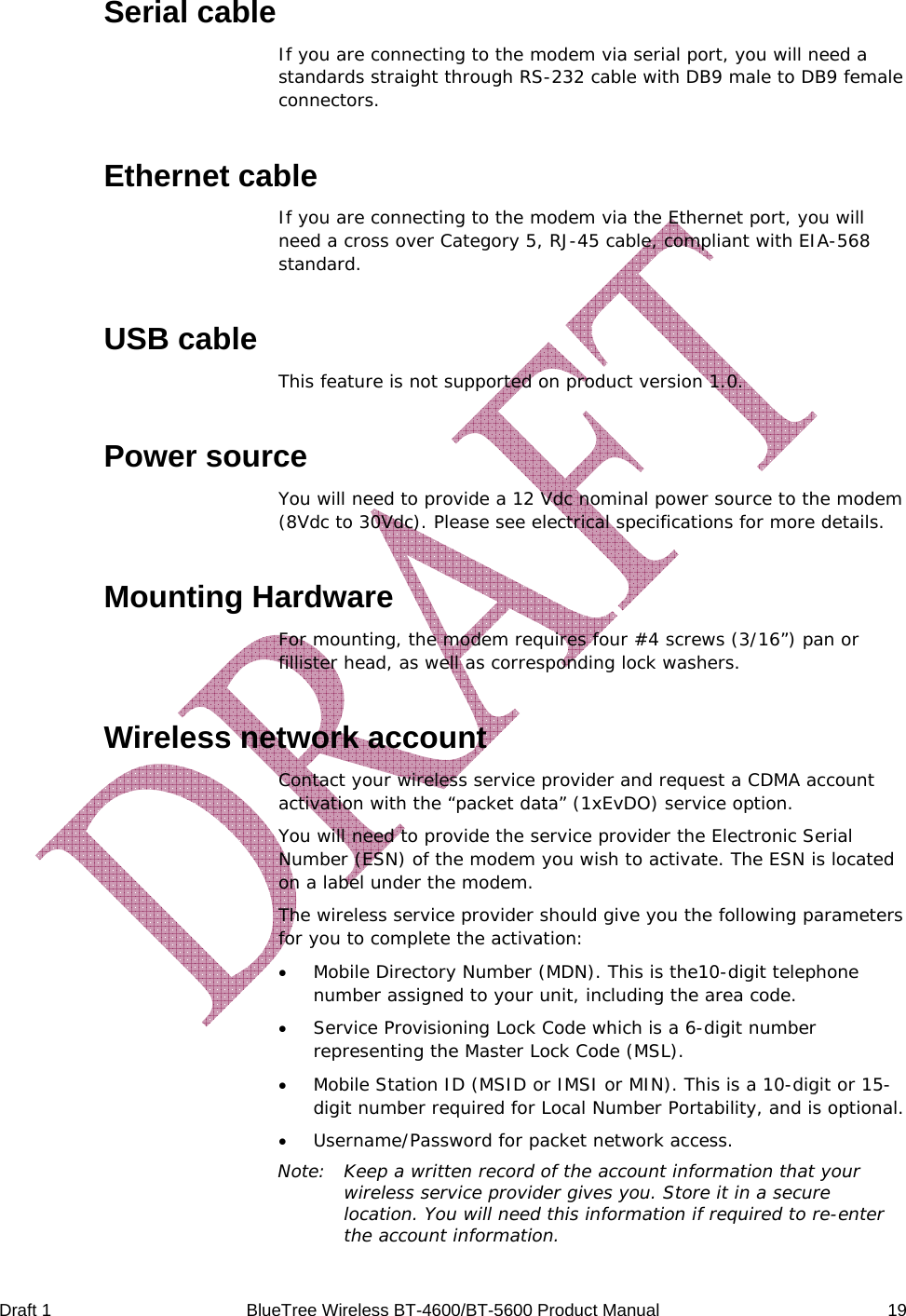
 Draft 1  BlueTree Wireless BT-4600/BT-5600 Product Manual   19 Serial cable If you are connecting to the modem via serial port, you will need a standards straight through RS-232 cable with DB9 male to DB9 female connectors. Ethernet cable If you are connecting to the modem via the Ethernet port, you will need a cross over Category 5, RJ-45 cable, compliant with EIA-568 standard. USB cable This feature is not supported on product version 1.0. Power source You will need to provide a 12 Vdc nominal power source to the modem (8Vdc to 30Vdc). Please see electrical specifications for more details. Mounting Hardware For mounting, the modem requires four #4 screws (3/16”) pan or fillister head, as well as corresponding lock washers. Wireless network account Contact your wireless service provider and request a CDMA account activation with the “packet data” (1xEvDO) service option. You will need to provide the service provider the Electronic Serial Number (ESN) of the modem you wish to activate. The ESN is located on a label under the modem.  The wireless service provider should give you the following parameters for you to complete the activation: • Mobile Directory Number (MDN). This is the10-digit telephone number assigned to your unit, including the area code. • Service Provisioning Lock Code which is a 6-digit number representing the Master Lock Code (MSL). • Mobile Station ID (MSID or IMSI or MIN). This is a 10-digit or 15-digit number required for Local Number Portability, and is optional. • Username/Password for packet network access. Note:  Keep a written record of the account information that your wireless service provider gives you. Store it in a secure location. You will need this information if required to re-enter the account information.
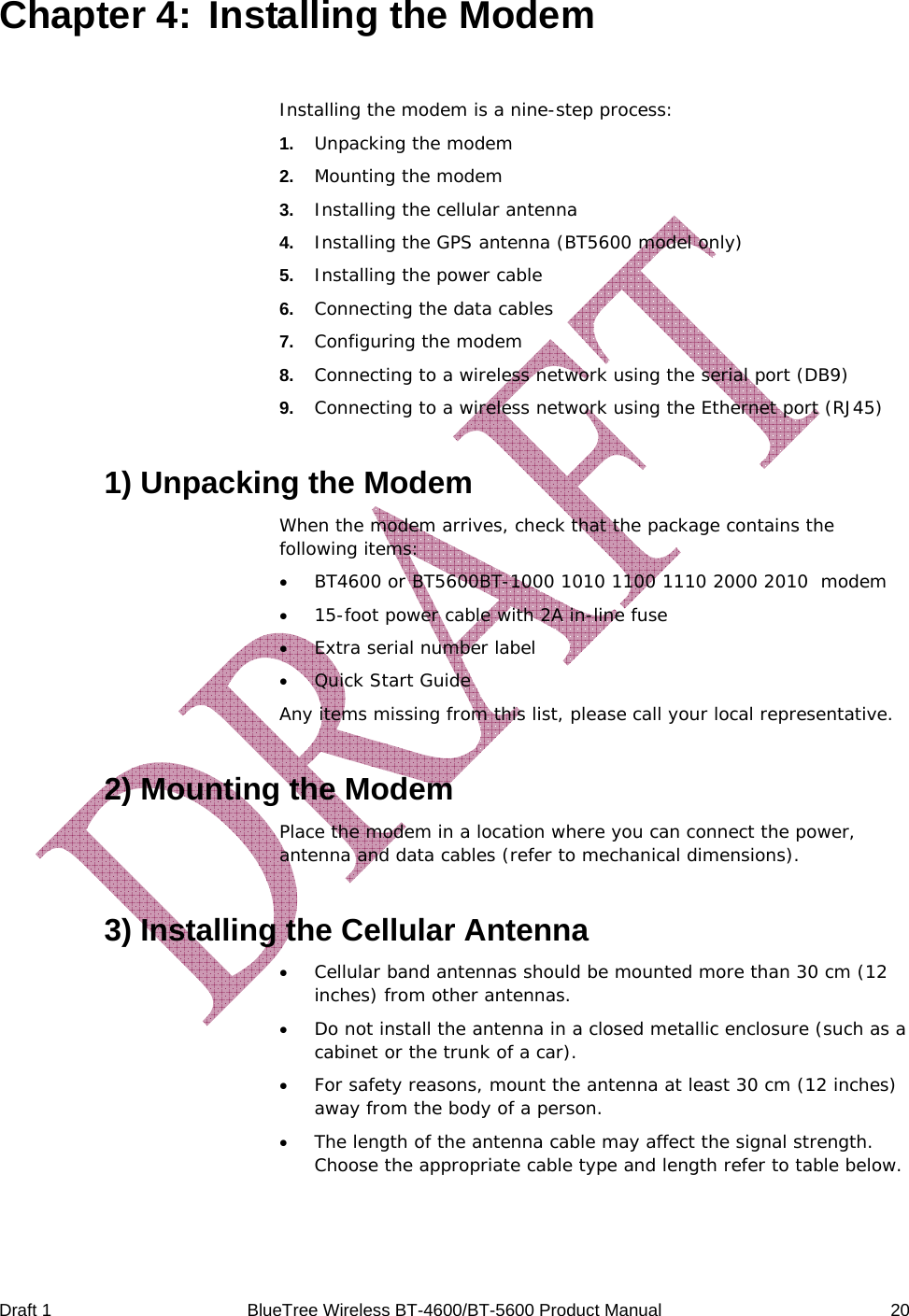
 Draft 1  BlueTree Wireless BT-4600/BT-5600 Product Manual   20 Chapter 4:  Installing the Modem Installing the modem is a nine-step process: 1.   Unpacking the modem 2.   Mounting the modem 3.   Installing the cellular antenna 4.   Installing the GPS antenna (BT5600 model only) 5.   Installing the power cable 6.   Connecting the data cables 7.   Configuring the modem 8.   Connecting to a wireless network using the serial port (DB9) 9.   Connecting to a wireless network using the Ethernet port (RJ45) 1) Unpacking the Modem When the modem arrives, check that the package contains the following items: • BT4600 or BT5600BT-1000 1010 1100 1110 2000 2010  modem • 15-foot power cable with 2A in-line fuse • Extra serial number label • Quick Start Guide Any items missing from this list, please call your local representative. 2) Mounting the Modem Place the modem in a location where you can connect the power, antenna and data cables (refer to mechanical dimensions). 3) Installing the Cellular Antenna • Cellular band antennas should be mounted more than 30 cm (12 inches) from other antennas. • Do not install the antenna in a closed metallic enclosure (such as a cabinet or the trunk of a car). • For safety reasons, mount the antenna at least 30 cm (12 inches) away from the body of a person. • The length of the antenna cable may affect the signal strength. Choose the appropriate cable type and length refer to table below.
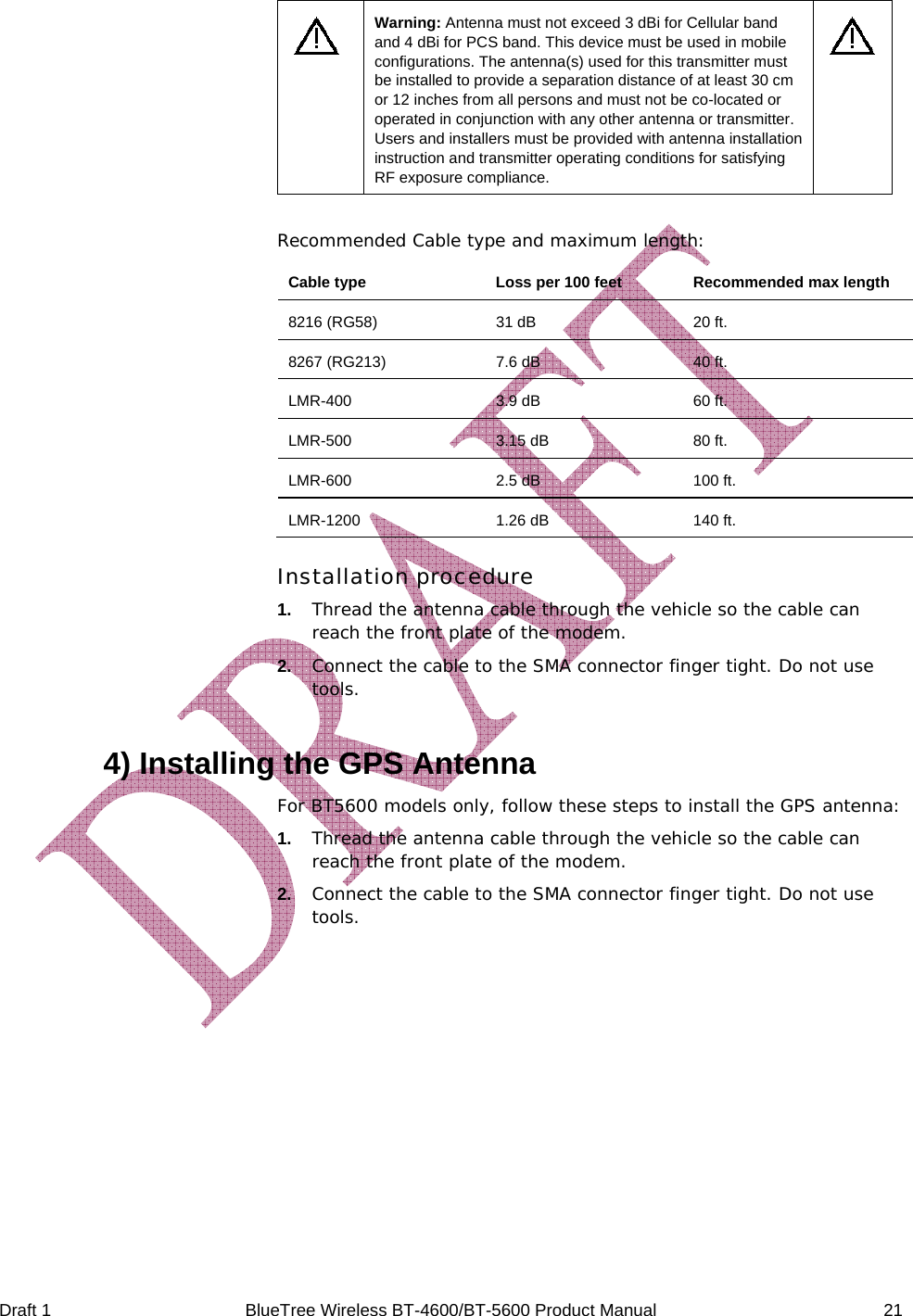
 Draft 1  BlueTree Wireless BT-4600/BT-5600 Product Manual   21  Warning: Antenna must not exceed 3 dBi for Cellular band and 4 dBi for PCS band. This device must be used in mobile configurations. The antenna(s) used for this transmitter must be installed to provide a separation distance of at least 30 cm or 12 inches from all persons and must not be co-located or operated in conjunction with any other antenna or transmitter. Users and installers must be provided with antenna installation instruction and transmitter operating conditions for satisfying RF exposure compliance.   Recommended Cable type and maximum length: Cable type   Loss per 100 feet  Recommended max length 8216 (RG58)  31 dB  20 ft. 8267 (RG213)  7.6 dB  40 ft. LMR-400  3.9 dB  60 ft. LMR-500 3.15 dB 80 ft. LMR-600  2.5 dB  100 ft. LMR-1200  1.26 dB  140 ft. Installation procedure 1.   Thread the antenna cable through the vehicle so the cable can reach the front plate of the modem.  2.   Connect the cable to the SMA connector finger tight. Do not use tools.  4) Installing the GPS Antenna For BT5600 models only, follow these steps to install the GPS antenna: 1.   Thread the antenna cable through the vehicle so the cable can reach the front plate of the modem.  2.   Connect the cable to the SMA connector finger tight. Do not use tools.
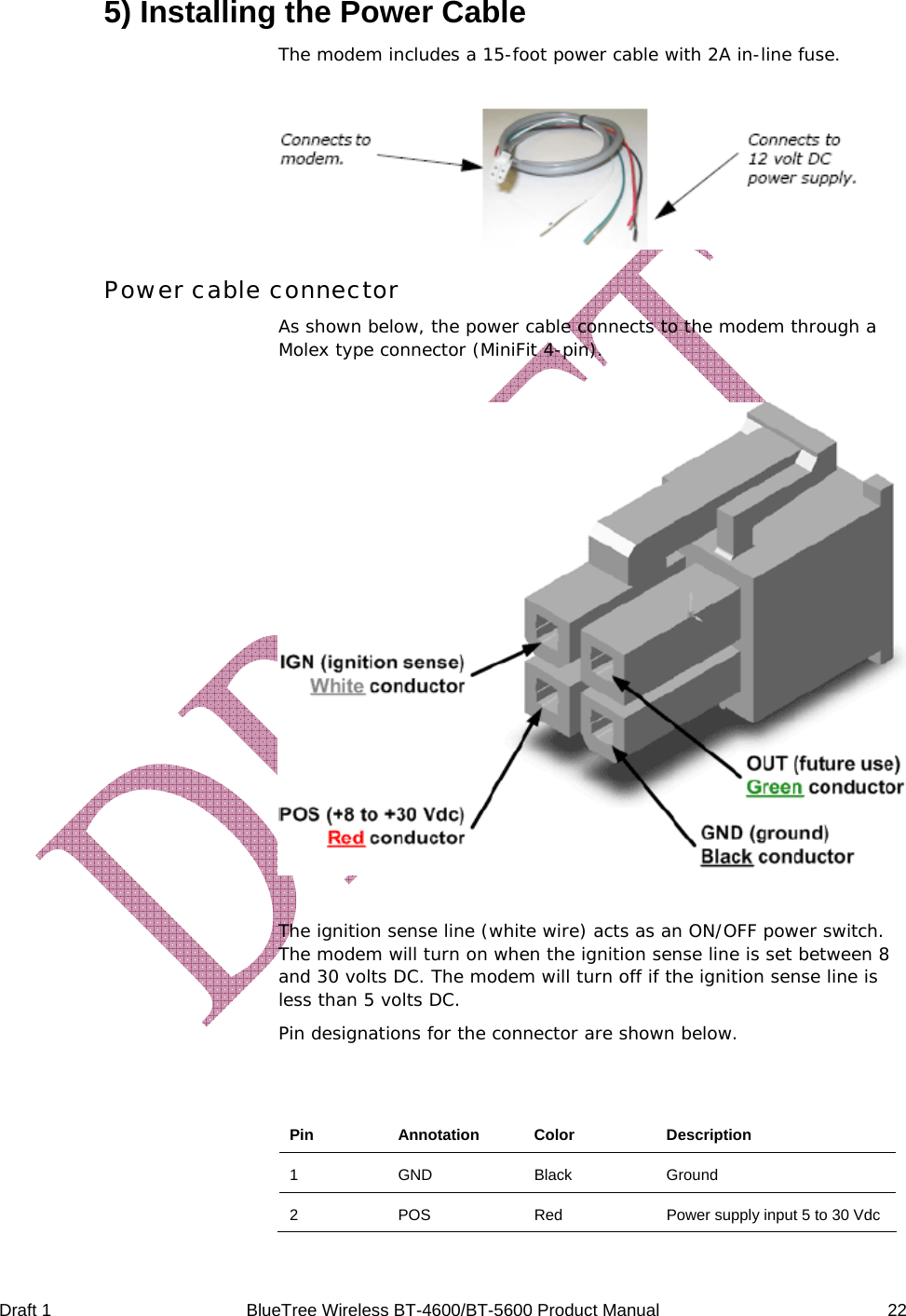
 Draft 1  BlueTree Wireless BT-4600/BT-5600 Product Manual   22 5) Installing the Power Cable The modem includes a 15-foot power cable with 2A in-line fuse.   Power cable connector As shown below, the power cable connects to the modem through a Molex type connector (MiniFit 4-pin).    The ignition sense line (white wire) acts as an ON/OFF power switch. The modem will turn on when the ignition sense line is set between 8 and 30 volts DC. The modem will turn off if the ignition sense line is less than 5 volts DC. Pin designations for the connector are shown below.  Pin Annotation Color  Description 1 GND Black Ground 2  POS  Red  Power supply input 5 to 30 Vdc
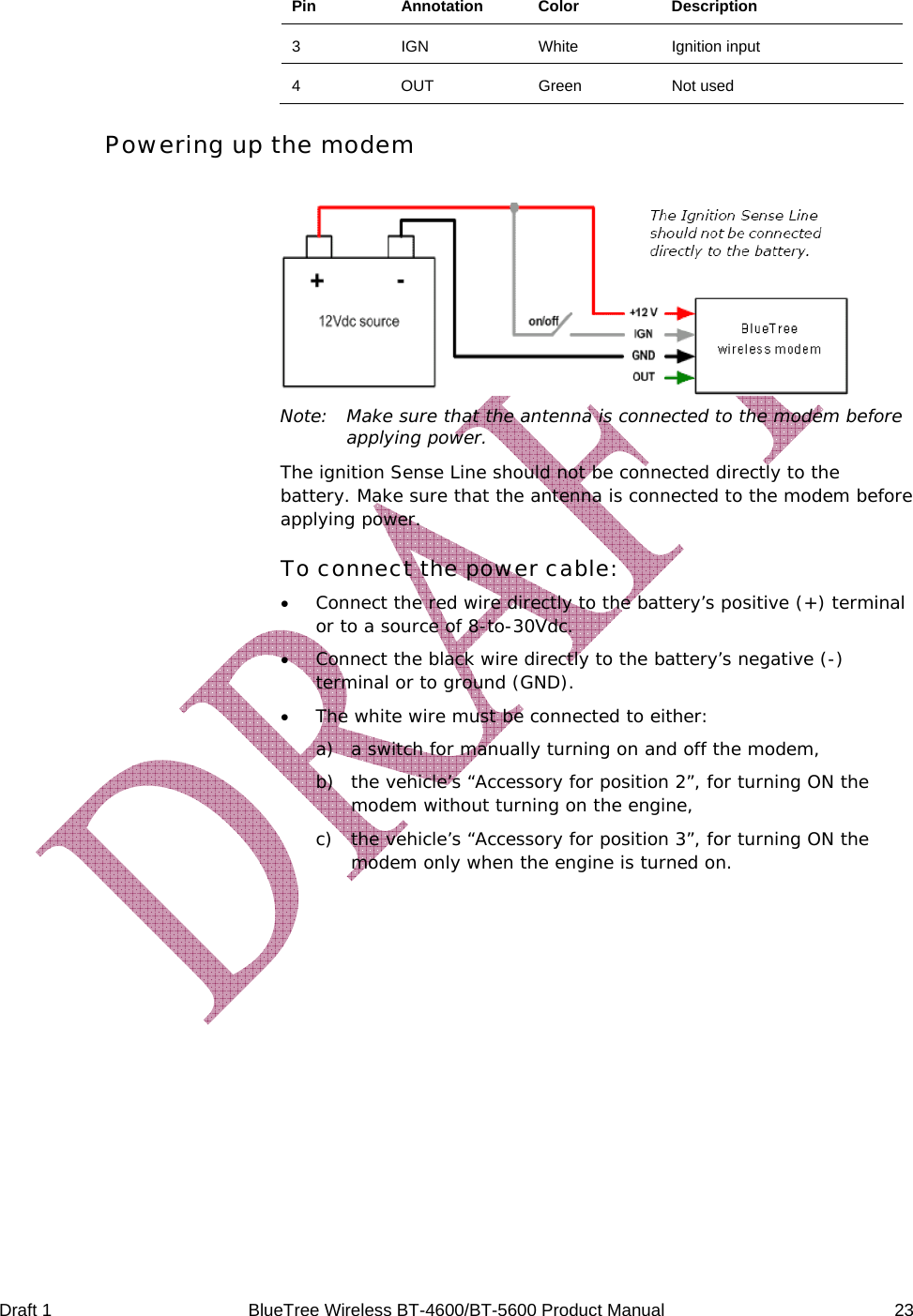
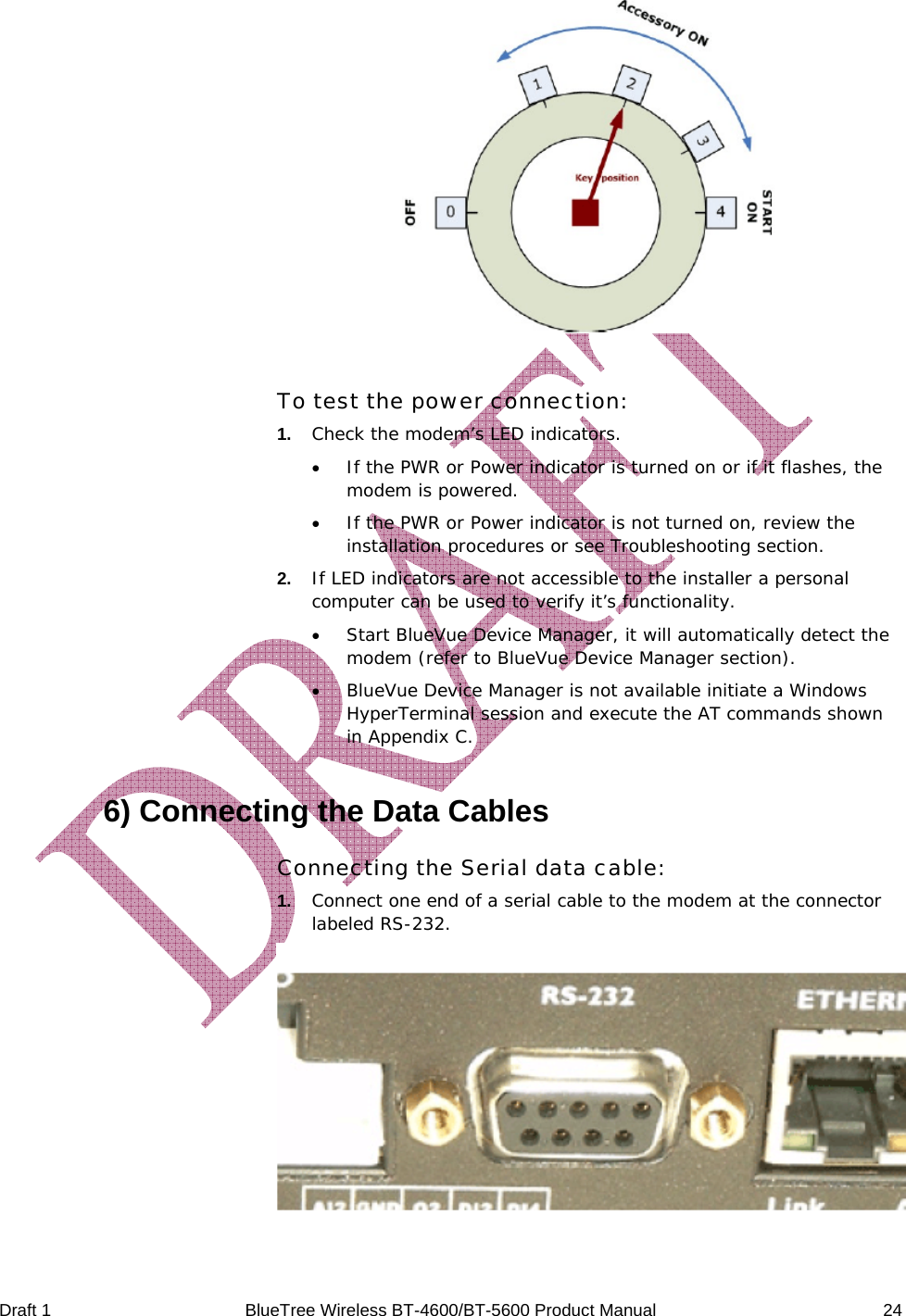
 Draft 1  BlueTree Wireless BT-4600/BT-5600 Product Manual   23 Pin Annotation Color  Description 3 IGN  White Ignition input 4 OUT  Green Not used Powering up the modem   Note:  Make sure that the antenna is connected to the modem before applying power. The ignition Sense Line should not be connected directly to the battery. Make sure that the antenna is connected to the modem before applying power. To connect the power cable: • Connect the red wire directly to the battery’s positive (+) terminal or to a source of 8-to-30Vdc. • Connect the black wire directly to the battery’s negative (-) terminal or to ground (GND). • The white wire must be connected to either: a) a switch for manually turning on and off the modem, b) the vehicle’s “Accessory for position 2”, for turning ON the modem without turning on the engine, c) the vehicle’s “Accessory for position 3”, for turning ON the modem only when the engine is turned on.
 Draft 1  BlueTree Wireless BT-4600/BT-5600 Product Manual   24   To test the power connection: 1.   Check the modem’s LED indicators. • If the PWR or Power indicator is turned on or if it flashes, the modem is powered. • If the PWR or Power indicator is not turned on, review the installation procedures or see Troubleshooting section. 2.   If LED indicators are not accessible to the installer a personal computer can be used to verify it’s functionality. • Start BlueVue Device Manager, it will automatically detect the modem (refer to BlueVue Device Manager section). • BlueVue Device Manager is not available initiate a Windows HyperTerminal session and execute the AT commands shown in Appendix C. 6) Connecting the Data Cables Connecting the Serial data cable: 1.   Connect one end of a serial cable to the modem at the connector labeled RS-232.
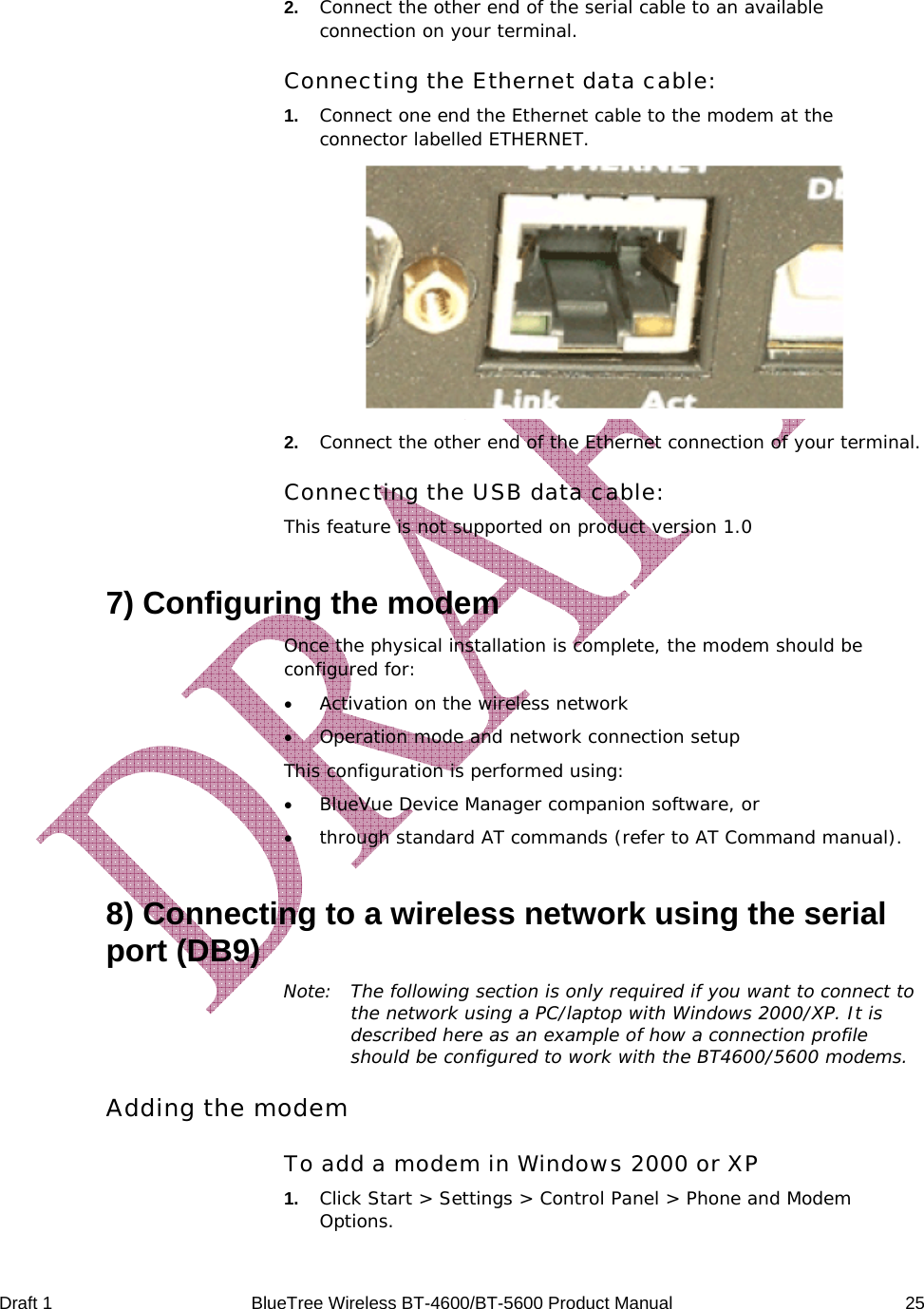
 Draft 1  BlueTree Wireless BT-4600/BT-5600 Product Manual   25  2.   Connect the other end of the serial cable to an available connection on your terminal. Connecting the Ethernet data cable: 1.   Connect one end the Ethernet cable to the modem at the connector labelled ETHERNET.  2.   Connect the other end of the Ethernet connection of your terminal. Connecting the USB data cable: This feature is not supported on product version 1.0 7) Configuring the modem Once the physical installation is complete, the modem should be configured for: • Activation on the wireless network • Operation mode and network connection setup This configuration is performed using: • BlueVue Device Manager companion software, or  • through standard AT commands (refer to AT Command manual). 8) Connecting to a wireless network using the serial port (DB9) Note:  The following section is only required if you want to connect to the network using a PC/laptop with Windows 2000/XP. It is described here as an example of how a connection profile should be configured to work with the BT4600/5600 modems. Adding the modem To add a modem in Windows 2000 or XP 1.   Click Start > Settings > Control Panel > Phone and Modem Options.
 Draft 1  BlueTree Wireless BT-4600/BT-5600 Product Manual   26 2.   On the Phone and Modem Options box, click the Modems tab and then: a) Click Add. b) Check the box labelled “Don’t detect my modem;...” and then click Next. c) Select the Standard 33600 bps Modem and click Next. d) Select the COM port that the modem is attached to then click Next. e) Click Finish to complete the addition of the modem in Windows. f) Click the Modem tab and confirm that the Maximum Port Speed is set to 115,200. g) Click OK. The modem profile is now configured. Creating the DUN profile To create a Windows XP DUN connection: 1.   Click Start > Settings > Control Panel > Network Connects > New Connection Wizard. 2.   On the New Connection Wizard welcome box click Next.  3.   On the Network Connection Type box select Connect to the Internet, and then click Next. 4.   On the Getting Ready box select Set up my connection manually, and then click Next. 5.   On the Internet Connection box select Connect to a dialup modem, and then click Next. 6.   On the Select a Device box select the 33600bps modem and then click Next. 7.   On the Connection Name box, type in a name for the connection (for example: CDMA) and then click Next. 8.   On the Phone Number to Dial box type the phone number, as supplied by your wireless service provider. For example, type #777 for 1xEvDO packet data connections. 9.   On the Internet Account Information box, type the username and password in the corresponding fields and then click Next. The DUN connection is now set up and ready to connect to the wireless network. 9) Connecting to a wireless network using the Ethernet port (RJ45) Note:  The following section is only required if you want to connect to the network using a PC/laptop with Windows 2000/XP. It is
 Draft 1  BlueTree Wireless BT-4600/BT-5600 Product Manual   27 described here as an example of how a LAN connection between the PC and the BT4600/5600 modems is setup. The BT4600/5600 modem has a DHCP server continuously running on its RJ45 Ethernet interface. As soon as a PC is connected to it, the modem will automatically assign and LAN IP address to the PC. When this is done, the user will see the following message on its PC monitor.
 Draft 1  BlueTree Wireless BT-4600/BT-5600 Product Manual   28 Appendix A:   Warranty and Customer Support  Warranty The BT4600/5600 modem has a DHCP server continuously running on its RJ45 Ethernet interface. As soon as a PC is connected to it, the modem will automatically assign and LAN IP address to the PC. When this is done, the user will see the following message on its PC monitor. Bluetree Wireless Data Inc. warrants the BT4600/5600 cellular modem against all defects in materials and workmanship for a period of one (1) year from the date of purchase. The sole responsibility of Bluetree Wireless Data Inc. under this warranty is limited to either repair or, at the option of Bluetree Wireless Data Inc., replacement of the cellular modem. There are no expressed or implied warranties, including those of fitness for a particular purpose or merchantability, which extend beyond the face hereof. Bluetree Wireless Data Inc. is not liable for any incidental or consequential damages arising from the use, misuse, or installation of the BT4600/5600 cellular modem. This warranty does not apply if the serial number label has been removed, or if the cellular modem has been subjected to physical abuse, improper installation, or modification. The unit is automatically registered for warranty at the date it is purchased and/or shipped.

Navigation menu