BroadSign XPRESSPRO BroadSign Xpress Pro User Manual

BroadSign International LLC BroadSign Xpress Pro

User manual

Quick Start Guide
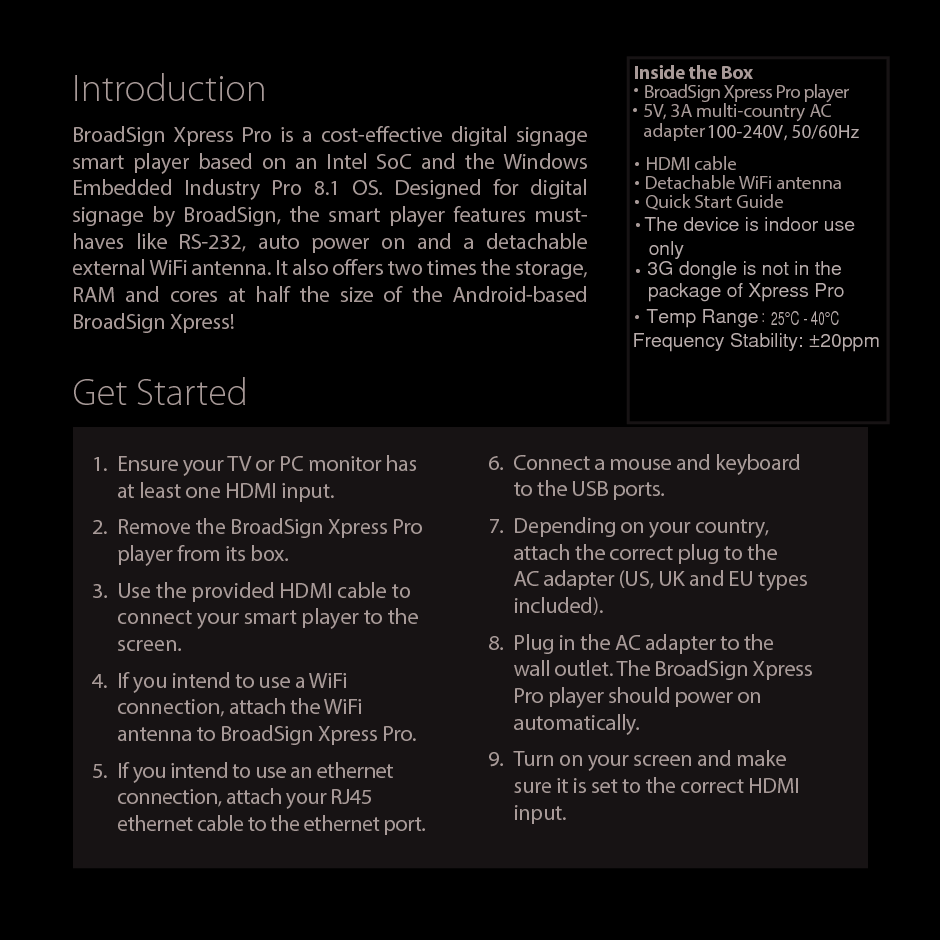
IntroductionBroadSign Xpress Pro is a cost-eective digital signage smart player based on an Intel SoC and the Windows Embedded Industry Pro 8.1 OS. Designed for digital signage by BroadSign, the smart player features must-haves like RS-232, auto power on and a detachable external WiFi antenna. It also oers two times the storage, RAM and cores at half the size of the Android-based BroadSign Xpress!1.  Ensure your TV or PC monitor has at least one HDMI input.2.  Remove the BroadSign Xpress Pro player from its box.3.  Use the provided HDMI cable to connect your smart player to the screen.4.  If you intend to use a WiFi connection, attach the WiFi antenna to BroadSign Xpress Pro.5.  If you intend to use an ethernet connection, attach your RJ45 ethernet cable to the ethernet port.Get StartedInside the Box• BroadSign Xpress Pro player• 5V, 3A multi-country AC adapter• HDMI cable• Detachable WiFi antenna• Quick Start Guide6.  Connect a mouse and keyboard to the USB ports.7.  Depending on your country, attach the correct plug to the AC adapter (US, UK and EU types included).8.  Plug in the AC adapter to the wall outlet. The BroadSign Xpress Pro player should power on automatically.9.  Turn on your screen and make sure it is set to the correct HDMI input.100-240V, 50/60HzThe device is indoor use•only3G dongle is not in the •package of Xpress Pro•Temp Range :25°C - 40°CFrequency Stability: ±20ppm
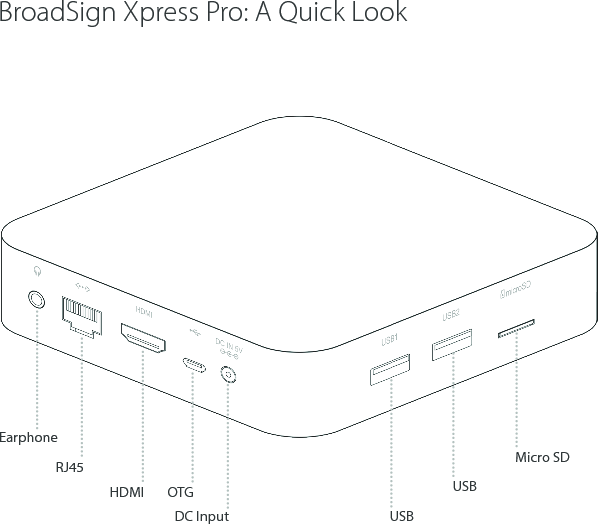
BroadSign Xpress Pro: A Quick Look    EarphoneRJ45 Micro SDUSBHDMI OTGDC Input USB
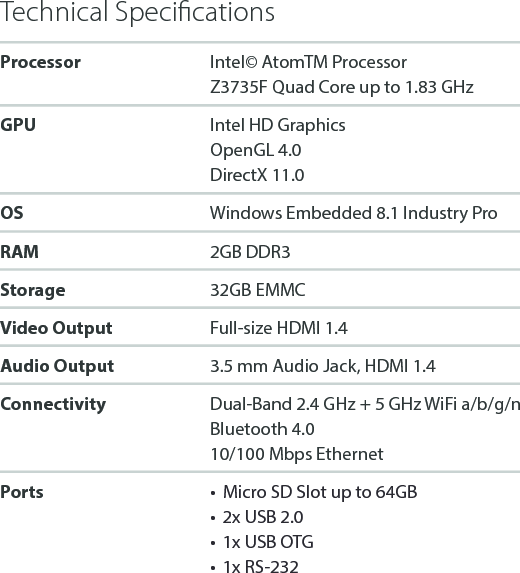
Technical SpecificationsProcessor Intel©AtomTMProcessorZ3735F Quad Core up to 1.83 GHzGPU Intel HD GraphicsOpenGL 4.0DirectX 11.0OS Windows Embedded 8.1 Industry ProRAM 2GB DDR3Storage 32GB EMMCVideo Output Full-size HDMI 1.4Audio Output 3.5 mm Audio Jack, HDMI 1.4Connectivity Dual-Band 2.4 GHz + 5 GHz WiFi a/b/g/nBluetooth 4.010/100 Mbps EthernetPorts •  Micro SD Slot up to 64GB•  2x USB 2.0•  1x USB OTG•  1x RS-232
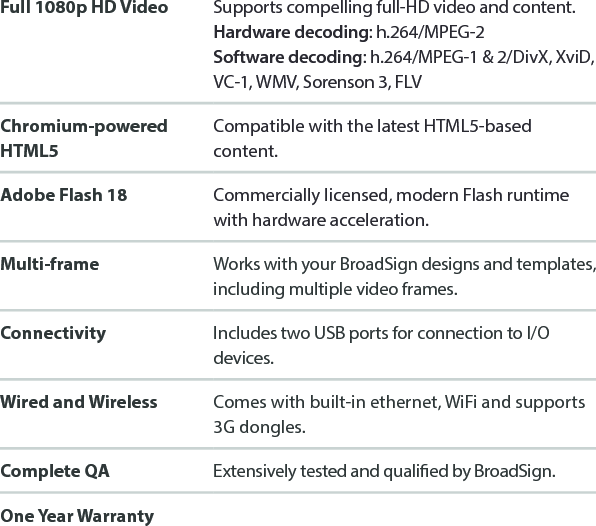
Full 1080p HD Video Supports compelling full-HD video and content.Hardware decoding: h.264/MPEG-2Software decoding: h.264/MPEG-1 & 2/DivX, XviD, VC-1, WMV, Sorenson 3, FLVChromium-powered HTML5Compatible with the latest HTML5-based content.Adobe Flash 18 Commercially licensed, modern Flash runtime with hardware acceleration.Multi-frame Works with your BroadSign designs and templates, including multiple video frames.Connectivity Includes two USB ports for connection to I/O devices.Wired and Wireless Comes with built-in ethernet, WiFi and supports 3G dongles.Complete QA Extensively tested and qualied by BroadSign.One Year Warranty
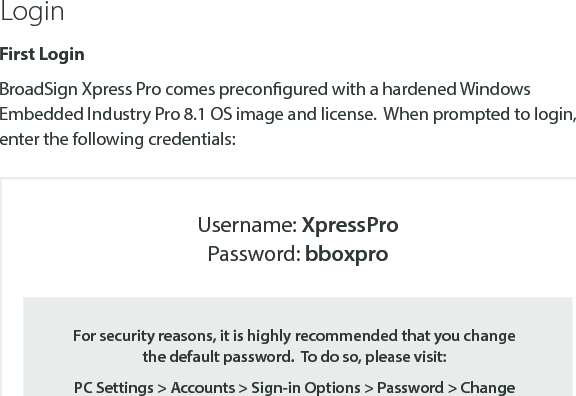
First LoginBroadSign Xpress Pro comes precongured with a hardened Windows Embedded Industry Pro 8.1 OS image and license.  When prompted to login, enter the following credentials:LoginFor security reasons, it is highly recommended that you change the default password.  To do so, please visit: PC Settings > Accounts > Sign-in Options > Password > ChangeUsername: XpressProPassword: bboxpro
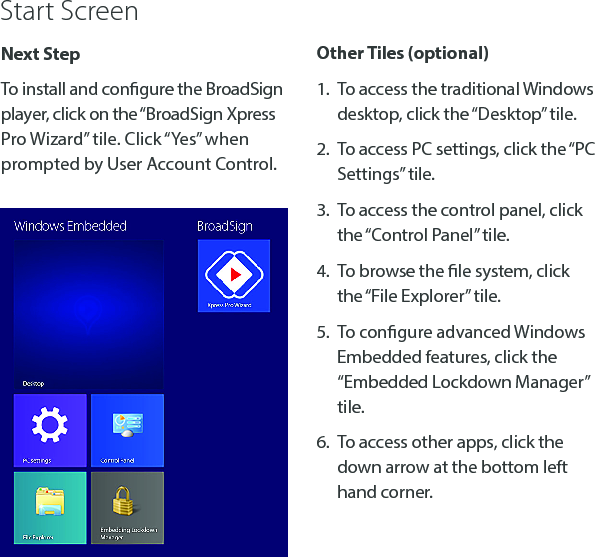
Next StepTo install and congure the BroadSign player, click on the “BroadSign Xpress Pro Wizard” tile. Click “Yes” when prompted by User Account Control.Other Tiles (optional)1.  To access the traditional Windows desktop, click the “Desktop” tile.2.  To access PC settings, click the “PC Settings” tile.3.  To access the control panel, click the “Control Panel” tile.4.  To browse the le system, click the “File Explorer” tile.5.  To congure advanced Windows Embedded features, click the “Embedded Lockdown Manager” tile.6.  To access other apps, click the down arrow at the bottom left hand corner.Start Screen
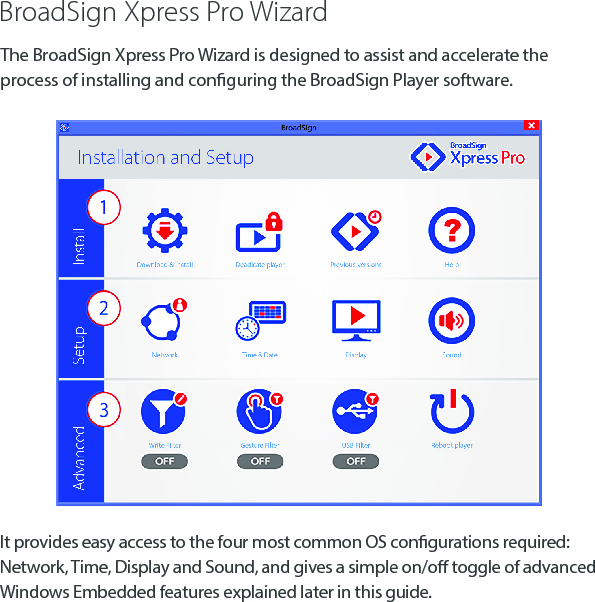
BroadSign Xpress Pro WizardIt provides easy access to the four most common OS congurations required: Network, Time, Display and Sound, and gives a simple on/o toggle of advanced Windows Embedded features explained later in this guide.The BroadSign Xpress Pro Wizard is designed to assist and accelerate the process of installing and conguring the BroadSign Player software.
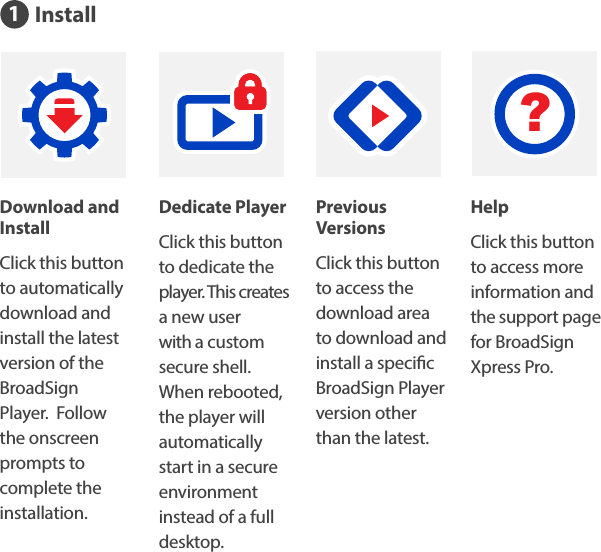
InstallDedicate PlayerClick this button to dedicate the  player. This creates a new user with a custom secure shell. When rebooted, the player will automatically start in a secure environment instead of a full desktop.Download and InstallClick this button to automatically download and install the latest version of the BroadSign Player.  Follow the onscreen prompts to complete the installation.Previous VersionsClick this button to access the download area to download and install a specic BroadSign Player version other than the latest.HelpClick this button to access more information and the support page for BroadSign Xpress Pro.?1
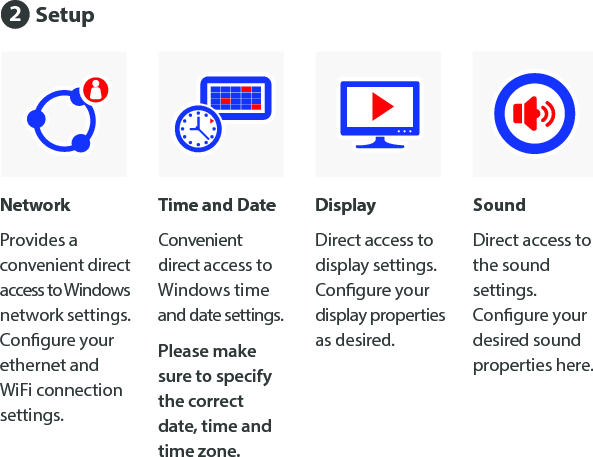
Time and DateConvenient direct access to  Windows time and date settings. Please make sure to specify the correct date, time and time zone.NetworkProvides a convenient direct access to Windows network settings. Congure your ethernet and WiFi connection settings.DisplayDirect access to display settings.  Congure your display properties as desired.SoundDirect access to the sound settings. Congure your desired sound properties here.Setup2
Gesture FilterFor touchscreens, the gesture lter will disable all edge gestures for the dedicated BSP user account.  Please see the next page for more details.Write FilterEnables the write-protecting of the c:\ drive to prevent OS corruption and guaranteed boot state. Please see the next page for more details.USB FilterSecure your device by allowing only trusted USB devices to be connected. Please see the next page for more details.Reboot PlayerFor your convenience, click this button to reboot the player after making changes.Advanced Windows Embedded Features3
Write Filter The Unied Write Filter intercepts all write attempts to the drive and redirects those write attempts to a virtual overlay. Conceptually, an overlay is similar to a transparency overlay on an overhead projector. Any change that is made to the transparency overlay aects the projected picture as it is seen by the viewer. However, if the transparency overlay is removed, the underlying picture remains unchanged.This improves the reliability and stability of your device and makes the device impervious to viruses and malware as any changes cannot persist after a reboot.WARNING: Enabling the Write Filter can break many third-party applications. BroadSign does not support the conguration of third-party services when the Write Filter is enabled. The Embedded Lockdown Manager can be used to view and modify the overlay exceptions. By default, the overlay has exceptions for the BroadSign Player les and folders, so that content downloaded by the player is persisted on disk.Advanced Windows Embedded Features3
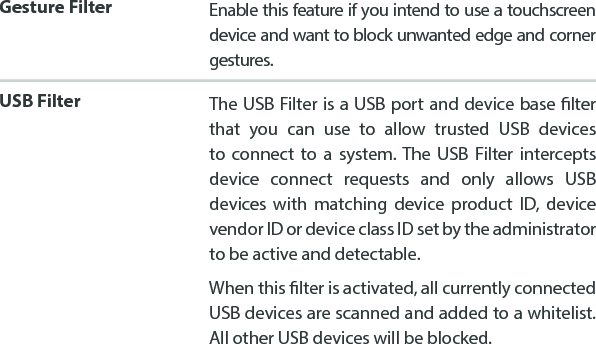
Gesture Filter Enable this feature if you intend to use a touchscreen device and want to block unwanted edge and corner gestures.USB Filter The USB Filter is a USB port and device base lter that you can use to allow trusted USB devices to connect to a system. The USB Filter intercepts device connect requests and only allows USB devices with matching device product ID, device vendor ID or device class ID set by the administrator to be active and detectable.When this lter is activated, all currently connected USB devices are scanned and added to a whitelist.  All other USB devices will be blocked.
FAQHow do I get into the BIOS?As the device boots, repeatedly press the “Esc” key.How do I obtain  maximum video  decode performance?BroadSign recommends that hardware decoding be enabled in the Player’s conguration prole. If software decoding is needed for synchronization, transitions and gapless playback, BroadSign suggests using the OpenGL video output, as it is more ecient than the default Direct3D video output on this device. More information can be found in BroadSign’s online documentation.Should I use the Write Filter?Only if you understand what it is, how it works and how it could potentially interfere with third-party programs and cause user confusion as to why settings aren’t saved. In many cases, it is expected that the Write Filter cannot be activated due to other requirements.When should I enable the Write Filter?It should be enabled after conguration is complete and you are ready to “seal” the image. If you need to make changes, you can disable it, reboot, make changes and re-enable it to “re-seal” the image.
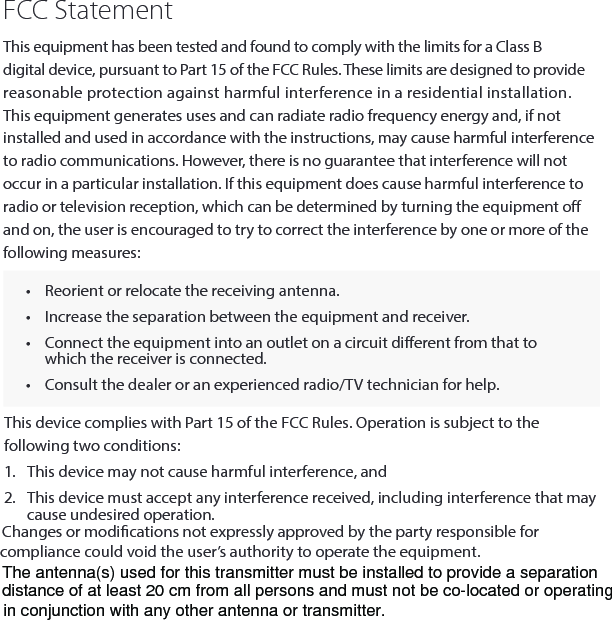
FCC StatementThis equipment has been tested and found to comply with the limits for a Class B digital device, pursuant to Part 15 of the FCC Rules. These limits are designed to provide reasonable protection against harmful interference in a residential installation. This equipment generates uses and can radiate radio frequency energy and, if not installed and used in accordance with the instructions, may cause harmful interference to radio communications. However, there is no guarantee that interference will not occur in a particular installation. If this equipment does cause harmful interference to radio or television reception, which can be determined by turning the equipment o and on, the user is encouraged to try to correct the interference by one or more of the following measures:•  Reorient or relocate the receiving antenna.  •  Increase the separation between the equipment and receiver.•  Connect the equipment into an outlet on a circuit dierent from that to which the receiver is connected. •  Consult the dealer or an experienced radio/TV technician for help.This device complies with Part 15 of the FCC Rules. Operation is subject to the following two conditions:1.  This device may not cause harmful interference, and2.  This device must accept any interference received, including interference that may cause undesired operation.Changes or modications not expressly approved by the party responsible for compliance could void the user’s authority to operate the equipment.The antenna(s) used for this transmitter must be installed to provide a separationdistance of at least 20 cm from all persons and must not be co-located or operating in conjunction with any other antenna or transmitter.

Navigation menu