Broadcast Microwave Services FC-FCII-7 Field Coder II User Manual FCII Manual 4 FCC

Broadcast Microwave Services Inc Field Coder II FCII Manual 4 FCC

User manual

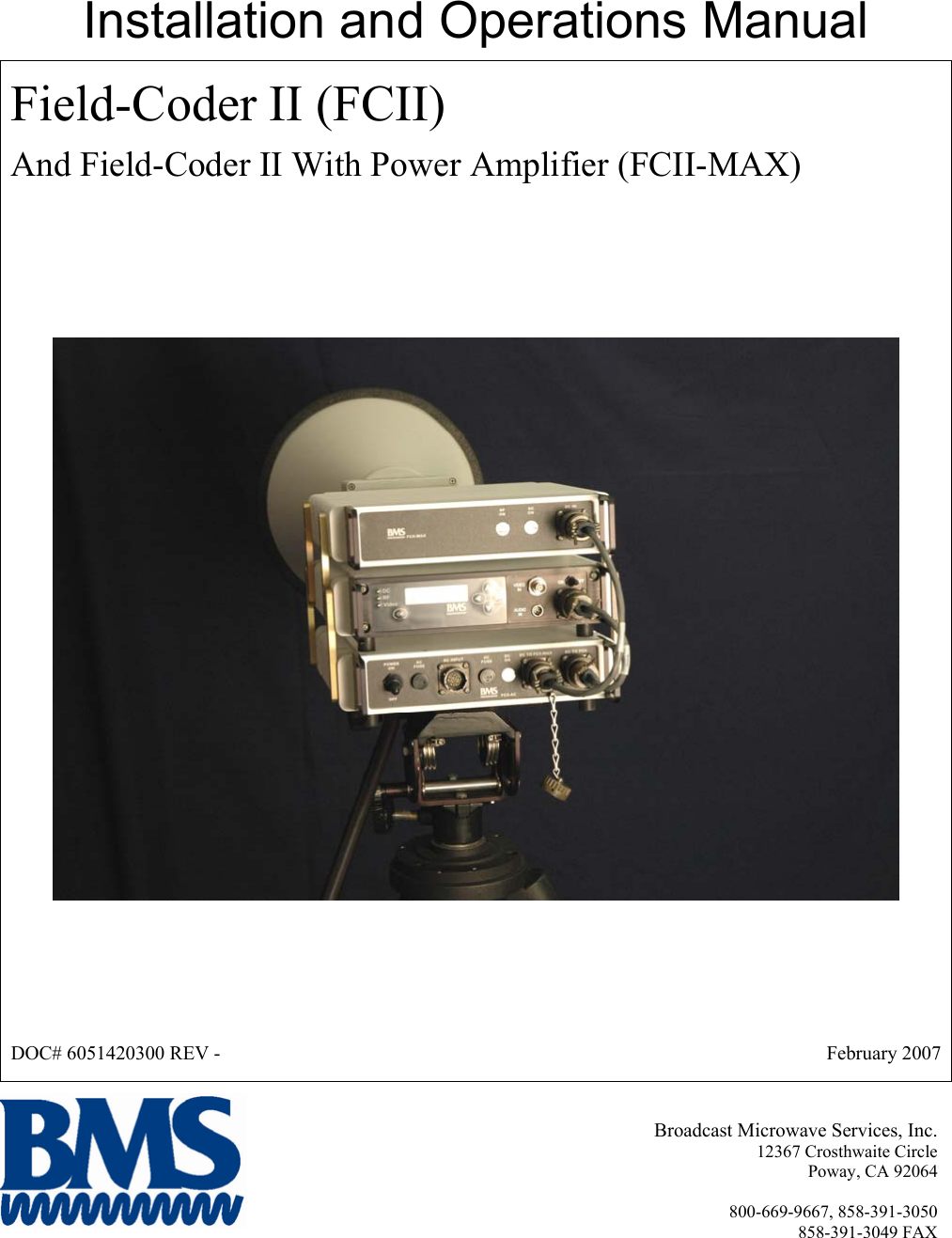
Installation and Operations Manual Field-Coder II (FCII)  And Field-Coder II With Power Amplifier (FCII-MAX)  DOC# 6051420300 REV -   February 2007 Broadcast Microwave Services, Inc. 12367 Crosthwaite Circle Poway, CA 92064  800-669-9667, 858-391-3050 858-391-3049 FAX
 INTRODUCTION   The Field-Coder II (FCII) microwave transmitter is portable COFDM transmitter designed for applications that require temporary microwave link.  Based on the field proven technology of the BMS Carry-Coder II, the FCII is weather resistant, sturdy, robust, easy to set-up and simple to use.  The FCII is a digital transmitter and encoder compliant with COFDM DVB-T specifications.  However The FCII by itself is only a 1W transmitter, covering a short range. FCII-MAX, an external 5W PA is necessary to provide enough range for the transmission. The FCII-MAX will operate by the FCII-AC, a powerful external power supply. Similar to FCII-transmitter, both FCII-MAX and FCII-AC are weatherproof units.  Features: • Digital Transmission • 6 MHz Occupied Bandwidth Feature • Simple Set-up and Operation • 9 Presets • Field-Proven Design • Intuitive Operator Controls • DVB-T Standard-Compliant This document provides instructions for the installation, operation and maintenance of the Field-Coder II.   Broadcast Microwave Services (BMS) is a leader in wireless digital microwave technology providing innovative products for the television broadcast, video, telemetry and surveillance industries.  A wholly owned subsidiary of Cohu, Inc., BMS designs and manufactures a comprehensive line of microwave communications equipment for broadcasting sports venues, law enforcement and military applications.  BMS also builds and integrates command and control centers to provide fully functioning, complex, end to end digital systems.   For the latest product and system information please visit www.bms-inc.com.   Broadcast Microwave Services, Inc. 12367 Crosthwaite Circle Poway, CA 92064    Tel: +1 (858) 391-3050 Toll Free (US): 800-669-9667 Fax: +1 (858) 391-3049 Email:sales@bms-inc.com Web: www.bms-inc.com
  iiThis Page Intentionally Left Blank
  iiiTable of Contents  INTRODUCTION........................................................................................................................................... i SYSTEM DESCRIPTION ............................................................................................................................. 1 Configurations of the FCII......................................................................................................................... 1 FCII Family Components and Accessories................................................................................................ 2 Technical Specifications ............................................................................................................................ 3 FCII SET-UP  with FCII-AC and FCII-MAX ........................................................................................... 7 Installing the Tripod Quick-Disconnect Mount to FCII-AC.................................................................. 7 Attaching the FCII, FCII-AC and FCII-MAX together......................................................................... 7 Cable Interconnections .......................................................................................................................... 9 USER INTERFACE..................................................................................................................................... 12 OPERATION ............................................................................................................................................... 18 Field Set-up.............................................................................................................................................. 18 For Tripod Use..................................................................................................................................... 18 Attaching the Horn Antenna................................................................................................................ 19 Cable Connections............................................................................................................................... 19 Operation.................................................................................................................................................. 20 Manually Configure FCII for Broadcast.............................................................................................. 20 Using a Preset Configuration............................................................................................................... 21 Shut Down ............................................................................................................................................... 21 PREVENTATIVE MAINTENANCE.......................................................................................................... 24 Maintenance Schedule ............................................................................................................................. 24 Suggested Spare Parts List ....................................................................................................................... 24 Fuse Replacement Procedure............................................................................................................... 24 WARRANTY............................................................................................................................................... 26 Additional References.............................................................................................................................. 28 US Broadcast Frequency Assignments................................................................................................ 29 Coded Orthogonal Frequency Division Multiplex (COFDM) Modulation ......................................... 30 GLOSSARY................................................................................................................................................. 34
  iList of Figures Figure 1 FCII Architecture Block Diagram.................................................................................................... 1 Figure 2 FCII-AC, FCII, and FCII-MAX Bracket Attachment ...................................................................... 9 Figure 3 FCII-AC, FCII and FCII-MAX Attached Cable Connections ....................................................... 11 Figure 4 FCII Control Panel......................................................................................................................... 12 Figure 5 FCII Status Screen ......................................................................................................................... 12 Figure 6 Not Seated...................................................................................................................................... 18 Figure 7 FCII Seated in Tripod Mount......................................................................................................... 18 Figure 8 Close the Clamp ............................................................................................................................. 18 Figure 9 Fold the lever flush......................................................................................................................... 18 Figure 10 Not Locked................................................................................................................................... 19 Figure 11 Locked.......................................................................................................................................... 19 Figure 12 Align Antenna Mount with Bracket ............................................................................................. 19 Figure 13 Insert Antenna Mount into Bracket.............................................................................................. 19 Figure 14 Rotate Antenna to Lock ............................................................................................................... 19 Figure 15 Antenna Locked to Mount............................................................................................................ 19 Figure 16 Connect the RF Cable to the FCII................................................................................................ 20 Figure 17 Connect the RF Cable to the RF In Connector on the FCII-MAX............................................... 20 Figure 18 Replacing the AC Fuse................................................................................................................. 25 Figure 19 Replacing the DC Fuse................................................................................................................. 25 Figure 20 Product Label ............................................................................................................................... 26   List of Tables Table 1 Physical Characteristics..................................................................................................................... 3 Table 2 RF Output.......................................................................................................................................... 3 Table 3 COFDM Parameters .......................................................................................................................... 4 Table 4 Video Inputs ...................................................................................................................................... 4 Table 5 Audio Input........................................................................................................................................ 5 Table 6 Normal Mode User Menus .............................................................................................................. 13 Table 7 Expert Mode User Menus................................................................................................................ 15
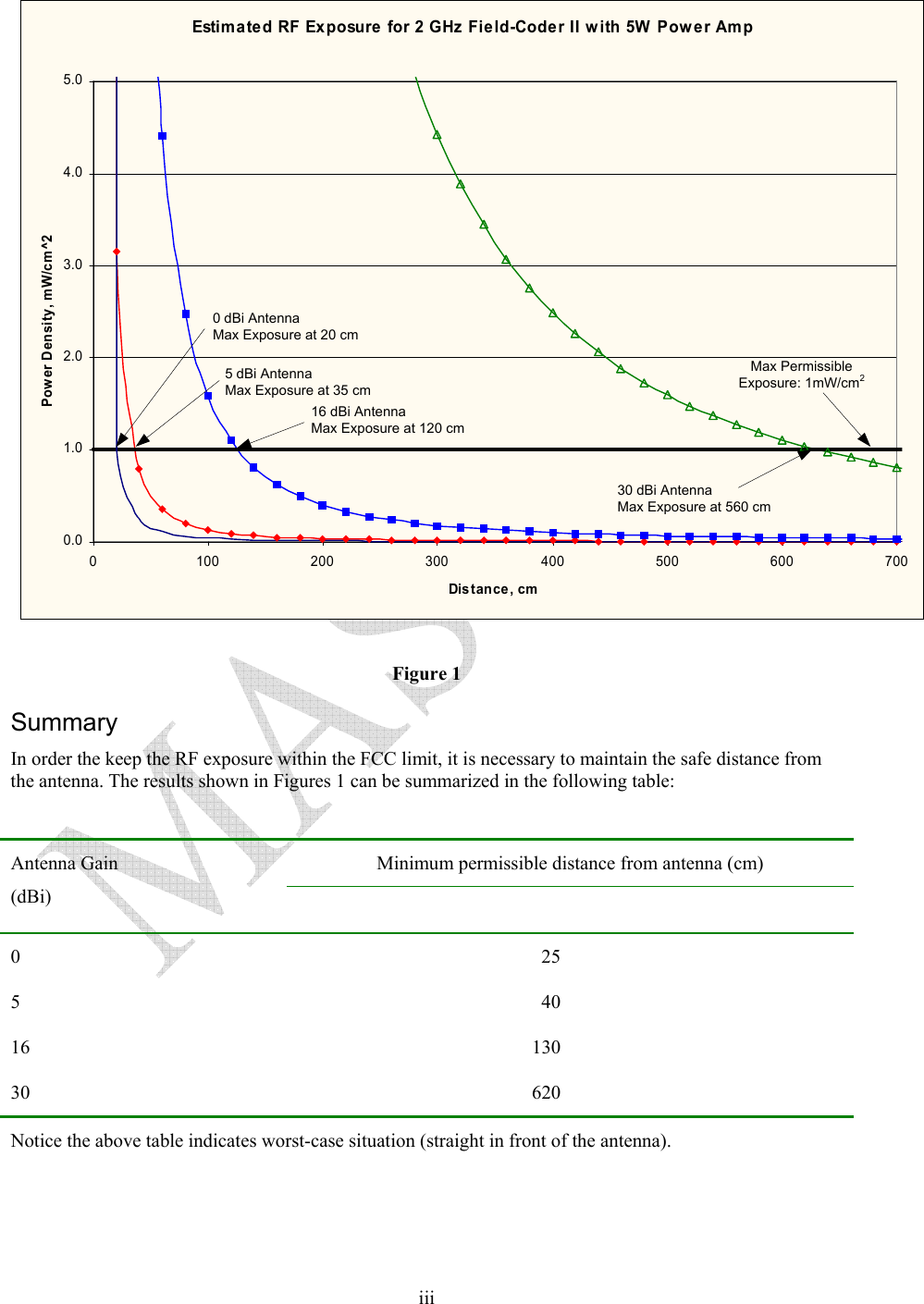
  ii WARNING! RF RADIATION EXPOSURE HAZARD  This warning is provided by Broadcast Microwave Services (BMS) Inc. for safety purpose. The following information help to reduce the risk of RF exposure hazard.    FCC Limit of RF Exposure According to Federal Communication Commission (FCC), the Maximum Permissible Exposure (MPE) for FR radiation has been set to 1.0 mW/cm2 for the Field-Coder II equipment (OET Bulletin 65).  The Field-Coder II with Power Amplifier is a non-broadcast transmitter and without an antenna it will not create RF exposure (power density) exceeding the 1.0 W/cm2 FCC limit. However a high-gain antenna such as a parabolic dish will greatly enhance the Field-Coder II output power density beyond the MPE limit of 1.0 mW/cm2.  In this situation a minimum distance from the antenna needs to be calculated in order to keep the MPE always below the safety limit. The calculation has been done for Field-Coder II based on the formula mentioned in OET Bulletin 56. The calculations have been done for different commonly used antenna in Electronic New Gathering (ENG) systems.  Digital Transmission  Figure 1 shows the plot of the minimum exposure distance for 0dBi, 5dBi, 16dBi, and 30dBi antennas. The 2 GHz Field-Coder II with Power Amp transmits the maximum power of 5 Watts. The minimum exposure distances are found from the cross points of the exposure graphs (for various antennas) with the line of maximum permissible exposure (i.e. 1 W/cm2).  Notice that the numbers in Figure 1 predict the worse case scenario, which is straight in front of the antenna (exposing to the antenna main-lobe). Obviously the side-lobe exposures are well below these numbers as the radiation intensity dramatically reduces on the side lobes.
  iiiEstimated RF Exposure for 2 GHz Field-Coder II with 5W Power Amp0.01.02.03.04.05.00 100 200 300 400 500 600 700Distance, cmPower Density, mW/cm^2Max Permissible Exposure: 1mW/cm230 dBi AntennaMax Exposure at 560 cm0 dBi AntennaMax Exposure at 20 cm16 dBi AntennaMax Exposure at 120 cm5 dBi AntennaMax Exposure at 35 cm Figure 1 Summary In order the keep the RF exposure within the FCC limit, it is necessary to maintain the safe distance from the antenna. The results shown in Figures 1 can be summarized in the following table:  Minimum permissible distance from antenna (cm) Antenna Gain (dBi)    0 25  5 40  16 130  30 620  Notice the above table indicates worst-case situation (straight in front of the antenna).
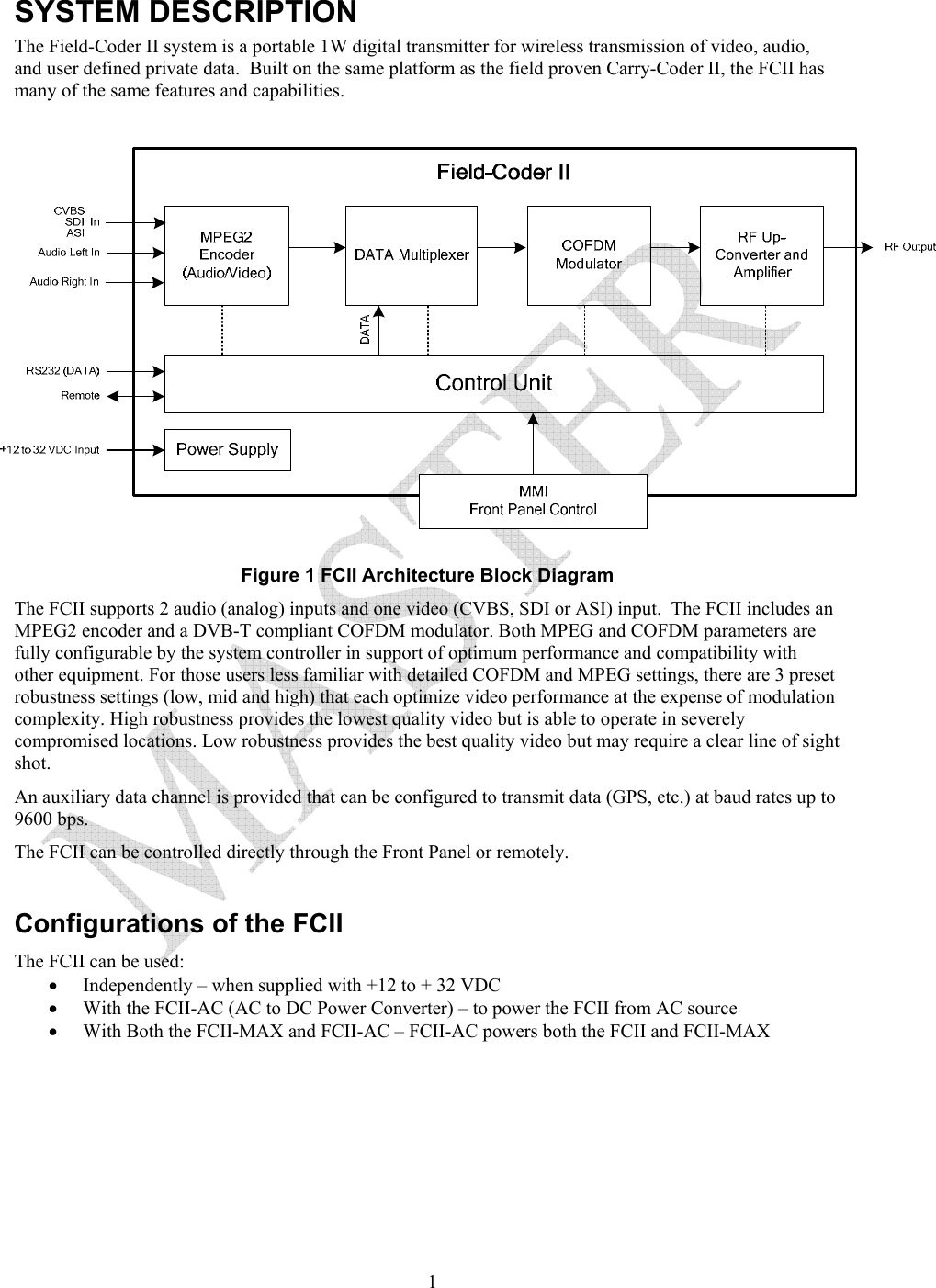
  1SYSTEM DESCRIPTION The Field-Coder II system is a portable 1W digital transmitter for wireless transmission of video, audio, and user defined private data.  Built on the same platform as the field proven Carry-Coder II, the FCII has many of the same features and capabilities.    Figure 1 FCII Architecture Block Diagram The FCII supports 2 audio (analog) inputs and one video (CVBS, SDI or ASI) input.  The FCII includes an MPEG2 encoder and a DVB-T compliant COFDM modulator. Both MPEG and COFDM parameters are fully configurable by the system controller in support of optimum performance and compatibility with other equipment. For those users less familiar with detailed COFDM and MPEG settings, there are 3 preset robustness settings (low, mid and high) that each optimize video performance at the expense of modulation complexity. High robustness provides the lowest quality video but is able to operate in severely compromised locations. Low robustness provides the best quality video but may require a clear line of sight shot. An auxiliary data channel is provided that can be configured to transmit data (GPS, etc.) at baud rates up to 9600 bps.  The FCII can be controlled directly through the Front Panel or remotely.    Configurations of the FCII The FCII can be used: • Independently – when supplied with +12 to + 32 VDC • With the FCII-AC (AC to DC Power Converter) – to power the FCII from AC source • With Both the FCII-MAX and FCII-AC – FCII-AC powers both the FCII and FCII-MAX
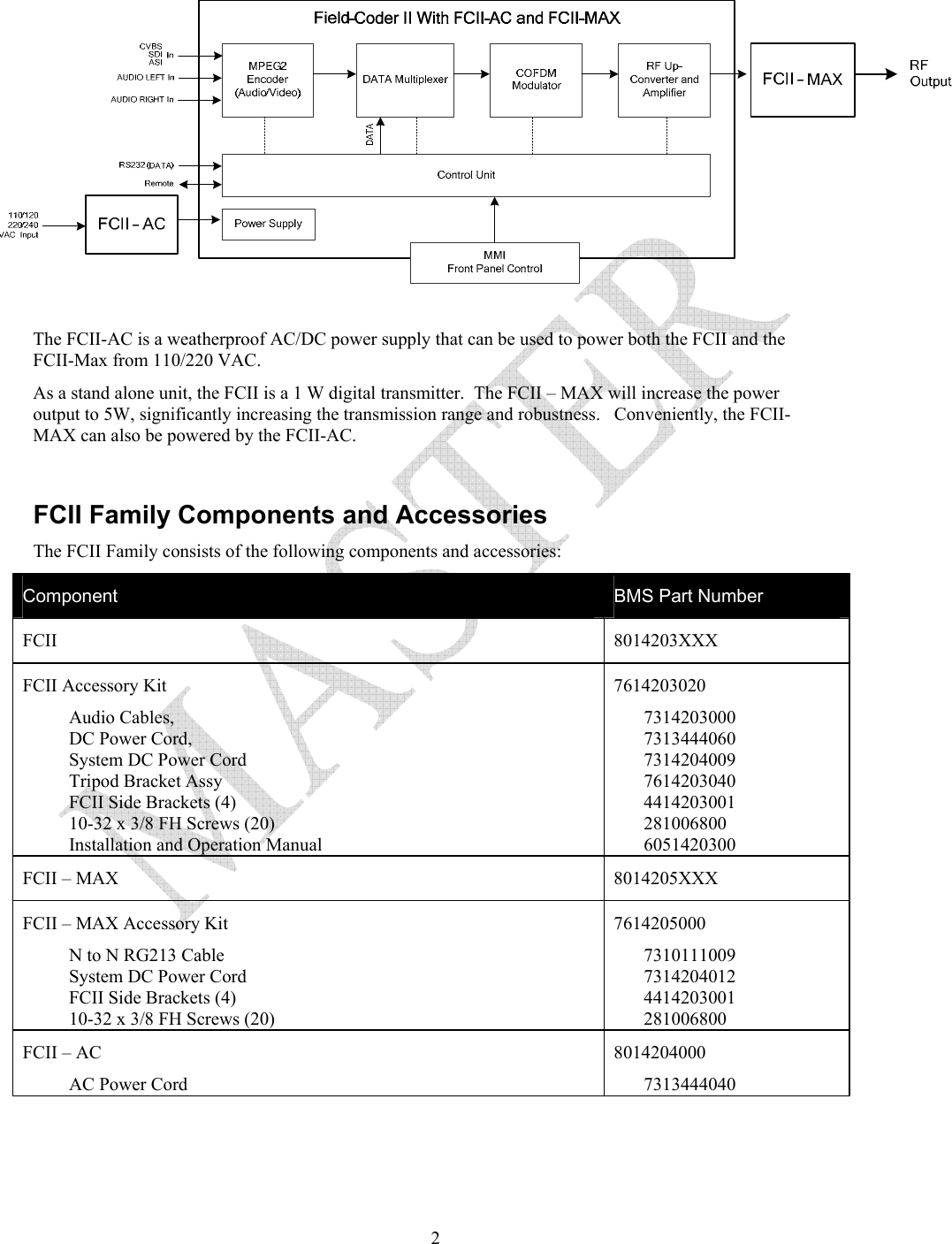
  2 The FCII-AC is a weatherproof AC/DC power supply that can be used to power both the FCII and the FCII-Max from 110/220 VAC. As a stand alone unit, the FCII is a 1 W digital transmitter.  The FCII – MAX will increase the power output to 5W, significantly increasing the transmission range and robustness.   Conveniently, the FCII-MAX can also be powered by the FCII-AC.  FCII Family Components and Accessories The FCII Family consists of the following components and accessories: Component  BMS Part Number FCII 8014203XXX FCII Accessory Kit  Audio Cables,  DC Power Cord,  System DC Power Cord Tripod Bracket Assy FCII Side Brackets (4) 10-32 x 3/8 FH Screws (20) Installation and Operation Manual 7614203020 7314203000 7313444060 7314204009 7614203040 4414203001 281006800 6051420300 FCII – MAX  8014205XXX FCII – MAX Accessory Kit  N to N RG213 Cable System DC Power Cord FCII Side Brackets (4) 10-32 x 3/8 FH Screws (20) 7614205000 7310111009 7314204012 4414203001 281006800 FCII – AC AC Power Cord 8014204000 7313444040
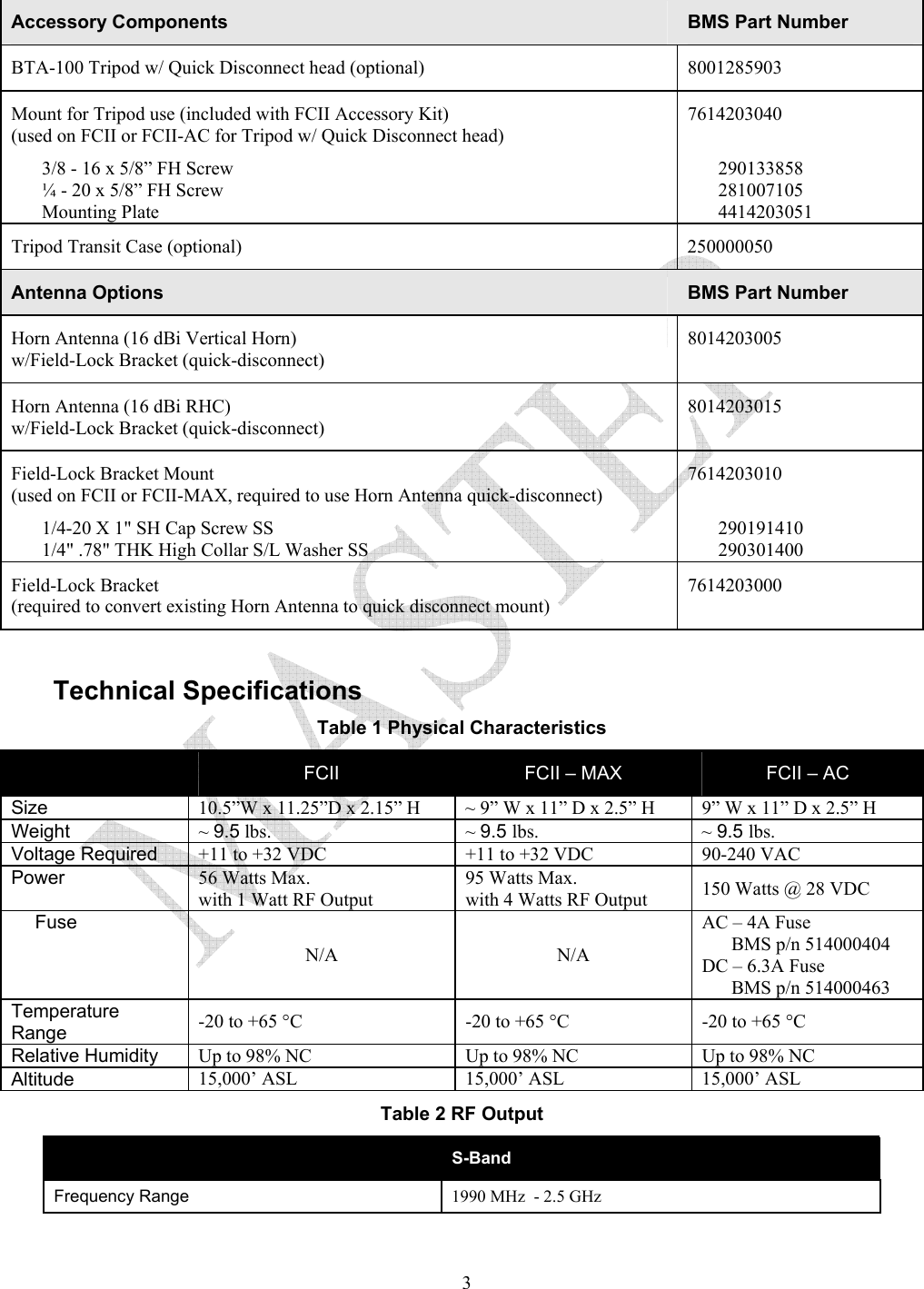
  3Accessory Components  BMS Part Number BTA-100 Tripod w/ Quick Disconnect head (optional)  8001285903 Mount for Tripod use (included with FCII Accessory Kit) (used on FCII or FCII-AC for Tripod w/ Quick Disconnect head) 3/8 - 16 x 5/8” FH Screw ¼ - 20 x 5/8” FH Screw Mounting Plate 7614203040  290133858 281007105 4414203051 Tripod Transit Case (optional)   250000050 Antenna Options   BMS Part Number Horn Antenna (16 dBi Vertical Horn)  w/Field-Lock Bracket (quick-disconnect) 8014203005 Horn Antenna (16 dBi RHC)  w/Field-Lock Bracket (quick-disconnect) 8014203015 Field-Lock Bracket Mount (used on FCII or FCII-MAX, required to use Horn Antenna quick-disconnect) 1/4-20 X 1" SH Cap Screw SS 1/4" .78" THK High Collar S/L Washer SS 7614203010  290191410 290301400 Field-Lock Bracket  (required to convert existing Horn Antenna to quick disconnect mount) 7614203000  Technical Specifications   Table 1 Physical Characteristics  FCII  FCII – MAX  FCII – AC  Size 10.5”W x 11.25”D x 2.15” H ~ 9” W x 11” D x 2.5” H  9” W x 11” D x 2.5” H Weight ~ 9.5 lbs. ~ 9.5 lbs. ~ 9.5 lbs. Voltage Required  +11 to +32 VDC  +11 to +32 VDC  90-240 VAC  Power  56 Watts Max.  with 1 Watt RF Output 95 Watts Max.  with 4 Watts RF Output  150 Watts @ 28 VDC Fuse N/A N/A AC – 4A Fuse  BMS p/n 514000404 DC – 6.3A Fuse  BMS p/n 514000463 Temperature Range  -20 to +65 °C  -20 to +65 °C  -20 to +65 °C Relative Humidity  Up to 98% NC  Up to 98% NC  Up to 98% NC Altitude  15,000’ ASL  15,000’ ASL  15,000’ ASL Table 2 RF Output  S-Band Frequency Range 1990 MHz  - 2.5 GHz
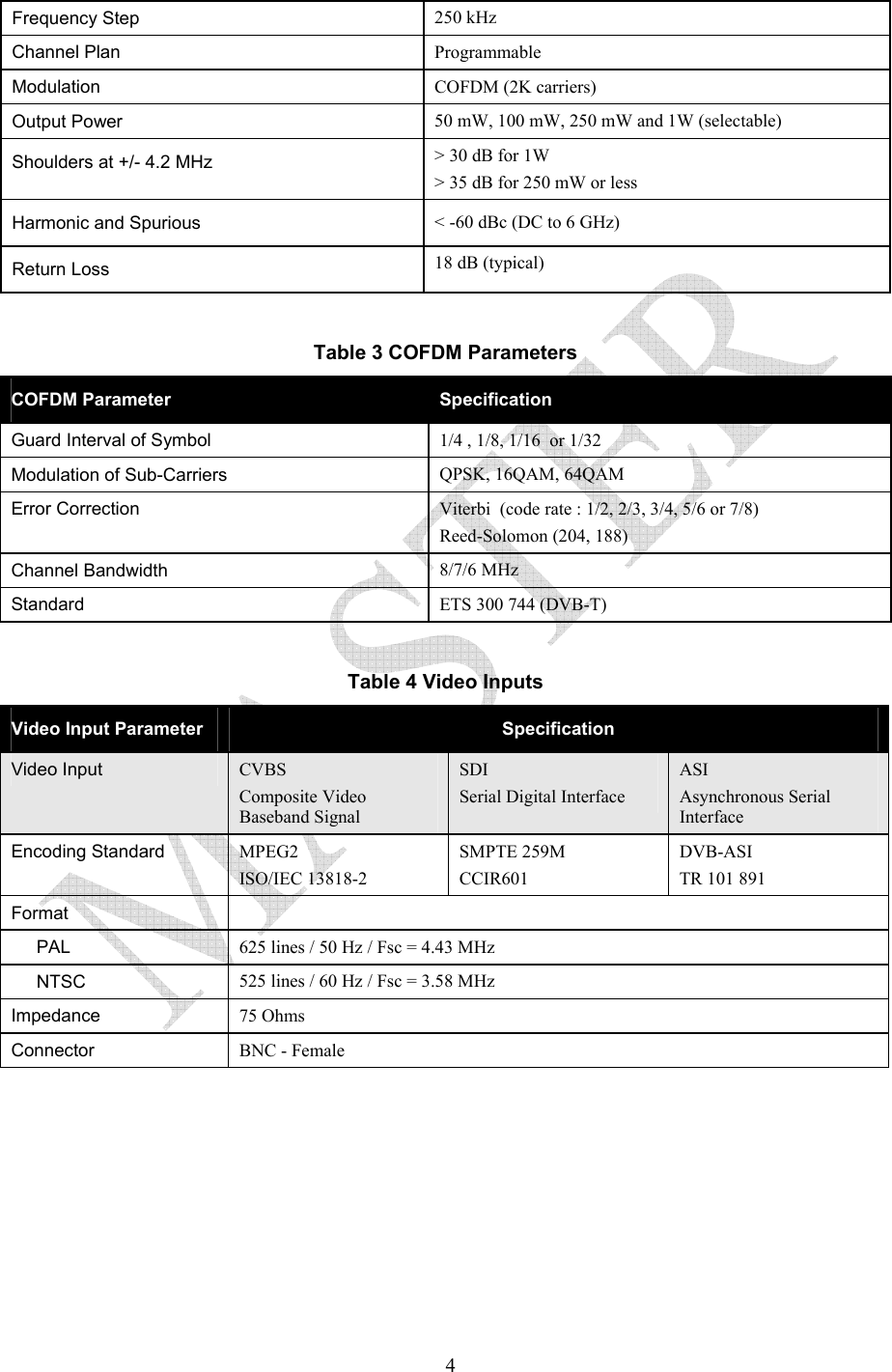
  4Frequency Step  250 kHz Channel Plan  Programmable Modulation  COFDM (2K carriers) Output Power  50 mW, 100 mW, 250 mW and 1W (selectable) Shoulders at +/- 4.2 MHz  > 30 dB for 1W > 35 dB for 250 mW or less Harmonic and Spurious  < -60 dBc (DC to 6 GHz) Return Loss  18 dB (typical)  Table 3 COFDM Parameters COFDM Parameter  Specification Guard Interval of Symbol    1/4 , 1/8, 1/16  or 1/32 Modulation of Sub-Carriers   QPSK, 16QAM, 64QAM Error Correction   Viterbi  (code rate : 1/2, 2/3, 3/4, 5/6 or 7/8) Reed-Solomon (204, 188) Channel Bandwidth  8/7/6 MHz Standard  ETS 300 744 (DVB-T)  Table 4 Video Inputs Video Input Parameter  Specification Video Input  CVBS  Composite Video Baseband Signal SDI Serial Digital Interface ASI Asynchronous Serial Interface Encoding Standard  MPEG2  ISO/IEC 13818-2 SMPTE 259M CCIR601 DVB-ASI TR 101 891 Format   PAL  625 lines / 50 Hz / Fsc = 4.43 MHz NTSC  525 lines / 60 Hz / Fsc = 3.58 MHz Impedance  75 Ohms Connector   BNC - Female
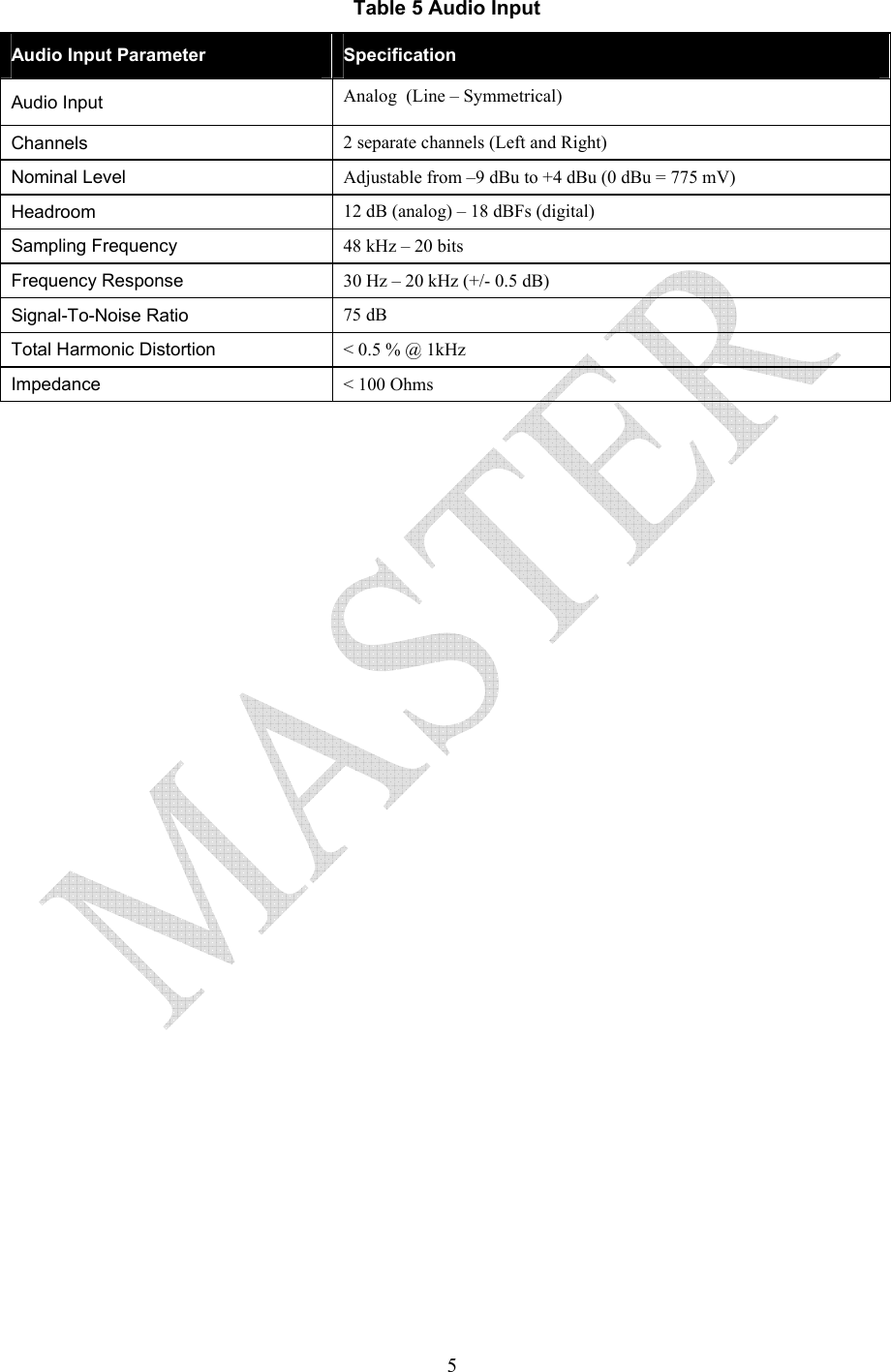
  5Table 5 Audio Input Audio Input Parameter  Specification Audio Input  Analog  (Line – Symmetrical) Channels  2 separate channels (Left and Right) Nominal Level  Adjustable from –9 dBu to +4 dBu (0 dBu = 775 mV) Headroom  12 dB (analog) – 18 dBFs (digital) Sampling Frequency  48 kHz – 20 bits Frequency Response  30 Hz – 20 kHz (+/- 0.5 dB) Signal-To-Noise Ratio  75 dB Total Harmonic Distortion    < 0.5 % @ 1kHz Impedance  < 100 Ohms
  6This Page Intentionally Left Blank
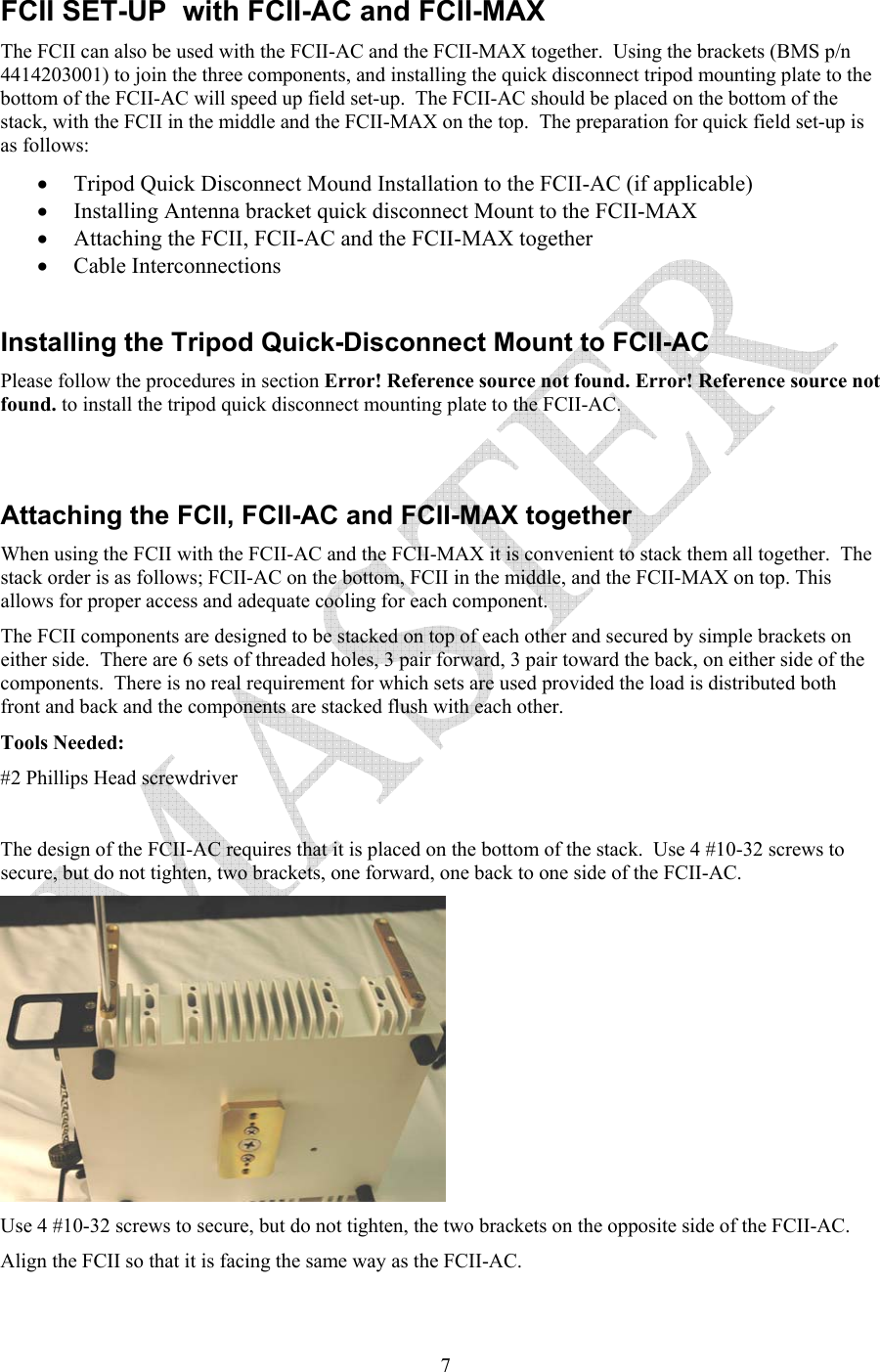
  7FCII SET-UP  with FCII-AC and FCII-MAX The FCII can also be used with the FCII-AC and the FCII-MAX together.  Using the brackets (BMS p/n 4414203001) to join the three components, and installing the quick disconnect tripod mounting plate to the bottom of the FCII-AC will speed up field set-up.  The FCII-AC should be placed on the bottom of the stack, with the FCII in the middle and the FCII-MAX on the top.  The preparation for quick field set-up is as follows: • Tripod Quick Disconnect Mound Installation to the FCII-AC (if applicable)  • Installing Antenna bracket quick disconnect Mount to the FCII-MAX • Attaching the FCII, FCII-AC and the FCII-MAX together • Cable Interconnections  Installing the Tripod Quick-Disconnect Mount to FCII-AC Please follow the procedures in section Error! Reference source not found. Error! Reference source not found. to install the tripod quick disconnect mounting plate to the FCII-AC.   Attaching the FCII, FCII-AC and FCII-MAX together When using the FCII with the FCII-AC and the FCII-MAX it is convenient to stack them all together.  The stack order is as follows; FCII-AC on the bottom, FCII in the middle, and the FCII-MAX on top. This allows for proper access and adequate cooling for each component.   The FCII components are designed to be stacked on top of each other and secured by simple brackets on either side.  There are 6 sets of threaded holes, 3 pair forward, 3 pair toward the back, on either side of the components.  There is no real requirement for which sets are used provided the load is distributed both front and back and the components are stacked flush with each other.   Tools Needed: #2 Phillips Head screwdriver  The design of the FCII-AC requires that it is placed on the bottom of the stack.  Use 4 #10-32 screws to secure, but do not tighten, two brackets, one forward, one back to one side of the FCII-AC.    Use 4 #10-32 screws to secure, but do not tighten, the two brackets on the opposite side of the FCII-AC.   Align the FCII so that it is facing the same way as the FCII-AC.
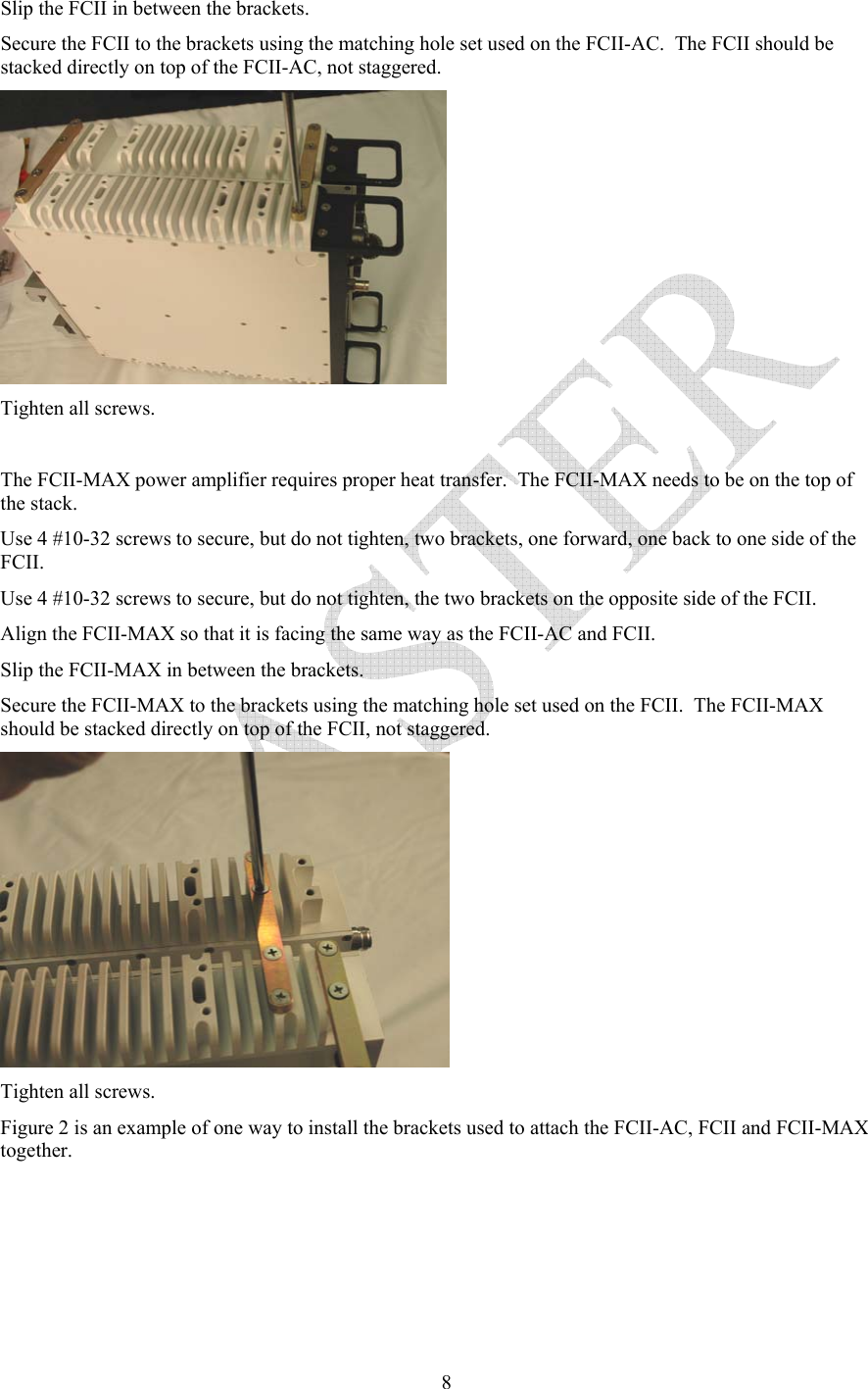
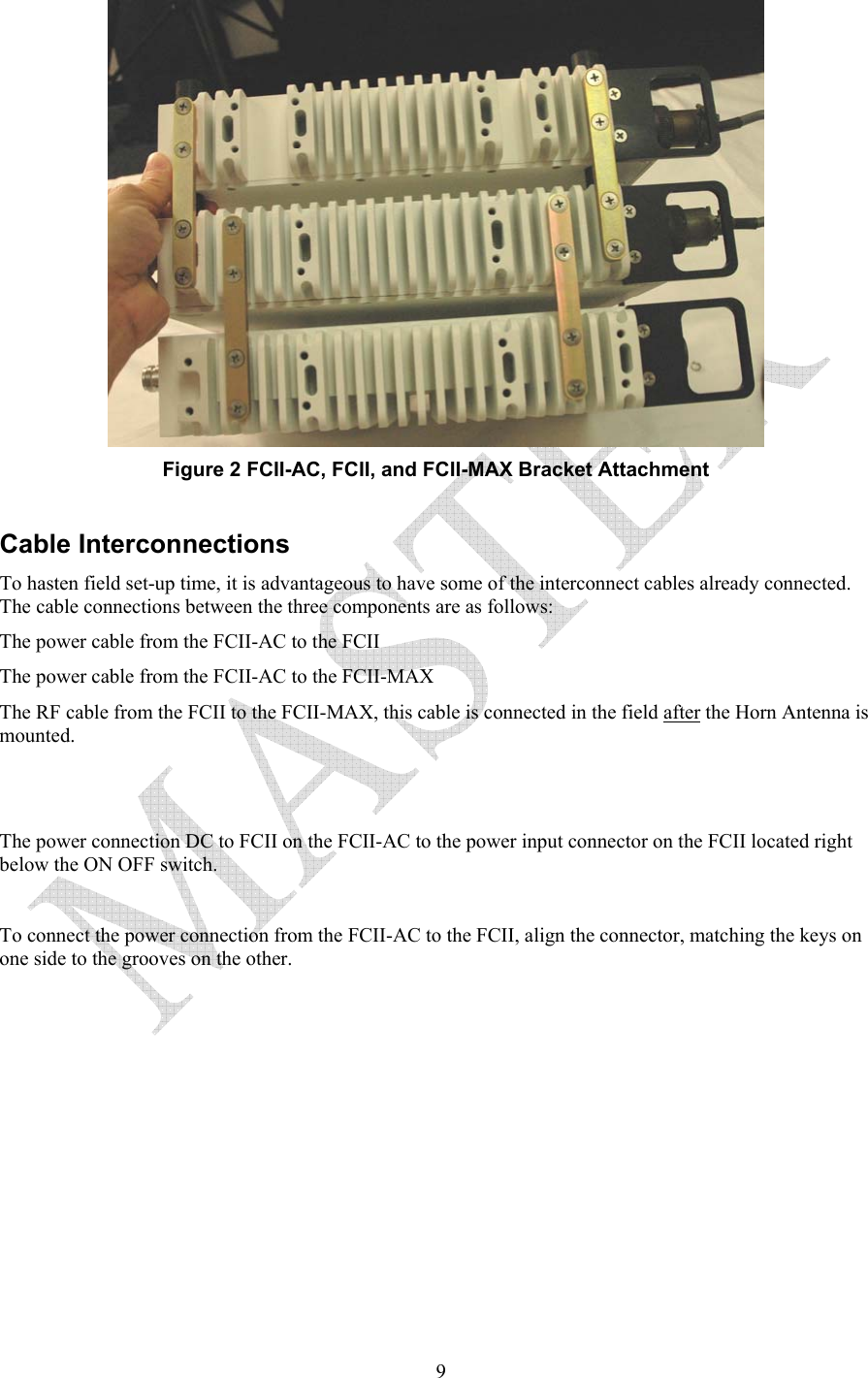
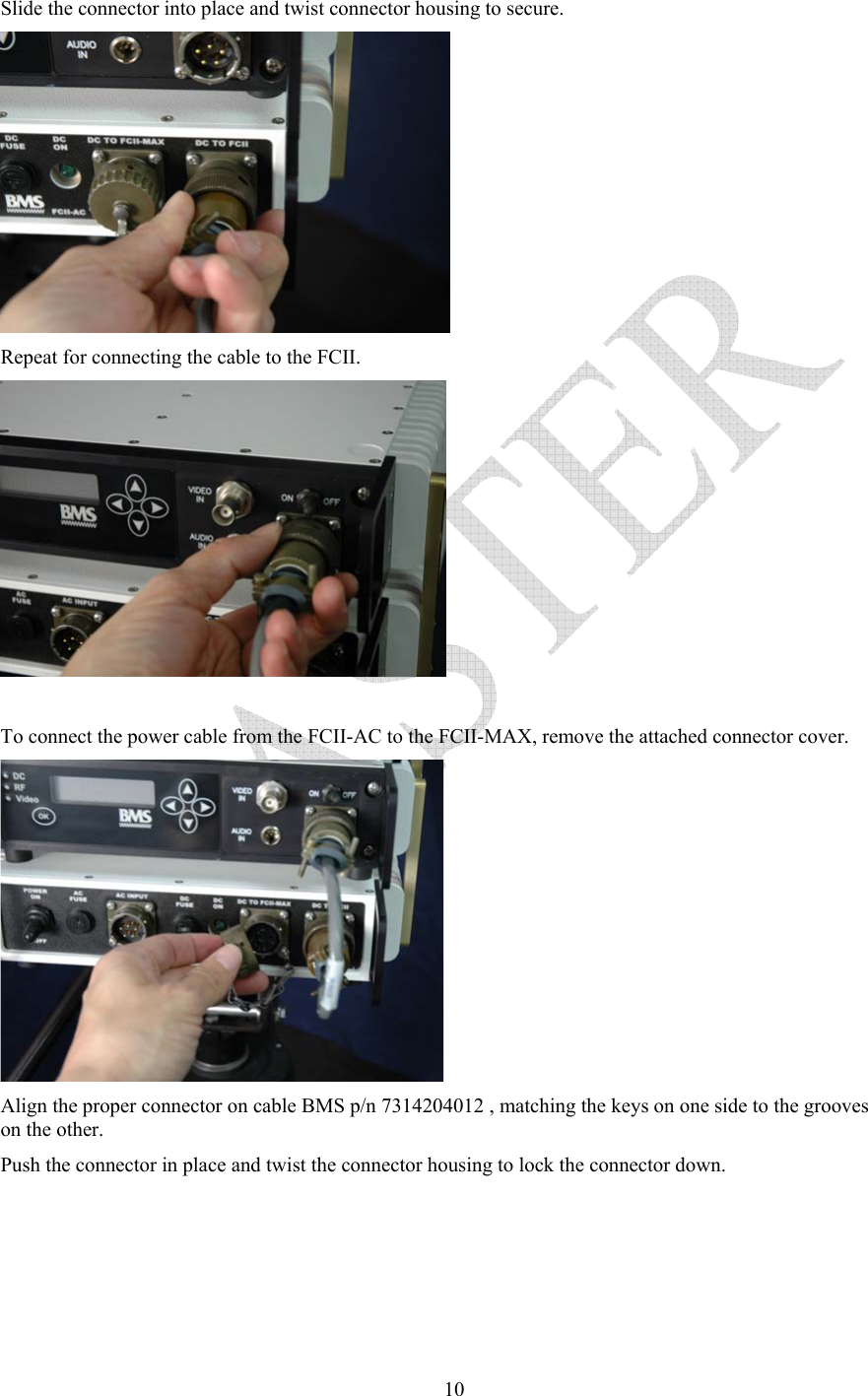
  8Slip the FCII in between the brackets.   Secure the FCII to the brackets using the matching hole set used on the FCII-AC.  The FCII should be stacked directly on top of the FCII-AC, not staggered.  Tighten all screws.  The FCII-MAX power amplifier requires proper heat transfer.  The FCII-MAX needs to be on the top of the stack. Use 4 #10-32 screws to secure, but do not tighten, two brackets, one forward, one back to one side of the FCII. Use 4 #10-32 screws to secure, but do not tighten, the two brackets on the opposite side of the FCII.   Align the FCII-MAX so that it is facing the same way as the FCII-AC and FCII.  Slip the FCII-MAX in between the brackets.   Secure the FCII-MAX to the brackets using the matching hole set used on the FCII.  The FCII-MAX should be stacked directly on top of the FCII, not staggered.  Tighten all screws. Figure 2 is an example of one way to install the brackets used to attach the FCII-AC, FCII and FCII-MAX together.
  9 Figure 2 FCII-AC, FCII, and FCII-MAX Bracket Attachment  Cable Interconnections  To hasten field set-up time, it is advantageous to have some of the interconnect cables already connected.  The cable connections between the three components are as follows: The power cable from the FCII-AC to the FCII The power cable from the FCII-AC to the FCII-MAX The RF cable from the FCII to the FCII-MAX, this cable is connected in the field after the Horn Antenna is mounted.     The power connection DC to FCII on the FCII-AC to the power input connector on the FCII located right below the ON OFF switch.  To connect the power connection from the FCII-AC to the FCII, align the connector, matching the keys on one side to the grooves on the other.
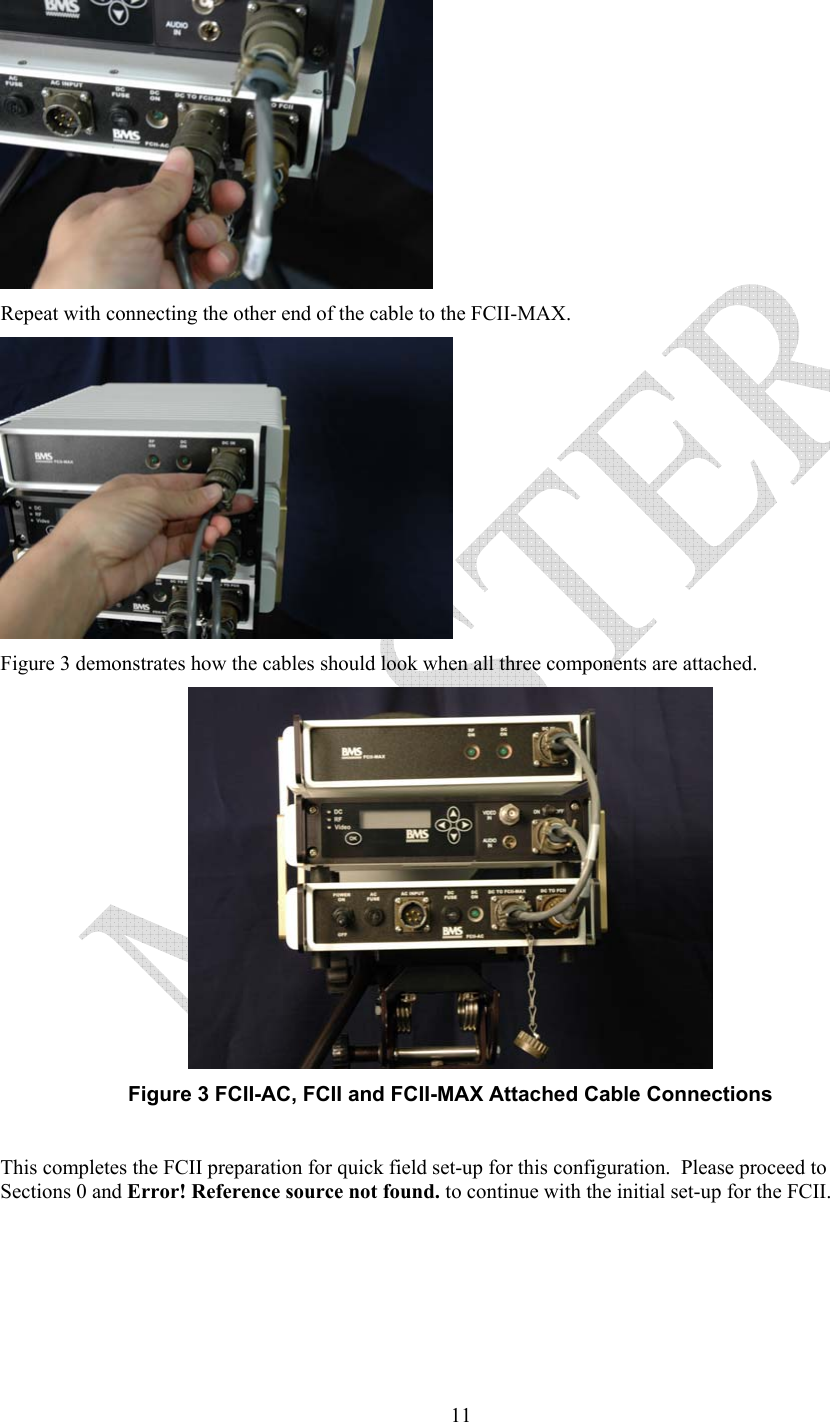
  10Slide the connector into place and twist connector housing to secure.  Repeat for connecting the cable to the FCII.   To connect the power cable from the FCII-AC to the FCII-MAX, remove the attached connector cover.  Align the proper connector on cable BMS p/n 7314204012 , matching the keys on one side to the grooves on the other. Push the connector in place and twist the connector housing to lock the connector down.
  11 Repeat with connecting the other end of the cable to the FCII-MAX.  Figure 3 demonstrates how the cables should look when all three components are attached.  Figure 3 FCII-AC, FCII and FCII-MAX Attached Cable Connections  This completes the FCII preparation for quick field set-up for this configuration.  Please proceed to Sections 0 and Error! Reference source not found. to continue with the initial set-up for the FCII.
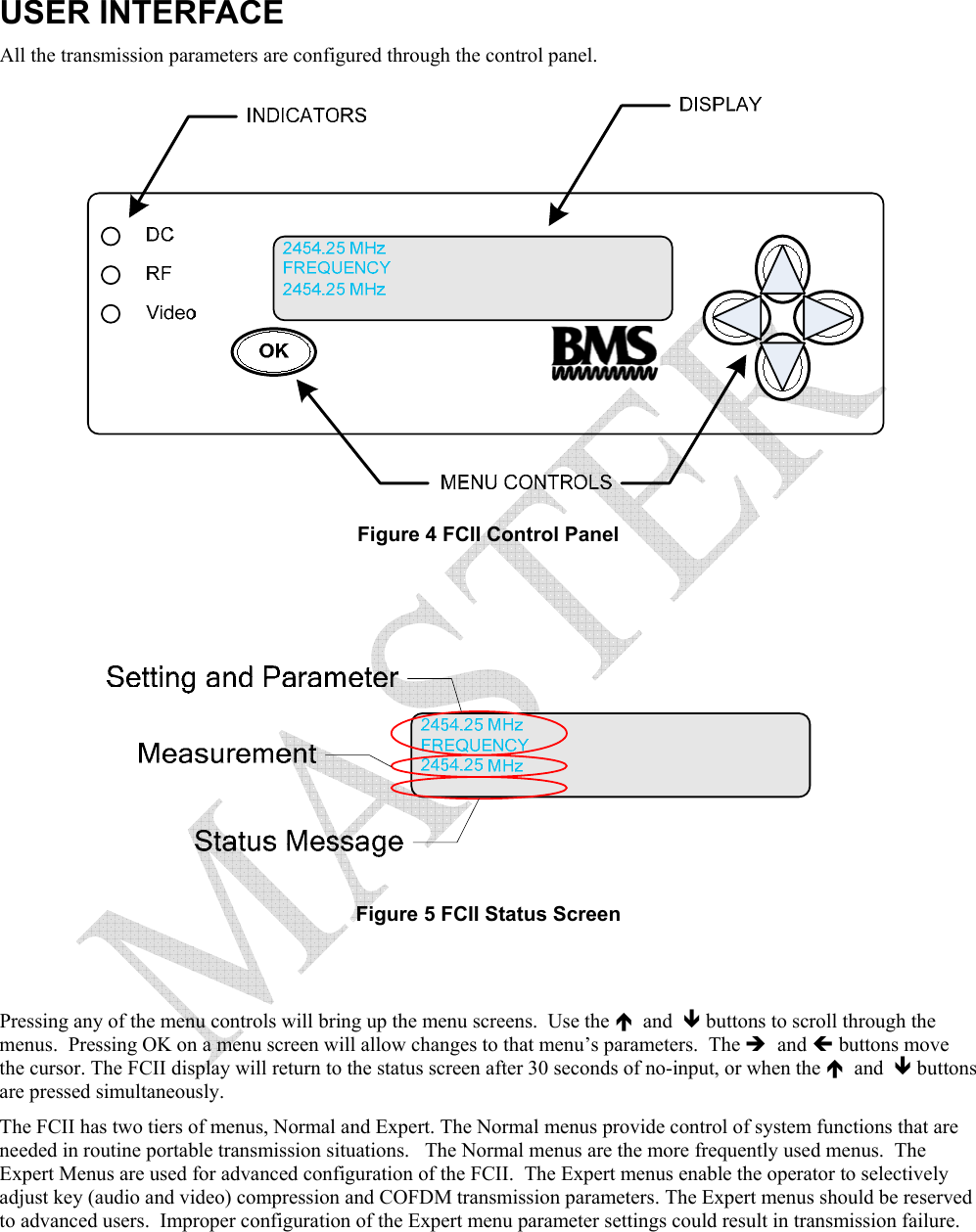
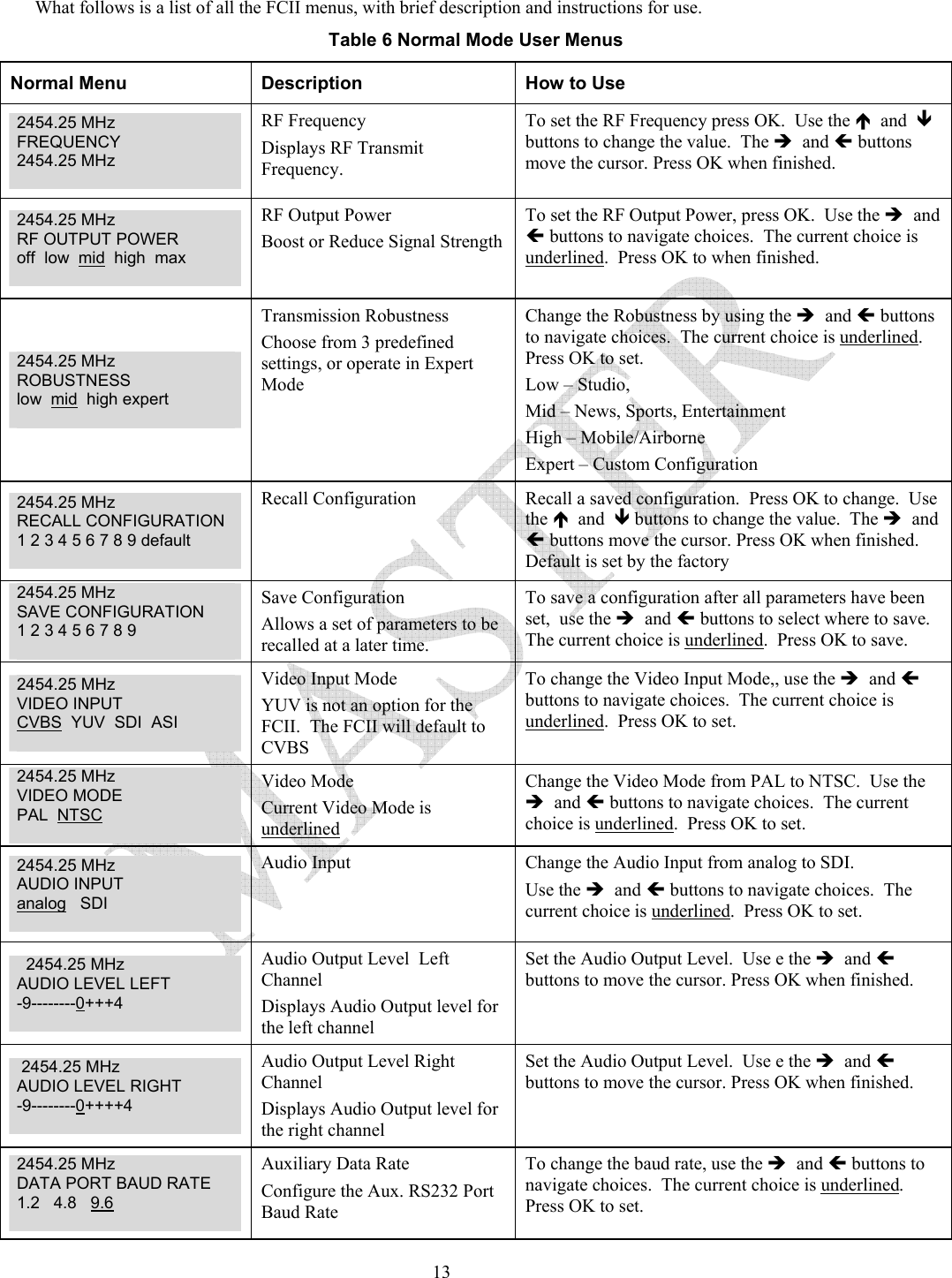
 USER INTERFACE All the transmission parameters are configured through the control panel.  Figure 4 FCII Control Panel    Figure 5 FCII Status Screen   Pressing any of the menu controls will bring up the menu screens.  Use the Ï  and  Ð buttons to scroll through the menus.  Pressing OK on a menu screen will allow changes to that menu’s parameters.  The Î  and Í buttons move the cursor. The FCII display will return to the status screen after 30 seconds of no-input, or when the Ï  and  Ð buttons are pressed simultaneously. The FCII has two tiers of menus, Normal and Expert. The Normal menus provide control of system functions that are needed in routine portable transmission situations.   The Normal menus are the more frequently used menus.  The Expert Menus are used for advanced configuration of the FCII.  The Expert menus enable the operator to selectively adjust key (audio and video) compression and COFDM transmission parameters. The Expert menus should be reserved to advanced users.  Improper configuration of the Expert menu parameter settings could result in transmission failure.
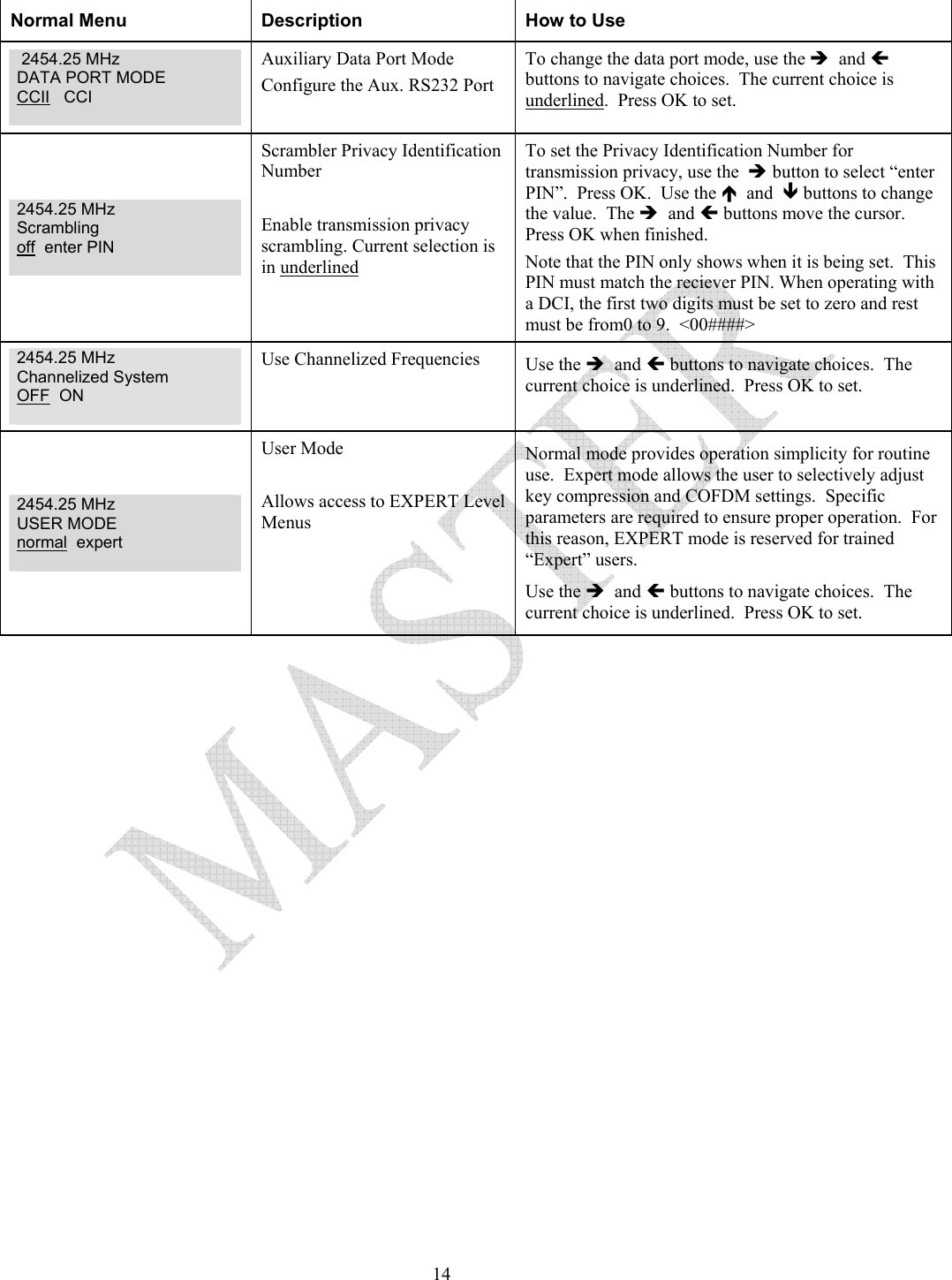
  13What follows is a list of all the FCII menus, with brief description and instructions for use. Table 6 Normal Mode User Menus Normal Menu  Description  How to Use 2454.25 MHz FREQUENCY 2454.25 MHz   RF Frequency Displays RF Transmit Frequency. To set the RF Frequency press OK.  Use the Ï  and  Ð buttons to change the value.  The Î  and Í buttons move the cursor. Press OK when finished.  2454.25 MHz RF OUTPUT POWER off  low  mid  high  max   RF Output Power Boost or Reduce Signal Strength To set the RF Output Power, press OK.  Use the Î  and Í buttons to navigate choices.  The current choice is underlined.  Press OK to when finished. 2454.25 MHz ROBUSTNESS low  mid  high expert   Transmission Robustness Choose from 3 predefined settings, or operate in Expert Mode Change the Robustness by using the Î  and Í buttons to navigate choices.  The current choice is underlined.  Press OK to set. Low – Studio,  Mid – News, Sports, Entertainment High – Mobile/Airborne  Expert – Custom Configuration 2454.25 MHz RECALL CONFIGURATION 1 2 3 4 5 6 7 8 9 default   Recall Configuration  Recall a saved configuration.  Press OK to change.  Use the Ï  and  Ð buttons to change the value.  The Î  and Í buttons move the cursor. Press OK when finished.  Default is set by the factory 2454.25 MHz SAVE CONFIGURATION 1 2 3 4 5 6 7 8 9   Save Configuration Allows a set of parameters to be recalled at a later time.   To save a configuration after all parameters have been set,  use the Î  and Í buttons to select where to save.  The current choice is underlined.  Press OK to save. 2454.25 MHz   VIDEO INPUT CVBS  YUV  SDI  ASI   Video Input Mode YUV is not an option for the FCII.  The FCII will default to CVBS To change the Video Input Mode,, use the Î  and Í buttons to navigate choices.  The current choice is underlined.  Press OK to set. 2454.25 MHz   VIDEO MODE PAL  NTSC   Video Mode Current Video Mode is underlined Change the Video Mode from PAL to NTSC.  Use the Î  and Í buttons to navigate choices.  The current choice is underlined.  Press OK to set. 2454.25 MHz   AUDIO INPUT analog   SDI   Audio Input  Change the Audio Input from analog to SDI.   Use the Î  and Í buttons to navigate choices.  The current choice is underlined.  Press OK to set.   2454.25 MHz AUDIO LEVEL LEFT -9--------0+++4   Audio Output Level  Left Channel Displays Audio Output level for the left channel Set the Audio Output Level.  Use e the Î  and Í buttons to move the cursor. Press OK when finished.   2454.25 MHz  AUDIO LEVEL RIGHT -9--------0++++4   Audio Output Level Right Channel Displays Audio Output level for the right channel Set the Audio Output Level.  Use e the Î  and Í buttons to move the cursor. Press OK when finished.  2454.25 MHz   DATA PORT BAUD RATE 1.2   4.8   9.6   Auxiliary Data Rate Configure the Aux. RS232 Port Baud Rate  To change the baud rate, use the Î  and Í buttons to navigate choices.  The current choice is underlined.  Press OK to set.
  14Normal Menu  Description  How to Use  2454.25 MHz  DATA PORT MODE CCII   CCI   Auxiliary Data Port Mode Configure the Aux. RS232 Port  To change the data port mode, use the Î  and Í buttons to navigate choices.  The current choice is underlined.  Press OK to set. 2454.25 MHz  Scrambling off  enter PIN   Scrambler Privacy Identification Number  Enable transmission privacy scrambling. Current selection is in underlined  To set the Privacy Identification Number for transmission privacy, use the  Î button to select “enter PIN”.  Press OK.  Use the Ï  and  Ð buttons to change the value.  The Î  and Í buttons move the cursor. Press OK when finished. Note that the PIN only shows when it is being set.  This PIN must match the reciever PIN. When operating with a DCI, the first two digits must be set to zero and rest must be from0 to 9.  <00####> 2454.25 MHz  Channelized System OFF  ON   Use Channelized Frequencies  Use the Î  and Í buttons to navigate choices.  The current choice is underlined.  Press OK to set. 2454.25 MHz  USER MODE normal  expert   User Mode  Allows access to EXPERT Level Menus Normal mode provides operation simplicity for routine use.  Expert mode allows the user to selectively adjust key compression and COFDM settings.  Specific parameters are required to ensure proper operation.  For this reason, EXPERT mode is reserved for trained “Expert” users. Use the Î  and Í buttons to navigate choices.  The current choice is underlined.  Press OK to set.
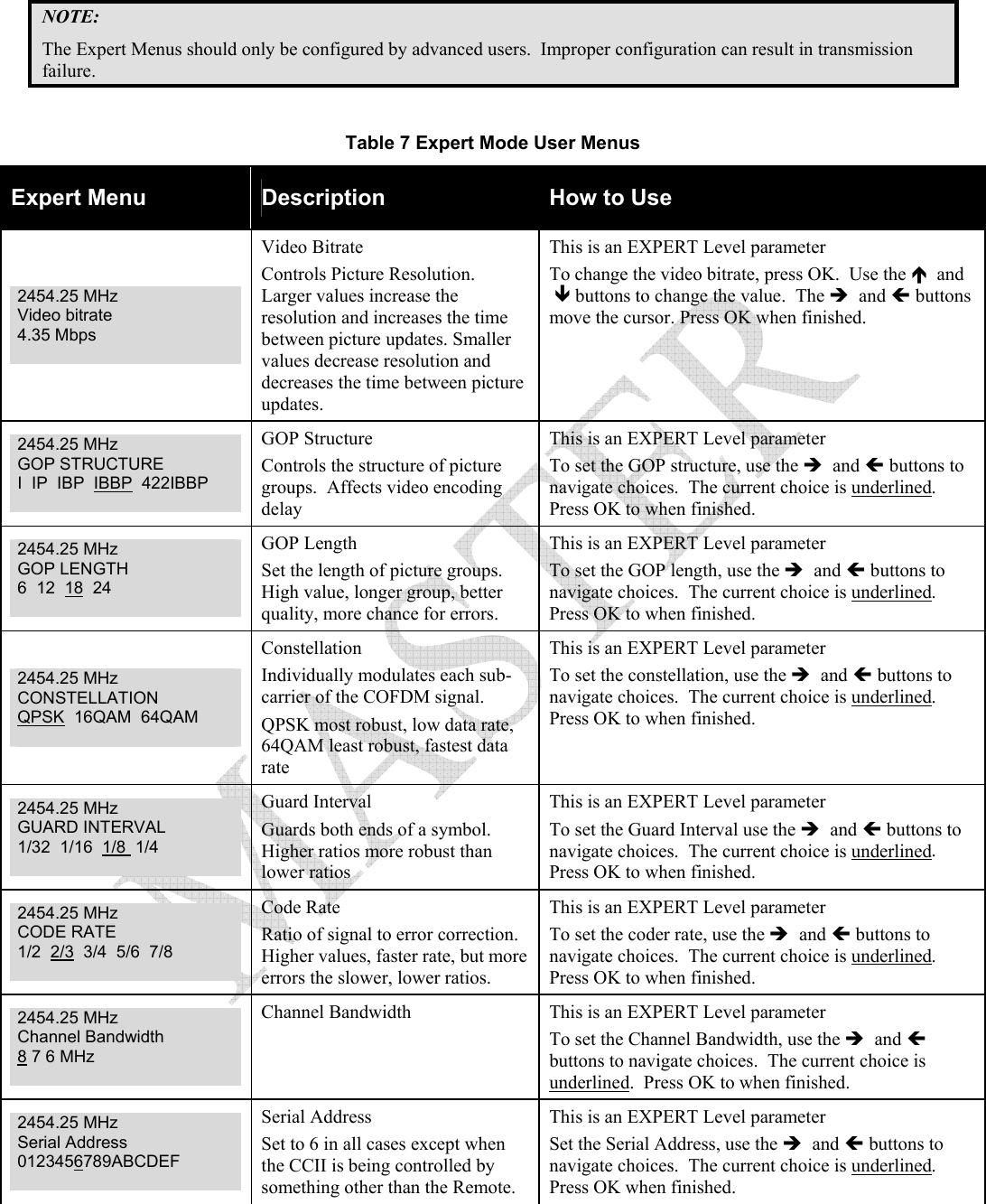
 NOTE: The Expert Menus should only be configured by advanced users.  Improper configuration can result in transmission failure.   Table 7 Expert Mode User Menus Expert Menu  Description  How to Use 2454.25 MHz  Video bitrate 4.35 Mbps   Video Bitrate Controls Picture Resolution. Larger values increase the resolution and increases the time between picture updates. Smaller values decrease resolution and decreases the time between picture updates. This is an EXPERT Level parameter  To change the video bitrate, press OK.  Use the Ï  and  Ð buttons to change the value.  The Î  and Í buttons move the cursor. Press OK when finished.  2454.25 MHz  GOP STRUCTURE I  IP  IBP  IBBP  422IBBP   GOP Structure  Controls the structure of picture groups.  Affects video encoding delay This is an EXPERT Level parameter  To set the GOP structure, use the Î  and Í buttons to navigate choices.  The current choice is underlined.  Press OK to when finished. 2454.25 MHz  GOP LENGTH 6  12  18  24   GOP Length Set the length of picture groups.  High value, longer group, better quality, more chance for errors. This is an EXPERT Level parameter  To set the GOP length, use the Î  and Í buttons to navigate choices.  The current choice is underlined.  Press OK to when finished. 2454.25 MHz CONSTELLATION QPSK  16QAM  64QAM   Constellation Individually modulates each sub-carrier of the COFDM signal. QPSK most robust, low data rate, 64QAM least robust, fastest data rate This is an EXPERT Level parameter  To set the constellation, use the Î  and Í buttons to navigate choices.  The current choice is underlined.  Press OK to when finished. 2454.25 MHz  GUARD INTERVAL 1/32  1/16  1/8  1/4   Guard Interval Guards both ends of a symbol.  Higher ratios more robust than lower ratios This is an EXPERT Level parameter  To set the Guard Interval use the Î  and Í buttons to navigate choices.  The current choice is underlined.  Press OK to when finished. 2454.25 MHz  CODE RATE 1/2  2/3  3/4  5/6  7/8   Code Rate Ratio of signal to error correction.  Higher values, faster rate, but more errors the slower, lower ratios. This is an EXPERT Level parameter  To set the coder rate, use the Î  and Í buttons to navigate choices.  The current choice is underlined.  Press OK to when finished. 2454.25 MHz  Channel Bandwidth 8 7 6 MHz   Channel Bandwidth  This is an EXPERT Level parameter  To set the Channel Bandwidth, use the Î  and Í buttons to navigate choices.  The current choice is underlined.  Press OK to when finished. 2454.25 MHz  Serial Address 0123456789ABCDEF   Serial Address Set to 6 in all cases except when the CCII is being controlled by something other than the Remote. This is an EXPERT Level parameter Set the Serial Address, use the Î  and Í buttons to navigate choices.  The current choice is underlined.  Press OK when finished.
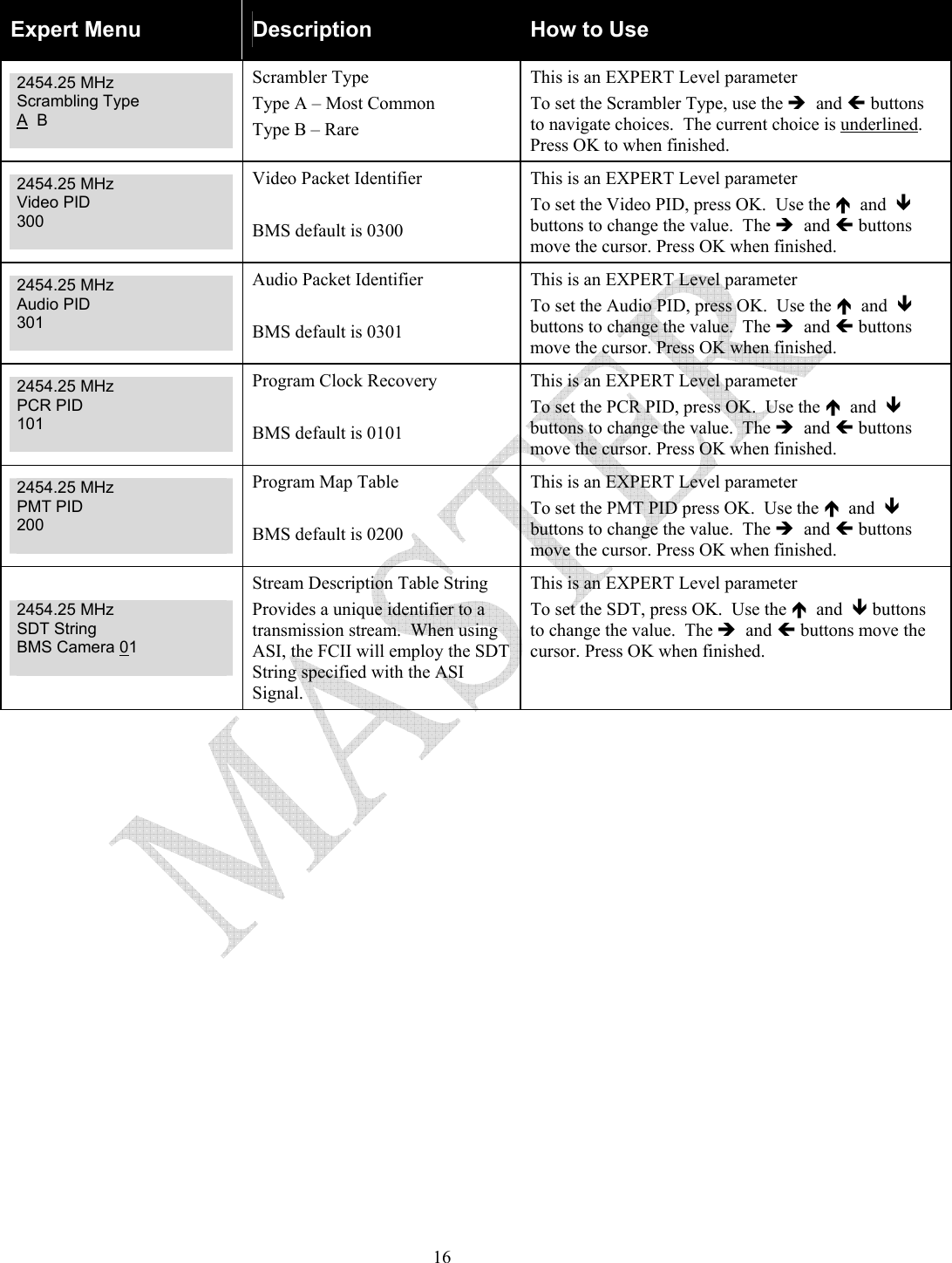
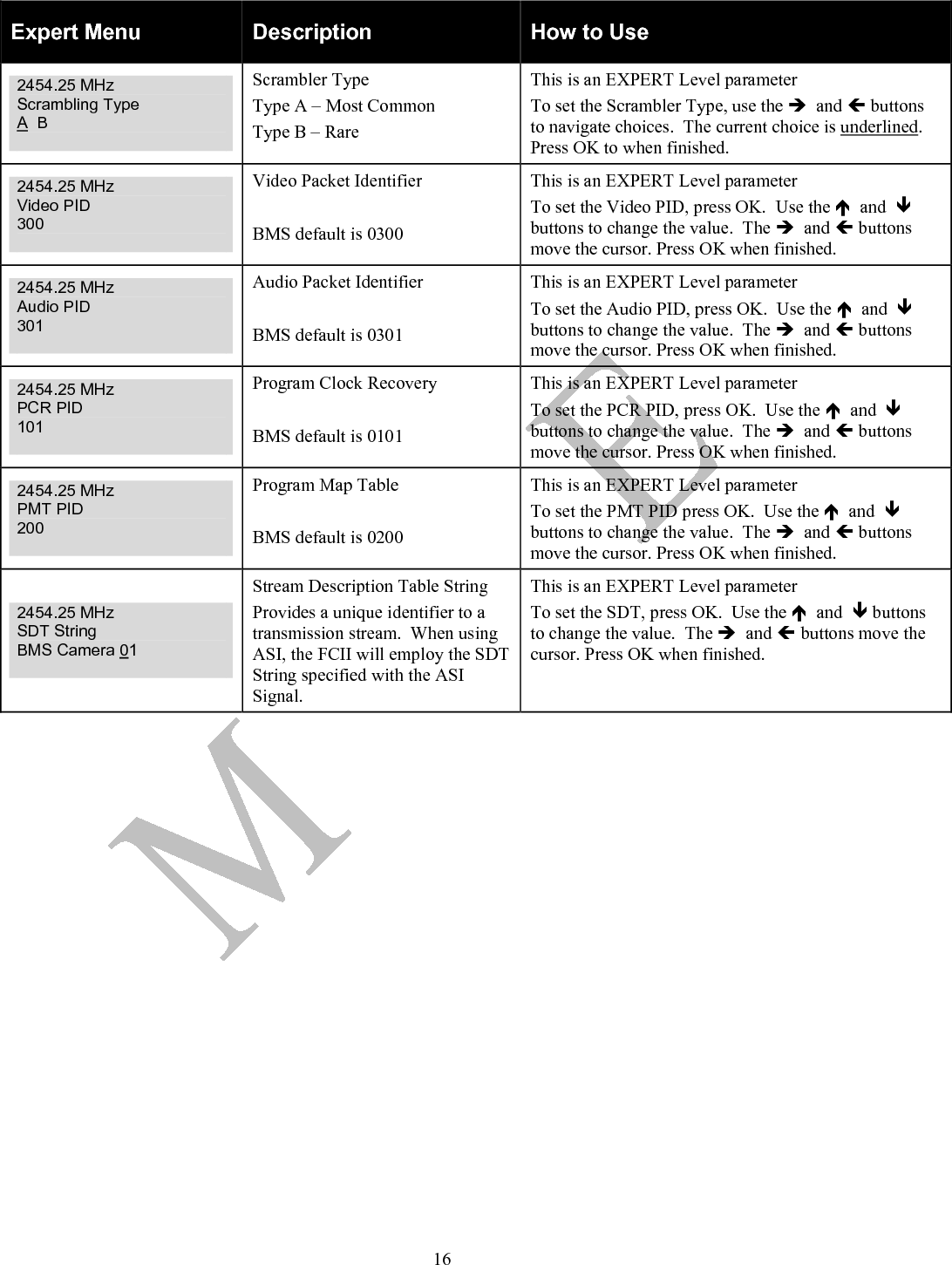
  16Expert Menu  Description  How to Use 2454.25 MHz  Scrambling Type A  B   Scrambler Type Type A – Most Common  Type B – Rare  This is an EXPERT Level parameter  To set the Scrambler Type, use the Î  and Í buttons to navigate choices.  The current choice is underlined.  Press OK to when finished. 2454.25 MHz  Video PID 300   Video Packet Identifier  BMS default is 0300 This is an EXPERT Level parameter  To set the Video PID, press OK.  Use the Ï  and  Ð buttons to change the value.  The Î  and Í buttons move the cursor. Press OK when finished. 2454.25 MHz  Audio PID 301   Audio Packet Identifier  BMS default is 0301 This is an EXPERT Level parameter  To set the Audio PID, press OK.  Use the Ï  and  Ð buttons to change the value.  The Î  and Í buttons move the cursor. Press OK when finished. 2454.25 MHz  PCR PID 101   Program Clock Recovery  BMS default is 0101 This is an EXPERT Level parameter  To set the PCR PID, press OK.  Use the Ï  and  Ð buttons to change the value.  The Î  and Í buttons move the cursor. Press OK when finished. 2454.25 MHz  PMT PID 200   Program Map Table  BMS default is 0200 This is an EXPERT Level parameter  To set the PMT PID press OK.  Use the Ï  and  Ð buttons to change the value.  The Î  and Í buttons move the cursor. Press OK when finished. 2454.25 MHz  SDT String BMS Camera 01   Stream Description Table String Provides a unique identifier to a transmission stream.  When using ASI, the FCII will employ the SDT String specified with the ASI Signal. This is an EXPERT Level parameter  To set the SDT, press OK.  Use the Ï  and  Ð buttons to change the value.  The Î  and Í buttons move the cursor. Press OK when finished.
 This Page Intentionally Left Blank
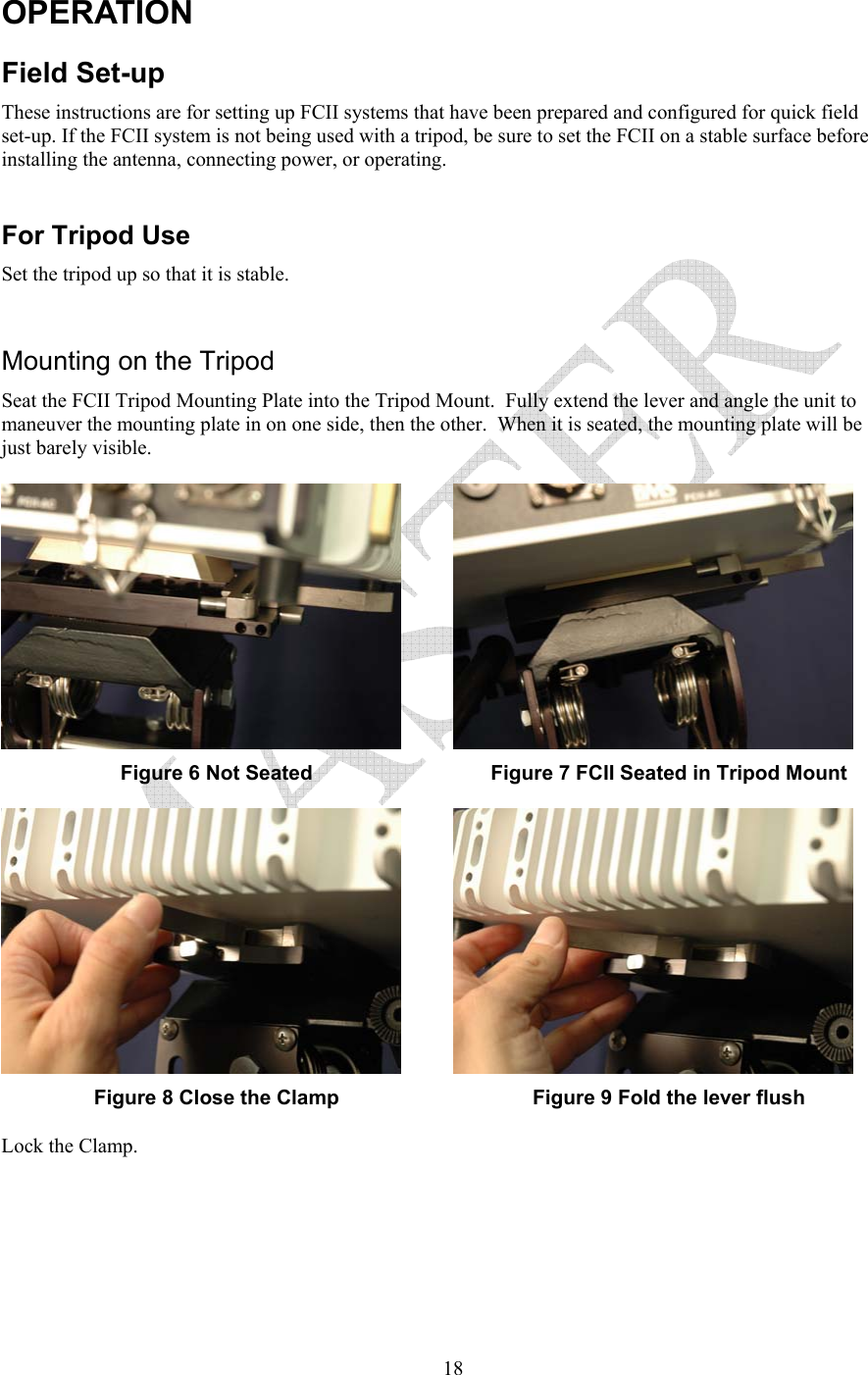
  18OPERATION Field Set-up These instructions are for setting up FCII systems that have been prepared and configured for quick field set-up. If the FCII system is not being used with a tripod, be sure to set the FCII on a stable surface before installing the antenna, connecting power, or operating.  For Tripod Use Set the tripod up so that it is stable.   Mounting on the Tripod  Seat the FCII Tripod Mounting Plate into the Tripod Mount.  Fully extend the lever and angle the unit to maneuver the mounting plate in on one side, then the other.  When it is seated, the mounting plate will be just barely visible.   Figure 6 Not Seated  Figure 7 FCII Seated in Tripod Mount  Figure 8 Close the Clamp  Figure 9 Fold the lever flush Lock the Clamp.
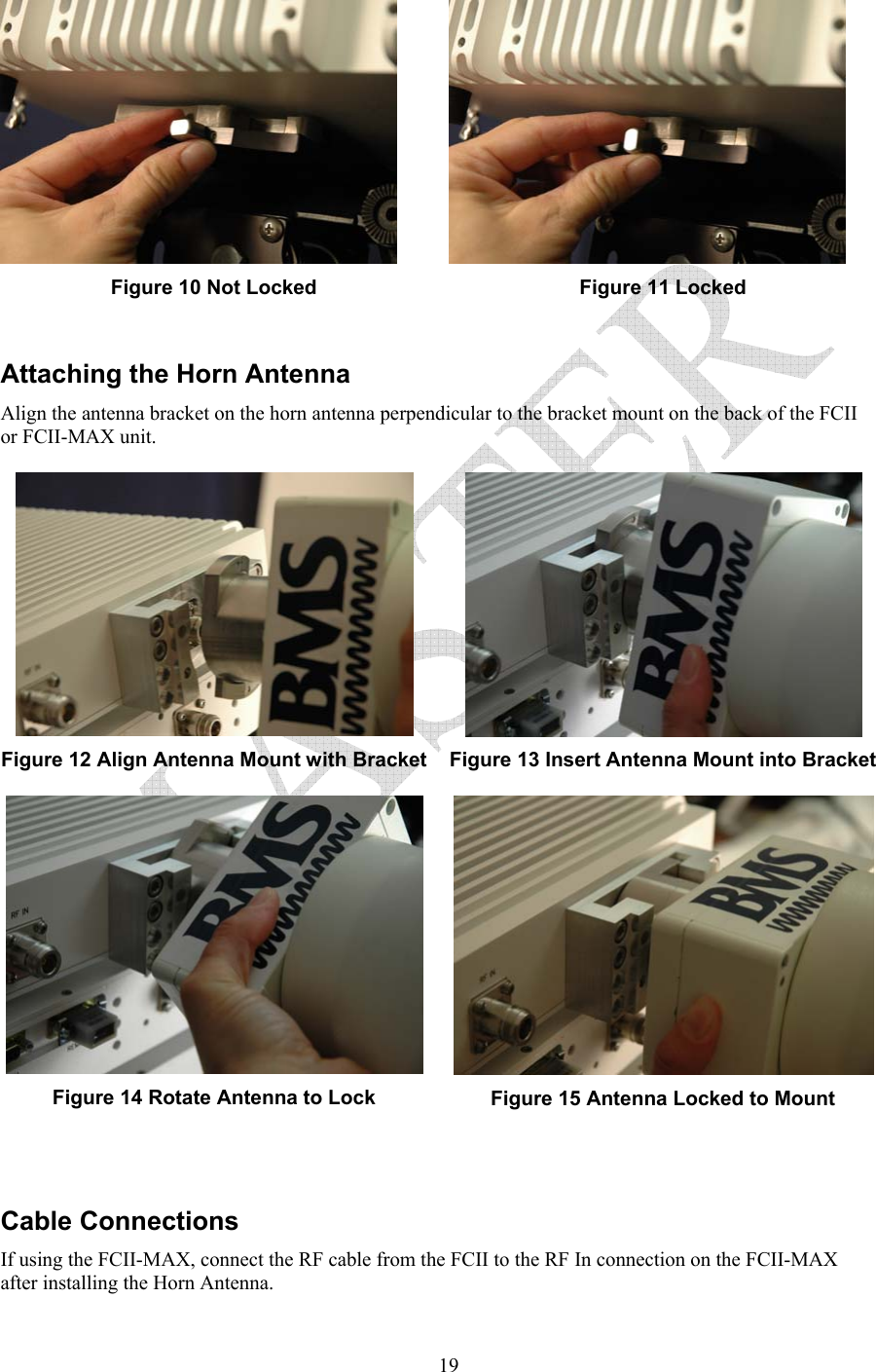
  19 Figure 10 Not Locked  Figure 11 Locked  Attaching the Horn Antenna Align the antenna bracket on the horn antenna perpendicular to the bracket mount on the back of the FCII or FCII-MAX unit.  Figure 12 Align Antenna Mount with Bracket  Figure 13 Insert Antenna Mount into Bracket Figure 14 Rotate Antenna to Lock  Figure 15 Antenna Locked to Mount     Cable Connections  If using the FCII-MAX, connect the RF cable from the FCII to the RF In connection on the FCII-MAX after installing the Horn Antenna.
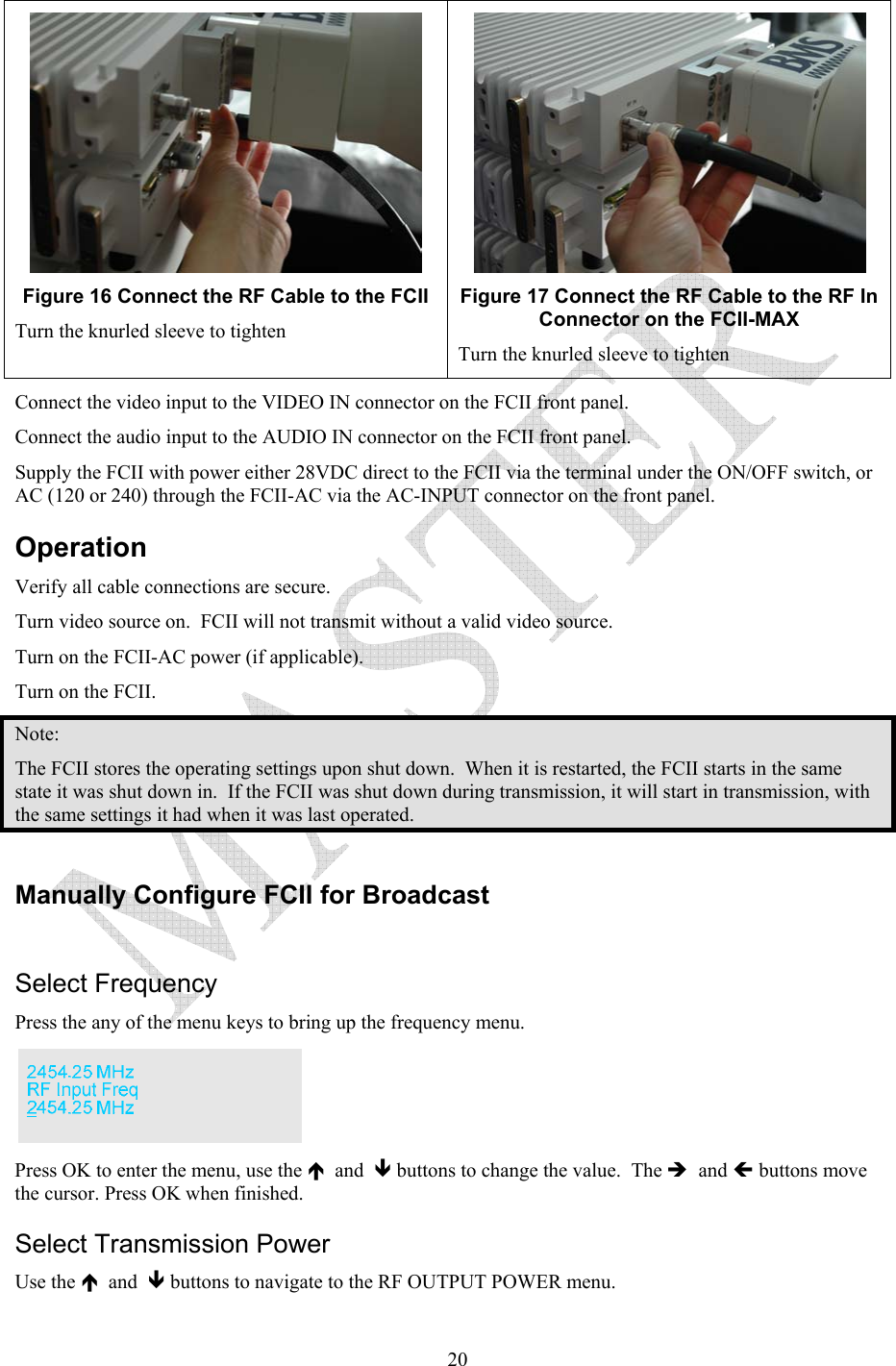
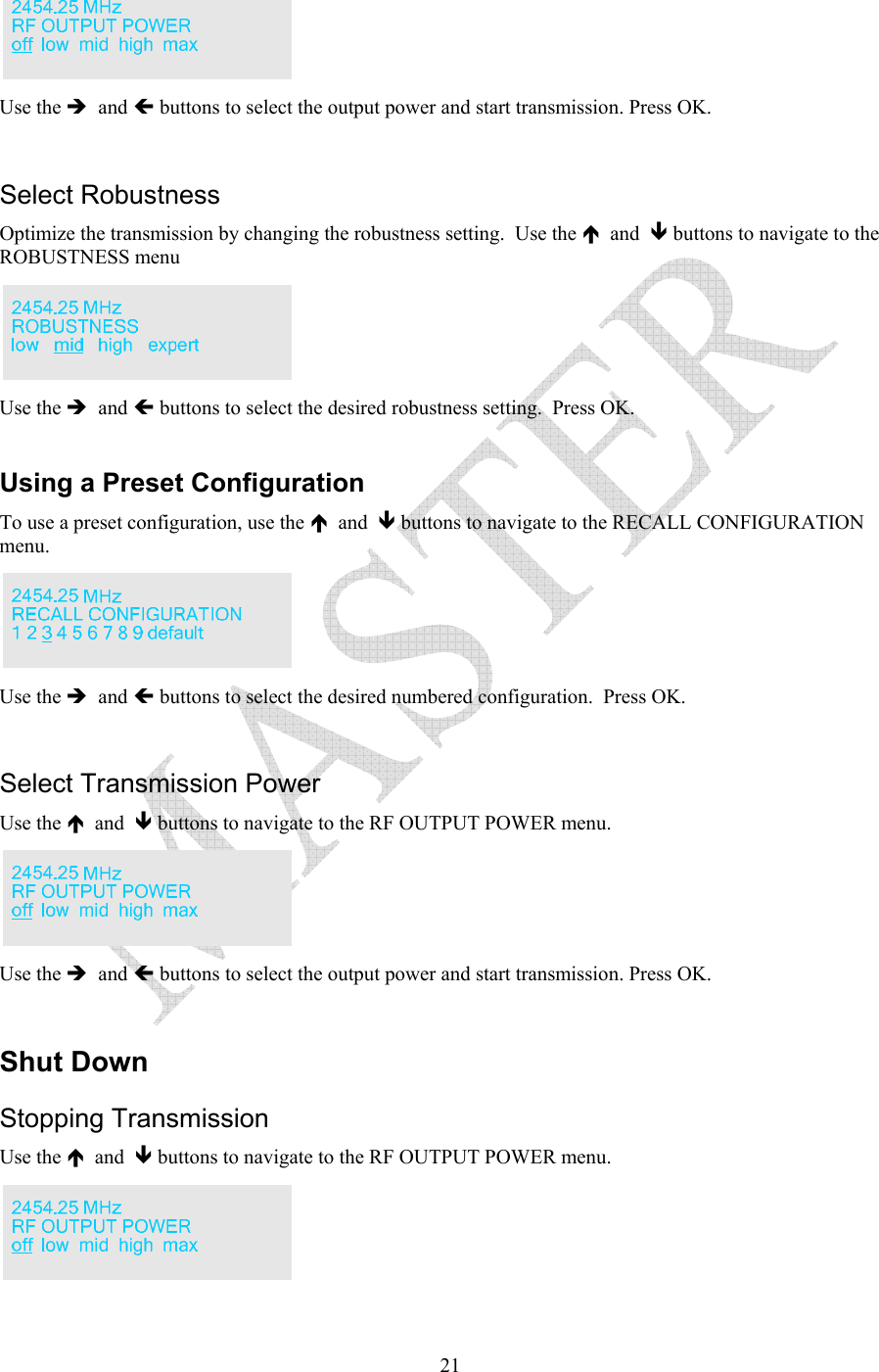
  20 Figure 16 Connect the RF Cable to the FCII    Turn the knurled sleeve to tighten  Figure 17 Connect the RF Cable to the RF In Connector on the FCII-MAX Turn the knurled sleeve to tighten Connect the video input to the VIDEO IN connector on the FCII front panel. Connect the audio input to the AUDIO IN connector on the FCII front panel.  Supply the FCII with power either 28VDC direct to the FCII via the terminal under the ON/OFF switch, or AC (120 or 240) through the FCII-AC via the AC-INPUT connector on the front panel. Operation Verify all cable connections are secure.   Turn video source on.  FCII will not transmit without a valid video source. Turn on the FCII-AC power (if applicable). Turn on the FCII. Note: The FCII stores the operating settings upon shut down.  When it is restarted, the FCII starts in the same state it was shut down in.  If the FCII was shut down during transmission, it will start in transmission, with the same settings it had when it was last operated.  Manually Configure FCII for Broadcast   Select Frequency Press the any of the menu keys to bring up the frequency menu.    Press OK to enter the menu, use the Ï  and  Ð buttons to change the value.  The Î  and Í buttons move the cursor. Press OK when finished. Select Transmission Power Use the Ï  and  Ð buttons to navigate to the RF OUTPUT POWER menu.
  21 Use the Î  and Í buttons to select the output power and start transmission. Press OK.  Select Robustness Optimize the transmission by changing the robustness setting.  Use the Ï  and  Ð buttons to navigate to the ROBUSTNESS menu  Use the Î  and Í buttons to select the desired robustness setting.  Press OK.  Using a Preset Configuration To use a preset configuration, use the Ï  and  Ð buttons to navigate to the RECALL CONFIGURATION menu.    Use the Î  and Í buttons to select the desired numbered configuration.  Press OK.  Select Transmission Power Use the Ï  and  Ð buttons to navigate to the RF OUTPUT POWER menu.    Use the Î  and Í buttons to select the output power and start transmission. Press OK.  Shut Down Stopping Transmission Use the Ï  and  Ð buttons to navigate to the RF OUTPUT POWER menu.
  22Use the Î  and Í buttons to select off to stop transmission. Press OK.  Power Down the FCII Flip the FCII ON/OFF switch to the OFF position. Flip the FCII-AC to POWER switch to the OFF position.(if applicable). Disconnect the power chord from the FCII-AC (if no FCII-AC in use, then disconnect power from the FCII.) Disconnect the RF cable from the FCII to the FCII-MAX (if applicable). Remove the antenna.  Twist to align the flanges with the opening.  Pull straight out. Remove the FCII components from the tripod.  Unlock the clamp lever.  Release the clamp and lift the FCII off the tripod.
  23This Page Intentionally Left Blank
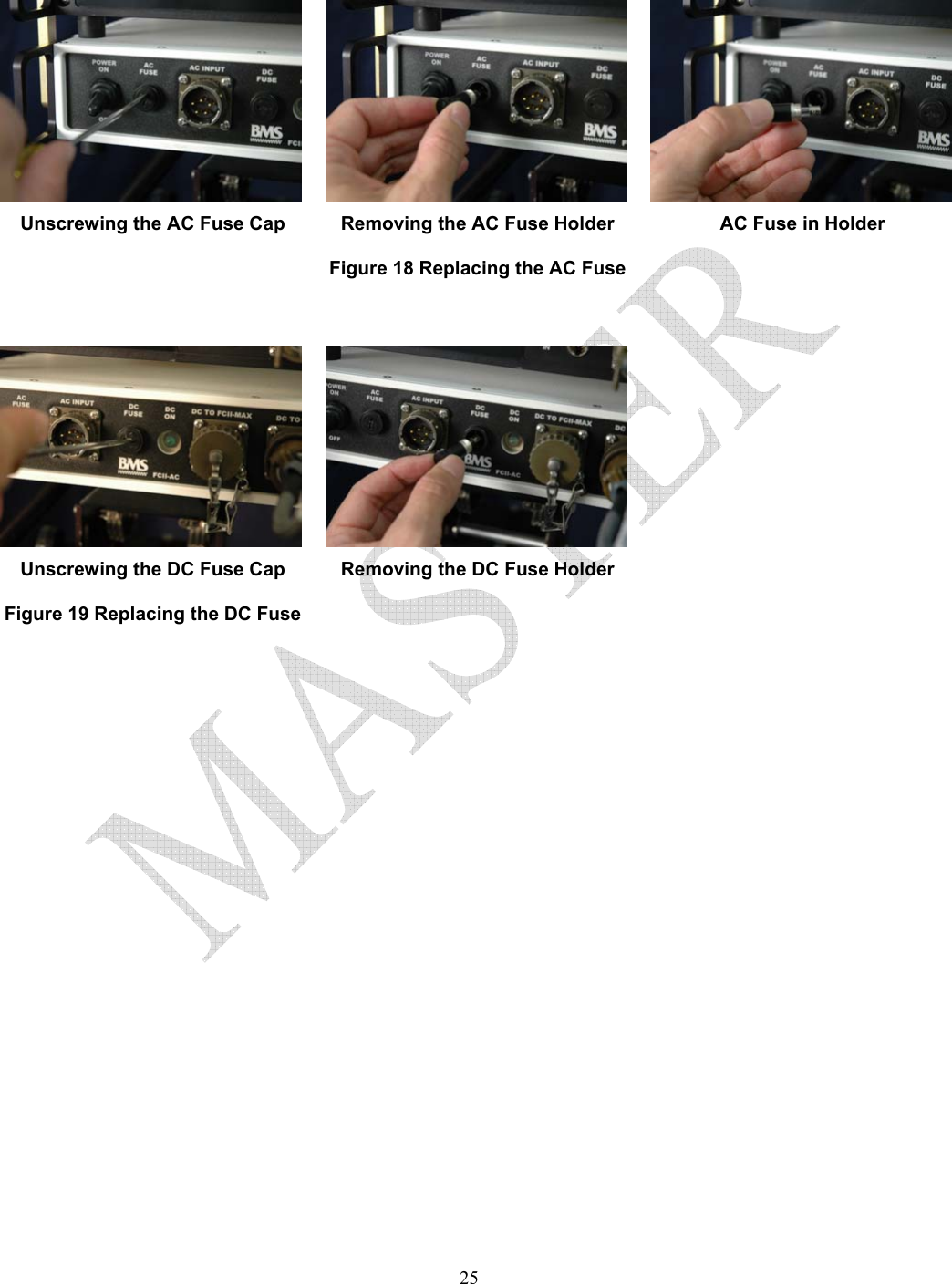
  24PREVENTATIVE MAINTENANCE In order to ensure system longevity it is highly recommended that the following preventative maintenance procedures be done at the appropriate time.    Maintenance Schedule Procedure  Yearly  Quarterly  Monthly  Prior to Each Use Inspect Mounting Hardware on Tripod, FCII and FCII-AC units      ■ Inspect All Cables (connection, chafing)      ■   Suggested Spare Parts List The FCII-AC has two fuses located on the front panel.  These are a 4A AC Fuse BMS p/n 514000404 and a 6.3A DC Fuse BMS p/n 514000463. There are no other serviceable parts.  Any attempts to service any other individual components may void the warranty.  Fuse Replacement Procedure  Tools Needed Standard Screwdriver  1. Remove the old fuse by using the screwdriver to unscrew the fuse cap on the front panel of the control panel (see Figure 18 and Figure 19 ) 2. Remove the old fuse & dispose. 3. Insert new fuse into the fuse holder. 4. Replace the fuse cap using a screwdriver to secure it in place.
  25 Unscrewing the AC Fuse Cap  Removing the AC Fuse Holder  AC Fuse in Holder Figure 18 Replacing the AC Fuse     Unscrewing the DC Fuse Cap  Removing the DC Fuse Holder  Figure 19 Replacing the DC Fuse
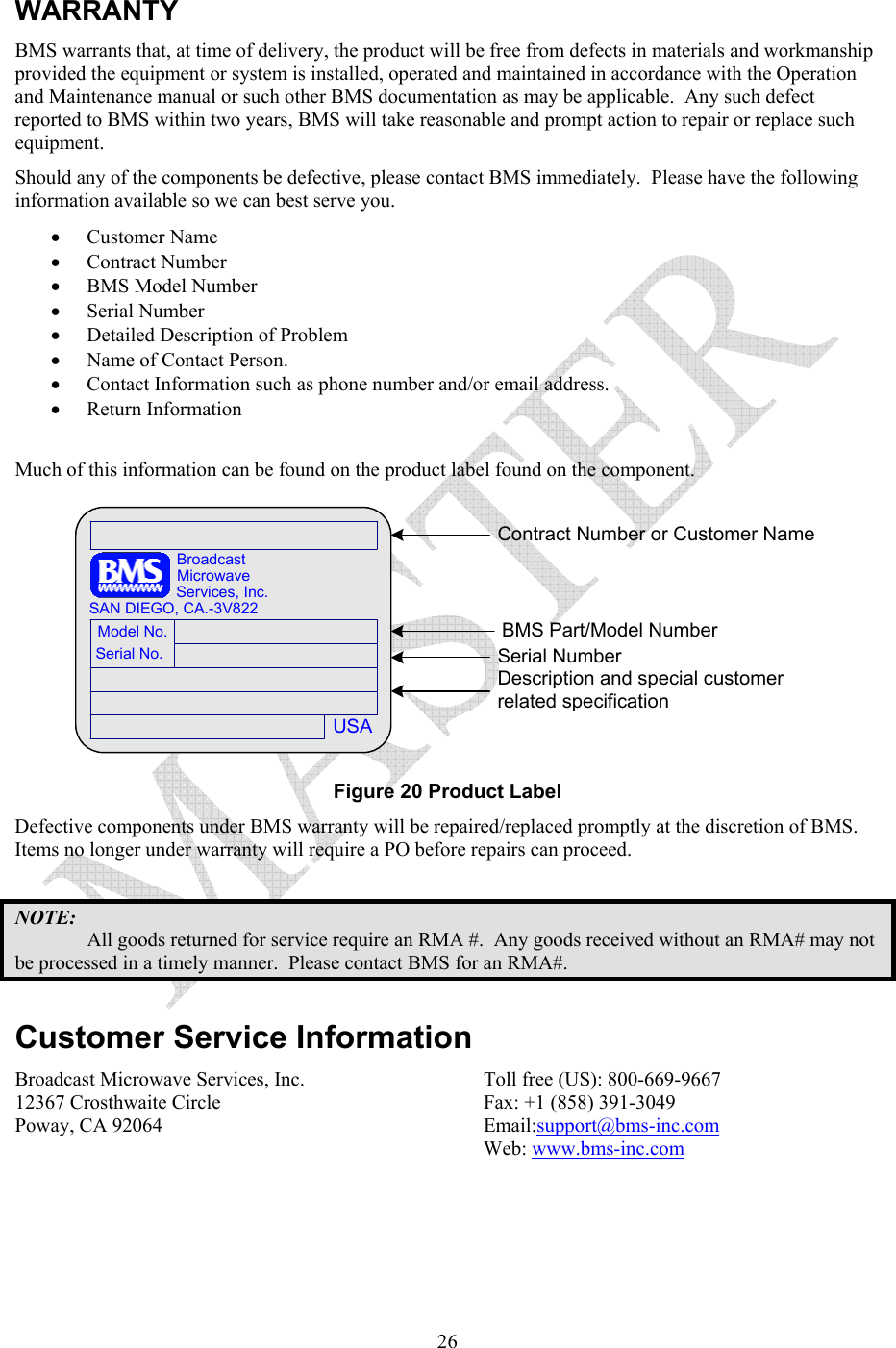
  26WARRANTY BMS warrants that, at time of delivery, the product will be free from defects in materials and workmanship provided the equipment or system is installed, operated and maintained in accordance with the Operation and Maintenance manual or such other BMS documentation as may be applicable.  Any such defect reported to BMS within two years, BMS will take reasonable and prompt action to repair or replace such equipment. Should any of the components be defective, please contact BMS immediately.  Please have the following information available so we can best serve you.   • Customer Name  • Contract Number  • BMS Model Number  • Serial Number  • Detailed Description of Problem  • Name of Contact Person.  • Contact Information such as phone number and/or email address.  • Return Information  Much of this information can be found on the product label found on the component. USASerial No.Model No.SAN DIEGO, CA.-3V822Services, Inc.MicrowaveBroadcastContract Number or Customer NameBMS Part/Model NumberSerial NumberDescription and special customer related specification Figure 20 Product Label Defective components under BMS warranty will be repaired/replaced promptly at the discretion of BMS.  Items no longer under warranty will require a PO before repairs can proceed.    NOTE: All goods returned for service require an RMA #.  Any goods received without an RMA# may not be processed in a timely manner.  Please contact BMS for an RMA#.  Customer Service Information Broadcast Microwave Services, Inc. 12367 Crosthwaite Circle Poway, CA 92064  Toll free (US): 800-669-9667 Fax: +1 (858) 391-3049 Email:support@bms-inc.com Web: www.bms-inc.com
  27This Page Intentionally Left Blank
  28Additional References    US Broadcast Frequency Assignments Coded Orthogonal Frequency Division Multiplex (COFDM) Modulation This Page Intentionally Left Blank
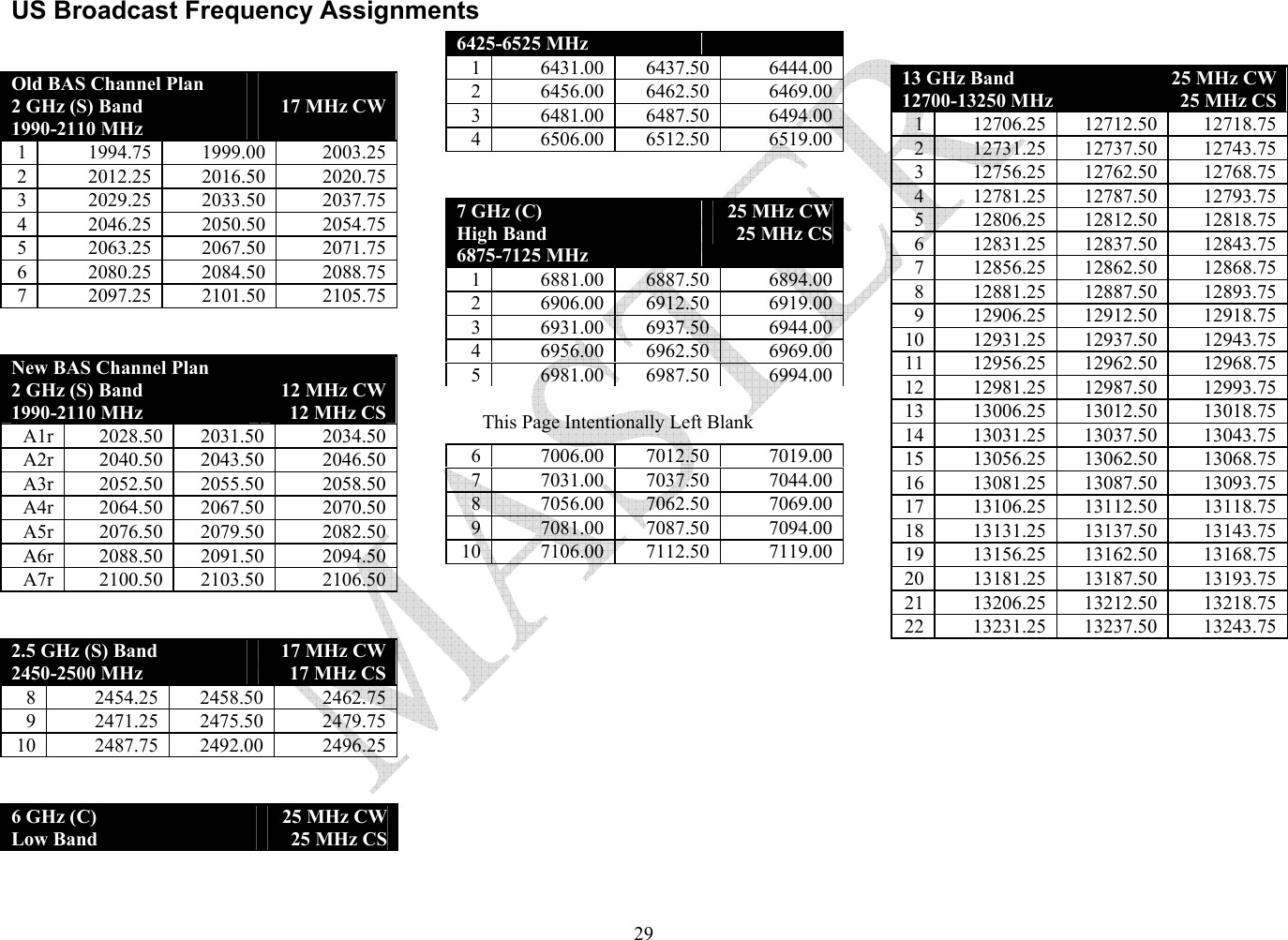
  29US Broadcast Frequency Assignments Old BAS Channel Plan 2 GHz (S) Band 1990-2110 MHz  17 MHz CW 1 1994.75 1999.00 2003.25 2 2012.25 2016.50 2020.75 3 2029.25 2033.50 2037.75 4 2046.25 2050.50 2054.75 5 2063.25 2067.50 2071.75 6 2080.25 2084.50 2088.75 7 2097.25 2101.50 2105.75  New BAS Channel Plan 2 GHz (S) Band 1990-2110 MHz 12 MHz CW12 MHz CS A1r 2028.50 2031.50  2034.50 A2r 2040.50 2043.50  2046.50 A3r 2052.50 2055.50  2058.50 A4r 2064.50 2067.50  2070.50 A5r 2076.50 2079.50  2082.50 A6r 2088.50 2091.50  2094.50 A7r 2100.50 2103.50  2106.50  2.5 GHz (S) Band 2450-2500 MHz 17 MHz CW17 MHz CS 8 2454.25 2458.50 2462.75 9 2471.25 2475.50 2479.75 10 2487.75 2492.00 2496.25  6 GHz (C)  Low Band 25 MHz CW25 MHz CS 6425-6525 MHz 1 6431.00 6437.50 6444.00 2 6456.00 6462.50 6469.00 3 6481.00 6487.50 6494.00 4 6506.00 6512.50 6519.00  7 GHz (C)  High Band 6875-7125 MHz 25 MHz CW25 MHz CS 1 6881.00 6887.50 6894.00 2 6906.00 6912.50 6919.00 3 6931.00 6937.50 6944.00 4 6956.00 6962.50 6969.00 5 6981.00 6987.50 6994.00 6 7006.00 7012.50 7019.00 7 7031.00 7037.50 7044.00 8 7056.00 7062.50 7069.00 9 7081.00 7087.50 7094.00 10 7106.00 7112.50 7119.00   13 GHz Band 12700-13250 MHz 25 MHz CW25 MHz CS 1 12706.25 12712.50 12718.75 2 12731.25 12737.50 12743.75 3 12756.25 12762.50 12768.75 4 12781.25 12787.50 12793.75 5 12806.25 12812.50 12818.75 6 12831.25 12837.50 12843.75 7 12856.25 12862.50 12868.75 8 12881.25 12887.50 12893.75 9 12906.25 12912.50 12918.75 10 12931.25 12937.50 12943.75 11 12956.25 12962.50 12968.75 12 12981.25 12987.50 12993.75 13 13006.25 13012.50 13018.75 14 13031.25 13037.50 13043.75 15 13056.25 13062.50 13068.75 16 13081.25 13087.50 13093.75 17 13106.25 13112.50 13118.75 18 13131.25 13137.50 13143.75 19 13156.25 13162.50 13168.75 20 13181.25 13187.50 13193.75 21 13206.25 13212.50 13218.75 22 13231.25 13237.50 13243.75  This Page Intentionally Left Blank
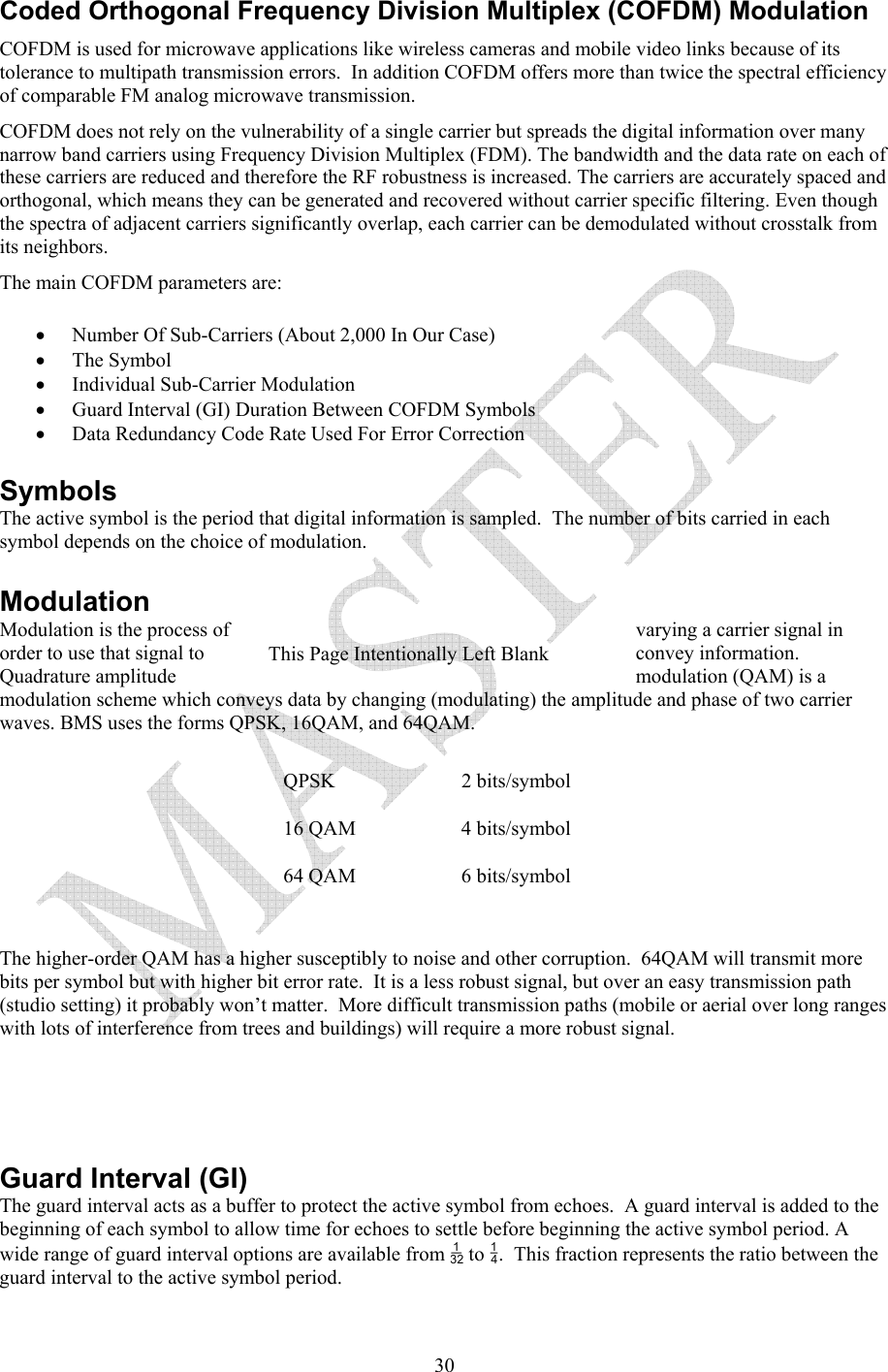
  30Coded Orthogonal Frequency Division Multiplex (COFDM) Modulation COFDM is used for microwave applications like wireless cameras and mobile video links because of its tolerance to multipath transmission errors.  In addition COFDM offers more than twice the spectral efficiency of comparable FM analog microwave transmission. COFDM does not rely on the vulnerability of a single carrier but spreads the digital information over many narrow band carriers using Frequency Division Multiplex (FDM). The bandwidth and the data rate on each of these carriers are reduced and therefore the RF robustness is increased. The carriers are accurately spaced and orthogonal, which means they can be generated and recovered without carrier specific filtering. Even though the spectra of adjacent carriers significantly overlap, each carrier can be demodulated without crosstalk from its neighbors. The main COFDM parameters are: • Number Of Sub-Carriers (About 2,000 In Our Case) • The Symbol  • Individual Sub-Carrier Modulation • Guard Interval (GI) Duration Between COFDM Symbols • Data Redundancy Code Rate Used For Error Correction Symbols The active symbol is the period that digital information is sampled.  The number of bits carried in each symbol depends on the choice of modulation.   Modulation Modulation is the process of  varying a carrier signal in order to use that signal to  convey information.  Quadrature amplitude  modulation (QAM) is a modulation scheme which conveys data by changing (modulating) the amplitude and phase of two carrier waves. BMS uses the forms QPSK, 16QAM, and 64QAM.    QPSK   2 bits/symbol 16 QAM  4 bits/symbol 64 QAM  6 bits/symbol   The higher-order QAM has a higher susceptibly to noise and other corruption.  64QAM will transmit more bits per symbol but with higher bit error rate.  It is a less robust signal, but over an easy transmission path (studio setting) it probably won’t matter.  More difficult transmission paths (mobile or aerial over long ranges with lots of interference from trees and buildings) will require a more robust signal.         Guard Interval (GI) The guard interval acts as a buffer to protect the active symbol from echoes.  A guard interval is added to the beginning of each symbol to allow time for echoes to settle before beginning the active symbol period. A wide range of guard interval options are available from  to .  This fraction represents the ratio between the guard interval to the active symbol period.  This Page Intentionally Left Blank
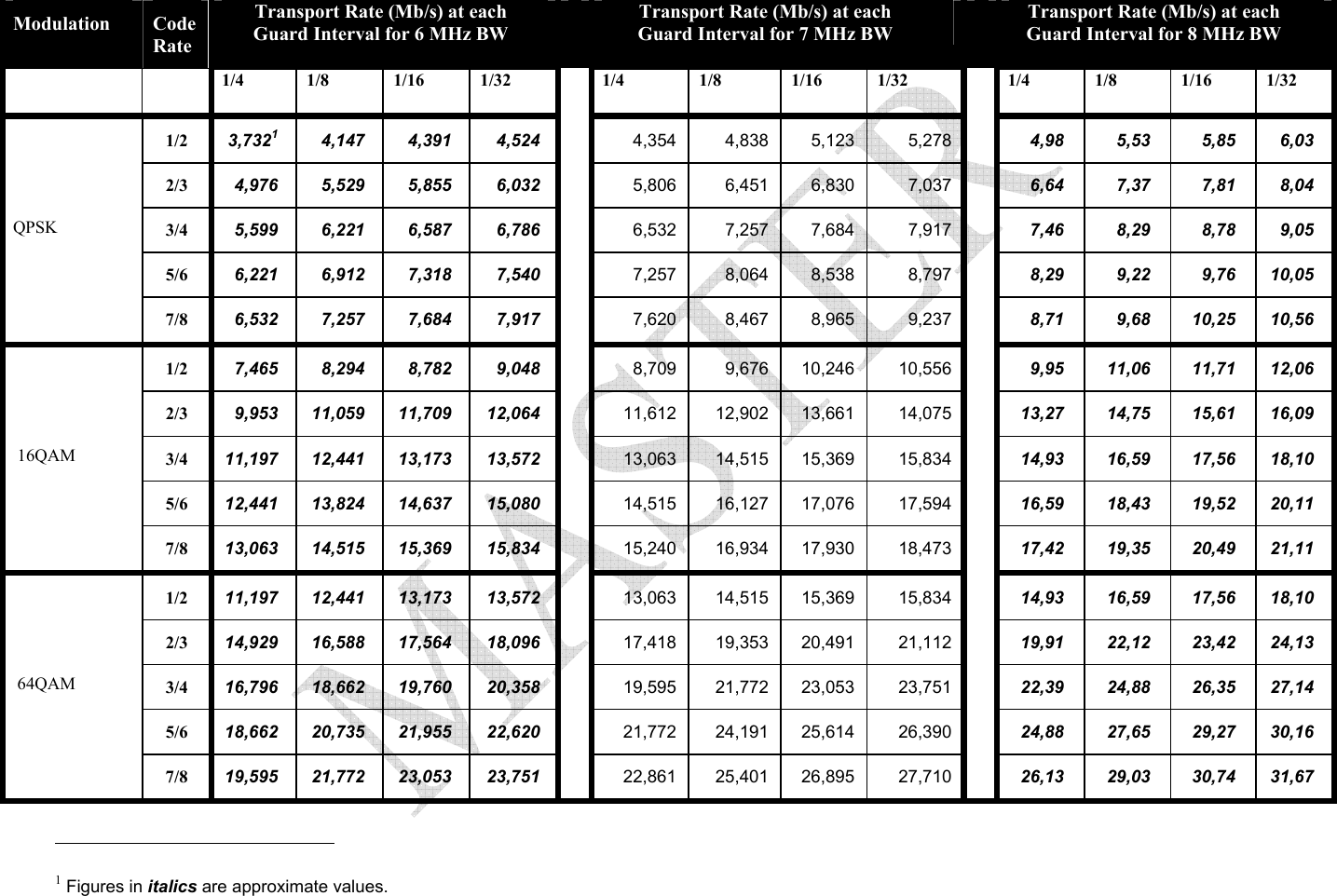
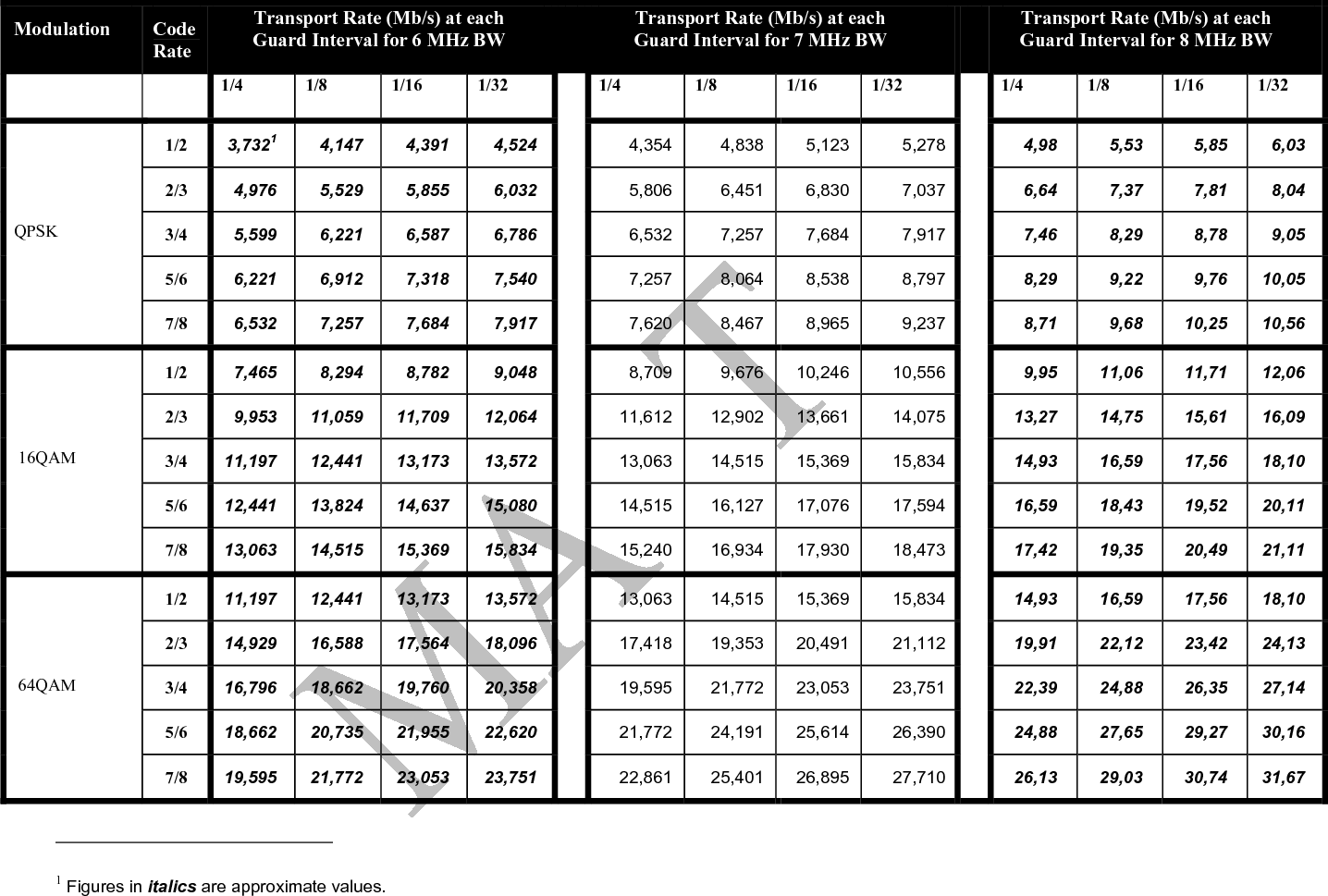
  31 Code Rate The code rate represents the amount of Forward Error Correction (FEC) used for each active symbol.  FEC is a method of obtaining error control in data transmission.  A code rate of ½ means that for two bits of information received, 1 bit is the real data.  The other bit tells how intact the first bit is.  A code rate of 7/8 means that out of the 8 bits sent, there are 7 bits of real data and only 1 bit that is to catch any errors in those 7.  Transmission Rates Finding the best transmission mode to suit a given situation means selecting the best compromise between modulation, guard interval and code rate.  What follows are the ETSI EN 300 744 V1.4.1 (2001-01) standards for the useful bitrate (Mbit/s) for all combinations of guard interval, constellation and code rate for non-hierarchical systems for 6, 7, and 8 MHz channels respectively.
  Modulation  Code Rate Transport Rate (Mb/s) at each  Guard Interval for 6 MHz BW   Transport Rate (Mb/s) at each  Guard Interval for 7 MHz BW   Transport Rate (Mb/s) at each Guard Interval for 8 MHz BW   1/4 1/8 1/16 1/32  1/4 1/8 1/16 1/32  1/4 1/8 1/16 1/32 1/2  3,7321 4,147 4,391 4,524  4,354 4,838 5,123  5,278  4,98 5,53 5,85 6,03 2/3  4,976 5,529 5,855 6,032  5,806 6,451 6,830  7,037  6,64 7,37 7,81 8,04 3/4  5,599 6,221 6,587 6,786  6,532 7,257 7,684  7,917  7,46 8,29 8,78 9,05 5/6  6,221 6,912 7,318 7,540  7,257 8,064 8,538  8,797  8,29 9,22 9,76 10,05 QPSK 7/8  6,532 7,257 7,684 7,917  7,620 8,467 8,965  9,237  8,71 9,68 10,25 10,56 1/2  7,465 8,294 8,782 9,048  8,709 9,676 10,246 10,556  9,95 11,06 11,71 12,06 2/3  9,953 11,059 11,709 12,064  11,612 12,902 13,661  14,075  13,27 14,75 15,61 16,09 3/4  11,197 12,441 13,173 13,572  13,063 14,515 15,369  15,834  14,93 16,59 17,56 18,10 5/6  12,441 13,824 14,637 15,080  14,515 16,127 17,076  17,594  16,59 18,43 19,52 20,11  16QAM 7/8  13,063 14,515 15,369 15,834  15,240 16,934 17,930  18,473  17,42 19,35 20,49 21,11 1/2  11,197 12,441 13,173 13,572  13,063 14,515 15,369  15,834  14,93 16,59 17,56 18,10 2/3  14,929 16,588 17,564 18,096  17,418 19,353 20,491  21,112  19,91 22,12 23,42 24,13 3/4  16,796 18,662 19,760 20,358  19,595 21,772 23,053  23,751  22,39 24,88 26,35 27,14 5/6  18,662 20,735 21,955 22,620  21,772 24,191 25,614  26,390  24,88 27,65 29,27 30,16  64QAM 7/8  19,595 21,772 23,053 23,751  22,861 25,401 26,895  27,710  26,13 29,03 30,74 31,67                                                            1 Figures in italics are approximate values.
         This Page Intentionally Left Blank
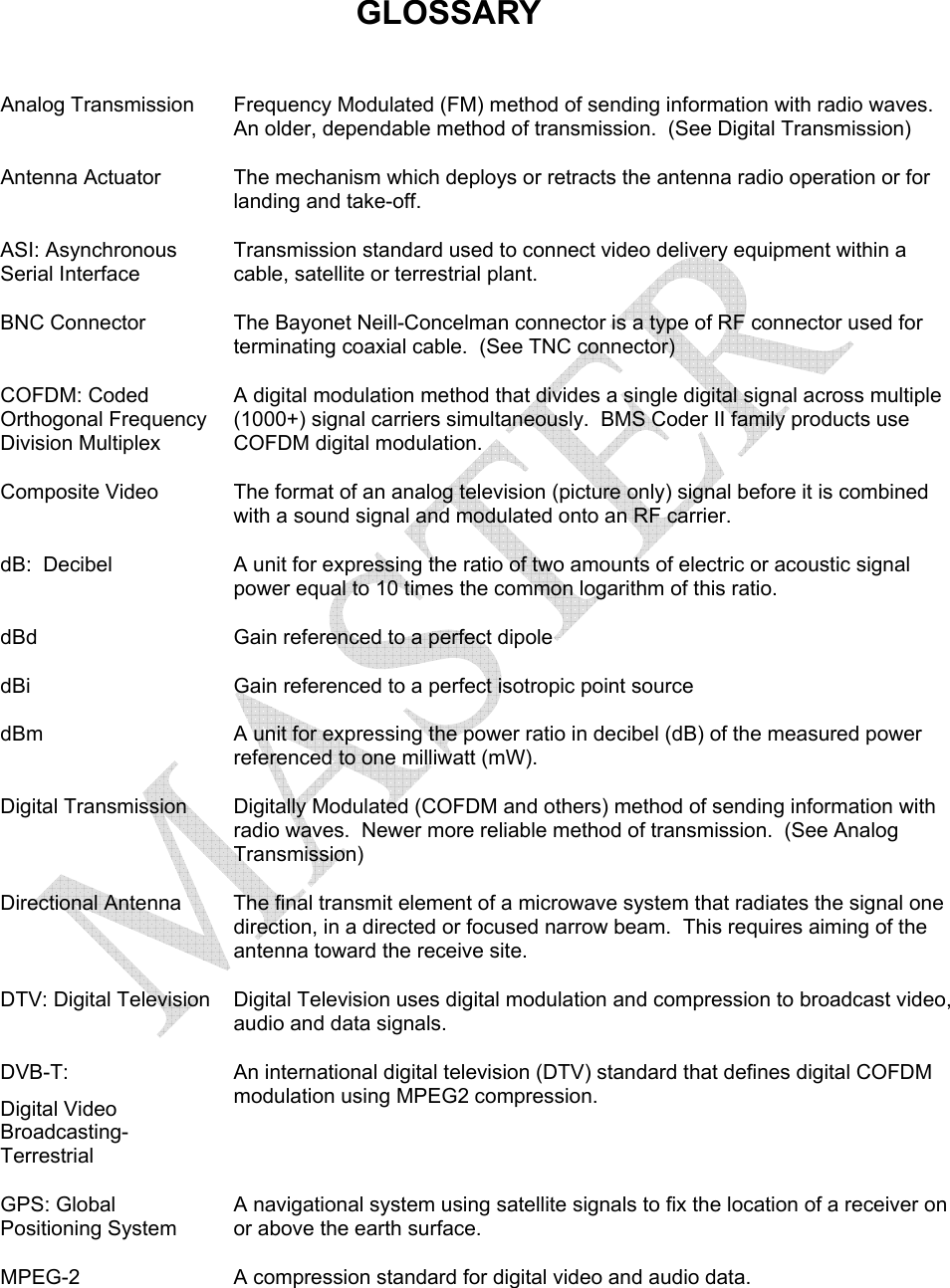
  GLOSSARY  Analog Transmission  Frequency Modulated (FM) method of sending information with radio waves.  An older, dependable method of transmission.  (See Digital Transmission)   Antenna Actuator  The mechanism which deploys or retracts the antenna radio operation or for landing and take-off. ASI: Asynchronous Serial Interface Transmission standard used to connect video delivery equipment within a cable, satellite or terrestrial plant. BNC Connector  The Bayonet Neill-Concelman connector is a type of RF connector used for terminating coaxial cable.  (See TNC connector) COFDM: Coded Orthogonal Frequency Division Multiplex A digital modulation method that divides a single digital signal across multiple (1000+) signal carriers simultaneously.  BMS Coder II family products use COFDM digital modulation. Composite Video  The format of an analog television (picture only) signal before it is combined with a sound signal and modulated onto an RF carrier. dB:  Decibel  A unit for expressing the ratio of two amounts of electric or acoustic signal power equal to 10 times the common logarithm of this ratio. dBd  Gain referenced to a perfect dipole dBi  Gain referenced to a perfect isotropic point source dBm  A unit for expressing the power ratio in decibel (dB) of the measured power referenced to one milliwatt (mW). Digital Transmission  Digitally Modulated (COFDM and others) method of sending information with radio waves.  Newer more reliable method of transmission.  (See Analog Transmission) Directional Antenna  The final transmit element of a microwave system that radiates the signal one direction, in a directed or focused narrow beam.  This requires aiming of the antenna toward the receive site. DTV: Digital Television  Digital Television uses digital modulation and compression to broadcast video, audio and data signals. DVB-T:  Digital Video Broadcasting-Terrestrial An international digital television (DTV) standard that defines digital COFDM modulation using MPEG2 compression. GPS: Global Positioning System A navigational system using satellite signals to fix the location of a receiver on or above the earth surface. MPEG-2  A compression standard for digital video and audio data.
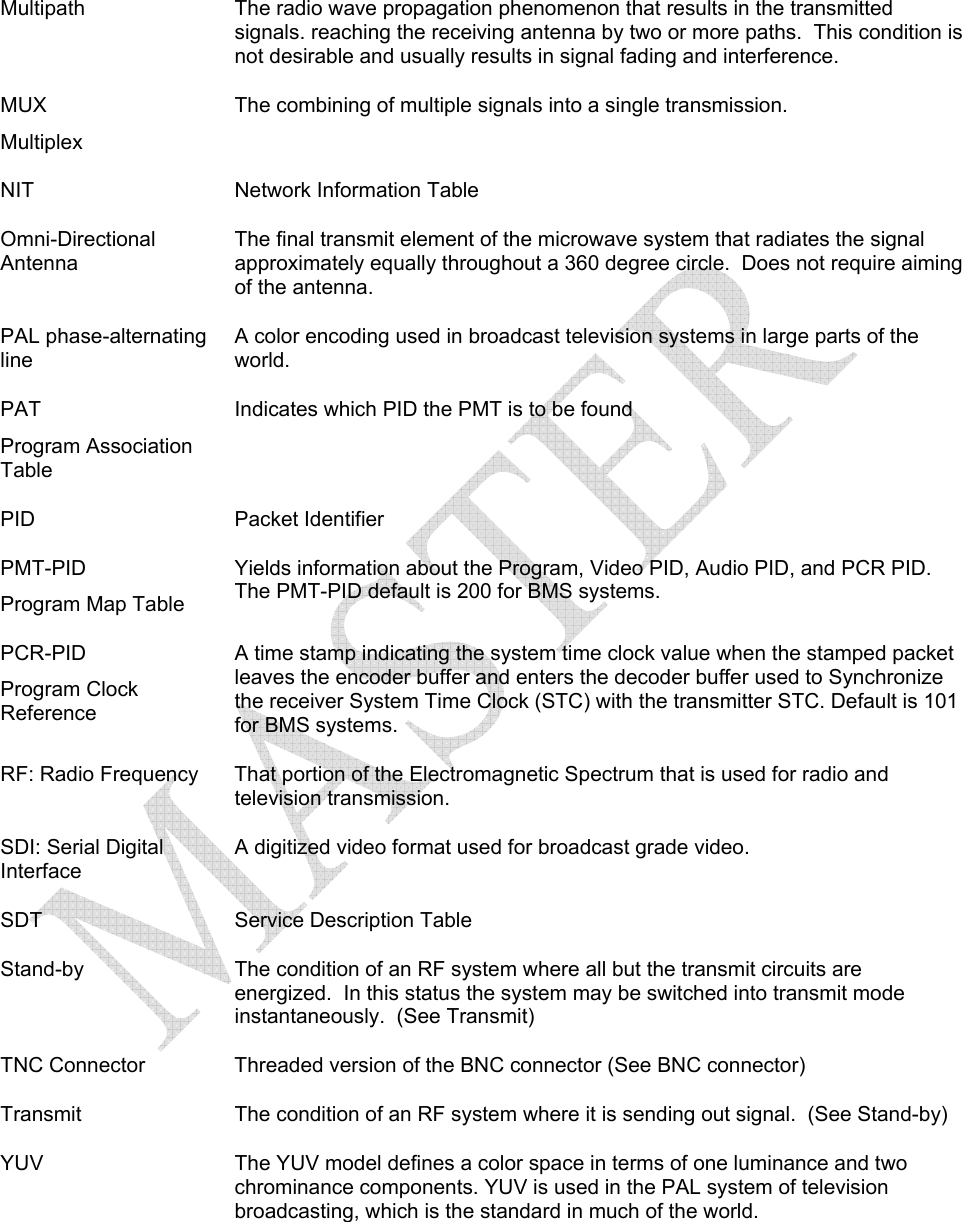
  Multipath  The radio wave propagation phenomenon that results in the transmitted signals. reaching the receiving antenna by two or more paths.  This condition is not desirable and usually results in signal fading and interference. MUX  Multiplex The combining of multiple signals into a single transmission.  NIT  Network Information Table Omni-Directional Antenna The final transmit element of the microwave system that radiates the signal approximately equally throughout a 360 degree circle.  Does not require aiming of the antenna. PAL phase-alternating line A color encoding used in broadcast television systems in large parts of the world. PAT  Program Association Table Indicates which PID the PMT is to be found PID Packet Identifier PMT-PID Program Map Table Yields information about the Program, Video PID, Audio PID, and PCR PID.   The PMT-PID default is 200 for BMS systems. PCR-PID Program Clock Reference A time stamp indicating the system time clock value when the stamped packet leaves the encoder buffer and enters the decoder buffer used to Synchronize the receiver System Time Clock (STC) with the transmitter STC. Default is 101 for BMS systems. RF: Radio Frequency  That portion of the Electromagnetic Spectrum that is used for radio and television transmission. SDI: Serial Digital Interface A digitized video format used for broadcast grade video.  SDT Service Description Table Stand-by  The condition of an RF system where all but the transmit circuits are energized.  In this status the system may be switched into transmit mode instantaneously.  (See Transmit) TNC Connector  Threaded version of the BNC connector (See BNC connector) Transmit  The condition of an RF system where it is sending out signal.  (See Stand-by) YUV  The YUV model defines a color space in terms of one luminance and two chrominance components. YUV is used in the PAL system of television broadcasting, which is the standard in much of the world.

Navigation menu