CCT Tech Advanced MD450 2.4GHz FHSS Cordless Phone With Caller ID User Manual 1041b65o

CCT Tech Advanced Products Limited 2.4GHz FHSS Cordless Phone With Caller ID 1041b65o

Contents

User Manual 2 of 2
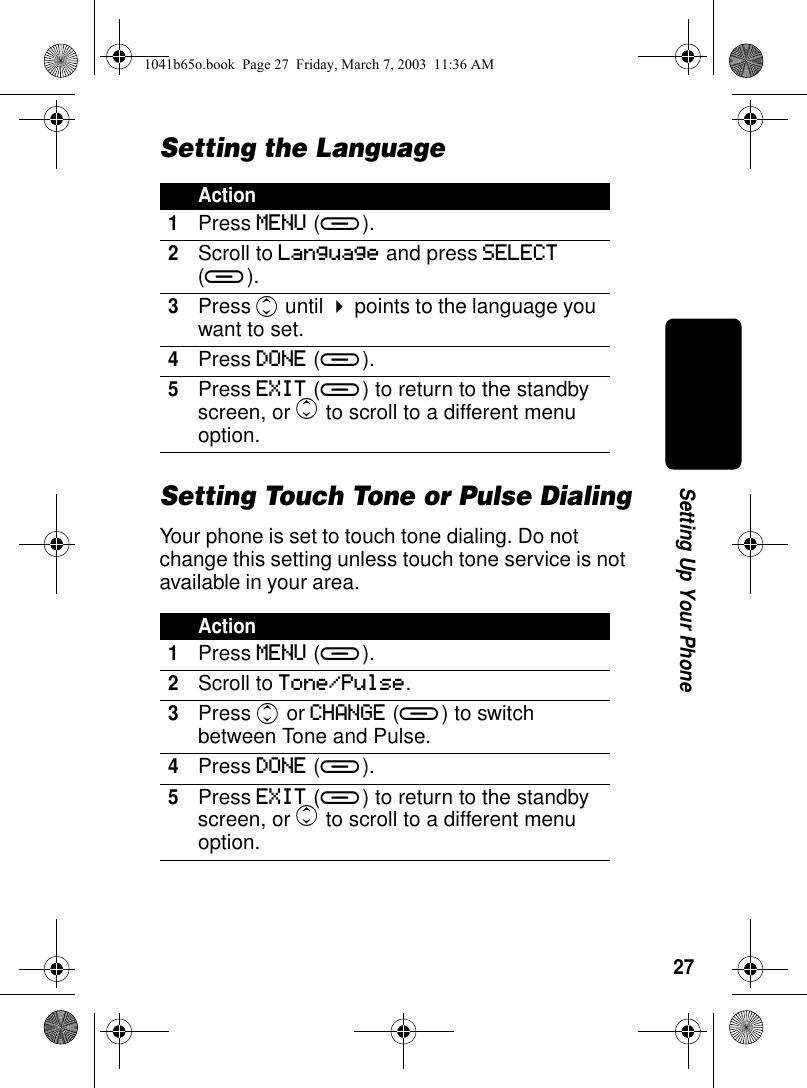
27Setting Up Your PhoneSetting the LanguageSetting Touch Tone or Pulse DialingYour phone is set to touch tone dialing. Do not change this setting unless touch tone service is not available in your area.Action1Press MENU (a).2Scroll to Language and press SELECT (a). 3Press c until ! points to the language you want to set.4Press DONE (a).5Press EXIT (a) to return to the standby screen, or c to scroll to a different menu option.Action1Press MENU (a).2Scroll to Tone/Pulse.3Press c or CHANGE (a) to switch between Tone and Pulse.4Press DONE (a).5Press EXIT (a) to return to the standby screen, or c to scroll to a different menu option.1041b65o.book  Page 27  Friday, March 7, 2003  11:36 AM
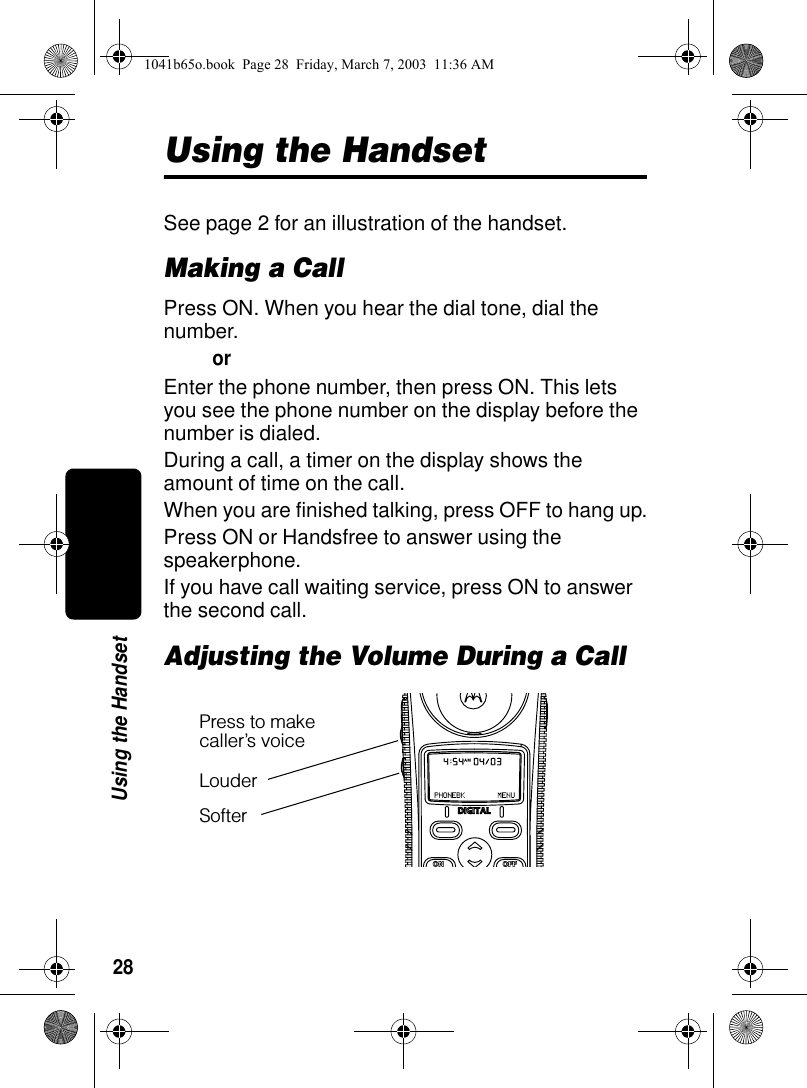
28Using the HandsetUsing the HandsetSee page 2 for an illustration of the handset.Making a CallPress ON. When you hear the dial tone, dial the number.orEnter the phone number, then press ON. This lets you see the phone number on the display before the number is dialed.During a call, a timer on the display shows the amount of time on the call.When you are finished talking, press OFF to hang up.Press ON or Handsfree to answer using the speakerphone.If you have call waiting service, press ON to answer the second call.Adjusting the Volume During a CallPress to make caller’s voiceLouderSofter1041b65o.book  Page 28  Friday, March 7, 2003  11:36 AM
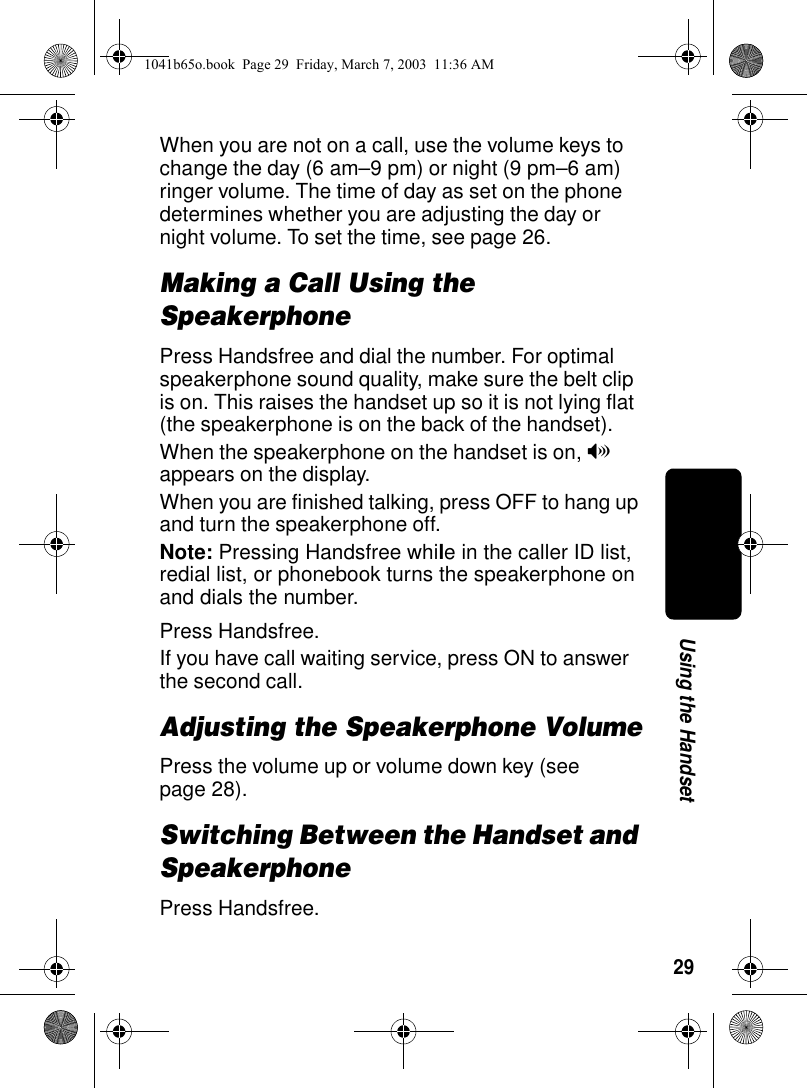
29Using the HandsetWhen you are not on a call, use the volume keys to change the day (6 am–9 pm) or night (9 pm–6 am) ringer volume. The time of day as set on the phone determines whether you are adjusting the day or night volume. To set the time, see page 26.Making a Call Using the SpeakerphonePress Handsfree and dial the number. For optimal speakerphone sound quality, make sure the belt clip is on. This raises the handset up so it is not lying flat (the speakerphone is on the back of the handset).When the speakerphone on the handset is on, V appears on the display.When you are finished talking, press OFF to hang up and turn the speakerphone off.Note: Pressing Handsfree while in the caller ID list, redial list, or phonebook turns the speakerphone on and dials the number.Press Handsfree.If you have call waiting service, press ON to answer the second call.Adjusting the Speakerphone VolumePress the volume up or volume down key (see page 28).Switching Between the Handset and SpeakerphonePress Handsfree.1041b65o.book  Page 29  Friday, March 7, 2003  11:36 AM
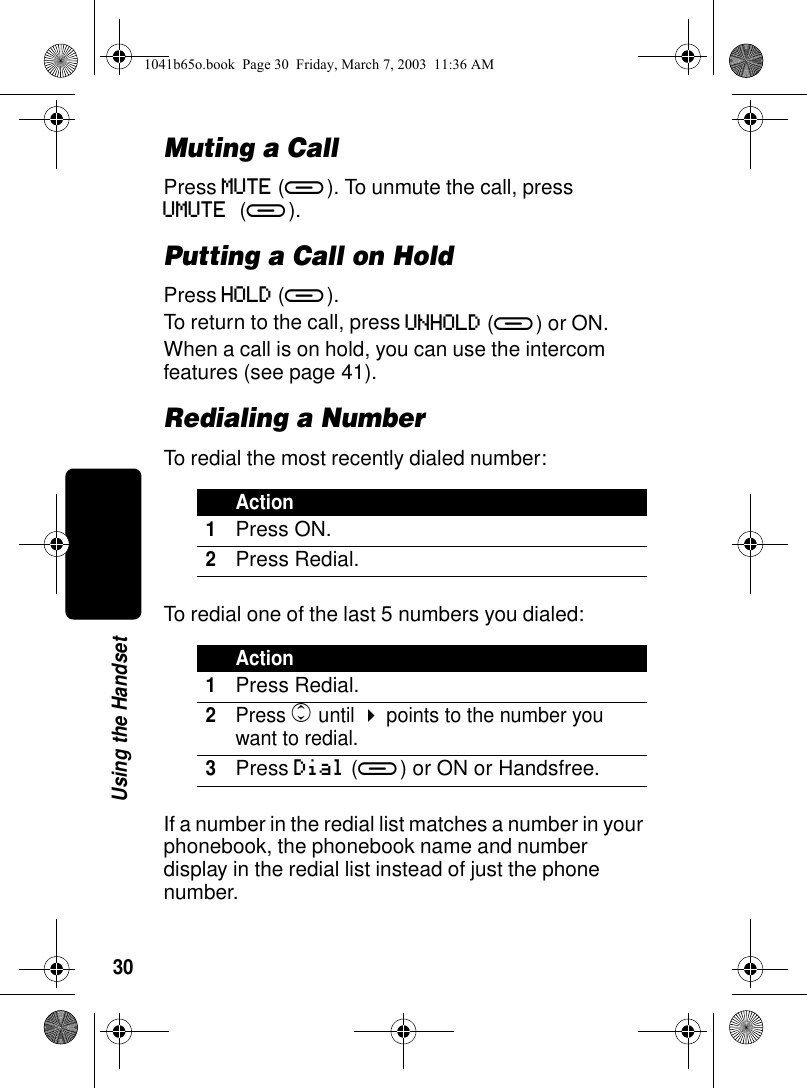
30Using the HandsetMuting a CallPress MUTE (a). To unmute the call, press UMUTE (a). Putting a Call on HoldPress HOLD (a).To return to the call, press UNHOLD (a) or ON.When a call is on hold, you can use the intercom features (see page 41).Redialing a NumberTo redial the most recently dialed number:To redial one of the last 5 numbers you dialed:If a number in the redial list matches a number in your phonebook, the phonebook name and number display in the redial list instead of just the phone number.Action1Press ON.2Press Redial.Action1Press Redial.2Press c until ! points to the number you want to redial.3Press Dial (a) or ON or Handsfree.1041b65o.book  Page 30  Friday, March 7, 2003  11:36 AM
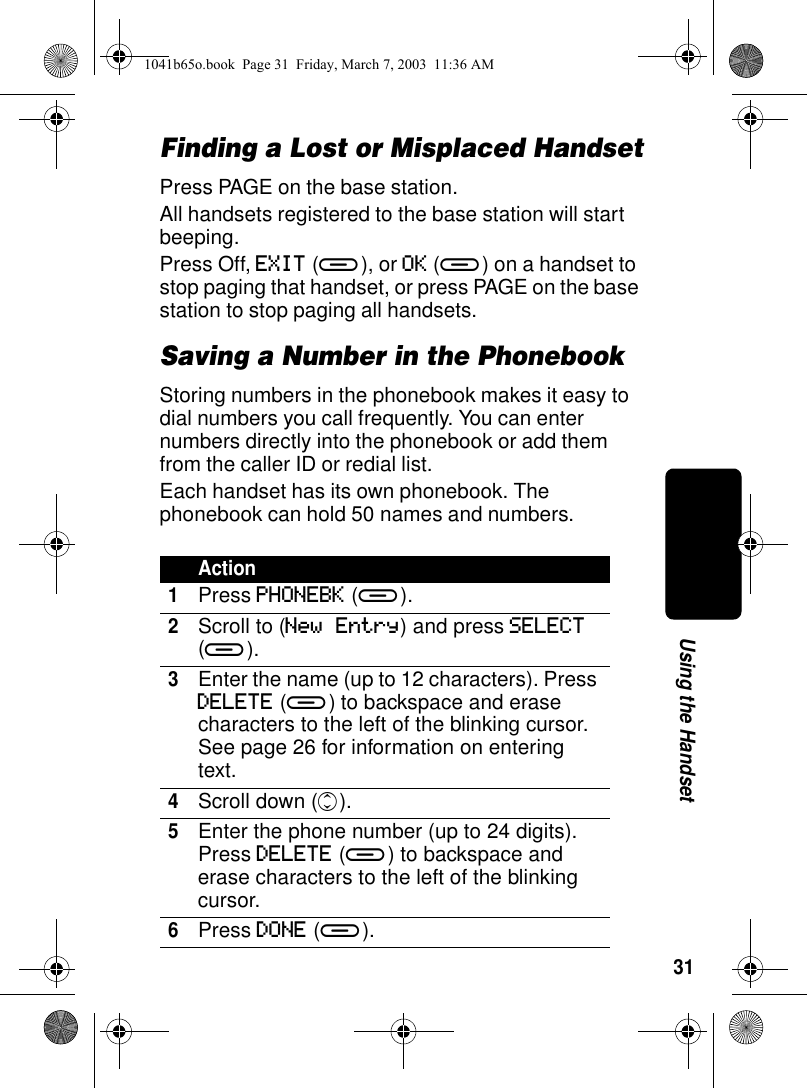
31Using the HandsetFinding a Lost or Misplaced HandsetPress PAGE on the base station.All handsets registered to the base station will start beeping. Press Off, EXIT (a), or OK (a) on a handset to stop paging that handset, or press PAGE on the base station to stop paging all handsets.Saving a Number in the PhonebookStoring numbers in the phonebook makes it easy to dial numbers you call frequently. You can enter numbers directly into the phonebook or add them from the caller ID or redial list.Each handset has its own phonebook. The phonebook can hold 50 names and numbers.Action1Press PHONEBK (a).2Scroll to (New Entry) and press SELECT (a).3Enter the name (up to 12 characters). Press DELETE (a) to backspace and erase characters to the left of the blinking cursor. See page 26 for information on entering text. 4Scroll down (c).5Enter the phone number (up to 24 digits). Press DELETE (a) to backspace and erase characters to the left of the blinking cursor.6Press DONE (a).1041b65o.book  Page 31  Friday, March 7, 2003  11:36 AM
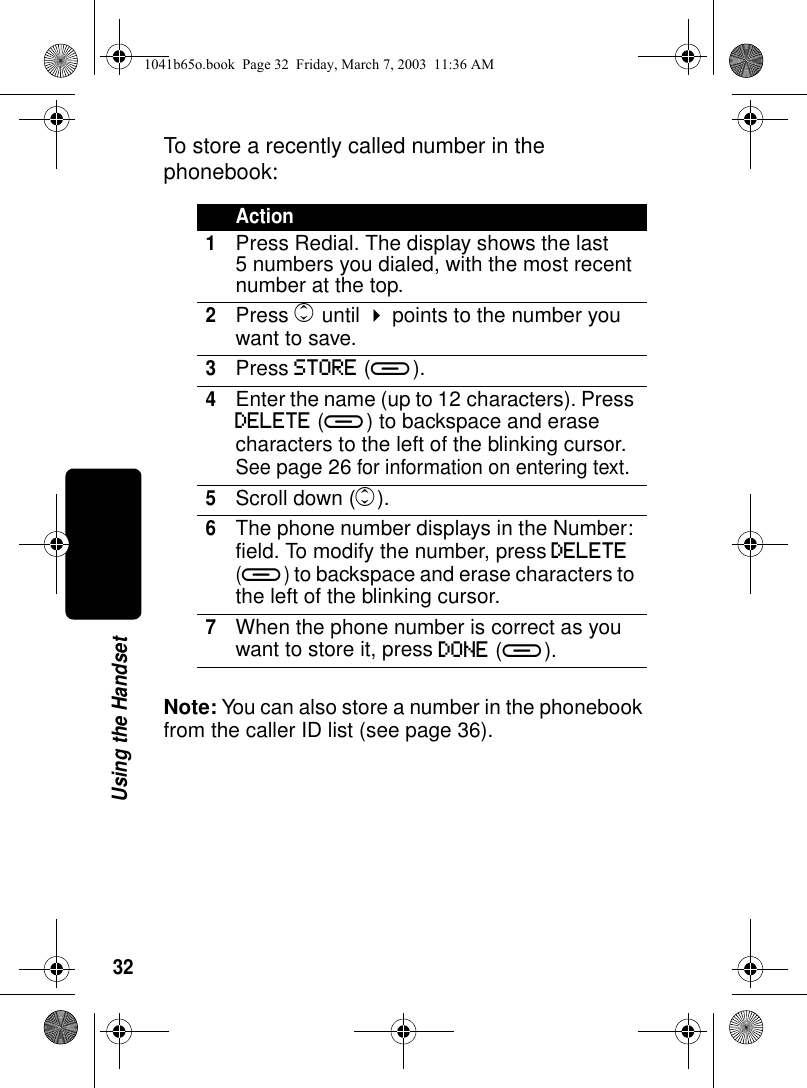
32Using the HandsetTo store a recently called number in the phonebook:Note: You can also store a number in the phonebook from the caller ID list (see page 36).Action1Press Redial. The display shows the last 5 numbers you dialed, with the most recent number at the top.2Press c until ! points to the number you want to save.3Press STORE (a).4Enter the name (up to 12 characters). Press DELETE (a) to backspace and erase characters to the left of the blinking cursor. See page 26 for information on entering text.5Scroll down (c).6The phone number displays in the Number: field. To modify the number, press DELETE (a) to backspace and erase characters to the left of the blinking cursor. 7When the phone number is correct as you want to store it, press DONE (a).1041b65o.book  Page 32  Friday, March 7, 2003  11:36 AM
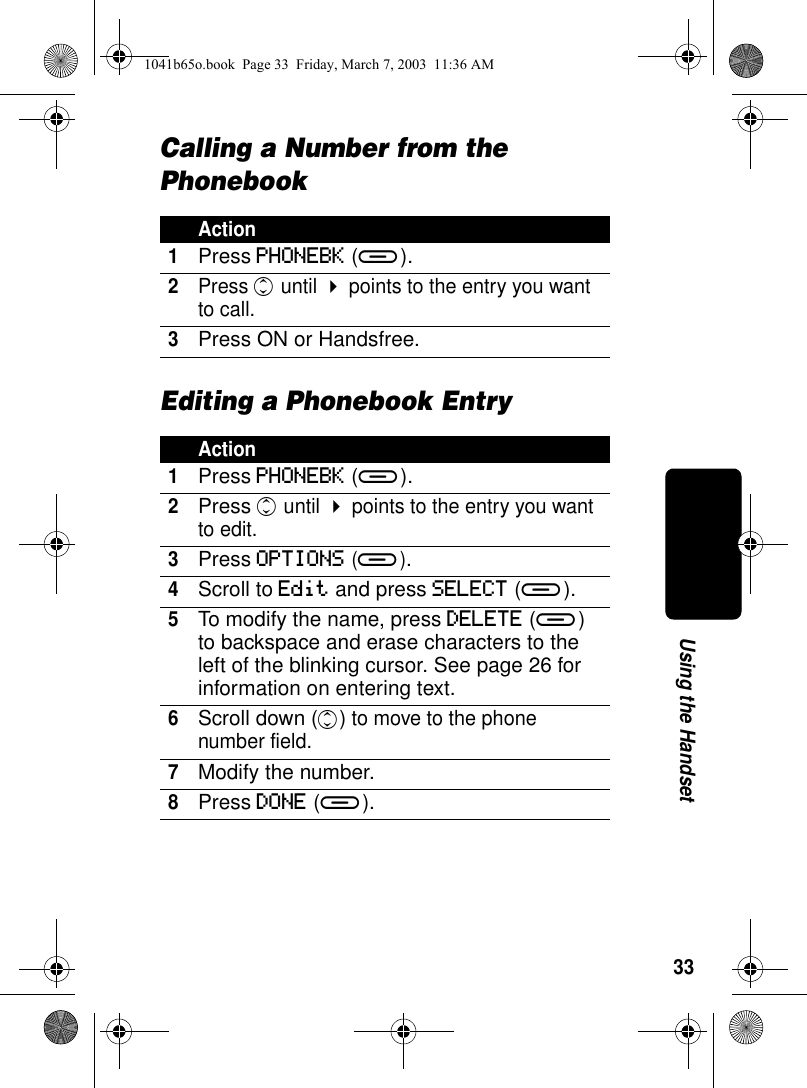
33Using the HandsetCalling a Number from the PhonebookEditing a Phonebook EntryAction1Press PHONEBK (a).2Press c until ! points to the entry you want to call.3Press ON or Handsfree.Action1Press PHONEBK (a).2Press c until ! points to the entry you want to edit.3Press OPTIONS (a).4Scroll to Edit and press SELECT (a).5To modify the name, press DELETE (a) to backspace and erase characters to the left of the blinking cursor. See page 26 for information on entering text.6Scroll down (c) to move to the phone number field.7Modify the number.8Press DONE (a).1041b65o.book  Page 33  Friday, March 7, 2003  11:36 AM
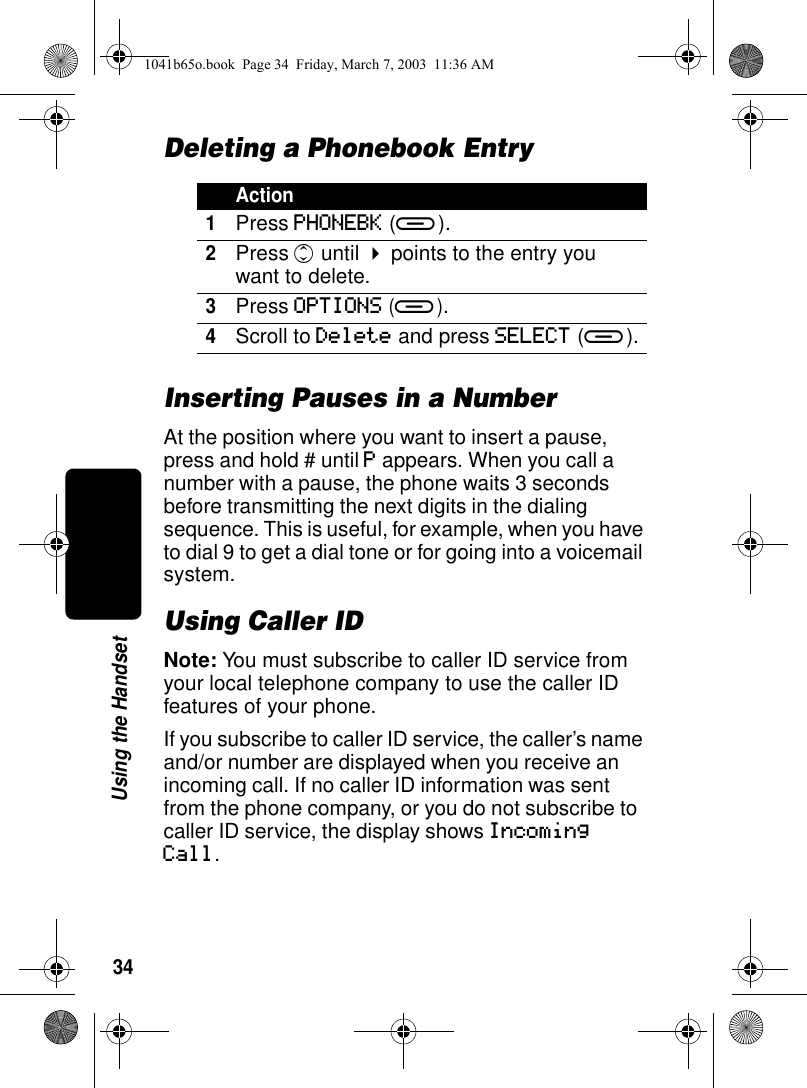
34Using the HandsetDeleting a Phonebook EntryInserting Pauses in a NumberAt the position where you want to insert a pause, press and hold # until P appears. When you call a number with a pause, the phone waits 3 seconds before transmitting the next digits in the dialing sequence. This is useful, for example, when you have to dial 9 to get a dial tone or for going into a voicemail system.Using Caller IDNote: You must subscribe to caller ID service from your local telephone company to use the caller ID features of your phone.If you subscribe to caller ID service, the caller’s name and/or number are displayed when you receive an incoming call. If no caller ID information was sent from the phone company, or you do not subscribe to caller ID service, the display shows Incoming Call.Action1Press PHONEBK (a).2Press c until ! points to the entry you want to delete.3Press OPTIONS (a).4Scroll to Delete and press SELECT (a).1041b65o.book  Page 34  Friday, March 7, 2003  11:36 AM
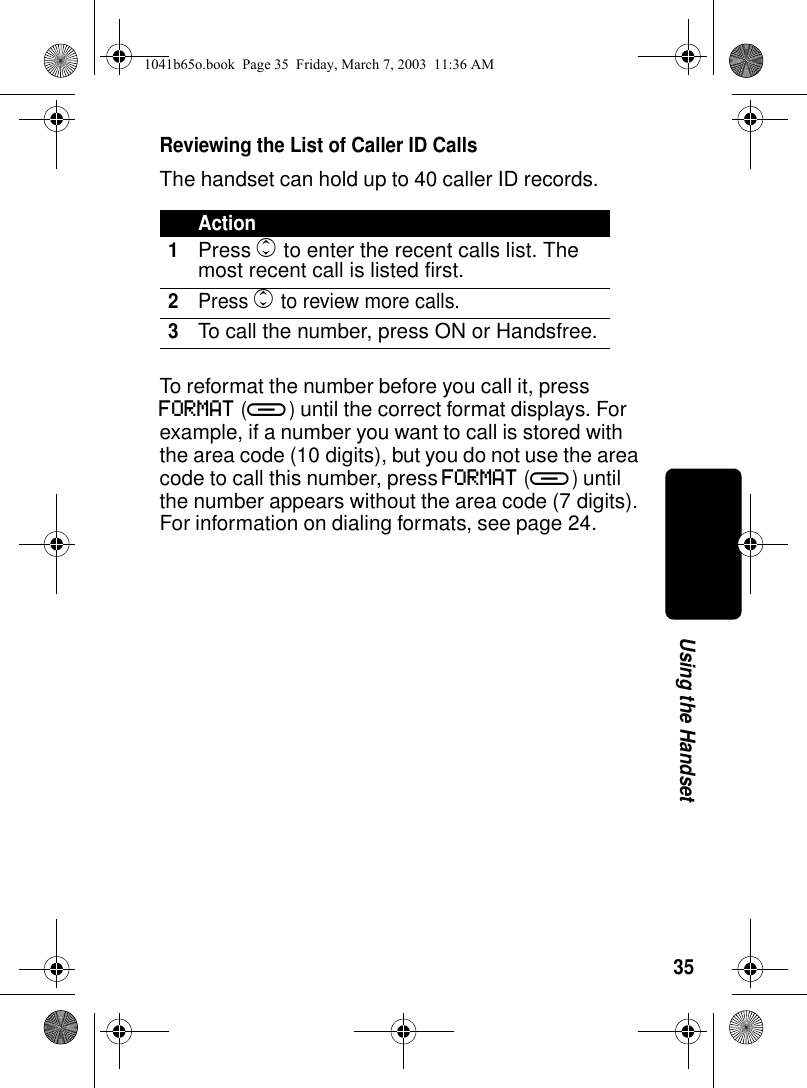
35Using the HandsetReviewing the List of Caller ID CallsThe handset can hold up to 40 caller ID records. To reformat the number before you call it, press FORMAT (a) until the correct format displays. For example, if a number you want to call is stored with the area code (10 digits), but you do not use the area code to call this number, press FORMAT (a) until the number appears without the area code (7 digits). For information on dialing formats, see page 24.Action1Press c to enter the recent calls list. The most recent call is listed first.2Press c to review more calls.3To call the number, press ON or Handsfree.1041b65o.book  Page 35  Friday, March 7, 2003  11:36 AM
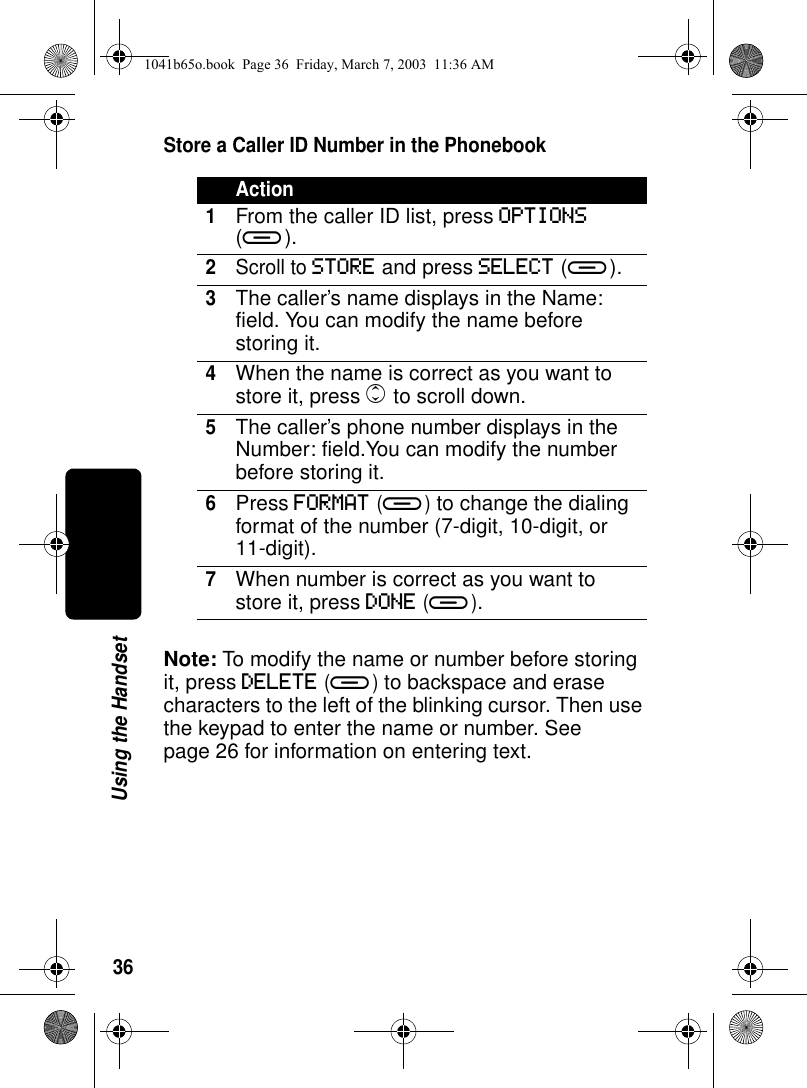
36Using the HandsetStore a Caller ID Number in the PhonebookNote: To modify the name or number before storing it, press DELETE (a) to backspace and erase characters to the left of the blinking cursor. Then use the keypad to enter the name or number. See page 26 for information on entering text.Action1From the caller ID list, press OPTIONS (a).2Scroll to STORE and press SELECT (a).3The caller’s name displays in the Name: field. You can modify the name before storing it.4When the name is correct as you want to store it, press c to scroll down.5The caller’s phone number displays in the Number: field.You can modify the number before storing it.6Press FORMAT (a) to change the dialing format of the number (7-digit, 10-digit, or 11-digit).7When number is correct as you want to store it, press DONE (a).1041b65o.book  Page 36  Friday, March 7, 2003  11:36 AM
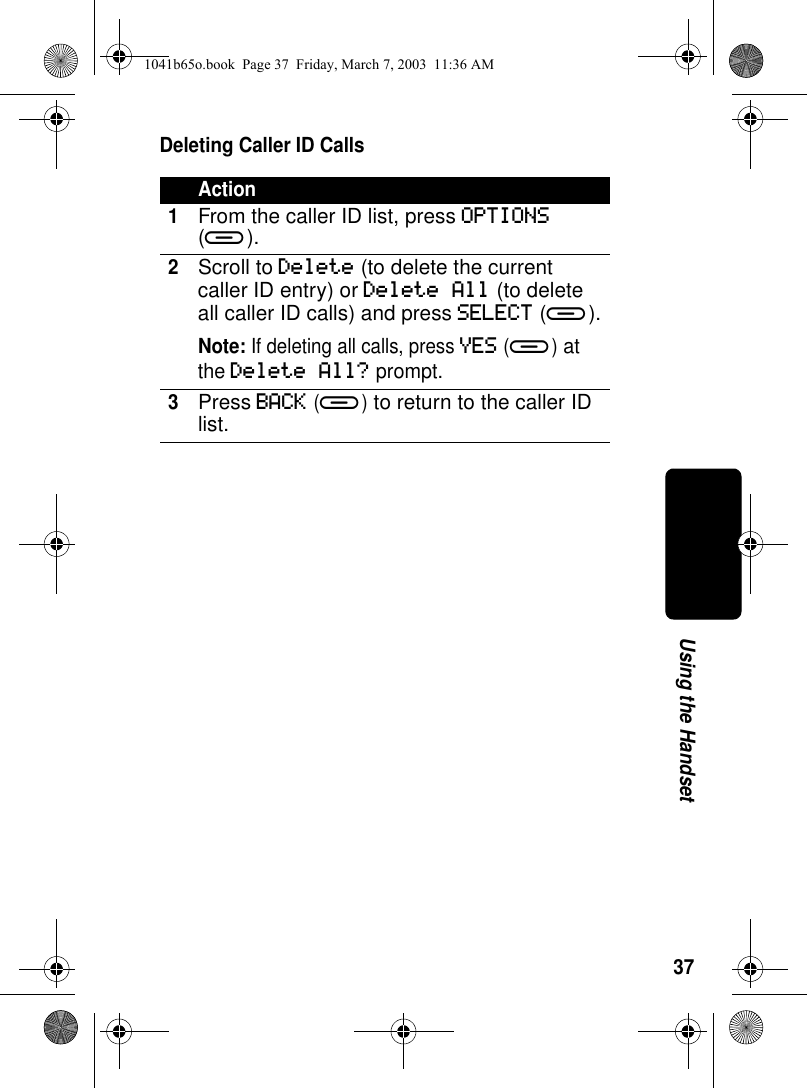
37Using the HandsetDeleting Caller ID CallsAction1From the caller ID list, press OPTIONS (a).2Scroll to Delete (to delete the current caller ID entry) or Delete All (to delete all caller ID calls) and press SELECT (a).Note: If deleting all calls, press YES (a) at the Delete All? prompt.3Press BACK (a) to return to the caller ID list.1041b65o.book  Page 37  Friday, March 7, 2003  11:36 AM
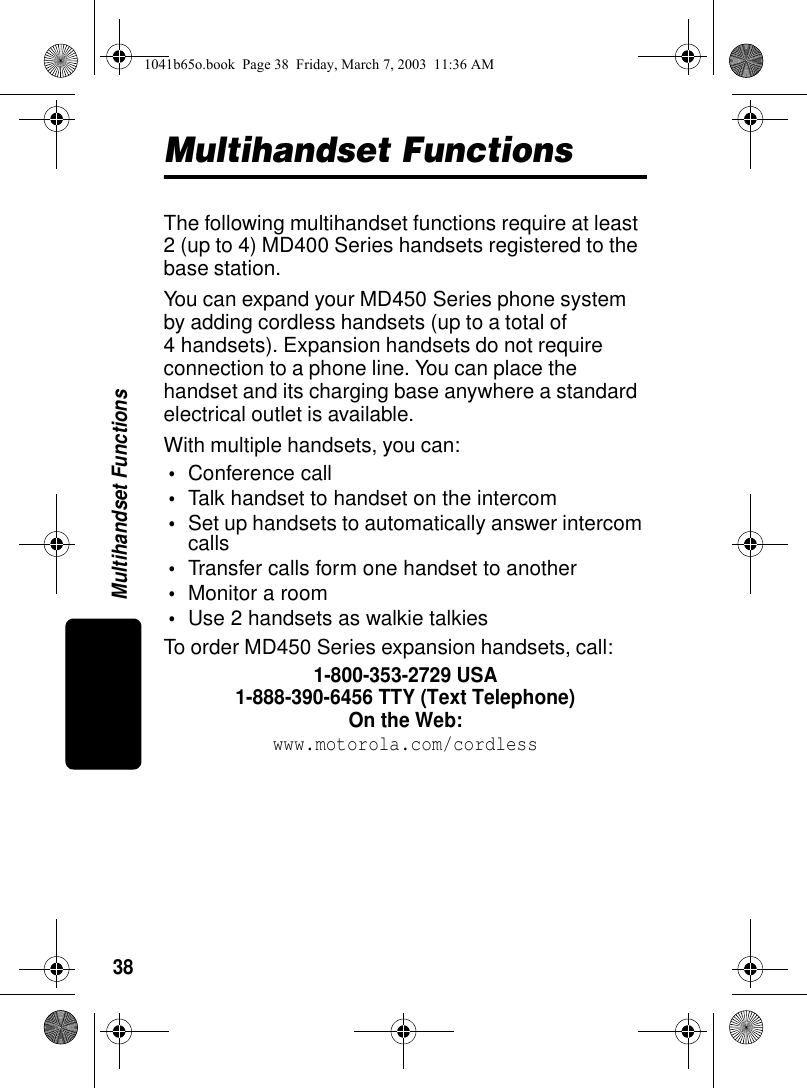
38Multihandset FunctionsMultihandset FunctionsThe following multihandset functions require at least 2 (up to 4) MD400 Series handsets registered to the base station.You can expand your MD450 Series phone system by adding cordless handsets (up to a total of 4 handsets). Expansion handsets do not require connection to a phone line. You can place the handset and its charging base anywhere a standard electrical outlet is available.With multiple handsets, you can:•Conference call•Talk handset to handset on the intercom•Set up handsets to automatically answer intercom calls•Transfer calls form one handset to another•Monitor a room•Use 2 handsets as walkie talkiesTo order MD450 Series expansion handsets, call:1-800-353-2729 USA1-888-390-6456 TTY (Text Telephone)On the Web:www.motorola.com/cordless1041b65o.book  Page 38  Friday, March 7, 2003  11:36 AM
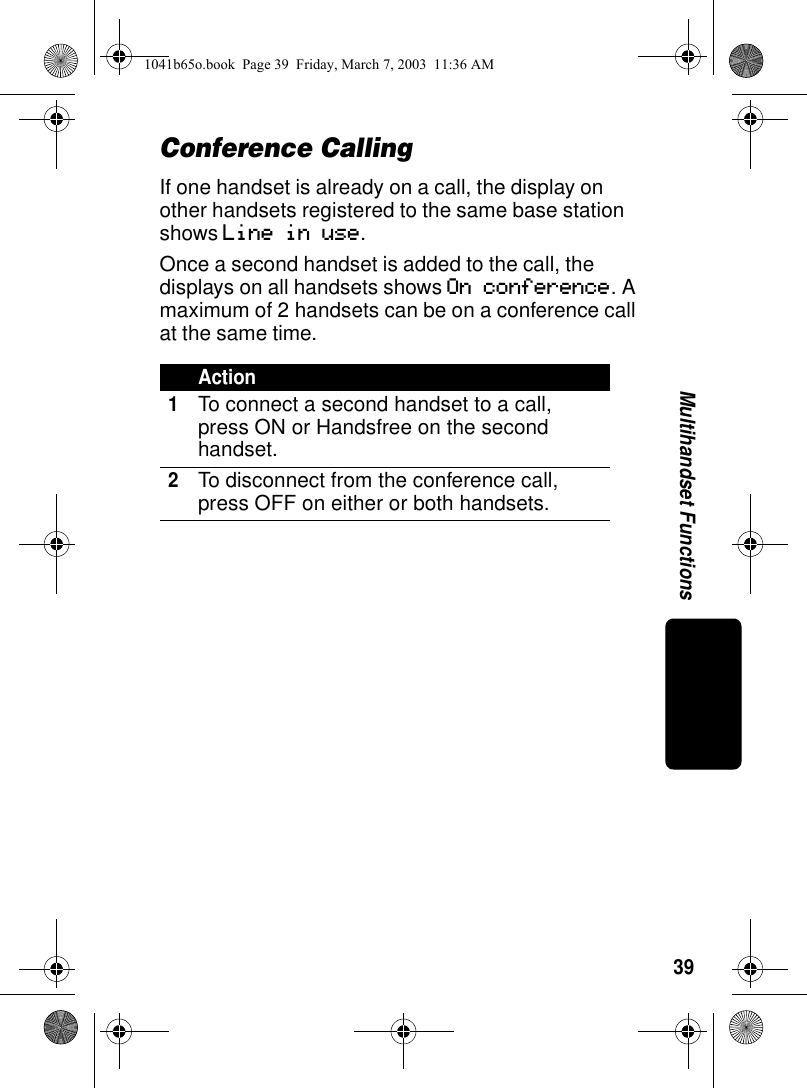
39Multihandset FunctionsConference CallingIf one handset is already on a call, the display on other handsets registered to the same base station shows Line in use. Once a second handset is added to the call, the displays on all handsets shows On conference. A maximum of 2 handsets can be on a conference call at the same time.Action1To connect a second handset to a call, press ON or Handsfree on the second handset.2To disconnect from the conference call, press OFF on either or both handsets.1041b65o.book  Page 39  Friday, March 7, 2003  11:36 AM
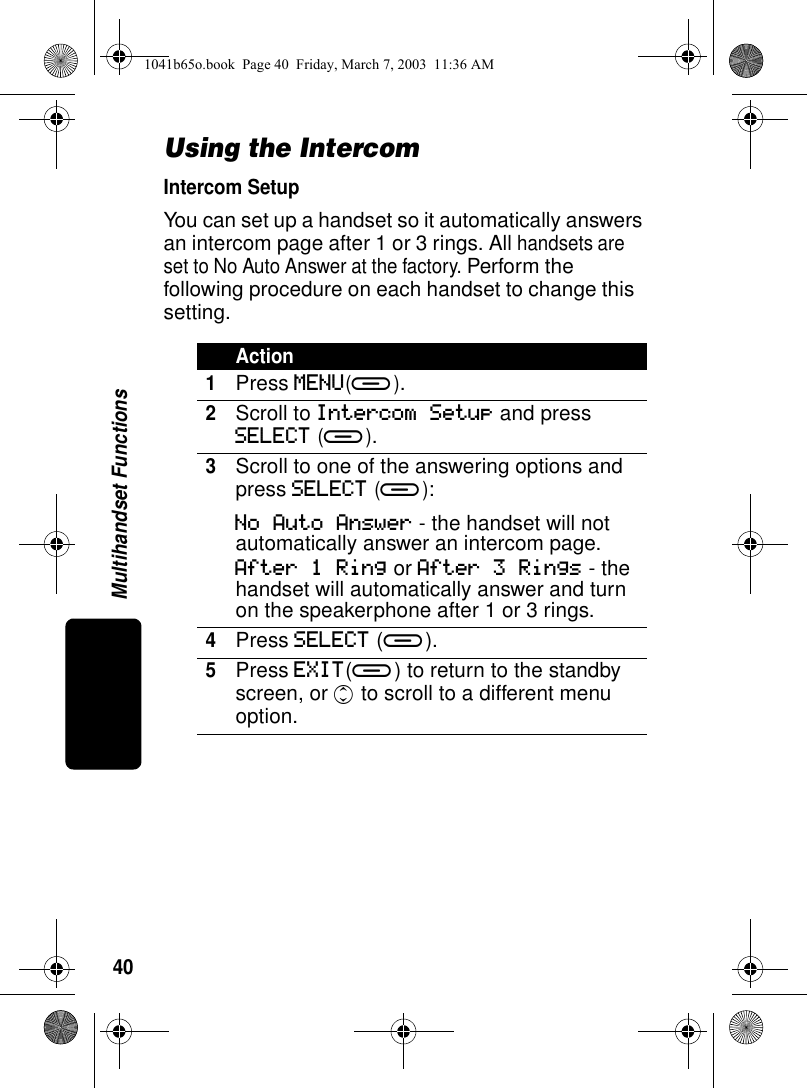
40Multihandset FunctionsUsing the IntercomIntercom SetupYou can set up a handset so it automatically answers an intercom page after 1 or 3 rings. All handsets are set to No Auto Answer at the factory. Perform the following procedure on each handset to change this setting.Action1Press MENU(a).2Scroll to Intercom Setup and press SELECT (a).3Scroll to one of the answering options and press SELECT (a):No Auto Answer - the handset will not automatically answer an intercom page.After 1 Ring or After 3 Rings - the handset will automatically answer and turn on the speakerphone after 1 or 3 rings.4Press SELECT (a).5Press EXIT(a) to return to the standby screen, or c to scroll to a different menu option.1041b65o.book  Page 40  Friday, March 7, 2003  11:36 AM
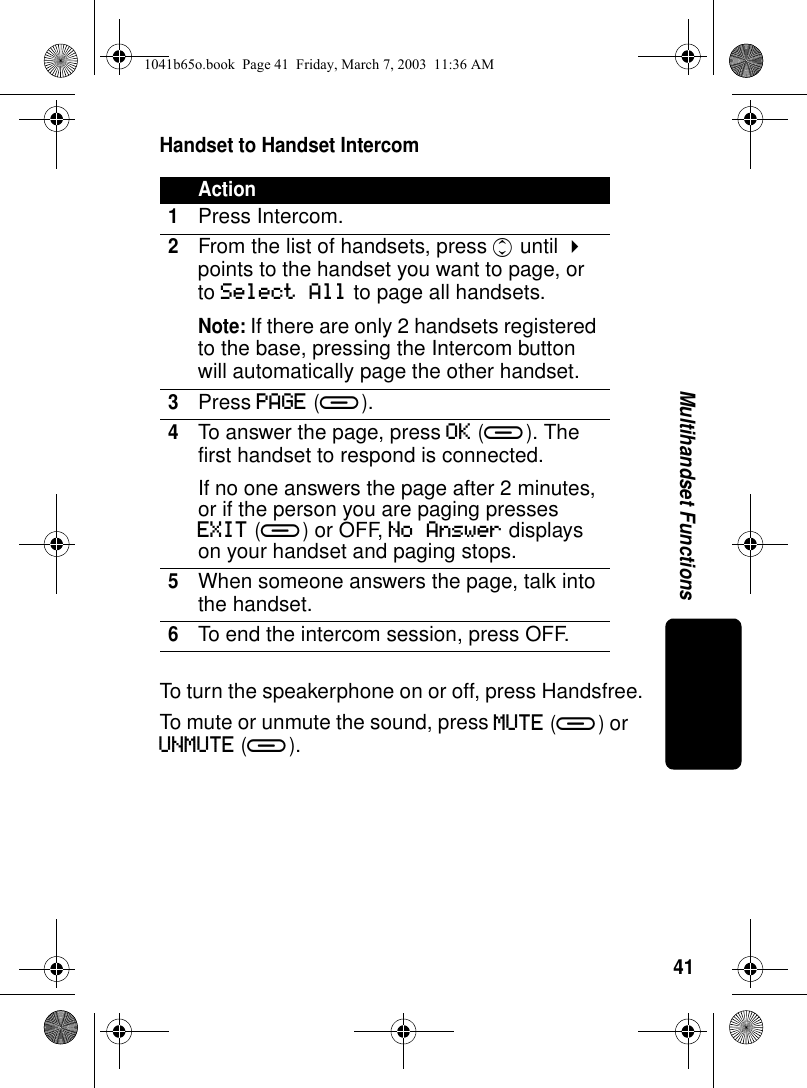
41Multihandset FunctionsHandset to Handset IntercomTo turn the speakerphone on or off, press Handsfree.To mute or unmute the sound, press MUTE (a) or UNMUTE (a).Action1Press Intercom. 2From the list of handsets, press c until ! points to the handset you want to page, or to Select All to page all handsets.Note: If there are only 2 handsets registered to the base, pressing the Intercom button will automatically page the other handset.3Press PAGE (a).4To answer the page, press OK (a). The first handset to respond is connected.If no one answers the page after 2 minutes, or if the person you are paging presses EXIT (a) or OFF, No Answer displays on your handset and paging stops.5When someone answers the page, talk into the handset.6To end the intercom session, press OFF.1041b65o.book  Page 41  Friday, March 7, 2003  11:36 AM
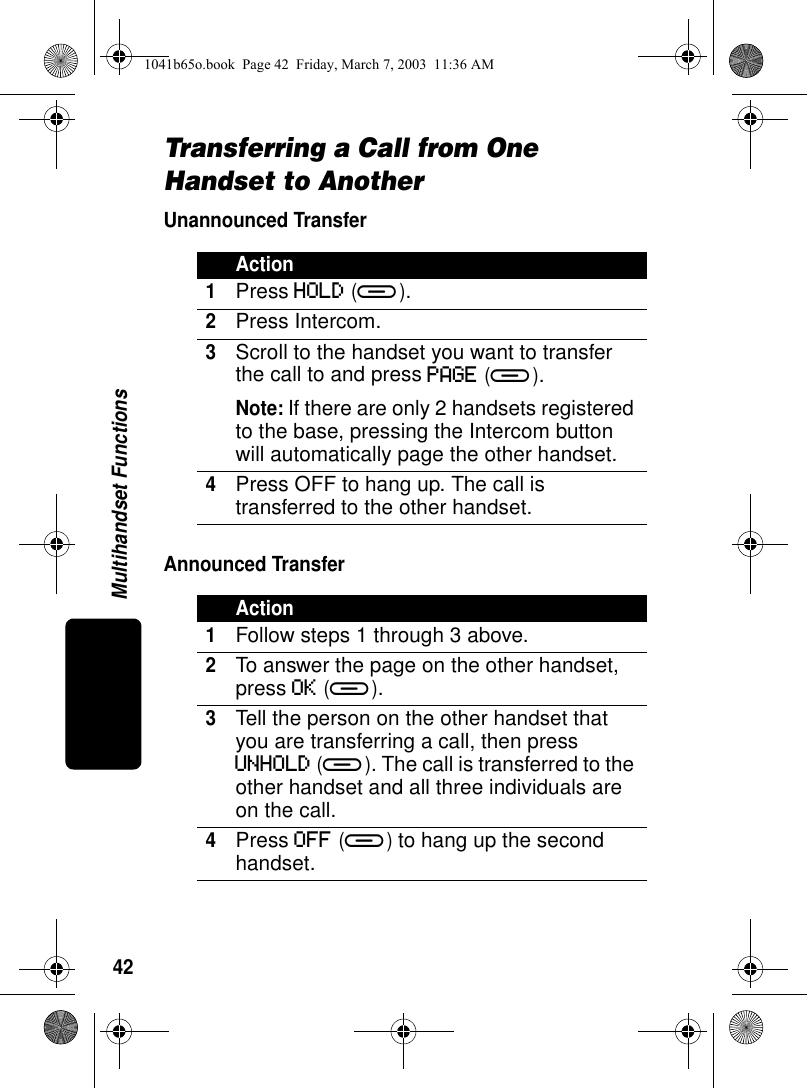
42Multihandset FunctionsTransferring a Call from One Handset to AnotherUnannounced TransferAnnounced TransferAction1Press HOLD (a).2Press Intercom.3Scroll to the handset you want to transfer the call to and press PAGE (a).Note: If there are only 2 handsets registered to the base, pressing the Intercom button will automatically page the other handset.4Press OFF to hang up. The call is transferred to the other handset.Action1Follow steps 1 through 3 above.2To answer the page on the other handset, press OK (a). 3Tell the person on the other handset that you are transferring a call, then press UNHOLD (a). The call is transferred to the other handset and all three individuals are on the call.4Press OFF (a) to hang up the second handset.1041b65o.book  Page 42  Friday, March 7, 2003  11:36 AM
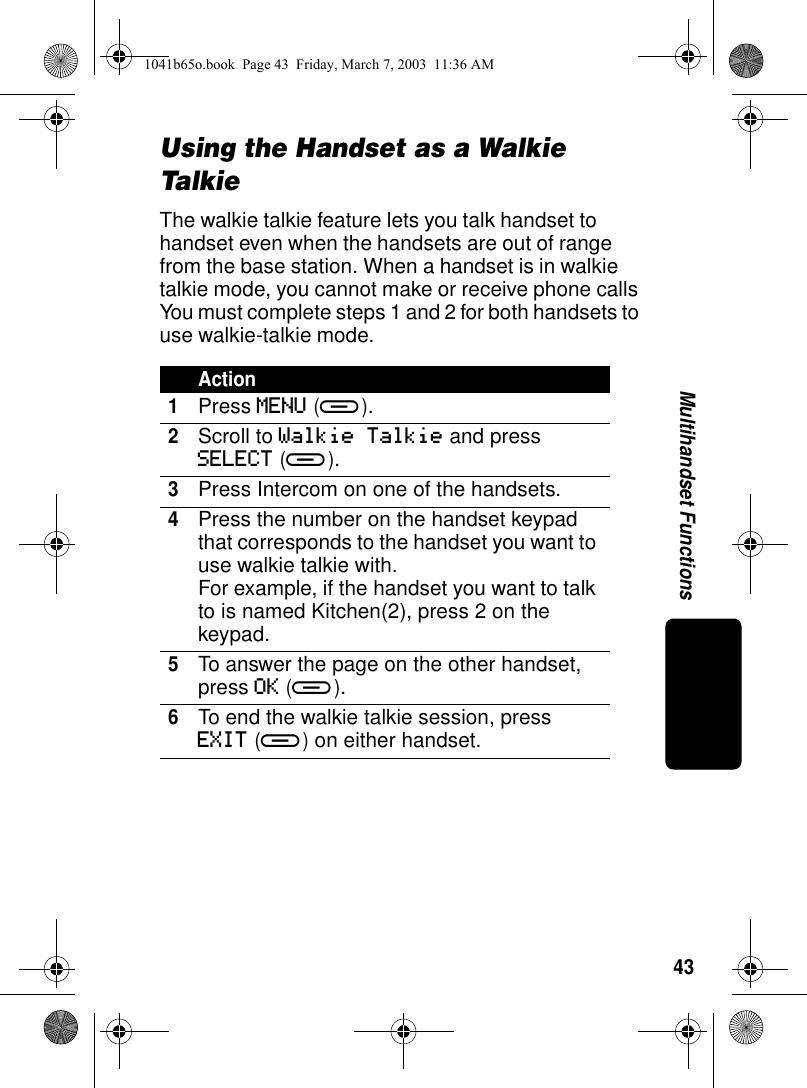
43Multihandset FunctionsUsing the Handset as a Walkie TalkieThe walkie talkie feature lets you talk handset to handset even when the handsets are out of range from the base station. When a handset is in walkie talkie mode, you cannot make or receive phone calls You must complete steps 1 and 2 for both handsets to use walkie-talkie mode.Action1Press MENU (a).2Scroll to Walkie Talkie and press SELECT (a). 3Press Intercom on one of the handsets.4Press the number on the handset keypad that corresponds to the handset you want to use walkie talkie with.For example, if the handset you want to talk to is named Kitchen(2), press 2 on the keypad.5To answer the page on the other handset, press OK (a).6To end the walkie talkie session, press EXIT (a) on either handset.1041b65o.book  Page 43  Friday, March 7, 2003  11:36 AM
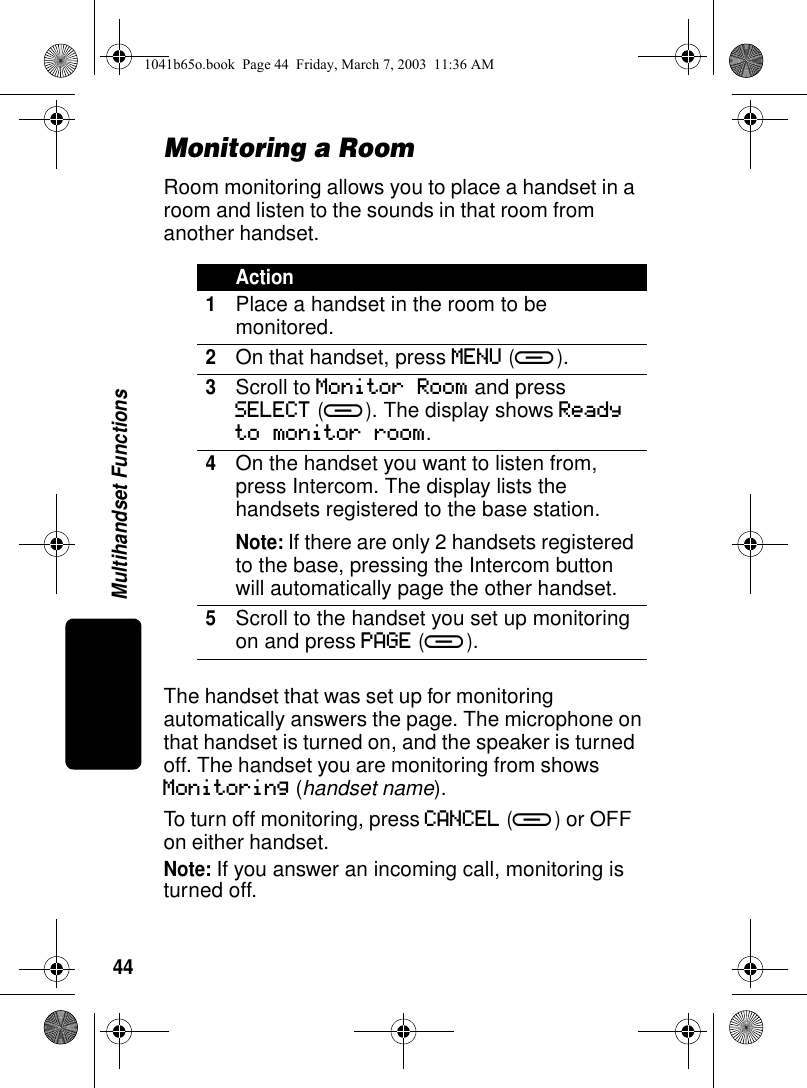
44Multihandset FunctionsMonitoring a RoomRoom monitoring allows you to place a handset in a room and listen to the sounds in that room from another handset.The handset that was set up for monitoring automatically answers the page. The microphone on that handset is turned on, and the speaker is turned off. The handset you are monitoring from shows Monitoring (handset name). To turn off monitoring, press CANCEL (a) or OFF on either handset.Note: If you answer an incoming call, monitoring is turned off.Action1Place a handset in the room to be monitored.2On that handset, press MENU (a).3Scroll to Monitor Room and press SELECT (a). The display shows Ready to monitor room.4On the handset you want to listen from, press Intercom. The display lists the handsets registered to the base station.Note: If there are only 2 handsets registered to the base, pressing the Intercom button will automatically page the other handset.5Scroll to the handset you set up monitoring on and press PAGE (a).1041b65o.book  Page 44  Friday, March 7, 2003  11:36 AM
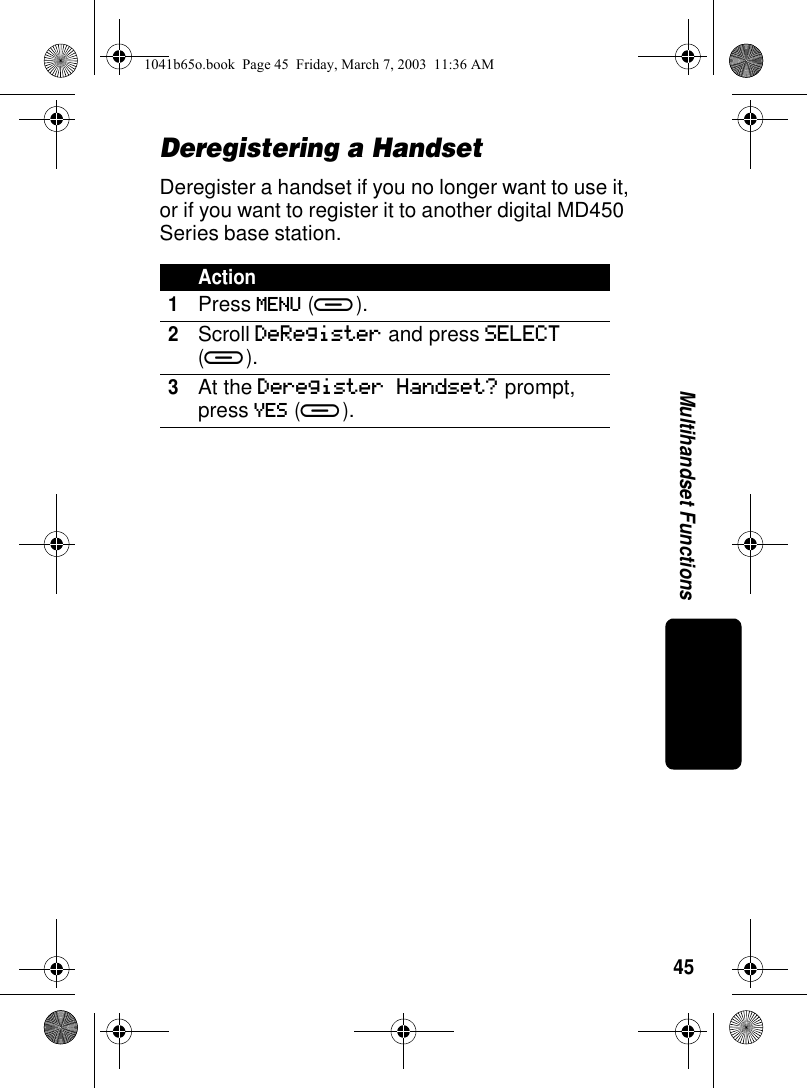
45Multihandset FunctionsDeregistering a HandsetDeregister a handset if you no longer want to use it, or if you want to register it to another digital MD450 Series base station.Action1Press MENU (a).2Scroll DeRegister and press SELECT (a).3At the Deregister Handset? prompt, press YES (a).1041b65o.book  Page 45  Friday, March 7, 2003  11:36 AM
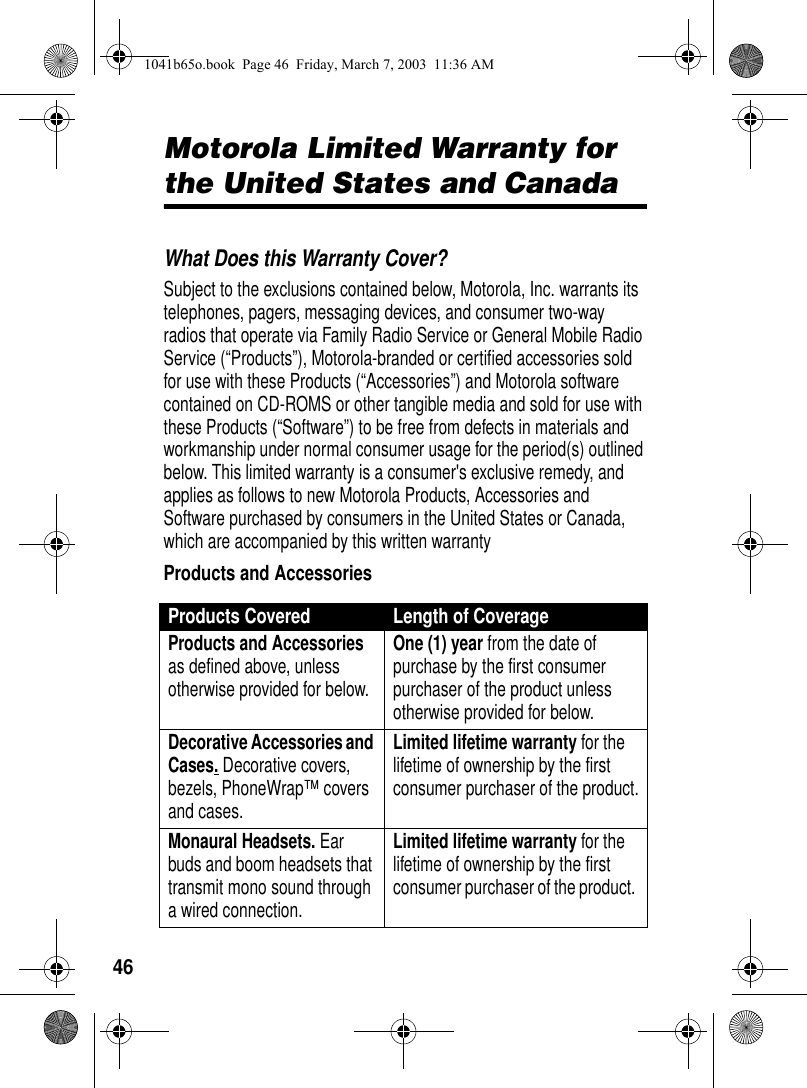
46Motorola Limited Warranty for the United States and CanadaMotorola Limited WarrantyWhat Does this Warranty Cover? Subject to the exclusions contained below, Motorola, Inc. warrants its telephones, pagers, messaging devices, and consumer two-way radios that operate via Family Radio Service or General Mobile Radio Service (“Products”), Motorola-branded or certified accessories sold for use with these Products (“Accessories”) and Motorola software contained on CD-ROMS or other tangible media and sold for use with these Products (“Software”) to be free from defects in materials and workmanship under normal consumer usage for the period(s) outlined below. This limited warranty is a consumer's exclusive remedy, and applies as follows to new Motorola Products, Accessories and Software purchased by consumers in the United States or Canada, which are accompanied by this written warrantyProducts and AccessoriesProducts Covered Length of CoverageProducts and Accessories as defined above, unless otherwise provided for below.One (1) year from the date of purchase by the first consumer purchaser of the product unless otherwise provided for below.Decorative Accessories and Cases. Decorative covers, bezels, PhoneWrap™ covers and cases.Limited lifetime warranty for the lifetime of ownership by the first consumer purchaser of the product.Monaural Headsets. Ear buds and boom headsets that transmit mono sound through a wired connection. Limited lifetime warranty for the lifetime of ownership by the first consumer purchaser of the product. 1041b65o.book  Page 46  Friday, March 7, 2003  11:36 AM
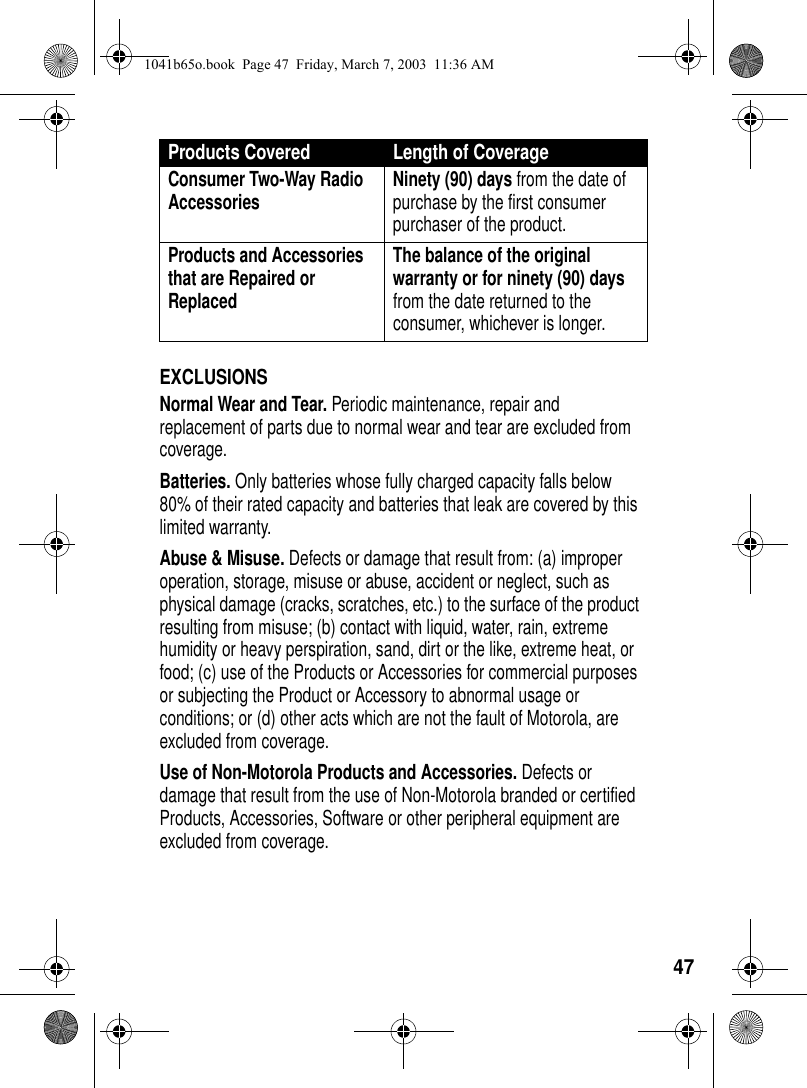
47EXCLUSIONSNormal Wear and Tear. Periodic maintenance, repair and replacement of parts due to normal wear and tear are excluded from coverage.Batteries. Only batteries whose fully charged capacity falls below 80% of their rated capacity and batteries that leak are covered by this limited warranty.Abuse & Misuse. Defects or damage that result from: (a) improper operation, storage, misuse or abuse, accident or neglect, such as physical damage (cracks, scratches, etc.) to the surface of the product resulting from misuse; (b) contact with liquid, water, rain, extreme humidity or heavy perspiration, sand, dirt or the like, extreme heat, or food; (c) use of the Products or Accessories for commercial purposes or subjecting the Product or Accessory to abnormal usage or conditions; or (d) other acts which are not the fault of Motorola, are excluded from coverage.Use of Non-Motorola Products and Accessories. Defects or damage that result from the use of Non-Motorola branded or certified Products, Accessories, Software or other peripheral equipment are excluded from coverage. Consumer Two-Way Radio Accessories Ninety (90) days from the date of purchase by the first consumer purchaser of the product. Products and Accessories that are Repaired or ReplacedThe balance of the original warranty or for ninety (90) days from the date returned to the consumer, whichever is longer.Products Covered Length of Coverage1041b65o.book  Page 47  Friday, March 7, 2003  11:36 AM
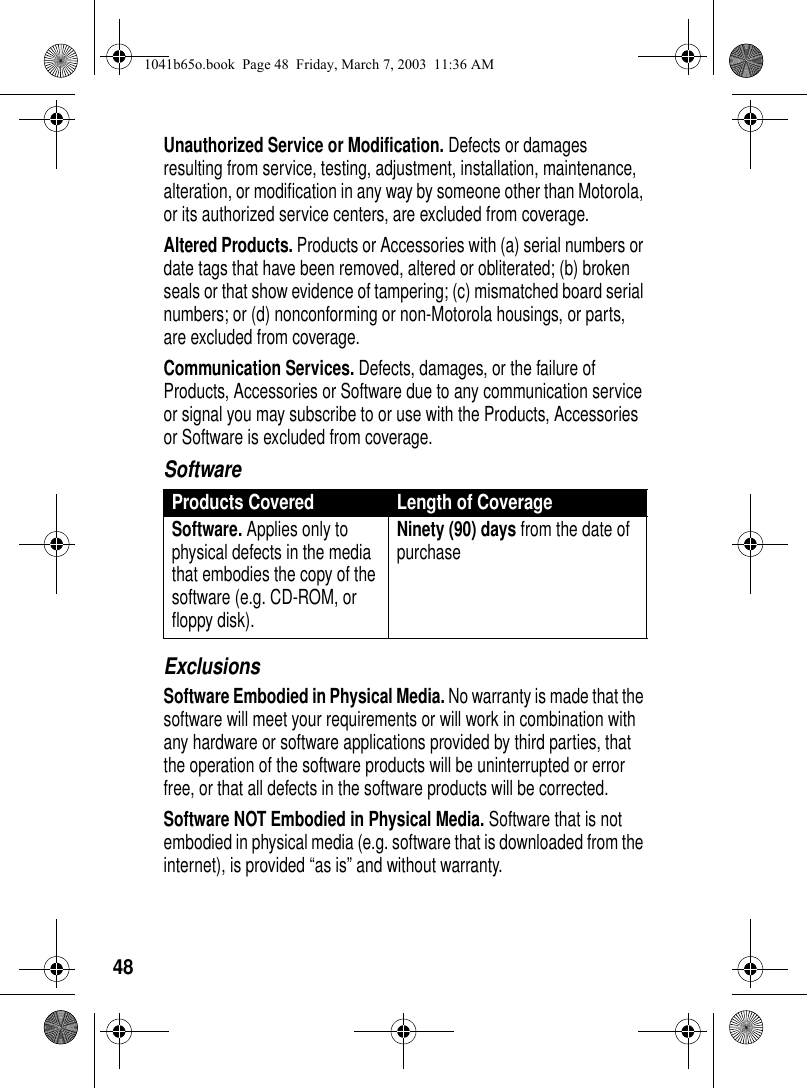
48Unauthorized Service or Modification. Defects or damages resulting from service, testing, adjustment, installation, maintenance, alteration, or modification in any way by someone other than Motorola, or its authorized service centers, are excluded from coverage. Altered Products. Products or Accessories with (a) serial numbers or date tags that have been removed, altered or obliterated; (b) broken seals or that show evidence of tampering; (c) mismatched board serial numbers; or (d) nonconforming or non-Motorola housings, or parts, are excluded from coverage.Communication Services. Defects, damages, or the failure of Products, Accessories or Software due to any communication service or signal you may subscribe to or use with the Products, Accessories or Software is excluded from coverage.SoftwareExclusionsSoftware Embodied in Physical Media. No warranty is made that the software will meet your requirements or will work in combination with any hardware or software applications provided by third parties, that the operation of the software products will be uninterrupted or error free, or that all defects in the software products will be corrected. Software NOT Embodied in Physical Media. Software that is not embodied in physical media (e.g. software that is downloaded from the internet), is provided “as is” and without warranty.Products Covered Length of CoverageSoftware. Applies only to physical defects in the media that embodies the copy of the software (e.g. CD-ROM, or floppy disk).Ninety (90) days from the date of purchase1041b65o.book  Page 48  Friday, March 7, 2003  11:36 AM
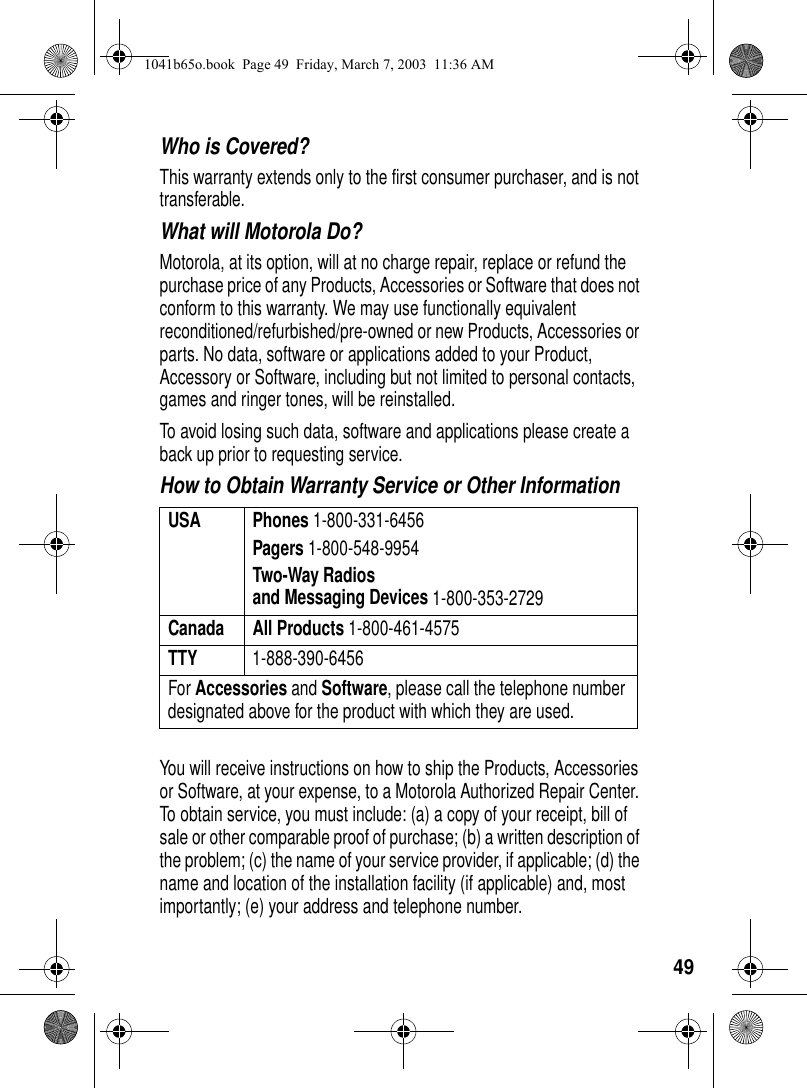
49Who is Covered? This warranty extends only to the first consumer purchaser, and is not transferable.What will Motorola Do? Motorola, at its option, will at no charge repair, replace or refund the purchase price of any Products, Accessories or Software that does not conform to this warranty. We may use functionally equivalent reconditioned/refurbished/pre-owned or new Products, Accessories or parts. No data, software or applications added to your Product, Accessory or Software, including but not limited to personal contacts, games and ringer tones, will be reinstalled. To avoid losing such data, software and applications please create a back up prior to requesting service. How to Obtain Warranty Service or Other InformationYou will receive instructions on how to ship the Products, Accessories or Software, at your expense, to a Motorola Authorized Repair Center. To obtain service, you must include: (a) a copy of your receipt, bill of sale or other comparable proof of purchase; (b) a written description of the problem; (c) the name of your service provider, if applicable; (d) the name and location of the installation facility (if applicable) and, most importantly; (e) your address and telephone number. USA Phones 1-800-331-6456Pagers 1-800-548-9954Two-Way Radiosand Messaging Devices 1-800-353-2729Canada All Products 1-800-461-4575TTY 1-888-390-6456For Accessories and Software, please call the telephone number designated above for the product with which they are used.1041b65o.book  Page 49  Friday, March 7, 2003  11:36 AM
50What Other Limitations Are There? ANY IMPLIED WARRANTIES, INCLUDING WITHOUT LIMITATION THE IMPLIED WARRANTIES OF MERCHANTABILITY AND FITNESS FOR A PARTICULAR PURPOSE, SHALL BE LIMITED TO THE DURATION OF THIS LIMITED WARRANTY, OTHERWISE THE REPAIR, REPLACEMENT, OR REFUND AS PROVIDED UNDER THIS EXPRESS LIMITED WARRANTY IS THE EXCLUSIVE REMEDY OF THE CONSUMER, AND IS PROVIDED IN LIEU OF ALL OTHER WARRANTIES, EXPRESS OR IMPLIED. IN NO EVENT SHALL MOTOROLA BE LIABLE, WHETHER IN CONTRACT OR TORT (INCLUDING NEGLIGENCE) FOR DAMAGES IN EXCESS OF THE PURCHASE PRICE OF THE PRODUCT, ACCESSORY OR SOFTWARE, OR FOR ANY INDIRECT, INCIDENTAL, SPECIAL OR CONSEQUENTIAL DAMAGES OF ANY KIND, OR LOSS OF REVENUE OR PROFITS, LOSS OF BUSINESS, LOSS OF INFORMATION OR DATA, SOFTWARE OR APPLICATIONS OR OTHER FINANCIAL LOSS ARISING OUT OF OR IN CONNECTION WITH THE ABILITY OR INABILITY TO USE THE PRODUCTS, ACCESSORIES OR SOFTWARE TO THE FULL EXTENT THESE DAMAGES MAY BE DISCLAIMED BY LAW.Some states and jurisdictions do not allow the limitation or exclusion of incidental or consequential damages, or limitation on the length of an implied warranty, so the above limitations or exclusions may not apply to you. This warranty gives you specific legal rights, and you may also have other rights that vary from state to state or from one jurisdiction to another.Laws in the United States and other countries preserve for Motorola certain exclusive rights for copyrighted Motorola software such as the exclusive rights to reproduce and distribute copies of the Motorola software. Motorola software may only be copied into, used in, and redistributed with, the Products associated with such Motorola software. No other use, including without limitation disassembly of such Motorola software or exercise of the exclusive rights reserved for Motorola, is permitted. 1041b65o.book  Page 50  Friday, March 7, 2003  11:36 AM
511041b65o.book  Page 51  Friday, March 7, 2003  11:36 AM
521041b65o.book  Page 52  Friday, March 7, 2003  11:36 AM
 User's Guide >MD450 SeriesDigital 2.4GHzExpandable Cordless Telephone System031068o
6881041B65-O User's Guide >motorola.comMD450 SeriesDigital 2.4GHzExpandable Cordless Telephone System031068o

Navigation menu