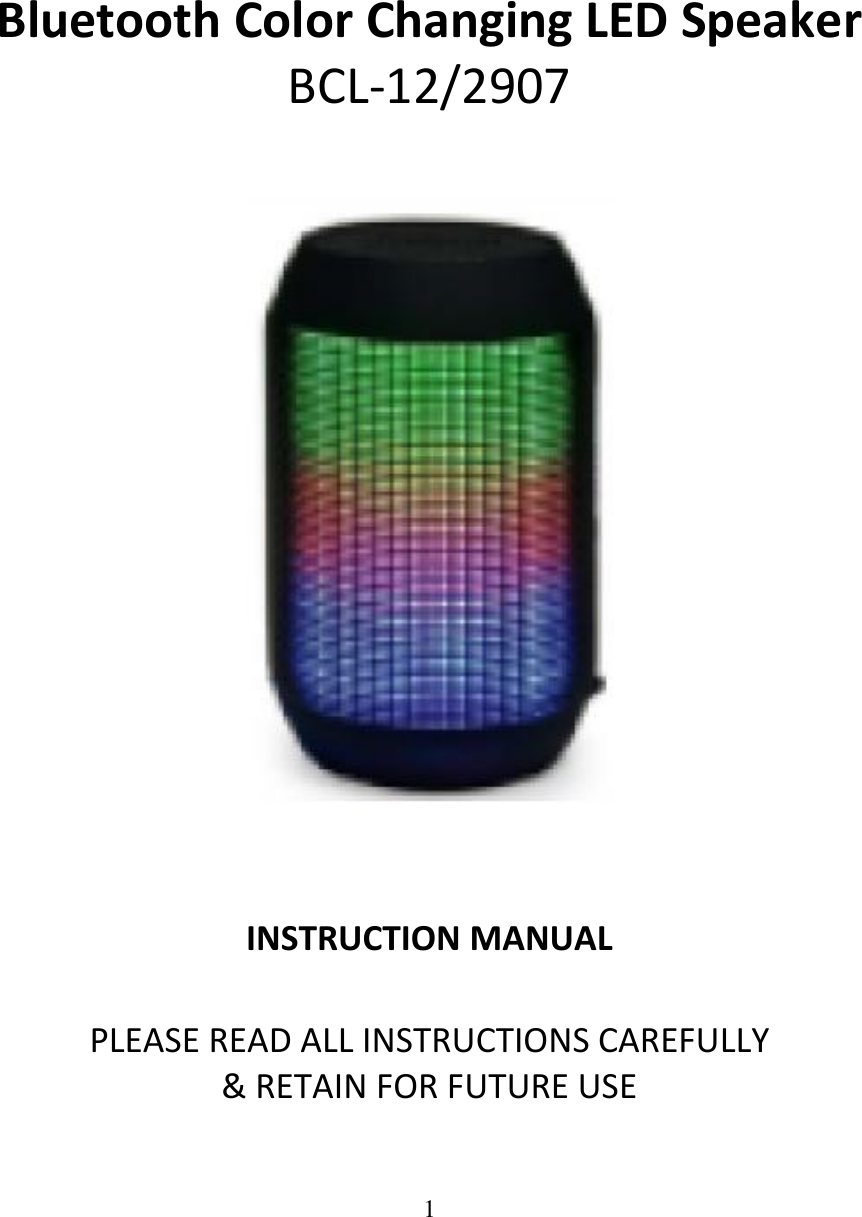
CLEVER BRIGHT BCL-122907 Bluetooth Color Changing LED Speaker(Small) User Manual Bluetooth Speaker Cone

CLEVER BRIGHT INTERNATIONAL (H.K.) LTD. Bluetooth Color Changing LED Speaker(Small) Bluetooth Speaker Cone

User Manual

1        Bluetooth Color Changing LED Speaker BCL-12/2907     INSTRUCTION MANUAL   PLEASE READ ALL INSTRUCTIONS CAREFULLY  & RETAIN FOR FUTURE USE
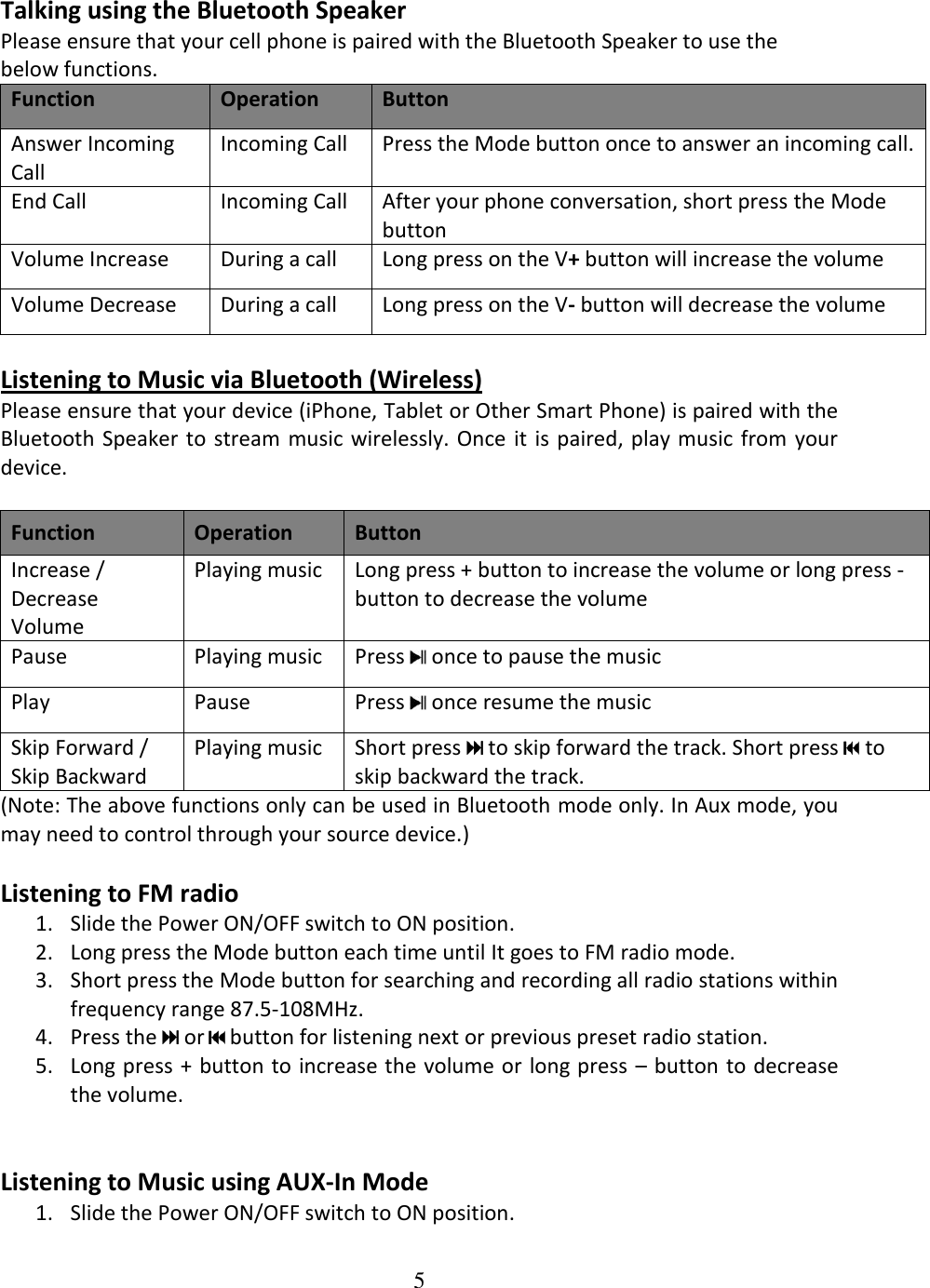
2  Getting Started Remove the unit from the box. Remove any packaging from the product. Please  retain  all  packaging  until  you  have  checked  and  counted  all  the  parts  and  the contents against the parts list.  Package Contents Bluetooth Color Changing LED Speaker USB rechargeable cable with Aux pin Instruction manual  Features 1. Wireless  Bluetooth  connectivity  to  iPad,  iPod  Touch,  Android,  Windows  Phone, Blackberry, smartphones, tablets, computers and more. 2. Multi-Color Lights jive to the beat of music. 3. Play music through Bluetooth, Auxiliary and Micro SD Card* & USB Flash Drive*. 4. Built-in Microphone 5. FM radio 6. Rechargeable built-in battery *Micro SD Card & USB Flash Drive not included.   IMPORTANT SAFETY INFORMATION 1. Read all instructions before using this product. 2. Do not leave this product unattended while connected to the power supply. 3. Do not immerse in water or any other liquids. 4. Do not use if unit has been dropped or damaged in any way. 5. Repairs to electrical equipment should only be performed by qualified personnel. Improper repairs may place user at serious risk. 6. Place  unit  on  sound,  even  surface,  free  of  vibrations  and  away  from  sources  of heat. 7. Do not use with wet hands. 8. Do not put objects into openings. 9. Keep free of dust, lint, hair etc. 10. Do not use this unit for anything other than its intended use. 11. Keep this product out of reach of children. 12. This product is not a toy. 13. Do  not  play  music  at  excessive  levels  especially  near  children,  as  damage  to hearing may occur.
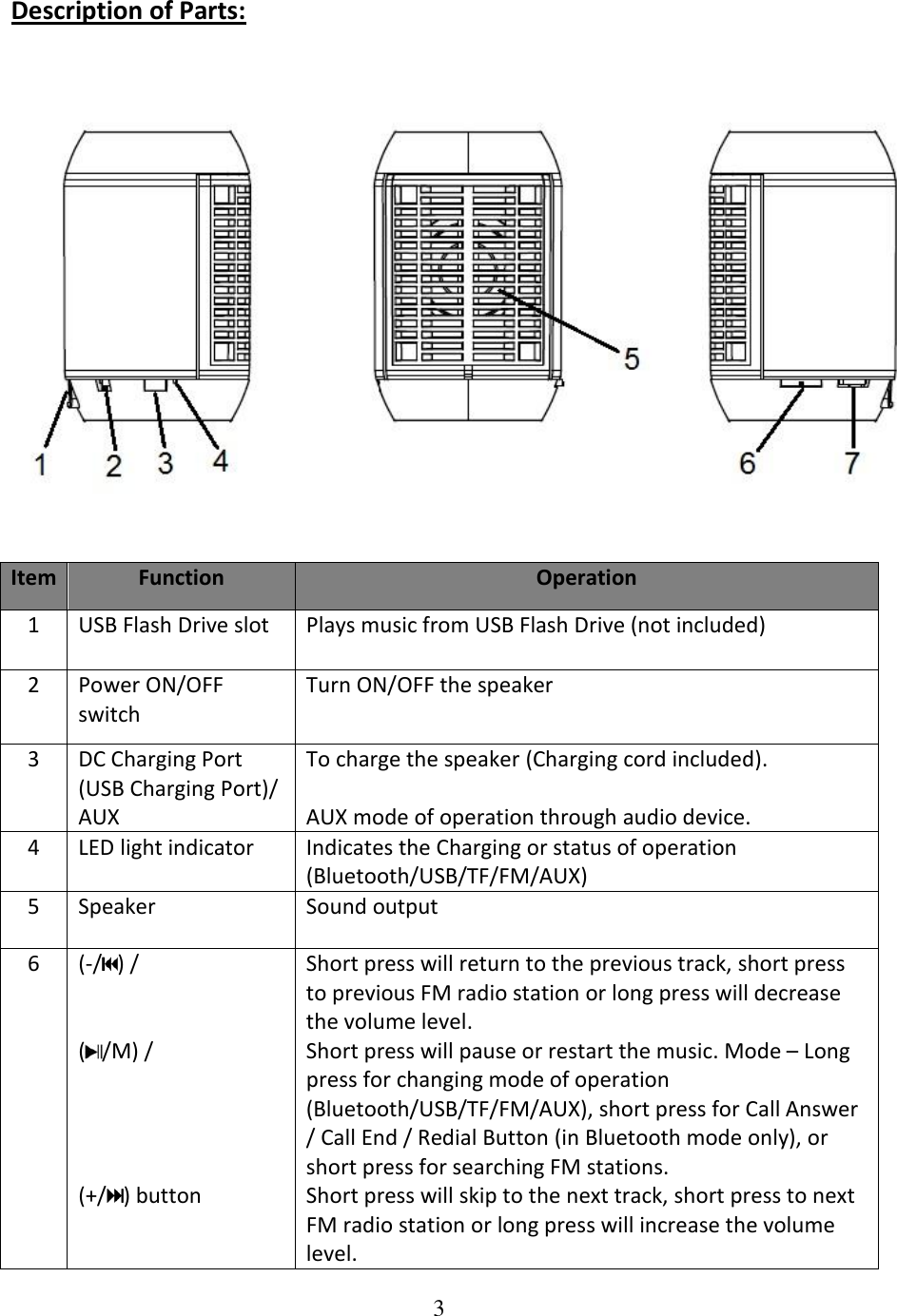
3  Description of Parts:    Item Function Operation 1 USB Flash Drive slot Plays music from USB Flash Drive (not included) 2 Power ON/OFF switch Turn ON/OFF the speaker 3 DC Charging Port (USB Charging Port)/ AUX To charge the speaker (Charging cord included).  AUX mode of operation through audio device. 4 LED light indicator Indicates the Charging or status of operation (Bluetooth/USB/TF/FM/AUX) 5 Speaker Sound output 6 (-/ ) /   ( /M) /     (+/ ) button Short press will return to the previous track, short press to previous FM radio station or long press will decrease the volume level. Short press will pause or restart the music. Mode – Long press for changing mode of operation (Bluetooth/USB/TF/FM/AUX), short press for Call Answer / Call End / Redial Button (in Bluetooth mode only), or short press for searching FM stations. Short press will skip to the next track, short press to next FM radio station or long press will increase the volume level.
4  (Note: Some of above function only can be used in Bluetooth mode only. In Aux mode, you may need to control through your source device.)  INSTRUCTIONS FOR USE  Charging the speaker For best results, fully charge the speaker before its first use. 1. Connect  the  USB  charging  cord  (included)  to  the  DC  5V  charging  port  of  the speaker and insert the other end into a port on your computer or similar power source. 2. The Red LED turns on indicating that the battery is being charged. Once it is fully charged, the Red LED  will turn off.  It will take around 2-3 hours to  fully charge the battery. Note: In order to have better battery life, please do not charge for over 4 hours.  Turn the speaker to Bluetooth pairing mode - 1. Slide the Power ON/OFF switch to ON position. 2. You  would  hear  voice  message  “Bluetooth’s mode”;  the  speaker  is  now  in  pairing mode. (Note:  Speaker automatically pairs with the previously paired devices)  Pairing your device with Bluetooth Speaker –  Your Bluetooth Speaker can wirelessly stream audio from any Bluetooth enabled device within the distance of 27-33 Feet. Simply follow the below steps.  1. Slide the Power ON/OFF switch to ON position. 2. You  would  hear  voice  message  “Bluetooth  mode”;  speaker  is  now  in  pairing mode. 3. Turn on the Bluetooth on your Mobile Phone or Tablet or Computer. 4. It will search for various devices. 5. The pairing name of our Bluetooth Speaker is “BT Speaker”, pair it with this device. 6. If required, enter the password ‘0000’ to confirm to finalize pairing. 7. Once paired successfully, you would hear voice message “Bluetooth connected successfully”. 8. If you fail to pair it within the time frame or you want to pair it with a new device please follows the steps outlined above.   Select your favorite song at the Bluetooth device and music would now stream through Bluetooth speaker.   7 Micro SD (TF) Card slot Plays music from Micro SD (TF) Card (not included)
5  Talking using the Bluetooth Speaker Please ensure that your cell phone is paired with the Bluetooth Speaker to use the below functions. Function Operation Button Answer Incoming Call  Incoming Call  Press the Mode button once to answer an incoming call.  End Call  Incoming Call  After your phone conversation, short press the Mode button Volume Increase During a call Long press on the V+ button will increase the volume Volume Decrease During a call Long press on the V- button will decrease the volume  Listening to Music via Bluetooth (Wireless) Please ensure that your device (iPhone, Tablet or Other Smart Phone) is paired with the Bluetooth  Speaker  to stream  music wirelessly. Once  it is paired,  play music from your device.  Function Operation Button Increase / Decrease Volume  Playing music Long press + button to increase the volume or long press - button to decrease the volume Pause Playing music Press   once to pause the music  Play Pause Press   once resume the music  Skip Forward / Skip Backward Playing music Short press   to skip forward the track. Short press   to skip backward the track. (Note: The above functions only can be used in Bluetooth mode only. In Aux mode, you may need to control through your source device.)  Listening to FM radio 1. Slide the Power ON/OFF switch to ON position. 2. Long press the Mode button each time until It goes to FM radio mode. 3. Short press the Mode button for searching and recording all radio stations within frequency range 87.5-108MHz. 4. Press the   or   button for listening next or previous preset radio station. 5. Long press + button to increase the volume or long press  – button  to decrease the volume.   Listening to Music using AUX-In Mode 1. Slide the Power ON/OFF switch to ON position.
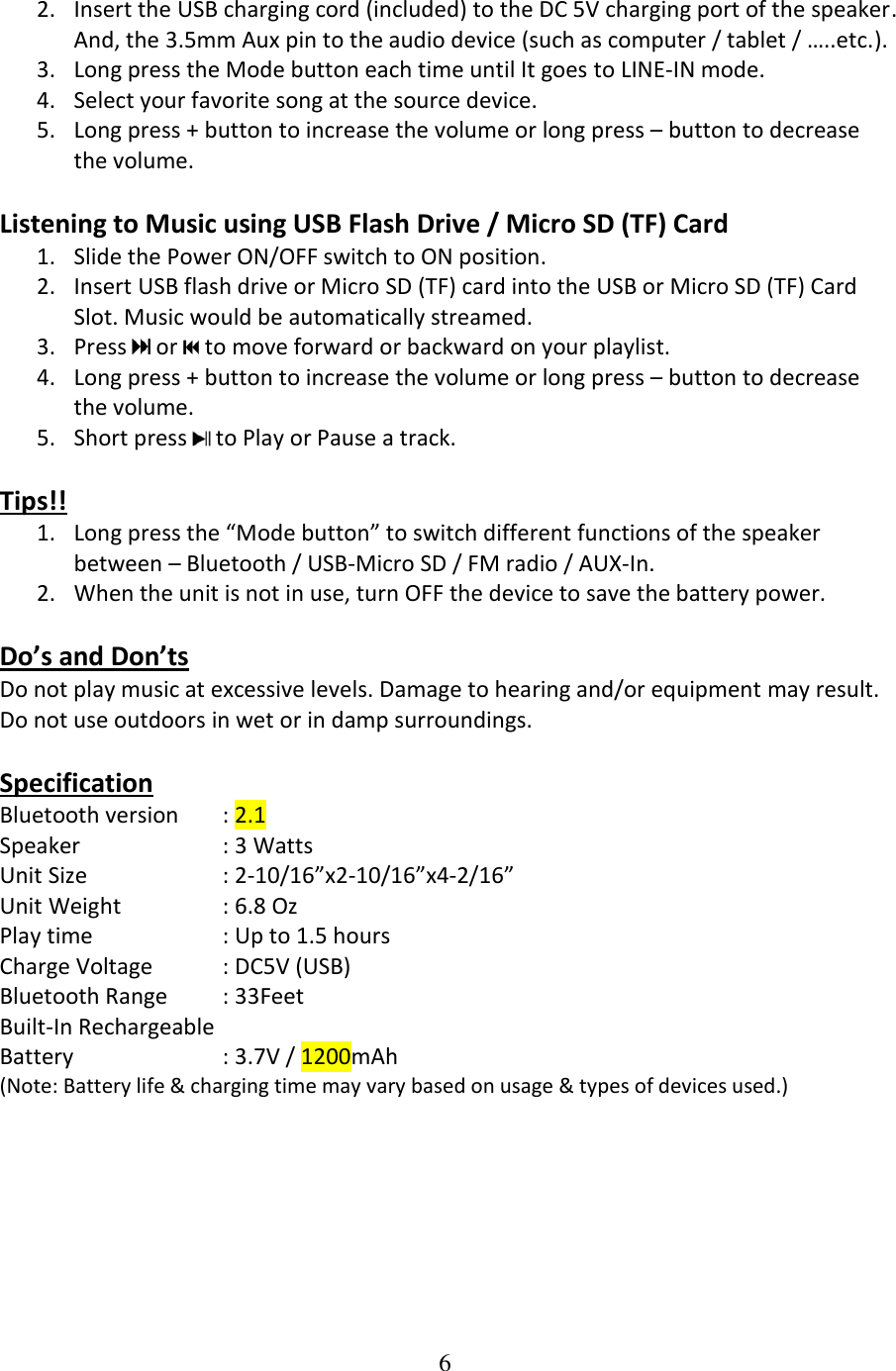
6  2. Insert the USB charging cord (included) to the DC 5V charging port of the speaker. And, the 3.5mm Aux pin to the audio device (such as computer / tablet / …..etc.). 3. Long press the Mode button each time until It goes to LINE-IN mode. 4. Select your favorite song at the source device. 5. Long press + button to increase the volume or long press – button to decrease the volume.  Listening to Music using USB Flash Drive / Micro SD (TF) Card  1. Slide the Power ON/OFF switch to ON position. 2. Insert USB flash drive or Micro SD (TF) card into the USB or Micro SD (TF) Card Slot. Music would be automatically streamed. 3. Press   or   to move forward or backward on your playlist. 4. Long press + button to increase the volume or long press – button to decrease the volume. 5. Short press   to Play or Pause a track.  Tips!! 1. Long press the “Mode button” to switch different functions of the speaker between – Bluetooth / USB-Micro SD / FM radio / AUX-In. 2. When the unit is not in use, turn OFF the device to save the battery power.  Do’s and Don’ts Do not play music at excessive levels. Damage to hearing and/or equipment may result. Do not use outdoors in wet or in damp surroundings.  Specification Bluetooth version  : 2.1 Speaker    : 3 Watts Unit Size    : 2-10/16”x2-10/16”x4-2/16” Unit Weight    : 6.8 Oz  Play time             : Up to 1.5 hours Charge Voltage  : DC5V (USB) Bluetooth Range  : 33Feet Built-In Rechargeable  Battery     : 3.7V / 1200mAh (Note: Battery life & charging time may vary based on usage & types of devices used.)
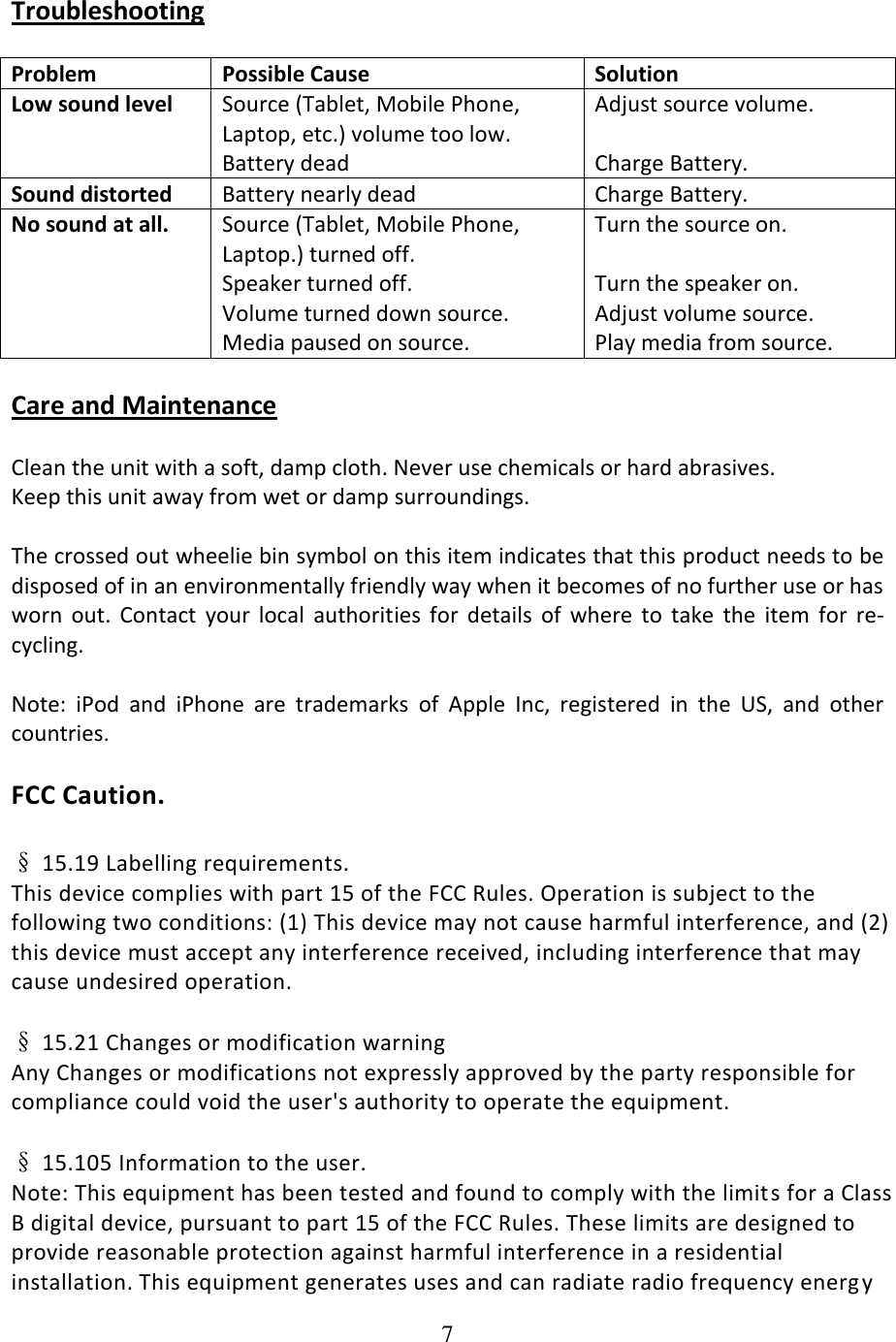
7  Troubleshooting  Problem Possible Cause Solution Low sound level Source (Tablet, Mobile Phone, Laptop, etc.) volume too low. Battery dead Adjust source volume.  Charge Battery. Sound distorted Battery nearly dead Charge Battery. No sound at all. Source (Tablet, Mobile Phone, Laptop.) turned off.  Speaker turned off.  Volume turned down source. Media paused on source. Turn the source on.  Turn the speaker on. Adjust volume source. Play media from source.  Care and Maintenance  Clean the unit with a soft, damp cloth. Never use chemicals or hard abrasives. Keep this unit away from wet or damp surroundings.  The crossed out wheelie bin symbol on this item indicates that this product needs to be disposed of in an environmentally friendly way when it becomes of no further use or has worn  out.  Contact  your  local  authorities  for  details  of  where  to  take  the  item  for  re-cycling.  Note:  iPod  and  iPhone  are  trademarks  of  Apple  Inc,  registered  in  the  US,  and  other countries.  FCC Caution.  § 15.19 Labelling requirements. This device complies with part 15 of the FCC Rules. Operation is subject to the following two conditions: (1) This device may not cause harmful interference, and (2) this device must accept any interference received, including interference that may cause undesired operation.  § 15.21 Changes or modification warning Any Changes or modifications not expressly approved by the party responsible for compliance could void the user's authority to operate the equipment.  § 15.105 Information to the user. Note: This equipment has been tested and found to comply with the limit s for a Class B digital device, pursuant to part 15 of the FCC Rules. These limits are designed to provide reasonable protection against harmful interference in a residential installation. This equipment generates uses and can radiate radio frequency energ y
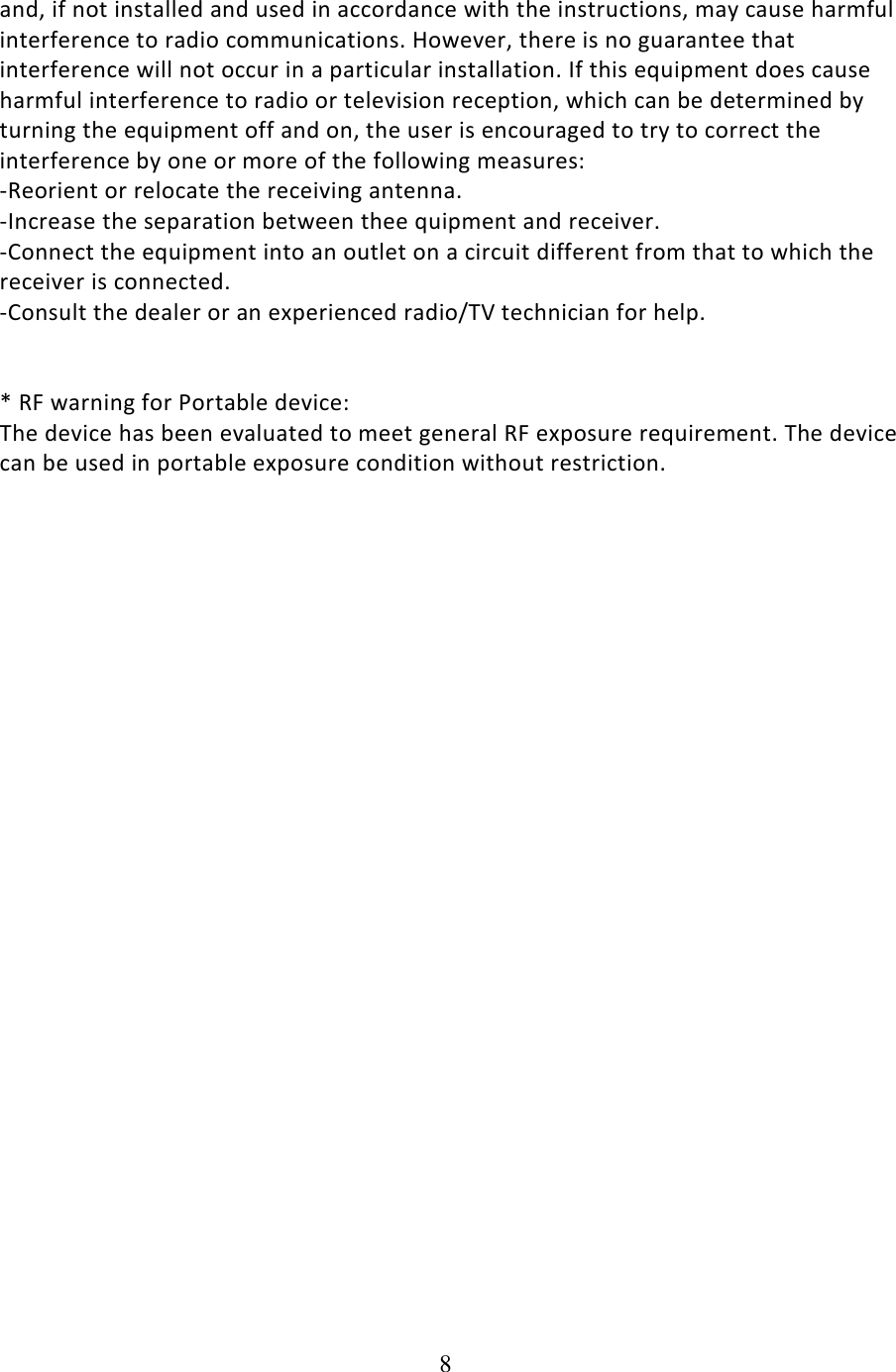
8  and, if not installed and used in accordance with the instructions, may cause harmful interference to radio communications. However, there is no guarantee that interference will not occur in a particular installation. If this equipment does cause harmful interference to radio or television reception, which can be determined by turning the equipment off and on, the user is encouraged to try to correct the interference by one or more of the following measures: -Reorient or relocate the receiving antenna. -Increase the separation between thee quipment and receiver. -Connect the equipment into an outlet on a circuit different from that to which the receiver is connected. -Consult the dealer or an experienced radio/TV technician for help.   * RF warning for Portable device: The device has been evaluated to meet general RF exposure requirement. The device can be used in portable exposure condition without restriction.

Navigation menu