Cenix Digicom WVR175 DIGITAL VOICE RECORDER User Manual USERS MANUAL

Cenix Digicom Co., Ltd DIGITAL VOICE RECORDER USERS MANUAL

USERS MANUAL

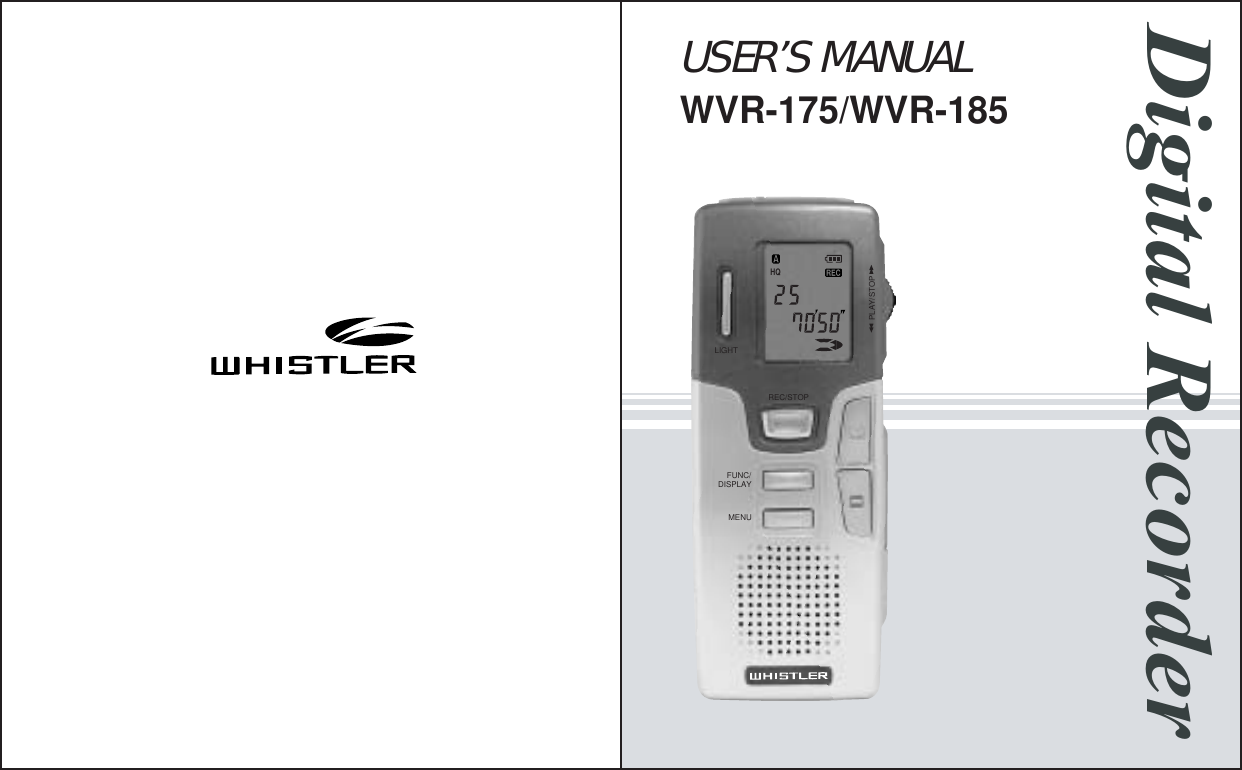
USER’S MANUALWVR-175/WVR-185Digital Recorder LIGHTREC/STOP    FUNC/DISPLAYMENUPLAY/STOPHQ
VOICE RECORDERVOICE RECO  RDERINDEX¡Æ Features    ----------------------------------¡Æ Names of Parts ------------------------------¡Æ LCD Descriptions  -----------------------------¡Æ Before Using  -----------------------------   -Inserting Battery ----------------------------   -Setting Date/Time  ----------------------------¡Æ Using Voice Recorder  ------------------------   -Recording  --------------------------------   -Playback   -------------------------------   -Deleting Recorded Sound    ----------------------   -Hearing Aid Function -------------------------   -Setting Menu  ------------------------------   -Recording Functions ------------------------   -Playback Functions ------------------------   -Editing -----------------------------------¡Æ Connecting to External Device --------------------¡Æ Cautions -----------------------------------¡Æ Troubleshooting  ----------------------------¡Æ Specifications234556889101213141519222527
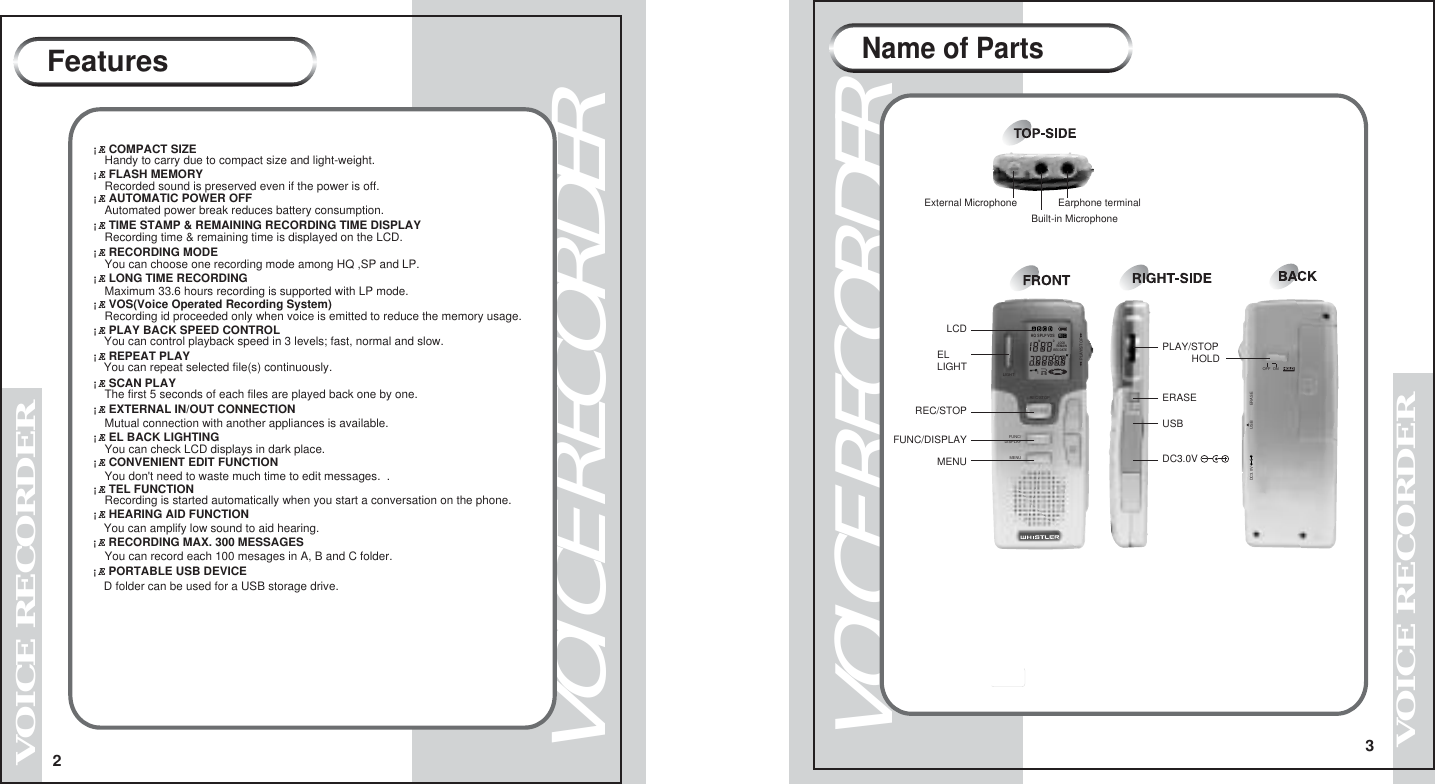
2VOICE RECORDERVOICE RECORDERFeatures¡Æ RECORDING MAX. 300 MESSAGES ¡Æ PORTABLE USB DEVICE¡Æ COMPACT SIZE  Handy to carry due to compact size and light-weight.¡Æ FLASH MEMORY  Recorded sound is preserved even if the power is off.¡Æ AUTOMATIC POWER OFF  Automated power break reduces battery consumption.¡Æ TIME STAMP & REMAINING RECORDING TIME DISPLAY  Recording time & remaining time is displayed on the LCD.¡Æ RECORDING MODE   You can choose one recording mode among HQ ,SP and LP.¡Æ LONG TIME RECORDING  Maximum 33.6 hours recording is supported with LP mode. ¡Æ VOS(Voice Operated Recording System)   Recording id proceeded only when voice is emitted to reduce the memory usage.¡Æ PLAY BACK SPEED CONTROL  You can control playback speed in 3 levels; fast, normal and slow.   ¡Æ REPEAT PLAY  You can repeat selected file(s) continuously.¡Æ SCAN PLAY  The first 5 seconds of each files are played back one by one.¡Æ EXTERNAL IN/OUT CONNECTION  Mutual connection with another appliances is available.¡Æ EL BACK LIGHTING  You can check LCD displays in dark place.¡Æ CONVENIENT EDIT FUNCTION  You don't need to waste much time to edit messages.  .¡Æ TEL FUNCTION  Recording is started automatically when you start a conversation on the phone.¡Æ HEARING AID FUNCTION  You can record each 100 mesages in A, B and C folder.  D folder can be used for a USB storage drive.  You can amplify low sound to aid hearing.VOICE RECORDER3Name of PartsVOICE RECORDERExternal MicrophoneHQMDSPLPVOSLOCKREMAINRECDATE1A-BLIGHTREC/STOP    FUNC/DISPLAYMENUPLAY/STOPOFF  ONERASEHOLDUSBDC3.0VDC3.0VEarphone terminalPLAY/STOPHOLDERASEUSBELLIGHTLCDREC/STOPFUNC/DISPLAYMENUBuilt-in Microphone
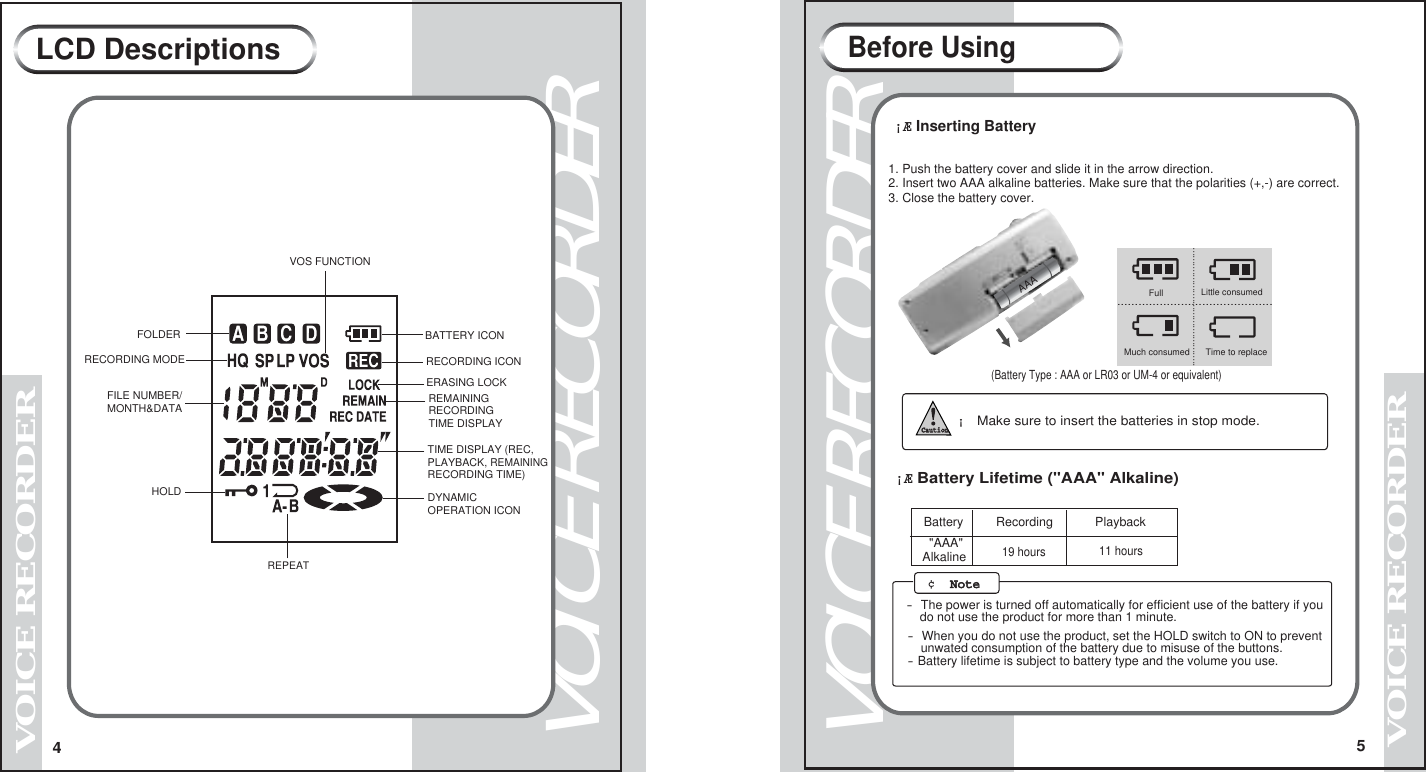
VOICE RECORDER5 VOICE RECORDER      1. Push the battery cover and slide it in the arrow direction. 2. Insert two AAA alkaline batteries. Make sure that the polarities (+,-) are correct. 3. Close the battery cover.  ¡Æ Inserting Battery   (Battery Type : AAA or LR03 or UM-4 or equivalent)   ........................................................................................Much consumed Little consumedTime to replace        Full¡Æ Battery Lifetime ("AAA" Alkaline)Recording Playback "AAA"Alkaline - The power is turned off automatically for efficient use of the battery if you      do not use the product for more than 1 minute.- When you do not use the product, set the HOLD switch to ON to prevent    unwated consumption of the battery due to misuse of the buttons.- Battery lifetime is subject to battery type and the volume you use.19 hours 11 hoursBefore Using ¢  NoteNote        ¡ Make sure to insert the batteries in stop mode.CautionAAA4VOICE RECORDERVOICE RECORDERLCD DescriptionsFILE NUMBER/MONTH&DATAFOLDERRECORDING MODEBATTERY ICONRECORDING ICONREPEATHOLDVOS FUNCTIONERASING LOCKREMAINING RECORDING TIME DISPLAYTIME DISPLAY (REC,PLAYBACK, REMAININGRECORDING TIME)DYNAMICOPERATION ICON Battery
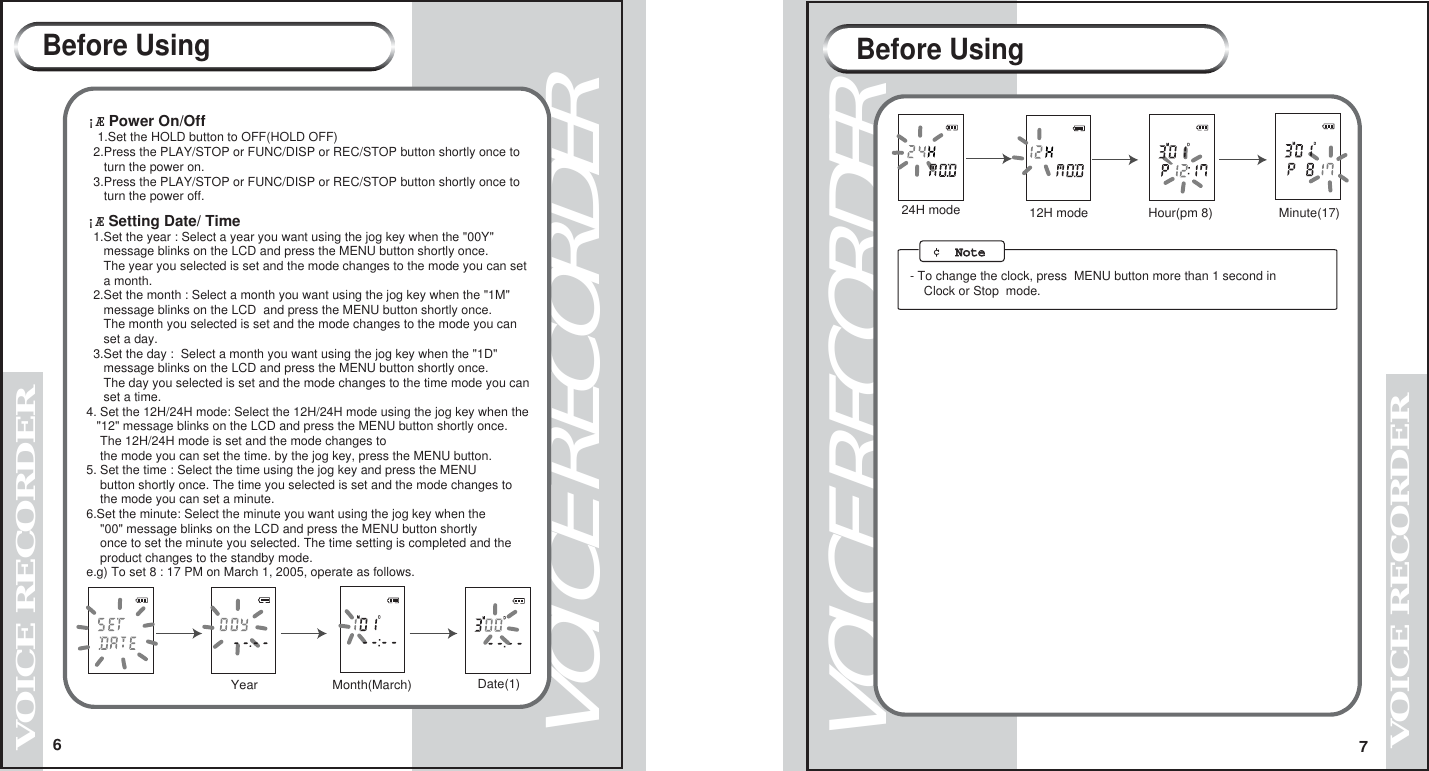
6VOICE RECORDERVOICE RECORDER7VOICE RECORDERVOICE RECORDER¡Æ Power On/Off  1.Set the HOLD button to OFF(HOLD OFF)  2.Press the PLAY/STOP or FUNC/DISP or REC/STOP button shortly once to      turn the power on.  3.Press the PLAY/STOP or FUNC/DISP or REC/STOP button shortly once to     turn the power off.     ¡Æ Setting Date/ Time  1.Set the year : Select a year you want using the jog key when the "00Y"      message blinks on the LCD and press the MENU button shortly once.     The year you selected is set and the mode changes to the mode you can set     a month.        2.Set the month : Select a month you want using the jog key when the "1M"      message blinks on the LCD  and press the MENU button shortly once.     The month you selected is set and the mode changes to the mode you can     set a day.  3.Set the day :  Select a month you want using the jog key when the "1D"     message blinks on the LCD and press the MENU button shortly once.     The day you selected is set and the mode changes to the time mode you can     set a time.4. Set the 12H/24H mode: Select the 12H/24H mode using the jog key when the   "12" message blinks on the LCD and press the MENU button shortly once.     The 12H/24H mode is set and the mode changes to     the mode you can set the time. by the jog key, press the MENU button.       5. Set the time : Select the time using the jog key and press the MENU     button shortly once. The time you selected is set and the mode changes to     the mode you can set a minute.6.Set the minute: Select the minute you want using the jog key when the     "00" message blinks on the LCD and press the MENU button shortly    once to set the minute you selected. The time setting is completed and the    product changes to the standby mode.e.g) To set 8 : 17 PM on March 1, 2005, operate as follows.Before Using Before UsingYear Month(March) Date(1)24H mode Hour(pm 8)  Minute(17) 12H mode  ¢  NoteNote   - To change the clock, press  MENU button more than 1 second in     Clock or Stop  mode.
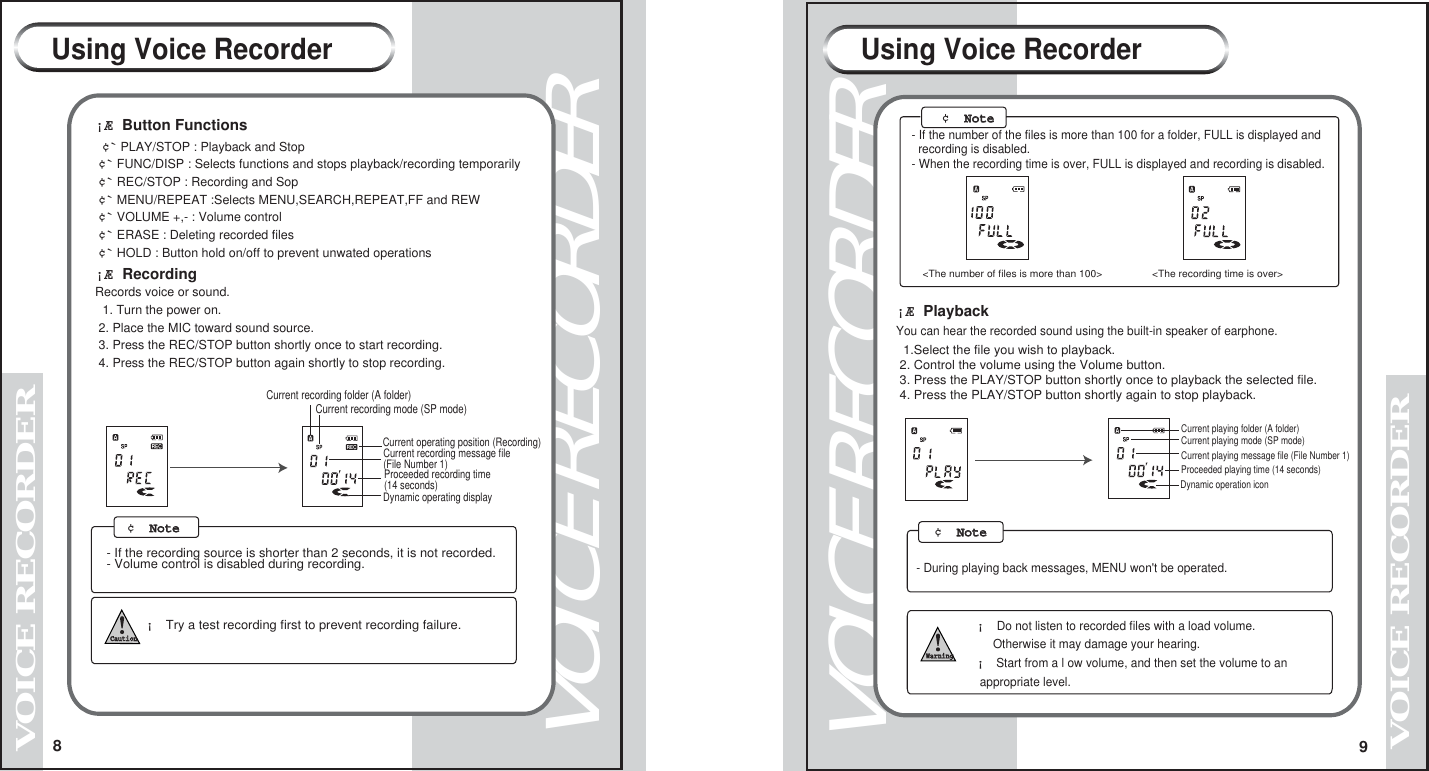
8VOICE RECORDERVOICE RECORDER9VOICE RECORDERVOICE RECORDER- If the number of the files is more than 100 for a folder, FULL is displayed and   recording is disabled.    - When the recording time is over, FULL is displayed and recording is disabled.  <The recording time is over><The number of files is more than 100>  ¡Æ PlaybackYou can hear the recorded sound using the built-in speaker of earphone. 1.Select the file you wish to playback.  2. Control the volume using the Volume button.    3. Press the PLAY/STOP button shortly once to playback the selected file. 4. Press the PLAY/STOP button shortly again to stop playback.     Current playing folder (A folder)Current playing mode (SP mode)Current playing message file (File Number 1)Proceeded playing time (14 seconds)Dynamic operation icon Using Voice RecorderUsing Voice Recorder¡Æ Button Functions ¢` PLAY/STOP : Playback and Stop ¢` FUNC/DISP : Selects functions and stops playback/recording temporarily ¢` REC/STOP : Recording and Sop ¢` MENU/REPEAT :Selects MENU,SEARCH,REPEAT,FF and REW  ¢` VOLUME +,- : Volume control ¢` ERASE : Deleting recorded files ¢` HOLD : Button hold on/off to prevent unwated operations¡Æ Recording Records voice or sound. 1. Turn the power on.   2. Place the MIC toward sound source. 3. Press the REC/STOP button shortly once to start recording. 4. Press the REC/STOP button again shortly to stop recording.Dynamic operating display Current recording folder (A folder)Current recording mode (SP mode)Current operating position (Recording)Current recording message file (File Number 1)Proceeded recording time (14 seconds)- If the recording source is shorter than 2 seconds, it is not recorded.- Volume control is disabled during recording.     ¡ Try a test recording first to prevent recording failure.    Caution     ¡ Do not listen to recorded files with a load volume.      Otherwise it may damage your hearing.¡ Start from a l ow volume, and then set the volume to an  appropriate level.Warning- During playing back messages, MENU won't be operated. ¢  NoteNote    ¢  NoteNote    ¢  NoteNote
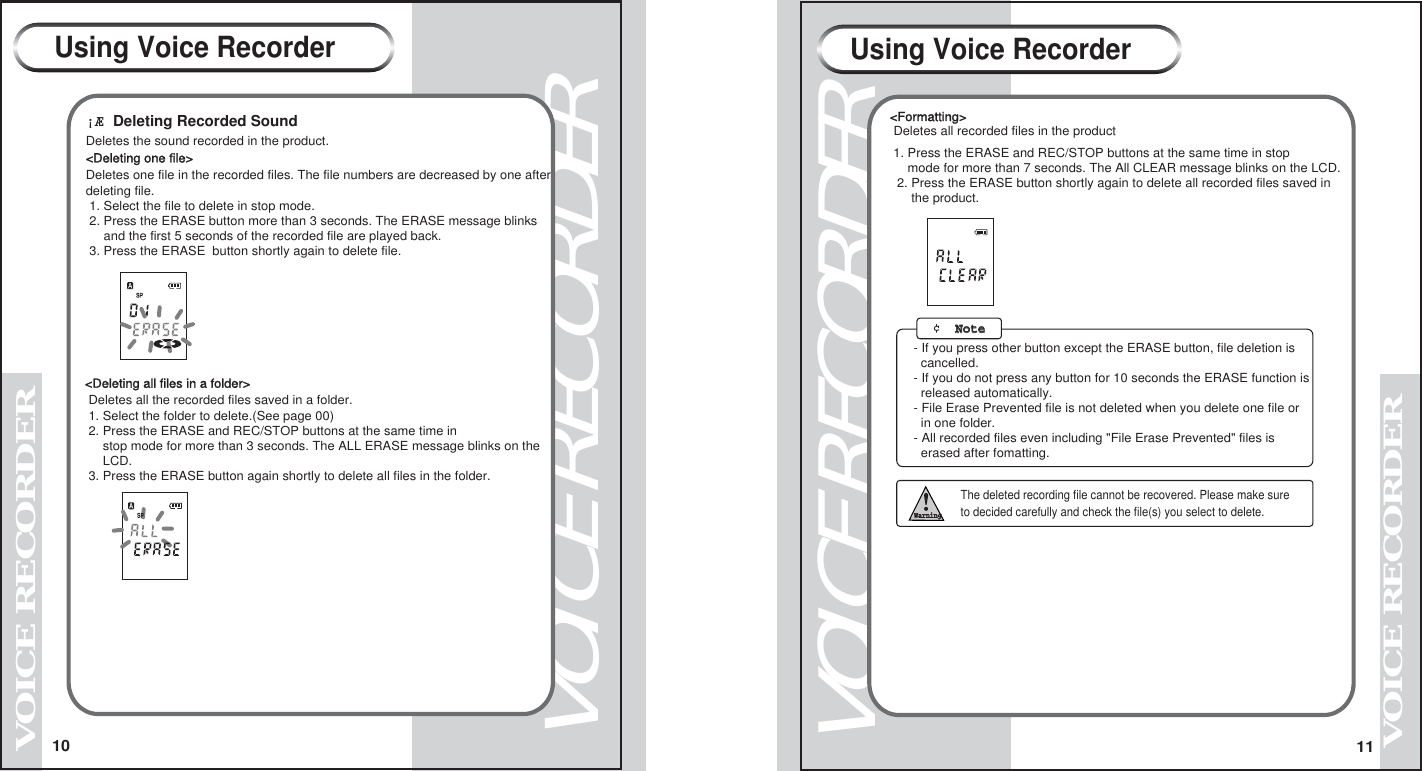
VOICE RECORDERVOICE RECORDER1110VOICE RECORDERVOICE RECORDER¡Æ Deleting Recorded SoundDeletes the sound recorded in the product.<Deleting one file>Deletes one file in the recorded files. The file numbers are decreased by one afterdeleting file. 1. Select the file to delete in stop mode. 2. Press the ERASE button more than 3 seconds. The ERASE message blinks     and the first 5 seconds of the recorded file are played back. 3. Press the ERASE  button shortly again to delete file.<Deleting all files in a folder> Deletes all the recorded files saved in a folder.        1. Select the folder to delete.(See page 00) 2. Press the ERASE and REC/STOP buttons at the same time in      stop mode for more than 3 seconds. The ALL ERASE message blinks on the     LCD.  3. Press the ERASE button again shortly to delete all files in the folder.               The deleted recording file cannot be recovered. Please make sure           to decided carefully and check the file(s) you select to delete.WarningUsing Voice RecorderUsing Voice Recorder<Formatting> Deletes all recorded files in the product1. Press the ERASE and REC/STOP buttons at the same time in stop    mode for more than 7 seconds. The All CLEAR message blinks on the LCD. 2. Press the ERASE button shortly again to delete all recorded files saved in      the product.- If you press other button except the ERASE button, file deletion is   cancelled.- If you do not press any button for 10 seconds the ERASE function is   released automatically.- File Erase Prevented file is not deleted when you delete one file or   in one folder.- All recorded files even including "File Erase Prevented" files is   erased after fomatting. ¢  NoteNote
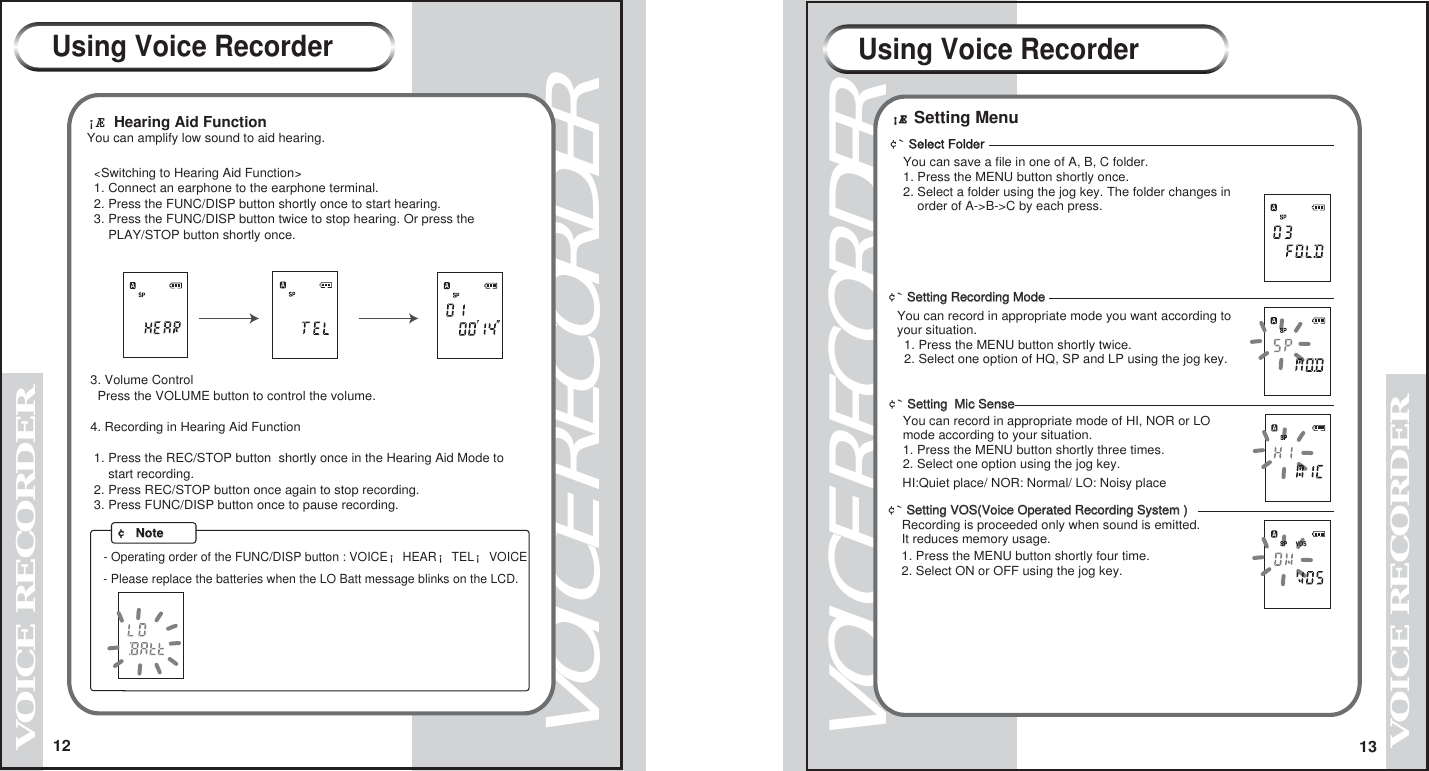
12VOICE RECORDERVOICE RECORDER13VOICE RECORDERVOICE RECORDER¡Æ Hearing Aid Function You can amplify low sound to aid hearing. <Switching to Hearing Aid Function>  1. Connect an earphone to the earphone terminal.  2. Press the FUNC/DISP button shortly once to start hearing.   3. Press the FUNC/DISP button twice to stop hearing. Or press the       PLAY/STOP button shortly once.  3. Volume Control   Press the VOLUME button to control the volume. 4. Recording in Hearing Aid Function  1. Press the REC/STOP button  shortly once in the Hearing Aid Mode to       start recording.  2. Press REC/STOP button once again to stop recording.  3. Press FUNC/DISP button once to pause recording.    - Operating order of the FUNC/DISP button : VOICE¡HEAR¡TEL¡VOICE- Please replace the batteries when the LO Batt message blinks on the LCD.  ¢ NoteUsing Voice Recorder Using Voice Recorder¡Æ¡Æ Setting Menu¢` Select FolderYou can save a file in one of A, B, C folder. 1. Press the MENU button shortly once.2. Select a folder using the jog key. The folder changes in     order of A->B->C by each press. ¢` Setting Recording ModeSetting Recording ModeYou can record in appropriate mode you want according to your situation.    1. Press the MENU button shortly twice.  2. Select one option of HQ, SP and LP using the jog key.         ¢` Setting  Mic SenseSetting  Mic Sense   You can record in appropriate mode of HI, NOR or LO   mode according to your situation.   1. Press the MENU button shortly three times.   2. Select one option using the jog key.     HI:Quiet place/ NOR: Normal/ LO: Noisy place¢` Setting VOS(Voice Operated Recording System )Setting VOS(Voice Operated Recording System )    Recording is proceeded only when sound is emitted.     It reduces memory usage. 1. Press the MENU button shortly four time.2. Select ON or OFF using the jog key.
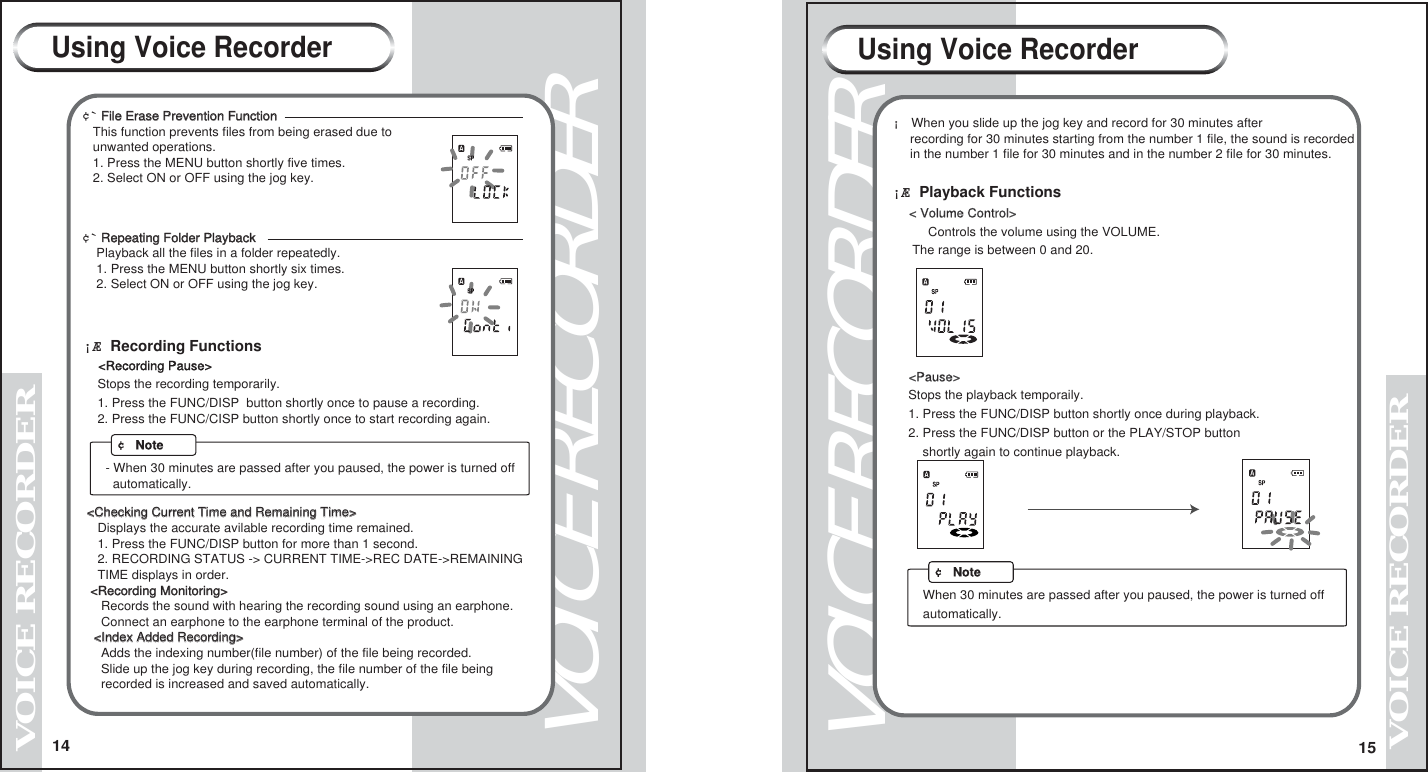
14VOICE RECORDERVOICE RECORDER15VOICE RECORDERVOICE RECORDERUsing Voice Recorder Using Voice Recorder¢` File Erase Prevention FunctionFile Erase Prevention Function         This function prevents files from being erased due to   unwanted operations.   1. Press the MENU button shortly five times.   2. Select ON or OFF using the jog key.   ¢` Repeating Folder Playback Repeating Folder Playback          Playback all the files in a folder repeatedly.    1. Press the MENU button shortly six times.    2. Select ON or OFF using the jog key.     ¡Æ Recording Functions  <Recording Pause>    Stops the recording temporarily.    1. Press the FUNC/DISP  button shortly once to pause a recording.    2. Press the FUNC/CISP button shortly once to start recording again.  <Checking Current Time and Remaining Time><Checking Current Time and Remaining Time>    Displays the accurate avilable recording time remained.    1. Press the FUNC/DISP button for more than 1 second.    2. RECORDING STATUS -> CURRENT TIME->REC DATE->REMAINING     TIME displays in order.  <Recording Monitoring><Recording Monitoring>     Records the sound with hearing the recording sound using an earphone.     Connect an earphone to the earphone terminal of the product.   <Index Added Recording><Index Added Recording>     Adds the indexing number(file number) of the file being recorded.     Slide up the jog key during recording, the file number of the file being     recorded is increased and saved automatically. ¡ When you slide up the jog key and record for 30 minutes after      recording for 30 minutes starting from the number 1 file, the sound is recorded     in the number 1 file for 30 minutes and in the number 2 file for 30 minutes.  < Volume Control>    Controls the volume using the VOLUME.     The range is between 0 and 20.  <Pause>   Stops the playback temporaily.   1. Press the FUNC/DISP button shortly once during playback.   2. Press the FUNC/DISP button or the PLAY/STOP button       shortly again to continue playback.¡Æ Playback Functions¢ NoteWhen 30 minutes are passed after you paused, the power is turned off automatically.- When 30 minutes are passed after you paused, the power is turned off   automatically.¢ Note
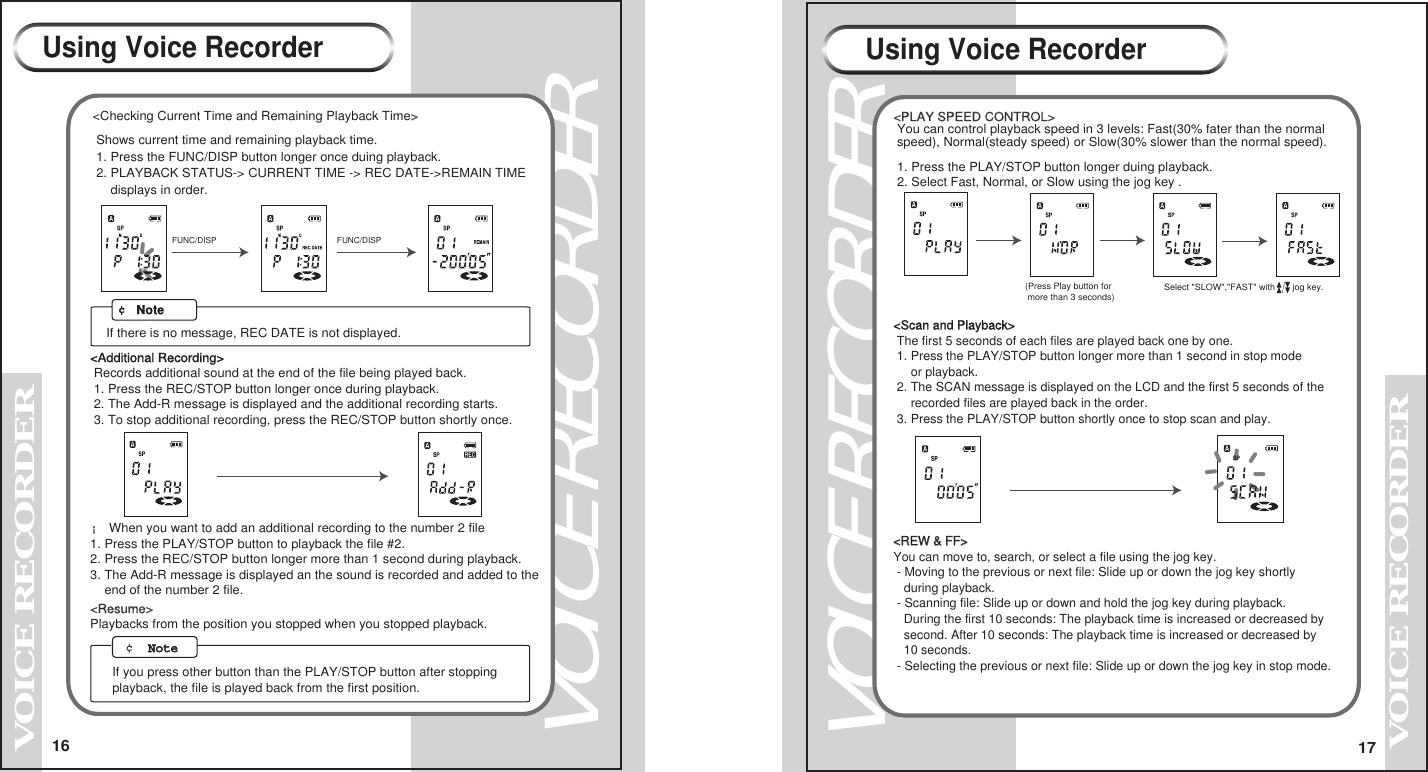
16VOICE RECORDERVOICE RECORDER17VOICE RECORDERVOICE RECORDER<Scan and Playback> The first 5 seconds of each files are played back one by one. 1. Press the PLAY/STOP button longer more than 1 second in stop mode     or playback. 2. The SCAN message is displayed on the LCD and the first 5 seconds of the     recorded files are played back in the order. 3. Press the PLAY/STOP button shortly once to stop scan and play.<REW & FF><REW & FF>You can move to, search, or select a file using the jog key. - Moving to the previous or next file: Slide up or down the jog key shortly   during playback. - Scanning file: Slide up or down and hold the jog key during playback.   During the first 10 seconds: The playback time is increased or decreased by    second. After 10 seconds: The playback time is increased or decreased by    10 seconds. - Selecting the previous or next file: Slide up or down the jog key in stop mode.¡ When you want to add an additional recording to the number 2 file1. Press the PLAY/STOP button to playback the file #2.2. Press the REC/STOP button longer more than 1 second during playback.3. The Add-R message is displayed an the sound is recorded and added to the    end of the number 2 file.<Resume>Playbacks from the position you stopped when you stopped playback.<Additional Recording>  Records additional sound at the end of the file being played back. 1. Press the REC/STOP button longer once during playback. 2. The Add-R message is displayed and the additional recording starts. 3. To stop additional recording, press the REC/STOP button shortly once.<PLAY SPEED CONTROL> You can control playback speed in 3 levels: Fast(30% fater than the normal speed), Normal(steady speed) or Slow(30% slower than the normal speed). 1. Press the PLAY/STOP button longer duing playback. 2. Select Fast, Normal, or Slow using the jog key .  Select "SLOW","FAST" with       jog key.(Press Play button for more than 3 seconds)    Using Voice Recorder Using Voice Recorder ¢  NoteNote   If you press other button than the PLAY/STOP button after stopping playback, the file is played back from the first position.<Checking Current Time and Remaining Playback Time>> Shows current time and remaining playback time. 1. Press the FUNC/DISP button longer once duing playback.  2. PLAYBACK STATUS-> CURRENT TIME -> REC DATE->REMAIN TIME     displays in order.  FUNC/DISP   FUNC/DISP¢ NoteIf there is no message, REC DATE is not displayed.
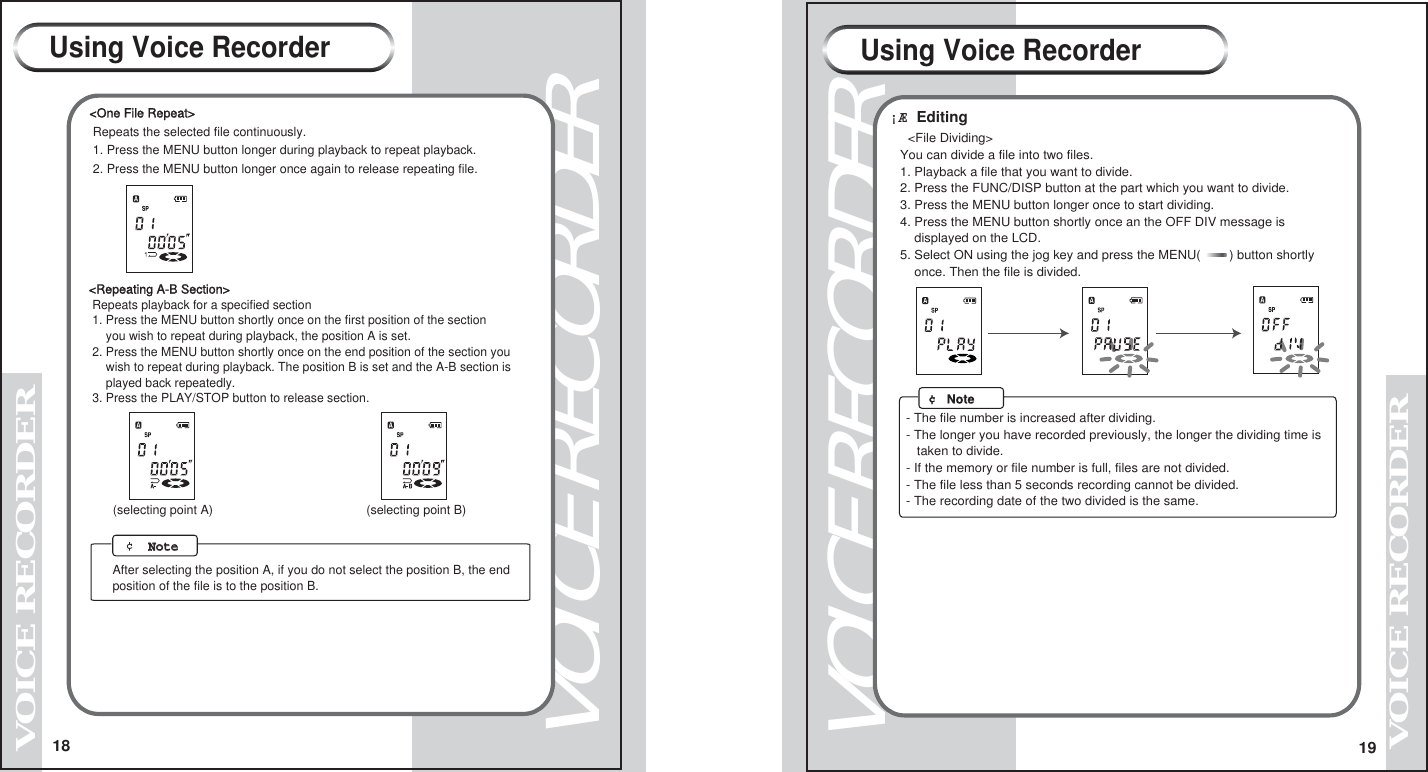
18VOICE RECORDERVOICE RECORDER19VOICE RECORDERVOICE RECORDERUsing Voice Recorder Using Voice Recorder<Repeating A-B Section> Repeats playback for a specified section 1. Press the MENU button shortly once on the first position of the section     you wish to repeat during playback, the position A is set. 2. Press the MENU button shortly once on the end position of the section you     wish to repeat during playback. The position B is set and the A-B section is     played back repeatedly. 3. Press the PLAY/STOP button to release section.(selecting point A) (selecting point B) ¢  NoteNote   After selecting the position A, if you do not select the position B, the end position of the file is to the position B.<One File Repeat> Repeats the selected file continuously. 1. Press the MENU button longer during playback to repeat playback. 2. Press the MENU button longer once again to release repeating file.¡Æ Editing   <File Dividing>   You can divide a file into two files.   1. Playback a file that you want to divide.   2. Press the FUNC/DISP button at the part which you want to divide.   3. Press the MENU button longer once to start dividing.   4. Press the MENU button shortly once an the OFF DIV message is       displayed on the LCD.   5. Select ON using the jog key and press the MENU(        ) button shortly       once. Then the file is divided.     ¢ Note- The file number is increased after dividing.- The longer you have recorded previously, the longer the dividing time is   taken to divide.- If the memory or file number is full, files are not divided.- The file less than 5 seconds recording cannot be divided.- The recording date of the two divided is the same.
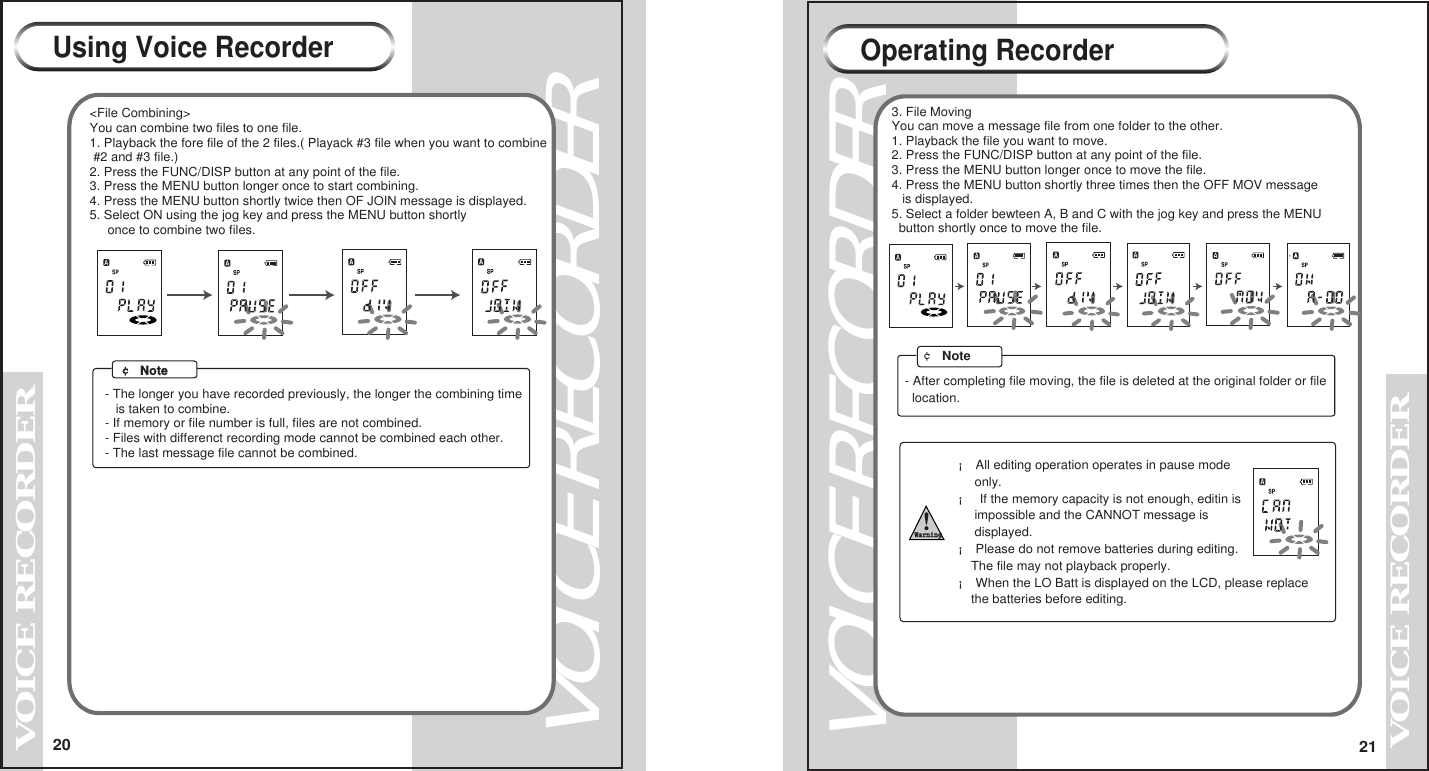
20VOICE RECORDERVOICE RECORDER21VOICE RECORDERVOICE RECORDER <File Combining> You can combine two files to one file. 1. Playback the fore file of the 2 files.( Playack #3 file when you want to combine  #2 and #3 file.) 2. Press the FUNC/DISP button at any point of the file. 3. Press the MENU button longer once to start combining. 4. Press the MENU button shortly twice then OF JOIN message is displayed. 5. Select ON using the jog key and press the MENU button shortly       once to combine two files.¢ Note- The longer you have recorded previously, the longer the combining time   is taken to combine.- If memory or file number is full, files are not combined.- Files with differenct recording mode cannot be combined each other.- The last message file cannot be combined.Using Voice Recorder¢ Note3. File MovingYou can move a message file from one folder to the other.1. Playback the file you want to move.2. Press the FUNC/DISP button at any point of the file.3. Press the MENU button longer once to move the file.4. Press the MENU button shortly three times then the OFF MOV message   is displayed.5. Select a folder bewteen A, B and C with the jog key and press the MENU  button shortly once to move the file.  - After completing file moving, the file is deleted at the original folder or file  location.Operating Recorder¡ All editing operation operates in pause mode     only.¡ If the memory capacity is not enough, editin is     impossible and the CANNOT message is     displayed.Warning¡ Please do not remove batteries during editing.    The file may not playback properly.¡ When the LO Batt is displayed on the LCD, please replace     the batteries before editing.
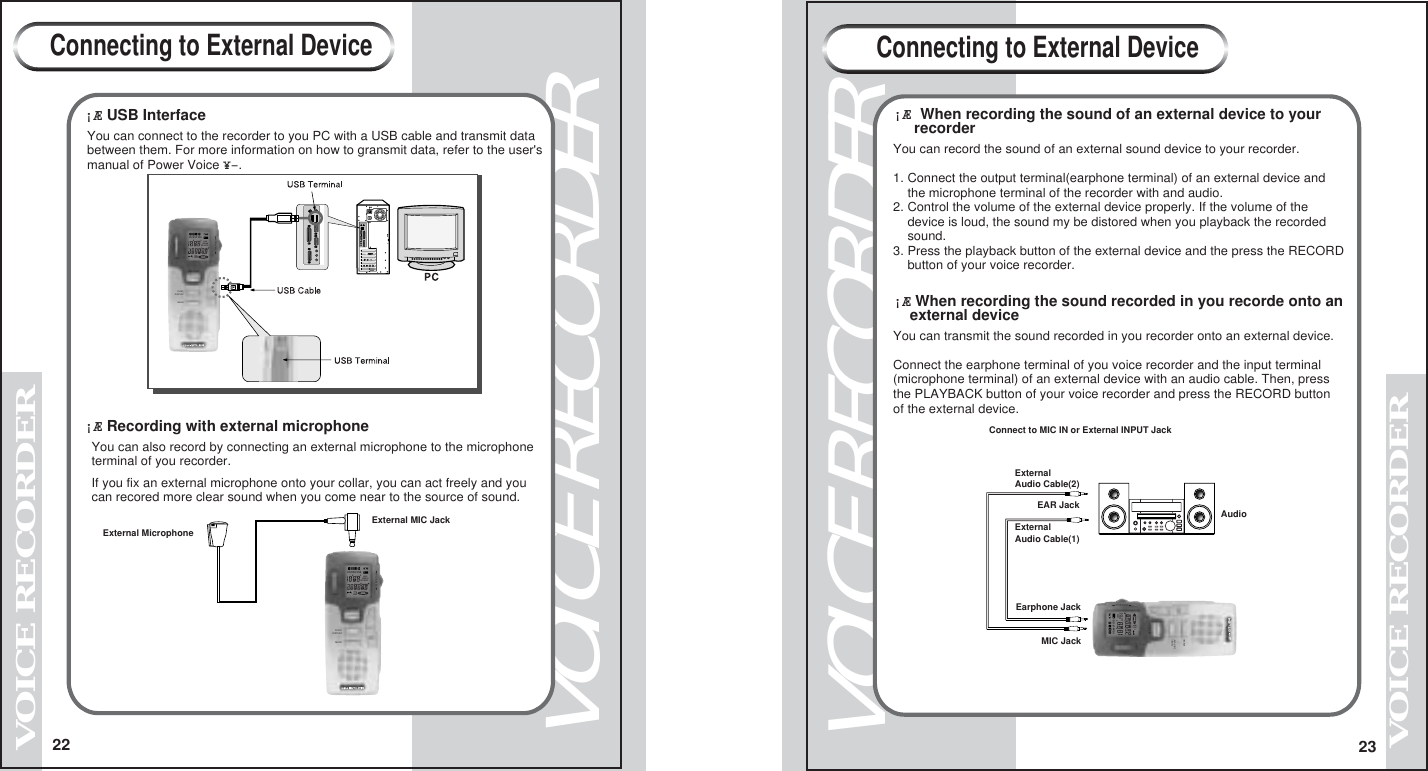
22VOICE RECORDERVOICE RECORDER23VOICE RECORDERVOICE RECORDERYou can connect to the recorder to you PC with a USB cable and transmit databetween them. For more information on how to gransmit data, refer to the user'smanual of Power Voice ¥–.  You can also record by connecting an external microphone to the microphone  terminal of you recorder.  If you fix an external microphone onto your collar, you can act freely and you  can recored more clear sound when you come near to the source of sound.External MicrophoneExternal MIC Jack¡Æ When recording the sound recorded in you recorde onto an     external deviceConnect to MIC IN or External INPUT JackExternalAudio Cable(1)ExternalAudio Cable(2)Earphone JackEAR JackMIC JackAudioConnecting to External Device Connecting to External Device¡Æ Recording with external microphone¡Æ USB InterfaceHQMDSPLPVOSLOCKREMAINRECDATE1A-BLIGHTREC/STOP    FUNC/DISPLAYMENUPLAY/STOPHQMDSPLPVOSLOCKREMAINRECDATE1A-BLIGHTREC/STOP    FUNC/DISPLAYMENUPLAY/STOPHQMDSPLPVOSLOCKREMAINRECDATE1A-BLIGHTREC/STOP    FUNC/DISPLAYMENUPLAY/STOP¡Æ When recording the sound of an external device to your      recorderYou can record the sound of an external sound device to your recorder.1. Connect the output terminal(earphone terminal) of an external device and    the microphone terminal of the recorder with and audio.2. Control the volume of the external device properly. If the volume of the     device is loud, the sound my be distored when you playback the recorded     sound.3. Press the playback button of the external device and the press the RECORD    button of your voice recorder.You can transmit the sound recorded in you recorder onto an external device.Connect the earphone terminal of you voice recorder and the input terminal(microphone terminal) of an external device with an audio cable. Then, pressthe PLAYBACK button of your voice recorder and press the RECORD buttonof the external device.
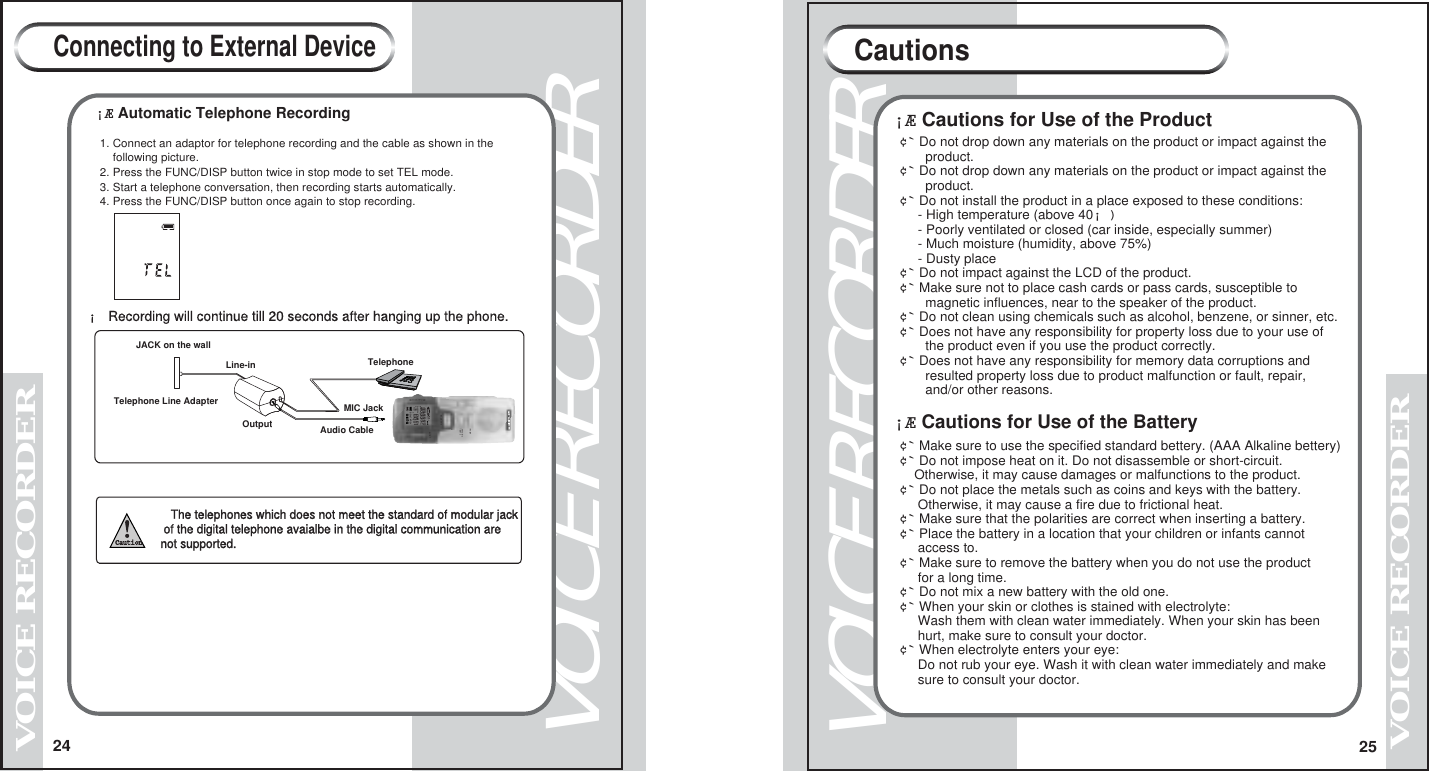
24VOICE RECORDERVOICE RECORDER25VOICE RECORDERVOICE RECORDER ¡Æ Automatic Telephone Recording    1. Connect an adaptor for telephone recording and the cable as shown in the         following picture.      2. Press the FUNC/DISP button twice in stop mode to set TEL mode.    3. Start a telephone conversation, then recording starts automatically.    4. Press the FUNC/DISP button once again to stop recording.    JACK on the wallTelephoneTelephone Line Adapter MIC Jack   The telephones which does not meet the standard of modular jack    of the digital telephone avaialbe in the digital communication are    not supported.¡Æ Cautions for Use of the Product¢` Do not drop down any materials on the product or impact against the       product.¢` Do not drop down any materials on the product or impact against the       product.¢` Do not install the product in a place exposed to these conditions:     - High temperature (above 40¡)     - Poorly ventilated or closed (car inside, especially summer)     - Much moisture (humidity, above 75%)     - Dusty place¢` Do not impact against the LCD of the product.¢` Make sure not to place cash cards or pass cards, susceptible to        magnetic influences, near to the speaker of the product.¢` Do not clean using chemicals such as alcohol, benzene, or sinner, etc.¢` Does not have any responsibility for property loss due to your use of        the product even if you use the product correctly.¢` Does not have any responsibility for memory data corruptions and        resulted property loss due to product malfunction or fault, repair,       and/or other reasons. ¡Æ Cautions for Use of the BatteryCautionsLine-inOutput  Audio CableConnecting to External DeviceCaution¡ Recording will continue till 20 seconds after hanging up the phone.HQMDSPLPVOSLOCKREMAINRECDATE1A-BLIGHTREC/STOP    FUNC/DISPLAYMENUPLAY/STOP¢` Make sure to use the specified standard bettery. (AAA Alkaline bettery)¢` Do not impose heat on it. Do not disassemble or short-circuit.     Otherwise, it may cause damages or malfunctions to the product.¢` Do not place the metals such as coins and keys with the battery.     Otherwise, it may cause a fire due to frictional heat.¢` Make sure that the polarities are correct when inserting a battery.¢` Place the battery in a location that your children or infants cannot     access to.¢` Make sure to remove the battery when you do not use the product     for a long time.¢` Do not mix a new battery with the old one.¢` When your skin or clothes is stained with electrolyte:     Wash them with clean water immediately. When your skin has been      hurt, make sure to consult your doctor.¢` When electrolyte enters your eye:     Do not rub your eye. Wash it with clean water immediately and make     sure to consult your doctor.
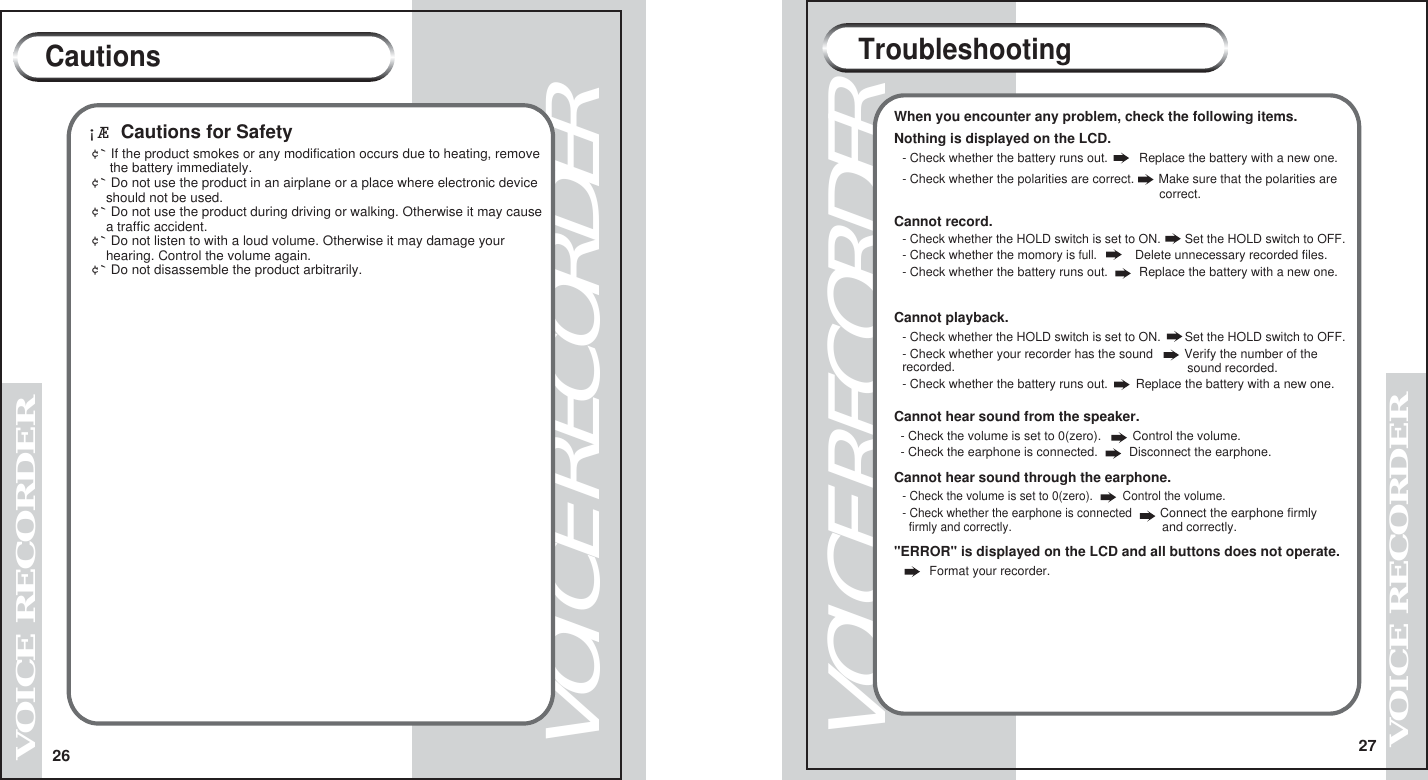
26VOICE RECORDERVOICE RECORDER¡Æ Cautions for SafetyCautionsVOICE RECORDER27VOICE RECORDER¢` If the product smokes or any modification occurs due to heating, remove      the battery immediately.¢` Do not use the product in an airplane or a place where electronic device     should not be used.¢` Do not use the product during driving or walking. Otherwise it may cause    a traffic accident.¢` Do not listen to with a loud volume. Otherwise it may damage your     hearing. Control the volume again.¢` Do not disassemble the product arbitrarily.Troubleshooting- Check whether the polarities are correct.       Make sure that the polarities are                                                                           correct.Cannot record.- Check whether the HOLD switch is set to ON.       Set the HOLD switch to OFF.- Check whether the momory is full.- Check whether the battery runs out.         Replace the battery with a new one.Cannot playback.- Check whether the HOLD switch is set to ON.       Set the HOLD switch to OFF.- Check whether your recorder has the sound         Verify the number of the sound recorded.- Check whether the battery runs out.        Replace the battery with a new one.Cannot hear sound from the speaker.- Check the volume is set to 0(zero).         Control the volume. - Check the earphone is connected.         Disconnect the earphone.Cannot hear sound through the earphone."ERROR" is displayed on the LCD and all buttons does not operate.- Check the volume is set to 0(zero).         Control the volume.- Check whether the earphone is connected  firmly and correctly. and correctly. Format your recorder.When you encounter any problem, check the following items.Nothing is displayed on the LCD.- Check whether the battery runs out.         Replace the battery with a new one.      Connect the earphone firmly Delete unnecessary recorded files.      recorded.
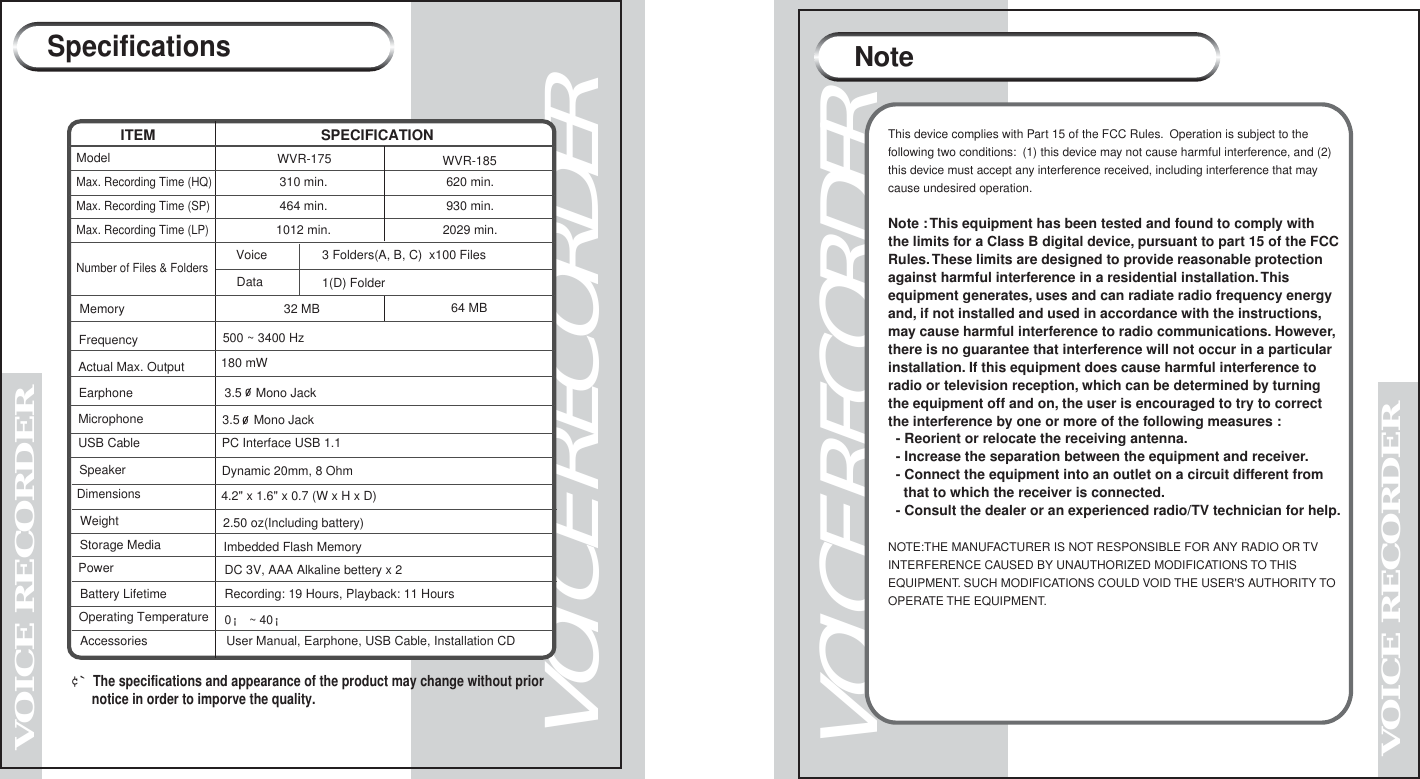
VOICE RECORDERVOICE RECORDERVOICE RECORDERVOICE RECORDERSpecifications¢`  The specifications and appearance of the product may change without prior       notice in order to imporve the quality.ITEM SPECIFICATION930 min.2029 min.464 min.620 min.310 min.1012 min.Model     Max. Recording Time (SP)Max. Recording Time (HQ)Max. Recording Time (LP)Storage MediaWeightPower Imbedded Flash Memory2.50 oz(Including battery)DimensionsSpeaker  FrequencyMemory500 ~ 3400 Hz32 MB 64 MBActual Max. Output Earphone3 Folders(A, B, C)  x100 Files  1(D) FolderVoiceDataNumber of Files & FoldersPC Interface USB 1.1 USB CableMicrophone 3.5    Mono3.5    Mono Jack4.2" x 1.6" x 0.7 (W x H x D)DC 3V, AAA Alkaline bettery x 2 180 mWWVR-185WVR-175 User Manual, Earphone, USB Cable, Installation CDRecording: 19 Hours, Playback: 11 Hours0¡ ~ 40¡Accessories Battery LifetimeOperating TemperatureDynamic 20mm, 8 OhmJackNoteThis device complies with Part 15 of the FCC Rules.  Operation is subject to the following two conditions:  (1) this device may not cause harmful interference, and (2)this device must accept any interference received, including interference that may cause undesired operation.Note : This equipment has been tested and found to comply with the limits for a Class B digital device, pursuant to part 15 of the FCC Rules. These limits are designed to provide reasonable protection against harmful interference in a residential installation. This equipment generates, uses and can radiate radio frequency energy and, if not installed and used in accordance with the instructions, may cause harmful interference to radio communications. However, there is no guarantee that interference will not occur in a particular installation. If this equipment does cause harmful interference to radio or television reception, which can be determined by turning the equipment off and on, the user is encouraged to try to correct the interference by one or more of the following measures :  - Reorient or relocate the receiving antenna.  - Increase the separation between the equipment and receiver.  - Connect the equipment into an outlet on a circuit different from     that to which the receiver is connected.  - Consult the dealer or an experienced radio/TV technician for help.NOTE:THE MANUFACTURER IS NOT RESPONSIBLE FOR ANY RADIO OR TVINTERFERENCE CAUSED BY UNAUTHORIZED MODIFICATIONS TO THIS EQUIPMENT. SUCH MODIFICATIONS COULD VOID THE USER'S AUTHORITY TOOPERATE THE EQUIPMENT.

Navigation menu