Chung Hsin Electric and Machinery Mfg CMC-3000 Webpad User Manual Webpad Users Manual 070710

Chung-Hsin Electric & Machinery Mfg. corp. Webpad Webpad Users Manual 070710

Users manual

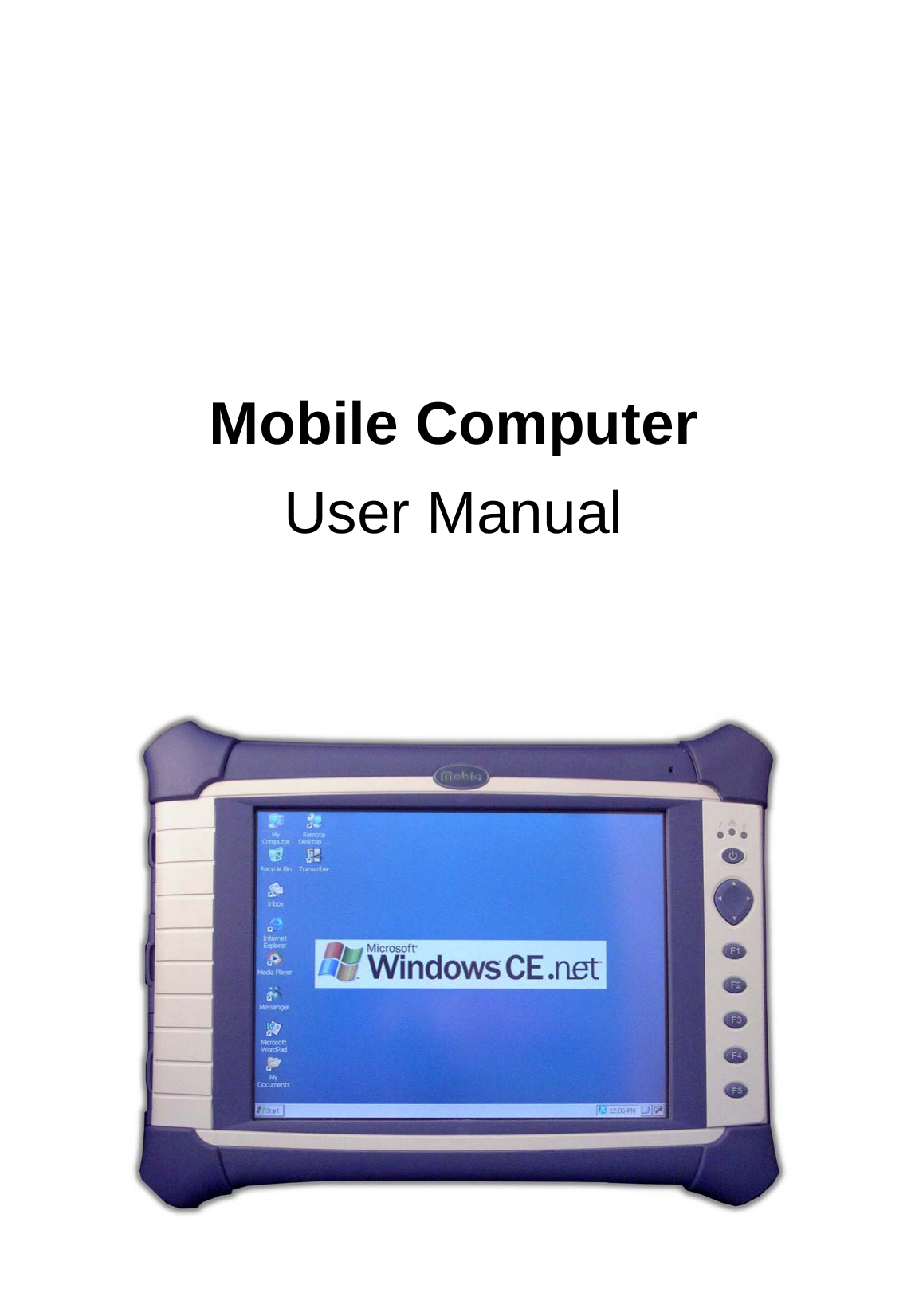
         Mobile Computer User Manual
  This equipment has been tested and found to comply with the limits for a Class B Digital Device, pursuant to part 15 of the FCC Rules. These limits are designed to provide reasonable protection against harmful interference in a residential installation. This equipment generates, uses and can radiate radio frequency energy and, if not installed and used in accordance with the instruction, may cause harmful interference to radio communication. However, there is no grantee that interference will not occur in a particular installation. If this equipment dose cause harmful interference to radio or television reception, which can be determined by turning the equipment off and on , the user is encouraged to try to correct the interference by one or more of the following measures:  -- Reorient or relocate the receiving antenna. -- Increase the separation between the equipment and receiver. -- Connect the equipment into an outlet on a circuit different from that to which the receiver is connected. -- Consult the dealer or an experienced radio/TV technician for help.  The changes or modifications not expressly approved by the party responsible for compliance could void the user’s authority to operate the equipment.  To comply with the FCC RF exposure compliance requirements, this device and its antenna must not be co-located or operating to conjunction with any other antenna or transmitter.
  - 2 - - Contents -  1. Safety precautions........................................................ 1 2. Specifications ............................................................... 1 3. List of included items.................................................... 2 4. Exterior ......................................................................... 3 5. Operation...................................................................... 6 5.1 Main battery and charging....................................... 6 5.2 System reset............................................................ 7 5.3 Use and care of the touch panel.............................. 7 5.4 Change the Backlight Setting .................................. 7 5.5 Using the Transcriber (Hand writing recognizer) ..... 8 5.6 Data Backup............................................................ 8 5.7 Right click Function ................................................. 7 6. ActiveSync.................................................................... 9 7. Using the (optional) Bluetooth wireless network ........ 12   070710
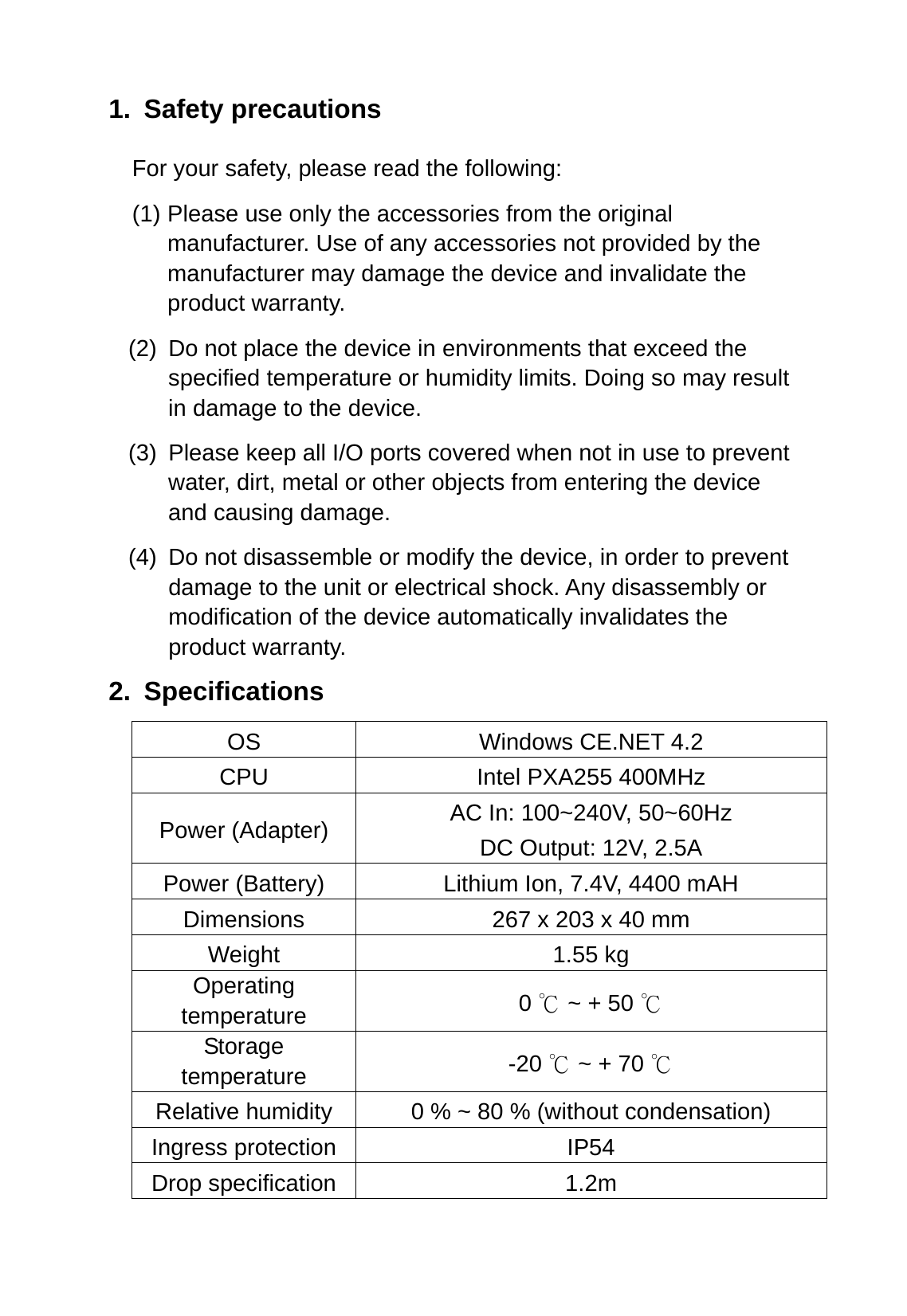
1. Safety precautions For your safety, please read the following: (1) Please use only the accessories from the original manufacturer. Use of any accessories not provided by the manufacturer may damage the device and invalidate the product warranty. (2)  Do not place the device in environments that exceed the specified temperature or humidity limits. Doing so may result in damage to the device. (3)  Please keep all I/O ports covered when not in use to prevent water, dirt, metal or other objects from entering the device and causing damage. (4)  Do not disassemble or modify the device, in order to prevent damage to the unit or electrical shock. Any disassembly or modification of the device automatically invalidates the product warranty. 2. Specifications OS Windows CE.NET 4.2 CPU  Intel PXA255 400MHz Power (Adapter)  AC In: 100~240V, 50~60Hz DC Output: 12V, 2.5A Power (Battery)  Lithium Ion, 7.4V, 4400 mAH Dimensions  267 x 203 x 40 mm Weight 1.55 kg Operating temperature  0   ~ + 50 ℃℃ Storage temperature  -20   ~ + 70 ℃℃ Relative humidity  0 % ~ 80 % (without condensation) Ingress protection  IP54 Drop specification  1.2m
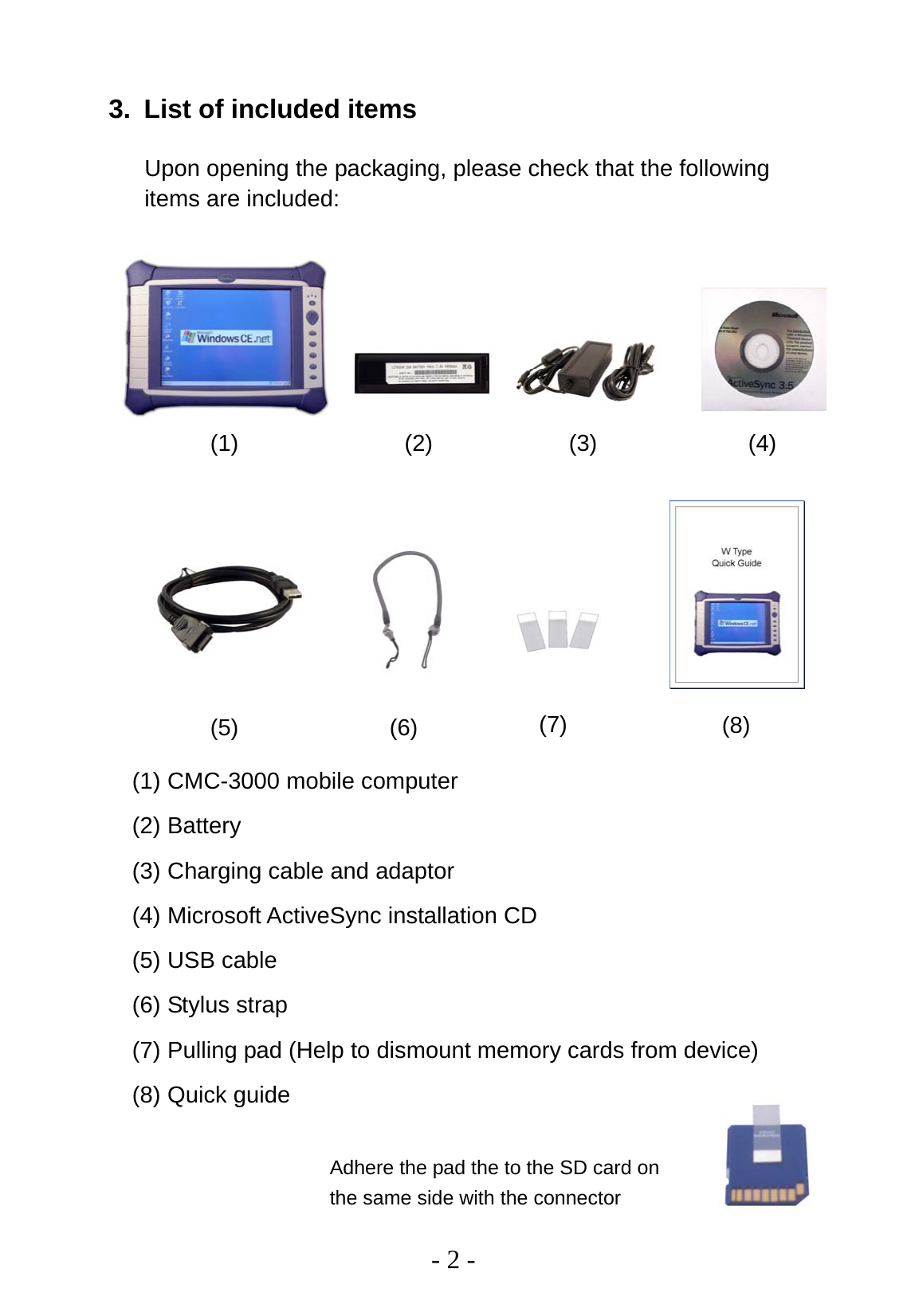
  - 2 - 3.  List of included items Upon opening the packaging, please check that the following items are included:                   (1) CMC-3000 mobile computer (2) Battery (3) Charging cable and adaptor (4) Microsoft ActiveSync installation CD (5) USB cable (6) Stylus strap (7) Pulling pad (Help to dismount memory cards from device) (8) Quick guide(1)  (2)  (3)  (4) (5)  (6)  (7)  (8) Adhere the pad the to the SD card on the same side with the connector
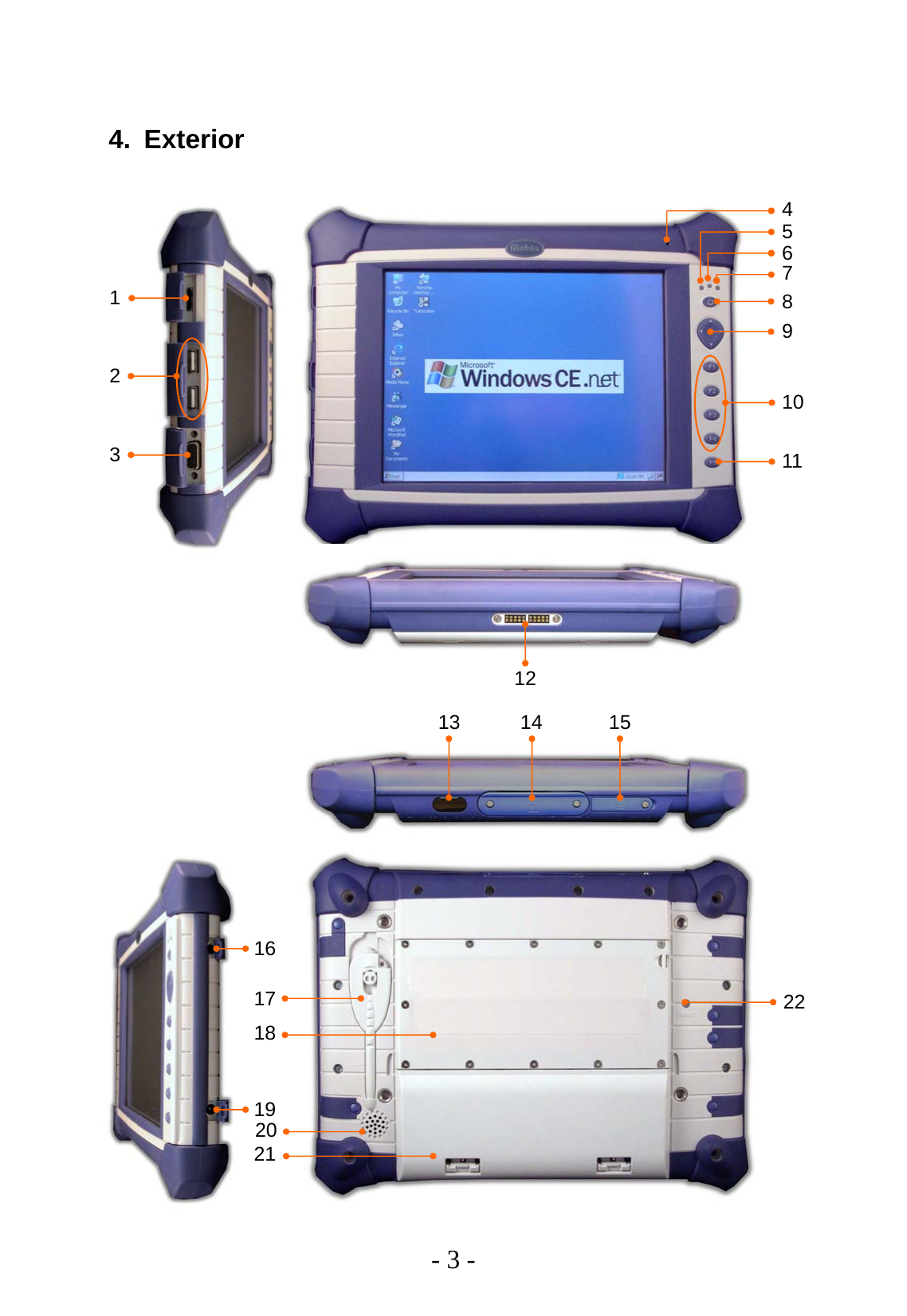
  - 3 -  4. Exterior 7 6 5 8 9 10 11 12 1 2 3 13 14  15 16 19 17 18 21 4 20 22
  - 4 -  1.  Multipurpose communications port for: (1) USB client – use the USB cable included to link the device to a PC for data synchronization, software installation, etc. (2) RS-232 – supports standard RS-232 port functions 2.  USB host port: the device features two USB host ports, for use with: (1) USB memory drive (2) Keyboard (3) Mouse 3.  VGA port: for standard VGA signal output 4. Built-in microphone 5.  Alarm LED: programmable flashing indicator for use with system or application 6.  Wireless connection LED: flashes when Bluetooth connection is in use 7.  Charging status LED operates as follows: (1) Unlit: currently not charging (2) Red, constant: charging battery (3) Green, constant: battery fully charged 8. On/Off button 9.  Directional arrow keys for moving the cursor
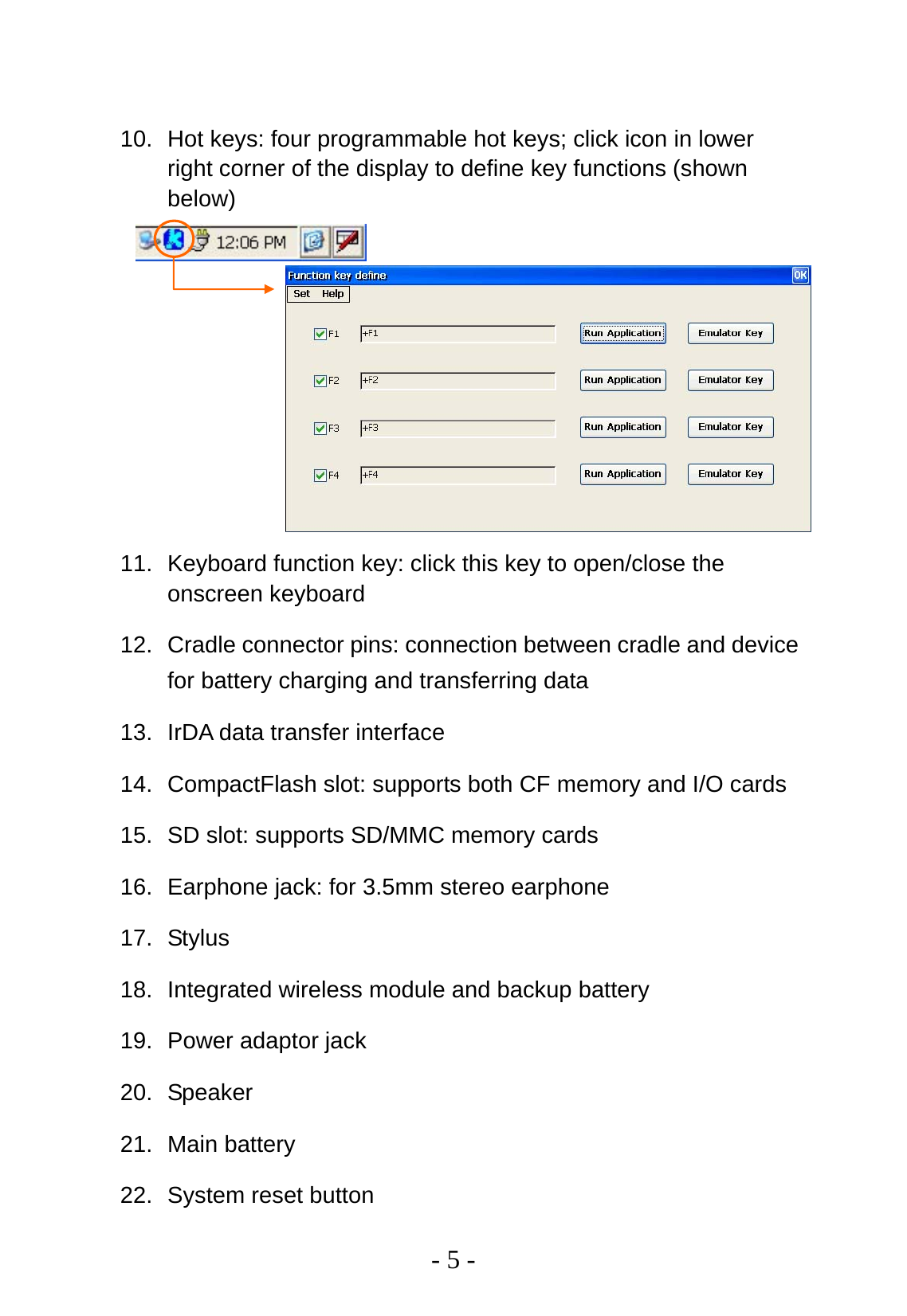
  - 5 -  10.  Hot keys: four programmable hot keys; click icon in lower right corner of the display to define key functions (shown below)            11.  Keyboard function key: click this key to open/close the onscreen keyboard 12.  Cradle connector pins: connection between cradle and device for battery charging and transferring data 13.  IrDA data transfer interface 14.  CompactFlash slot: supports both CF memory and I/O cards 15.  SD slot: supports SD/MMC memory cards 16.  Earphone jack: for 3.5mm stereo earphone 17. Stylus 18. Integrated wireless module and backup battery 19. Power adaptor jack 20. Speaker 21. Main battery 22.  System reset button
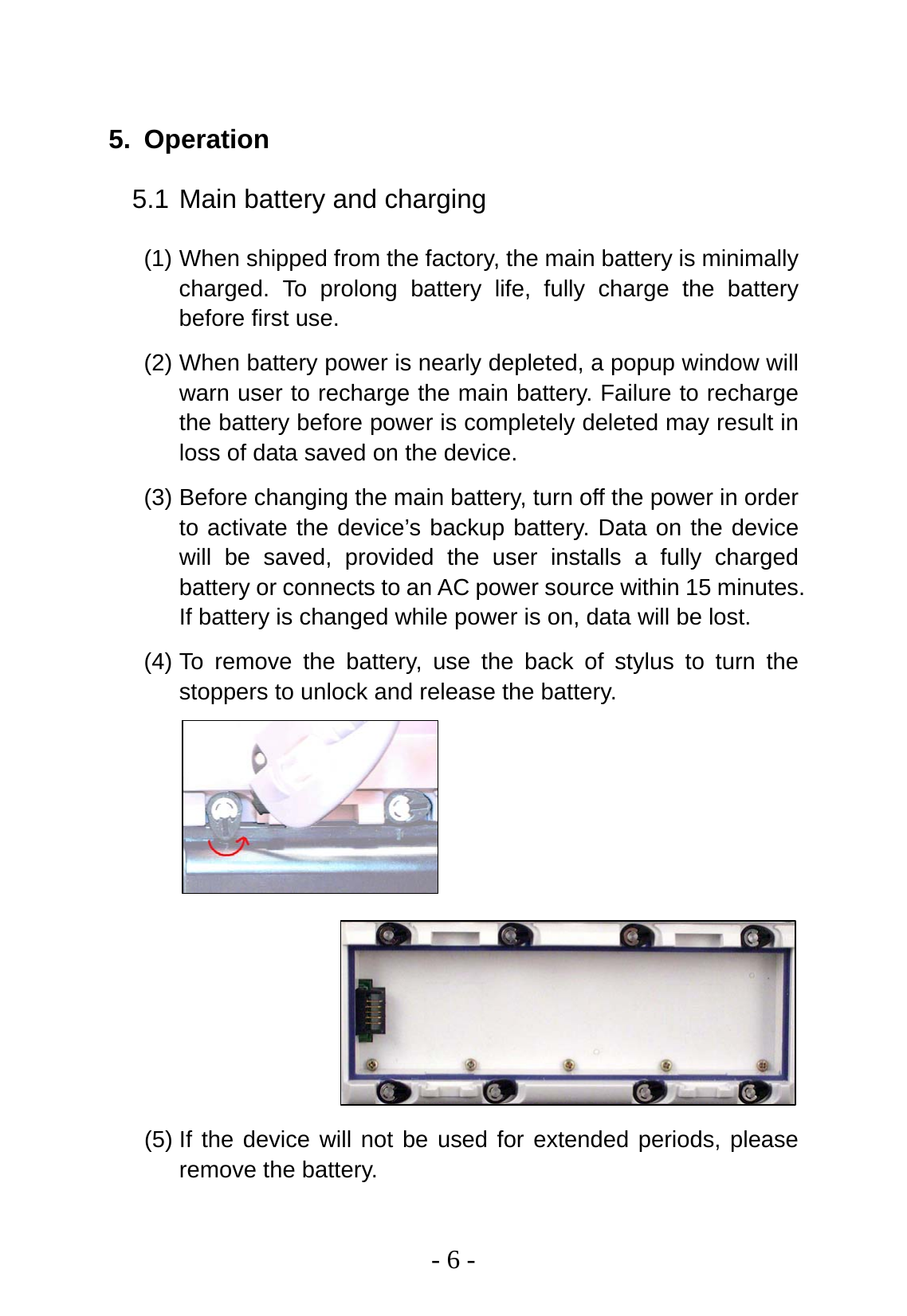
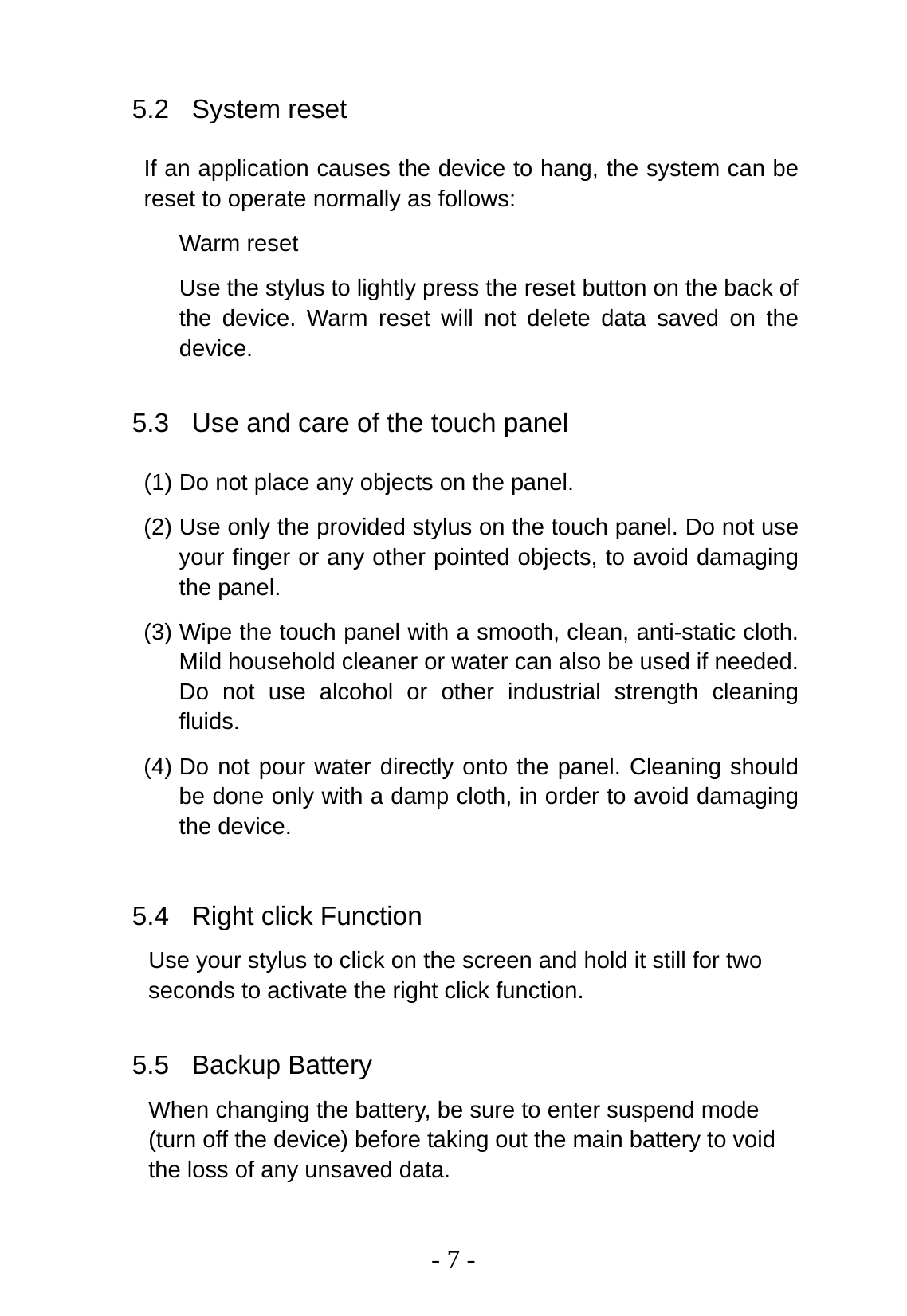
  - 6 -  5. Operation 5.1 Main battery and charging (1) When shipped from the factory, the main battery is minimally charged. To prolong battery life, fully charge the battery before first use. (2) When battery power is nearly depleted, a popup window will warn user to recharge the main battery. Failure to recharge the battery before power is completely deleted may result in loss of data saved on the device. (3) Before changing the main battery, turn off the power in order to activate the device’s backup battery. Data on the device will be saved, provided the user installs a fully charged battery or connects to an AC power source within 15 minutes. If battery is changed while power is on, data will be lost. (4) To remove the battery, use the back of stylus to turn the stoppers to unlock and release the battery.          (5) If the device will not be used for extended periods, please remove the battery.
  - 7 - 5.2 System reset If an application causes the device to hang, the system can be reset to operate normally as follows:  Warm reset Use the stylus to lightly press the reset button on the back of the device. Warm reset will not delete data saved on the device.  5.3  Use and care of the touch panel (1) Do not place any objects on the panel. (2) Use only the provided stylus on the touch panel. Do not use your finger or any other pointed objects, to avoid damaging the panel. (3) Wipe the touch panel with a smooth, clean, anti-static cloth. Mild household cleaner or water can also be used if needed. Do not use alcohol or other industrial strength cleaning fluids. (4) Do not pour water directly onto the panel. Cleaning should be done only with a damp cloth, in order to avoid damaging the device.  5.4  Right click Function Use your stylus to click on the screen and hold it still for two seconds to activate the right click function.  5.5 Backup Battery When changing the battery, be sure to enter suspend mode (turn off the device) before taking out the main battery to void the loss of any unsaved data.
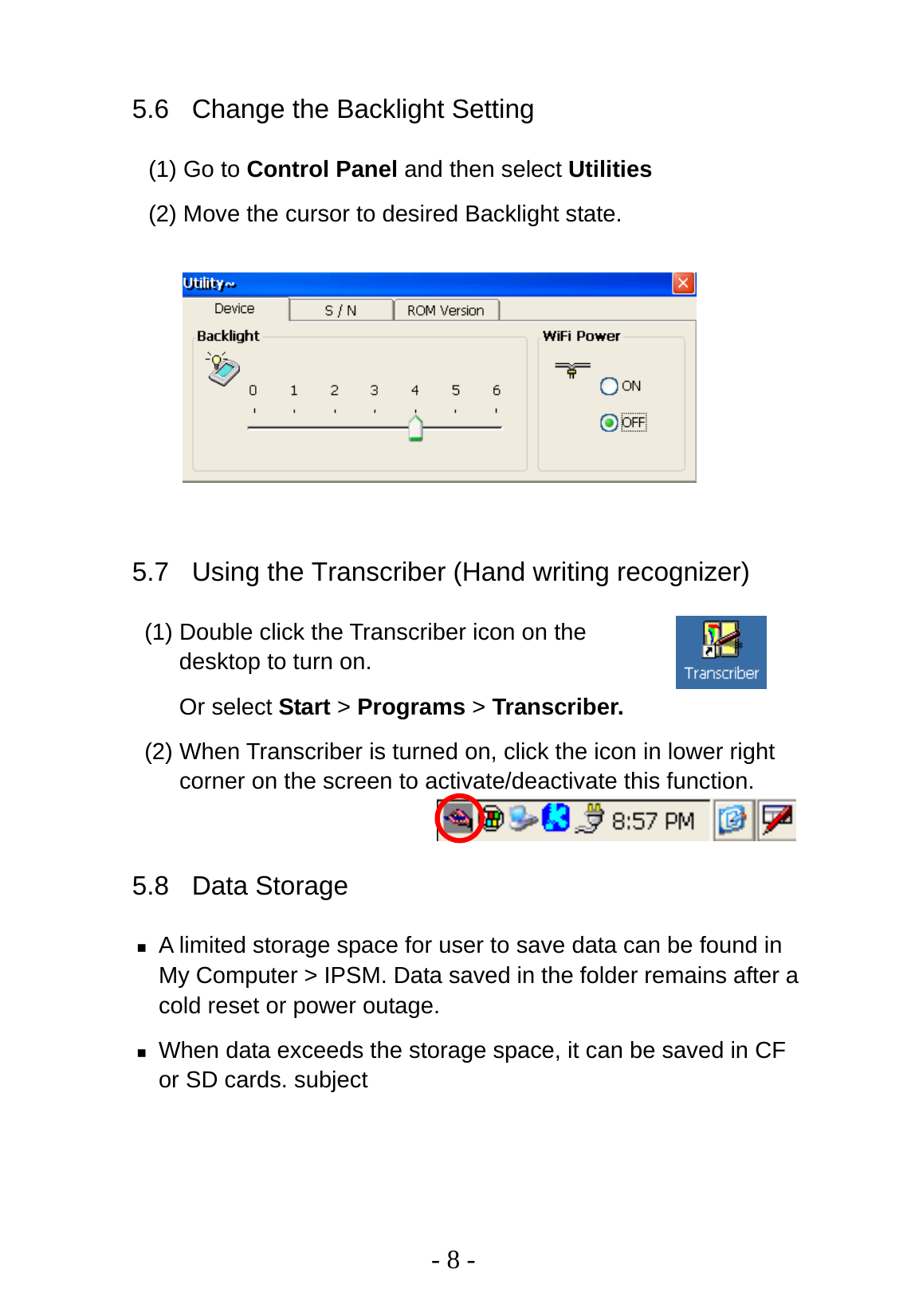
  - 8 - 5.6  Change the Backlight Setting (1) Go to Control Panel and then select Utilities   (2) Move the cursor to desired Backlight state.        5.7  Using the Transcriber (Hand writing recognizer) (1) Double click the Transcriber icon on the desktop to turn on.   Or select Start > Programs > Transcriber. (2) When Transcriber is turned on, click the icon in lower right corner on the screen to activate/deactivate this function.  5.8 Data Storage  A limited storage space for user to save data can be found in My Computer > IPSM. Data saved in the folder remains after a cold reset or power outage.  When data exceeds the storage space, it can be saved in CF or SD cards. subject
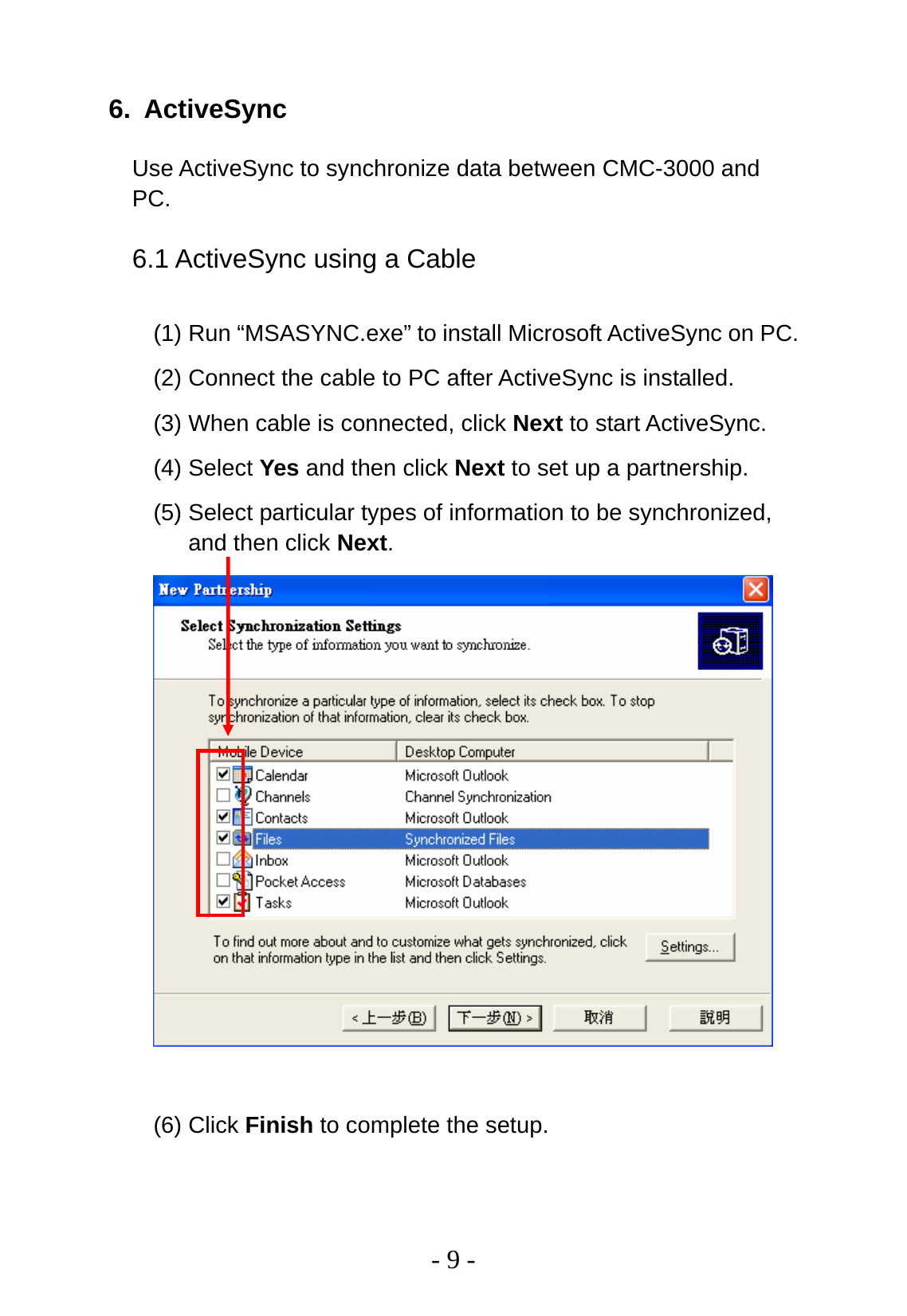
  - 9 - 6. ActiveSync Use ActiveSync to synchronize data between CMC-3000 and PC. 6.1 ActiveSync using a Cable (1) Run “MSASYNC.exe” to install Microsoft ActiveSync on PC.   (2) Connect the cable to PC after ActiveSync is installed. (3) When cable is connected, click Next to start ActiveSync. (4) Select Yes and then click Next to set up a partnership. (5) Select particular types of information to be synchronized, and then click Next.   (6) Click Finish to complete the setup.
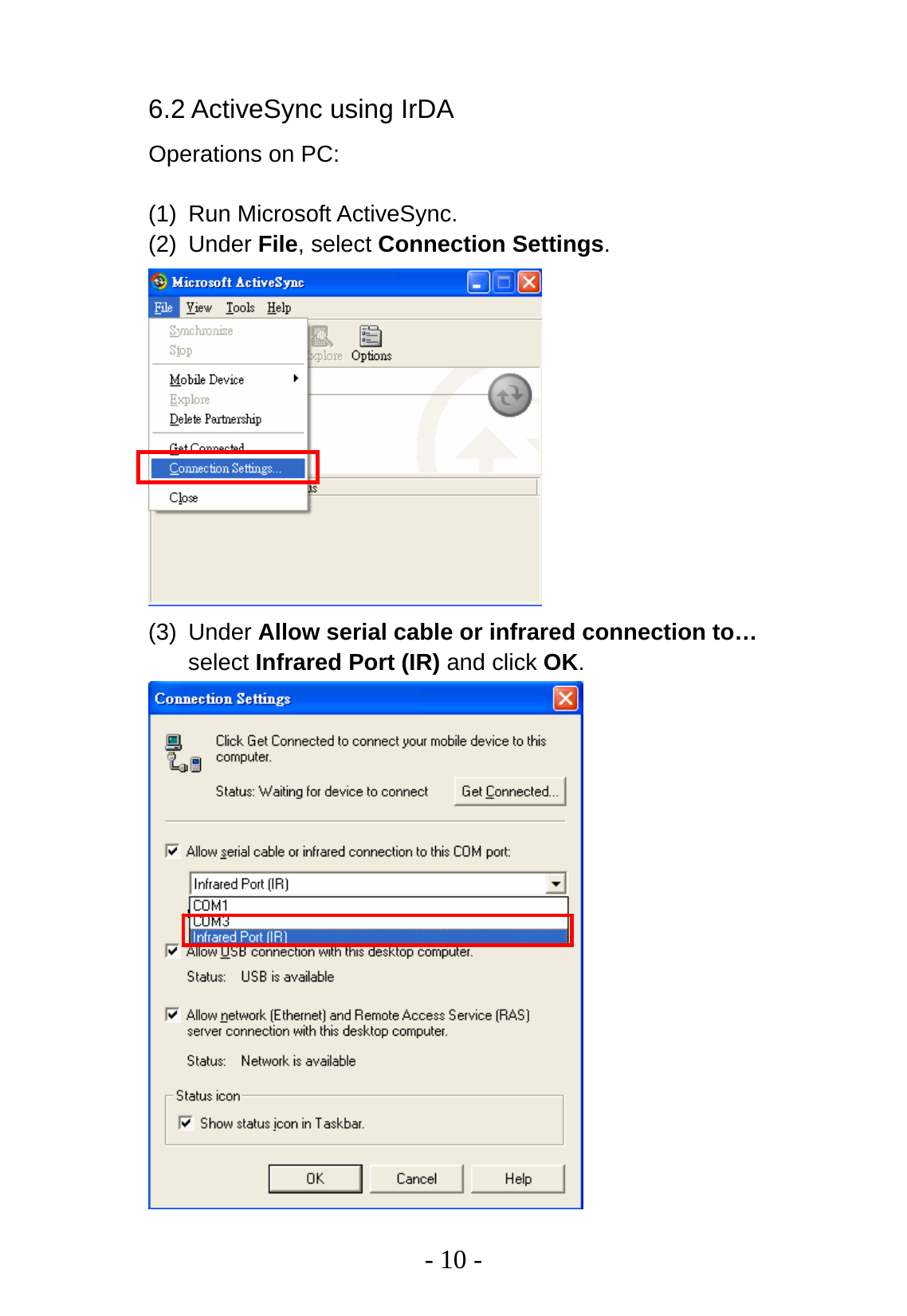
  - 10 - 6.2 ActiveSync using IrDA   Operations on PC:  (1) Run Microsoft ActiveSync. (2) Under File, select Connection Settings.  (3) Under Allow serial cable or infrared connection to… select Infrared Port (IR) and click OK.
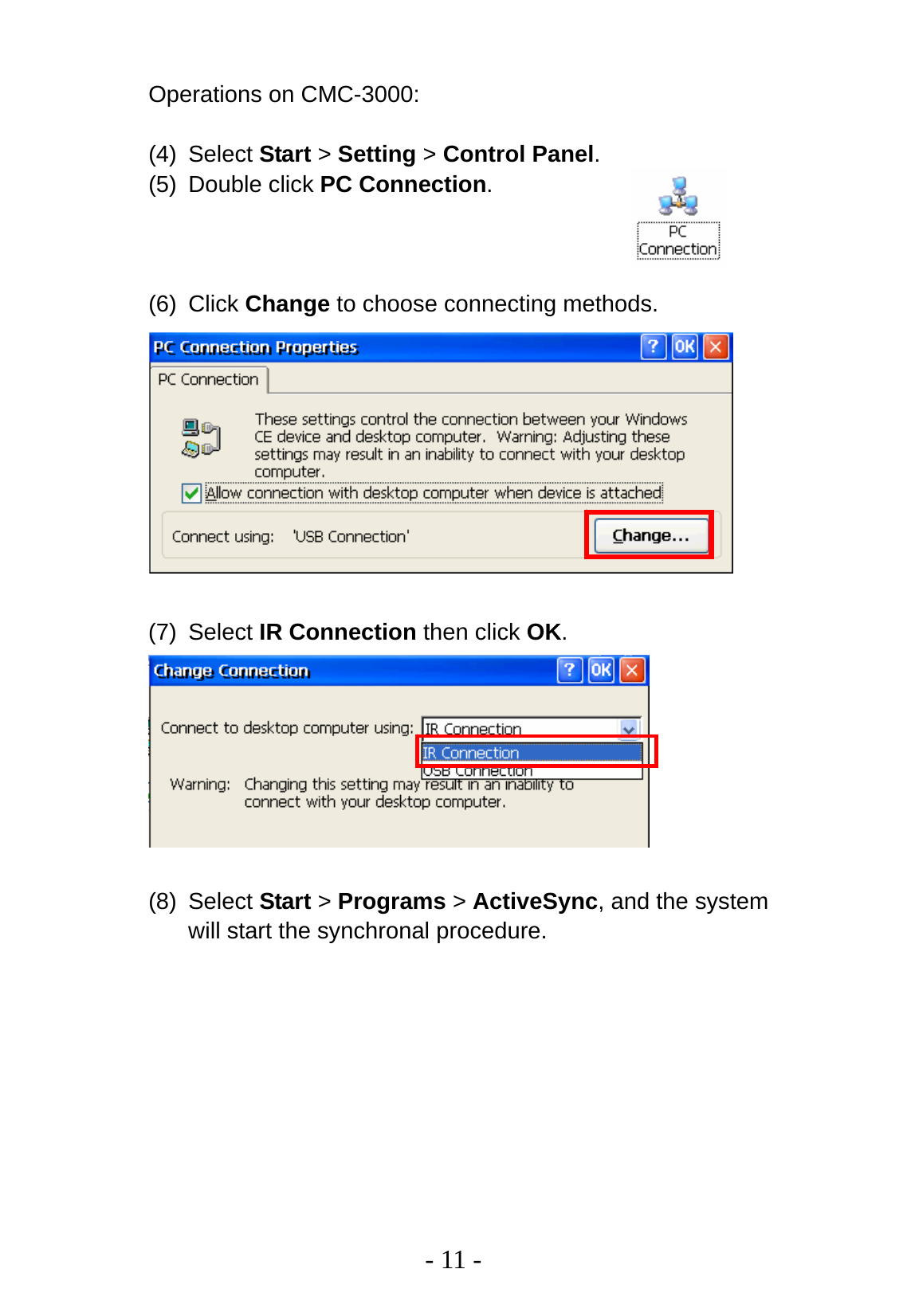
  - 11 - Operations on CMC-3000:  (4) Select Start > Setting > Control Panel. (5) Double click PC Connection.    (6) Click Change to choose connecting methods.   (7) Select IR Connection then click OK.   (8) Select Start > Programs > ActiveSync, and the system will start the synchronal procedure.
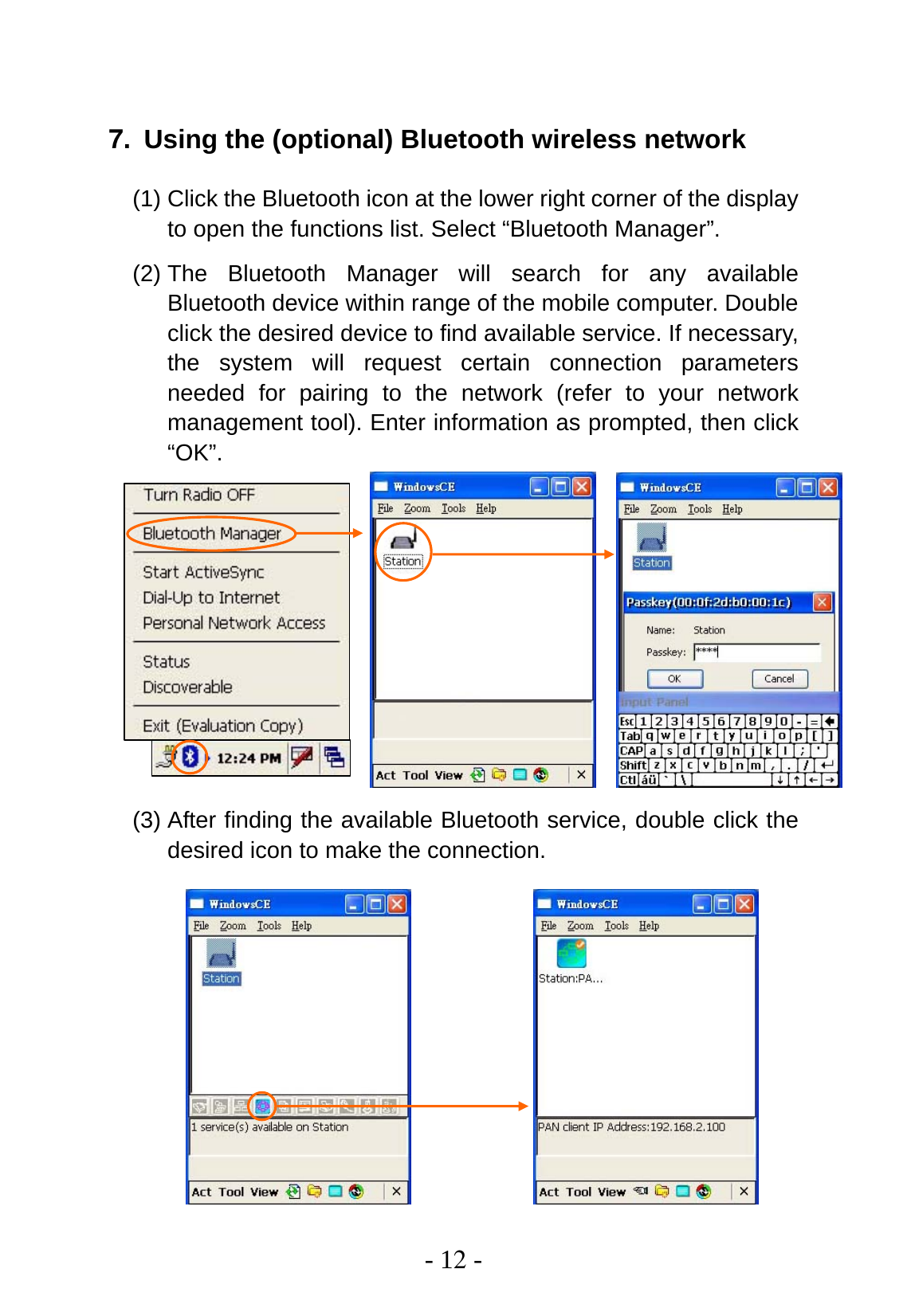
 - 12 -  7. Using the (optional) Bluetooth wireless network (1) Click the Bluetooth icon at the lower right corner of the display to open the functions list. Select “Bluetooth Manager”. (2) The Bluetooth Manager will search for any available Bluetooth device within range of the mobile computer. Double click the desired device to find available service. If necessary, the system will request certain connection parameters needed for pairing to the network (refer to your network management tool). Enter information as prompted, then click “OK”.           (3) After finding the available Bluetooth service, double click the desired icon to make the connection.
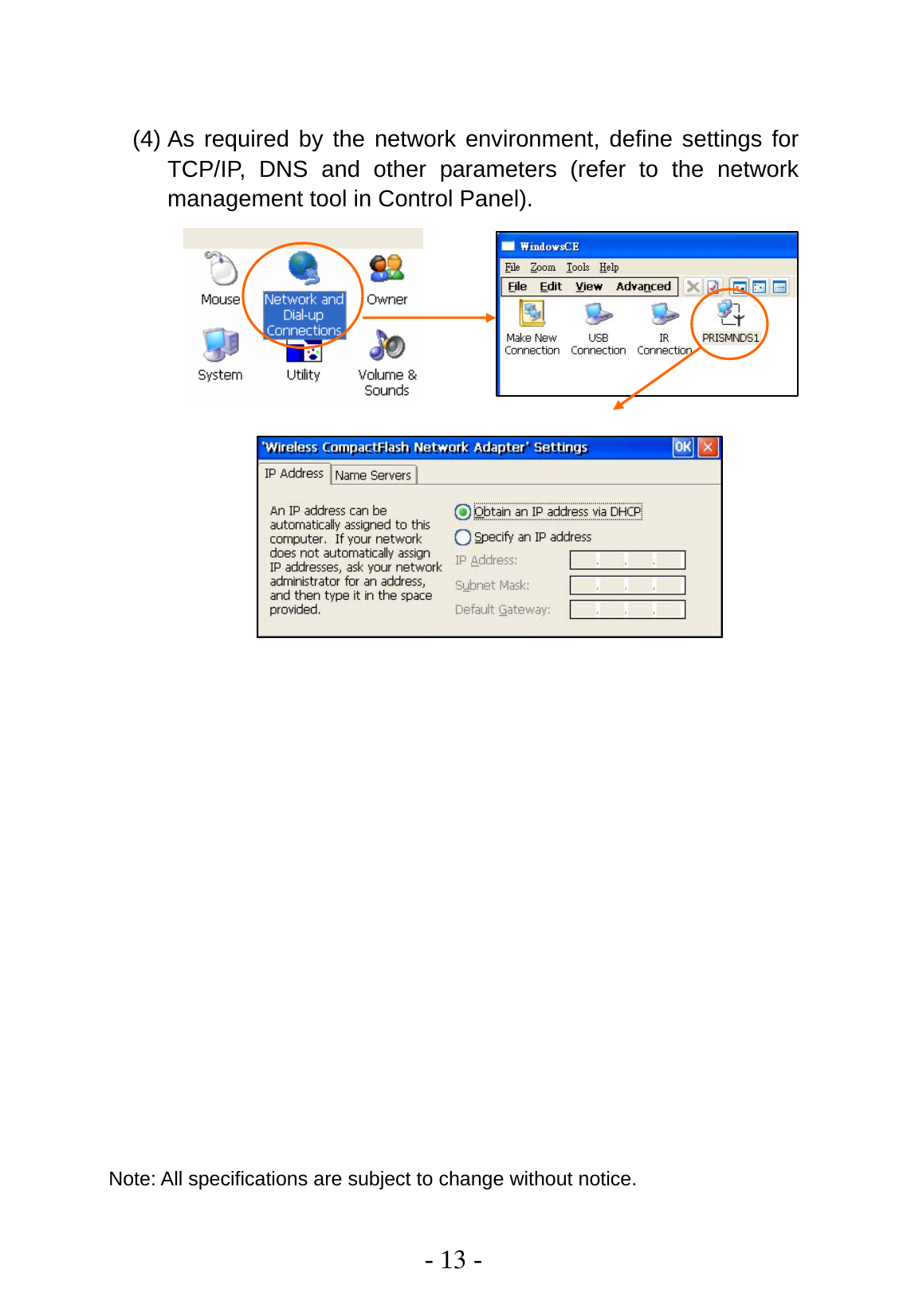
 - 13 -  (4) As required by the network environment, define settings for TCP/IP, DNS and other parameters (refer to the network management tool in Control Panel).                                Note: All specifications are subject to change without notice.
 - 14 -    Warranty   Chung-Hsin Electric & Machinery Mfg. Corp. (CHEM) guarantees the original purchaser of CHEM products a twelve-month warranty from the shipping date on         /        /           (mm/dd/yyyy) against manufacturer defects in materials, workmanship and finish under normal use excluding damage resulting from road hazards such as product misuse, improper installation, extreme environments, impairments from accidents, product modifications or product neglect. This twelve-month warranty applies only to new products and is limited to the repair or replacement of CHEM products. Warranty does not include electrical components replacement or costs of removal, installation, labor, freight, inconvenience or consequential damages. Original purchaser must return defective merchandise, along with the purchase receipt, to the original place of purchase.  All defective parts must be received before the warranty expired. All physically damaged products will VOID the product's warranty and will be returned.

Navigation menu