Cicor Deutschland 08MONILOG MONI LOG data link sensor User Manual UserMan

SMT&Hybrid; GmbH MONI LOG data link sensor UserMan

UserMan

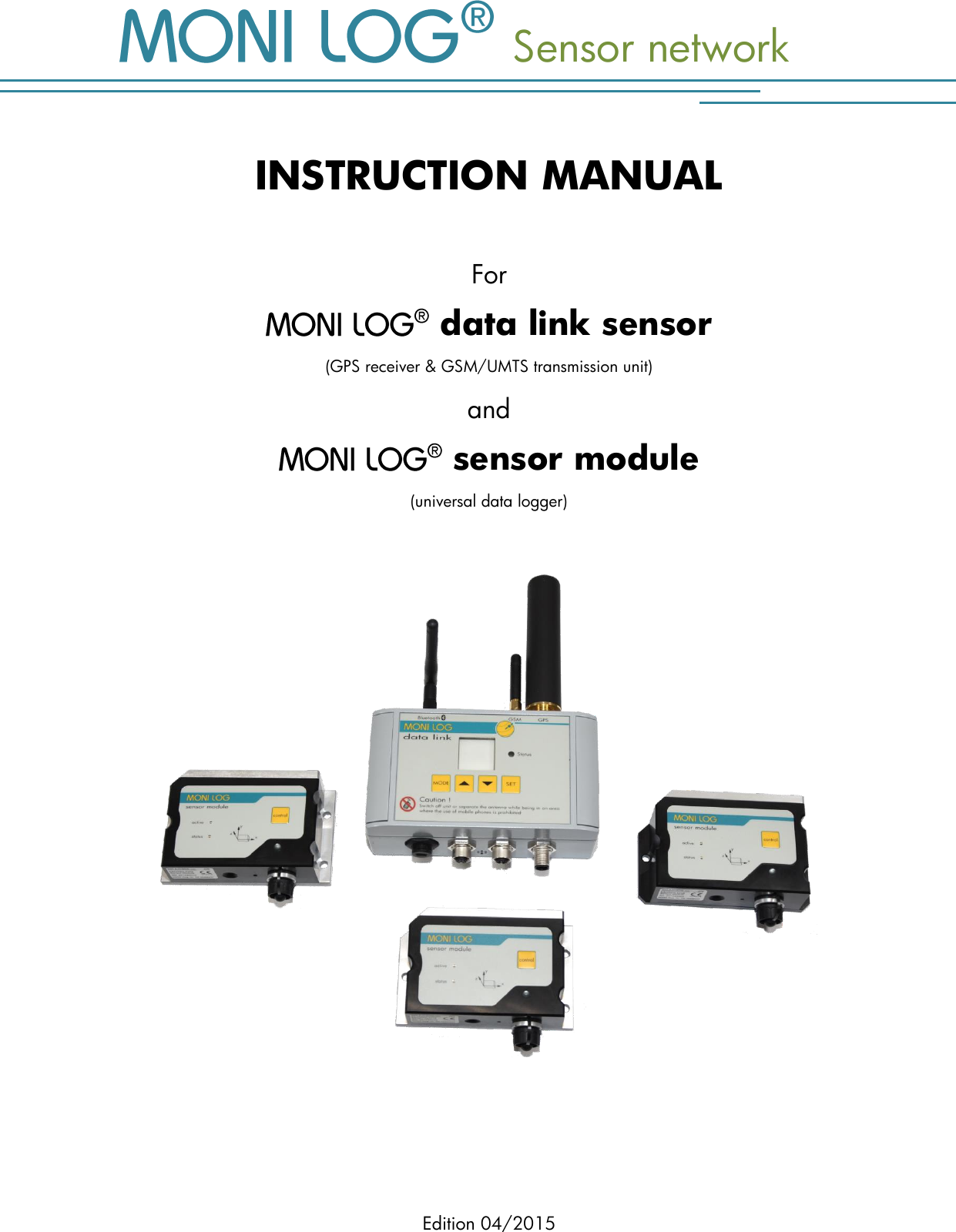
  Sensor network Edition 04/2015  INSTRUCTION MANUAL  For  data link sensor (GPS receiver & GSM/UMTS transmission unit)  and  sensor module (universal data logger)
 Sensor network PRODUCT CERTIFICATION - 1 - P R OD U CT CERTIFICATIO N   This device complies with part 15 of the FCC Rules. Operation is subject to the following two conditions: (1) This device may not cause harmful interference, and (2) this device must accept any interference received, including interference that may cause undesired operation. Modifications not expressly approved by this company could void the user's authority to operate the equipment.  This equipment has been tested and found to comply with the limits for a Class A digital device, pursuant to part 15 of the FCC Rules. These limits are designed to provide reasonable protection against harmful interference when the equipment is operated in a commercial environment. This equipment generates, uses, and can radiate radio frequency energy and, if not installed and used in accordance with the instruction manual, may cause harmful interference to radio communications. Operation of this equipment in a residential area is likely to cause harmful interference in which case the user will be required to correct the interference at his own expense.   Operation is subject to the following two conditions: (1) this device may not cause interference, and (2) this device must accept any interference, including interference that may cause undesired operation of the device.   Son fonctionnement est sujet aux deux conditions suivantes: (1) le dispositif ne doit pas produire de brouillage préjudiciable, et (2) ce dispositif doit accepter tout brouillage reçu, y compris un brouillage susceptible de provoquer un fonctionnement indésirable.   This EXPERTISE is issued in accordance with the Directive 1999/5/EC of the European Parliament and Council on radio equipment and telecommunications terminal equipment and mutual recognition of their conformity dated 9th March 1999 and is only valid in conjunction with following annex: -1- (2 pages)
TABLE OF CONTENTS   Sensor network  - 2 -  This device has been designed to operate with the antennas listed below (see 2. Technical Parameters). Antennas not included in this list are strictly prohibited for use with this device. The required antenna impedance is 50 ohms. To reduce potential radio interference to other users, the antenna type and its gain should be so chosen that the equivalent isotropically radiated power (e.i.r.p.) is not more than that permitted for successful communication. Cet appareil a été conçu pour fonctionner avec les antennes énumérées ci-dessous (voir 2. Paramètres techniques). Les antennes n’étant pas énumérées dans cette liste sont strictement interdites pour une utilisation en combinaison avec cet appareil. L'impédance de l’antenne requise est de 50 ohms. Afin de réduire les interférences radio potentielles pour les autres utilisateurs, le type d'antenne doit être choisi afin que la puissance isotrope équivalente (e.i.r.p.) ne soit pas supérieure à celle permise pour réaliser une communication stable.
 Sensor network PRODUCT CERTIFICATION - 3 - T A B L E   OF CONTENTS  PRODUCT CERTIFICATION .................................................................................. 1 TABLE OF CONTENTS ........................................................................................ 3 1. INTRODUCTION ...................................................................................... 5 1.1 SCOPE OF DELIVERY ..................................................................................................... 5 1.2 FUNCTIONALITY ......................................................................................................... 6 1.3 ENVIRONMENTAL AND SAFETY INSTRUCTIONS ................................................................... 9 2. TECHNICAL PARAMETERS ....................................................................... 10 2.1  DATA LINK SENSOR .................................................................................. 10 2.2  SENSOR MODULES................................................................................... 12 3. DEVICE DESCRIPTION OF   DATA LINK SENSOR .......................... 14 3.1 DEVICE SETUP / DEVICE VIEW ...................................................................................... 14 3.2 OPERATION AND MENU NAVIGATION ........................................................................... 16 3.2.1 Keyboard .................................................................................................................. 16 3.2.2 Menu structure ........................................................................................................... 16 3.3 COMMISSIONING .................................................................................................... 19 3.3.1 Behaviour of the MONI LOG® data link sensor after the switching on ................................ 19 3.3.2 Battery change ........................................................................................................... 20 3.3.3 SIM card ................................................................................................................... 21 3.3.4 Mounting information .................................................................................................. 22 3.4 OPERATION TIME OF THE DEVICE .................................................................................. 24 4. DEVICE DESCRIPTION OF   SENSOR MODULE ............................. 25 4.1 DEVICE SETUP / DEVICE VIEW ...................................................................................... 25 4.2 OPERATION OF THE SENSOR MODULE ............................................................................ 26 4.3 MEANING OF THE LED STATES ...................................................................................... 26 4.4 BATTERY CHANGE ..................................................................................................... 28 4.5 MOUNTING INFORMATION ......................................................................................... 29 5. PC SOFTWARE ....................................................................................... 30 5.1 INSTALLATION .......................................................................................................... 30 5.1.1 USB driver ................................................................................................................. 30
TABLE OF CONTENTS   Sensor network  - 4 - 5.2 GENERAL USE OF PC SOFTWARE .................................................................................. 33 5.2.1 Establishing a device connection .................................................................................. 33 5.2.2 File area ................................................................................................................... 34 5.2.3 Message window (log) ............................................................................................... 35 5.2.4 View of measurement data .......................................................................................... 35 5.3  DATA LINK SENSOR ................................................................................. 37 5.3.1 General configuration ................................................................................................. 37 5.3.2 Email configuration .................................................................................................... 38 5.3.3 GPS position determination ......................................................................................... 43 5.3.4 Recording period ....................................................................................................... 46 5.3.5 Setting up and editing of the sensor network .................................................................. 48 5.3.6 Password configuration ............................................................................................... 51 5.3.7 Configuration of the   sensor module via the radio interface ............................. 53 5.3.8 Readout of measurement data of sensor modules ............................................................ 56 5.4 SENSOR MODULE .................................................................................... 58 5.4.1 Readout of status, configuration and measurement data .................................................. 58 5.4.2 Overview window ...................................................................................................... 59 5.4.3 Status and thresholds .................................................................................................. 60 5.4.4 System events ............................................................................................................ 62 5.4.5 Acquisition periods .................................................................................................... 63 5.4.6 Synchronous data graphs ............................................................................................ 64 5.4.7 Inclination curves ....................................................................................................... 66 5.4.8 Alarm events ............................................................................................................. 67 5.4.9 Shock events and shock curves .................................................................................... 68 5.4.10 Configuration of the sensor module .............................................................................. 71 6. FIRMWARE UPDATE ............................................................................... 75 6.1 PREPARATION ......................................................................................................... 75 6.1.1  data link sensor ........................................................................................ 75 6.1.2  sensor module .......................................................................................... 76 6.2 CARRYING OUT UPDATE ............................................................................................. 76 7. DECLARATION OF CONFORMITY ............................................................ 79 WARRANTY CERTIFICATE................................................................................. 80
 Sensor network INTRODUCTION - 5 - 1. IN TRODUCTION 1.1 S C O P E   O F   D E L I V E R Y  Thank you  for having chosen the   sensor network.  Scope of delivery1 (standard):     data link sensor, incl. 4 x R14, alkaline or lithium batteries according to your requirement   sensor module, incl. 1 x R6 lithium battery (number of devices depends on the order stipulations)  Installation CD  Configuration software “Sensor network Vx.xx“ with integrated software help  Driver for USB interface  Operating instruction in electronic form (PDF)  Hard copy of the operating instruction  USB 2.0 interface cable (type A ↔ type Mini AB)  Antennas  GPS antenna  QUAD Band GSM/UMTS antenna  Bluetooth antenna   In order to be able to further optimise our products for the respective applications, we are always open to suggestions and change requests on your part.      1) The scope of delivery can deviate from the standard due to special contract agreements!
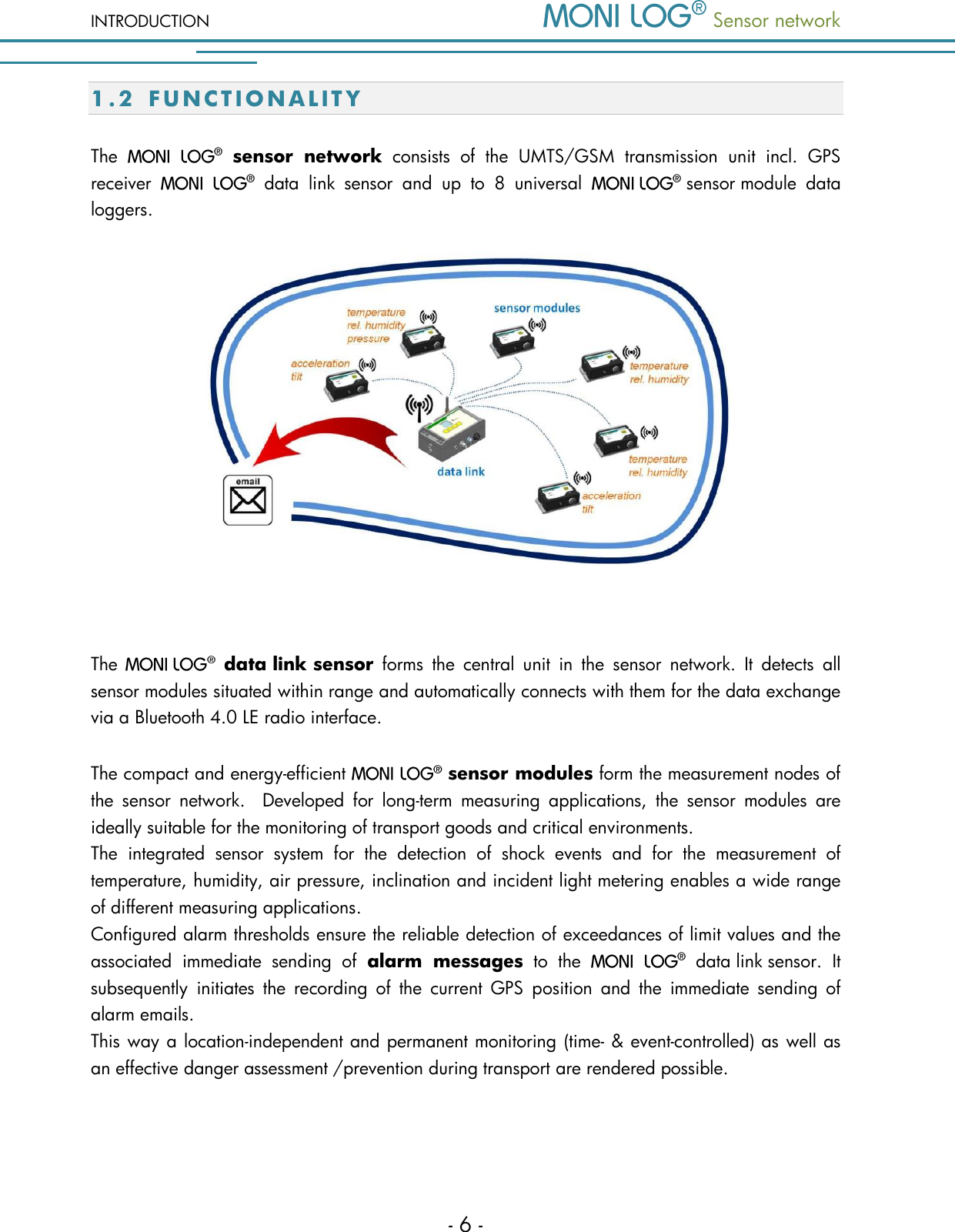
INTRODUCTION  Sensor network  - 6 - 1.2 F U N C T I O N A L I T Y  The    sensor  network  consists  of  the  UMTS/GSM  transmission  unit  incl.  GPS receiver    data  link  sensor  and  up  to  8  universal    sensor module  data loggers.   The   data link sensor  forms  the  central  unit  in  the  sensor  network.  It  detects  all sensor modules situated within range and automatically connects with them for the data exchange via a Bluetooth 4.0 LE radio interface. The compact and energy-efficient   sensor modules form the measurement nodes of the  sensor  network.    Developed  for  long-term  measuring  applications,  the  sensor  modules  are ideally suitable for the monitoring of transport goods and critical environments.    The  integrated  sensor  system  for  the  detection  of  shock  events  and  for  the  measurement  of temperature, humidity, air pressure, inclination and incident light metering enables a wide range of different measuring applications.   Configured alarm thresholds ensure the reliable detection of exceedances of limit values and the associated  immediate  sending  of  alarm  messages  to  the    data link sensor.  It subsequently  initiates  the  recording  of  the  current  GPS  position  and  the  immediate  sending  of alarm emails.   This way a location-independent and permanent monitoring (time- & event-controlled) as well as an effective danger assessment /prevention during transport are rendered possible.
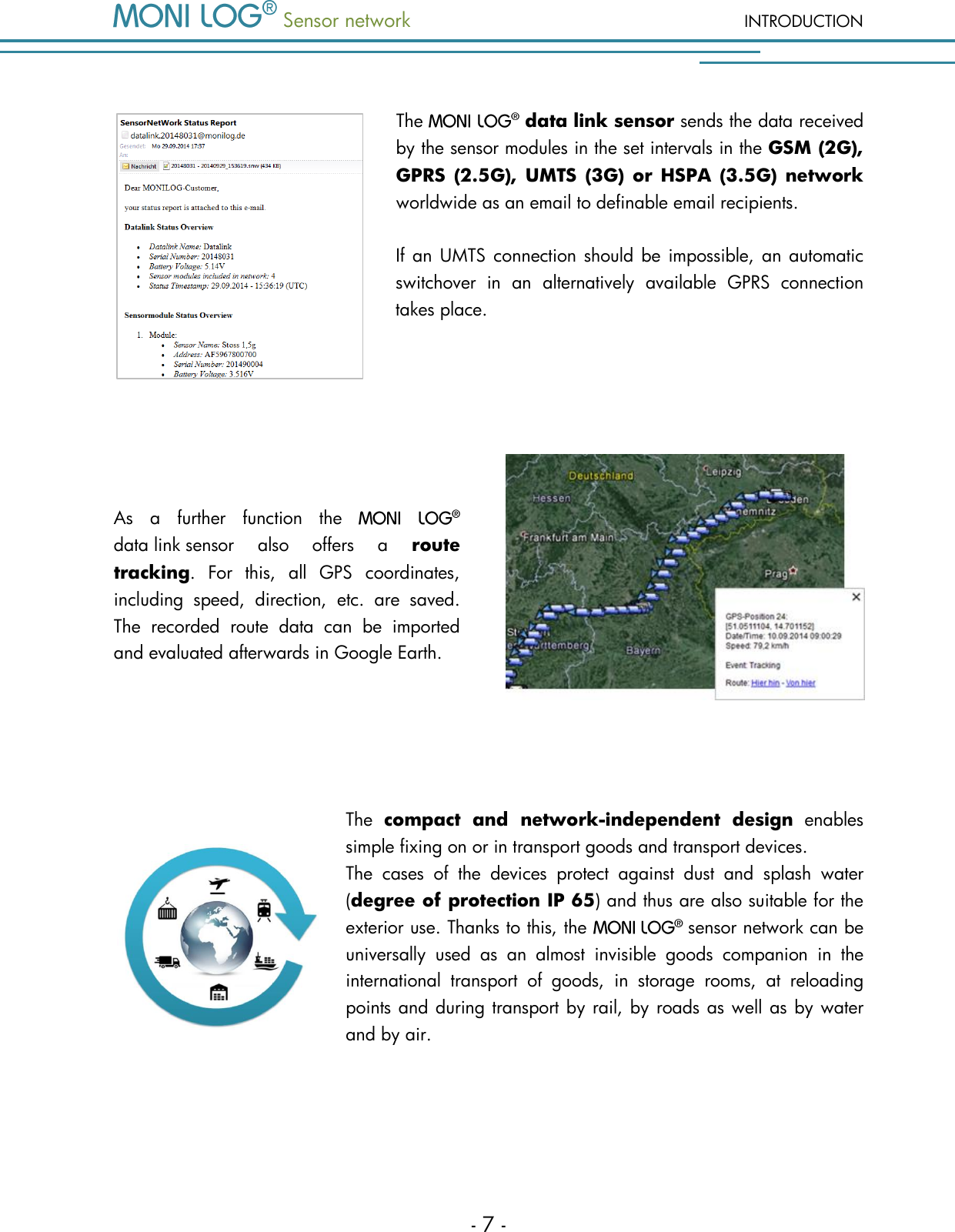
 Sensor network INTRODUCTION - 7 -  The  data link sensor sends the data received by the sensor modules in the set intervals in the GSM (2G), GPRS (2.5G), UMTS (3G) or HSPA (3.5G) network worldwide as an email to definable email recipients.     If an UMTS connection should be impossible,  an automatic switchover  in  an  alternatively  available  GPRS  connection takes place.   As  a  further  function  the   data link sensor  also  offers  a  route tracking.  For  this,  all  GPS  coordinates, including  speed,  direction,  etc.  are  saved. The  recorded  route  data  can  be  imported and evaluated afterwards in Google Earth.   The  compact  and  network-independent  design  enables simple fixing on or in transport goods and transport devices.    The  cases  of  the  devices  protect  against  dust  and  splash  water (degree of protection IP 65) and thus are also suitable for the exterior use. Thanks to this, the    sensor network can be universally  used  as  an  almost  invisible  goods  companion  in  the international  transport  of  goods,  in  storage  rooms,  at  reloading points and during transport by rail, by roads as well as by water and by air.
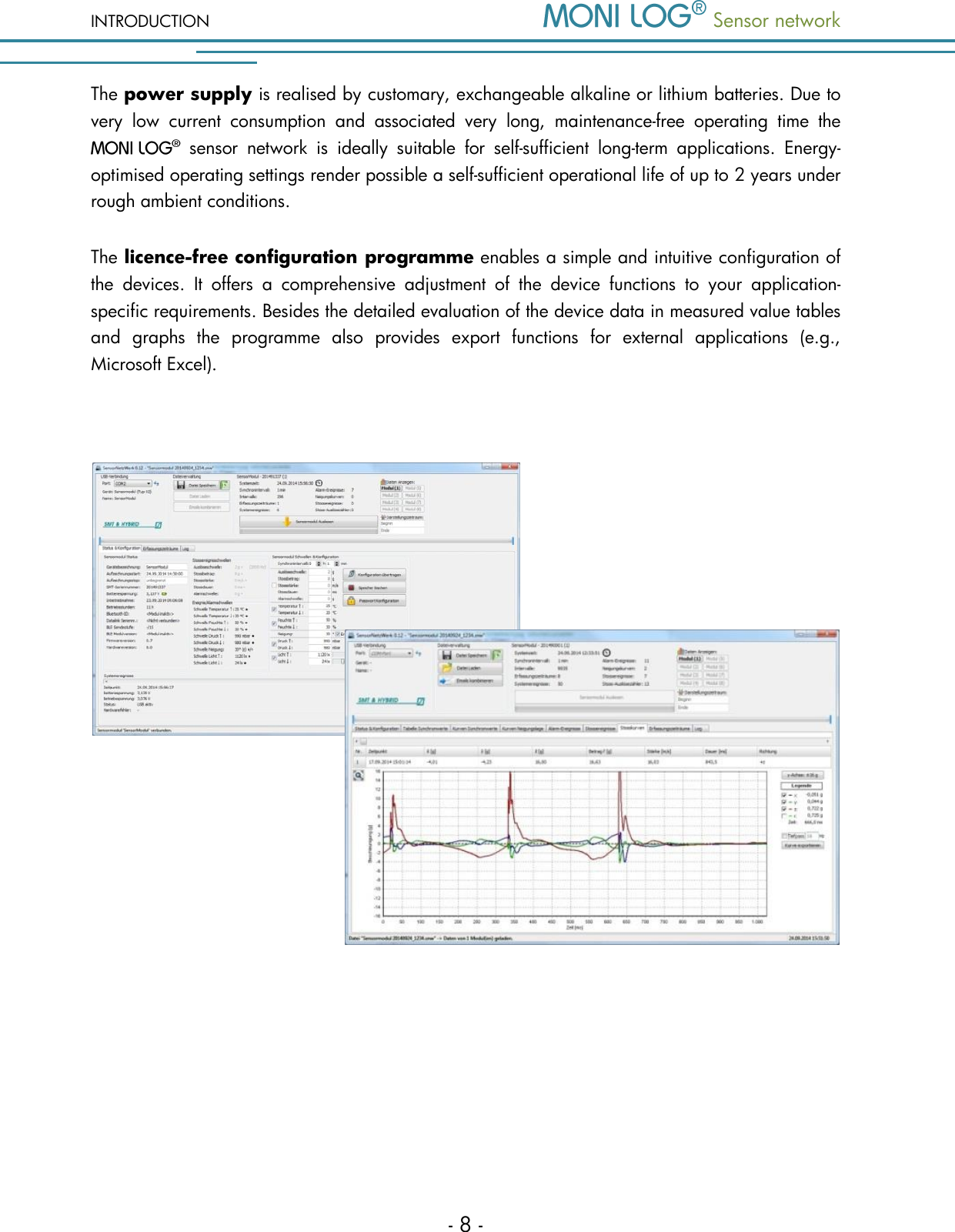
INTRODUCTION  Sensor network  - 8 - The power supply is realised by customary, exchangeable alkaline or lithium batteries. Due to very  low  current  consumption  and  associated  very  long,  maintenance-free  operating  time  the    sensor  network  is  ideally  suitable  for  self-sufficient  long-term  applications.  Energy-optimised operating settings render possible a self-sufficient operational life of up to 2 years under rough ambient conditions.  The licence-free configuration programme enables a simple and intuitive configuration of the  devices.  It  offers  a  comprehensive  adjustment  of  the  device  functions  to  your  application-specific requirements. Besides the detailed evaluation of the device data in measured value tables and  graphs  the  programme  also  provides  export  functions  for  external  applications  (e.g., Microsoft Excel).
 Sensor network INTRODUCTION - 9 - 1.3 E N V I R O N M E N T A L   A N D   S A F E T Y   I N S T R U C T I O N S  Environment & Disposal  The   data link sensor and the  sensor module contain, except the internal batteries, no corrosive or environmentally damaging substances.  Used batteries must be immediately removed from the device and afterwards disposed of in an environmentally  friendly  manner,  according  to  the  applicable  legislation.  Lithium  batteries  are hazardous waste. Battery operation The  power supply is ensured  in  the  data  link sensor by means of 4 exchangeable alkaline or lithium batteries (type C|R14) and in the  sensor module by means of 1 lithium  battery  (type  AA|R6).  They  can  be  bought  in  the  specialist  shop  according  to  the specification stated in the instruction manual. When  lithium  batteries  are  used,  the  data  link sensor  and  the  sensor module must be labelled as hazardous material of class 9 according to the hazardous materials law (Germany). The transport conditions resulting due to this must be taken into account!  Please take into account that when using alternative battery types the functionality of the device cannot be guaranteed in the entire specified temperature range from -40 to 85°C. ATTENTION! Use only intrinsically safe batteries.  In case of non-compliance with the national regulations/laws applicable in the handling of lithium batteries, any liability and warranty claim becomes void! External power supply For the external power supply and the switching outputs, only current sources of limited power must be used according to EN 60950-1, point 2.5. Decommissioning In case of decommissioning the devices must be properly switched off and all batteries must be removed from the cases.
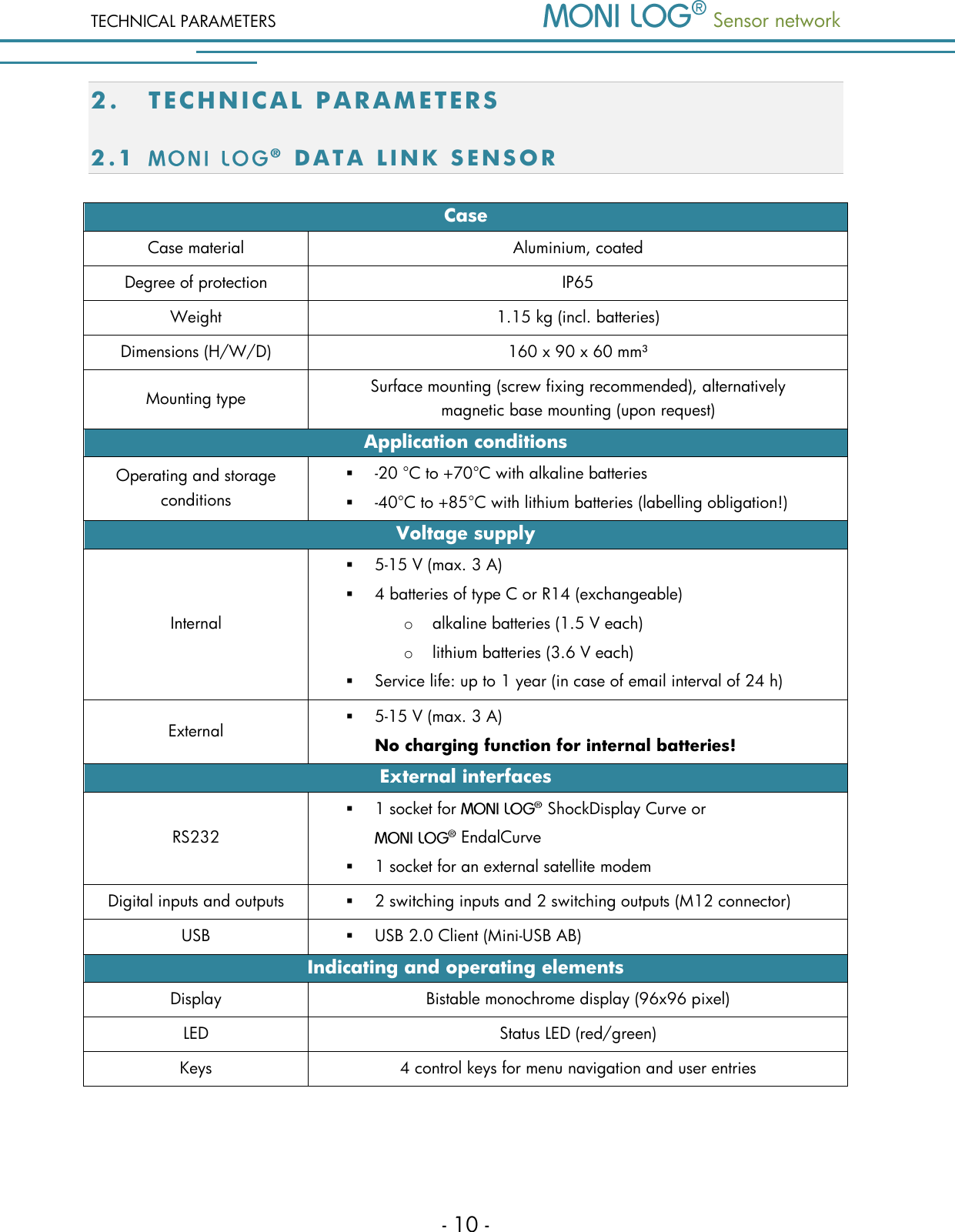
TECHNICAL PARAMETERS  Sensor network  - 10 - 2. TE C H N I C A L   PA R AM E T E R S  2.1   D A T A   L I N K   S E N S O R  Case Case material Aluminium, coated Degree of protection IP65 Weight 1.15 kg (incl. batteries) Dimensions (H/W/D) 160 x 90 x 60 mm³ Mounting type Surface mounting (screw fixing recommended), alternatively         magnetic base mounting (upon request) Application conditions Operating and storage conditions  -20 °C to +70°C with alkaline batteries  -40°C to +85°C with lithium batteries (labelling obligation!) Voltage supply Internal  5-15 V (max. 3 A)  4 batteries of type C or R14 (exchangeable) o alkaline batteries (1.5 V each) o lithium batteries (3.6 V each)  Service life: up to 1 year (in case of email interval of 24 h) External  5-15 V (max. 3 A) No charging function for internal batteries! External interfaces RS232  1 socket for   ShockDisplay Curve or   EndalCurve  1 socket for an external satellite modem Digital inputs and outputs  2 switching inputs and 2 switching outputs (M12 connector) USB  USB 2.0 Client (Mini-USB AB) Indicating and operating elements Display Bistable monochrome display (96x96 pixel) LED Status LED (red/green) Keys 4 control keys for menu navigation and user entries
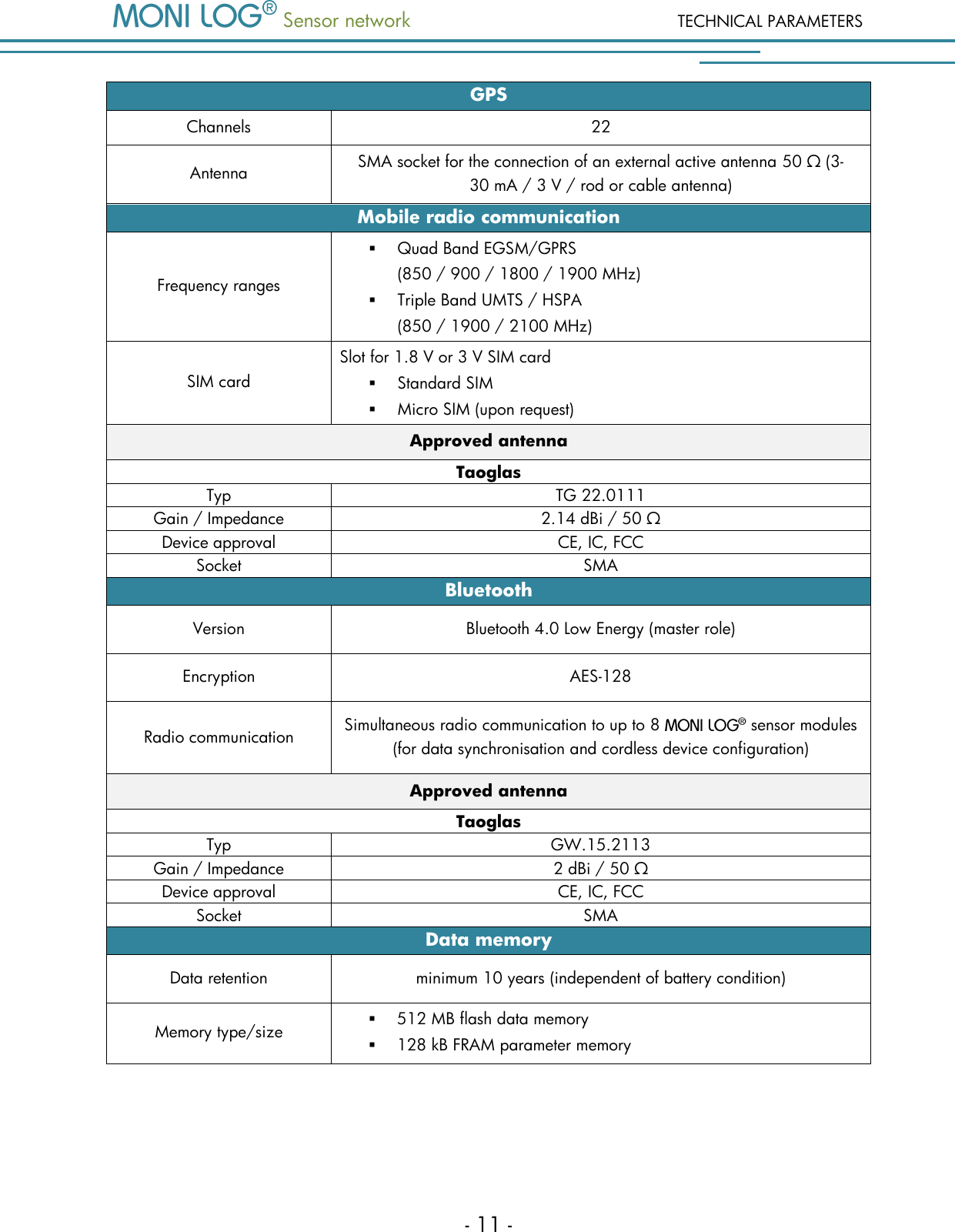
 Sensor network TECHNICAL PARAMETERS - 11 - GPS Channels 22  Antenna SMA socket for the connection of an external active antenna 50 Ω (3-30 mA / 3 V / rod or cable antenna) Mobile radio communication Frequency ranges  Quad Band EGSM/GPRS  (850 / 900 / 1800 / 1900 MHz)  Triple Band UMTS / HSPA  (850 / 1900 / 2100 MHz) SIM card Slot for 1.8 V or 3 V SIM card   Standard SIM  Micro SIM (upon request) Approved antenna Taoglas Typ TG 22.0111 Gain / Impedance 2.14 dBi / 50 Ω Device approval CE, IC, FCC Socket SMA  Bluetooth Version Bluetooth 4.0 Low Energy (master role) Encryption AES-128 Radio communication Simultaneous radio communication to up to 8   sensor modules  (for data synchronisation and cordless device configuration) Approved antenna Taoglas Typ GW.15.2113 Gain / Impedance 2 dBi / 50 Ω Device approval CE, IC, FCC Socket SMA  Data memory Data retention minimum 10 years (independent of battery condition) Memory type/size  512 MB flash data memory  128 kB FRAM parameter memory
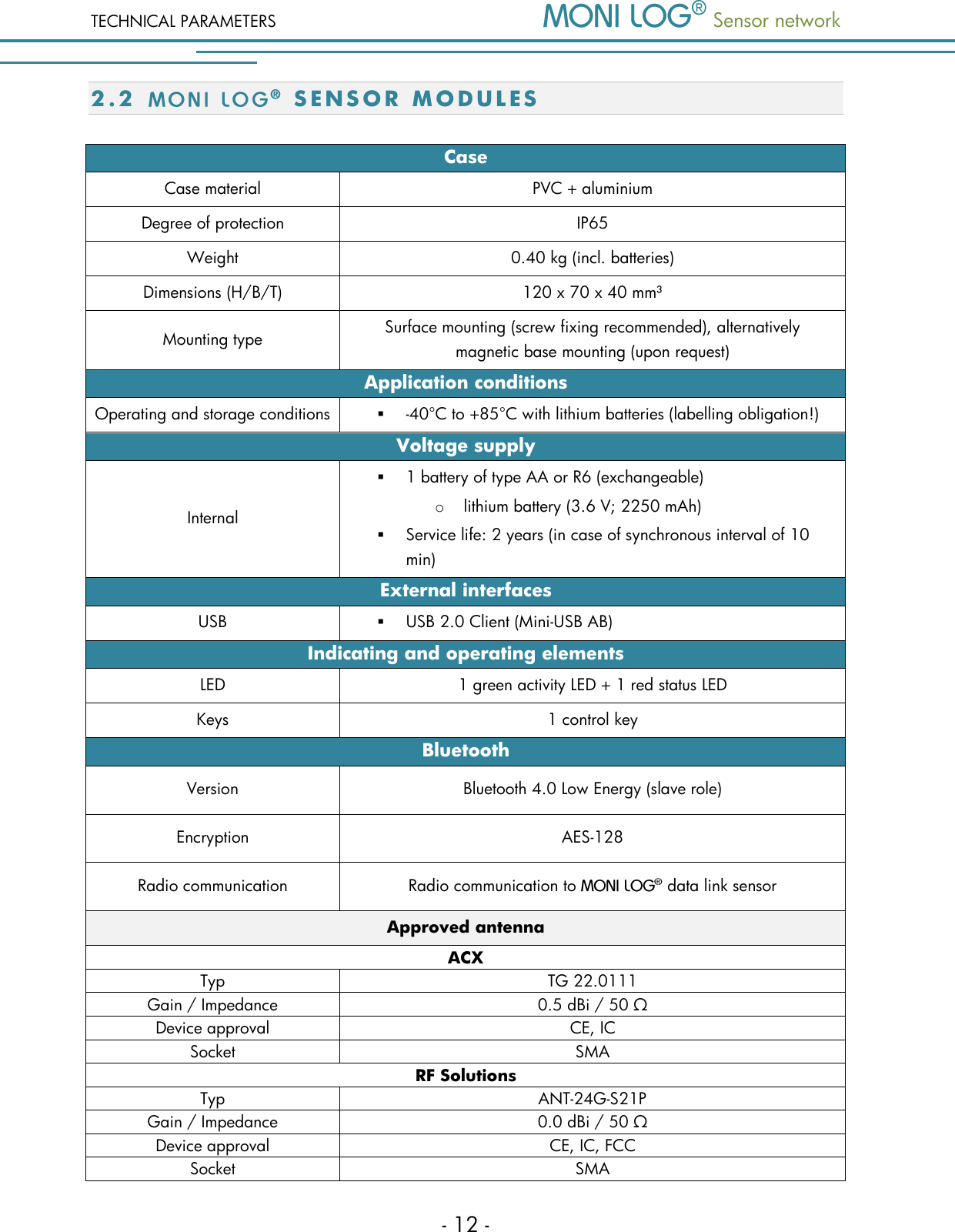
TECHNICAL PARAMETERS  Sensor network  - 12 - 2.2   S E N S O R   M O D U L E S  Case Case material PVC + aluminium Degree of protection IP65 Weight 0.40 kg (incl. batteries) Dimensions (H/B/T) 120 x 70 x 40 mm³ Mounting type Surface mounting (screw fixing recommended), alternatively         magnetic base mounting (upon request) Application conditions Operating and storage conditions  -40°C to +85°C with lithium batteries (labelling obligation!) Voltage supply Internal  1 battery of type AA or R6 (exchangeable) o lithium battery (3.6 V; 2250 mAh)  Service life: 2 years (in case of synchronous interval of 10 min) External interfaces USB  USB 2.0 Client (Mini-USB AB) Indicating and operating elements LED 1 green activity LED + 1 red status LED Keys 1 control key Bluetooth Version Bluetooth 4.0 Low Energy (slave role) Encryption AES-128 Radio communication Radio communication to   data link sensor Approved antenna ACX Typ TG 22.0111 Gain / Impedance 0.5 dBi / 50 Ω Device approval CE, IC Socket SMA  RF Solutions Typ ANT-24G-S21P Gain / Impedance 0.0 dBi / 50 Ω Device approval CE, IC, FCC Socket SMA
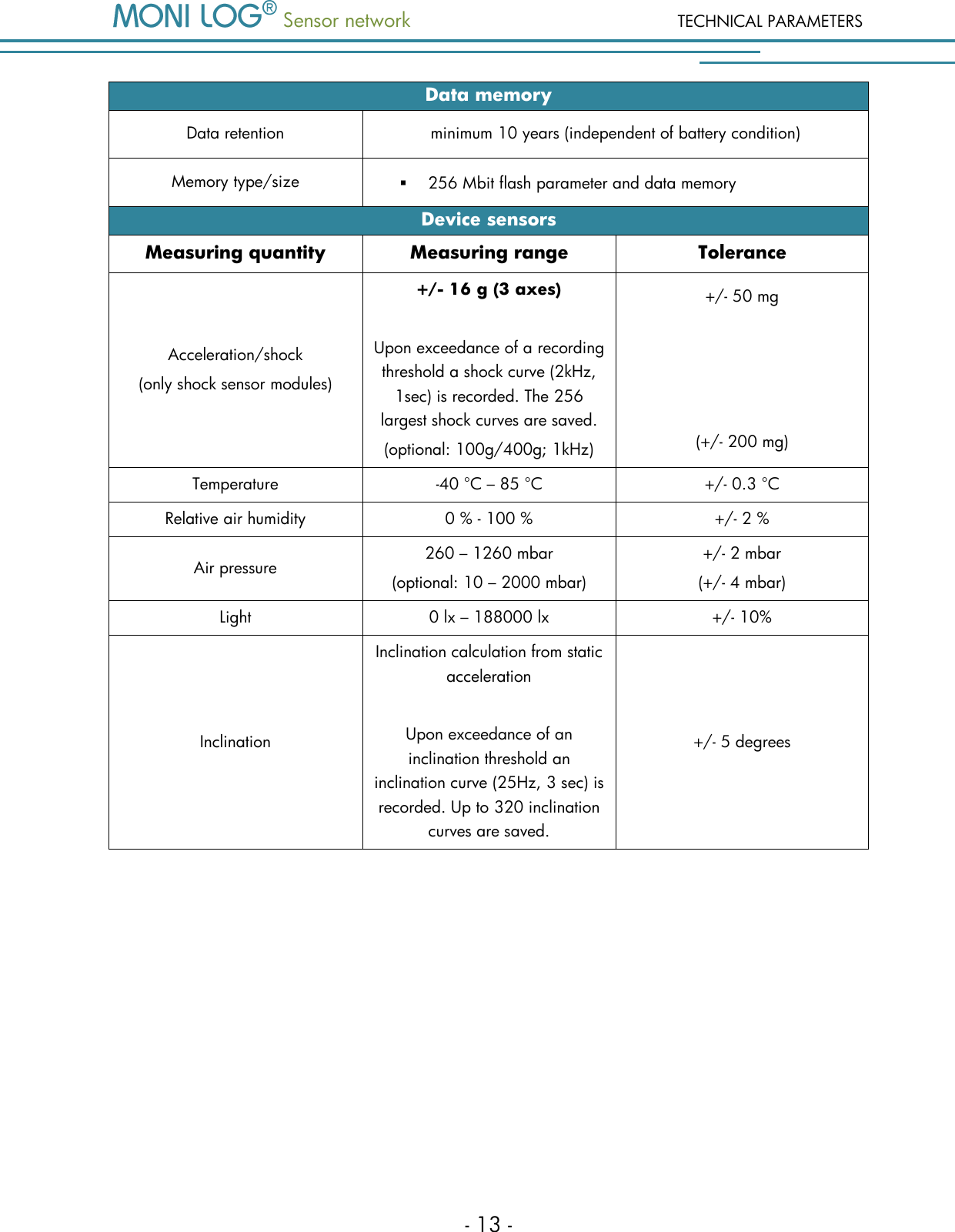
 Sensor network TECHNICAL PARAMETERS - 13 - Data memory Data retention minimum 10 years (independent of battery condition) Memory type/size  256 Mbit flash parameter and data memory Device sensors Measuring quantity Measuring range Tolerance Acceleration/shock (only shock sensor modules) +/- 16 g (3 axes)  Upon exceedance of a recording threshold a shock curve (2kHz, 1sec) is recorded. The 256 largest shock curves are saved. (optional: 100g/400g; 1kHz) +/- 50 mg     (+/- 200 mg) Temperature -40 °C – 85 °C +/- 0.3 °C Relative air humidity 0 % - 100 % +/- 2 % Air pressure 260 – 1260 mbar (optional: 10 – 2000 mbar) +/- 2 mbar (+/- 4 mbar) Light 0 lx – 188000 lx +/- 10% Inclination Inclination calculation from static acceleration  Upon exceedance of an inclination threshold an inclination curve (25Hz, 3 sec) is recorded. Up to 320 inclination curves are saved. +/- 5 degrees
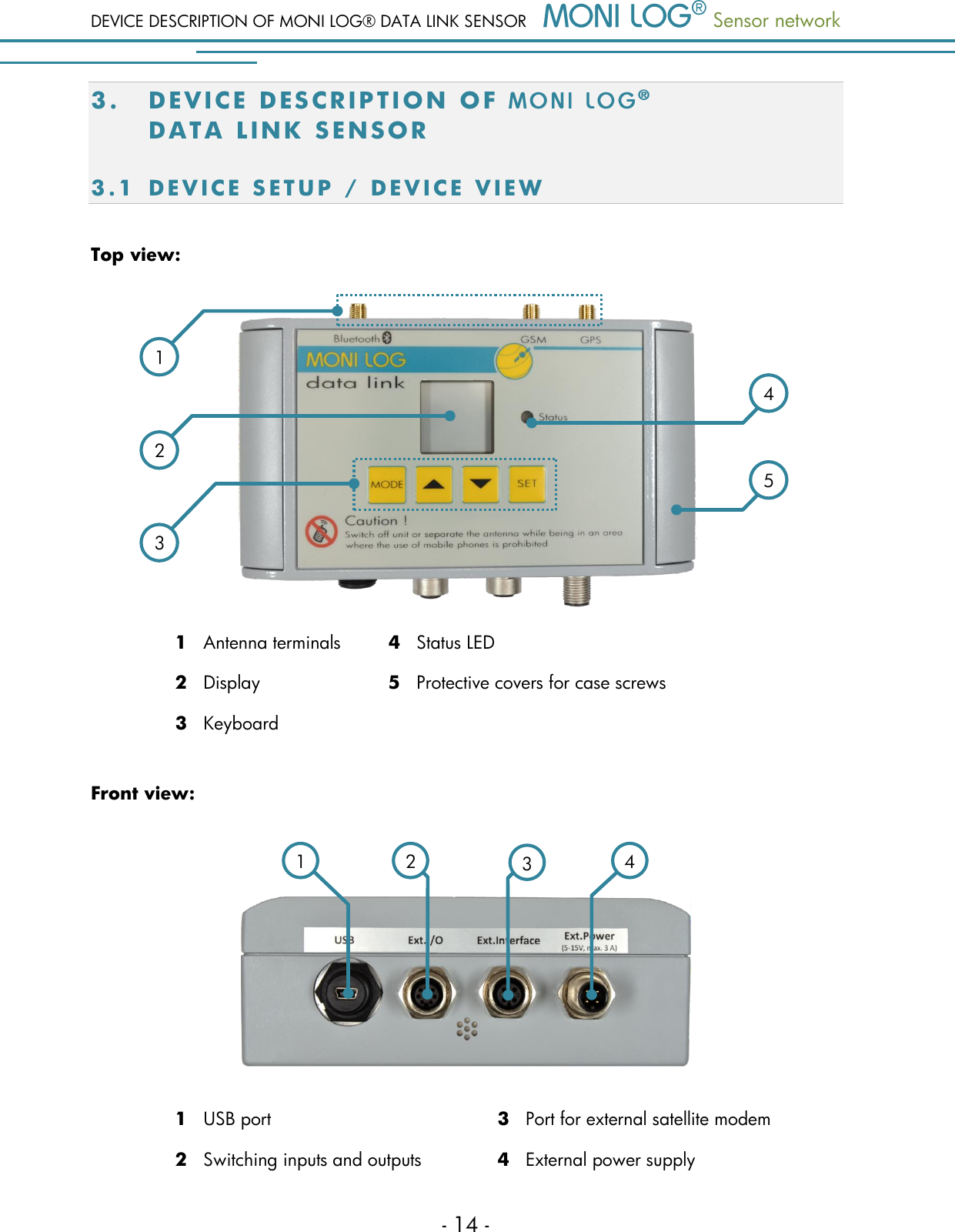
DEVICE DESCRIPTION OF MONI LOG® DATA LINK SENSOR  Sensor network  - 14 - 3. DE V I C E   D E S C R I P T I O N   O F    D A T A   L I NK   S E N SO R  3.1 D E V I C E   S E T U P   / D E V I C E   V I E W  Top view:  1   Antenna terminals 4   Status LED 2   Display 5   Protective covers for case screws 3   Keyboard  Front view:   1   USB port 3   Port for external satellite modem 2   Switching inputs and outputs 4   External power supply 2 3 1 4 5 1 3 2 4
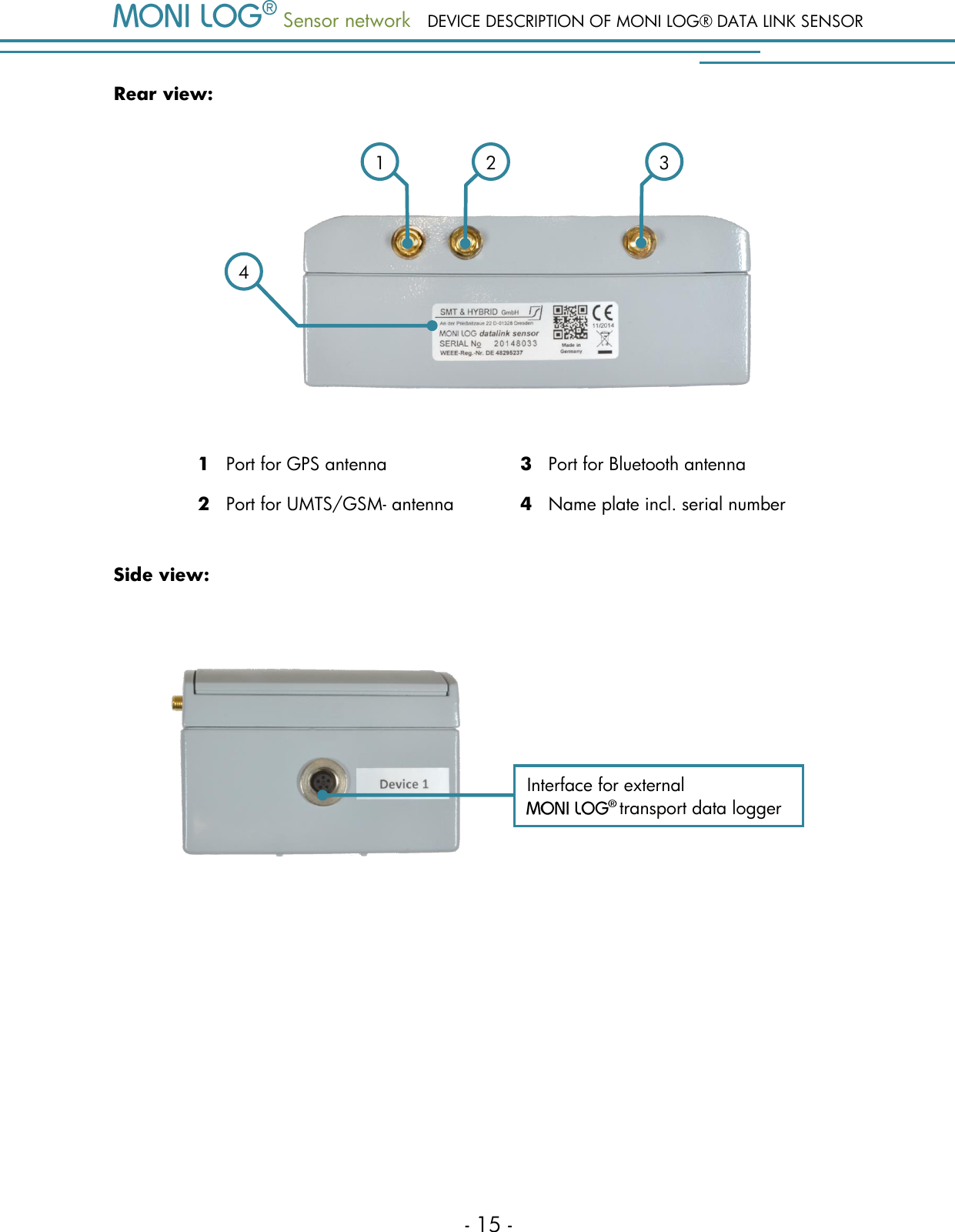
 Sensor network DEVICE DESCRIPTION OF MONI LOG® DATA LINK SENSOR - 15 - Rear view:   1   Port for GPS antenna 3   Port for Bluetooth antenna 2   Port for UMTS/GSM- antenna 4   Name plate incl. serial number Side view:      4 2 1 3 Interface for external     transport data logger
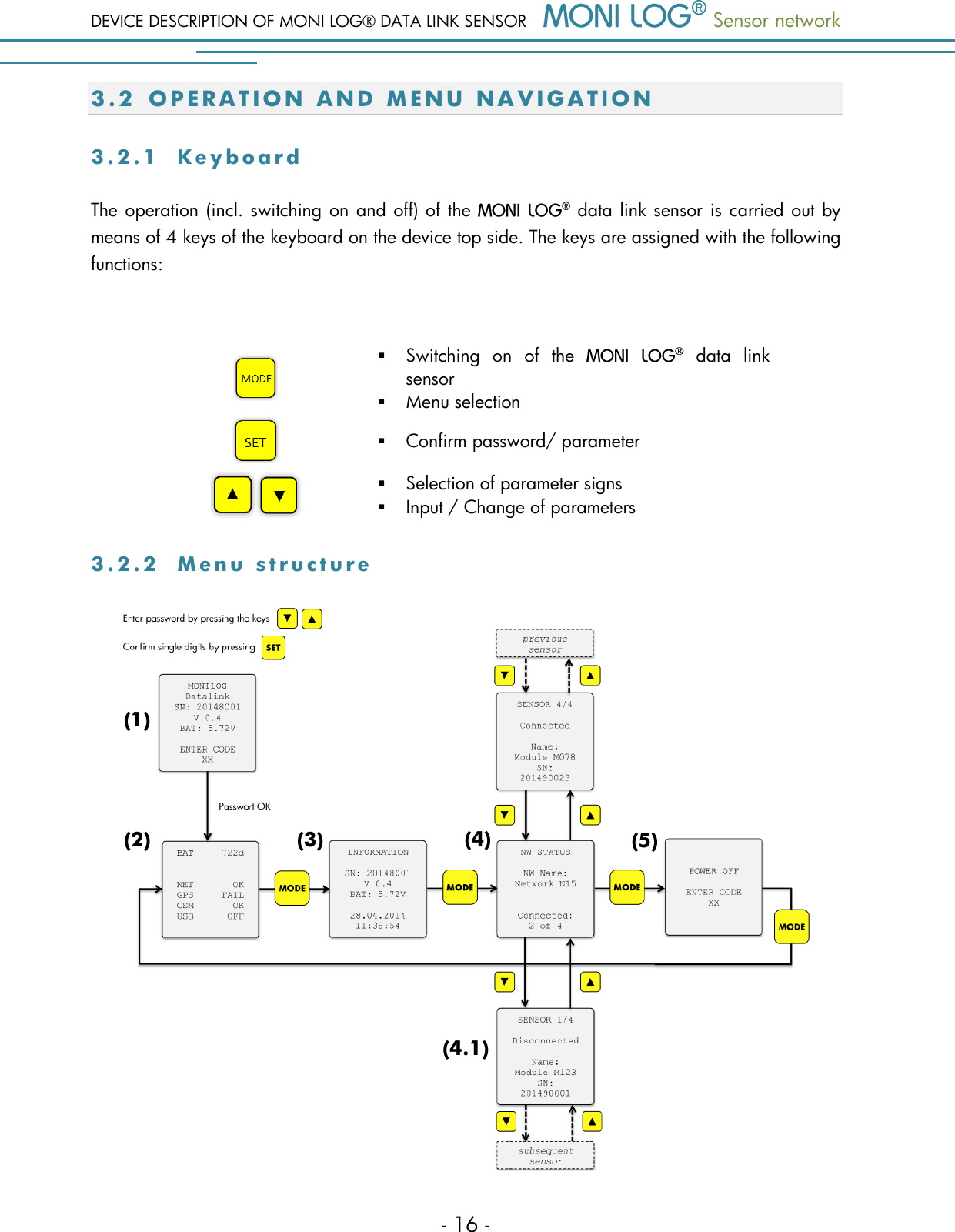
DEVICE DESCRIPTION OF MONI LOG® DATA LINK SENSOR  Sensor network  - 16 - 3.2 O P E R A T I O N   A N D   M E N U   N A V I G A T I O N  3 . 2 . 1  K e y b o a r d  The operation (incl. switching on and off) of the   data link sensor is carried out by means of 4 keys of the keyboard on the device top side. The keys are assigned with the following functions:    Switching  on  of  the    data  link sensor  Menu selection   Confirm password/ parameter    Selection of parameter signs  Input / Change of parameters 3 . 2 . 2  M e n u   s t r u c t u r e     (2) (1) (5) (4.1) (3) (4) (1) (2) (3) (4) (5) (4.1)
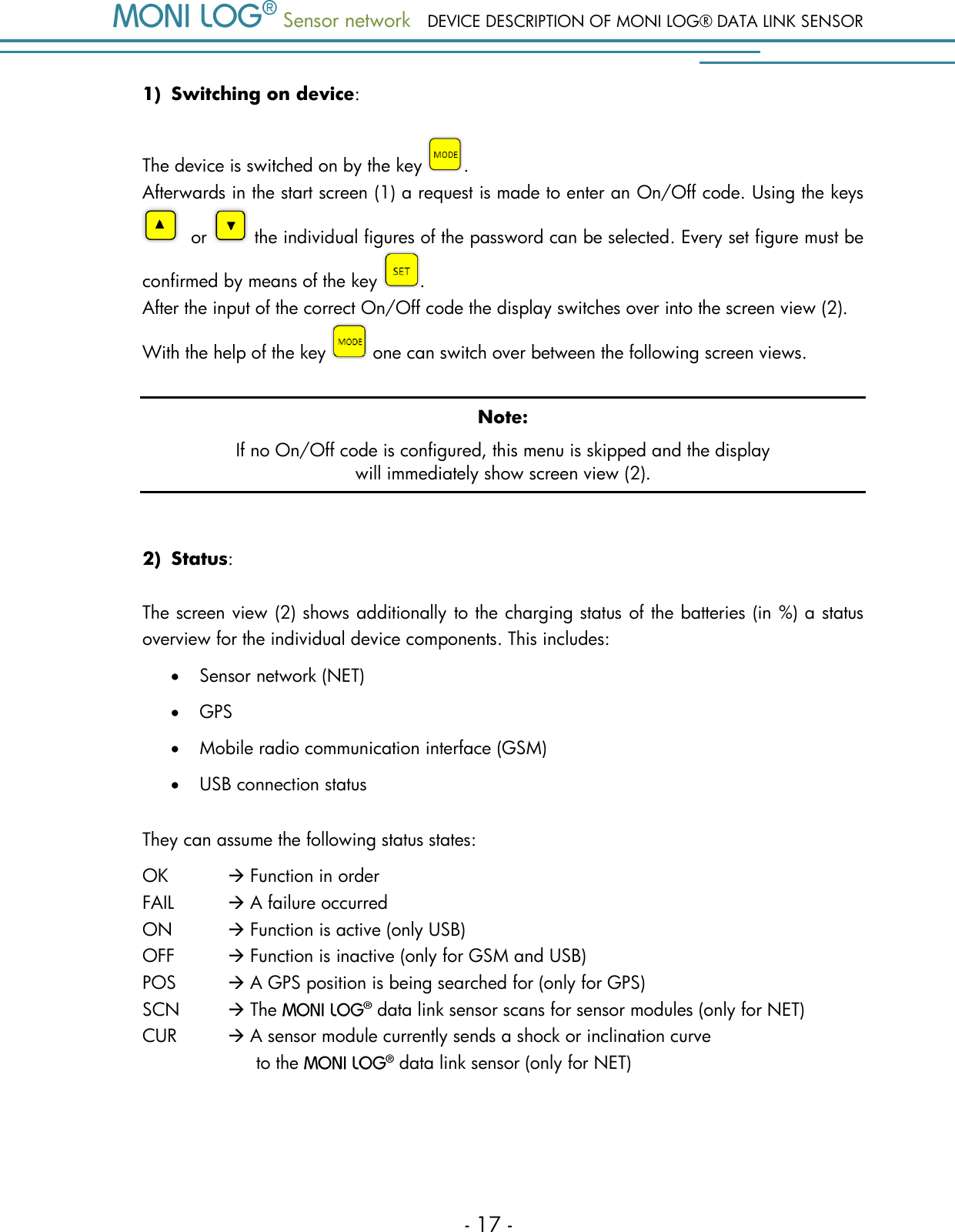
 Sensor network DEVICE DESCRIPTION OF MONI LOG® DATA LINK SENSOR - 17 - 1) Switching on device:  The device is switched on by the key  .  Afterwards in the start screen (1) a request is made to enter an On/Off code. Using the keys   or   the individual figures of the password can be selected. Every set figure must be confirmed by means of the key  .  After the input of the correct On/Off code the display switches over into the screen view (2).  With the help of the key   one can switch over between the following screen views. Note: If no On/Off code is configured, this menu is skipped and the display will immediately show screen view (2).  2) Status:  The screen view (2) shows additionally to the charging status of the batteries (in %) a status overview for the individual device components. This includes:  Sensor network (NET)  GPS  Mobile radio communication interface (GSM)  USB connection status They can assume the following status states: OK    Function in order FAIL   A failure occurred ON  Function is active (only USB) OFF    Function is inactive (only for GSM and USB) POS    A GPS position is being searched for (only for GPS) SCN   The   data link sensor scans for sensor modules (only for NET) CUR     A sensor module currently sends a shock or inclination curve                                 to the   data link sensor (only for NET)
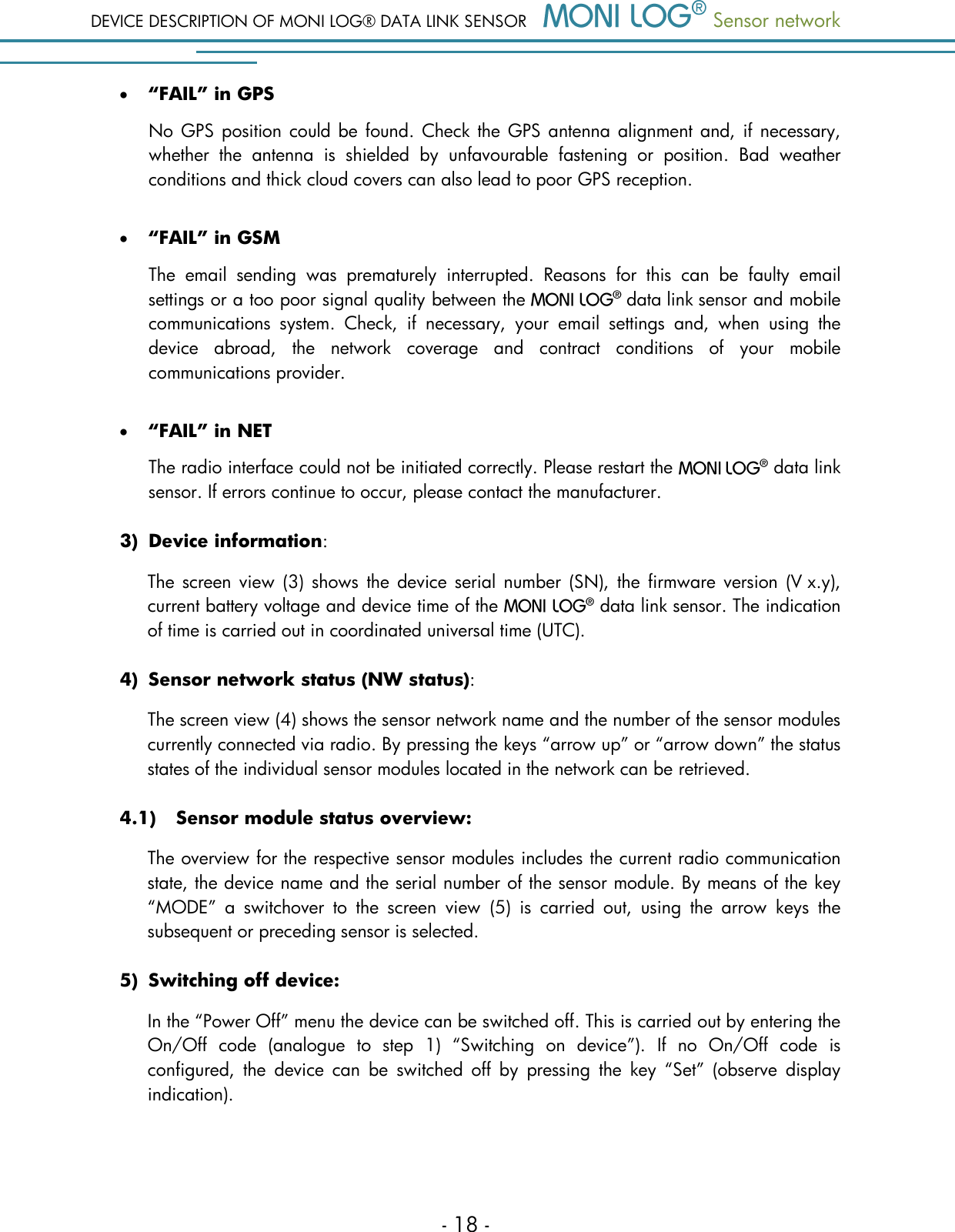
DEVICE DESCRIPTION OF MONI LOG® DATA LINK SENSOR  Sensor network  - 18 -  “FAIL” in GPS No GPS position could be found. Check the GPS antenna alignment and, if necessary, whether  the  antenna  is  shielded  by  unfavourable  fastening  or  position.  Bad  weather conditions and thick cloud covers can also lead to poor GPS reception.   “FAIL” in GSM The  email  sending  was  prematurely  interrupted.  Reasons  for  this  can  be  faulty  email settings or a too poor signal quality between the    data link sensor and mobile communications  system.  Check,  if  necessary,  your  email  settings  and,  when  using  the device  abroad,  the  network  coverage  and  contract  conditions  of  your  mobile communications provider.   “FAIL” in NET The radio interface could not be initiated correctly. Please restart the    data link sensor. If errors continue to occur, please contact the manufacturer.  3) Device information: The  screen  view  (3)  shows  the  device serial number  (SN), the  firmware version  (V x.y), current battery voltage and device time of the   data link sensor. The indication of time is carried out in coordinated universal time (UTC).  4) Sensor network status (NW status): The screen view (4) shows the sensor network name and the number of the sensor modules currently connected via radio. By pressing the keys “arrow up” or “arrow down” the status states of the individual sensor modules located in the network can be retrieved.  4.1) Sensor module status overview:  The overview for the respective sensor modules includes the current radio communication state, the device name and the serial number of the sensor module. By means of the key “MODE”  a  switchover  to  the  screen  view  (5)  is  carried  out,  using  the  arrow  keys  the subsequent or preceding sensor is selected.  5) Switching off device: In the “Power Off” menu the device can be switched off. This is carried out by entering the On/Off  code  (analogue  to  step  1)  “Switching  on  device”).  If  no  On/Off  code  is configured,  the  device  can  be  switched  off  by  pressing  the  key  “Set”  (observe  display indication).
 Sensor network DEVICE DESCRIPTION OF MONI LOG® DATA LINK SENSOR - 19 - 3.3 C O M M I S S I O N I N G  3 . 3 . 1  B e h a v i o u r   o f   t h e   M O N I   L O G ®  d a t a   l i n k   s e n s o r  a f t e r   t h e   s w i t c h i n g   o n  After the switching on of the    data link sensor and, if configured, after the input of the On/Off  code,  the  operation  of  the  device  starts.  At  first,  a  brief  diagnostics  of  the  mobile communications module and the Bluetooth radio unit is carried out. After successful diagnostics the  GPS  positioning  and,  with  a  delay  of  90  seconds,  the  email  sending  are  started,  if  these options are activated. During the initial commissioning the GPS positioning and the email sending are deactivated as a standard,  as  the  settings  necessary  for  the  operation  (see  for  this  chapter 5.3)  are  still  to  be configured. If  an  error  is  determined  during  the  mobile  communications  module  diagnostics  (e.g.,  no  SIM card inserted, faulty SIM PIN or a hardware error), an error message is shown in the display and afterwards the sending of emails is deactivated (shown by “GSM Off”). If necessary, contact the manufacturer to obtain more detailed instructions for troubleshooting. If  the  diagnostics  of  the  Bluetooth  radio  unit  fails  and  in  the display  the indication  “NET FAIL” appears, restart the    data link sensor. If the error continues to occur, please contact the manufacturer. Setup of the radio communication to the sensor modules If  at  the  turning-on  sensor  modules  are  included  in  the  sensor  network,  in  case  of  successful Bluetooth diagnostics the    data link sensor immediately starts the search (scanning) for the corresponding modules (display indication “NET     SCN”).  For energy reasons the scanning is not carried out on an ongoing basis, the process is performed in intervals according to: 90 second scanning  15 minutes scanning pause  90 seconds scanning  etc. If  within  90-second  scanning  time  a  radio  communication  to  a  sensor  module  is  set  up,  the scanning time is reset to the full 90 seconds, if radio communications to further sensor modules must be set up.
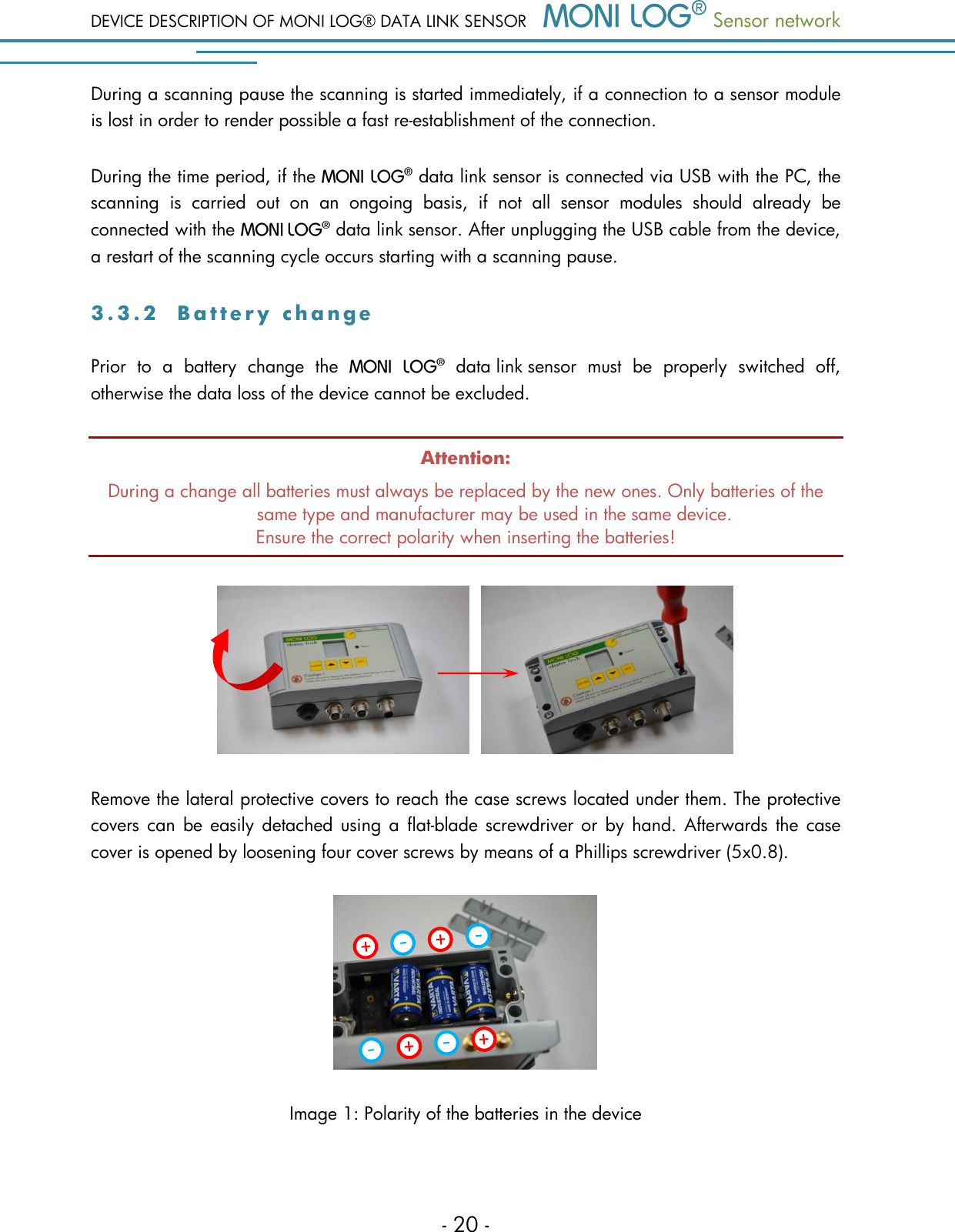
DEVICE DESCRIPTION OF MONI LOG® DATA LINK SENSOR  Sensor network  - 20 - During a scanning pause the scanning is started immediately, if a connection to a sensor module is lost in order to render possible a fast re-establishment of the connection. During the time period, if the   data link sensor is connected via USB with the PC, the scanning  is  carried  out  on  an  ongoing  basis,  if  not  all  sensor  modules  should  already  be connected with the    data link sensor. After unplugging the USB cable from the device, a restart of the scanning cycle occurs starting with a scanning pause. 3 . 3 . 2  B a t t e r y   c h a n g e  Prior  to  a  battery  change  the    data link sensor  must  be  properly  switched  off, otherwise the data loss of the device cannot be excluded. Attention: During a change all batteries must always be replaced by the new ones. Only batteries of the same type and manufacturer may be used in the same device. Ensure the correct polarity when inserting the batteries!   Remove the lateral protective covers to reach the case screws located under them. The protective covers can  be  easily  detached using a  flat-blade screwdriver or  by  hand. Afterwards  the  case cover is opened by loosening four cover screws by means of a Phillips screwdriver (5x0.8).  Image 1: Polarity of the batteries in the device
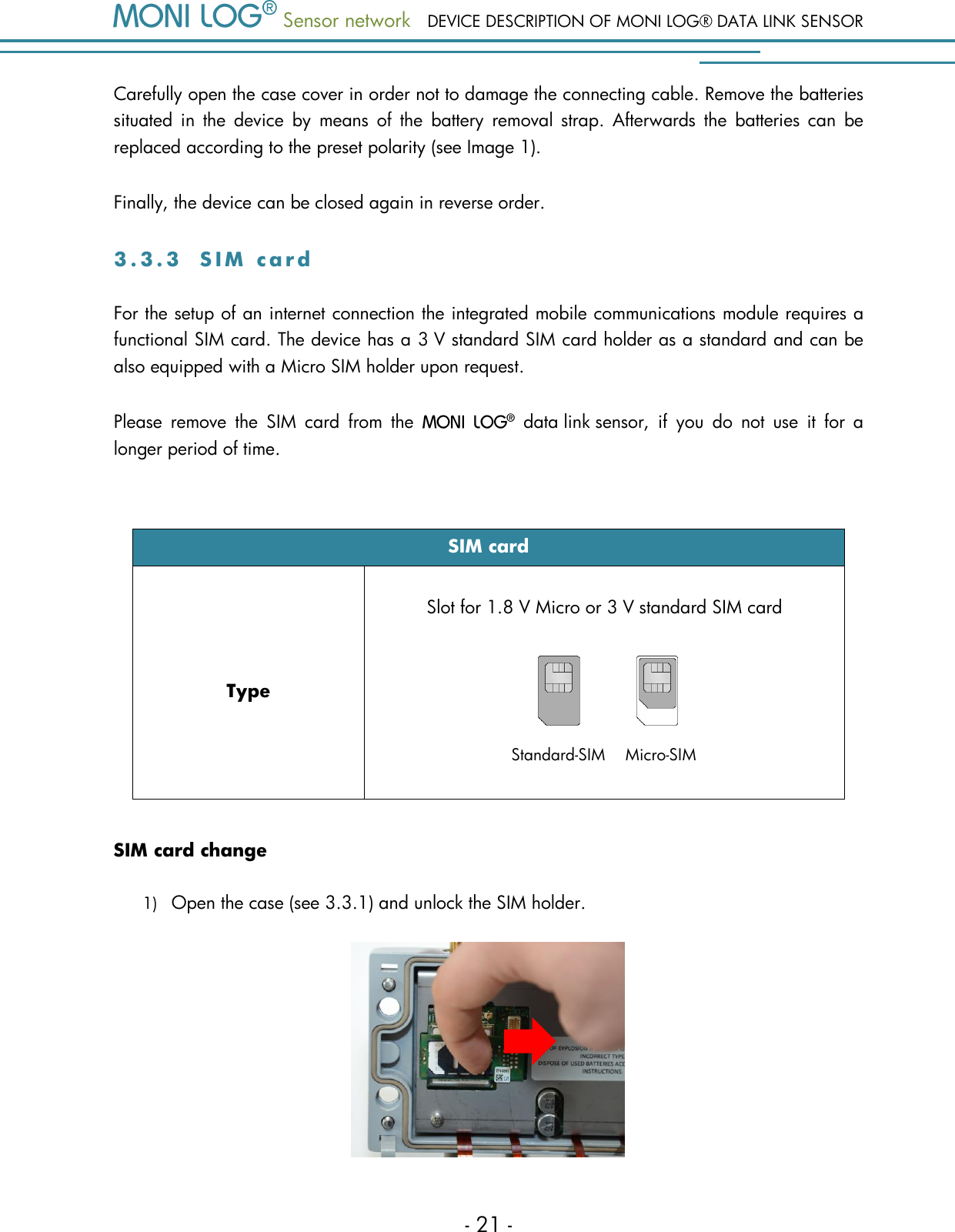
 Sensor network DEVICE DESCRIPTION OF MONI LOG® DATA LINK SENSOR - 21 - Standard-SIM    Micro-SIM Carefully open the case cover in order not to damage the connecting cable. Remove the batteries situated  in  the  device  by  means  of  the  battery  removal  strap.  Afterwards  the  batteries  can  be replaced according to the preset polarity (see Image 1). Finally, the device can be closed again in reverse order. 3 . 3 . 3  S I M   c a r d  For the setup of an internet connection the integrated mobile communications module requires a functional SIM card. The device has a 3 V standard SIM card holder as a standard and can be also equipped with a Micro SIM holder upon request. Please  remove  the  SIM  card  from  the    data link sensor,  if  you  do  not  use  it  for  a longer period of time.  SIM card Type Slot for 1.8 V Micro or 3 V standard SIM card   SIM card change 1) Open the case (see 3.3.1) and unlock the SIM holder.
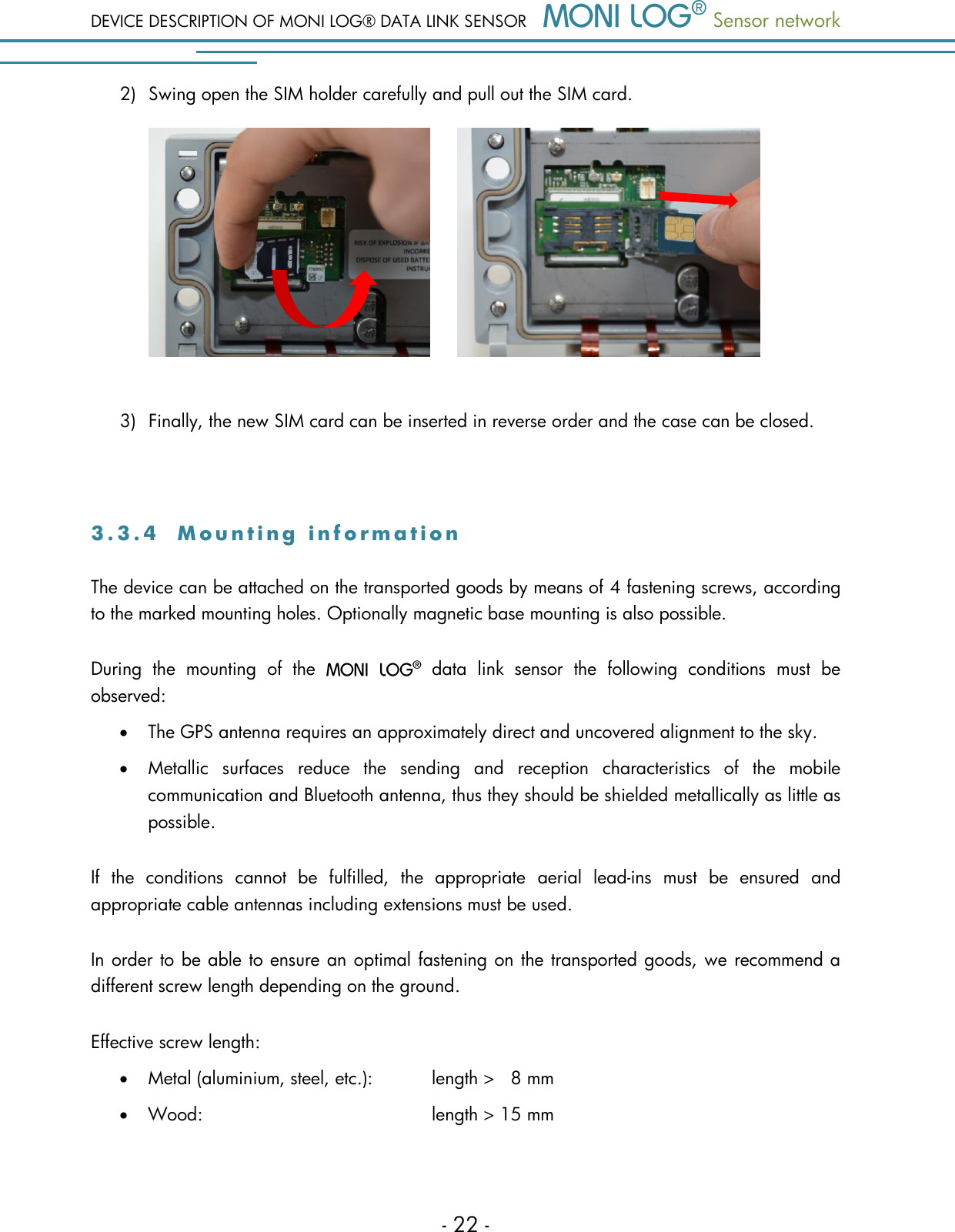
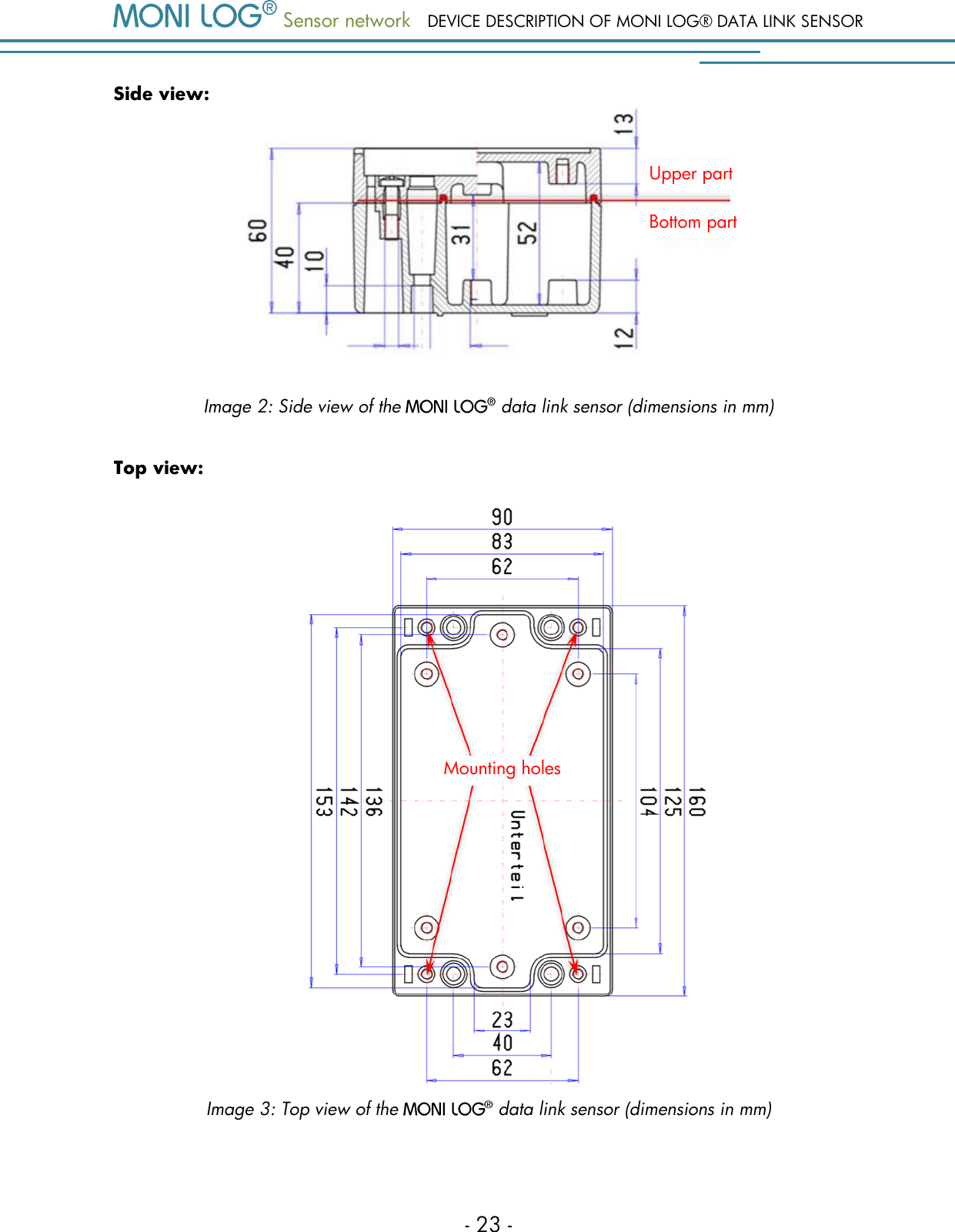
DEVICE DESCRIPTION OF MONI LOG® DATA LINK SENSOR  Sensor network  - 22 - 2) Swing open the SIM holder carefully and pull out the SIM card.          3) Finally, the new SIM card can be inserted in reverse order and the case can be closed.  3 . 3 . 4  M o u n t i n g   i n f o r m a t i o n  The device can be attached on the transported goods by means of 4 fastening screws, according to the marked mounting holes. Optionally magnetic base mounting is also possible. During  the  mounting  of  the    data  link  sensor  the  following  conditions  must  be observed:  The GPS antenna requires an approximately direct and uncovered alignment to the sky.   Metallic  surfaces  reduce  the  sending  and  reception  characteristics  of  the  mobile communication and Bluetooth antenna, thus they should be shielded metallically as little as possible. If  the  conditions  cannot  be  fulfilled,  the  appropriate  aerial  lead-ins  must  be  ensured  and appropriate cable antennas including extensions must be used. In order to be able to ensure an optimal fastening on the transported goods, we recommend a different screw length depending on the ground. Effective screw length:  Metal (aluminium, steel, etc.):    length >   8 mm   Wood:         length > 15 mm
 Sensor network DEVICE DESCRIPTION OF MONI LOG® DATA LINK SENSOR - 23 - Side view:  Image 2: Side view of the   data link sensor (dimensions in mm) Top view:    Image 3: Top view of the   data link sensor (dimensions in mm)   Mounting holes Upper part Bottom part
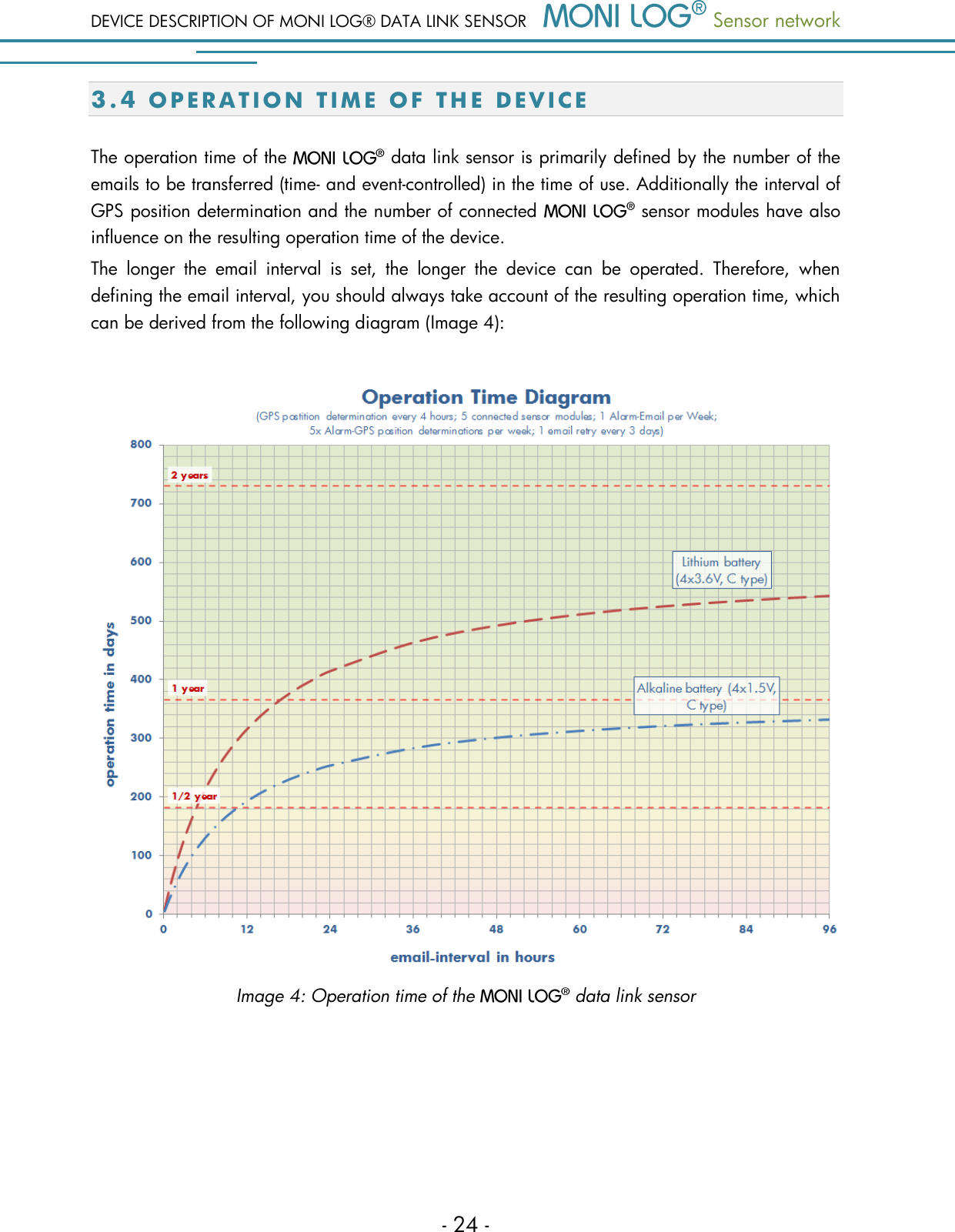
DEVICE DESCRIPTION OF MONI LOG® DATA LINK SENSOR  Sensor network  - 24 - 3 . 4  O P E R A T I O N   T I M E   O F   T H E   D E V I C E  The operation time of the   data link sensor is primarily defined by the number of the emails to be transferred (time- and event-controlled) in the time of use. Additionally the interval of GPS position determination and the number of connected   sensor modules have also influence on the resulting operation time of the device. The  longer  the  email  interval  is  set,  the  longer  the  device  can  be  operated.  Therefore,  when defining the email interval, you should always take account of the resulting operation time, which can be derived from the following diagram (Image 4):   Image 4: Operation time of the   data link sensor
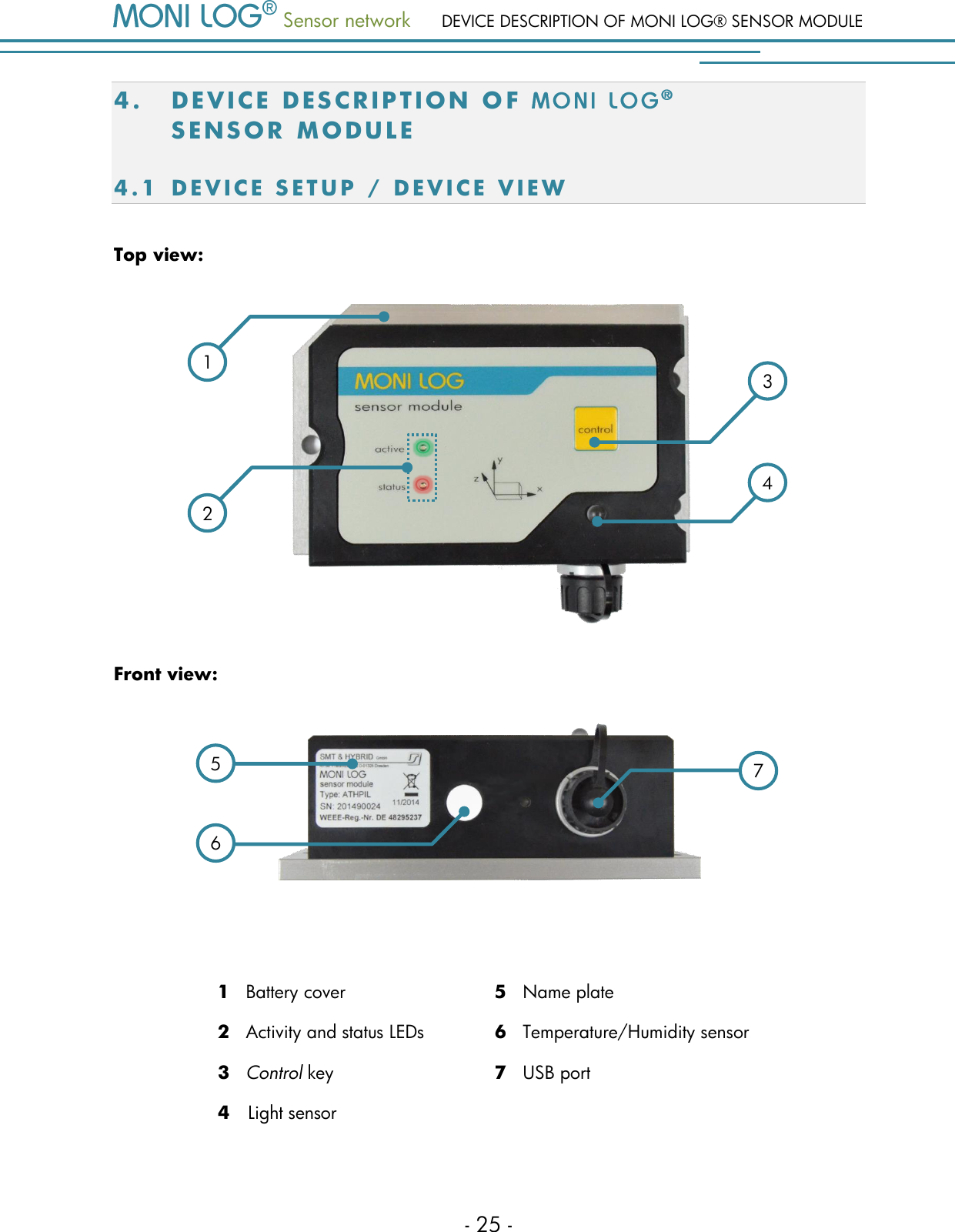
 Sensor network DEVICE DESCRIPTION OF MONI LOG® SENSOR MODULE - 25 - 4. DE V I C E   D E S CR IP T I O N   O F    S E NS OR   MO D U L E  4.1 D E V I C E   S E T U P   /   D E V I C E   V I E W  Top view:  Front view:   1   Battery cover 5   Name plate 2   Activity and status LEDs 6   Temperature/Humidity sensor 3   Control key 7   USB port 4   Light sensor  1 4 3 2 6 5 7
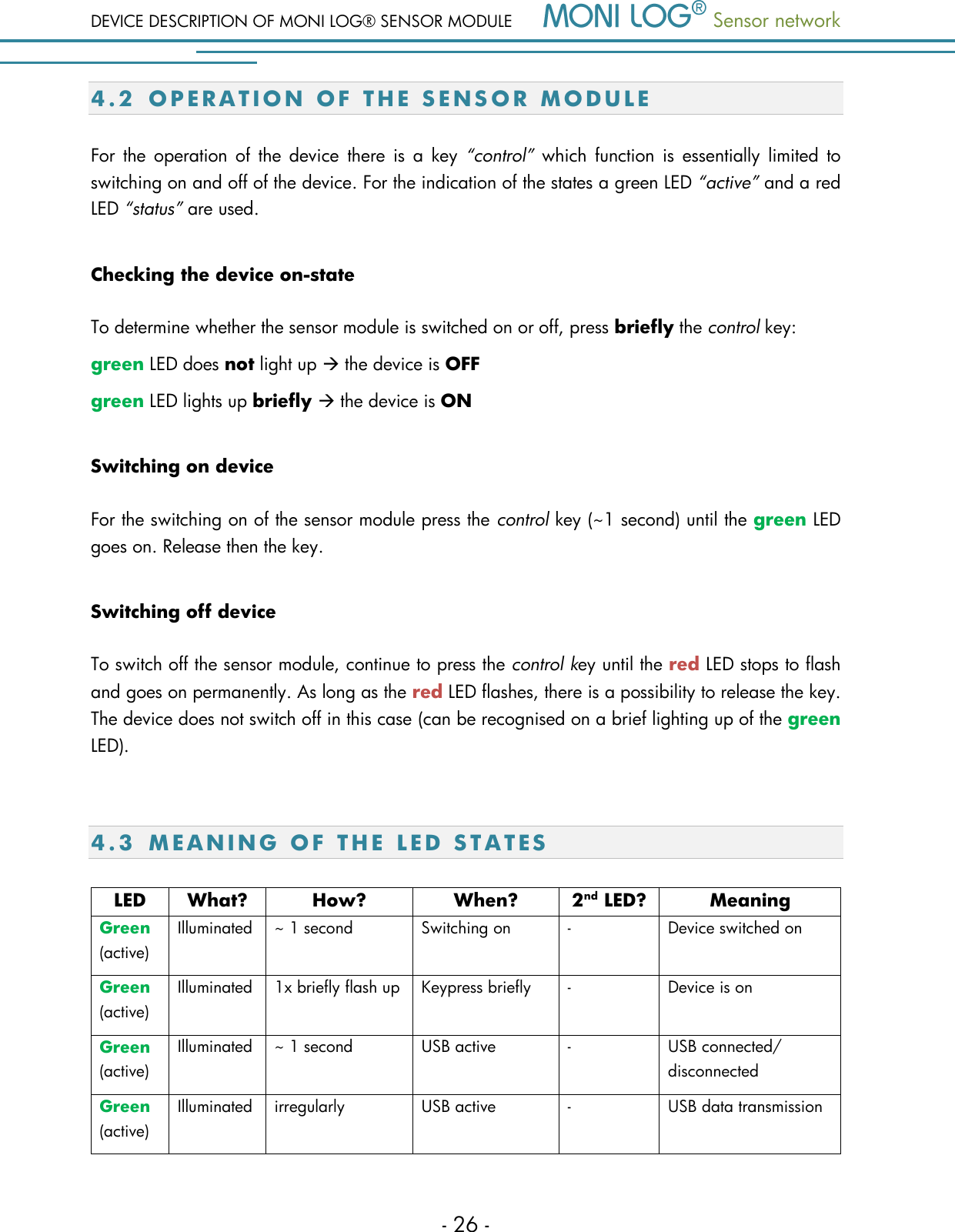
DEVICE DESCRIPTION OF MONI LOG® SENSOR MODULE  Sensor network  - 26 - 4.2 O P E R A T I O N   O F   T H E   S E N S O R   M O D U L E  For  the operation  of  the  device  there is  a  key  “control”  which  function  is  essentially  limited  to switching on and off of the device. For the indication of the states a green LED “active” and a red LED “status” are used. Checking the device on-state  To determine whether the sensor module is switched on or off, press briefly the control key: green LED does not light up  the device is OFF green LED lights up briefly  the device is ON Switching on device For the switching on of the sensor module press the control key (~1 second) until the green LED goes on. Release then the key. Switching off device To switch off the sensor module, continue to press the control key until the red LED stops to flash and goes on permanently. As long as the red LED flashes, there is a possibility to release the key. The device does not switch off in this case (can be recognised on a brief lighting up of the green LED).  4.3 M E A N I N G   O F   T H E   LED  S T A T E S  LED What? How? When? 2nd LED? Meaning Green (active) Illuminated ~ 1 second Switching on - Device switched on Green (active) Illuminated 1x briefly flash up Keypress briefly - Device is on Green (active) Illuminated ~ 1 second USB active - USB connected/ disconnected Green (active) Illuminated irregularly USB active - USB data transmission
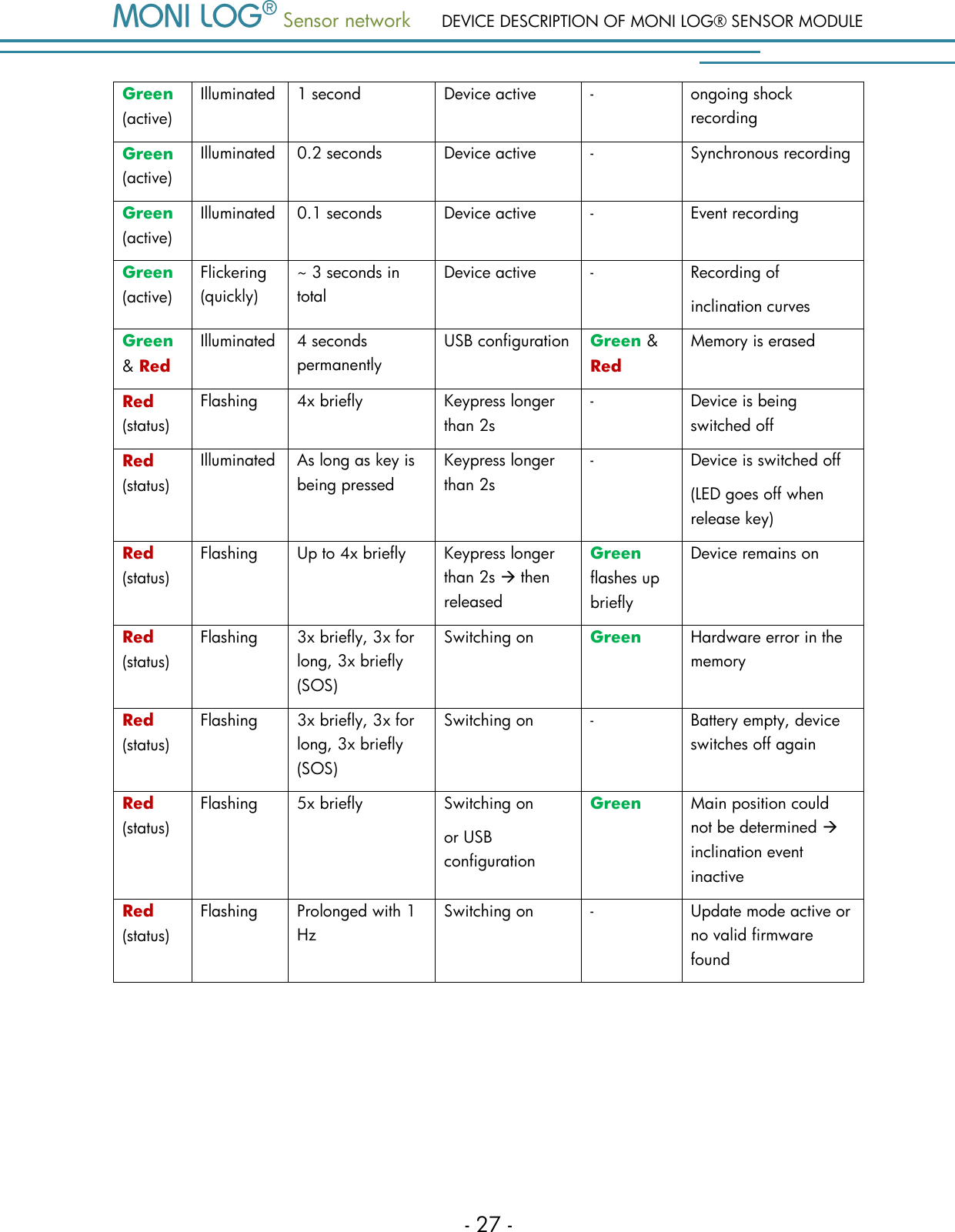
 Sensor network DEVICE DESCRIPTION OF MONI LOG® SENSOR MODULE - 27 - Green (active) Illuminated 1 second Device active - ongoing shock recording Green (active) Illuminated 0.2 seconds Device active - Synchronous recording Green (active) Illuminated 0.1 seconds Device active - Event recording Green (active) Flickering (quickly) ~ 3 seconds in total Device active - Recording of inclination curves Green & Red Illuminated 4 seconds permanently USB configuration Green & Red Memory is erased Red (status) Flashing 4x briefly Keypress longer than 2s - Device is being switched off Red (status) Illuminated As long as key is being pressed Keypress longer than 2s - Device is switched off (LED goes off when release key) Red (status) Flashing Up to 4x briefly Keypress longer than 2s  then released Green flashes up briefly Device remains on Red (status) Flashing 3x briefly, 3x for long, 3x briefly (SOS) Switching on Green Hardware error in the memory Red (status) Flashing 3x briefly, 3x for long, 3x briefly (SOS) Switching on - Battery empty, device switches off again Red (status) Flashing 5x briefly Switching on or USB configuration Green  Main position could not be determined  inclination event inactive Red (status) Flashing Prolonged with 1 Hz Switching on - Update mode active or no valid firmware found
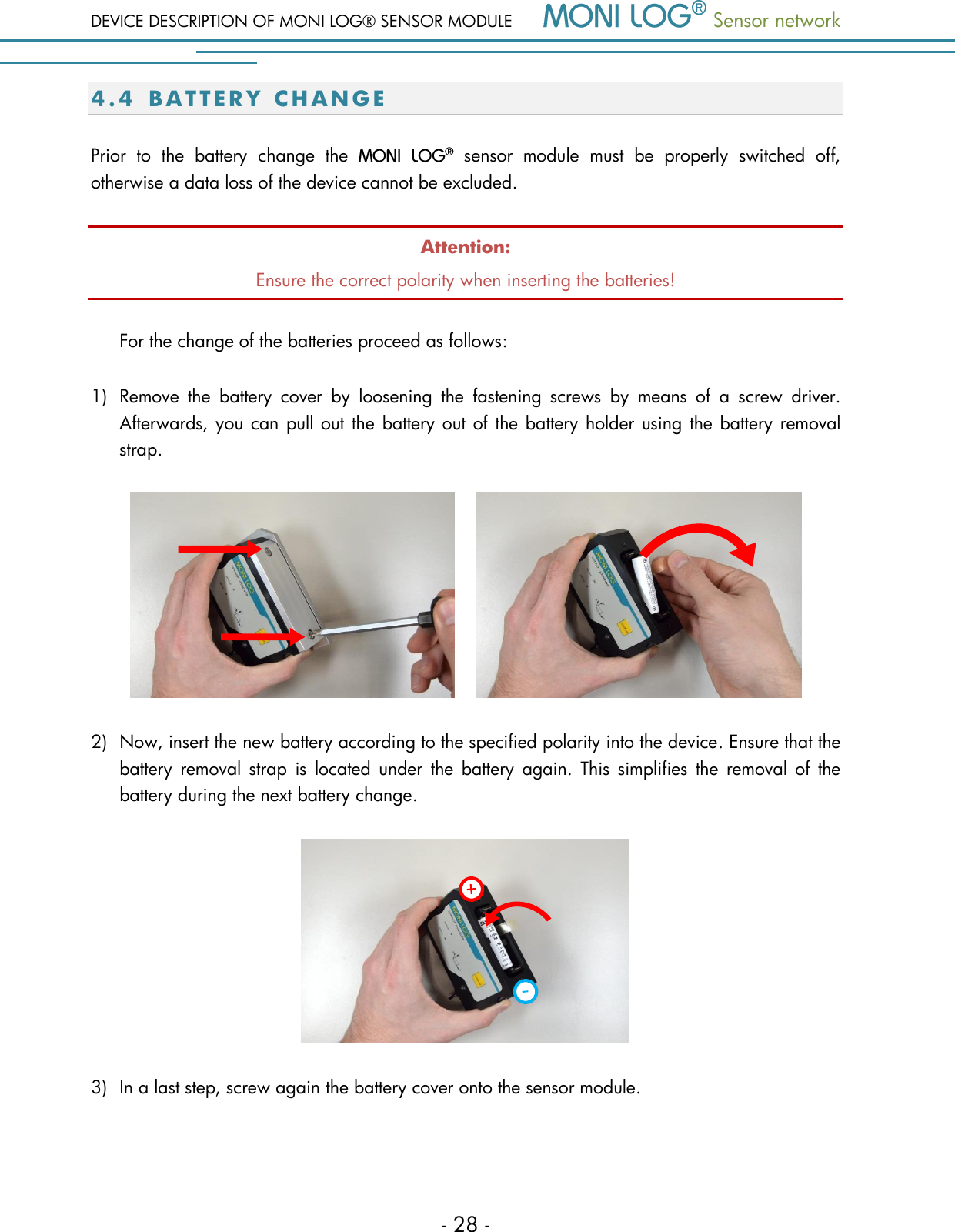
DEVICE DESCRIPTION OF MONI LOG® SENSOR MODULE  Sensor network  - 28 - 4.4 B A T T E R Y   C H A N G E  Prior  to  the  battery  change  the    sensor  module  must  be  properly  switched  off, otherwise a data loss of the device cannot be excluded. Attention: Ensure the correct polarity when inserting the batteries!  For the change of the batteries proceed as follows:  1) Remove  the  battery  cover  by  loosening  the  fastening  screws  by  means  of  a  screw  driver. Afterwards, you can pull out the battery out of the battery holder using the battery removal strap.       2) Now, insert the new battery according to the specified polarity into the device. Ensure that the battery  removal  strap  is located  under  the  battery  again.  This  simplifies  the removal  of  the battery during the next battery change.  3) In a last step, screw again the battery cover onto the sensor module.
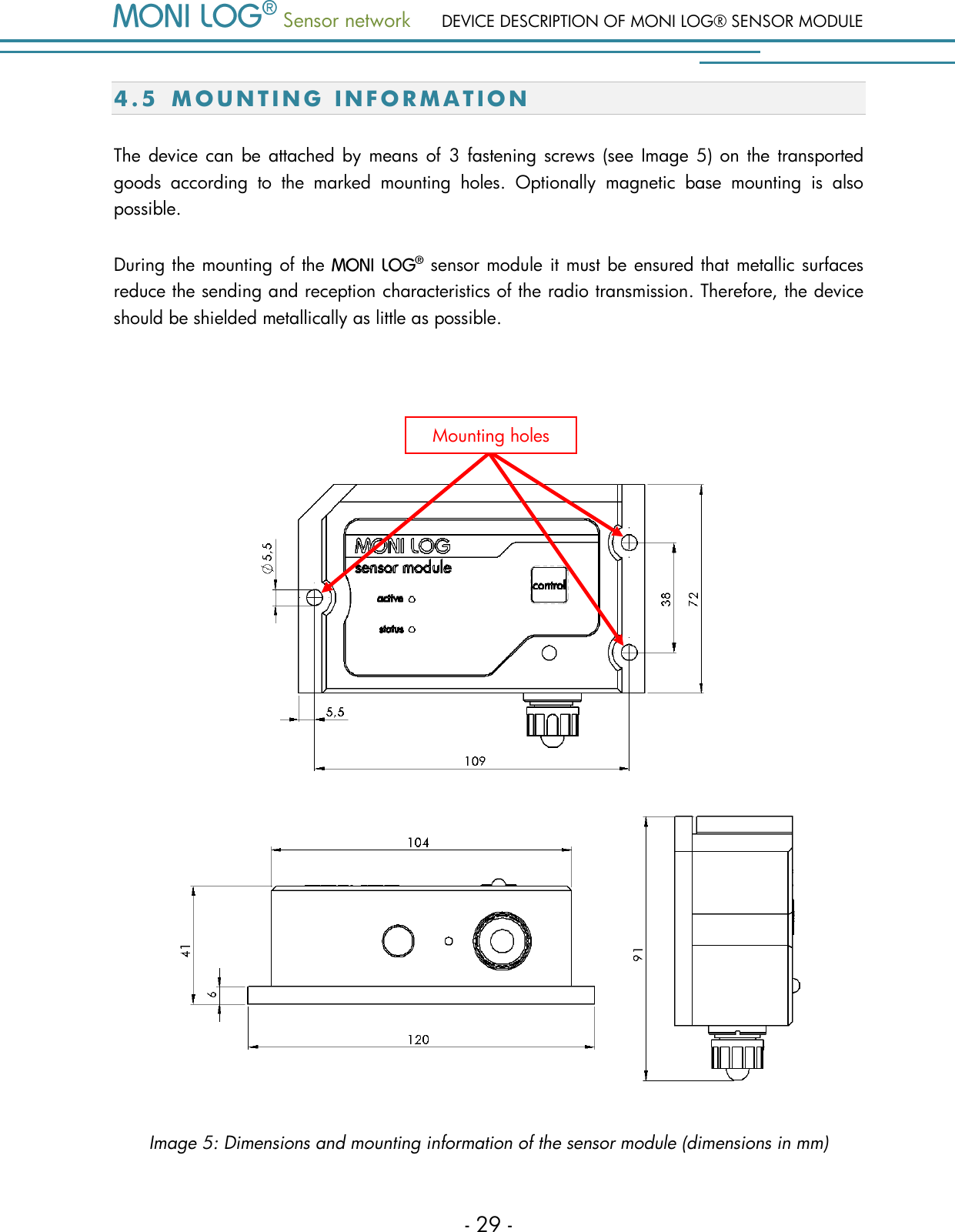
 Sensor network DEVICE DESCRIPTION OF MONI LOG® SENSOR MODULE - 29 - 4.5 M O U N T I N G   I N F O R M A T I O N  The  device can be attached by means of  3  fastening screws (see  Image  5)  on  the  transported goods  according  to  the  marked  mounting  holes.  Optionally  magnetic  base  mounting  is  also possible. During the mounting of the   sensor module it must be ensured that metallic surfaces reduce the sending and reception characteristics of the radio transmission. Therefore, the device should be shielded metallically as little as possible.    Image 5: Dimensions and mounting information of the sensor module (dimensions in mm) Mounting holes
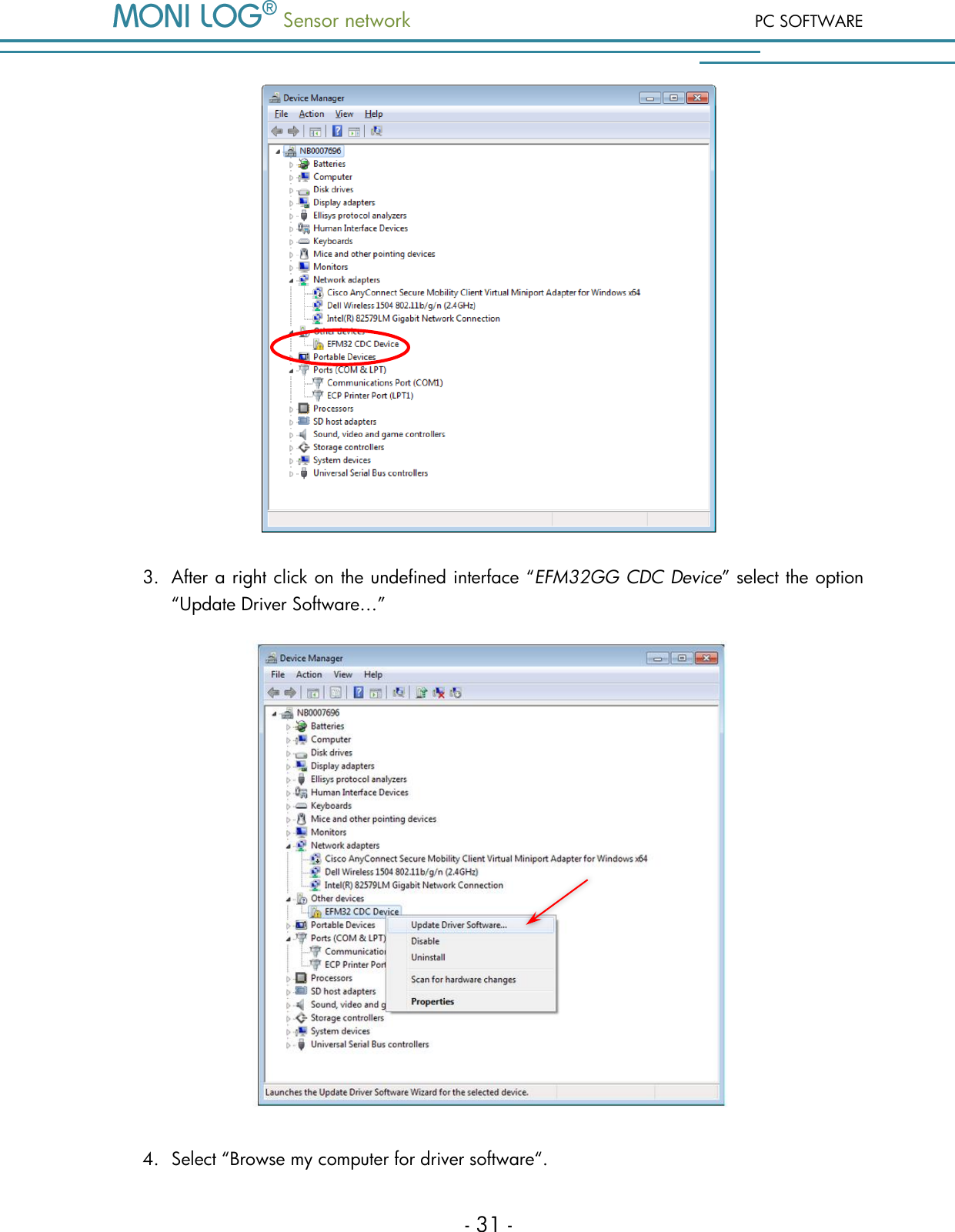
PC SOFTWARE  Sensor network  - 30 -  5. PC SO F T W AR E  The evaluation programme can be used both for the readout and configuration of the   data link sensor and the   sensor module. It is intended for the display and analysis of the recorded data in tabular/graphic form. Furthermore, data sets can be saved locally on your PC or loaded from your PC. 5 . 1  I N S T A L L A T I O N  5 . 1 . 1  U S B   d r i v e r  Note: When connecting the devices for the first time, the installation of the device driver on your PC can be necessary. Use for this the included driver file “EFM32-Cdc.inf”! For the installation of the USB driver the following points must be observed:  You need administrator rights to update a driver.  The images can differentiate from the view of your device manager.  There can be a deviating system language.  The driver must be set up only once on your computer in case of successful installation. Installation process 1. Connect the   data link sensor or the   sensor module by means of the included USB cable with your PC.  A data  link device signals the USB  readiness  by the  indication “USB active” and “USB ON” (in the status overview). In the sensor module after plugging of the USB cable the green LED (“active”) lights up. After the LED has gone off, the USB is ready. 2. Open  the  device  manager.  The  interface  is  listed  under  the  node  “Other  devices”  as “EFM32GG CDC Device” or “Monilog - USB serial port device.”
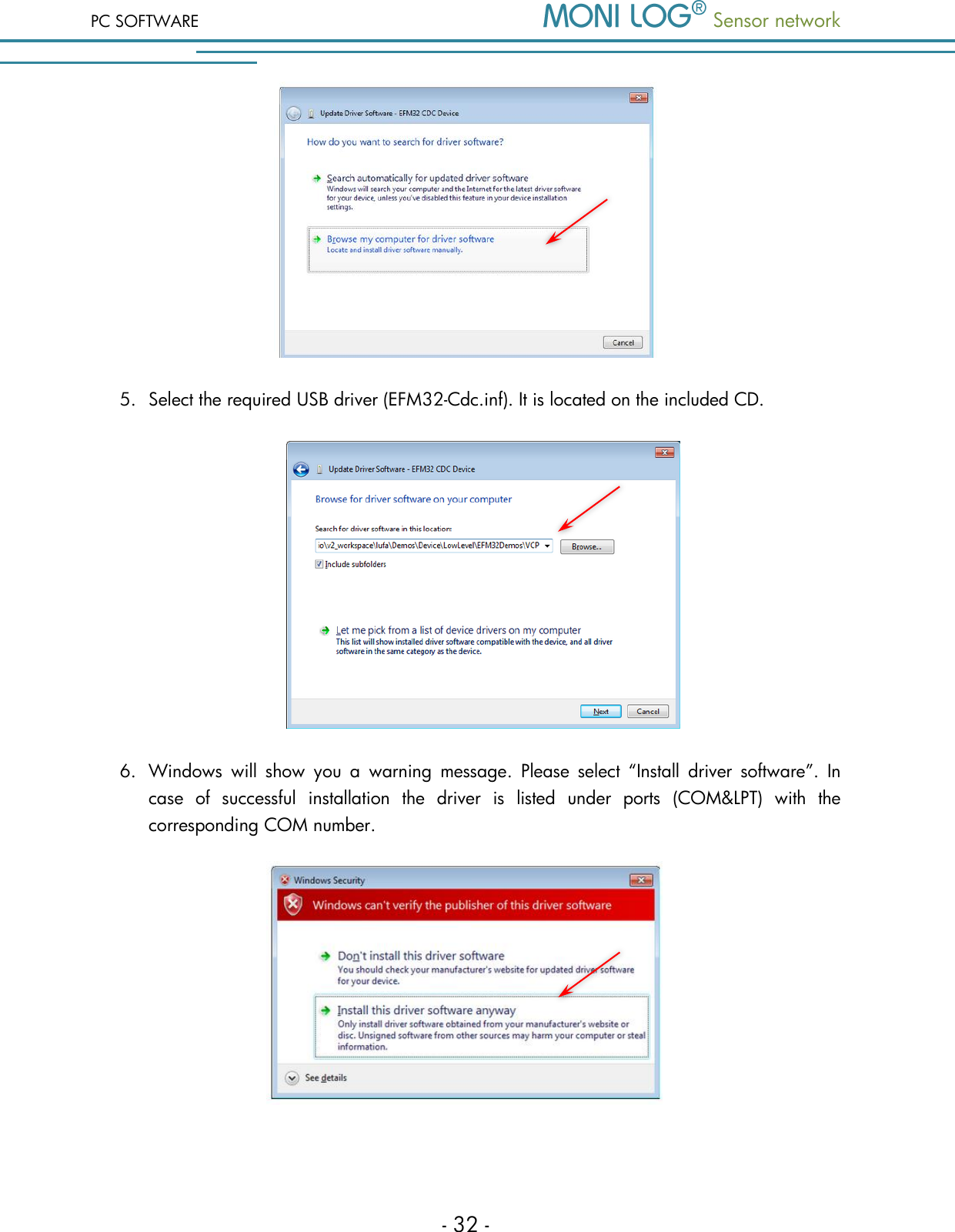
 Sensor network PC SOFTWARE - 31 -  3. After a right click on the undefined interface “EFM32GG CDC Device” select the option “Update Driver Software…”   4. Select “Browse my computer for driver software“.
PC SOFTWARE  Sensor network  - 32 -  5. Select the required USB driver (EFM32-Cdc.inf). It is located on the included CD.   6. Windows  will  show  you  a  warning  message.  Please  select  “Install  driver  software”.  In case  of  successful  installation  the  driver  is  listed  under  ports  (COM&LPT)  with  the corresponding COM number.
 Sensor network PC SOFTWARE - 33 -   7. The driver installation is completed, the USB interface can now be used. 5 . 2  G E N E R A L   U S E   O F   P C   S O F T W A R E  5 . 2 . 1  E s t a b l i s h i n g   a   d e v i c e   c o n n e c t i o n  If the device driver is installed, the connection, as a rule, will be automatically established upon the start of the evaluation software, if a device is connected via USB. If the evaluation programme has already been active before the plugging of the device, move the mouse in the area [COM-Port]. The connection is automatically established. If you would like to connect a device at another COM-Port, select it in the selection window (see for this Image 6).     Image 6: USB connection window: left) no connection; right) connection established In case of connection problems: If the USB connection is not initiated correctly select the Refresh button (blue double arrow), disconnect the USB cable from the device  and reconnect it.
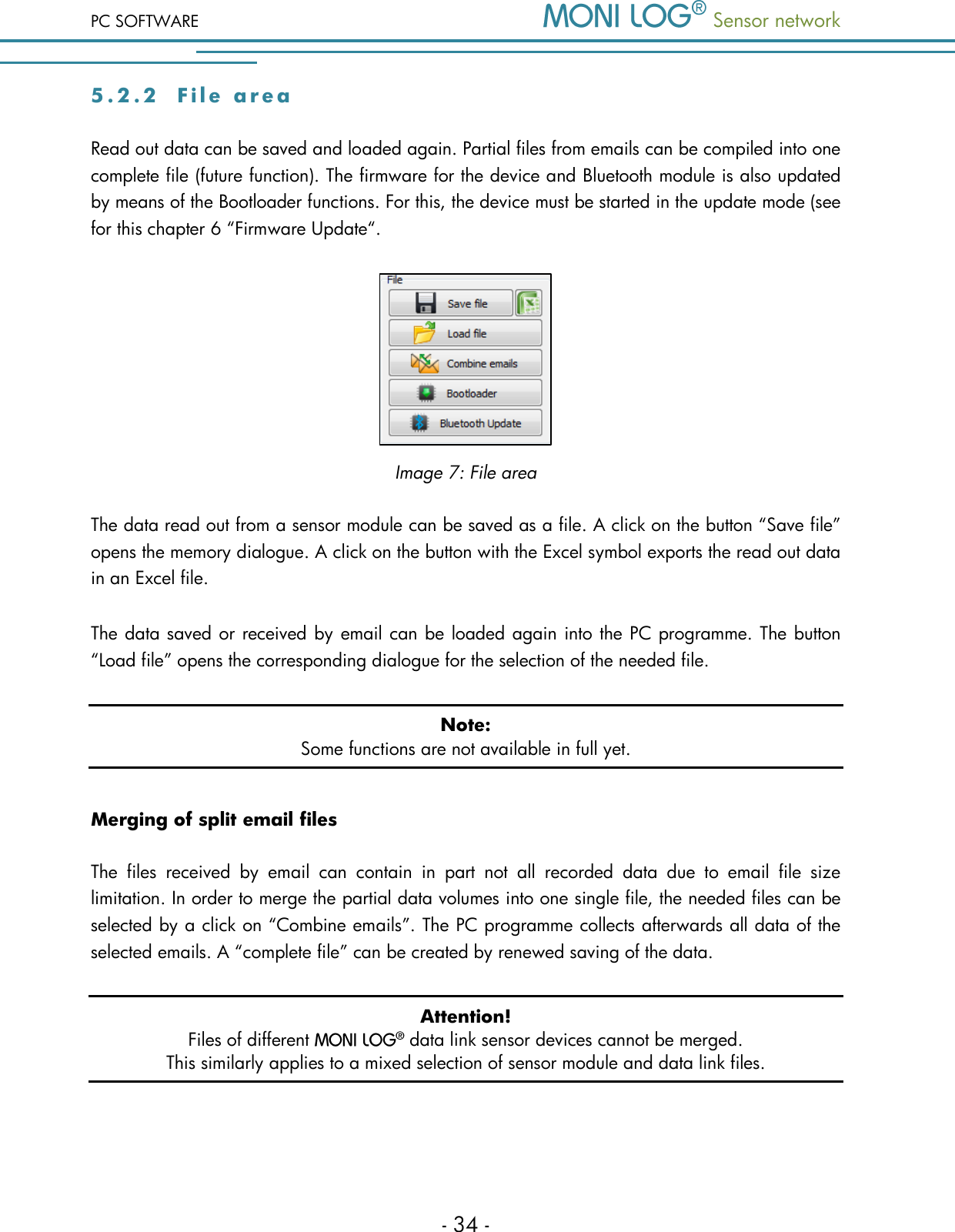
PC SOFTWARE  Sensor network  - 34 - 5 . 2 . 2  F i l e   a r e a  Read out data can be saved and loaded again. Partial files from emails can be compiled into one complete file (future function). The firmware for the device and Bluetooth module is also updated by means of the Bootloader functions. For this, the device must be started in the update mode (see for this chapter 6 “Firmware Update“.  Image 7: File area The data read out from a sensor module can be saved as a file. A click on the button “Save file” opens the memory dialogue. A click on the button with the Excel symbol exports the read out data in an Excel file. The data saved or received by email can be loaded again into the PC programme. The button “Load file” opens the corresponding dialogue for the selection of the needed file. Note: Some functions are not available in full yet. Merging of split email files The  files  received  by  email  can  contain  in  part  not  all  recorded  data  due  to  email  file  size limitation. In order to merge the partial data volumes into one single file, the needed files can be selected by a click on “Combine emails”. The PC programme collects afterwards all data of the selected emails. A “complete file” can be created by renewed saving of the data. Attention! Files of different   data link sensor devices cannot be merged.  This similarly applies to a mixed selection of sensor module and data link files.
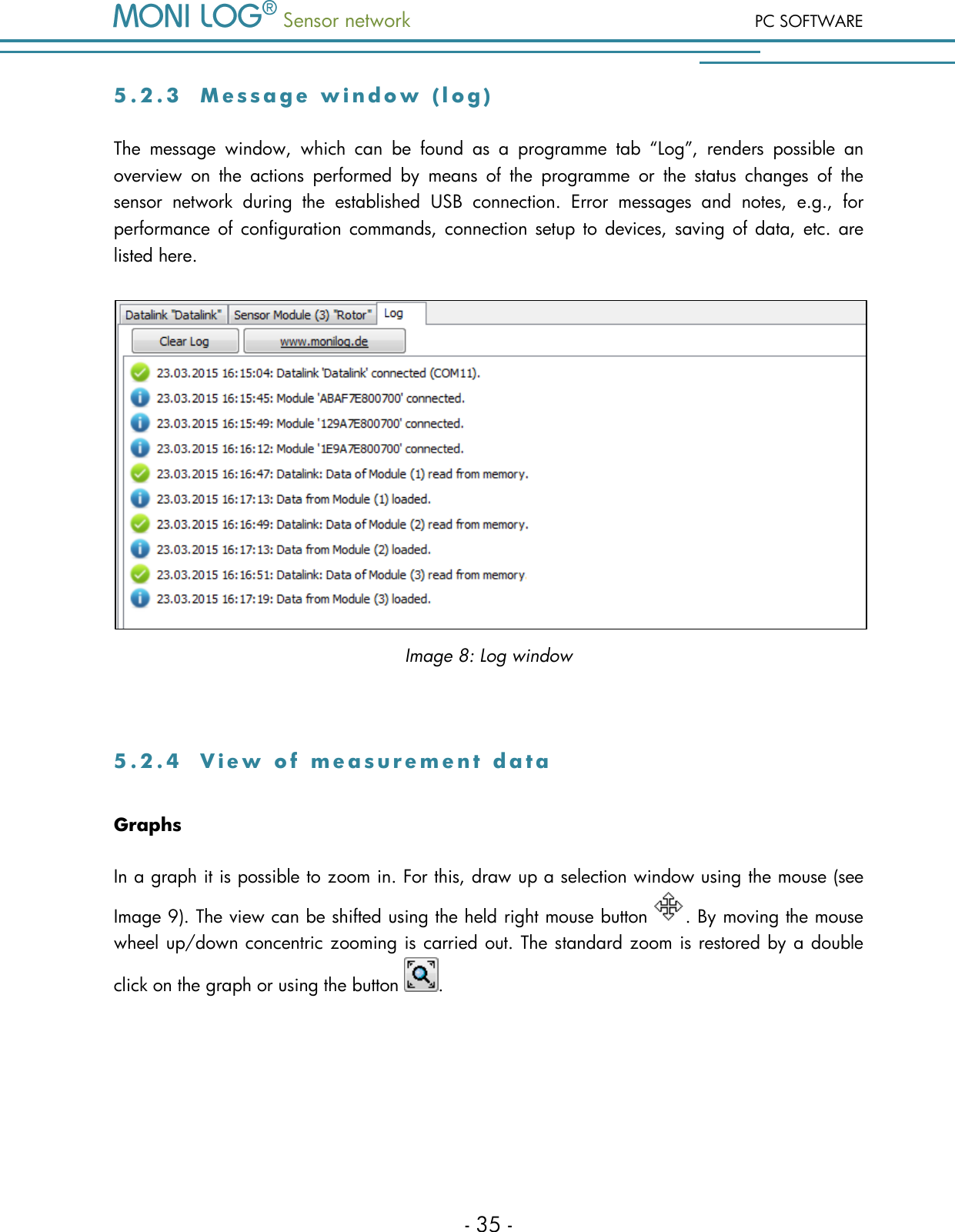
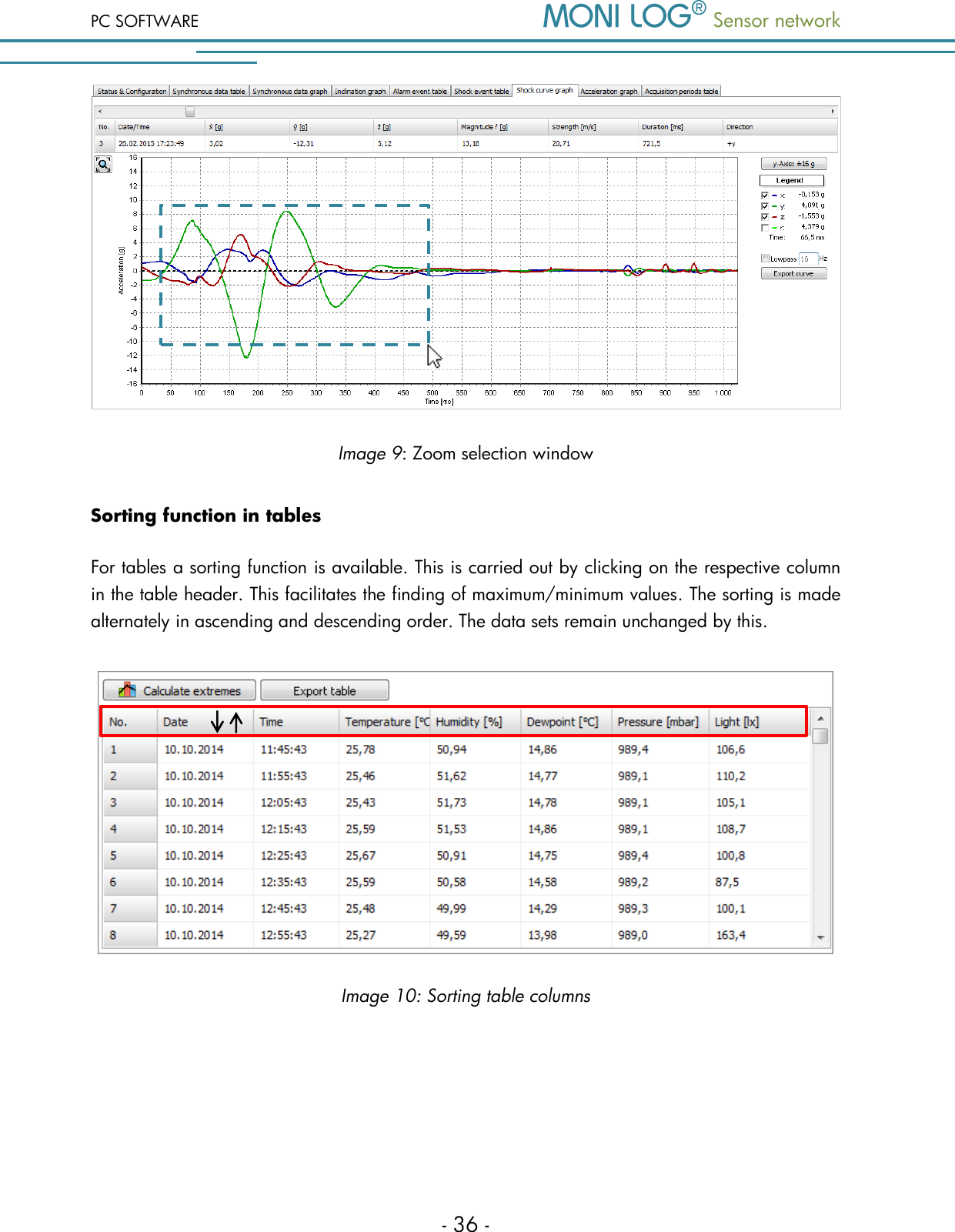
 Sensor network PC SOFTWARE - 35 - 5 . 2 . 3  M e s s a g e   w i n d o w   ( l o g )  The  message  window,  which  can  be  found  as  a  programme  tab  “Log”,  renders  possible  an overview  on  the  actions  performed  by  means  of  the  programme  or  the  status  changes  of  the sensor  network  during  the  established  USB  connection.  Error  messages  and  notes,  e.g.,  for performance of configuration commands,  connection  setup  to  devices, saving of  data, etc.  are listed here.  Image 8: Log window  5 . 2 . 4  V i e w   o f   m e a s u r e m e n t   d a t a  Graphs In a graph it is possible to zoom in. For this, draw up a selection window using the mouse (see Image 9). The view can be shifted using the held right mouse button  . By moving the mouse wheel up/down concentric zooming is carried out. The standard zoom is restored by a double click on the graph or using the button  .
PC SOFTWARE  Sensor network  - 36 -  Image 9: Zoom selection window Sorting function in tables For tables a sorting function is available. This is carried out by clicking on the respective column in the table header. This facilitates the finding of maximum/minimum values. The sorting is made alternately in ascending and descending order. The data sets remain unchanged by this.    Image 10: Sorting table columns
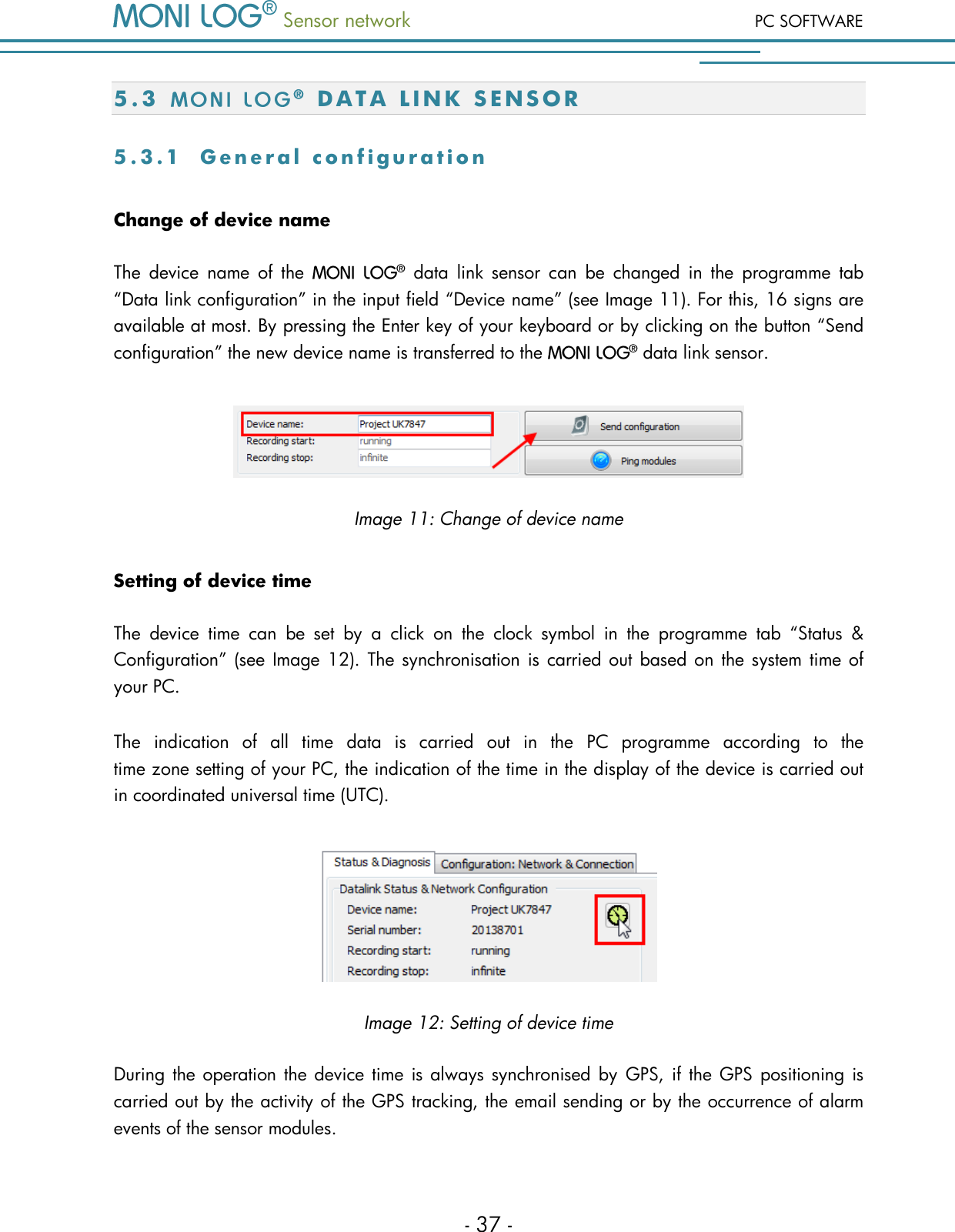
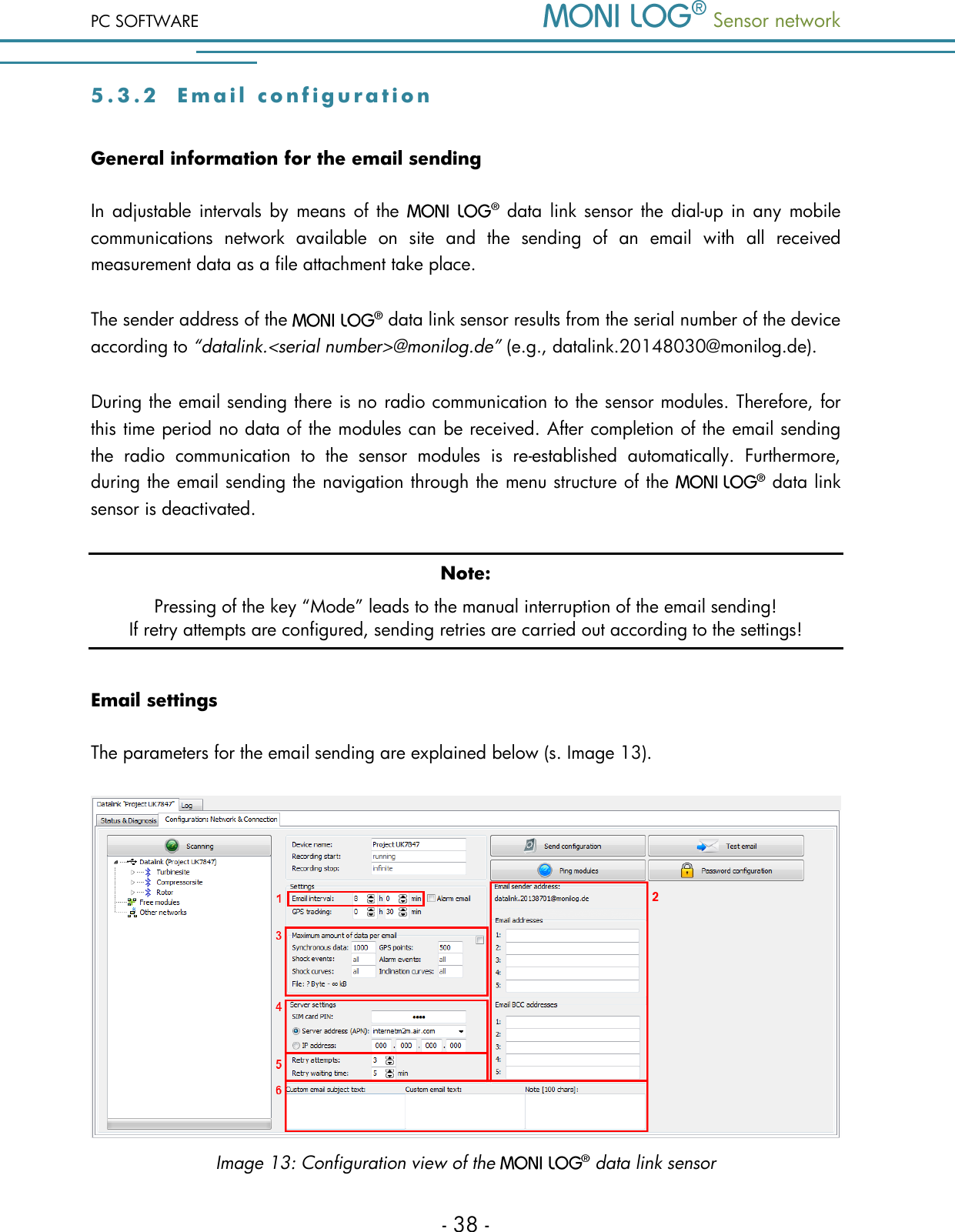
 Sensor network PC SOFTWARE - 37 - 5 . 3    D A T A   L I N K   S E N S O R  5 . 3 . 1  G e n e r a l   c o n f i g u r a t i o n  Change of device name The  device  name  of  the    data  link  sensor  can  be  changed  in  the  programme  tab “Data link configuration” in the input field “Device name” (see Image 11). For this, 16 signs are available at most. By pressing the Enter key of your keyboard or by clicking on the button “Send configuration” the new device name is transferred to the   data link sensor.  Image 11: Change of device name Setting of device time The  device  time  can  be  set  by  a  click  on  the  clock  symbol  in  the  programme  tab  “Status  & Configuration” (see Image 12). The synchronisation is carried out based on the system time of your PC.  The  indication  of  all  time  data  is  carried  out  in  the  PC  programme  according  to  the  time zone setting of your PC, the indication of the time in the display of the device is carried out in coordinated universal time (UTC).  Image 12: Setting of device time During the operation the device time is always synchronised by GPS, if the GPS positioning is carried out by the activity of the GPS tracking, the email sending or by the occurrence of alarm events of the sensor modules.
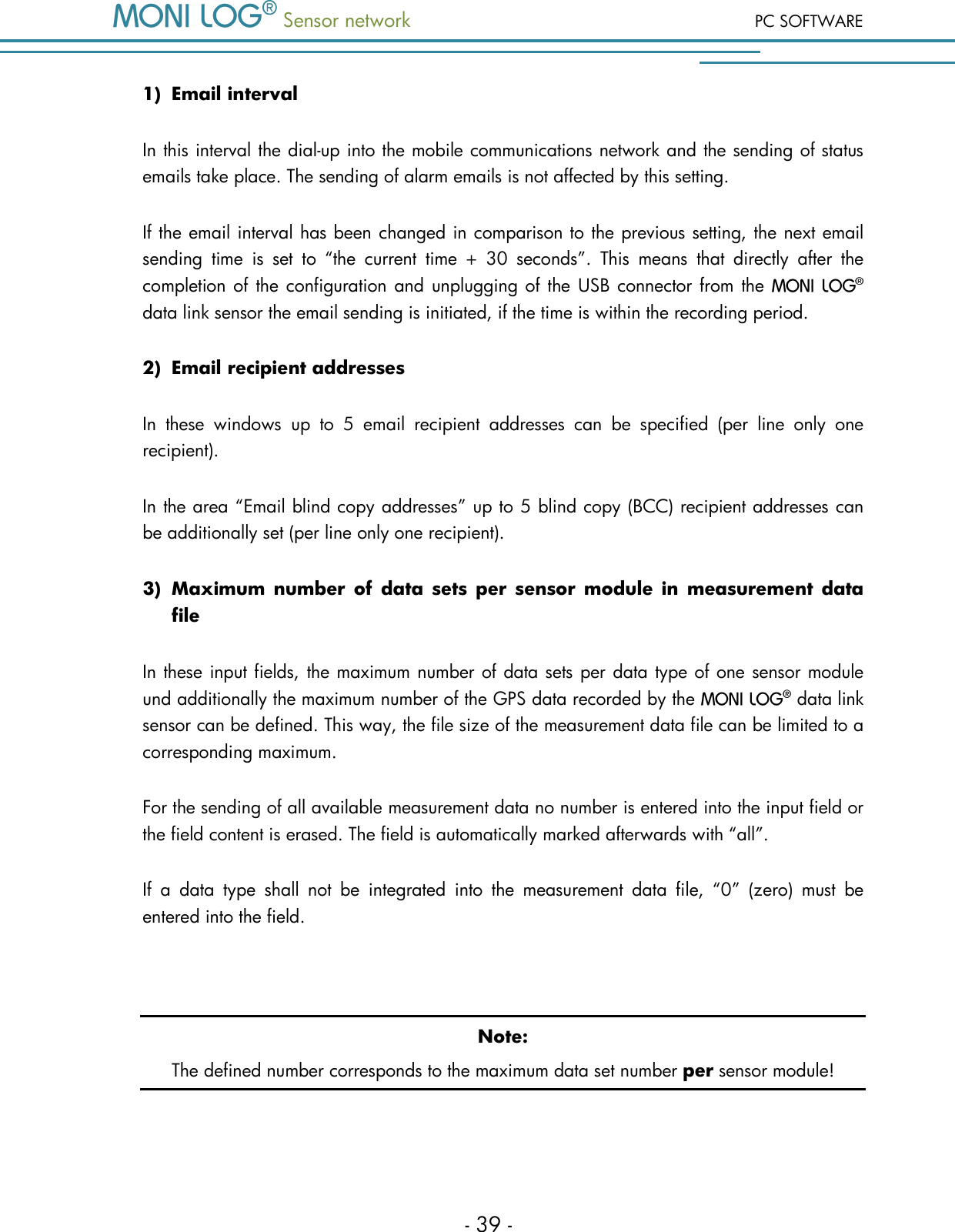
PC SOFTWARE  Sensor network  - 38 - 5 . 3 . 2  Email  c o n f i g u r a t i o n  General information for the email sending In  adjustable  intervals  by  means of  the   data  link  sensor the dial-up  in  any  mobile communications  network  available  on  site  and  the  sending  of  an  email  with  all  received measurement data as a file attachment take place.  The sender address of the   data link sensor results from the serial number of the device according to “datalink.<serial number>@monilog.de” (e.g., datalink.20148030@monilog.de). During the email sending there is no radio communication to the sensor modules. Therefore, for this time period no data of the modules can be received. After completion of the email sending the  radio  communication  to  the  sensor  modules  is  re-established  automatically.  Furthermore, during the email sending the navigation through the menu structure of the    data link sensor is deactivated.  Note: Pressing of the key “Mode” leads to the manual interruption of the email sending!  If retry attempts are configured, sending retries are carried out according to the settings! Email settings The parameters for the email sending are explained below (s. Image 13).  Image 13: Configuration view of the   data link sensor
 Sensor network PC SOFTWARE - 39 - 1) Email interval In this interval the dial-up into the mobile communications network and the sending of status emails take place. The sending of alarm emails is not affected by this setting. If the email interval has been changed in comparison to the previous setting, the next email sending  time  is  set  to  “the  current  time  +  30  seconds”.  This  means  that  directly  after  the completion of the configuration and unplugging of  the  USB connector from the   data link sensor the email sending is initiated, if the time is within the recording period. 2) Email recipient addresses In  these  windows  up  to  5  email  recipient  addresses  can  be  specified  (per  line  only  one recipient). In the area “Email blind copy addresses” up to 5 blind copy (BCC) recipient addresses can be additionally set (per line only one recipient). 3) Maximum number  of data sets per  sensor module  in  measurement data file In these input fields, the maximum number of data sets per data type of one sensor module und additionally the maximum number of the GPS data recorded by the   data link sensor can be defined. This way, the file size of the measurement data file can be limited to a corresponding maximum. For the sending of all available measurement data no number is entered into the input field or the field content is erased. The field is automatically marked afterwards with “all”. If  a  data  type  shall  not  be  integrated  into  the  measurement  data  file,  “0”  (zero)  must  be entered into the field.  Note: The defined number corresponds to the maximum data set number per sensor module!
PC SOFTWARE  Sensor network  - 40 - 4) Server settings & SIM PIN Into the field “SIM card PIN” the PIN of your SIM card must be entered. For  the dial-up  into the  mobile  communications network  the  access  point  (APN) is  required additionally. It can be entered  in  text form or alternatively, if  the  APN is not known in  text form, in IP notation. Please  find the  SIM  PIN  and  the  accordingly  required  APN  in  you  mobile  communications contract. 5) Retry attempts If the sending fails due to absent mobile communications connection, network malfunction, or the like, these settings enable the retry of the email sending. The input field “Retry attempts” defines the maximum number of retry attempts after a failure of a regular status email or an alarm email. The  input  field  “Retry  waiting  time”  defines  the  time  period  that  should  be  waited  after  a failure of an email sending until the initiation of the retry attempt.  Note: Retries are only initiated, if the time interval until the next regular email interval is more than 10 minutes! 6) User-defined email subject, email text and device note The  field  “Email subject text”  enables  the  defining of  an  own  subject  text  for  status  emails (maximum 64 signs). The subject text for alarm emails and test emails cannot be changed. The field “User email text” enables the defining of a user text which is written additionally to the standard text in the email (maximum 100 signs). The notes field enables the storing of user-defined additional information in the   data  link  sensor  (maximum  100  signs).  This  text  is  not  displayed  in  the  email  text,  but  is included in the file located in the attachment.
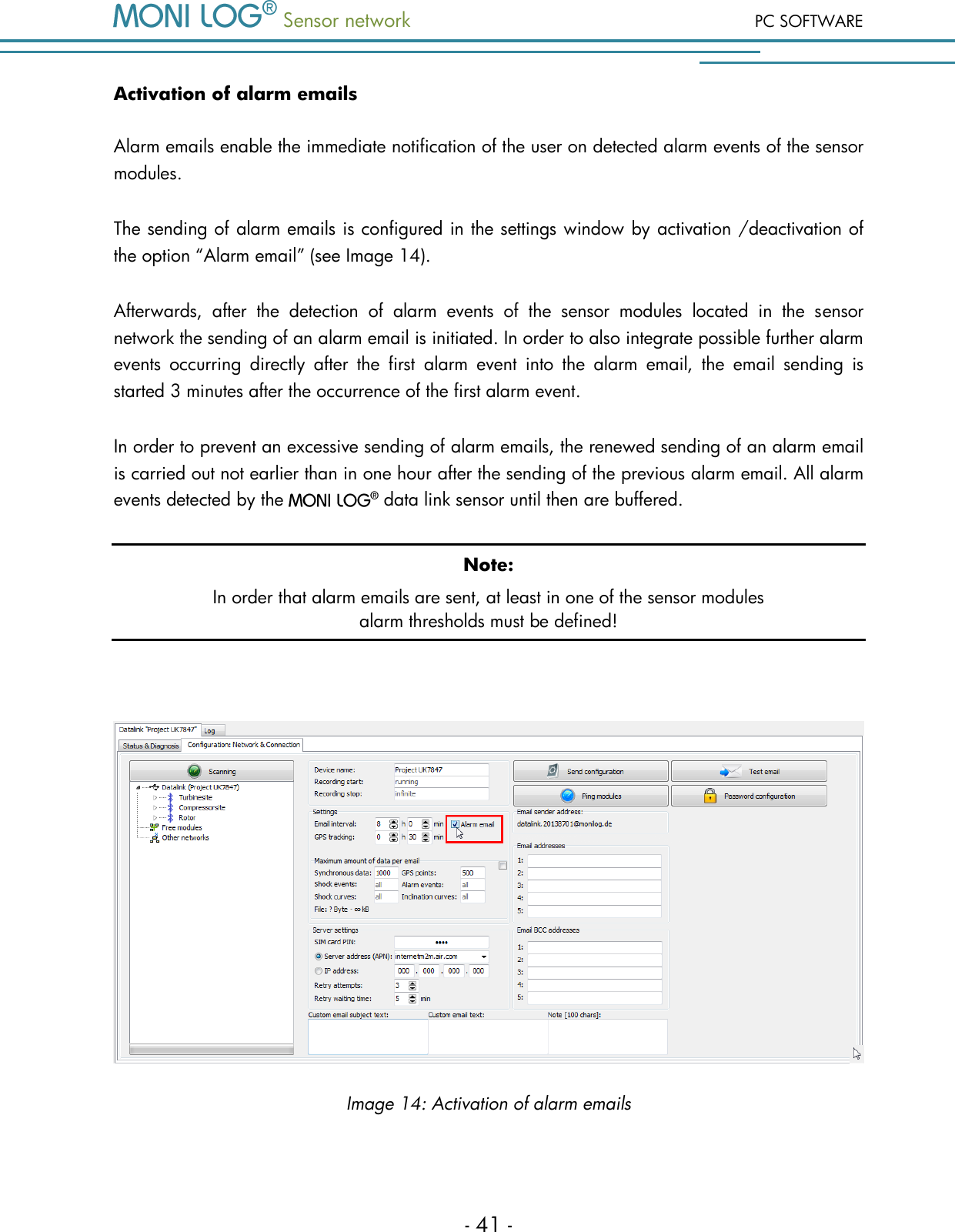
 Sensor network PC SOFTWARE - 41 - Activation of alarm emails Alarm emails enable the immediate notification of the user on detected alarm events of the sensor modules.  The sending of alarm emails is configured in the settings window by activation /deactivation of the option “Alarm email” (see Image 14). Afterwards,  after  the  detection  of  alarm  events  of  the  sensor  modules  located  in  the  sensor network the sending of an alarm email is initiated. In order to also integrate possible further alarm events  occurring  directly  after  the  first  alarm  event  into  the  alarm  email,  the  email  sending  is started 3 minutes after the occurrence of the first alarm event. In order to prevent an excessive sending of alarm emails, the renewed sending of an alarm email is carried out not earlier than in one hour after the sending of the previous alarm email. All alarm events detected by the   data link sensor until then are buffered. Note: In order that alarm emails are sent, at least in one of the sensor modules  alarm thresholds must be defined!   Image 14: Activation of alarm emails
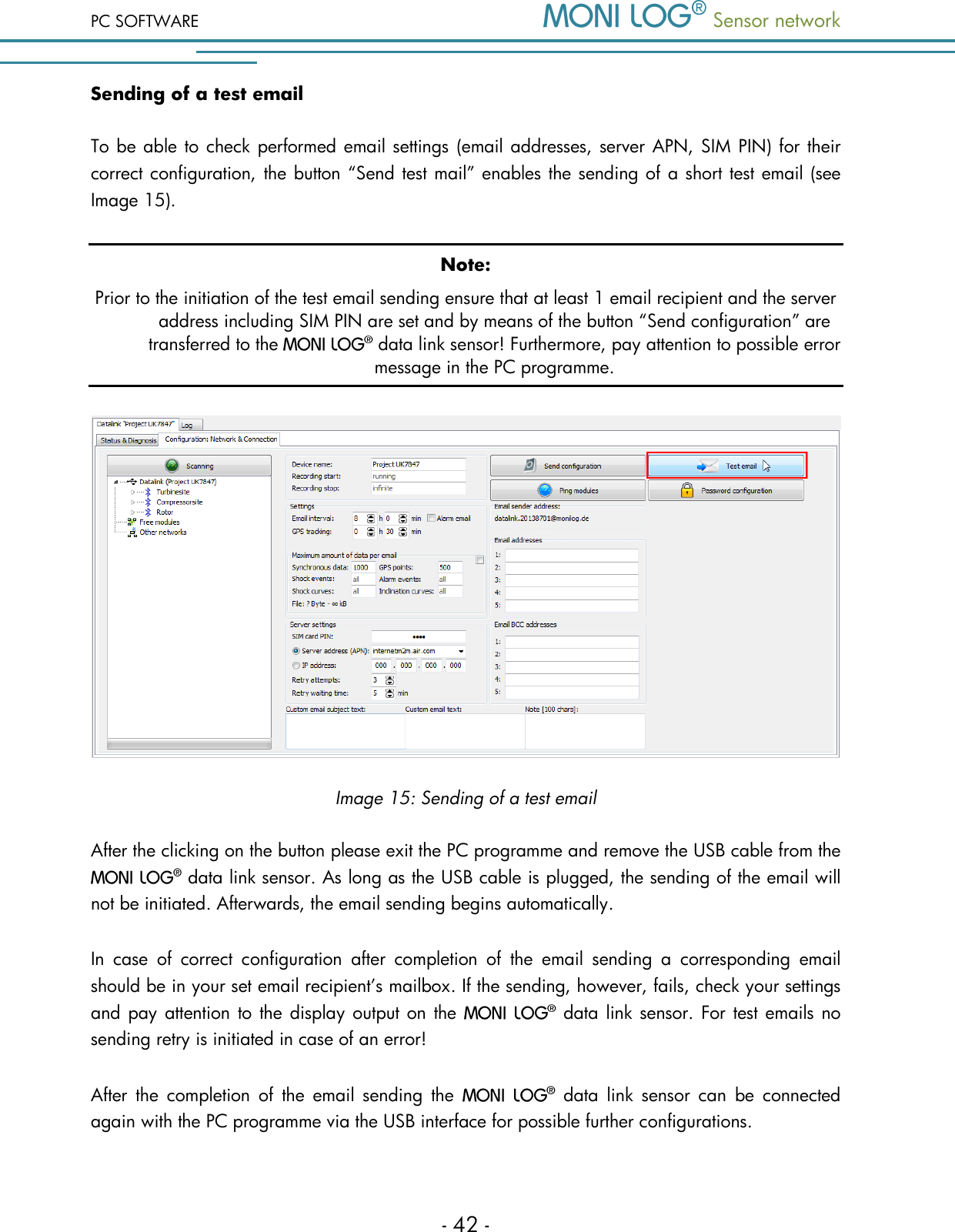
PC SOFTWARE  Sensor network  - 42 - Sending of a test email To be able to check performed email settings (email addresses, server APN, SIM PIN) for their correct configuration, the button “Send test mail” enables the sending of a short test email (see Image 15). Note: Prior to the initiation of the test email sending ensure that at least 1 email recipient and the server address including SIM PIN are set and by means of the button “Send configuration” are transferred to the   data link sensor! Furthermore, pay attention to possible error message in the PC programme.  Image 15: Sending of a test email After the clicking on the button please exit the PC programme and remove the USB cable from the  data link sensor. As long as the USB cable is plugged, the sending of the email will not be initiated. Afterwards, the email sending begins automatically. In  case  of  correct  configuration  after  completion  of  the  email  sending  a  corresponding  email should be in your set email recipient’s mailbox. If the sending, however, fails, check your settings and pay attention to the display output on the   data link sensor. For test emails no sending retry is initiated in case of an error! After  the  completion  of  the  email  sending  the    data  link  sensor  can  be  connected again with the PC programme via the USB interface for possible further configurations.
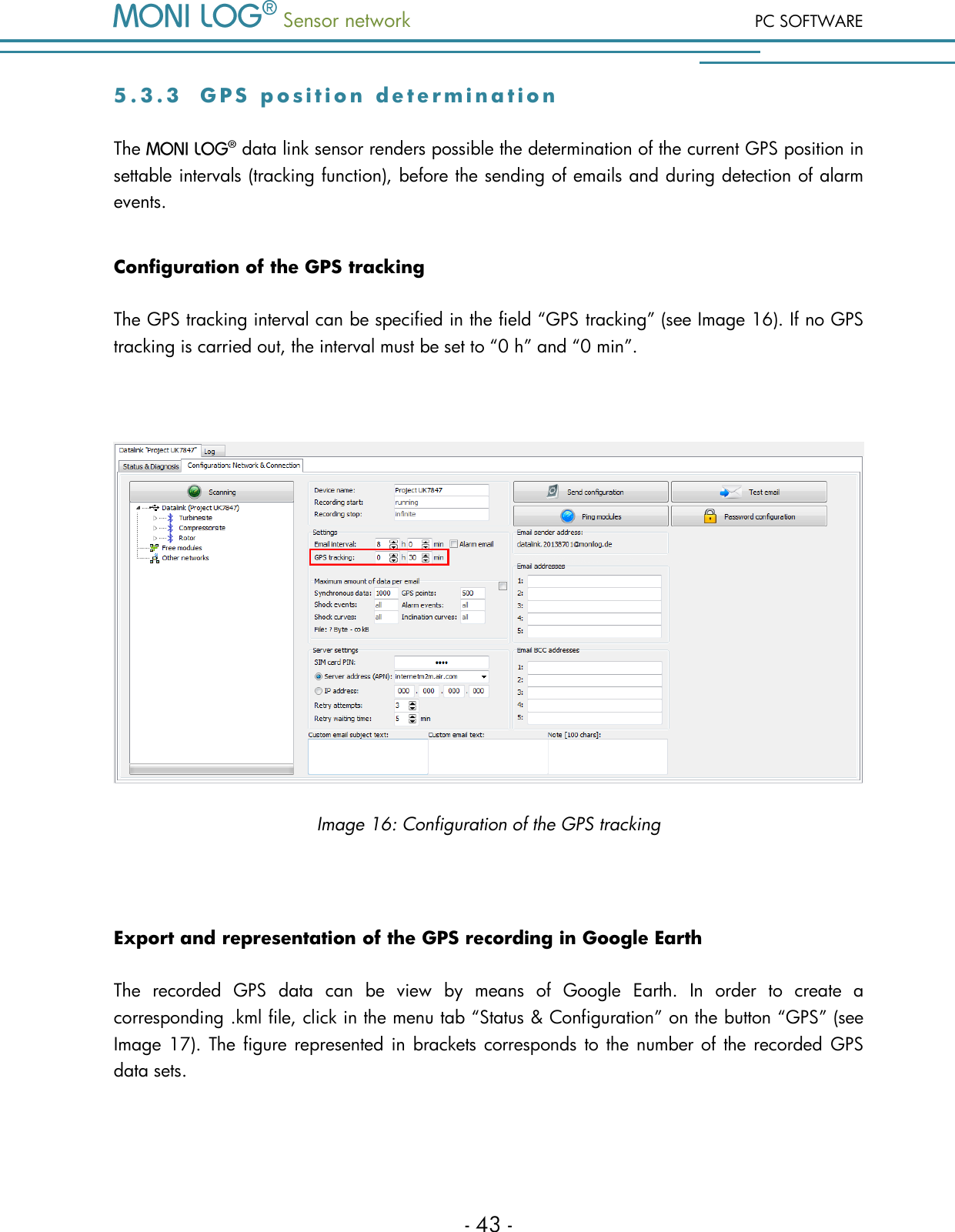
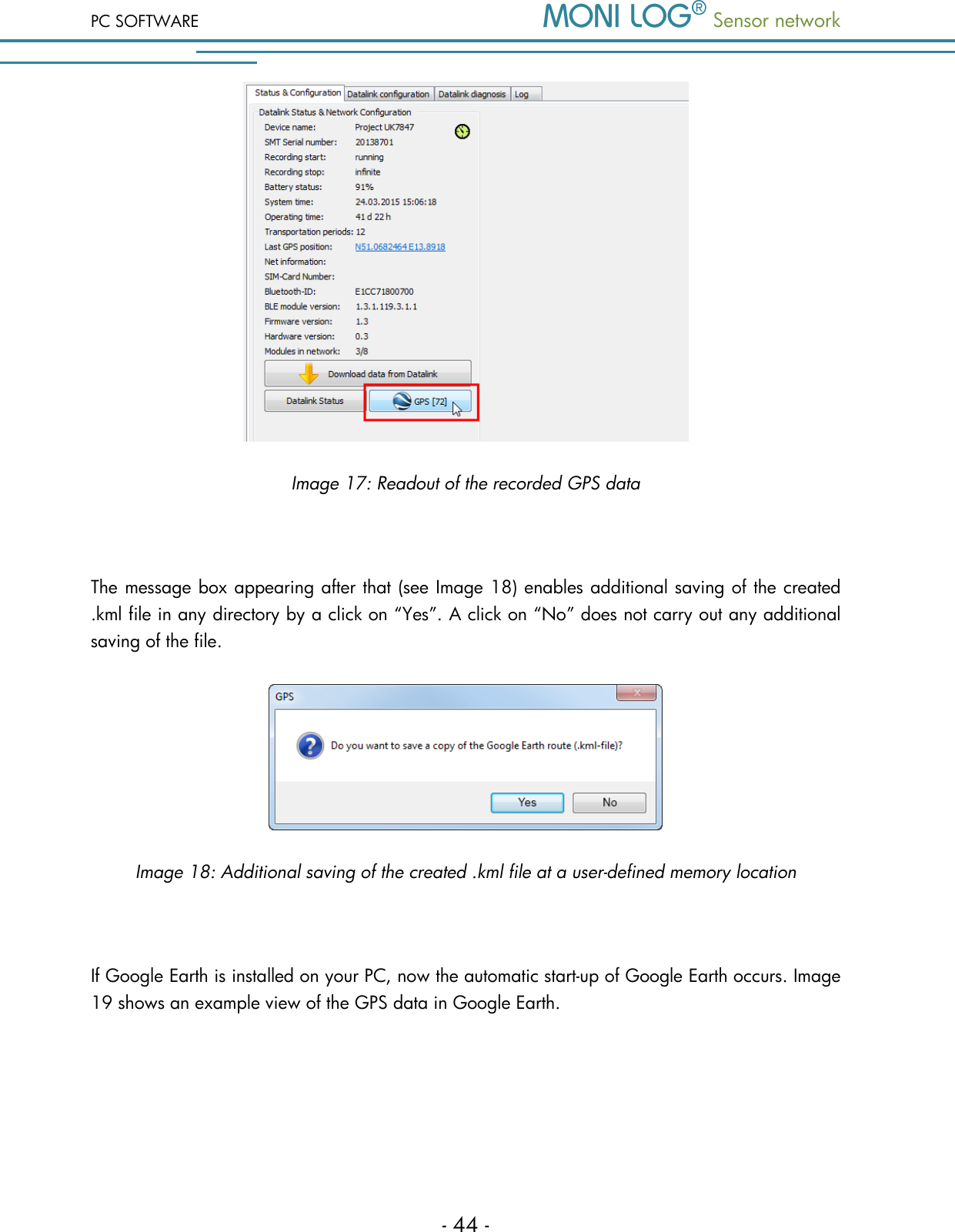
 Sensor network PC SOFTWARE - 43 - 5 . 3 . 3  G P S   p o s i t i o n   d e t e r m i n a t i o n  The   data link sensor renders possible the determination of the current GPS position in settable intervals (tracking function), before the sending of emails and during detection of alarm events. Configuration of the GPS tracking The GPS tracking interval can be specified in the field “GPS tracking” (see Image 16). If no GPS tracking is carried out, the interval must be set to “0 h” and “0 min”.   Image 16: Configuration of the GPS tracking  Export and representation of the GPS recording in Google Earth The  recorded  GPS  data  can  be  view  by  means  of  Google  Earth.  In  order  to  create  a corresponding .kml file, click in the menu tab “Status & Configuration” on the button “GPS” (see Image 17).  The figure represented in brackets corresponds to the number of  the recorded  GPS data sets.
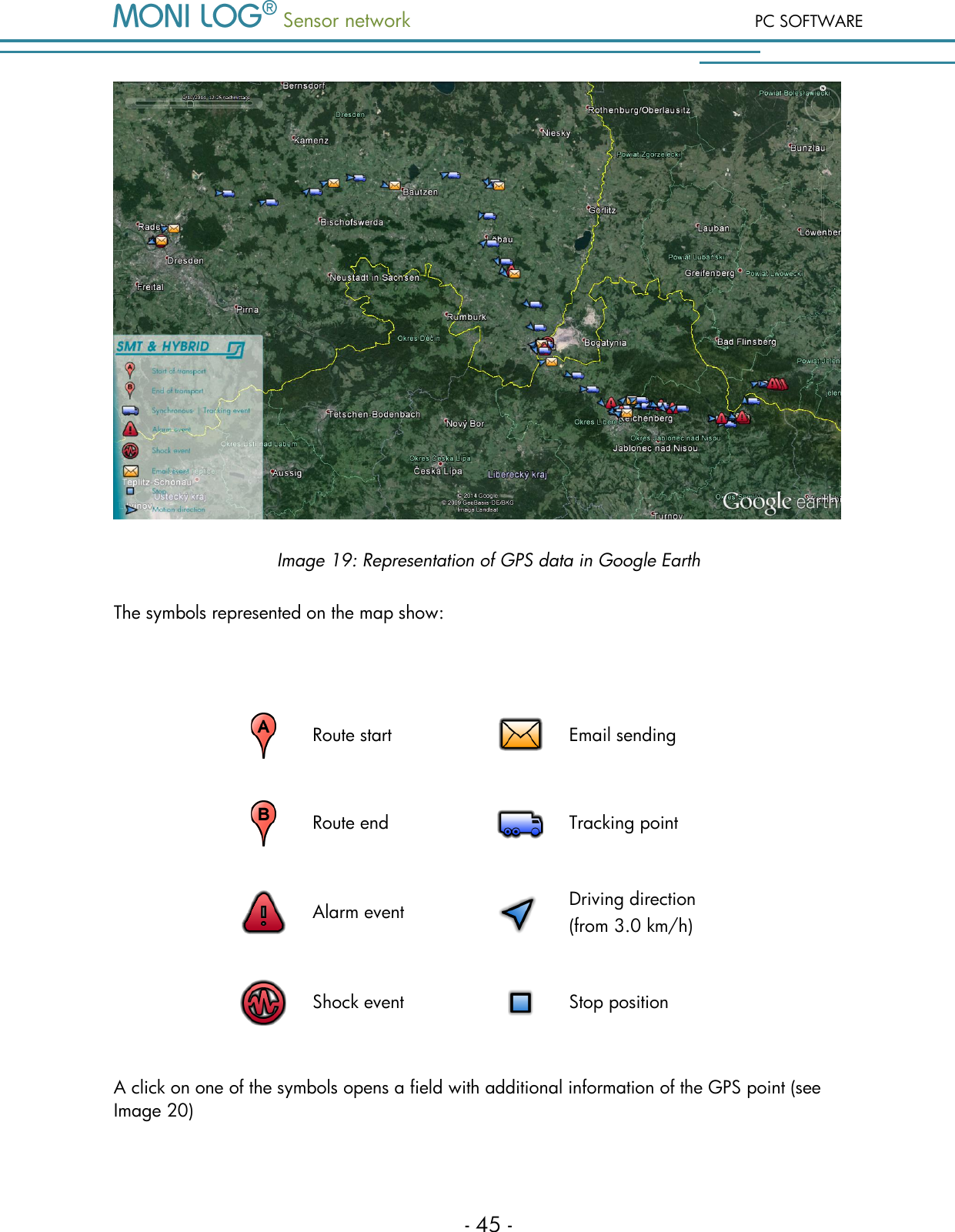
PC SOFTWARE  Sensor network  - 44 -  Image 17: Readout of the recorded GPS data  The message box appearing after that (see Image 18) enables additional saving of the created .kml file in any directory by a click on “Yes”. A click on “No” does not carry out any additional saving of the file.   Image 18: Additional saving of the created .kml file at a user-defined memory location  If Google Earth is installed on your PC, now the automatic start-up of Google Earth occurs. Image 19 shows an example view of the GPS data in Google Earth.
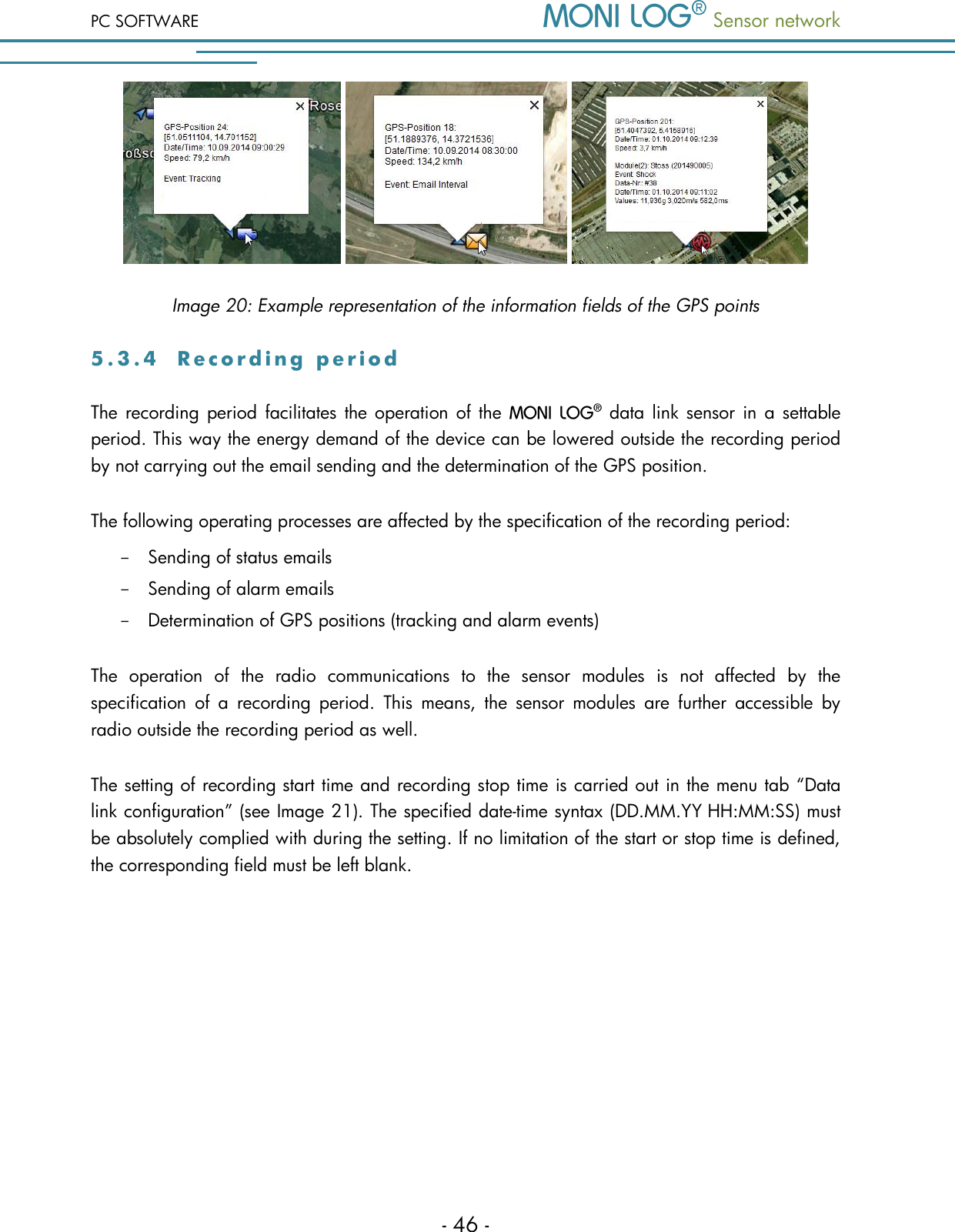
 Sensor network PC SOFTWARE - 45 -  Image 19: Representation of GPS data in Google Earth The symbols represented on the map show:   Route start  Email sending  Route end  Tracking point  Alarm event  Driving direction (from 3.0 km/h)  Shock event  Stop position A click on one of the symbols opens a field with additional information of the GPS point (see Image 20)
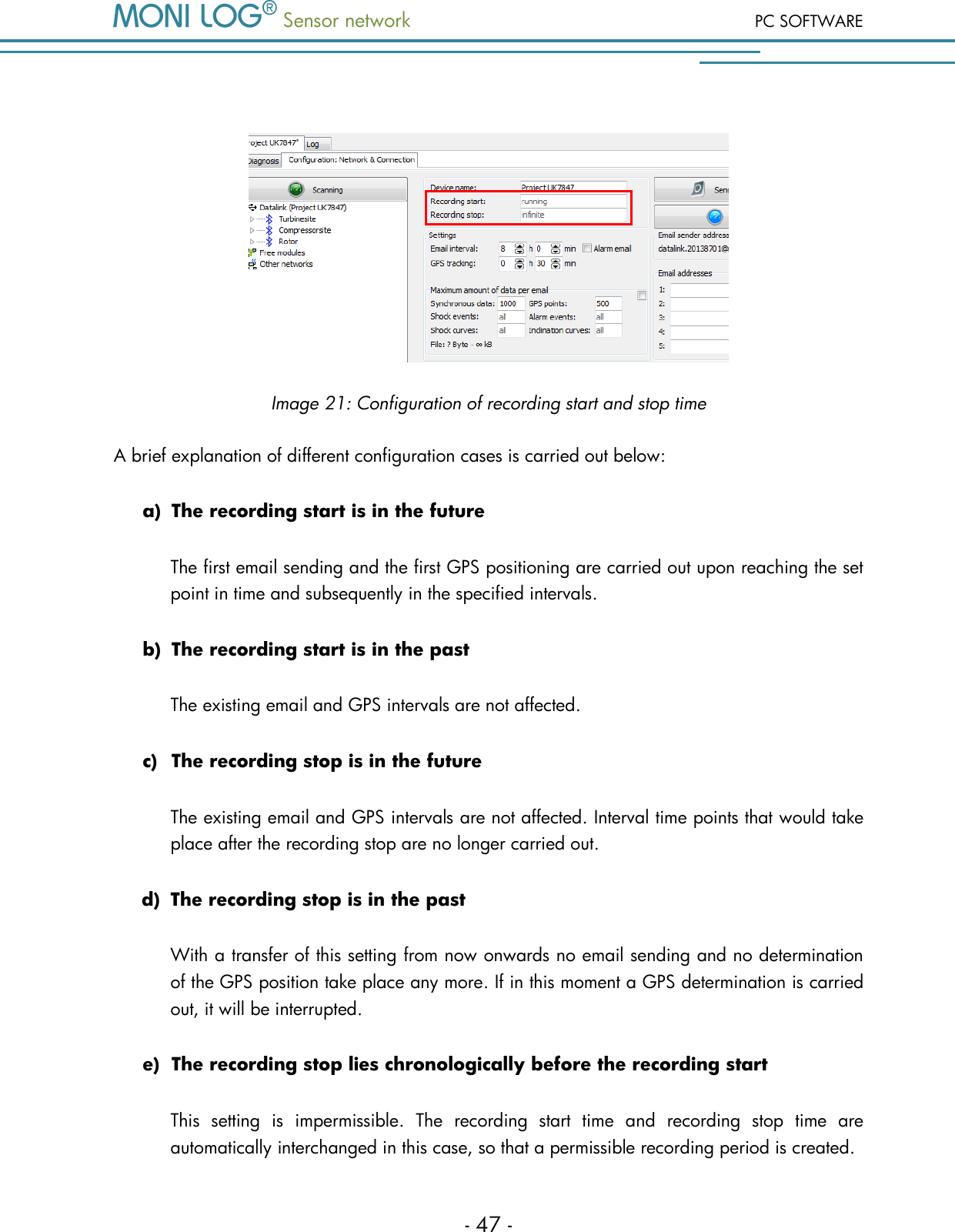
PC SOFTWARE  Sensor network  - 46 -      Image 20: Example representation of the information fields of the GPS points 5 . 3 . 4  R e c o r d i n g   p e r i o d  The  recording  period  facilitates the operation of the    data link  sensor in  a  settable period. This way the energy demand of the device can be lowered outside the recording period by not carrying out the email sending and the determination of the GPS position. The following operating processes are affected by the specification of the recording period: - Sending of status emails - Sending of alarm emails - Determination of GPS positions (tracking and alarm events) The  operation  of  the  radio  communications  to  the  sensor  modules  is  not  affected  by  the specification  of  a  recording  period.  This  means,  the  sensor  modules  are  further  accessible  by radio outside the recording period as well. The setting of recording start time and recording stop time is carried out in the menu tab “Data link configuration” (see Image 21). The specified date-time syntax (DD.MM.YY HH:MM:SS) must be absolutely complied with during the setting. If no limitation of the start or stop time is defined, the corresponding field must be left blank.
 Sensor network PC SOFTWARE - 47 -   Image 21: Configuration of recording start and stop time A brief explanation of different configuration cases is carried out below: a) The recording start is in the future The first email sending and the first GPS positioning are carried out upon reaching the set point in time and subsequently in the specified intervals. b) The recording start is in the past The existing email and GPS intervals are not affected. c) The recording stop is in the future The existing email and GPS intervals are not affected. Interval time points that would take place after the recording stop are no longer carried out. d) The recording stop is in the past With a transfer of this setting from now onwards no email sending and no determination of the GPS position take place any more. If in this moment a GPS determination is carried out, it will be interrupted. e) The recording stop lies chronologically before the recording start This  setting  is  impermissible.  The  recording  start  time  and  recording  stop  time  are automatically interchanged in this case, so that a permissible recording period is created.
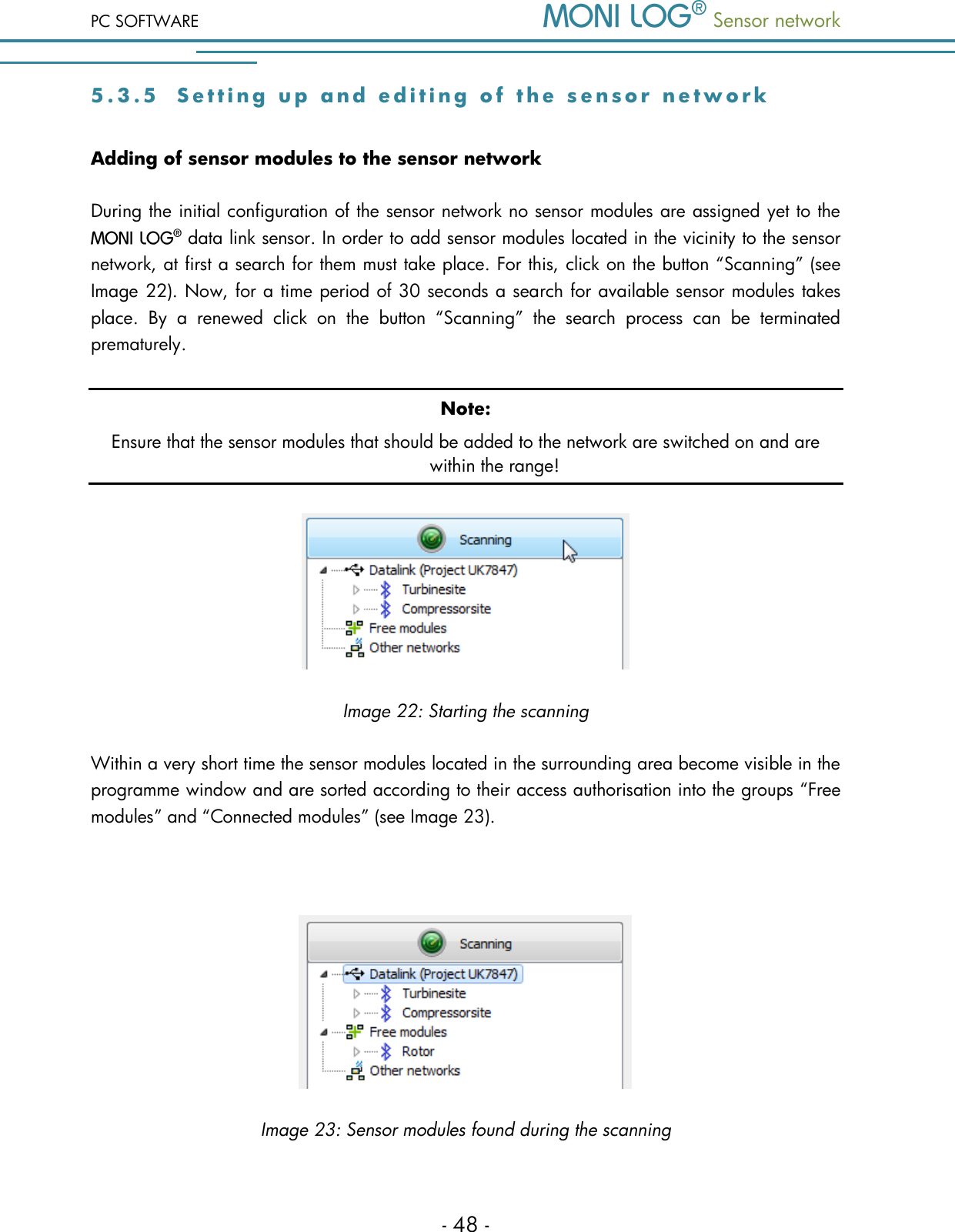
PC SOFTWARE  Sensor network  - 48 - 5 . 3 . 5  S e t t i n g   u p   a n d   e d i t i n g   o f   t h e   s e n s o r   n e t w o rk Adding of sensor modules to the sensor network During the initial configuration of the sensor network no sensor modules are assigned yet to the  data link sensor. In order to add sensor modules located in the vicinity to the sensor network, at first a search for them must take place. For this, click on the button “Scanning” (see Image 22). Now, for a time period of 30 seconds a search for available sensor modules takes place.  By  a  renewed  click  on  the  button  “Scanning”  the  search  process  can  be  terminated prematurely. Note: Ensure that the sensor modules that should be added to the network are switched on and are within the range!  Image 22: Starting the scanning Within a very short time the sensor modules located in the surrounding area become visible in the programme window and are sorted according to their access authorisation into the groups “Free modules” and “Connected modules” (see Image 23).   Image 23: Sensor modules found during the scanning
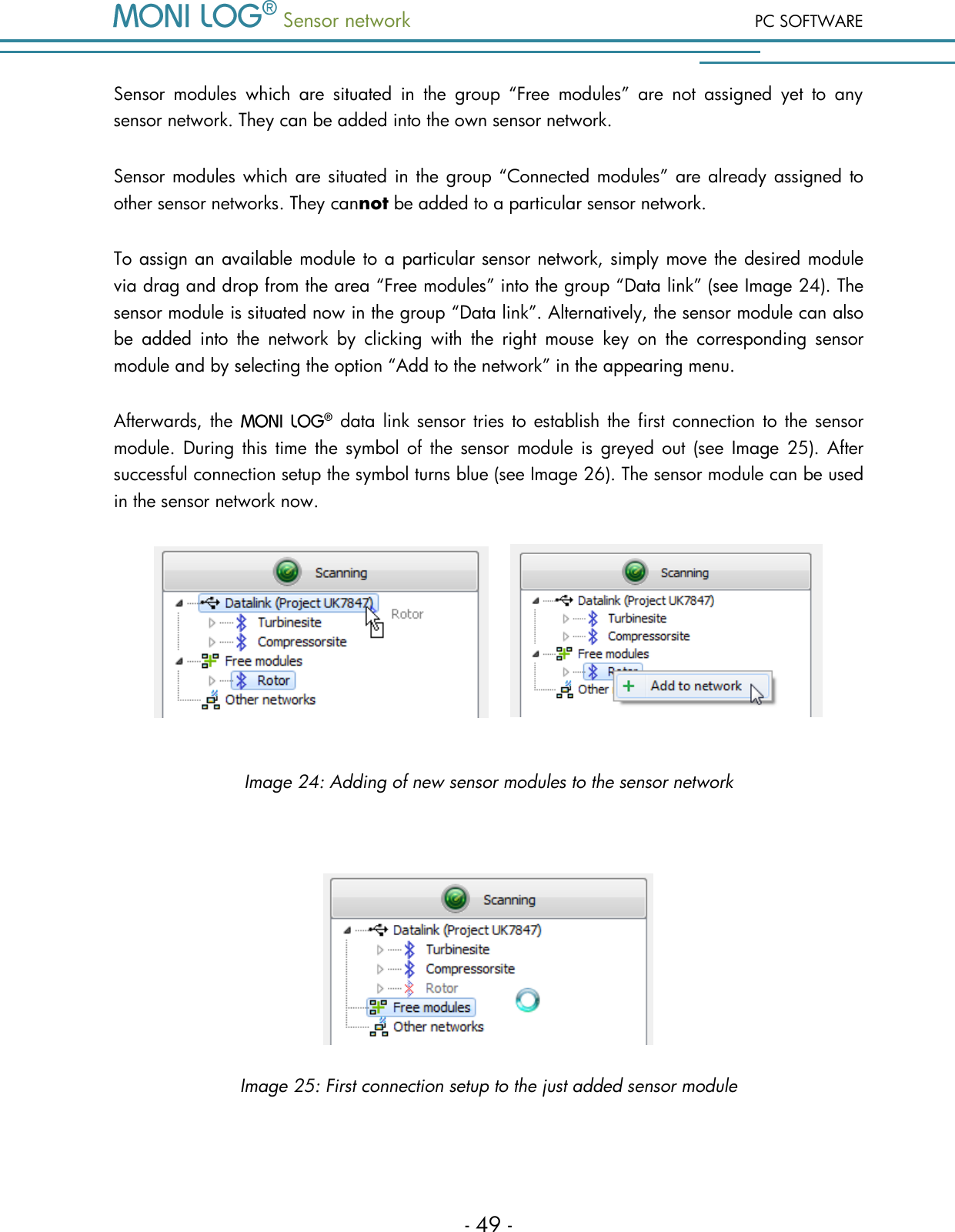
 Sensor network PC SOFTWARE - 49 - Sensor  modules  which  are  situated  in  the  group  “Free  modules”  are  not  assigned  yet  to  any sensor network. They can be added into the own sensor network. Sensor modules which are situated in the group “Connected modules” are already assigned to other sensor networks. They cannot be added to a particular sensor network.  To assign an available module to a particular sensor network, simply move the desired module via drag and drop from the area “Free modules” into the group “Data link” (see Image 24). The sensor module is situated now in the group “Data link”. Alternatively, the sensor module can also be  added  into  the  network  by  clicking  with  the  right  mouse  key  on  the  corresponding  sensor module and by selecting the option “Add to the network” in the appearing menu.  Afterwards, the    data  link sensor tries to  establish  the  first connection to  the sensor module.  During this  time  the  symbol  of  the  sensor module  is  greyed  out  (see  Image  25).  After successful connection setup the symbol turns blue (see Image 26). The sensor module can be used in the sensor network now.        Image 24: Adding of new sensor modules to the sensor network   Image 25: First connection setup to the just added sensor module
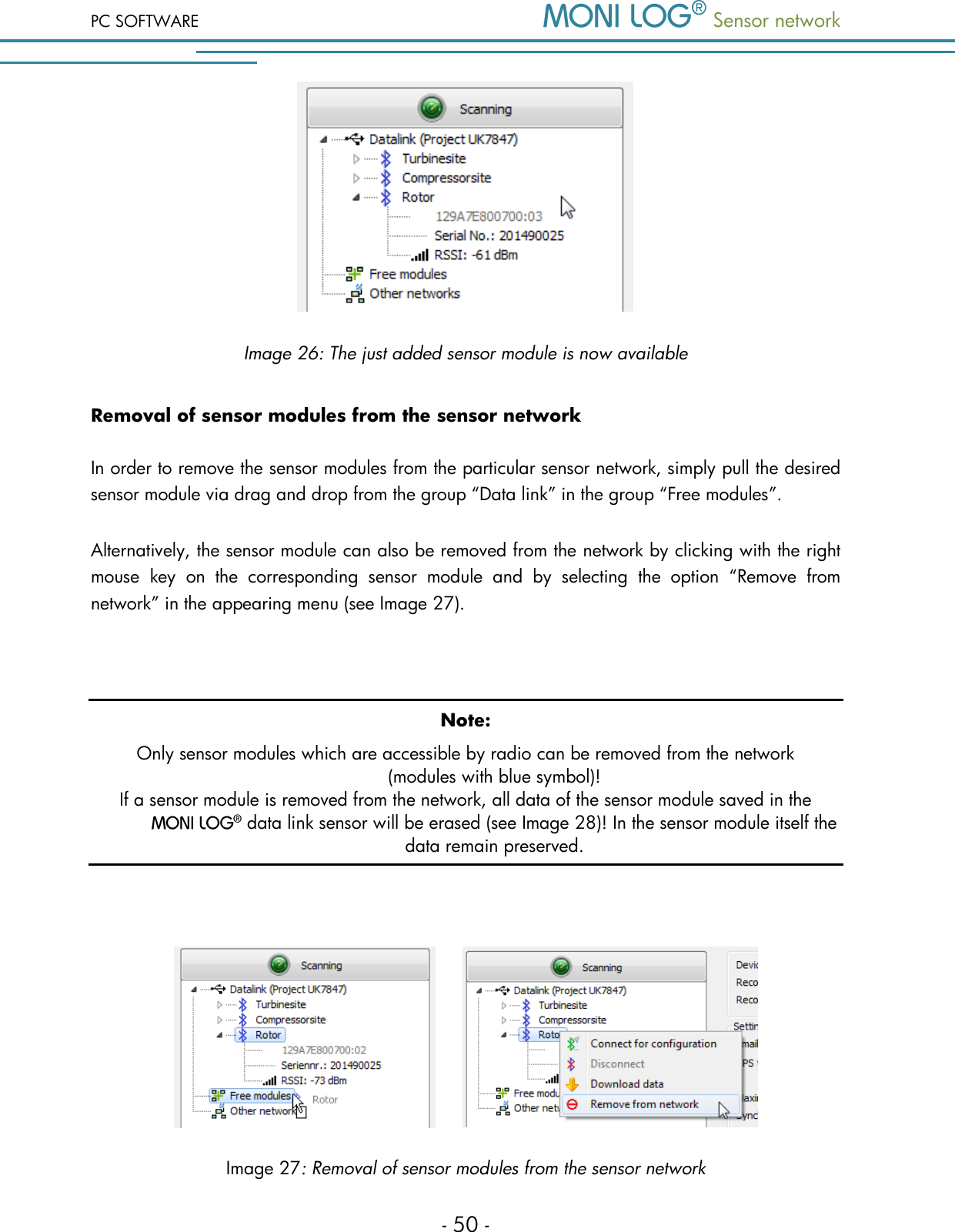
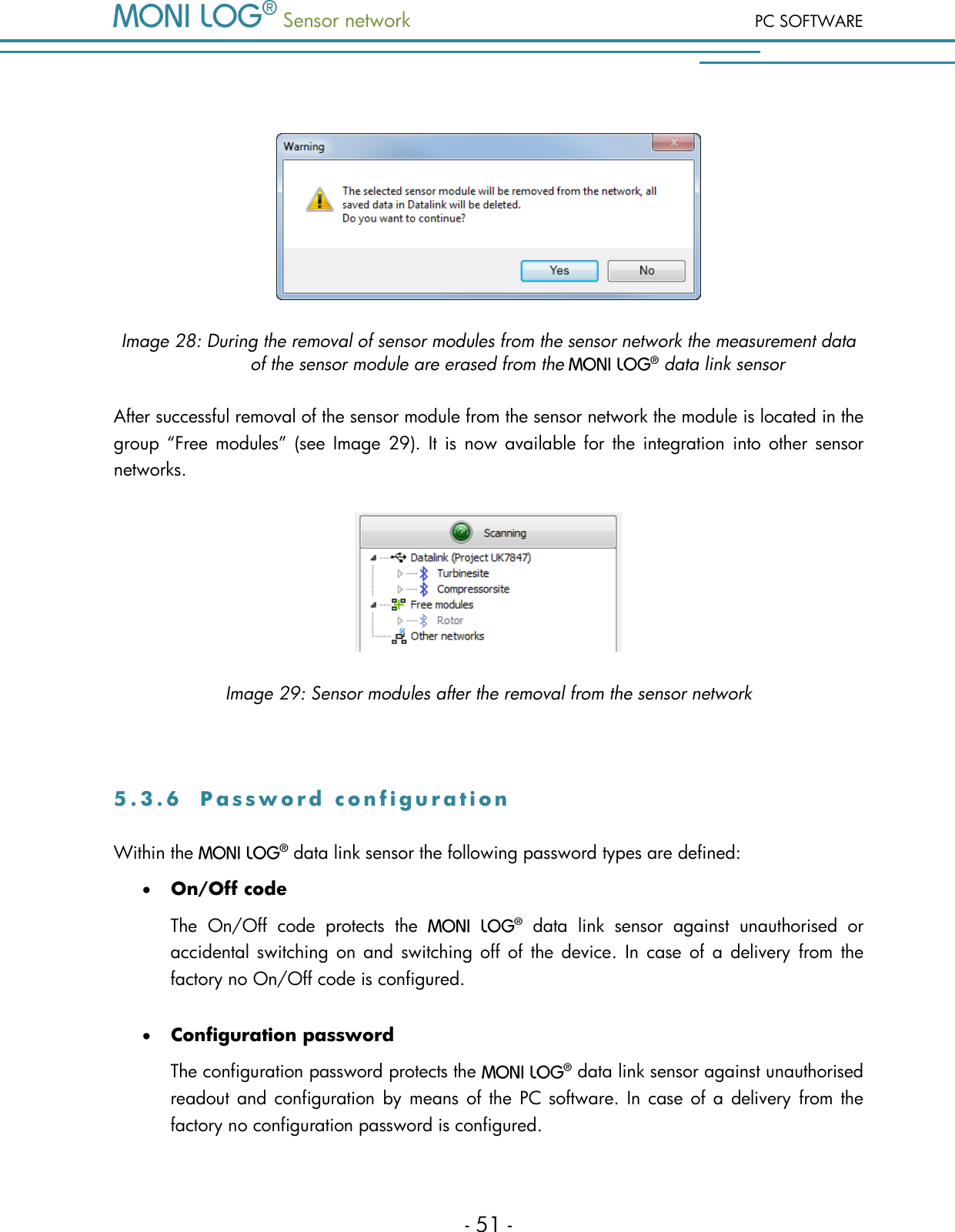
PC SOFTWARE  Sensor network  - 50 -  Image 26: The just added sensor module is now available Removal of sensor modules from the sensor network In order to remove the sensor modules from the particular sensor network, simply pull the desired sensor module via drag and drop from the group “Data link” in the group “Free modules”. Alternatively, the sensor module can also be removed from the network by clicking with the right mouse  key  on  the  corresponding  sensor  module  and  by  selecting  the  option  “Remove  from network” in the appearing menu (see Image 27).  Note: Only sensor modules which are accessible by radio can be removed from the network (modules with blue symbol)! If a sensor module is removed from the network, all data of the sensor module saved in the   data link sensor will be erased (see Image 28)! In the sensor module itself the data remain preserved.         Image 27: Removal of sensor modules from the sensor network
 Sensor network PC SOFTWARE - 51 -   Image 28: During the removal of sensor modules from the sensor network the measurement data of the sensor module are erased from the   data link sensor After successful removal of the sensor module from the sensor network the module is located in the group “Free  modules”  (see  Image  29).  It  is now  available  for the  integration  into other  sensor networks.  Image 29: Sensor modules after the removal from the sensor network  5 . 3 . 6  P a s s w o r d   c o n f i g u r a t i o n  Within the   data link sensor the following password types are defined:  On/Off code The  On/Off  code  protects  the    data  link  sensor  against  unauthorised  or accidental switching on  and  switching off  of  the  device.  In  case  of  a  delivery from  the factory no On/Off code is configured.   Configuration password The configuration password protects the   data link sensor against unauthorised readout and configuration  by means  of  the PC software. In  case of a delivery from the factory no configuration password is configured.
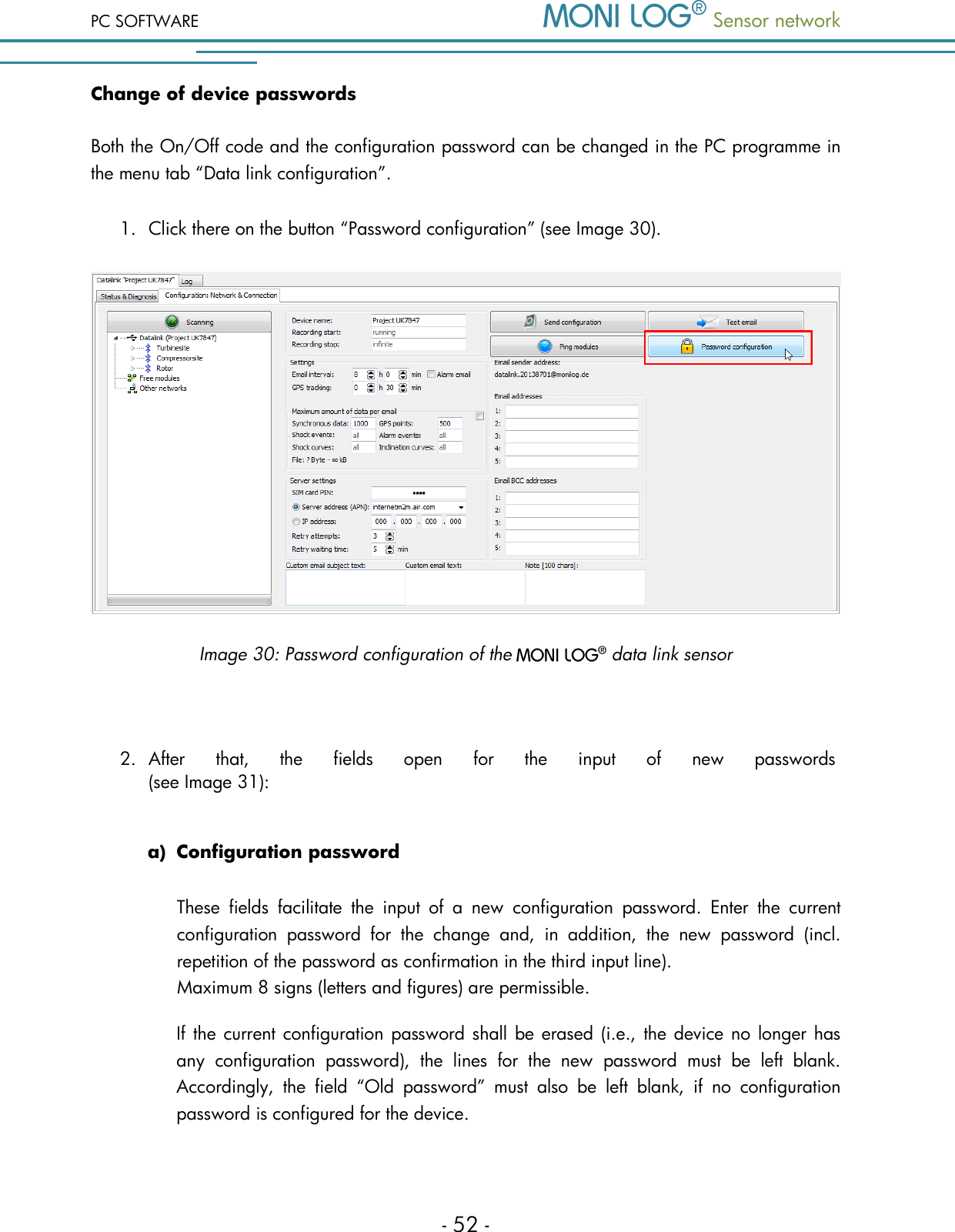
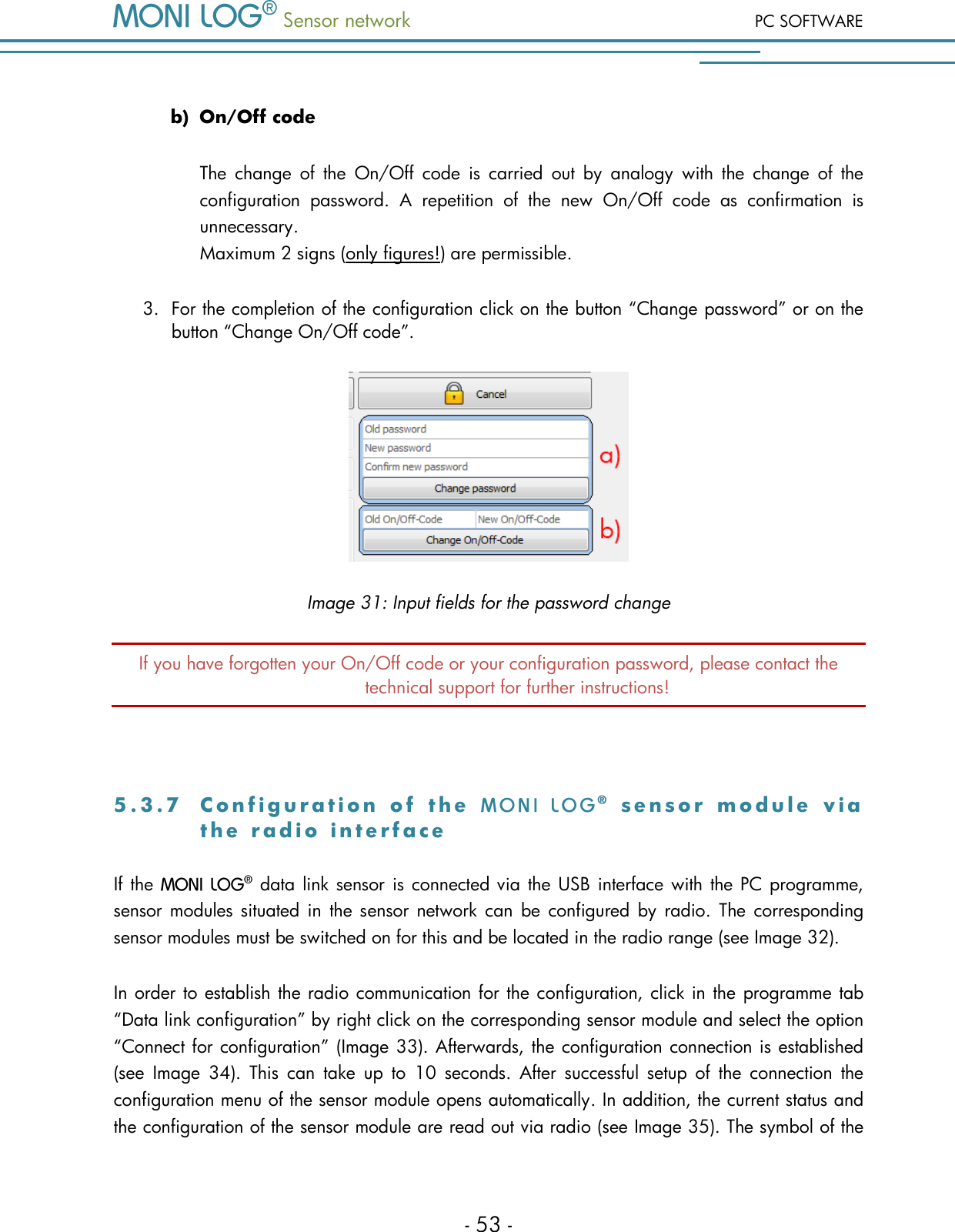
PC SOFTWARE  Sensor network  - 52 - Change of device passwords Both the On/Off code and the configuration password can be changed in the PC programme in the menu tab “Data link configuration”.  1. Click there on the button “Password configuration” (see Image 30).    Image 30: Password configuration of the   data link sensor  2. After  that,  the  fields  open  for  the  input  of  new  passwords  (see Image 31):   a) Configuration password These  fields  facilitate  the  input  of  a  new  configuration  password.  Enter  the  current configuration  password  for  the  change  and,  in  addition,  the  new  password  (incl. repetition of the password as confirmation in the third input line).  Maximum 8 signs (letters and figures) are permissible. If the current configuration password shall be erased (i.e., the device no longer has any  configuration  password),  the  lines  for  the  new  password  must  be  left  blank. Accordingly,  the  field  “Old  password”  must  also  be  left  blank,  if  no  configuration password is configured for the device.
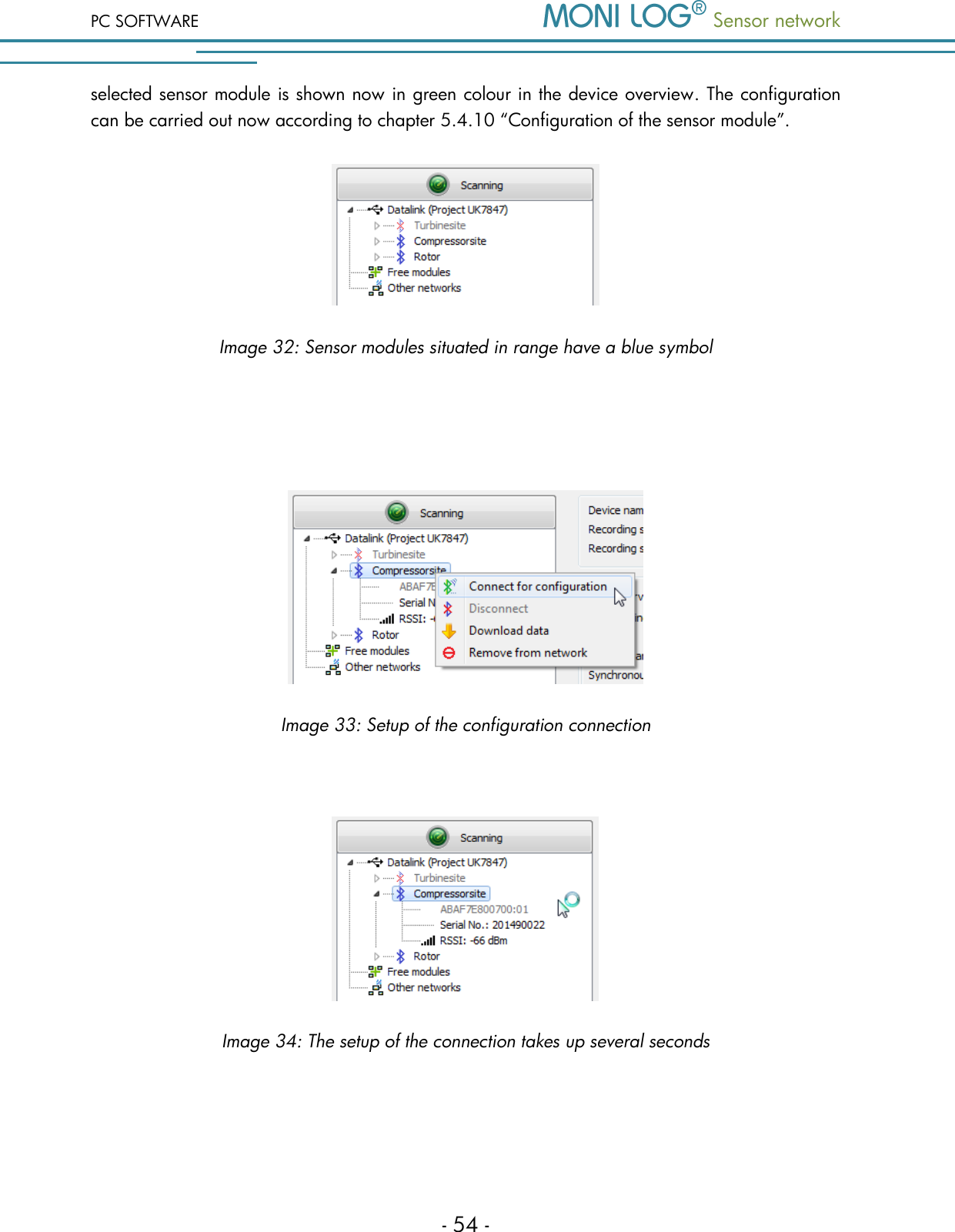
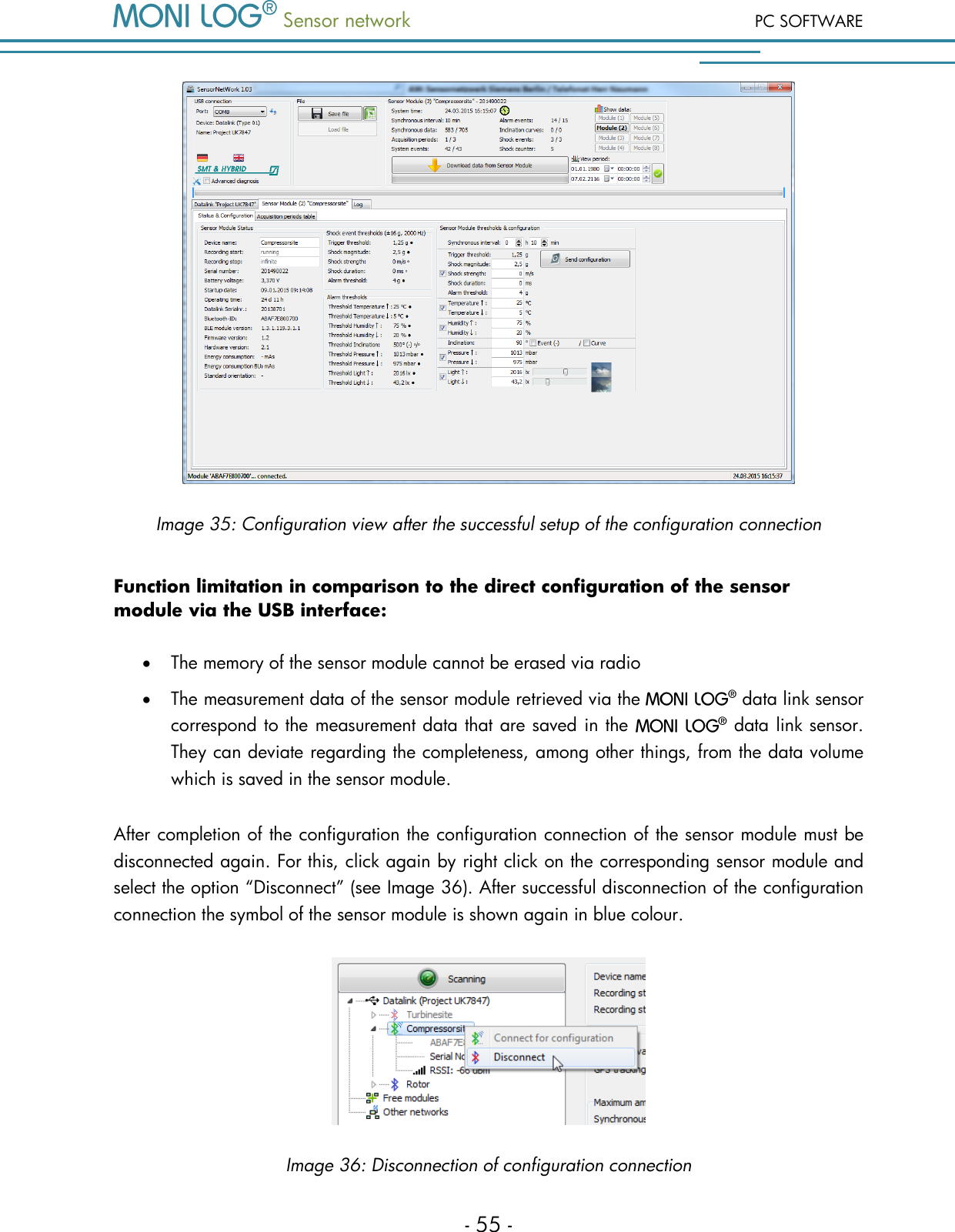
 Sensor network PC SOFTWARE - 53 -  b) On/Off code The  change  of  the  On/Off  code  is  carried  out  by  analogy  with  the  change  of  the configuration  password.  A  repetition  of  the  new  On/Off  code  as  confirmation  is unnecessary. Maximum 2 signs (only figures!) are permissible. 3. For the completion of the configuration click on the button “Change password” or on the button “Change On/Off code”.  Image 31: Input fields for the password change If you have forgotten your On/Off code or your configuration password, please contact the technical support for further instructions!  5 . 3 . 7  C o n f i g u r a t i o n   o f   t h e     s e n s o r   m o d u l e   v i a  t h e   r a d i o   i n t e r f a c e  If the   data link sensor is connected via  the USB interface with the PC programme, sensor modules  situated  in  the sensor network  can  be  configured  by  radio.  The corresponding sensor modules must be switched on for this and be located in the radio range (see Image 32).  In order to establish the radio communication for the configuration, click in the programme tab “Data link configuration” by right click on the corresponding sensor module and select the option “Connect for configuration” (Image 33). Afterwards, the configuration connection is established (see  Image  34).  This  can  take  up  to  10  seconds.  After  successful  setup  of  the  connection  the configuration menu of the sensor module opens automatically. In addition, the current status and the configuration of the sensor module are read out via radio (see Image 35). The symbol of the
PC SOFTWARE  Sensor network  - 54 - selected sensor module is shown now in green colour in the device overview. The configuration can be carried out now according to chapter 5.4.10 “Configuration of the sensor module”.  Image 32: Sensor modules situated in range have a blue symbol    Image 33: Setup of the configuration connection   Image 34: The setup of the connection takes up several seconds
 Sensor network PC SOFTWARE - 55 -  Image 35: Configuration view after the successful setup of the configuration connection Function limitation in comparison to the direct configuration of the sensor module via the USB interface:  The memory of the sensor module cannot be erased via radio  The measurement data of the sensor module retrieved via the   data link sensor correspond to the measurement data that are saved in the   data link sensor. They can deviate regarding the completeness, among other things, from the data volume which is saved in the sensor module. After completion of the configuration the configuration connection of the sensor module must be disconnected again. For this, click again by right click on the corresponding sensor module and select the option “Disconnect” (see Image 36). After successful disconnection of the configuration connection the symbol of the sensor module is shown again in blue colour.  Image 36: Disconnection of configuration connection
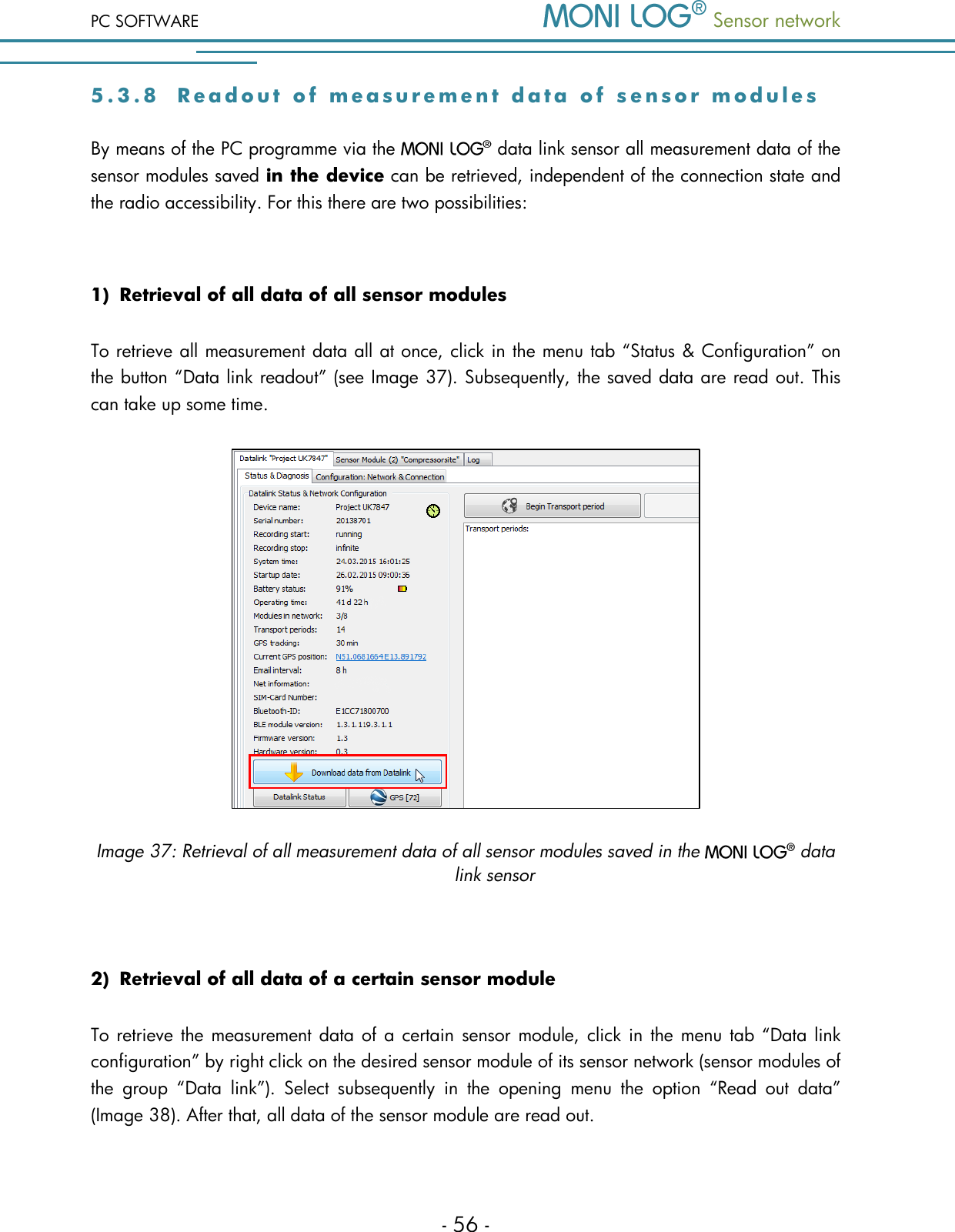
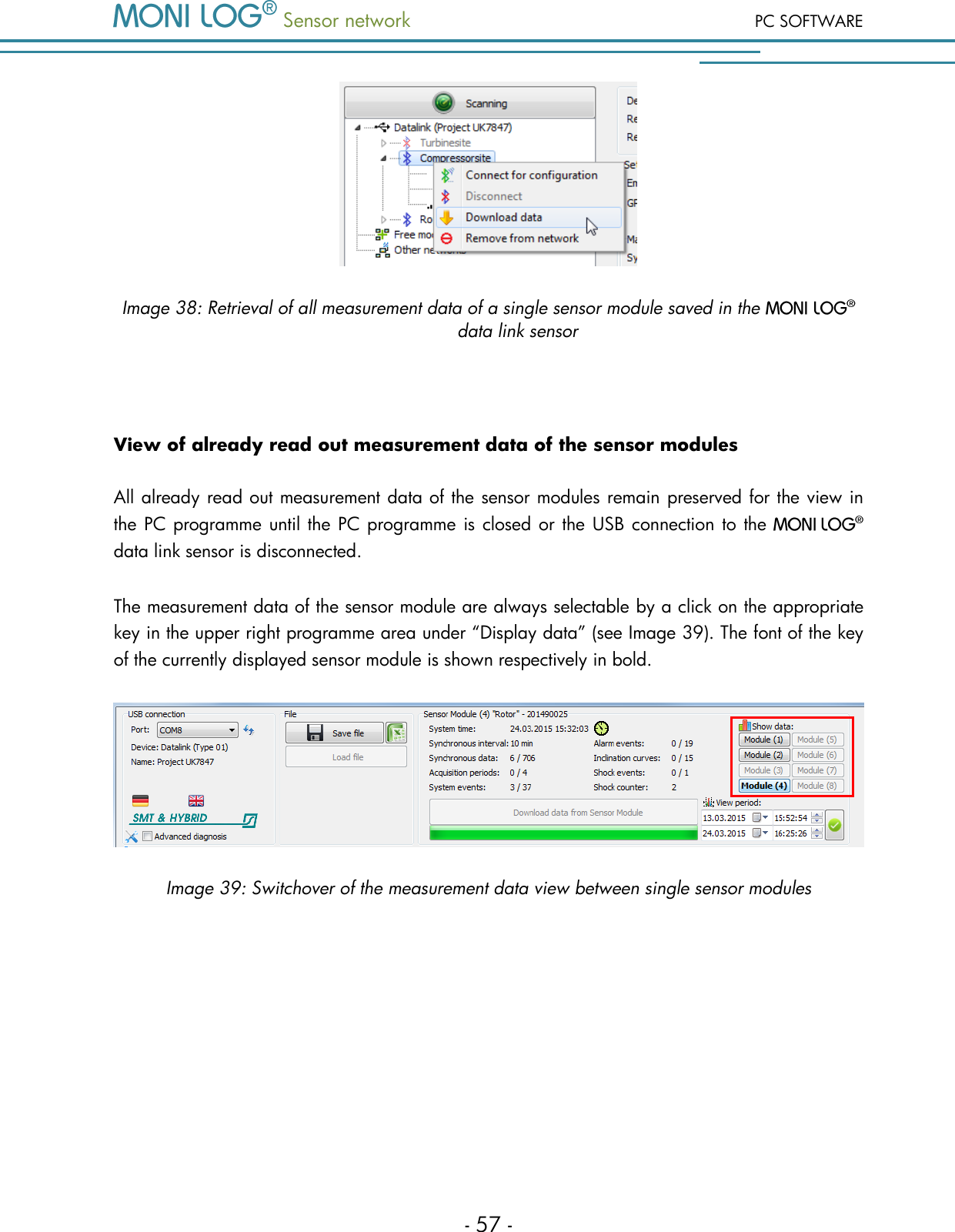
PC SOFTWARE  Sensor network  - 56 - 5 . 3 . 8  R e a d o u t   o f   m e a s u r e m e n t   d a t a   o f   s e n s o r   m o d u l e s    By means of the PC programme via the   data link sensor all measurement data of the sensor modules saved in the device can be retrieved, independent of the connection state and the radio accessibility. For this there are two possibilities:  1) Retrieval of all data of all sensor modules To retrieve all measurement data all at once, click in the menu tab “Status & Configuration” on the button “Data link readout” (see Image 37). Subsequently, the saved data are read out. This can take up some time.  Image 37: Retrieval of all measurement data of all sensor modules saved in the   data link sensor  2) Retrieval of all data of a certain sensor module To retrieve the measurement data of a certain  sensor  module, click in the menu tab “Data link configuration” by right click on the desired sensor module of its sensor network (sensor modules of the  group  “Data  link”).  Select  subsequently  in  the  opening  menu  the  option  “Read  out  data” (Image 38). After that, all data of the sensor module are read out.
 Sensor network PC SOFTWARE - 57 -  Image 38: Retrieval of all measurement data of a single sensor module saved in the   data link sensor  View of already read out measurement data of the sensor modules All already read out measurement data of the sensor modules remain preserved for the view in the PC programme until the  PC programme is closed or the USB connection to the    data link sensor is disconnected. The measurement data of the sensor module are always selectable by a click on the appropriate key in the upper right programme area under “Display data” (see Image 39). The font of the key of the currently displayed sensor module is shown respectively in bold.  Image 39: Switchover of the measurement data view between single sensor modules
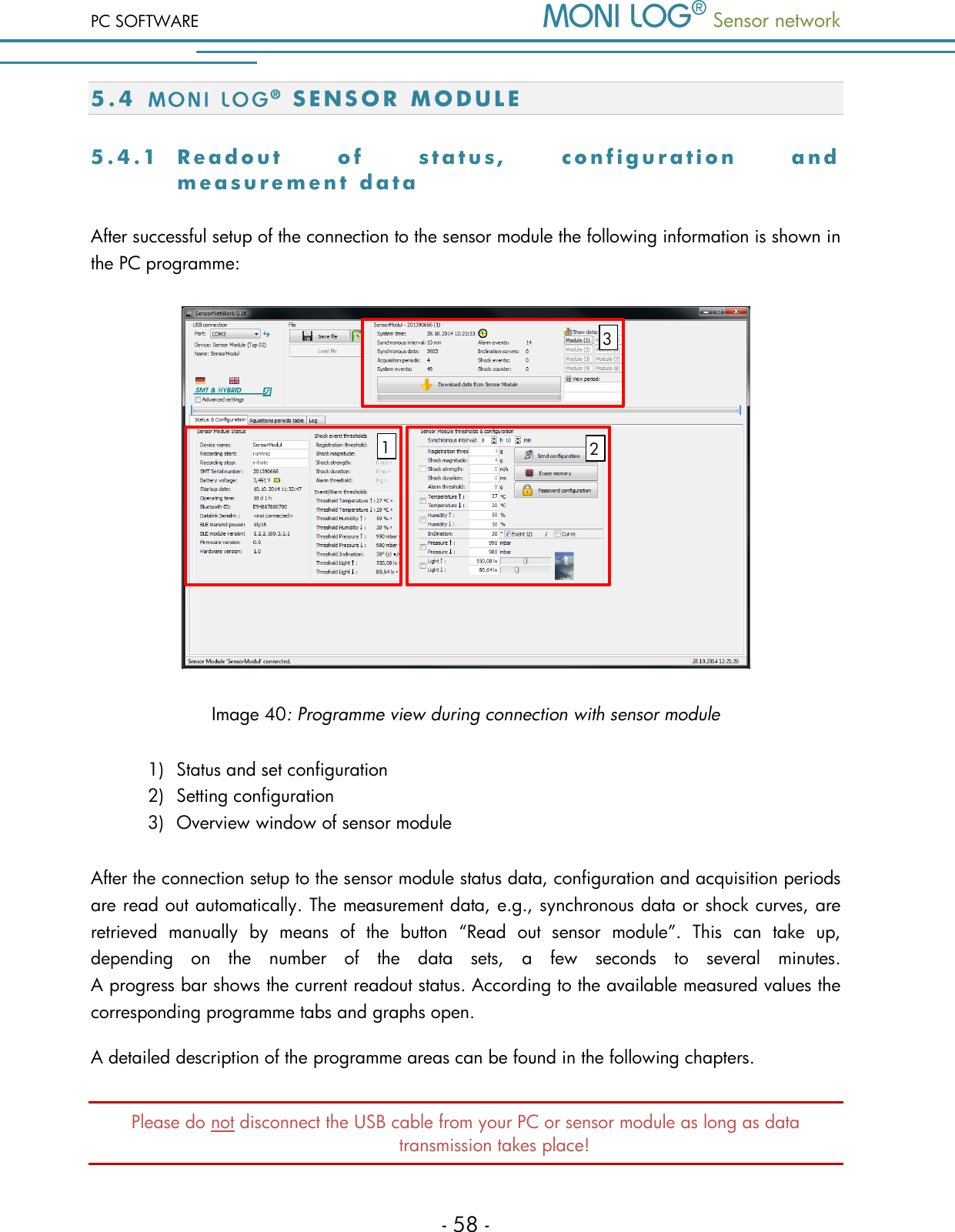
PC SOFTWARE  Sensor network  - 58 - 5 . 4  S E N S O R   M O D U L E  5 . 4 . 1  R e a d o u t   o f   s t a t u s ,   c o n f i g u r a t i o n   a n d  m e a s u r e m e n t   data  After successful setup of the connection to the sensor module the following information is shown in the PC programme:   Image 40: Programme view during connection with sensor module 1) Status and set configuration 2) Setting configuration 3) Overview window of sensor module After the connection setup to the sensor module status data, configuration and acquisition periods are read out automatically. The measurement data, e.g., synchronous data or shock curves, are retrieved  manually  by  means  of  the  button  “Read  out  sensor  module”.  This  can  take  up, depending  on  the  number  of  the  data  sets,  a  few  seconds  to  several  minutes.  A progress bar shows the current readout status. According to the available measured values the corresponding programme tabs and graphs open. A detailed description of the programme areas can be found in the following chapters. Please do not disconnect the USB cable from your PC or sensor module as long as data transmission takes place! 1 3 2
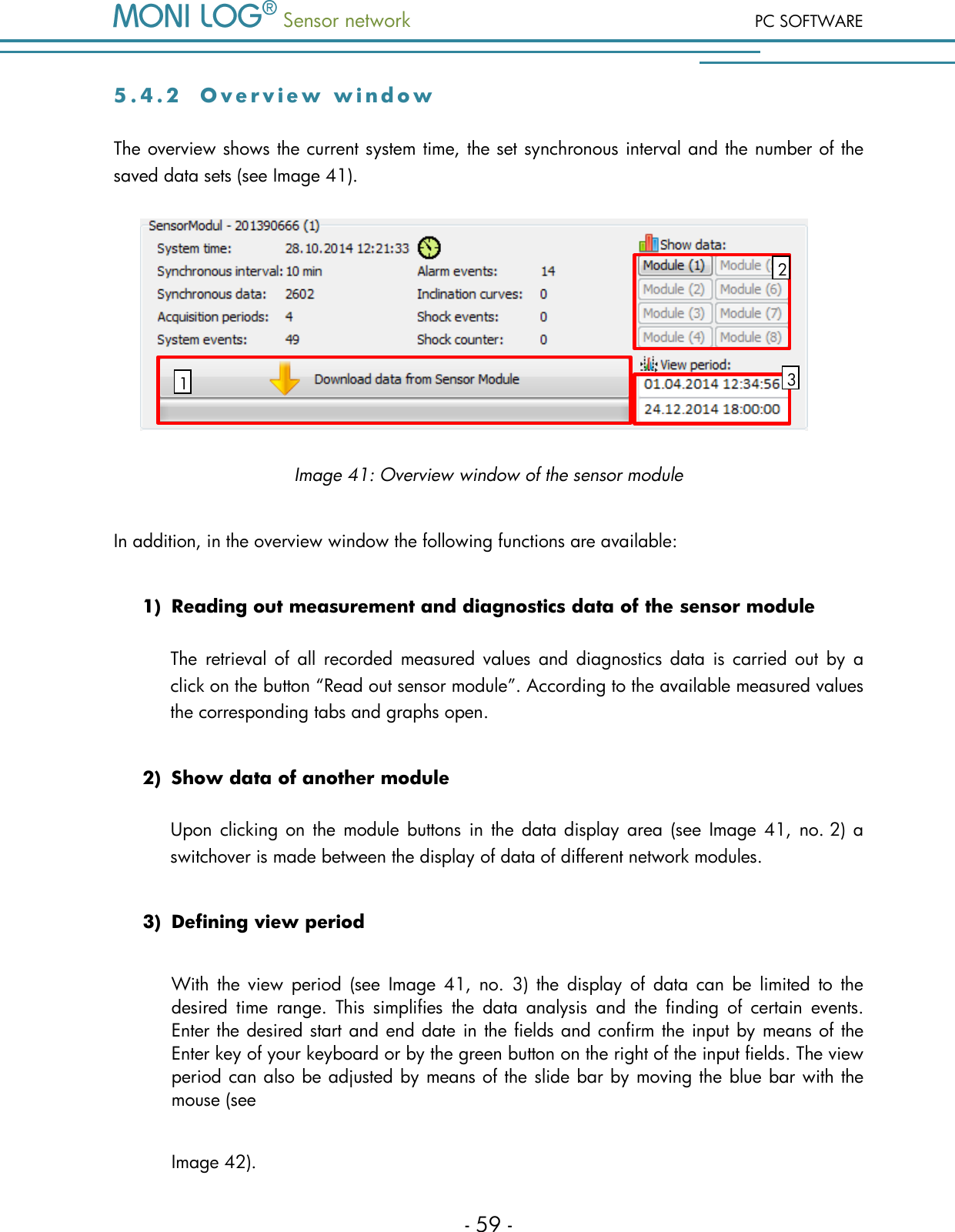
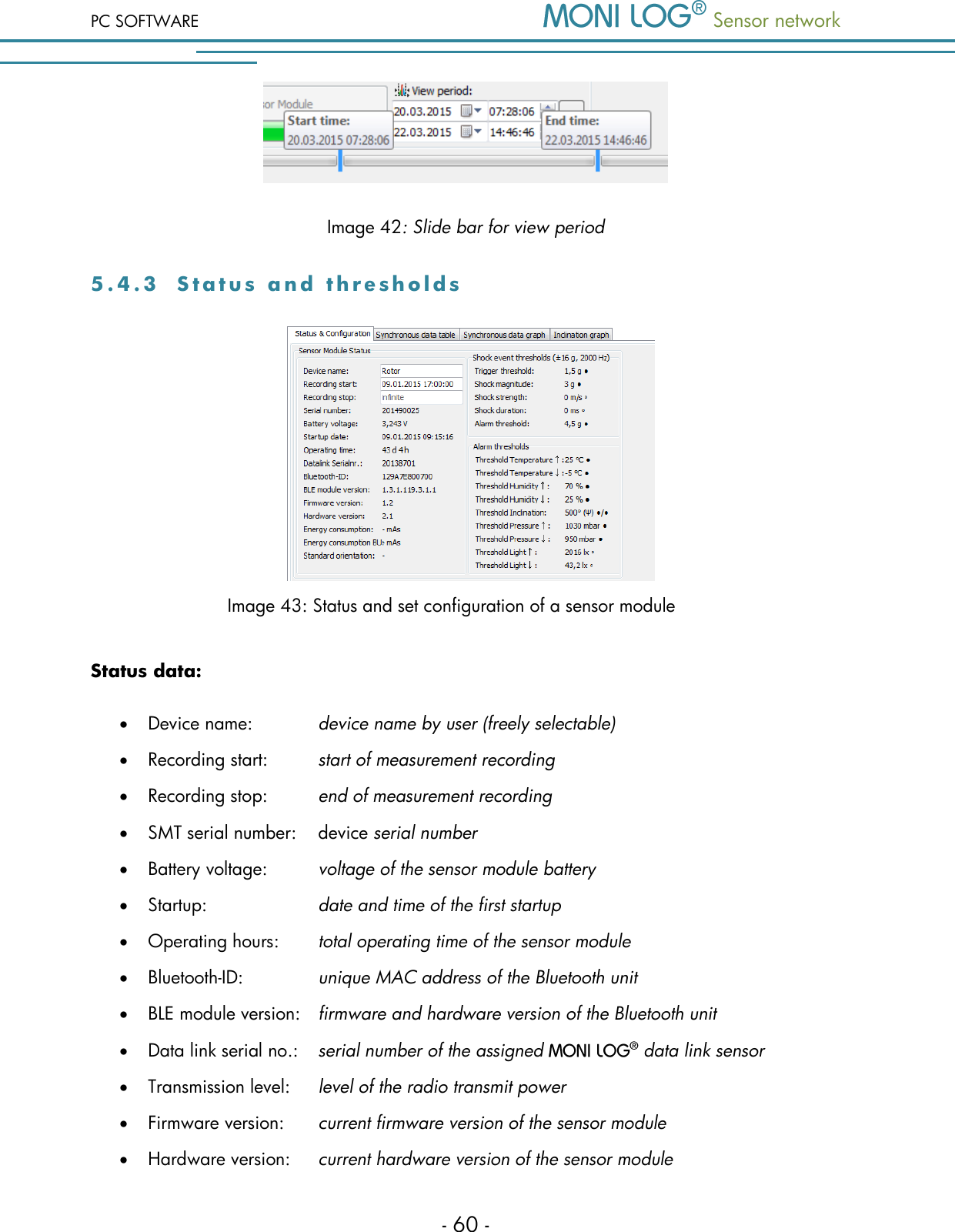
 Sensor network PC SOFTWARE - 59 - 5 . 4 . 2  O v e r v i e w   w i n d o w  The overview shows the current system time, the set synchronous interval and the number of the saved data sets (see Image 41).   Image 41: Overview window of the sensor module  In addition, in the overview window the following functions are available: 1) Reading out measurement and diagnostics data of the sensor module The  retrieval of  all  recorded  measured values  and  diagnostics data  is carried out  by  a click on the button “Read out sensor module”. According to the available measured values the corresponding tabs and graphs open.  2) Show data of another module Upon  clicking  on  the module buttons  in  the data display  area  (see Image 41, no. 2) a switchover is made between the display of data of different network modules.  3) Defining view period With  the  view  period  (see  Image  41,  no.  3)  the  display  of  data  can  be  limited  to  the desired  time  range.  This  simplifies  the  data  analysis  and  the  finding  of  certain  events. Enter the desired start and end date in the fields and confirm the input by means of the Enter key of your keyboard or by the green button on the right of the input fields. The view period can also be adjusted by means of the slide bar by moving the blue bar with the mouse (see Image 42). 1 2 3
PC SOFTWARE  Sensor network  - 60 -  Image 42: Slide bar for view period 5 . 4 . 3  S t a t u s   a n d   t h r e s h o l d s           Image 43: Status and set configuration of a sensor module Status data:  Device name:    device name by user (freely selectable)  Recording start:   start of measurement recording  Recording stop:   end of measurement recording   SMT serial number:   device serial number  Battery voltage:  voltage of the sensor module battery  Startup:     date and time of the first startup  Operating hours:  total operating time of the sensor module  Bluetooth-ID:     unique MAC address of the Bluetooth unit  BLE module version:   firmware and hardware version of the Bluetooth unit  Data link serial no.:  serial number of the assigned   data link sensor  Transmission level:   level of the radio transmit power  Firmware version:   current firmware version of the sensor module  Hardware version:   current hardware version of the sensor module
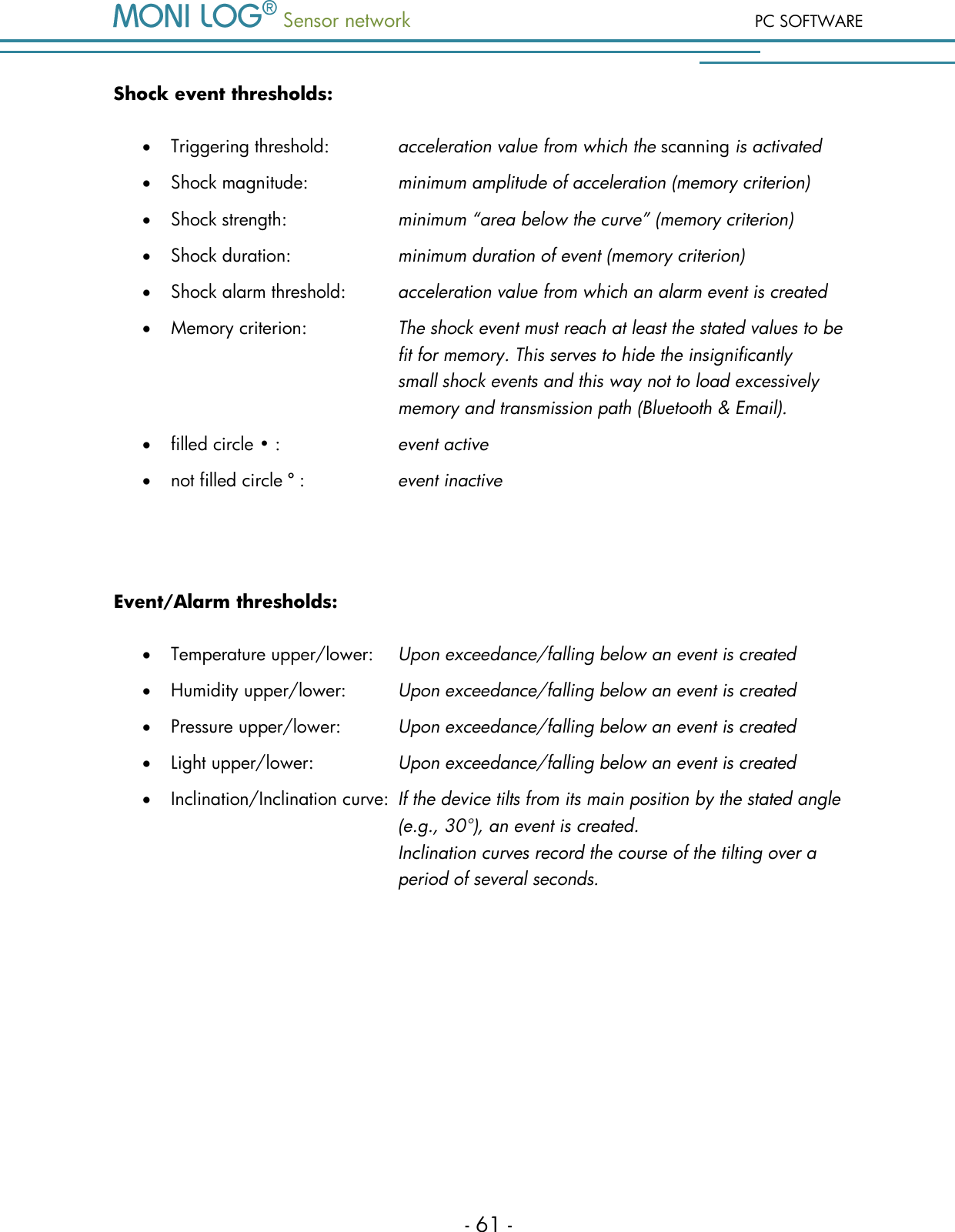
 Sensor network PC SOFTWARE - 61 - Shock event thresholds:  Triggering threshold:    acceleration value from which the scanning is activated  Shock magnitude:     minimum amplitude of acceleration (memory criterion)  Shock strength:    minimum “area below the curve” (memory criterion)  Shock duration:    minimum duration of event (memory criterion)  Shock alarm threshold:  acceleration value from which an alarm event is created  Memory criterion:    The shock event must reach at least the stated values to be     fit for memory. This serves to hide the insignificantly  small shock events and this way not to load excessively       memory and transmission path (Bluetooth & Email).  filled circle • :     event active  not filled circle º :    event inactive  Event/Alarm thresholds:  Temperature upper/lower:  Upon exceedance/falling below an event is created  Humidity upper/lower:  Upon exceedance/falling below an event is created  Pressure upper/lower:   Upon exceedance/falling below an event is created  Light upper/lower:    Upon exceedance/falling below an event is created  Inclination/Inclination curve:  If the device tilts from its main position by the stated angle          (e.g., 30°), an event is created.          Inclination curves record the course of the tilting over a          period of several seconds.
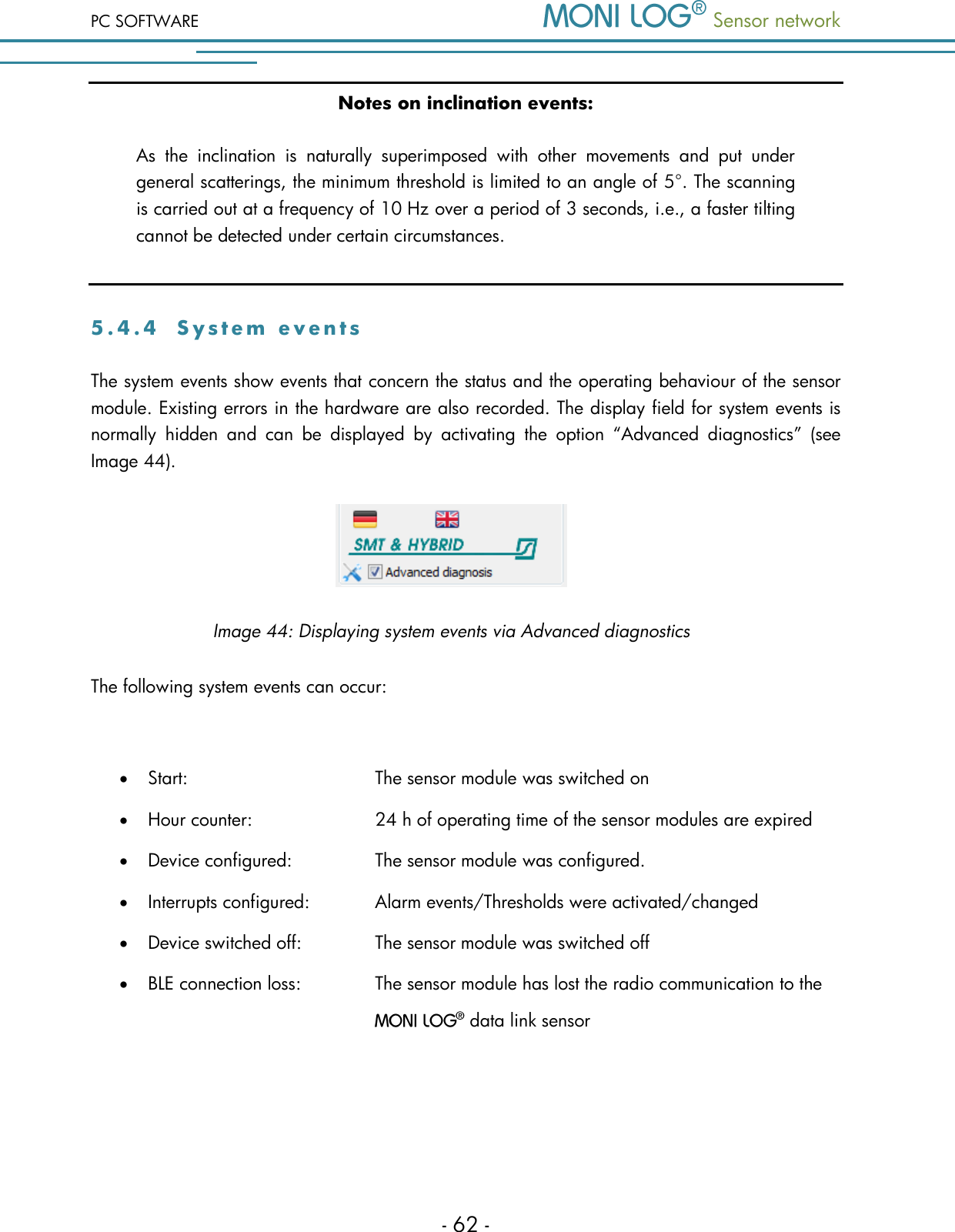
PC SOFTWARE  Sensor network  - 62 - Notes on inclination events: As  the  inclination  is  naturally  superimposed  with  other  movements  and  put  under general scatterings, the minimum threshold is limited to an angle of 5°. The scanning is carried out at a frequency of 10 Hz over a period of 3 seconds, i.e., a faster tilting cannot be detected under certain circumstances.  5 . 4 . 4  S y s t e m   e v e n t s  The system events show events that concern the status and the operating behaviour of the sensor module. Existing errors in the hardware are also recorded. The display field for system events is normally  hidden  and  can  be  displayed  by  activating  the  option  “Advanced  diagnostics”  (see Image 44).  Image 44: Displaying system events via Advanced diagnostics The following system events can occur:   Start:         The sensor module was switched on  Hour counter:       24 h of operating time of the sensor modules are expired  Device configured:     The sensor module was configured.  Interrupts configured:    Alarm events/Thresholds were activated/changed  Device switched off:     The sensor module was switched off  BLE connection loss:     The sensor module has lost the radio communication to the   data link sensor
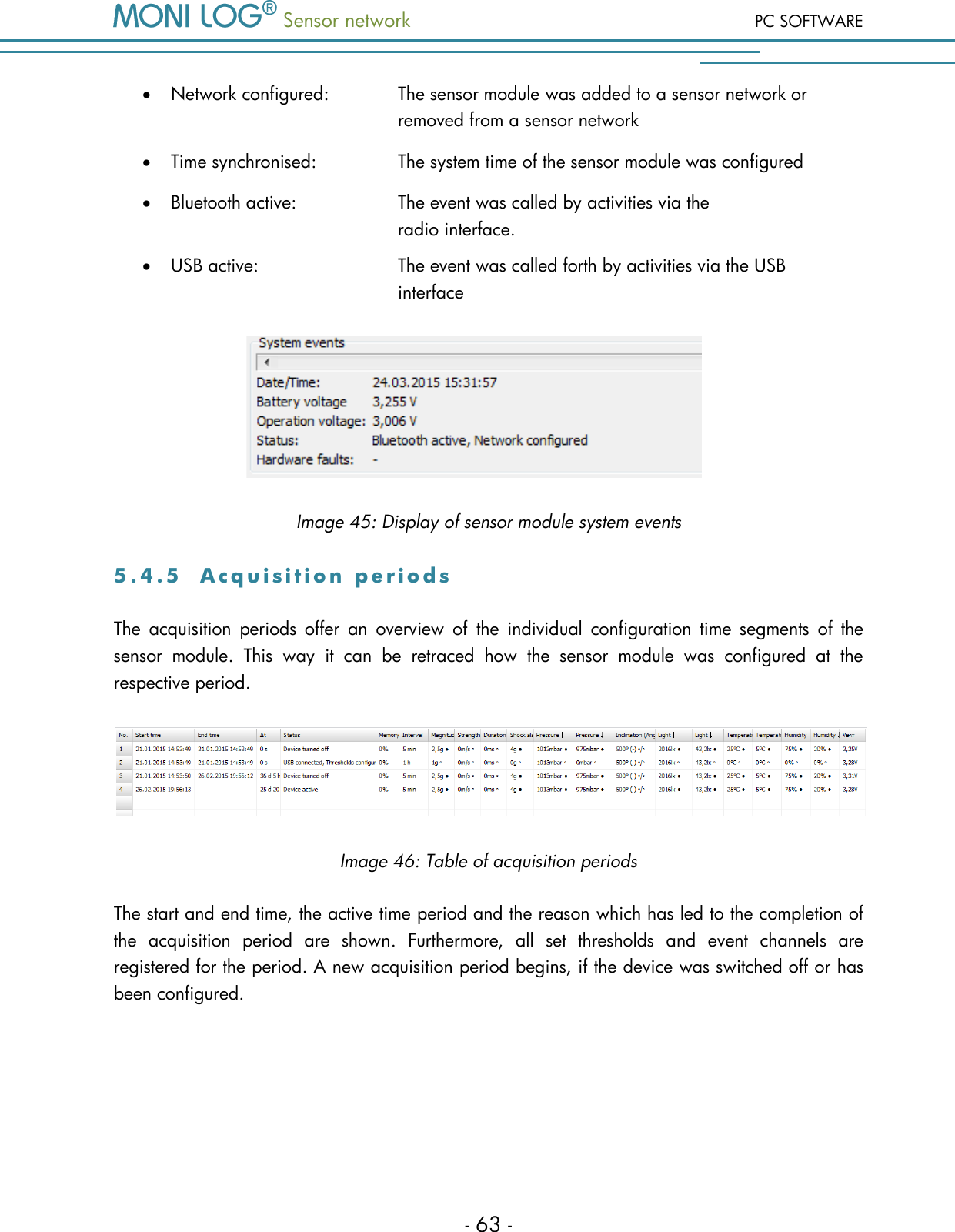
 Sensor network PC SOFTWARE - 63 -  Network configured:    The sensor module was added to a sensor network or         removed from a sensor network  Time synchronised:     The system time of the sensor module was configured  Bluetooth active:     The event was called by activities via the              radio interface.  USB active:       The event was called forth by activities via the USB            interface  Image 45: Display of sensor module system events 5 . 4 . 5  A c q u i s i t i o n   p e r i o d s  The  acquisition  periods  offer  an  overview  of  the  individual  configuration  time  segments  of  the sensor  module.  This  way  it  can  be  retraced  how  the  sensor  module  was  configured  at  the respective period.  Image 46: Table of acquisition periods The start and end time, the active time period and the reason which has led to the completion of the  acquisition  period  are  shown.  Furthermore,  all  set  thresholds  and  event  channels  are registered for the period. A new acquisition period begins, if the device was switched off or has been configured.
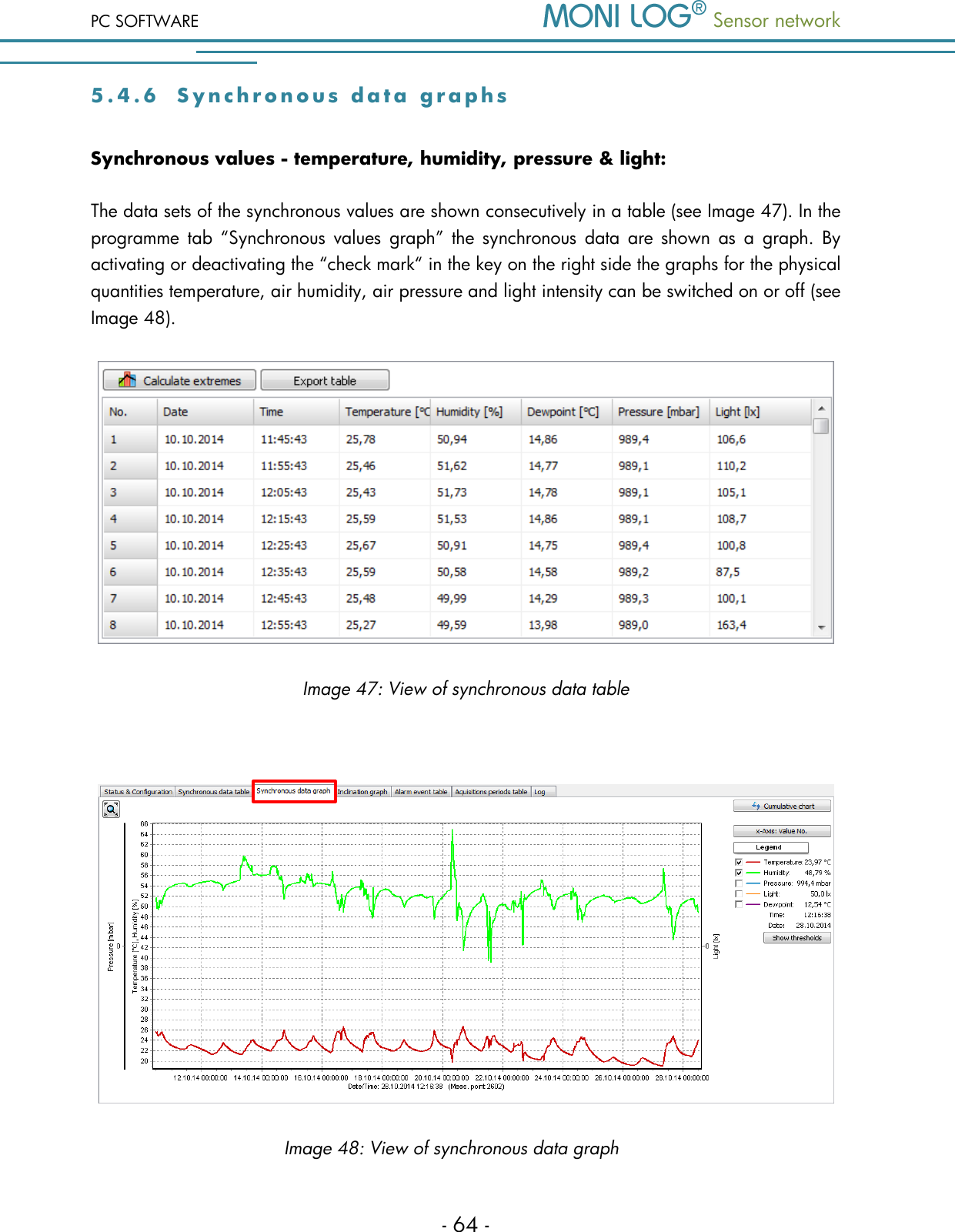
PC SOFTWARE  Sensor network  - 64 - 5 . 4 . 6  S y n c h r o n o u s   d a t a   g r a p h s  Synchronous values - temperature, humidity, pressure & light: The data sets of the synchronous values are shown consecutively in a table (see Image 47). In the programme  tab  “Synchronous  values  graph”  the synchronous  data  are  shown  as  a  graph.  By activating or deactivating the “check mark“ in the key on the right side the graphs for the physical quantities temperature, air humidity, air pressure and light intensity can be switched on or off (see Image 48).  Image 47: View of synchronous data table   Image 48: View of synchronous data graph
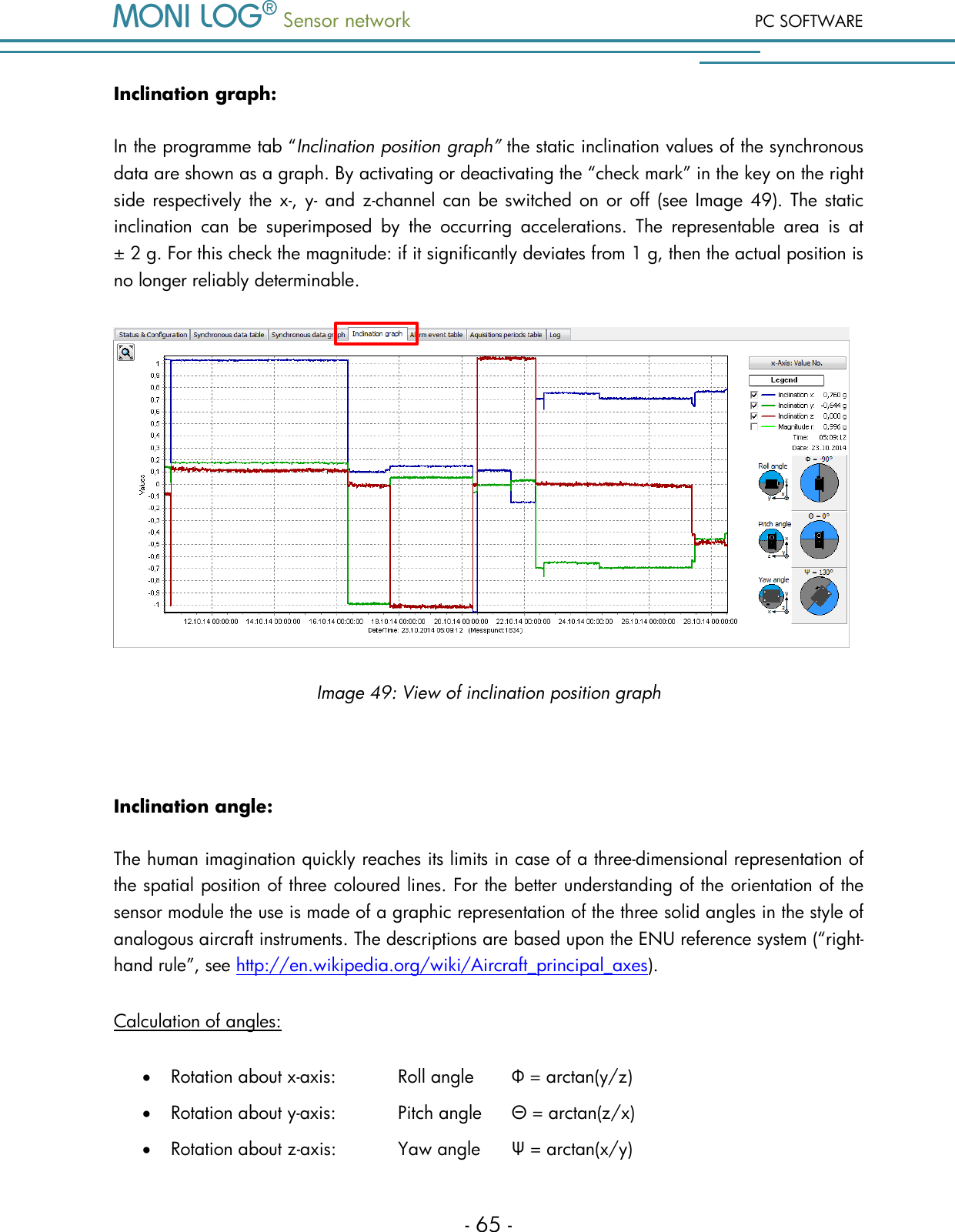
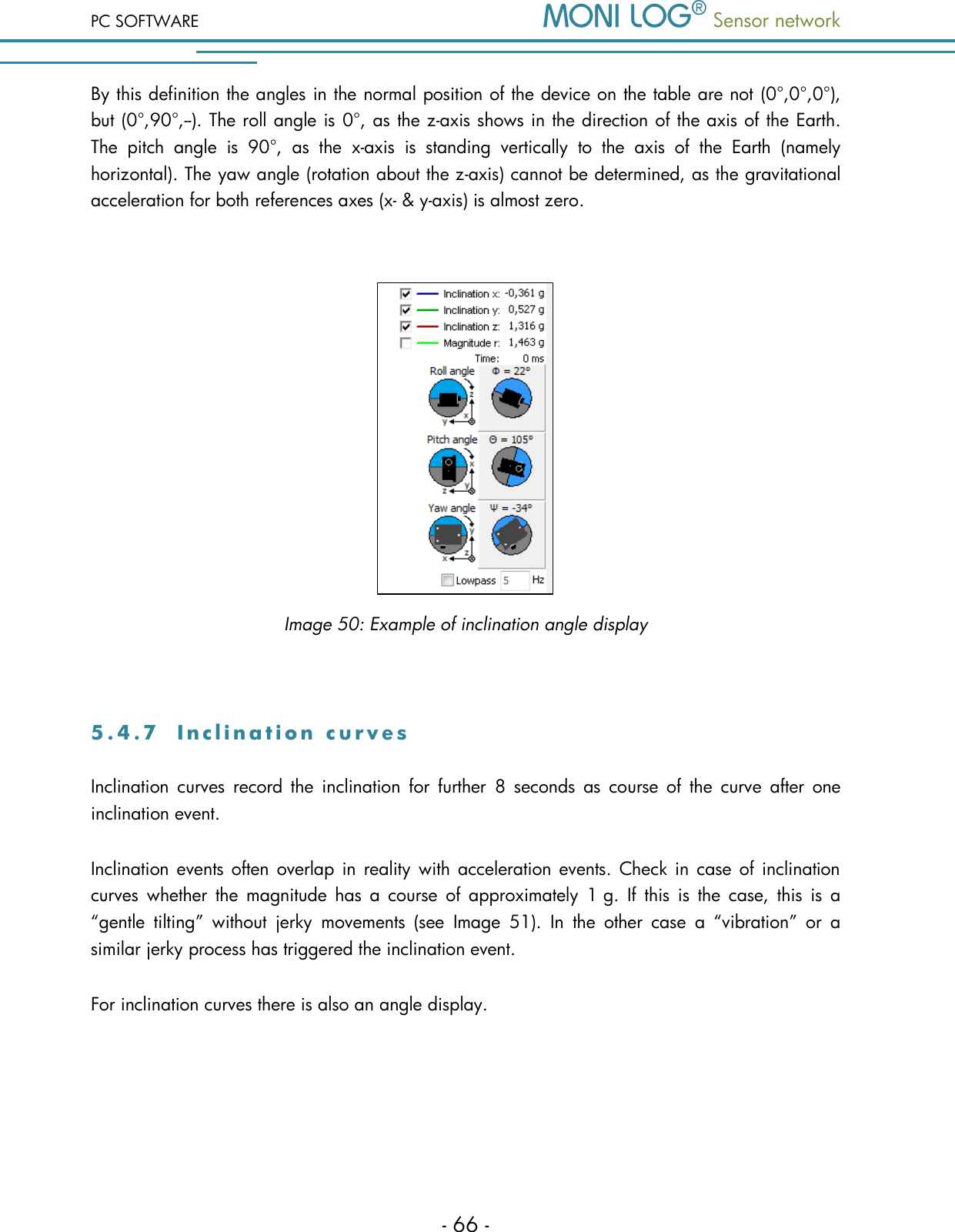
 Sensor network PC SOFTWARE - 65 - Inclination graph: In the programme tab “Inclination position graph” the static inclination values of the synchronous data are shown as a graph. By activating or deactivating the “check mark” in the key on the right side respectively the x-, y- and z-channel can be switched on or off  (see Image 49).  The static inclination  can  be  superimposed  by  the  occurring  accelerations.  The  representable  area  is  at ± 2 g. For this check the magnitude: if it significantly deviates from 1 g, then the actual position is no longer reliably determinable.  Image 49: View of inclination position graph  Inclination angle: The human imagination quickly reaches its limits in case of a three-dimensional representation of the spatial position of three coloured lines. For the better understanding of the orientation of the sensor module the use is made of a graphic representation of the three solid angles in the style of analogous aircraft instruments. The descriptions are based upon the ENU reference system (“right-hand rule”, see http://en.wikipedia.org/wiki/Aircraft_principal_axes).  Calculation of angles:  Rotation about x-axis:   Roll angle   Φ = arctan(y/z)  Rotation about y-axis:   Pitch angle  Θ = arctan(z/x)  Rotation about z-axis:   Yaw angle   Ψ = arctan(x/y)
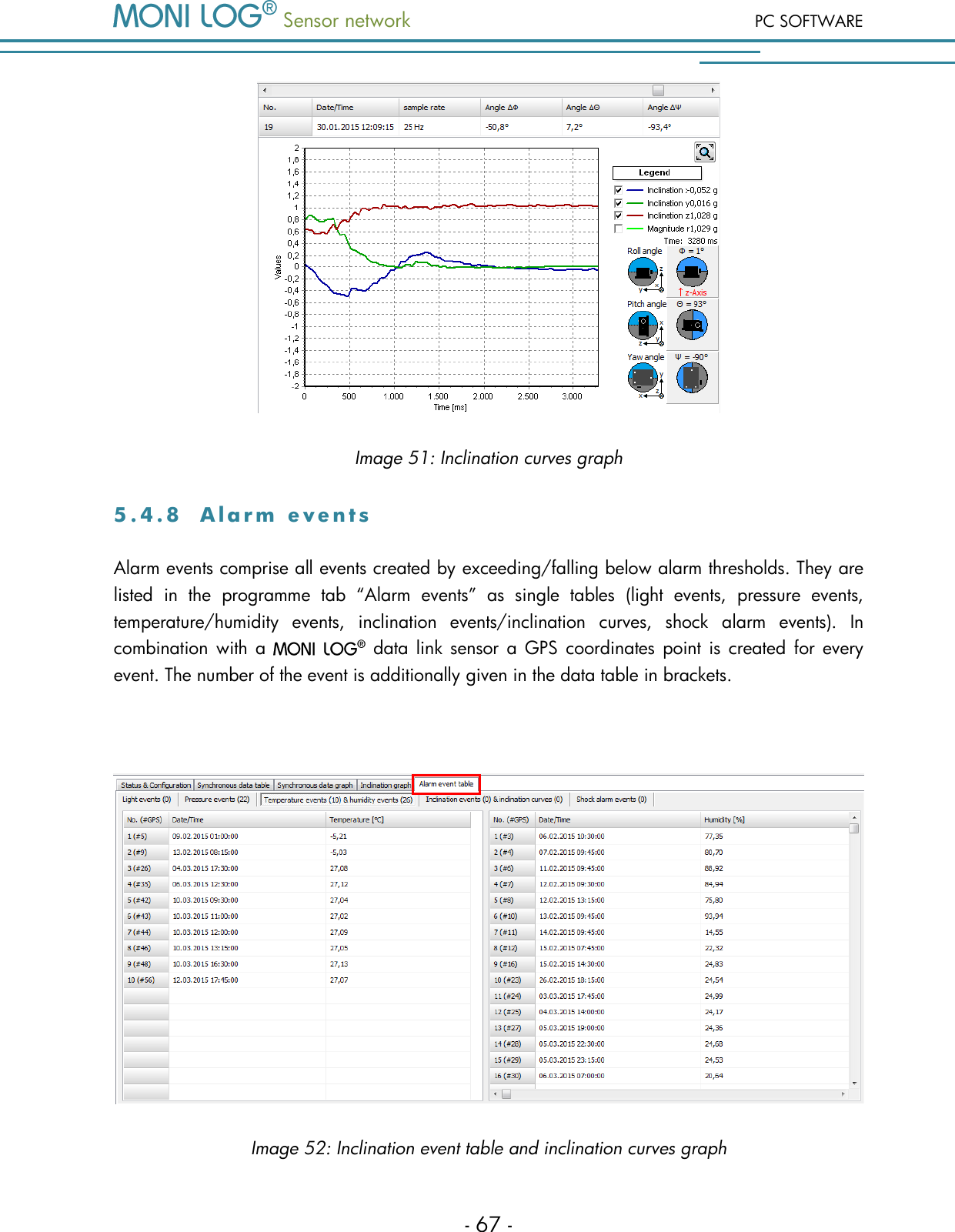
PC SOFTWARE  Sensor network  - 66 - By this definition the angles in the normal position of the device on the table are not (0°,0°,0°), but (0°,90°,--). The roll angle is 0°, as the z-axis shows in the direction of the axis of the Earth. The  pitch  angle  is  90°,  as  the  x-axis  is  standing  vertically  to  the  axis  of  the  Earth  (namely horizontal). The yaw angle (rotation about the z-axis) cannot be determined, as the gravitational acceleration for both references axes (x- & y-axis) is almost zero.     Image 50: Example of inclination angle display  5 . 4 . 7  I n c l i n a t i o n   c u r v e s  Inclination  curves  record  the  inclination  for  further  8  seconds  as  course  of  the  curve  after  one inclination event. Inclination events often  overlap in  reality  with  acceleration events. Check in case of inclination curves  whether  the  magnitude  has  a  course  of  approximately 1 g.  If  this  is  the  case,  this  is  a “gentle  tilting”  without  jerky  movements  (see  Image  51).  In  the  other  case  a  “vibration”  or  a similar jerky process has triggered the inclination event. For inclination curves there is also an angle display.
 Sensor network PC SOFTWARE - 67 -  Image 51: Inclination curves graph 5 . 4 . 8  A l a r m   e v e n t s  Alarm events comprise all events created by exceeding/falling below alarm thresholds. They are listed  in  the  programme  tab “Alarm  events”  as  single  tables  (light  events,  pressure  events, temperature/humidity  events,  inclination  events/inclination  curves,  shock  alarm  events).  In combination with a    data  link sensor  a  GPS coordinates point  is  created  for  every event. The number of the event is additionally given in the data table in brackets.   Image 52: Inclination event table and inclination curves graph
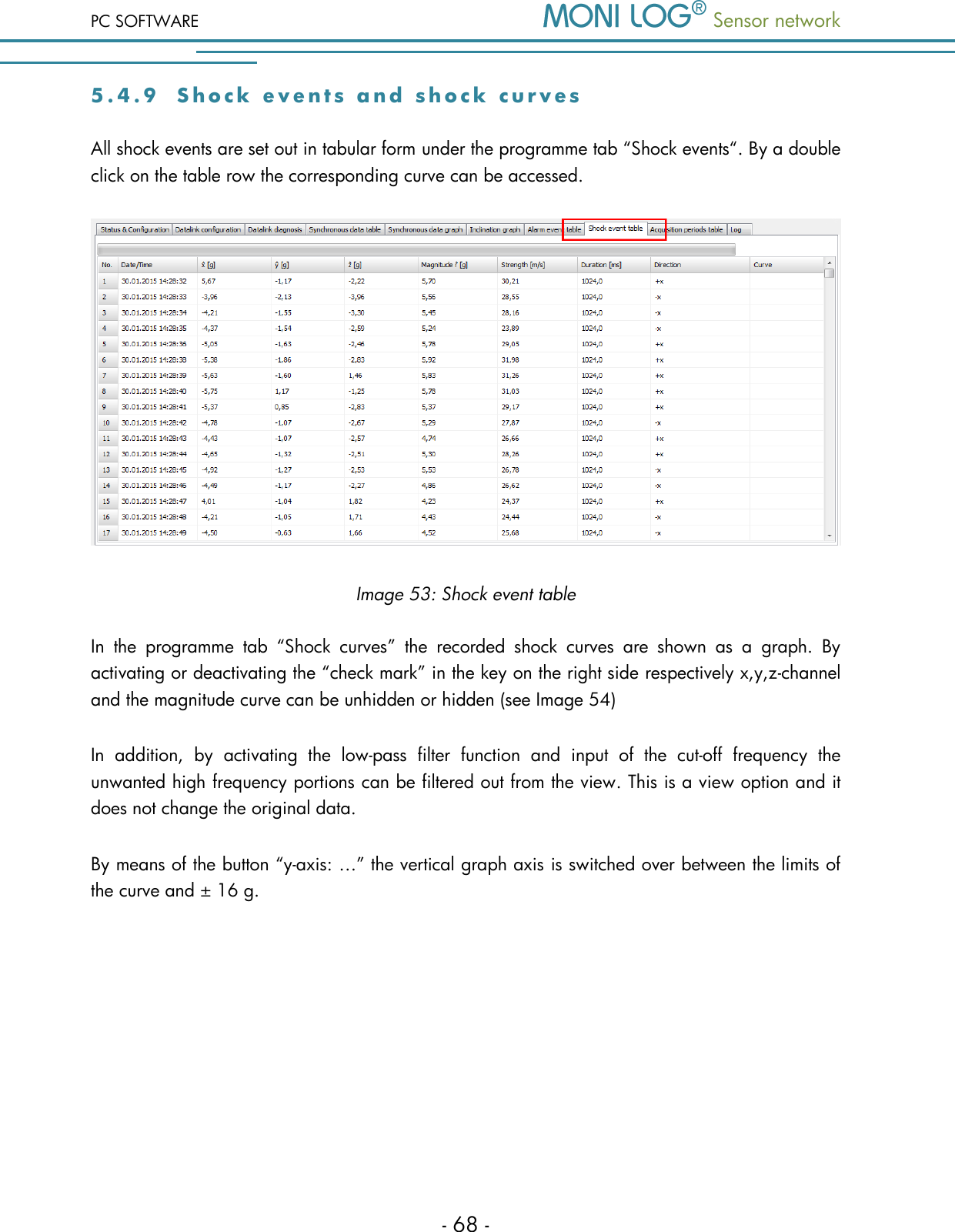
PC SOFTWARE  Sensor network  - 68 - 5 . 4 . 9  S h o c k   e v e n t s   a nd  s h o c k   c u r v e s  All shock events are set out in tabular form under the programme tab “Shock events“. By a double click on the table row the corresponding curve can be accessed.    Image 53: Shock event table In  the  programme  tab  “Shock  curves”  the  recorded  shock  curves  are  shown  as  a  graph.  By activating or deactivating the “check mark” in the key on the right side respectively x,y,z-channel and the magnitude curve can be unhidden or hidden (see Image 54) In  addition,  by  activating  the  low-pass  filter  function  and  input  of  the  cut-off  frequency  the unwanted high frequency portions can be filtered out from the view. This is a view option and it does not change the original data.  By means of the button “y-axis: …” the vertical graph axis is switched over between the limits of the curve and ± 16 g.
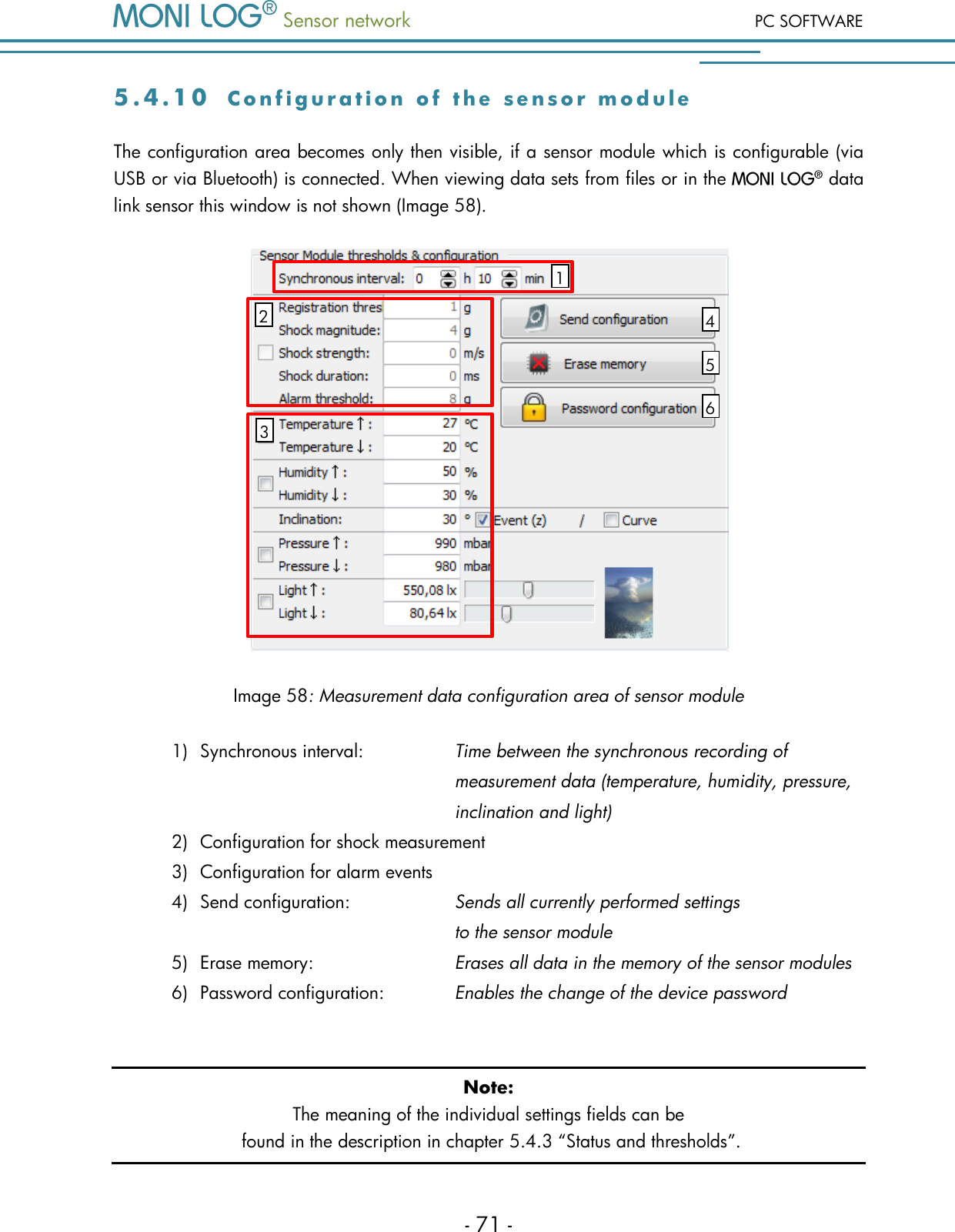
 Sensor network PC SOFTWARE - 69 -  Image 54: Shock curves graph Shock recording: The shock recording begins, if the value of the acceleration exceeds the triggering threshold. The triggering  threshold  is  configured  internally  by  the  device  and  depends  on  the  set  magnitude threshold (currently: triggering threshold = ½*magnitude threshold, minimum: 500 mg). This way, processes which lie chronologically before the actual exceeding of the magnitude threshold are also registered.  A shock event is saved if the recording thresholds for shock magnitude, shock strength and shock duration are at least fulfilled.  Image 55: Criteria for the shock recording Magnitude  r  exceeds  the magnitude threshold (3 g) Channel exceeds the triggering threshold (1.5 g) Recording start Time [ms] Acceleration [g] Time :
PC SOFTWARE  Sensor network  - 70 - The  largest  single  pulse within  the  scanning  time  of  1024 ms  is  considered  as  a  shock  event, which meets all set conditions (shock magnitude, shock strength, shock duration). A single pulse is deemed to be completed, if all three channels (x,y,z) are below 200 mg according to magnitude for  more  than  100 ms  (fading  condition).  The  shock  pulses  are  compared  with  each  other regarding  their  shock  strength  (corresponds  to  time  integral  over  the  course  of  the  shock magnitude).  The following should be explained on the basis of Image 56. The 1st pulse begins with the start of the  recording  and  fades  away  again  very  quickly.  The  following  2nd  pulse  begins  with  the repeated exceeding of the triggering threshold (1). At point (2) all channels fall below the 200mg limit, however, no longer than 100 ms (3). At point (4) the fading condition is finally fulfilled and the 2nd pulse is completed. In over 200 milliseconds after that the 3d pulse is finally detected. Though the 3nd pulse shows the highest maximum amplitude, the 2nd pulse is the greatest with respect to the shock strength and is used here for the shock evaluation.   Image 56: Shock curve with 3 single pulses     Area: ± 200 mg 1. 2. 3. Triggering threshold > 100 ms > 200 ms 44 34 24 14 1 2 3 y z x Magnitude x-axis y-axis z-axis Image 57: Sensor module main axes for acceleration/inclination Time [ms]
 Sensor network PC SOFTWARE - 71 - 5 . 4 . 1 0  C o n f i g u r a t i o n   o f   t h e   s e n s o r   m o d u l e  The configuration area becomes only then visible, if a sensor module which is configurable (via USB or via Bluetooth) is connected. When viewing data sets from files or in the   data link sensor this window is not shown (Image 58).  Image 58: Measurement data configuration area of sensor module 1) Synchronous interval:     Time between the synchronous recording of            measurement data (temperature, humidity, pressure,             inclination and light) 2) Configuration for shock measurement  3) Configuration for alarm events 4) Send configuration:     Sends all currently performed settings            to the sensor module 5) Erase memory:      Erases all data in the memory of the sensor modules 6) Password configuration:     Enables the change of the device password  Note: The meaning of the individual settings fields can be  found in the description in chapter 5.4.3 “Status and thresholds”.  2 1 4 5 6 3
PC SOFTWARE  Sensor network  - 72 - Change of synchronous interval & setting of alarm events: The setting of the synchronous interval is carried out with the help of the selection fields (Image 58, no. 1) “Synchronous interval” (in hours + minutes).  The input fields lying below (Image 58, no. 2 and 3) enable the parameterisation of alarm events. On  the  basis  of  the  set  threshold  values  (settable  partially  below  and  upper  threshold  values) alarm  events  are  saved,  if  during  the  measurement  run  the  exceedance  or  falling  below  of threshold values is detected. A set check mark in front of the input fields activates the generation of the alarm events. In the   data link sensor there is a setting possibility for occurring events to send directly an email (alarm email). The settings are saved and transferred to the sensor module by a click on “Send configuration” (Image 58, no. 4).  Attention! Shock events can only be recorded, if the sensor module is equipped for this, otherwise the area (2) is highlighted in grey! Erase memory: The function “Erase memory” (see Image 58, no. 5) erases all data located in the sensor module. This function is only available in case of a direct USB connection to a sensor module. Attention! Ensure that you have completely read out the data and saved them  as *.snw file before erasing! Erased data cannot be restored! Password configuration: There  is  a  possibility  to  protect  the  sensor  module  with  a  password  (Image  58,  no. 6).  All accesses via USB  are  blocked during password activity  until the password is  entered correctly. The password may contain up to 8 signs. By a click on the green check mark the new password is transferred. Note: To remove a password again, simply leave the field “New password” free.
 Sensor network PC SOFTWARE - 73 -                  Image 59: Creating/changing password   Old password:       Enter here the existing password  New password:     Enter here the desired new password  Repeat password:     Enter the new password again for confirmation Change of the sensor module device name: The device name of the sensor module can be changed by the user (see Image 60). Maximum 16 signs are available for this. By pressing the Enter key of your keyboard the name is saved and transferred to the sensor module. The name of the module can be selected individually. A naming according to measuring point, measuring task, etc. is recommended (e.g., “storage space rear”).  Setting recording period: The  desired  recording period  for  the  device  can  also  be  set  by  the  user  (see  Image  60).  If  a recording  period  is  defined,  the  measured  value  recording  begins  at  the  start  time.  With  the exceedance of the stop time  the  measured value recording is ended.  If  the  input fields are left blank, the measurement recording runs as long as the device is switched on. The input of start and stop time is carried out in the date format: dd.mm.yyyy hh:mm:ss The configuration of the recording period is carried out by activation of  the Enter key on your keyboard or by a click on the button “Send configuration”.
PC SOFTWARE  Sensor network  - 74 -  Image 60: Configuration of device name (1) and recording period (2) Setting of sensor module device time The synchronisation of the system time is carried out by a click on the clock symbol (see Image 61). The sensor module operates inside the device with coordinated universal time (UTC). It is the same worldwide, i.e., independent of time zones. The evaluation programme shows the system time converted to your local time depending on the time zone setting of your PC.  Image 61: Setting of sensor module device time
 Sensor network FIRMWARE UPDATE - 75 - 6. FI R M W A R E   U P D A T E  6.1 P R E P A R A T I O N  Prior to the firmware update the following points must be observed:  The  activation  of  the  update  mode  can  only  be  carried  out,  if  the   data link sensor  or  the    sensor  module  is  switched  off.  If  your  device  is  still switched on, please switch it off.  Have ready the included mini USB cable and plug one end of the cable in a free USB port of your  computer  for the preparation.  Do  not plug the  USB  cable into  the   device yet!  Ensure  that  on  your computer  no  sensor  network  PC  programmes  are  executed  and  all necessary drivers are installed. Note: Back up all measurement and diagnostics data of your device prior to the firmware update to prevent a possible data loss in case of an update failure. 6 . 1 . 1    d a t a   l i n k   s e n s o r  In the switched off condition of the device press the key   and afterwards additionally the key   and  keep  both  keys  pressed  for  at  least  5  seconds  (observe  display).  Now,  plug, according to the request appearing in the display, the other end of the USB cable into the USB port of the    data link sensor. After successful detection of the USB connection the text “Ready” appears in the display. If within 30 seconds no USB cable is plugged in, the device switches automatically off after the time has expired. Proceed now with the instructions according to chapter 6.2 “Carrying out update”.
FIRMWARE UPDATE  Sensor network  - 76 - 6 . 1 . 2    s e n s o r   m o d u l e  In  the  switched  off  condition  of  the  device  connect  the  USB  cable  and  keep  the  control  key pressed  (~5 seconds,  green  LED  is  illuminated) until  the  red LED  starts  to  flash  with  1 Hz.  The update mode is active now. It only remains active as long as the USB cable is connected. If the control  key  is  released  before  the  detection  of  the  update  mode,  the  device  starts  the  normal operating mode. Proceed now with the instructions according to chapter 6.2 “Carrying out update”. 6.2 C A R R Y I N G   O U T   U P D A T E  After you have started your   device in the update mode, start the PC software. The PC software  should  automatically  detect  the  device  which  is  in  the  update  mode  and open an info window which you can close by a click on “OK” (see Image 62). All  images  of  this  chapter  show  the  firmware  update  of  a    data link  sensor.  The procedure  during  the  firmware  update  of  a    sensor  module  is  identical. The name of the shown update file deviates, where applicable, from the name of the provided update file.  Image 62: Successful detection of the update mode in the PC programme Now, click on the button “Bootloader” (Image 63).  Afterwards, a file dialogue opens in  which you select and open the corresponding update file for your   device (Image 64).
 Sensor network FIRMWARE UPDATE - 77 -  Image 63: Start of the firmware update  Image 64: Selection of the corresponding update file in the file manager To start the update process click on the button “Yes” in the appearing window (see Image 65). To interrupt the update process, click on “No”. After a click on “Yes” the update process cannot be interrupted.   To  prevent  device  defects,  the  USB  cable  must  not  be  removed  from  the  device  until  the completion  of  the  update!  The  progress of  the  update process  can  be  followed  as  percentage indicator in the button “Bootloader”.
FIRMWARE UPDATE  Sensor network  - 78 -  Image 65: Confirmation of the firmware update After successful completion of the update a corresponding information window is displayed (see Image 66). The   device will switch off automatically independently at the same time.  Image 66: Information message after successful firmware update To  start  the  normal  operating  mode  of  the  device,  unplug  the  USB  cable.  The  device  can  be switched on normally again. If the update process fails, a corresponding error message is displayed (see Image 67), the  device switches off independently. Due to the update interruption the device firmware could not be completely installed. In some circumstances, the device is not switchable any more in the normal operating mode due to this. Please repeat the update process according to the instructions of the entire chapter 6 ”Firmware Update“.   Image 67: Information message after failure of the firmware update
 Sensor network DECLARATION OF CONFORMITY - 79 - 7. DE C L A R A T I O N   O F   C O N F O R M I T Y
DECLARATION OF CONFORMITY  Sensor network  - 80 - W A R R AN T Y   C E R T I F IC A T E    data link sensor and   sensor module Against submission of this warranty certificate we  grant a  12-month warranty from the  date  of delivery for the above instrument.  In case of deficiencies we first have the right of rectification, either rectification of the deficiency or  subsequent  delivery.  Should  the  rectification  fail,  and  only  then,  we  will  take  back  the instrument and reimburse the purchase price. Any further warranty claims shall be excluded. This warranty covers all faults that impair the proper functioning of the instrument due to technical defects of individual components or assemblies. Batteries and rechargeable batteries as expendables are not covered by this warranty. This  warranty  will  only  be  granted  if  the  instrument  has  been  used  properly  for  its  intended purpose. Any  attempts of  the warrantee or  third  persons  to  repair  the  instruments or to intervene in any other way exclude warranty claims.  Any mechanical damage which is the result of undue stress also excludes warranty claims.  We will immediately notify the warrantee of any repair work excluded from warranty coverage. If the instrument is sent in together with the warranty certificate, this will be considered as a repair order for the elimination of all damage.  The warrantee can exclude partial services.  In case of any malfunctions of the instrument, please state the serial no. You can find it on type label or on the logs when evaluating your data.  SMT & HYBRID GmbH      Telephone:  +49 351 / 266 13 0 An der Prießnitzaue 22      Fax.:    +49 351 / 266 13 10 D – 01328 Dresden        Email:   info@smt-hybrid.de GERMANY  Copyright The software is protected under the amended copyright law. Copies (with the exception of backup copies) may only be made after express permission by SMT & HYBRID. Google and Google Earth are trademarks of the Google company.

Navigation menu