Cleankeys CKD Wireless Keyboard User Manual 1

Cleankeys Inc Wireless Keyboard 1

Contents

User Manual 1

Cleankeys KeyboardUser Guide
2 CleankeysKeyboardUserGuide
CleankeysKeyboardUserGuide 3ContentsRegulatoryinformation 4AbouttheCleankeys®keyboard 5Specications 5OpeningtheCleankeysbox 5ConnectingyourCleankeyskeyboardtoacomputer 7ConnectingyourCleankeyskeyboardusingawirelessconnection 7ConnectingyourCleankeyskeyboardusingtheUSBcable 7Mounting 8UsingyourCleankeyskeyboard 8TypingonyourCleankeyskeyboard 8Keyindentations 8Proximitysensing 9LowBatteryMode 9PausingyourCleankeyskeyboard 9Cleaning 9Disinfecting 10Infectioncontrol 10Checkingthebatterylevel 10ChargingyourCleankeyskeyboard 10ChangingtheCleankeyskeyboardvolume 11Changingthetouchsensitivityofthekeys 11Changingthetapsensitivityofthekeys 12UpdatingtheCleankeyskeyboardrmware 12InstallingtheCleankeysUpdateUtility 12UsingtheCleankeysUpdateUtility 13UsingtheCleankeysUpdateUtilitytomanuallyselectthermwareversion 13Troubleshooting 14
4 CleankeysKeyboardUserGuideRegulatory informationEuropean Union Directives Conformance StatementThisdevicecomplieswiththeessentialrequirementsandotherrelevantprovisionsofdirective2004/108/EC.FCC Rules – Part 15KeyboardFCCregistrationnumber:XWS-CKPxxWWirelessReceiverFCCregistrationnumber:XWS-CKDThisdevicecomplieswithPart15oftheFCCRules.Operationissubjecttothefollowingtwoconditions:(1)Thisdevicemaynotcauseharmfulinterference,and(2)thisdevicemustacceptanyinterferencereceived,includinginterferencethatmaycauseundesiredoperation.Industry Canada (IC) NoticeThisClassAdigitalapparatuscomplieswithCanadianICES-003.CetappareilnumériquedelaclasseAestconformeàlanormeNMB-003duCanada.KeyboardCerticationNumberIC:8721A-CKPxxWWirelessReceiverCerticationNumberIC:8721A-CKDWARNINGChangesormodicationstothisequipmentnotapprovedbyCleankeyscancausethisequipmenttonotcomplywithPart15oftheFCCrulesandvoidtheuser’sauthoritytooperatethisequipment.Cleankeys corporate addressCleankeysInc.4664-99StreetEdmonton,AlbertaT6E5H5Canada+1-780-702-1473
CleankeysKeyboardUserGuide 5About the Cleankeys® keyboardTheCleankeyskeyboardistheidealkeyboardandtrackpadforinfectioncontrolledenvironments,oranyplacewherethecomputerkeyboardcaneasilybecomecontaminated.TheCleankeyskeyboardhasasmoothtopsurfacemadefromglassoracrylic.ThebaseismadeofCorian®orABSplastic.Thismakesitoneoftheworld’seasiestkeyboardstoclean.Justsprayandwipe,andyourkeyboardisspotlessinseconds.TheCleankeyskeyboardisalsoextremelyresistanttomicrobialgrowth.Thekeysarebothtouchandtapsensitiveandhaveanaudibleclickforfeedback.Thetouchsensitivitycanbeadjusted,allowingCleankeystobetoucheddirectlyorthroughgloves.SpecicationsKeyboard Size:14.68”x5.64”x0.68”(373mmx143mmx17mm)Wireless Receiver Size:1.89”x0.68”x0.35”(48.0mmx17.3mmx8.9mm)Keyboard Weight: Glass:2.0lbs(0.91kg),Acrylic:1.6lbs(0.73kg)Wireless Receiver Weight:0.21oz(6gr)Color:WhiteCable:8ft.(2.46m)Interface:USBoverNordicSemiconductorFrequencyAgilityProtocolWirelessKeyboard (Charging) Power:5V@1A(max)Wireless Receiver Power:5V@22mASupported operating systems:Windows®,Mac,Linux,UnixRegulatory approvals:FCC,CE,ROHS,IP65Mounting option:Three#6-32insertsspacedinaMIS-D75VesastandardpatternOperating Environment:32ºF(0ºC)to95ºF(35ºC)Warranty:Twoyear(extendedoptionsavailable)Opening the Cleankeys boxThefollowingitemsareinyourCleankeyskeyboardbox.• Cleankeyskeyboard• wirelessreceiver• batterycharger• USBcable• QuickReferenceCardIfanyoftheseitemsaremissing,contactyoulocaldistributor.
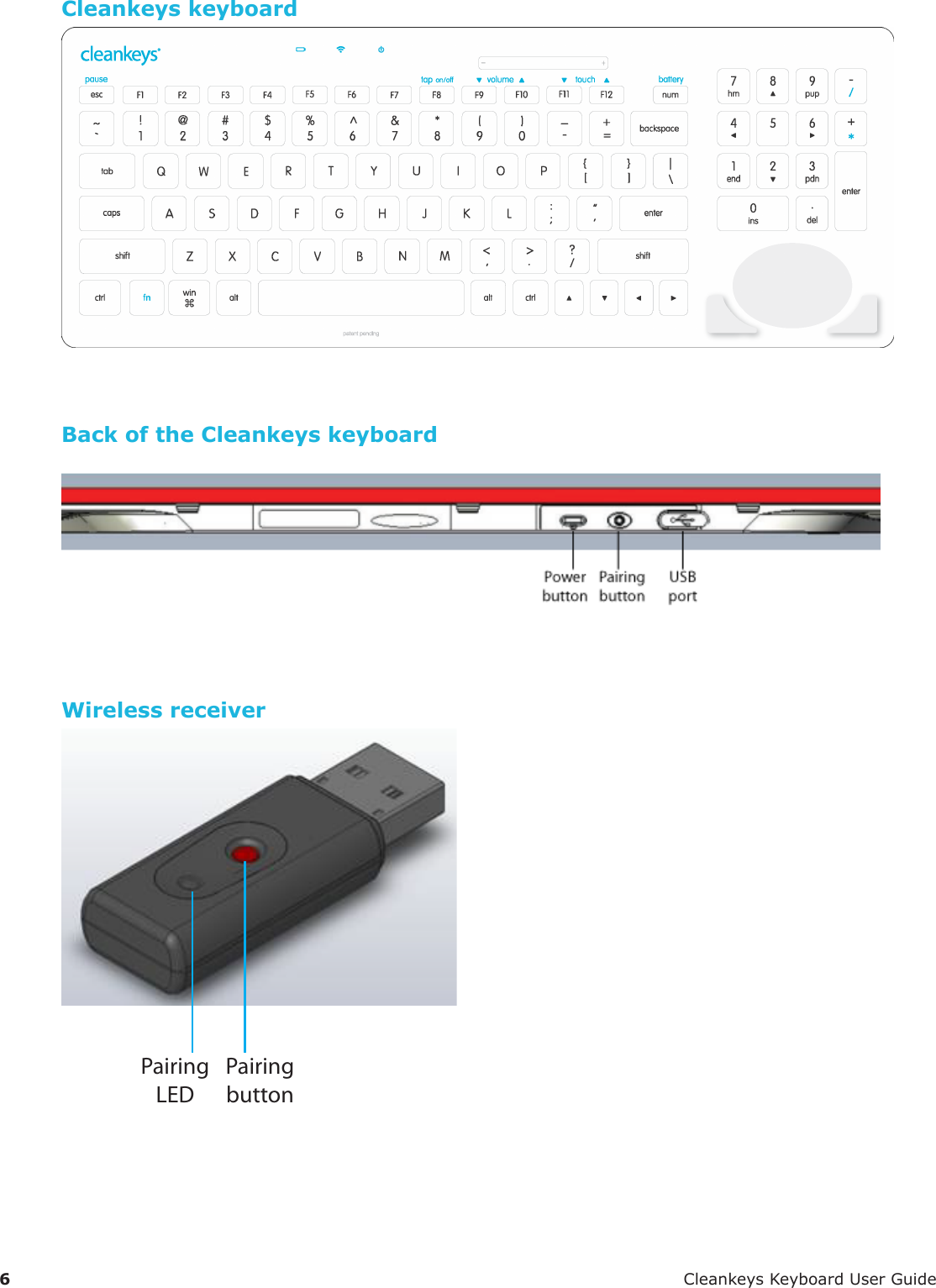
6 CleankeysKeyboardUserGuideCleankeys keyboardBack of the Cleankeys keyboardWireless receiverPairingbuttonPairingLED
CleankeysKeyboardUserGuide 7Connecting your Cleankeys keyboard to a computerYoucanconnectyourCleankeyskeyboardtoyourcomputerusingawirelessconnectionoraUSBcable.Connecting your Cleankeys keyboard using a wireless connectionToconnectyourCleankeyskeyboardusingthewirelessconnection,connectthewirelessreceivertoyourcomputerandthenlinkthewirelessreceiverwithyourCleankeyskeyboard.Connecting the wireless receiver1. Turnonyourcomputer.2. PlugthewirelessreceiverintoaUSBportonyourcomputer.3. Waitforyourcomputertorecognizethewirelessreceiver.Linking the wireless receiver to your Cleankeys keyboardNote:YourCleankeyskeyboardandwirelessreceiverhavebeenlinkedatthefactory,soyoudonothavetolinkthemwhenyourstinstallthekeyboard.1. PressthepowerbuttononyourCleankeyskeyboard.IfyourCleankeyskeyboarddoesnotturnon,thebuiltinbatterymayneedtobecharged.SeeChargingyourCleankeyskeyboardonpage10.2. PressthePairingbuttononthewirelessreceiver.TheLEDonthewirelessreceiverbeginstoash.3. PressthePairingbuttonontheCleankeyskeyboard.ThewirelessLEDontheCleankeyskeyboardashesatleastonce.WhenthewirelessreceiverandtheCleankeyskeyboardhavenishedpairing,theLEDsonthewirelessreceiverandthekeyboardstopashing.Note:YoumustpressthePairingbuttonontheCleankeyskeyboardwithin10secondsofpressingthePairingbuttononthewirelessreceiver.4. ToverifytheCleankeyskeyboardisworking,touchthecapskey.The caps LEDwilllightiftheCleankeyskeyboardisrecognizedbythecomputer.Connecting your Cleankeys keyboard using the USB cable1. Turnonyourcomputer.2. PlugthesmallerendoftheUSBcableintotheUSBportonyourCleankeyskeyboard.3. PlugthelargerendoftheUSBcableintoaUSBportonyourcomputer.4. PressthepowerbuttononyourCleankeyskeyboard.5. WaitforyourcomputertorecognizeyourCleankeyskeyboard.6. ToverifytheCleankeyskeyboardisworking,touchthecapskey.ThecapskeyLEDwilllightiftheCleankeyskeyboardisrecognizedbythecomputer.
8 CleankeysKeyboardUserGuideMountingYoucanchoosetoplaceyourCleankeyskeyboardonacountertoporyoucanmounttheCleankeyskeyboardtoawallorbracket.Therearethree#6-32mountinginsertsonthebottomofCleankeyskeyboard.TheseinsertsarecompatiblewiththeRAM-Mount101system.Usingthesemountinginserts,youcanmounttheCleankeysatanyangle,includingvertical.Using your Cleankeys keyboardYourCleankeyskeyboardhasseveralfeaturesthatarenotfoundonstandardkeyboards.Typing on your Cleankeys keyboardAlthoughthekeysontheCleankeyskeyboarddonotmove,youusethesametypingtechniqueontheCleankeysthatyouuseonastandardkeyboard.TheCleankeyskeyboardaccomplishesthisbycombiningtouchsensingandtapsensingtechnology.Withtouchandtapsensing,unlikejusttouchsensing,youmusttapthekeyswithyourngerstotypeacharacters.Thisnotonlyprovidesamorefamiliarfeel,italsoallowsyoutorestyoungersonthekeyboard.Touch sensingTheCleankeyskeyboardusestouchcapacitancetechnologytosensethetouchofahumannger.Thismeansthatyoumustuseyourngerstotouchthekeys.Touchingortappingthekeyboardwithanotherobject,apencilforexample,willnotactivateakey.However,youcanusetheCleankeyskeyboardwithsurgicalgloves,oranytypeofgloveforthatmatter.Justadjustthetouchsensitivityaccordingly.SeeChangingthetouchsensitivityofthekeysonpage11.Tap sensingWhentapsensingisturnedon,youmusttapthekeyyouwanttotype,notjusttouchthekey.Whentapsensingisturnedoff,theCleankeyskeyboardusesonlytouchsensingtosenseakeystroke.Iftapsensingisoff,donotrestyourngersonthekeyboard.IfyoudotheCleankeyswilltypeeachkeythatyoutouch.Tapsensingisdisabledatthefactory.Forinformationaboutturningtapsensingon,seeTurningtapsensingonoroffonpage12.Key indentationsThesurfaceoftheacrylicCleankeyskeyboardhasshallowindentationsovereachkey.Theseindentationshelpyoulocatethepositionofthekeyswithoutlookingatthekeyboard.ThesurfaceoftheglassCleankeyskeyboarddoesnothavetheseindentations.
CleankeysKeyboardUserGuide 9Low Battery ModeTheredBatteryLEDatthetopofthekeyboardbeginstoashwhenthebatterychargeislow.TheredLEDashesslowly(aboutoncepersecond)whenthereis20%ofthebatterypowerremaining.TheredLEDashesmorequickly(abouttwicepersecond)whenthereis10%ofthebatterypowerremaining.ThisfeatureisonlyavailablewhenyouareusingawirelessconnectionfortheCleankeyskeyboard.Pausing your Cleankeys keyboardBeforeyoucleanordisinfectyourCleankeyskeyboard,youshouldpausethekeyboard.Whenthekeyboardispaused,itdoesnotsendcharacterswhenthekeysaretouchedortapped.Thisallowsyoutocleanthekeyboardsurfacewithoutinadvertentlypressingkeys.TopausetheCleankeyskeyboard,touch fn andthen esc .ThepauseLEDasheswhenthekeyboardispaused.Whenyouarenishedcleaningthekeyboard,touch fn andthen esc .ThepauseLEDturnsoff.CleaningTheCleankeyskeyboardismadefromABSplasticandacrylic,orCorian®andglass.Youcancleanitwithanythingsuitableforthosesurfaces.Fortheglassoracrylic,useastandardglasscleaner(suchasWindex®).Forthebase,useanystandardcounter-topcleaners(suchasVim®).Do not use abrasive cleaners on the keyboard.TheCleankeyskeyboardissplash-proof,butshouldnotbeimmersedinwater.Beforecleaningthekeyboard,touch fn andthen esc topausekeyboardoperation.ThepauseLEDasheswhenthekeyboardispaused.Afteryouhavenishedcleaningkeyboard,touch fn andthenesctoreturnthekeyboardtonormaloperation.ThepauseLEDturnsoff.DisinfectingYoucandisinfecttheCleankeyskeyboardwithanystandarddisinfectantsolution,includingCaviCide®,Opti-Cide3®,andSciCanOptim®.Besuretotouch fn andthenesctopausethekeyboardoperationbeforedisinfectingtheCleankeyskeyboard.Whenyouarenished,touch fn andthen esc toreturnthekeyboardtonormaloperation.
10 CleankeysKeyboardUserGuideInfection controlCleankeysisauniquecomputerkeyboardforuseinanyenvironmentwherethereisahighriskofcontamination.Unlikehygienickeyboardcompetitors,Cleankeysincorporatesasmooth,at,non-poroussurfacethatiseasytoclean.Itcanbewipedcleaninseconds,substantiallyincreasinginfectioncontrolandreducingstafftimespentcleaningthekeyboard.Althoughthekeyindentationsareeasytondwithyourngers,theyareshallowenoughthattheydonotcreatecleaningshadowsonthesurface.TheintegratedtrackpadontheCleankeyskeyboardalsoprovidessignicantadvantagesoveraseparatekeyboardandmouse.Notonlyisthereonlyonedevicetocleananddisinfect,thetrackpadiseasiertocleanthanamouse.Asingledevicealsoreducestheriskofcrosscontamination.Checking the battery levelTochecktheamountofchargethatisleftintheCleankeyskeyboardbattery,touch fn andthennum.TheindicatorLEDs,intheboxlabelledwith-and+,lighttoindicatethecurrentbatterylevel.ThenumberofLEDsthatlightindicatestheamountofchargeinthebattery.Ifall5LEDsturnon,thebatteryisfullycharged.IfonlyLED1turnson,youneedtorechargethebatterysoon.Charging your Cleankeys keyboardYourCleankeyskeyboardhasabuiltinrechargeablebattery.ThisbatteryprovidespowertoyourCleankeyskeyboardwhenyouareusingawirelessconnection.WhenyouareusingaUSBcabletoconnectyourCleankeyskeyboard,theUSBportonyourcomputerprovidesthepowerforyourCleankeyskeyboard.TheUSBportalsochargestheCleankeyskeyboardbattery.IftheUSBportischargingthebattery,theredbatteryLEDislit.Whenthebatteryisfullycharged,thegreenbatteryLEDislit.TochargeyourCleankeyskeyboardbatteryusingthecharger:1. Plugthechargerintoawalloutlet.2. PlugthewideendoftheUSBcableintothecharger.3. PlugthesmallendoftheUSBcableintotheUSBportonthekeyboard.Whenthebatteryischarging,theredbatteryLEDislit.Whenthebatteryisfullycharged,thegreenbatteryLEDislit.
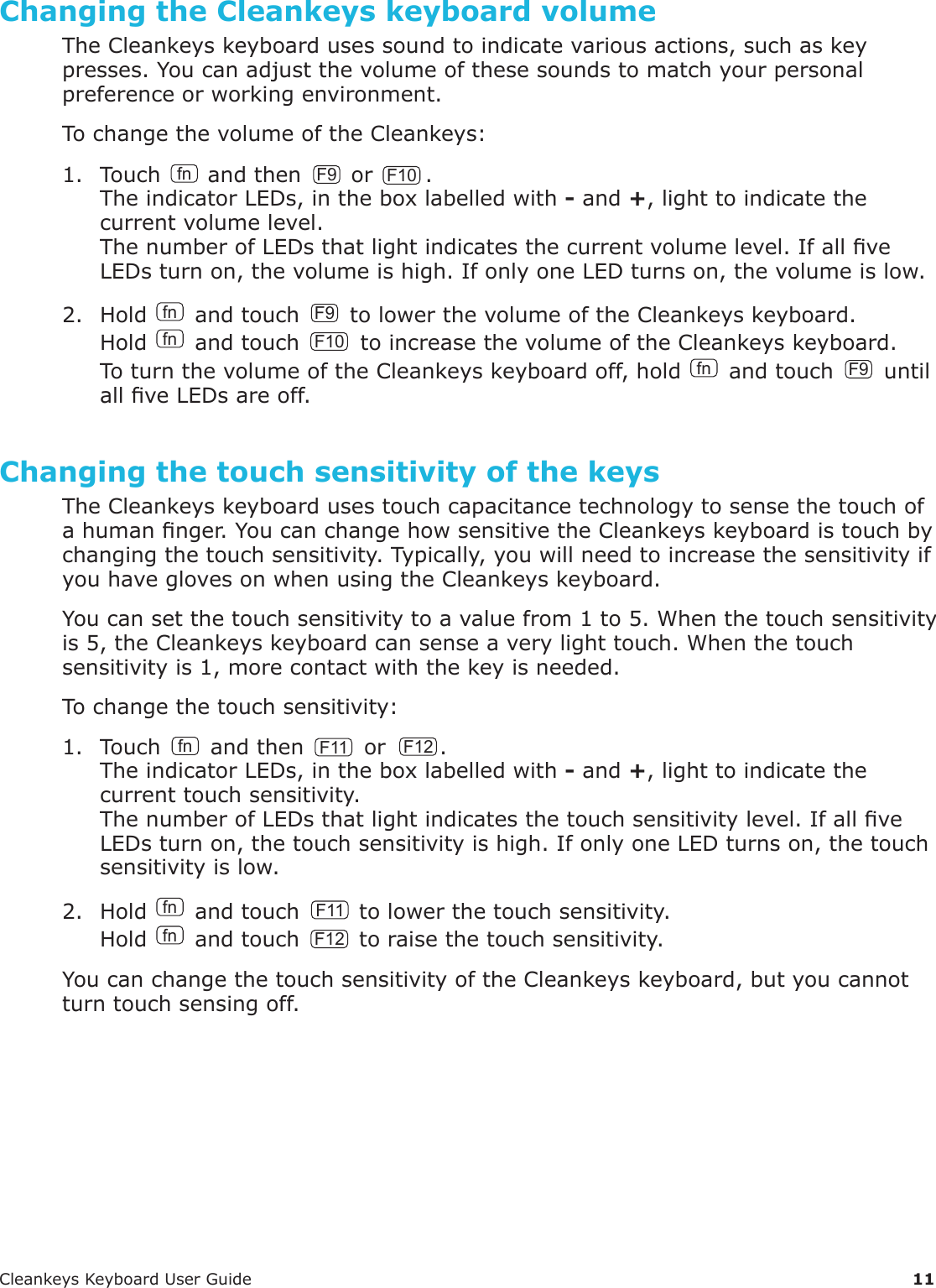
CleankeysKeyboardUserGuide 11Changing the Cleankeys keyboard volumeTheCleankeyskeyboardusessoundtoindicatevariousactions,suchaskeypresses.Youcanadjustthevolumeofthesesoundstomatchyourpersonalpreferenceorworkingenvironment.TochangethevolumeoftheCleankeys:1. Touch fn andthen F9 orF10.TheindicatorLEDs,intheboxlabelledwith-and+,lighttoindicatethecurrentvolumelevel.ThenumberofLEDsthatlightindicatesthecurrentvolumelevel.IfallveLEDsturnon,thevolumeishigh.IfonlyoneLEDturnson,thevolumeislow.2. Holdfnandtouch F9 tolowerthevolumeoftheCleankeyskeyboard.Hold fn andtouch F10 toincreasethevolumeoftheCleankeyskeyboard.ToturnthevolumeoftheCleankeyskeyboardoff,holdfnandtouch F9 untilallveLEDsareoff.Changing the touch sensitivity of the keysTheCleankeyskeyboardusestouchcapacitancetechnologytosensethetouchofahumannger.YoucanchangehowsensitivetheCleankeyskeyboardistouchbychangingthetouchsensitivity.Typically,youwillneedtoincreasethesensitivityifyouhaveglovesonwhenusingtheCleankeyskeyboard.Youcansetthetouchsensitivitytoavaluefrom1to5.Whenthetouchsensitivityis5,theCleankeyskeyboardcansenseaverylighttouch.Whenthetouchsensitivityis1,morecontactwiththekeyisneeded.Tochangethetouchsensitivity:1. Touch fn andthen F11 orF12.TheindicatorLEDs,intheboxlabelledwith-and+,lighttoindicatethecurrenttouchsensitivity.ThenumberofLEDsthatlightindicatesthetouchsensitivitylevel.IfallveLEDsturnon,thetouchsensitivityishigh.IfonlyoneLEDturnson,thetouchsensitivityislow.2. Hold fn andtouch F11 tolowerthetouchsensitivity.Hold fn andtouch F12 toraisethetouchsensitivity.YoucanchangethetouchsensitivityoftheCleankeyskeyboard,butyoucannotturntouchsensingoff.
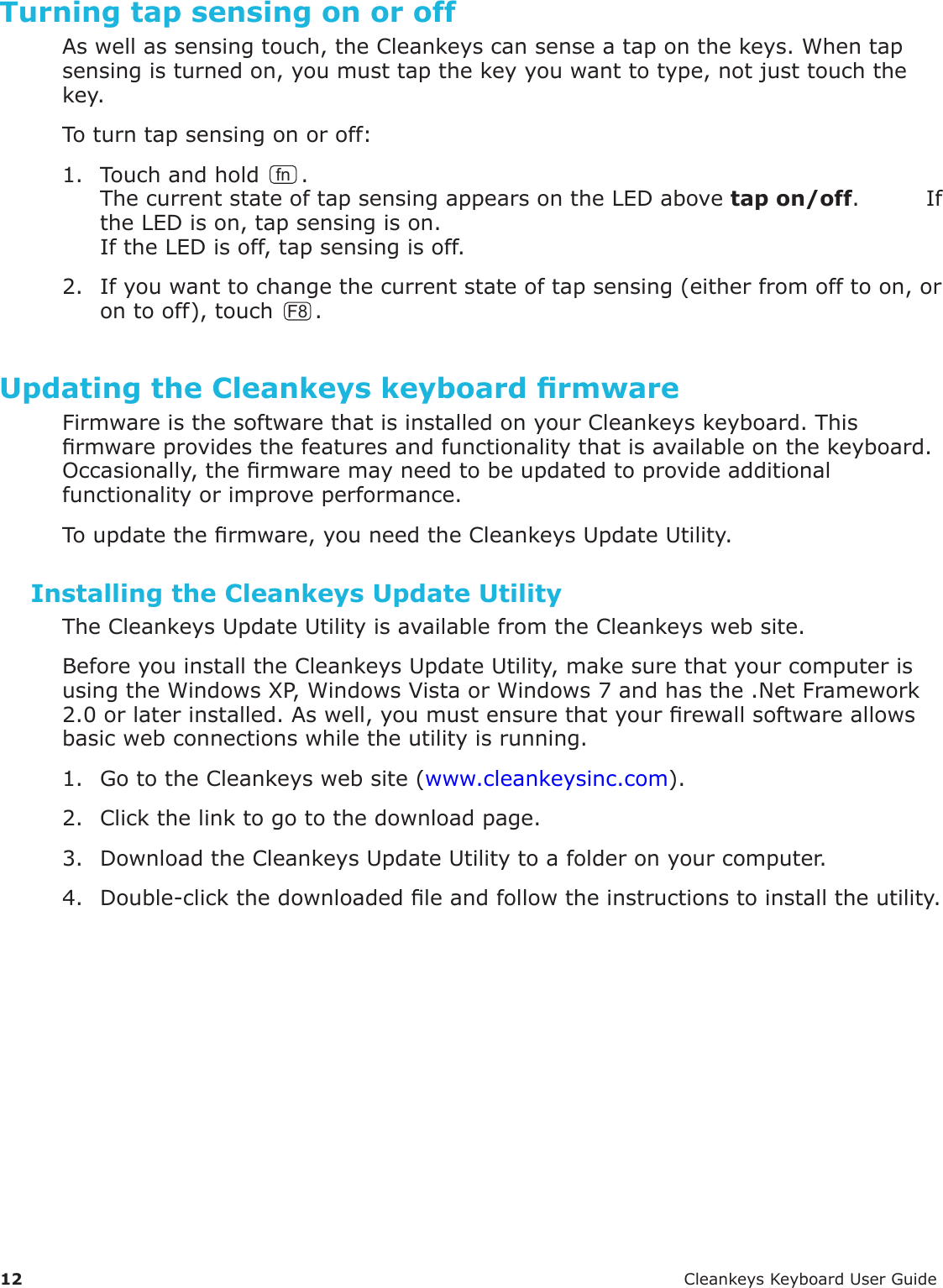
12 CleankeysKeyboardUserGuideTurning tap sensing on or offAswellassensingtouch,theCleankeyscansenseataponthekeys.Whentapsensingisturnedon,youmusttapthekeyyouwanttotype,notjusttouchthekey.Toturntapsensingonoroff:1. Touchandholdfn.ThecurrentstateoftapsensingappearsontheLEDabovetap on/off.IftheLEDison,tapsensingison.IftheLEDisoff,tapsensingisoff.2. Ifyouwanttochangethecurrentstateoftapsensing(eitherfromofftoon,orontooff),touch F8 .Updating the Cleankeys keyboard rmwareFirmwareisthesoftwarethatisinstalledonyourCleankeyskeyboard.Thisrmwareprovidesthefeaturesandfunctionalitythatisavailableonthekeyboard.Occasionally,thermwaremayneedtobeupdatedtoprovideadditionalfunctionalityorimproveperformance.Toupdatethermware,youneedtheCleankeysUpdateUtility.Installing the Cleankeys Update UtilityTheCleankeysUpdateUtilityisavailablefromtheCleankeyswebsite.BeforeyouinstalltheCleankeysUpdateUtility,makesurethatyourcomputerisusingtheWindowsXP,WindowsVistaorWindows7andhasthe.NetFramework2.0orlaterinstalled.Aswell,youmustensurethatyourrewallsoftwareallowsbasicwebconnectionswhiletheutilityisrunning.1. GototheCleankeyswebsite(www.cleankeysinc.com).2. Clickthelinktogotothedownloadpage.3. DownloadtheCleankeysUpdateUtilitytoafolderonyourcomputer.4. Double-clickthedownloadedleandfollowtheinstructionstoinstalltheutility.
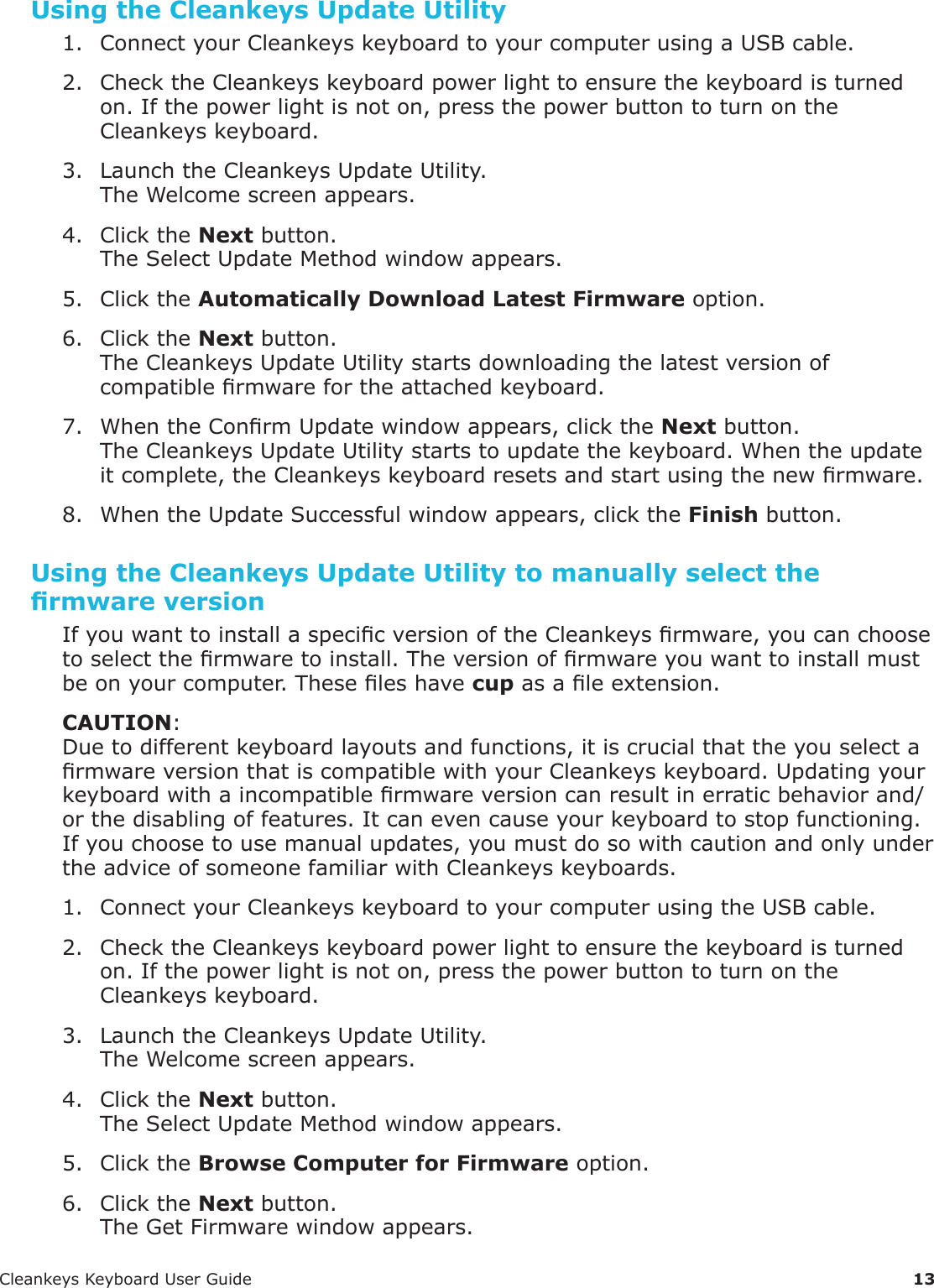
CleankeysKeyboardUserGuide 13Using the Cleankeys Update Utility1. ConnectyourCleankeyskeyboardtoyourcomputerusingaUSBcable.2. ChecktheCleankeyskeyboardpowerlighttoensurethekeyboardisturnedon.Ifthepowerlightisnoton,pressthepowerbuttontoturnontheCleankeyskeyboard.3. LaunchtheCleankeysUpdateUtility.TheWelcomescreenappears.4. ClicktheNextbutton.TheSelectUpdateMethodwindowappears.5. ClicktheAutomatically Download Latest Firmwareoption.6. ClicktheNextbutton.TheCleankeysUpdateUtilitystartsdownloadingthelatestversionofcompatiblermwarefortheattachedkeyboard.7. WhentheConrmUpdatewindowappears,clicktheNextbutton.TheCleankeysUpdateUtilitystartstoupdatethekeyboard.Whentheupdateitcomplete,theCleankeyskeyboardresetsandstartusingthenewrmware.8. WhentheUpdateSuccessfulwindowappears,clicktheFinishbutton.Using the Cleankeys Update Utility to manually select the rmware versionIfyouwanttoinstallaspecicversionoftheCleankeysrmware,youcanchoosetoselectthermwaretoinstall.Theversionofrmwareyouwanttoinstallmustbeonyourcomputer.Theseleshavecupasaleextension.CAUTION:Duetodifferentkeyboardlayoutsandfunctions,itiscrucialthattheyouselectarmwareversionthatiscompatiblewithyourCleankeyskeyboard.Updatingyourkeyboardwithaincompatiblermwareversioncanresultinerraticbehaviorand/orthedisablingoffeatures.Itcanevencauseyourkeyboardtostopfunctioning.Ifyouchoosetousemanualupdates,youmustdosowithcautionandonlyundertheadviceofsomeonefamiliarwithCleankeyskeyboards.1. ConnectyourCleankeyskeyboardtoyourcomputerusingtheUSBcable.2. ChecktheCleankeyskeyboardpowerlighttoensurethekeyboardisturnedon.Ifthepowerlightisnoton,pressthepowerbuttontoturnontheCleankeyskeyboard.3. LaunchtheCleankeysUpdateUtility.TheWelcomescreenappears.4. ClicktheNextbutton.TheSelectUpdateMethodwindowappears.5. ClicktheBrowse Computer for Firmwareoption.6. ClicktheNextbutton.TheGetFirmwarewindowappears.
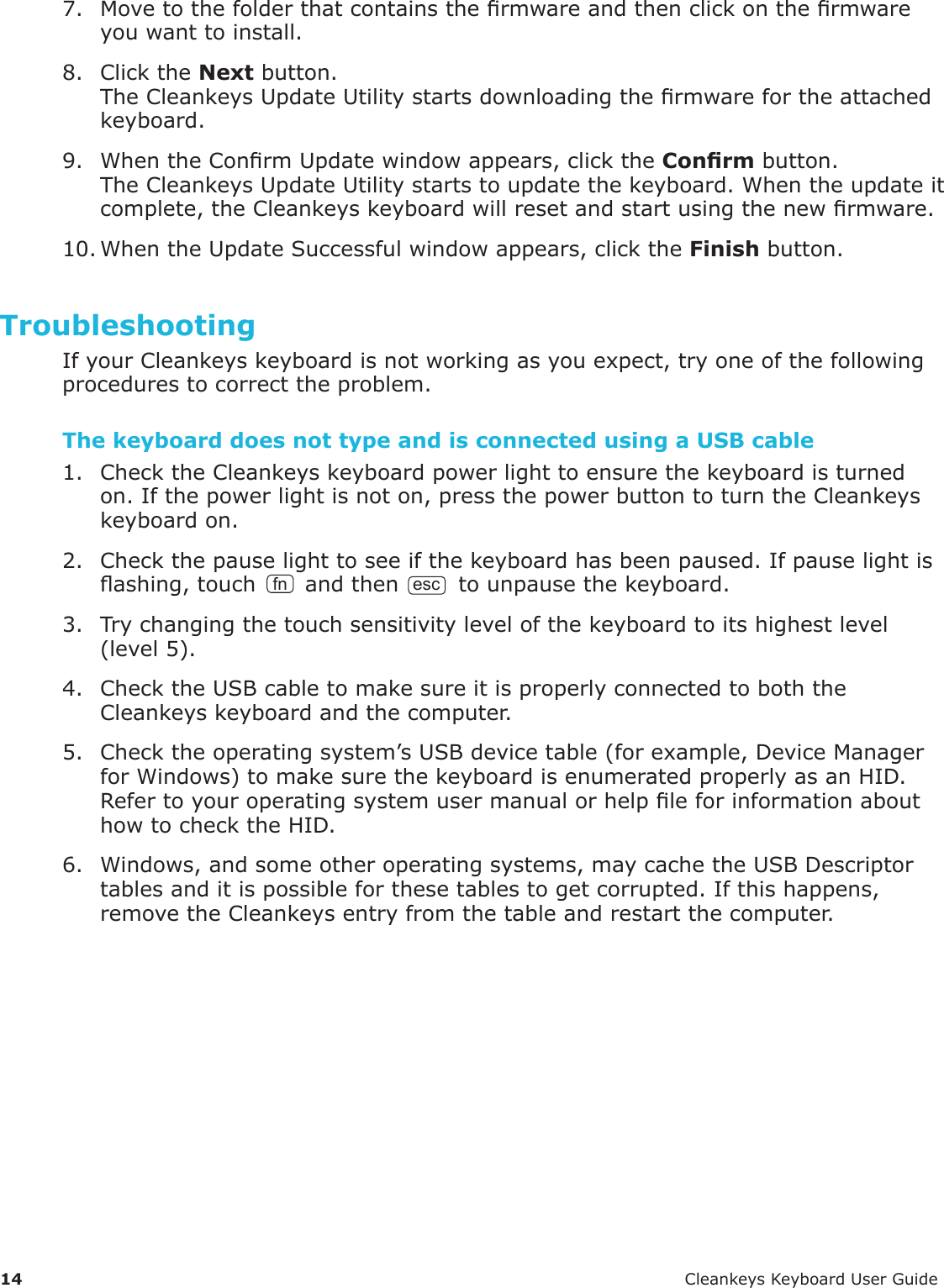
14 CleankeysKeyboardUserGuide7. Movetothefolderthatcontainsthermwareandthenclickonthermwareyouwanttoinstall.8. ClicktheNextbutton.TheCleankeysUpdateUtilitystartsdownloadingthermwarefortheattachedkeyboard.9. WhentheConrmUpdatewindowappears,clicktheConrmbutton.TheCleankeysUpdateUtilitystartstoupdatethekeyboard.Whentheupdateitcomplete,theCleankeyskeyboardwillresetandstartusingthenewrmware.10.WhentheUpdateSuccessfulwindowappears,clicktheFinishbutton.TroubleshootingIfyourCleankeyskeyboardisnotworkingasyouexpect,tryoneofthefollowingprocedurestocorrecttheproblem.The keyboard does not type and is connected using a USB cable 1. ChecktheCleankeyskeyboardpowerlighttoensurethekeyboardisturnedon.Ifthepowerlightisnoton,pressthepowerbuttontoturntheCleankeyskeyboardon.2. Checkthepauselighttoseeifthekeyboardhasbeenpaused.Ifpauselightisashing,touch fn andthenesctounpausethekeyboard.3. Trychangingthetouchsensitivitylevelofthekeyboardtoitshighestlevel(level5).4. ChecktheUSBcabletomakesureitisproperlyconnectedtoboththeCleankeyskeyboardandthecomputer.5. Checktheoperatingsystem’sUSBdevicetable(forexample,DeviceManagerforWindows)tomakesurethekeyboardisenumeratedproperlyasanHID.RefertoyouroperatingsystemusermanualorhelpleforinformationabouthowtochecktheHID.6. Windows,andsomeotheroperatingsystems,maycachetheUSBDescriptortablesanditispossibleforthesetablestogetcorrupted.Ifthishappens,removetheCleankeysentryfromthetableandrestartthecomputer.
CleankeysKeyboardUserGuide 15The keyboard does not type and is using a wireless connection1. ChecktheCleankeyskeyboardpowerlighttoensurethekeyboardisturnedon.Ifthepowerlightisnoton,pressthepowerbuttontoturntheCleankeyskeyboardon.2. CheckthewirelessLEDonthekeyboard.ThewirelessLEDasheswhenthereisaproblemwiththewirelesscommunication.3. CheckthatthewirelessreceiverispluggedintothecomputerandenumeratedproperlyasanHIDdevice.RefertoyouroperatingsystemusermanualorhelpleforinformationabouthowtochecktheHID.4. Checkthepauselighttoseeifthekeyboardhasbeenpaused.Ifpauselightisashing,touchfnandthenesctounpausethekeyboard.5. Trychangingthetouchsensitivitylevelofthekeyboardtoitshighestlevel(level5).6. Trytolinkthekeyboardandthewirelessreceiver.SeeLinkingthewirelessreceivertoyourCleankeyskeyboardonpage7.7. Windows,andsomeotheroperatingsystems,maycachetheUSBDescriptortablesanditispossibleforthesetablestogetcorrupted.Ifthishappens,removetheCleankeysentryfromthetableandrestartthecomputer.The wireless receiver does not ash during pairing1. Youshouldfeelaclick,whenthePairingbuttonispressed.Ifyoudonotfeeltheclick,tryusingapapercliporpintopressthebutton.2. RemovethewirelessreceiverfromtheUSBportandplugitbackin.Verifyifthewirelessreceiverhasbeenenumerated.3. RemovethewirelessreceiverfromtheUSBportandplugitintoadifferentUSBport.Verifyifthewirelessreceiverhasbeenenumerated.4. UnplugthewirelessreceiverfromtheUSBport.RemovetheexistingHIDentryfromtheHIDtablecache(forexample,theWindowsDeviceManager).Restartthecomputer.PlugthewirelessreceiverintoaUSBport.The keyboard does not ash during pairing1. VerifythatthekeyboardisnotconnectedtothecomputerusingaUSBcable.ConnectingaUSBcablebetweenthekeyboardandcomputerdisablesthewirelessconnection.Thekeyboardcanbepairedwiththewirelessreceiverwhenthechargerisconnectedtothekeyboard.2. ChecktheCleankeyskeyboardpowerlighttoensurethekeyboardisturnedon.Ifthepowerlightisnoton,pressthepowerbuttontoturntheCleankeyskeyboardon.3. Verifythatthekeyboardhasenoughbatterypower.SeeCheckingthebatterylevelonpage10.
16 CleankeysKeyboardUserGuideThe keyboard does not pair with the wireless receiver1. CheckthatthewirelessreceiverispluggedinaUSBportonthecomputer.2. ChecktheCleankeyskeyboardpowerlighttoensurethekeyboardisturnedon.Ifthepowerlightisnoton,pressthepowerbuttontoturntheCleankeyskeyboardon.3. MakesureyoupressthePairingbuttononthekeyboardwithin10secondsofpressingthePairingbuttononthewirelessreceiver.The keyboard does not charge when connected using a USB cable1. Checktomakesurethatthecomputeristurnedonandisnotinstandbyorsleepmode.ThesemodesdonotprovideenoughpowerthroughtheUSBcabletochargetheCleankeyskeyboardbattery.2. CheckthattheUSBcableisproperlyconnectedtoboththeCleankeyskeyboardandthecomputer.The keyboard does not charge when connected to the charger1. MakesureyouuseonlythechargerthatcamewithyourCleankeyskeyboard.ThebatterylightwillashifthechargerisnotthedesignatedCleankeyskeyboardcharger.2. CheckthatchargerispluggedintothewallandtheUSBcableisproperlyconnectedtothekeyboardandthecharger.3. IftheLEDonthechargerashes,itindicatesanerror.The keyboard does not make any sound1. Touch fn andthenF9tocheckthevolumesettingoftheCleankeyskeyboard.2. TouchfnandthennumtocheckthatthebatterylevelontheCleankeyskeyboard.Chargethebatteryifthebatterylevelislow.The keyboard does not turn onThebatterylevelmaytoolowtopowerthekeyboard.Chargethebattery.SeeChargingyourCleankeyskeyboardonpage10.Ifyouwouldliketocontinueworkingwhilethebatteryischarging,connectthechargertotheCleankeyskeyboardandpressthepowerbuttontwice.
CleankeysKeyboardUserGuide 17The caps or num light does not turn onPressingthecapsornumkeychangestheCapsLockorNumlockmodeintheoperatingsystem.Thelightsonthecapsandnumkeysareturnedonorofftoreectthemodeintheoperatingsystem.1. ChecktheCleankeyskeyboardpowerlighttoensurethekeyboardisturnedon.Ifthepowerlightisnoton,pressthepowerbuttontoturntheCleankeyskeyboardon.2. CheckthattheCleankeyskeyboardisconnectedtothecomputerusingeithertheUSBcableorthewirelessreceiver.3. Checkthattheoperatingsystemisnotstalledorfrozen.The numeric pad does not type numbers but moves the cursorChecktoseeifthekeyboardisinNumlockmode.The keyboard types but the trackpad does not move the cursorCheckthatthetrackpadHIDisnotdisabledintheDeviceManager.The Cleankeys Update Utility cannot nd the Cleankeys keyboardWhenyoustarttheCleankeysUpdateUtilityitsearchesforaspecicUSBdevicethathasbeenenumeratedwithapredenedVendorIDandProductID.1. VerifythattheCleankeyskeyboardispluggedintothecomputerwithaUSBcable.2. Trytogetthesystemtore-enumeratethekeyboardbyunpluggingtheUSBcableandpluggingitbackintothekeyboard.3. ChecktheCleankeyskeyboardpowerlighttoensurethekeyboardisturnedon.Ifthepowerlightisnoton,pressthepowerbuttontoturntheCleankeyskeyboardon.The rmware is incompatibleTheCleankeysUpdateUtilityisdesignedtocheckforcompatibilitybetweenthermwareselectedandthedevice.Itwillpreventanyrmwareupdatesthatarenotcompatiblewiththedevicethatispluggedin.After updating the rmware, the keyboard is behaving strangelyChecktomakesurethatthermwareupdateiscompatiblewiththekeyboard.Itispossibletoforceaspecicrmwareupdatebydownloadingarmwareupdateandthenselectingtheoptiontomanuallyuploadthatrmwaretothekeyboard.Firmware updates fail repeatedly on the keyboardTheupdateutilityusessomebasicreadandwriteoperationstouploadthermwaretothekeyboard.Iftheupdatefailsinthemiddleofthisprocessrepeatedly,thisindicatesthatthereissomethingwrongwiththedevicehardwareitself.PleaseconsultTechnicalSupport.
18 CleankeysKeyboardUserGuide Documentversion01

Navigation menu